
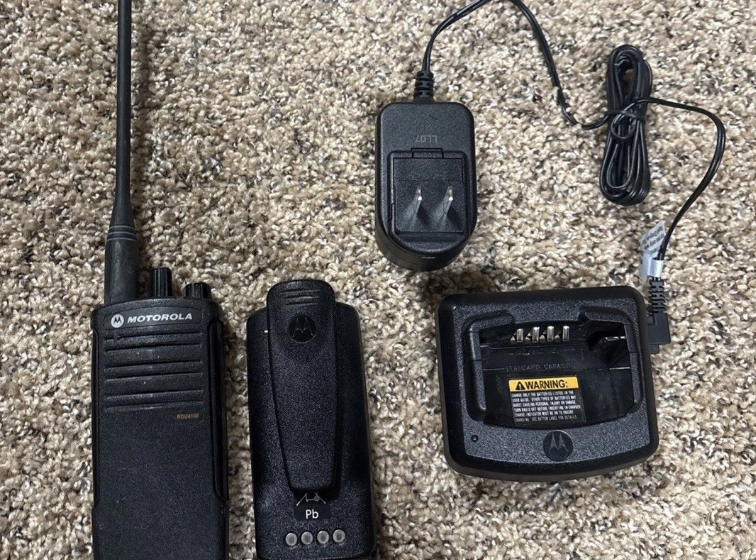

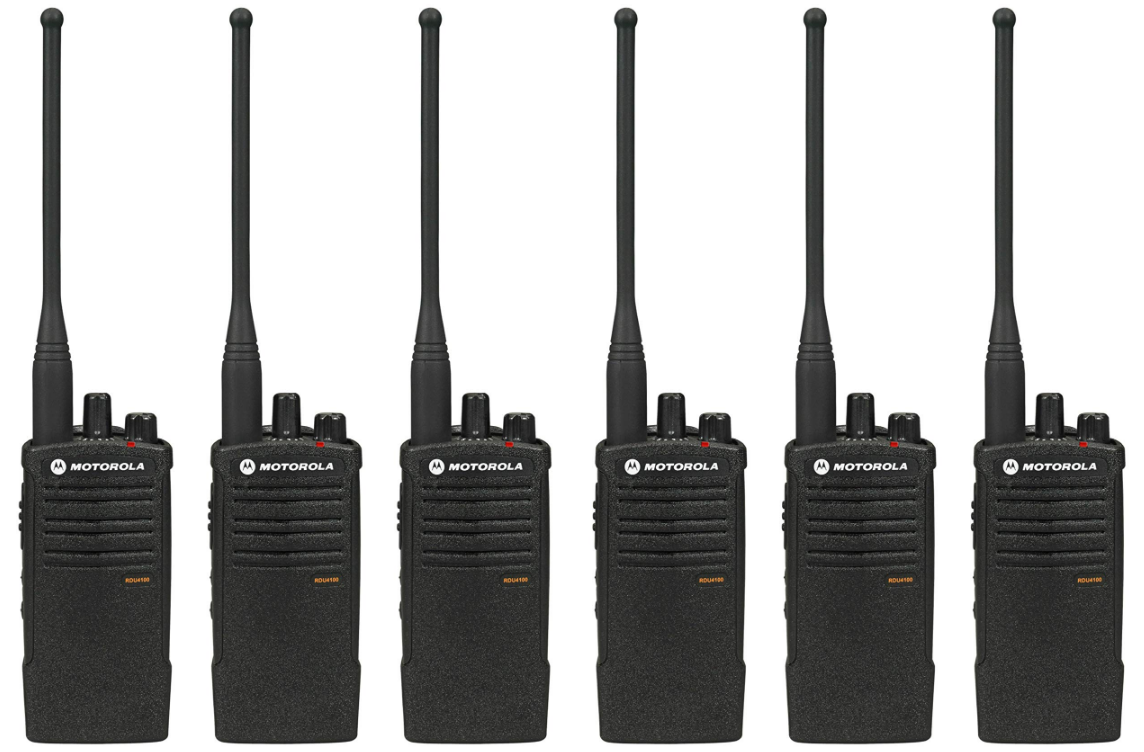
Motorola RDU4100 Two Way Radio Walkie Talkie
INTRODUCTION
Thank you for purchasing the Motorola® RDX Series™ Radio. This radio is a product of Motorola’s 75-plus years of experience as a world leader in the designing and manufacturing of communications equipment. The RDX Series™ radios provide cost-effective communications for businesses such as retail stores, restaurants, schools, construction sites, manufacturing, property and hotel management, and more. Motorola Business two-way radios are the perfect communications solution for all of today’s fast-paced industries. Note: Read this user guide carefully to ensure you know how to properly operate the radio before use. Business Radios, RPSD 1C15, Motorola 8000 West Sunrise Boulevard Plantation, Florida 33322.
PACKAGE CONTENTS
- Radio
- Antenna (only for RDU4100 and RDV5100)
- Spring Action Belt-Clip
- Lithium-Ion Battery
- Power Supply
- User Guide
- Warranty Card
- Drop-in Tray Charger
- Product Safety & RF Exposure Booklet
For a copy of a large-print version of this user guide or for product-related questions, contact: 1-800-448-6686 in the USA, 1-800-461-4575 in Canada, 1-866-522-5210 on your TTY (Text Telephone). For product information, visit us at: www.motorolasolutions.com/RDX.
RADIO OVERVIEW
PARTS OF THE RADIO
On/Off/Volume Knob
Used to turn the radio ON or OFF and to adjust the radio’s volume.
Channel Selector Knob
Used to switch the radio to different channels.
Accessory Connector
Used to connect compatible audio accessories.
Model Label
Indicates the model of the radio.
Microphone
Speaks clearly into the microphone when sending a message.
Antenna
For models RDU2020 and RDV2020, the antennas are non-removable. For RDV5100 and RDU4100, antennas are removable.
LED Indicator
Used to give battery status, power-up status, radio call information, and scan status.
Side Buttons
Push-to-Talk (PTT) Button
- Press and hold down this button to talk, release it to listen.
Side Button 1 (SB1)
- The Side Button 1 is a general button that can be configured by the Computer Programming Software (CPS). The default setting of SB1 is ‘Monitor’.
Side Button 2 (SB2)
- The Side Button 2 is a general button that can be configured by the CPS. The SB2 default setting is ‘Scan/Nuisance Channel Delete’.
The Lithium-Ion (Li-Ion) Battery
RDX Series™ provides different types of batteries. For more information, see “Battery Features” on page 14. This User Guide covers multiple RDX Series™ models and may detail some features your radio does not have.
The radio’s model is shown on the front of the radio, underneath the speaker, and provides you with the following information:
BATTERY FEATURES
RDX Series™ radios provide Lithium-Ion batteries that come in different capacities that will define the battery life. It also offers the option to use Alkaline batteries.
About the Li-Ion Battery
The RDX Series™ radio comes equipped with a rechargeable Li-Ion battery. This battery should be charged before initial use to ensure optimum capacity and performance. Battery life is determined by several factors. Among the more critical are the regular overcharge of batteries and the average depth of discharge with each cycle. Typically, the greater the overcharge and the deeper the average discharge, the fewer cycles a battery will last. For example, a battery that is overcharged and discharged 100% several times a day lasts fewer cycles than a battery that receives less of an overcharge and is discharged to 50% per day. Further, a battery that receives minimal overcharging and averages only 25% discharge lasts even longer.
Motorola batteries are designed specifically to be used with a Motorola charger and vice versa. Charging in non-Motorola equipment may lead to battery damage and void the battery warranty. The battery should be at about 77°F (25°C) (room temperature) whenever possible. Charging a cold battery (below 50°F [10°C]) may result in leakage of electrolyte and ultimately in failure of the battery. Charging a hot battery (above 95°F [35°C]) results in reduced discharge capacity, affecting the performance of the radio. Motorola rapid-rate battery chargers contain a temperature-sensing circuit to ensure that batteries are charged within the temperature limits stated above.
Battery Recycling and Disposal
Li-Ion rechargeable batteries can be recycled. However, recycling facilities may not be available in all areas. Under various U.S. state laws and the laws of several other countries, batteries must be recycled and cannot be disposed of in landfills or incinerators. Contact your local waste management agency for specific requirements and information in your area. Motorola fully endorses and encourages the recycling of Li-Ion batteries. In the U.S. and Canada, Motorola participates in the nationwide Rechargeable Battery Recycling Corporation (RBRC) program for Li-Ion battery collection and recycling.
Many retailers and dealers participate in this program. For the location of the drop-off facility closest to you, access RBRC’s Internet website at: www.rbrc.com, Or call: 1-800-8-BATTERY. This website and telephone number also provide other useful information concerning recycling options for consumers, businesses, and governmental agencies.
Installing the Lithium-Ion (Li-Ion) Battery
- Turn OFF the radio.
- With the Motorola logo side up on the battery pack, fit the tabs at the bottom of the battery into the slots at the bottom of the radio’s body.
- Press the top part of the battery towards the radio until a click is heard. Note: To learn about the Li-Ion Battery Life features, refer to “About the Li-Ion Battery” on page 14.


Removing the Lithium-Ion (Li-Ion) Battery
- Turn OFF the radio.
- Push down the battery latch and hold it depressed while removing the battery.
- Pull the battery away from the radio.


GETTING STARTED
For the following explanations, refer to “Parts of the Radio” on page 11.
TURNING THE RADIO ON/OFF
To turn ON the radio, rotate the On/Off/Volume Knob clockwise. The radio will chirp, and the LED Indicator will briefly blink red. To turn the radio OFF, rotate the On/Off/Volume Knob counterclockwise until you hear a ‘click,’ and the radio LED Indicator turns OFF.
ADJUSTING VOLUME
Turn the On/Off/Volume Knob clockwise to increase the volume, or counterclockwise to decrease the volume. Note: Do not hold the radio too close to the ear when the volume is high or when adjusting the volume.
SELECTING A CHANNEL
To select a channel, rotate the Channel Selector Knob and select the desired channel number. Program each channel separately. Each channel has its own frequency, interference eliminator code, and scan settings.
TALKING AND MONITORING
It is important to monitor for traffic before transmitting to avoid ‘talking over’ someone who is already transmitting. To monitor, long-press and hold the SB1 (*) button to access channel traffic. If no activity is present, you will hear ‘static’. To release, press SB1 again. Once channel traffic has cleared, proceed with your call by pressing the PTT button. When transmitting, the LED Indicator will blink red every 3 seconds.
Notes:
- To listen to all activity on a current channel, short-press the SB1 to set the CTCSS/DPL code to 0. This feature is called ‘CTCSS/DPL Defeat (Squelch set to SILENT)’.
- (*) This assumes SB1 is not being programmed for a different mode.
RECEIVING A CALL
- Select a channel by rotating the Channel Selector Knob until you reach the desired channel.
- Make sure the PTT button is released and listen for voice activity.
- The LED Indicator blinks red while the radio is receiving a call.
- To respond, hold the radio vertically 1 to 2 inches (2.5 to 5 cm) from the mouth. Press the PTT button to talk; release it to listen.
TALK RANGE
To establish a proper two-way communication, the channel, frequency, and interference eliminator codes must be the same on both radios. This depends on the stored profile that has been preprogrammed on the radio:
- Channel: Current channel that the radio is using, depending on the radio model.
- Frequency: The frequency the radio uses to transmit and receive.
- Interference Eliminator Code: These codes help minimize interference by providing a choice of code combinations.
- Scramble Code: Codes that make the transmissions sound garbled to anyone listening who is not set to that specific code.
For details on how to set up frequencies and CTCSS/DPL codes in the channels, refer to “Programming Selection Mode” on page 36.
HANDS-FREE USE/VOX
Motorola RDX Series™ radios can operate hands-free (VOX) when used with compatible VOX accessories.
With Compatible VOX Accessories
The default factory setting for VOX sensitivity level is OFF (level ‘0’). Before using VOX, set the VOX level to a level different from ‘0’ via the CPS. Then, perform the following steps:
- Turn the radio OFF.
- Open the accessory cover.
- Insert the audio accessory’s plug firmly into the accessory port.
- Turn the radio ON. The LED Indicator will blink double red.
- Lower radio volume BEFORE placing the accessory near the ear.
- To transmit, speak into the accessory microphone, and to receive, stop talking.
- VOX can be temporarily disabled by pressing the PTT button or by removing the audio accessory.
Note: To order accessories, refer to www.motorolasolutions.com, call 1 (800) 448-6686, or contact your Motorola point of purchase.
Setting VOX Sensitivity
The sensitivity of the radio’s accessory or microphone can be adjusted to suit different operating environments. VOX sensitivity can be programmed via the CPS. Default value is OFF (level 0). If you want to use the VOX feature, the VOX level should be set to a level different from 0.
- 1 = Low sensitivity
- 2 = Medium sensitivity
- 3 = High sensitivity
Microphone Gain
The sensitivity of the microphone can be adjusted to fit different users or operating environments. This feature can be adjusted only through the CPS. The microphone default setting is set to level 2 (medium gain).
Battery Save
Battery Save feature extends battery life as your radio goes into ‘Idle’ state. To enable or disable, press the SB1 and SB2 buttons simultaneously for 2 or 3 seconds while powering up the radio until you hear a quick series of beeps. To have a slightly better attack time, set the Battery Save feature to OFF so that the radio is always ready to transmit or receive without any delays. Note: Battery Save feature is set to ON by default.
Reset to Factory Defaults
Reset to Factory Defaults will set all radio features to the original factory default settings. To do so, press PTT, SB2, and SB1 simultaneously while turning ON the radio until you hear a high tone chirp.
End of Transmission Tone (Roger Beep Tone)
To enable or disable End of Transmission Tone, short-press the SB1 button while turning ON the radio. Note: This setting is set to OFF by default.
PROGRAMMING FEATURES
To easily program all the features in your radio, it is recommended to use the CPS Programming Cable and CPS software. CPS software download is available for free at www.motorolasolutions.com/RDX.
PROGRAMMING MODE
Programming Mode is a special radio mode to program basic radio features by using the radio’s panel. When the radio is set to Programming Mode, you can read and modify three features:
- Frequencies
- Codes (CTCSS/DPL)
- Auto-Scan
The Programming Frequencies feature allows you to select frequencies for each channel. The Interference Eliminator Code (CTCSS/DPL) helps minimize interference by providing you with a choice of code combinations that filter out static, noise, and unwanted messages. The Auto-Scan feature allows you to set a particular channel to automatically enable Scan each time you switch to that channel.
Learning to Read the Values of the Radio Signals You
As the non-display model does not have a display to show the values that are being programmed, the radio will communicate this information using beeps and LED indications. The radio’s LEDs will blink two colors:
- Orange to signal ‘0.’
- Red for other values from ‘1’ to ‘9.’
Short and long red blinks differentiate the specific number the radio is signaling to you. Please refer to the “Programming Mode: Reading the Values” table on page 38.

Entering Programming Mode
Note: Before programming the features, make sure your radio is set to the channel you wish to program. You can do so before entering Programming Mode or at any time during the Programming Mode by turning the Channel Selector Knob to the desired channel. To read or modify frequencies, codes, and Auto-Scan, set the radio to ‘Programming Mode’ by long pressing both the PTT and the SB1 button simultaneously while turning ON the radio for 3 to 5 seconds until a ‘chirp’ sounds to indicate that you have entered ‘Idle’ Programming Mode (*). The LED Indicator will start blinking a green heartbeat.
Note: (*) ‘Idle’ Programming Mode is the stage of the Programming Mode in which the radio is waiting for the user to start the radio programming cycle (refer to “Entering Programming Mode” on page 37). Once you are in the ‘Idle’ Programming Mode, you will be able to read the frequencies, codes, and Auto-Scan settings by short-pressing the PTT button to move along the different programmable features.
Reading Frequencies Values
When reading frequency values, you need to read two digits, as RDX Series™ radios have 27 frequencies for VHF and 89 frequencies for UHF. Once in ‘Idle’ Programming Mode, the radio will signal the first value it was programmed when you short-press the PTT button (see Figure 2: Reading Frequencies Values on page 40). This value corresponds to the frequency’s first digit value. If you short-press the PTT button again, the radio will signal you the second digit value.
Reading CTCSS/DPL Values
If you continue short-pressing the PTT button, as shown in Figure 1: Entering Programming Mode on page 37 (stage 2), the radio will move forward to programming CTCSS/DPL codes. When reading the values for CTCSS/DPL codes, the radio signals the digit codes each time you short-press the PTT button. You will have to read three digits, as the RDX Series™ has up to 213 codes available (refer to the “Frequencies and Codes Charts” section). The following is an example of the order in which your radio will be signaling the ‘118’ CTCSS/DPL code:
- Short-press the PTT button. The radio will signal you the first digit ‘1’.
- Short-press the PTT button again, and the radio will show the second digit ‘1’.
- Finally, short-press the PTT button again, and the radio will show the third digit ‘8’.
Reading Auto-Scan Values
After reading the CTCSS/DPL codes, short-press the PTT button, and the radio will take you to Auto-Scan (refer to stage 3 of Figure 3: Entering Programming Mode on page 40). Auto-Scan only has two values.
Note: While in Auto-Scan Mode, if you short-press the PTT button, the radio will return to the ‘Idle’ Programming Mode. It will then generate a ‘roll-over’ chirp, and it will start blinking a green heartbeat.
Programming Frequencies, Codes, and Auto-Scan
Each time your radio signals and beeps the current setting, you can change this setting by either increasing it by short pressing SB1 or decreasing it by short pressing SB2. The radio will then signal the new setting it has been programmed.
Saving Settings
If you are satisfied with the setting, you can either:
- Short-press the PTT button to continue programming
- long-press the PTT button to save and return to ‘Idle’ Programming Mode
- long-press the PTT button twice to exit ‘Idle’ Programming Mode and return to normal radio operation
Note:
- If you do not wish to save the value you just programmed, turn the radio OFF or change the channel using the Channel Selector Knob.
- If you ‘roll over’ to the beginning at Idle Programming Mode, you will hear a ‘chirp,’ and the LED Indicator will start blinking green again. All values that were changed will be automatically saved.
Programming Mode FAQ
- I got distracted while programming and forgot which digit I was programming. What should I do? Return to ‘Idle’ Programming Mode and start over, as you will not be able to return to the Programming Mode. The radio does not provide a further way to let you know the specific stage you are at when programming. Therefore, you can:
- Long-press the PTT button. The radio will return to the ‘Idle’ Programming Mode, or
- Turn OFF the radio and enter Programming Mode again.
- I am trying to program a frequency or code value, but the radio will not do it. It rolled over and took me back to value ‘0’. The radio will not allow you to program any values that are not available in the frequencies and codes pool. For example, if you try to program code 128, the radio would not accept it, as the maximum value allowed is 122. The same thing will happen with frequencies. Check the Frequencies and Codes Charts section to make sure you are programming a valid number.
- I am trying to enter the Programming Mode, but the radio will not do it.
The radio might be locked using the CPS to prevent front-panel programming. To re-enable, use the CPS. - When I was programming, I made a mistake and programmed the wrong value. How can I erase it or reprogram it? If you make a mistake while programming a value, you have two choices:
- The radio rolls over and generates a ‘wrap-around’ sound each time it reaches a maximum (9) or minimum (0) value. Keep increasing (short press SB1) or decreasing (short press SB2) until you get the desired value, or
- Turn OFF the radio and start over.
- I just programmed the value I wanted. How do I exit Programming Mode?
- If you are in Programming Mode, you can exit by long-pressing the PTT button twice.
- If you are already in the ‘Idle’ Programming Mode, long-press the PTT button once.
- I am done programming the features in this channel and want to program another channel. Switch to the new channel you wish to program by using the Channel Selector Knob. The radio will enter ‘Idle’ Programming Mode. If you wish to save the changes, make sure you are in the ‘Idle’ Programming Mode before switching the channel, as otherwise you will lose the changes made.
PROGRAMMING VALUES EXAMPLE
Example of Programming a Frequency
Assuming the current frequency value is set to channel 1 with the UHF default frequency ‘02’ (equivalent to 464.5500 MHz), and you want to change it to frequency number ‘13’ (which is mapped to 461.1375 MHz), follow this sequence:
- Enter Programming Mode
- Short-press the PTT button to enter Frequency Mode. The radio will signal the current value ‘0’ (orange blink).
- Press the SB1 button once to increase the first digit to ‘1’.
- Short-press the PTT button once to move ahead and program the frequency’s second digit. The radio will signal the current value, which is ‘2’ (two red blinks).
- Press the SB1 button to increase the digit value to ‘3’.
- Long-press the PTT button. The LED Indicator will show a green heartbeat to indicate the ‘Idle’ state.
- Long-press the PTT button to exit Programming Mode or turn the radio OFF.
For More Manuals By Motorola, Visit ManualsLibraryy.
Motorola RDU4100 Two Way Radio Walkie Talkie-FAQs
What is the Motorola RDU4100 two-way radio?
The Motorola RDU4100 is a professional UHF two-way radio designed for business and industrial use. It delivers strong audio, solid range, and rugged durability.
How many channels does the Motorola RDU4100 have?
This model comes with 10 programmable channels, making it suitable for team communication across multiple groups.
What frequency band does the Motorola RDU4100 use?
The RDU4100 operates on the UHF frequency band and supports business-exclusive UHF frequencies for clearer indoor and urban communication.
What is the power output of the Motorola RDU4100?
It delivers 4 watts of transmission power, helping provide reliable coverage in buildings, warehouses, and job sites.
What is the channel spacing of the Motorola RDU4100?
The radio is factory-set to 12.5 kHz narrowband, meeting FCC narrowbanding requirements.
How long does the battery last on the Motorola RDU4100?
With its 2400 mAh lithium-ion battery, the radio offers up to 18.5 hours of battery life on a full charge.
What is the typical range of the Motorola RDU4100?
Actual range depends on the environment, but like most UHF radios, it performs best indoors and in areas with walls or structures, offering clear short- to mid-range communication.
Does the Motorola RDU4100 work without cell service?
Yes. The radio must be programmed with compatible frequencies using Motorola CPS software and a programming cable.
Is Motorola programming software free?
Motorola CPS software is typically available for free, but access may require registration through Motorola Solutions.