
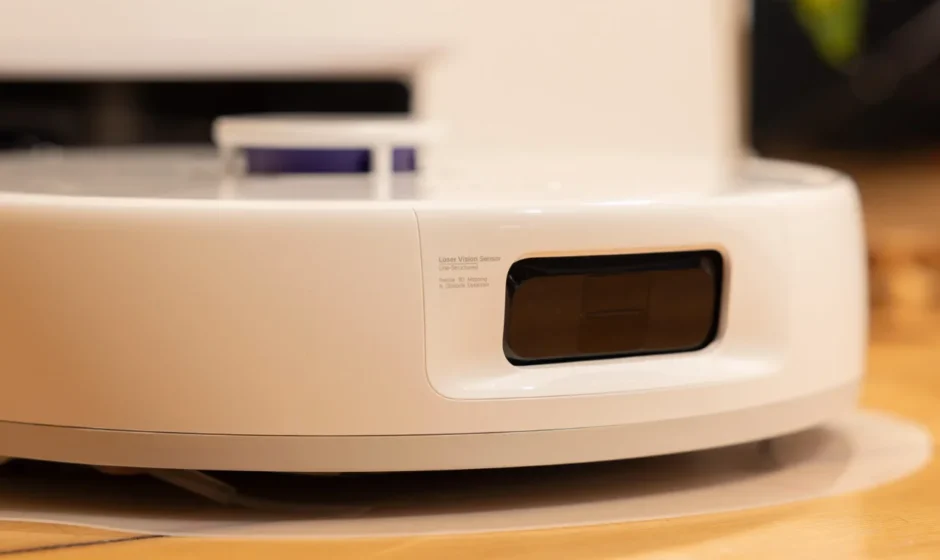
Narwal Freo X Ultra Robot Vacuum
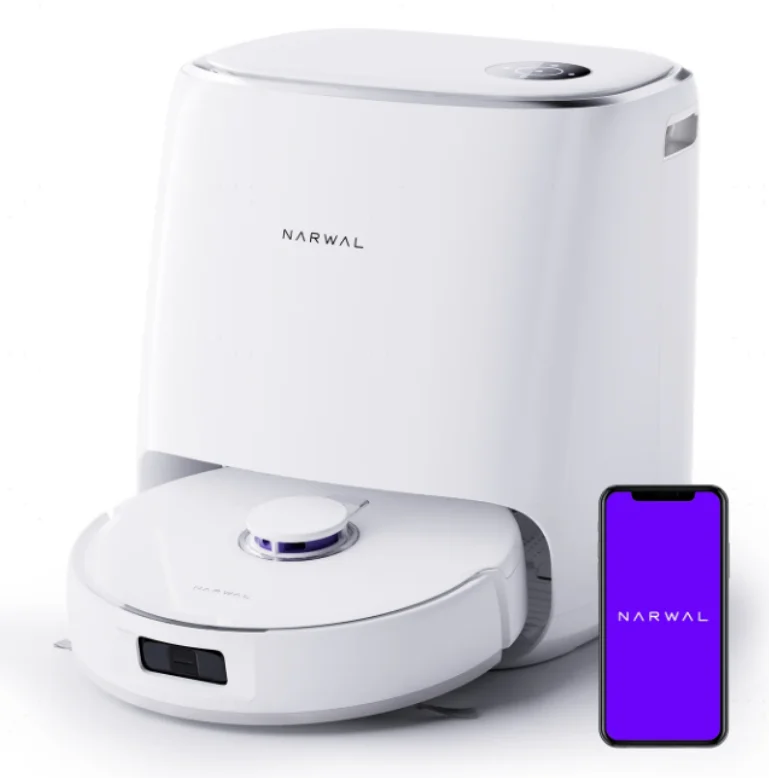
Product At A Glance
Check list
Main parts
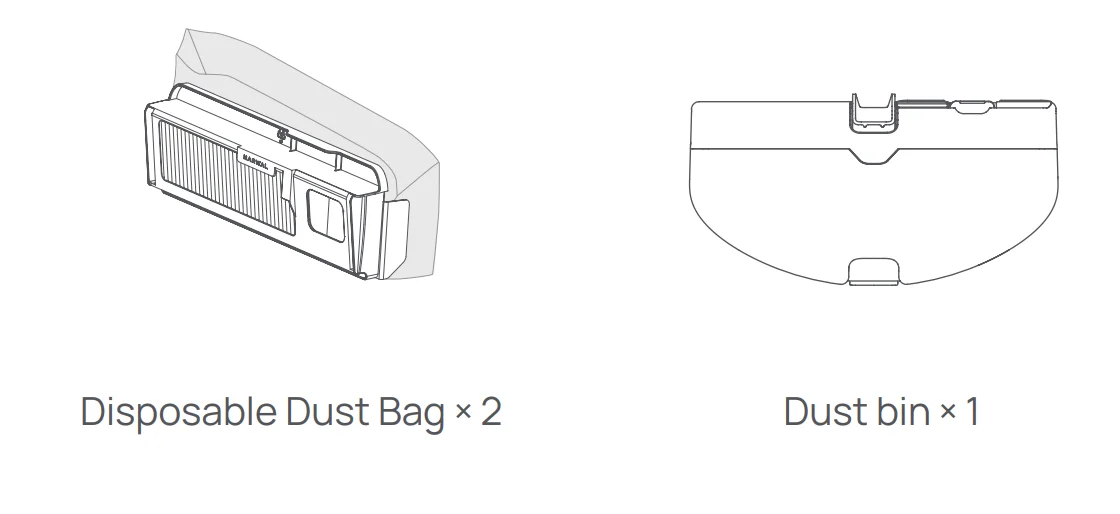
Accessories
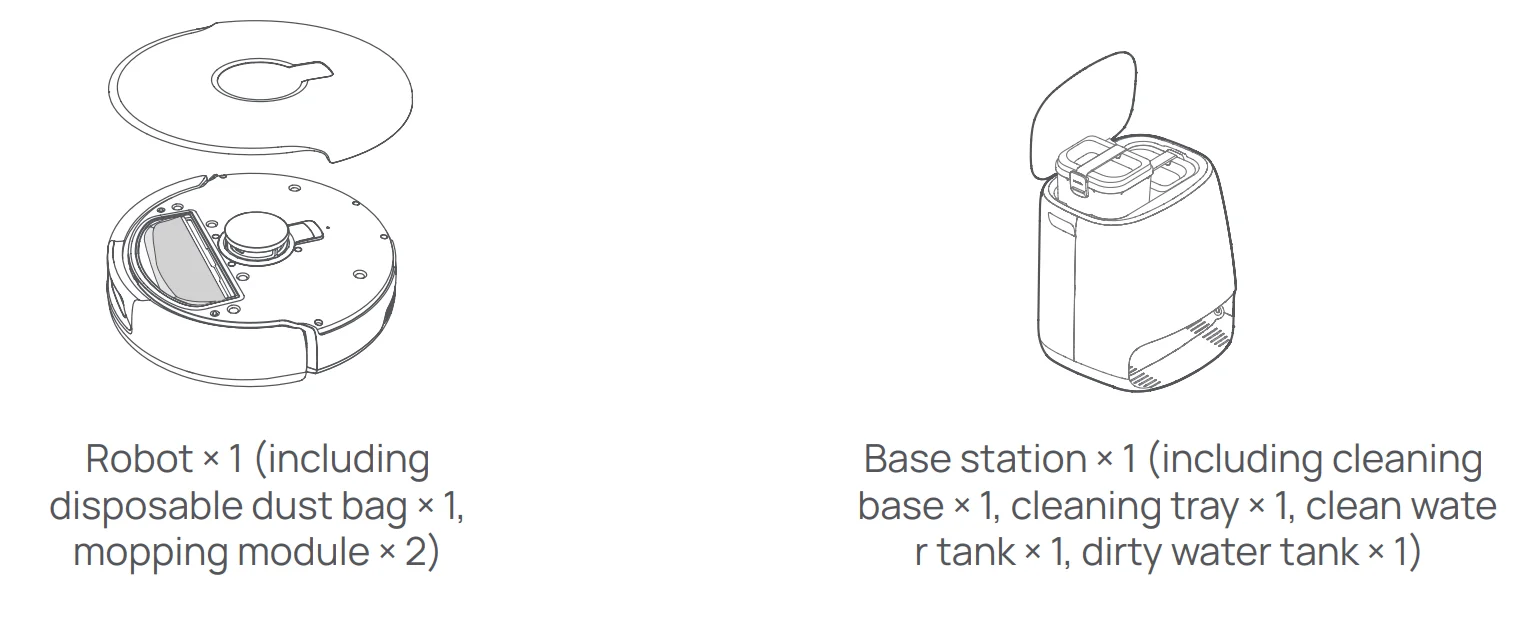
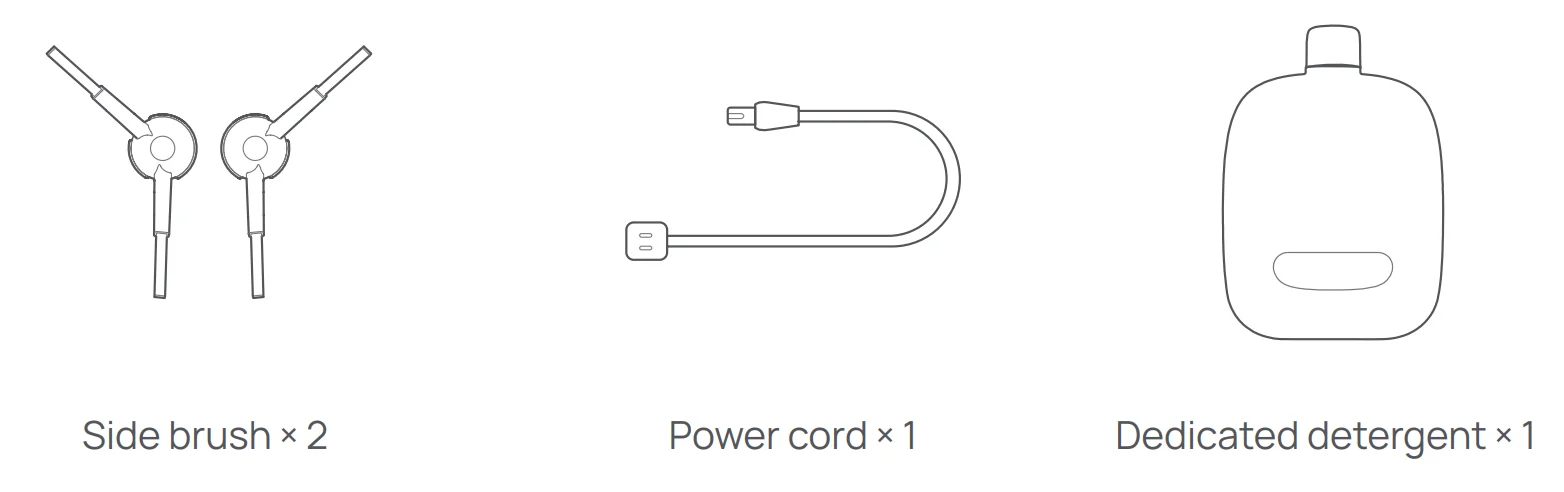
Robot
Front (top cover closed)
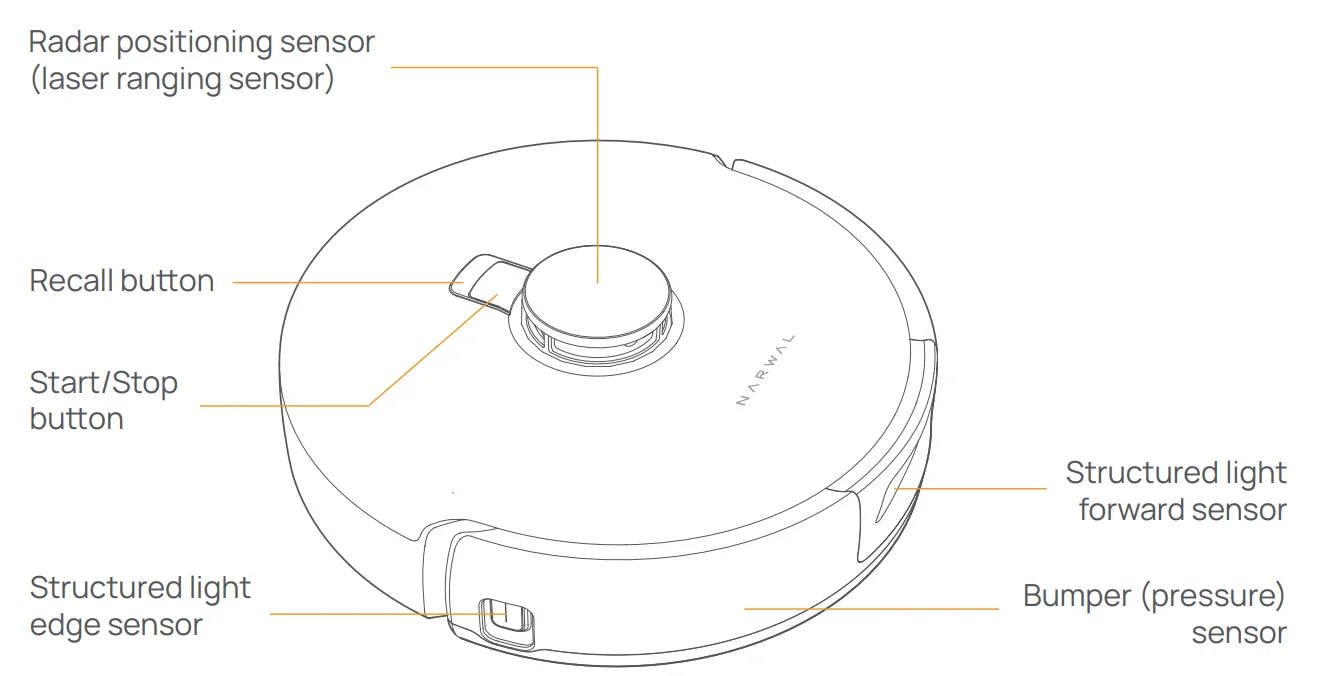
Front (top cover open)
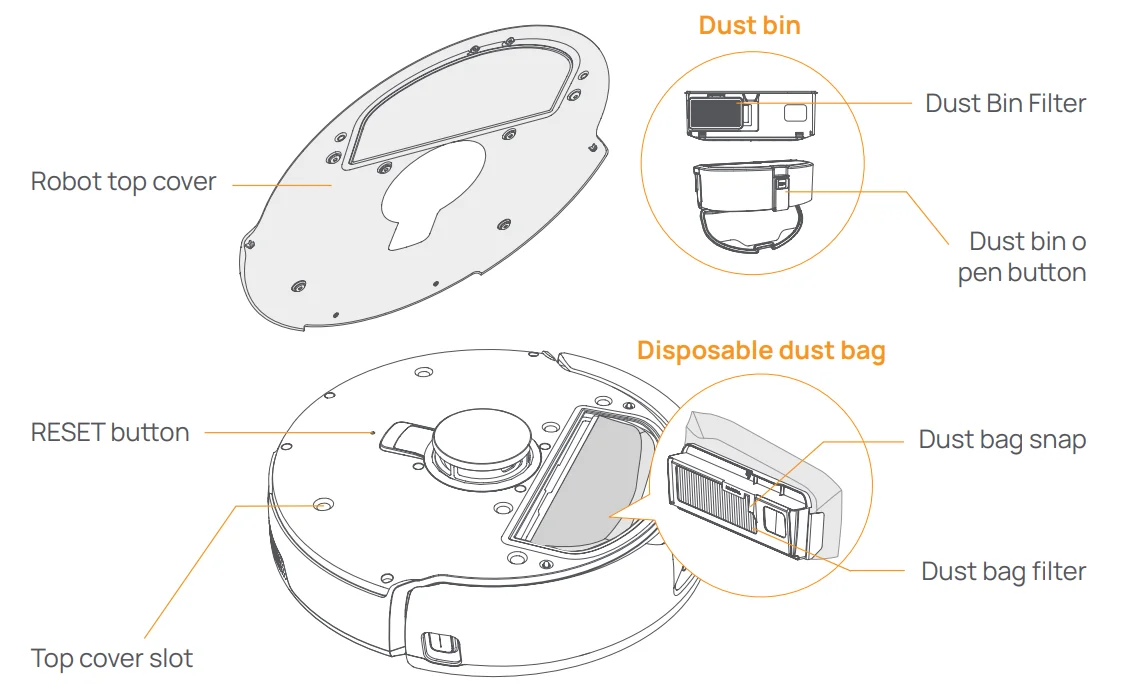
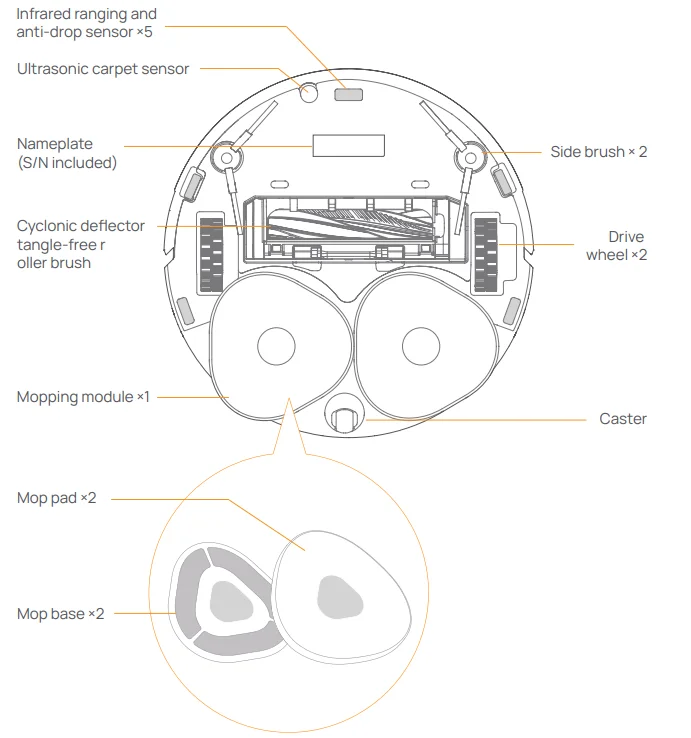
Robot bottom
Base station
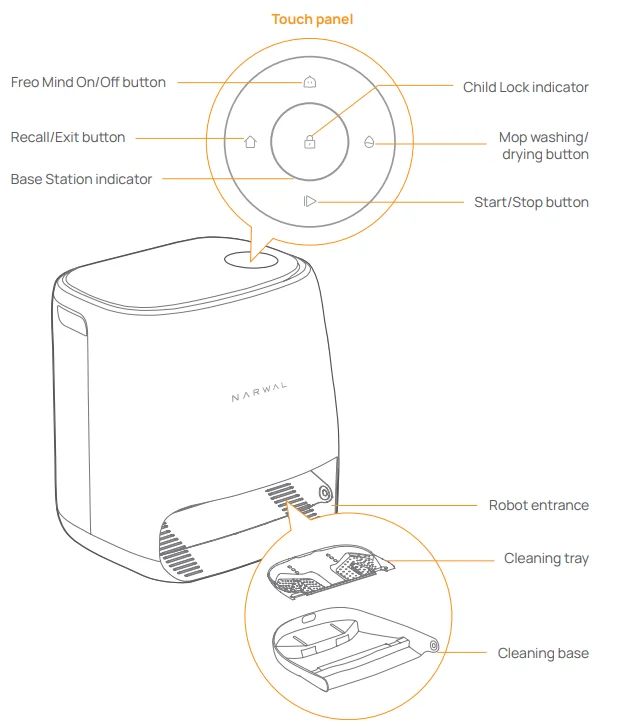
Front (lid closed)
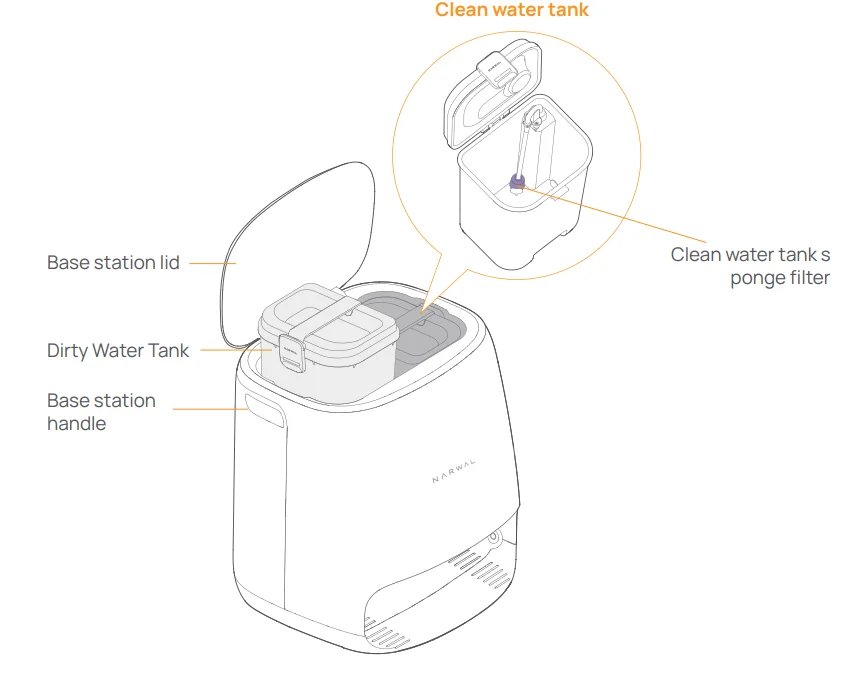
Front (lid open)
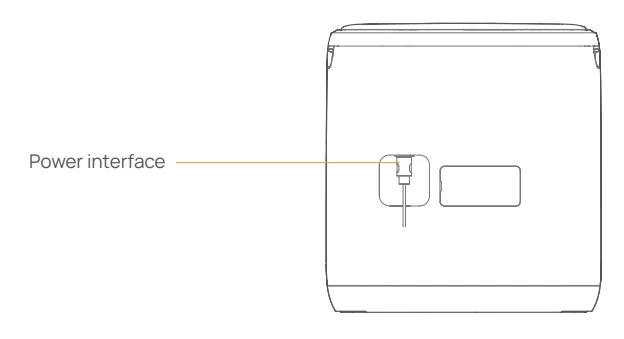
Back
Buttons and indicators
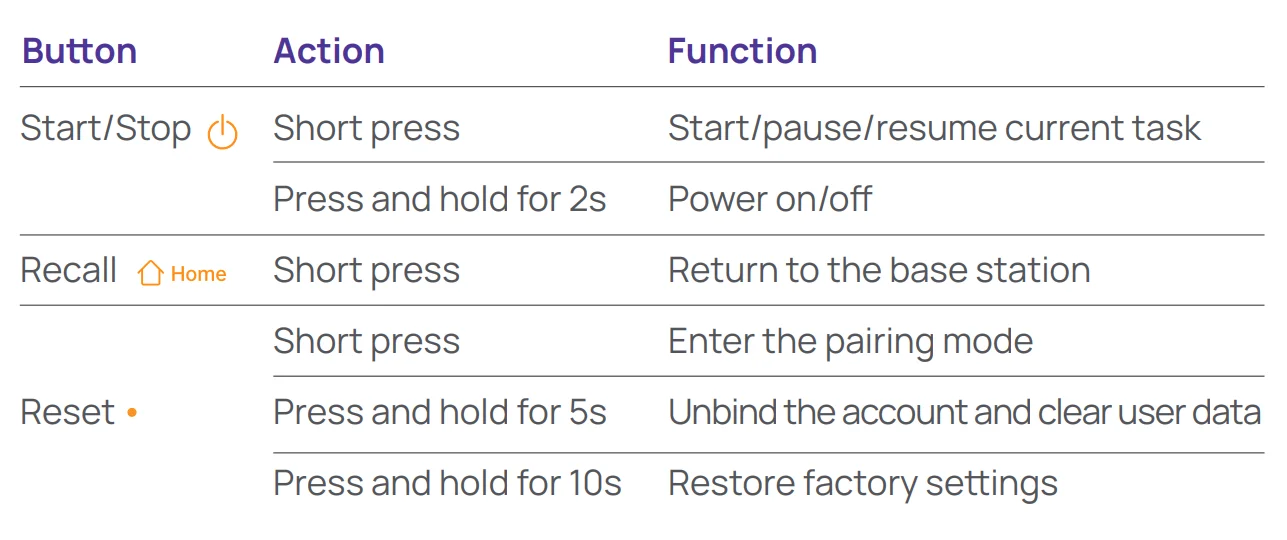
Robot buttons
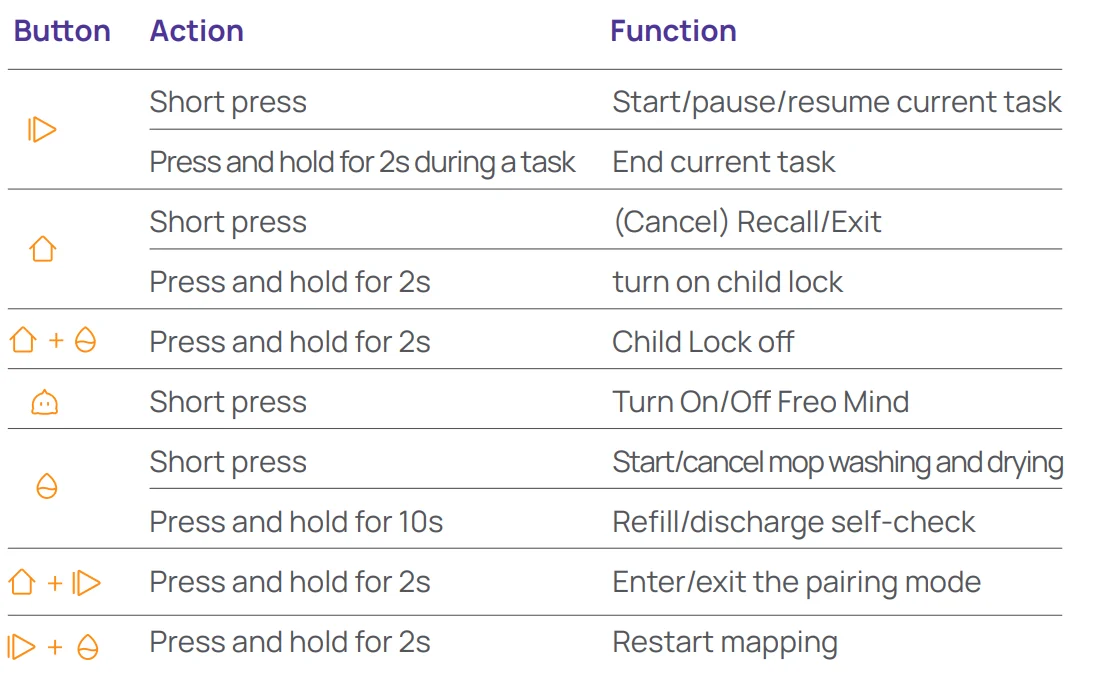
Base station buttons
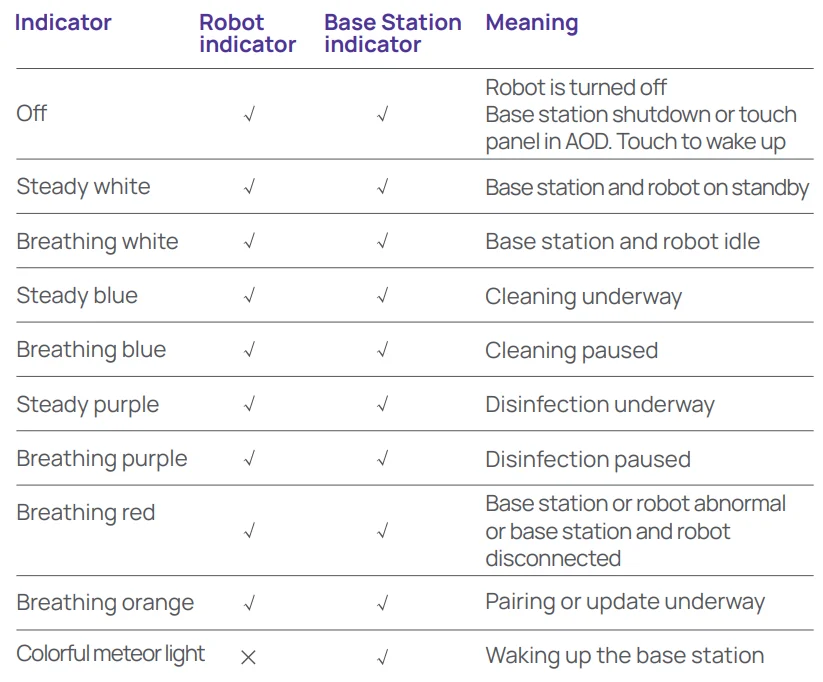
Robot & base station indicators
Get Ready Before Use
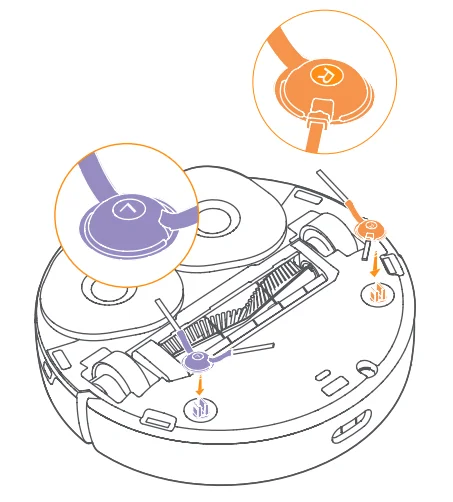
Install the side brushes
Press the side brushes into the slots as indicated by color until they click into place.
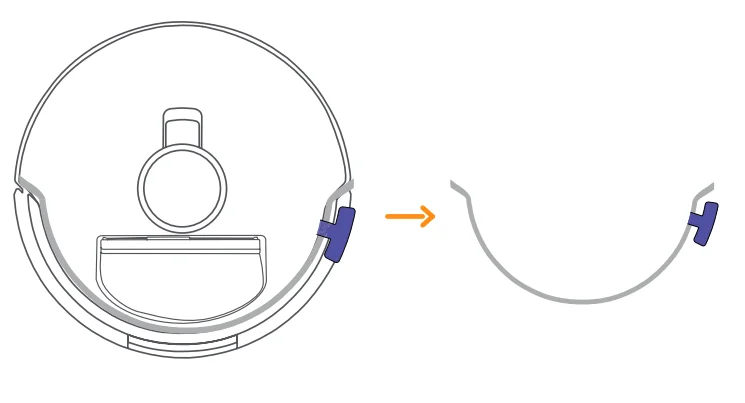
Remove the anti-collision foam
Open the robot top cover and remove the Off anti-collision foam.
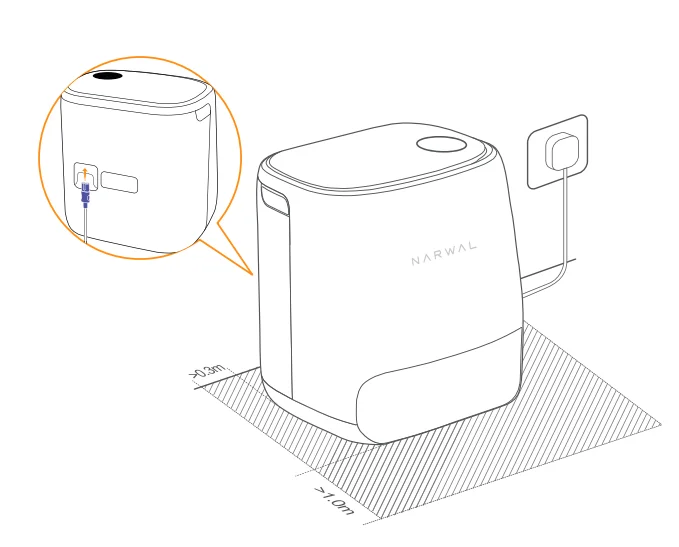
Place the base station
Plug the power cord into the socket on the back of the base station, and leave at least 1.0m of space in front of the base station for the robot to enter and exit.
Note: If the base station is tilted or there are table legs, curtains, or ornaments around, the robot’s obstacle-avoidance function may be triggered, affecting its entry and exit.
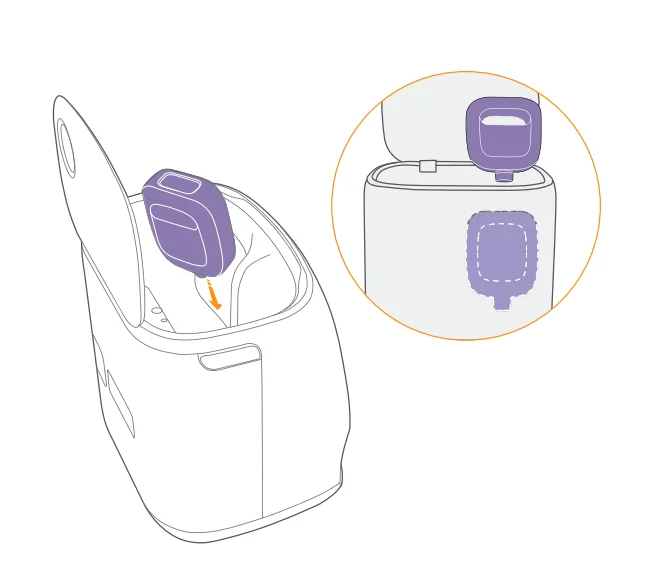
Place a dedicated detergent
- Turn the detergent upside down (DO NOT remove the cap) and insert it into the slot. The dedicated detergent bottle is properly in place when it is fixed without tipping over.
- You can set in the App whether to add the detergent automatically when mopping.
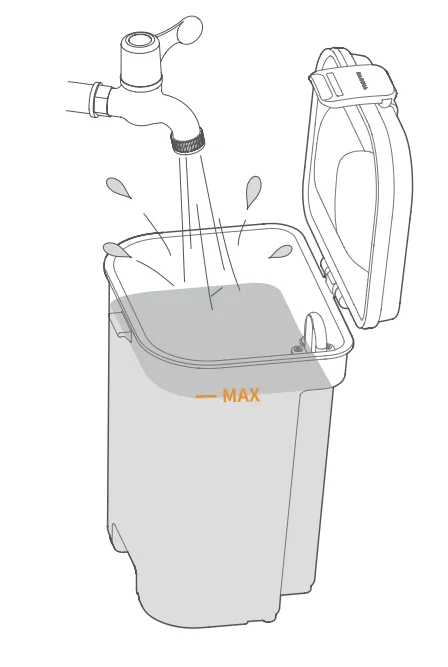
Add clean water
Before mopping, add water to the clean water tank for mop washing.
- Lift up the base station lid. Take out the clean water tank, snap it open, and fill it with clean water (DO NOT exceed the MAX water level mark).
- Snap the tank shut and put the water tank back into the base station.
Note: DO NOT add any third-party detergents or disinfectants into the clean water tank to avoid product damage.
Startup settings
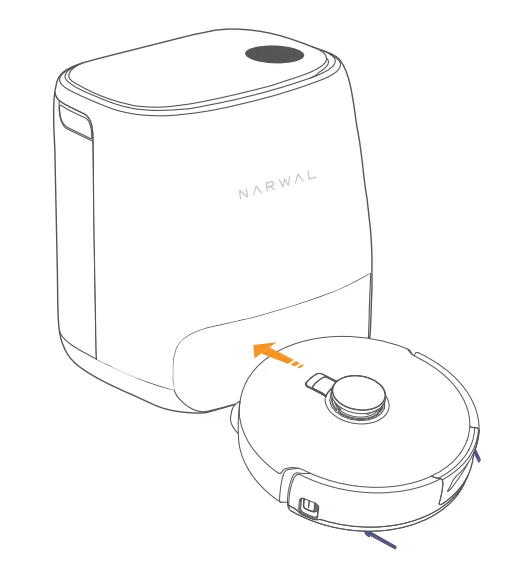
Push the robot into the base station with side brushes facing outward. The base station will beep once to indicate that charging is successful and the robot will switch itself on and broadcast the message.
Connect and bind the robot in the App
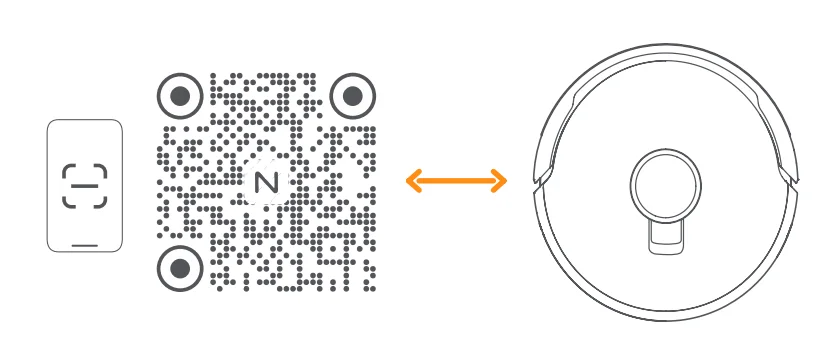
Scan the QR code to download the Narwal Freo App, tap “Add Device” and select the model in the App, and follow the instructions for connecting and binding the robot.
How to Use
Before using the robot, please make sure you have finished the installation and base station setup in Chapter 2.
Organize the home environment
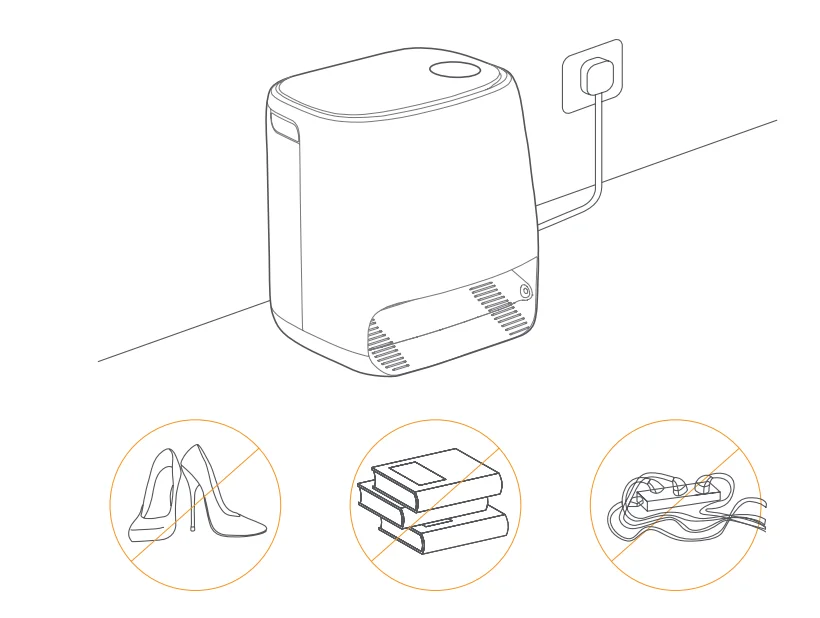
- A. Put away the clutter on the floor, e.g. scattered cables, rags, slippers, clothes, and books.

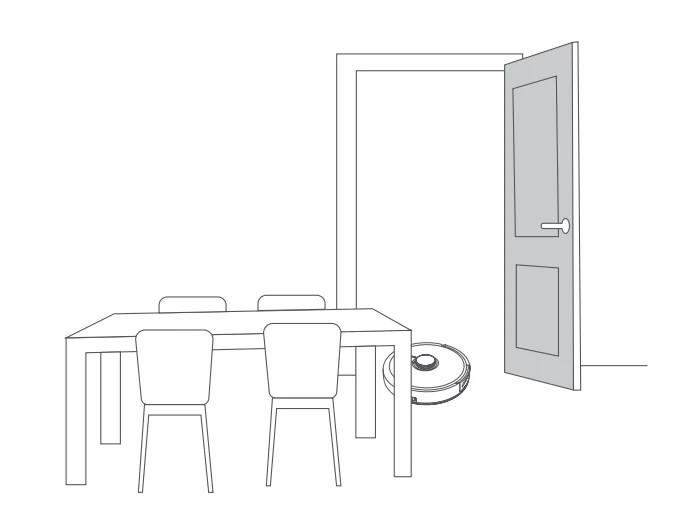
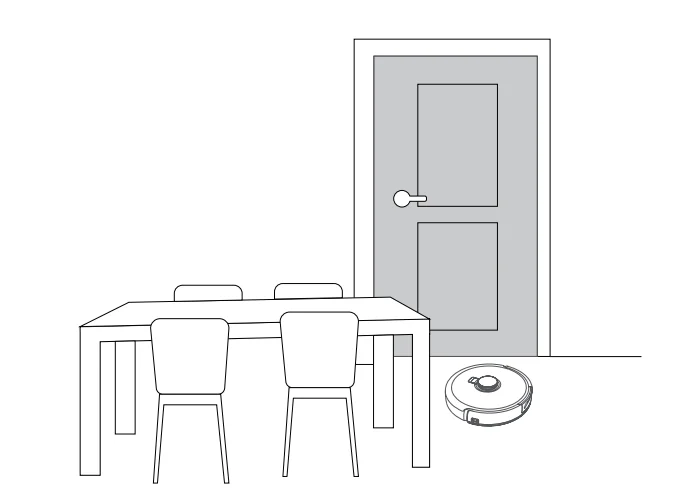
- B. Open the doors of the rooms to be cleaned and arrange the furniture to leave as much space as possible for cleaning.

- C. Leave other doors closed and install the fence to prevent the robot from entering elevated or low areas.

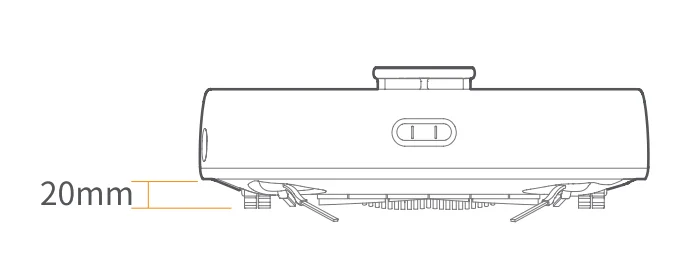
- D. The maximum obstacle crossing height is 20mm, and the robot cannot enter rooms with a threshold height of over 20mm. You can purchase the Narwal Threshold Ramp to help the robot climb over and around obstacles more efficiently.

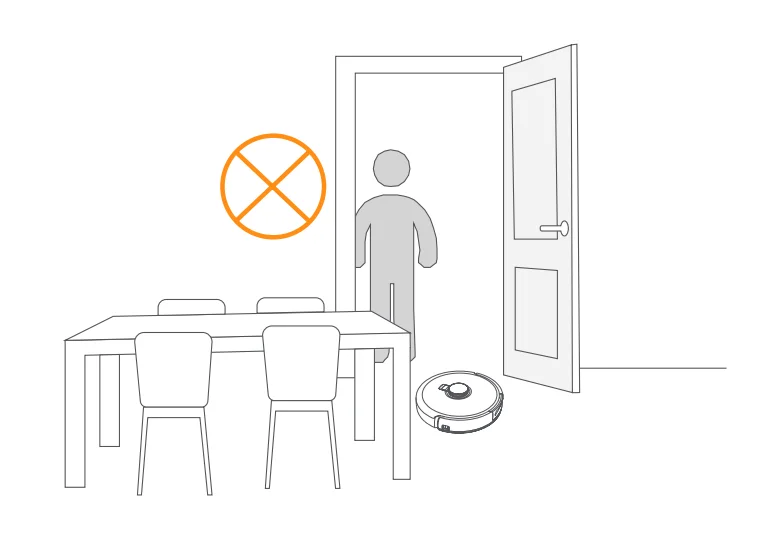
- E.DO NOT stand in front of the robot, on the threshold or in narrow aisles to avoid omission.
Mapping
Before cleaning a new home, the robot needs to explore the environment and create a map. Before first-time cleaning, you can trigger mapping by short-pressing the  【 Start/Stop】 button on the robot or tapping “Start Mapping” in the App.
Note:
- Once a map is created, it can be edited in the App.
- Please do not move the base station after a map is created, or you will have to restart mapping. If large furniture in your home is rearranged, it is recommended to create a new map.
Cleaning
Select cleaning modes
The product comes with four built-in cleaning modes: Vacuum, Mop, Vacuum and Mop, and Vacuum then Mop. You can select and adjust parameters like cleaning cycles, suction, and mop humidity for each mode in the App.
Set Freo Mind
The Freo Mind is an intelligent cleaning assistant. When the Freo Mind is enabled, the robot can:
- set cleaning parameters based on the environmental data collected by sensors;
- Enhance edge-to-edge cleaning.
You can enable the Freo Mind in two ways: - Select the Freo Mind in the cleaning modes in the App.
- Short-press the
 【 Freo Mind On/Off】 button on the base station. When the indicator turns on, it means the Freo Mind is on.
 【 Freo Mind On/Off】 button on the base station. When the indicator turns on, it means the Freo Mind is on.
Start the cleaning task
You can start the robot for cleaning in the following three ways:
- Tap
 【 Start Cleaning】 in the App
 - Press the
 【 Start/Stop】 button on the robot, and the robot will activate the Vacuum Mode by default.
 - Short-press the
 【 Start/Stop】 button on the base station to start cleaning. The robot will activate the Vacuum and Mop Mode by default.
Note: You can adjust the cleaning mode and set more cleaning parameters in the App.
 【 Start Cleaning】 in the App
 【 Start/Stop】 button on the robot, and the robot will activate the Vacuum Mode by default.
Pause/resume current task
You can pause/resume the current task in three ways:
- Tap 【 Pause】/
 【 Resume】 in the App;
 - Short-press the【 Start/Stop】 button on the robot;
- Short-press the【 Start/Stop】 button on the base station.
 【 Resume】 in the App;
Mop washing
If the robot is set for multiple mopping runs or the area for cleaning is large, the robot will automatically return to the base station for mop washing. The number of mopping runs and returns can be modified in the App before cleaning starts, and cannot be modified during the current cleaning task.
End current task
The robot will navigate itself back to the base station when cleaning ends. You can view the current cleaning report in the App. You can manually end the task in the following three ways:
- Press and hold【 Finish】 for 2s in the App;
- Short-press the
 【 Recall】 button on the robot;
 - Short-press the
 【 Recall】 button or press and hold the【 Start/Stop】button on the base station for 2s.
 【 Recall】 button on the robot;
 【 Recall】 button or press and hold the
Drying and disinfection
After the last mopping run, the robot will return to the base station for mop washing and drying. The drying time can be modified in the App. You can also start mop washing and drying manually in the following two ways:
- Tap
 【 Mop Washing & Drying】 in the App;
 - Short-press
 【 Mop Washing & Drying】 on the base station.
 【 Mop Washing & Drying】 in the App;
 【 Mop Washing & Drying】 on the base station.
Parameters
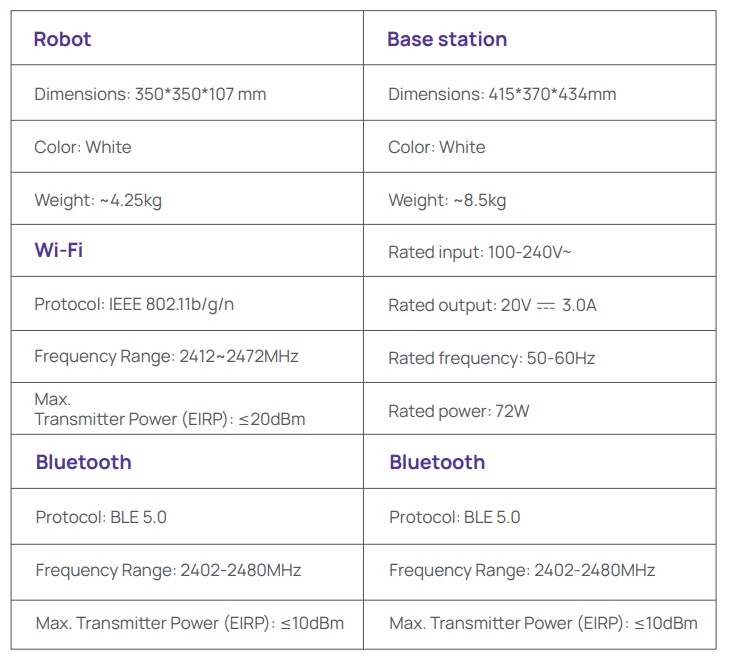
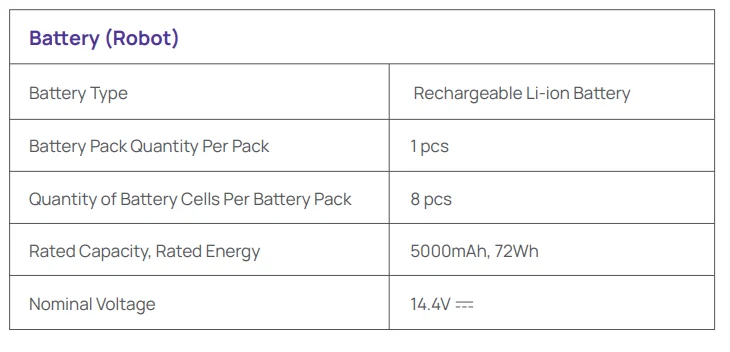
Specifications
For more manuals by Narwal, visit ManualsLibraryy
Narwal Freo X Ultra Robot Vacuum-FAQs
Why is the Narwal Freo X Ultra side brush not spinning?
If the side brush isn’t spinning, it’s usually due to hair, dust, or debris stuck around the brush or motor. Remove the brush and clean it thoroughly. Also check if it’s properly attached. Regular maintenance prevents motor overload and keeps the brush functioning smoothly.
How do I connect the Narwal Freo X Ultra to Wi-Fi?
To connect the vacuum, open the Narwal app and tap “Add Device.” Scan the QR code under the robot’s lid, then follow on-screen instructions. Choose a 2.4GHz Wi-Fi network and enter your password. Ensure your phone and vacuum stay close during setup for a stable connection.
How do I turn the Narwal Freo X Ultra on or off?
Press and hold the power button for about 3–5 seconds to turn the robot on or off. For daily use, it’s best to leave it in standby mode on the charging dock. Turn it off only during long storage or when performing maintenance.
How often should I run the Narwal Freo X Ultra?
For best results, run the robot vacuum daily in high-traffic areas like living rooms and kitchens. Frequent cleaning prevents dust and debris buildup and keeps floors consistently clean. You can also schedule automatic cleaning sessions through the app for convenience.
How do I empty the dustbin or replace the dust bag?
Open the top cover of the robot or base station and remove the dust bag. Dispose of it and replace it with a new one when full. The process is quick and hygienic. The app usually notifies you when it’s time to replace the bag.
Why won’t my Narwal Freo X Ultra connect to Wi-Fi?
Connection issues often occur due to incompatible networks or weak signals. Make sure you’re using a 2.4GHz Wi-Fi network and that your password is correct. Restart your router and the robot if needed. Keeping both devices close during setup improves connection success.
Should I turn off my robot vacuum when not in use?
It’s not necessary to turn it off after every use. Keeping it on the dock allows automatic charging and scheduled cleaning. However, if you won’t use it for an extended period, turning it off helps preserve battery health and reduces unnecessary power consumption.
How long does the battery last and how should I charge it?
The Narwal Freo X Ultra offers long cleaning sessions on a single charge, depending on the cleaning mode. For better battery lifespan, avoid letting it fully drain frequently. Keeping it docked ensures it stays charged and ready for the next cleaning cycle.
Can I replace the battery myself?
Battery replacement is not recommended for users. It should be handled by authorized service professionals to avoid damage or safety risks. Attempting to replace it yourself may void the warranty and affect the vacuum’s performance.
What are common maintenance tips for better performance?
Clean brushes, filters, and sensors regularly to maintain optimal performance. Remove tangled hair from rollers and wipe sensors for accurate navigation. Replace consumables like filters and dust bags when needed. Routine care ensures efficient cleaning and extends the vacuum’s lifespan.