

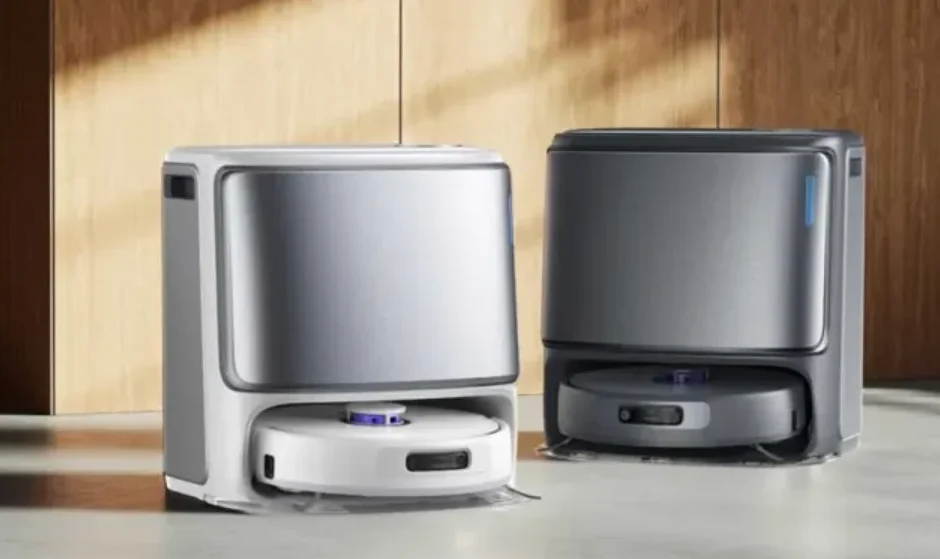
Narwal Freo Z Ultra Robot Vacuum
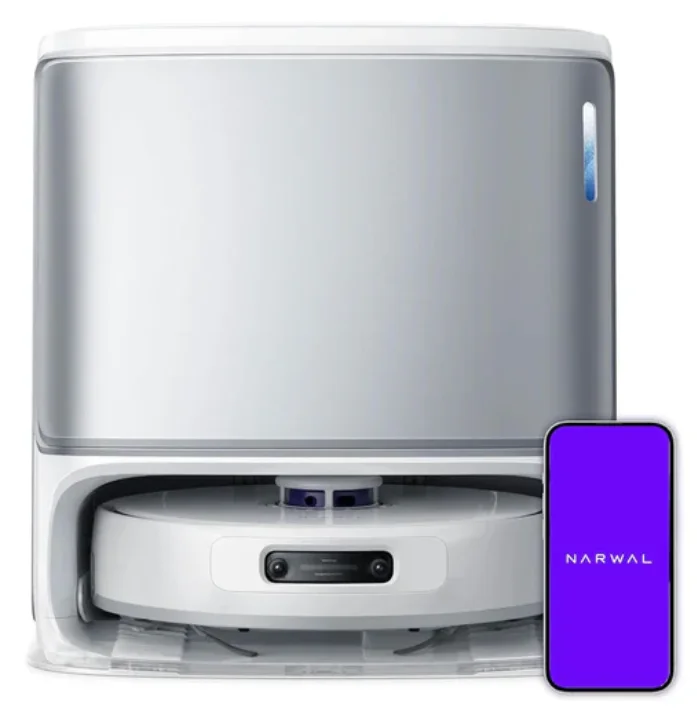
Product At A Glance
Check List
Main parts
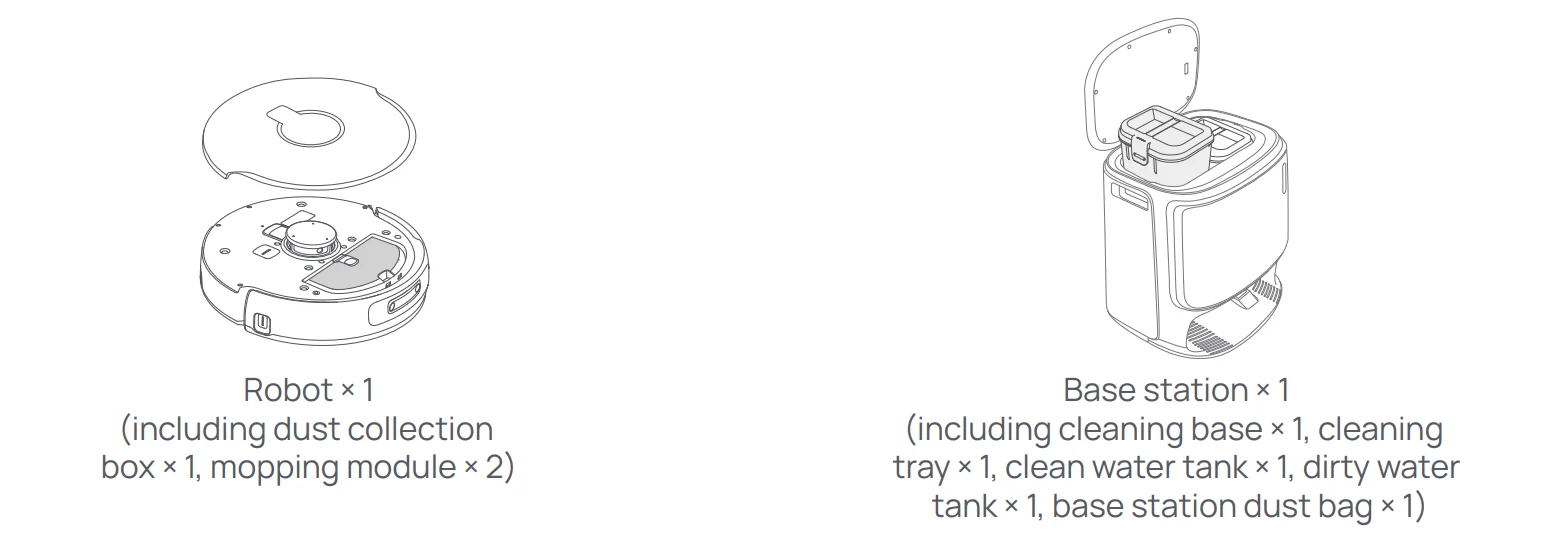
Accessories
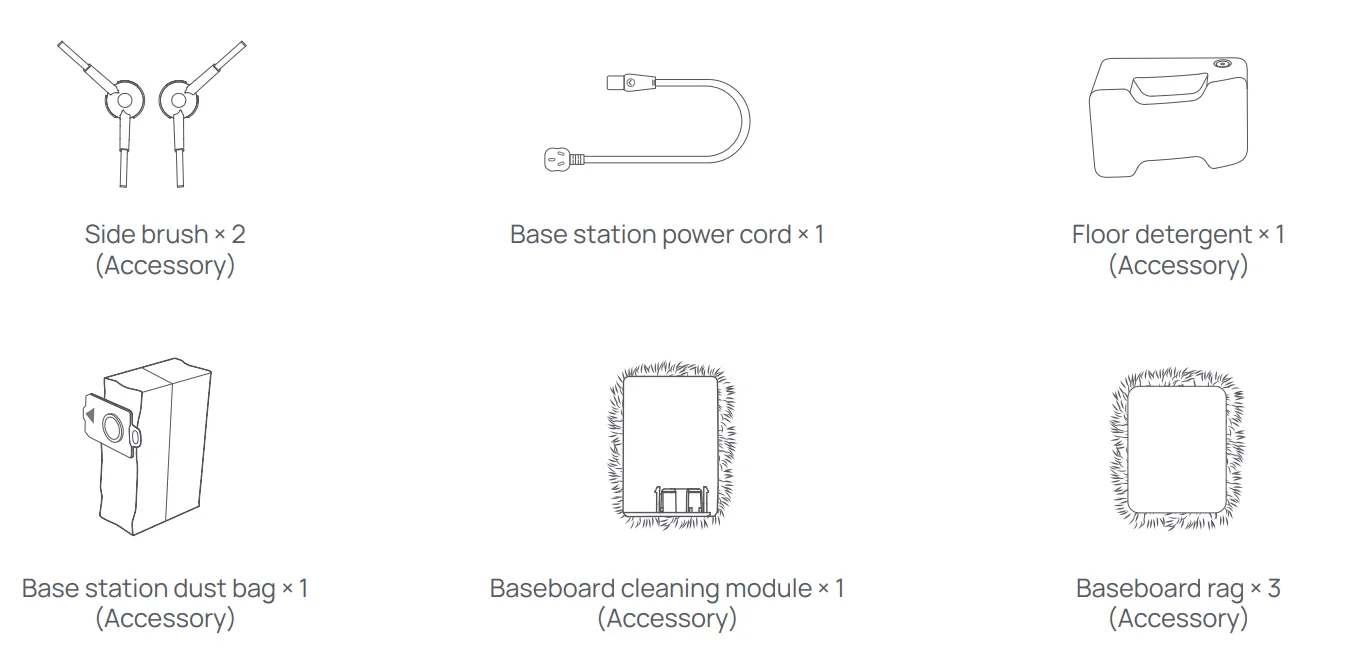
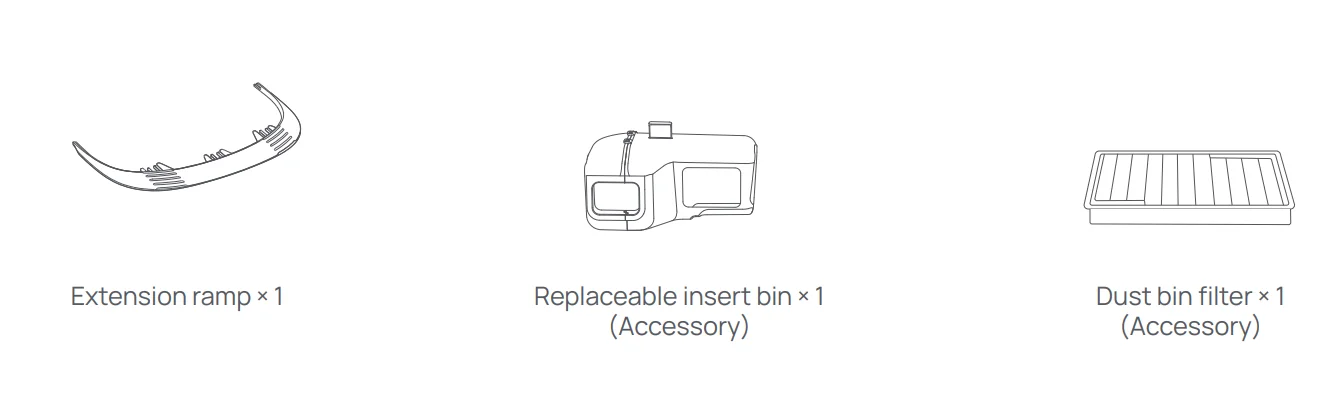
Robot
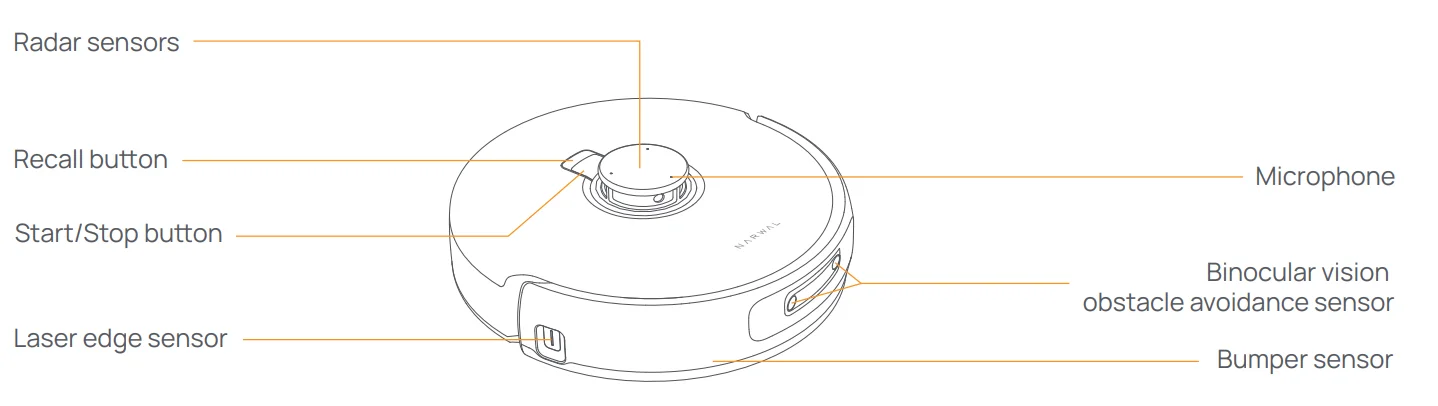
Front (top cover closed)
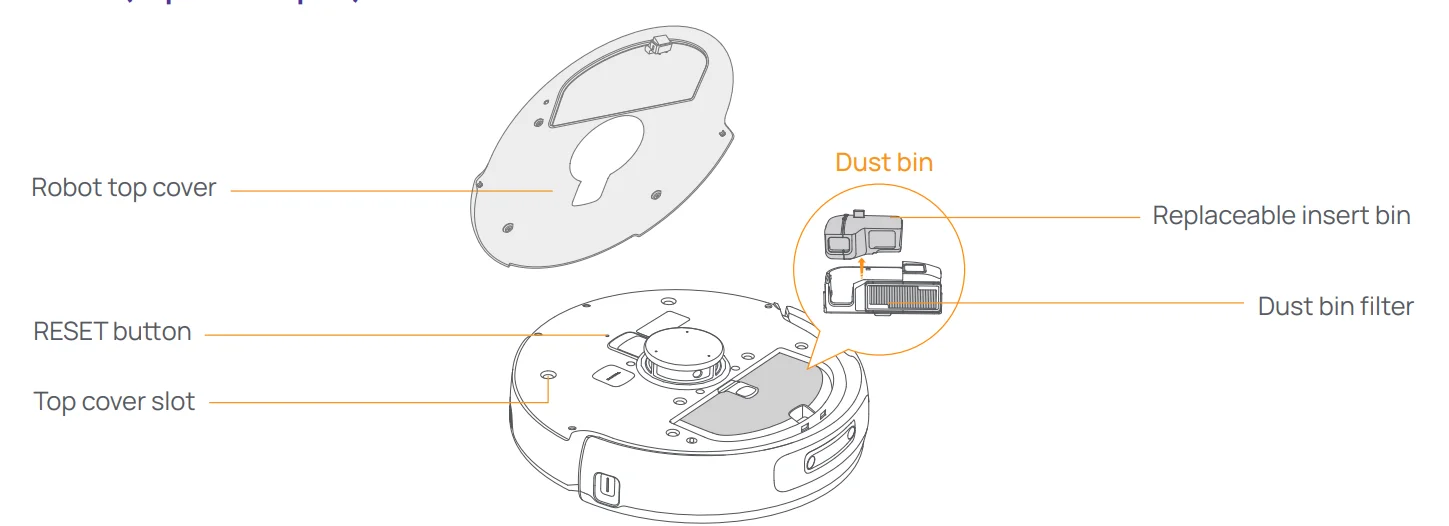
Front (top cover open)
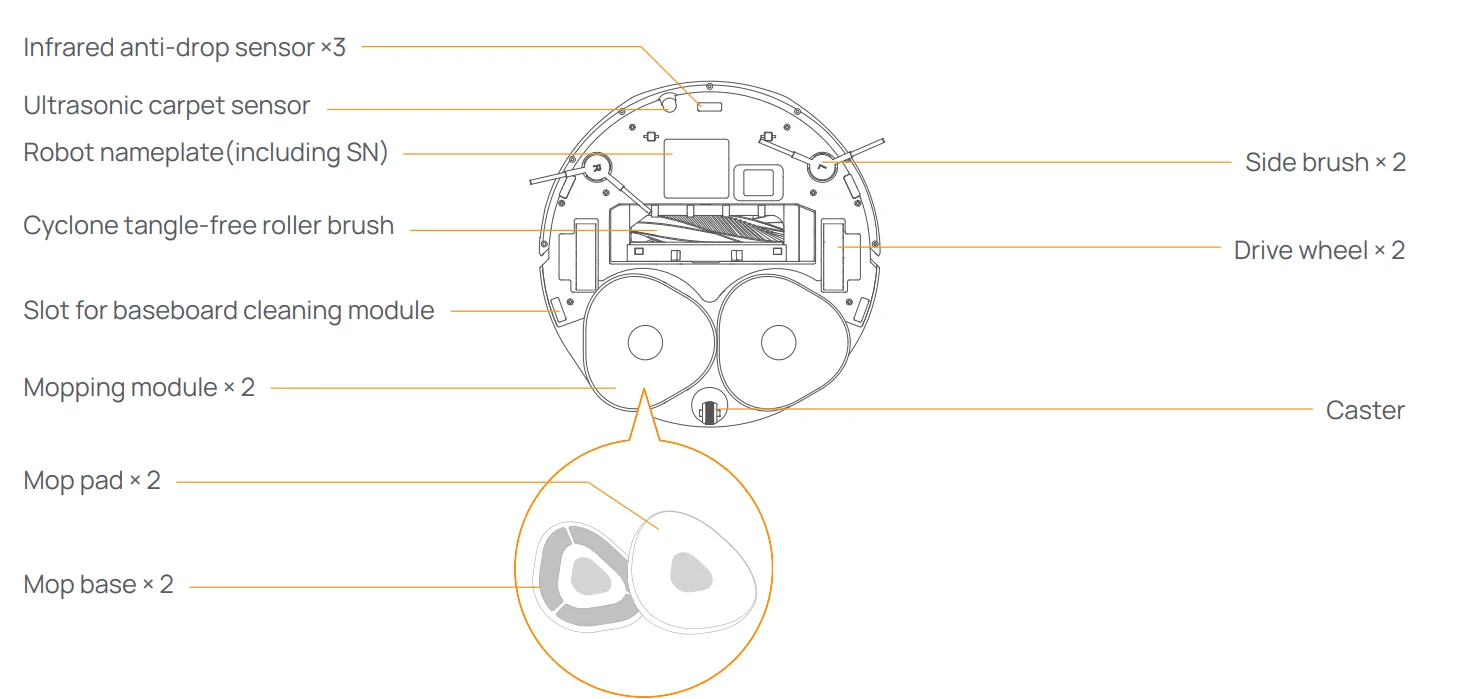
Robot bottom
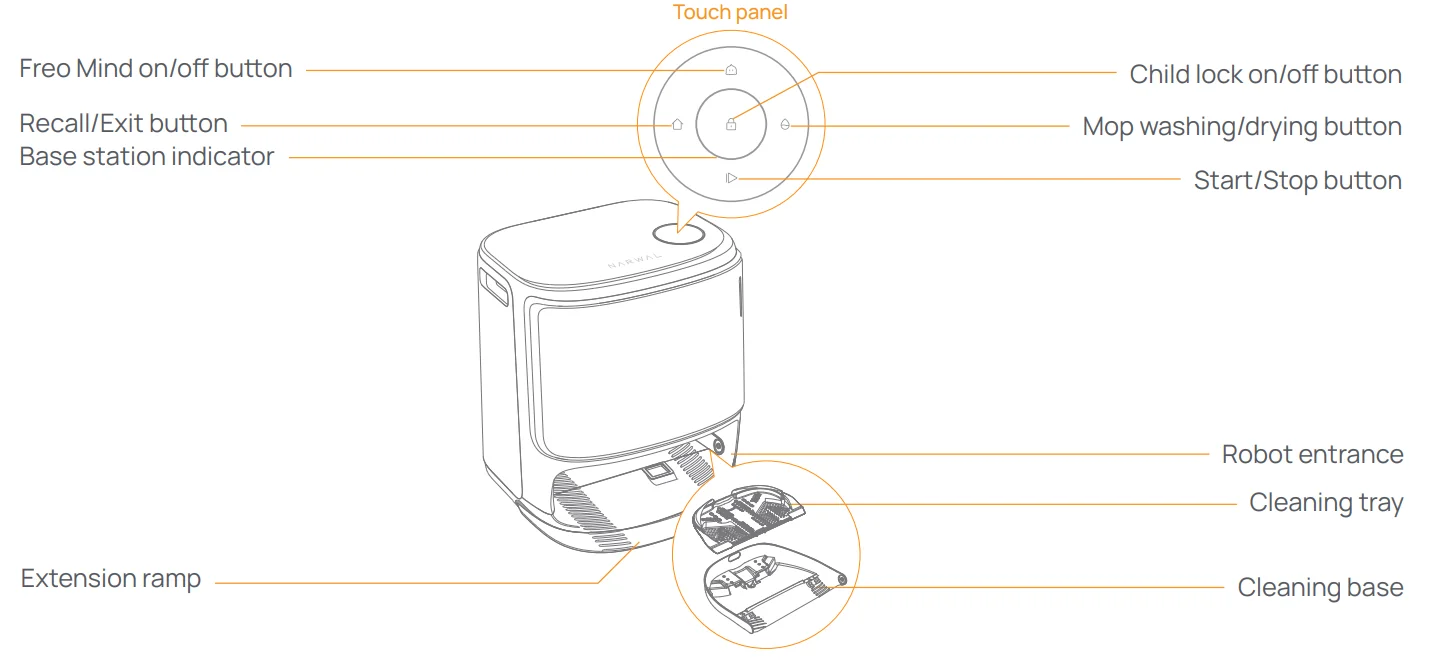
 Base station
 Base station
Front (lid closed)
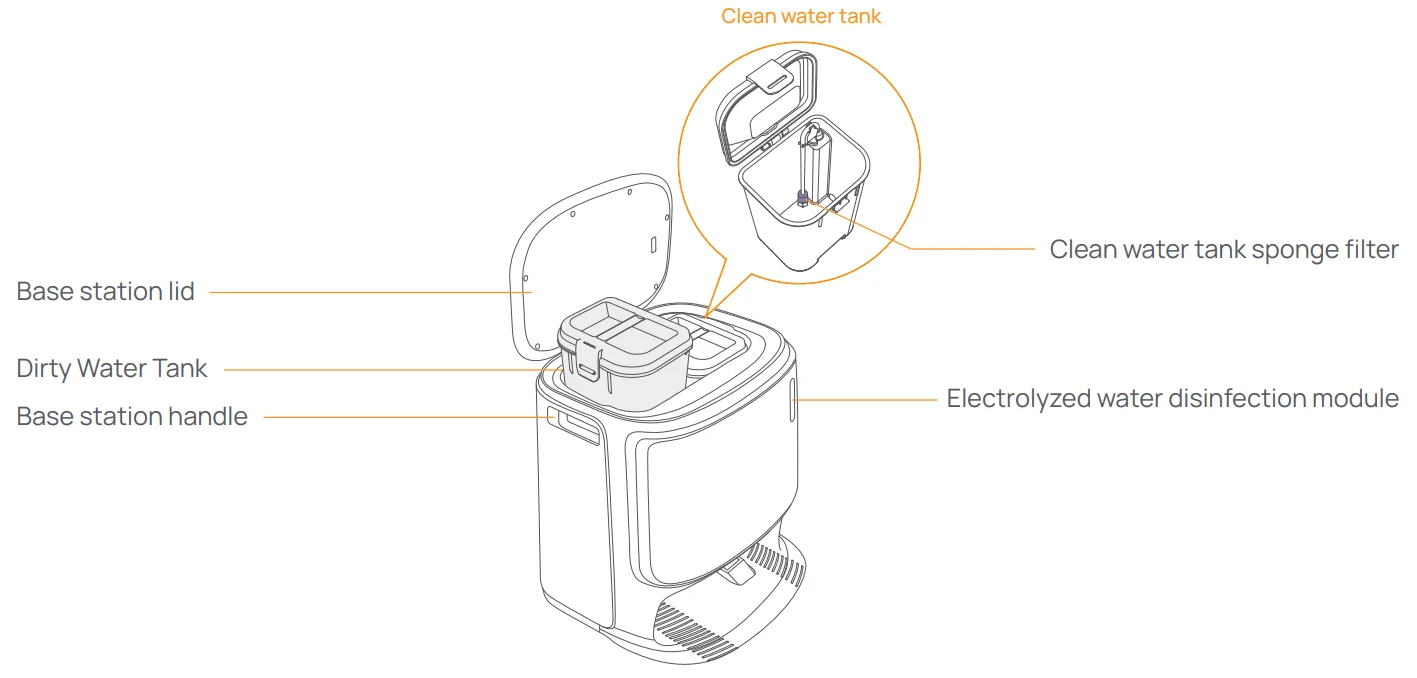
Front (lid open)
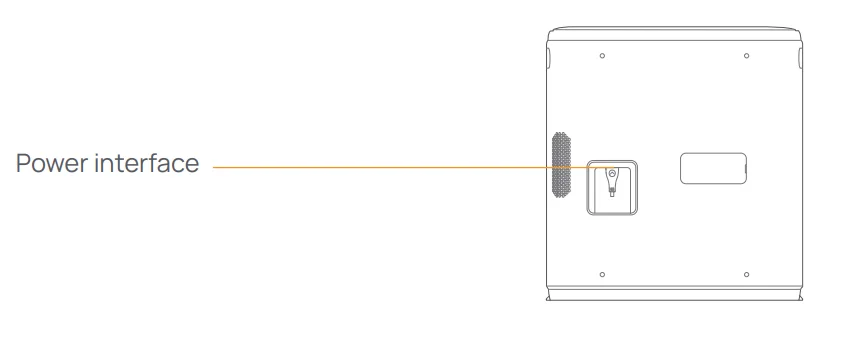
Back
Buttons and indicators
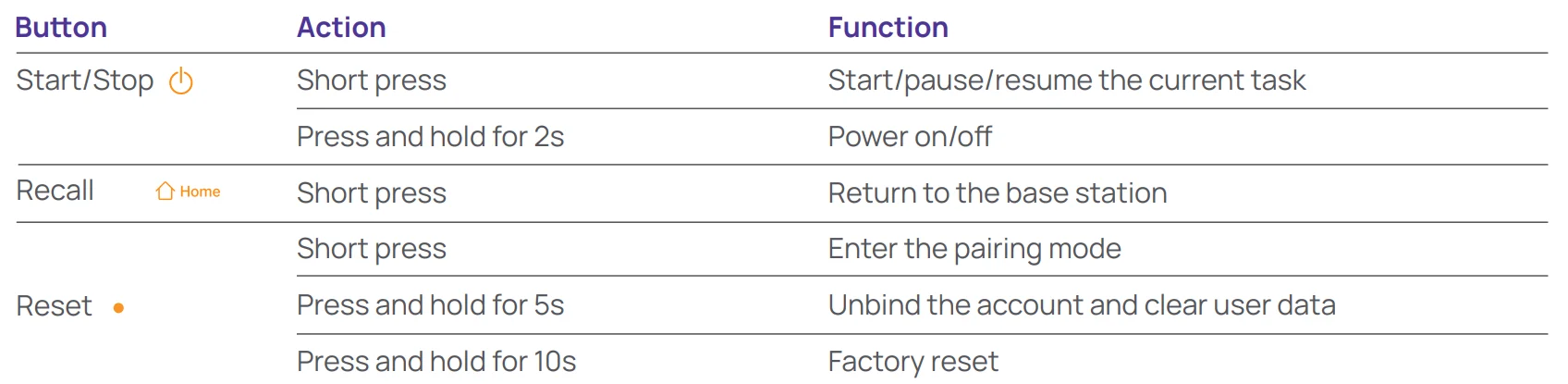
Robot buttons
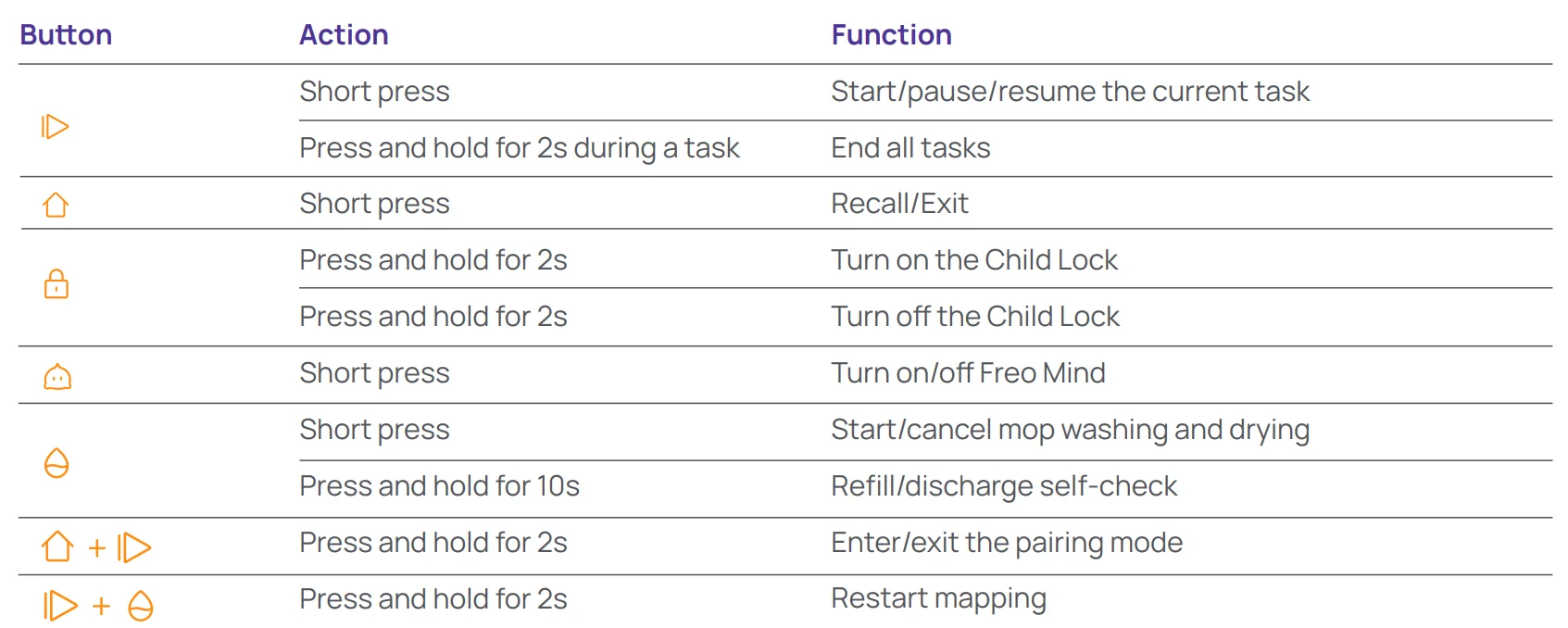
Base station buttons
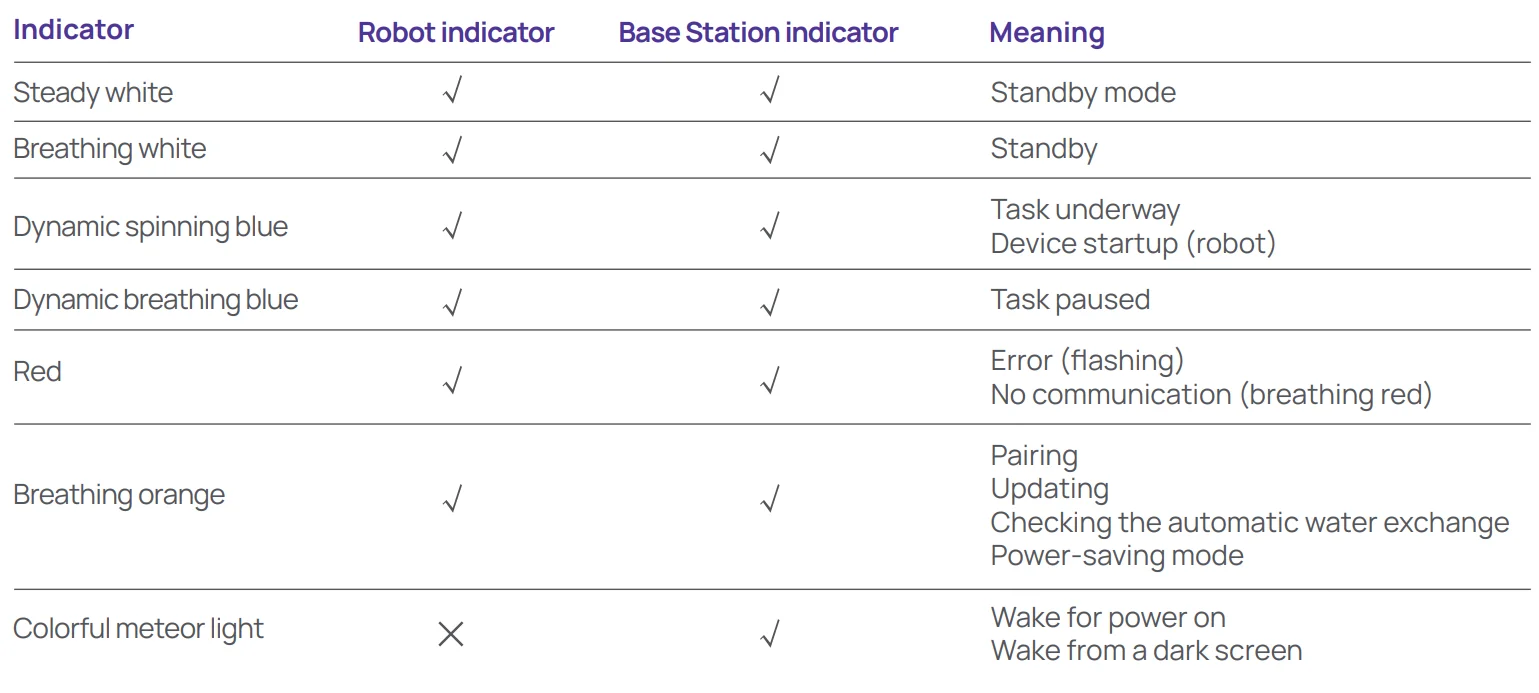
Robot & base station indicators
 Get Ready Before Use
 Get Ready Before Use
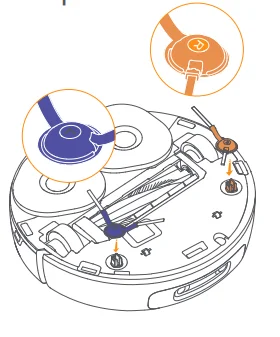
Install the side brushes
Press the side brushes into the slots as indicated by color until they click into place.
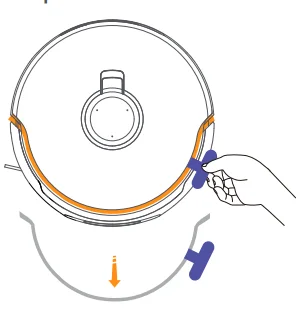
Remove the anti-collision foam
- Lift the top cover sticker to open the robot’s top cover and remove the anti-collision foam.
- Close the robot’s top cover.
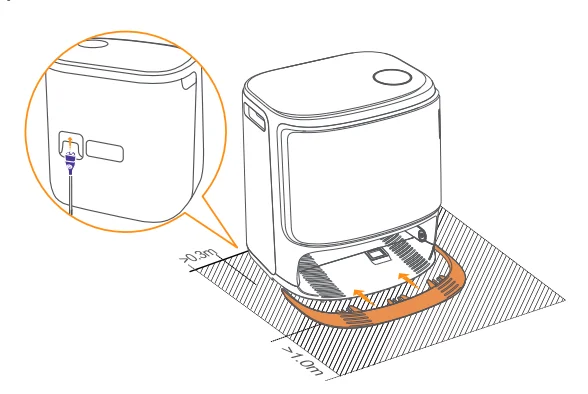
Place the base station
- Plug in the power cord in the back of the base station.
- Put the extension ramp on the floor and push it into the bottom of the base station until it clicks into place.
- Leave an open space of at least 1 meter long in front of the base station for the robot to enter and leave the base station.
Tips: DO NOT put the base station close to a heat source.
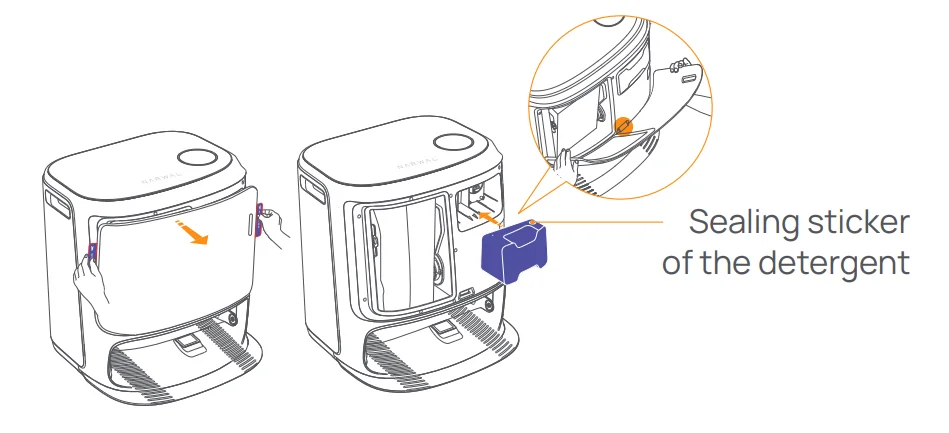
Install the floor detergent
- Remove the base station front cover, face the cap of the floor detergent to the base station (DO NOT remove the cap; make sure that the sealing sticker is removed), and horizontally push it into the detergent bin.
- When the detergent is in place, put the base station front cover back.
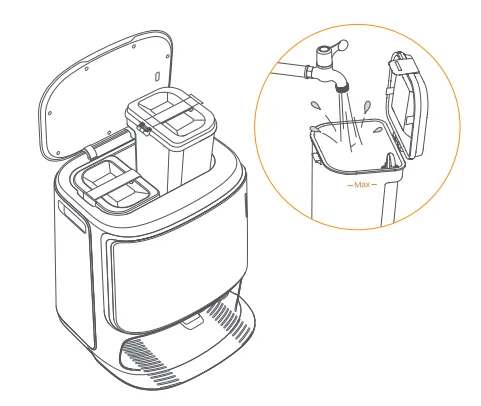
Add clean water
- Open the clean water tank and fill it with clean water (DO NOT exceed the MAX water level mark).
- Close the clean water tank cap and put the clean water tank back into the base station.
Boot settings
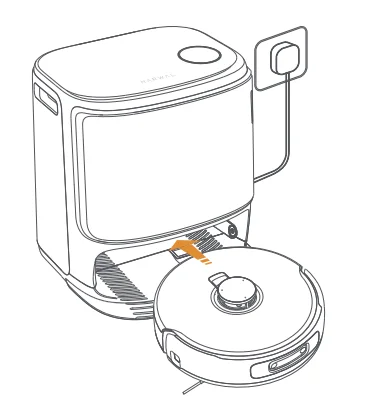
Push the robot into the base station with the camera facing outward. The base station will beep once to indicate that charging is successful, and the robot will switch itself on and broadcast the message.
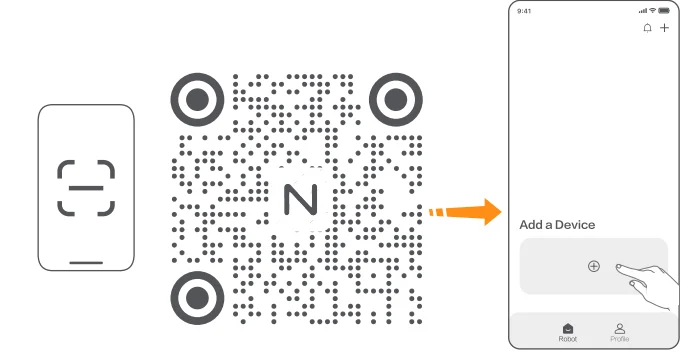
Connect and bind the robot in the App
Download the Narwal App and follow the instructions for connecting and binding the robot.
Note:
- In the App device page, tap “Settings” > “Device” and then hold the “Restart Robot” for 10s to turn on/off the power-saving mode.
- Download the Narwal App and follow the instructions for connecting and binding the robot.
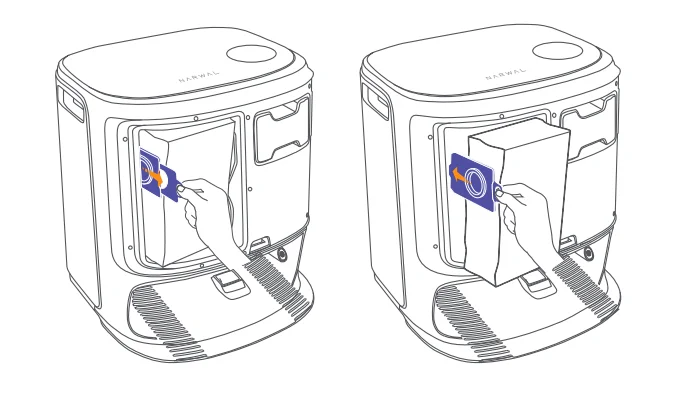
Replace the base station dust bag
- Remove the base station front cover.
- Pull the purple ring in the direction of the arrow to pull out and discard the dust bag.
- Insert the new dust bag into the slot in the indicated direction until it hits the bo om.
- Put back the base station front cover.
How to Use
Before using the robot, please make sure you have finished the installation and base station setup in Chapter 2.
Organize the home environment
- A. Put away the clutter on the floor, e.g. scattered cables, rags, slippers, clothes, and books, slippers, clothes, and books.
- B. Open the doors of the rooms to be cleaned and arrange the furniture to leave as much space as possible for cleaning.
- C. Leave other doors closed and install the fence to prevent the robot from entering elevated or low areas.
- D. The maximum obstacle crossing height is 20mm, and the robot cannot enter rooms with a threshold height of over 20mm. You can purchase the Narwal Threshold Ramp to help the robot climb over obstacles.
- E. DO NOT stand in front of the robot, on the threshold, or in narrow aisles to avoid omission.
Mapping
Before cleaning a new home, the robot needs to explore the environment and create a map. Before first-time cleaning, you can trigger mapping by short-pressing the Start/Stop button on the base station or tapping “Start Mapping” in the App.
Note:
- Once a map is created, it can be edited in the App.
- Please do not move the base station after a map is created, or you will have to restart mapping. If large furniture in your home is rearranged, it is recommended to create a new map.
Cleaning
Before a cleaning task, please make sure that the robot has a proper battery level, which can be viewed in the App.
Select cleaning modes
The product comes with four built-in cleaning modes: Vacuum, Mop, Vacuum and Mop, and Vacuum then Mop. You can select and adjust parameters like cleaning cycles, suction, and mop humidity for each mode in the App.
Set Freo Mind
The Freo Mind is an intelligent cleaning assistant. When the Freo Mind is enabled, the robot can:
- set cleaning parameters based on the environmental data collected by sensors;
- Enhance edge-to-edge cleaning.
You can enable the Freo Mind in two ways:
- Select the Freo Mind in the cleaning modes in the App.
- Short-press the
 Freo Mind On/Off button on the base station. When the indicator turns on, it means the Freo Mind is on.
 Freo Mind On/Off button on the base station. When the indicator turns on, it means the Freo Mind is on.
Start the cleaning task
You can start the robot for cleaning in three ways:
- Tap
 the Start Cleaning button in the App.
 - Short press the
 Start/Stop button on the robot to start cleaning. The robot will activate the Vacuum Mode by default.
 - Short press the
 Start/Stop button on the base station to start cleaning. The robot will activate the Vacuum and Mop Mode by default.
Note: You can adjust the cleaning mode and set more cleaning parameters in the App.
 the Start Cleaning button in the App.
 Start/Stop button on the robot to start cleaning. The robot will activate the Vacuum Mode by default.
Pause/resume the current task
You can pause/resume the current task in three ways:
- Tap the
 Pause/Resume button in the App.
 - Short-press theStart/Stop button on the robot;
- Short-press theStart/Stop button on the base station.
 Pause/
Mop washing
If the robot is set for multiple mopping runs or the cleaning area is large, the robot will automatically return to the base station for mop washing. The number of mopping runs and returns can be modified in the App before cleaning starts, but not during the current cleaning task.
End current task
The robot will navigate itself back to the base station when cleaning ends. You can view the current cleaning report in the App. You can manually end the task in the following three ways:
- Press and holdthe Finish button for 2 seconds in the App.
- Short-press the
 Home button on the robot.
 - Short-press the
 Recall button or long-press and hold theStart/Stop button on the base station for 2s.
 Home button on the robot.
 Recall button or long-press and hold the
Drying and disinfection
After the last mopping run, the robot will return to the base station for mop washing and drying. The drying time can be modified in the App. You can also start mop washing and drying manually in the following two ways:
- Tap
 the Mop Washing & Drying button in the App.
 - Short press
 Mop Washing & Drying button on the base station.
 the Mop Washing & Drying button in the App.
 Mop Washing & Drying button on the base station.
Parameters
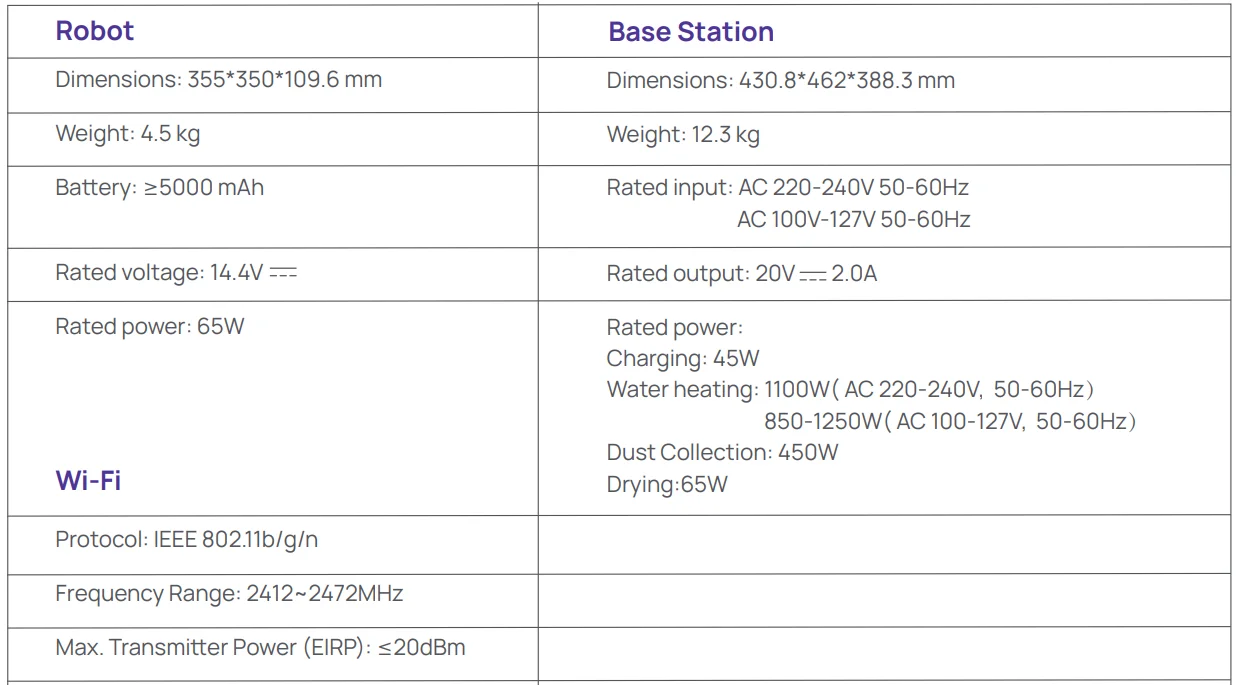
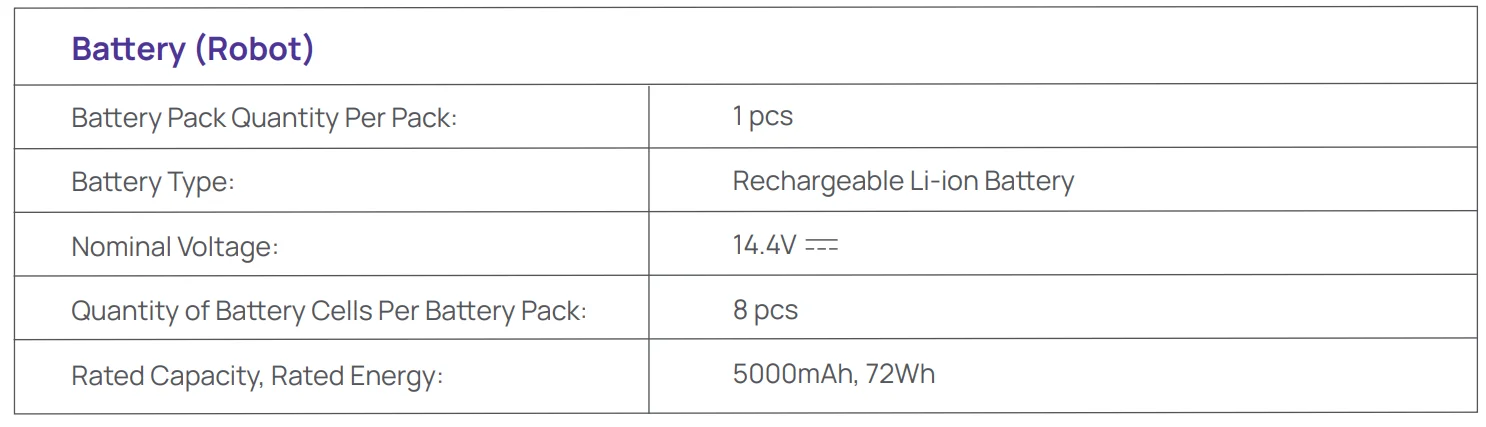
Specifications

For more manuals by NARWAL, visit ManualsLibraryy
Narwal Freo Z Ultra Robot Vacuum-FAQs
Why is my Narwal Freo Z Ultra brush not spinning?
If the brush is not rotating, it is usually due to tangled hair, debris, or blockage around the brush roll. Turn off the vacuum, remove the brush, and clean it thoroughly. Also, check for any damage or obstruction in the brush motor area to restore normal operation.
How do I turn off the Narwal Freo Z Ultra?
You can turn off the robot vacuum by pressing and holding the power button until the indicator light turns off. It’s recommended to power off the device when storing it for long periods or before performing maintenance to protect the battery and internal components.
How do I connect the Narwal Freo Z Ultra to Wi-Fi?
To connect your vacuum, open the Narwal app and tap “Add Device.” Scan the QR code on the robot or follow the in-app instructions. Select a 2.4GHz Wi-Fi network, enter the password, and complete the setup for full access to smart features and remote control.
How can I factory reset the Narwal Freo Z Ultra?
To perform a factory reset, press and hold the reset or designated button combination (as per the manual) until you hear a prompt or see indicator lights change. This will erase all saved settings and Wi-Fi connections, restoring the device to its original configuration.
How do I empty the dustbin or replace the dust bag?
Open the robot’s top cover and remove the dustbin or dust bag carefully. Dispose of the collected dirt and replace it with a clean or new bag if needed. This process usually takes less than a minute and should be done regularly for optimal performance.
Should I turn off my robot vacuum when not in use?
Yes, it’s a good idea to turn off your robot vacuum if you won’t use it for an extended period. This helps preserve battery life, reduces unnecessary wear, and keeps the device in good condition, especially during storage or maintenance.
Can I use the Narwal Freo Z Ultra without Wi-Fi?
Yes, basic functions like start and stop can be controlled using the physical buttons on the device. However, advanced features such as scheduling, mapping, and remote control require a Wi-Fi connection through the mobile app.
How often should I run and maintain my robot vacuum?
For best results, run the vacuum daily or every other day depending on your cleaning needs. Empty the dustbin frequently and clean brushes regularly to prevent clogging. Consistent maintenance ensures better suction performance and extends the lifespan of the vacuum.
Can I use cleaning liquids like vinegar in the mop system?
It’s not recommended to use household liquids like vinegar or harsh chemicals in the mop system. These can damage internal components and reduce performance. Always use manufacturer-approved cleaning solutions to ensure safe operation and long-term reliability.