

Narwal Freo Z10 Vacuum Cleaner
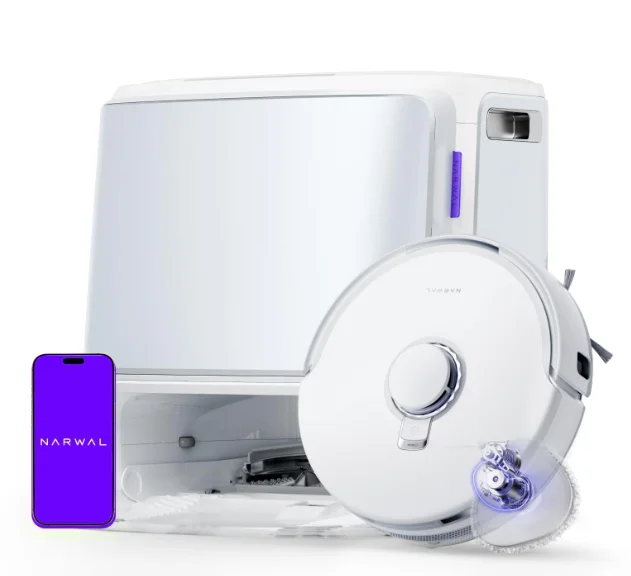
Product At A Glance
Check list
Main parts
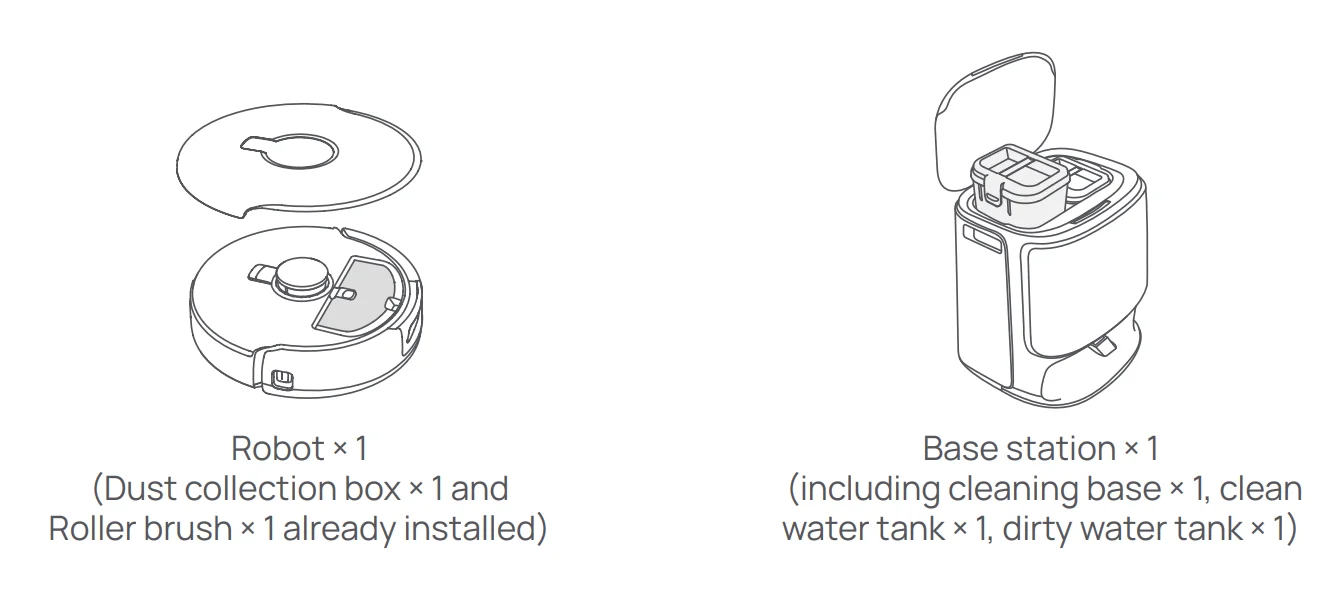
Accessories
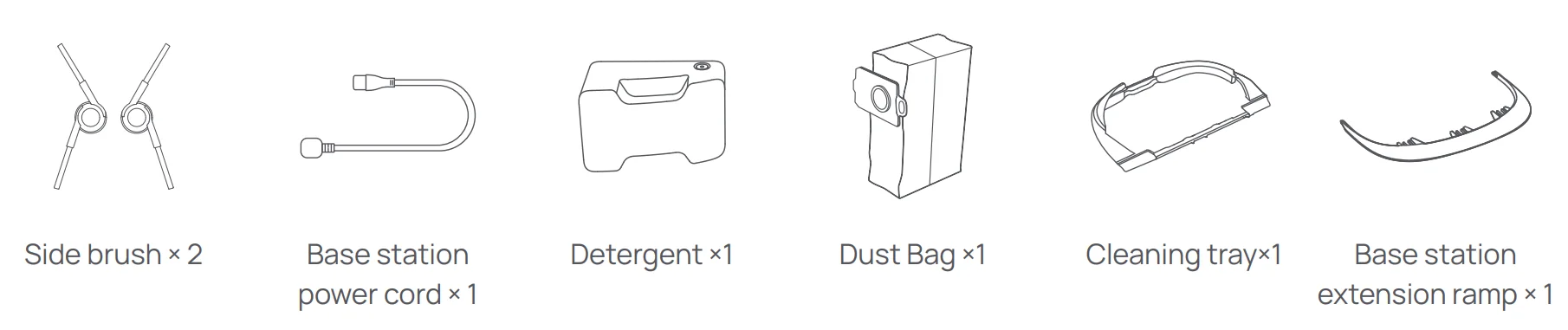
Robot Accessory
Front (top cover closed)
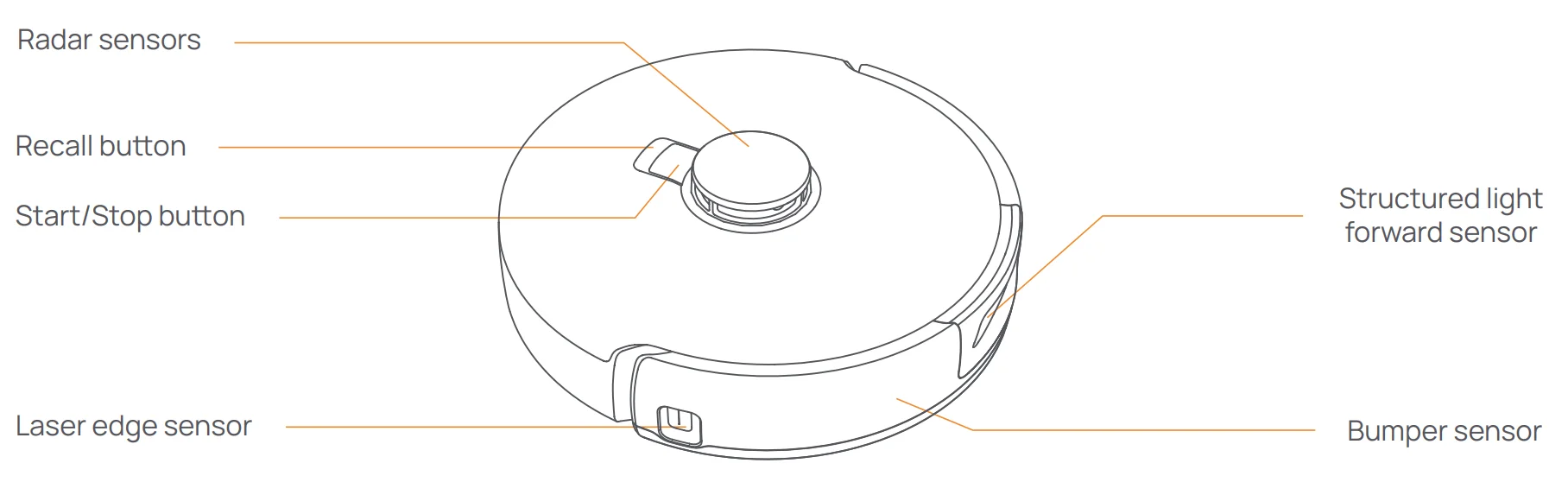
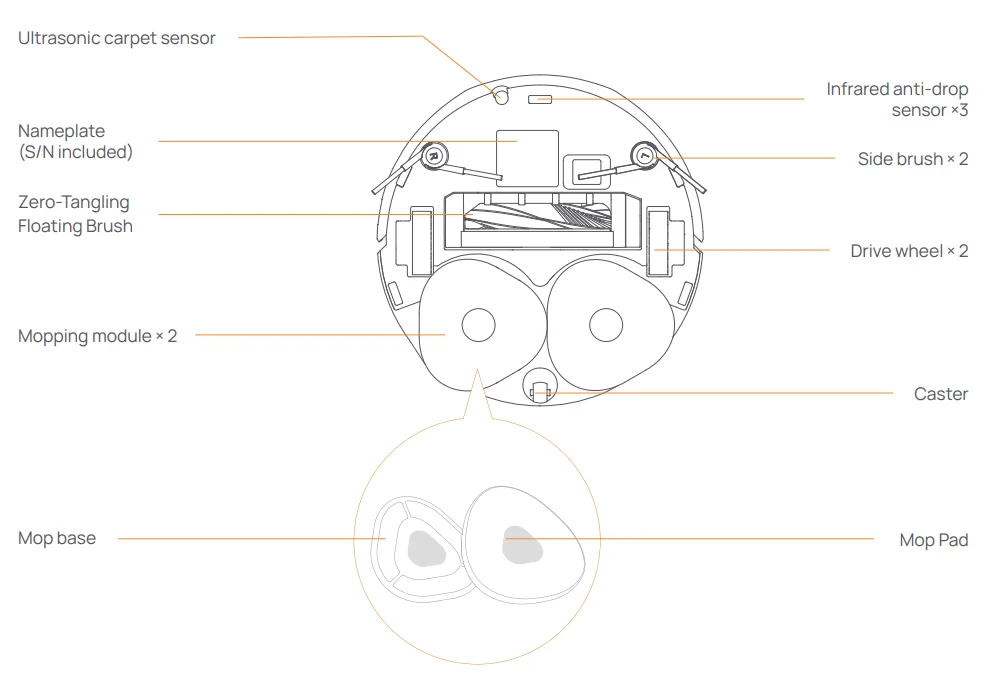
Robot bottom
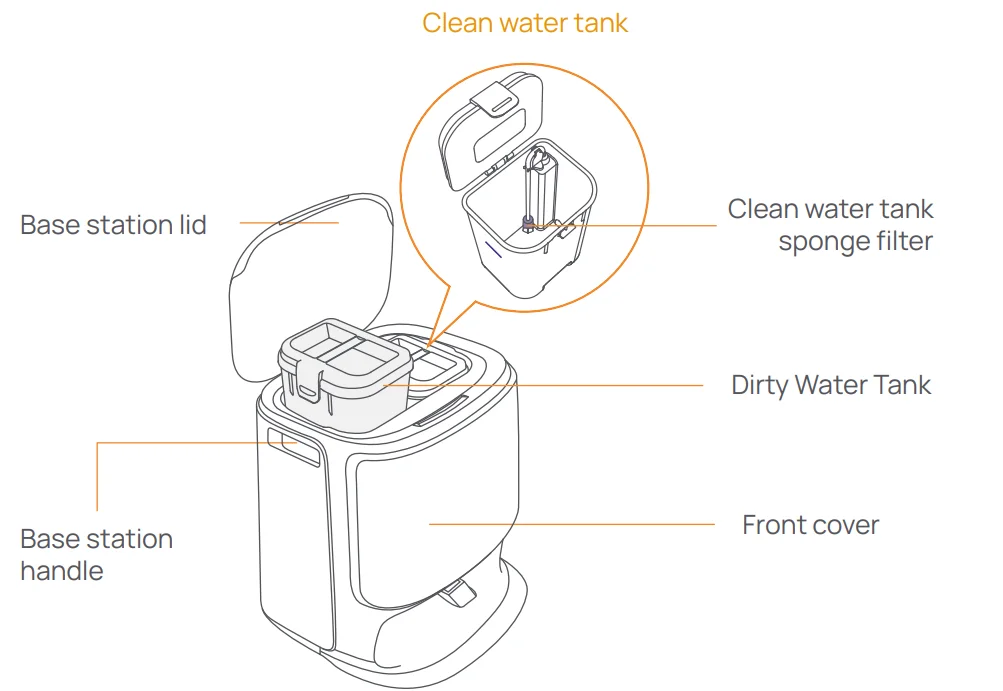
Base station
Front of the base station (open the front cover)
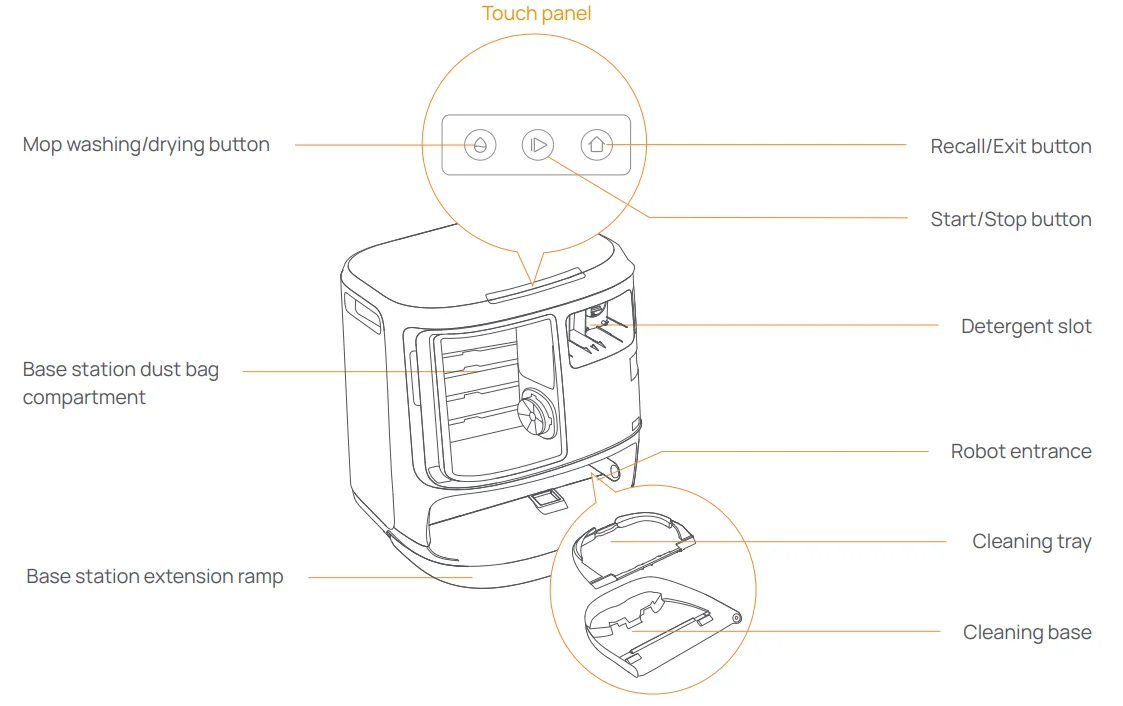
Front (lid open)
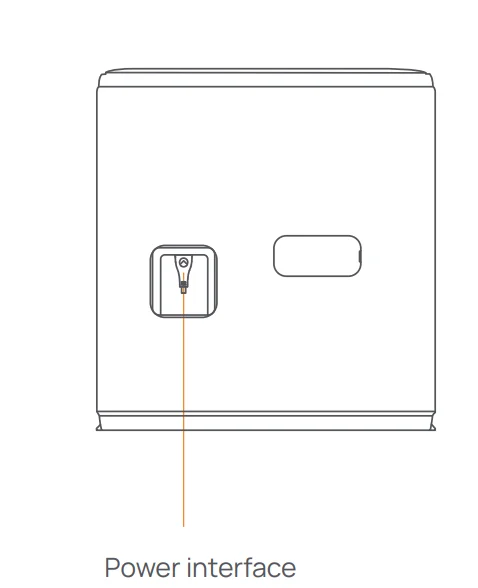
Back
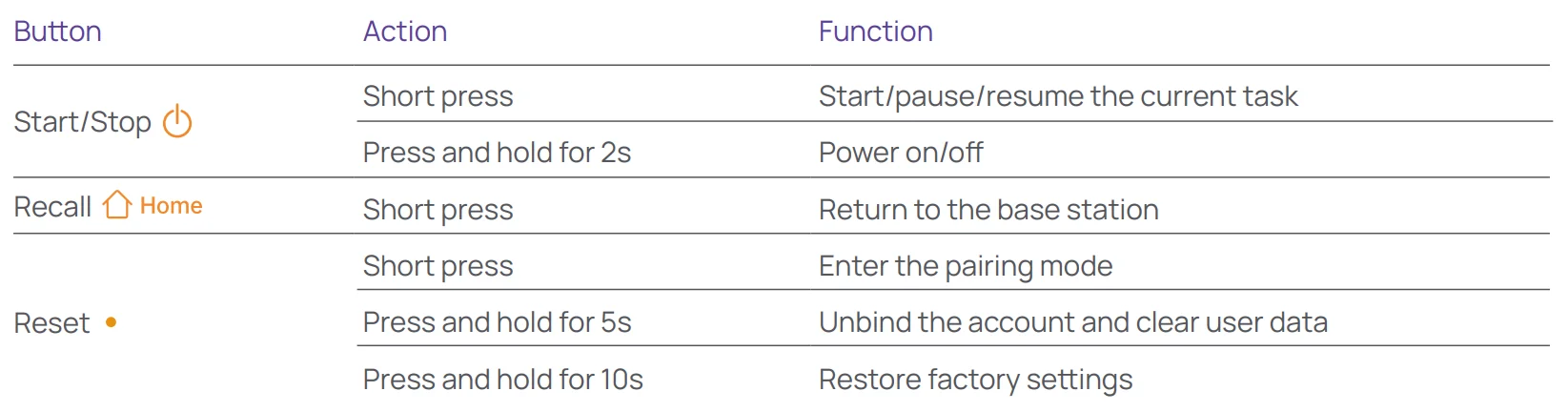
Buttons and indicators
Robot buttons
 Base station button
 Base station button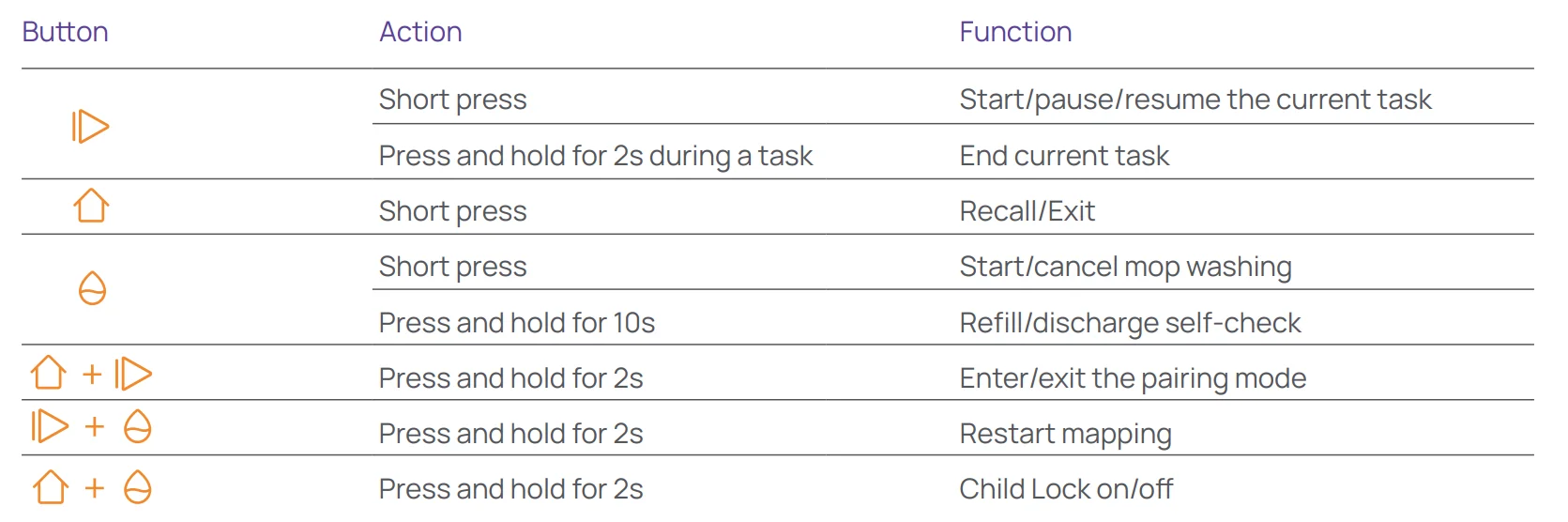
Robot & base station indicators

Note: The touch panel goes dark after no operation for 30 seconds.
Get Ready Before Use
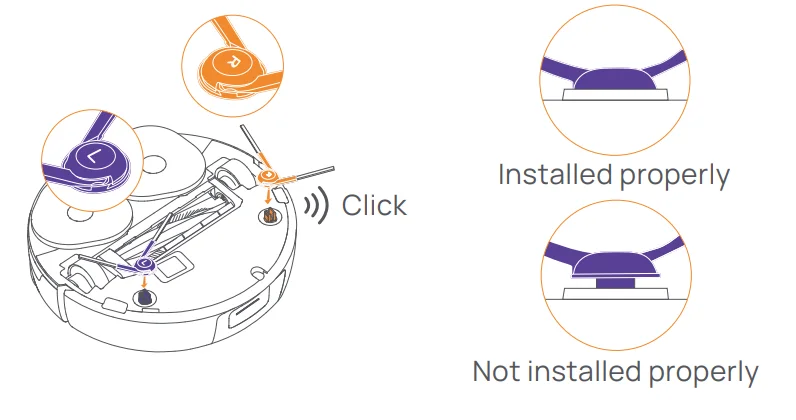
Install the side brushes
Press the side brushes into the slots as indicated by color until they click into place.
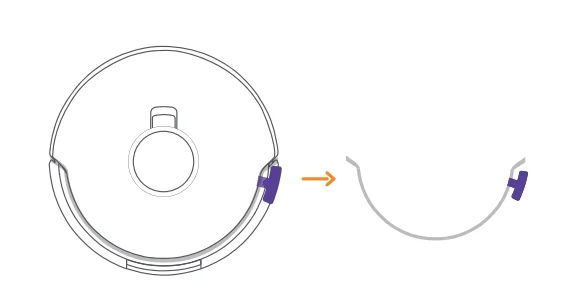
Remove the anti-collision foam
- Lift the top cover sticker to open the robot’s top cover and remove the anti-collision foam.
- Close the robot’s top cover.
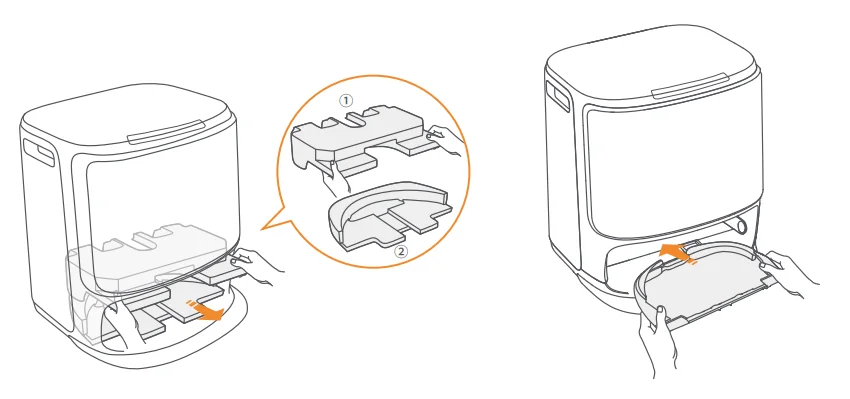
Remove the foam and install the cleaning tray
- Remove the two foam pieces that secure the robot inside the base station.
- Insert the cleaning tray into the base station and secure it.
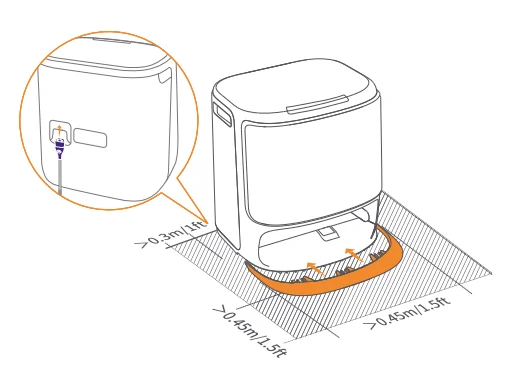
Place the base station
- Plug in the power cord in the back of the base station.
- Put the base station extension ramp on the floor and push it into the bottom of the base station until it clicks into place.
- Leave an open space of at least 0.45 meters long in front of the base station for the robot to enter and leave the base station.
Tips: DO NOT put the base station close to a heat source.
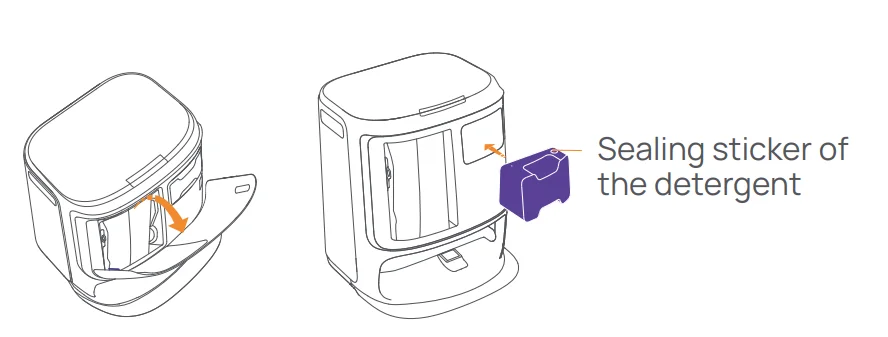
Place the detergent
- Remove the base station front cover, face the cap of the detergent to the base station (DO NOT remove the cap; make sure that the sealing sticker is removed), and horizontally push it into the detergent bin.
- When the detergent is in place, put the base station front cover back.
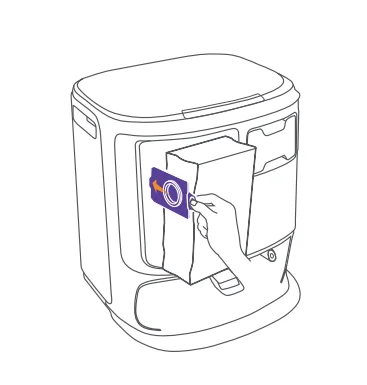
Base Station Disinfection Dust Bag Installation
- Remove the base station front cover.
- Insert the dust bag into the slot in the marked direction until it hits the bo om.
- Put back the base station front cover.
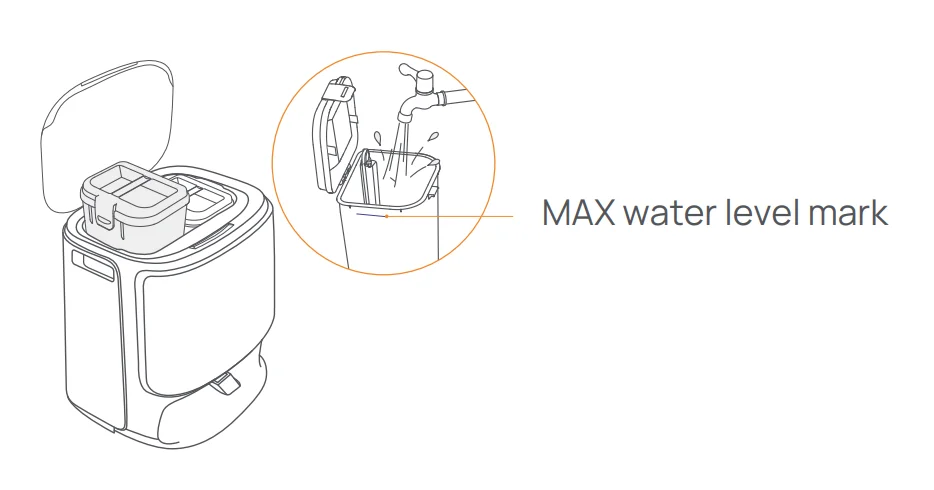
Add clean water
- Unsnap the clean water tank and fill it with clean water.
- Close the clean water tank cap and put the clean water tank back into the base station.
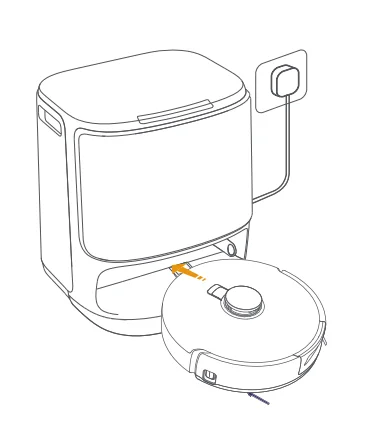
Boot settings
Push the robot into the base station with side brushes facing outward. The base station will beep once to indicate that charging is successful and the robot will turn itself on and prompt a voice message.
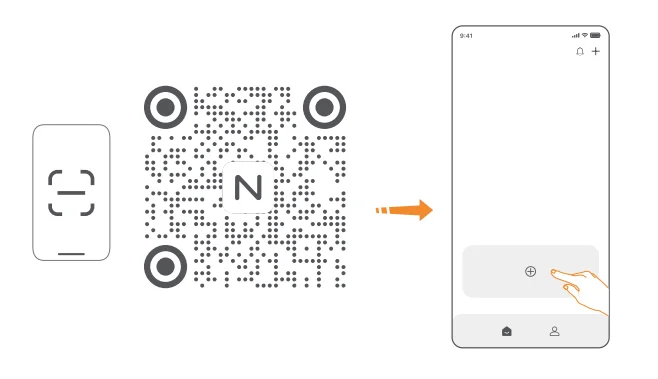
Connect and bind the robot in the App
Download the Narwal App and follow the instructions for connecting and binding the robot.
Note: In the App device page, tap “Se ings” > “Device” and then hold the “Restart Robot” for 10s to turn on/off the power-saving mode.
- The power-saving mode is only available in North America.
How to Use
Before using the robot, please make sure you have finished the installation and base station setup in Chapter 2.
Organize the home environment
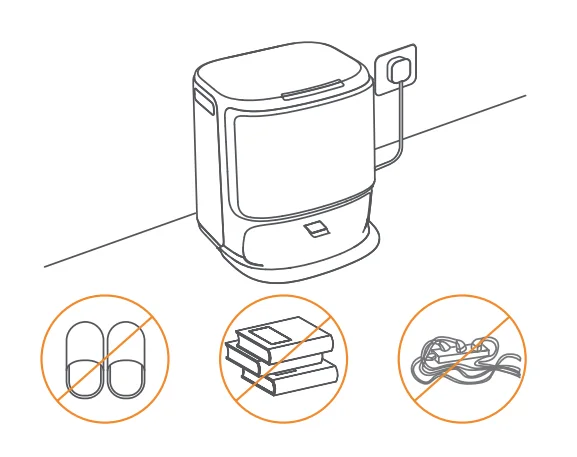
- A. Put away the clutter on the floor, e.g., scattered cables, rags, slippers, clothes, and books.

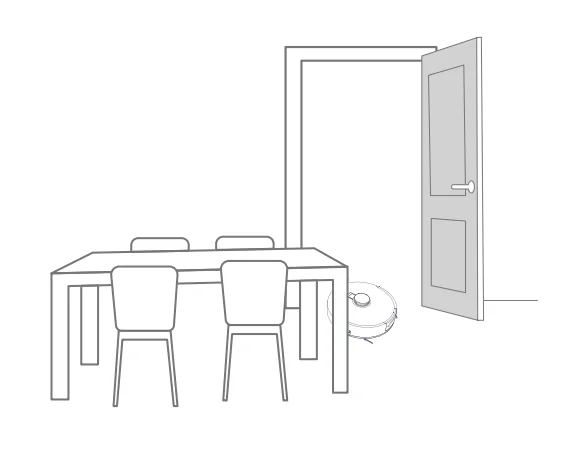
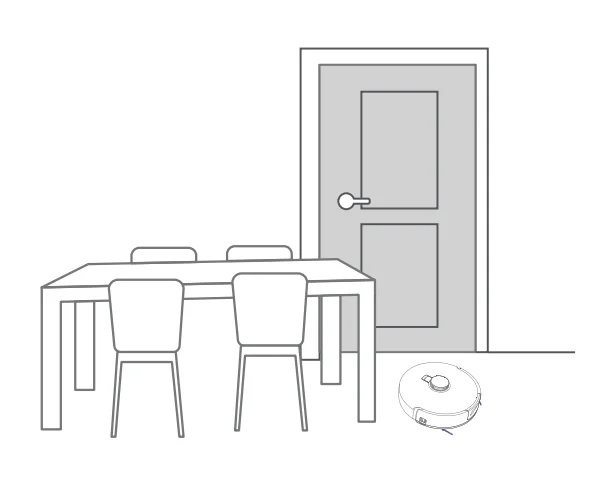
- B. Open the doors of the rooms to be cleaned and arrange the furniture to leave as much space as possible for cleaning.

- C. Leave other doors closed and install the fence to prevent the robot from entering elevated or low areas.

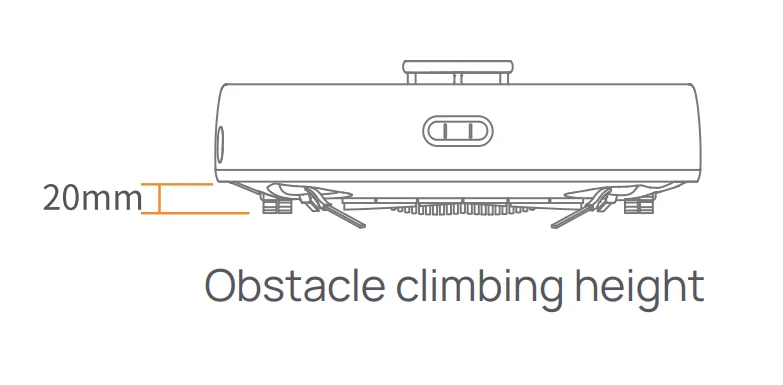
- D. The maximum obstacle crossing height is 20mm, and the robot cannot enter rooms with a threshold height of over 20mm. You can purchase the Narwal Threshold Ramp to help the robot climb over obstacles.

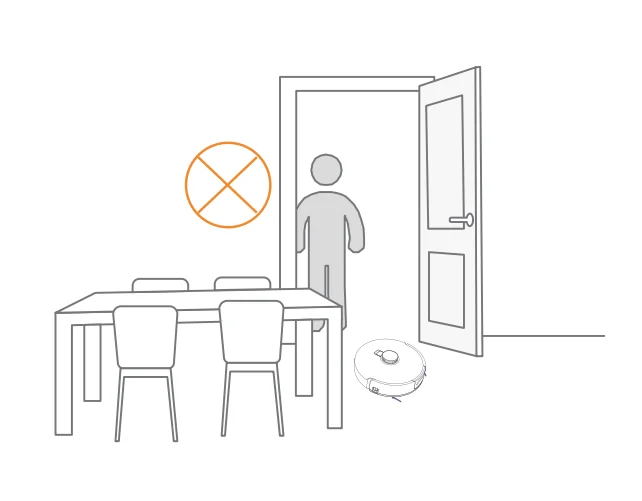
- E. DO NOT stand in front of the robot, on the threshold, or in narrow aisles to avoid omission.
Mapping
Before cleaning a new home, the robot needs to explore the environment and create a map. Before first-time cleaning, you can trigger mapping by short-pressing the [Start/Stop] button on the base station or tapping [Start Mapping] in the App.
Note:
- Once a map is created, it can be edited in the App.
- Please do not move the base station after a map is created, or you will have to restart mapping. If large furniture in your home is rearranged, it is recommended to create a new map.
Cleaning
Select cleaning modes
The product comes with four built-in cleaning modes: Vacuum, Mop, Vacuum and Mop, and Vacuum then Mop. You can select and adjust parameters like cleaning cycles, suction, and mop humidity for each mode in the App.
Set Freo Mind
The Freo Mind is an intelligent cleaning assistant. When Freo Mind is turned on, the robot will intelligently adjust cleaning parameters without needing manual settings. You can select whether to activate Freo Mind when starting a cleaning task in the App.
Start the cleaning task
You can start the robot for cleaning in three ways:
- Tap
 [Start Cleaning] in the App.
 - Short press the
 [Start/Stop] button on the robot to start cleaning. The robot will activate the Vacuum Mode by default.
 - Short-press the
 [Start/Stop] button on the base station to start cleaning. The robot will activate the Vacuum and Mop Mode by default.
Note: You can adjust the cleaning mode and set more cleaning parameters in the App.
 [Start Cleaning] in the App.
 [Start/Stop] button on the robot to start cleaning. The robot will activate the Vacuum Mode by default.
Pause/resume the current task
You can pause/resume the current task in three ways:
- Tap
 [Pause]/[Resume] in the App;
 - Short-press the[Start/Stop] button on the robot;
- Short-press the[Start/Stop] button on the base station.
 [Pause]/
Dust collection
After a vacuuming task starts, the base station will transfer dirt and debris within the robot canister to the dust bag in it. You can also tap dust collection in the App to start dust collection manually.
Mop washing
If the robot is set for multiple mopping runs or the area for cleaning is large, the robot will automatically return to the base station for mop washing. The number of mopping runs and return frequency can be modified in the App before cleaning starts, and the modification during the current cleaning task will take effect during the next task.
End current task
The robot will navigate itself back to the base station when cleaning ends. You can view the current cleaning report in the App. You can manually end the task in the following three ways:
- Press and hold[Finish] for 2s in the App;
- Short-press the
 [Recall] button on the robot;
 - Short-press the
 [Recall] button or long-press and hold the[Start/Stop] button on the base station for 2s.
 [Recall] button on the robot;
 [Recall] button or long-press and hold the
Mop Drying
After the last mopping run, the robot will return to the base station for mop washing and drying. The drying time can be modified in the App. You can also start mop washing and drying manually in the following two ways:
- Tap
 [Mop Washing & Drying] in the App.
 - Short press
 [Mop Washing & Drying] button on the base station.
 [Mop Washing & Drying] in the App.
 [Mop Washing & Drying] button on the base station.
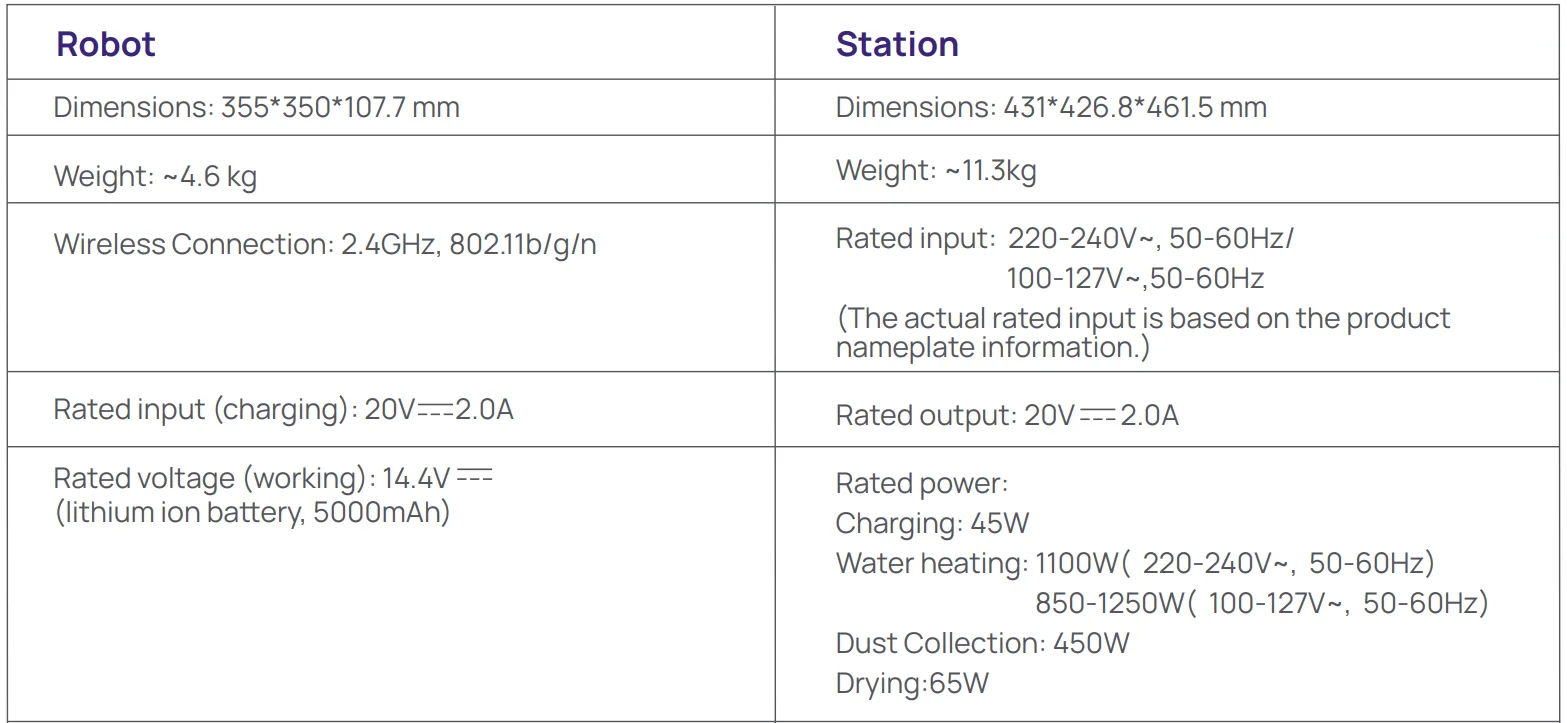
Parameters
Specifications


For more manuals by NARWAL, visit ManualsLibraryy
Narwal Freo Z10 Vacuum Cleaner-FAQs
Is the Narwal Freo Z10 worth buying?
Yes, the Narwal Freo Z10 is considered a strong investment for users who want automated cleaning. It combines powerful suction, advanced mopping, and self-maintenance features. With minimal manual effort required, it handles regular cleaning efficiently, making it especially valuable for busy households seeking convenience and consistent performance.
What are the key features of the Narwal Freo Z10?
The Narwal Freo Z10 includes high suction power, dual mopping system, AI-based obstacle avoidance, and a self-cleaning base station. It also offers hot water mop washing, hot air drying, and automatic dust emptying. These features work together to deliver deep cleaning with minimal user intervention.
Does the Narwal Freo Z10 have smart navigation?
Yes, the Freo Z10 uses advanced AI navigation with dual cameras and sensors. It can detect and avoid common household objects while mapping your home accurately. This ensures efficient cleaning paths, better coverage, and fewer collisions with furniture or obstacles during operation.
Can the Narwal Freo Z10 vacuum and mop at the same time?
Yes, the Narwal Freo Z10 is designed as a vacuum and mop combo. It can clean dust and debris while simultaneously mopping floors. The system intelligently adjusts cleaning modes depending on the surface, ensuring both dry and wet cleaning tasks are handled effectively in one go.
How does the self-cleaning system work?
The Freo Z10 features a fully automated base station that washes and dries the mop pads after cleaning. It also empties the dustbin automatically and manages water usage. This reduces maintenance effort and keeps the device hygienic, allowing users to go weeks without manual cleaning.
Is the Narwal Freo Z10 suitable for carpets?
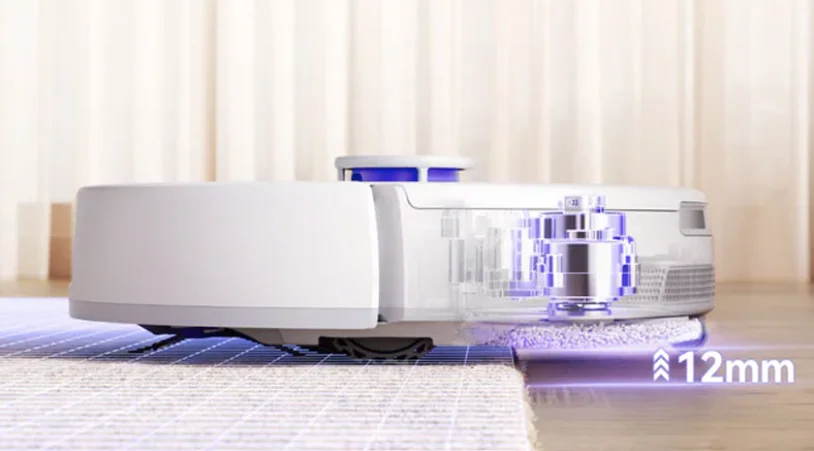
Yes, the Freo Z10 can clean carpets effectively with its strong suction power. It automatically lifts the mop pads when detecting carpets to avoid wetting them. This ensures proper vacuuming performance on rugs and carpets while maintaining safe and efficient operation.
How powerful is the suction on the Narwal Freo Z10?
The Narwal Freo Z10 offers very high suction power, making it effective at picking up dust, pet hair, and debris from different surfaces. This strong performance allows it to handle both hard floors and carpets efficiently, providing deep cleaning results compared to many standard robot vacuums.
How does the Narwal Freo Z10 compare to other robot vacuums?
The Freo Z10 stands out due to its advanced mopping system and automation features. While some competitors may excel in navigation or app control, the Z10 offers a balanced mix of strong suction, intelligent cleaning, and hands-free maintenance, making it a competitive all-in-one cleaning solution.
What are the common drawbacks of the Narwal Freo Z10?
Some users may find limited manual control in certain cleaning settings compared to other brands. Additionally, its premium features come at a higher price point. However, for users prioritizing automation and mopping performance, these drawbacks are generally minor compared to its benefits.
Can you control the Narwal Freo Z10 with an app?
Yes, the Freo Z10 can be controlled through a mobile app. Users can schedule cleaning, select rooms, adjust cleaning modes, and monitor progress in real time. The app enhances convenience by allowing full control and customization of cleaning routines from anywhere.