
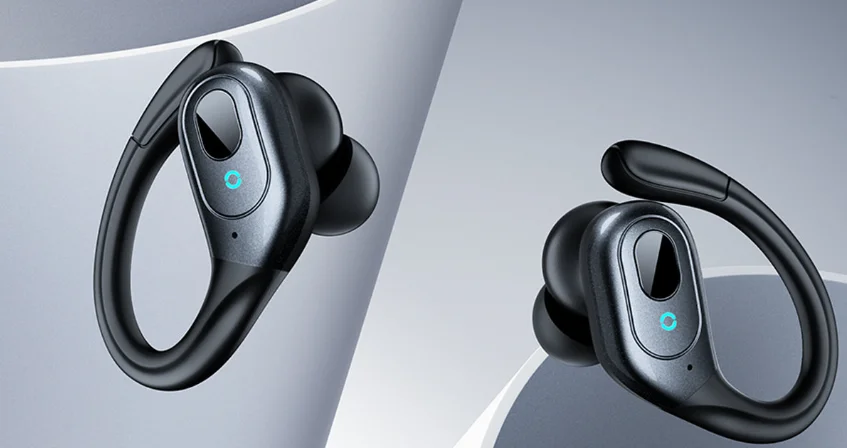

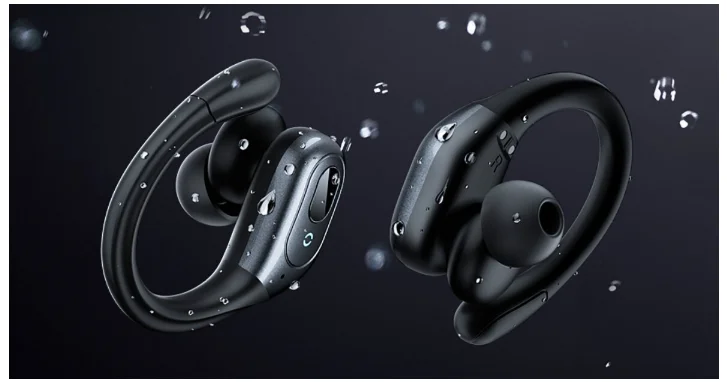
Occiam T19 TWS Earbuds
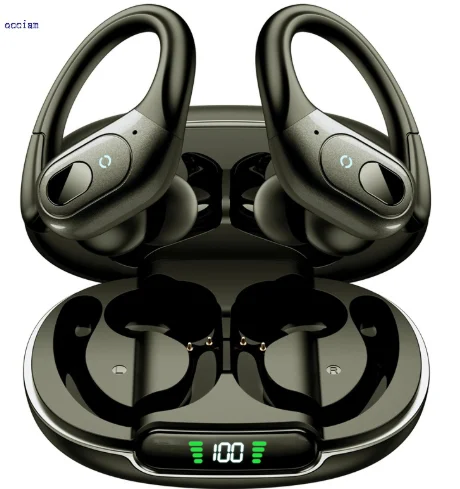
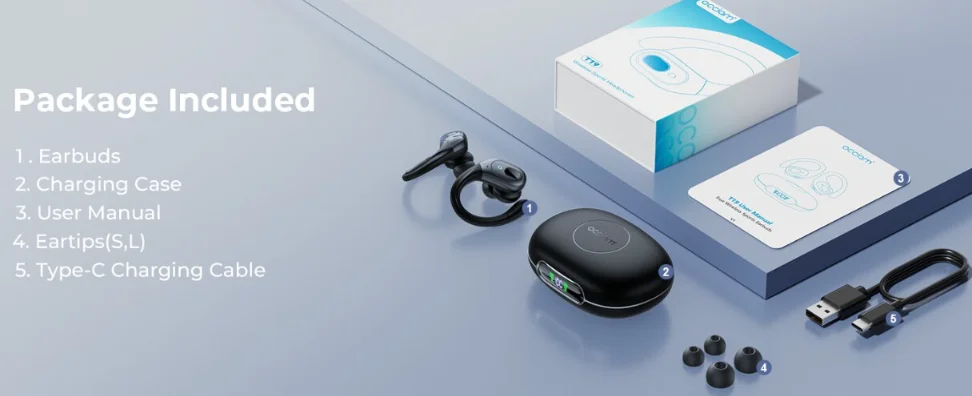
Occiam T19 Accessories
The earbuds come with the following accessories:
- Charging case.
- USB cable.
- User manual.
- Ear tips.

Occiam T19 Manual | Guide & Troubleshooting
How To Pair The Earbuds?
To Android and iOS Devices
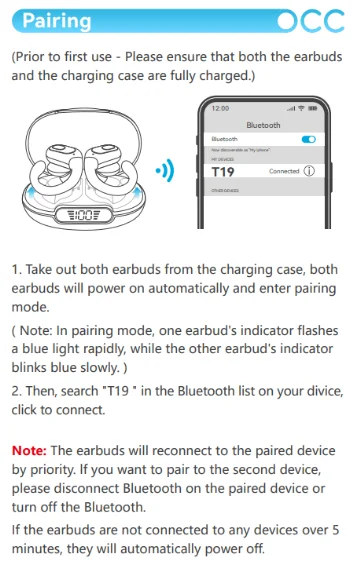
- Open the lid of the charging case and take the earbuds out. After that, the earbuds will turn on automatically and pair with each other. A blue light will start flashing quickly in one of the earbuds and slowly on the other one, and the earbuds will now be ready to pair with any device.
- Unlock the desired device.
- Go to the device’s settings.
- Turn on Bluetooth on the desired device.
- Search for a new device.
- Select the T19 earbuds. If a password is needed, type “0000” or “1234”. After that, the pairing will be done.
To Windows (PC)
- Turn on the Windows Bluetooth.
- Go to the settings.
- Go to “Bluetooth and other devices”.
- Click on “Add device”.
- Click on Bluetooth.
- Open the lid of the charging case and take the earbuds out. After that, the earbuds will turn on automatically and pair with each other. A blue light will start flashing quickly in one of the earbuds and slowly on the other one, and the earbuds will now be ready to pair with any device.
- Select the T19 earbuds. If a password is needed, type “0000” or “1234”. After that, the pairing will be done.

How To Wear These Earbuds?
- Take both earbuds out of the charging case.
- Identify the left and right earbuds.
- Choose the ear tips that best suit your ears.
- Insert the headphones into the inner ear canal of the ears.
- Rotate for the best possible comfort and best fit, and make sure that the microphone is pointing to the mouth.
How To Turn On And Off?
Turn On
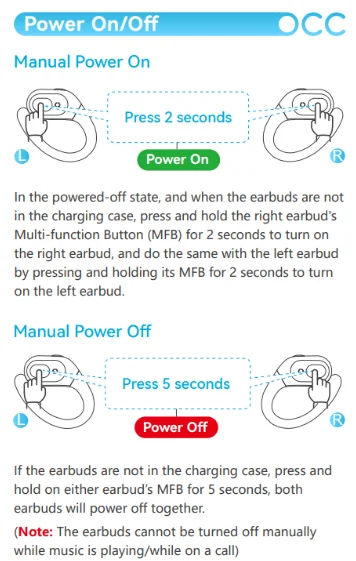
- Automatically: Open the lid of the charging case and take the earbuds out. After that, the earbuds will turn on automatically.
- Manually: Press and hold the multifunction touch button on both earbuds for about 2 seconds. After that, the earbuds will turn on.
Turn Off
- Automatically: Place the earbuds into the charging case. After that, the earbuds will turn off automatically.
- Manually: Press and hold the multifunction touch button on both earbuds for about 5 seconds. After that, the earbuds will turn off.

How To Control These Earbuds?
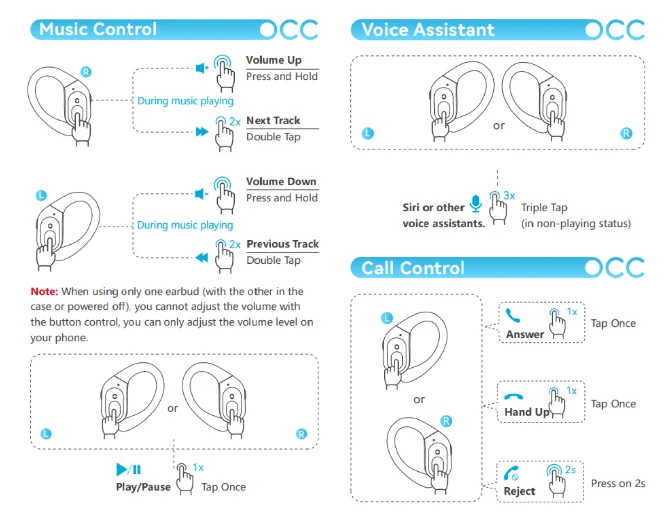
NOTE: The multifunction touch button is placed on the top part of the body of the earbuds.
- Play or pause a song: Press the multifunction touch button on any of the earbuds one time.
- Play the next song: While listening to music, press the multifunction touch button on the right earbud two times.
- Play the previous song: While listening to music, press the multifunction touch button on the left earbud two times.
- Turn the volume up: Press and hold the multifunction touch button on the right earbud.
- Turn the volume down: Press and hold the multifunction touch button on the left earbud.
- Answer an incoming call: Press the multifunction touch button on any of the earbuds one time.
- End a current call: Press the multifunction touch button on any of the earbuds one time.
- Reject an incoming call: Press and hold the multifunction touch button on any of the earbuds for about 2 seconds.
- Activate the voice assistant: Press the multifunction touch button on any of the earbuds three times.

How To Reset And Re-Pair These Earbuds?
- Delete the T19 earbuds from the device’s Bluetooth list.
- Turn off Bluetooth on the device.
- Take both earbuds out of the case.
- Press and hold the multifunction touch button on both earbuds for about 2 seconds. They will turn off.
- Press and hold the multifunction touch button on both earbuds for about 5 seconds. They will turn on. Make sure they do not connect to any devices at this time.
- Press the multifunction touch button on both earbuds five times, and a blue light will flash three times. This will reset the earbuds, and they will turn off.
- Turn on Bluetooth on the desired device.
- Search for a new device.
- Press and hold the multifunction touch button on both earbuds for about 2 seconds. After that, the earbuds will turn on. A blue light will start flashing quickly in one of the earbuds and slowly on the other one, and the earbuds will now be ready to pair with any device.
- Select the T19 earbuds. If a password is needed, type “0000” or “1234”. After that, the pairing will be done.
NOTE: If it shows “Unsuccessfully connected,” please unpair or delete all the T19 records on the device and then search for T19 to connect again.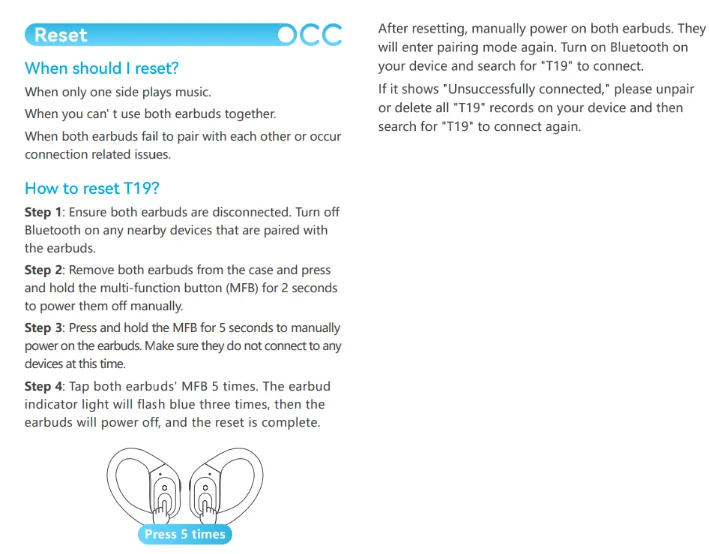
How To Charge The Earbuds?
Earbuds
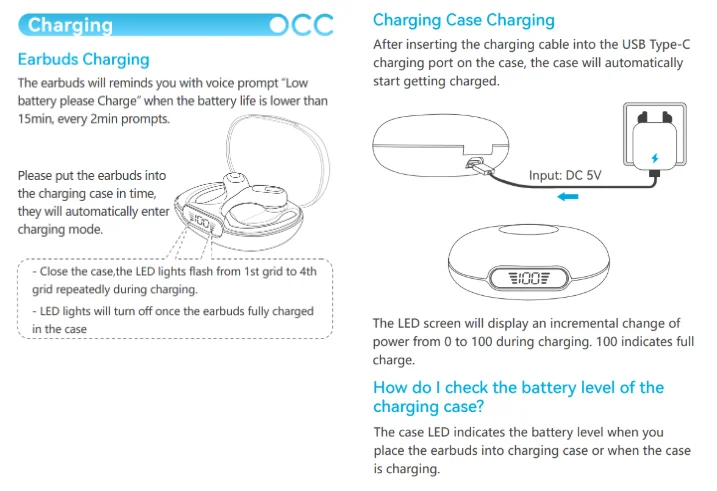
To charge the earbuds, all you have to do is place them into the charging case. The earbuds will start charging automatically.
Charging Case
To charge the charging case, all you have to do is connect the case to a USB charger or charging port. It will start charging automatically.
What Do The Lights Mean?
Earbuds
- A blue light will flash quickly in one of the earbuds and slowly on the other one: The earbuds will now be ready to pair with any device.
- A blue light flashes three times while resetting: The earbuds are resetting.
Charging Case
- 0 to 99 appears on the display while charging: The case is charging.
- A 100 appears on the display while charging: The case is fully charged.
- Flashing down and up design with the earbuds inside: The earbuds are charging.
- No flashing design with the earbuds inside: The earbuds are fully charged.

Do These Earbuds Have An App?
Sadly, these earbuds don’t come with app support.
Some Common Problems & Troubleshooting
Left/Right/One side of the earbuds has stopped working
If this happens, it may be because it is low on battery or it did not connect correctly with the device. To fix this, you can do the following:
- Try charging the earbud that is not working or both, placing them in the charging case.
- Try factory resetting the earbuds.
- Check if the earbuds are operating within a normal working range. If that doesn’t work, the earbud is probably faulty, and I can go for a refund or a replacement.
Left/Right/One side of the earbuds has a low volume
If this happens, it may be because the earbuds are dirty or the volume is set low. To fix this, you can do the following:
- Try cleaning the earbud using a cotton swab or carefully clean the mesh with a pin.
- Try factory resetting the earbuds.
The microphone is not working.
- If this happens, it can be because the microphone is muted or the earbuds are badly positioned. To fix this, you can do the following:
- If the microphone is muted, check the device microphone volume. If that doesn’t work, that means that there might be a defect in the earbuds, so try replacing them or getting a refund.
The earbuds are not connecting to Windows/laptop/PC
If the earbuds are not connecting, it can be because the Bluetooth on the computer has a pairing problem. To fix this, you can do the following:
- Try disabling Bluetooth from nearby devices, then activate the pairing mode of the earbuds, pair, and connect the earbuds from Settings >>> Bluetooth & other devices >>> Add a new device >>> Select Bluetooth.
- Try uninstalling and reinstalling the Bluetooth driver, or updating the Bluetooth driver. All can be done in Manage >>> Device Manager, reset earbuds (if available), and then repeat the step.
- Try resetting the earbuds.

For More Manuals By Occiam, Visit ManualsLibraryy.
Occiam T19 TWS Earbuds -FAQs
What are Occiam T19 TWS Earbuds?
Occiam T19 TWS Earbuds are true wireless Bluetooth earbuds designed for everyday listening, calls, and portable convenience. They offer wireless connectivity without cables, typically include a charging case for extended battery life, and provide a secure, comfortable fit. These earbuds are ideal for users who want a budget-friendly, compact audio solution for workouts, commuting, gaming, and casual use.
How do I pair Occiam T19 earbuds with my phone?
To pair Occiam T19 earbuds, ensure they are charged and powered off. Remove both earbuds from the charging case—most models enter pairing mode automatically. Activate Bluetooth on your phone, tablet, or laptop, then select “Occiam T19” from the list of available devices. After pairing once, they should reconnect automatically when taken out of the case with Bluetooth enabled.
Why won’t my Occiam T19 earbuds connect to my device?
If Occiam T19 earbuds won’t connect, ensure the earbuds and your device’s Bluetooth are turned on and sufficiently charged. Turn Bluetooth off and back on again to refresh the connection list. If that doesn’t work, reset the earbuds and remove any previous pairings in your phone’s Bluetooth settings before trying again. Interference from other devices can also sometimes interrupt pairing.
How long is the battery life on Occiam T19 TWS Earbuds?
Battery life for Occiam T19 earbuds typically ranges from a few hours on a single charge depending on usage, volume, and features. The charging case provides additional full charges, extending total listening time through the day. For best battery performance, keep the case charged, avoid excessive volume, and store the earbuds in the case when not in use.
How do I charge Occiam T19 earbuds and the charging case?
Place each earbud into the charging case so the metal contact points align properly. The earbuds should begin charging automatically, often indicated by LED lights. The charging case itself is powered via a USB-C or micro-USB cable (depending on model). Make sure to use the provided or compatible cable and a stable power source to charge the case fully.
Can I use only one Occiam T19 earbud at a time?
Yes, many TWS earbuds, including the Occiam T19, support mono or single-earbud mode. This means you can use either the left or right earbud independently for calls or audio playback. This is useful for extending battery life or maintaining awareness of your surroundings. Make sure the earbud you want to use is powered on and connected.
How do I reset Occiam T19 earbuds?
To reset Occiam T19 earbuds, place them into the charging case and ensure they are turned off. Remove them after a few seconds, then press and hold the touch surfaces or physical buttons (depending on model) until the LED indicators flash. This should clear previous settings and allow you to re-pair them with your device for a fresh connection.
Have Occiam T19 earbuds got touch controls?
Most Occiam T19 TWS models come with touch or button controls on each earbud. These let you play/pause music, answer or reject calls, skip tracks, or activate your phone’s voice assistant without needing to take your device out. Exact control functions vary by model, so check your earbuds’ quick guide for specific tap patterns.
Are Occiam T19 earbuds good for calls and meetings?
Occiam T19 earbuds include built-in microphones, making them suitable for hands-free calls and casual online meetings. Call quality is generally clear in quiet environments, though it can vary in noisy settings since they typically lack advanced noise-cancellation technology. For most daily calls and chats, they offer reliable performance at their price point.
Are Occiam T19 TWS Earbuds sweat-resistant?
Occiam T19 earbuds are often designed with some level of sweat or water resistance, making them suitable for workouts, jogging, or light rain. However, they are not fully waterproof and shouldn’t be submerged or exposed to heavy water. Always check the specific IP rating (if available) for your model to understand what level of moisture exposure it can safely handle.