
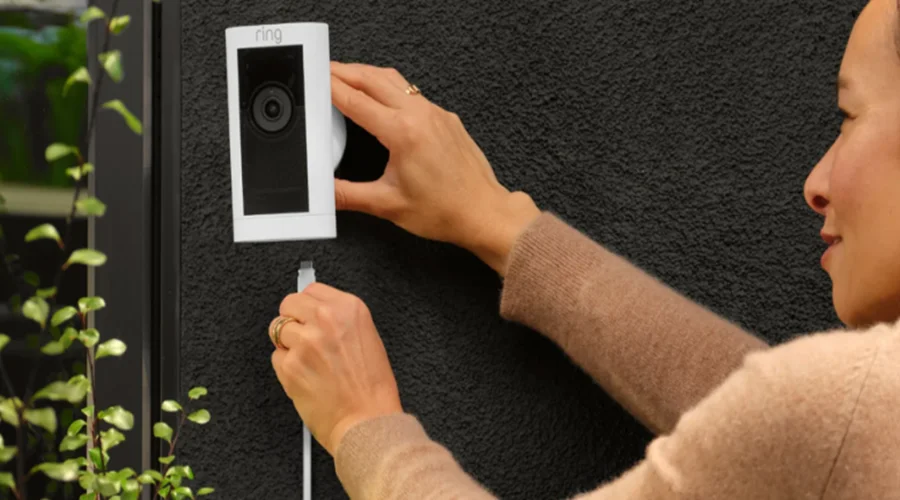

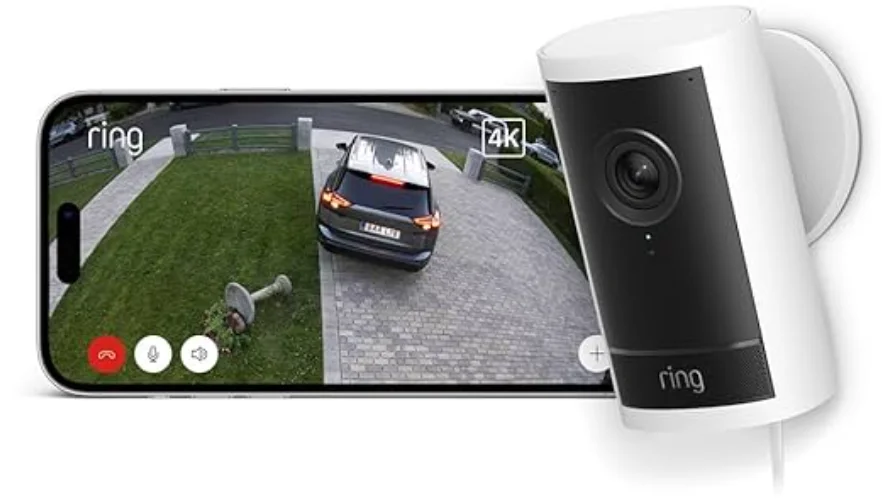
Outdoor Cam Pro Plug-In
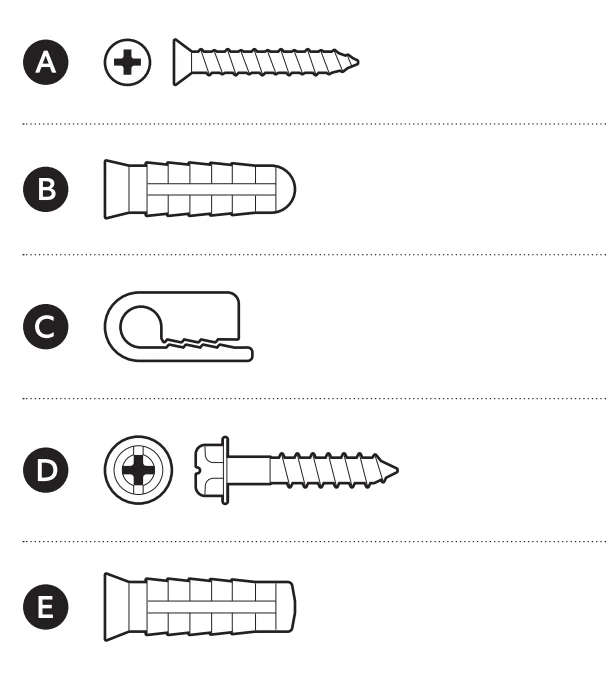
Hardware included
Tools needed
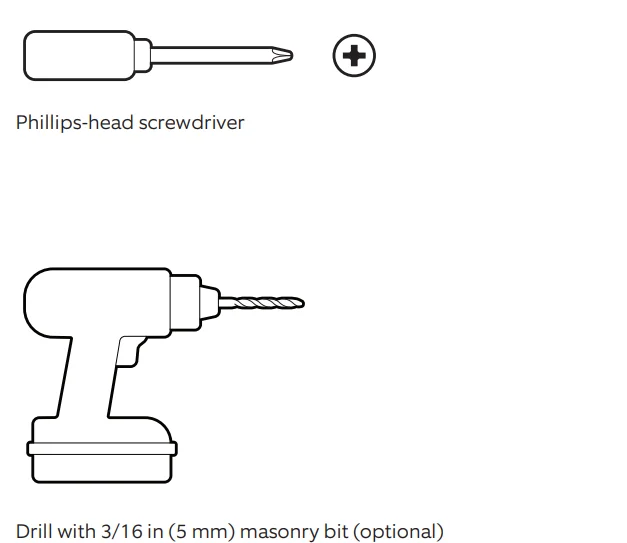
Drill with 3/16 in (5 mm) masonry bit (optional)
- Remove the protective wrap.

- Download the Ring app.

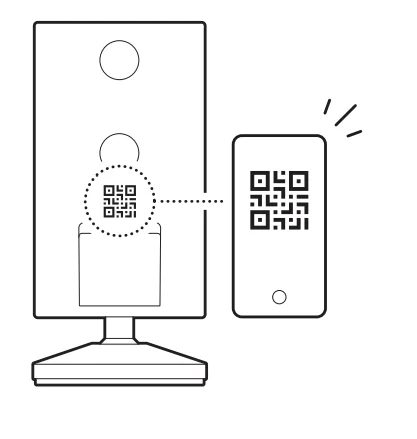
- Scan the QR code on your device.

- Choose a location near an outlet.


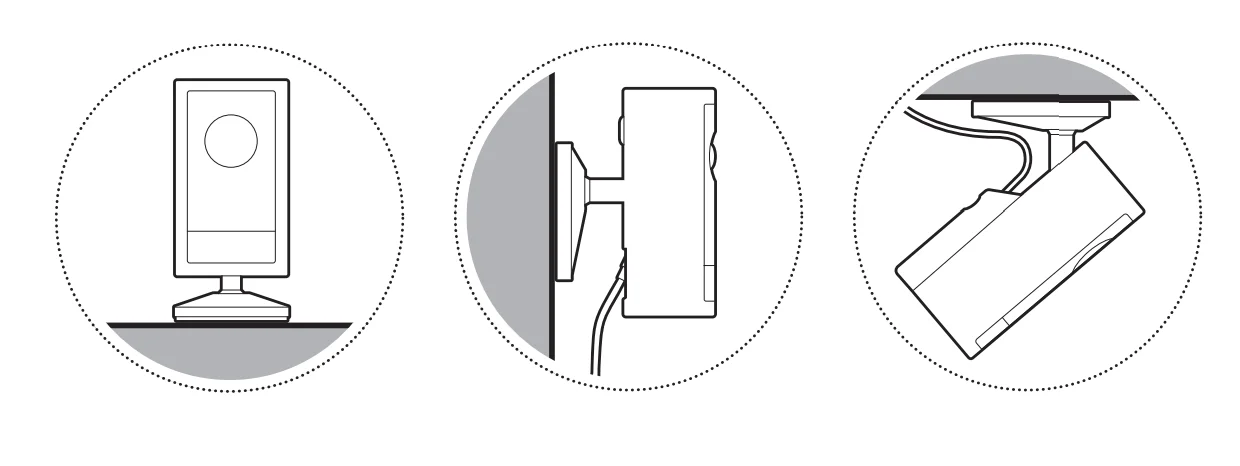
Flat installation
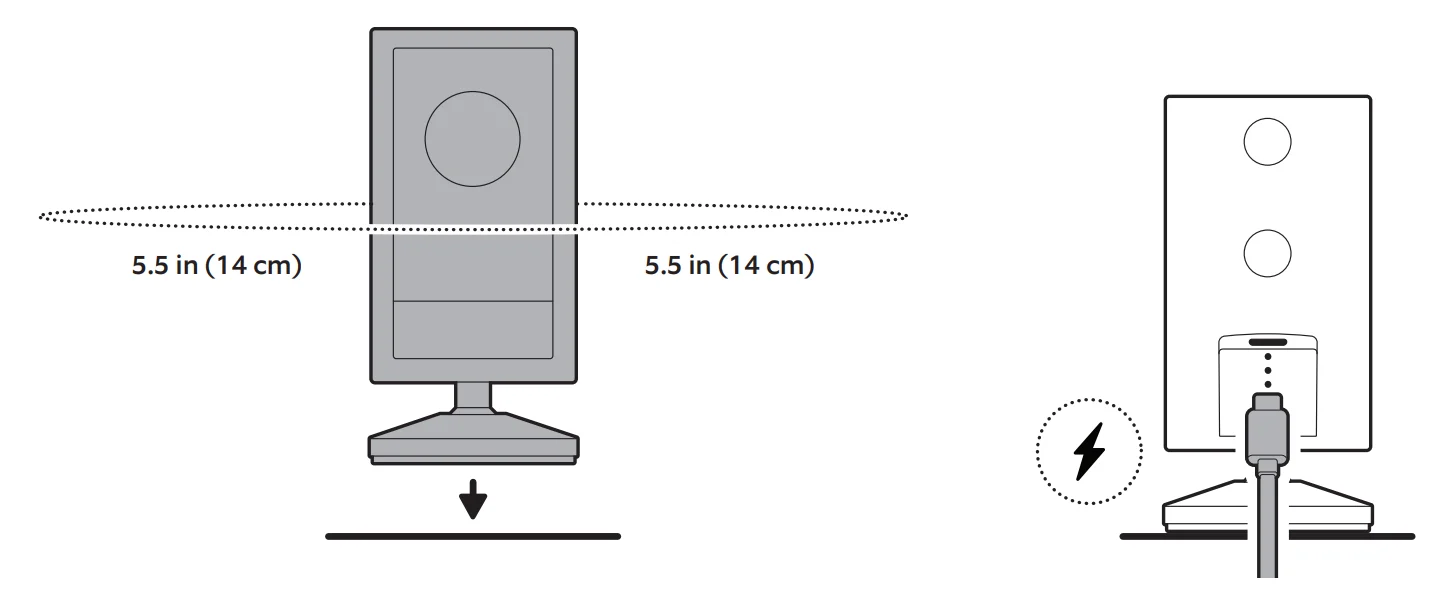
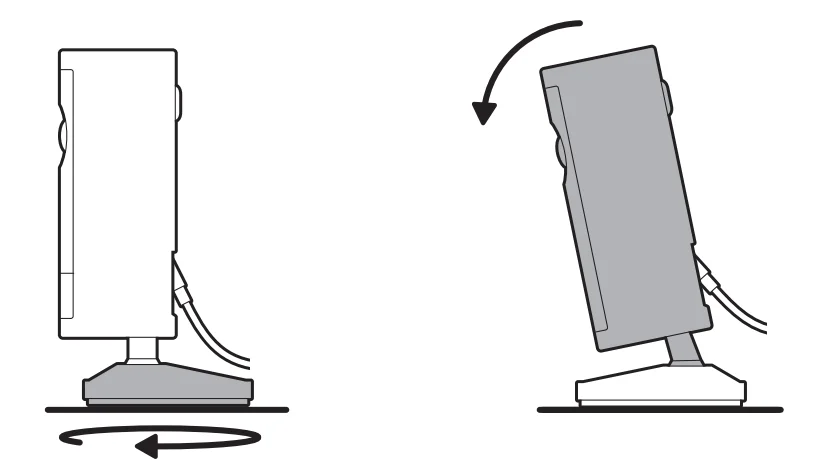
- Place your camera on a level surface with 5.5 in (14 cm) of space in every direction and plug in.

NOTE: For a downward angle, face the longer side of the base toward the front and tilt your camera down accordingly.
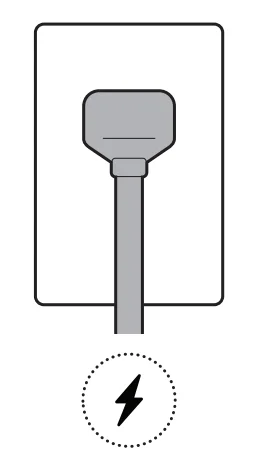
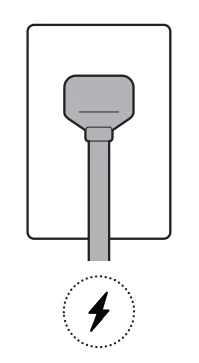
- Plug the power adapter into an outlet.

Wall installation
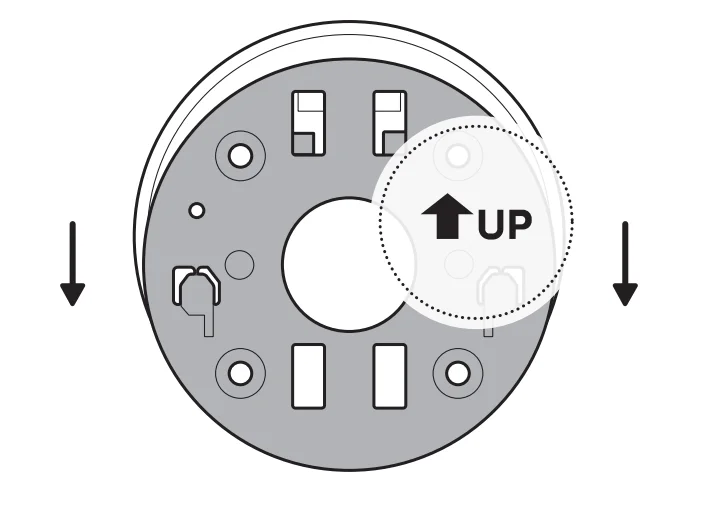
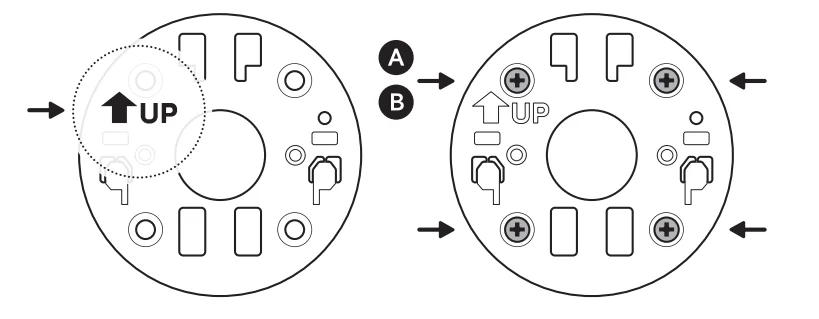
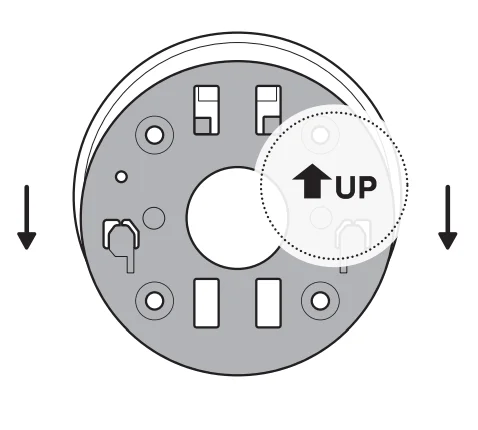
- Slide the mounting plate in the direction opposite to the UP arrow to remove.

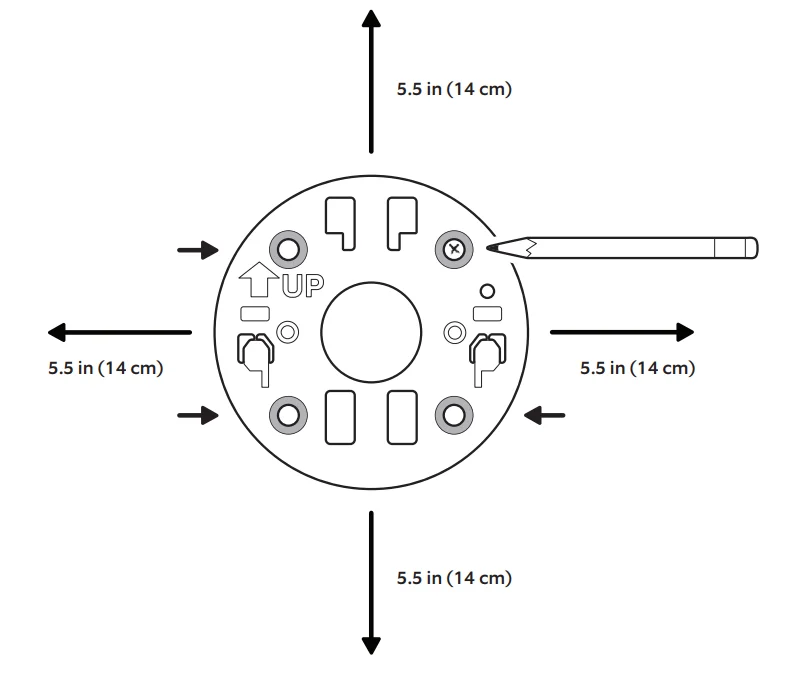
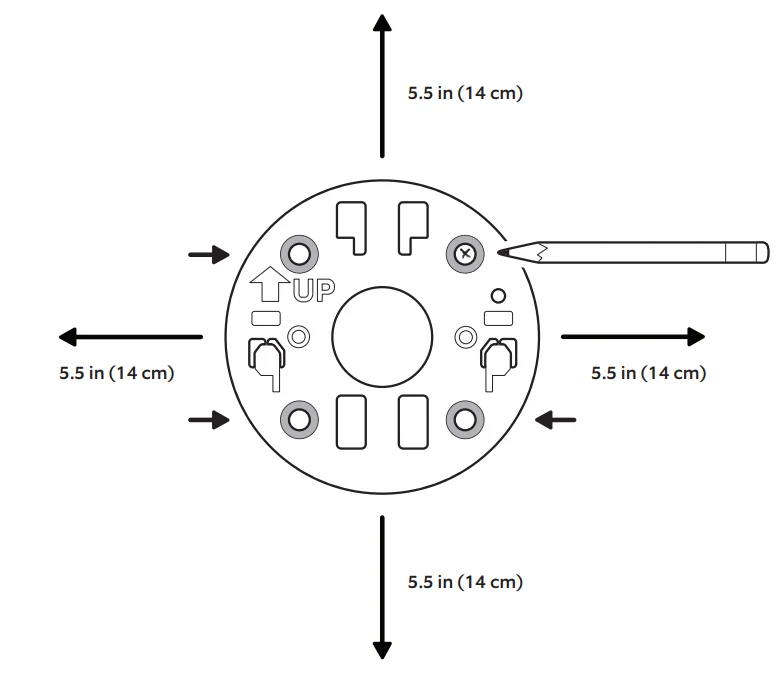
- Use the mounting plate as a guide to mark screw holes on the wall with 5.5 in (14 cm) of space in every direction.

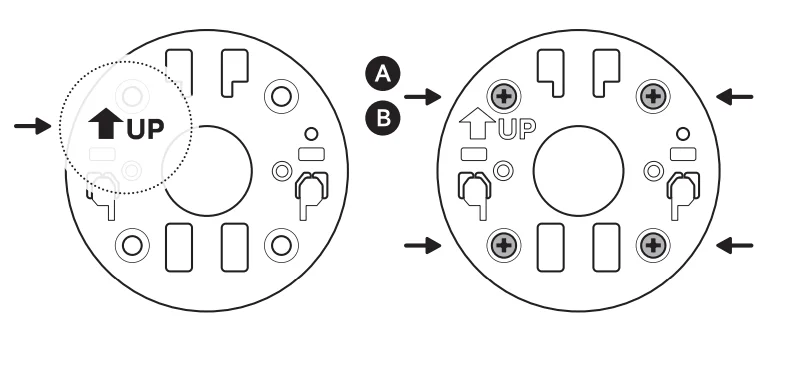
- Install the mounting plate with the UP arrow pointing up.

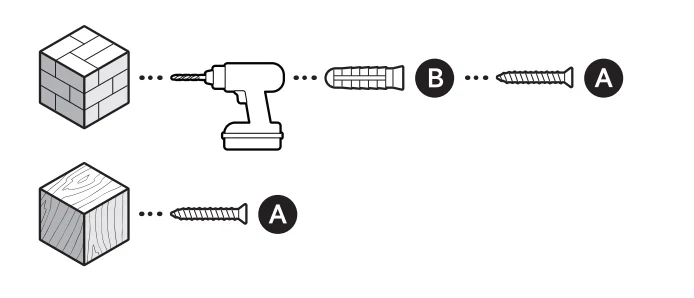
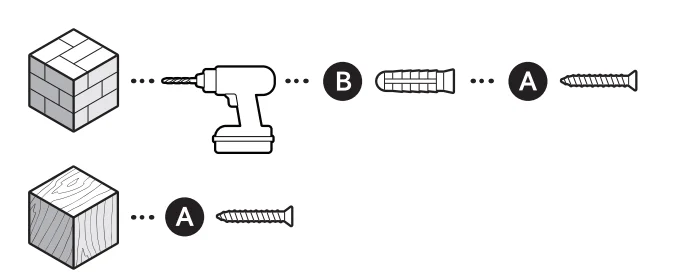
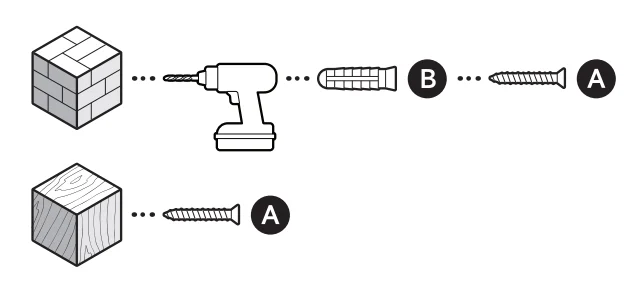
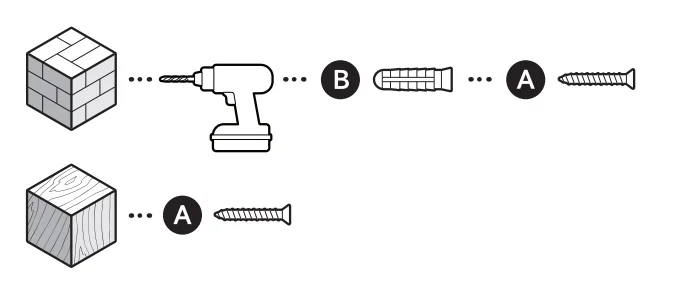
On stucco, brick, or concrete, use a 3/16 in (5 mm) masonry bit to drill holes for the included wall anchors.
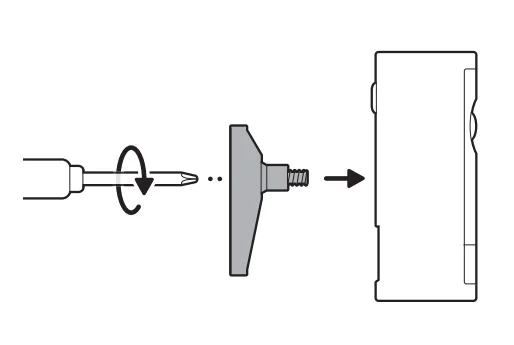
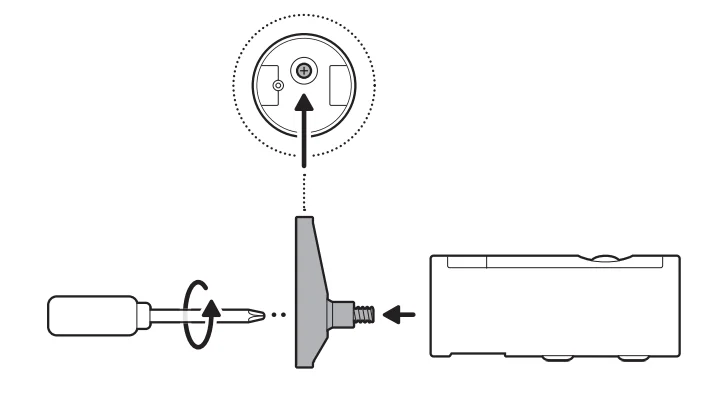
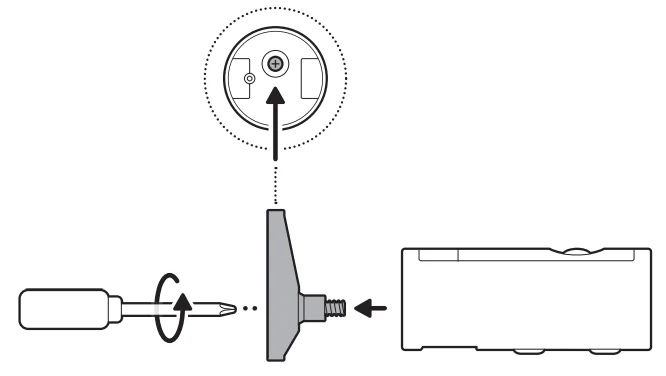
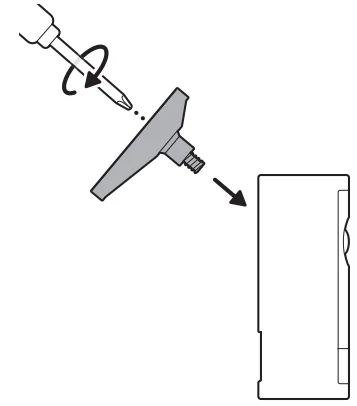
- Unscrew to detach the camera mount.

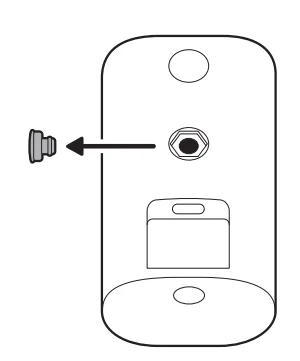
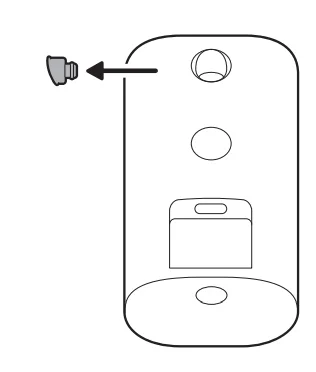
- Remove the middle rubber cap on the back of your camera.

- Attach the camera mount to the back of your camera with its screw.

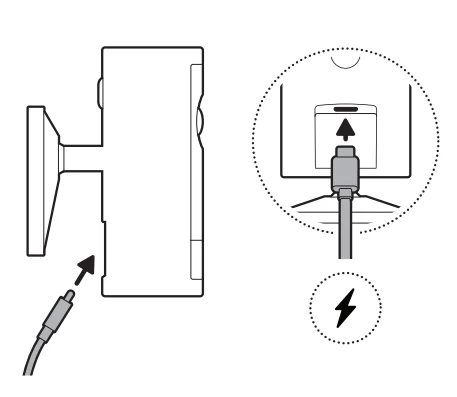
- Plug in the power cable.

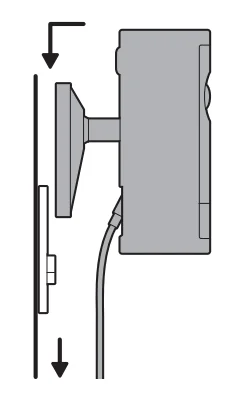
- Secure your camera to the mounting plate by sliding until you feel a click.

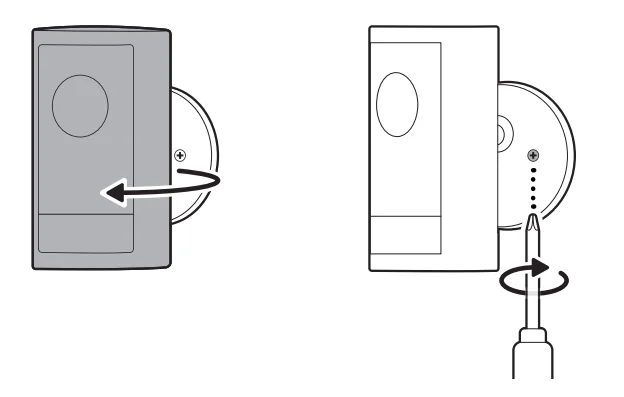
- Rotate your camera and tighten the security screw.

- Plug the power adapter into an outlet.

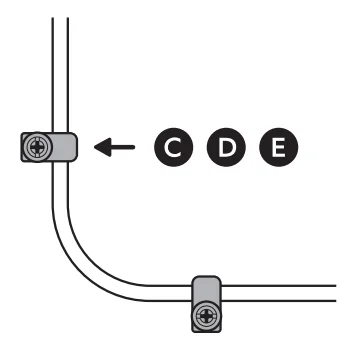
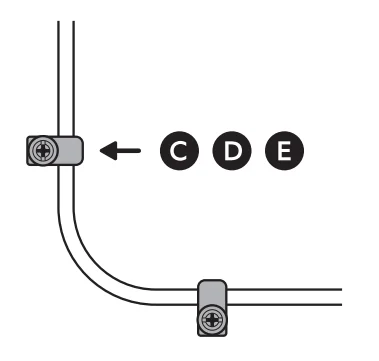
- Anchor the power cable to the wall or ceiling with the included cable clips.

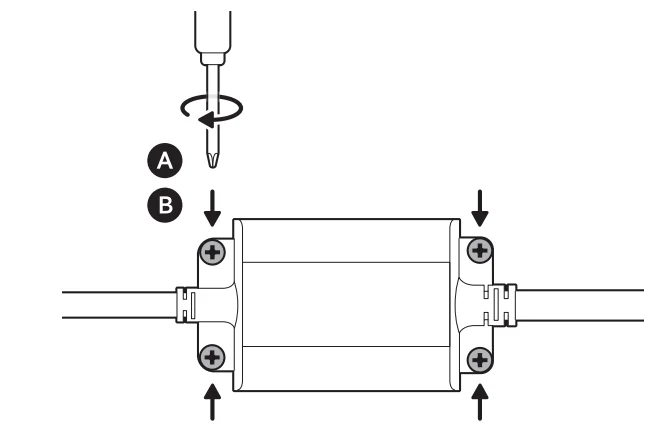
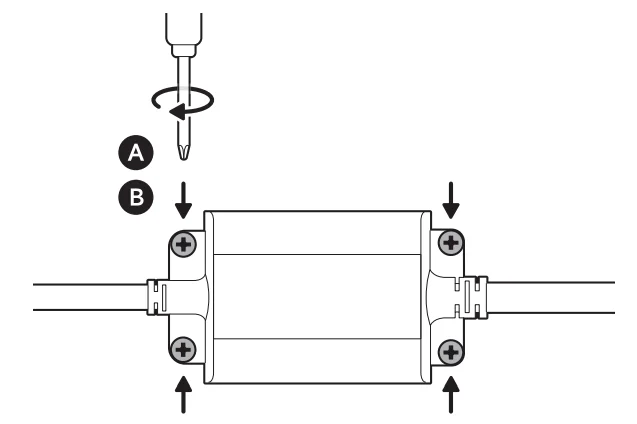
- Secure the power adapter with the included anchors and screws.

On stucco, brick, or concrete, use a 3/16 in (5 mm) masonry bit to drill holes for the included wall anchors.
Ceiling installation
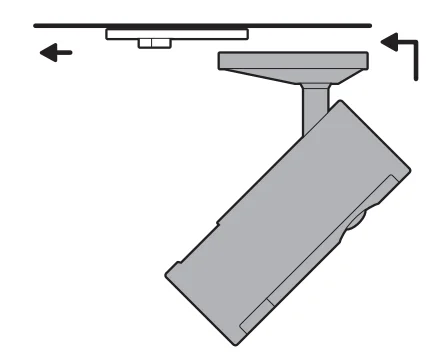
- Slide the mounting plate in the direction opposite to the UP arrow to remove.

- Use the mounting plate as a guide to mark screw holes on the ceiling with 5.5 in (14 cm) of space in every direction.
NOTE: For best results, avoid locations with nearby objects that can interfere with your camera’s field of view.
- Install the mounting plate with the UP arrow pointing toward your desired viewing direction.

On stucco, brick, or concrete, use a 3/16 in (5 mm) masonry bit to drill holes for the included wall anchors.
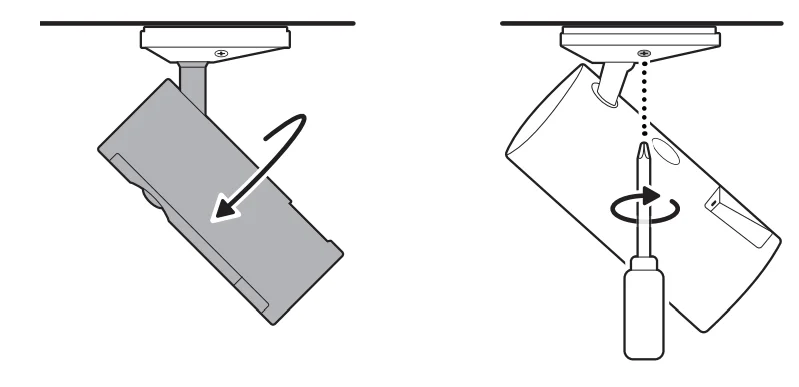
- Unscrew to detach the camera mount.

- Remove the top rubber cap on the back of your camera.

- Attach the camera mount to the back of your camera with its screw.

- Secure your camera to the mounting plate by sliding until you feel a click.
NOTE: Your camera should be in an upright position.
- Rotate your camera and tighten the security screw.

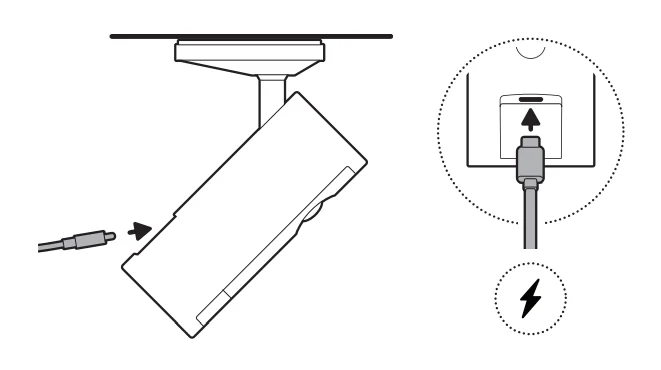
- Plug in the power cable.

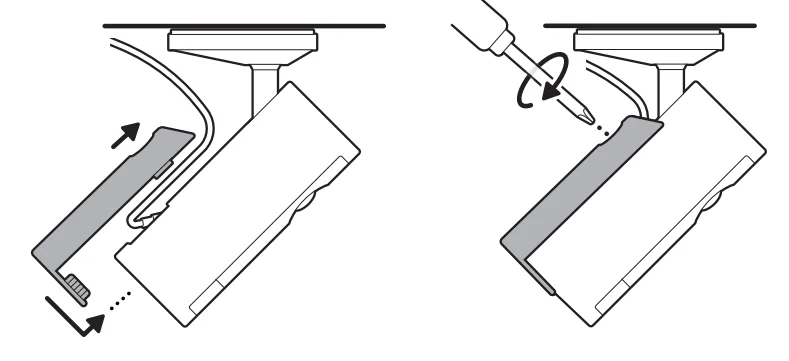
- Slide the included cable bracket onto the back of your camera and tighten the handscrew to secure your power cable.

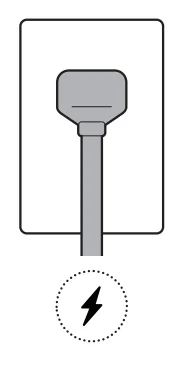
- Plug the power adapter into an outlet.

- Anchor the power cable to the wall or ceiling with the included cable clips.

- Secure the power adapter with the included anchors and screws.

On stucco, brick, or concrete, use a 3/16 in (5 mm) masonry bit to drill holes for the included wall anchors.
For more manuals by Ring, visit ManualsLibraryy
Outdoor Cam Pro Plug-In-FAQs
How do you reset the Outdoor Cam Pro Plug-In camera?
To reset the Outdoor Cam Pro Plug-In, locate the SETUP/SYNC button on the camera. Press and hold the button for about 10 seconds until you hear two confirmation beeps. This action restores the camera to its factory default settings. After the reset, you can reconnect the device through the mobile app and set up Wi-Fi, motion detection, and other preferences again.
How do I connect the Outdoor Cam Pro Plug-In to Wi-Fi?
Start by installing the camera’s mobile app on your smartphone. Open the app, tap “Add Device” or “Setup,” and select your Outdoor Cam Pro camera. Follow the prompts to connect the camera to your 2.4 GHz Wi-Fi network. Enter your Wi-Fi password when prompted, and wait for the camera to finish pairing. Once connected, you’ll be able to monitor live video and manage settings from your phone.
How do I set up the Outdoor Cam Pro Plug-In camera for the first time?
Begin by plugging the camera into a power outlet. Download the compatible camera app and create or sign in to your account. Select Add Camera and scan the device QR code or follow the setup instructions. Connect the camera to your Wi-Fi network and choose the mounting location. Finally, test the live view and adjust motion detection or notification settings.
How can I reboot or power-cycle the Outdoor Cam Pro camera?
If your camera is not responding or experiencing connectivity issues, try a power cycle. Unplug the camera from the power outlet and wait 30–45 seconds. Then plug it back in and allow the device to restart. This quick reboot can often fix temporary issues such as network errors, delayed notifications, or frozen video feeds.
How do I know if the camera battery or power system is charging properly?
When the battery is charging, the indicator lights usually show two colors—green and amber/orange. These lights indicate that the battery is actively charging. Once the charging process is complete, the green light remains on, showing that the battery is fully charged and ready for normal operation.
Why is my Outdoor Cam Pro Plug-In camera not working?
If your camera stops working, check a few basic things first. Make sure the camera is properly plugged into a power source and that your Wi-Fi connection is stable. Restart the camera or reset it if necessary. Cleaning the camera lens may also help if the video appears blurry. If problems continue, updating the camera firmware through the app may resolve the issue.
Can the Outdoor Cam Pro Plug-In work without Wi-Fi?
Most outdoor smart cameras require Wi-Fi to provide live viewing, notifications, and remote access through a mobile app. However, some cameras can still record locally using a memory card or local storage system even without an internet connection. Keep in mind that features like real-time alerts and cloud storage usually require an active internet connection.
How do I connect my outdoor camera to my smartphone?
To connect your camera to your phone, install the official camera app from the Google Play Store or Apple App Store. Open the app and select Add Device. Follow the instructions to connect the camera to Wi-Fi and pair it with your account. Once connected, you can view live footage, receive motion alerts, and control settings directly from your smartphone.
How do I know when the Outdoor Cam Pro camera is fully charged?
During charging, the device shows both green and amber indicator lights. When the battery reaches full capacity, the amber light turns off and only the green light remains on. This means the battery is completely charged and ready for normal operation.
Can leaving the camera plugged in damage the battery?
Most modern outdoor cameras use lithium-ion batteries with built-in charging protection. These systems stop charging automatically when the battery reaches full capacity. However, extreme heat, cold temperatures, or poor-quality chargers may affect battery health over time. For best performance, use the manufacturer’s charging cable and keep the camera in moderate temperature conditions.