
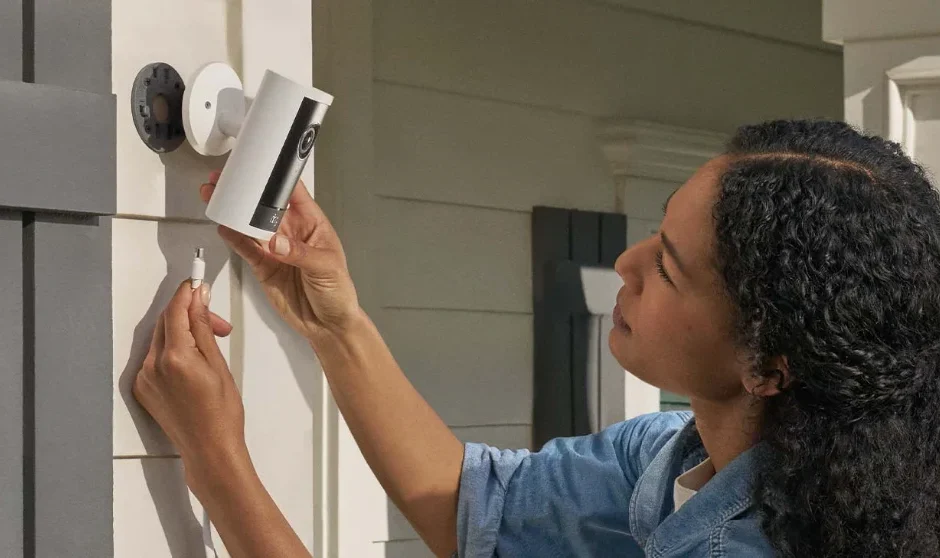

Outdoor Cam Pro POE
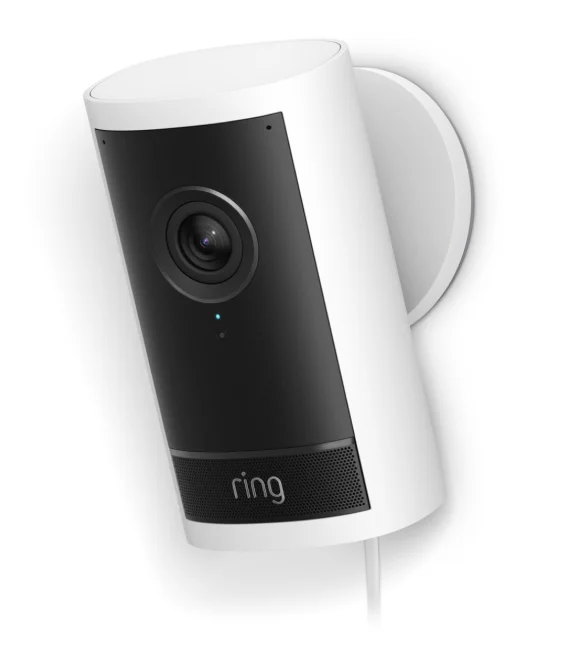
Hardware included:
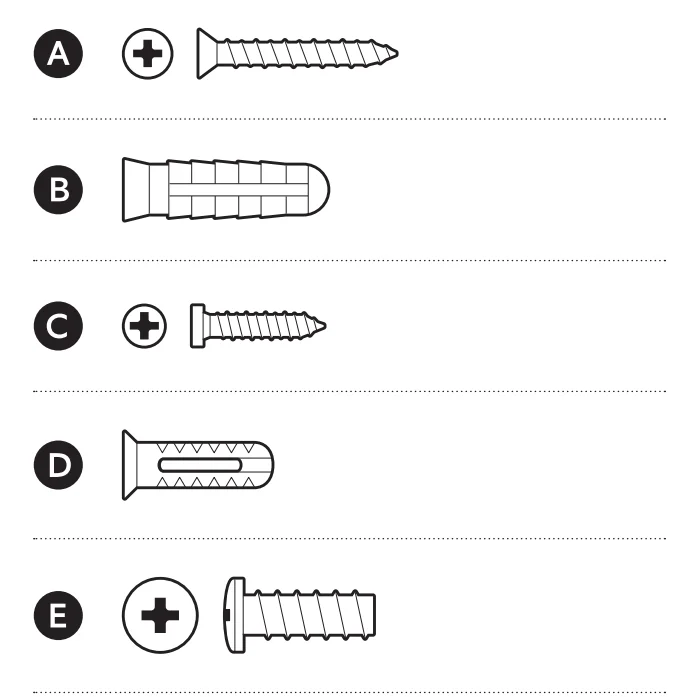
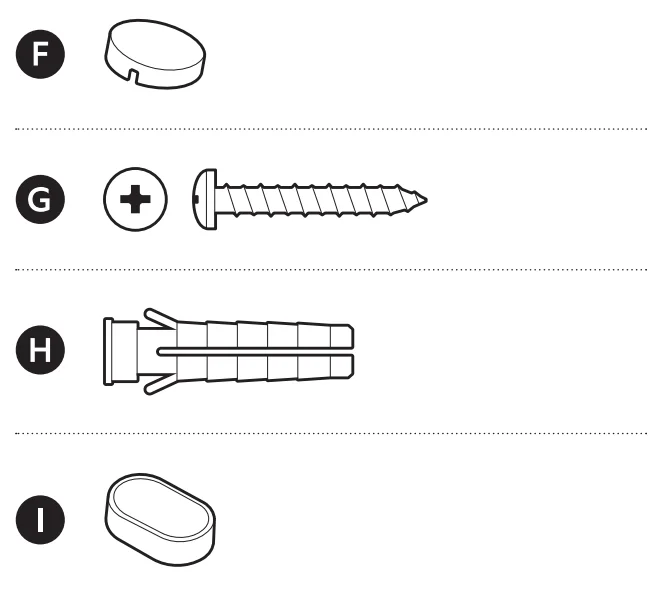
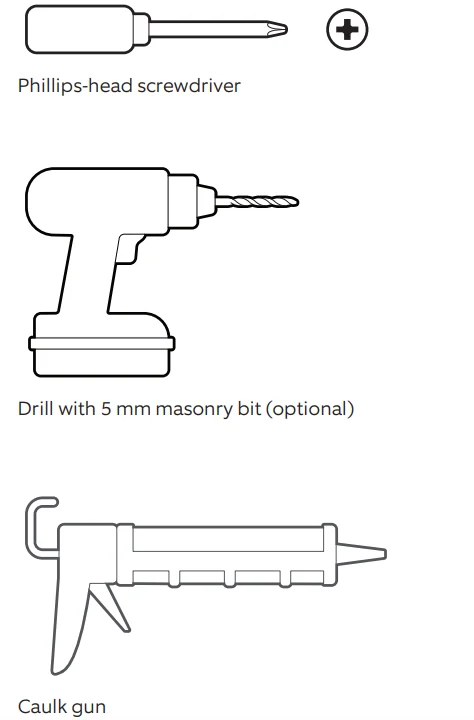
Tools needed
- Remove the protective wrap.

- Download the Ring app.

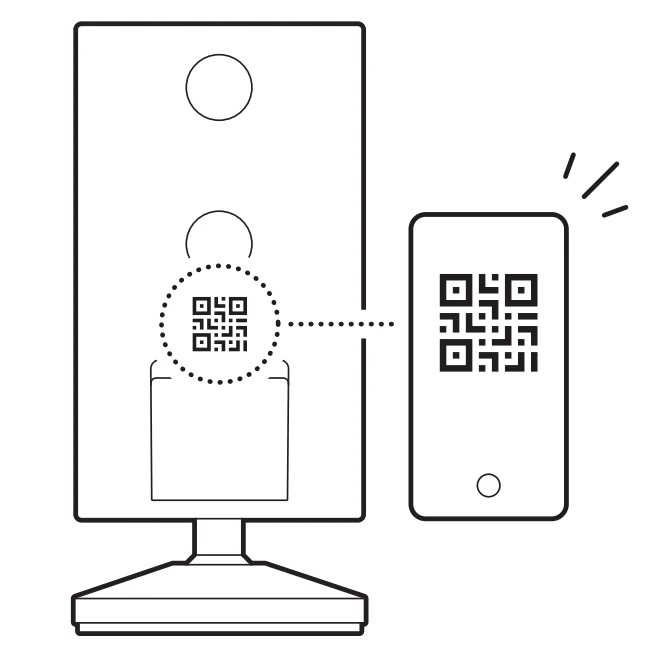
- Scan the QR code on your device.

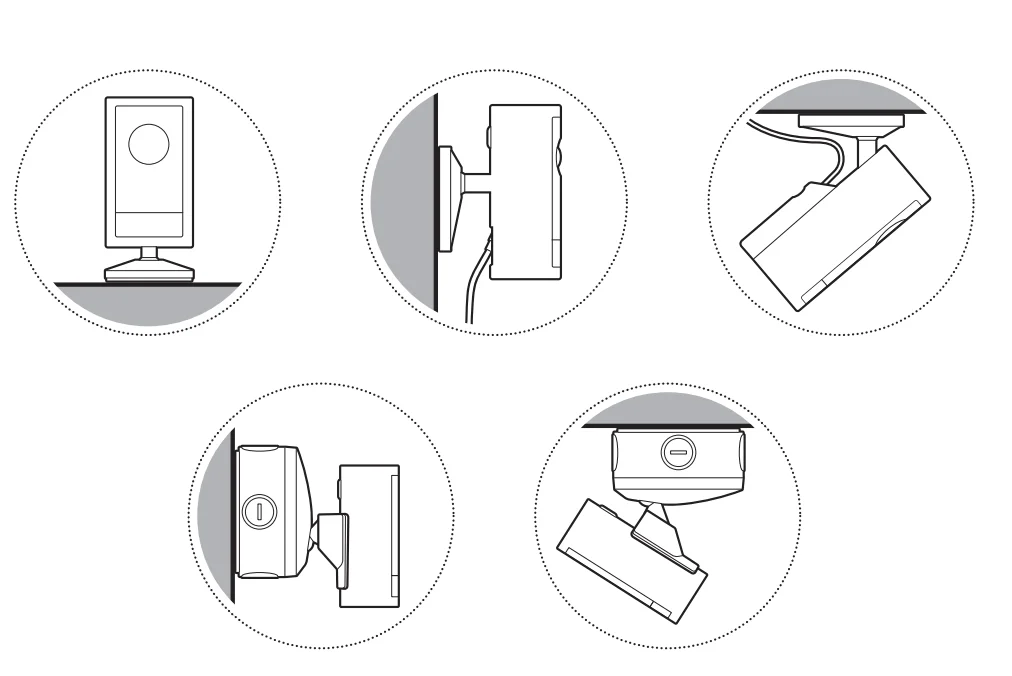
- Choose a location.

NOTE: Before installation, ensure your Power over Ethernet (PoE) switch or injector capable of PoE+ is active and connected to a functioning Category 5 or above Ethernet cable.

Junction box installation
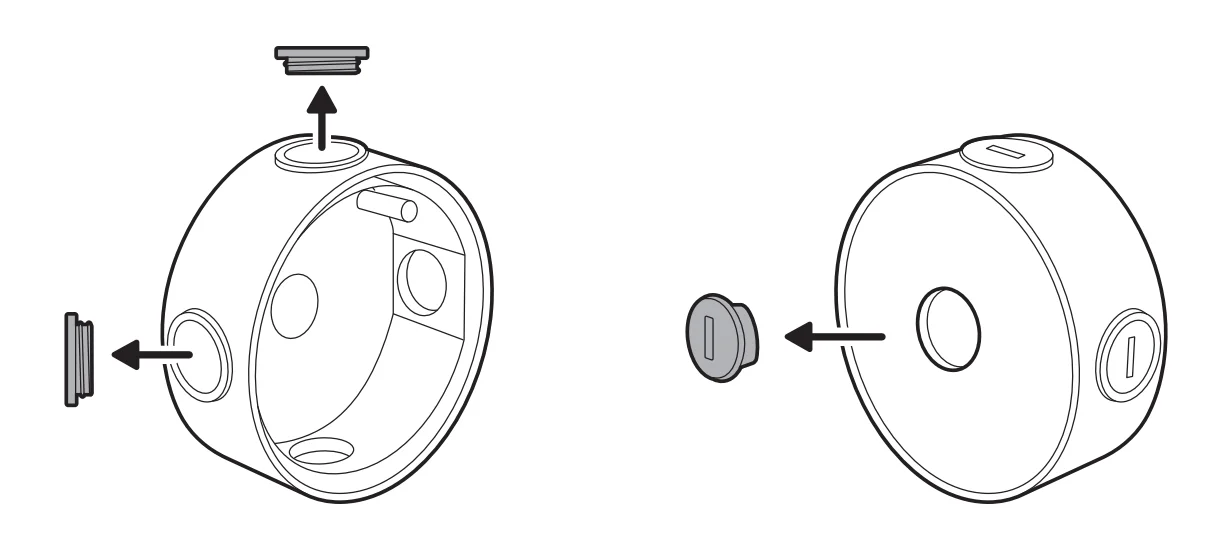
- Use a coin to unscrew a cap from the side or back of the junction box for the Ethernet cable, depending on where the Ethernet cable enters the junction box.

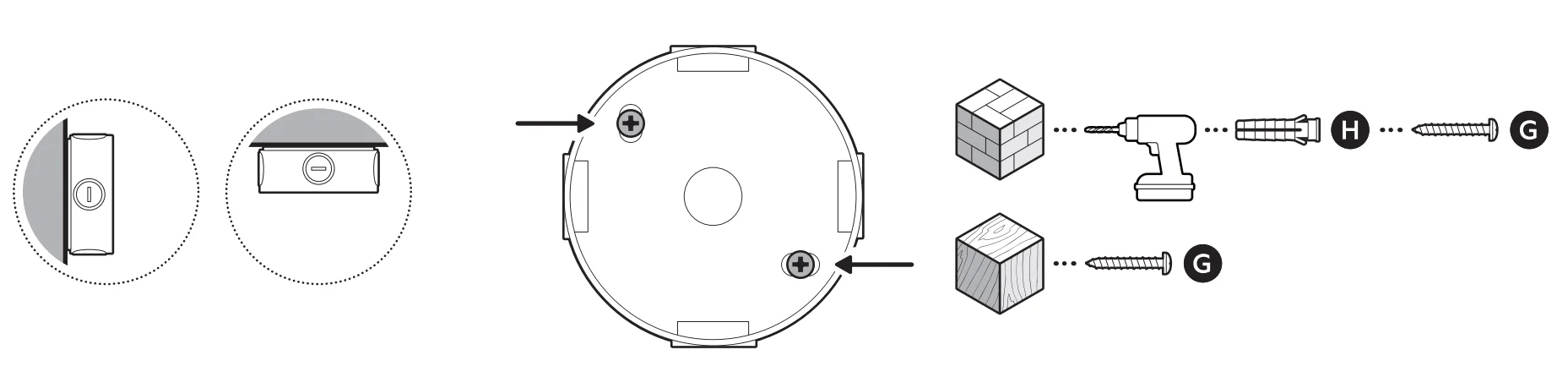
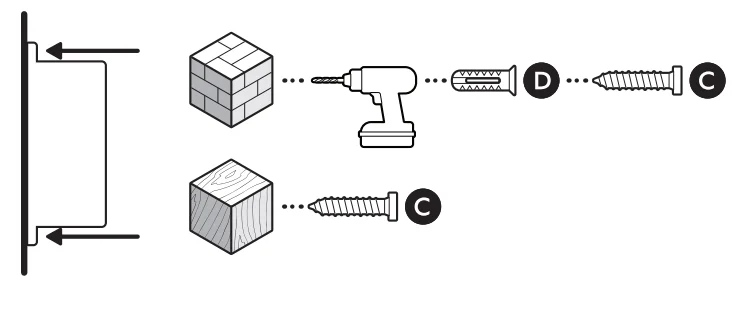
- Install the included junction box on the wall or ceiling with the included screws. On stucco, brick, or concrete, use a 3/16 in (5 mm) masonry bit to drill holes for the wall anchors included with your adapter.

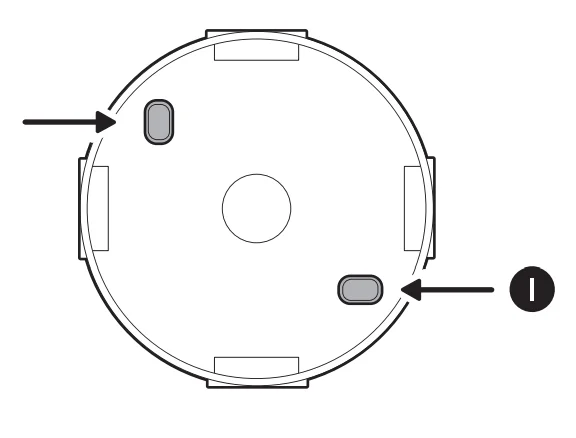
- Cover the screw holes with the included plugs.

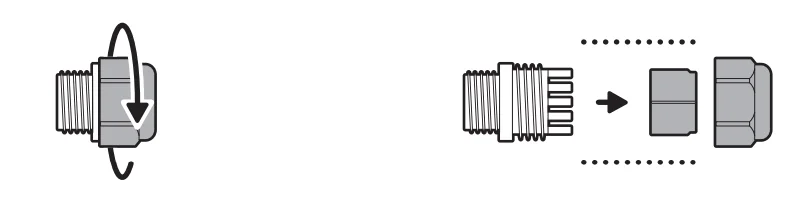
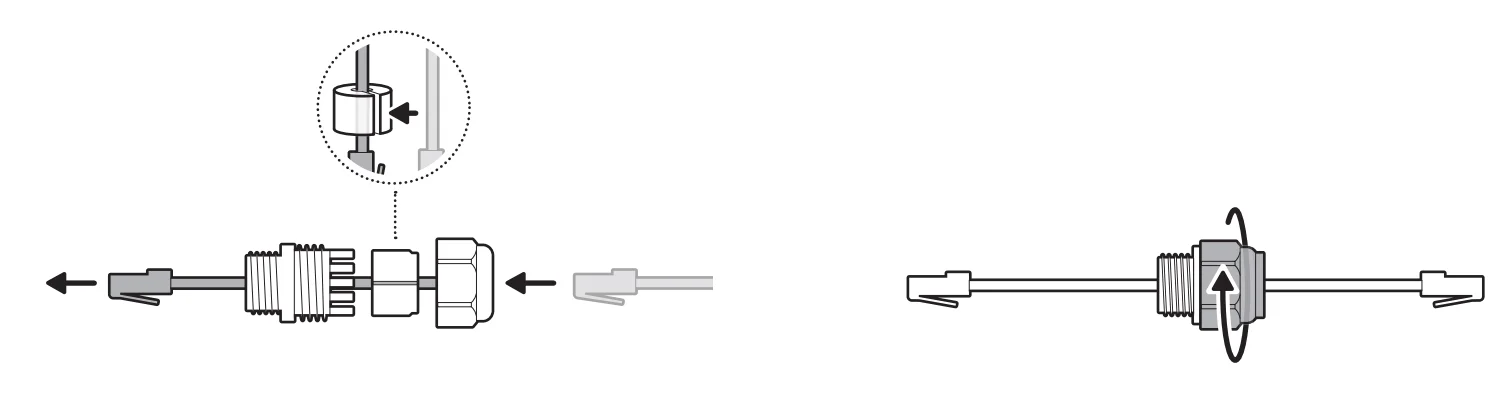
- Disassemble the cable gland by unscrewing the cap from the body.

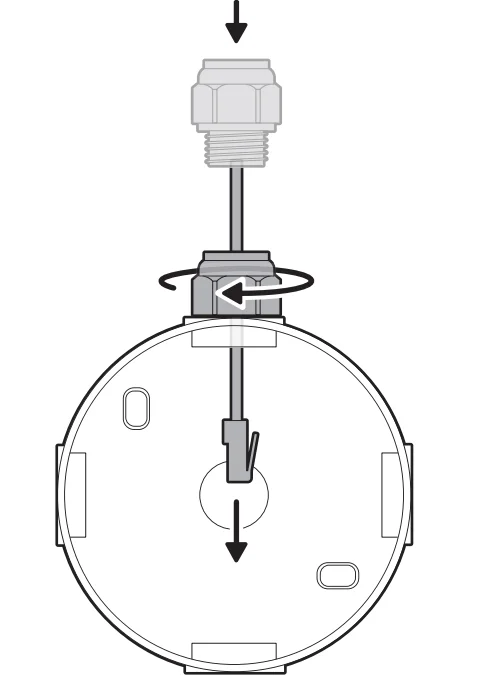
- Thread the Ethernet cable through the cable gland, wrapping the O-ring around the cable, and screw it tightly until there is a secure seal.

NOTE: If installing the junction box directly over your PoE switch, you do not need to attach the cable gland. - Insert the Ethernet cable through the knockout, ensuring the cable gland is snug.

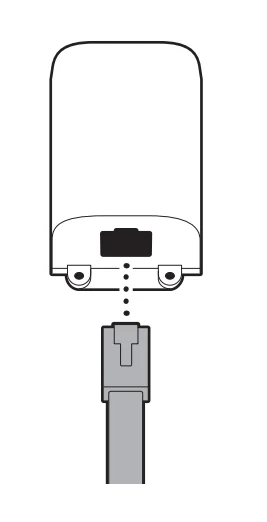
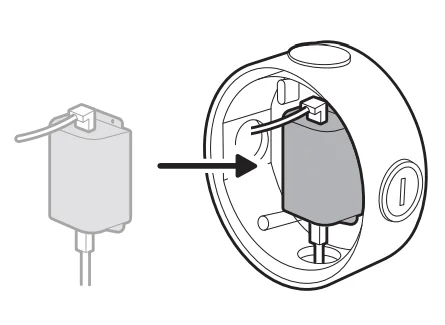
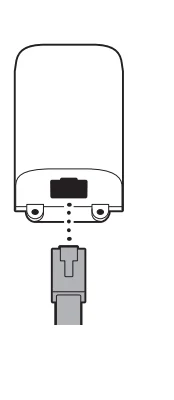
- Plug the Ethernet cable into the adapter.

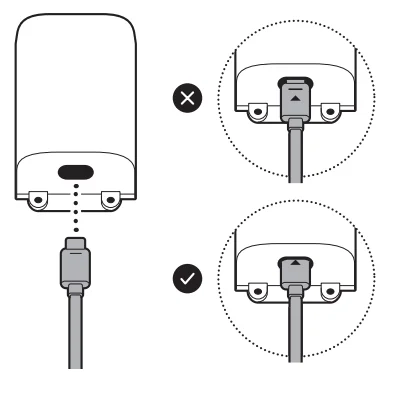
- Plug the USB-C cable into the junction box cover, and mount it into the adapter, ensuring it is fully inserted.

- Slot the adapter into the center of the junction box.

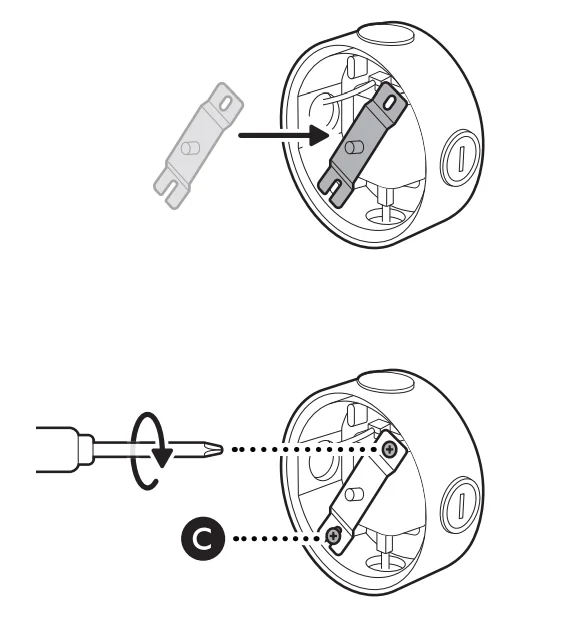
- Attach the metal crossbar with the screws included with your adapter, starting with the closed screw hole.

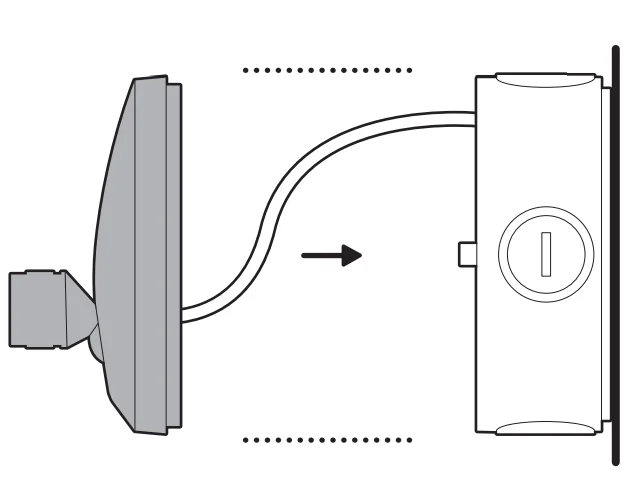
- Close the junction box with the cover mount.

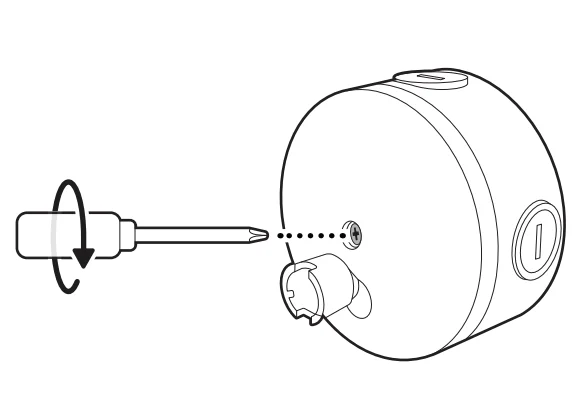
- Tighten the center screw to secure the junction box cover mount in place.

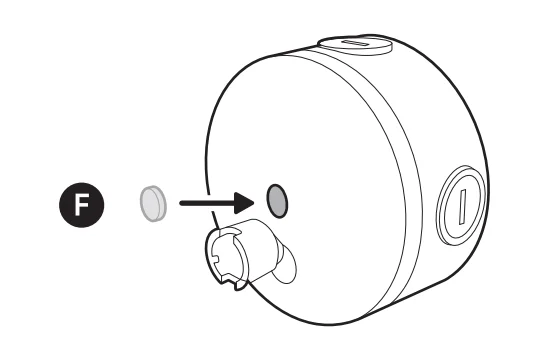
- Cover the center screw hole with the included rubber cap.

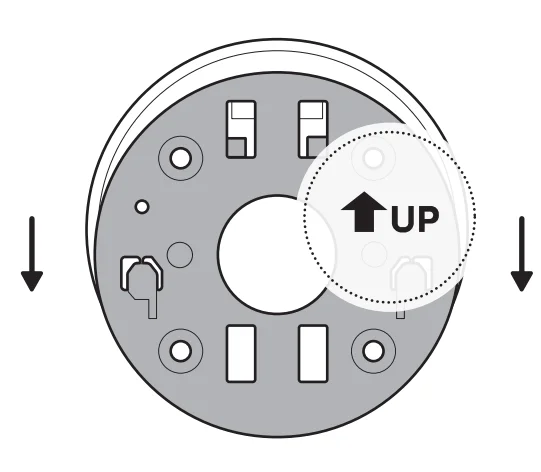
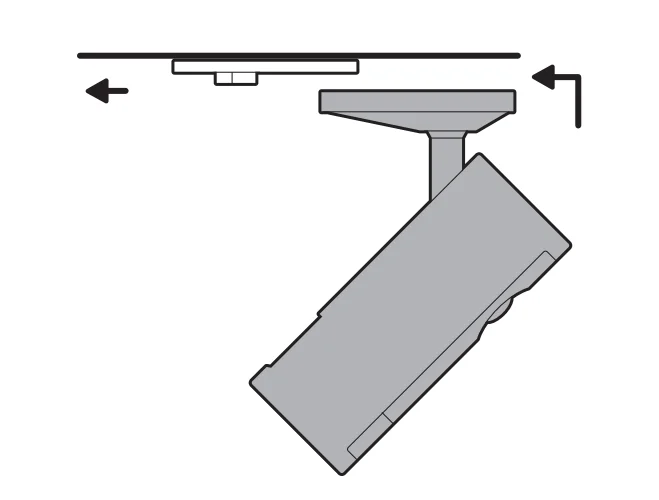
- Slide the mounting plate in the direction opposite to the UP arrow to remove.

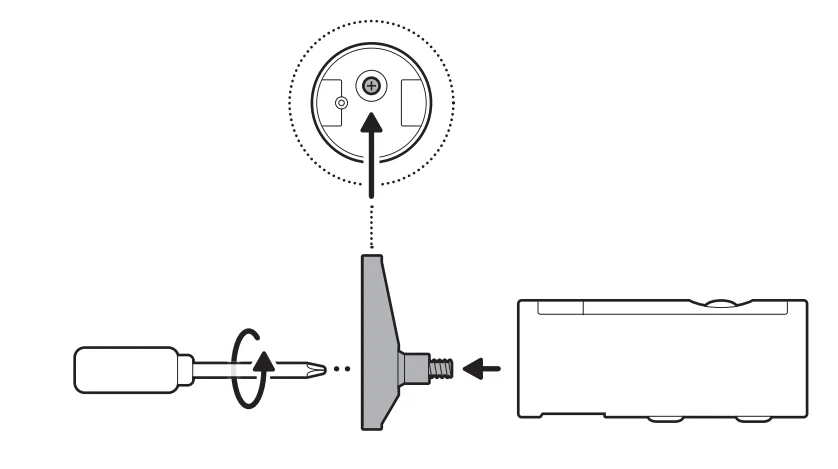
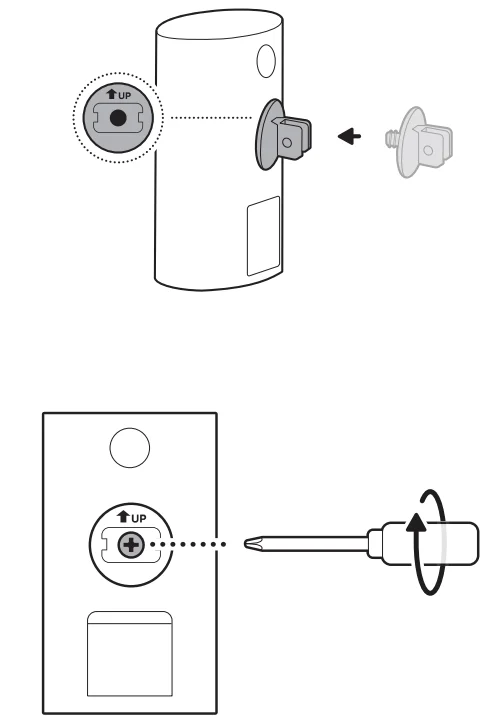
- Unscrew to detach the camera mount.

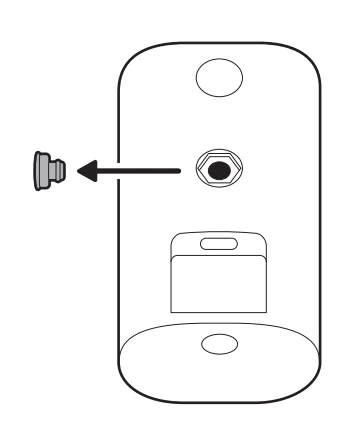
- Remove the middle rubber cap on the back of your camera.

- Tighten the included hex joint onto the back of your camera, ensuring the UP indicator is pointing up.

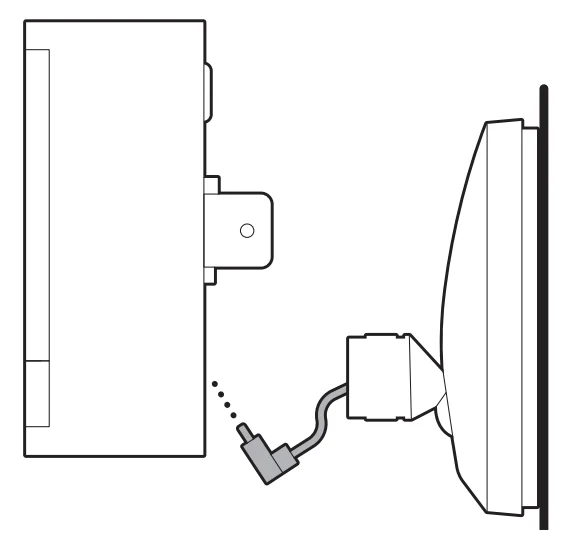
- Plug the USB-C cable on the junction box cover mount into your camera, ensuring it is fully inserted.

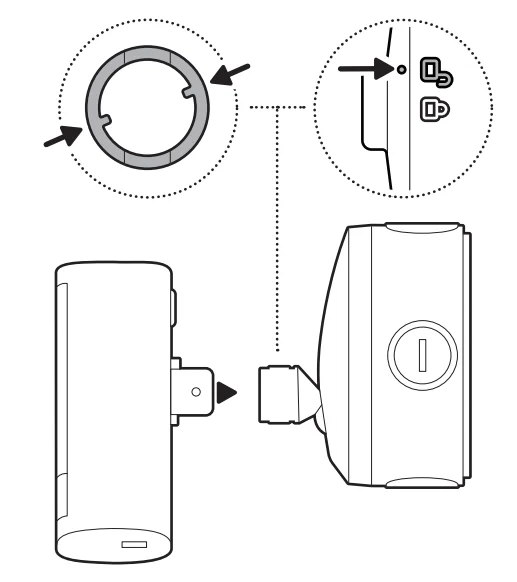
- Align the hex joint with the junction box cover mount and insert.

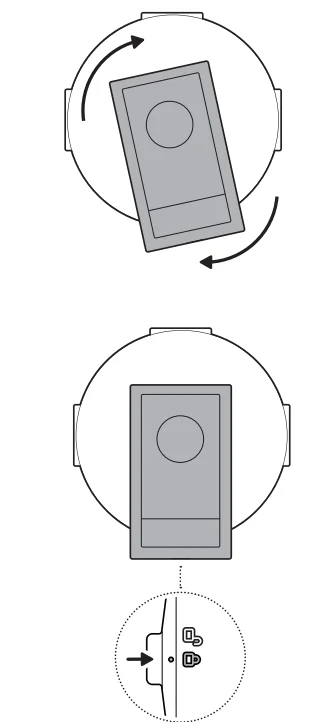
- Turn until your camera locks in place.

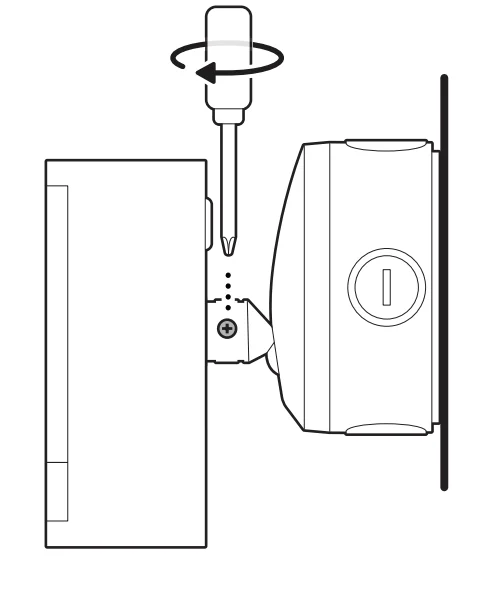
- Tighten the security screw.

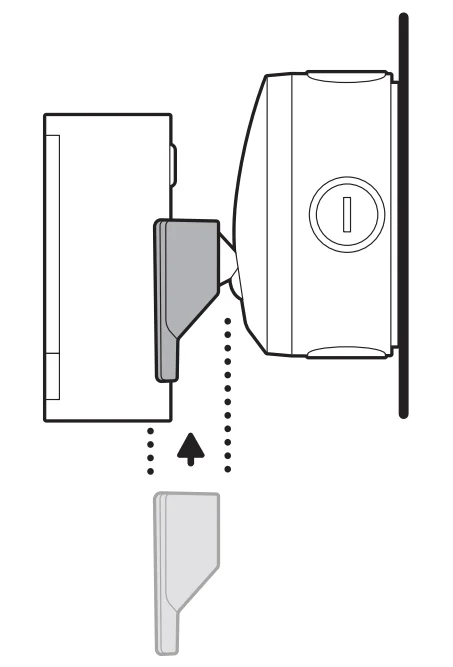
- Install your camera’s decorative cover by sliding it until you hear a click to secure.

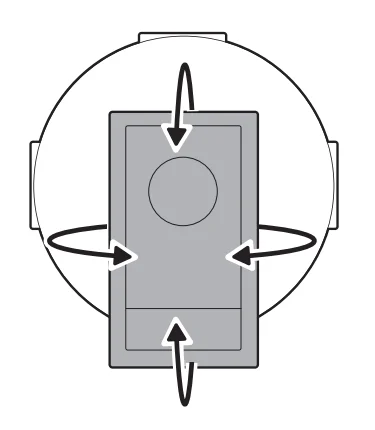
- Adjust your camera’s position, if necessary.

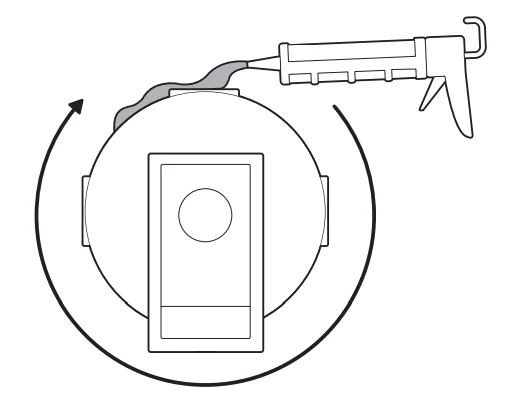
- Must apply proper silicone or caulk around the junction box knockouts, between the junction box and junction box cover mount, and between the junction box and mounting surface to seal any gaps.

Flat installation
FOR INDOOR USE ONLY
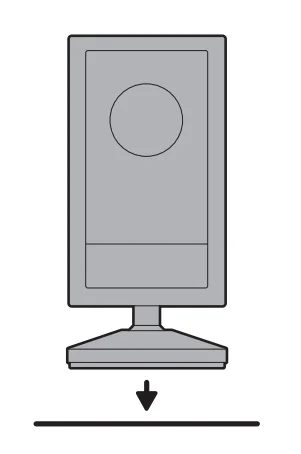
- Place your camera on a level surface.

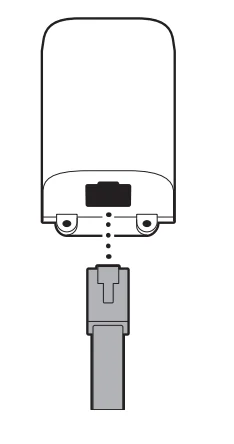
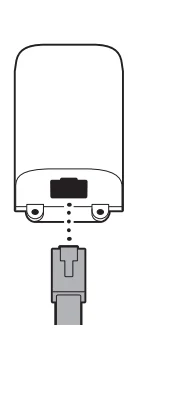
- Plug the Ethernet cable into the adapter.

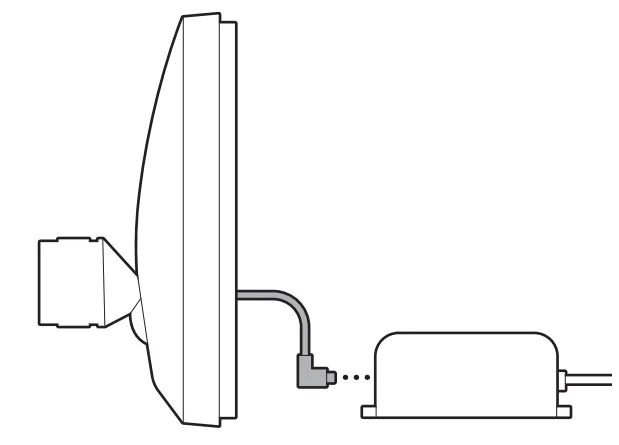
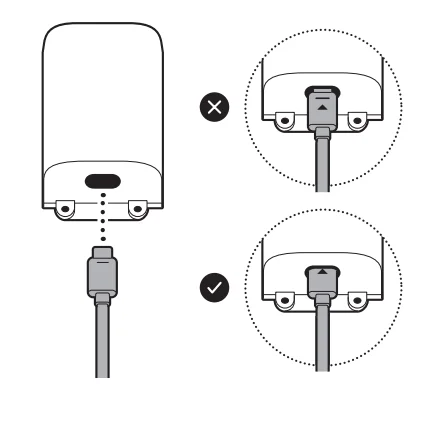
- Plug the included USB-C cable into the adapter until the indicator light disappears.
- Plug the other end of the USB-C cable into your camera until the indicator light disappears.
Wall installation
FOR INDOOR USE ONLY
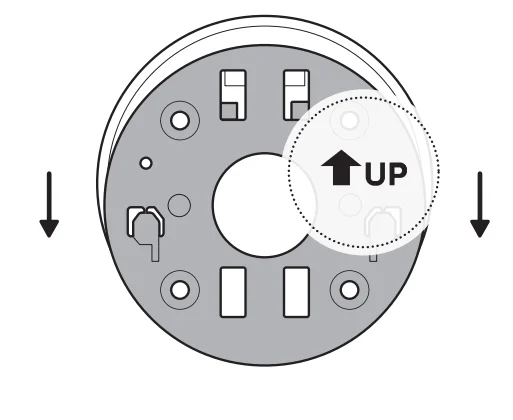
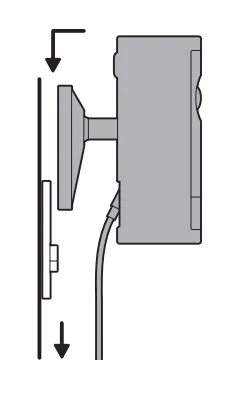
- Slide the mounting plate in the direction opposite to the UP arrow to remove.

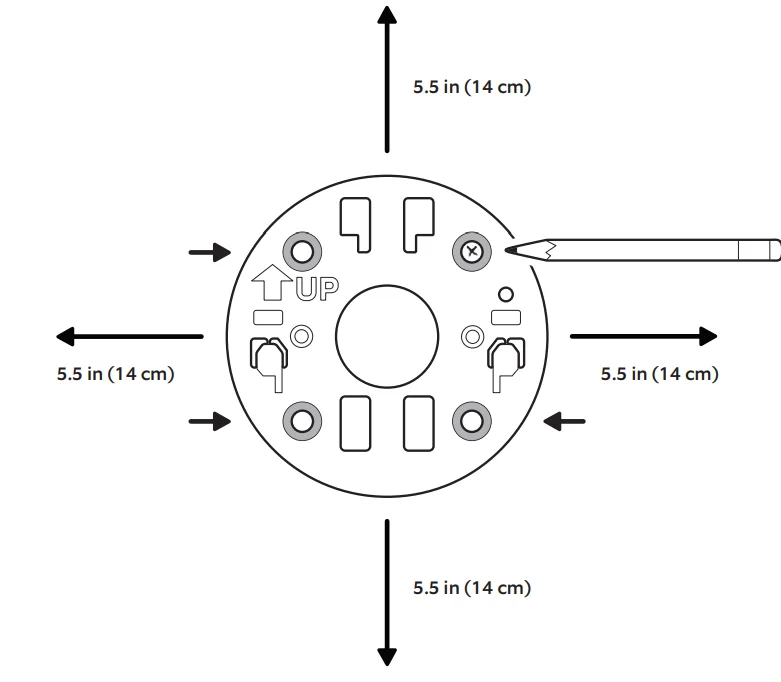
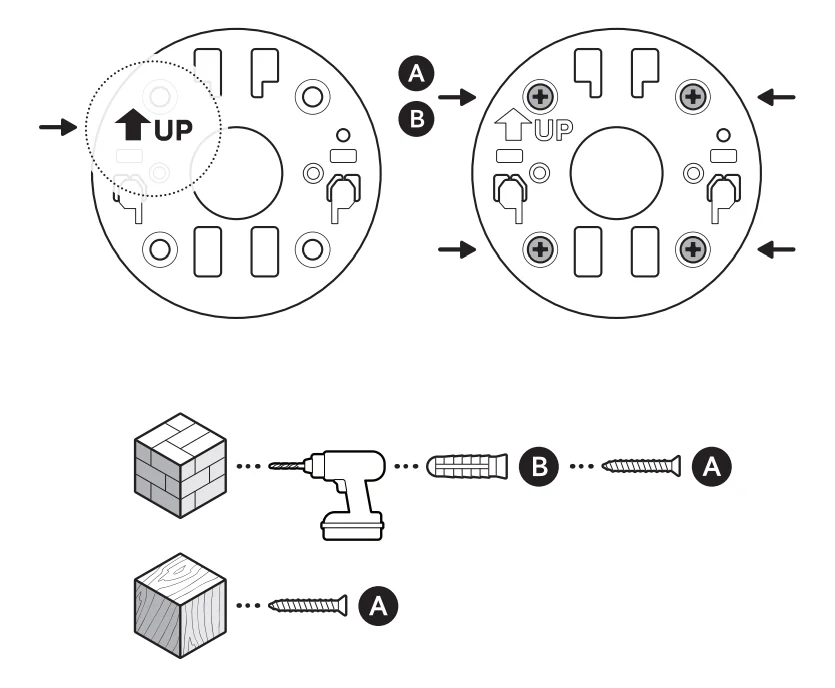
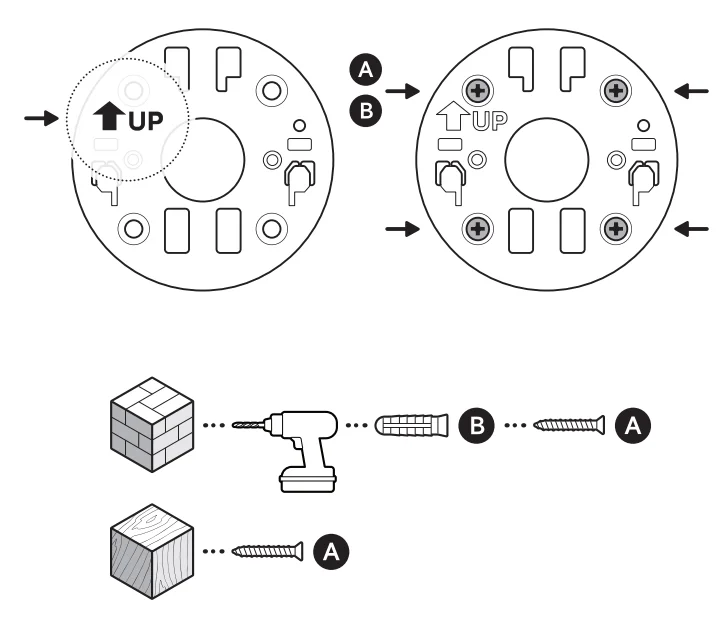
- Use the mounting plate as a guide to mark screw holes on the wall with 5.5 in (14 cm) of space in every direction.

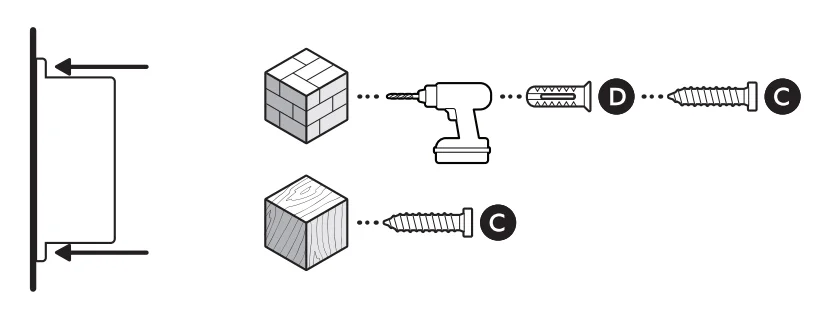
- Install the mounting plate with the UP arrow pointing up. On stucco, brick, or concrete, use a 3/16 in (5 mm) masonry bit to drill holes for the included wall anchors.

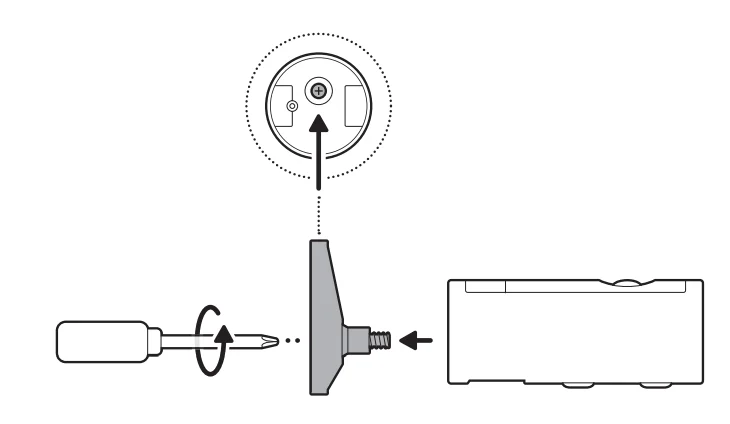
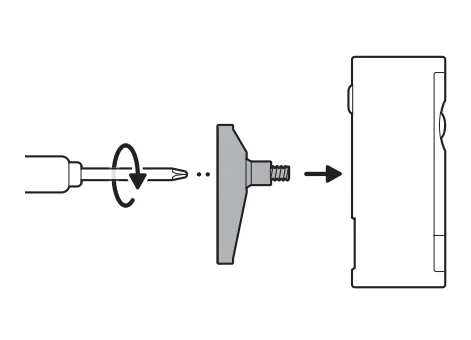
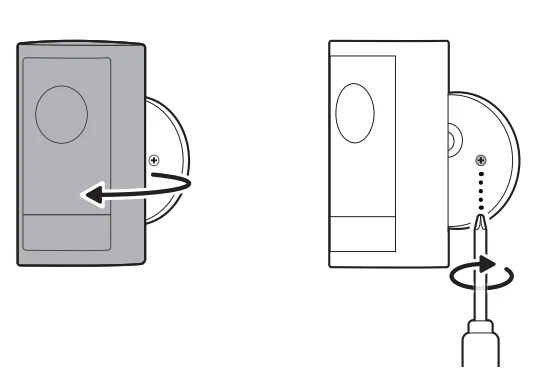
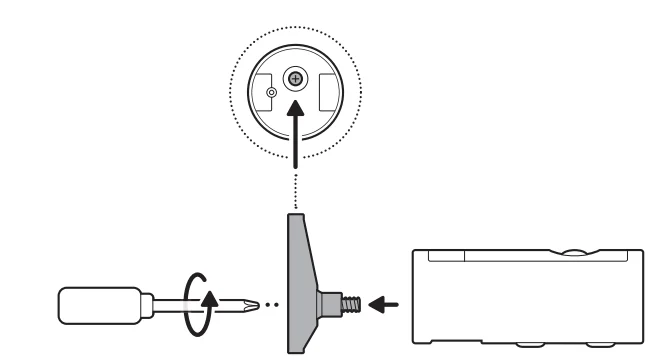
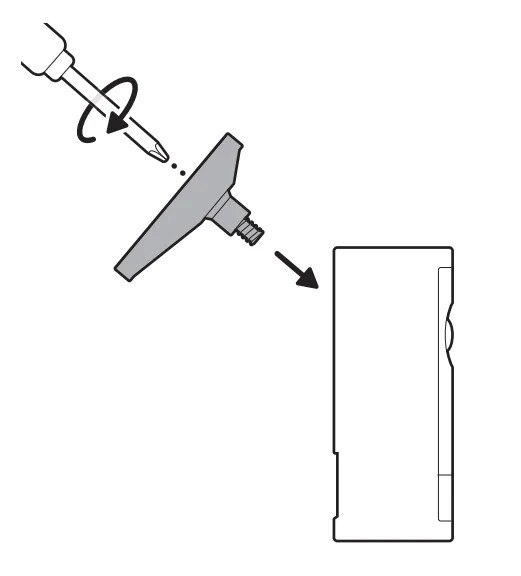
- Unscrew to detach the camera mount.

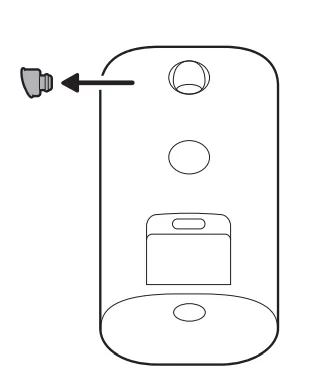
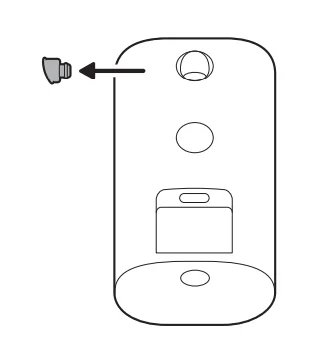
- Remove the middle rubber cap on the back of your camera.

- Attach the camera mount to the back of your camera with its screw.

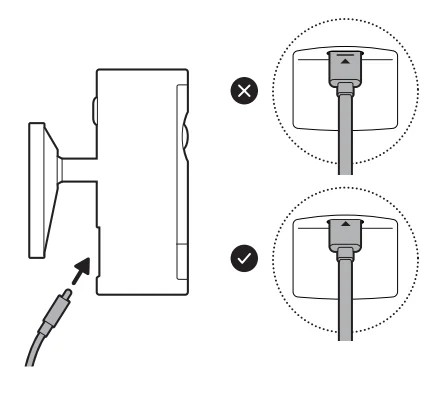
- Plug the included USB-C cable into your camera until the indicator line disappears.

- Secure your camera to the mounting plate by sliding until you feel a click.

- Rotate your camera and tighten the security screw.

- Install the adapter on the wall with the included screws. On stucco, brick, or concrete, use a 3/16 in (5 mm) masonry bit to drill holes for the included wall anchors.

- Plug the other end of the USB-C cable into the adapter until the indicator light disappears.

- Plug the Ethernet cable into the adapter.

Ceiling installation
FOR INDOOR USE ONLY
- Slide the mounting plate in the direction opposite to the UP arrow to remove.

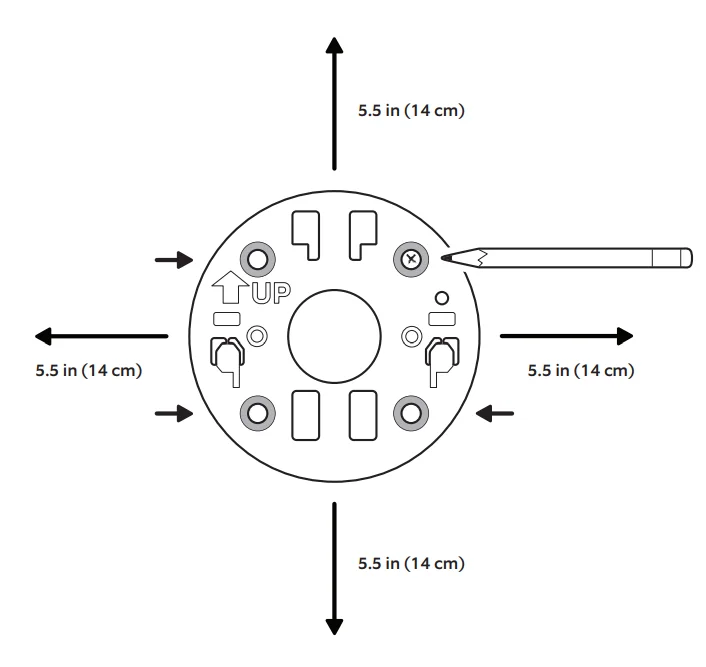
- Use the mounting plate as a guide to mark screw holes on the ceiling with 5.5 in (14 cm) of space in every direction.

NOTE: For best results, avoid locations with nearby objects that can interfere with your camera’s field of view. - Install the mounting plate with the UP arrow pointing toward your desired viewing direction. On stucco, brick, or concrete, use a 3/16 in (5 mm) masonry bit to drill holes for the included wall anchors.

- Unscrew to detach the camera mount.

- Remove the top rubber cap on the back of your camera.

- Attach the camera mount to the back of your camera with its screw.

- Secure your camera to the mounting plate by sliding until you feel a click.
 NOTE: Your camera should be in an upright position.
 - Rotate your camera and tighten the security screw.

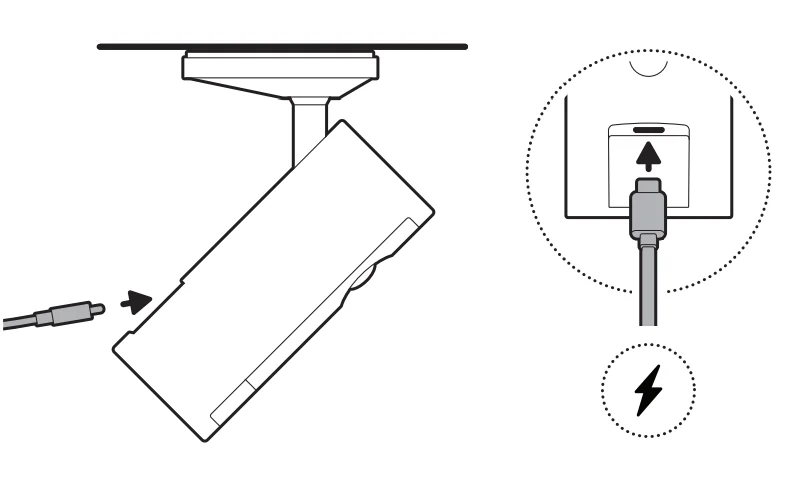
- Plug the included USB-C cable into your camera until the indicator line disappears.

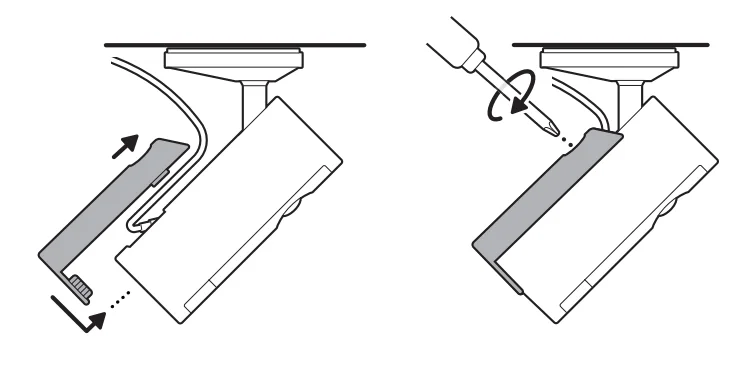
- Slide the included cable bracket onto the back of your camera and tighten the handscrew to secure your power cable.

- Install the adapter on the wall or ceiling with the included screws. On stucco, brick, or concrete, use a 3/16 in (5 mm) masonry bit to drill holes for the wall anchors included with your adapter.

- Plug the other end of the USB-C cable into the adapter until the indicator light disappears.

- Plug the Ethernet cable into the adapter.
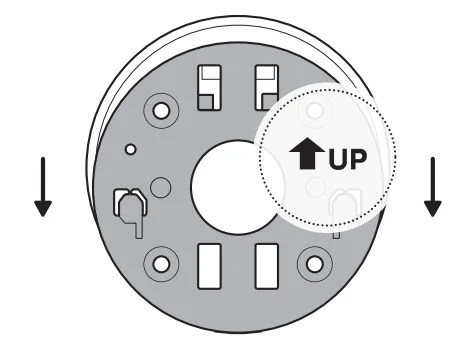
 NOTE: Your camera should be in an upright position.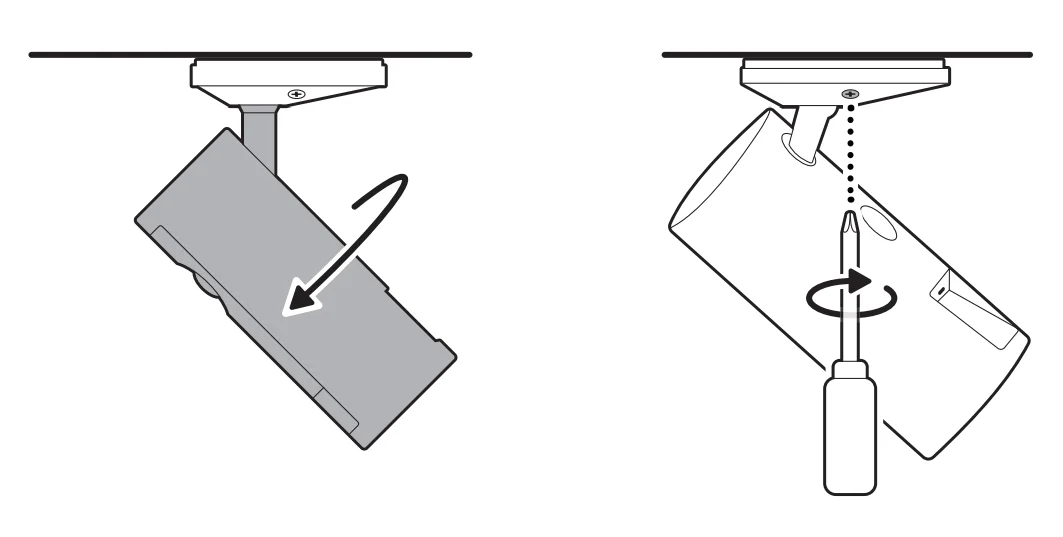
For more manuals by Ring, visit ManualsLibraryy
Outdoor Cam Pro POE-FAQs
What is PoE in a CCTV camera?
PoE, or Power over Ethernet, allows a CCTV camera to receive both power and data through a single Ethernet cable. This simplifies installation, reduces cable clutter, and provides a reliable wired connection for video streaming and power without needing separate adapters or power outlets.
How does the Outdoor Cam Pro POE work?
The Outdoor Cam Pro POE connects to a PoE-enabled network switch or injector via Ethernet. The cable provides both power and data transmission to the camera. Once connected, the camera streams live video to an NVR or monitoring system, ensuring stable, continuous surveillance.
Is a PoE camera better than a WiFi camera?
Yes, PoE cameras are more stable and reliable because they use a wired connection. While WiFi cameras offer easier installation and flexibility, PoE cameras minimize connectivity drops, provide higher-quality video, and require less maintenance, making them ideal for critical outdoor security applications.
Is a PoE camera better than a WiFi camera?
Yes, PoE cameras are more stable and reliable because they use a wired connection. While WiFi cameras offer easier installation and flexibility, PoE cameras minimize connectivity drops, provide higher-quality video, and require less maintenance, making them ideal for critical outdoor security applications.
How far can a PoE camera be installed?
Standard PoE cameras can operate up to 328 ft (100 meters) from the PoE switch or injector, depending on cable quality and camera power requirements. Longer distances may require a PoE extender or mid-span injector to maintain proper power and video transmission.
Does the Outdoor Cam Pro POE require WiFi?
No. PoE cameras transmit power and video entirely through the Ethernet cable. While WiFi isn’t needed for operation, you will need network access if you want to remotely view the camera feed or integrate it with a cloud or mobile app system.
What voltage does PoE use for cameras?
Most PoE cameras, including the Outdoor Cam Pro, use 24V PoE injectors, though some devices may support 12V. Using the correct PoE standard ensures safe power delivery and proper operation without damaging the camera.
Can I plug a PoE camera directly into a router?
Yes, but only if the router supports PoE. If it doesn’t, a separate PoE injector or PoE switch is needed. The Ethernet cable from the camera carries both power and video to the network device, and the NVR or monitoring system handles recording.
Can I view PoE camera footage on my phone or TV?
Yes. Once connected to your network and NVR, most PoE cameras can stream live video to mobile apps or smart TVs, allowing remote monitoring from anywhere with an internet connection. Some models also support motion alerts and cloud storage.
What are the disadvantages of PoE cameras?
PoE cameras require extra hardware like PoE switches or injectors, which can increase cost. Energy loss may occur over long cables, and installation is less flexible than WiFi. They also rely on network infrastructure, so a network failure could disrupt camera operation.
How do I install the Outdoor Cam Pro POE?
Mount the camera in the desired outdoor location. Run an Ethernet cable from the camera to a PoE switch or injector, then connect the switch to your NVR or network. Power on the switch and NVR; the camera should automatically start streaming video. Adjust the angle and focus as needed.