

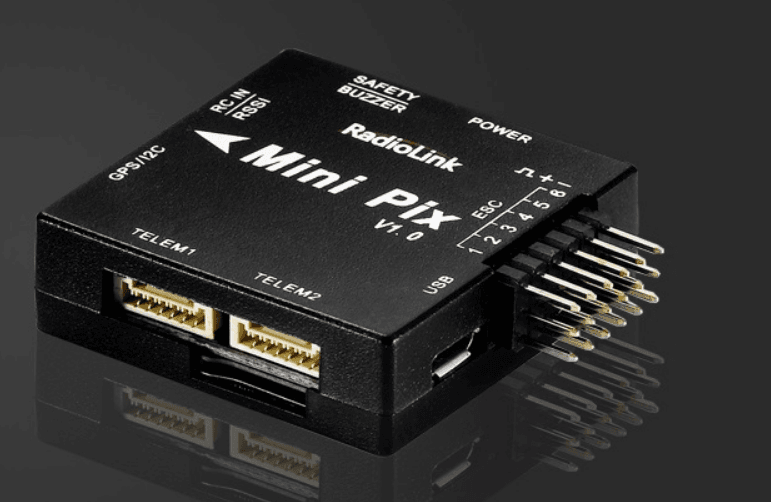

RadioLink Mini Pix Control Unit
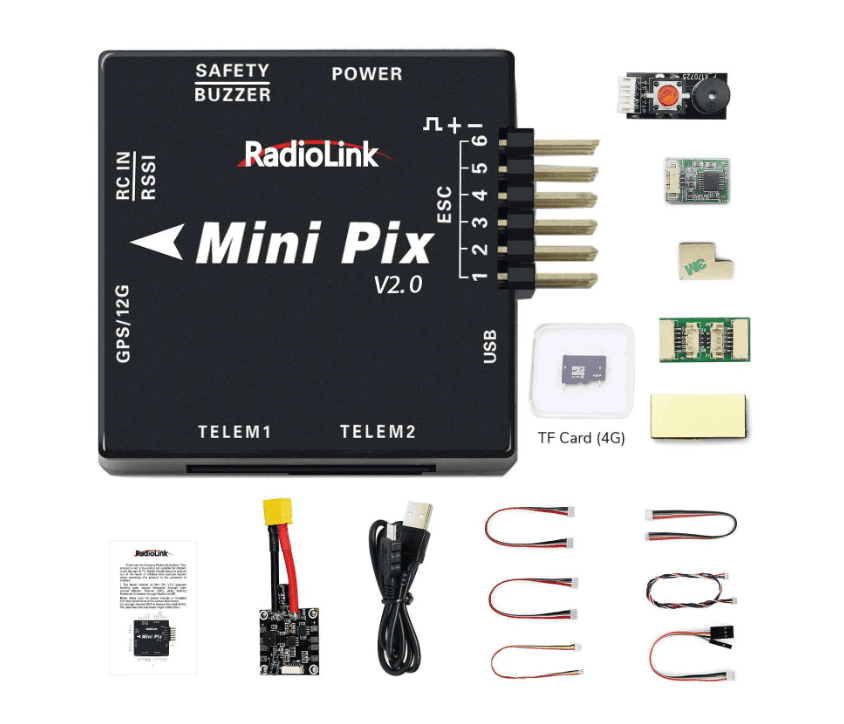
Mini Pix Introduction
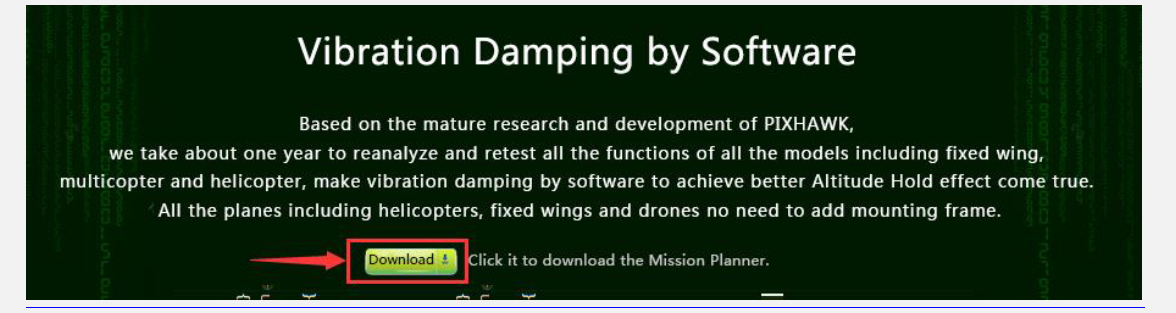
Radiolink mini PIX, with STM32F405VGT6 processor and LPS22HB barometer from America ST, MPU6500 accelerometer from INVENSENS, QMC5883L compass which same technology as HMC5983 from Honeywell, is your best choice with top configuration and affordable price. Shell completely closed to protect, prevent the interaction effects of the air current wake on air pressure when flight. The main board has an air pressure vent to ensure the accuracy of the barometer testing. Shell design and vibration damping by software make Radiolink mini PIX achieve a better Altitude Hold effect. Based on the mature research and development of PIXHAWK, we take about one year to reanalyze and retest all the functions of all the models, including fixed wing, multicopter, and helicopter, and make vibration damping by software to achieve a better Altitude Hold effect come true. All the planes, including helicopters, fixed wings, and drones not need to add a mounting frame.
Spare Parts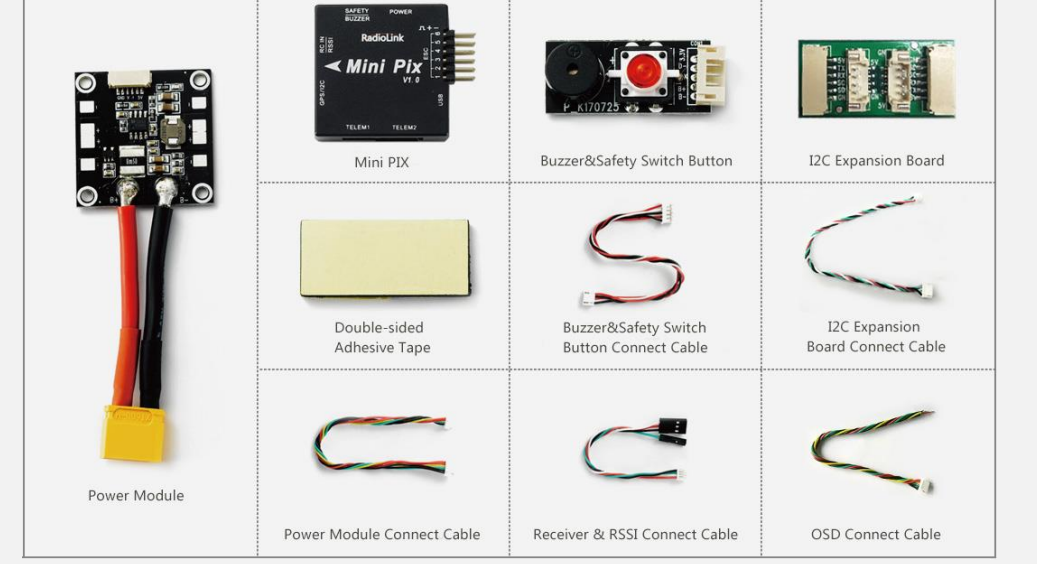
Connectors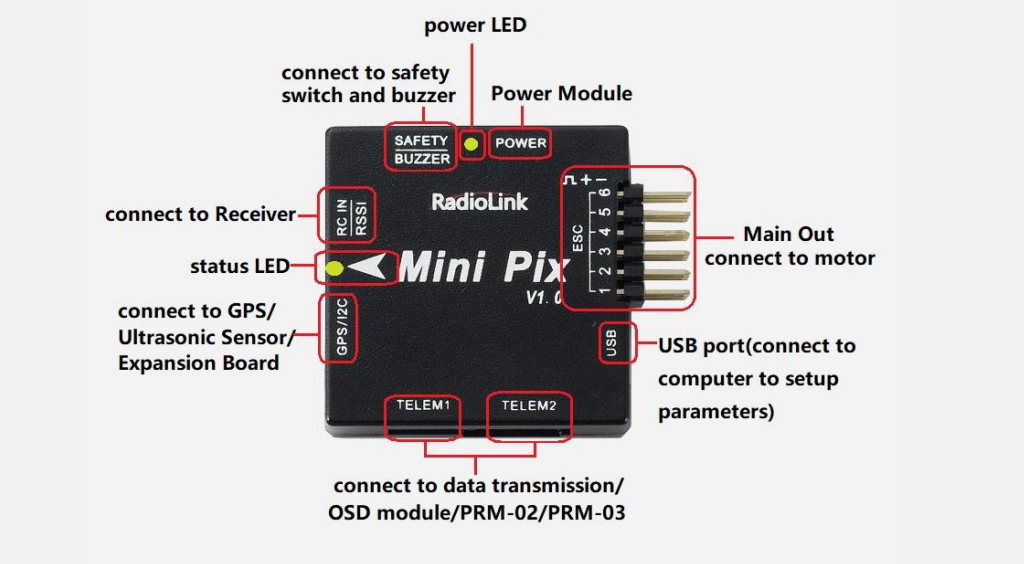
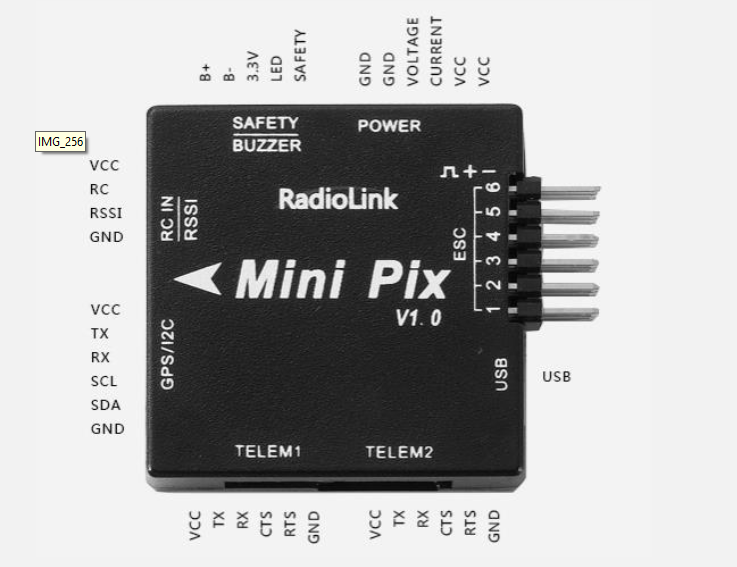
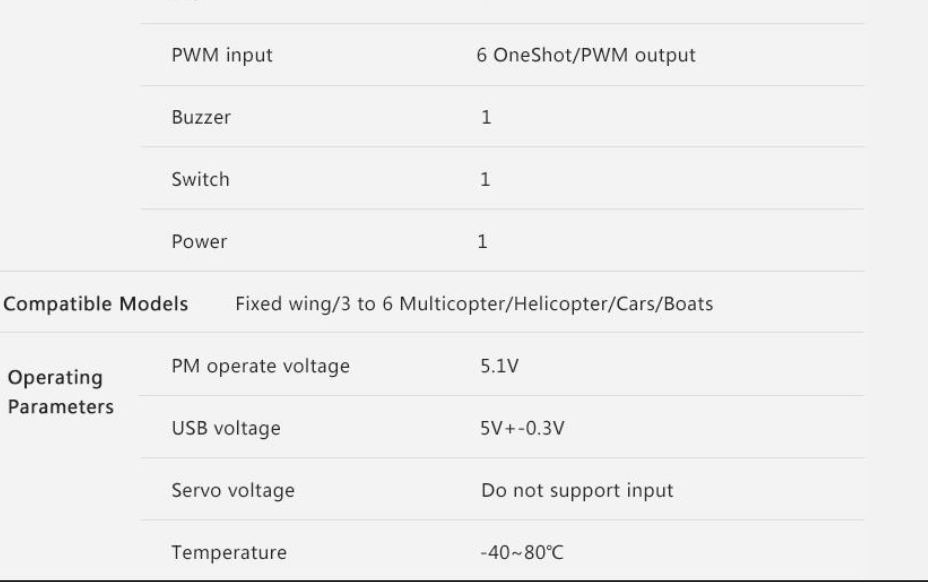
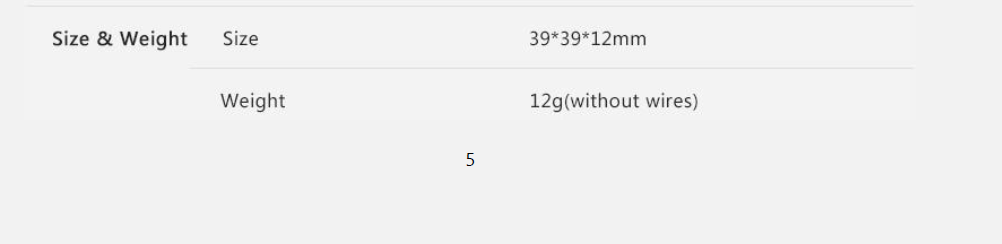
Parameters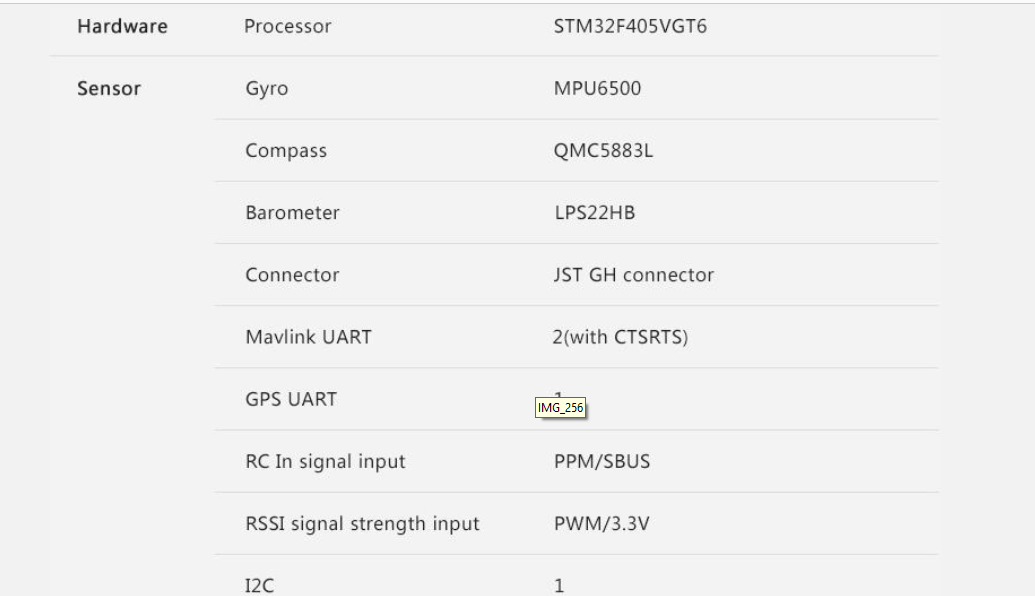
Warning
Warning!!! This product is not a toy and is not suitable for children under the age of 18. Adults should keep the product out of the reach of children and exercise caution when operating this product in the presence of children. Please don’t fly in the rain! For the users who is the first time to use mini PIX, we suggest that you follow these steps:
- You have to install the mission planner and driver from here and become familiar with the menu. Download the latest Mission Planner from here: [http://radiolink.com.cn/doce/product](http://radiolink.com.cn/doce/product) detail 133.html Download the driver from here: [https://www.microsoft.com/net/download/dotnet](https://www.microsoft.com/net/download/dotnet) framework runtime/net462
- To establish a connection, you must first choose the communication method/channel you want to use and then set up the physical hardware and Windows device drivers. You can connect the PC and autopilot using USB cables, Telemetry Radios, Bluetooth, and IP connections.
- Download the firmware update by USB cable if needed.
- Connect Mission Planner to Autopilot, and then connect the receiver to Autopilot to finish the calibration of the transmitter, Accelerometer, and compass.
- Set up RC transmitter flight mode.
- Assemble the aircraft and finish the pre-flight checklist.
- PID usage.
- Advanced configuration.
Mission Planner
This section contains articles about Mission Planning, creating automated missions that will run when the ArduPilot is set to AUTO mode.
Install Mission Planner
To install Mission Planner need to download Net Framework 4.6.2 first. You can download from here: .net4.6.C2 download website. Install Mission Planner after finishing the .NET Framework installation: Mini Pix Mission Planner Download website: [https://www.microsoft.com/net/download/thank](https://www.microsoft.com/net/download/thank) you/net462. 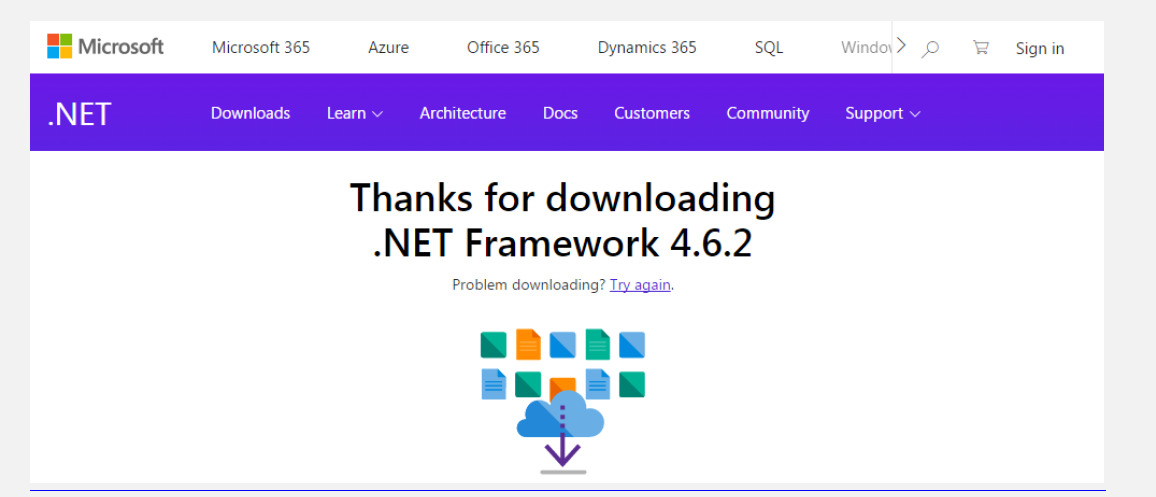
- It will hit you download Net Framework 4.6.2 automatically when you click this website. Then you need download Mission Planner, you can download from our website: www.radiolink.com.

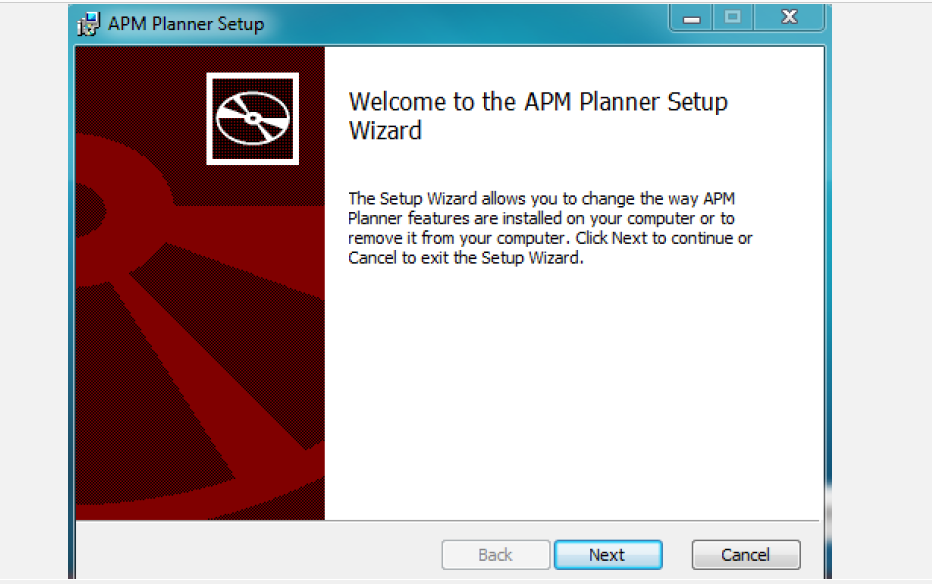
- Open the Microsoft installer file and select Run to run the installation utility.

Mission Planner Introduction
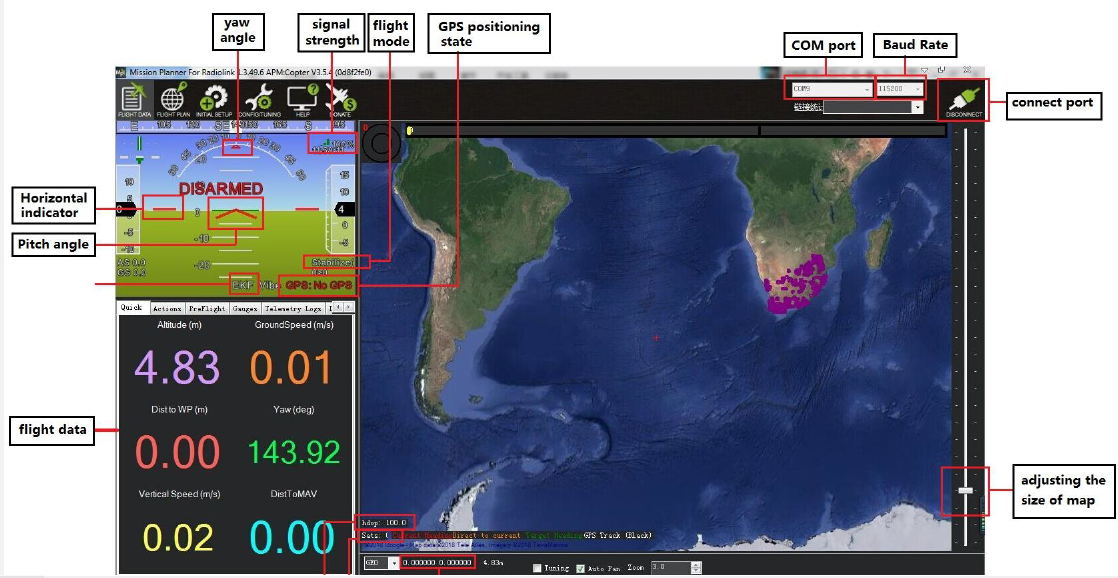
Once installation is complete, open Mission Planner by clicking on its system icon. Finish Mission Planner and drive installation. There will be several hints when you open the MP for the first time. The first hint clicks Yes, and the others click NO. There are six Menu buttons in the main menu.
- FLIGHTDATA: flight attitude and data will show in real time on MP.
- FLIGHTPLAN: planning the flight mission.
- INITIAL SETUP: for firmware installation and update, Mandatory Hardware and Optional Hardware setup.
- CONFIG/TUNING: including detailed PID setup and parameter changes.
- SIMULATION: Make MINI PIX work as a simulator after upgrading to a special simulation firmware.
- HELP: You can get help when you have questions about MP.



Initial Setup
First, you have to upgrade the firmware you need when you the first time ready to use MINI PIX. Radiolink Mini Pix is default with quadcopter firmware; you have to install the right firmware if you use the other frame drone.
Download and Install Firmware
Please connect your Mini Pix and computer via a USB cable. Open the Mission Planner and select the right COM port drop-down on the upper right corner of the screen (near the Connect button). Make sure the Baud rate is 115200 as shown.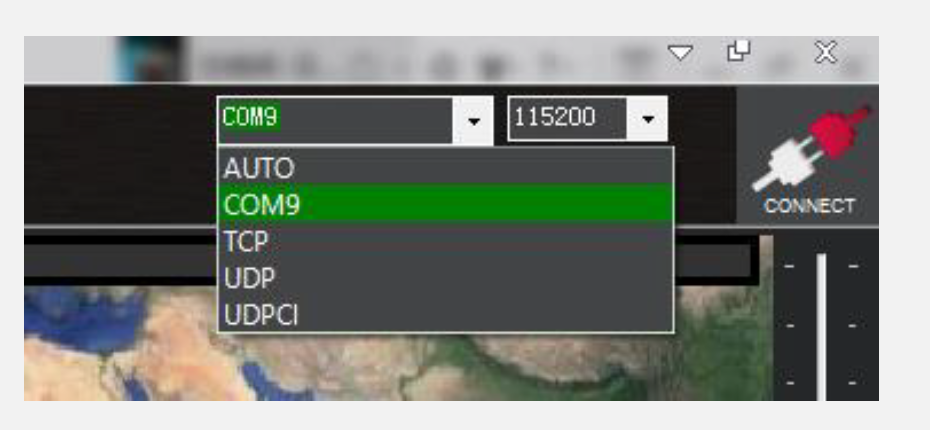
Attention:
- Do not click CONNECT before you upload the new firmware. Please click DISCONNECT if you have connected successfully before. Uploading new firmware will not be successful if you have already connected.
- Please do not upload new firmware by wireless data transmission because it misses the reset signal.
- If there’s without firmware version number, it means a failed upload of new firmware. It may be caused by a network problem, Please re-upgrade the firmware until it shows the version.


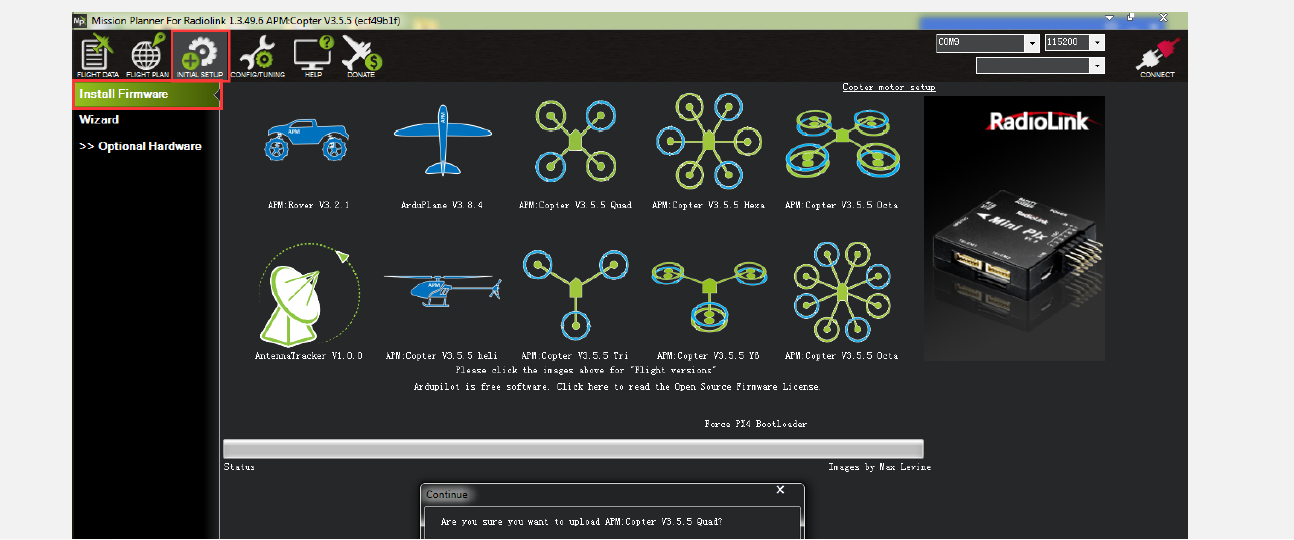

Click “Yes” to install the firmware. Disconnect the USB cable, click OK, and then reconnect the USB cable immediately (Pay attention: Mini Pix will have failed to connect if there is more than one COM, please remove other equipment if disconnected). A red status LED means the MINI PIX is loading the firmware. After upgrading firmware 3.1 or after version 3.1, it will pop up a warning box that shows the motors will run at idle speed after disarming. Please click “CONNECT” to connect your Mini Pix and computer when the firmware has been installed successfully.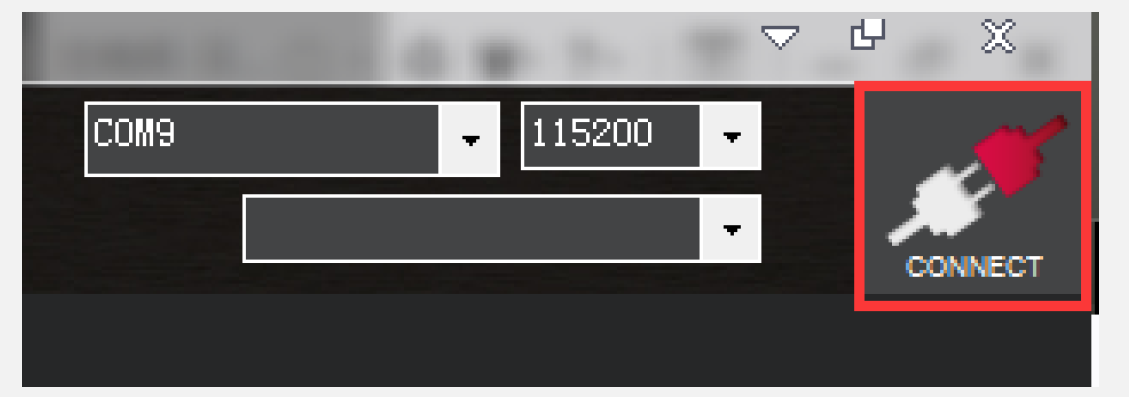
Click “CONNECT” and it turns green means the connection is successful.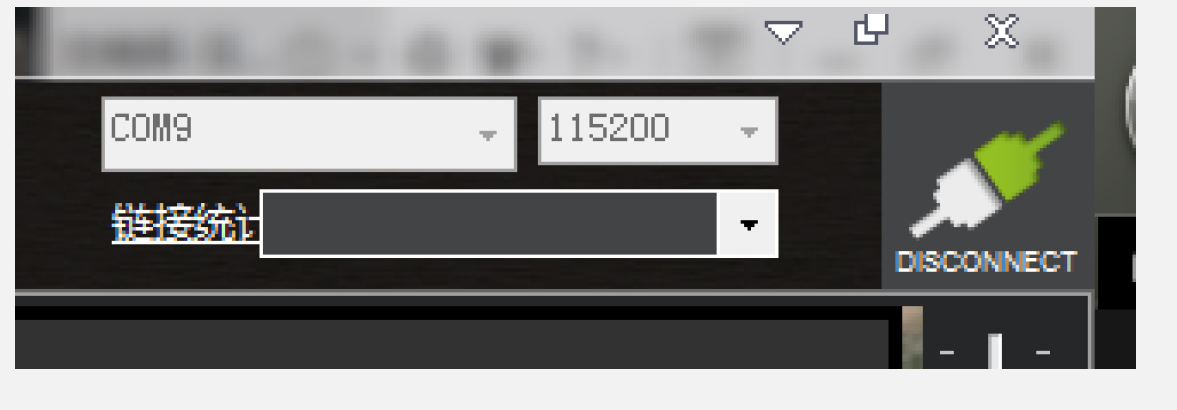
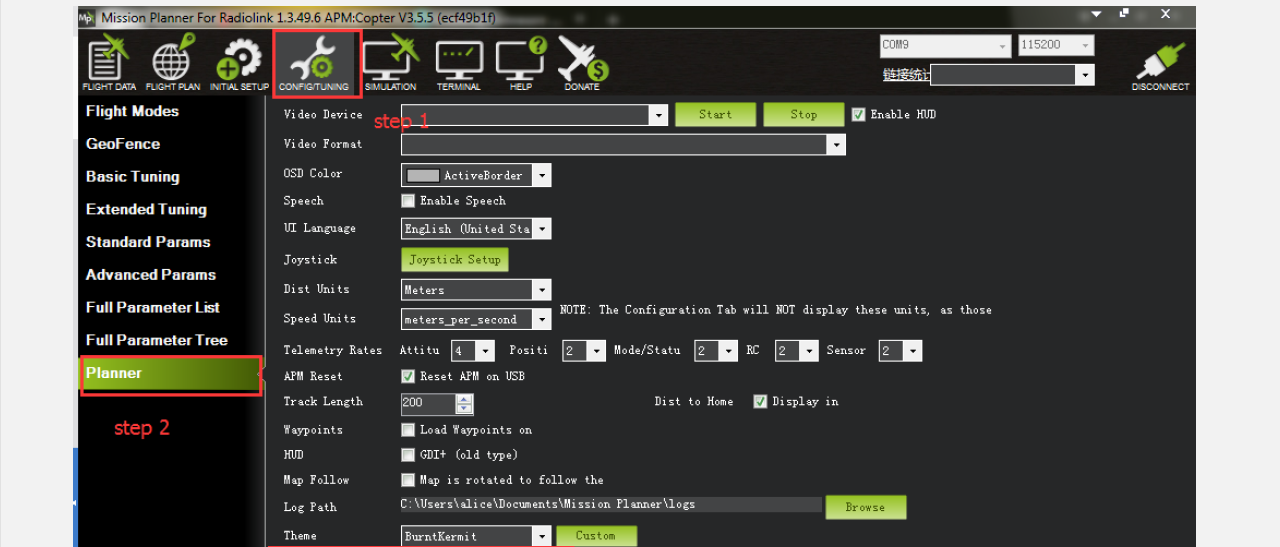

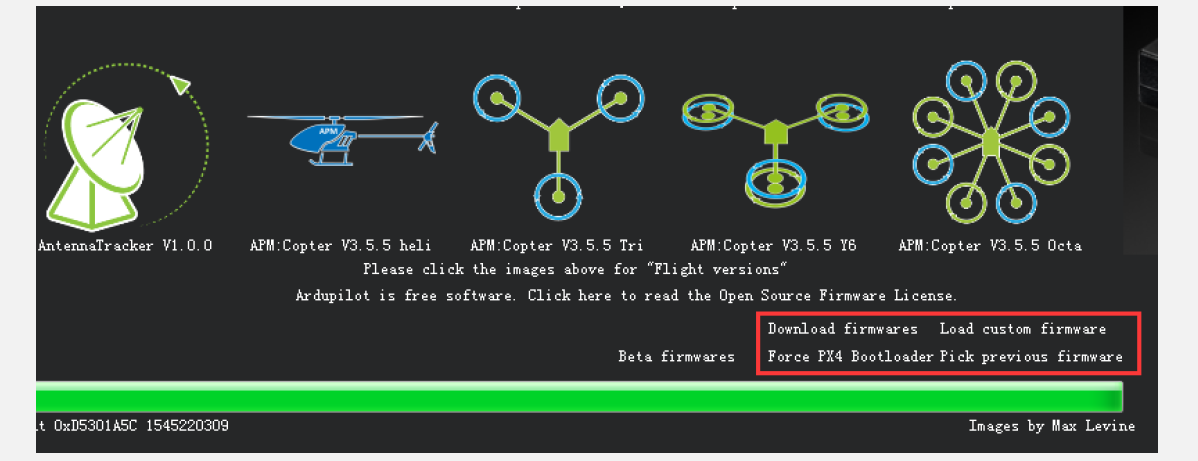
- It takes a long time to read the parameters.
- There are no “Load custom firmware” and “Pick previous firmware.”

- INITIAL SETUP menu missed some parameters.
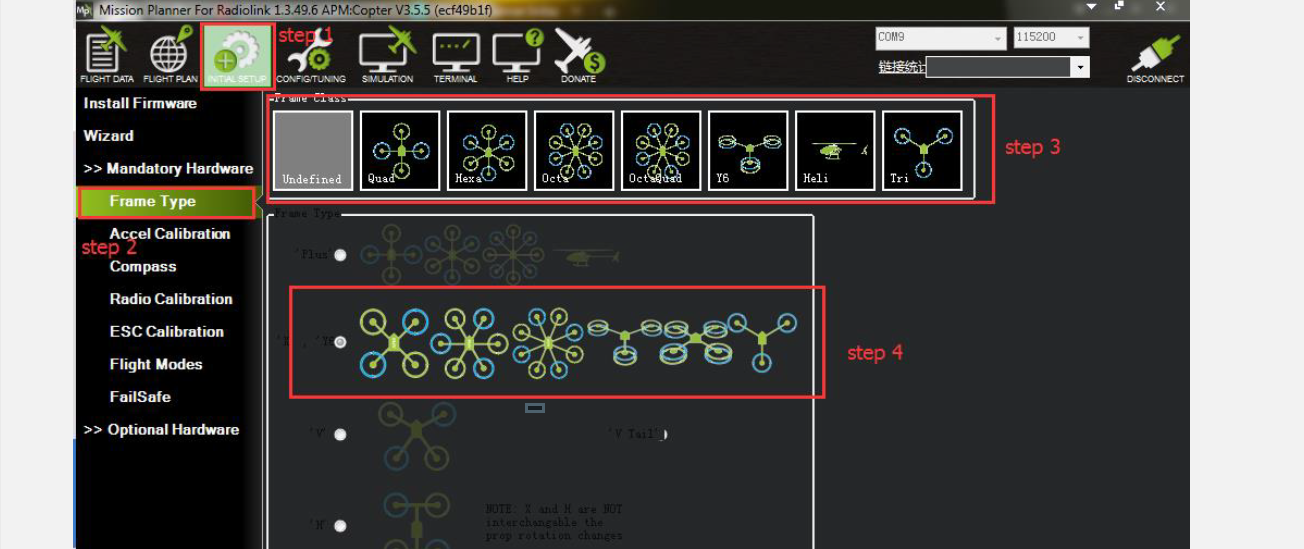
Frame Type
Please set up as below:
- INITIAL SETUP
- Mandatory Hardware Frame Type
- Choose Quad or Hexa, or other frame types as you need.



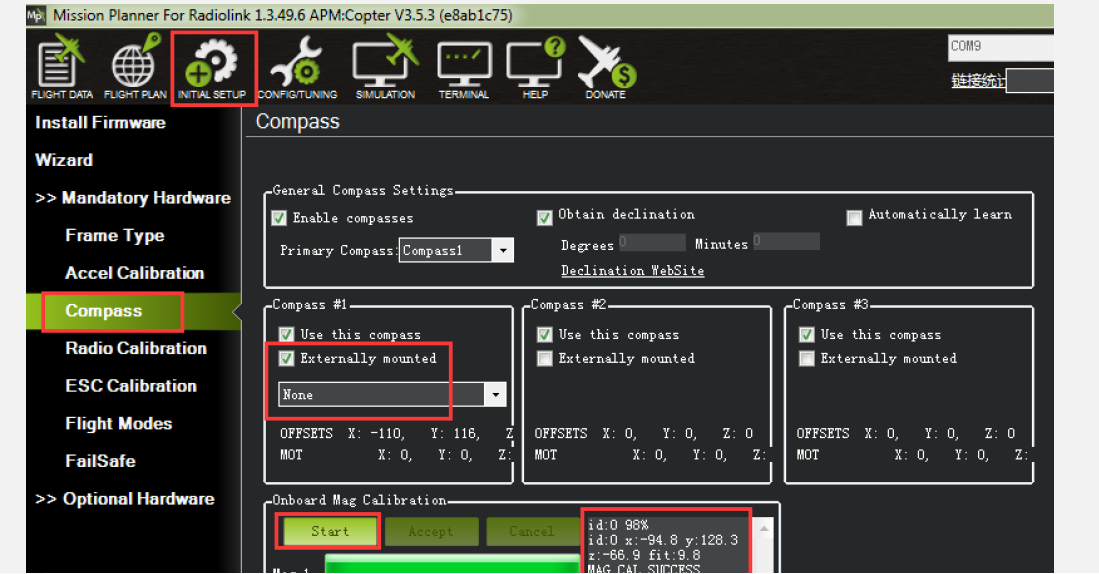
Compass Calibration
There are two situations regarding compass calibration:
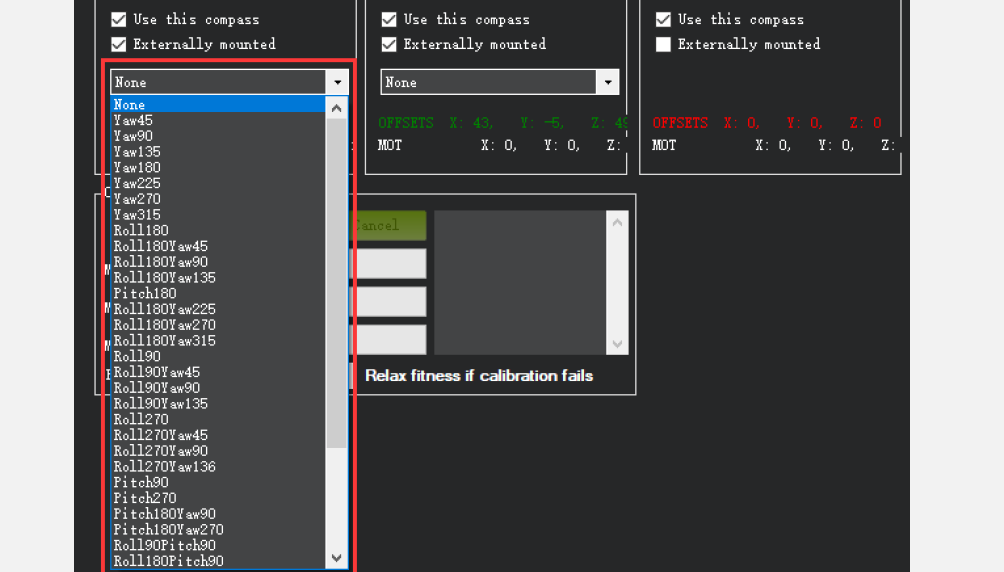
- Without GPS, use an internal compass. The calibrate interface will show Externally mounted is None, then click “Start” and turn Mini Pix till the progress bar of Mag 1 to the end and displays the MAG\_CAL\_SUCCESS marked words.


- With GPS, use an external and internal compass. The calibration interface will show as pictured below when used with GPS. If the GPS is mounted in the same direction as the light controller, then it does not need to set up in the direction of the GPS in MP, but if you mount the GPS in a different direction from MINI PIX, you have to set up in the MP.


Radio Calibration
This article shows how to perform radio control calibration using Mission Planner. RC transmitters are used to control vehicle movement and orientation. Copter and Plane minimally control throttle, pitch, roll, and yaw, while on Rover we just control throttle and roll. Each of these control signals is mapped to transmitter stick/switch(s) and, in turn to autopilot channels from the connected receiver. Calibrating each of the transmitter controls/channels is a straightforward process: simply move each of the enabled sticks/switches through their full range and record the maximum and minimum positions. There are two main transmitter configurations:
- Mode 1:The left stick controls pitch and yaw, the right stick controls throttle and roll.

- Mode 2: left stick controls throttle and yaw; the right stick controls pitch and roll.
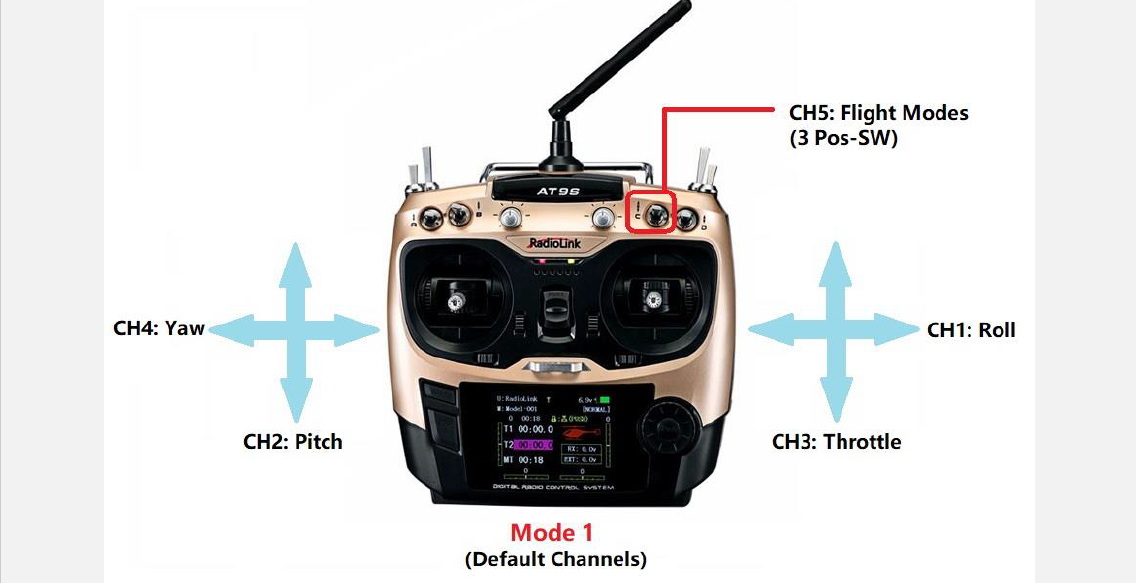
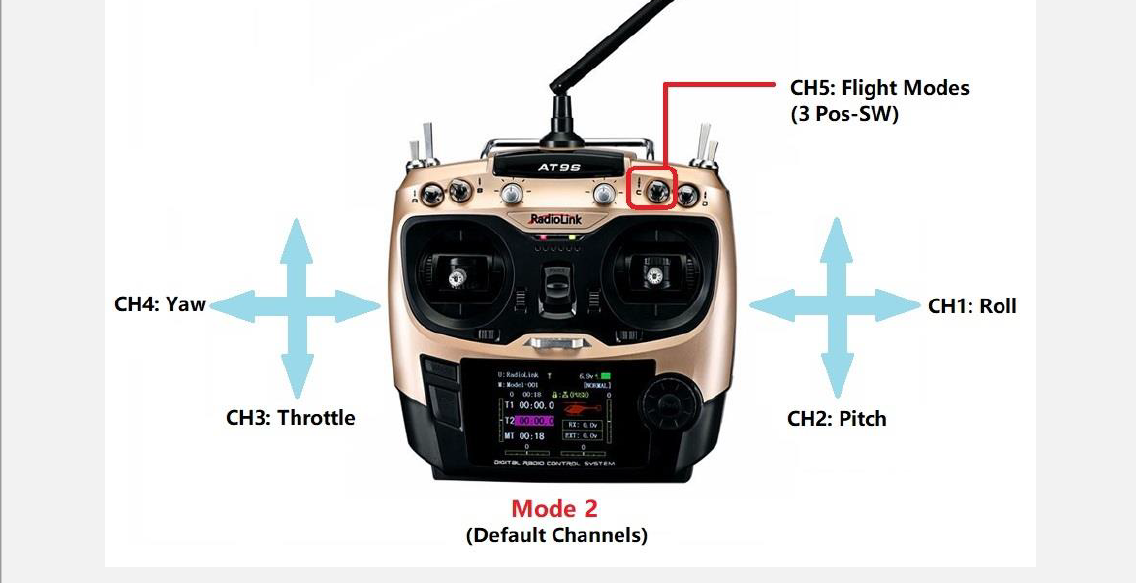
Copter default channel mappings are:
- Channel 1: Roll
- Channel 2: Pitch
- Channel 3: Throttle
- Channel 4: Yaw
- Channel 5: Flight modes
- Channel 6: (Optional) In-flight tuning or camera mount (mapped to transmitter tuning knob). Unused channels can be mapped to control additional peripherals.
For safety, you should disconnect the battery and/or remove propellers before performing radio calibration. Bind your transmitter and receiver before calibrating the radio, connect MINI PIX to the computer via USB cable, and then turn on the transmitter. The RC receiver asks to connect to the RC port of MINI PIX. The transmitter will use AT9S as an example in this manual.
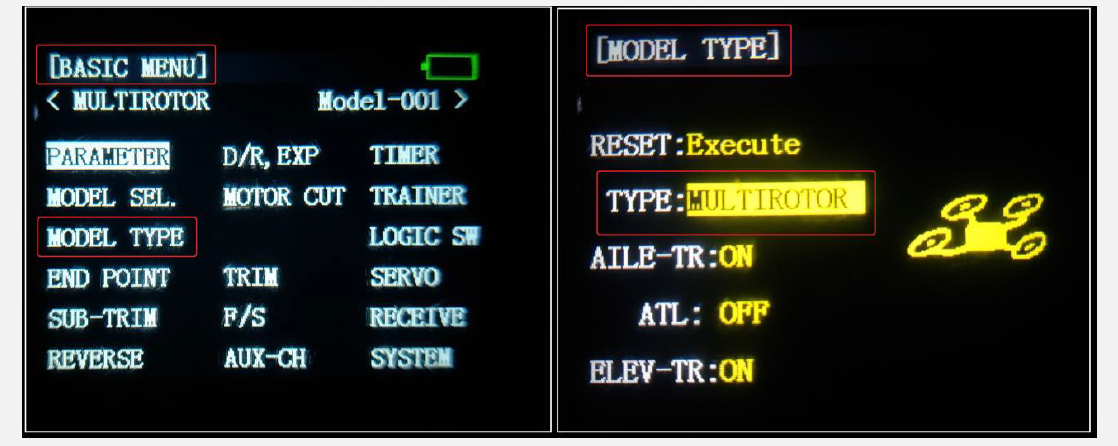
- Press Mode button about one second to into BASIC MENU, and then turn the dial to set MODE TYPE as MULTIROTOR (press Push button 1 second press Push button again when the display hints “Are you sure?” you will find out DDD sounds come out with “Please wait…”), the mode type MULTIROTOR have setup success after the DDD sounds have finished.

- Setup CH3: THRO REV in REVERSE menu (setting steps: Press Mode button about one second to into BASIC MENU, and then turn the dial to choose REVERSE, press Push button to into the REVERSE menu, turn the dial to setup 3: THRO REV, press End to back to Basic menu.

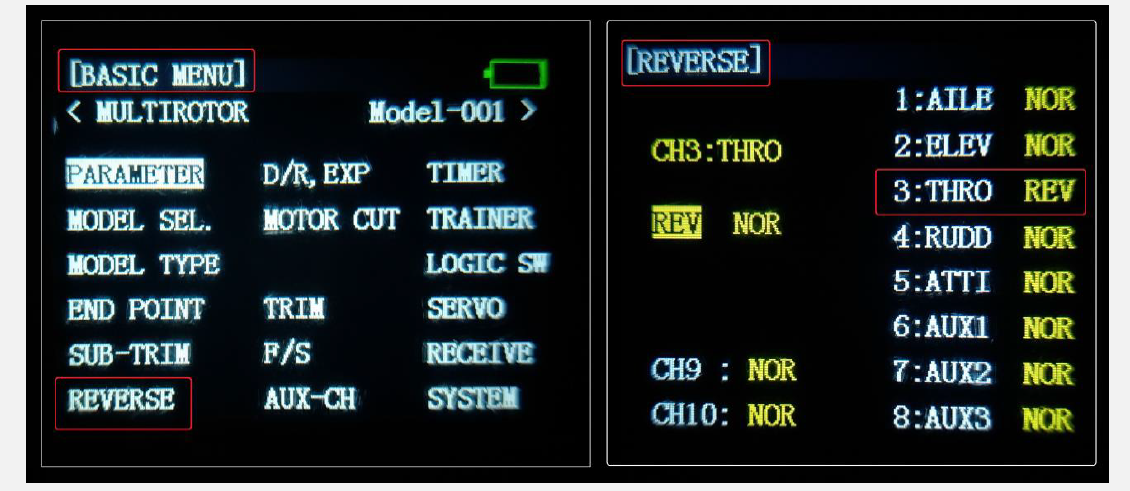
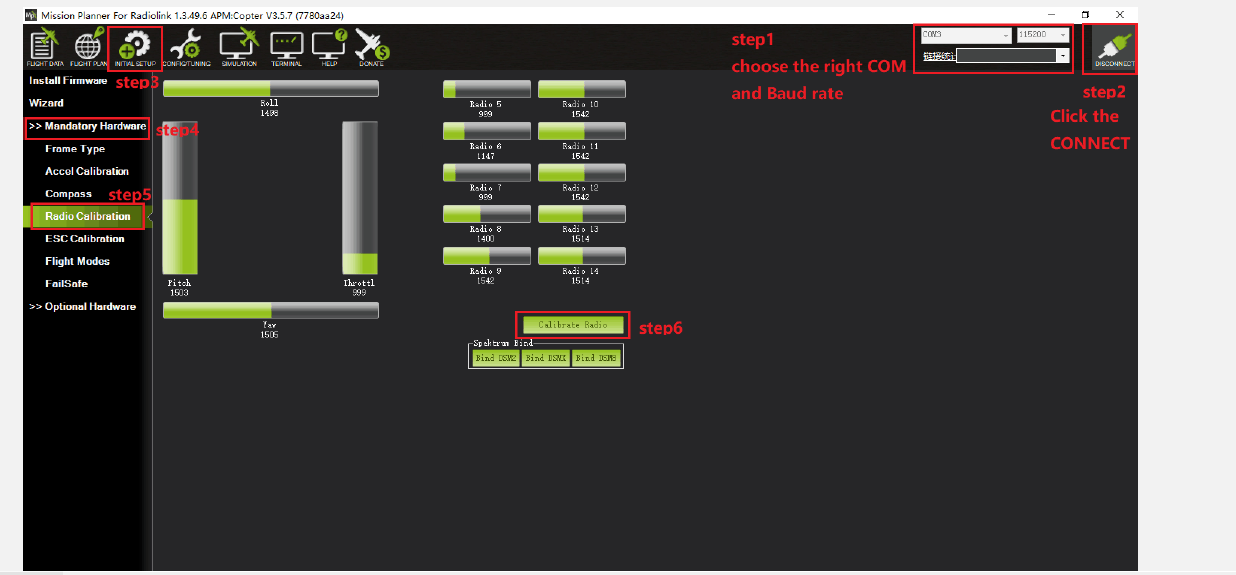
Radio Calibration Steps:
- Open Mission Planner.
- Choose the right COM and Baud rate.
- Click the CONNECT.
- Choose INITIAL SETUP → Mandatory Hardware → Radio Calibration.
- Click “Calibrate”.

There are two tooltips after you click “OK”, one to make sure both your transmitter and receiver are powered on and connected, and the motor of your drone does not have power, and without propellers.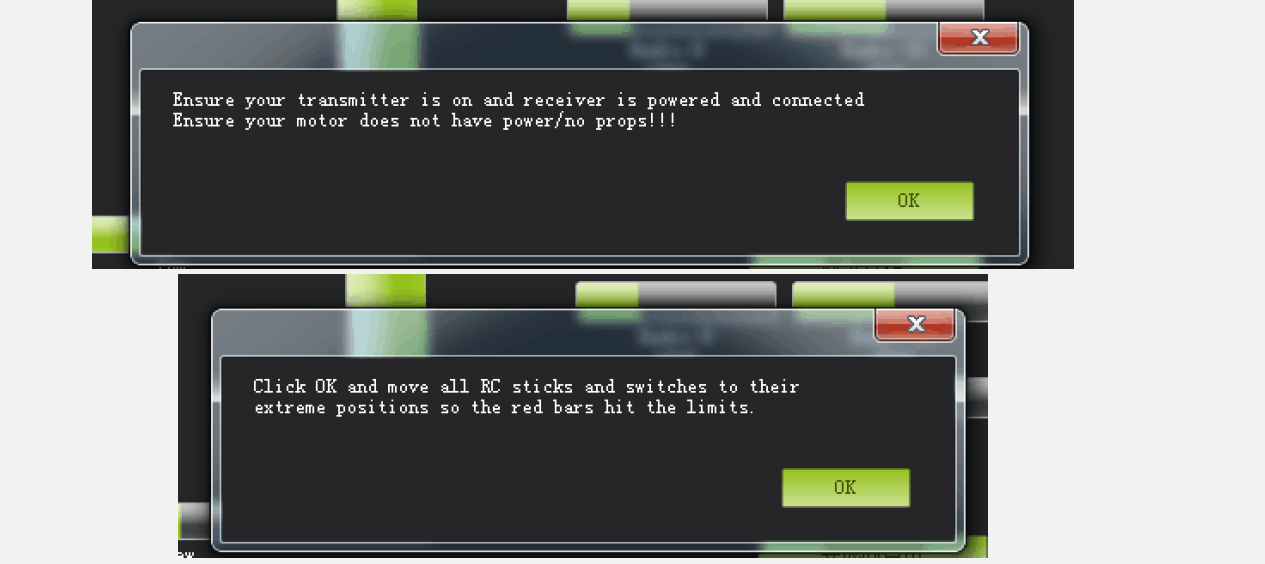
And then click “OK” and move all RC sticks and switches to their extreme positions so the red bars hit the limits. If the red bars do not change when you move the sticks, please check whether the receiver has connected successfully or not, make sure the receiver (maybe R9DS) is outputting the SBUS signal (the blue LED of R9DS means work as an SBUS signal). You can check if every corresponding red bar for every channel is working as below:
- CH 1: low position = roll (towards the left), up position = roll (towards the right).
- CH 2: low position = pitch (forward), up position = pitch (backwards)
- CH 3: low position reduced speed, up position speed up.
- CH 4: low position = yaw (towards the left), up position = yaw (towards the right).


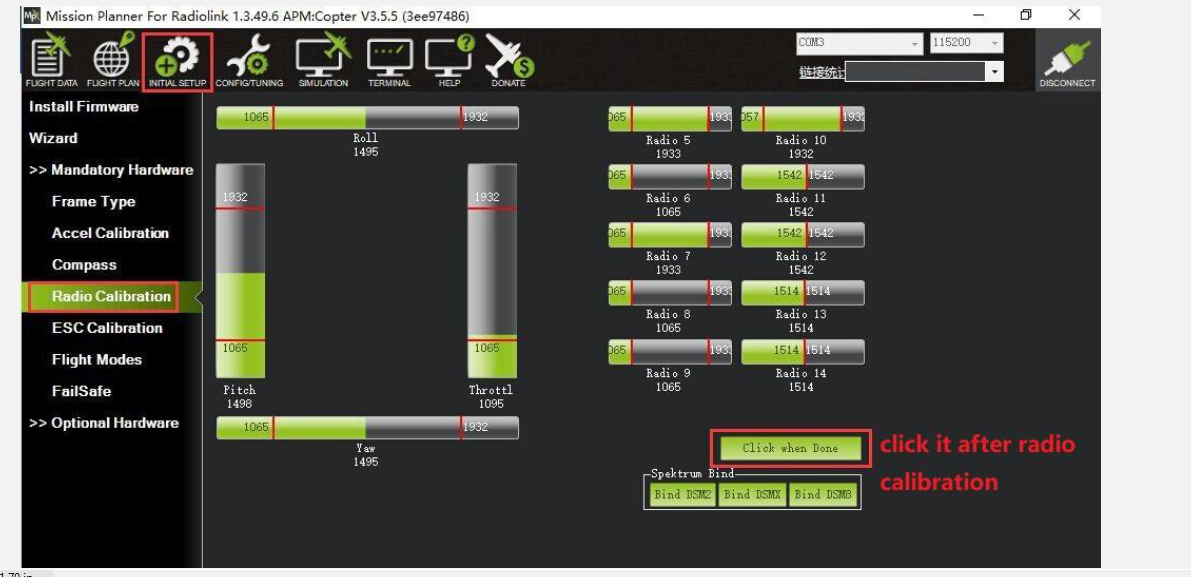
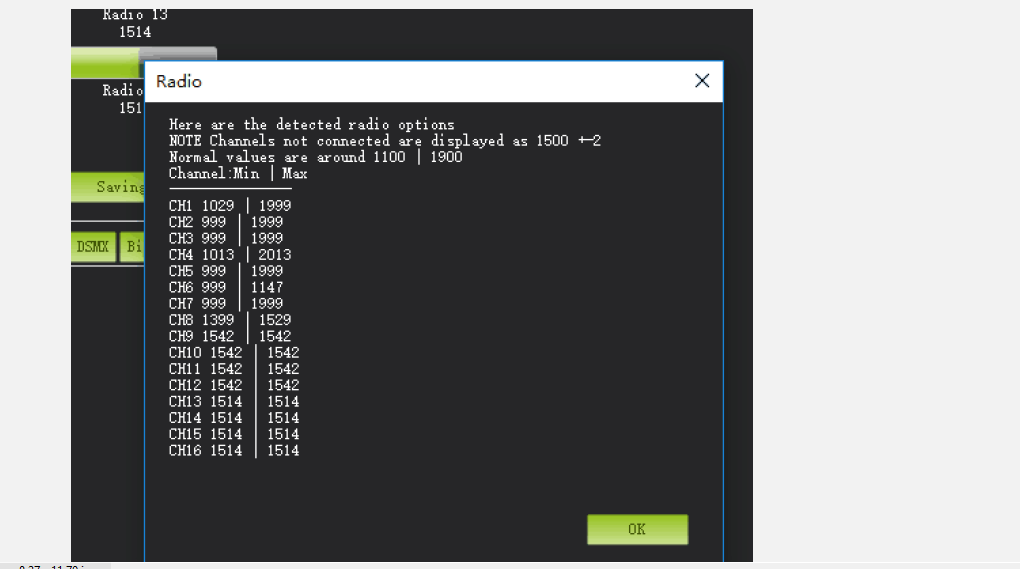
Click OK to save the radio calibration data.
Flight Modes
Mini Pix has 20 built-in flight modes, 10 of which are regularly used. There are modes to support different levels/types of flight stabilization, a sophisticated autopilot, a follow-me system, etc. Flight modes are controlled through the radio (via a transmitter switch), via mission commands, or using commands from a ground station (GCS) or companion computer. You can set up six flight modes once, and max setup eight modes combined with AUX CH (CH7 and CH8).
Stabilize Mode
Stabilize mode allows you to fly your vehicle manually, but self-levels the roll and pitch axes. If you’re learning to fly, try Alt Hold or Loiter instead of Stabilize. You’ll have fewer crashes if you don’t need to concentrate on too many controls at once.
- Pilots’ roll and pitch input control the lean angle of the copter. When the pilot releases the roll and pitch sticks, the vehicle automatically levels itself.
- Pilot will need to regularly input roll and pitch commands to keep the vehicle in place as it is pushed around by the wind.
- Pilot’s yaw input controls the rate of change of the heading. When the pilot releases the yaw stick, the vehicle will maintain its current heading.
- The pilot’s throttle input controls the average motor speed, meaning that constant adjustment of the throttle is required to maintain altitude. If the pilot puts the throttle completely down, the motors will go to their minimum rate (MOT\_SPIN\_ARMED), and if the vehicle is flying. It will lose attitude control and tumble.
- The throttle sent to the motors is automatically adjusted based on the tilt angle of the vehicle (i.e., increased as the vehicle tilts over more) to reduce the compensation the pilot must do as the vehicle’s attitude changes. Always switch into a manual mode, such as stabilize, if the autopilot fails to control the vehicle. Maintaining control of your copter is your responsibility.
Altitude Hold Mode
In altitude hold mode, Copter maintains a consistent altitude while allowing roll, pitch, and yaw to be controlled normally. This page contains important information about using and tuning Alt Hold. Automatic altitude hold is a feature of many other flight modes (Loiter, Sport, etc.), so the information here pertains to those modes as well.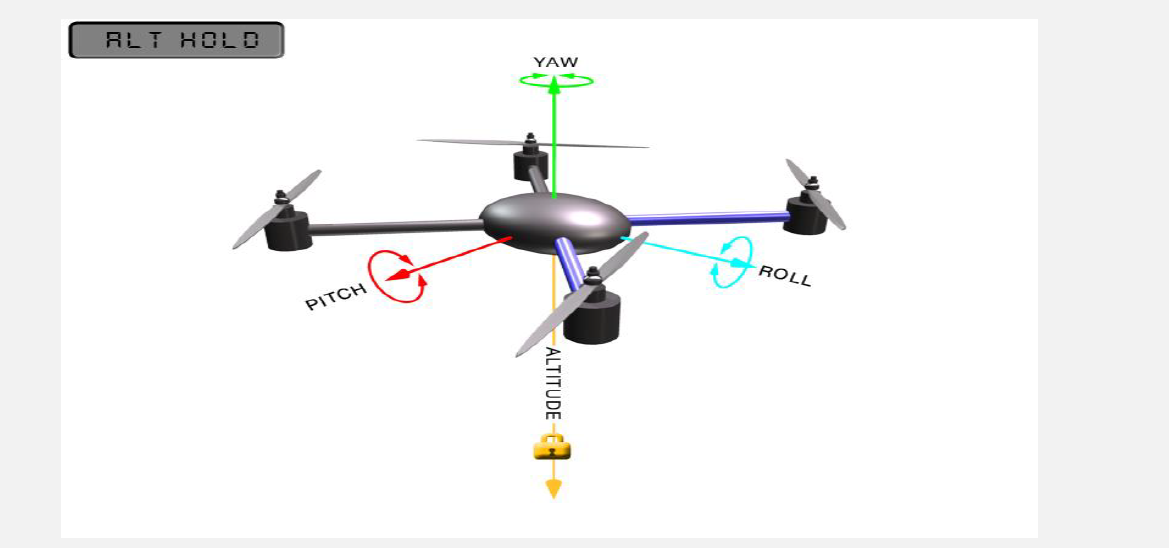
How to control
The pilot can control the climb or descent rate of the vehicle with the throttle stick. If the throttle stick is in the middle (40% \~ 60%), the vehicle will maintain the current altitude. Outside of the mid-throttle dead zone (i.e., below 40% or above 60%), the vehicle will descend or climb depending upon the deflection of the stick. When the stick is completely down, the copter will descend at 2.5 m/s, and if at the very top, it will climb by 2.5 m/s. These speeds can be adjusted with the PILOT\_VELZ\_MAX parameter. The size of the deadband can be adjusted with the THR_DZ parameter (AC3.2 and higher only). This parameter value should be between “0” and “400”, with “0” meaning no deadband. “100” would produce a deadband 10% above and below mid throttle (i.e., deadband extends from 40% to 60% throttle stick position). AC3.1 and later allow arming and disarming in altitude hold mode. When disarming, the copter may need to rest in the landing position for a few seconds to allow the “landing checker” to verify that the copter has landed before you are able to disarm.
RTL Mode
This very simple flight mode simply stops the vehicle as soon as possible using the Loiter controller. Once invoked, this mode does not accept any input from the pilot. This mode requires GPS.RTL mode (Return to Launch mode) navigates the Copter from its current position to hover above the home position. The behavior of RTL mode can be controlled by several adjustable parameters. When RTL mode is selected, the copter will return to the home location. The copter will first rise to RTL_ALT before returning home, or maintain the current altitude if the current altitude is higher than RTL_ALT. The default value for RTL\_ALT is 15 m.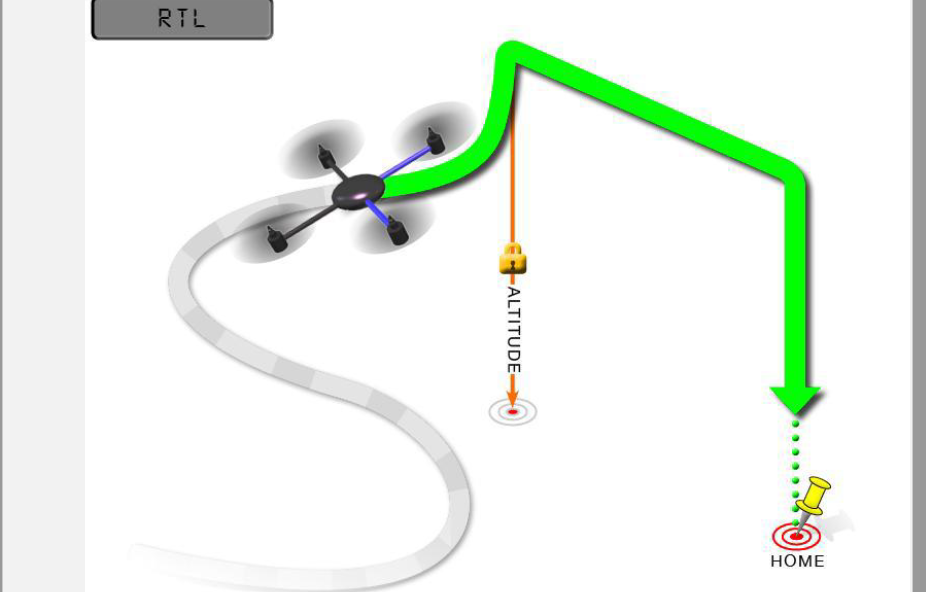
RTL is a GPS-dependent move, so it is essential that GPS lock is acquired before attempting to use this mode. Before arming, ensure that the APM’s blue LED is solid and not blinking. For a GPS without a compass, the LED will be solid blue when GPS lock is acquired. For the GPS+Compass module, the LED will be blinking blue when the GPS is locked.RTL will command the copter to return to the home position, meaning that it will return to the location where it was armed. Therefore, the home position is always supposed to be your copter’s actual GPS takeoff location, unobstructed and away from people. For Copter, if you get GPS lock and then ARM your copter, the home position is the location the copter was in when it was armed. This means if you execute an RTL in Copter, it will return to the location where it was armed. In RTL mode the flight controller uses a barometer which measures air pressure as the primary means for determining altitude (“Pressure Altitude”) and if the air pressure is changing in your flight area, the copter will follow the air pressure change rather than actual altitude (unless you are within 20 feet of the ground and have SONAR installed and enabled).
F/S (failsafe) Setting
Radio Failsafe Setup
Mini Pix supports Return-To-Launch in cases where contact between the Pilot’s RC transmitter and the flight controller’s receiver is lost. This page explains the failsafe’s setup and testing. Note that the “Radio failsafe” was previously called “Throttle failsafe” because of the way in which some receivers use the throttle channel to signal the loss of contact. Make sure the transmitter and receiver connect successfully and work with the SBUS signal.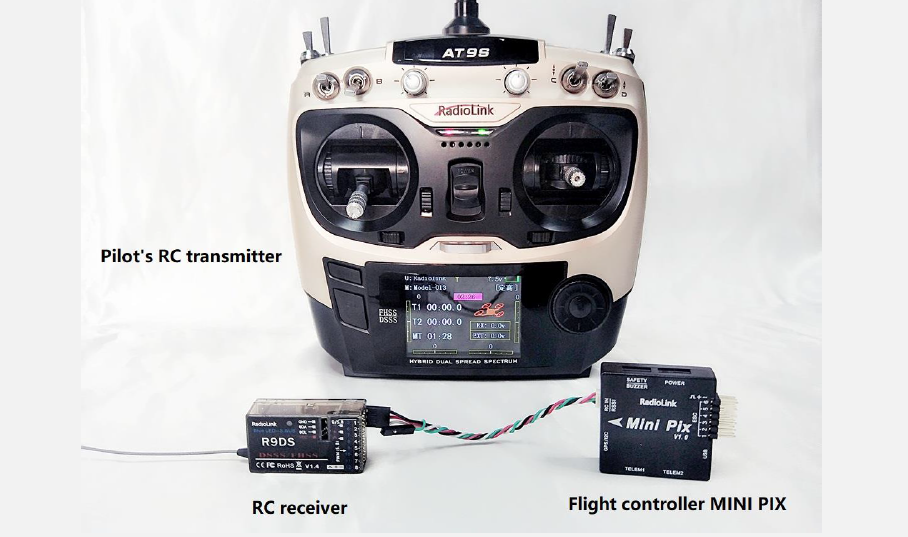
F/S setting steps
Setup in transmitter: set up the throttle trim to -120 by the trim switch and then press the Mode button one second into BASIC MENU, choose and go into F/S menu, put the throttle stick to the bottom to set up 3: THRO 3%. Please set the throttle trim back to 0 after setup the THRO 3% success.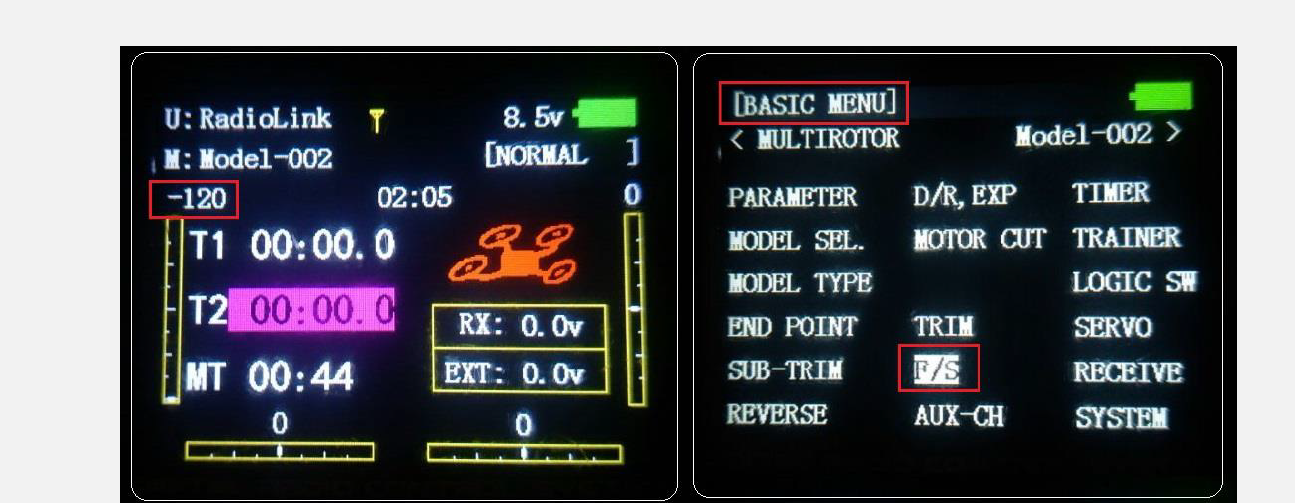
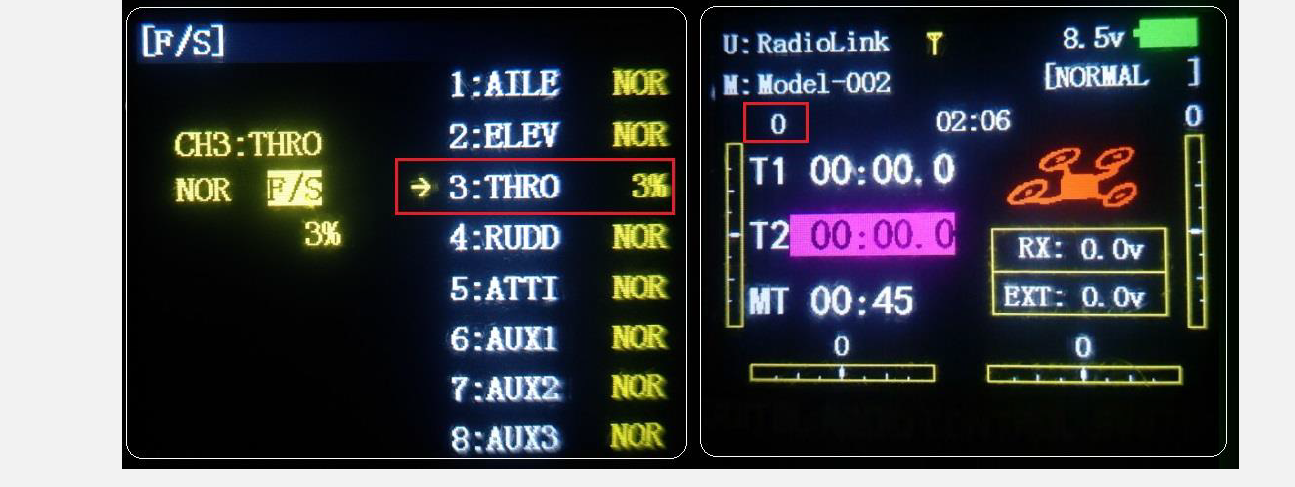
Receiver and flight controller MINI PIX setup: By default, a newly purchased receiver will be set up to simply hold all channels at their last known position when the receiver and transmitter lose contact. This is not good because the flight controller has no way to know that the Pilot has lost control of the vehicle. Instead, the receiver must be set up to signal to the flight controller it has lost contact, and there are two ways that it can do this (the method depends upon the receiver): “Low-Throttle” method — the receiver pulls the throttle channel (normally channel 3) to a value below the bottom of its normal range (normally below 975). With the LiPo battery disconnected:
- Connect your flight controller to the mission planner and select Initial Setup >> Mandatory Hardware >> Failsafe.
- Set the Failsafe Options to one of the three options:
- “Enabled always RTL” to force the vehicle to always RTL even if flying a mission in AUTO mode.
- “Enabled Continue with Mission in AUTO” to allow the vehicle to continue with missions even if it takes the vehicle outside of RC range (not recommended). In all other cases, the vehicle will RTL.
- “Enable always LAND” to force the vehicle to land immediately if it loses RC contact.
Set the “FS PWM” value to be
- At least 10 PWM higher than your Channel 3’s PWM value when the throttle stick is fully down and the transmitter is off.
- At least 10 lower than your channel 3’s PWM value when the throttle stick is fully down and the transmitter is on.
- Above 910.

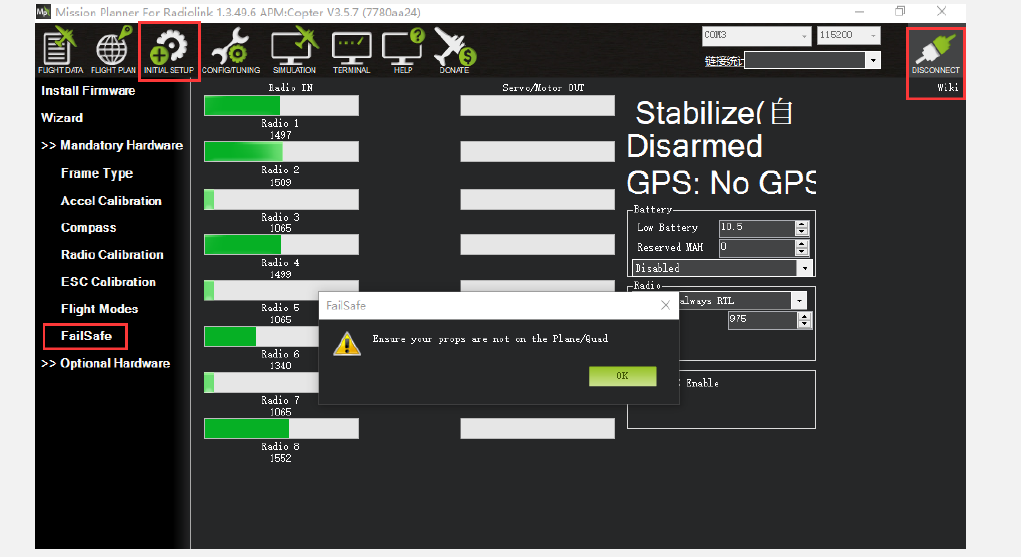
Click OK to enter the failsafe setting menu.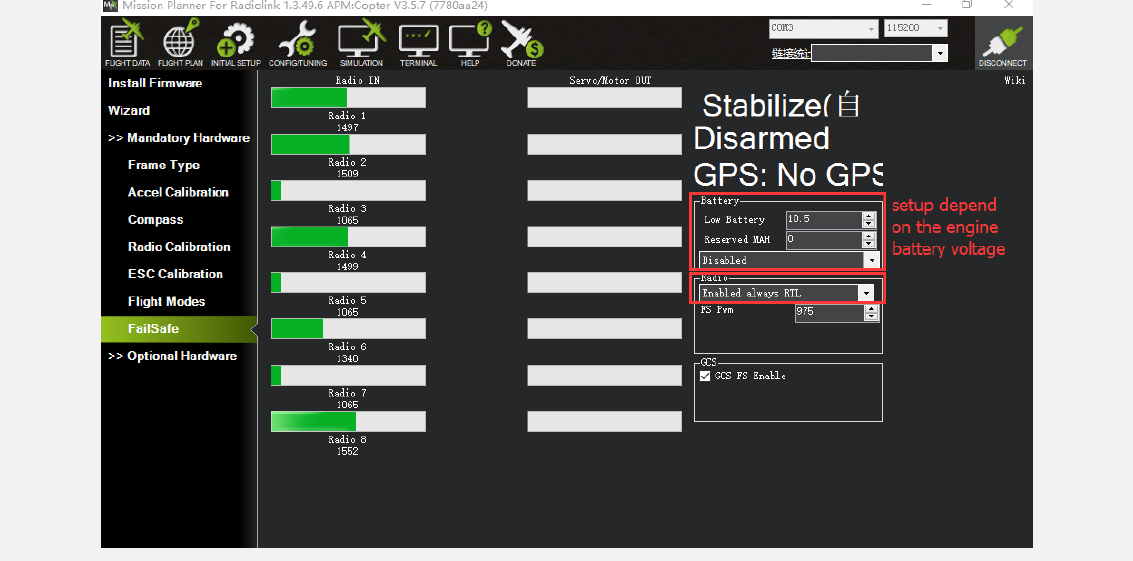
You can turn off the transmitter to check if the Failsafe function setup is successful (the PWM of CH3 is smaller than 975).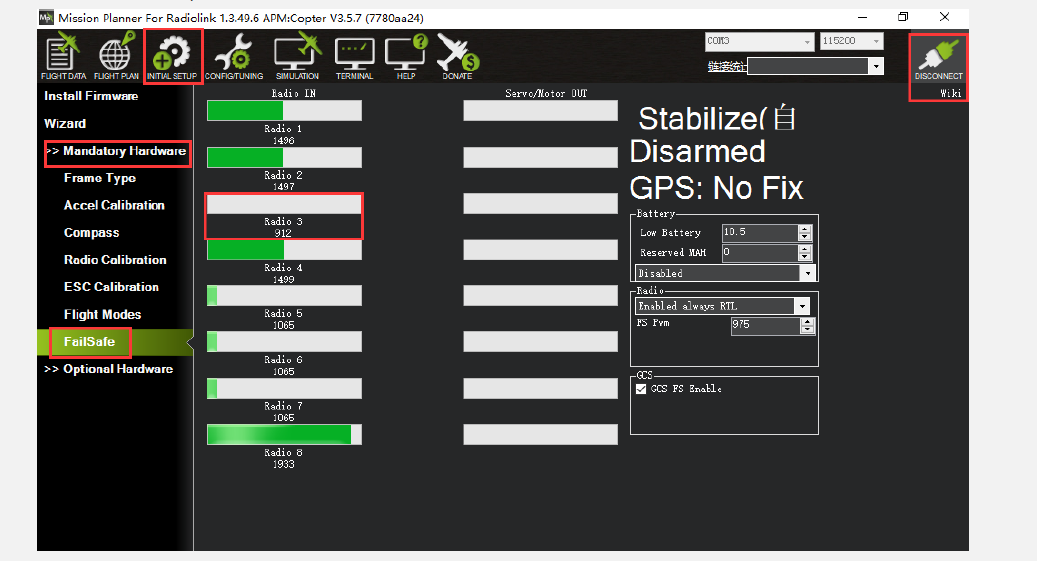
If enabled and set up correctly, the radio Failsafe will trigger if:
- The pilot turns off the RC transmitter.
- The vehicle travels outside of RC range.
- The receiver loses power (unlikely).
- The wires connecting the receiver to the flight controller are broken (unlikely).
When a radio Failsafe is triggered, one of the following will happen:
- Nothing if the vehicle is already disarmed.
- Motors will be immediately disarmed if the vehicle is landed, OR in stabilize or acro mode, and the pilot’s throttle is at zero.
- Return to Launch (RTL) if the vehicle has a GPS lock and is more than 2 meters from the home position.
- LAND if the vehicle has: no GPS lock OR is within 2 meters of home OR the FS\_THR\_ENABLE parameter is set to “Enabled Always Land.”
For more details about how to use PIXHAWK, MINI PIX, and APM, please check this website:
[http://ardupilot.org/copter/docs/common] (http://ardupilot.org/copter/docs/common) mission planning.html.
For More Manuals By RadioLink, Visit ManualsLibraryy.
RadioLink Mini Pix Control Unit-FAQs.
What is the RadioLink Mini Pix Control Unit used for?
The RadioLink Mini Pix Control Unit is a compact flight controller designed for drones and other unmanned aerial vehicles (UAVs). It manages flight stability, navigation, and control functions through sensors and GPS integration.
How do I connect the Mini Pix to my drone?
Use the included cables to connect the Mini Pix to your drone’s ESCs, receiver, GPS module, and other necessary components. Refer to the wiring diagram in the user manual to ensure correct connections before powering on.
What software is compatible with the RadioLink Mini Pix?
The Mini Pix is compatible with Mission Planner and QGroundControl, which allow you to configure parameters, calibrate sensors, and set up autonomous flight missions.
How do I calibrate the RadioLink Mini Pix Control Unit?
Connect the Mini Pix to your computer via USB, open Mission Planner, and follow the on-screen instructions for accelerometer, compass, and radio calibration. Calibration ensures stable and accurate flight performance.
Does the Mini Pix have GPS functionality?
Yes, when paired with a compatible GPS module, the Mini Pix supports GPS navigation features such as Return-to-Home, waypoint missions, and position hold.
How do I update the firmware on my Mini Pix?
Firmware updates can be installed through Mission Planner by connecting the Mini Pix via USB, selecting the correct board type, and downloading the latest firmware from the official RadioLink repository.
What power supply does the Mini Pix require?
The Mini Pix operates on 4.5V–5.5V input power, typically provided through a power distribution board or BEC (Battery Eliminator Circuit) connected to your drone’s battery.
How can I troubleshoot connection issues with my Mini Pix?
First, ensure all cables are properly seated and undamaged. Use a high-quality USB cable, confirm that drivers are installed on your computer, and check Mission Planner’s COM port settings. If issues persist, reset the unit and reconfigure it from scratch.