
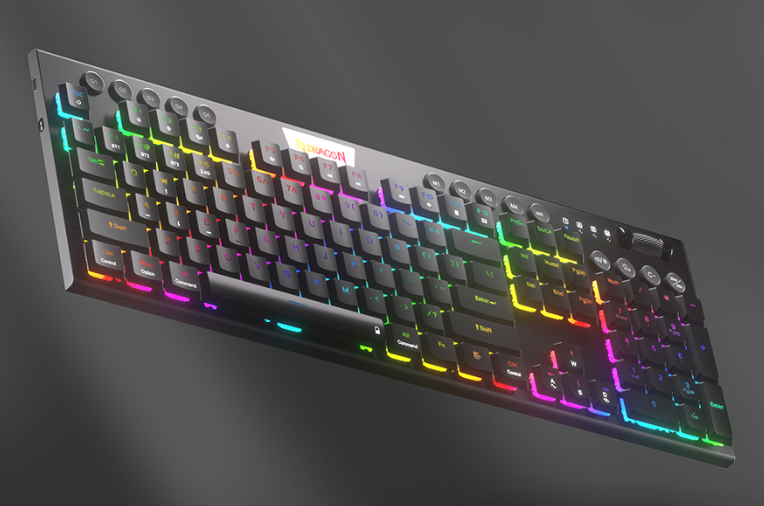

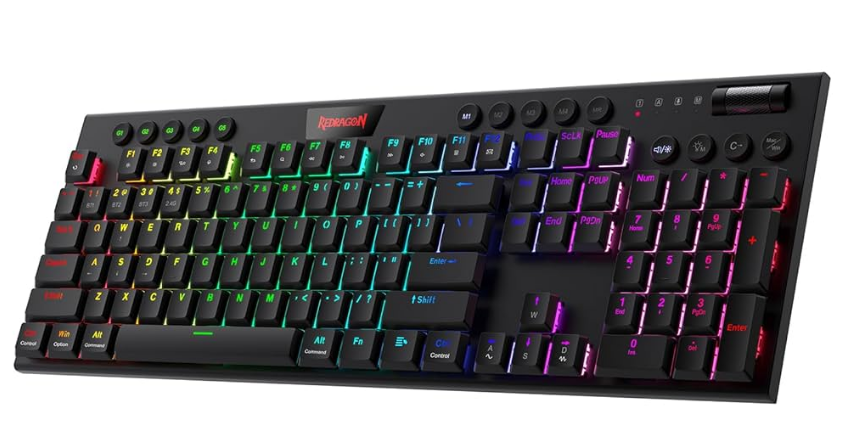
Redragon K618 Horus Wireless RGB Gaming Keyboard
Dear user
Thank you for choosing the REDRAGON Brand. To protect your rights and for better customer service, we ask that you note our warranty rules.
- Within the guarantee period, repair is guaranteed for failure due to electrical circuit problems. Man-made damages, such as disassembly, hard impacts, submersion into water, plugging into improper current or voltage, and damage caused by natural disasters such as fire, flood, or earthquake, are not included.
- Consumable parts (such as foot sticks) and spare parts replacement are not included in our warranty.
- Please fill out the warranty card. The warranty card is valid with the stamp of the retailer.
- This warranty card will not be reissued if lost. Please keep it in a safe place.
OS support
Windows XP/Vista/Win7/Win8/Win10
How to connect the keyboard to a computer
Wired Connection
- Slide the ON/OFF switch on the left side of the keyboard to OFF.
- Take out the USB-A to USB Type-C cable in the package and connect the keyboard to your computer. Press FN+5(USB) key, the LED marked with M twinkle in 5 times, indicating the connection is successful.
- The computer will recognize and configure the keyboard automatically.
- Once the keyboard is powered up, charging begins. The LED marked with M lights up red. It will turn white when the keyboard is fully recharged.
2.4G Wireless Connection
- Slide the ON/OFF switch on the left side of the keyboard to ON.
- Press [FN]+[4] for about 3 seconds, the LED marked with M flashes quickly in green. Plug the USB receiver into any available USB port on your computer within 20 seconds. The computer will recognize and configure the keyboard automatically.
- The indicator will flash red when the battery is low. Please recharge the keyboard in time by plugging the Type-C cable into the computer, or it will turn off automatically soon. Please note the LED marked with M will be lit in Red while charging, it turns to Green when charging is completed(In 2.4g connecting mode).
Bluetooth Connection
- Slide the ON/OFF switch on the left side of the keyboard to ON.
- Press [FN]+[1] (or [2] / [3] for other Bluetooth devices), the LED marked with M flashes in blue (or cyan/magenta for the others).
- Turn on Bluetooth and scan for available devices on your computer or smartphone. It will find the “BT3.0Keyboard or BT5.0 KB” device. Select one of them to get connected with it automatically.
- The indicator will flash in Red when the battery is low. Please recharge the keyboard in time by plugging the Type-C cable into the computer, or it will turn off automatically soon. Please note the LED marked with M will be lit in Red while charging, and it turns to cyan/magenta when charging is completed(In Bluetooth connecting mode).
Function Introduction
- With standard USB and 2.4G/BT connections, the keyboard can be used on computers without any software or driver installation.
- There are 20 backlight effects.
- Commands of key combinations with the [FN] key.
- [FN]+[Ins]: Change backlight mode. There are 20 backlight effects.
- [FN]+[Del]: Change back light color.
- [FN] + [←]: Slow down the running speed of the backlight.
- [FN] + [→]: Add up the running speed of the backlight.
- [FN]+[TAB]: Turn the backlight to white.
- [FN] + [Win]: Disable or enable the [Win] key.
- [FN]+ [W]: Switch the original W/A/S/D to arrow keys and right arrow keys to W/A/S/D, press again to restore.
- [FN] + [1]: Select Bluetooth device one (for Bluetooth connection).
- [FN] + [2]: Select Bluetooth device two (for Bluetooth connection).
- [FN] + [3]: Select Bluetooth device three (for Bluetooth connection).
- [FN] + [4]: Change to 2.4G wireless connection. Press and hold the [FN]+[4] for 3 seconds to pair the keyboard with its receiver.
- [FN] + [5]: Switch to Wired connection.
- [FN] + [ESC]: Set the keyboard to the default setting.
Scroll button function
- The scroll button is placed on the right corner of the keyboard for volume adjustment and keyboard backlight brightness adjustment function.
 Key, it is light on White color, Scroll button, and Backlight brightness adjustment: Press can switch to different brightness levels.
- Volume adjustment: Press
 the key light’s OFF, and the scroll button can switch the volume level.
 Key, it is light on White color, Scroll button, and Backlight brightness adjustment: Press can switch to different brightness levels.
Multimedia function on F9-F12
- FN+9: Browser
- FN+10: Research
- FN+11: Calculator
- FN+12: E-mail
Shortcut key function
 Previous track
 Next track
 Play/Pause
 Previous track
 Next track
 Play/Pause
Macro recording function
There are 4 profile keys from M1 to M4, each profile can be assigned with 5 macro keys from G1 to G5, total of 20 group macro recording.
- Press the M key (M1/M2/M3/M4) to set a profile group; the key lights ON.
- Press the MR key (MR key lights ON), then press the G key (G1/G2/G3/G4/G5), the key lights ON.
- Record the desired keys.
- Press the MR key to complete recording (MR key lights OFF). For example: M1 MRG1 → ABC→ MR
How to play Macro
- Choose the profile group by pressing the M key from M1 to M4.
- Press the Macro key from G1 to G5. For example: M1→G1(ABC).
How to delete a Macro
- Choose the profile group by pressing the M key from M1 to M4 (The key backlighting in flash).
- Press the MR key (MR key backlighting in flash).
- Double-press press G keys from G1 to G5 (The key lights OFF).
- Press the MR key to save(MR key lights OFF).
How to recharge the keyboard
Find the USB A to USB type C cable in the packaging, plug the keyboard and connect it to the computer for charging, the LED indicator(M) of the keyboard will turn red.
Remark: The LED indicator (M) will turn red when the keyboard is out of battery.
Swap functions of [W][A][S][D] and arrow keys
- Press and hold the [FN] key, and then press the [W] key to interchange the function of the four letter keys [W][A][S][D] and the four arrow keys [↑][↓] [←][→].
- Repeat the above operation to resume the previous setting.
FAQ
- If the keyboard doesn’t respond, please check if the keyboard’s USB cable is correctly inserted into the corresponding USB port on the computer, or try another USB port on the computer.
- If you spill liquid on the keyboard, please remove the keyboard’s USB cable from the computer immediately. Wipe up excess liquid and put the keyboard in a warm place (for instance, under a lamp) to let the keyboard dry naturally before using it again.
FCC Statement
Changes or modifications not expressly approved by the party responsible for compliance could void the user’s authority to operate the equipment. This equipment has been tested and found to comply with the limits for a Class B digital device, pursuant to Part 15 of the FCC Rules. These limits are designed to provide reasonable protection against harmful interference in a residential installation.
This equipment generates uses and can radiate radio frequency energy and, if not installed and used in accordance with the instructions, may cause harmful interference to radio communications. However, there is no guarantee that interference will not occur in a particular installation. If this equipment does cause harmful interference to radio or television reception, which can be determined by turning the equipment off and on, the user is encouraged to try to correct the interference by one or more of the following measures:
- Reorient or relocate the receiving antenna.
- Increase the separation between the equipment and receiver.
- Connect the equipment into an outlet on a circuit different from that to which the receiver is connected.
- Consult the dealer or an experienced radio/TV technician for help
This device complies with part 15 of the FCC rules. Operation is subject to the following two conditions.
- This device may not cause harmful interference, and
- This device must accept any interference received, including interference that may cause undesired operation.
California Proposition 65
WARNING: Risk of Cancer from [Name of one or more chemicals known to cause cancer] and Reproductive Harm from [Name of one or more chemicals known to cause reproductive toxicity] Exposure – www.P65Warnings.ca.gov.
For More Manuals By Redragon, Visit ManualsLibraryy.
Redragon K618 Horus Wireless RGB Gaming Keyboard-FAQs
How do I connect the Redragon K618 keyboard?
Turn on the keyboard and select the wireless mode you prefer: Bluetooth or 2.4GHz. For Bluetooth, pair it via your device’s Bluetooth settings. For 2.4GHz, plug in the USB receiver and the keyboard will connect automatically.
How do I set up the Redragon K618 keyboard?
Simply connect it via Bluetooth or the USB receiver. Install Redragon software from their official website to customize RGB lighting, macros, and key assignments.
How can I control the RGB lighting on my keyboard?
Press Fn + Space to cycle through default lighting modes. For more advanced customization, use the Redragon software to adjust color, brightness, speed, and effects.
How do I change the color of specific keys?
Press Fn + Keypad keys to select the keys, then press Spacebar to choose a color. You can create custom color profiles in the software.
How do I turn off the keyboard lights?
Press Fn + ↓ repeatedly to reduce brightness or turn off the LED completely. You can also disable lighting through the Redragon software.
How do I program or bind keys?
Open the Redragon software, select your keyboard, choose the key to customize, and assign it a macro or function. Click Apply to save changes.
How do I use the Fn keys on the K618?
Press Fn + designated key to access secondary functions like media controls, brightness, or RGB settings. To enable Fn Lock, press Fn + Left Shift.
How do I reset the Redragon K618 keyboard?
Press and hold Fn + Esc for a few seconds to restore factory settings. This will reset key bindings and RGB lighting.
Why is my Redragon keyboard not typing?
Check for dust or debris under keys, ensure the battery is charged, and verify that wireless connection or USB receiver is properly connected. Also, confirm that key bindings or macros aren’t interfering.