
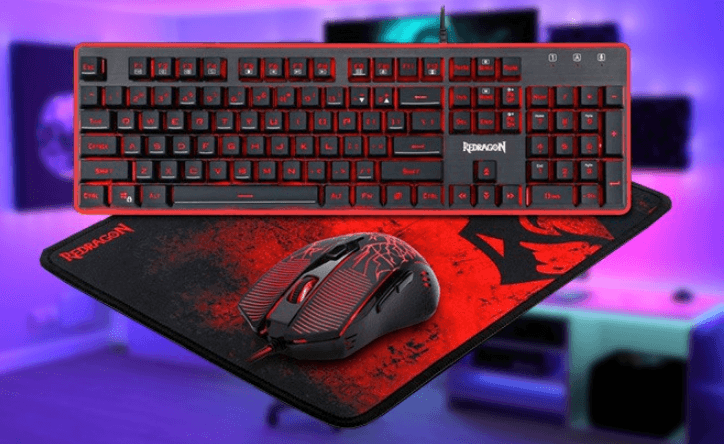

Redragon S107 Gaming Keyboard
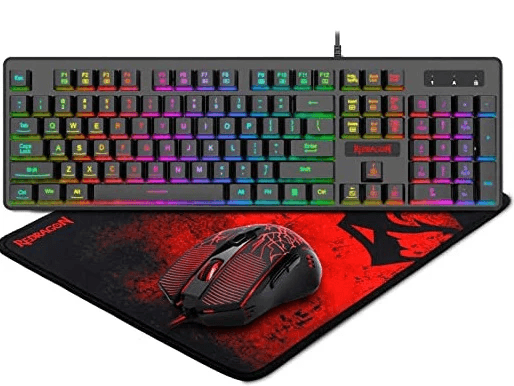
Dear User
Thank you for choosing the REDRAGON Brand. To protect your rights and for better customer service, we ask that you note our warranty rules.
- Within 18 months of the purchase date, repairs are guaranteed for failure due to electrical circuit problems. Man-made damages, such as disassembly, hard impacts, submersion into water, plugging into improper current or voltage, and damage caused by natural disasters such as fire, flood, or earthquake, are not included.
- Consumable parts (such as foot pads) and spare parts replacement are not included in our warranty.
OS support
Windows XP/Vista/Win7/Win8
Function Introduction
- Plug and play function: USB interface in the keyboard without the need to install the drive and software.
- 7 Backlight colors: Press FN + setting key to change the backlight color circularly.
- Four-level backlight brightness: high light. Medium light, low light. And no light. Press and hold the [FNI key, and then press the [Page Up] key to increase the backlight brightness in the keyboard. Press and hold the [FN] key, and then press the [Page Down] key to decrease the backlight brightness in the keyboard.
- Backlight breathing effect: Press and hold the [FN] key, and then press the [Home] key to start the breathing function. Press and hold the [FN] key, and then press the [- ] key to decrease the breathing speed. Press and hold the [FN] key, and then press the [=] key to increase the breathing speed.
- Function of disabling the [WIN] key: firstly, press and hold the [FN] key. And then press the [WIN] key to disable the function of the [WIN] key to avoid leaving the game interface by pressing the [WIN] key by mistake. Repeat the above operation and restore the function.
- Multi-key conflict-free function: the keyboard supports the simultaneous and effective press the following 25 keys: [Q] [A] [Z] [W] [S] [X] [E] [D] [C] [Ctrl-L/F] [Alt-L/V] [B] [Shift- L] [Space] [Tab] [UP] [Down] [LEFT] [Right] Arrow.
- Multi-media function: it supports over 12 media functions by combining the [FN] key and the key from [F1]-[F12]. It can perform the following media functions:
- FN+F1: Open the media player.
- FN+F2: Volume down.
- FN+F3: Volume up.
- FN+F4: Mute.
- FN+F5: Stop.
- FN+F6: Previous
- FN+F7: Play/Pause.
- FN+F8: Next.
- FN+F9: Open the email.
- FN+F10: Open the homepage.
- FN+F12: Open the calculator.
FAQ
- If the keyboard does not respond, please check if the keyboard’s USB cable is correctly inserted into the corresponding USB port on the computer, or try another USB port on the computer.
- If you spill liquid on the keyboard, please remove the keyboard’s cable from the computer immediately. Wipe up excess liquid and put the keyboard in a warm place (for instance, under a lamp) to let the keyboard dry naturally before using it again.
OS Support
Windows XP/Vista/Win7/Win8/Win10
Button Instructions
- The left and right keys.
- Scroll button. The scroll button is the equivalent of the middle button.
- Supports 4 resolution speeds. When the DPI button is pressed, the mouse DPI resolution will switch among four gears (1000/1600/2400/3200), and the mouse movement speed will change simultaneously.
- Two side keys, the default function is forward, backward.
Lighting Instructions
The mouse is backlit when working. Every time the DPI button is pressed, the mouse will change to a different color.
The corresponding colors and DPI gear are as follows:
- Red, 1000 DPI
- Blue, 1600 DPI
- Green, 2400 DPI
- Purple, 3200 DPI
FAQ
- If the mouse is not responding, please check whether the mouse is plugged in correctly to the corresponding computer USB port, or try another USB port.
- If the mouse cursor is moving slowly, jumping, or lagging, try using another surface. Surfaces that are dark, dirty, not flat, or shiny may affect the performance of the mouse. Use of a mouse pad is strongly recommended.
For more Manuals by Redragon, visit ManualsLibraryy
Redragon S107 Gaming Keyboard-FAQs
Is the Redragon S107 a mechanical keyboard?
The Redragon S107 features a mechanical-feel design, offering tactile feedback similar to mechanical keyboards, but it is not a true mechanical keyboard.
How do I turn off the keyboard lights on the Redragon S107?
You can dim or turn off the RGB lighting by pressing FN + ↓ (down arrow) repeatedly until the lights go off.
What is the DPI range of the Redragon S107 mouse?
The included gaming mouse offers four adjustable DPI levels: 1000, 1600, 2400, and 3200 DPI, making it suitable for various gaming styles.
How do I charge the Redragon keyboard?
Connect the keyboard using the USB-A to USB-C cable included. The LED indicator will show charging status by color:
1. Red: Under 20%
2. Purple: Under 40%
3. Blue: Under 60%
4. Cyan: Under 80%
5. Green: 80% or more
Does Redragon provide software for the keyboard?
Yes, Redragon offers software for customizing lighting, key functions, and macros. You can also use keyboard shortcuts for quick adjustments.
Is the Redragon S107 keyboard programmable?
Yes, it supports programmable lighting modes and functions, allowing users to personalize key actions and backlight effects.
What does the Fn key do on a keyboard?
The Fn (Function) key acts as a modifier to access secondary functions on dual-purpose keys, like adjusting volume, brightness, or activating lighting modes.
Which is better: Redragon or Razer keyboards?
Razer offers lower input latency and more profile customization, while Redragon provides hot-swappable switches (Outemu-compatible) and greater value for the price. The best choice depends on your performance needs and budget.