
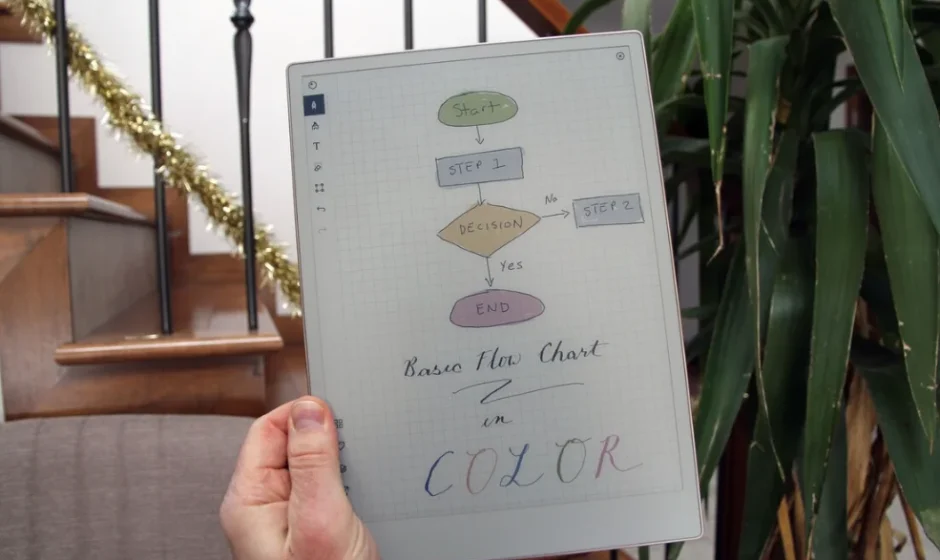

reMarkable Paper Pro
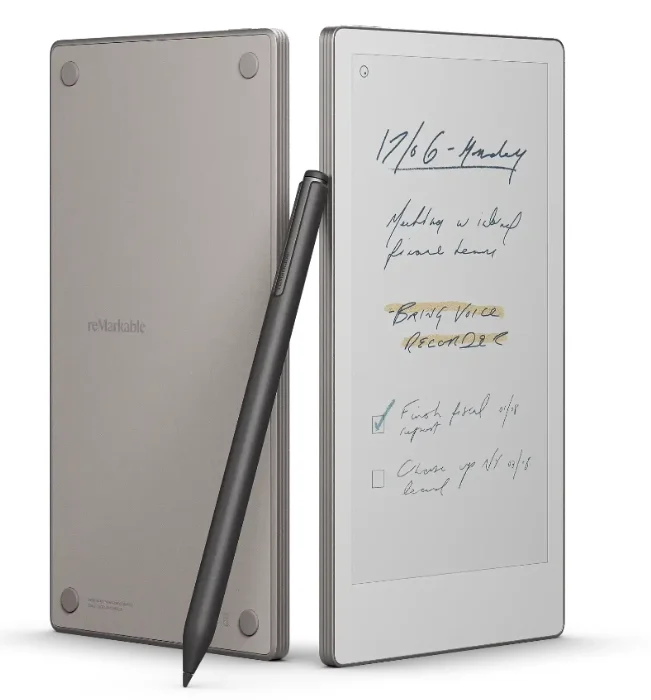
Introducing reMarkable Paper Pro
About reMarkable Paper Pro
About reMarkable Paper Pro
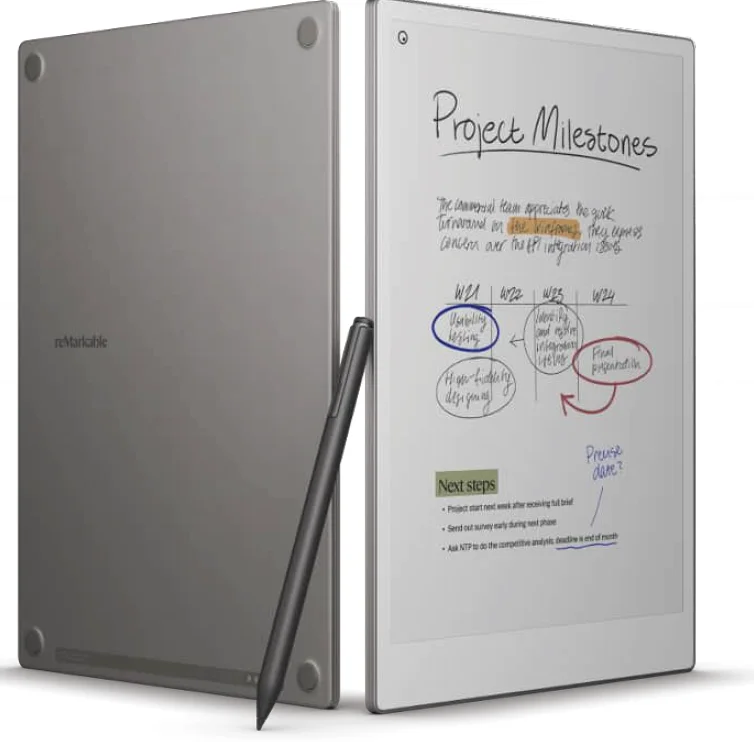
Dimensions
- Size: 196.6 x 274.1 x 5.1 mm
- Weight: 530 grams (1.17 lb)
Storage and RAM
- 64 GB internal storage
- 2 GB LPDDR4 DRAM
Processor
- 1.8 GHz quad A53 core ARM
Operating system
- Codex, a custom Linux-based OS
Gallery 3 e-paper display
Specifications:
- 11.8” color digital paper display
- 1620 x 2160 resolution (229 DPI)
- Multi-point capacitive touch
- Paper-like surface friction
- Sunlight readable
- Partially powered by E Ink technology
- Palm rejection
- Backlight
Battery and charging:
Specifications
- Lithium-ion (Li-ion) battery
- Rechargeable (USB Type-C)
- 2515 mAh @ 7.7 V (19.37 Wh)
Power button
The power button is located on the top left corner of your reMarkable Paper Pro. It’s used for powering on and off, as well as the sleep and wake functions.
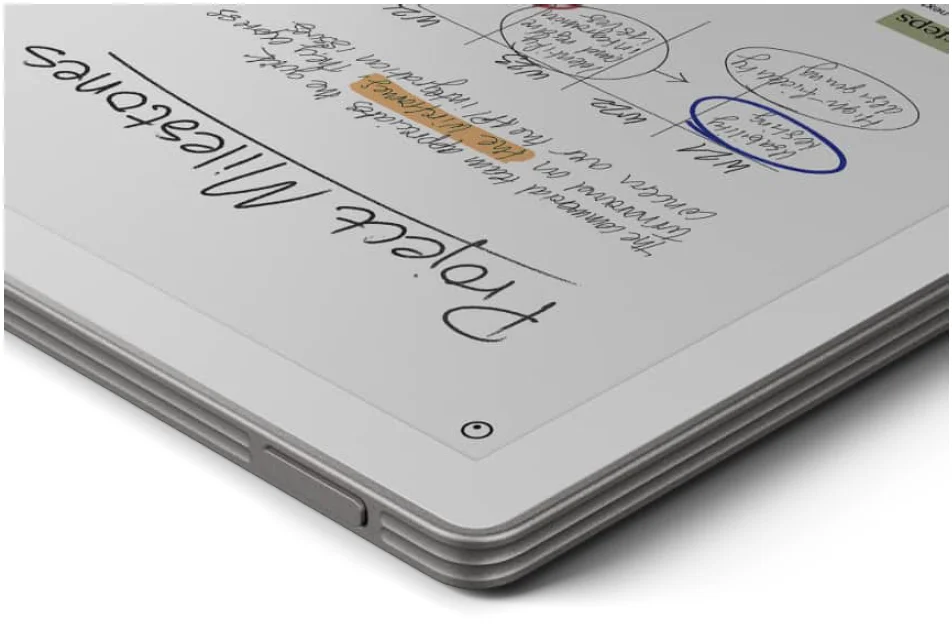
How to use the power button:
- Put the device in sleep mode with a short power button press. The “reMarkable is sleeping” message will appear on the screen.
- Wake the device from sleep with a short power button press.
- Turn off the reMarkable Paper Pro with one of the following methods:
- pressing the power button for 3 seconds. You will then be asked whether you want to turn off the device or not.
- pressing the power button for at least 10 seconds
- Turn on the reMarkable Paper Pro by pressing the power button for two seconds or until the backlight LEDs start to blink
- Set the reMarkable Paper Pro into factory reset mode* by pressing the button for 25 seconds
*. When the device is in factory reset mode, you can use the reMarkable App or web interface to flash new software. Read more about sleep and other power-saving modes in battery settings.
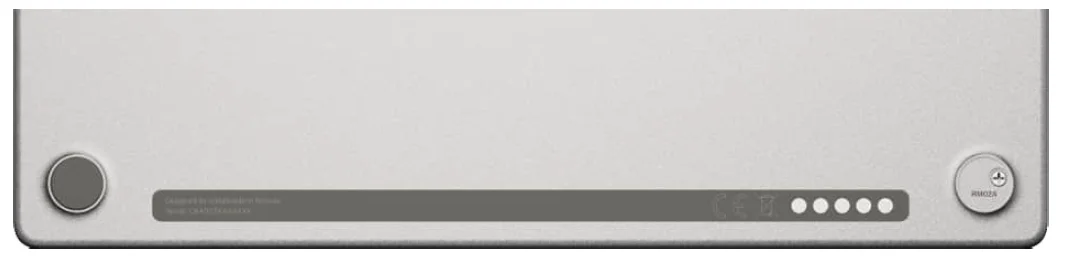
model name location
The device model number can be located on the back side by removing the bottom right rubber feet.
reMarkable Paper Pro accessories
Markers and Marker tips
MARKER
The Marker is an inseparable part of the paper-like experience. It’s designed to deliver just the right friction and draws digital ink on reMarkable Paper Pro with incredibly low lag. An exceptionally precise tool, down to the smallest details.

Specifications
- Active pen technology
- 80 mAh battery capacity
- NFC Wireless charging when magnetically docked to the device
- Special high-friction Marker tip
- 4,096 levels of pressure sensitivity
- 60 degrees of tilt provides an exceptional writing experience
- Weight: 15 g
MARKER Plus
Marker Plus is an unrivaled digital writing instrument. Weighted for a balanced, authentic writing experience. Along with its precise tip, the Marker Plus has a second pressure sensor built into the top end, which allows you to quickly erase whatever you’re working on by flipping it upside down.

Specifications
- Active pen technology
- 80 mAh battery capacity
- NFC Wireless charging when magnetically docked to the device
- Special high-friction Marker tip
- 4,096 levels of pressure sensitivity
- 60 degrees of tilt provides an exceptional writing experience
- Built-in eraser
- Weight: 19 g
USING YOUR MARKER
Pressure sensitivity
The marker is pressure sensitive (4,096 levels to be exact), which allows you to draw thicker and thinner lines just by adjusting your pressure on the marker.
Tilt
The marker reacts to tilt angles up to 60 degrees relative to the vertical position, which lets you draw and write with a paper-like feeling. By tilting the marker, you can add shading and vary the thickness of your stroke. The tilt is only available for certain sketching tools.
Rest your hand on the display
The reMarkable Paper Pro display features palm rejection technology, enabling you to draw, write, and navigate while resting your palm on the display.
MARKER TIPS
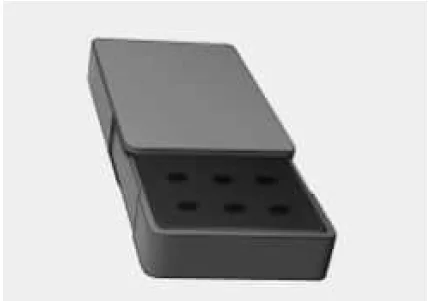
The Marker tips are carefully designed to deliver a paper-like writing experience. Just like a traditional pencil, swapping out a blunt tip for a fresh one helps keep your handwriting both smooth and precise. Each Marker comes packaged with spare tips stored in the Marker box. Both the Marker and Marker Plus come with a supply of nine spares stored in a convenient Marker tip card. Changing from an old used tip to a new one requires no extra tools and takes just a few seconds.
Durability
The durability of Marker tips depends on your writing technique and is therefore individual to every person. Both the amount of pressure you apply when taking notes or drawing on the CANVAS display, and how often you use your reMarkable Paper Pro will affect how often you need to replace them. Our best estimate for an average person who writes on their reMarkable Paper Pro every day is anywhere between three and seven weeks. While it will wear down slowly over time, you’ll still be able to write and use the Marker tip right up until it can no longer connect with the display. However, the tip will get blunter and may feel less comfortable to use before this happens. As with any precision instrument, from a chef’s knife to a carpenter’s chisel, you’ll get the best from your Marker if you keep it sharp. Replacement Marker tips are available for purchase from our webshop.
Getting started
Setting up your reMarkable Paper Pro
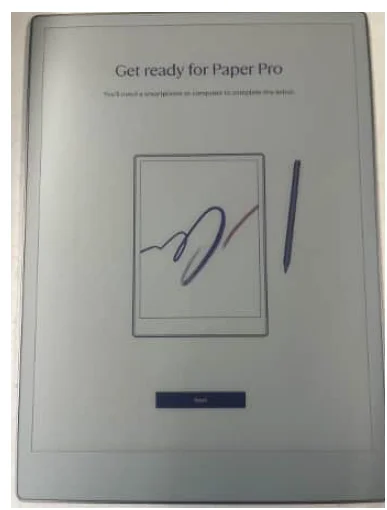
Turn on your reMarkable Paper Pro and follow the setup assistant to guide you through the process. The setup consists of a few simple steps that will get your reMarkable Paper Pro ready to go. The device arrives partially charged and doesn’t need to be charged before setting up.
Warning: To avoid damage or injuries, read important safety and handling information before using your reMarkable Paper Pro.
What you need to get started
What you need to get started:
- A reMarkable Paper Pro.
- USB-C cable and USB power adapter/brick.
- A smartphone or computer.
- Access to a wireless (Wi-Fi) network.
Starting up
Step by step:
- Press and hold the power button to get started
- Start the setup by clicking Next.

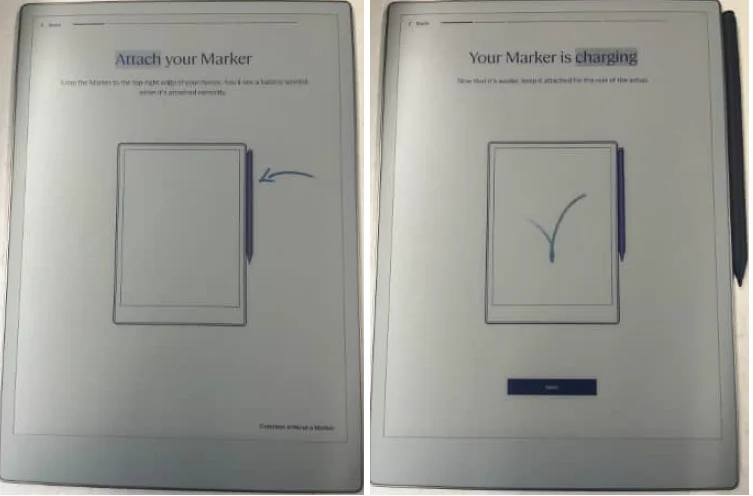
- Attach your marker to the top-right edge of your device. Or click the bottom right to continue setup without a marker.

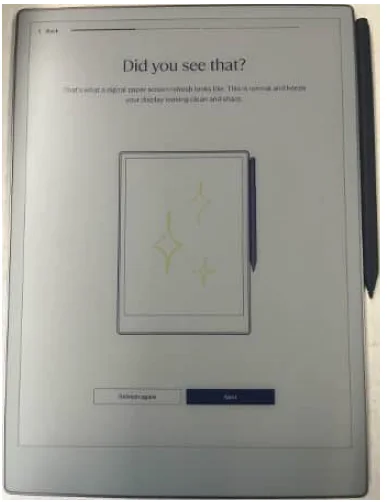
- See the digital paper refresh for the first time. This keeps your display looking clean and sharp.

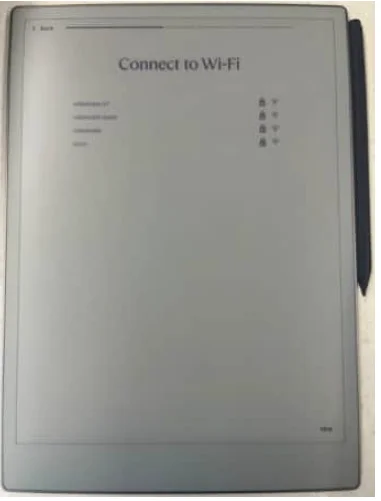
Connect to Wi-Fi - Choose an available Wi-Fi network. If necessary, enter a Wi-Fi password.

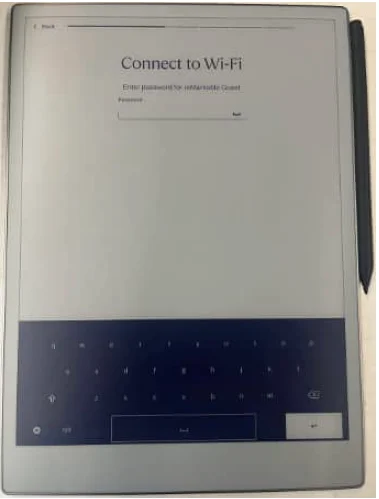
- Type the password and tap Enter.

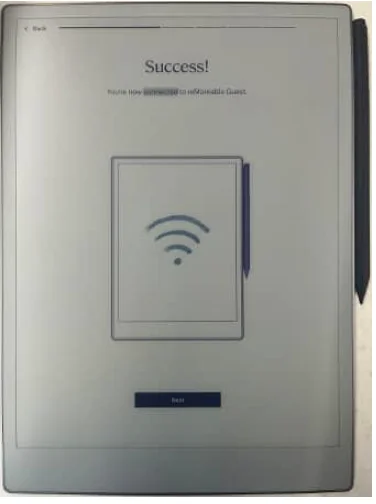
- Tap Enter to connect to the Wi-Fi network. Success!

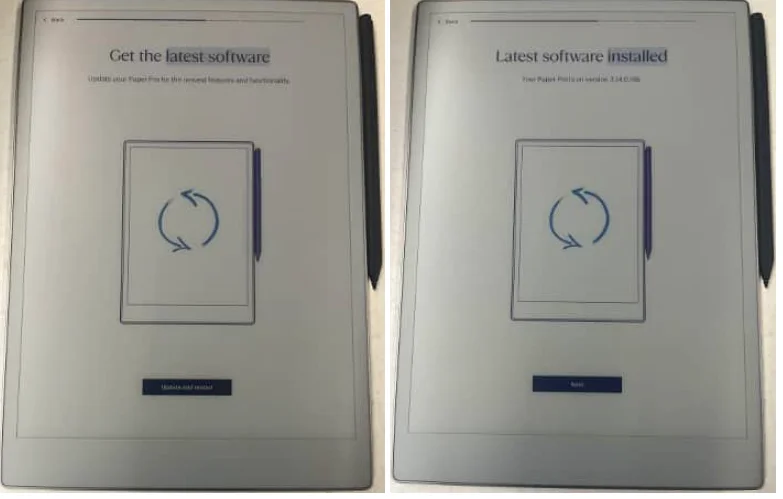
Note: You can choose to skip this step and connect to Wi-Fi from the Settings menu later. This is not recommended, as your reMarkable Paper Pro will not be connected to the reMarkable cloud and your files will not be synced and stored. Wi-Fi is also necessary to get the latest updates for your reMarkable Paper Pro. - Update to the latest software. Click “update and restart”.

Connect to your account
Connect your reMarkable Paper Pro to the reMarkable cloud to be able to seamlessly transfer documents and ebooks to your paper tablet. The reMarkable cloud also allows you to access your content from our mobile and desktop applications and functions as a backup for your notes if you lose your device. Log in to my.remarkable.com from a mobile or desktop device and create a reMarkable account to connect to the reMarkable cloud. Once logged in, tap Get code for your reMarkable device. Note that the one-time code is only valid for five minutes.
Charging your device
Use the USB-C cable from the reMarkable box to charge your reMarkable Paper Pro. Plug the USB-C cable end into the USB-C charging port and the USB end into a USB power plug, or to your computer. Check whether your reMarkable Paper Pro is charging when turned on:
- The Battery indicator on the home screen will change from a battery icon to a charging icon.
- Swipe down in the top right corner to expand the charging section.

The device will flash white if it is turned off when it starts charging.
Updating to the latest version
It is critical to have the latest version of reMarkable Paper Pro to work as intended and for you to get the latest functionality. You find which software version you are running in Software Settings. Read about reMarkable’s latest software updates on our blog or check out the Release log for a detailed list of released functionality.
How to check for the latest update
Your device is by default set to auto-update, which is recommended for you to always have the latest updates and the newest functionality.
Step-by-step instructions:
- Look for a notification in the bottom corner of the home screen.
- The notification will ask you to restart your device.
- Restart your device to complete the installation.
How to set your reMarkable Paper Pro to auto-update
Step-by-step instructions:
- Tap Menu in the top right corner.
- Tap Settings in the sidebar menu.
- Under Software, tap Version.
- Here you’ll be able to turn automatic updates on or off. Your device is set to auto-update by default.
How to update manually
Step-by-step instructions:
- Tap Menu in the top right corner.
- Tap Settings in the sidebar menu.
- Under Software, tap Version.
- Tap Check for updates to see if there are any new updates available.
- If a new version is found, the update will start automatically
- When the download is finished, click Restart device to complete the update.
Updating the desktop app – Mac and Windows
When a new software update is available for the desktop app, you’ll see a notification to update. You can also update the desktop app by going to my.remarkable.com and clicking Manage apps under Desktop app.
Updating the mobile app – iOS
If you’ve got auto-updates enabled on your iPhone, your app will be updated automatically.
How to turn on automatic updates:
- Go to Settings.
- Tap App Store.
- Switch updates on.
How to update manually:
- Open the App Store.
- Tap your profile icon at the top of the screen.
- Find reMarkable, and tap Update.
If the reMarkable app isn’t listed, you have the latest version installed on your phone.
Updating the mobile app – Android
If auto-updates are enabled, your app will be updated automatically.
How to turn on automatic updates:
- Open the Google Play Store.
- Tap your profile icon at the top of the screen.
- Tap Manage apps & device.
- Tap Manage and find reMarkable.
- Tap the app, then open Details by tapping More.
- Select Enable auto update.
You can also update the app manually in the Google Play Store:
- Open the Google Play Store.
- Tap your profile icon at the top of the screen.
- Tap Manage apps & device.
- Tap Update. If “Update” isn’t an available option, you’ve got the latest version of the app installed.
Settings
Settings
Settings can be reached from the home screen by tapping Menu in the top left corner. Then navigate to the settings you need: General, Wi-Fi, Battery, Storage, Security, Accessibility
General settings
General settings enable you to update to the latest software and turn auto-update on or off. Here you can also find your account details and log in to your account to transfer files between your connected apps.
Flight mode
Some airlines are very strict when it comes to Flight mode, and it is not necessarily sufficient to show that Wi-Fi is turned off. Flight mode can be enabled or disabled under General settings or at the section found when swiping down on the top right corner in the home screen. You’ll see an icon on the home screen when flight mode is turned on.
Account
Connect your device to a reMarkable account to import files to your device via the reMarkable cloud. If you didn’t connect your device to your reMarkable account in the setup process, you can do this manually in account settings. Your reMarkable Paper Pro must be connected to Wi-Fi to connect.
How to connect your device to your account:
- Create a new account or log in to an existing reMarkable account at my.remarkable.com.
- Get a one-time code and enter it on your reMarkable Paper Pro.
- You’re now connected to the reMarkable cloud.
You can find a guide on setting up your reMarkable Paper Pro here. You can log out of your account at any time by tapping Log out. Note that your account can only be connected to one device at a time.
Software
Under Software, you’ll find information about which software version is installed on your device and download the latest version.
How to update to the latest version:
- Under Software, tap Version.
- Tap Check for updates to see if there are any new updates available.
- If a new version is found, the update will start automatically
- When the download is finished, click Restart device to complete the update.
Your device is by default set to auto-update, which is recommended for you to always have the latest updates and the newest functionality. With auto-update enabled, you’ll get a notification on the home screen to restart the device when a new version has been downloaded. You can turn auto-update off by tapping the on/off switch.
Regulatory Compliance and Important Safety Information for model RM02A reMarkable Paper Pro
Regulatory Certification and Approval Marks for your paper tablet device can be found locally on your device in Settings, Help, Compliance statement.
E-label
Follow these steps to find the E-label on the reMarkable Paper Pro:
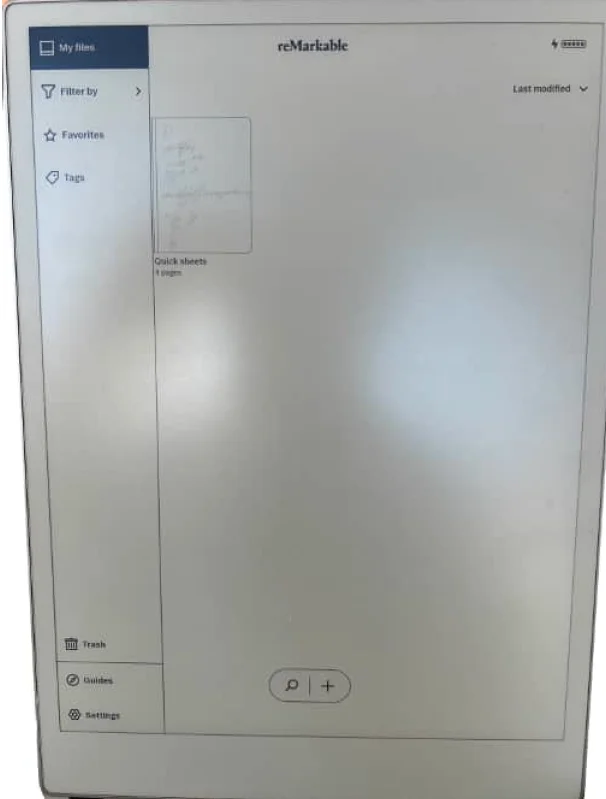
- Step 0: Enter the device’s main/home menu

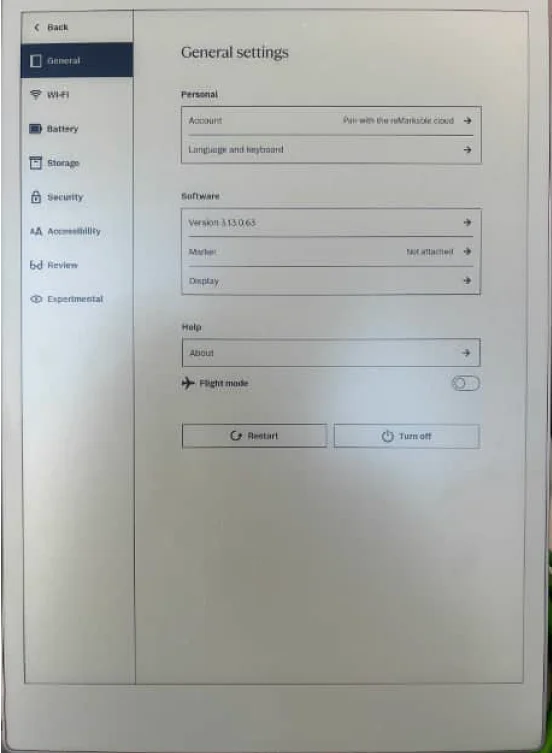
- Step 1: Select Settings in the side menu.

- Step 2: Select Help(About) in the menu.

- Step 3: Select Compliance statements to display the E-label.

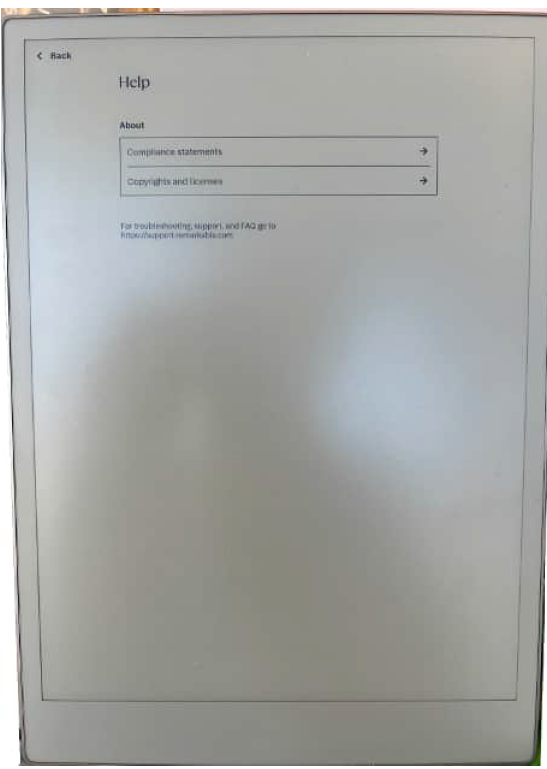
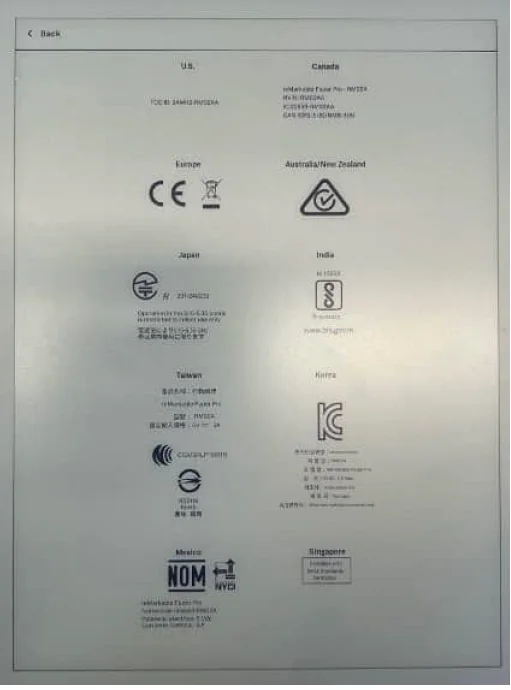
Regulatory Certification and Approval Marks can be viewed by scrolling down the page
Important safety and handling information
WARNING: Failure to follow these safety instructions could result in fire, electric shock, injury, or damage to the reMarkable Paper Pro or other property. Read all the safety information below before using the device.
Handling
Handle the reMarkable device with care. When transporting it, we advise you to keep your device in a folio to protect it. The device contains sensitive electronic components that can be damaged if dropped, cracked, burnt or bent. Do not attempt to insert foreign objects into the device. Don’t use the reMarkable device or its accessories in rain or near other wet locations, as it contains electrical components that can be damaged if it comes in contact with liquid. If your device gets wet, unplug all cables and let the device go into sleep mode. Let the device dry completely before turning it on by pressing the power button. Do not attempt to dry your reMarkable Paper Pro with an external heat source, such as a microwave oven or hairdryer.
Cleaning
Before cleaning the reMarkable Paper Pro and its accessories, unplug all cables and turn off the device (press the power button for 4 seconds and tap ‘Turn off’). Slightly dampen a soft and lint-free cloth with water. Do not use window cleaners, solvents, aerosol sprays, or household cleaners, alcohol, ammonia, or abrasives as this may damage the device permanently. Avoid getting moisture into any of the openings.
Operating temperature
Don’t expose the reMarkable device to extreme heat or cold. The device is designed to be used in temperatures between 0° and 35° C (32° and 95° F) and stored in temperatures between -10° and 45° C (14° and 113° F).
Repairing
If your reMarkable Paper Pro needs service, do not open the device or attempt to repair it yourself. Disassembling the device may damage it or cause injury to you. Please contact our customer support for more information.
Battery
The battery in the reMarkable Paper Pro should only be repaired or replaced by qualified personnel. Please contact our customer support for more information.
Note: Damaged batteries should be treated as hazardous materials. Do not return the device if the battery is swelling, leaking, or if you suspect that the battery is damaged. In this case, make sure to document it with a picture or a video to share with reMarkable support, and make sure you dispose of or recycle the reMarkable Paper Pro and its accessories according to local laws and regulations. Do not puncture, drop or incinerate the battery.
Battery damage
Damaged batteries should be treated as hazardous materials. Do not return the device if the battery is swelling, leaking, or if you suspect that the battery is damaged. In this case, make sure to document it with a picture or a video to share with reMarkable Support and make sure you dispose of or recycle the reMarkable Paper Pro and its accessories according to local laws and regulations. Do not puncture, drop, or incinerate the battery.
USA compliance statement (FCC)
Remarkable Paper Pro (Model RM02A) FCC ID: 2AMK2-RM02AA
This device complies with part 15 of the FCC Rules. Operation is subject to the following two conditions:
- This device may not cause harmful interference, and
- This device must accept any interference received, including interference that may cause undesired operation.
Changes or modifications not expressly approved by the party responsible for compliance could void the user‘s authority to operate the equipment. This equipment has been tested and found to comply with the limits for a Class B digital device, pursuant to part 15 of the FCC Rules. These limits are designed to provide reasonable protection against harmful interference in a residential installation. This equipment generates, uses, and can radiate radio frequency energy and, if not installed and used in accordance with the instructions, may cause harmful interference to radio communications. However, there is no guarantee that interference will not occur in a particular installation. If this equipment does cause harmful interference to radio or television reception, which can be determined by turning the equipment off and on, the user is encouraged to try to correct the interference by one or more of the following measures:
- Reorient or relocate the receiving antenna.
- Increase the separation between the equipment and receiver.
- Connect the equipment into an outlet on a circuit different from that to which the receiver is connected.
- Consult the dealer or an experienced radio/TV technician for help.
This equipment complies with FCC radiation exposure limits set forth for an uncontrolled environment. The End user must follow the specific operating instructions to satisfy RF exposure compliance. This transmitter must not be co-located or operating in conjunction with any other antenna or transmitter. The device is designed to meet the requirements for exposure to radio waves established by the Federal Communications Commission (USA). These requirements set a SAR limit of 1.6 W/kg averaged over one gram of tissue. The highest SAR value reported under this standard during product certification for use when properly worn on the body is 1.07 W/kg.
For more manuals by reMarkable, visit ManualsLibraryy
reMarkable Paper Pro-FAQs
How do I set up my reMarkable Paper Pro?
To set up, charge your device fully, then power it on. Connect it to Wi-Fi and follow the on-screen instructions to log in or create a reMarkable account. You can pair it with your mobile or desktop apps to sync notes and documents seamlessly.
What can the reMarkable Paper Pro do?
The reMarkable Paper Pro lets you write, sketch, and annotate digitally with a natural paper-like feel. It offers multiple writing tools, templates, and features like undo, redo, cut, copy, and paste. You can also import PDFs and EPUBs, making it ideal for both work and personal projects.
Is the reMarkable Paper Pro waterproof?
No, the reMarkable Paper Pro is not waterproof. Avoid using it in rain or wet areas, and never expose the marker to liquids. If it gets wet, let it dry completely before reconnecting it to the tablet to prevent damage.
Can I read books on the reMarkable Paper Pro?
Yes, you can read DRM-free EPUB files, PDFs, and images like JPG and PNG. Kindle and DRM-protected ebooks are not supported. The device’s large 11.8” display and adjustable reading light make reading comfortable for long sessions.
Can I connect the reMarkable Paper Pro to my phone or computer?
Yes, you can pair your reMarkable with the mobile app (iOS or Android) using a verification code. You can also connect via USB or the web app at my.remarkable.com to upload and download documents. Wi-Fi is required for cloud syncing.
Can I use the reMarkable Paper Pro without a subscription?
Yes, you can use it offline and store documents locally. A subscription is only needed for advanced cloud features, handwriting-to-text conversion, and additional templates. Basic writing, reading, and file management functions work without a subscription.
How long does the battery of the reMarkable Paper Pro last?
The device features a 5,030 mAh battery, providing up to two weeks of usage under normal conditions. Standby time can reach up to 90 days. Charging from 0% to 90% typically takes around 90 minutes.
Does the reMarkable Paper Pro have Bluetooth?
Yes, it includes Bluetooth hardware, though the driver may not be loaded by default. Bluetooth can be used to pair additional accessories or devices when supported by software updates.
Can I convert handwritten notes to text?
Yes, with a subscription and the desktop or mobile app, your handwritten notes can be converted into editable text. This feature is useful for creating digital documents from your sketches or notes.
Can I use the reMarkable Paper Pro at night?
Yes, the device has an adjustable reading light that illuminates the screen evenly. Unlike traditional tablets, it has no backlight glare or blue light, reducing eye strain and making night-time reading or writing comfortable.