
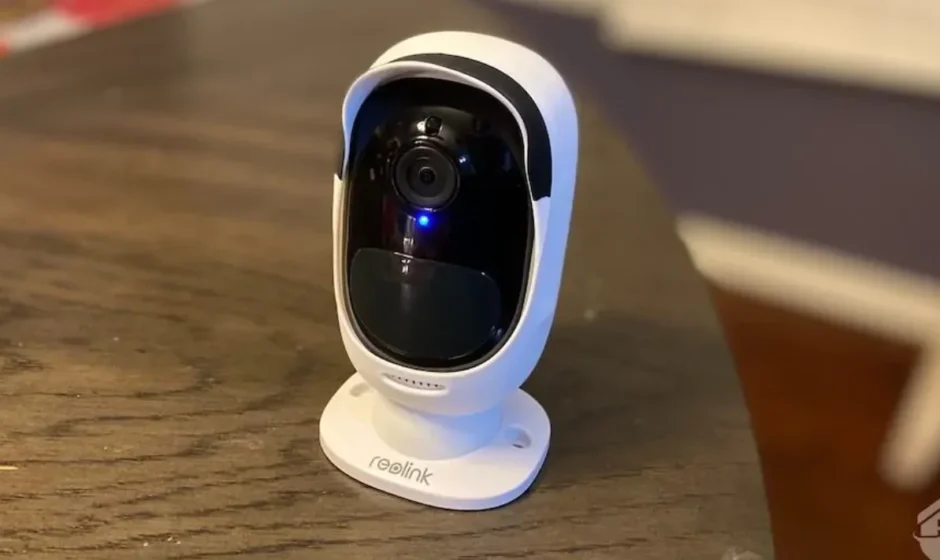

Reolink Battery Camera
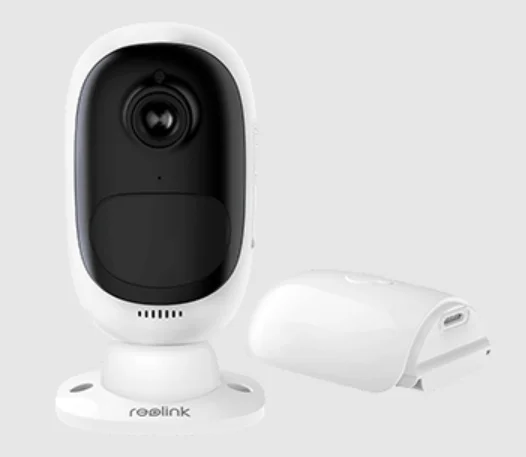
Camera Introduction
Device Overview
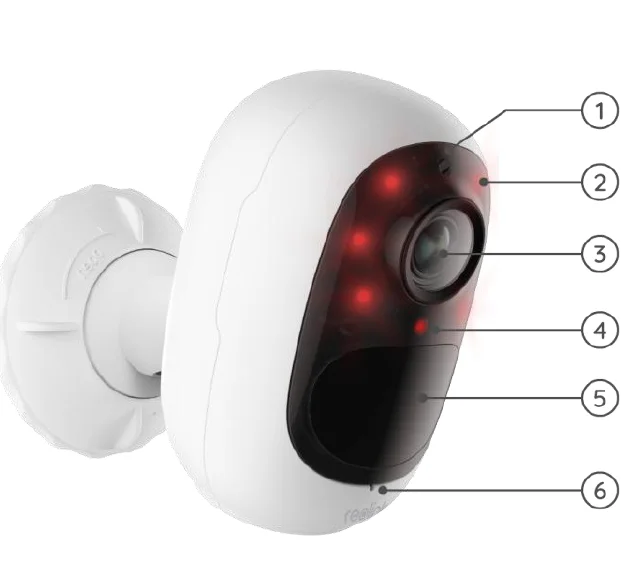
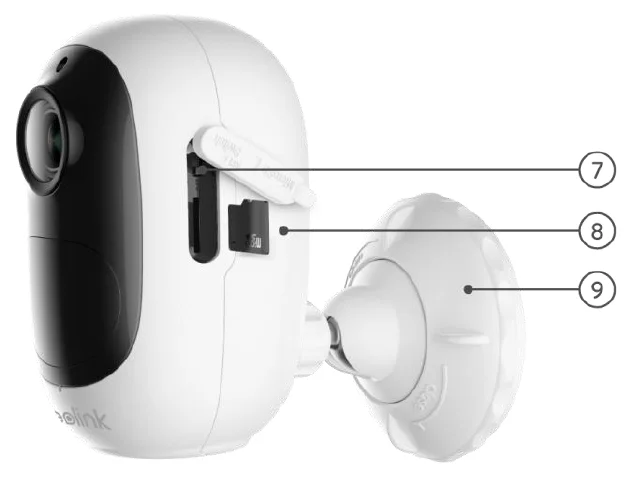
Argus 2/Argus Pro
A Rechargeable battery and Wi-Fi connectivity make the camera totally wire-free. No network or power cable, no drilling, and no outlets needed. Security is simple. You can put it anywhere you want: on a shelf or a table; at the front door or back door; from room to room, to keep an eye on the elderly, babies, or pets. Or use it at a temporary construction site, rental house, or holiday house.
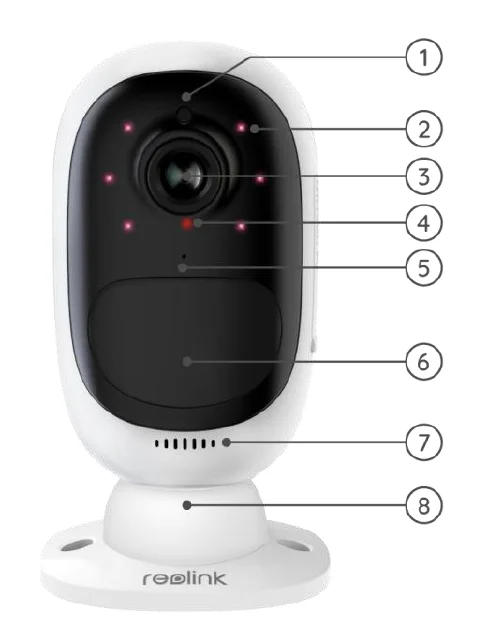
- Daylight Sensor
- 6 PCS IR LEDs
- Lens
- Status LED
- Built-in Mic
- Built-in PIR Motion Sensor
- Speaker
- Wall Mount
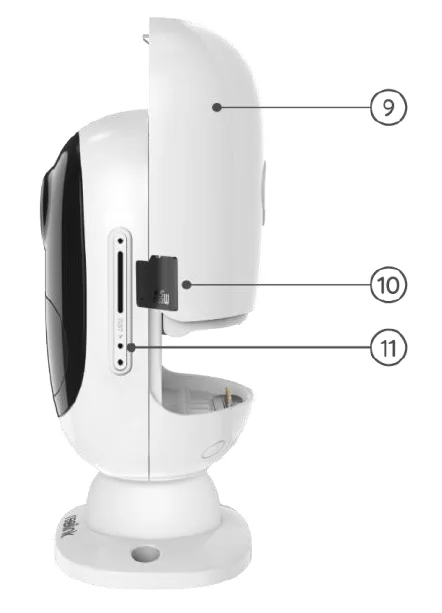
- Rechargeable Battery
- Micro SD Card Slot
- Reset Hole
Argus 2E
Argus 2E runs on a non-removable high-capacity rechargeable battery. Without power cables, it provides clean, easy and flexible installation. You can put it anywhere you want, indoors or outdoors.
- Daylight Sensor
- 6 PCS IR LEDs
- Lens
- Status LED
- Built-in PIR Motion Sensor
- Built-in Mic
- Reset Button
- Micro SD Card Slot
- Outdoor Security Mount
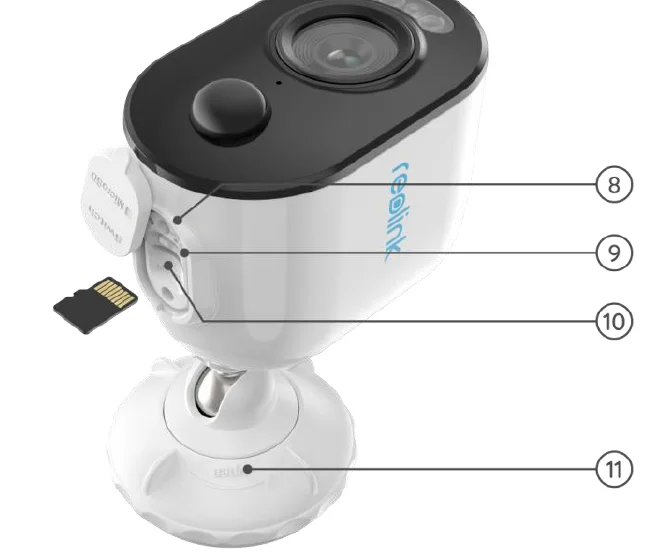
Argus 3/Argus 3 Pro
Get wire-free security anywhere you need it with Argus 3/Argus 3 Pro, a battery or solar-operated security camera with motion spotlight and siren. See what’s going on in 2K Super HD, enjoy color night vision and stop the crime before it happens.
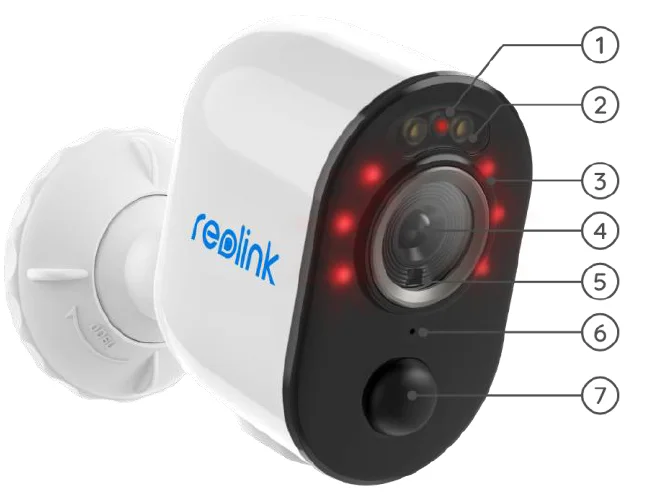
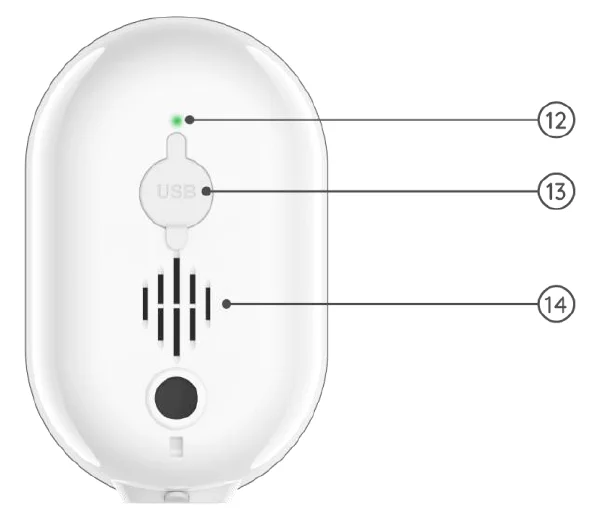
- Status LED
- Spotlight
- 6 PCS IR LEDs
- Lens
- Daylight Sensor
- Built-in Mic
- PIR Motion Sensor
- Reset Button
- Power Switch
- Micro SD Card Slot
- Bracket
- Battery Status LED
- Micro USB Port
- Speaker
Argus Eco
Works cable-free with a rechargeable battery and a reliable Wi-Fi connection. Flexible and weatherproof – you can put it anywhere with a 5-minute installation!
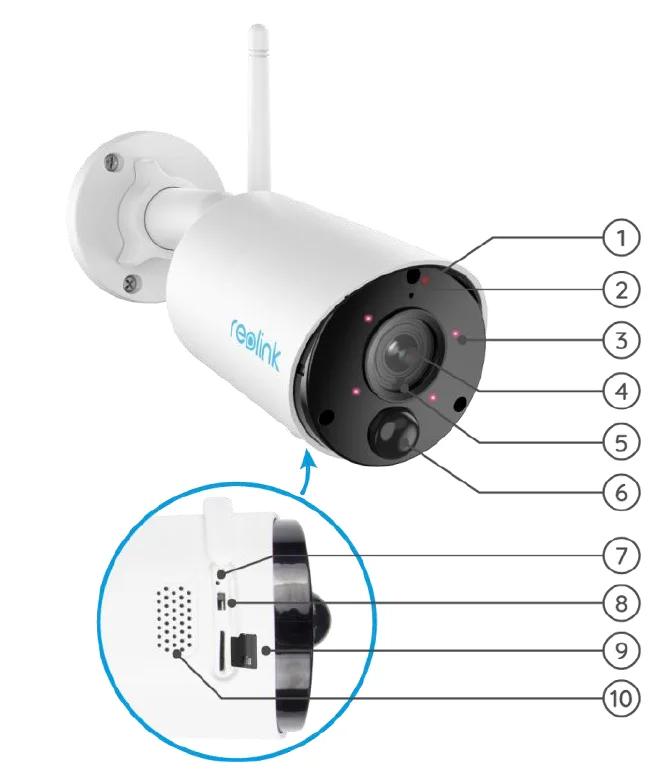
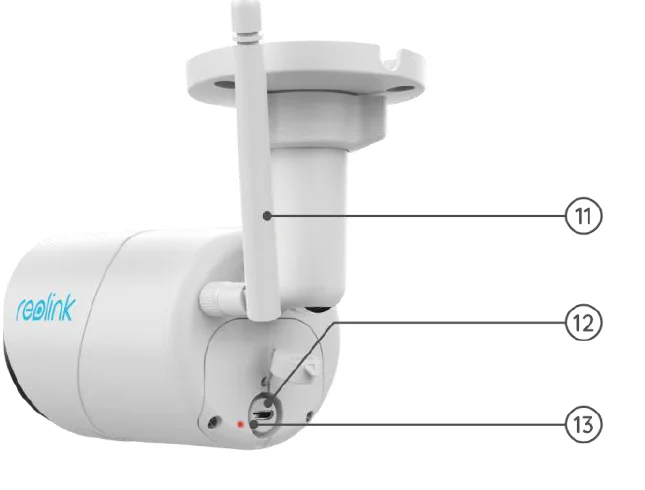
- Status LED
- Built-in Mic
- 4 PCS IR LEDs
- Lens
- Daylight Sensor
- Built-in PIR Motion Sensor
- Reset Hole
- On/Off Switch
- Micro SD Card Slot
- Speaker
- Antenna
- Micro USB Port
- Battery Status LED
Argus PT
Argus PT can work without any cables thanks to a rechargeable battery and Wi-Fi connection. Free from wiring hassles, you can mount this battery-operated security camera anywhere to have an ultra-wide viewing angle backed by a unique 355° pan and 140° tilt design. Set it up in seconds and enjoy the peace of mind and convenience Argus PT brings you.
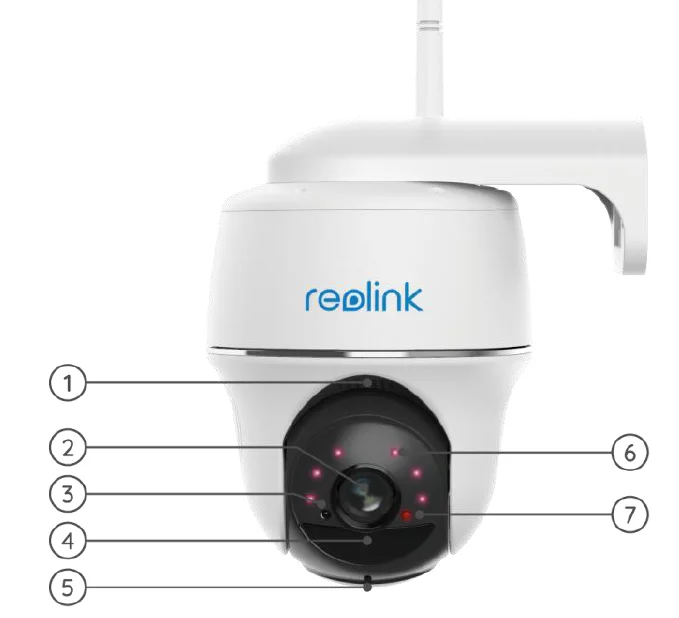
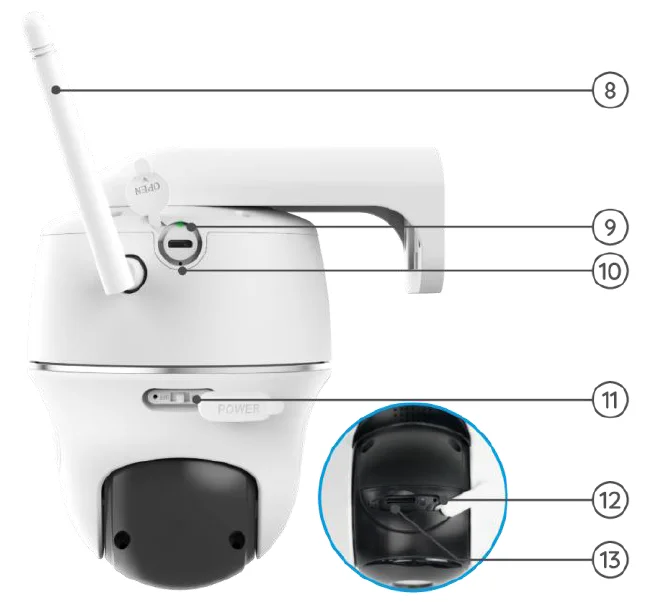
- Speaker
- Lens
- Daylight Sensor
- Built-in PIR Sensor
- Built-in Mic
- 6 Pcs IR LEDs
- Status LED
- Antenna
- Battery Status LED
- Micro USB Port
- Power Switch
- Reset Hole
- Micro SD Card Slot
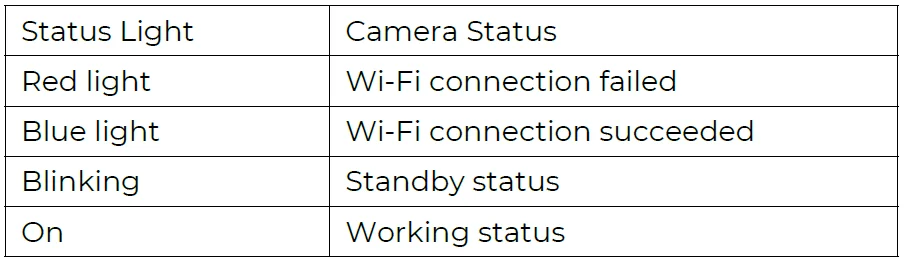
Status Light
Set up and Install
Set up the Camera
What’s in the Box
Note: The package content may vary and be updated with different versions and platforms. Please take the information below only for a reference. And the actual package content is subject to the latest information on the product selling page.
Argus 2/Argus Pro
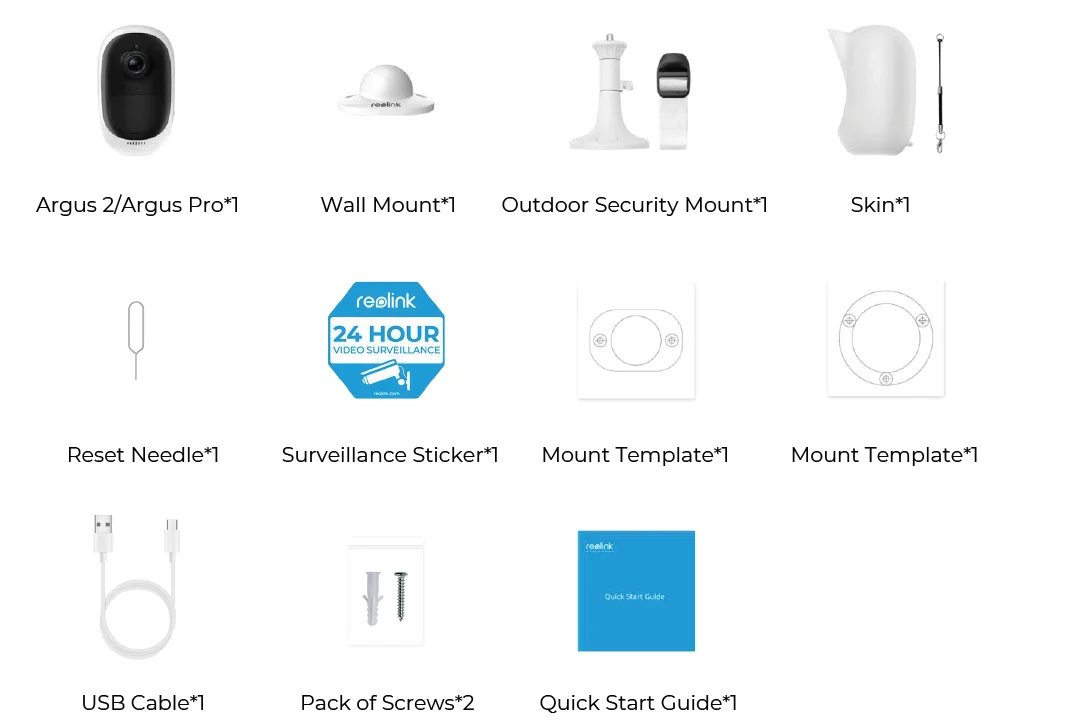
Note: The camera and the rechargeable battery are packed separately in the same package. There is no wall mount and the first mount template for Argus Pro.
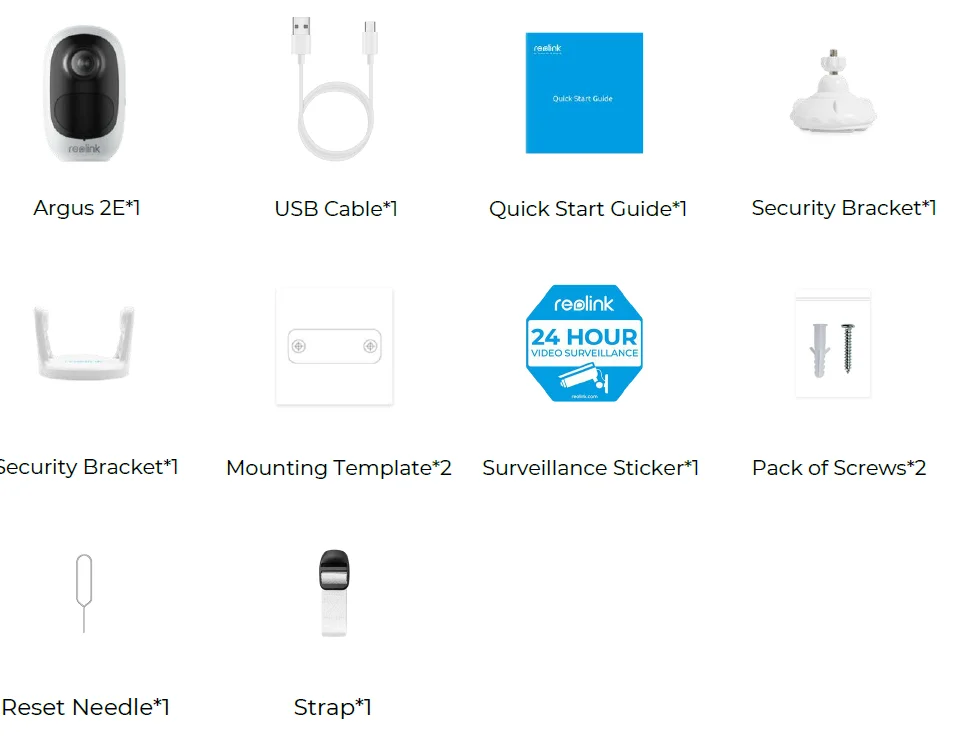
Argus 2E
Argus 3/Argus 3 Pro
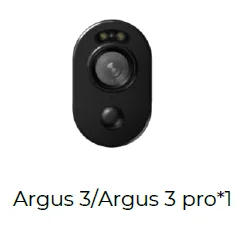
Note: Others of Argus 3/Argus 3 pro are the same as those of Argus 2E.
Argus Eco
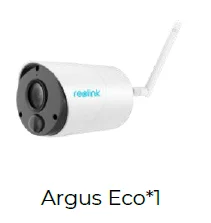
Note: There is no skin and wall mount for Argus Eco, and there is just one mounting template. Except for the above differences, others are the same as Argus 2.
Argus PT
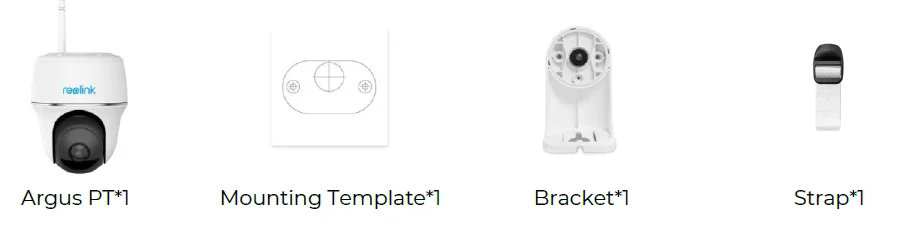
Note: Except for the above parts, the surveillance sticker, quick start guide, reset needle and USB cable are the same as others, but just one pack of screw in this box.
Charge the Battery
Reolink Argus 2/Argus Pro has a rechargeable battery that is removable, and there is a micro USB port for charging on the back of the battery.
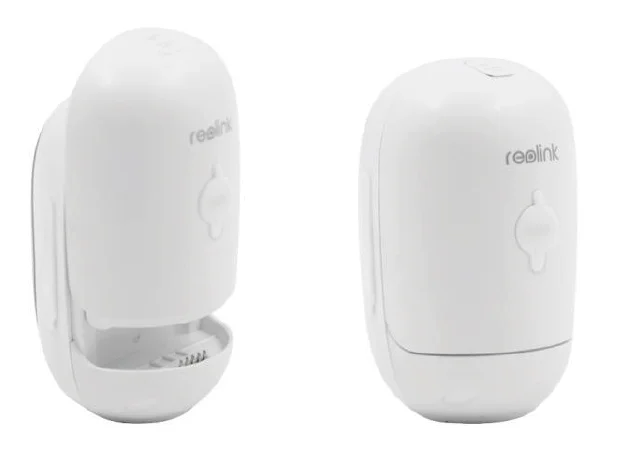
The charger is a USB adapter (DC 9/5 Volts, not included in the box), which is commonly used for smartphones. A micro USB cable is included in the box. Here we’ll guide you to charge the Reolink Argus 2/Argus Pro by using the following three different methods.
- Method 1: Pull out the battery and open the charging port, then connect the battery with the USB adapter via a USB cable and plug it into the electrical outlet.
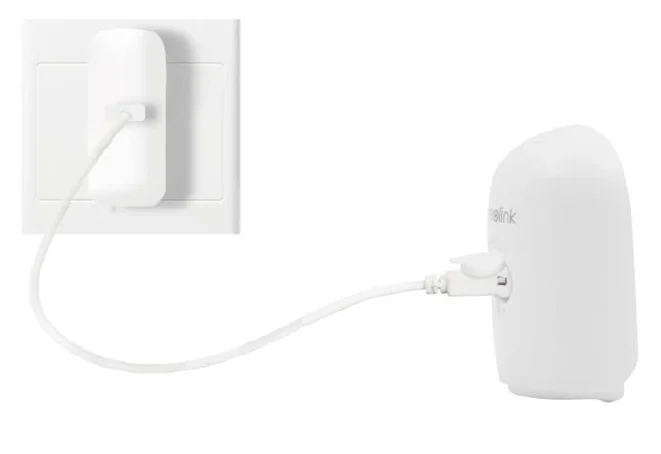
- Method 2: Directly connect the camera with the USB adapter via a USB cable and plug it into the electrical outlet for charging & working.
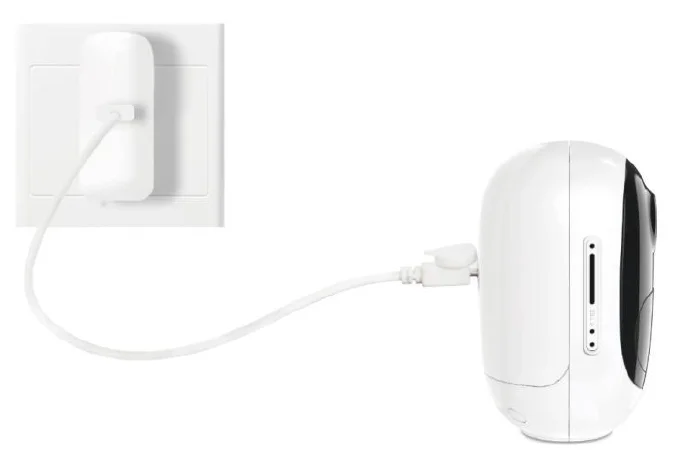
- Method 3: Charge the camera with a Reolink Solar Panel (needs to be purchased separately).
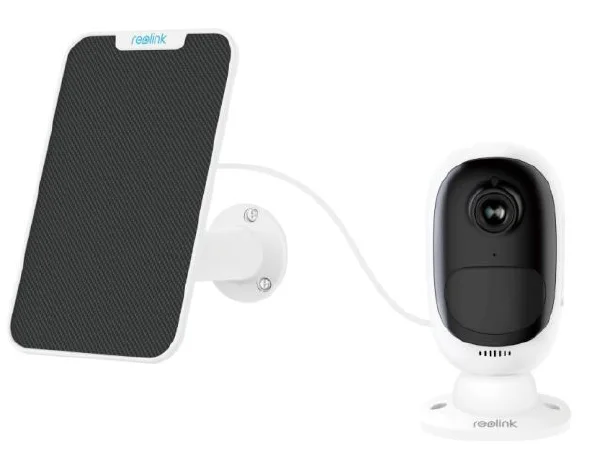
Note: There is only one battery with each camera, but you can purchase more at reolink.com or Reolink’s official Amazon store.
There is a status LED under the micro USB port of the battery, which indicates the battery charging status.
- Green LED: Fully charged
- Orange LED: Charging
Set up the Camera on the App
Please follow the steps below to do the initial setup for the battery-powered cameras via the Reolink App.
- Step 1. Power on the camera and wait for it to start up. After hearing a startup sound, you will hear repeated Ding sounds or “Please run Reolink App, add the camera and set it up”, which means you can scan the UID and start the setup process.
Note:- Please power on the camera by the power switch button before initial setup. (Suits for Argus PT, Argus Eco, Argus 3, Argus 3 pro.)
- If you are not sure whether you hear the right sound, you may tap “Demo” to hear the sample sound. If you couldn’t hear the repeated Ding sounds, please reset your camera.
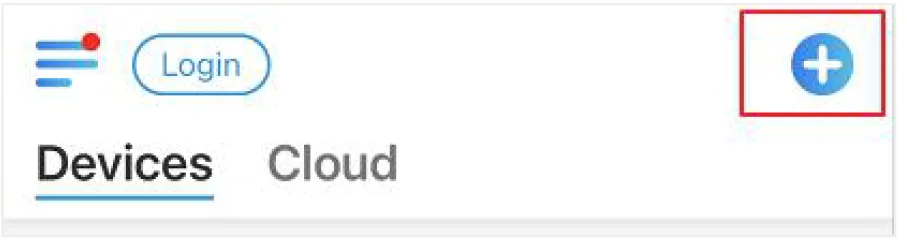
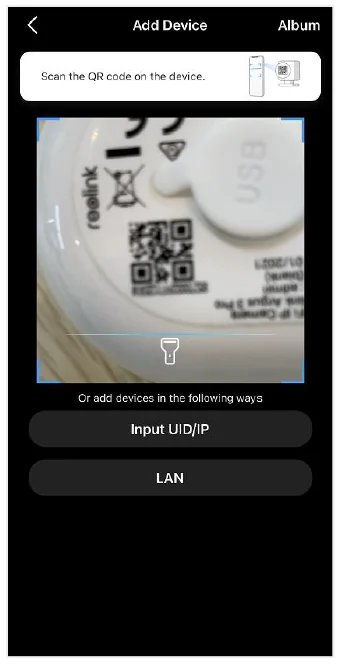
- Step 2. Tap on the + icon in the top right corner to start the initial setup.
- Step 3. Scan the QR code on the back of the camera. If the phone doesn’t respond, please tap Input UID/IP and then manually type in the UID (16-digit characters under the QR code of the camera).
Note: You may tap Light to enable the flashlight when setting up in a dark environment.
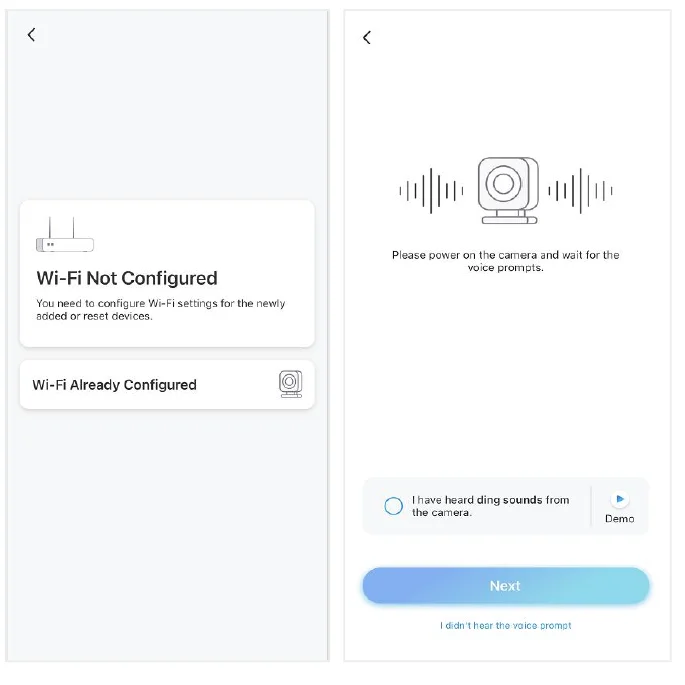
- Step 4. Select Wi-Fi Not configured. If you hear the camera speaking “Please run App, add the camera and set it up” or the ding sounds, please tick “I have heard the voice prompt from the camera” or “I have heard ding sounds from the camera” , then tap Next.
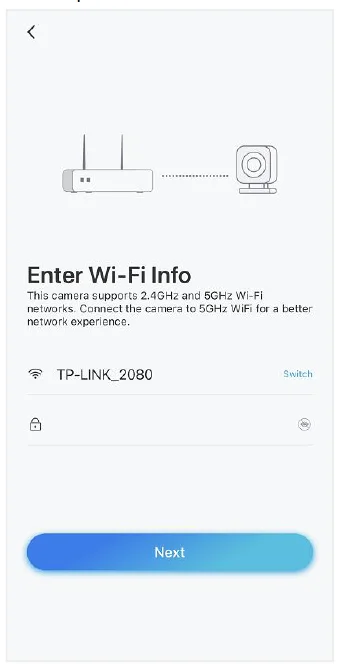
- Step 5. Enter the Wi-Fi password of the selected Wi-Fi network (you may tap to • see the Wi-Fi password you entered and double-check the password is correct) and tap Next.
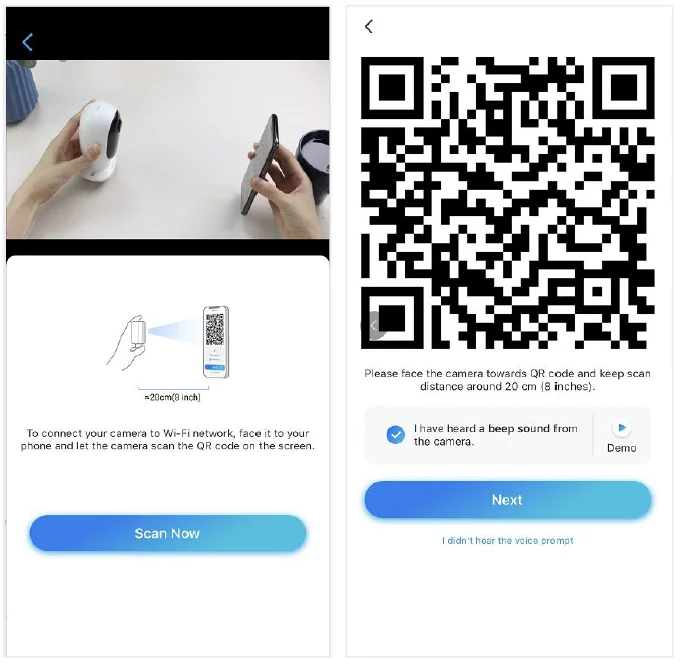
- Step 6. For Reolink battery-powered cameras, a QR code will be generated and displayed on your phone. Please place the QR code on your phone in front of the camera’s lens at a distance of about 20 cm (8 inches) and let the camera scan the QR code. Tick “I have heard the beep sound from the camera” or “I have heard the
voice prompt” and tap Next.
Note:- Please rip off the protective film of the camera’s lens.
- You may double-tap on the QR code to enlarge it.
- Step 7. After the beep sound, the camera will try to connect to the router. Please wait for 60 seconds.
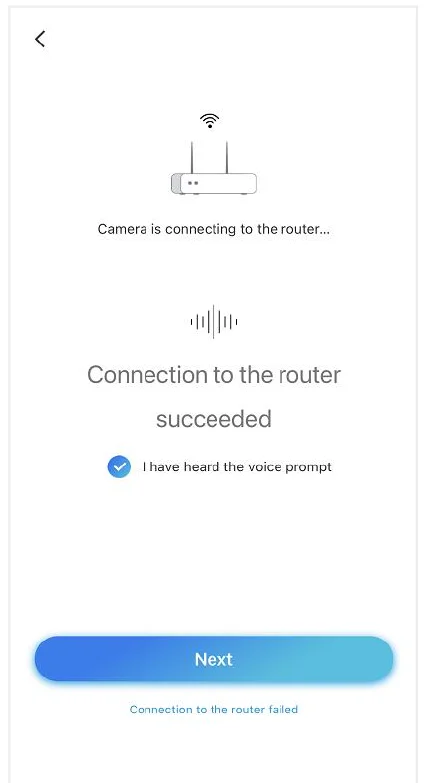
- Step 8. You may initialize your camera: “Create device password” and “Name your device”. Forgetting this password could be troublesome in the future. Please remember it for your convenience.
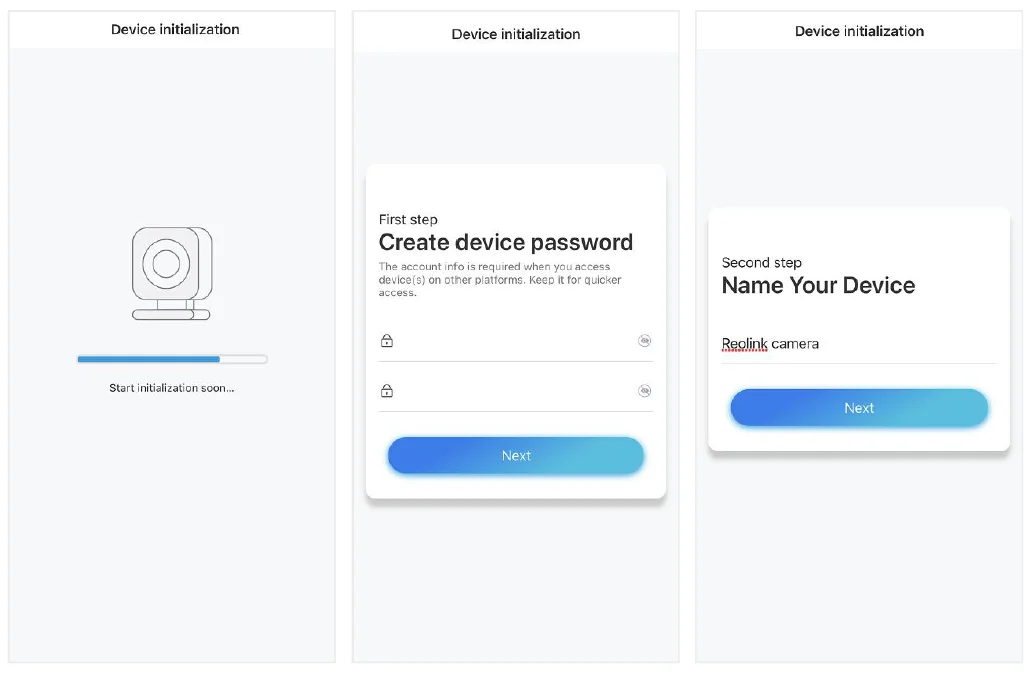
Note:
For Argus 3 Pro, after the camera is named, you need to select the scene: Indoor or Outdoor.
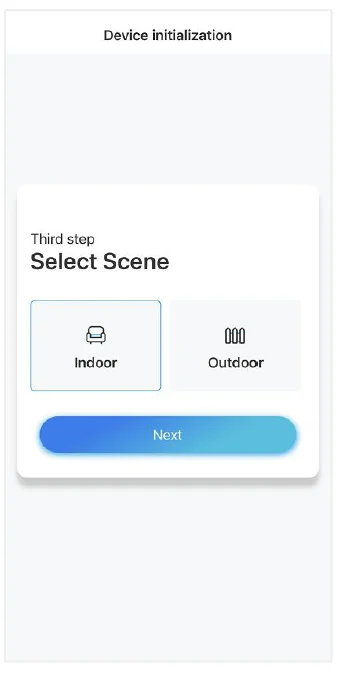
- Step 9. “Initialization finished”. Tap Use Now and start to preview now.
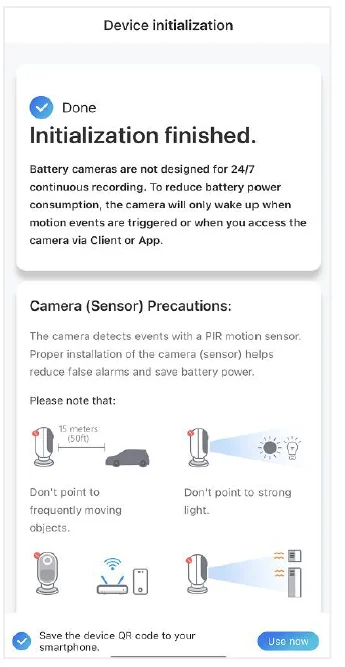
Alarm and Detection
Set up Motion Detection
About PIR Detection
Reolink battery-powered Wi-Fi cameras use PIR sensors (passive infrared sensors) to detect motion. The PIR sensor detects changes in the amount of infrared radiation impinging upon it, which varies depending on the temperature and surface characteristics of the objects in front of the sensor. When an object, such as a human, passes in front of the background, like a wall, the temperature at that point in the sensor’s field of view will rise from room temperature to body temperature, and then return again. The sensor converts the resulting change in the incoming infrared radiation into a change in the output voltage, which triggers the detection. Objects of similar temperature but different surface characteristics may also have different infrared
emission pattern, thus moving them with respect to the background may trigger the detector as well.
Turn on/off PIR
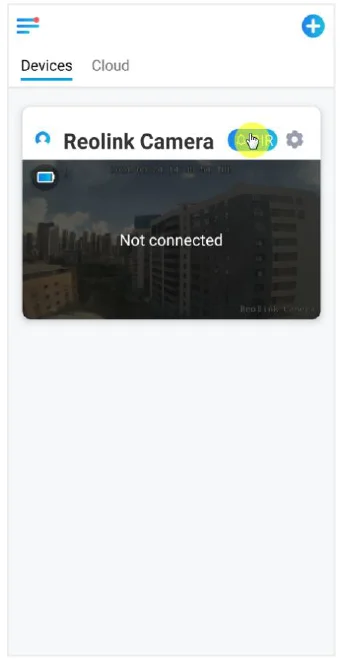
On the Devices page of the Reolink App, choose the camera and then directly tap on PIR button to quickly turn on or turn off the PIR motion detection.
Set up PIR Motion Detection Sensitivity
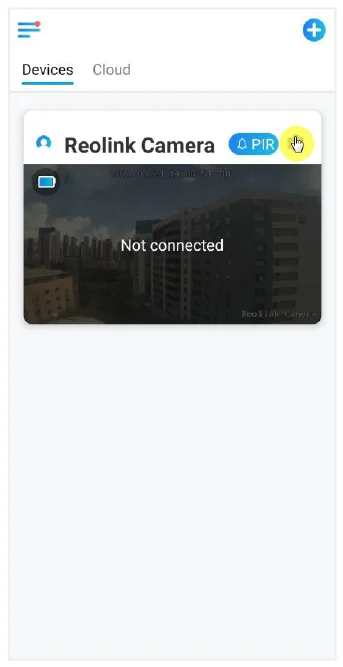
- Tap on Settings.

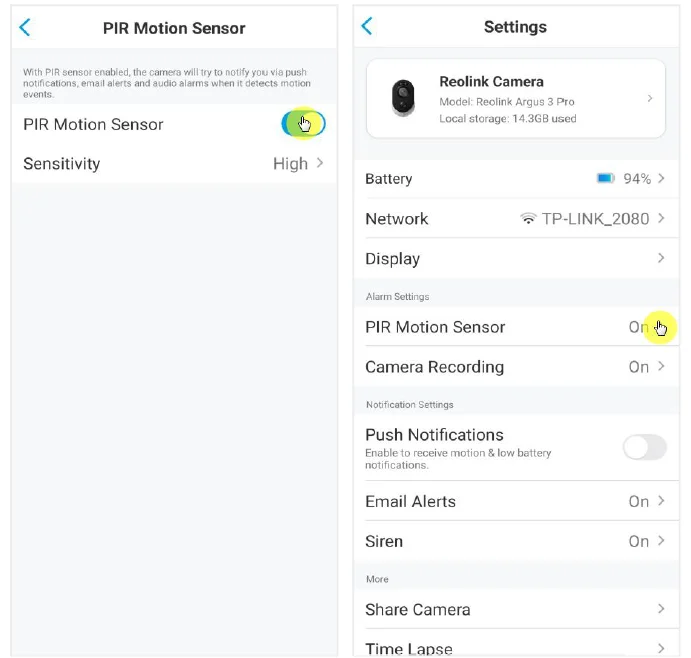
- Choose PIR Motion Sensor, and tap to enable PIR Motion Sensor.

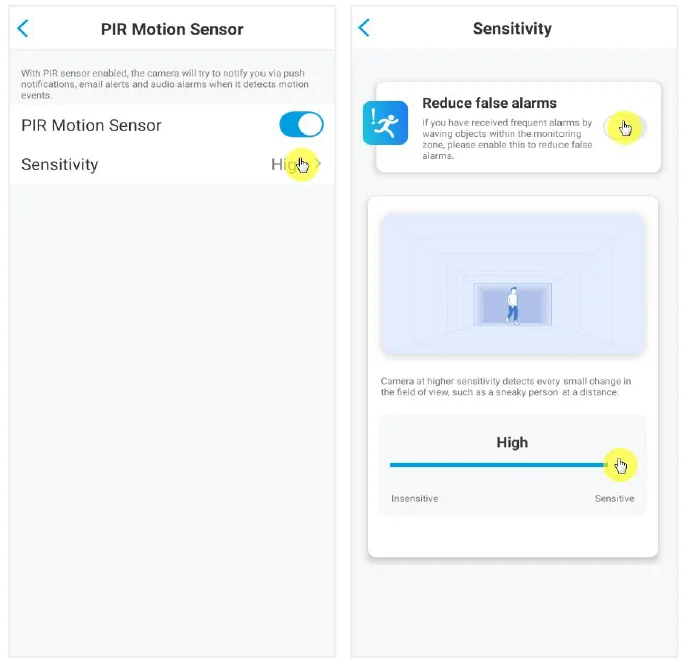
- Tap Sensitivity to adjust the sensitivity of the PIR motion sensor.

Drag the bar to adjust the sensitivity from low, mid, or high, or adjust the sensitivity from 1 to 100. For cameras with digital PIR sensors, there’s also an option to reduce false alarms. Reduce false alarms: If you have received frequent false alarms, please enable the ” Reduce false alarms option.
Improve Your Motion Detection
Reolink battery-powered cameras have a PIR sensor on each side of the camera, and the camera detects the temperature differences between the two sides to detect motion. So it’s more sensitive when a person or car is passing in front of the camera from side to side, compared to coming towards the camera.
Installation Tips for the Camera to Detect Motion
Tip 1: Install the camera according to its viewing field.
- Please check the viewing angle of your camera first. Then make sure that the monitoring area is well within its field of view.
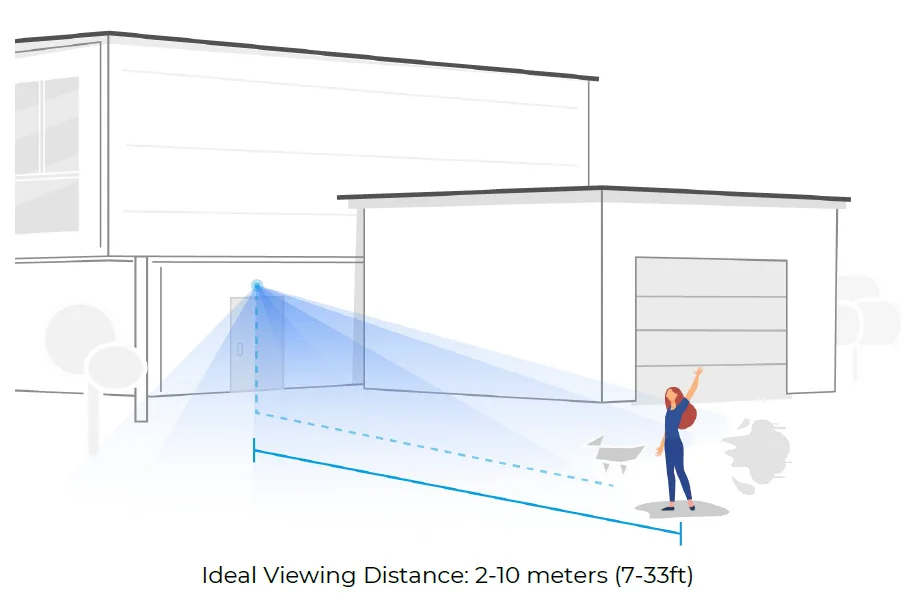
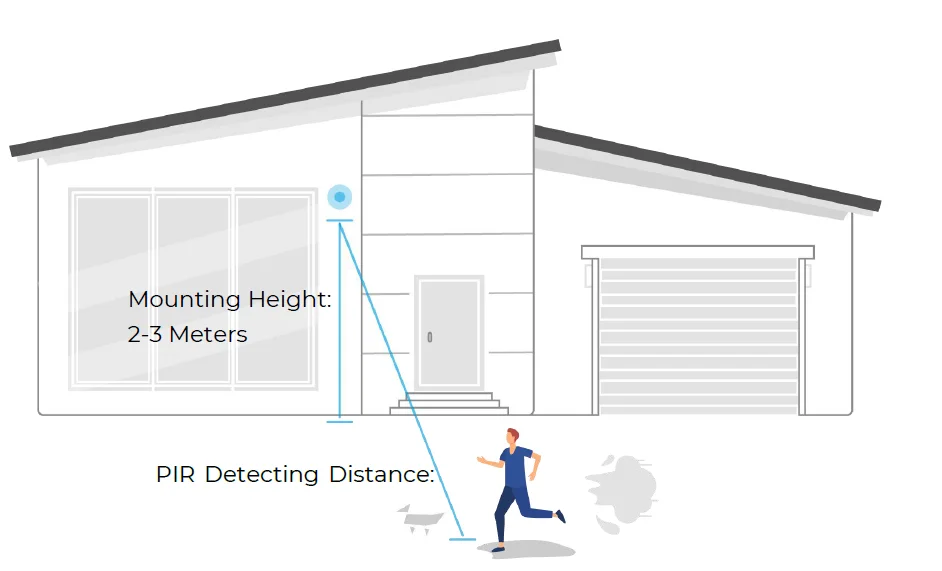
- The ideal viewing distance is 2-10 meters (7ft – 33ft), within which people will be recognized. To achieve a better viewing experience, it’s advised not to place the camera too far away or too high (suggested mounting height: 2-3 meters) from the designated monitoring area.
Tip 2: Install cameras according to the detection field of PIR motion sensors.
- The detecting distance of PIR motion sensors is 9 meters, and the detecting angle is 120˚ horizontally. Motions out of this range can’t be detected.
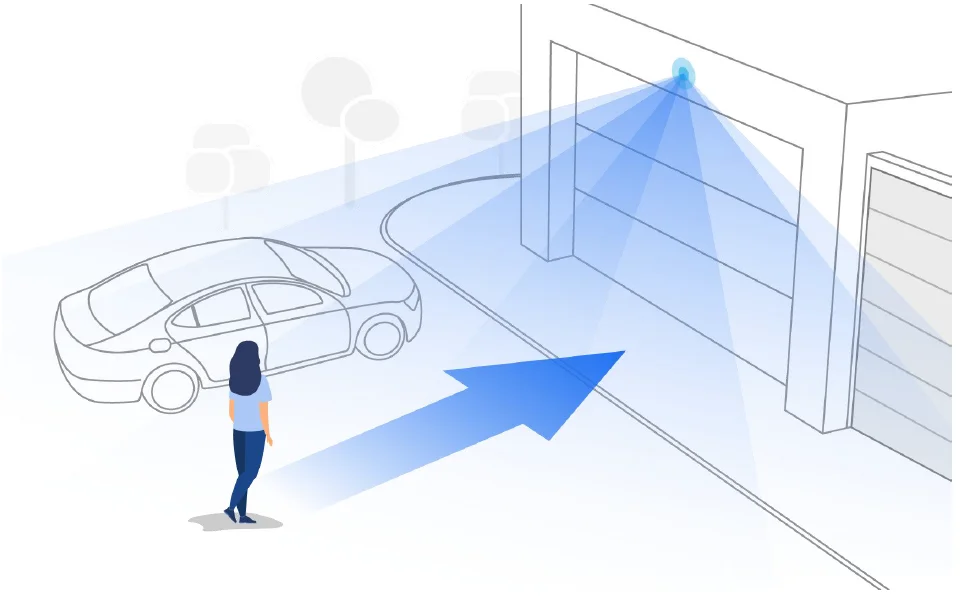
- Our PIR motion sensor is more sensitive to side-to-side movement than movement heading straight toward the camera.
For example, when a person moves straight toward the camera (shown below), the PIR motion sensor will be less sensitive to the movement.
Tips for Reducing False Alarms
- Do not install the camera facing bright lights, including sunshine, bright lamp lights, etc.
- Do not place the camera too close to a place where many vehicles move frequently; 15 meters (55ft) away from the vehicle is the recommended distance based on our numerous tests.
- Stay away from the outlets, including the air conditioner vents, humidifier outlets, the heat transfer vent of projectors, etc.
- Do not install the camera facing the mirror.
- Keep the camera at least 1 meter away from any wireless devices, including Wi-Fi routers and phones in order to avoid wireless interference.
Tips for Improving Detection Alarms
When the camera failed to detect some motion, below tips can help improve the motion detection accuracy.
- Adjust the sensitivity level to high.
- Adjust the installation angle of the camera in the direction crossing the possible intruder instead of facing him/her so that it can detect motion more accurately.

- Adjust the installation height; it’s suggested to mount camera 2 to 3 meters from the ground. Mount the camera too low or too high, and it’s hard to detect the alarm.
- Ensure the detecting target is within the detection range of the PIR sensor. The ideal monitoring range is from 7ft to 33ft.
Cloud Recording
Introduce Reolink Cloud Recording
Reolink Cloud Recording allows the camera to upload and save motion alarm recordings to the cloud server, aside from saving recordings to the SD card. You can access your cloud video history via the Reolink App or web page anytime, from anywhere. Reolink provides a free basic plan that supports uploading one camera’s video to the cloud, as well as paid plans for multiple cameras. More information can be found on the Reolink Cloud website: https://cloud.reolink.com/
Supported Models and Countries
For Reolink battery-powered Wi-Fi cameras, models Argus 2, Argus Pro, Argus Eco, Argus PT, Argus 3, and Argus 3 Pro support cloud recording. And Reolink Cloud recording is currently available in the United States, Canada, Australia, New Zealand, Thailand, Vietnam, Malaysia, South Korea, the Philippines, Indonesia, Hong Kong (China), Macau (China), Israel, Qatar, Bahrain, the United Arab Emirates, Saudi Arabia, Kuwait, Lebanon, and Singapore.
Register an Account and Set Up to Upload Cloud Recording
Register an Account
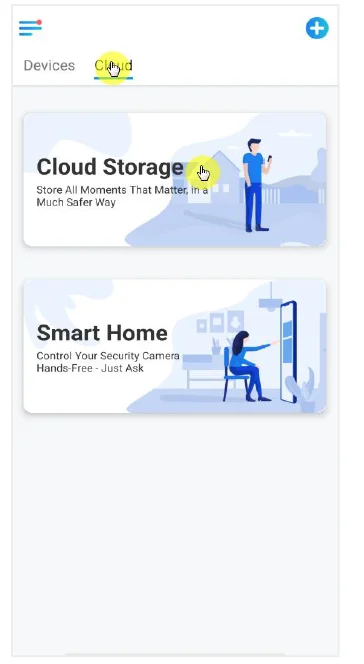
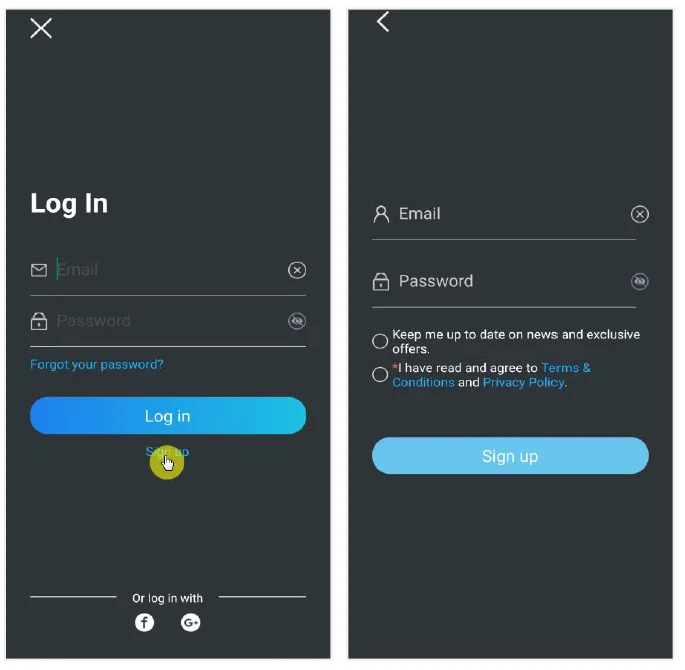
- Open up the Reolink app, and tap on Cloud, then tap Cloud Storage.

- Tap Sign up, then enter your Email address and password. Tick the terms and conditions, and then tap on Sign up to register an account.

- A register confirmation email will be sent to your inbox. Tap the link in the email to verify your account.
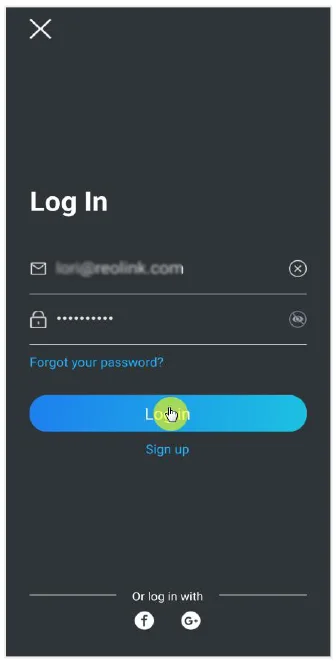
- Then you can use the registered account to log in to the Reolink App. Subscribe to a cloud plan and bind the camera to the cloud.
- Tap Cloud Storage, then tap Subscribe. Choose to buy the free basic plan or a paid plan.

- After buying a plan, tap Bind cameras, and it’ll search all the cameras that support cloud. Choose the camera you want to bind to the cloud and tap Add.

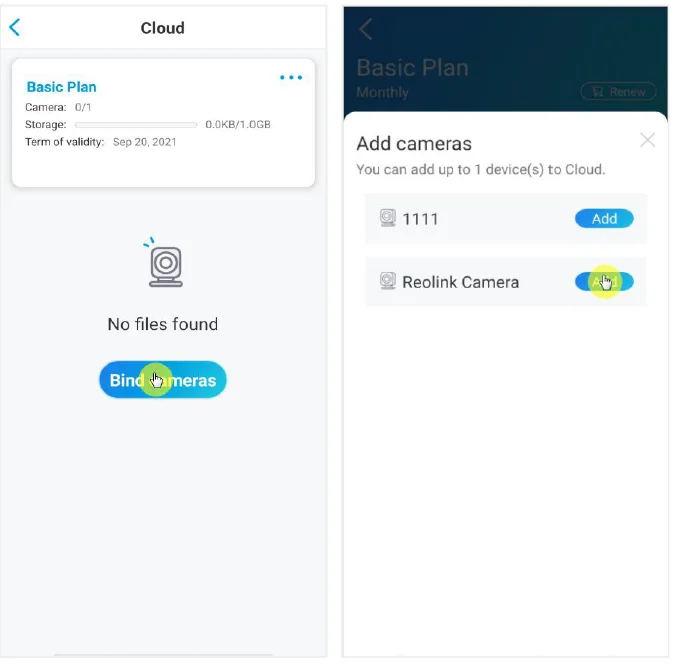
Note: If your camera’s firmware is outdated, it’ll show “Upgrade”. Tap Upgrade to update the firmware to the latest first, then tap Add to bind the camera.
Battery Instructions for Battery Usage
A battery-powered camera is not designed for 24/7 full-capacity operation or around-the-clock live streaming. It’s designed to record motion events and remotely view live streaming only when you need it.
- The battery is built-in. Do not remove it from the camera. (Battery of Argus Pro, Argus 2, Reolink Go, Reolink Go Plus can be removed)
- Charge the rechargeable battery with a standard and high-quality DC 5V/9V battery charger or Reolink solar panel. Do not charge the battery with solar panels from any other brands.
- Charge the battery at temperatures between 0°C and 45°C and use the battery at temperatures between -20°C and 60°C.
- Keep the USB charging port dry, clean, and free of any debris, and cover the USB charging port with the rubber plug when you stop charging the battery.
- Do not charge, use, or store the battery near any ignition sources, such as open flames or heaters.
- Do not use the battery if it gives off an odor, generates heat, becomes discolored or deformed, or appears abnormal in any way. If such a battery is being used or charged, remove the battery from the device or the charger immediately, and stop using it.
- Always follow the local waste and recycling laws when you get rid of the used battery.
FAQ and Troubleshooting
FAQs
Q1:Can customer from European countries use the cloud service?
A: No, the cloud is not available in European countries. We recommend that you install a micro SD card to record footage.
Q2: Can this camera work with a 256GB micro SD card?
A: No, the camera can only support up to 128GB(FAT 32, Class 10 or above)
Q3: Can my friend access the camera with his or her smartphone?
A: Yes, your friend can access the camera with his or her smartphone. The camera can support up to 8 simultaneous video streams (6 sub-streams & 2 main-streams)
Q4: Is it possible to keep charging the camera with a USB charger?
A: For safety reasons, it’s not recommended to keep charging the camera with a USB charger.
Q5: Can this camera work with your NVR?
A: No, our battery-powered camera cannot work with NVR.
Q6: Can this camera work with Blue Iris, Synology, QNAP, or other third-party software brands?
A: No, the camera cannot work on other software; it can only work with the Reolink App or the Reolink PC client.
Q7: How long can the battery last?
A: In normal use and a one-time charge, the battery can last about 1-4 weeks, according to different working environment. In frequent trigger and one-time charge, the battery of Reolink Argus 2/Pro will last 16 hours in day mode (or 9 hours with LEDs on at night, equivalent). Please kindly note that when batteries are used repeatedly, they lose capacity as the number of charge cycles increases, until they are eventually considered to have reached the end of their useful life, which is normal for all lithium batteries, just like the one in your smartphone.
Q8: Can this camera record continuously?
A: No, the battery-powered camera can only record motion video.
Q9: Can two cameras work with one solar panel?
A: No, one solar panel can only work with one solar panel.
Q10: How long can the solar panel power extension cable connect?
A: The cable length of the Reolink solar panel is 4 meters. If it is not long enough in your case, you may consider purchasing our solar panel extension cable (4.5 meters/15 feet). You can add up to 2 Solar Panel extension cables to the solar panel so that the total distance can reach up to 13 meters (43 feet).
Q11: Can I grant a user account and limit the features of the user account?
A: No, the battery-powered camera only has an admin account; it’s unable to grant a user account for this camera.
Troubleshootings
- The camera is not powering on
If your camera is not starting up, please try the following solutions:- Make sure the power switch is turned on.
- Charge the battery with a DC 5V/2A power adapter. (When the green light is on, the battery is fully charged.)
- If these don’t work, please contact Reolink Support https://support.reolink.com/.
- Camera Failed to Scan QR Code on the Phone
If the camera cannot scan the QR code on your phone, please try the following solutions:- Remove the protective film from the camera lens.
- Wipe the camera lens with a dry paper/towel/tissue.
- Narrow the distance between your camera and the mobile phone so that the camera can focus better.
- Make sure there is enough lighting.
- If these don’t work, please contact Reolink Support https://support.reolink.com/.
- Camera Failed to Connect to Wi-Fi During Initial Setup Process If the camera fails to connect to Wi-Fi, please try the following solutions:
- Make sure that you have entered the correct Wi-Fi password.
- Put the camera closer to your router to ensure strong Wi-Fi signals.
- Change the encryption method of the Wi-Fi network to WPA2-PSK/WPA-PSK (safer encryption) on your router interface.
- Change your Wi-Fi SSID or password and make sure the SSID is within 31 characters and the password is within 64 characters.
- Set your password using only the characters available on the keyboard.
- Make sure the Wi-Fi is on 2.4Ghz, as the battery-powered Wi-Fi cameras don’t support the 5Ghz Wi-Fi.
For more manuals by Reolink, visit ManualsLibraryy
Reolink Battery Camera-FAQs
Does Reolink have a battery-powered camera?
Yes, Reolink offers battery-powered security cameras that combine long-lasting performance, high-definition video, and AI motion detection. These cameras are wire-free, easy to install, and perfect for monitoring areas without access to a constant power source, making them ideal for flexible home or small office security setups.
How long does the Reolink camera battery last?
The battery life varies by model and usage. On normal use, Reolink Go cameras can last up to one month per full charge, while in standby mode, the battery can last up to two months. Rechargeable batteries are included, and battery replacement is simple if needed.
Is Reolink worth buying?
Reolink cameras offer a balance between affordability and features. They provide 4K video, intelligent motion detection, and easy app integration, making them suitable for both home and small business use. Users find them reliable, cost-effective, and simpler to set up compared to high-end commercial surveillance systems.
Can Reolink cameras work without Wi-Fi?
Yes, Reolink battery cameras can operate without Wi-Fi, but their features are limited. Without an internet connection, live streaming, cloud storage, and remote alerts may not function. Local recording can still occur if the camera supports SD card storage, providing basic monitoring even offline.
How far can Reolink battery cameras see?
Reolink battery cameras vary in range depending on the model. Some cameras can detect motion and record clearly up to 33 feet in darkness, while others with infrared or night vision features can cover distances of 100 feet or more, providing clear footage for both day and night monitoring.
What are common issues with Reolink cameras?
Typical problems include weak Wi-Fi signals causing disconnects, delayed notifications, or blurry footage. Ensuring the camera is within good signal range, keeping firmware updated, and cleaning lenses regularly can resolve most issues. Battery depletion can also occur faster in extreme temperatures.
Do Reolink cameras require a SIM card?
Only 4G-enabled Reolink models, like the Reolink Go, require a SIM card for cellular connectivity. Standard Wi-Fi battery cameras do not need a SIM and connect directly to your home network for live monitoring, alerts, and cloud or SD card storage.
Are Reolink cameras waterproof?
Yes, most Reolink battery cameras come with weatherproof designs, typically rated IP65 or IP66. They can withstand rain, snow, and outdoor conditions, making them suitable for outdoor monitoring. However, avoid submerging them in water to prevent damage.
How long can Reolink cameras record continuously?
Recording duration depends on battery life and storage. With a fully charged battery, a Reolink camera can record continuously for several hours, often up to one month with normal usage cycles. Using SD cards or cloud storage can extend footage retention without impacting camera operation.