
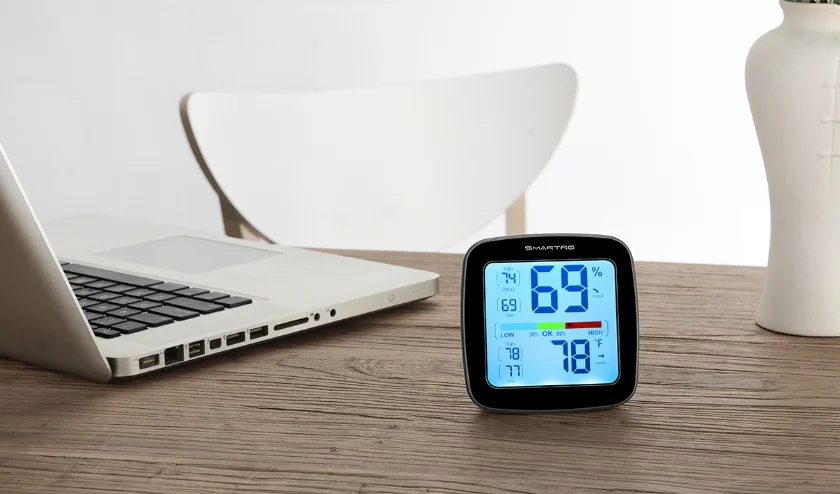

SMARTRO SC42 Digital Hygrometer Indoor Thermometer
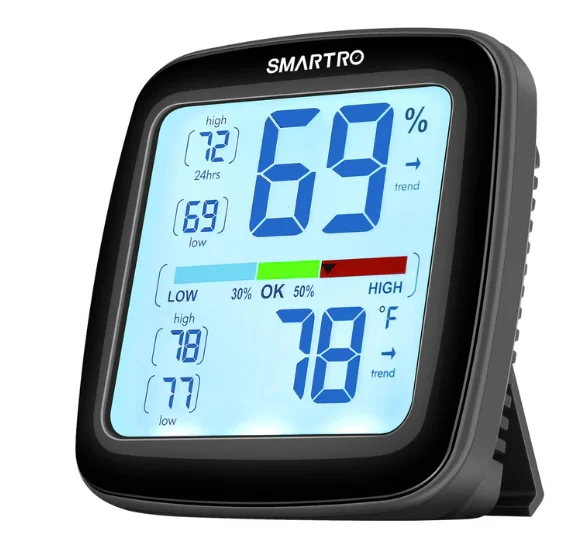
Know Your Device
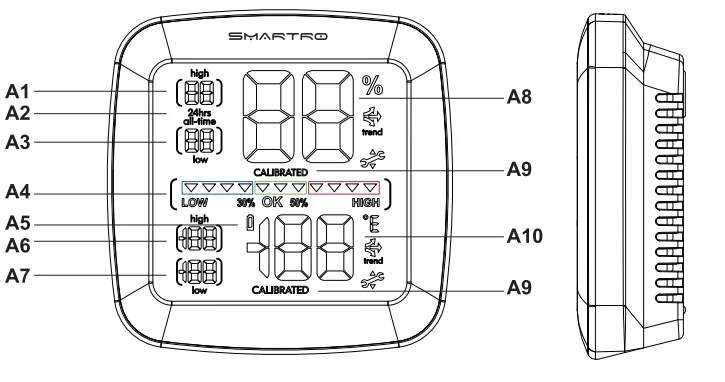
FRONT
- A1. Highest Humidity Record
- A2. Record Time Span: Indicates viewing records for the last 24 hours or all-time.
- A3. Lowest Humidity Record
- A4. Humidity Level Indicator: Indicates a high, low, or ideal humidity comfort level.
- A5. Low Battery Indicator
- A6. Highest Temperature Record
- A7. Lowest Temperature Record
- A8. Current Humidity: The arrow icon indicates the trend of humidity.
- A9. CALIBRATED Indicator
- A10. Current Temperature: The arrow icon indicates the trend of temperature.
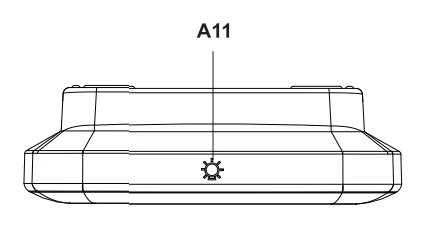
- A11. Backlight: Touch the Q button to temporarily activate the backlight.
BACK
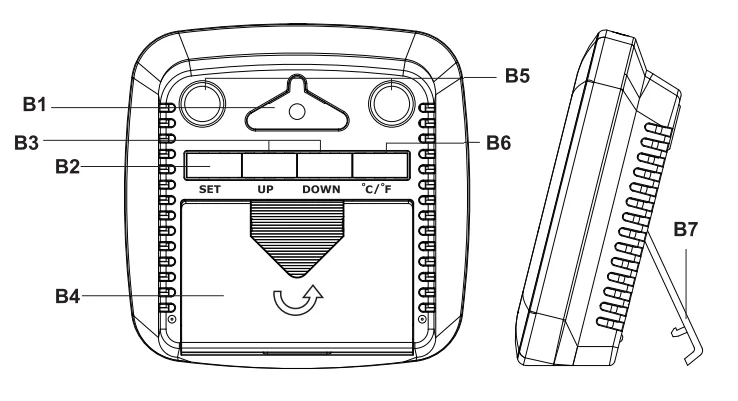
- B1. Integrated Hanger Opening
- B2. SET Button: For calibration setup.
- B3. UP & DOWN Button: For calibration and toggling records being shown.
- B4. Battery Compartment
- B5. Magnetic Attachments
- B6. °C/°F Button: For toggling temperature units.
- B7. Table Stand
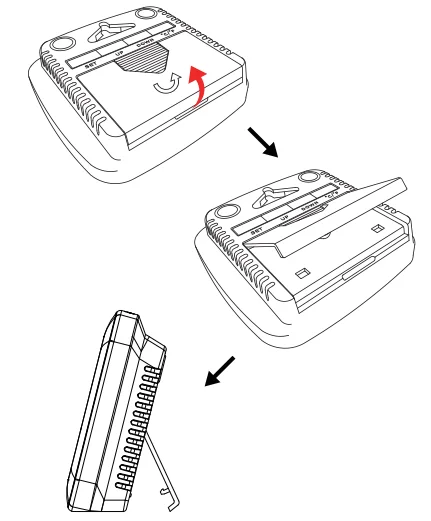
Table Stand
SET UP
Install or Replace Batteries
Batteries must be installed for this product to operate.
- Slide off the battery cover.
- Insert 2 x AAA batteries into the battery compartment. Ensure that the battery polarities (“+” and “–”) are correct.
- Close the battery compartment.
- The monitor will automatically enter normal service mode.
Toggle Fahrenheit or Celsius
To select Fahrenheit (°F) or Celsius (°C), press the “°C/°F” button located on the back of the monitor.
Placement for Maximum Accuracy
Because it is equipped with a high-performance sensor, this device is sensitive to the surrounding environmental conditions. Placement in a proper location is critical to the accuracy and performance of this product. Place the monitor in a dry area, free of dirt and dust. To ensure accurate temperature measurement, place the monitor out of direct sunlight and away from any heat source or vents. To ensure accurate humidity measurement, place the monitor away from humidity sources. The monitor comes with built-in magnets to attach to a metal surface.
OPERATION
Using the Humidity Monitor
The Humidity Level Indicator easily conveys a low, high, or ideal indoor humidity level for your home and health.
High and Low Records
- High and low records are displayed for temperature and humidity.
- 24-hour records are the maximum and minimum readings recorded for the last 24 hours.
- Records are the maximum and minimum readings recorded since the batteries were installed.
- Press the “UP” or “DOWN” button in normal mode to enter the 24-hour or All-time mode of the maximum and minimum values.
- Hold the “UP” button to manually clear the high records of temperature and humidity currently being viewed. Dashes display to confirm you have cleared.
- Hold the “DOWN” button to manually clear the low records of temperature and humidity currently being viewed. Dashes display to confirm you have cleared.
Note: Records will be erased if the batteries are removed.
Backlight
Touch the @ or press any button to temporarily activate the backlight.
Note: The backlight can’t be set to be on permanently.
Calibration
The temperature and humidity readings can be calibrated on the display to improve accuracy. Calibration can improve accuracy when product placement or environmental factors impact your data accuracy.
- To access calibration mode, hold the “SET” button for 3 seconds. The display of the humidity flashes.
- Press the “UP” or “DOWN” button to correct the display of the humidity. CALIBRATED appears on the display.
- Press the “SET” button to confirm the setting. The temperature display flashes.
- Press the “UP” or “DOWN” button to correct the display of the temperature. CALIBRATED appears on the display.
- Press the “SET” button to confirm the setting.
Note:
- After 10 seconds of inactivity during setting, the display will save the adjustments and exit calibration mode.
- Calibrations will be erased if the batteries are removed.
- This product has passed professional testing and calibration. No extra calibration is required before using.
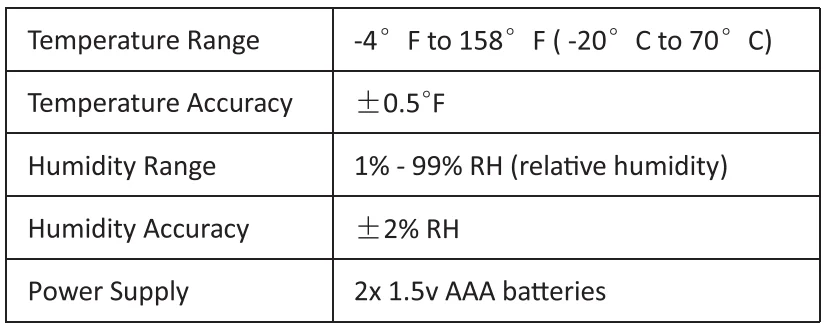
Specifications
After-sales Support
If your device fails to work or your experience with this product is less than satisfactory in any way, please do not hesitate to contact us. Join our Instagram or Facebook group for more support and discount information.
 : +1 (323) 287-5798
 : [email protected]
 : http://bit.ly/smartro_01
 : smartro_01
Website: https://www.smartro.co/
For More Manuals By SMARTRO, Visit ManualsLibraryy.
SMARTRO SC42 Digital Hygrometer Indoor Thermometer-FAQs
How do I use the SMARTRO SC42 digital hygrometer?
Simply insert the batteries, place the unit indoors, and allow it to adjust for 15–20 minutes. The screen will automatically display current temperature and humidity levels.
How can I switch between indoor and probe (OUT) temperature readings?
Press the IN/OUT button to toggle between ambient (IN) and external probe (OUT) temperatures.
What is the ideal indoor humidity level?
For most homes, the recommended range is 40–60% RH. Anything above 60% can lead to mold growth, and below 30% can cause dryness.
Is 70% humidity considered high?
Yes, 70% RH is very high and can cause mold, mildew, and moisture damage.
How do I test if my hygrometer is accurate?
Perform a salt test: place a salt–water paste in a sealed container with your hygrometer for 24 hours. It should read close to 75% RH.
How do I reset a digital humidity sensor?
Take out the batteries, wait 5 minutes, reinstall them, and let the sensor re-adjust to its environment.
Why is my hygrometer showing incorrect readings?
Low battery, sudden temperature fluctuations, or poor sensor placement can cause inaccuracies. Keep it away from vents, direct sunlight, and humidifiers.
How do I know if my hygrometer needs recalibration?
If readings seem unusually high/low or fail the salt test, your device likely needs recalibration