
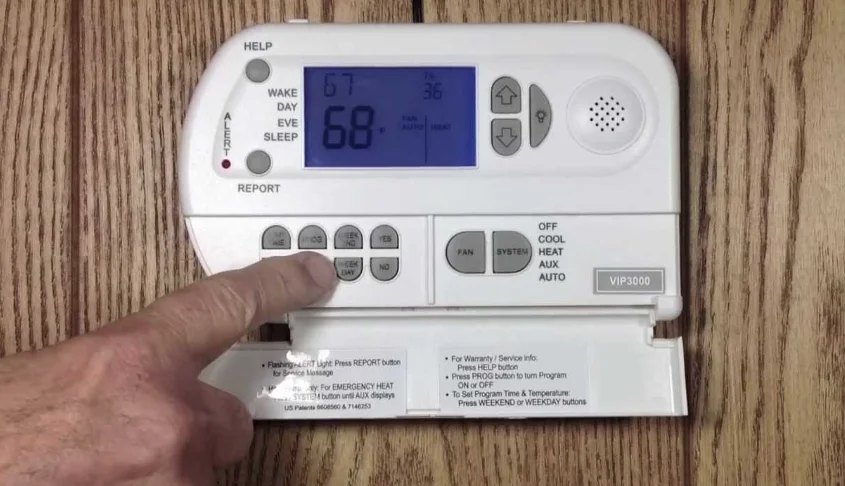

SmartWay Solutions VT3000 Talking Thermostat
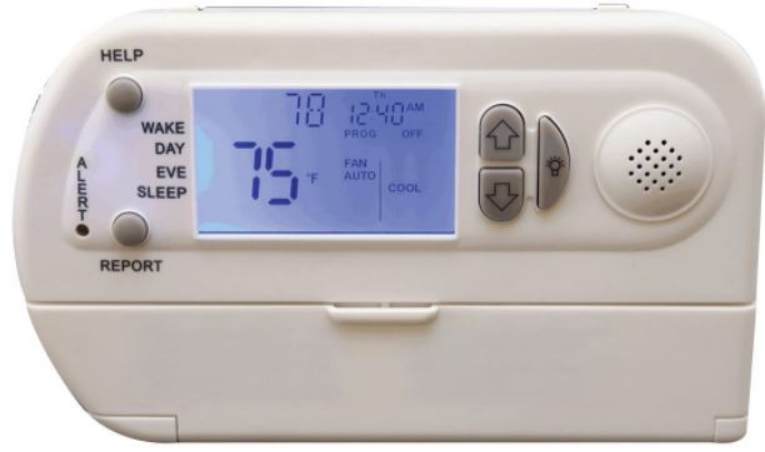
FEATURES
Heating & Cooling System Compatibility
Operates on 1 or 2 stage gas, oil, or electric heating systems; 1 or 2 stage cooling systems; or 1 or 2 stage heat pump systems with auxiliary gas (dual fuel), oil, or electric heating.
Audio Capability
Audio playback assists the user in setting Day / Time and Programmable Operation, and reporting Indoor Temperature, Temperature Settings, Alert Conditions, and the Service Company’s name & phone number.
Alert Messages
When an Alert Condition (Check Filter, Call For Service, Low Batteries, or UV Light) occurs, the red light on the case flashes, and the specific Alert Condition & PRESS REPORT BUTTON messages appear on the display screen. When the REPORT button is pressed, an audio message plays back the exact Alert Condition.
Programmable Operation
- 5 Day / 2 Day (Weekend / Weekday) Programmable Operation: automatically changes temperature to preprogrammed settings four times per day. Weekday and Weekend settings can be programmed differently from each other.
- Off-Wall Programmable Set Up: detachable front plate allows the user to set up the thermostat away from the wall-mounted sub base.
Optional Operation Settings
- Manual (Conventional) Operation: runs only at the manually set temperature.
- Programmable Lock Out: locks out (prevents) running in Programmable Operation.
- System Lock Out: locks in current settings to prevent unauthorized changes. Only the REPORT and HELP buttons function when in “System” lockout.
- Auto Change-Over Mode: automatically changes between heating and cooling as the indoor temperature requires.
- Indoor Air Quality Fan Run Time: fan runs each hour for a programmed number of minutes.
Miscellaneous
- Silent Instructions: option to turn off audio when setting up Day / Time and Programmable Operation.
- Temperature Setting Audio: option for audio playback with each degree change when the UP or DOWN keys are pressed.
- Battery Powered (4 “AA” Alkaline).
- Fahrenheit (F) or Celsius (C) Operation (range 40º F / 4º C to 90º F / 32º C).
- Freeze Protection: automatically turns on heat if indoor temperature falls below 40º F / 4º C.
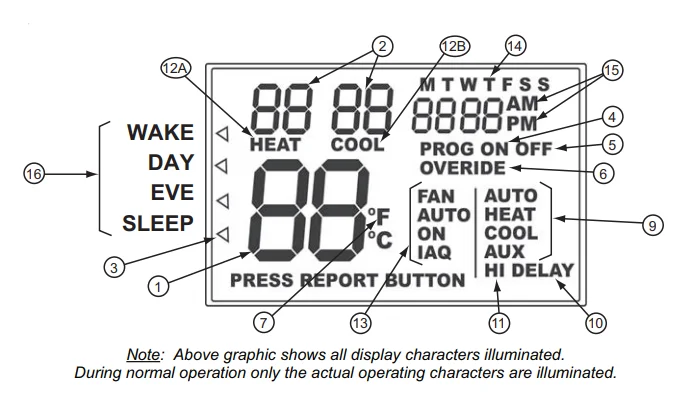
DISPLAY SCREEN
- Large two-digit: Indoor Temperature.
- Smaller two digits (above #1): Temperature Settings for HEAT and COOL.
- Arrows (⏵): point to the programmable operation time periods (WAKE, DAY, EVE, and SLEEP).
- PROG ON: in programmable operation.
- PROG OFF: in manual (conventional) operation.
- OVERRIDE: temporary override of programmable operation (stays at manual temperature setting until next programmed time period occurs).
- ºF or ºC: degrees Fahrenheit or Celsius temperature.
- PRESS REPORT BUTTON: Press this case button to hear the Indoor Temperature, Temperature Set Point, and specific Alert Condition.
- System Settings (all below appear right of the vertical line, in the right corner; except OFF appears at the Temperature Setting location). Press the SYSTEM button (located inside the panel door) for the following:
- OFF: System is turned off (“OFF” appears where Temperature Set Point normally appears).
- COOL: Set for Air Conditioning operation.
- HEAT: Set for Heating operation.
- AUTO: Set for Auto Change-Over operation.
- AUX: (only appears on Heat Pump Systems): Secondary or Emergency Heat running.
- HI DELAY: time delay before running the 2nd Stage of Heating or Cooling.
- HI: System running in 2nd Stage Heating / Cooling.
- HEAT or COOL appears below Temperature Set Point:
- HEAT: Heating is running.
- COOL: Air Conditioning is running.
- FAN (appears left of the vertical line with AUTO, ON, or IAQ).
- FAN AUTO: Fan runs only when heating or air conditioning is running.
- FAN ON: Fan runs all the time.
- FAN IAQ: Fan runs the programmed number of minutes every hour on the hour for 12 or 24 hours. Used for indoor air quality circulation.
- Day of Week: M, T, W, Th, F, Sa, Su (appears at top right of display).
- Time of Day: AM / PM (appears below Day of Week).
- Programmable operation time period (arrow points to active period).

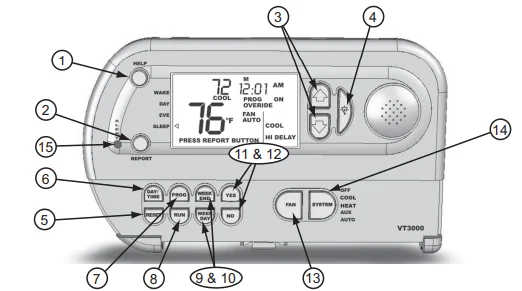
CASE BUTTONS / ALERT LIGHT
- HELP: press to hear Service Company’s name and phone number (also appears on display screen).
- REPORT: briefly press to hear Indoor Temperature, Temperature Setting, and (if present) any Alert Condition. Note: To hear a demonstration playback of all Alert audio messages, press and continue to hold down the REPORT button.
- ⏶(Up) and ⏷ (Down): change Temperature and other Settings.
 (Light): Briefly press to illuminate the display screen backlight. Note: buttons 5 through 14 (below) are located inside the panel door.
- RESET: Briefly press to escape Programmable Operation Set Up without making any changes.
- DAY/TIME: press to set up day and time.
- PROG: press to turn Programmable Operation On or Off (PROG ON or PROG OFF appears on display screen).
- RUN: press to accept any changes (operates like the “Enter” key on a computer).
- WEEKEND: press to set up Sat and Sun programmable operation settings.
- WEEKDAY: press to set up Mon through Fri programmable operation settings.
- YES: press to accept operation.
- NO: press to decline operation.
- FAN: press to run in AUTO, ON, or IAQ Fan modes.
- SYSTEM: press to run in HEAT, COOL, AUTO (Change Over) or AUX (all appear in the lower right corner, right of the vertical line). Note: AUX is secondary / emergency heat and appears only on Heat Pump systems.
- ALERT LIGHT: flashes if an alert condition exists (press REPORT button to hear alert explanation).

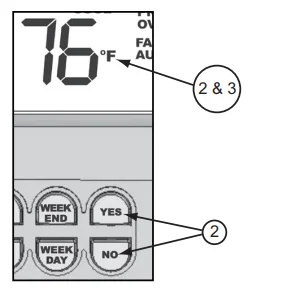
Changing to Fahrenheit (F) or Celsius (C)
- Pull down the panel door.
- Press the YES and NO buttons together until the temperature display changes from ºF to ºC.
- Repeat to change ºC back to ºF.

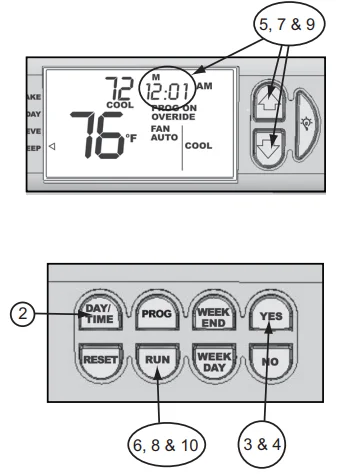
Setting Day / Time
- Pull down the panel door.
- Press the DAY/TIME button.
- Press the YES button when asked if you want to change the Day or Time settings.
- Press the YES button when asked if you want voice instructions (optional).
- Press the⏶(Up) and ⏷ (Down) keys to change minutes.
- Press RUN to accept.
- Press the ⏶(Up) and ⏷ (Down) keys to change hours. Be sure to correctly set AM or PM.
- Press RUN to accept.
- Press the⏶(Up) and ⏷ (Down) keys to change the day.
- Press RUN to accept.
- Audio will play “Program Complete”.

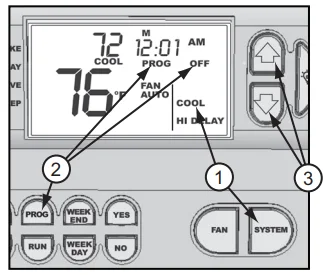
SYSTEM OPERATION
Manual Operation
- Press the SYSTEM button until HEAT or COOL is displayed.
- Press the PROG button. Operation is manual when “Program is Off” is heard and “PROG OFF” is displayed.
- Press the ⏶(Up) and ⏷ (Down) keys to adjust the temperature setting. Note: each press adjusts the temperature by one degree.

Manual Operation (using Auto Change-Over)
Note: to operate in Auto Change-Over, AC must be programmed (see “Quick Set-Up Guide Step 3”). If AUTO does not appear, AC was not programmed.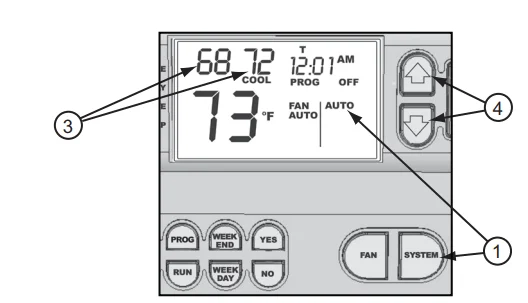
- Press the SYSTEM button until AUTO is displayed (lower right corner).
- Follow the same steps as “Manual Operation” (see previous section).
- HEAT and COOL Set Point Temperatures will appear on display (HEAT is left of COOL).
- Press the (Up) or (Down) key to adjust HEAT and COOL set point temperatures. They will move in tandem together, maintaining the “dead band” range (see Notes below).
Notes:
- When adjusting temperature settings in AUTO mode, HEAT and COOL cannot be set closer than the programmed “dead band” degrees (3°, 4º, 5º, 6º, 7°, 8° or 9° F).
- The HEAT set point temperature cannot be set higher than the COOL set point temperature.
Programmable Operation
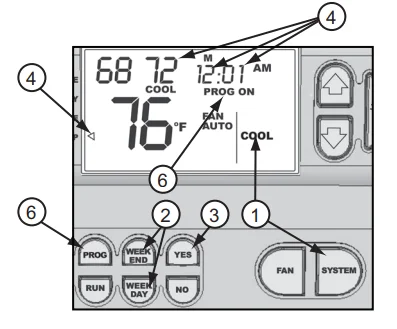
- Press the SYSTEM button until HEAT, COOL, or OFF is displayed.
- Press the WEEKDAY button to program M, T, W, Th, Fri. Press the WEEKEND button to program Sa, Su.
- Press the YES button when asked if you want voice instructions (optional).
- The arrow (⏴ ) will point to the WAKE time period to be programmed. Follow the voice instructions to set the WAKE time period. You’ll be asked to program in this order:

- MINUTES (flashing): press the ⏶(Up) and ⏷ (Down) keys until the desired minutes setting and then press RUN to accept.
- HOURS AM or PM (flashing): press the⏶(Up) and ⏷ (Down) keys until the desired hours setting, and then press RUN to accept. Be sure the correct AM or PM is selected.
- HEAT Set Point Temperature (icon flashing at top of screen): press the ⏶(Up) and ⏷ (Down) keys until the desired HEAT Set Point Temperature is reached, then press RUN to accept.
- COOL Set Point Temperature (icon flashing below two digits at top of screen): press the ⏶(Up) and ⏷ (Down) keys until the desired COOL Set Point Temperature is reached, then press RUN to accept.
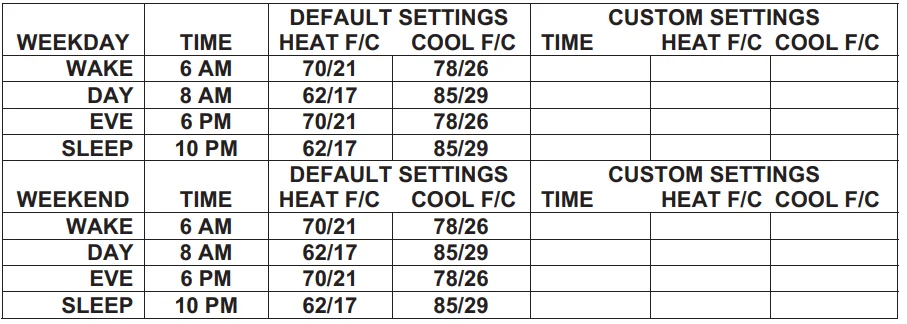
- Programmable Operation set up is completed when you hear “Program completed.” The following table shows the factory default settings. Write down any custom settings for future reference.

- Press the PROG button. When you hear “Program is ON” and see “PROG ON” on the screen, your thermostat will automatically change temperature settings four times each weekday (M–F) and each weekend (Sat & Sun).
Notes:
- To review or skip each time period, press the NO button at the beginning (when minutes are blinking) to quickly advance to the next time period.
- Programming setup can be discontinued at any time by briefly pressing the RESET button. This voids any changes entered, and your original program settings remain the same.
- Remember to program both WEEKDAY and WEEKEND.
Programmable Operation (using Auto Change-Over)
Note: to operate in Auto Change-Over, AC must be programmed (see page 19, “Quick Set-Up Guide” Step 3). If AUTO does not appear, AC was not programmed.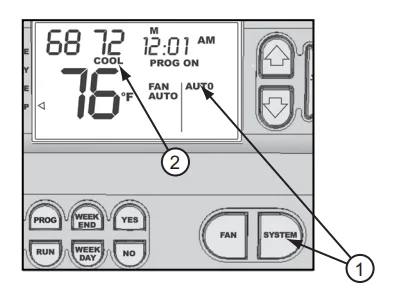
- Press the SYSTEM button until AUTO is displayed (lower right corner).
- HEAT and COOL Set Point Temperatures will appear on display (HEAT is left of COOL).
- Follow the same steps as “Programmable Operation” (see previous section).
Notes:
- When adjusting temperature settings in AUTO mode, HEAT and COOL cannot be set closer than the programmed “dead band” degrees (3°, 4º, 5º, 6º, 7°, 8° or 9° F).
- The HEAT set point temperature cannot be set higher than the COOL set point temperature.
Temporary Program Override
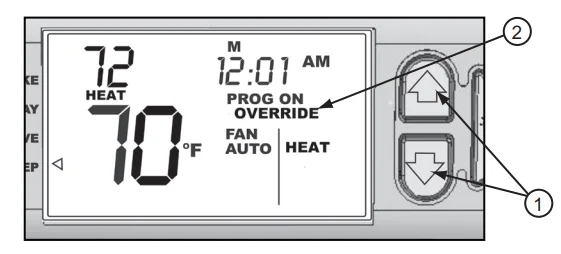
- Press the ⏶(Up) and ⏷ (Down) button to temporarily override the programmed temperature setting.
- “OVERRIDE” will be displayed, and the system will run at the override temperature setting until the next time period. The operation will then revert to the programmed temperature setting. Note: the override temperature can be cancelled at any time by pressing the RUN button.
- If set to AUTO (Auto Change-Over mode), the HEAT and COOL temperature settings will move together one degree with each press of the ⏶(Up) and ⏷ (Down) button.

Activating Emergency Heat (Heat Pump Systems Only)
Should something go wrong with your Heat Pump, such as a broken fan blade, you can shut it down and operate on only Auxiliary (Emergency) Heat until service is available.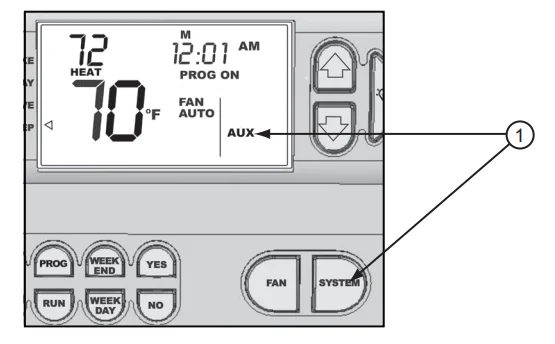
- Press the SYSTEM button until only the AUX icon appears to turn on Emergency Heat. This shuts down the heat pump, and only the Auxiliary Heat (Gas or Electric furnace) runs.
- To turn off Emergency Heat, press the SYSTEM button until the AUTO or HEAT icon is displayed.
Note:
- When AUX appears with the HEAT icon, the operation is normal.
- When AUX appears without the HEAT icon, operation is Emergency Heat.
Fan Operation
The FAN can operate in three modes (AUTO, ON, and IAQ) as follows. To set each, pull down the panel door, then:
AUTO
- Press the FAN button until AUTO is displayed.
- Fan runs only when the heating or cooling is operating (ON will also appear on the display while running).

ON
- Press the FAN button until ON is displayed.
- Fan runs continuously.
IAQ (Fan Run Time)
Note: To run FAN IAQ, FH must be programmed (see “Quick Set-Up Guide” Step 3). If IAQ does not appear, FH was not programmed.
- Press the FAN button until IAQ and FAN are displayed.
- Fan runs for the programmed number of minutes each hour (on the hour).
Note: Fan also runs when heating or cooling is operating (ON will also appear on display while running).
Alert Messages
When an Alert Condition occurs:
- The red light on the case flashes.
- The specific Alert Condition icon (CHK FILT, CALL FOR SERV, LO BAT, or UV LGHT) alternates with the Set Point Temperature.
- PRESS REPORT BUTTON messages appear on the display screen.
- When the REPORT button is pressed, an audio message will advise you of the specific Alert Condition.
- If Low Battery Alert, a low battery audio message also plays when the ⏶(Up) and ⏷ (Down) buttons are pressed.
Cool Delay / Heat Delay Icons Flashing (Compressor Short Cycle Protection)
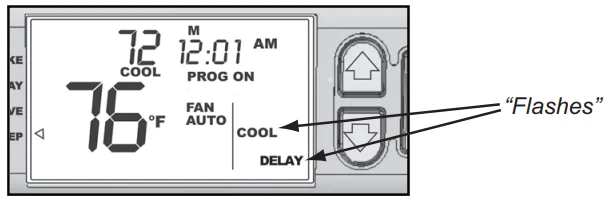
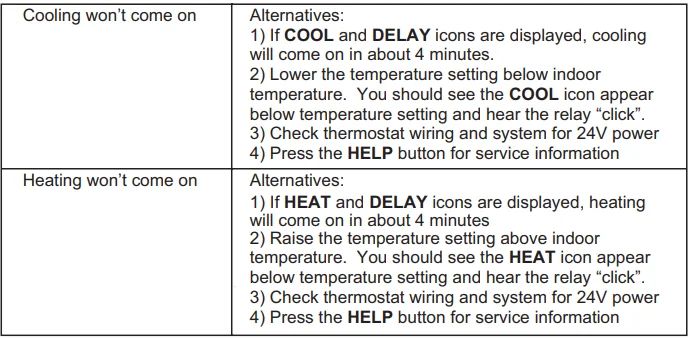
- COOL & DELAY flashes when cooling is turned off and back on in less than 5 minutes. Cooling is delayed to prevent compressor damage.
- HEAT & DELAY (Heat Pump Systems Only) flashes when heating is turned off and back on in less than 5 minutes. Heating is delayed to prevent compressor damage.

2nd Stage Heating or Cooling Delay
The VT3000 operates in the 1st Stage for a delay time before advancing to the 2nd Stage. During this delay time, the HI and DELAY icons will flash if the indoor temperature requires increased heating or cooling from the 2nd Stage.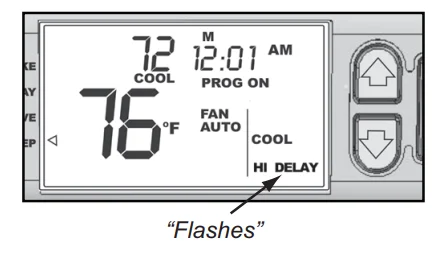
Activate Audio when Changing Set Point Temperature
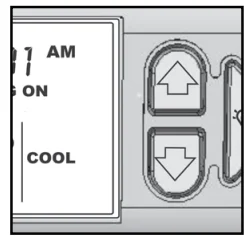
When activated, audio will play each degree change while adjusting the Set Point Temperature with the UP or DOWN keys.
- To turn on audio, press and hold the (Up)⏶ button for 8 seconds (until audio plays “One”).
- To turn off audio, press and hold the (Down)⏷ button for 8 seconds (until audio plays “Off”).

Audio Volume Control
To adjust audio volume, remove the front plate from wall mounted sub base (see Low Batteries section for removal instructions). In the upper left-hand corner of the circuit board is a small Phillips head screw (inset in a blue plastic box). To increase volume, turn the screw counterclockwise. To decrease volume, turn the screw clockwise.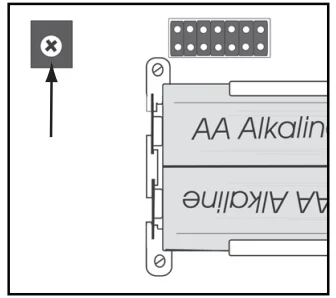
Reset Key (Escape Program Mode)
Press the RESET button if you wish to quit while making changes to Program Operation Settings (WAKE, DAY, EVE, and SLEEP). You will exit the programming setup without making any changes to your original settings. Pressing RESET also allows a quick exit from Operations Set-Up and Review.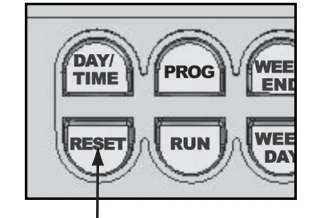
Troubleshooting Information
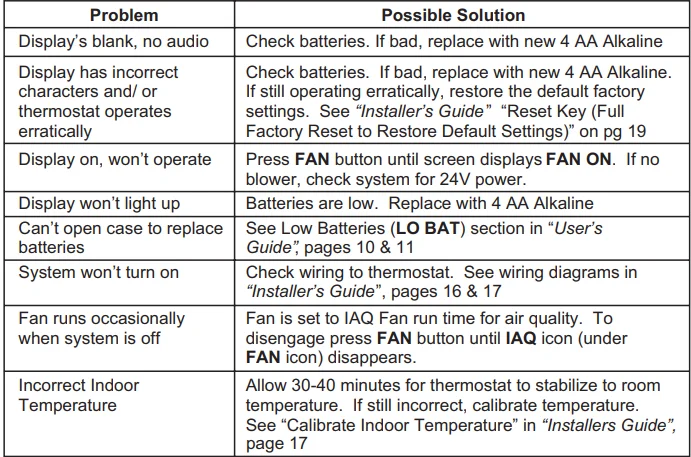
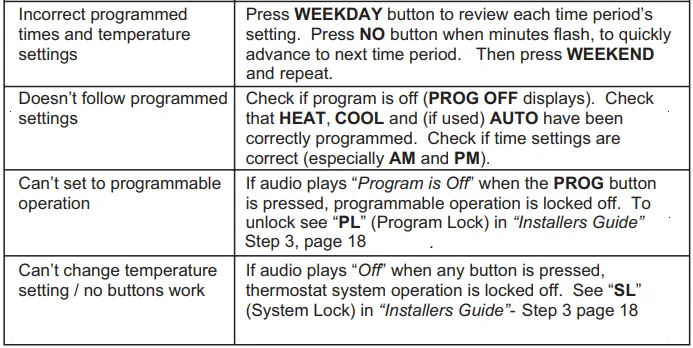
Technical / Service Assistance
For assistance, press the HELP button to hear how to contact your service company. Their phone number will also appear on the display screen.
Manufacturers Warranty
One-Year Limited Warranty
Smartway Solutions, Inc. warrants the original buyer of each new Smartway Solutions thermostat to be free from defects in material and workmanship under normal use for a period of one year from the date of purchase. This warranty and our liability do not apply to batteries or damage caused by incorrect use or installation that is not in accordance with Smartway Solutions’ instructions. Smartway Solutions, Inc. agrees to repair or replace at its option any thermostat covered by this warranty, provided it is returned within one year of purchase with a copy of the purchase receipt.
Smartway Solutions, Inc. is not responsible for the removal and reinstallation of the thermostat. Repair or replacement is the sole remedy of the buyer. Smartway Solutions, Inc. is not liable for any incidental or consequential damages for breach of any liability. Merchantability or fitness for a particular purpose is limited to the duration of this warranty.
Some states do not allow the exclusion or limitation of incidental or consequential damages, or allow limitations on how long an implied warranty lasts, so the above limitations or exclusions may not apply to you. This warranty gives you specific legal rights, and you may also have other rights which vary from state to state.
Smartway Solutions, Inc.
1309 Dealers Avenue
New Orleans, LA 70123
www.smartwaysolutions.com
Reset Key (“Full Factory Reset” to Restore Default Settings)
Static discharge can occasionally cause faulty thermostat operation or lock-up. To correct: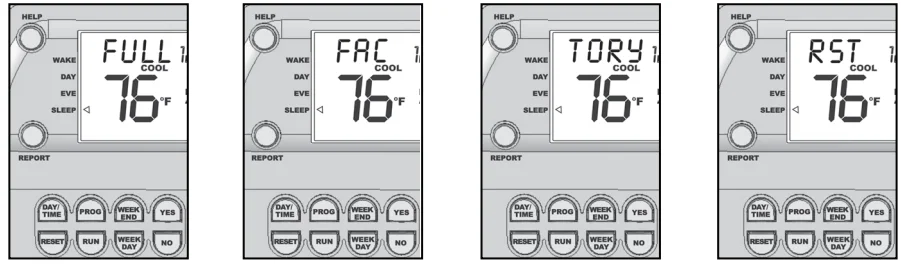
- Press the NO and RESET buttons together until the red LED on the case lights up and the word FULL appears at the Temperature Set Point location.
- Release the buttons
- The display screen completely disappears and then reappears (briefly displaying all characters).
- The screen then reverts to a normal display, except the Indoor Temperature will flash for 2 minutes.
- Optional: Press the UP or DOWN key (while flashing) to calibrate Indoor Temperature (maximum adjustment is + or – 4º F / 2º C)
- Press the RUN button to accept the Indoor Temperature.
Note: After performing a Full Factory Reset, all custom Programmable Operation settings revert to default settings and have to be reprogrammed. DIP Switch settings do remain as before.
Operating Software Version Number
Press the  (Light) button for 7 seconds for audio playback of the software version.
Technical Support
Press the “HELP” button to hear how to contact your service company and see their phone number on the display screen. Service company technicians can contact Smartway Solutions, Inc. if advanced technical support is required.
For More Manuals By SmartWay, Visit ManualsLibraryy
SmartWay Solutions VT3000 Talking Thermostat-FAQS
What is the SmartWay Solutions VT3000 Talking Thermostat?
The VT3000 is an accessible thermostat that provides voice announcements for temperature, mode, and settings, making it especially helpful for visually impaired users.
How do I adjust the temperature on the VT3000 thermostat?
Use the up or down arrow buttons to raise or lower the temperature. The thermostat will speak the new setting aloud.
How do I switch between heating, cooling, and off modes?
Press the mode or system button until you hear or see the desired option: Heat, Cool, or Off.
How do I set the thermostat to cooling mode?
Select Cool mode, then use the arrow buttons to choose your preferred temperature. The system will start cooling automatically.
How do I use the thermostat manually?
Set the mode (Heat or Cool) and adjust the temperature using the arrows. The VT3000 will maintain that temperature until you change it.
What temperature is recommended for winter heating?
A setting around 68–72°F (20–22°C) is generally comfortable and energy-efficient for most homes.
How do I set a temperature schedule?
Choose a day, set the start time and desired temperature, then repeat for other periods. Some models allow copying the schedule to other days.
How do I set or change the time and date?
Open the menu or settings option, navigate to Time and Date, adjust using the arrow buttons, and confirm your selection.
Do I need to reset the thermostat after changing batteries?
In most cases, yes. Resetting ensures the thermostat works correctly after battery replacement.