
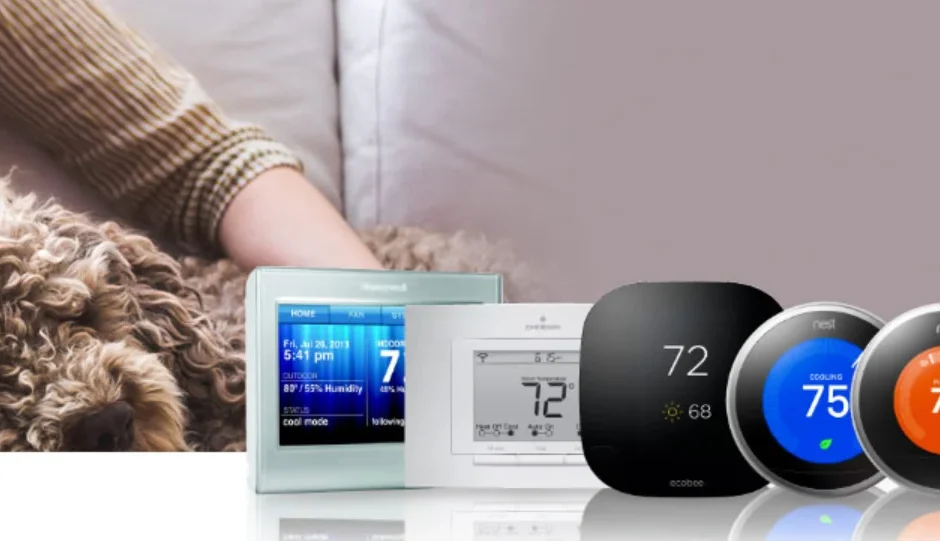

Source1 S1-TBSU305-S Digital Thermostat
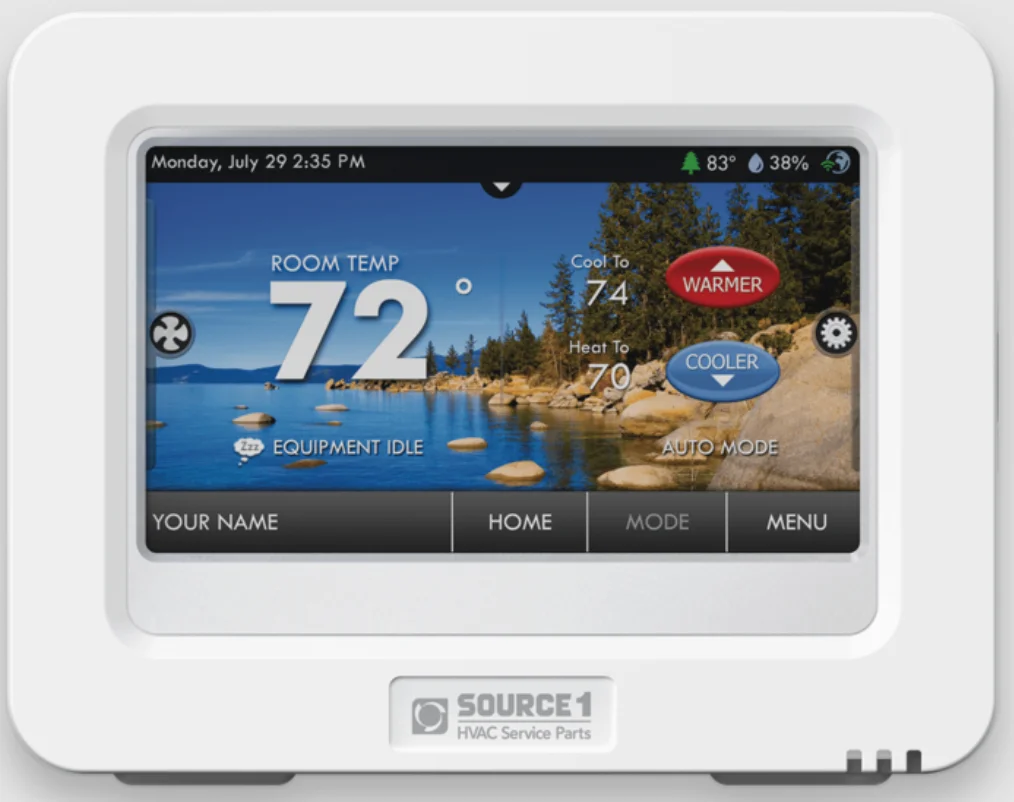
Get To Know Your Thermostat
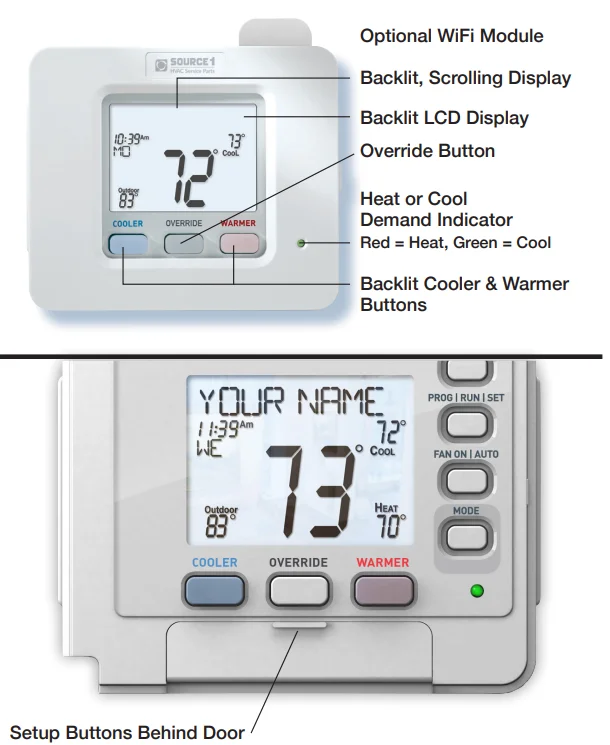
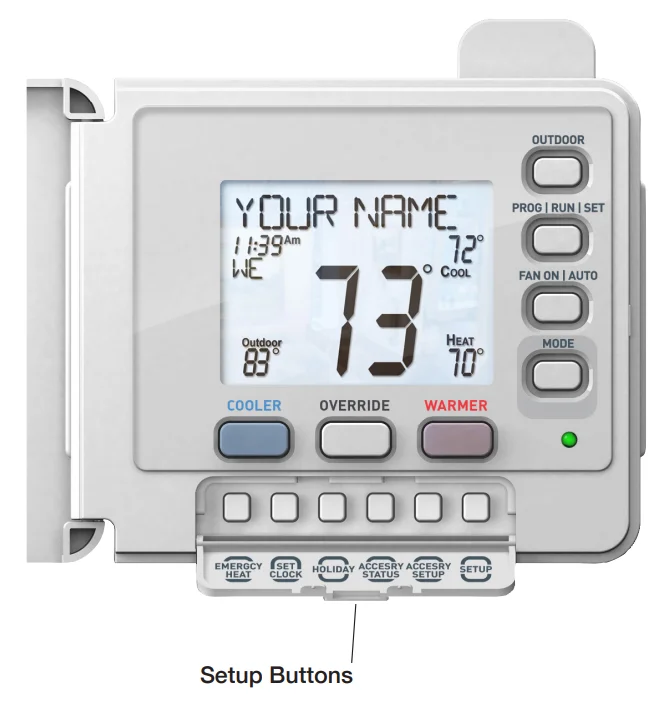
Display Features
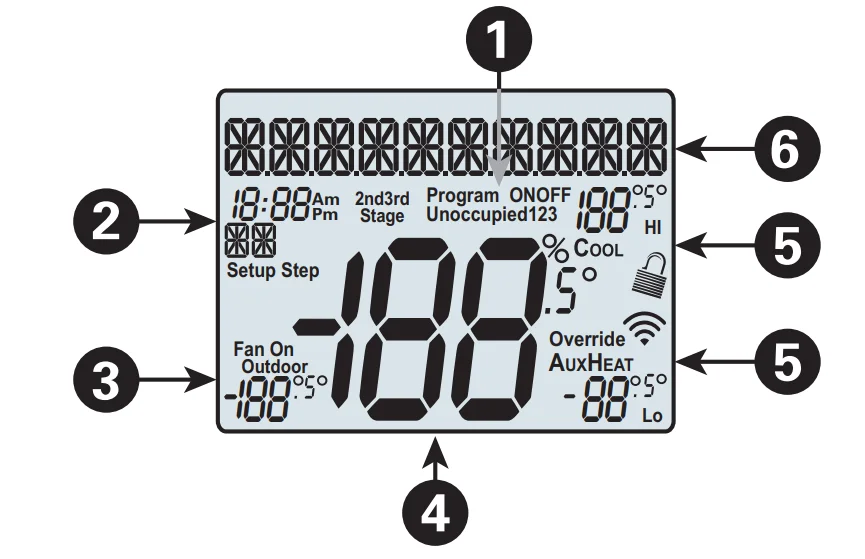
- Program icon—Indicates that Time Period Programming is running or is enabled to be set.
- Clock with Day of the Week—Indicates the current time and day. This clock is also used to program the time period schedules.
- Outdoor icon—Indicates the temperature displayed is from the optional outdoor sensor.
- Room Temperature Display—Indicates the current room temperature and displays the outdoor temperature when selected.
- Mode Indicators
Selects the operational mode of the equipment.- HEAT – Indicates the heating mode.
- COOL – Indicates the air conditioning mode.
- HEAT & COOL – Indicates the system will automatically change over between heat and cool modes as the temperature varies.
- OFF – Indicates heating and cooling are turned off.
- The scrolling display will be used to help you easily navigate the setup screens in the thermostat.

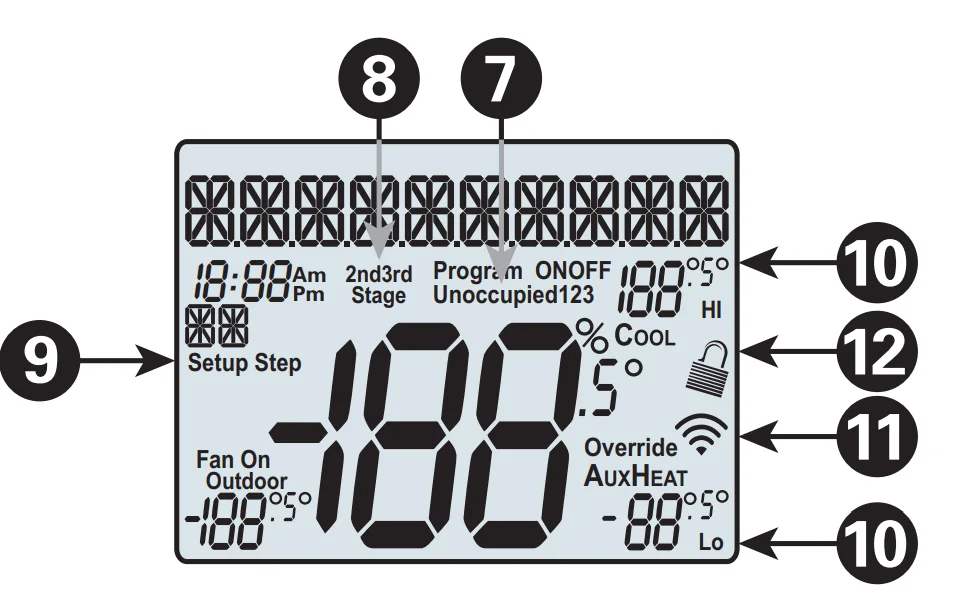
- Occupied & Unoccupied icons—Indicates the program number:
- Occupied 1, 2, 3 or Unoccupied
- 2nd and 3rd Stage icons—Indicates what stage of cooling or heating is currently energised.
- Setup Step icon—Indicates the step number when the thermostat is in the setup mode.
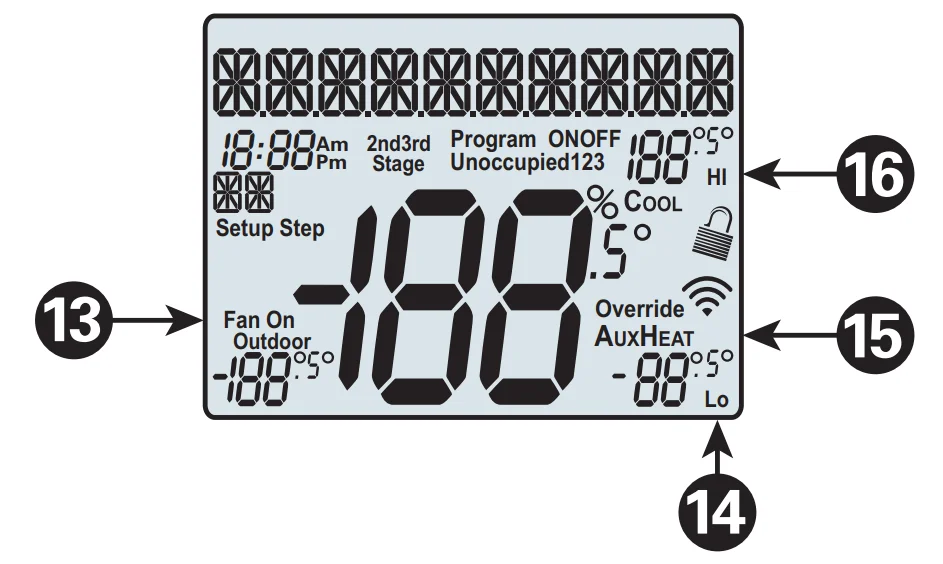
- Desired Set Temperature—Indicates desired room temperature(s). Also displays the highest and lowest temperatures for the day.
- Wi-Fi icons—One dot indicates the thermostat recognises the wireless module. The full icon indicates the thermostat is currently connected to the Local access point via the optional Wi-Fi Module.
- LOCK icon—Indicates the keypad has been locked.

- Fan On icon— Indicates constant, continuous fan operation. When Fan On is not lit – indicates the fan will only operate when necessary to heat or to cool.
- Lo icon—Indicates the lowest recorded outdoor temperature for the day.*
- AuxHeat icon—Indicates 2nd stage electric strip heat is being used when the thermostat is programmed for Heat Pump operation. Only the Aux icon will appear during Cool to Dehumidify to indicate Reheat operation.
- Hi icon—Indicates the highest recorded outdoor temperature for the day.*
* Hi and Lo Temperatures for the day, reset at midnight.
Quick Start
During Setup and Programming:
- Press the WARMER or COOLER buttons to modify the selection.
- Press the MODE button to advance and confirm through the setup steps.
Setting the Clock and Day
Not available when the Wi-Fi module is present
Press the SET CLOCK button. Adjust the clock using the WARMER or COOLER buttons. Press MODE to advance to the day setting. Adjust the day using the WARMER or COOLER buttons. Press the SET CLOCK button to confirm settings.
NOTE: To adjust the time by hours, press and hold the FAN button while pressing the WARMER or COOLER buttons.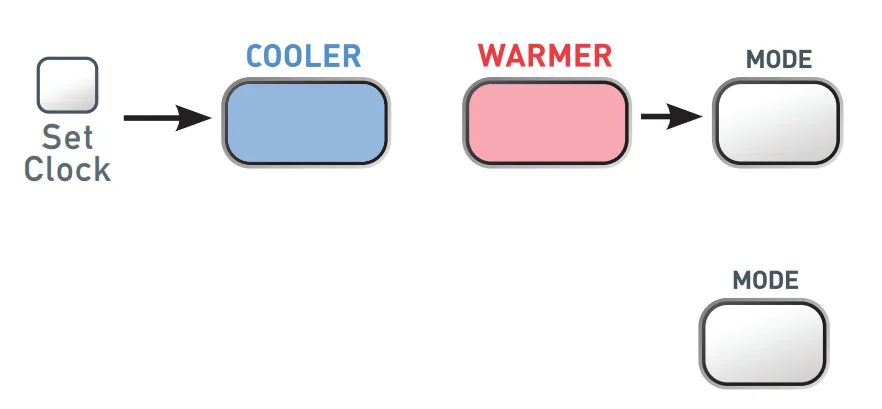
Selecting the Heat or Cool Mode
Select mode by pressing the MODE button.
- Heating Only — Only the heating operation will be controlled by the thermostat in this mode.
- Cooling Only — Only the cooling operation will be controlled by the thermostat in this mode.
- Heating or Cooling (Auto-Changeover) — AUTO will automatically select heat or cool based on room temperature demand.
- OFF — OFF indicates both heating and air conditioning systems are turned off.
Selecting your desired temperature
- AUTO-CHANGEOVER MODE— Pressing the WARMER or COOLER buttons in Auto mode will adjust both the heat and cool setpoints simultaneously. To adjust heat and cool setpoints individually, choose HEAT mode to adjust the heat setpoint and COOL mode to adjust the cool setpoint, then return to AUTO mode.
- HEAT OR COOL MODE — Pressing the WARMER or COOLER buttons in Heat or Cool mode will adjust only the heat or cool setpoints individually displayed.
Using the Fan Button
- FAN ON indicates constant fan operation. FAN ON is not allowed when the thermostat is in the OFF mode. Pressing the FAN button toggles this feature. If you don’t see FAN ON, the fan is in auto mode and will only turn on during a heat or cool demand. The fan is forced into auto mode when running the program and the thermostat shows unoccupied.
Using the Override Button
- Unoccupied Operation— During programmed, unoccupied periods, pressing the OVERRIDE button will force the thermostat into the Occupied 1 setting for 30 minutes. Each press of the OVERRIDE button will add another 30 minutes of time for up to 4 hours. If the maximum time has been set, the next press of the OVERRIDE button will reset the timer and return the thermostat to the correct time period program for the day
- Occupied Operation — During programmed, occupied periods, pressing the OVERRIDE button will force the thermostat into an unoccupied period for the rest of the day. During this forced unoccupied period, the OVERRIDE button will operate as described above. Current Override Hours (setup step 11). This counter keeps track of the number of hours that the thermostat is overridden into Occupied Settings. Press FAN to reset.
Viewing the Temperature Sensors
- OUTDOOR TEMP – Press the OUTDOOR button to view the current outdoor temperature. The high and low temperatures for the day will also be displayed. The high and low temperatures reset at 12:00 am. If connected to a Skyport account, pressing the outdoor button will show the temperatures for your location if you don’t have a wired sensor connected.
Note: If no outdoor sensor is connected, and there isn’t an outdoor temperature via Wi-Fi, then 2 dashes [- -] will appear with the first button press.
Installation Instructions
Remove and Replace the Old Thermostat
To install the thermostat properly, please follow these step-by-step instructions. If you are unsure about any of these steps, call a qualified technician for assistance.
- Assemble tools: Flat-blade screwdriver, wire cutters, and wire strippers.
- Make sure your Heater/Air Conditioner is working properly before beginning installation of the thermostat.
- Carefully unpack the thermostat. Save the screws, any brackets, and instructions.
- Turn off the power to the Heating/Air Conditioning system at the main fuse panel. Most residential systems have a separate breaker for disconnecting power to the furnace.
- Remove the cover of the old thermostat. If it does not come off easily, check for screws.
- Loosen the screws holding the thermostat base or subbase to the wall and lift away.
- Use a smartphone or mobile device to take a photo of the wiring for future reference.
- Disconnect the wires from the old thermostat. Tape the ends of the wires as you disconnect them, and mark them with the letter of the terminal for easy reconnection to the new thermostat.
- Keep the old thermostat for reference purposes until your new thermostat is functioning properly.
Wire Connections
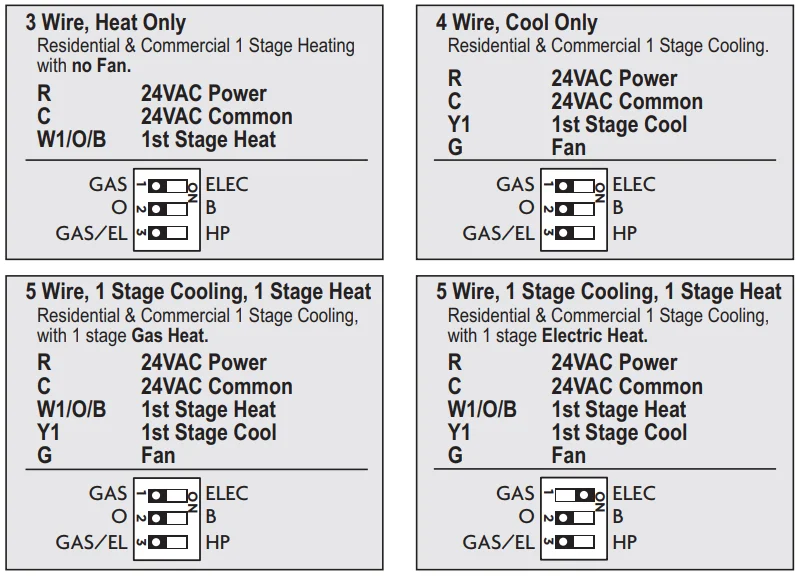
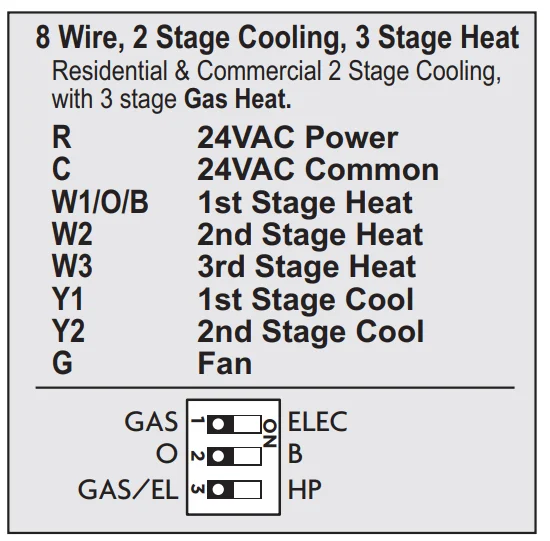
If the terminal designations on your old thermostat do not match those on the new thermostat, refer to the chart below or the wiring diagrams that follow.
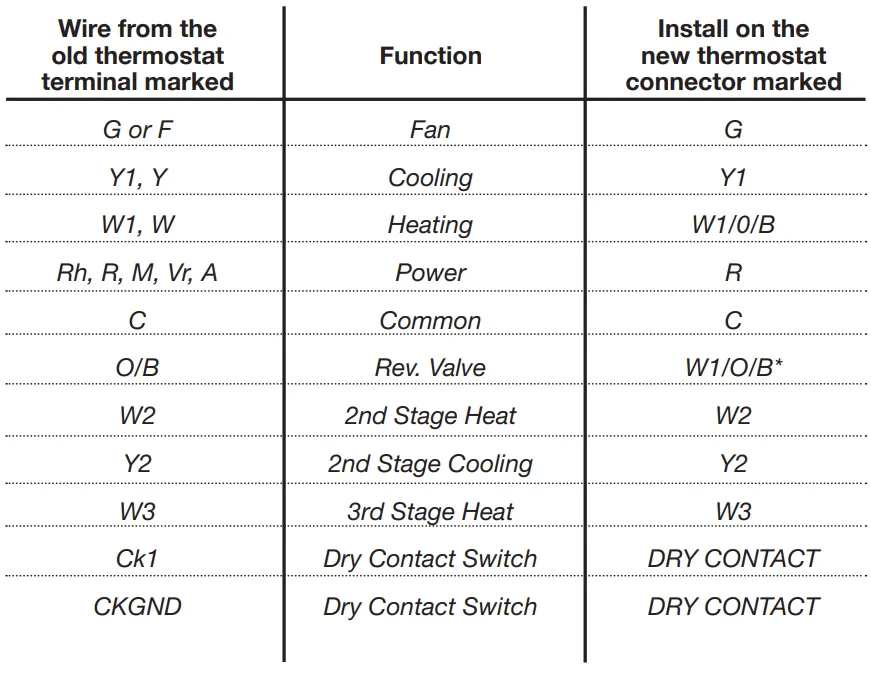
* O/B is used if your system is a Heat Pump.
The Thermostat Backplate
To remove the thermostat backplate: Gently separate the display from the base by pulling first from one side, then the other until the two pieces unsnap.
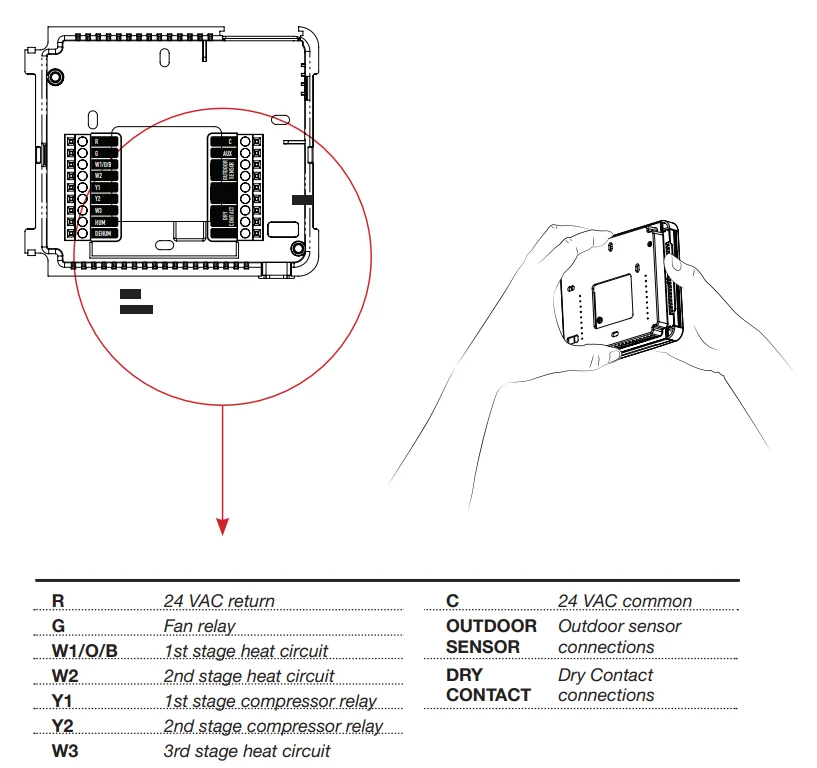
IMPORTANT: This thermostat requires both R (24 VAC Return) and C (24 VAC Common) be connected to the backplate terminals.
Check Dip Switches
Ensure which switch is correct for your system. Dip switches are located on the back of the thermostat.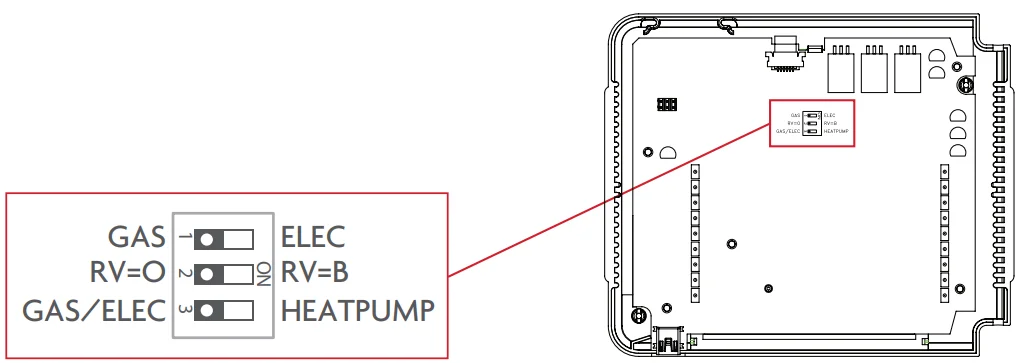
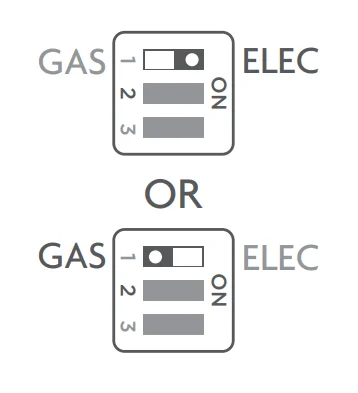
- When GAS/EL or HP is set for GAS/EL: This switch (GAS or ELEC) controls how the thermostat will control the Fan (G) terminal in heating mode. When GAS is chosen, the thermostat will not energize the Fan (G) terminal in heating. When ELEC is chosen, the thermostat will energize the fan in heating.
- When GAS/EL or HP is set for HP: This switch (GAS or ELEC) defines the Aux Heat type. When GAS is chosen, the auxiliary heat will not be allowed to run during heat pump operation. When ELEC is chosen, up to two stages of auxiliary strip heat will be allowed to run.
For Heat Pump Only
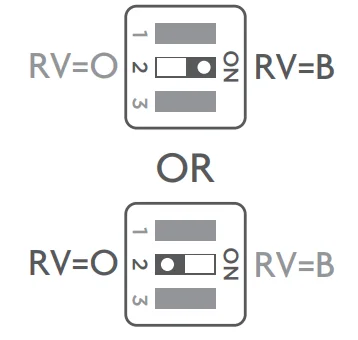
When the GAS/EL or HP dip switch is configured for HP, this dip switch (O or B) must be set to control the appropriate reversing valve. If O is chosen, the W1/O/B terminal will energize in cooling. If B is chosen, the W1/O/B terminal will energize in heating.
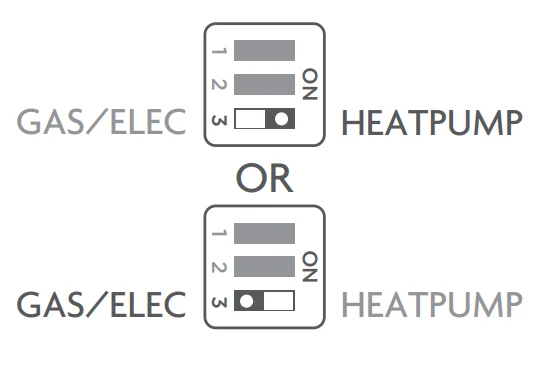
This dip switch configures the thermostat to control a conventional gas/electric system or a heat pump. If your system is anything other than a heat pump, leave this switch set for GAS/EL.
Sample Wiring Diagrams
Conventional Heating and Cooling Systems
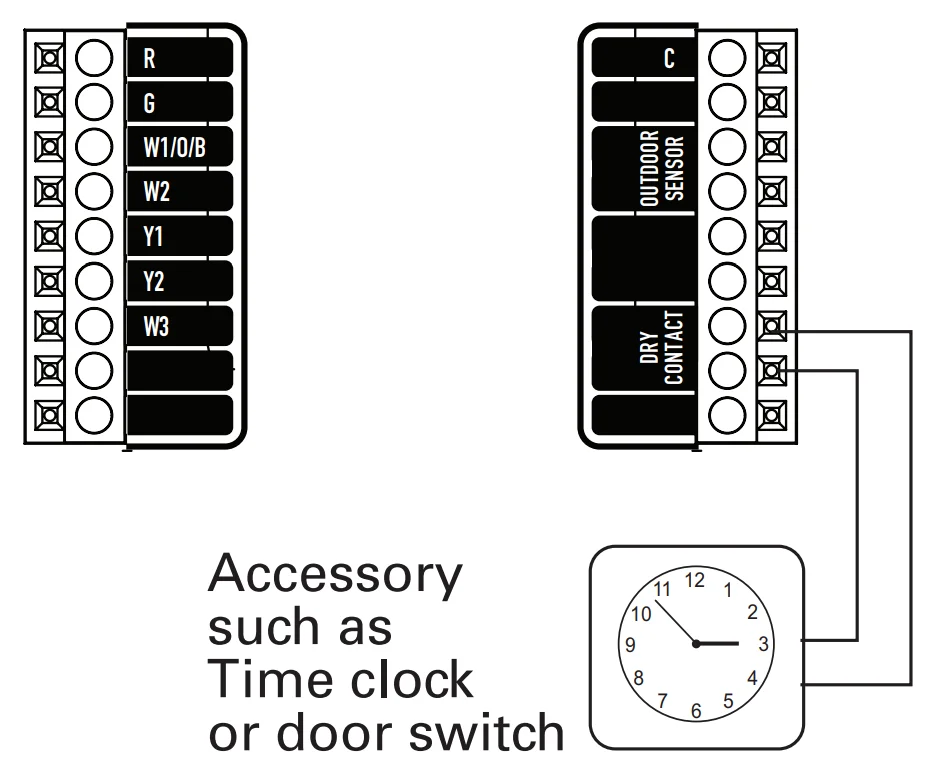
Dry Contact
Installation Instructions: Test Operation
The Source 1 thermostat has a diagnostic feature that enables testing of all outputs. This feature is contained in Technician Setup.
To enter Technician Setup, press and hold the SETUP button for 10 seconds until all the icons appear. Follow the next steps to view settings and test equipment.
- Press MODE to view the version numbers of the thermostat.
- Press MODE again to view the jumper settings and current state of the Dry Contact terminal.
- Press MODE again, and the scrolling display will read “TURN ON EQUIPMENT?” Press WARMER for Yes or COOLER for No. If Yes is chosen, press WARMER to turn on heat or COOLER to turn on the cooling. The scrolling display will read “NOTHING ON.” Next:
- Press WARMER to turn on and cycle up through the heating stages.
- Press COOLER to turn the heating stages off. Press MODE to exit.
- Press COOLER to turn on and cycle down through the cooling stages.
- Press WARMER to turn the cooling stages off. Press MODE to exit.
- Press MODE until “CALIBRATE SENSORS?” appears on the scrolling display.
- Press WARMER for Yes or COOLER for No. Press MODE to select which sensor to calibrate. Use WARMER or COOLER to modify your selection.
To exit Technician Setup at any time, press the SETUP button. Technician Setup will automatically exit after 10 minutes if no buttons are pressed.
User Setup – Backlight Operation
How to Change Settings in the Setup Screens
To enter Advanced Setup, press the SETUP button, then press MODE. Use the WARMER or COOLER buttons to adjust the value of your selection. Press MODE to advance to the next setup step. Press SETUP again to leave the setup screens.

Backlight (setup steps 3-8)
Backlight (setup step 3)
- Off – Backlight turns on with any button press and turns off after 8 seconds.
- On – Backlight is on continuously.
Backlight Level (setup step 4)
The backlight can be adjusted between Off and seven levels of brightness.
- Night Dimmer (setup step 5) – Selecting On allows for automatic dimming of the display at night.
- Night Dimmer Brightness (setup step 6) The nighttime backlight can be adjusted between OFF and seven levels of brightness.
- Night Dimmer Start Time (setup step 7) – 12:00 am to 12:00 am
- Night Dimmer Stop Time (setup step 8) – 12:00 am to 12:00 am
Language (setup step 16)
Setup step instructions on the scrolling display can be set for English, Spanish, or French.
Press the SETUP button, then press MODE repeatedly until the Language setup step appears. Use the WARMER or COOLER buttons to make a selection. Press MODE to advance to the next step. Press SETUP to leave the setup screens.
User Setup: Scrolling Screen and Display Options
Scrolling Display Method (setup step 17) (Setup Step 17)
This option allows the user to choose how the scrolling text is displayed. Options are:
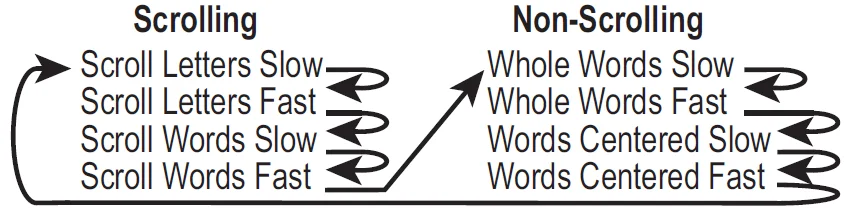
Press the SETUP button, then press MODE repeatedly until the Scrolling Method setup step appears. Use the WARMER or COOLER buttons to make selection. Press MODE to advance to the next step. Press SETUP to leave the setup screens.

Example of “Whole Words Centred”:
Holiday
The Holiday feature allows the thermostat to use temporary, energy-saving settings without having to change regular programming. Holiday setup/programming at the local thermostat is limited to the number of days employing Holiday settings. When the optional Wi-Fi module is detected in the thermostat, local Holiday programming at the thermostat of the Holiday setup is not allowed. In this case, Holiday setup and programming is accomplished with the Skyport Web App. Skyport gives the user extensive control over Holiday settings. Press the HOLIDAY button to enter Holiday programming (no Wi-Fi Module detected).
If there is not a Holiday period active:
- Use the WARMER and COOLER buttons to choose the number of days desired to run the Holiday feature. To confirm your setting, press the HOLIDAY button again. When the thermostat is programmed for Holiday operation, and the thermostat is in the Program On mode (running an Occupied/Unoccupied time period schedule), Holiday settings will take effect at 12:00 AM of the next day. The thermostat will use the unoccupied mode and setpoints (see page 25) during the holidays.
If the Holiday button is pressed during an active Holiday period:
- The active Holiday period may be cancelled by pressing the Mode button.
Emergency Heat
The Emergency Heat function is only available if your thermostat is set to control a Heat Pump. To initiate the Emergency Heat feature, press the EMERGENCY HEAT button. During Emergency Heat operation, the thermostat will turn on the fan and auxiliary stages of heat when there is a demand for heat. The 1st stage of heating and all stages of cooling will be unavailable. To exit Emergency Heat, press the EMERGENCY HEAT button.
User Setup
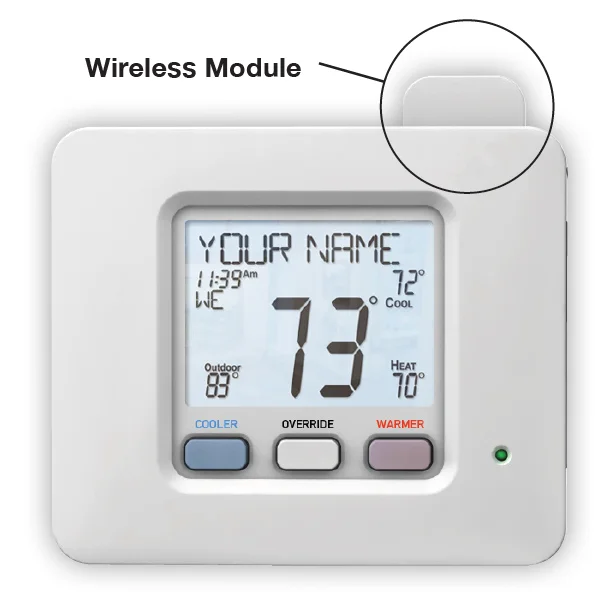
Wireless Module
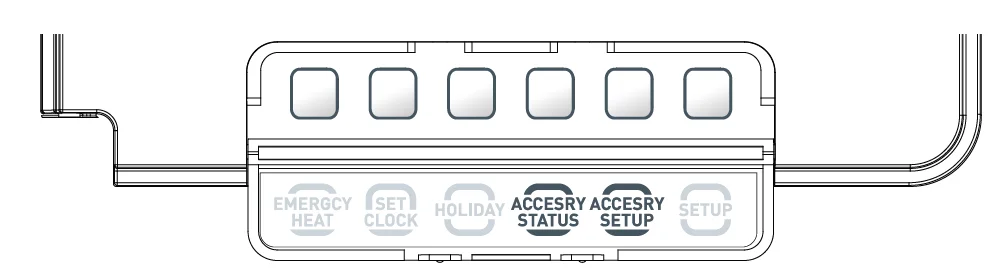
The ACCESSORY STATUS button allows the user to view the status of wired and wireless accessories. For many of the wireless devices, this status includes:
- Battery Level, Signal Strength, and Last Time Updated.
If there is an optional wireless module installed, the ACCESSORY SETUP button allows the user to link or connect wireless devices to the thermostat or the thermostat to the network.
User Setup – System Runtimes
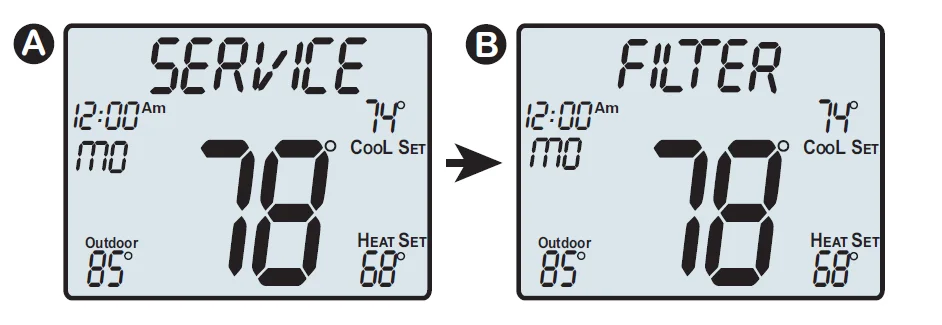
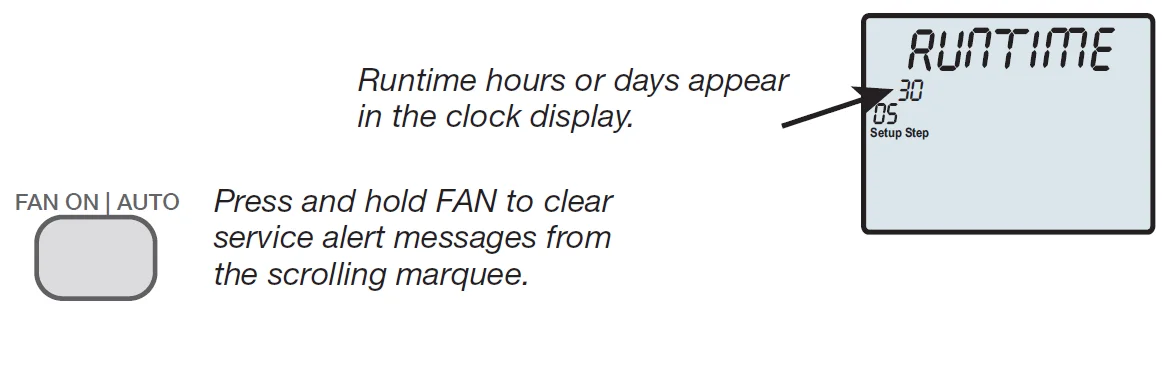
These setup steps allow the user to monitor equipment runtimes and program service alerts. Service alerts are displayed in the scrolling marquee.
Service Filter Runtime (setup steps 9-10, 13-14)
- Current Service Filter Runtime Hours (Setup Step 9) – This counter keeps track of the number of hours of fan runtime in the Heating mode, Cooling mode, and in stand-alone Fan operation. Press FAN to reset.
- Current Service Filter Calendar Days (Setup Step 10) – This counter displays the total number of calendar days that have elapsed since the counter was reset to help the user track Fan runtime. Press FAN to reset.
- Set Service Filter Runtime Hours (Setup Step 13) – This timer allows the user to specify the number of hours the fan will run before the “Replace Filter” alert will be displayed. Press COOLER continuously until 0 is displayed to disable this alert.
- Set Service Filter Calendar Days (Setup Step 14) – This timer allows the user to specify the number of calendar days that will elapse before the “Replace Filter” alert will be displayed. Press COOLER continuously until 0 is displayed to disable this feature.
Press the SETUP button, then press MODE repeatedly until the desired setup step appears. Use the WARMER or COOLER buttons to make a selection. Press MODE to advance to the next step. Press SETUP to leave the setup screens.
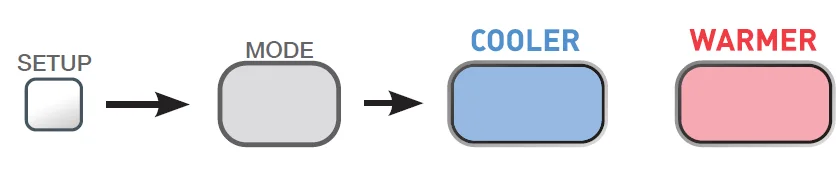
To view, set, or reset System Runtimes, press the SETUP button, then press MODE. Press MODE to advance to the desired setup step. Use the WARMER or COOLER buttons to adjust the value of your selection. Press SETUP again to leave the setup screens.
UV Lamp Runtime (setup steps 12, 15)
- Current UV Lamp Calendar Days (setup step 12) – This counter displays the total number of calendar days that have elapsed since last reset to help the user track UV lamp runtime. Press FAN to reset.
- Set UV Lamp Calendar Days (setup step 15) – This timer allows the user to specify the number of calendar days the UV Lamp will operate before the “Replace UV Lamp” alert will be displayed. Press COOLER continuously until 0 appears to disable this alert.
Troubleshooting
- SYMPTOM: The air conditioning does not attempt to turn on.
CAUSE: The compressor timer lockout may prevent the air conditioner from turning on for a period of time.
REMEDY: Consult the Owner’s Manual in the Installer Setup section to defeat the Cycles Per Hour (page 26). - SYMPTOM: The display is blank.
CAUSE: Lack of proper power.
REMEDY: Make sure the power is on to the furnace and that you have 24vac between R & C. - SYMPTOM: The air conditioning does not attempt to turn on.
CAUSE: The cooling setpoint is set too high.
REMEDY: Lower the cooling setpoint or lower the cooling set-point limit. See Setpoint Limits (page 26). - SYMPTOM: The heating does not attempt to turn on.
CAUSE: The heating setpoint is set too low.
REMEDY: Raise the heating setpoint or raise the heating set-point limit. See Setpoint Limits (page 26). - SYMPTOM: When controlling a residential heat pump and asking for cooling, the heat comes on.
CAUSE: The thermostat reversing valve jumper is set for “B”.
REMEDY: Set the reversing valve jumper for “O”. - SYMPTOM: When calling for cooling, both the heat and cool come on.
CAUSE: The thermostat equipment jumper is configured for “HP” and the HVAC unit is a Gas/Electric.
REMEDY: Set the equipment jumper for “Gas”. - SYMPTOM: When the Program button is pressed, the display reads “DISABLED”.
CAUSE: Program mode is set to “NON PROGRAM”.
REMEDY: Set Program Mode (Setup 1) to 1, 5/1/1, or 7 days. See Selecting Your Program Mode (page 24).
Warranty
One-Year Warranty – This Product is warranted to be free from defects in material and workmanship. If it appears within one year from the date of original installation, whether or not actual use begins on that date, that the product does not meet this warranty, a new or remanufactured part, at the manufacturer’s sole option to replace any defective part, will be provided without charge for the part itself provided the defective part is returned to the distributor through a qualified servicing dealer.
THIS WARRANTY DOES NOT INCLUDE LABOR OR OTHER COSTS incurred for diagnosing, repairing, removing, installing, shipping, servicing or handling of either defective parts or replacement parts. Such costs may be covered by a separate warranty provided by the installer. THIS WARRANTY APPLIES ONLY TO PRODUCTS IN THEIR ORIGINAL INSTALLATION LOCATION AND BECOMES VOID UPON REINSTALLATION.
LIMITATIONS OF WARRANTIES – ALL IMPLIED WARRANTIES (INCLUDING IMPLIED WARRANTIES OF FITNESS FOR A PARTICULAR PURPOSE AND MERCHANTABILITY) ARE HEREBY LIMITED IN DURATION TO THE PERIOD FOR WHICH THE LIMITED WARRANTY IS GIVEN. SOME STATES DO NOT ALLOW LIMITATIONS ON HOW LONG AN IMPLIED WARRANTY LASTS, SO THE ABOVE MAY NOT APPLY TO YOU. THE EXPRESSED WARRANTIES MADE IN THIS WARRANTY ARE EXCLUSIVE AND MAY NOT BE ALTERED, ENLARGED, OR CHANGED BY ANY DISTRIBUTOR, DEALER, OR OTHER PERSON WHATSOEVER. ALL WORK UNDER THE TERMS OF THIS WARRANTY SHALL BE PERFORMED DURING NORMAL WORKING HOURS. ALL REPLACEMENT PARTS, WHETHER NEW OR REMANUFACTURED, ARE ASSUMED AS THEIR WARRANTY PERIOD IS ONLY THE REMAINING TIME PERIOD OF THIS WARRANTY. THE MANUFACTURER WILL NOT BE RESPONSIBLE FOR:
- Normal maintenance as outlined in the installation and servicing instructions or owner’s manual, including filter cleaning and/or replacement and lubrication.
- Damage or repairs required as a consequence of faulty installation, misapplication, abuse, improper servicing, unauthorised alteration or improper operation.
- Failure to start due to voltage conditions, blown fuses, open circuit breakers or other damages due to the inadequacy or interruption of electrical service.
- Damage as a result of floods, winds, fires, lightning, accidents, corrosive environments or other conditions beyond the control of the Manufacturer.
- Parts not supplied or designated by the Manufacturer, or damages resulting from their use.
- Manufacturer products are installed outside the continental U.S.A., Alaska, Hawaii, and Canada.
- Electricity or fuel costs or increases in electricity or fuel costs for any reason whatsoever, including additional or unusual use of supplemental electric heat.
- ANY SPECIAL INDIRECT OR CONSEQUENTIAL PROPERTY OR COMMERCIAL DAMAGE OF ANY NATURE WHATSOEVER. Some states do not allow the exclusion of incidental or consequential damages, so the above may not apply to you.
This warranty gives you specific legal rights, and you may also have other rights which may vary from state to state.
Technical Specifications
S1-TBSU305-S Thermostat Controllers
For more manuals by Source1 Thermostats, visit ManualsLibraryy
Source1 S1-TBSU305-S Digital Thermostat-FAQs
How do I use the Source1 S1-TBSU305-S digital thermostat?
Use the Cooler and Warmer buttons to adjust your desired temperature. Select the system mode (Heat, Cool, or Off) using the mode switch. The display will show the set temperature, and the system will activate automatically when needed.
How do I change the temperature from Fahrenheit to Celsius?
Turn the thermostat to Off, then press and hold the Cooler and Warmer buttons together until the display switches to °C. Repeat the same steps to switch back to °F.
What is a digital thermostat in HVAC systems?
A digital thermostat provides precise temperature control and displays settings on a digital screen. It helps maintain consistent indoor comfort and may include programmable or energy-saving features.
What temperature should I set for my home?
Most homes stay comfortable between 18–22°C (64–72°F). In winter, 20°C is common for living areas, while slightly cooler settings may be suitable for sleeping.
How do I reset the thermostat?
Turn the thermostat off, wait a few minutes, and then turn it back on. If batteries are used, remove and reinstall them to perform a basic reset.
Does this digital thermostat require Wi-Fi?
No, the Source1 S1-TBSU305-S operates without Wi-Fi. It controls your HVAC system directly through wired connections.
Will the HVAC system run without a thermostat?
No, the thermostat is required to signal the heating or cooling system to turn on and off.
Does a digital thermostat need batteries?
Some models use batteries for display backup, while others are powered directly through system wiring. Check your unit to confirm.