
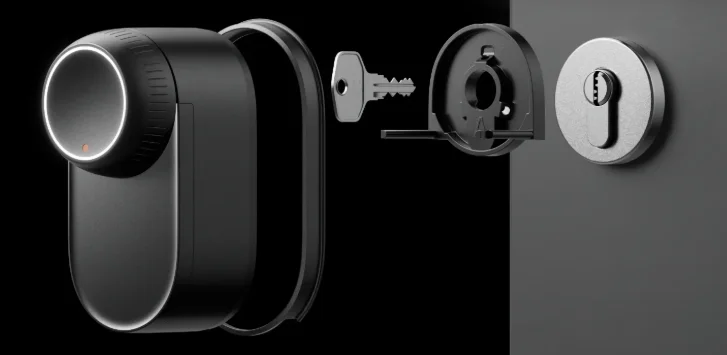

SwitchBot Lock Ultra
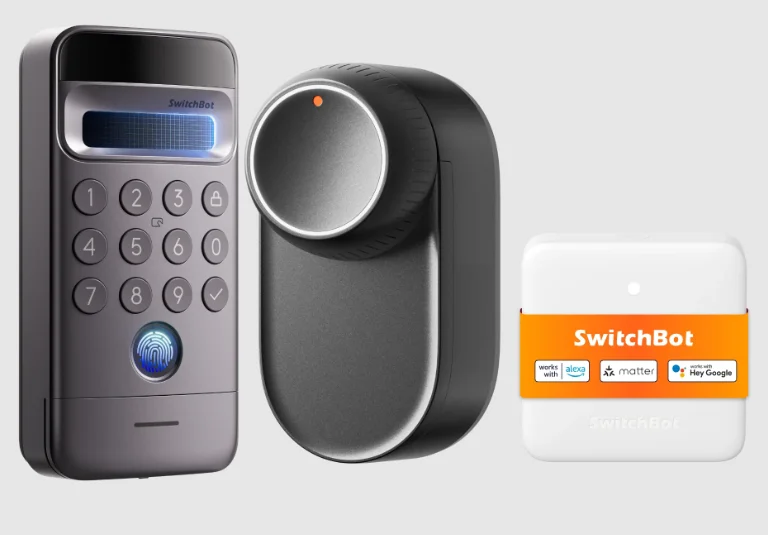
Package Contents
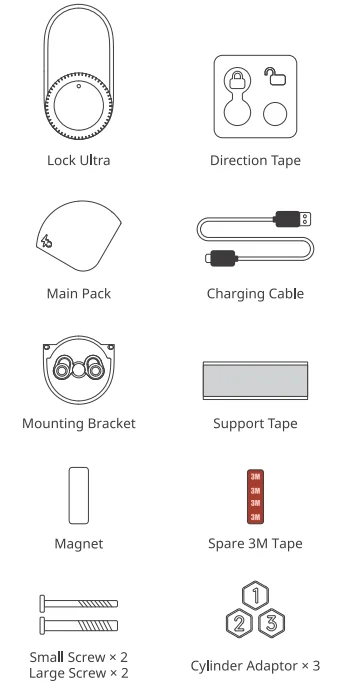
List of Components
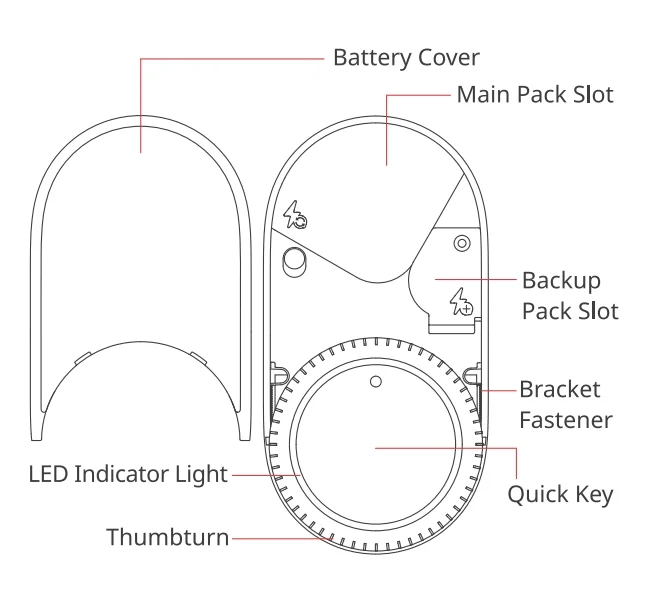
Preparation
You will need:
- A smartphone or tablet using Bluetooth 4.2 or later.
- The latest version of our app is downloadable via the Apple App Store or Google Play Store.
- A Switch Bot account, you can register via our app or sign in to your account directly if you already have one.
iOS and Android system requirements: https://support.switch-bot.com/hc/en-us/articles/12567397397271
Safety Information
- Keep this product away from heat and humidity, and make sure it does not come into contact with fire or water.
- Do not touch or operate this product with wet hands.
- This product is a precision-based electronic product; please avoid physical damage.
- Do not attempt to disassemble, repair, or modify this product.
- Do not use this product where wireless devices are not allowed.
Installation
Video Guide (Recommended)
Scan the QR code to get the installation video for all types of locks.
Pictorial Guide
Note: This pictorial guide is for deadbolt locks only.
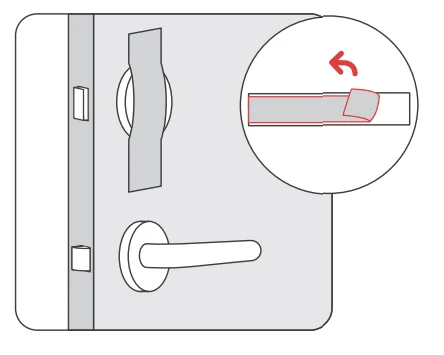
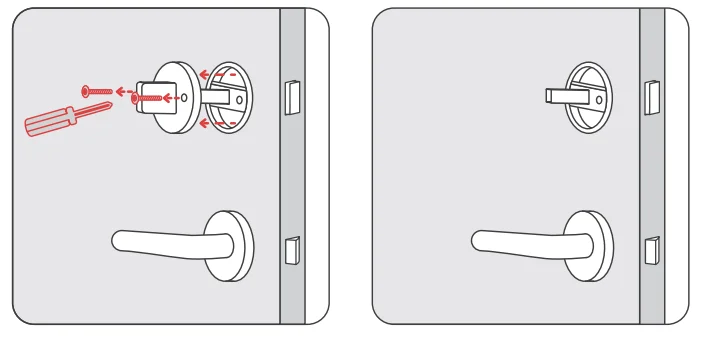
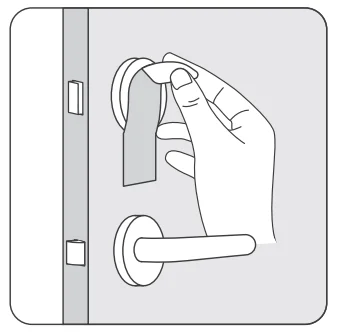
- Step 1: Secure the exterior part of your lock cylinder with the provided support tape.

- Step 2: Remove the interior part of your lock cylinder.

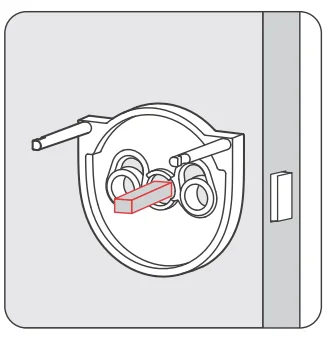
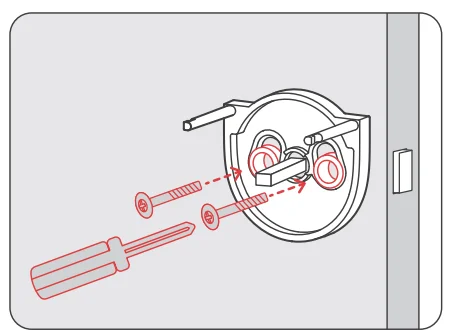
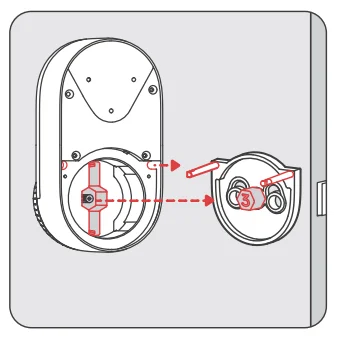
- Step 3: Install the mounting bracket.
- Align the mounting bracket with the cylinder.

- Find suitable long screws in the package to secure the mounting bracket.
Note: Make sure the metal rod at the end of your lock cylinder stands out from the middle hole of the mounting bracket.
- Align the mounting bracket with the cylinder.
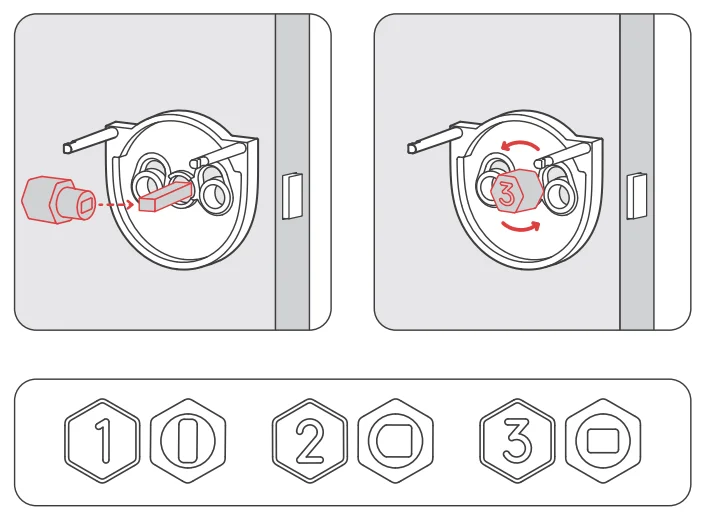
- Step 4: Select a compatible cylinder adaptor and install it.
Note: Rotate to make sure the cylinder adaptor can turn the cylinder properly.
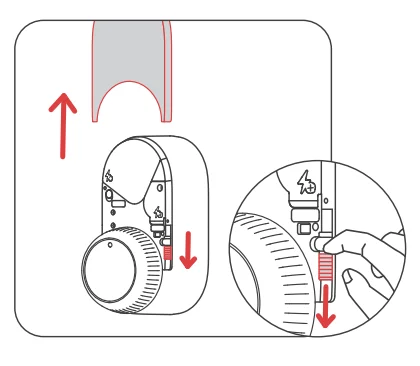
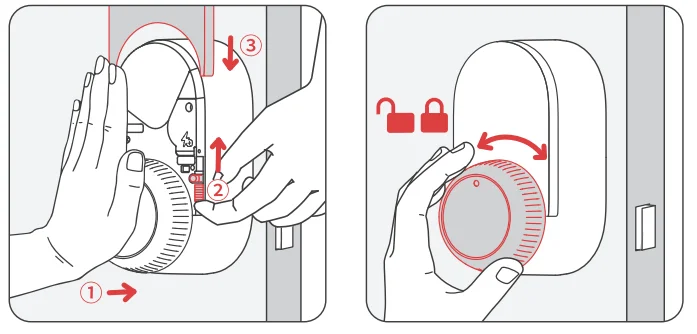
- Step 5: Install Lock Ultra onto your door.
- Flip the two bracket fasteners downwards.

- Align your Lock Ultra with the bracket.

- Press and hold for enhanced adhesion. Then flip the fasteners upwards.

Note: Rotate the thumbturn to make sure your Lock Ultra can turn the cylinder properly.
- Flip the two bracket fasteners downwards.
- Step 6: Remove the support tape.

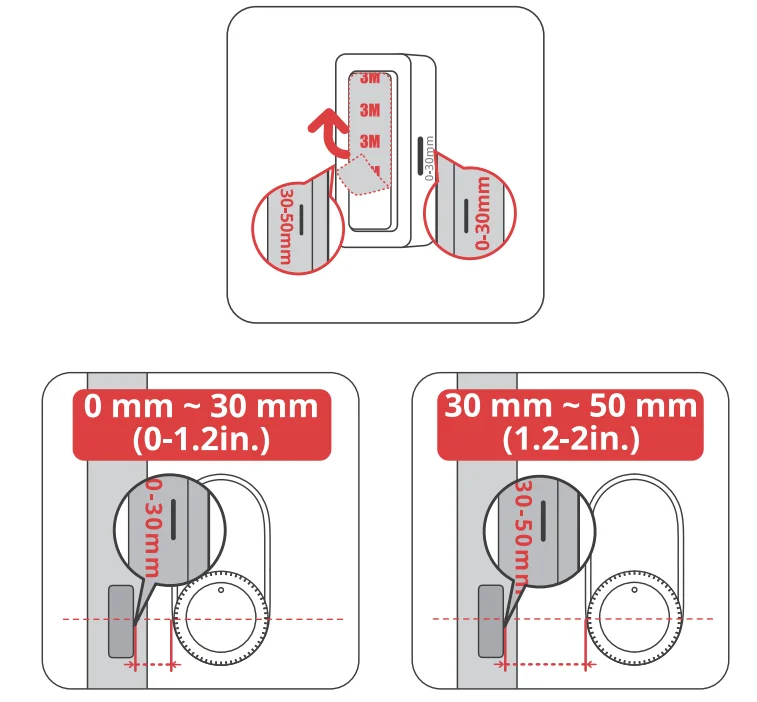
- Step 7: Install the magnet.
Note:- If the magnet is positioned 0-30 mm (0-1.2 in.)from your Lock Ultra, install it with the 0-30 mm side facing the lock.
- If the distance is30-50 mm (1.2-2 in.), install the magnet with the 30-50 mm side facing the lock.

- Step 8: Add your Lock Ultra to our app and calibrate it as instructed.
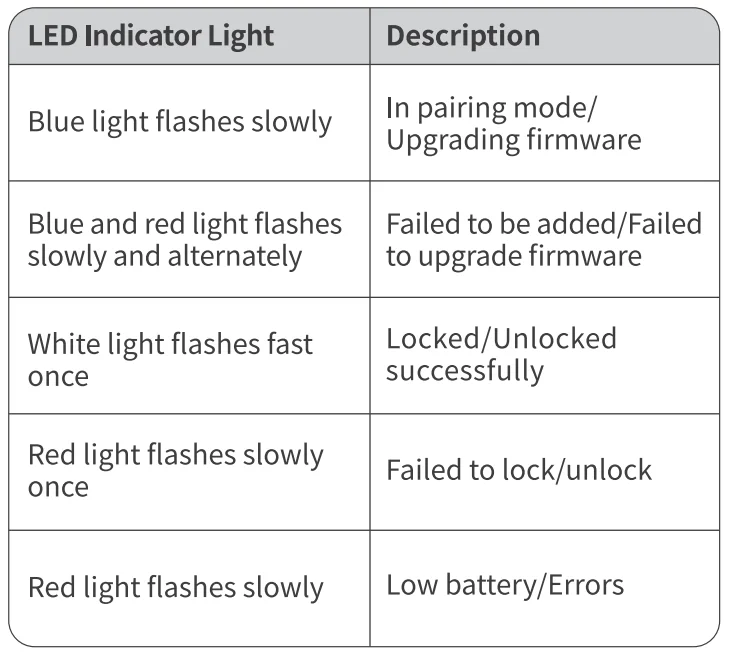
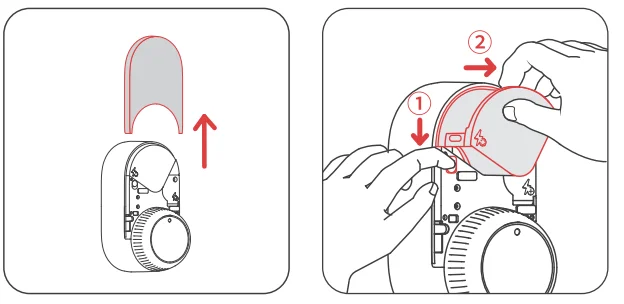
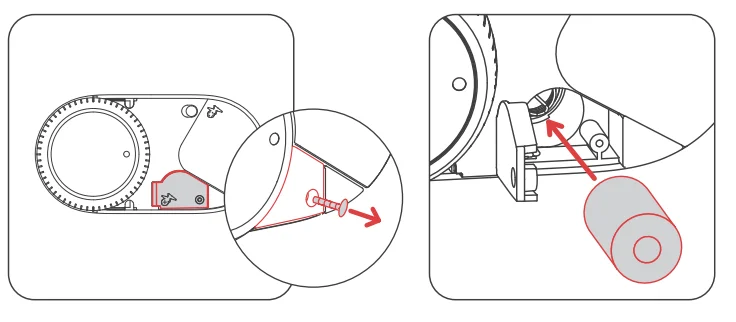
- Install the Main Pack. Once your Lock Ultra is powered on, the LED indicator light on the front will slowly flash blue, indicating your device is in pairing mode.
- Remove the insulation tab on the Backup Pack.
- Open our app and tap the”+” icon located in the right-hand corner of the home page and select Add Device. Find the relevant device icon and select. Then follow the instructions to add Lock Ultra and complete the calibration procedure.
Precautions
- Once the battery is depleted, the product will fail to lock/unlock your door. Regularly check the app or the product’s indicator light for low battery alerts and charge it promptly. Please also bring a key when leaving home to avoid being locked out.
- This product is for indoor use only.
- Regular maintenance, including firmware updates, is recommended to ensure functionality and security. Failure to update the firmware may result in performance issues.
- If you notice any product malfunction, please stop using it immediately and contact our customer support team.
LED Indicator Light
Battery Usage
Main Pack Low Level
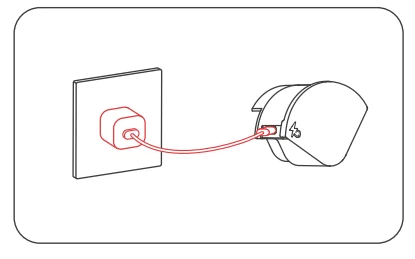
When the battery level drops below 20%, the device will emit both audio and visual alarms each time the door lock is operated. Please recharge the battery as soon as possible.
Emergency Power Mode
When the Main Pack’s level is below 10%, your Lock Ultra switches to emergency power. Functions (except locking/unlocking) are disabled, with audio and visual alarms after each operation. Please recharge the Main Pack promptly.
Backup Pack Low Level
Emergency Power Mode is not supported when your Backup Pack’s level is below 10%. Please replace it to ensure normal operation when the Main Pack’s level is low or in other emergencies.
Restoring Factory Settings
If you are not using Lock Ultra, open our app, navigate to Lock Ultra > Settings, and delete your device. Once deleted, all data related to your Lock Ultra will be deleted and your device will be reset to factory settings. Please operate with caution.
Find Out More
Please visit https://support.switch-bot.com/hc/en-us/articles/28857399753367 or scan the QR code for more details.
Troubleshooting
For more information regarding troubleshooting your device, please visit http://support.switch-bot.com/hc/en-us/sections/4408365197079, or scan the QR code below for more details.
Specifications
- Material: Magnesium aluminum alloy, PC +ABS
- Size: 122 x 62.6 x 66.8 mm (4.8 x 2.5 x 2.6 in.)
- Weight: 367 g (14 oz.)
- Power Supply: 1 rechargeable lithium-ion battery, 1 CR123A battery (backup power)
- Rated Capacity: 4200 mAh/15.54 Wh
- Operating Temperature: -1 O °C to 45 °C (14 °F to 113 °F)
- Operating Humidity: 10% to 90% RH
- Connectivity: Bluetooth 4.2 or later
Disclaimers
- This product is a precision device. We are not responsible for any damage or malfunction caused by improper handling, such as dropping or vibration during carrying or installation.
- Keep a physical backup key in an accessible location to avoid being locked outside in case of battery failure, connectivity issues, or other product inoperability.
- This device is designed for indoor or sheltered outdoor use only. Avoid exposure to extreme weather conditions, such as heavy rain, humidity, or direct sunlight.
- We are not responsible for any damage to the door surface or peeling of paint when removing the product.
- Weare not responsible for any issues arising from unauthorized repairs, adjustments, or modifications, or from using fake products for installation, repair, or modification.
- This product is designed for lock control purposes and is not a theft-prevention device. We cannot be held responsible for any accidents or damages that may occur following installation.
- Weare not responsible for any damages caused by natural disasters such as earthquakes, lightning, wind and water damage, fires that are not caused by the product, third-party actions, intentional or negligent misuse by the customer, or other abnormal usage conditions.
- We are not responsible for any incidental damages arising from the use or inability to use this product (such as changes or loss of recorded content, loss of business profits, business interruption, theft of property, or being locked out due to locking).
- We are not responsible for any damages resulting from not following the contents of this manual.
Warranty
We warrant to the original owner of the product that the product will be free from defects in materials and workmanship. Please note that this limited warranty does not cover:
- Products submitted beyond the original limited warranty period.
- Products on which repairs or modifications have been attempted.
- Products subjected to falls, extreme temperatures, water, or other operating conditions outside the product specifications.
- Damage due to natural disaster (including but not limited to lightning, flood, tornado, earthquake, or hurricane, etc.).
- Damage due to misuse, abuse, negligence or casualty (e.g. fire).
- Other damage that is not attributable to defects in the manufacture of product materials.
- Products purchased from unauthorized resellers.
- Consumable parts (including but not limited to batteries).
- Natural wear of the product.
Contact & Support
Feedback: If you have any concerns or problems when using our products, please send feedback via our app through the Profile> Support page.
- Setup and Troubleshooting: support.switch-bot.com
- Support Email: [email protected]
For more manuals by SwitchBot, visit ManualsLibraryy
SwitchBot Lock Ultra-FAQs
What is SwitchBot Lock Ultra and how does it work?
SwitchBot Lock Ultra is a smart retrofit door lock that attaches to your existing deadbolt, allowing keyless entry without replacing your entire lock system. It turns your physical thumbturn automatically using a motorized mechanism. You can unlock via the app, Quick Key, keypad (optional), fingerprint, or voice assistant when paired with a compatible hub. It’s ideal for apartments, rentals, and homes seeking easy smart upgrades.
How do I calibrate SwitchBot Lock Ultra?
To calibrate, open the SwitchBot app and select your Lock Ultra device. Follow the calibration instructions by rotating the thumbturn to the locked and unlocked positions when prompted. Keep the door closed during setup to ensure accurate alignment. Calibration ensures the motor correctly detects lock positions and prevents incomplete locking or unlocking. Recalibration is recommended if you notice misalignment or after changing batteries.
What is the SwitchBot Quick Key feature?
Quick Key allows you to unlock your door with a single tap, making access faster and more convenient. Instead of opening the app fully, you can use a shortcut or dedicated key feature for instant unlocking. It’s designed for real-life convenience—especially when your hands are full. Quick Key enhances speed while maintaining security through encrypted Bluetooth communication.
How do I reset SwitchBot Lock Ultra?
To perform a factory reset, press and hold the reset button on the Lock Ultra device until the indicator light flashes (refer to the manual for exact timing). A reset restores default settings and removes saved connections. After resetting, you’ll need to reconnect the lock in the app and recalibrate it before use.
Can I control SwitchBot Lock Ultra remotely?
Yes, remote control is possible when paired with a SwitchBot Hub (such as Hub Mini or Hub 3). Without a hub, the lock works via Bluetooth within close range. With Wi-Fi hub integration, you can lock/unlock remotely, check status, receive notifications, and connect to voice assistants like Alexa or Google Home.
How do I charge SwitchBot Lock Ultra?
SwitchBot Lock Ultra uses a rechargeable battery. Charge it using a USB-A power adapter with 5V/1A or higher output. Simply connect the charging cable to the designated port on the battery pack. The app will display battery percentage so you know when it’s fully charged. Regular charging ensures uninterrupted performance.
What happens if the battery dies?
If the battery runs low, the app sends notifications in advance. In case it fully drains, you can use backup access options such as a physical key (if your original lock supports it) or emergency charging, depending on your setup. It’s recommended to recharge once battery levels drop below 20% to avoid lockouts.
How do I connect SwitchBot Lock Ultra to my phone?
Download the SwitchBot app, create or log into your account, then tap the “+” icon to add a device. Select Lock Ultra and follow the on-screen pairing instructions. Ensure Bluetooth is enabled on your phone. Once connected, complete calibration to finalize setup and begin controlling your lock.
What are the benefits of using SwitchBot Lock Ultra?
SwitchBot Lock Ultra offers easy installation without replacing your deadbolt, multiple unlock methods, remote control (with hub), automation support, and smart home integration. It enhances convenience while maintaining security. Ideal for homeowners, renters, and Airbnb hosts, it delivers modern access control without complicated wiring or professional installation.