
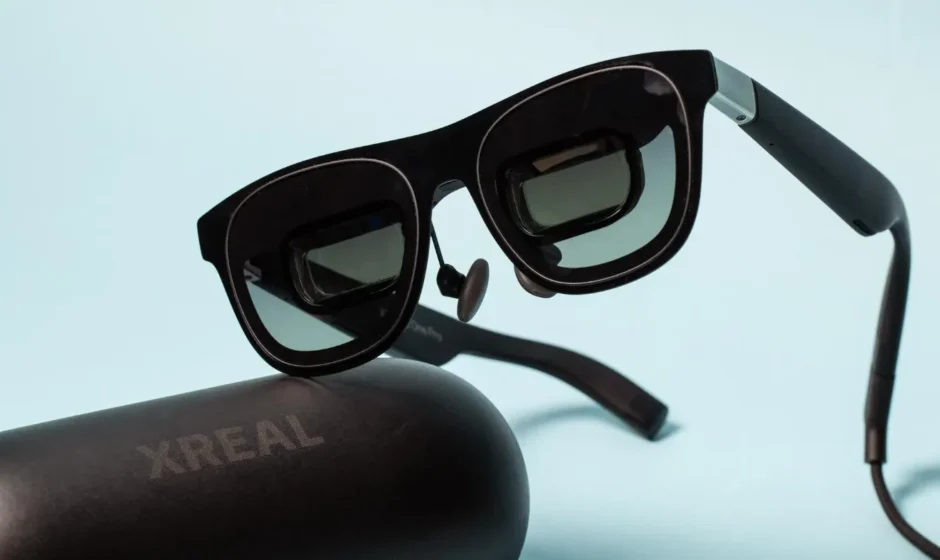

XREAL One Pro Glasses
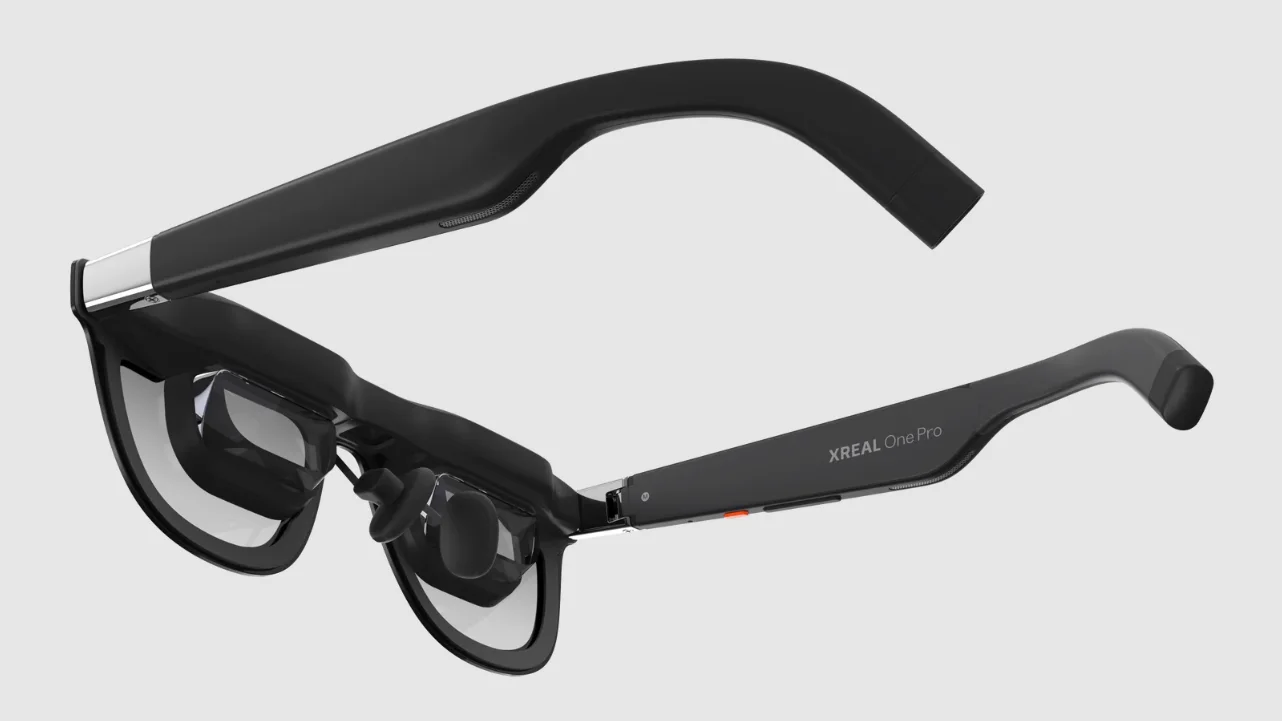
Description
The XREAL One Pro Glasses are cutting-edge augmented reality (AR) eyewear that redefine immersive visual experiences by transforming the way you watch, work, and play. Powered by the custom XREAL X1 spatial computing chip, these sleek, lightweight glasses deliver stunning visuals and low-latency performance with native 3DoF spatial tracking and ultra-fast 3 ms motion-to-photon latency.
At the heart of the One Pro is a pair of Sony Micro-OLED displays offering 1080p resolution per eye, a 120 Hz refresh rate, and up to 700 nits brightness, producing crystal-clear images and vibrant colors even in bright environments. With a 57° field of view, the glasses project a massive virtual screen — up to the size of a 171-inch display — giving you a cinematic viewing experience anywhere.
Comfortable and stylish, these glasses weigh just 87 g and feature adjustable interpupillary distance (IPD) options to fit a wide range of users. Integrated Bose-tuned audio delivers rich, immersive sound without separate headphones, while electrochromic lenses allow quick transitions between Clear, Shade, and Theater modes.
Plug-and-play connectivity via USB-C makes the XREAL One Pro compatible with smartphoneshttps://manualslibraryy.com/xiaomi-poco-x3-pro-smartphone-user-manual/, laptops, gaming handhelds, and more — turning nearly any device into a personal big-screen experience.
In the Box:
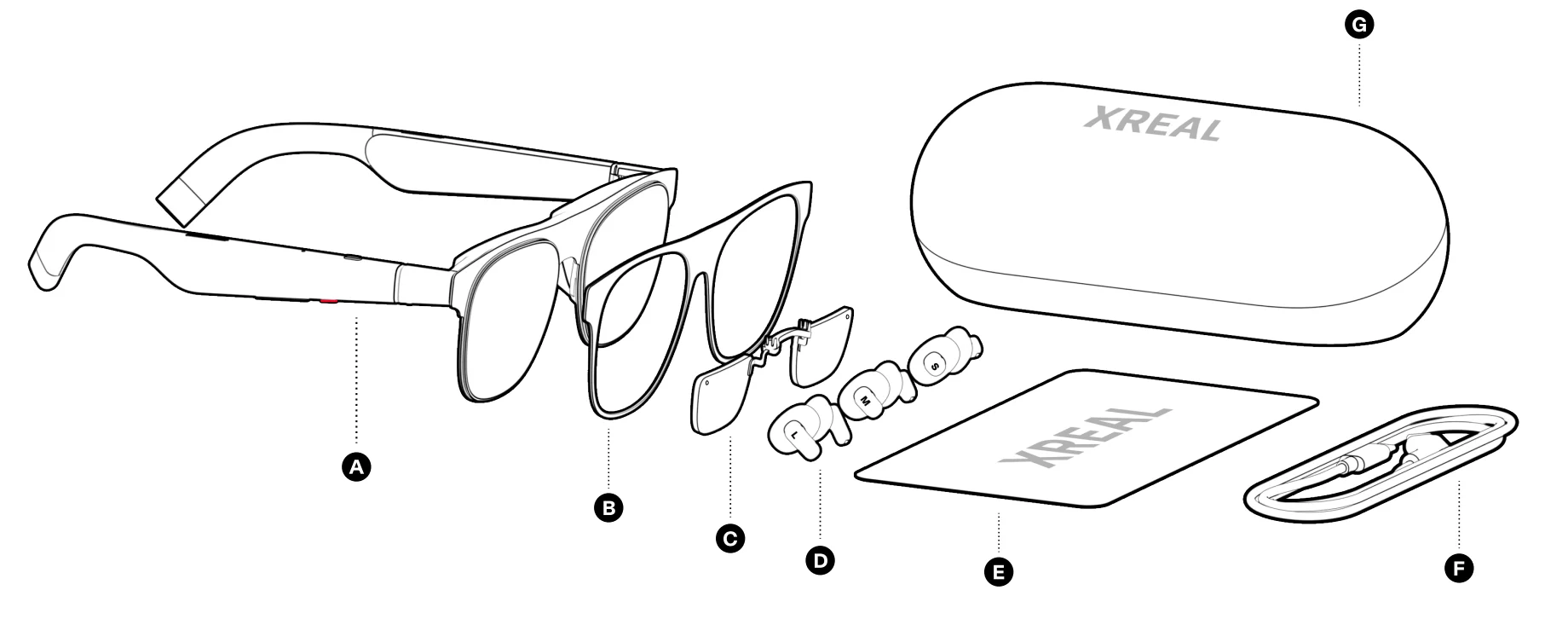
- A. XREAL One Pro
- B. Detachable Frame
- C. Lens Frame
- D. Nose Pads-S/M/L
- E. Cloth
- F. USB·CCabla
- G. Glasses Case
Compatibility
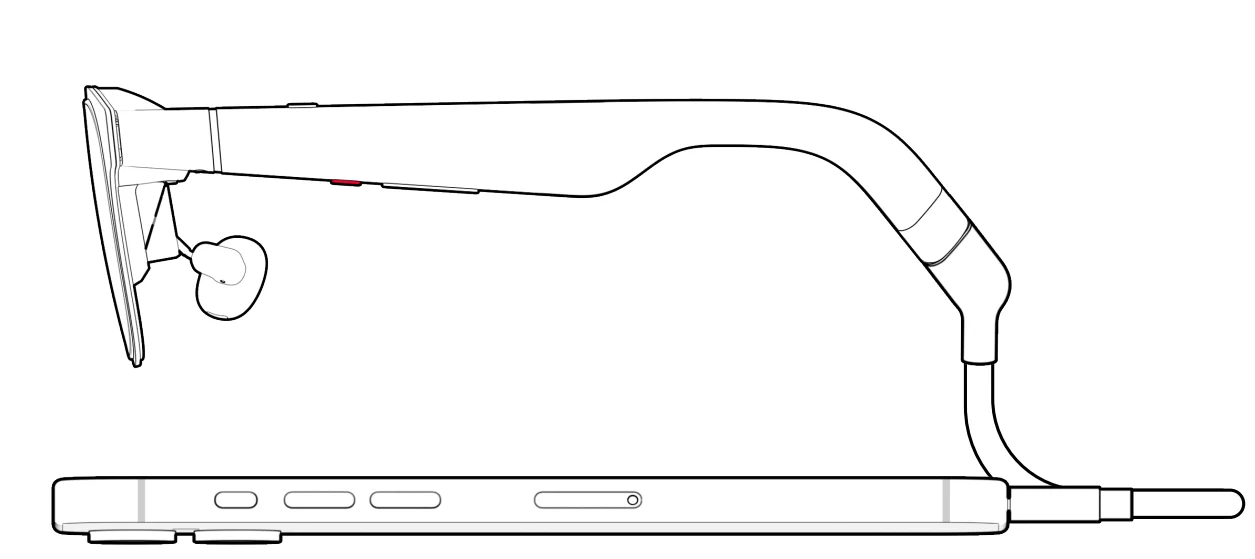
Connect a compatible device to use.
Prescription Lenses
Prescription Lenses Installation
Contact the official partner to customize your prescription lenses.
Getting Started
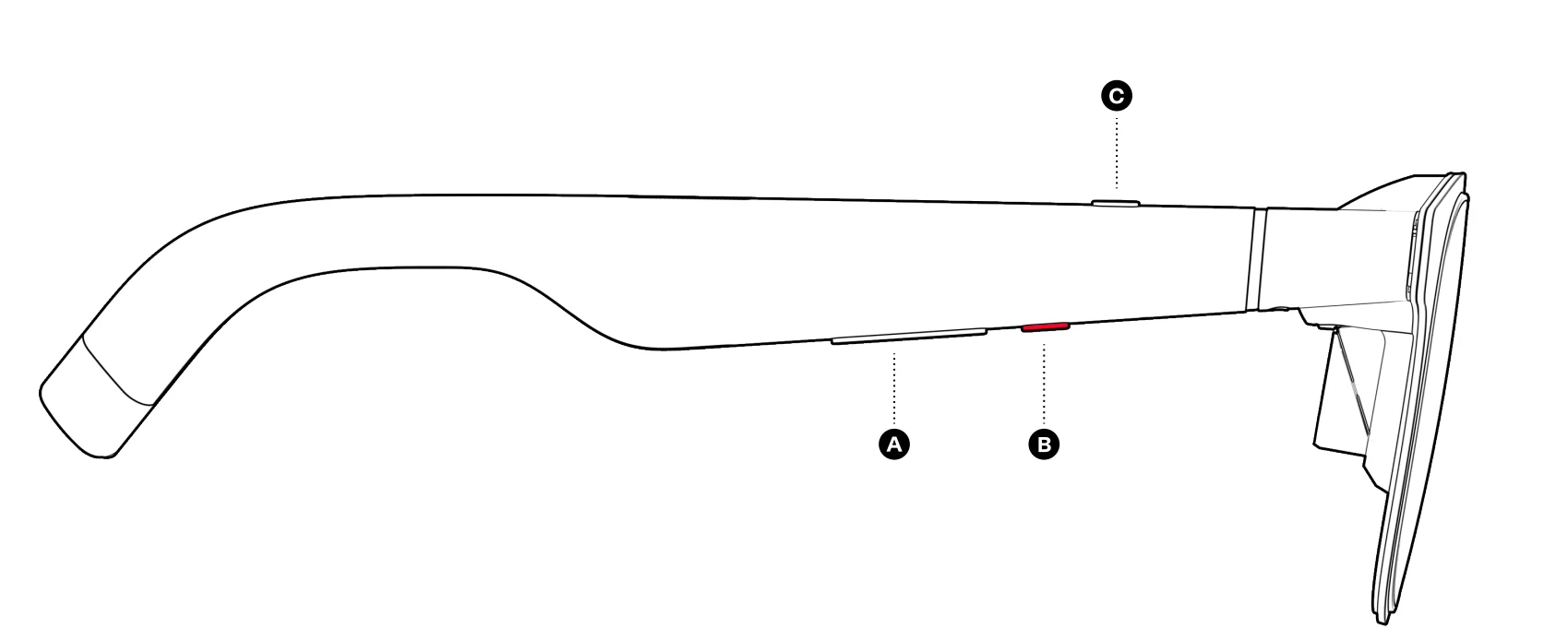
- A. +/- Button
Click: Adjust Brightness. Hold: Switch tint level (3 levels). - XButton
- Click: Mode switch.
- Double-click: Settings menu.
- Hold: Recenter.
- Quick Button
Click: Customized function.
Customize the Quick Button in the Settings menu.
Settings
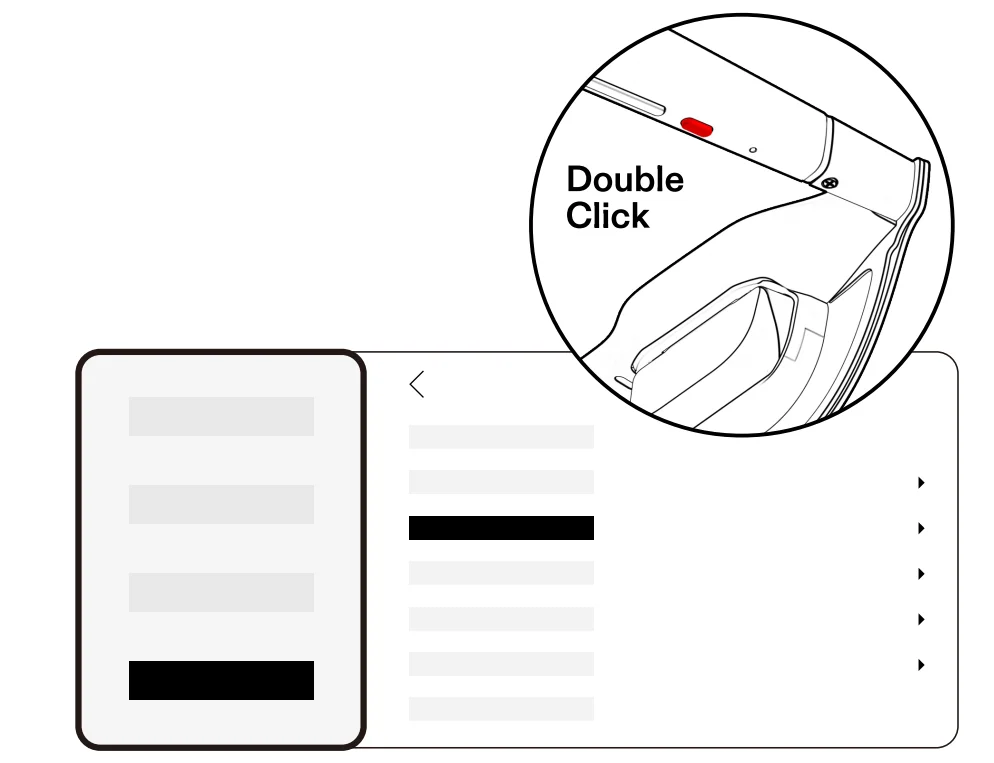
Settings Menu
Double-click the X button to open the settings menu for all options.
Overview
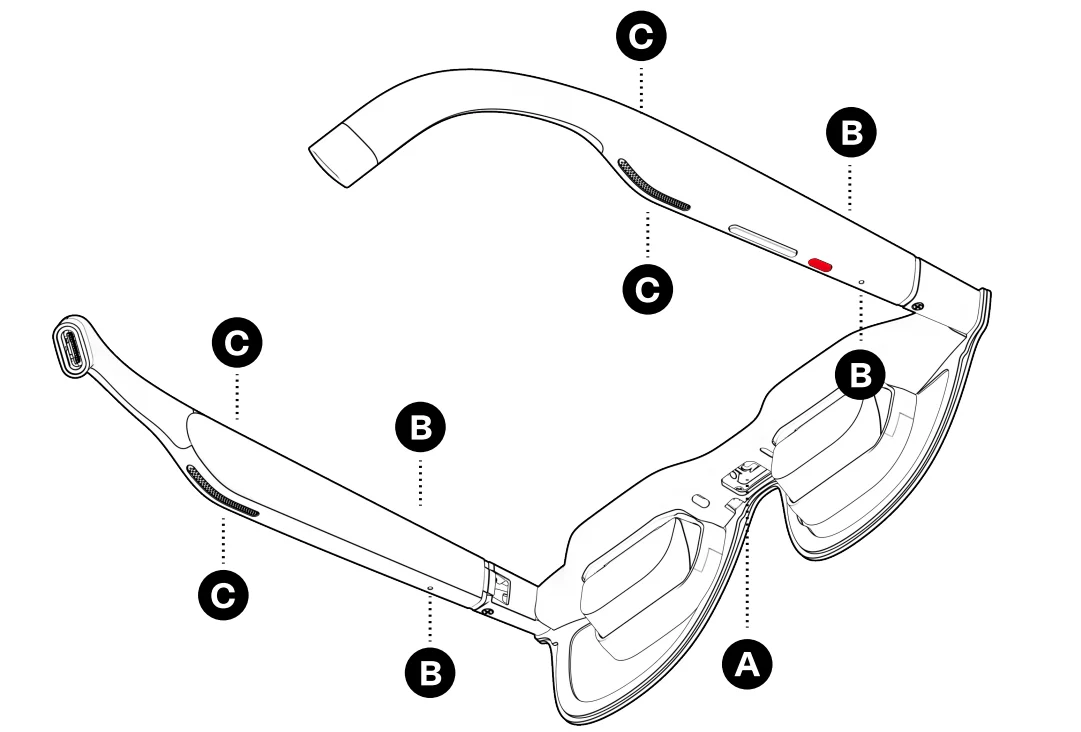
- A. Connector
- B. Microphones
- C. Speakers
Nose Pads Replacement
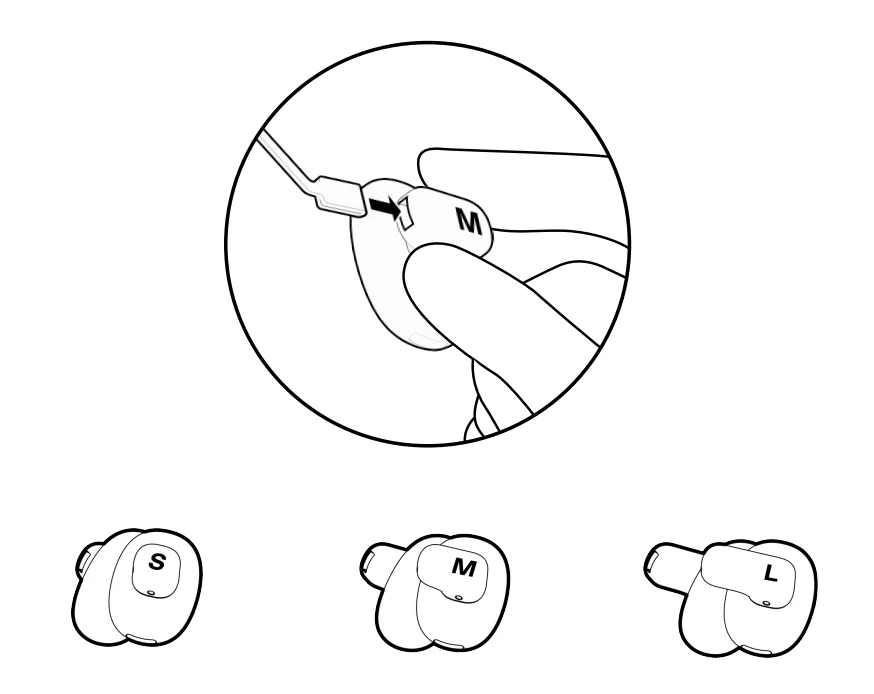
- 3 Sizes Nose Pads
Select nose pads to adjust to the display distance from your eyes.
Angle Adjustment
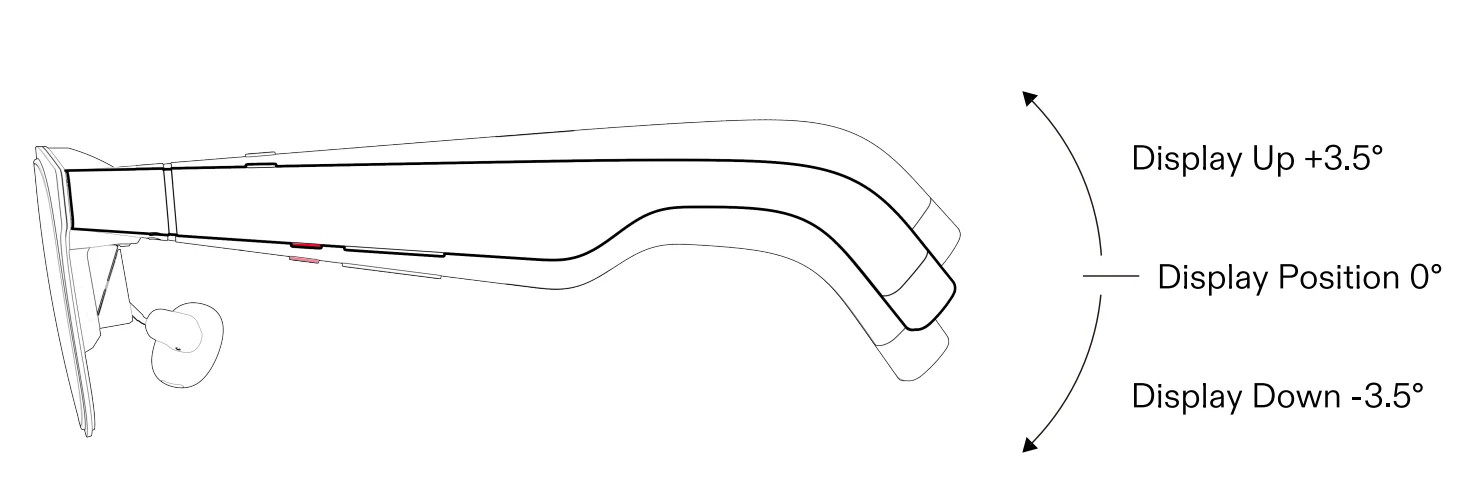
- 3 Adjustable Positions
Adjust the angle for a suitable display position.
Detachable Frame
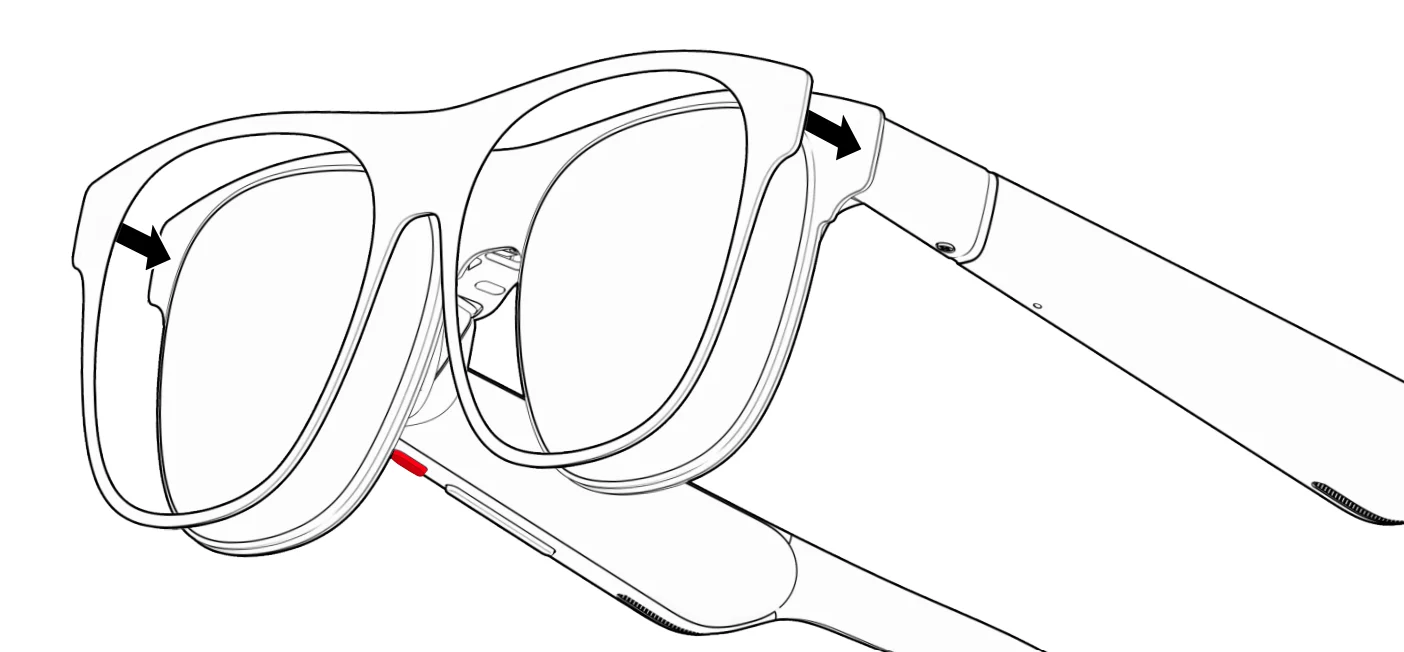
- Detachable Frame
Slowly install and replace the detachable frame from the edges.
XREAL Eye
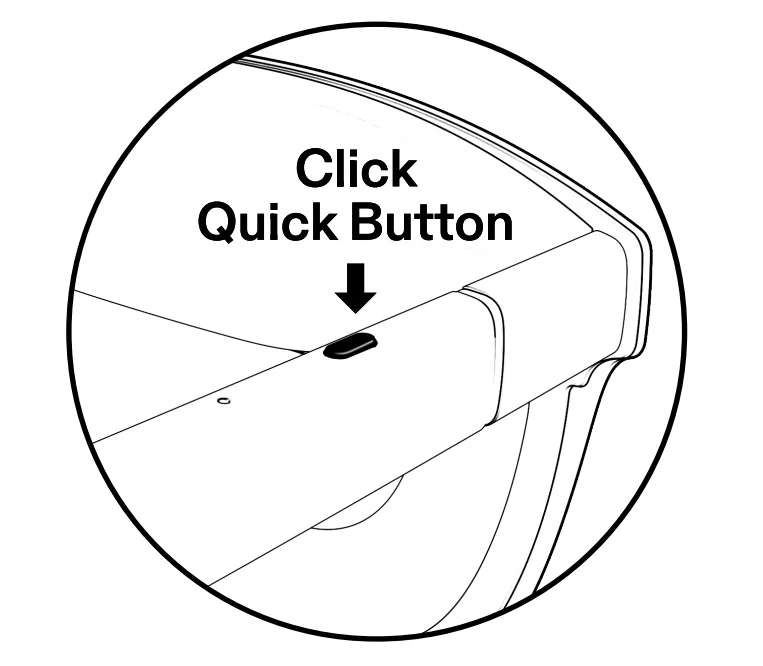
- Connect XREAL Eye
Use the Quick button to capture photos and videos.
“XREAL Eye sold separately.
Safety Information

Avoid damage caused by overbending of the legs.
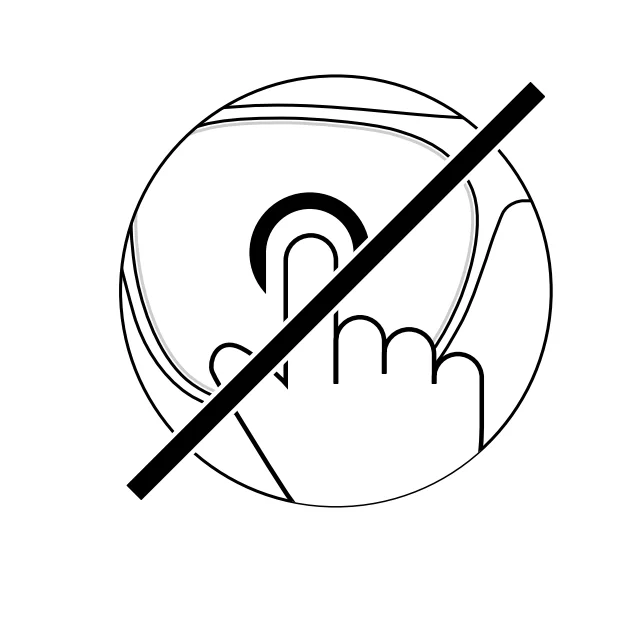
Avoid damage caused by hard-squeezing the optical components.
More Information

For more manuals by Xreal, visit ManualsLibraryy
XREAL One Pro Glasses-FAQs
How do I use XREAL One Pro glasses for the first time?
To use XREAL One Pro glasses, connect them to a compatible device using the included USB-C cable. Once plugged in, the glasses automatically turn on and work as a virtual display for watching videos, gaming, or productivity.
How do I set up XREAL One Pro glasses?
Setup is simple. Plug the glasses into your phone, PC, laptop, or gaming device. Follow any on-screen prompts, adjust screen size and distance from the menu, and you’re ready to use them.
How do I activate XREAL One Pro glasses?
The glasses activate automatically when connected to a supported device via USB-C. No separate power button or manual activation is required.
How do XREAL One Pro glasses work?
XREAL One Pro glasses function as a wearable display. When connected to a device, they project a large virtual screen in front of your eyes, similar to using an external monitor.
Can I connect XREAL One Pro to a phone, PC, or laptop?
Yes, XREAL One Pro works with Android phones, iPhone models that support USB-C, Windows PCs, Macs, laptops, and handheld gaming devices like Steam Deck.
I accidentally set my XREAL One Pro to Chinese. How can I fix it?
Perform a factory reset by holding the touchpad for 10–15 seconds while the glasses are plugged in. After reset, the language will return to English.
How do I factory reset XREAL One Pro glasses?
Plug in the glasses, then press and hold the touchpad for about 10–15 seconds. Release when the reset or reboot prompt appears. This restores default settings, including language.
What is the screen size and viewing distance range?
XREAL One Pro allows screen sizes from approximately 68 inches to 556 inches, with a virtual viewing distance adjustable between 2 and 10 meters.