
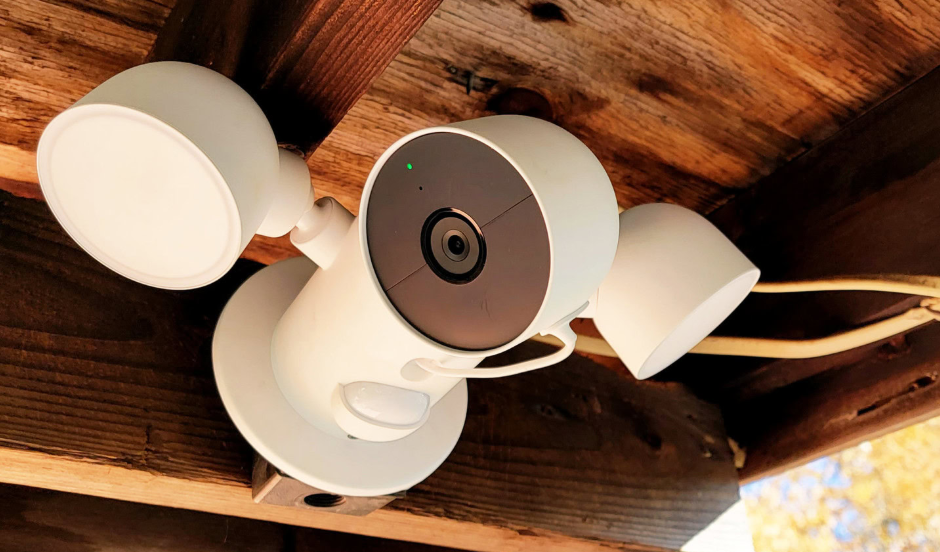

Google Nest Cam Floodlight-Battery
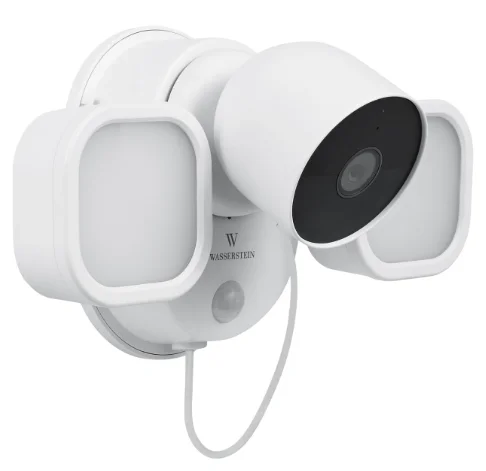
Product Highlights
- 3-in-1 Floodlight, Charger, and Mount.
- The Wasserstein Floodlight gets triggered in the presence of motion at night.
- Its PIR Motion Detection range is between 13 to 33 ft.
- The Wasserstein Floodlight lights up for 30 seconds after detecting motion at night.
- For optimum results, we recommend mounting the floodlight on walls at a high vantage point. The motion sensor works best when movements are detected parallel to the floodlight, not towards it.
Installation
Pre-installation

- Make sure that you have all the included materials.
- You will be working with electrical wires during the installation process. For safety reasons, shut off the power to your floodlight at the circuit breaker.
In the Box
- 1 x floodlight
- 2 x screws
- 2 x small screws
- 1 x crossbar
- 1 x screw cap
- 3 x wire nuts
- 1 x EVA gasket
- 1 x user manual

floodlight

screws
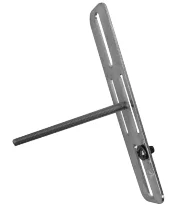
crossbar
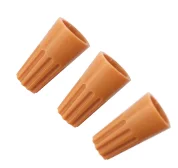
wire nuts
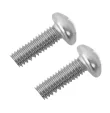
small screws
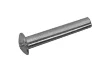
screw cap
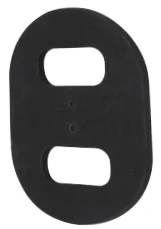
EVA gasket
If you have an existing Floodlight
- Remove your existing floodlight from the junction box it is attached to, and disconnect the wires.

- Remove the crossbar attached to your junction box.

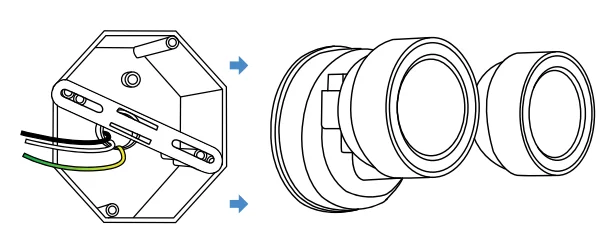
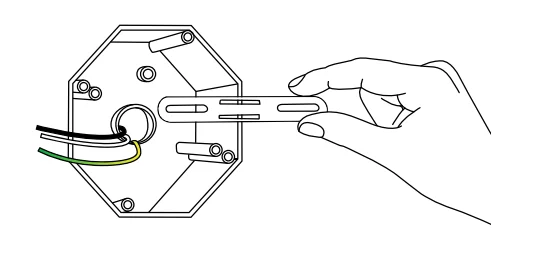
Installing the Floodlight in the Junction Box
- Attach the crossbar included in the package to the junction box with the screws.

- Remove the protective tape from the EVA gasket. Press the adhesive side firmly against the rear of the floodlight.

- Ensure that the center screw hole and wire slot of the foam gasket are aligned with the screw hole and wire slot.

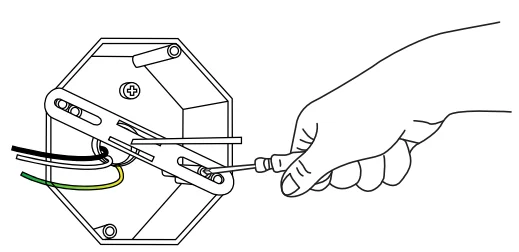

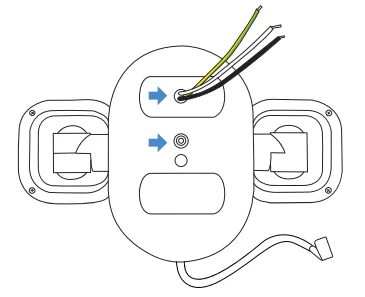
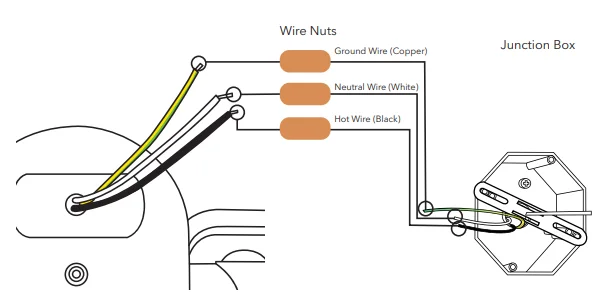
Wiring the Floodlight and Junction Box through the EVA Gasket
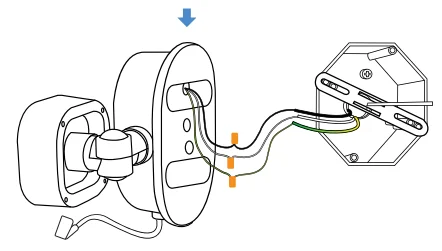
The white wire on your floodlight is neutral. The black wire on your floodlight is hot.
- Connect the green and yellow wires from the floodlight to the existing ground wire inside the junction box. Use the included wire nut to connect the wires properly.
- Using a wire nut, connect the white neutral wire from the floodlight to the neutral wire of the junction box.
- Using a wire nut, connect the black hot wire from the floodlight to the hot wire of the junction box.

- Make sure that the wire connections are secured. Carefully place the
wires into the junction box. Important: Before mounting the floodlight, completely apply the EVA gasket around
the perimeter of the cover plate where the back of the cover plate meets the mounting surface. This prevents water from seeping into the junction box
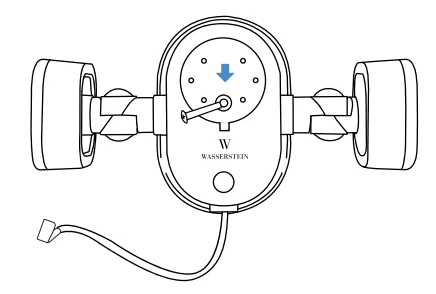
- Mount the floodlight onto the crossbar and secure it with the screw cap provided.

- Switch on the electricity, checking that the wiring has been done correctly and that the floodlight illuminates.
Mounting Your Camera
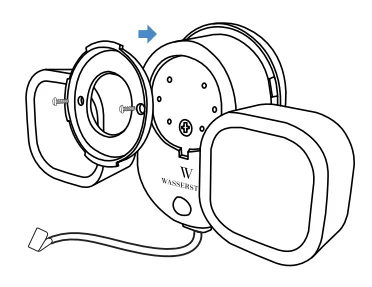
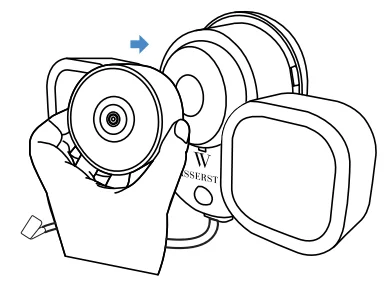
- To charge your camera via the floodlight, please install the camera wall plate onto the floodlight.
- Install the Nest Cam wall plate on the floodlight using the two short screws included. Screw in tightly

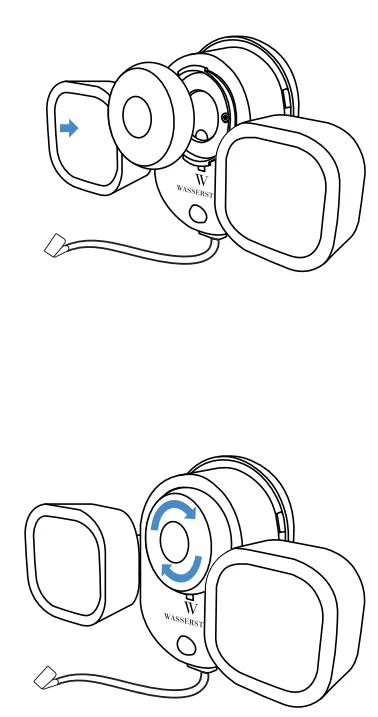
- Attach the magnetic plate to the wall plate and turn it clockwise to lock it in place

- Attach the camera to the mount, and connect the charging connector to the camera to charge it.

- Adjust your Nest Cam to your preferred viewing angle. You may use the video streaming feature in the Nest app to fine-tune your camera’s position.
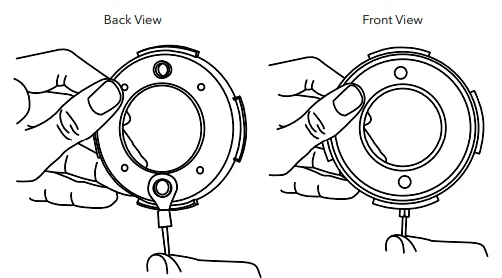
Mounting Your Camera along with the Anti-Theft Mount
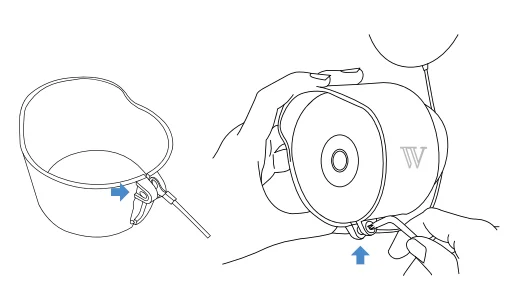
- Place the security chain underneath the wall plate of the camera behind the screw hole.

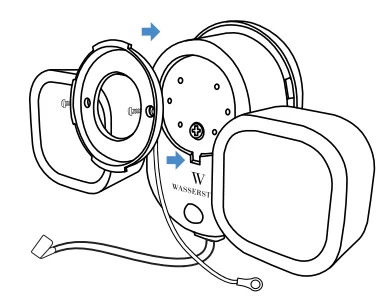
- Screw in the wall plate tightly using the two short screws provided.

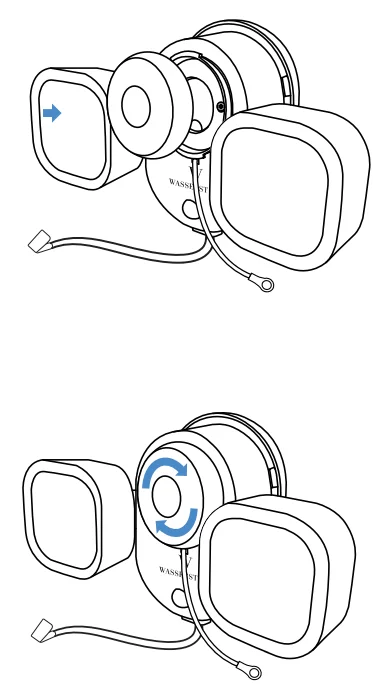
- “Attach the magnetic plate onto the wall plate, and turn it clockwise to lock it in place.”

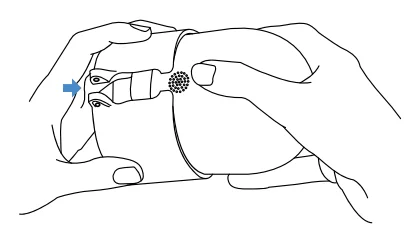
- Slide the anti-theft mount on the camera, making sure to align the speaker/cable opening at the bottom.

- Make sure that the end of the security chain with the small hole goes in between the screw holes of the mount. Use the hexagon screwdriver to tighten the mount and lock the security chain.

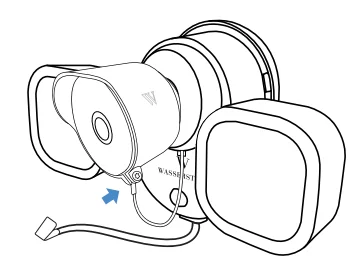
- Attach the camera to the floodlight with the magnetic mount and connect the magnetic connector to it.
Safety Information
- Disassembling the floodlight is not recommended as it may cause damage to internal components. The floodlight may not function properly after disassembly.
- Turn the main circuit OFF before installation.
- Do NOT remove the protective LED lens.
- Do NOT look directly at LEDs that are turned on for any length of time.
- Do NOT leave bare wires exposed outside the wall canopy enclosure.
FOR MORE MANUALS BY GOOGLE NEST, VISIT MANUALSLIBRARYY
Google Nest Cam Floodlight-Battery-FAQs
Does the Nest Cam with Floodlight use a battery?
Yes, the Google Nest Cam with Floodlight (Battery) runs on a built-in rechargeable battery. This design allows flexible installation without requiring constant wiring. The battery powers the camera for motion detection, recording events, and sending alerts to your phone. You can also connect the camera to a power source if you prefer continuous charging and extended operation. The battery option is especially helpful for locations where running electrical wiring is difficult.
How do I know when my Nest camera battery is fully charged?
When charging your Nest camera with the USB cable, the status indicator light provides helpful information. While the battery is charging, the LED light pulses white. Once the battery reaches full capacity, the light becomes solid white. This visual indicator makes it easy to know when the camera is ready to be unplugged and reinstalled. You can also check the charging progress through the Google Home app.
How long does the Nest Cam battery usually last?
Battery life depends on usage, activity levels, and camera settings. Under typical conditions, the battery may last around two to three months with moderate daily events recorded. If the camera detects motion frequently, records longer clips, or operates in colder temperatures, the battery may drain faster. Adjusting recording settings or limiting activity zones can help extend the overall battery life.
How can I check the battery level of my Nest camera?
You can easily check the battery status through the Google Home app developed by Google. Open the app, select your Nest camera from the device list, and view the device information page. The current battery percentage will be displayed there. This allows you to monitor battery health and know when it’s time to recharge the camera before the battery becomes too low.
Does the Nest Cam battery record video 24/7?
The battery-powered Nest camera records event-based clips by default. This means it captures video when motion or activity is detected rather than recording continuously. Continuous 24/7 video history is available only when the camera is connected to a wired power source. Keeping the camera plugged in allows it to record constantly and provide full video history if the feature is enabled.
How long does it take to fully charge the Nest Cam battery?
Charging the camera battery typically takes about five hours using the recommended charging cable and adapter. Charging time may vary slightly depending on the power source used. To ensure safe and efficient charging, it is best to use the original cable or an approved charger. Once fully charged, the camera can be reinstalled and used normally for extended periods.
Why does my Nest camera battery drain quickly?
Fast battery drain can happen for several reasons, including frequent motion events, extreme temperatures, high video quality settings, or long recording durations. If the camera detects constant activity, it will record more clips and consume more power. You can improve battery life by reducing clip length, adjusting sensitivity, limiting activity zones, or lowering video quality in the app settings.
Can the Nest Cam battery be replaced?
The battery in the Nest Cam with Floodlight is rechargeable and designed for repeated use. Instead of replacing it regularly, you simply recharge the built-in battery when needed. If the battery performance declines significantly after long-term use, service or replacement options may be available through official support channels. Always follow manufacturer instructions when handling or servicing the device.
Can the Nest Cam work without Wi-Fi?
The camera can power on without Wi-Fi, but many of its key features require an internet connection. Without Wi-Fi, the camera cannot send alerts, upload recorded clips, or allow you to view live footage remotely through the mobile app. For full functionality, including notifications and remote monitoring, the device should remain connected to a stable wireless network.
How can I recharge the Nest Cam battery?
To recharge the battery, remove the camera from its mount and connect it to the charging cable. Plug the cable into a compatible power adapter or USB power source. While charging, the status light will pulse to indicate progress. After the light turns solid white, the battery is fully charged and the camera can be mounted back in place for continued use.