
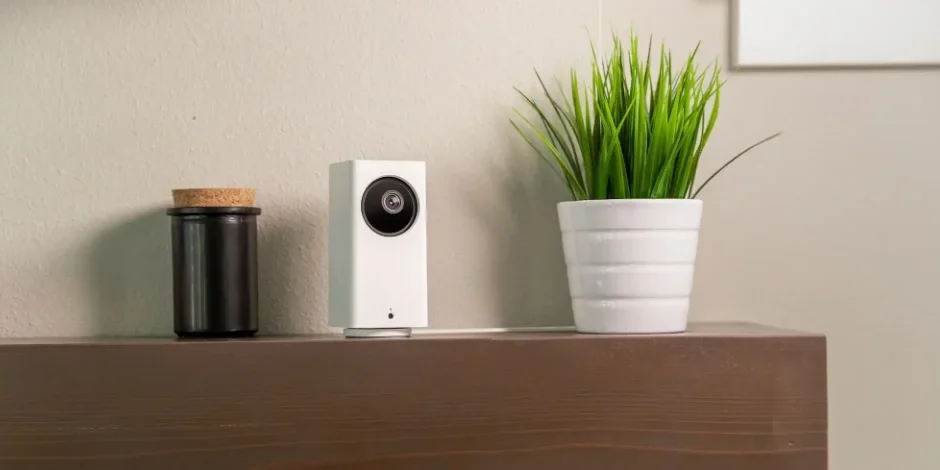

Wyze Cam Pan V2
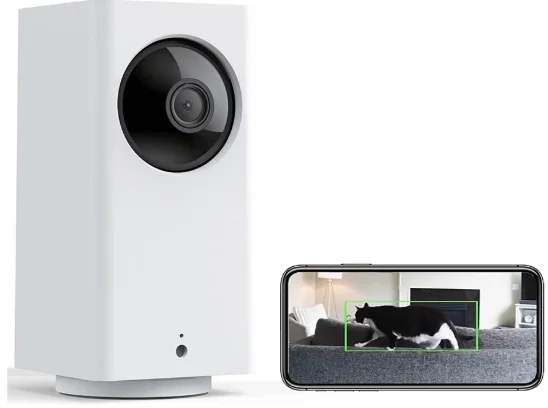
GET BETTER SECURITY WITH CAM PLUS
Record Full-Length Videos
Get unlimited full-length video recordings.
Smart AI Detection
Detect people, packages, vehicles, and more.
Back-to-Back Event Recording
Capture everything without 5-minute gaps.
Exclusive Discounts
Get exclusive discounts on Wyze products.
Subscribe or learn more at services.wyze.com.
IN THE BOX
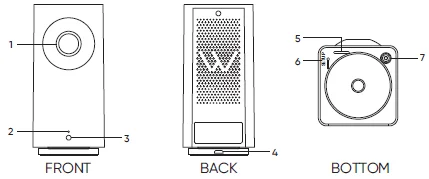
- Lens
- Status Light
- Light Sensor
- Power Input
- MicroSD Slot (SD card not included)
- SETUP Button
- Microphone
SETUP
- Download the Wyze app and sign in or create an account.
- Connect the camera to a power outlet and wait for 15 seconds until the red status light flashes.
- Press the SETUP button for 3 seconds until a voice prompt sounds.
- Open the Wyze app and tap the + sign in the top left corner of the Home tab. Tap Add Device > Cameras > Wyze Cam Pan v2 and then follow the instructions.
STATUS LIGHT GUIDE DURING INSTALLATION
Solid red light
The device is powered on and initializing
Flashing red light
The device is ready to connect
Flashing red and blue lights
Connection is in progress
Flashing blue light
The device is connected and finishing setup
Solid blue light
The device is working properly
STATUS LIGHT GUIDE AFTER SETUP
Solid red light
Live stream is being viewed, or a recording is in progress
Quickly flashing red light
Siren is in use
Solid blue light
The device is working properly, and no operations are running
FCC RADIATION EXPOSURE STATEMENT:
This equipment complies with FCC radiation exposure limits set forth for an uncontrolled environment. This equipment should be installed and operated with a minimum distance of 20 cm between the radiator & your body. This transmitter must not be co-located or operating in conjunction with any other antenna or transmitter.
FCC WARNING:
Any changes or modifications not expressly approved by the party responsible for compliance could void the user’s authority to operate this equipment. This device complies with part 15 of the FCC Rules.
Operation is subject to the following two conditions: (1) This device may not cause harmful interference, and (2) This device must accept any interference received, including interference that may cause undesired operation. This equipment has been tested and found to comply with the limits for a Class B digital device, pursuant to Part 15 of the FCC Rules. These limits are designed to provide reasonable protection against harmful interference in a residential installation. This equipment generates, uses, and can radiate radio frequency energy and, if not installed and used in accordance with the instructions, may cause harmful interference to radio communications. However, there is no guarantee that interference will not occur in a particular installation. If this equipment does cause harmful interference to radio or television reception, which can be determined by turning the equipment off and on, the user is encouraged to try to correct the interference by one or more of the following measures:
- Reorient or relocate the receiving antenna.
- Increase the separation between the equipment and receiver.
- Connect the equipment into an outlet on a circuit different from that to which the receiver is connected.
- Consult the dealer or an experienced radio/TV technician for help.
ISEDC RADIATION EXPOSURE STATEMENT:
This equipment complies with the ISEDC RF radiation exposure limits set forth for an uncontrolled environment. This transmitter must not be co-located or operating in conjunction with any other antenna or transmitter. This equipment should be installed and operated with a minimum distance of 20 cm between the radiator and your body. Only use the power supply provided. Any changes or modifications not expressly approved by the party responsible for compliance could void the user’s authority to operate the equipment. Only use the power supply provided.
ISEDC RSS WARNING:
This device complies with the ISEDC licence-exempt RSS standard(s).
Operation is subject to the following two conditions: (1) this device may not cause interference, and (2) this device must accept any interference, including interference that may cause undesired operation of the device.
For more Manuals by Wyze Labs, visit ManualsLibraryy
Wyze Cam Pan V2-FAQs
How do I set up my Wyze Cam Pan V2?
To set up your Wyze Cam Pan V2, open the Wyze app and tap Home → + (Add Device) → Cameras → Pan and Tilt Camera → Wyze Cam Pan V2.
Plug in your camera, then press the SETUP button on the bottom until you hear “Ready to connect.” Follow the on-screen steps in the app to complete the setup.
Can I use Wyze Cam Pan V2 without internet?
No, Wyze Cam Pan V2 requires an internet connection to stream video, send alerts, and manage settings through the app. However, with a microSD card inserted, it can record locally even if the Wi-Fi connection drops.
Does Wyze Cam Pan V2 record continuously?
Yes. With a microSD card installed, the camera can record continuously or only when motion or sound is detected. You can choose your preferred option in the Advanced Settings of the Wyze app.
Can Wyze Cam Pan V2 record to SD card without Wi-Fi?
Yes, as long as it’s powered on and has a microSD card, Wyze Cam Pan V2 can continue recording locally even when Wi-Fi is temporarily unavailable. Recordings will be saved to the SD card.
What size SD card is recommended for Wyze Cam Pan V2?
Wyze recommends using a 32GB or 128GB microSD card. A 32GB card can store around 2–3 days of HD footage, while a 128GB card can store up to 8 days in HD or 28 days in SD quality.
Why is my Wyze Cam Pan V2 flashing a blue light?
A flashing blue light means your camera is connected and finishing setup.Flashing red and blue: Connecting to the network
Solid blue: Camera is connected and operating normally
Does Wyze Cam Pan V2 have night vision?
Yes. The Wyze Cam Pan V2 features Color Night Vision with a Starlight Sensor, allowing clear full-color viewing even in low-light conditions.
How do I reset my Wyze Cam Pan V2?
Press and hold the SETUP button on the bottom of the camera for about 10 seconds until you hear a voice prompt. The camera will reset and be ready for a new setup.
Can I watch my Wyze Cam Pan V2 when I’m away from home?
Yes. You can view live feeds and recordings remotely through the Wyze app as long as your camera and phone are both connected to the internet.
Is there a monthly fee for Wyze Cam Pan V2?
No subscription is required for local recording. However, you can subscribe to Wyze Cam Plus for additional features like unlimited cloud recordings and AI-based alerts.