
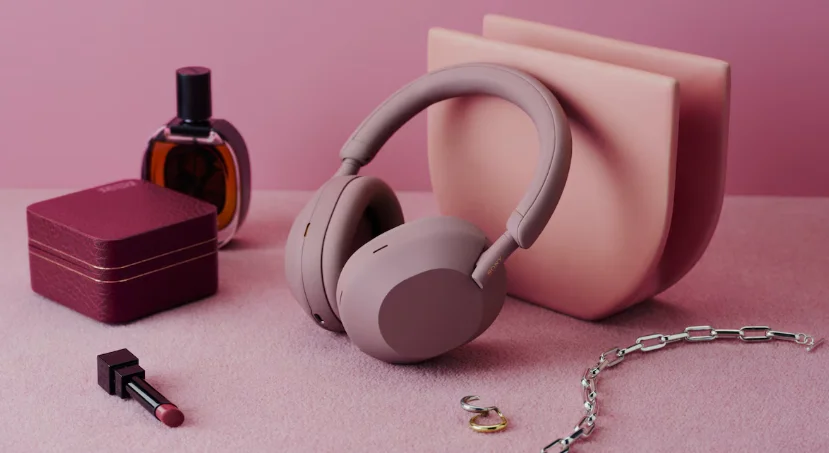

Sony WH-1000XM5 Premium Noise Canceling Headphones
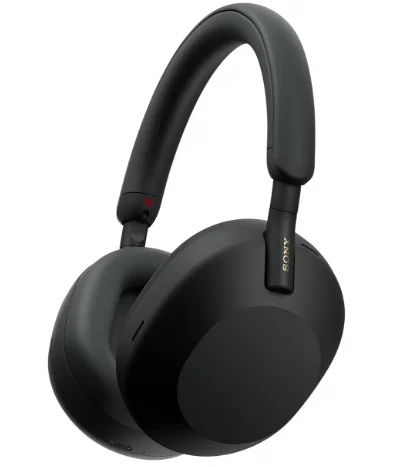
Quick Start Guide
Download the app, and set up the headset
Let’s start to use
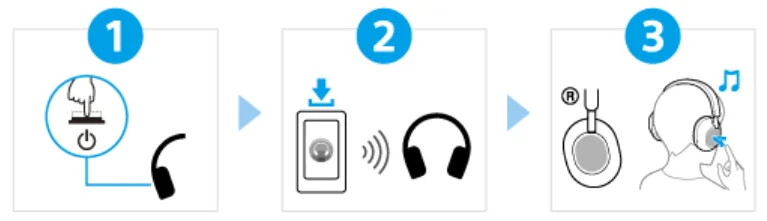
Turning on the headset
Press and hold the (!) (power) button for about 2 seconds until the indicator (blue) flashes. The headset enters pairing mode automatically when you turn on the headset for the first time after purchase.
Establishing a BLUETOOTH® connection
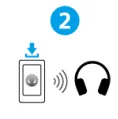
Follow the downloaded “Sony | Headphones Connect” app instructions.
Operating the headset
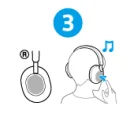
You can use the touch sensor control panel to perform the following operations. Tap twice quickly: Play/Pause Swipe forward and release: Skip to the beginning of the next track Swipe backward and release: Skip to the beginning of the previous track (or the current track during playback). Swipe up and release: Increase the volume. Swipe down and release: Decrease the volume. For more details on operations, refer to “Controlling the audio device (Bluetooth connection)”.
What you can do with the Bluetooth function
The headset uses Bluetooth wireless technology, allowing you to do the following.
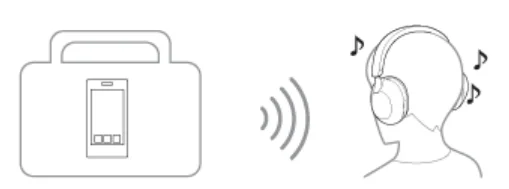
Listening to music
You can enjoy music wirelessly from a smartphone or music player, etc.
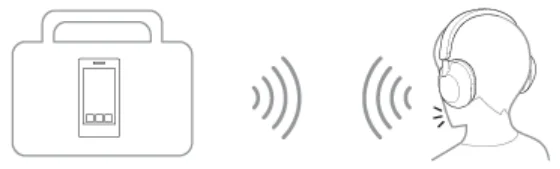
Talking on the phone
You can make and receive calls hands-free, while leaving your smartphone or mobile phone in your bag or pocket.
About the voice guidance
In the factory settings, you will hear the English voice guidance in the following situations via the headset. You can change the language of the voice guidance and turn on/off the voice guidance using the “Sony | Headphones Connect” app. For more details, refer to the “Sony | Headphones Connect” app help guide.
- When entering pairing mode: “Pairing”
- When informing the remaining battery charge: “Battery about XX %” (The “XX” value indicates the approximate remaining charge. Use it as a rough estimate.) / “Battery fully charged”
- When the remaining battery charge is low: “Low battery”
- When automatically turning off due to low battery: “Battery is empty”
- When Speak-to-Chat is enabled: “Speak-to-chat activated”
- When Speak-to-Chat is disabled: “Speak-to-chat deactivated”
- When the Google™ Assistant is not available on the smartphone connected to the headset, even if you operate the
touch sensor control panel: “The Google Assistant is not connected” - When Amazon Alexa is not available on the smartphone connected to the headset, even if you operate the touch sensor control panel: “Either your mobile device isn’t connected,d; or you need to open the Alexa App and try again.”
- When Quick Access is not available because Service Link is turned off: “Launch Headphones Connect to activate Service Link”
- When Quick Access is not available during software update: “Function is not available during update. Please wait a
moment until the update completes.” - When the corresponding app is not launched, even when operating the headset unit to which the Quick Access feature is assigned: “App assigned to the Quick Access is not launched on the mobile device”.
Checking the package contents
After opening the package, check that all of the items in the list are included. If any items are missing, contact your dealer.
Numbers in ( ) indicate the item amount. Wireless Noise-Canceling Stereo Headset.
USB Type-C® cable (USB-A to USB-C®) (approx. 20 cm (7.88 in.)) (1).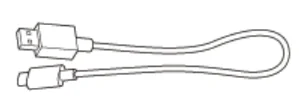
Headphone cable (approx. 1.2 m (47.25 in.)) (1)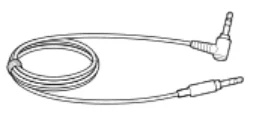
Carrying case (WH-1000XM5 only) (1) 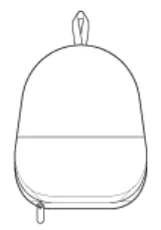
Carrying pouch (WH-1000XM5SA only) (1)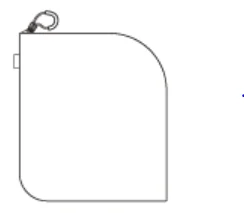
Setting the headset in the carrying case
When you have finished using the headset, put it in the supplied carrying case.
To store the cables
Put the cables in the holder, separated by the divider in the carrying case.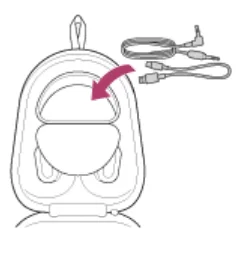
Location and function of parts
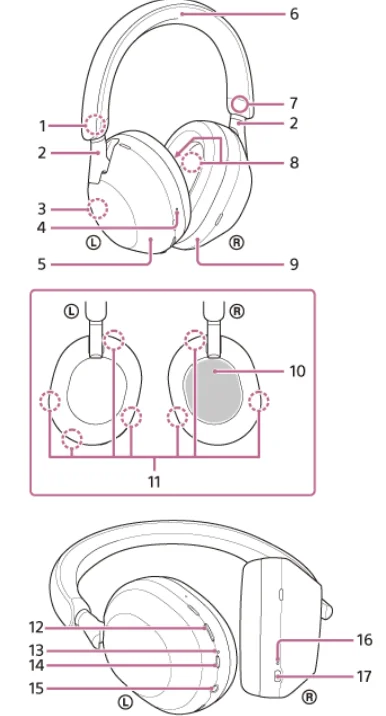
- (left) mark. Sliders (left, right). Slide to adjust the length of the headband.
- Built-in antenna. A Bluetooth antenna is built into the headset.
- There is a tactile dot on the left unit.
- Tactile dot.
- Left unit
- Headband
- (right) mark
- Noise-canceling function microphones (internal) (left, right) pick up the sound of the noise when the noise-canceling function is in use.
- Right unit.
- Touch sensor control panel. Remotely controls music playback of the connected Bluetooth device or performs other operations using touch operations.
- Noise-canceling function microphones (external) and voice pickup microphones (left, rightpickck up the sound of noise when the noise canceling function is in use and the wearer’s voice during a phone call or when the Speak-to-Chat mode is in use.
- NC/AMB (noise canceling/Ambient Sound Mode) button
- Indicator (orange/blue) Lights up in orange or blue to indicate the battery or communications status of the headset.
- (power) button
- Headphone cable input jack: Connect a music player, etc., using the supplied headphone cable. Make sure that you insert the cable until it clicks. If the plug is not connected correctly, you may not hear the sound properly.
- Charging indicator (orange) lights up in orange while charging.
- USB Type-C port. Connect the headset to a computer or to an AC outlet via a commercially available USB AC adaptor, with the supplied USB Type-C cable, to charge the headset.
Wearing the headset
Wear the headset on your ears.
- Check the left and right units of the headset. On the left unit, there is the (left) mark, a tactile dot, the (power) button, and the NC/AMB button. On the right unit, there is the (right) mark. There is no tactile dot or button.
- Extend the slider. Extend the slider to its full length before putting on the headset.

- Put on the headset. Put on the headset with the earpads fitting snugly over your ears.

- Adjust the length of the slider. Adjust the slider to a length where the headband touches the top of your head.

- Adjust the orientation of the units. Adjust the orientation of the left and right units so that the earpads fit snugly all around your ears

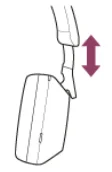
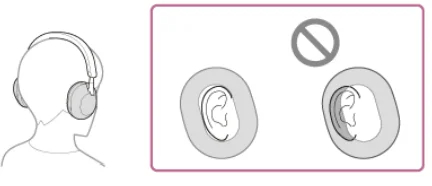
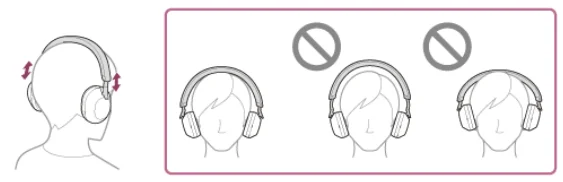
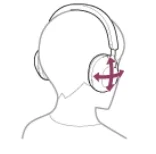
If you put on the headset without adjusting the slider, the headset may not be positioned properly on your head, resulting in discomfort or a weak noise-canceling effect. The wearing detection function of the headset may also not work properly and cause music playback to stop automatically or activate the automatic power off function (the battery saving function) to automatically turn off the headset.
When attaching and removing the headset
In the factory settings, the built-in proximity sensor in the left unit detects when the headset is worn on or removed from
your ears, and the headset automatically controls the touch sensor control panel’s operation, powering off the headset,
pausing music playback, etc. (Wearing detection).
When the headset is worn
- The indicator next to the (power) button turns off.
- You can use the touch sensor control panel of the headset to play music, make and receive calls, etc.
When the headset is removed
- When you listen to music while wearing the headset on your ears, the headset will pause music playback automatically if the headset is removed. When the headset is worn again, the headset resumes music playback.
- In order to save the battery, the headset will automatically turn off after 15 minutes of not being worn.
- In order to prevent the headset from reacting incorrectly, music playback, making and receiving calls, and other operations cannot be performed when the headset is removed, even if you tap the touch sensor control panel.
- The noise-canceling function cannot be used even if you press the NC/AMB button.
- When you are talking on the headset while wearing the headset on your ears, the call is automatically switched to the
smartphone or mobile phone if the headset is removed. When you put the headset on your ears again, the call is switched to the headset.
Charging the headset
The headset contains a built-in lithium-ion rechargeable battery. Use the supplied USB Type-C cable to charge the headset before use.
Connect the headset to an AC outlet.
Use the supplied USB Type-C cable and a commercially available USB AC adapter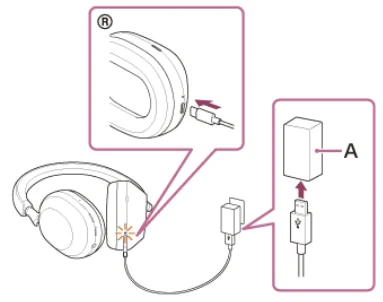
A: USB AC adaptor
- The charging indicator (orange) of the headset lights up.
- Charging is completed in about 3.5 hours, and the charging indicator turns off automatically.
System requirements for battery charging using USB
USB AC adaptor
A commercially available USB AC adaptor capable of supplying an output current of 1.5 A or more (If the output current is less than 1.5 A, the charging time will increase, and the music playback time after 3 or 10 minutes of charging will decrease.)
Commercially available USB AC adaptor compatible with USB PD (USB Power Delivery)
The charging time will be shorter with a USB AC adaptor compatible with USB PD. It is recommended to use a USB AC adaptor compatible with 5 V/2 A or 9 V/3 A output.
Personal computer
Personal computer with a standard USB port
- We do not guarantee operation on all computers.
- Operations using a custom-built or home-built computer are not guaranteed.
- The headset can also be charged by connecting the headset to a running computer using the supplied USB Type-C cable.
- If charging starts while the headset is on, the headset will turn off automatically.
Note
- Charging may not be successful with cables other than the supplied USB Type-C cable.
- Charging may not be successful depending on the type of USB AC adaptor.
- When the headset is connected to an AC outlet or computer, all operations, such as turning on the headset, registering or connecting to Bluetooth devices, and music playback, cannot be performed.
- The headset cannot be charged when the computer goes into standby (sleep) or hibernation mode. In this case, change the computer settings, and start charging once again.
- If the headset is not used for a long time, the rechargeable battery’s usable hours may be reduced. However, the battery life will improve after charging and discharging several times. If you store the headset for a long time, charge the battery once every 6 months to avoid over-discharge.
- If the headset is not used for a long time, it may take longer to charge the battery.
- If the headset detects a problem while charging due to the following causes, the charging indicator (orange) flashes. In this case, charge once again within the charging temperature range. If the problem persists, consult your nearest Sony dealer.
- Ambient temperature exceeds the charging temperature range of 5 °C – 35 °C (41 °F – 95 °F).
- There is a problem with the rechargeable battery.
- If the headset is not used for a long time, the charging indicator (orange) may not immediately light up when the headset starts charging. Please wait a moment until the indicator lights up.
- If the usage hours of the built-in rechargeable battery decrease significantly, the battery should be replaced. Consult your nearest Sony dealer.
- Avoid exposure to extreme temperature changes, direct sunlight, moisture, sand, dust, and electrical shock. Never leave the headset in a parked vehicle.
- When connecting the headset to a computer, use only the supplied USB Type-C cable, and make sure to connect it directly.
- Charging will not be properly completed when the headset is connected through a USB hub.
- It is not guaranteed that the headset works with all USB PD-compatible equipment.
- When the headset is charged using a USB PD-compatible AC adaptor, the right unit may become hot, but this is not a
malfunction.
Available operating time
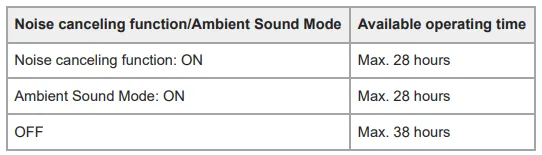
The available operating times of the headset with the battery fully charged are as follows:
Bluetooth connection
Music playback time
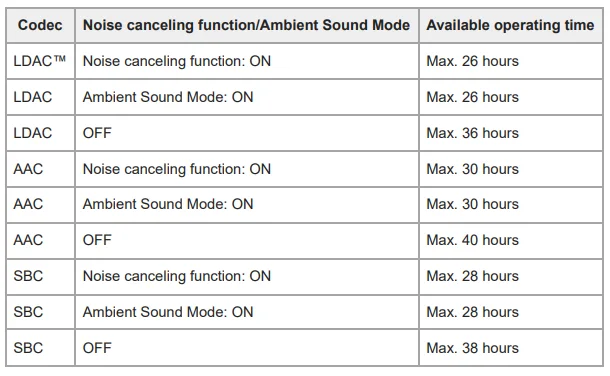
- About 1 hour of music playback is possible after 3 minutes of charging. About 5 hours of music playback is possible
after 10 minutes of charging as well. - About 3 hours (*) of music playback is possible after 3 minutes of charging when using a commercially available USB PD compatible AC adaptor with an output of 9 V/2.3 A or more.
Communication time
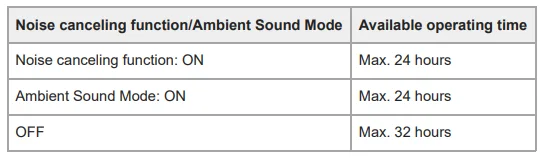
Headphone cable connected (power is turned on)
Checking the remaining battery charge
You can check the remaining battery charge of the rechargeable battery. When you press the (power) button while the headset is on, a voice guidance indicating the remaining battery charge can be heard. “Battery about XX %” (The “XX” value indicates the approximate remaining charge.) “Battery fully charged”. The remaining battery charge indicated by the voice guidance may differ from the actual remaining charge in some cases. Use it as a rough estimate. The indicator (orange) also flashes for about 15 seconds if the remaining battery charge is 10% or lower when the headset is turned on.
When the remaining charge becomes low
A warning beep sounds, and the color of the operating indicator (blue) becomes orange. If you hear the voice guidance
say, “Low battery”, charge the headset as soon as possible. When the battery becomes empty, a warning beep sounds, the voice guidance says, “Battery is empty”, and the headset automatically turns off.
When you are using an iPhone or an iPod touch
When the headset is connected to an iPhone or iPod touch over an HFP(Hands-free Profile) Bluetooth connection, it will show an icon that indicates the remaining battery charge of the headset on the screen of the iPhone or iPod touch. The display position is an example.
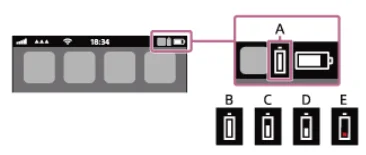
- A: The remaining battery charge of the headset. The approximate remaining charge is shown at 10 different levels. B through E are display examples.
- B: 100%
- C: 70%
- D: 50%
- E: 10% or lower (requires charging)
The remaining battery charge of the headset is also displayed on the widget of an iPhone or iPod touch running iOS 11 or
later. For more details, refer to the operating instructions supplied with the iPhone or iPod touch. The remaining charg,e which is display,ed may differ from the actual remaining charge in some cases. Use it as a rough estimate.
When you are using an Android™ smartphone (OS 8.1 or later)
When the headset is connected to an Android smartphone via HFP Bluetooth connection, select [Settings] – [Device connection] – [Bluetooth] to display the remaining battery charge of the headset in 10 different lev,els such as “100%”,
“70%”, “,50%” or “10%” in the connected Bluetooth device column on the smartphone’s screen. The operation above is an example. For details, refer to the operating instructions of the Android smartphone. The remaining c,harge which is dis,played may differ from the actual remaining charge in some cases. Use it as a rough estimate.
Turning on the headset
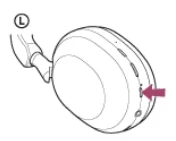
- Press and hold the (power) button for about 2 seconds until the indicator (blue) flashes.
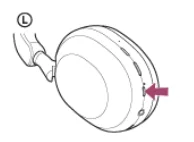
Turning off the headset
Press and hold the (power) button for about 2 seconds until the indicator (blue) turns off.
How to make a wireless connection to Bluetooth devices
You can enjoy music and hands-free calling with the headset wirelessly by using your Bluetooth device’s Bluetooth
function.
Pairing
To use the Bluetooth function, both of the connecting devices must be registered in advance. The operation to register a
device is called “pairing”. Pair the headset and the device manually.
Connecting to a paired device
Once a device is paired, it is not necessary to pair it again. Connect to devices already paired with the headset using the methods necessary for each device.
Pairing and connecting with an Android smartphone
The operation to register the device that you wish to connect to is called “pairing”. First, pair a device to use it with the
headset for the first time. Before starting the operation, make sure of the following:
- The Android smartphone is placed within 1 m (3 feet) of the headset.
- The headset is charged sufficiently.
- The operating instructions of the Android smartphone are in hand.
Enter pairing mode on this .headset
Turn on the headset when you pair the headset with a device for the first time after you bought it or after you
initialized the headset (the headset has no pairing information). The headset enters pairing mode automatically. In
this case, proceed to step . When you pair a second or subsequent device (the headset already has pairing information for other devices), press and hold the (power) button for about 5 seconds to enter pairing mode manually.
FOR MORE MANUALS BY SONY, VISIT MANUALSLIBRARYY
Sony WH-1000XM5 Premium Noise Canceling Headphones-FAQs
How long does the battery last on the Sony WH-1000XM5?
You get up to 30 hours of playback with noise canceling on. A 3-minute quick charge provides around 3 hours of playback when using a USB-PD compatible adapter.
Can I use the Sony WH-1000XM5 while charging?
No. The headphones cannot be powered on or used for playback while charging.
Are Sony WH-1000XM5 headphones waterproof?
No, these headphones are not waterproof. Avoid using or charging them in wet or humid conditions to prevent damage.
Can I use noise canceling without playing music?
Yes. You can enable Noise Canceling even without playing audio—it will still block surrounding sounds effectively.
How do I turn on Noise Canceling mode?
Press the NC/AMB button once to enable Noise Canceling. Press again to cycle between Ambient Sound and Off modes.
Can people hear my background noise during calls?
Noise canceling mainly reduces sound for you, not for the caller. However, the built-in microphones help minimize background noise during calls for clearer voice quality.
How do I connect the headphones to my phone?
Download and open the Sony | Headphones Connect app, turn on Bluetooth, and follow the in-app instructions to pair your WH-1000XM5.
Are the Sony WH-1000XM5 good for workouts or running?
While comfortable and secure, they aren’t sweat-resistant, so they’re not recommended for heavy workouts or running in the rain.
Should I charge my headphones to 100% every time?
For battery health, it’s best to keep charge levels between 20% and 80%. Avoid leaving them plugged in for long periods after reaching 100%.