
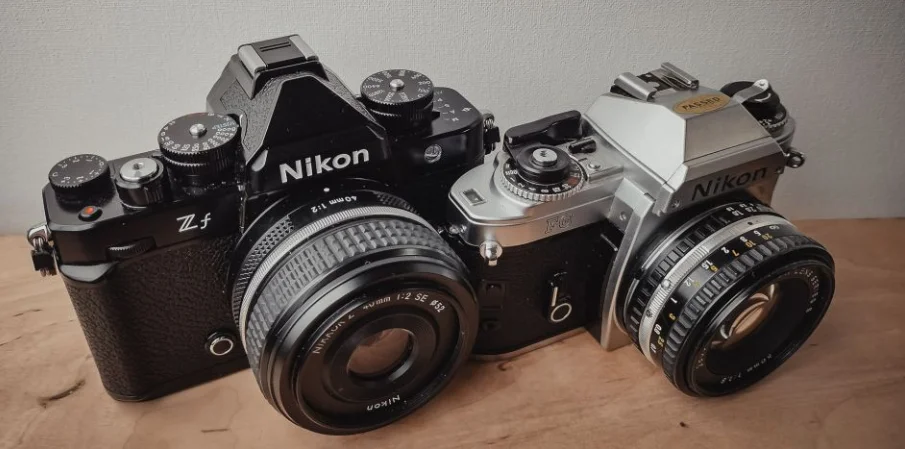

Nikon Z f Full-Frame Mirrorless Cam
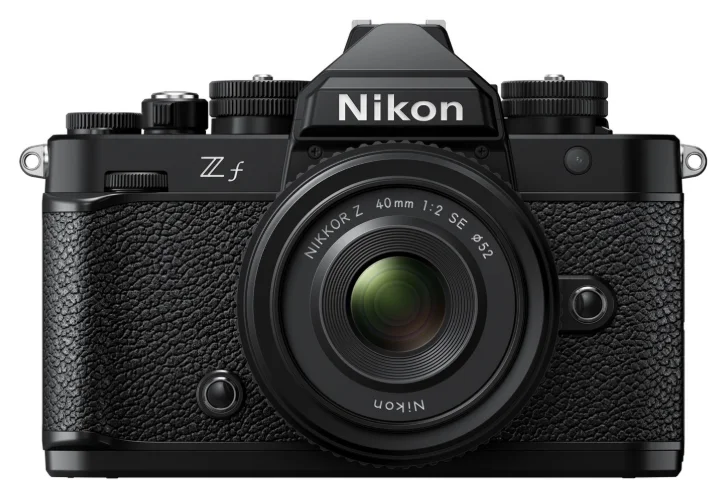
Package Contents
Be sure all items listed here were included with your camera.
- Camera body
- BS‑1 accessory shoe cover (comes attached to the camera)
- Memory cards are sold separately.
- DK‑33 rubber eyecup (comes attached to the camera)
- BF‑N1 body cap
- EN‑EL15c rechargeable Li-ion battery with terminal cover
- AN‑DC27 strap
- UC‑E25 USB cable
- User’s Manual
- Warranty (printed on the back cover of this manual)
For Your Safety
- Do not use while walking or operating a vehicle. Failure to observe this precaution could result in accidents or other injuries. Do not disassemble or modify this product.
- Do not touch internal parts that become exposed as a result of a fall or other accident. Failure to observe these precautions could result in electric shock or other injury.
- Should you notice any abnormalities, such as the product producing smoke, heat, or unusual odors, immediately remove the batteries or disconnect the power source. Continued operation could result in fire, burns, or other injury.
- Keep dry. Do not handle with wet hands. Do not handle the plug with wet hands. Failure to observe these precautions could result in fire or electric shock.
- Do not let your skin remain in prolonged contact with this product while it is on or plugged in. Failure to observe this precaution could result in low‑temperature burns.
- Do not use this product in the presence of flammable dust or gas such as propane, gasoline, or aerosols. Failure to observe this precaution could result in an explosion or fire.
- Do not directly view the sun or other bright light sources through the lens. Failure to observe this precaution could result in visual impairment.
- Do not aim the flash or AF‑assist illuminator at the operator of a motor vehicle. Failure to observe this precaution could result in accidents.
- Keep this product out of reach of children. Failure to observe this precaution could result in injury or product malfunction. In addition, note that small parts constitute a choking hazard. Should a child swallow any part of this product, seek immediate medical attention.
- Do not entangle, wrap, or twist the straps around your neck. Failure to observe this precaution could result in accidents.
- Do not handle the plug when charging the product or using the AC adapter during thunderstorms. Failure to observe this precaution could result in electric shock.
- Dust on or near the metal parts of the plug should be removed with a dry cloth. Continued use could result in fire.
- Do not handle with bare hands in locations exposed to extremely high or low temperatures. Failure to observe this precaution could result in burns or frostbite.
Parts of the Camera
Camera Body
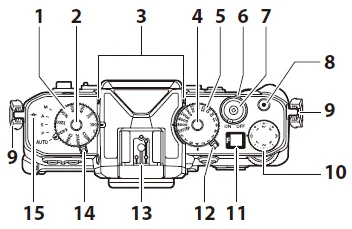
- ISO sensitivity dial
- ISO sensitivity dial lock release
- Stereo microphone
- Shutter-speed dial lock release
- Shutter-speed dial
- Power switch
- Shutter-release button
- Video-record button
- Eyelet for camera strap
- Exposure compensation dial
- Control panel
- Photo/video selector
- Accessory shoe (for optional flash unit)
- Mode selector
- Focal plane mark
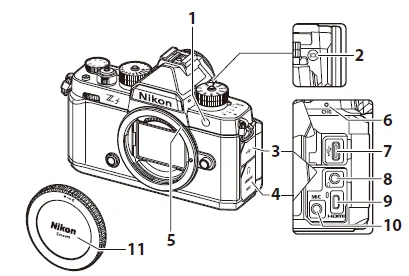
- AF-assist illuminator. Red-eye reduction lamp. Self-timer lamp
- Monitor mode button
- USB connector cover
- Cover for the microphone, headphone, and HDMI connectors
- Lens mounting mark
- Charge lamp
- USB connector
- Headphone connector
- HDMI connector
- Connector for external microphone
- Body cap
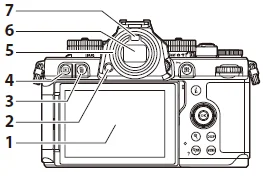
- Monitor
- Eyepiece release
- Delete button
- Playback button
- Rubber eyecup
- Viewfinder
- Eye sensor
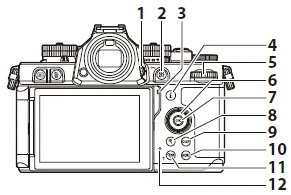
- Diopter adjustment control
- AE/AF lock button. Protect button
- Speaker
- “i” button (i)
- Main command dial
- Multi selector
- OK button
- Playback zoom in button
- DISP button
- MENU button
- Playback zoom out/thumbnails button. Help button
- Memory card access lamp
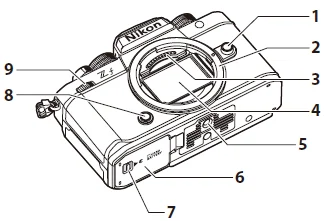
- Lens release button
- Lens mount
- CPU contacts
- Image sensor
- Tripod socket
- Battery chamber/memory card slot cover
- Battery chamber/memory card slot cover latch
- Fn button
- Sub-command dial
First Steps
Attaching the Strap
To attach a strap, follow the steps below.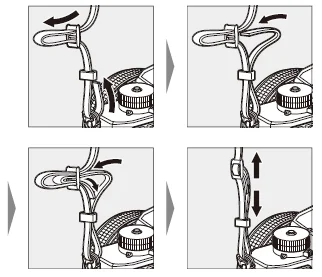
Inserting the Battery and Memory Cards
The camera is equipped with two memory card slots: a slot that takes one SD memory card (1) and another that takes one microSD memory card (2), for a total of two cards, one of each type.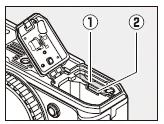
- Turn the camera off before inserting or removing the battery or memory cards.
- Holding the memory card in the orientation shown, slide it straight into the slot until it clicks into place.
- If you are using a microSD memory card, we recommend that you insert it before inserting the battery.
- Using the battery to keep the orange battery latch pressed to one side, slide the battery into the battery chamber until the latch locks it in place.
Removing the Battery
To remove the battery, turn the camera off and open the battery chamber/memory card slot cover. Press the battery latch in the direction shown by the arrow to release the battery, and then remove the battery by hand.
Removing Memory Cards
Before removing the memory cards, confirm that the memory card access lamp is off, and then turn the camera off and open the battery chamber/memory card slot cover. Press the card in to eject it and then slide it from the camera.
We recommend that you remove the battery before removing microSD memory cards.
Number of Exposures Remaining
- When you turn the camera on, the shooting display will show the number of photographs that can be taken at the current settings.
- Values over 1000 are rounded down to the nearest hundred. For example, values between 1500 and 1599 are shown as 1.5 k.
Tip: The Write Protect Switch
- SD memory cards are equipped with a write-protect switch. Sliding the switch to the “lock” position write-protects the card, protecting the data it contains.
- A “– – –” indicator and a [Card] warning appear in the shooting display when a write-protected card is inserted.
- If you attempt to release the shutter while a write-protected card is inserted, a warning will be displayed and no picture will be recorded. Unlock the memory card before attempting to take or delete pictures.
Tip: Slot Icons
The location of the current picture is shown by an icon at the bottom left corner of the playback display.
Charging the Battery
Charge the supplied EN‑EL15c battery before use. The battery can be charged while inserted in the camera by connecting the camera to an optional EH-8P AC adapter using the supplied USB cable.
Cautions: Using Batteries
Read and follow the warnings and cautions in “For Your Safety” and “Caring for the Camera and Battery”.
- Insert the battery
- After confirming that the camera is off, connect it to an optional EH-8P AC adapter using the supplied USB cable (1).
Plug the AC adapter into a household power outlet. The battery will charge while the camera is off. Keep the plug straight during insertion and removal.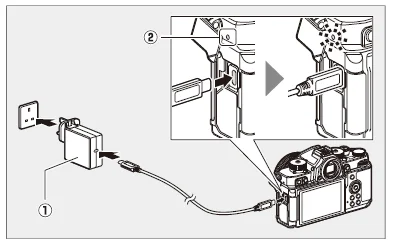
- The camera charge lamp (2) lights amber while charging is in progress. The lamp turns off when charging is complete.
- Assuming a 5 V/500 mA input, an exhausted battery will fully charge in about 2 hours and 40 minutes.
- Disconnect the USB cable when charging is complete. Keep the connector straight when disconnecting it from the camera.
Cautions: Charging
- Only EN‑EL15c and EN‑EL15b batteries can be charged while inserted in the camera. EN‑EL15a batteries can be charged using an optional MH‑25a battery charger.
- Charging errors caused by, for example, elevated camera temperatures or attempts to charge an EN‑EL15a are indicated by the charge lamp flashing rapidly for about 30 seconds before turning off.
- After the charge lamp turns off, we recommend that you turn the camera on (or activate the standby timer) and confirm that the battery is charged.
Tip: Optional EH‑7P Charging AC Adapters: Charging
- The battery can also be charged using an optional EH‑7P charging AC adapter. After confirming that the camera is off, connect the adapter to the camera via USB and plug it in. The battery will charge while the camera is off. Keep the plug straight during insertion and removal.
Tip: Powering the Camera
If [ON] is selected for [USB power delivery] in the setup menu when the camera is connected to an EH-8P or EH‑7P, power will be supplied to the camera when the camera is on.
- Power will only be supplied to the camera when the battery is inserted.
- The battery will not charge while the camera is powered by an outside power source.
Tip: Computer USB Power Delivery and Battery Charging
Computers connected via USB can supply current to power the camera or charge the battery.
- The computer supplies power only while on. Charging will be suspended while the computer is in sleep mode. It will resume when sleep mode ends.
- Do not connect the computer via a USB hub or keyboard during charging. Connect it directly to the camera.
- Actual charging times may be longer depending on the computer USB connector type and specifications.
- Depending on the model and product specifications, some computers will not supply current to power the camera or charge the battery.
Troubleshooting
Before Contacting Customer Support
You may be able to resolve any issues with the camera by following the steps below. Check this list before consulting your retailer or Nikon-authorized service representative.
Check the list of common problems.
Common problems and solutions are listed in the troubleshooting section of the Reference Guide.
Turn the camera off and remove the battery, then wait about a minute, re-insert the battery, and turn the camera on.
The camera may continue to write data to the memory card after shooting. Wait at least a minute before removing the battery.
Search Nikon websites.
- For support information and answers to frequently asked questions, visit the website for your country or region.
- To download the latest firmware for your camera, visit: https://downloadcenter.nikonimglib.com/
Consult a Nikon-authorized service representative.
Technical Notes
Caring for the Camera
Long-Term Storage
Remove the battery if the product will not be used for an extended period. Before removing the battery, confirm that the camera is off.
Do not store the camera in locations that:
- are poorly ventilated or subject to humidities of over 60%,
- are next to equipment that produces strong electromagnetic fields, such as televisions or radios, or
- are exposed to temperatures above 50 °C (122 °F) or below −10 °C (14 °F).
Caring for the Camera and Battery: Cautions
Cautions: Using the Camera
Do Not Drop
Do not drop the camera or lens or subject them to blows. The product may malfunction if subjected to strong shocks or vibration.
Keep Dry
Keep the camera dry. Rusting of the internal mechanism caused by water inside the camera can not only be expensive to repair but can, in fact, cause irreparable damage.
Avoid Sudden Changes in Temperature
Taking the camera from a warm to a cold environment or vice versa may cause damaging condensation inside and outside the camera. Place the camera in a sealed bag or plastic case before taking it across a temperature boundary. The camera can be taken from the bag or case once it has had time to adjust to the new temperature.
Keep Away from Strong Magnetic Fields
Static charges or the magnetic fields produced by equipment such as radio transmitters could interfere with the monitor, corrupt data stored on the memory card, or affect the product’s internal circuitry.
Keep Credit Cards and Other Such Magnetic Storage Devices Away from the Camera and Lens
Data stored on the device could be corrupted.
Do Not Leave the Lens Pointed at the Sun
Do not leave the lens pointed at the sun or other bright light source.
Intense light may damage the image sensor or cause fading or “burn-in”. Photographs taken with the camera may exhibit a white blur effect.
Lasers and Other Bright Light Sources
Do not direct lasers or other extremely bright light sources toward the lens, as this could damage the camera’s image sensor.
Cleaning
When cleaning the camera body, use a blower to gently remove dust and lint, then wipe gently with a soft, dry cloth. After using the camera at the beach or seaside, wipe off any sand or salt using a cloth lightly dampened in fresh water, and then dry the camera thoroughly. In rare instances, static electricity may cause the LCD displays to light up or go dark; this does not indicate a malfunction. The display will soon return to normal.
Cleaning the Lens and Viewfinder
These glass elements are easily damaged: remove dust and lint with a blower. If using an aerosol blower, keep the can vertical to prevent the discharge of liquid that could damage glass elements. To remove fingerprints and other stains from the lens, apply a small amount of lens cleaner to a soft cloth and wipe the lens carefully.
Do Not Touch the Image Sensor
Under no circumstances should you exert pressure on the image sensor, poke it with cleaning tools, or subject it to powerful air currents from a blower. These actions could scratch or otherwise damage the sensor.
The Lens Contacts
Keep the lens contacts clean. Avoid touching them with your fingers.
Store in a Well-Ventilated Area
To prevent mold or mildew, store the camera in a dry, well-ventilated area. Do not store the camera with naphtha or camphor moth balls, next to equipment that produces strong electromagnetic fields, or where it will be exposed to extremely high temperatures, for example, near a heater or in an enclosed vehicle on a hot day. Failure to observe these precautions could result in product malfunction.
Long-Term Storage
To prevent damage caused, for example, by leaking battery fluid, remove the battery if the product will not be used for an extended period. Store the camera in a plastic bag containing a desiccant. Do not, however, store the leather camera case in a plastic bag, as this may cause the material to deteriorate. Store the battery in a cool, dry place.
Note that desiccant gradually loses its capacity to absorb moisture and should be replaced at regular intervals. To prevent mold or mildew, take the camera out of storage at least once a month, insert the battery, and release the shutter a few times.
Turn the Product Off Before Removing or Disconnecting the Power Source
Removing or disconnecting the power source while the camera is on could damage the product. Particular care should be taken not to remove or disconnect the power source while pictures are being recorded or deleted.
Bright Lights and Back-Lit Subjects
Noise in the form of lines may, in rare cases, appear in pictures that include bright lights or back-lit subjects.
Camera Shooting and Playback Displays
When [HLG] is selected for tone mode, the shooting and playback displays in the camera monitor and viewfinder may include “noise” in the form of randomly-spaced bright pixels, fog, or lines, or may fail to accurately reproduce highlights and highly-saturated colors. In addition, abrupt tone discontinuities may be visible in the camera monitor or viewfinder when photos are displayed full-frame, although the photos themselves are unaffected. For accurate tone reproduction, use monitors, computers, operating systems, applications, and other equipment compatible with HLG.
For more Manuals by Nikon, visit ManualsLibraryy
Nikon Z f Full-Frame Mirrorless Cam-FAQs
Is the Nikon Z f a good camera?
Yes. The Nikon Z f delivers exceptional image quality, impressive autofocus, and superb handling. It performs beautifully with both modern and vintage manual lenses—often compared to premium cameras like the Leica SL2-S at a lower cost.
Is the Nikon Z f a full-frame camera?
Yes. The Nikon Z f features a 24.5-megapixel full-frame BSI-CMOS sensor, identical to the one used in the Nikon Z6 II, providing rich detail and excellent low-light performance.
Does the Nikon Z f record 4K video?
Absolutely. It supports 4K UHD recording using 6K oversampling for sharper detail, and even allows up to 125 minutes of continuous recording at 4K 60 fps.
What is the ISO range of the Nikon Z f?
The ISO sensitivity ranges from ISO 100 to 64,000, expandable from ISO 50 to 204,800, making it ideal for both bright and low-light environments.
Is the Nikon Z f good for night photography?
Yes. With its wide ISO range, strong noise control, and in-body image stabilization, the Z f performs exceptionally well in low-light and nighttime conditions.
How do I update the Nikon Z f firmware?
Download the latest firmware from Nikon’s official website, copy it to a formatted memory card, insert the card, and select [Firmware version] in the Setup Menu to start the update. Once complete, turn the camera off and remove the card.
How do I connect the Nikon Z f to my phone?
Use Nikon’s SnapBridge app. On the camera, go to [Connect to Smart Device] > [Pairing (Bluetooth)], and on your phone, open SnapBridge and follow the on-screen pairing instructions.
Which memory card is best for the Nikon Z f?
High-speed cards such as the SanDisk Extreme Pro UHS-II SD Card (256 GB) are recommended for smooth 4K video and burst shooting performance.
Can I charge the Nikon Z f battery via USB?
Yes, if you use EN-EL15c or EN-EL15b batteries. Simply connect the camera to a USB-C power source. Older EN-EL15a batteries cannot be charged this way.