
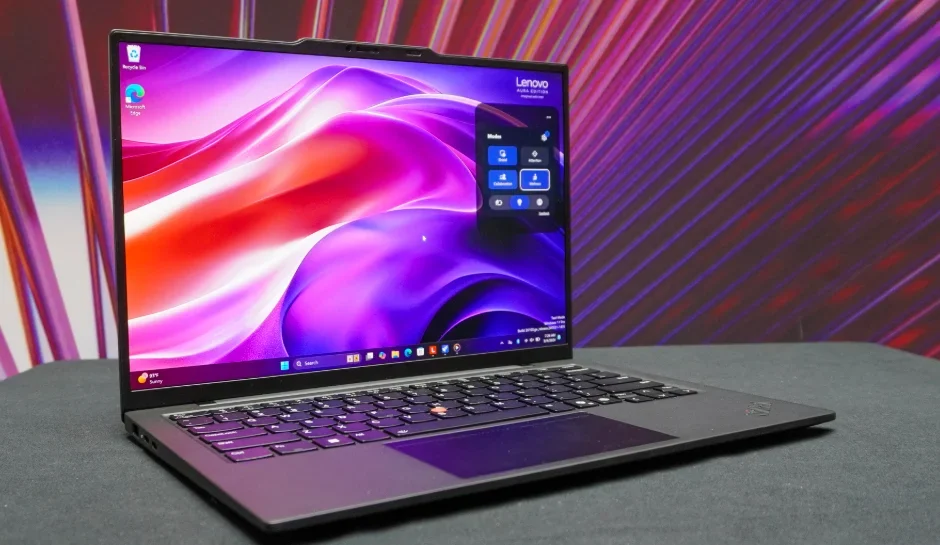

Lenovo ThinkPad X1 Carbon Gen 13
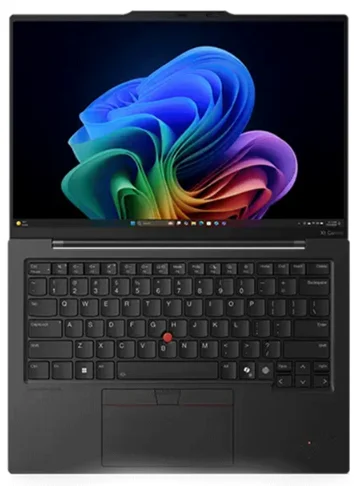
Meet your computer
ThinkPad X1 Carbon Gen 13 provides you with an unprecedented new experience of the computer.
Ultra smart: A Lenovo AURA EDITION product with a collection of premium, uncompromising, and exclusive experiences where endless possibilities meet ultimate personalization
Ultra light: Feather light and thin ever X1 Carbon
Front view
Have a quick glance at the front view of your computer.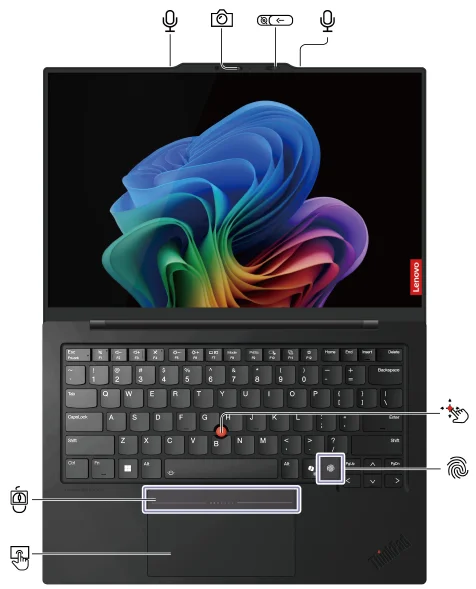
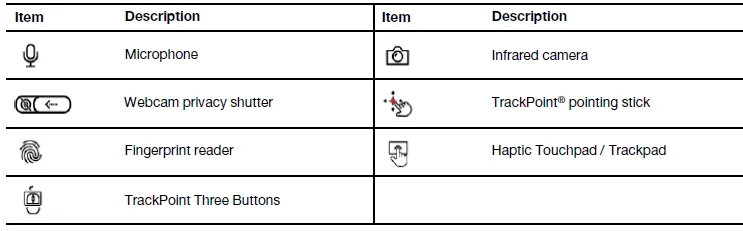
Note: Depending on the model, your computer comes with either a Trackpad or a Haptic Touchpad.
Webcam privacy shutter
Slide the webcam privacy shutter to cover or uncover the camera lens. It is designed to protect your privacy.
Side view
Have a quick glance at the ports on both sides of your computer.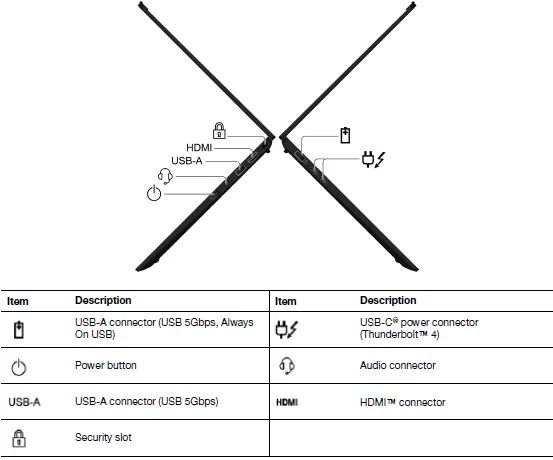
Note: For more information about the USB connector name update, see Appendix B “Notice for USB connector name update” on page 87.
Statement on USB transfer rate
Depending on many factors such as the processing capability of the host and peripheral devices, file attributes, and other factors related to system configuration and operating environments, the actual transfer rate using the various USB connectors on this device will vary and will be slower than the data rate listed in the connector name or below for each corresponding device.
USB device and Data rate (Gbps)
Thunderbolt 3: 40
Thunderbolt 4: 40
Bottom view
Have a quick glance at the bottom part of your computer.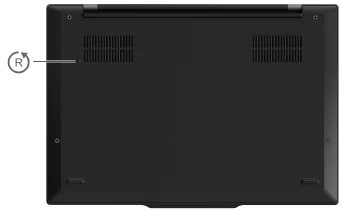
Emergency-reset hole
An emergency reset hole can help you recover your computer when the computer stops responding and you cannot turn it off by pressing the power button. Do the following to reset your computer:
- Disconnect your computer from AC power.
- Insert a straightened paper clip into the hole to cut off the power supply temporarily.
- Connect your computer to AC power and then turn on your computer.
Note: If your computer is still not responding, you can call the Lenovo Customer Support Center to get further help.
CAUTION: When the computer is operating, it should be placed on a hard and flat surface with its bottom area not in contact with the user’s bare skin. Under normal operating conditions, the temperature of the bottom surface will remain within an acceptable range as defined in IEC 62368-1, but such temperatures can still be high enough to cause discomfort or harm to the user if directly touched for over one minute at a time. As such, it is recommended that users avoid prolonged direct contact with the bottom of the computer.
Features and specifications
Get to know more hardware and software details of your computer.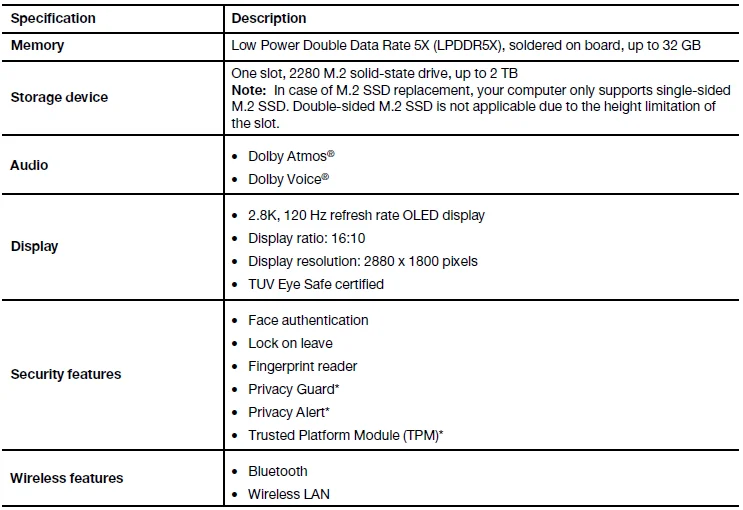
for selected models
USB specifications
Get to know more USB specifications.
Notes:
- Depending on the model, some USB connectors might not be available on your computer.
- On very rare occasions, the USB-C compatible devices connected to the USB-C connector might interfere with the wireless features. If your computer cannot be connected to Wi-Fi or a cellular network, detach the USB-C compatible devices from the USB-C connector.
Connector name and Description
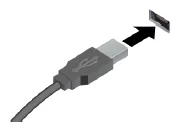
- USB-A connector (Hi-Speed USB)
- USB-A connector (USB 5Gbps)
- USB-A connector (USB 10Gbps)
Connect USB-compatible devices, such as a USB keyboard, USB mouse, USB storage device, or USB printer.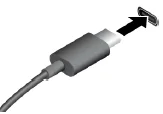
- USB-C connector (USB 5Gbps)
- USB-C connector (USB 10Gbps)
- USB-C connector (Thunderbolt 3)
- USB-C connector (Thunderbolt 4)
- USB-C connector (USB4 40Gbps)
- USB-C connector (DP Alt mode DP 2.1)
- Charge USB-C compatible devices with the output voltage and current of 5 V and 1.5 A.
- Connect to an external display: USB-C to VGA: up to 1920 x 1200 pixels, 60 Hz, USB-C to DP 1.4: up to 5120 x 3200 pixels, 60 Hz, USB-C to DP 2.1: up to 7680 x 4320pixels, 60 Hz
- Connect to USB-C accessories to help expand your computer functionality. To purchase USB-C accessories, go to https://www.lenovo.com/accessories.
Get started with your computer
This chapter introduces the instructions for setting up your computer, various ways to connect to networks, and how to interact with your computer.
Set up your computer
This section helps you to set up your computer and get it ready for use.
Turn on the computer
Follow the instructions to turn on your computer.
- Step 1: Connect the AC power cord to the AC power adapter.
- Step 2: Connect the DC cable to your computer.
- Step 3: Plug the AC power cord into the AC power.
- Step 4: Press the power button to turn on your computer.

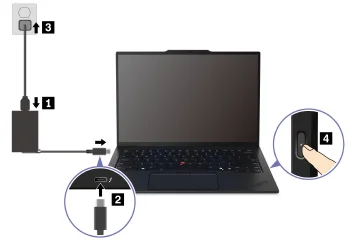
Notes:
- The appearance varies depending on the computer model.
- Some models might not ship with AC adapters or power cords. Use only the certified adapters and power cords provided by Lenovo that comply with the requirements of relevant national standards to charge the product. It is recommended to use the Lenovo qualified adapters. You can refer to https://www.lenovo.com/us/en/compliance/eu-doc.
- It is recommended to fully charge the computer when using it for the first time. Click the battery status icon at the bottom right of your desktop to check the battery status.
Complete the operating system setup
Before exploring your computer, you need to complete the operating system setup. The setup includes, but is not limited to:
- Select the country or region.
- Connect to an available network.
- Accept the license agreement.
- Create a Microsoft account or log in with your Microsoft account.
- Set up your password, fingerprint, or facial recognition as preferred.
- Customize your experience.
Notes:
- Depending on the model, some settings might not be available on your computer.
- Do not turn off your computer, and ensure it is connected to the AC power during the whole process.
Follow the instructions to set up the operating system.
Step 1: Connect the computer to the AC power and turn it on.
Step 2: Follow the on-screen instructions to complete the operating system setup.
Access networks
This section helps you connect to a wireless or wired network.
Connect to Wi-Fi networks
Click the network icon on the bottom right of your display to connect to an available network. Provide required information, if needed.
Note: The wireless LAN module on your computer might support different standards. For some countries or regions, the use of 802.11ax might be disabled according to local regulations.
Connect to the wired Ethernet
To connect your computer to a local network, you need a Lenovo USB-C to Ethernet Adapter. Lenovo USB-C to Ethernet Adapter is available as an option and shipped with some computer models. You can purchase one from Lenovo at https://www.lenovo.com/accessories.
Turn on Airplane mode
You might need to turn on Airplane mode if you board an airplane. When Airplane mode is on, all wireless features are turned off automatically. Click the network icon on the bottom right of your display to turn on Airplane mode.
Note: You can enable Wi-Fi networks in this mode according to your actual needs.
Manage power
Use the information in this section to achieve the best balance between performance and power efficiency.
Check the battery status
Check the battery status to help use the computer properly.
Go to Settings ➙ System to check the battery status. For more details about your battery, refer to the Vantage app.
Charge the computer with AC power
Power source of the AC power adapter:
- Power: 65 W
- Sine-wave input at 50 Hz to 60 Hz
- Input rating of the AC power adapter: 100 V to 240 V AC, 50 Hz to 60 Hz
- Output rating of the AC power adapter: 20 V DC, 3.25 A
When the battery power is low, charge your battery by connecting your computer to AC power with the supplied power adapter. The 65 W AC power adapter supports the rapid charge function; the battery is 80% charged in about one hour when the computer is turned off. The actual charging time depends on the battery size, the physical environment, and whether you are using the computer.
Battery charging is also affected by its temperature. The recommended temperature range for charging the battery is between 10°C (50°F) and 35°C (95°F).
Note: Some models might not ship with AC adapters or power cords. Use only the certified adapters and power cords provided by Lenovo that comply with the requirements of the relevant national standards to charge the product. It is recommended to use the Lenovo qualified adapters. You can refer to https://www.lenovo.com/us/en/compliance/eu-doc.
Maximize the life of the battery
Follow the instructions to maximize the life of the battery.
- Use the battery until the charge is depleted, and recharge the battery completely before using it. Once the battery is fully charged, it must discharge to 94% or lower before it will be allowed to recharge again.
- Keep the battery from full charge when it is not in heavy use. For more information, refer to the Battery settings tab in the Power section of the Vantage app.
- The battery might optimize its full charge capacity based on your usage. After prolonged periods of limited use, full battery capacity might not be available until you discharge to as low as 20% and recharge completely. For more information, refer to the Battery settings tab in the Power section of the Vantage app.
Charge your computer with P-to-P 2.0 charging function
Both USB-C connectors (Thunderbolt 4) on the computer feature the Lenovo-unique P-to-P 2.0 (Peer to Peer 2.0) charging function.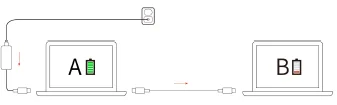
Note: The actual charging speed of your computer depends on many factors, such as the remaining battery power of the computer, the wattage of the AC power adapter, and whether you are using the computer.
To use the function, ensure that Always On USB and Charge in Battery Mode are enabled in the UEFI BIOS of your computers, so that the function works even when the computers are off or in hibernation mode. To enable Always On USB and Charge in Battery Mode:
- Step 1: Restart the computer. When the logo screen is displayed, press F1 to enter the UEFI BIOS menu.
- Step 2: Click Config ➙ USB, and then enable Always On USB and Charge in Battery Mode.
Change the power settings
Follow the instructions to change the power settings to your preference.
For ENERGY STAR® compliant computers, the following power plan takes effect by default when your computer is on AC power and has been idle for a specified duration:
- Turn off the display: After 5 minutes
- Put the computer to sleep: After 5 minutes
To change the power plan, the power button function, and other settings, do the following:
- Step 1. Go to Control Panel and view by Large icons or Small icons.
- Step 2. Click Power Options.
- Step 3. Change the settings as you prefer.
Interact with your computer
Explore various ways to interact with your computer.
Use the keyboard shortcuts
Keyboard shortcuts are keys or combinations of keys that provide a quick way to perform particular functions. They help you work more efficiently.
The following tables introduce the functions of keyboard shortcuts.
FnLock and function keys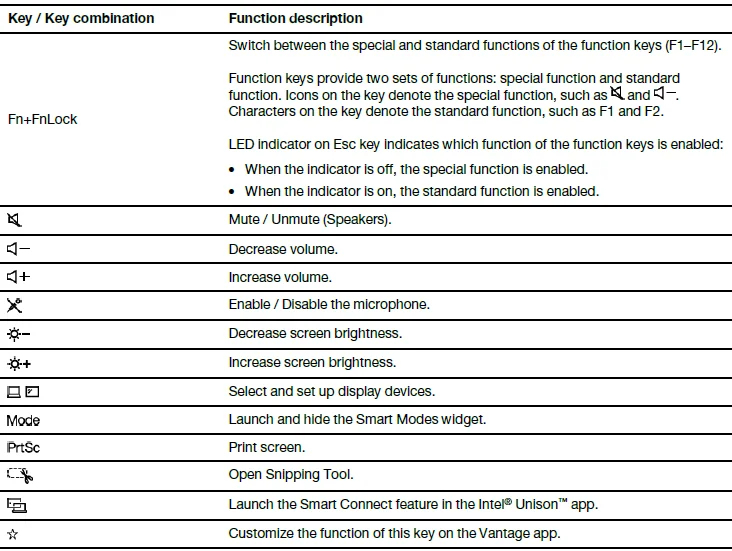
Other general keyboard shortcuts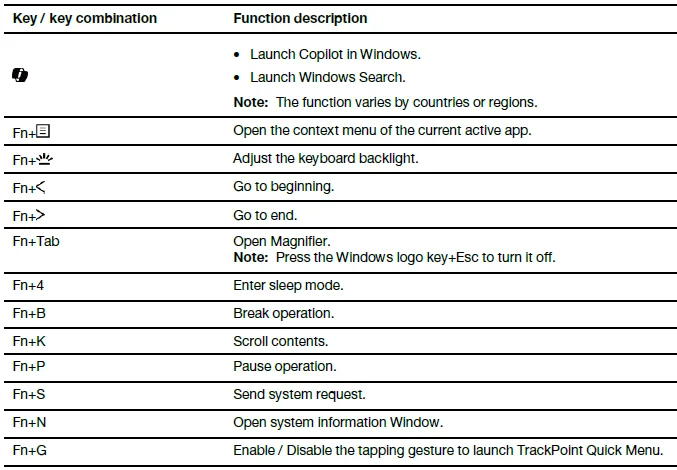
You can customize keyboard settings in the Vantage app. To customize detailed settings, open the Vantage app, and then click Device ➙ Input & Accessories.
For more keyboard shortcuts, go to https://support.lenovo.com/solutions/windows-support.
Use the TrackPoint pointing device
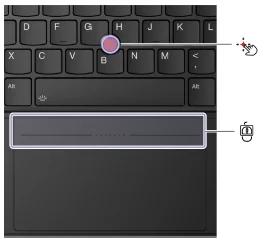
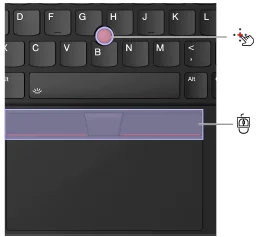
The TrackPoint pointing device enables you to perform all the functions of a traditional mouse, such as pointing, clicking, and scrolling.
For Haptic Touchpad
For Trackpad
TrackPoint pointing stick
Use your finger to apply pressure to the pointing-stick nonslip cap (hereafter referred to as the red cap) in any direction parallel to the keyboard. The pointer on the screen moves accordingly. The higher the pressure applied, the faster the pointer moves.
Your computer supports TrackPoint Quick Menu, see “TrackPoint Quick Menu” on page 23.
TrackPoint Three Buttons
The left-click button and right-click button correspond to the left and right buttons on a traditional mouse. Press and hold the TrackPoint center button while using your finger to apply pressure to the pointing stick in the vertical or horizontal direction. Then, you can scroll through the document, website, or apps.
Press Ctrl+TrackPoint center button+TrackPoint pointing stick at the same time to zoom in or zoom out.
Disable the TrackPoint pointing device
The TrackPoint pointing device is enabled by default. You can disable the device and change settings such as the speed of the cursor when using the TrackPoint pointing stick and the TrackPoint center button.
To change the settings, do the following:
- Step 1. Type Mouse settings in the Windows search box and then press Enter.
- Step 2. Click TrackPoint settings and then follow the on-screen instructions to change the settings.
Use the Haptic Touchpad (for selected models)
You can use the Haptic Touchpad to perform all the pointing, clicking, and scrolling functions of a traditional mouse. It is ideal for you to use for occasions with high portability requirements, for example, business trips.
- When TrackPoint Three Buttons are enabled
- When TrackPoint Three Buttons are disabled
Notes:
- When using two or more fingers, ensure that you position your fingers slightly apart.
- Some gestures are not available if the last action was done from the TrackPoint pointing device.
- Some gestures are only available when you are using certain apps.
- If the Haptic Touchpad surface is stained with oil, turn off the computer first. Then, gently wipe the Haptic Touchpad surface with a soft and lint-free cloth moistened with lukewarm water or computer cleaner.
Use the Trackpad (for selected models)
You can use the Trackpad to perform all the pointing, clicking, and scrolling functions of a traditional mouse. It is ideal for you to use for occasions with high portability requirements, for example, business trips.
Notes:
Some gestures are not available in the following cases:
- If the last action was done from the TrackPoint pointing device.
- When you are using certain apps.
- When you are using two or more fingers and your fingers are too close.
Trackpad might be insensitive in the following cases:
- When you position your fingers too close to the edge of the Trackpad.
- When you touch the Trackpad with wet fingers.
- If the Trackpad surface is stained with water or oil. Turn off the computer first. Then, gently wipe the Trackpad surface with a soft and lint-free cloth that is moistened with lukewarm water or computer cleaner.
Use the touch gestures
Notes:
- When using two or more fingers, ensure that you position your fingers slightly apart.
- Some gestures are not available if the last action was done from the TrackPoint pointing device.
- Some gestures are only available when you are using certain apps.
- If the Trackpad surface is stained with oil, turn off the computer first. Then, gently wipe the Trackpad surface with a soft and lint-free cloth moistened with lukewarm water or computer cleaner.
For more gestures, see the help information of the pointing device.
One and two-finger touch gestures
- Select an item: One finger taps once.
- Open an item: One finger taps twice.
- Display a shortcut menu: Two fingers tap twice quickly.
- Zoom in: Two fingers stretch out.
- Zoom out: Two fingers pinch in.
- Scroll through items: Two fingers slide horizontally or vertically.
Three and four-finger touch gestures
- Open search window: Three fingers tap once.
- Open notification center: Four-finger tap once.
- Show all windows: Three- or four-finger swipes up.
- Show the desktop: Three- or four-finger swipes down.
- Switch between open apps or windows: Three- or four-finger swipes left or right.
Disable the Trackpad or Haptic Touchpad
The Trackpad or Haptic Touchpad is enabled by default. To disable the Trackpad or Haptic Touchpad:
- Step 1. Open the Start menu, and then click Settings ➙ Bluetooth & devices ➙ Touchpad.
- Step 2. In the Touchpad section, turn off the Touchpad control.
Connect to an external display
Connect your computer to a projector or a monitor to give presentations or expand your workspace.
Note: It’s not recommended that you connect or disconnect the external display when in a pre-OS environment. Otherwise, your computer screen might go black.
Connect to a wired display
You can connect a wired display with your computer through the USB-C connector or HDMI connector.
If your computer cannot detect the external display, right-click a blank area on the desktop and select Display settings. Then follow the on-screen instructions to detect the external display.
Supported resolution
The following table lists the supported maximum resolution of the external display.
For more Manuals by Lenovo, visit ManualsLibraryy
Lenovo ThinkPad X1 Carbon Gen 13-FAQs
What makes the Lenovo ThinkPad X1 Carbon Gen 13 special?
The X1 Carbon Gen 13 features a stunning OLED display with minimal reflections and ultra-thin bezels, offering an 89.2% screen-to-body ratio. It’s lightweight, durable, and built for professionals who value both performance and portability.
What processor does the ThinkPad X1 Carbon Gen 13 use?
It comes with the latest Intel Core Ultra 7 258V processor, ensuring smooth multitasking and strong performance for demanding applications.
Does the ThinkPad X1 Carbon Gen 13 have a touchscreen?
Yes, select models feature a 14-inch WUXGA touchscreen with 500 nits brightness, providing vibrant visuals and precise touch control.
Can I upgrade the SSD on the ThinkPad X1 Carbon?
Yes, you can upgrade the SSD. While the Gen 13 supports PCIe Gen 4 speeds, Gen 5 SSDs can also be used but will operate at Gen 4 performance levels.
Is the RAM in the X1 Carbon Gen 13 upgradeable?
No, the RAM is soldered onto the motherboard, so it cannot be upgraded. It’s available in configurations up to 32GB LPDDR5X memory.
How do I reset the ThinkPad X1 Carbon battery?
Shut down the laptop, disconnect all power sources, and use the pinhole reset button (usually on the bottom) for a few seconds. Then reconnect and power it on.
Is the Lenovo ThinkPad X1 Carbon Gen 13 worth buying?
Yes. The X1 Carbon Gen 13 remains one of the best ultrabooks available, combining premium build quality, top-tier performance, and excellent portability for professionals.
How does the ThinkPad X1 Carbon compare to the MacBook Pro?
While the MacBook Pro’s Apple Silicon chips may perform faster in some tasks, the ThinkPad X1 Carbon offers more ports, upgradeable storage, and a lighter, business-focused design.
Why does NASA use ThinkPads?
ThinkPads are known for their durability, safety, and reliability. They’ve been the only laptops certified for use on the International Space Station for decades.