
DJI Avata 2 FPV Drone Complete
Product Profile
Introduction
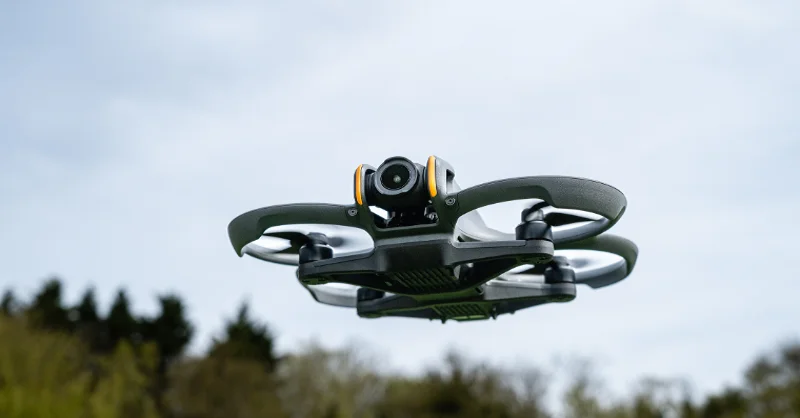
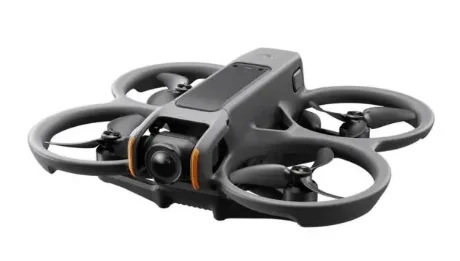
DJI Avata 2 is a compact and portable FPV camera drone equipped with built-in propeller guards. The aircraft uses both GNSS and a Vision System, allowing for stable hovering and smooth aerobatic maneuvers while flying both indoors and out. With a gimbal and 1/1.3″ sensor camera, the aircraft shoots stable 4K 60fps ultra-HD video and 4K photos. The maximum flight time of the aircraft is approximately 23 minutes [1].
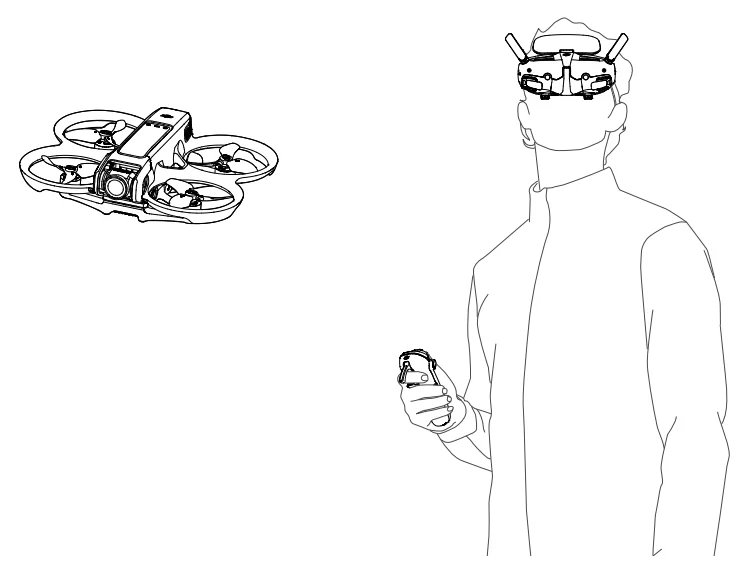
When the aircraft is used with compatible goggles and remote control devices in an unobstructed, interference-free environment, the maximum video transmission range can reach 8 mi (13 km) [2], with a bitrate up to 60 Mbps, providing an immersive flight experience. DJI Goggles 3 (hereinafter referred to as goggles) are equipped with two high-performance screens, giving you a real-time FPV experience. To provide a more comfortable experience for users who wear glasses or have visual impairments, the goggles support diopter adjustment so that glasses are not required during use. There are two cameras on the front of the goggles, so users can view the surrounding environment via Real View without having to take off the goggles. With DJI Goggles 3 and DJI RC Motion 3 (hereinafter referred to as the motion controller), users can easily and intuitively control the aircraft and enjoy a new and convenient flight control experience.
[1] The maximum flight time of the aircraft is measured at a constant flying speed of 21.6 kph in a windless environment at sea level, with camera parameters set to 1080p/30fps, video mode off, and from 100% battery level until 0%. Data is for reference only. Always pay attention to reminders on the Google screen during your flight.
[2] The remote control devices reach their maximum transmission distance (FCC) in a wide open area with no electromagnetic interference at an altitude of about 120 m (400 ft). The maximum transmission distance refers to the maximum distance that the aircraft can still send and receive transmissions. It does not refer to the maximum distance the aircraft can fly in a single flight.

- Visit the official DJI website to check the goggles and remote control devices supported by the aircraft. This manual only takes the DJI Goggles 3 and the DJI RC Motion 3 as examples for introduction. Refer to the user manuals of other supported devices for use.

- Using the goggles does not satisfy the requirement of visual line of sight (VLOS). Some countries or regions require a visual observer to assist during flight. Make sure to comply with local regulations when using the goggles.
- DJI Goggles 3, DJI RC Motion 3, DJI FPV Remote Controller 3, and all types of ND filters are fully compatible with DJI Avata 2.
Using for the First Time
Preparing the Aircraft
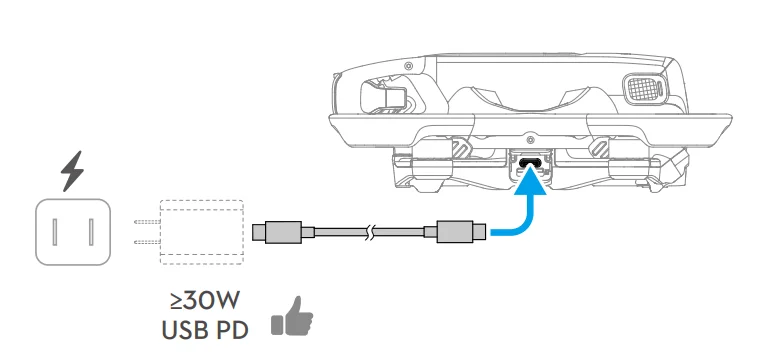
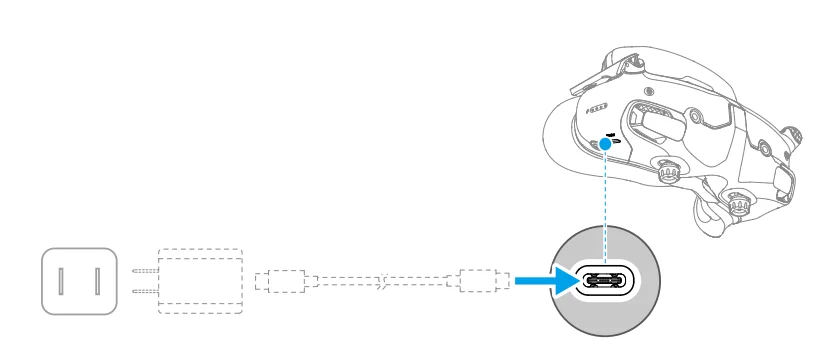
All Intelligent Flight Batteries are in hibernation mode before shipment to ensure safety. Charge to activate the batteries before first use. Connect the USB charger to the USB-C port on the aircraft to charge. The battery is activated when it begins charging.
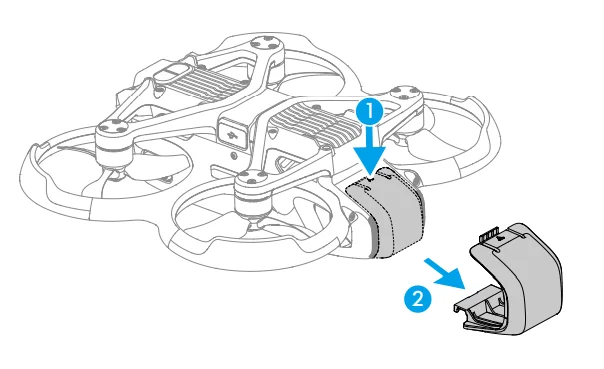
Remove the gimbal protector.
- It is recommended to use the DJI 65W USB-C Charger or other USB Power Delivery chargers with a charging power equal to or greater than 30W.
- It is recommended to attach the gimbal protector to protect the gimbal when the aircraft is not in use. Adjust the camera to keep it facing forward and horizontal, then install the gimbal protector and make sure it is secure.
- Peel off the protective stickers from the gimbal camera before first use.
- Make sure to remove the gimbal protector before powering on the aircraft. Otherwise, it may affect the aircraft when performing self-diagnostics.
Preparing DJI Goggles 3
Powering on the Goggles
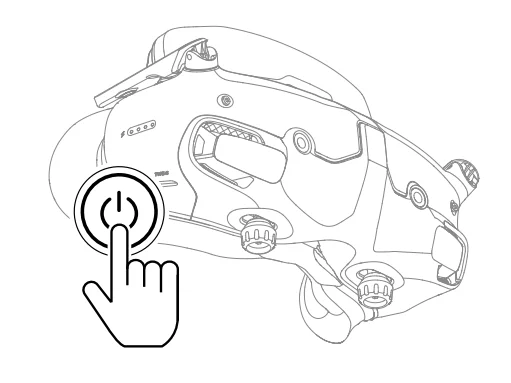
Press the power button once to check the current battery level.
Press once, then press and hold for two seconds to power the goggles on or off.
The battery level LEDs display the power level during charging and when in use:
 LED is on
 The LED is flashing
 LED is off
 LED is on
 The LED is flashing
 LED is off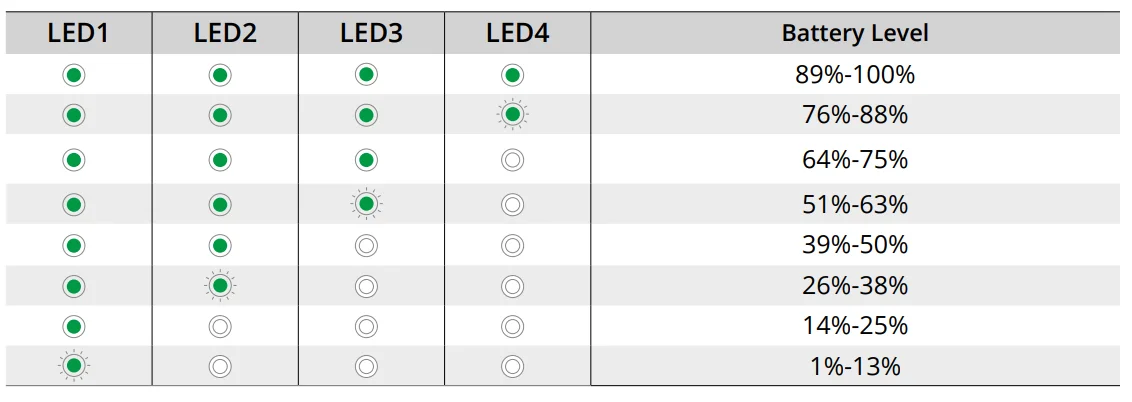
If the battery level is low, it is recommended to use a USB charger to charge the device.
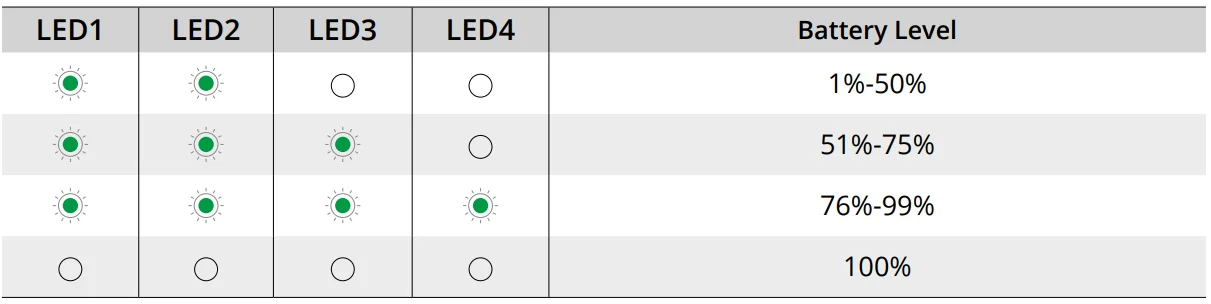
The table below shows the battery level during charging:
- USB-C port spec: USB 2.0 (480 Mbps). The maximum input power is 9V/3A.
Wearing the Goggles
- The battery wires are embedded in the headband. DO NOT pull the headband with force to avoid damaging the wires.
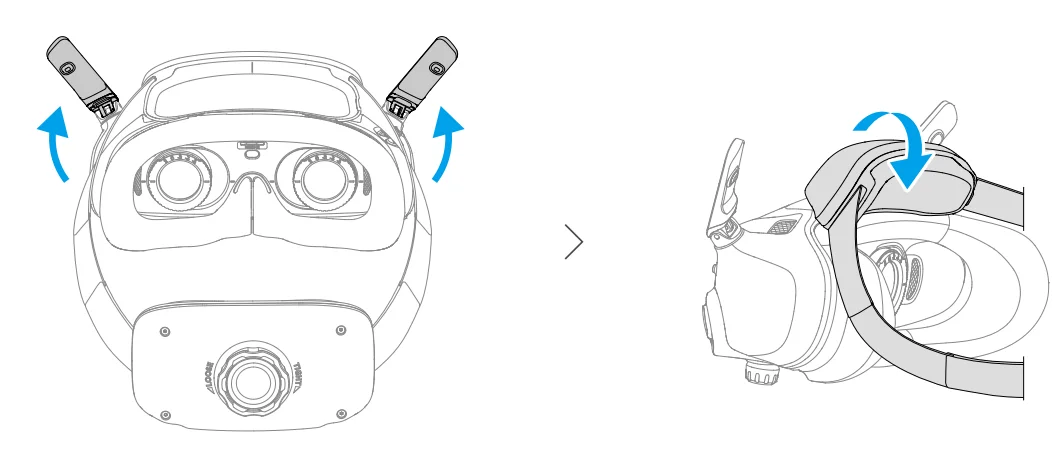
- Fold the antennas to avoid damage when the goggles are not in use.
- DO NOT tear or scratch the foam padding, the additional forehead pad, or the soft side of the battery compartment with sharp objects.
- DO NOT bend the additional forehead pad with force.
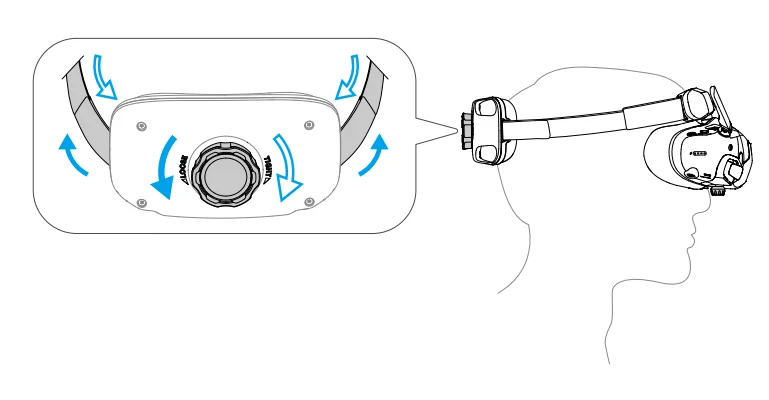
- DO NOT rotate the headband adjustment knob or the diopter adjustment knob with force to avoid component damage.
- Unfold the antennas.
- Adjust the forehead pad downward to the lowest position.

- Put on the goggles after the devices are powered on.
- Rotate the headband adjustment knob on the battery compartment to adjust the length of the headband. Rotate clockwise to tighten the headband and counterclockwise to loosen the headband. It is recommended to wear the goggles with the battery compartment placed on the upper back part of the head to avoid it sliding down.

Getting a Clear Vision
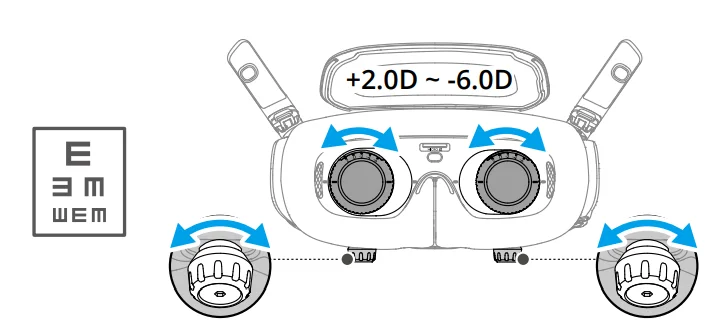
Rotate the knobs on the bottom of the goggles to adjust the diopters if your vision is in the range of -6.0D to +2.0D. The screen in the goggles will display the diopter value when rotating.
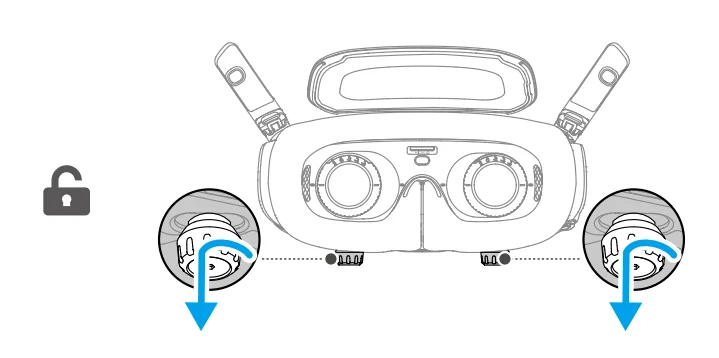
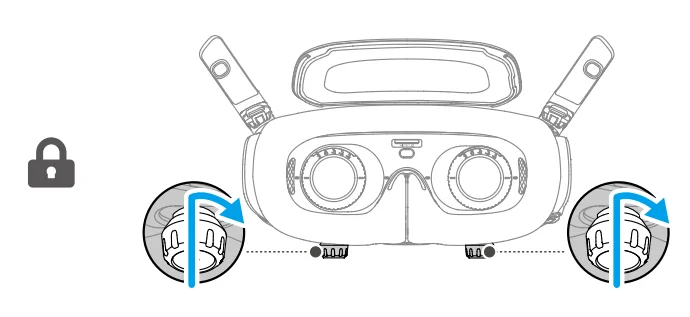
- Rotate both knobs in the direction shown to unlock them. Once unlocked, the knobs will pop out.

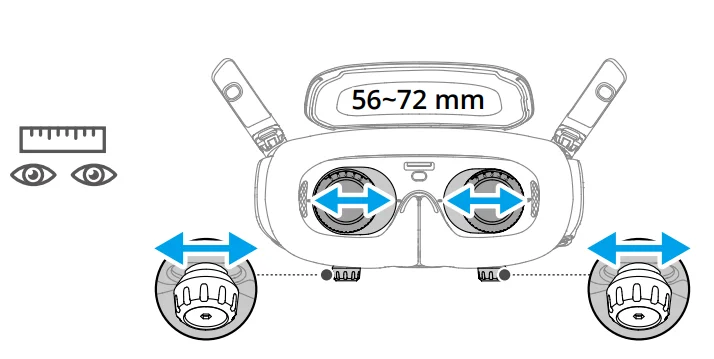
- Slide left and right to adjust the distance between the lenses until the image is properly aligned.

- Slowly rotate the knobs to adjust the diopters. The supported adjustment range is from -6.0D to +2.0D.


- The goggles do not support astigmatism correction. If you require astigmatism correction or if the diopters of the goggles are unsuitable, you can purchase additional lenses and use the corrective lens frames provided to install them on the goggles.
Refer to “Using the Corrective Lenses” for more information. - When adjusting the diopters for the first time, you are advised to adjust to a degree that is slightly lower than the strength of your actual eyeglasses. Give your eyes enough time to adapt, then adjust the diopters again until you get a clear view. Do not use a diopter value higher than your actual eyeglass power to avoid eyestrain.
- The goggles do not support astigmatism correction. If you require astigmatism correction or if the diopters of the goggles are unsuitable, you can purchase additional lenses and use the corrective lens frames provided to install them on the goggles.
- After you get a clear view, press the knobs in and rotate them in the direction as shown to lock in the lenses’ position of the lenses and the diopters.

Using the Corrective Lenses
DJI Goggles 3 supports diopter adjustment from 6.0D to +2.0D.
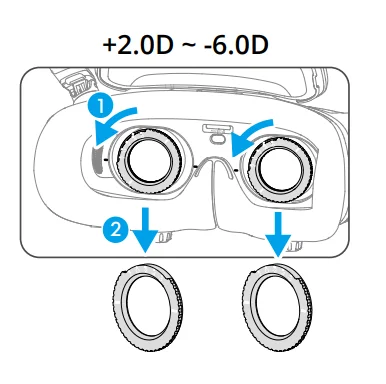
If your vision is in the range of -6.0D to -8.0D, you can install the provided -2.0D Corrective Lenses.
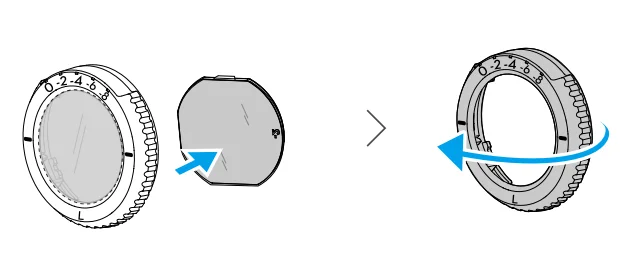
- Detach the original lens frames from the goggles by rotating counterclockwise as shown.

- Take out the -2.0D Corrective Lenses and peel off the protective film. Distinguish the left and right lenses via the L and R marks on the bottom.
- Align the positioning marks on the left and right sides of the corrective lens frame with the marks on the inner circle of the goggle lens frame. Mount the corrective lens by pressing it down, and then rotate it clockwise until the marks on the corrective lens frame are aligned with the marks on the goggle lens frame.


- Adjust the diopters of the goggles according to your needs and lock the knobs.
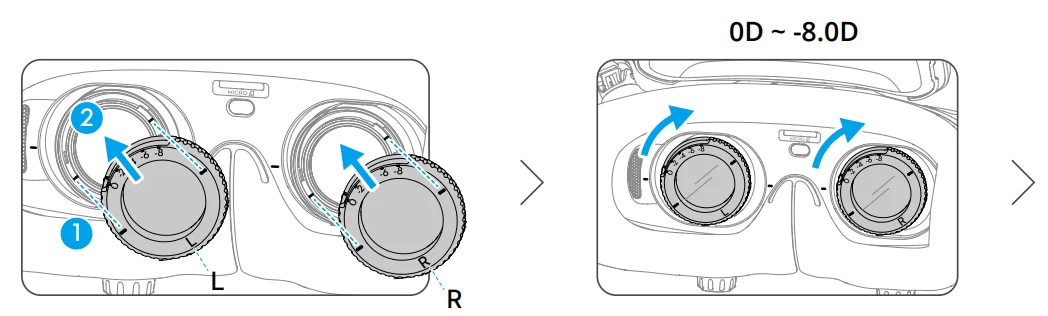
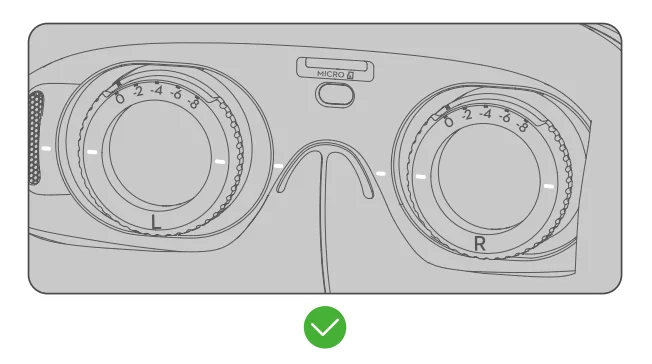
- After installing the 2.0D Corrective Lenses, the diopter value displayed on the screen is not the actual diopter value. The actual diopter value is the sum of the on-screen value and -2.0D.
Purchasing and Installing Your Own Corrective Lenses
If you require astigmatism correction or the diopters of the goggles cannot meet your needs, you can purchase suitable lenses and use the corrective lens frames to install them.
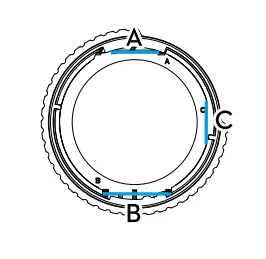
- When purchasing lenses, bring the full set of 2-2.0DCorrective Lenses (a pair with the frames) to a professional optician to ensure that the shape, size, astigmatism axis, and edge thickness (< 1.8 mm) of the lenses meet the installation requirements of the corrective lens frames.
- Push and remove the -2.0D lens from the frame. Turn the frame over.

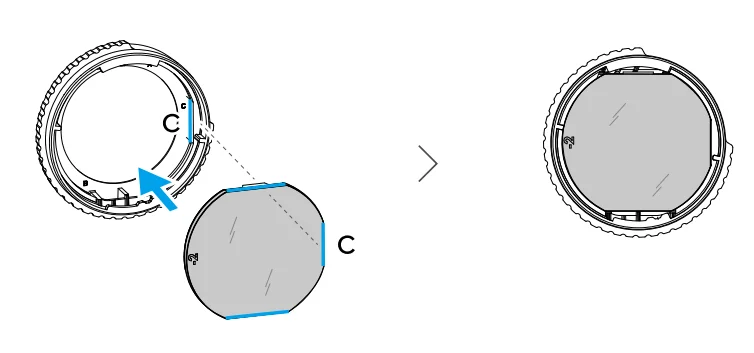
- Identify the shortest cut edge (c) in the frame.

- Take out the purchased lenses, also identify the shortest cut edge.
- Distinguish the left and right lenses and the corresponding frames. Align the shortest cut edge and install the lens into the frame with the concave side of the lens facing the eye.

- Make sure the lens is installed in the correct way and not tilted. Clean the lens with the lens cleaning cloth to wipe off fingerprints and dust.
- Mount the corrective lenses to the goggles.
- Adjust the diopters of the goggles according to your needs and lock the knobs.
- If you usually wear -9.0D glasses, you can purchase a pair of -3.0D lenses and adjust the diopters of the goggles to -6.0D. Then the overall diopter value will be -9.0D after the self-prepared lenses are installed.
Using the Additional Forehead Pad
After installing the corrective lenses, the distance between the lenses and your eyes is reduced, and your eyelashes might sweep the lenses. If you feel any discomfort, install the additional forehead pad.
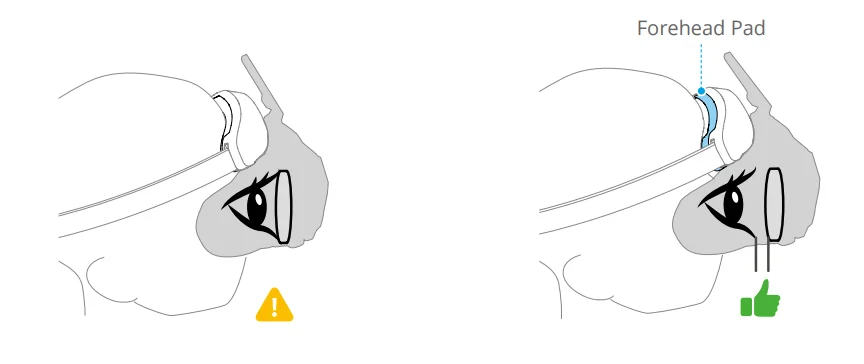
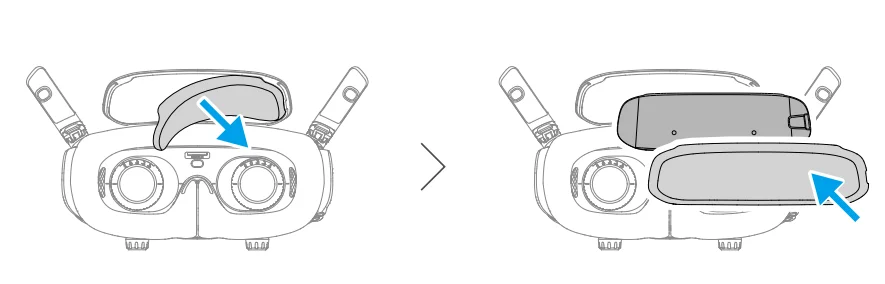
- Peel off the original forehead pad.
- Attach the additional forehead pad and then install the original forehead pad on top.

Preparing DJI RC Motion 3
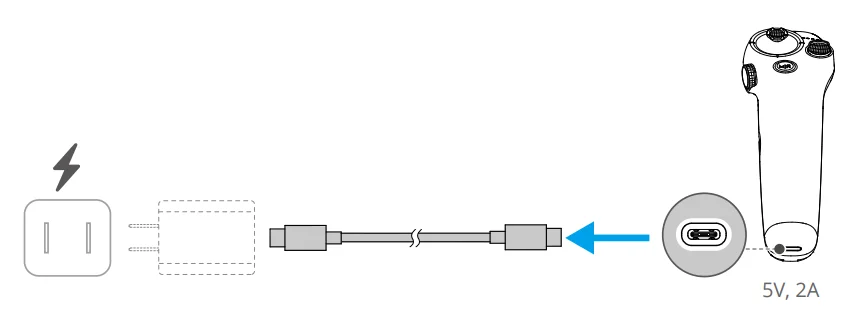
Press the power button once to check the current battery level. Charge before using if the battery level is too low.
Linking
The aircraft, goggles, and motion controller are already linked when purchased together as a combo. Otherwise, follow the steps below to link the devices.
Make sure that the devices used with the aircraft have been updated to the latest firmware version via the DJI ASSISTANTTM 2 (Consumer Drone Series) software before linking and powering on.
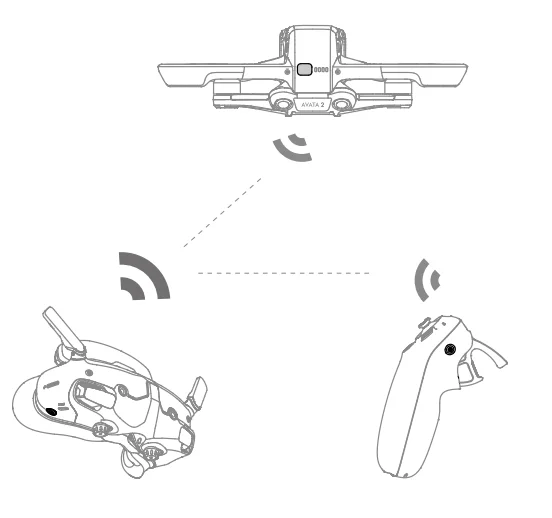
- Linking the aircraft and the goggles:

- Press and hold the power button on the aircraft until it beeps once and the battery level LEDs start to blink in sequence.
- Press and hold the power button on the goggles until the goggles start to beep continuously and the battery level LEDs start to blink in sequence.
- Once linking is completed, the battery level LEDs of the aircraft turn solid and display the battery level, the goggles stop beeping, and image transmission can be displayed normally.
- Linking the goggles and motion controller:

- Press and hold the power button on the goggles until the goggles start to beep continuously and the battery level LEDs start to blink in sequence.
- Press and hold the power button on the motion controller until it starts to beep continuously and the battery level LEDs start to blink in sequence.
- Once linking is successful, the goggles and the motion controller stop beeping, and both the battery level LEDs turn solid and display the battery level.
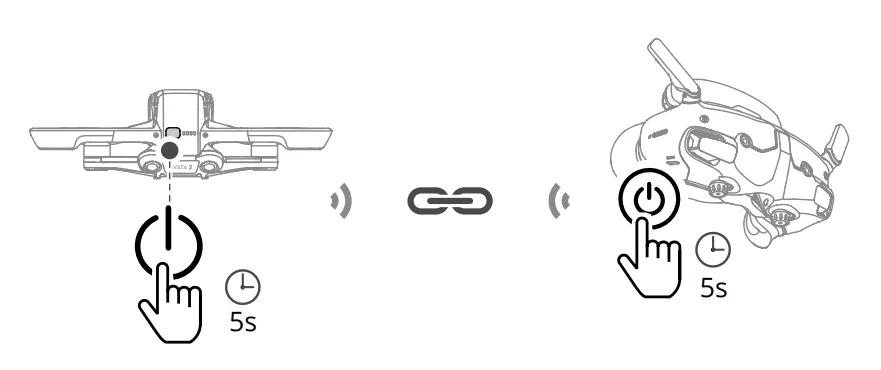
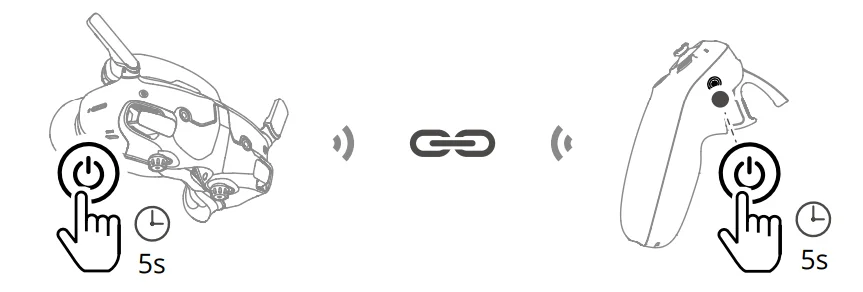
- Make sure the devices are within 0.5 m of each other during linking.
- Restart the devices if they fail to link. Connect the goggles to a mobile device, run the DJI Fly app, select Connection Guide, and then follow the on-screen instructions to link.
- The aircraft can be controlled with only one remote control device during flight. If your aircraft has been linked with multiple remote control devices, turn off the other remote control devices before flight.
Activation
DJI Avata 2 must be activated before using it for the first time. Make sure all devices are linked after powering on the aircraft, goggles, and remote control device. Connect the USB-C port of the goggles to the mobile device, run DJI Fly, and follow the prompts to activate. An internet connection is required for activation. If automatic binding fails, follow the on-screen prompts on DJI Fly to bind the aircraft and goggles. The aircraft and goggles must be bound to receive service under warranty.
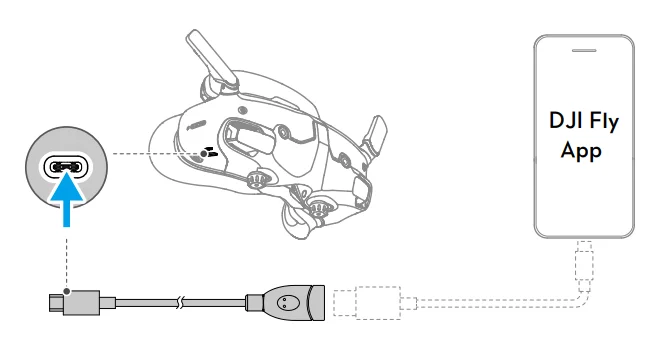
- The goggles only support standard USB-C protocols and MFi-certified Lightning cables. Non-standard cables are not supported. If the devices do not respond after connecting, use a different data cable and try again.
Updating Firmware
A prompt will appear in DJI Fly when new firmware is available. Update the firmware whenever prompted to ensure optimal user experience. Refer to “Updating Firmware” for more information.
Overview
Aircraft
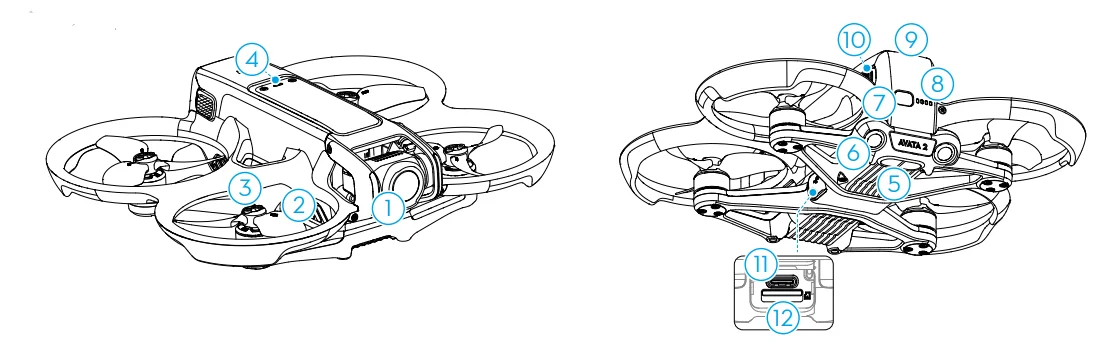
- Gimbal and Camera
- Propellers
- Motors
- Aircraft Status Indicator
- Infrared Sensing System
- Downward and Backward Vision System
- Power Button
- Battery Level LEDS
- Intelligent Flight Battery
- Battery Buckle
- USB-C Port
- microSD Card Slot
DJI Goggles 3
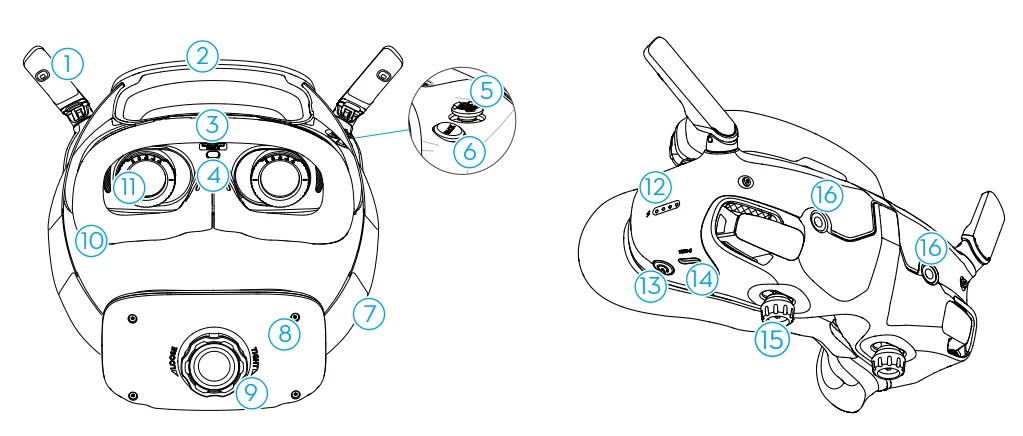
- Antennas
- Forehead Pad
- microSD Card Slot
- Proximity Sensor
Detects whether the user is wearing the goggles and automatically turns the screen on or off. - 5D Button
- Back Button
- Headband 16.
- Battery Compartment
- Headband Adjustment Knob
- Foam Padding
- Lens
- Battery Level LEDS
- Power Button/Link Button
- USB-C Ports
- IPD (Interpupillary Distance) Slider /Diopter Adjustment Knob (hereinafter referred to as “knob”)
- Camera
DJI RC Motion 3
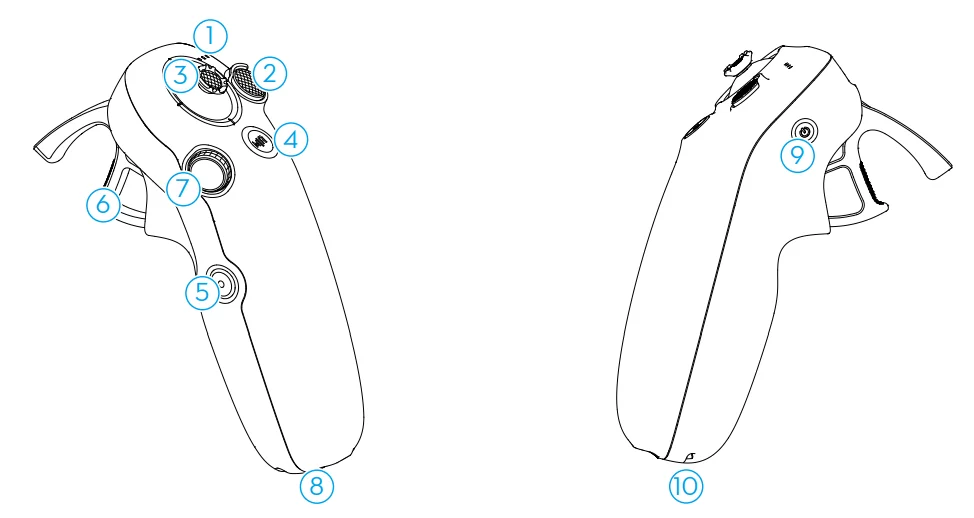
- Battery Level LEDs
- Lock Button
- Joystick
- Mode Button
- Shutter/Record Button
- Accelerator
- Dial
- USB-C Port
- Power Button
- Lanyard Hole
Flight Safety
After completing pre-flight preparations, it is recommended to train your flying skills and practice flying safely. Pick a suitable area to fly in according to the following flight requirements and restrictions. Strictly abide by local laws and regulations when flying. Read the Safety Guidelines before flight to ensure safe use of the product.
Flight Restrictions
GEO (Geospatial Environment Online) System
The DJI Geospatial Environment Online (GEO) System is a global information system that provides real-time information on flight safety and restriction updates and prevents UAVs from flying in restricted airspace. Under exceptional circumstances, restricted areas can be unlocked to allow flights in. Before that, the user must submit an unlocking request based on the current restriction level in the intended flight area. The GEO system may not fully comply with local laws and regulations. Users shall be responsible for their own flight safety and must consult with the local authorities on the relevant legal and regulatory requirements before requesting to unlock a flight in a restricted area. For more information about the GEO system, visit https://fly-safe.dji.com.
Flight Limits
For safety reasons, flight limits are enabled by default to help users operate this aircraft safely.
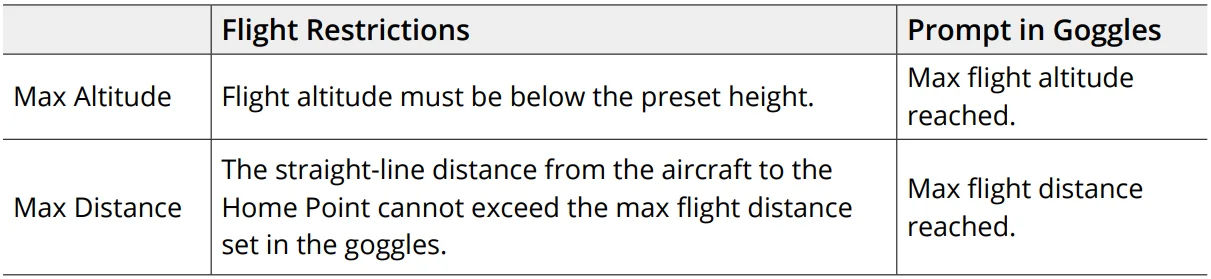
Users can set flight limits on height and distance. Altitude limits, distance limits, and GEO zones function concurrently to manage flight safety when GNSS is available. Only altitude can be limited when GNSS is unavailable.
Flight Altitude and Distance Limits
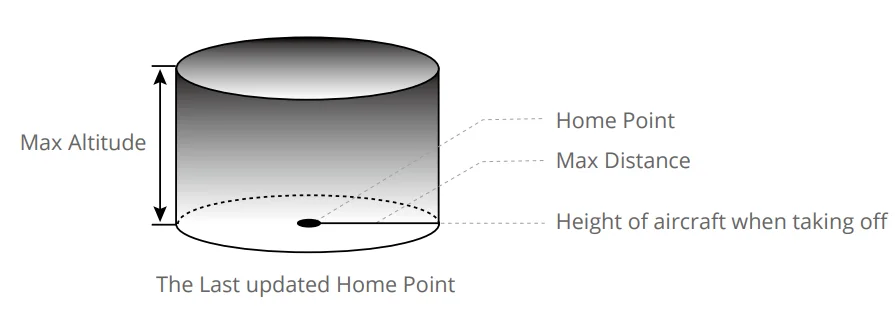
Max altitude restricts the flight altitude of the aircraft, while max distance restricts the flight radius around the Home Point. These limits can be set using the goggles for improved flight safety.
Strong GNSS Signal
Weak GNSS Signal
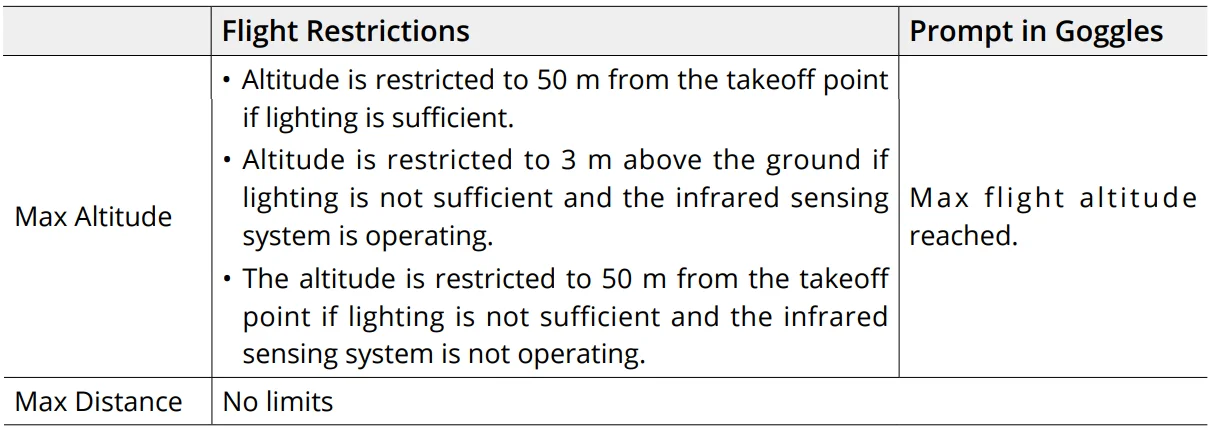
- Each time the aircraft is powered on, the altitude limit of 3 m or 50 m will be automatically removed as long as the GNSS signal ever becomes strong (GNSS signal display white or yellow) once, and the limit will not take effect even if the GNSS signal becomes weak afterwards.
- If the aircraft flies out of the set flight range due to inertia, users can still control the aircraft, but cannot fly it any further. If the aircraft flies above the altitude limit, it will descend below the altitude limit at 5 m/s. If the aircraft flies into an Altitude Zone, landing will be triggered after a 100-second countdown.
- For safety reasons, DO NOT fly the aircraft close to airports, highways, railway stations, railway lines, city centers, or other sensitive areas. Only fly the aircraft within a visual line of sight.
GEO Zones
The DJI GEO system designates safe flight locations, provides risk levels and safety notices for individual flights, and offers information on restricted airspace. All restricted flight areas are referred to as GEO Zones, which are further divided into Restricted Zones, Authorization Zones, Warning Zones, Enhanced Warning Zones, and Altitude Zones. Users can view such information in real-time in DJI Fly. GEO Zones are specific flight areas, including but not limited to airports, large event venues, locations where public emergencies have occurred (such as forest fires), nuclear power plants, prisons, government properties, and military facilities. By default, the GEO system limits takeoffs and flights in zones that may cause safety or security concerns. A GEO Zone map that contains comprehensive information on GEO Zones around the globe is available on the official DJI website: https://flysafe.dji.com/nfz/nfz-query.
Unlocking GEO Zones
To satisfy the needs of different users, DJI provides two unlocking modes: Self-Unlocking and Custom Unlocking. Users may request the DJI Fly Safe website.
Self-Unlocking is intended for unlocking Authorization Zones. To complete Self-Unlocking, the user must submit an unlocking request via the DJI Fly Safe website at https://fly-safe.dji.com. Once the unlocking request is approved, the user may synchronize the unlocking license through the DJI Fly app.
Alternatively, to unlock a zone, the user may launch or fly the aircraft directly into the approved Authorization Zone and follow the prompts in DJI Fly to unlock the zone. Custom Unlocking is tailored for users with special requirements. It designates user-defined custom flight areas and provides flight permission documents specific to the needs of different users. This unlocking option is available in all countries and regions and can be requested via the DJI Fly Safe website at https://www.dji.com/flysafe.
- To ensure flight safety, the aircraft will not be able to fly out of the unlocked zone after entering it. If the Home Point is outside the unlocked zone, the aircraft will not be able to return home.
Flight Environment Requirements
- DO NOT operate the aircraft in severe weather conditions, including wind speeds exceeding 10.7 m/s, snow, thunder and lightning, rain, and fog.
- Only fly in open areas. Tall buildings and large metal structures may affect the accuracy of the onboard compass and GNSS system. Therefore, DO NOT take off from a balcony or anywhere within 15 m of buildings. Keep a distance of at least 15 m from buildings during flight. After takeoff, make sure you are notified with the message prompt “Home Point has been updated” before continuing the flight. If the aircraft has taken off near buildings, the accuracy of the Home Point cannot be guaranteed. In this case, pay close attention to the current position of the aircraft during auto RTH. When the aircraft is close to the Home Point, it is recommended to cancel auto RTH and manually control the aircraft to land at an appropriate location.
- When the GNSS signal is weak, fly the aircraft in environments with good lighting and visibility. The vision system may not work properly in poor light conditions. Only fly the aircraft in the daytime.
- Avoid obstacles, crowds, trees, and bodies of water (recommended height is at least 6 m above water).
- Minimize interference by avoiding areas with high levels of electromagnetism, such as locations near power lines, base stations, electrical substations, and broadcasting towers.
- Try to keep a distance of more than 200 m from strong electromagnetic wave interference sites, such as radar stations, microwave relay stations, mobile communication base stations, and drone jamming equipment.
- The performance of the aircraft and its battery is limited when flying at altitudes above 5000 m (16,404 ft). Fly with caution.
- The braking distance of the aircraft is affected by the flight altitude. The higher the altitude, the greater the braking distance. When flying at an altitude above 3000 m (9843 ft), the user should reserve at least 20 m for vertical braking distance and 25 m for horizontal braking distance to ensure flight safety.
- GNSS cannot be used on the aircraft in polar regions. Use the vision system instead.
- DO NOT take off from moving objects, such as cars and ships.
- DO NOT take off from solid-colored surfaces or surfaces with strong reflections, such as a car roof.
- DO NOT operate the aircraft in an environment where there is of risk of a fire or explosion.
- Operate the aircraft, goggles, remote control device, battery, battery charger, and battery charging hub in a dry environment.
- DO NOT use the aircraft, goggles, remote control device, battery, battery charger, or tattery charging hub near accidents, fire, explosions, floods, tsunamis, avalanches, landslides, earthquakes, dust, sandstorms, salt spray, or fungus.
- DO NOT operate the aircraft near bird flocks.
- DO NOT use the battery charger in humid environments.
Operating the Aircraft Responsibly
To avoid serious injury and property damage, observe the following rules:
- Make sure you are NOT under the influence of anesthesia, alcohol, or drugs, or suffering from dizziness, fatigue, nausea, or other conditions that could impair the ability to operate the aircraft safely.
- When landing, power off the aircraft first, then power off the remote control device.
- DO NOT drop, launch, fire, or otherwise project any dangerous payloads on or at any buildings, persons, or animals, which could cause personal injury or property damage.
- DO NOT use an aircraft that has been crashed or accidentally damaged, or an aircraft that is not in good condition.
- Make sure to train sufficiently and have contingency plans for emergencies or when an incident occurs.
- Make sure to have a flight plan. DO NOT fly the aircraft recklessly.
- Respect the privacy of others when using the camera. Make sure to comply with local privacy laws, regulations, and moral standards.
- DO NOT use this product for any reason other than general personal use.
- DO NOT use it for illegal or inappropriate purposes such as spying, military operations, or unauthorized investigations.
- DO NOT use this product to defame, abuse, harass, stalk, threaten, or otherwise violate legal rights such as the right to privacy and publicity of others.
- DO NOT trespass onto the private property of others.
Pre-Flight Checklist
- Make sure the goggles, remote control devices, Intelligent Flight Battery, and mobile device are fully charged.
- Make sure the propellers are mounted correctly and securely.
- Make sure the Intelligent Flight Battery is properly connected and secure.
- Make sure the dust-resistant covers of the USB-C port and the microSD card slot are firmly closed.
- Make sure the gimbal protector has been removed. Make sure all camera lenses and sensors are clean.
- Make sure the aircraft, the remote control device, the gimbal, and the camera are functioning normally.
- Make sure the goggles antennas are unfolded.
- Make sure that the goggles are functioning normally and display the video transmission.
- Make sure the max flight altitude, max flight distance, and RTH altitude are all set properly in the goggles according to the local laws and regulations.
- Only use genuine DJI parts or DJI-authorized parts. Unauthorized parts may cause system malfunctions and compromise flight safety.
- Check if the Remote ID is up to date and working.
- DO NOT fly over densely populated areas.
For more manuals by DJI, visit ManualsLibraryy
DJI Avata 2 FPV Drone Complete-FAQs
What is the DJI Avata 2 used for?
The DJI Avata 2 FPV Drone is designed for immersive first-person-view (FPV) flying and creative video capture. It’s ideal for both beginners and experienced pilots who want smooth, low-altitude flights and cinematic aerial footage.
Does the DJI Avata 2 have Manual Mode?
Yes. The Avata 2 supports Manual (M) Mode, allowing skilled pilots full control over throttle, pitch, and roll for advanced FPV-style flying.
How can I enable Manual Mode on the DJI Avata 2?
Go to Settings → Control → Remote Controller → Custom Mode in your goggles view and set it to Manual Mode. Then adjust the throttle stick screw behind the protection cover so it doesn’t re-center automatically.
Can I fly the DJI Avata 2 without goggles?
No. The Avata 2 is designed for immersive FPV flight, and it cannot be operated without DJI Goggles.
Can the DJI Avata 2 fly like a normal drone?
Yes. In Normal and Sport modes, it flies like a traditional camera drone. In Manual mode, it behaves more like a racing drone with greater agility.
What is the maximum flight distance of the DJI Avata 2?
With DJI’s O4 transmission system, the Avata 2 can fly up to 13 km in ideal conditions. In areas with interference, the range may reduce to 1.5–4 km.
How long does it take to charge the DJI Avata 2 battery?
Using the Two-Way Charging Hub (60W), charging from 0% to 100% takes around 45 minutes, or about 30 minutes from 10% to 90%.
Can I fly the DJI Avata 2 in the rain?
No. The Avata 2 is not waterproof. Flying in rain or wet conditions can damage its electronics and camera.
Can the DJI Avata 2 take photos and videos?
Yes. It features a 1/1.3″ sensor camera with a gimbal that captures 4K photos and 4K/60fps videos, delivering smooth, high-quality footage.