
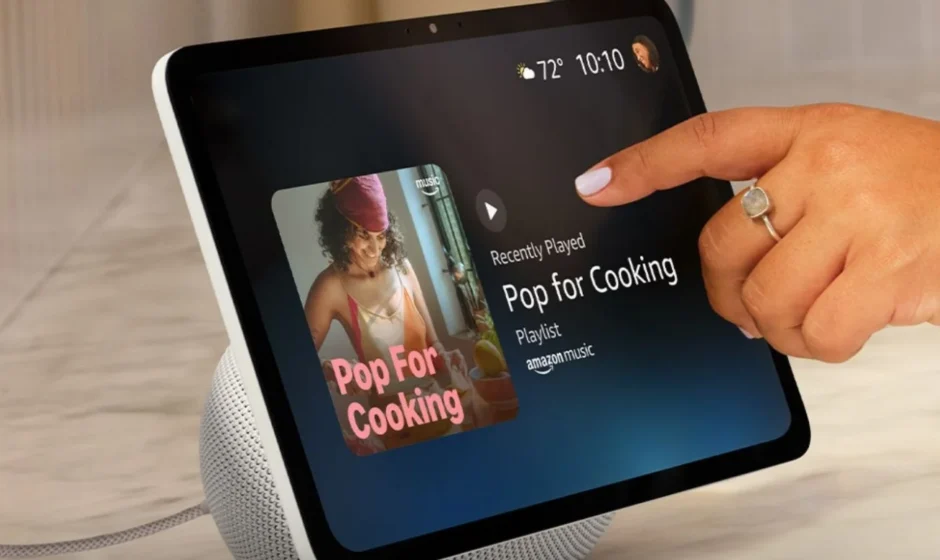

Amazon Echo Show 11 Smart Display
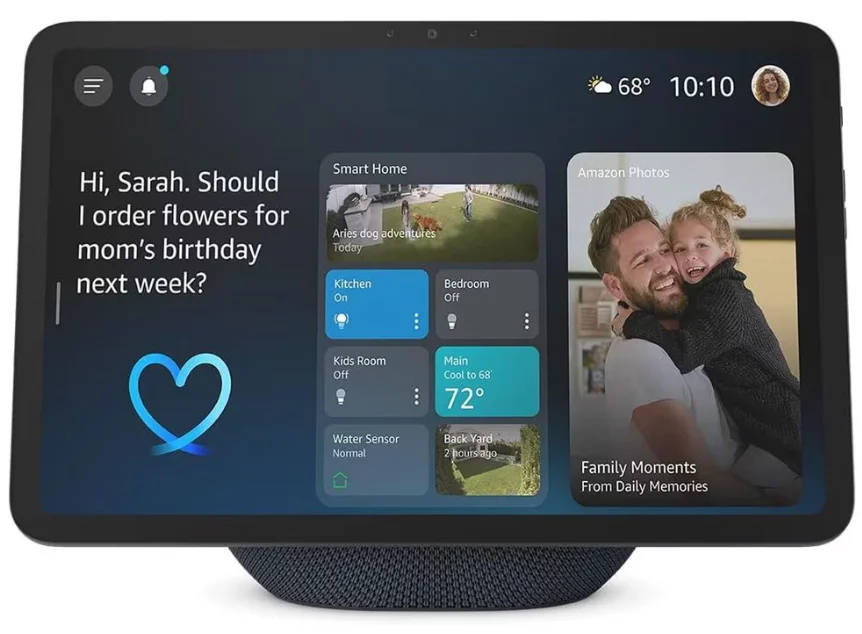
Introduction
The Amazon Echo Show 11 Smart Display is a powerful all‑in‑one smart home hub and entertainment center that brings Alexa to life with a large 11‑inch Full HD touchscreen. Its vibrant, high‑resolution display makes it easy to view recipes, watch videos, browse photos, and check your calendar or weather at a glance, while the built‑in camera enhances video calls with auto‑framing and clear visuals. Equipped with a custom AZ3 Pro processor and advanced Omnisense technology, the Echo Show 11 delivers quick responses, intelligent automation, and a personalized experience that adapts to your routines and presence in the room. You’ll enjoy room‑filling spatial audio with a woofer and dual full‑range speakers, making music, podcasts, and shows sound rich and immersive. This smart display also doubles as a central control point for your connected home — it supports Zigbee, Matter, and Thread smart home standards, so you can easily manage lights, cameras, thermostats, and more with voice commands or touch. When idle, it transforms into a stylish digital photo frame to showcase your favorite memories. With comprehensive privacy controls built into the device and Alexa ecosystem, the Echo Show 11 balances intelligent functionality with peace of mind.
MEET YOUR ECHO SHOW 11
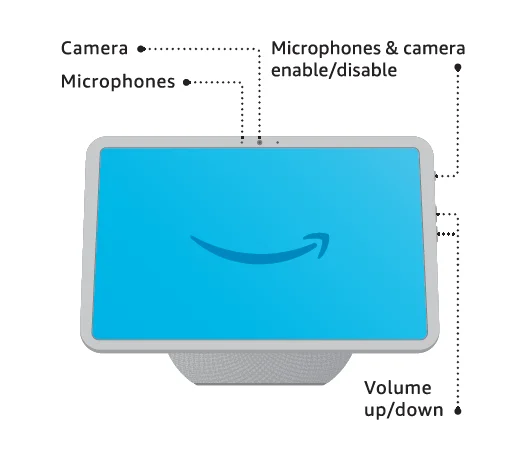
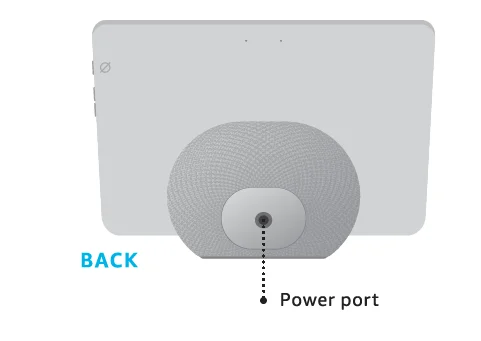
Also included: power adaptor
SET UP YOUR ECHO SHOW 11
 Have your Wi-Fi and Amazon passwords ready
Prepare to connect to your Wi-Fi and sign in to your Amazon account. Create a new account if you don’t have one. Plug the Echo Show 11 into an electrical socket
Use the included power adaptor. In about a minute, the display will turn on, and Alexa will greet you. Scan the QR code on the screen
Using your phone, scan the QR code to open or download the Alexa app. Or continue on the device. Complete setup
Follow the instructions in the Alexa app or on your Echo Show 11 to complete setup.
 Have your Wi-Fi and Amazon passwords ready
 Plug the Echo Show 11 into an electrical socket
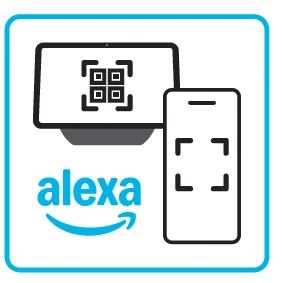 Scan the QR code on the screen
 Complete setup
  Set up compatible smart home devices
 Set up compatible smart home devices
You can easily connect and control compatible devices with the built-in smart home hub. To get started, open the Alexa app to add your device, or say, “Alexa, discover my devices.” Some features may require customisation in the Alexa app, a separate subscription or an additional compatible smart home device.
PRIVACY AND SUPPORT
 Privacy controls
Disable the microphones and camera by pressing the microphones & camera enable/disable button. To disable only the camera, visit Device Settings on the device screen or in the Alexa app. See when Alexa is recording and sending your request to Amazon’s secure cloud via a blue indicator light. Manage your voice history
You can view, hear, and delete the voice recordings associated with your account in the Alexa app at anytime. Customer support
For help and troubleshooting, go to Help & Feedback in the Alexa app, or visit amazon.com/devicesupport.
 Privacy controls
 Manage your voice history
 Customer support
You have control over your Alexa experience: Explore more at amazon.com/alexaprivacy

Scan for more help at amazon.com/setup/echoshow11
For more manuals byAmazon Basics, visit ManualsLibraryy
Amazon Echo Show 11 Smart Display-FAQs
Do I need an Amazon Prime subscription?
No. Echo Show works with a free Amazon account. Prime enhances features like free music, video streaming, and shopping benefits but is optional.
How do I control what displays on the Echo Show 11?
Go to Settings → Display & Appearance → Home Content Categories. Toggle switches on or off to choose which content appears on your home screen.
Can I customize my home screen?
Yes. You can add or remove favorite apps, rearrange widgets, and adjust the home screen layout directly on your Echo Show.
Can I connect my Echo Show to a TV?
Yes. Echo Show can control Fire Edition TVs or TVs with Alexa compatibility. You can also use it as a TV speaker via Bluetooth.
Can I watch Netflix or other streaming apps on Echo Show 11?
Yes. Swipe up on the home screen, go to Video, and select Netflix or other supported apps.
Can I use Echo Show as a security camera?
Yes. With home monitoring enabled, you can view live video from your Echo Show camera on your device or the Alexa app.
Can I stop Alexa from recording or tracking data?
Yes. Go to Alexa app → Settings → Alexa Privacy to manage recordings and data settings.
Is Alexa always listening?
Yes, for the wake word. The device does not record conversations until it hears “Alexa.” You can press the microphone button to turn off listening.