
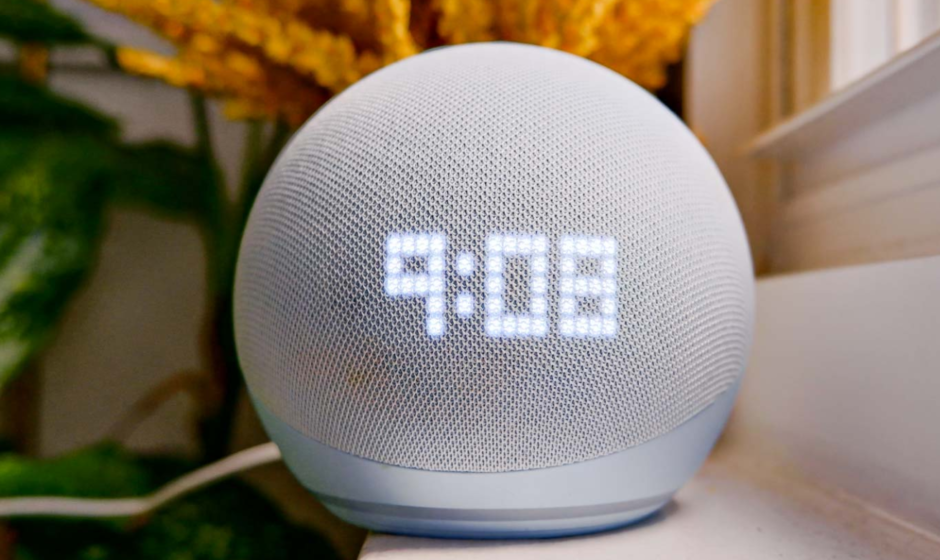

Amazon Echo Dot 5th Gen Smart Display with clock
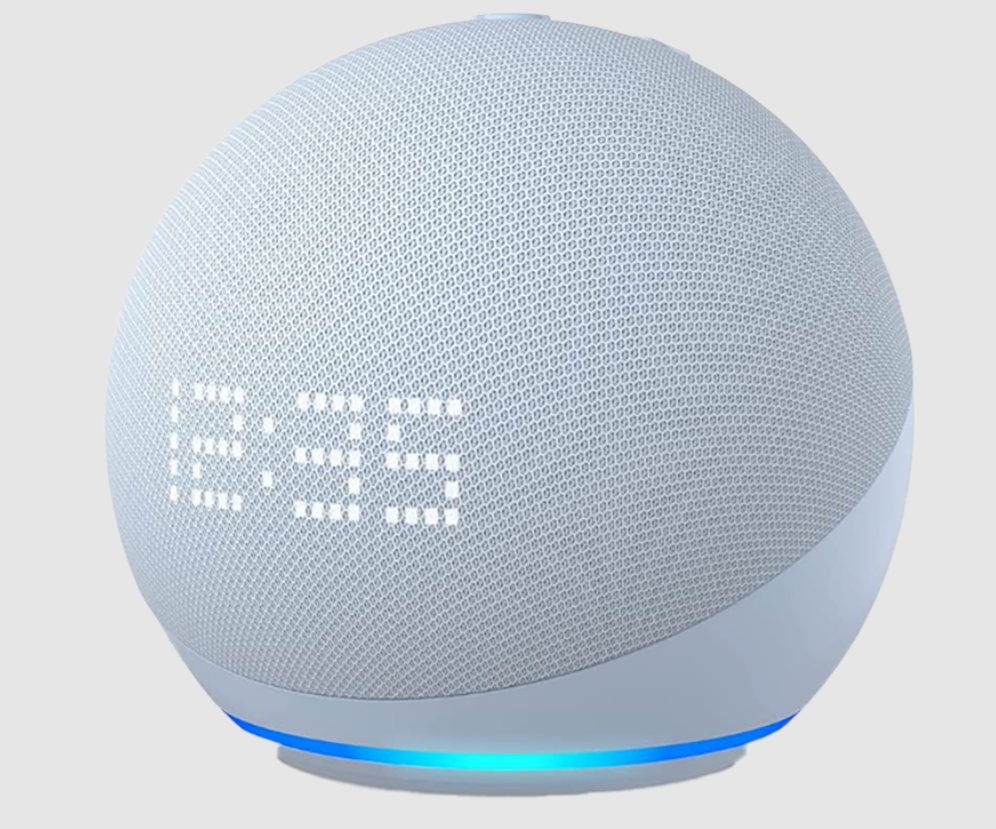
Introduction
The Amazon Echo Dot (5th Gen) Smart Display with Clock is a compact yet powerful smart device designed to make everyday life easier and more convenient. Featuring a bright LED clock display, it lets you quickly check the time, alarms, timers, and weather at a glance—perfect for bedrooms, offices, and bedside tables.
Powered by Alexa, the Echo Dot responds to your voice commands, allowing you to play music, control compatible smart home devices, set reminders, get news updates, or ask questions hands-free. The 5th Gen model delivers improved audio performance, offering clearer vocals and deeper bass compared to previous generations, making it ideal for music, podcasts, and audiobooks.
With built-in smart home integration, you can control lights, plugs, thermostats, and more using simple voice commands or routines. Privacy features such as a microphone off button and multiple layers of privacy controls help keep your information secure. Its modern, minimalist design blends seamlessly into any room while delivering powerful functionality. Whether you need a smart alarm clock, a personal assistant, or a hub for your smart home, the Amazon Echo Dot (5th Gen) with Clock is a reliable and stylish choice.
MEET YOUR ECHO DOT WITH CLOCK
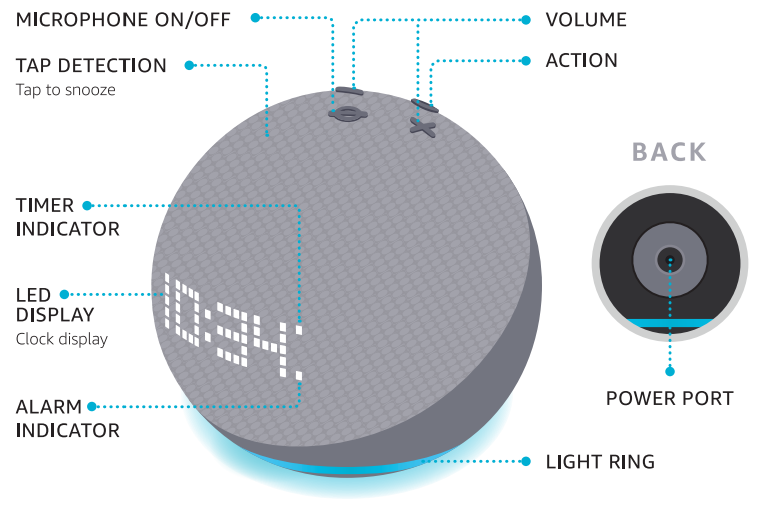
Also included: power adaptor
SET UP YOUR ECHO DOT WITH CLOCK
- DOWNLOAD THE ALEXA APP FROM YOUR APP STORE
Log in with an existing Amazon account username and password or create a new account.
Note: Be sure to turn on your phone’s Bluetooth capability and have your Wi-Fi password ready. - PLUG IN YOUR ECHO DOT WITH CLOCK
Use the included power adaptor. A blue light ring will spin around the bottom of the device. In about a minute, Alexa will tell you to complete setup in the app. - FOLLOW THE SETUP IN THE APP
If you aren’t prompted to set up your device after opening the Alexa app, tap the More icon to add your device manually. The app helps you get more out of your Echo Dot with clock. It’s where you set up calling and messaging and manage music, lists, settings, and news.
 icon to add your device manually. The app helps you get more out of your Echo Dot with clock. It’s where you set up calling and messaging and manage music, lists, settings, and news.
For help and troubleshooting, go to Help & Feedback in the Alexa app or visit amazon.com/devicesupport.
LEARN ABOUT THE LIGHT RING
By default, Alexa doesn’t begin listening until your Echo device hears you say “Alexa.
- BLUE

Alexa is now listening. - RED

The microphone is off. Alexa can’t hear or see you. - ORANGE

Your device is in setup mode or is trying to connect to the internet. - PURPLE

Your device is in Do Not Disturb mode. During initial device setup, purple shows if there are wifi issues. - YELLOW

You have a new notification. Say “Alexa, read my notifications” or check the Alexa app. - GREEN

You have an incoming call. Say “Alexa, answer the call.”
Important information about Echo Shaw 5 International Version: Certain services may not be available in all countries and languages, require separate subscriptions and are subject to change at any time without notice.
PRIVACY AND SUPPORT
 PRIVACY CONTROLS
Turn the camera and microphones off by pressing the Microphones/Camera on/off button. Cover the camera easily with the built-in shutter. See when Alexa is recording and sending your request to Amazon’s secure cloud via a blue indicator light. MANAGE YOUR VOICE HISTORY
You can view, hear and delete the voice recordings associated with your account in the Alexa app at any time. To delete your voice recordings, try saying “Alexa, delete what I just said.” “Alexa, delete everything I’ve ever said.” GIVE US YOUR FEEDBACK
Alexa is always getting smarter and adding new skills. To send us feedback about your experiences with Alexa, use the Alexa app, visit amazon.com/devicesupport or say “Alexa, I have feedback.”
 PRIVACY CONTROLS
 MANAGE YOUR VOICE HISTORY
 GIVE US YOUR FEEDBACK
You have control over your Alexa experience. Explore more at amazon.com/alexaprivacy or amazon.co.uk/alexaprivacy.
THINGS TO TRY WITH ALEXA
Start by asking, “Alexa, what can you dot”? You can also stop a response at any time by saying, “Alexa, stop”.
KEEP THE FAMILY IN SYNC
- “Alexa, call Mum.”
- “Alexa, drop in on the living room.”
CONTROL YOUR SMART HOME
- “Alexa, turn off the light.
- “Alexa, set the living room temperature to 22 degrees.”
Some features may require customisation in the Alexa app, a separate subscription or an additional compatible smart home device. Certain skills and services may not be available in all languages. You can find more examples and tips in the Alexa app.
DO MORE WITH ALEXA
 GET THE FORECAST
- “Alexa, what’s the weather forecast this weekend?”
- “Alexa, is it going to rain?”
 LISTEN & UNWIND
- “Alexa, play top hits.”
- “Alexa, play the news.”
 MANAGE YOUR DAY
- “Alexa, set an egg timer for 5 minutes.”
- ” Alexa, what time is sunset?”
 GET THE FORECAST
 LISTEN & UNWIND
 MANAGE YOUR DAY
For more manuals by Amazon Basics, visit ManualsLibraryy
Amazon Echo Dot 5th Gen Smart Display with clock-FAQs
What can the Echo Show 5 (3rd Gen) do?
It features a 5.5” touchscreen display to check news, weather, stream music, shows, and videos, make video calls, view compatible cameras, set alarms, timers, and create routines with voice commands.
How do I set up my Echo Show 5?
Plug in the device, choose your language, connect to Wi-Fi, log in to your Amazon account, and follow the on-screen instructions to complete setup.
How do I connect Echo Show 5 to Wi-Fi?
Open the Alexa app → Settings → Device Settings → Select your Echo Show → Change Wi-Fi Network and follow prompts.
Can Echo Show 5 make video calls?
Yes. You can make video calls to other Echo devices, Alexa contacts, or the Alexa app on smartphones.
Can I use Echo Show 5 as a security camera?
Yes. Enable home monitoring in the Alexa app to use its built-in camera for live monitoring and motion detection alerts.
Can I play Netflix or other streaming services on Echo Show 5?
Yes. Compatible apps include Netflix, Disney+, YouTube, YouTube TV, Tubi, Pluto TV, Paramount+, and Peacock TV.
Can I connect my phone or TV to Echo Show 5?
Yes. Use Bluetooth to play audio from your phone. Certain Fire TV devices and Alexa-compatible TVs can also be controlled via Echo Show 5.
Can Echo Show 5 work without Wi-Fi?
Limited functionality is available. You can use Bluetooth to play audio from a paired device, but Alexa’s full features require Wi-Fi.