
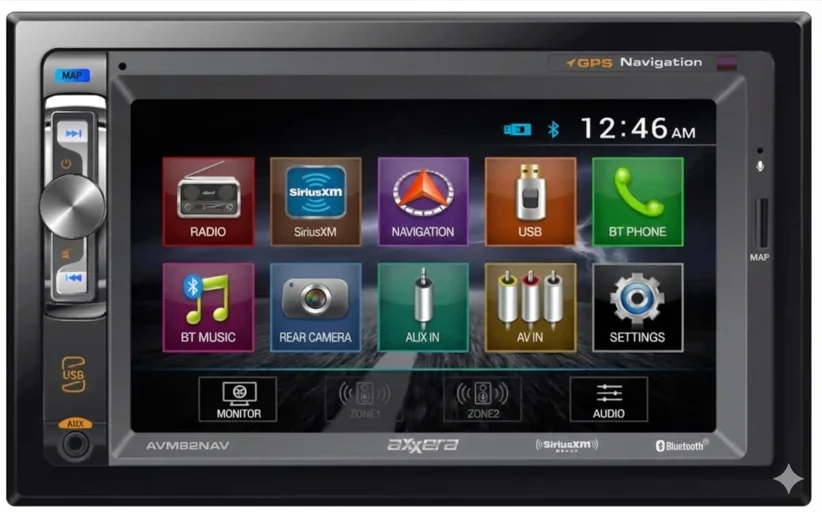

Axxera AVM82NAV Multimedia Navigation Receiver
Safety Information
Please read all instructions carefully before attempting to install or operate.
Due to its technical nature, it is highly recommended that your Axxera AVM82NAV is installed by a professional installer or an authorized dealer. This product is only for use in vehicles with a 12VDC negative ground only. To prevent damage or injury:
- Make sure to ground the unit securely to the vehicle chassis ground.
- Do not remove the top or bottom covers of the unit.
- Do not install the unit in a spot exposed to direct sunlight or excessive heat or the possibility of water splashing.
- Do not subject the unit to excessive shock.
- When replacing a fuse, only use a new one with the prescribed rating. Using a fuse with the wrong rating may cause the unit to malfunction.
- To prevent short circuits when replacing a fuse, disconnect the wiring harness first.
- Use only the provided hardware and wire harness.
- You cannot view the video while the vehicle is moving. Find a safe place to park and engage the parking brake.
- If you experience problems during installation, consult your nearest Axxera dealer.
- If the unit malfunctions, reset the unit as described on page 10 first. If the problem still persists, consult your nearest Axxera dealer or call tech assistance @ 1-866-382-5476.
- To clean the monitor, wipe only with a dry silicone cloth or soft cloth. Do not use a stiff cloth or volatile solvents such as paint thinner and alcohol. They can scratch the surface of the panel and/or remove the printing.
- When the temperature of the unit falls (as in winter), the liquid crystal inside the screen will become darker than usual. Normal brightness will return after using the monitor for a while.
- When extending the ignition, battery, or ground cables, make sure to use automotive-grade cables or other cables with an area of 0.75mm (AWG 18) or more to prevent voltage drops.
- Do not touch the liquid crystal fluid if the LCD is damaged or broken. The liquid crystal fluid may be hazardous to your health or fatal. If the liquid crystal fluid from the LCD contacts your body or clothing, wash it off with soap immediately.
Preparation
Before You Start
- Disconnect the negative battery terminal. Consult a qualified technician for instructions.
- Avoid installing the unit where it would be subject to high temperatures, such as from direct sunlight, or where it would be subject to dust, dirt, or excessive vibration.
Getting Started
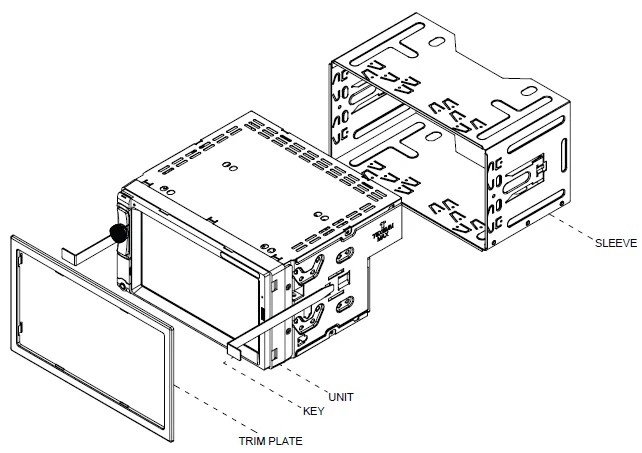
- Insert the supplied keys into the slots as shown.
- Connect the wiring harness as shown on page 5. Consult a qualified technician if you are unsure.
- Certain vehicles may require an installation kit and/or wiring harness adapter (sold separately).
- Reconnect the negative battery terminal, and test for correct operation.
Snap the trim ring into place (if required).

Wiring Diagram – Inputs/Outputs
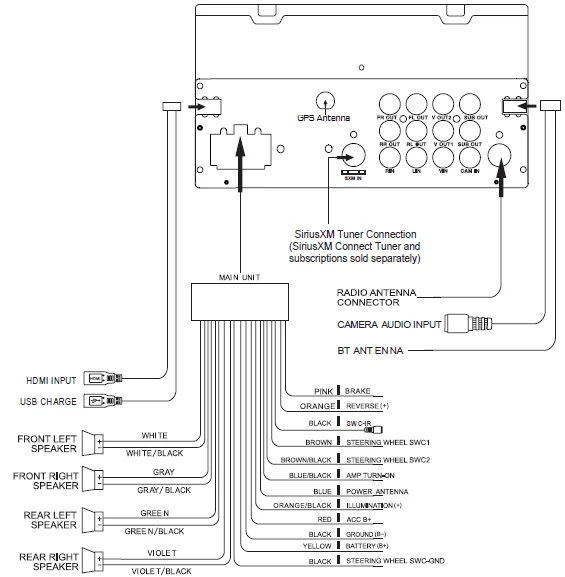
Note: When replacing a fuse, make sure to use the correct type and amperage. Using an incorrect fuse could cause damage. The unit uses (1) 10-amp blade-type fuse located on the back of the unit.
Wiring Notes:
Rear camera input
A rear-view camera (not included) can be used with the Camera input.
SiriusXM
For more information on how to install the SiriusXM Connect Vehicle tuner, consult the installation guide included with the tuner (SiriusXM Connect tuner and subscription sold separately).
Control Locations
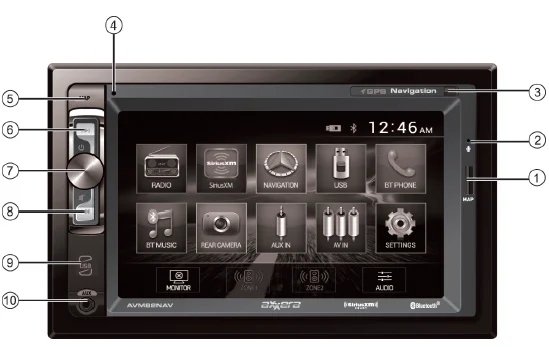
- MicroSD Card (map only)
- Microphone
- IR Sensor
- Reset
- Map
- Tune/Track Up
- Power / Volume / Mute
- Tune / Track Down
- USB Port
- Auxiliary Input
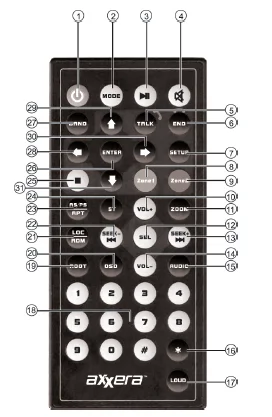
- Power
- Mode
- Play / Pause
- Mute
- Talk
- End Call
- Setup
- Zone 1
- Zone 2
- Volume Up
- Zoom
- Select
- Seek Up
- Volume Down
- Audio
- Key
- Loudness
- Number Keys
- Root
- OSD (On-Screen Display)
- Local / Random
- Tune / Track Down
- AS/PS / Repeat
- Stereo
- Stop
- Enter / Direct Tune
- Band
- SiriusXM Skip Backward
- SiriusXM Channel Up
- SiriusXM Skip Forward
- SiriusXM Channel Down
Remote Control Preparation
- Remove battery insulation tape .
- To insert or replace the battery, remove the battery holder.
- Remove the battery from the battery holder.
- Install the new battery. Make sure to keep the (+) side up.
- Insert the battery holder.
Notes:
- The remote control uses one 3-volt Lithium CR2025 battery. Remove the battery if the remote will not be used for a month or longer.
- Remove and dispose of the battery properly.
- Do not store the battery with metallic objects or materials.
General Operation
Power On/Off
Press the power to turn the unit on. Press and hold the power to turn the unit off.
Mode
Press MODE to access available input modes: Radio, SiriusXM, Navigation, USB, Bluetooth Phone, Bluetooth Music, Rear Camera, Auxiliary Input, AV In, and Settings. Modes of operation are indicated on the display and/or the monitor. The USB device must be connected/inserted to appear in the mode selection string.
Volume
Rotate the volume knob to increase or decrease the volume level.
Mute
Momentarily press Power to silence the audio. Momentarily press Power again to return to the previously selected volume. Rotating the volume knob while muted will also cancel the mute function.
Auxiliary Input
Connect external audio devices to the 3.5mm auxiliary input on the front panel.
USB Port
Connect a USB device to the USB port on the front panel to play MP3 files or JPG photos.
MicroSD Slot
MicroSD slot is for navigation use only. Use of any other microSD card may cause damage to the unit.
Main Menu
From any operational mode, press the house icon in the top left corner to access the Main Menu screen.
Using AV Input
Connect an optional audio/video source to the rear auxiliary input[Red/White/Yellow RCA connectors].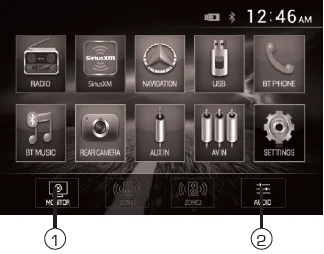
- Adjust screen brightness or put the monitor into standby mode.
- Access audio settings such as EQ, Surround Sound Settings, and Field Settings (Balance and Fader).
Speaker Zone 1
Press the Zone 1 button to turn on/off the sound from this zone.
Speaker Zone 2
Press the Zone 2 button to turn on/off the sound from this zone.
Setup Menu
From the Main Menu screen, press Settings in the bottom right corner to access the Setup Menu and select from the following categories: General, Audio, Video, and Bluetooth.
General:
- OSD Language – Select English as the language for the on-screen display.
- Wallpaper – Select between three available wallpaper options.
- Panel Adjust – Select to calibrate the touch screen.
- Radio Area – Select your current geographic area: Europe, USA, South America, Russia, and Asia.
- Time Setting – Adjust the current time (hours and minutes) and choose between a 12-hour and 24-hour clock.
- SWC – Select to program steering wheel controls.
- Beep – Select to turn the audible beep on or off.
- Camera – Select to turn the rear camera on or off.
- Version- Select to view information about the unit.
- Restore Default- Select to restore the unit to default settings.
Audio:
- Sound Effect – Select to access the three sound effect sub-menus.
- EQ – Select from any preset equalization curve (Classic, Rock, Pop, Jazz, Beat, Flat) or use custom settings (User).
- Subwoofer – Select the desired Subwoofer frequency and volume.
- Loudness – Turn the Loudness setting On or Off.
- Loudness Cutoff Frequency – Select the desired frequency as a cutoff for the Loudness setting.
- Camera Audio Level – You can adjust the volume level of the audio input for the camera.
Video:
- Aspect Ratio – Select the desired aspect ratio: 4:3PS, 4:3LB, or 16:9.
- Adjust – Select to adjust levels of Brightness, Contrast, Hue, Saturation, and Sharpness.
- Panel – Select to choose backlight settings: 10s, 20s, 30s, or Off.
Bluetooth:
- Auto Connect – Turn the auto connect feature on or off.
- Auto Answer – Turn the auto answer feature on or off.
AM/FM Tuner Operation
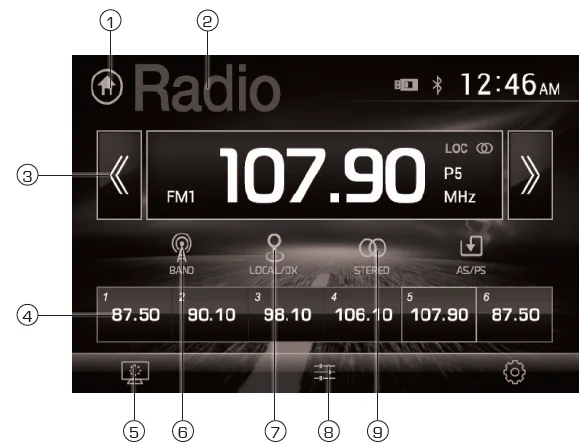
Radio Operation
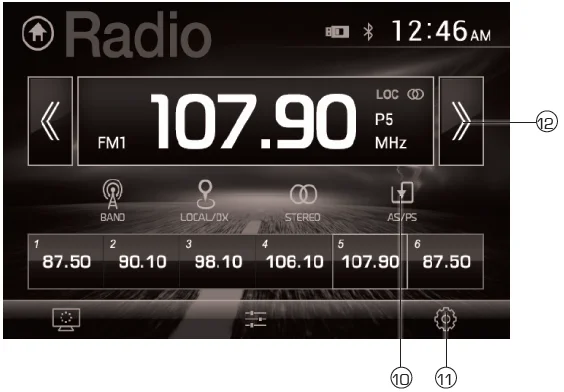
Select the Radio icon from the Main Menu screen.
- Main Menu: Press to return to the Main Menu screen.
- Current Mode Indicator: Displays current mode of operation.
- Tune Frequency Down: Press momentarily to tune the unit down one step at a time. Press and hold to tune down by seeking the next strong station.
- Preset Stations: To store a preset station, tune the unit to the desired station, then press and hold the desired preset button to store the current station in that preset spot. Up to 18 FM and 12 AM stations can be stored in memory. Momentarily press any preset station to play it instantly.
- Screen: Press to adjust screen brightness or put the monitor into standby mode.
- Band: Press to select between three FM and two AM bands.
- Local / Distance: Press to toggle between LOCAL and DX (distance) tuning.
- Audio: Press to access audio settings such as EQ, Surround Sound Settings, and Field Settings (Balance).
- Stereo / Mono: Press to toggle between Stereo and Mono tuning.

- AS/PS: Press and hold to automatically store the six strongest stations in the current band as presets. Press briefly for a preset scan, which will scan all preset stations and play 10 seconds of each. Press again to cancel the scan and continue playing the current station.
- Settings: Press to access the Settings Menu.
- Tune Frequency Up: Press momentarily to tune the unit up one step at a time. Press and hold to tune up by seeking the next strong station.
USB Operation
MP3 or JPG Operation
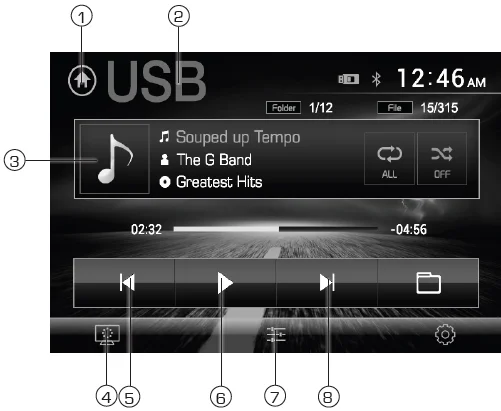
To play MP3 files from a USB device, insert the device and playback will begin automatically. To return to USB playback from another mode of operation, select the corresponding icon from the Main Menu.
USB Playback – Insert a USB device into the USB slot on the front of the unit.
- Main Menu: Press to return to the Main Menu screen.
- Current Mode Indicator: Displays current mode of operation.
- File Information: Displays information about the current file.
- Screen: Press to adjust screen brightness or put the monitor into standby mode.
- Tune / Track Down: Press momentarily to tune the unit down one step at a time. Press and hold to tune down by seeking the next strong station.
- Play / Pause: Press to play or pause playback.
- Audio: Press to access audio settings such as EQ, Surround Sound Settings, and Field Settings (Balance).
- Tune / Track Up: Press momentarily to tune the unit up one step at a time. Press and hold to tune up by seeking the next strong station.

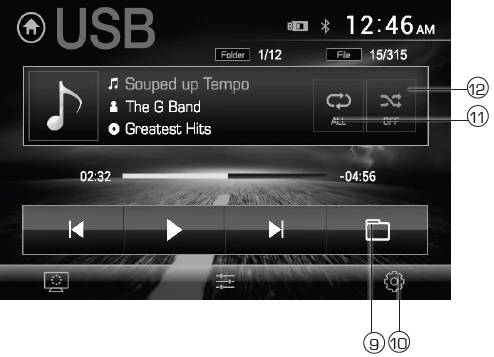
- Folder Search: Press to access the directory of folders and files. Use the up/down arrows to scroll through the folder list, then press on the name of the desired folder to access it. Use the up/down arrows to scroll through the file list, then press on the name of the desired file to access it.
- Settings: Press to access the Settings Menu.
- Repeat: Press to turn the Repeat feature on.
- Random: Press to turn the Random feature on.
Bluetooth Operation
Preparation
Before you can use a Bluetooth device, it must be paired and connected. Make sure that Bluetooth is activated on your device before you begin the pairing process.
Pairing a New Device
The unit broadcasts the pairing signal constantly when no devices are currently connected. Complete the pairing sequence from your Bluetooth device. Refer to the owner’s manual for your device for more details. The device name is “Axxera AVM82NAV”. The Bluetooth passcode is “0000”. The unit can be in any mode of operation when pairing is performed.
Note: On certain phones, pairing may need to be done more than once if there are connectivity issues.
Connecting a Paired Device
Most Bluetooth devices support the auto-connect feature and will connect automatically if the device is in range when the unit is powered on. If your device was previously paired but does not connect, enter the Bluetooth setup menu and ensure that Auto Connect is On.
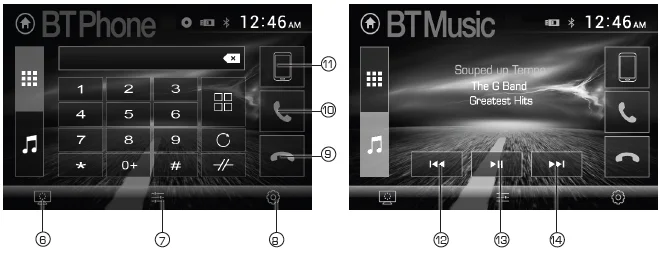
Bluetooth Phone
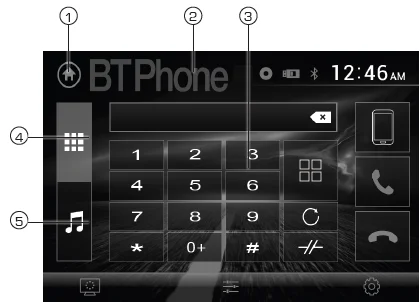
To access the phone, select Bluetooth Phone from the Main Menu.
- Main Menu: Press to return to the Main Menu screen.
- Current Mode Indicator: Displays current mode of operation.
- Phone Keypad: Use the phone keypad to dial the desired phone number. Alternatively, numbers can be dialed directly from the phone.
- Phone: Press to display the keypad and dial a number.
- Music: Press to play music using Bluetooth.

- Screen: Press to adjust screen brightness or put the monitor into standby mode.
- Audio: Press to access audio settings such as EQ, Surround Sound Settings, and Field Settings (Balance and Fader).
- Settings: Press to access the Settings Menu.
- End Call: Press the end of the current call.
- Make a Call: Press to connect or answer a call.
- Bluetooth Music: To use your Bluetooth connection to play music from your device, press #5 or select Bluetooth Music from the Main Menu.
- Previous File/Track: Press to go back to the previous file or track.
- Play / Pause: Press to pause or resume playback.
- Next File/Track: Press to advance to the next file or track.
SiriusXM® Satellite Radio Operation
SiriusXM® Radio Activating
Only SiriusXM® Satellite Radio brings you more of what you love to listen to, all in one place. Get over 140 channels, including commercial-free music plus the best sports, news, talk, comedy, and entertainment. Welcome to the world of satellite radio. A SiriusXM Vehicle Tuner and Subscription are required. For more information, visit www.siriusxm.com.
SiriusXM® Radio
After installing your SiriusXM Connect Vehicle Tuner and antenna, power on your radio and select SiriusXM mode. You should be able to hear the SiriusXM preview channel on Channel 1. After you can hear the Preview channel, tune to Channel 0 to find the Radio ID of your tuner. The Radio ID is located on the bottom of the SiriusXM Connect Vehicle Tuner and its packaging.
Note: SiriusXM Radio ID does not include the letters I, O, S, or F.
In the USA, activate online or by calling SiriusXM Listener care:
- Visit www.siriusxm.com/activatenow
- Call SiriusXM Listener Care at 1-866-635-2349
For Canadian Subscriptions, please contact:
- Visit www.siriusxm.ca/activatexm
- Call XM Customer Care at 1-877-438-9677
Activation typically takes 10-15 minutes, but may take up to one hour.
It is recommended to leave your vehicle on until the “Subscription Updated” message appears. Your radio will need to be powered on and receiving the SiriusXM signal to receive the activation message.
Once activated, you can tune to channels in your subscription plan.
Accessing SiriusXM® Radio
From the Main Menu, touch the SiriusXM icon to access SiriusXM mode and begin operation.
Navigation Operation
Navigation Operation
To access navigation functions, select Navigation from the Main Menu.
For questions regarding navigation operation, refer to the Navigation manual available online at www.axxeraaudio.com/support/manuals.php.
Front 3.5mm Aux Input & Rear RCA A/V Input
Auxiliary Input
Connect an optional audio source into the 3.5mm (front panel) input.
Select auxiliary input from the Main Menu to listen to audio. Adjust volume on the external audio source as needed (if connected to the headphone output of the device).
Using AV Input
Connect an optional audio/video source to the rear auxiliary input (Red/White/Yellow RCA connectors). Refer to page 6 for details. Select AV Input from the Main Menu to listen to audio.
Engage the parking brake to watch the video.
Rear Camera Operation – (Optional)
Using Rear Camera
Connect an optional rear camera to the Camera Input (Black RCA connector). Refer to the wiring diagram for details.
Manual selection
Touch the CAMERA icon from the Main Menu or from any operational mode (when enabled) to select camera mode. Touch the top left area of the screen to exit camera mode.
Note: The manual mode is for dedicated cameras that are ALWAYS on while driving; it is not meant for cameras that are connected to the vehicle’s reverse light.
Auto Selection
The unit will automatically select camera mode when connected to the reverse lamp circuitry.
Note: The external video output is not active when using the rear camera input.
Troubleshooting
For more manuals by Blogs, visit ManualsLibraryy
Axxera AVM82NAV Multimedia Navigation Receiver-FAQs
What is the Bluetooth pairing code for the Axxera AVM82NAV?
The default Bluetooth pairing code for the Axxera AVM82NAV is 0000. When pairing, select “Axxera AVM82NAV” from your device’s Bluetooth list and enter the code if prompted.
What is the default PIN for an Axxera radio?
Most Axxera radios use 0000 or 1234 as the default PIN. If pairing fails, try both codes or keep your device close to the receiver during setup.
How do I put the Axxera AVM82NAV into Bluetooth pairing mode?
Turn on the receiver, open the Bluetooth menu on the unit, and enable pairing mode. Make sure Bluetooth is also turned on and discoverable on your phone.
How do I connect my phone to the Axxera AVM82NAV via Bluetooth?
Enable Bluetooth on your phone, search for available devices, select Axxera AVM82NAV, and enter the pairing code if required. Once connected, the Bluetooth icon will remain active.
Can I use Bluetooth without an internet connection?
Yes. Bluetooth works independently of Wi-Fi or mobile data, so you can stream audio and make hands-free calls without internet access.
How do I operate the Axxera radio?
Use the touchscreen or control buttons to switch between radio, Bluetooth, navigation, and media sources. Adjust volume using the main knob or on-screen controls.
Where is the reset button on the Axxera AVM82NAV?
The reset button is a tiny, recessed pinhole on the front or side of the receiver, designed to prevent accidental resets.
Will resetting the unit delete my Bluetooth connections?
Yes. A factory reset removes saved Bluetooth devices, radio presets, and system settings. You will need to pair devices again.
How do I perform a factory reset on the Axxera receiver?
A factory reset can be done through the system settings menu if available, or by using the recessed reset button. This restores default settings and clears saved connections.