
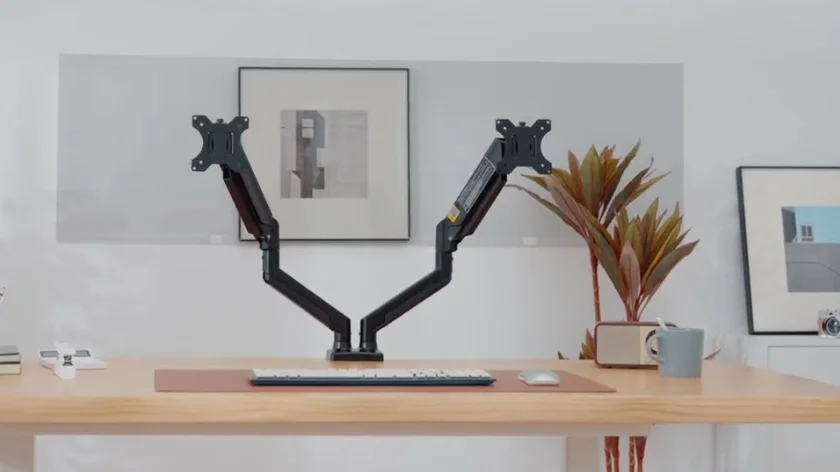

ErGear EGDS15B-US Dual Monitor Stand
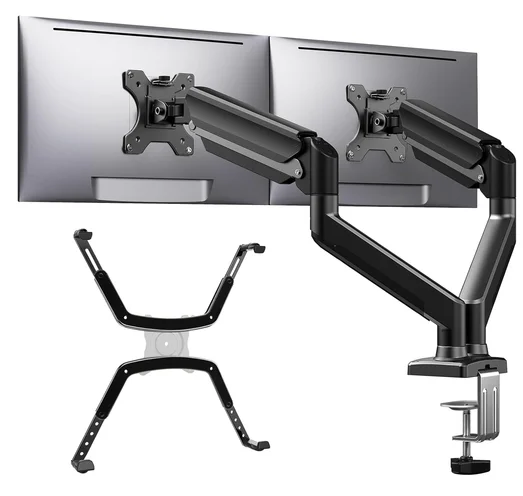
Before getting started, let’s make sure this mount is compatible.
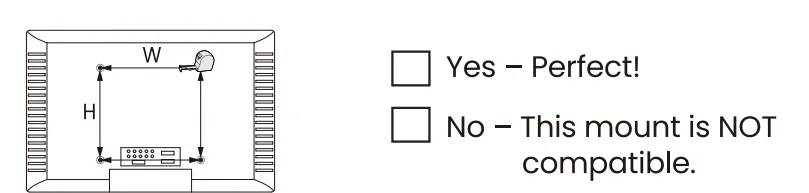
- Is the VESA pattern of your monitor 75 × 75 mm (3 x 3″) or 100 × 100 mm (3.9 × 3.9″)?

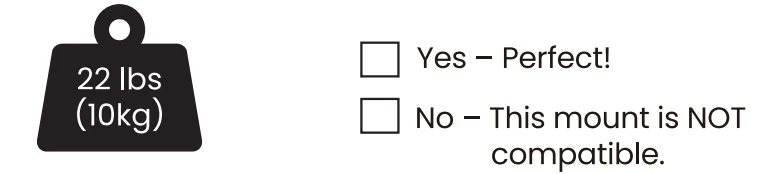
- Does your monitor (including accessories) weigh less than 22 lbs (10 kg)?

- Tools Needed (not included)

- Important Safety Information

NOTE
- Please carefully read all instructions before attempting installation. If you DO NOT understand the instructions or have any questions or concerns, please call technical support or email customer service.
- Not all hardware included in this package will be used.
CAUTION
- Avoid potential injuries and property damage!
- DO NOT use this product for any purpose that is NOT explicitly specified in this manual. Do NOT exceed weight capacity. We are NOT liable for damage or injury caused by improper mounting, incorrect assembly, or inappropriate use.
- Before starting assembly, verify all parts are included and undamaged. DO NOT use damaged or defective parts. If you require replacement parts, please call technical support or email customer service.
WARNING
- This product contains small parts that may pose a choking hazard.
- This product contains gas spring arms, which are under high pressure. Do not puncture these arms or expose the arms to fire or flame. If the product is defective, please call technical support or email customer service.
- Do not use this product on desks made of particle board or other soft woods.
- The information contained in this manual does not cover all possible conditions or variables in relation to the installation of this product.
Product Features
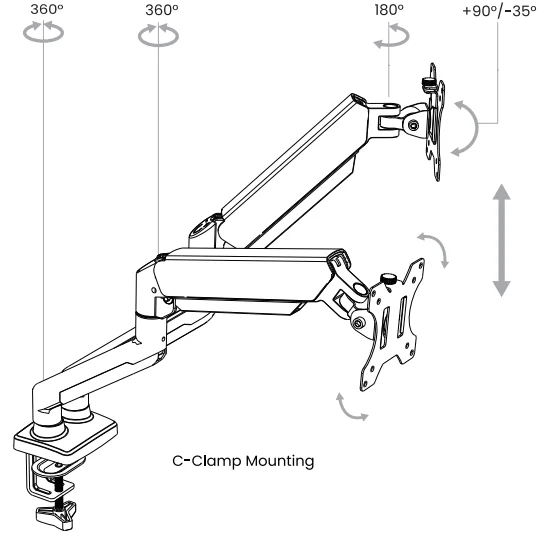
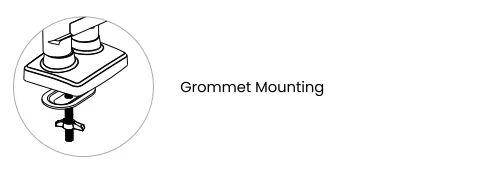
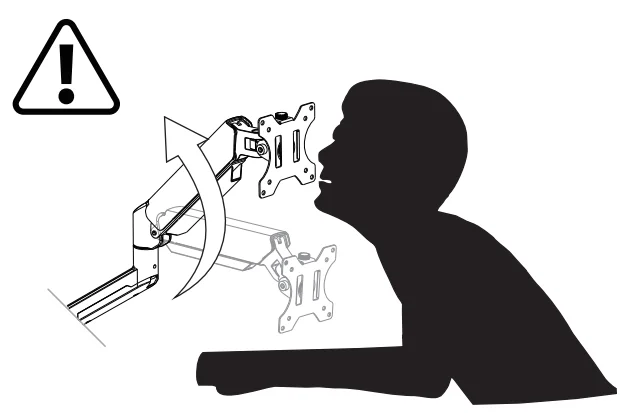
TENSION ADJUSTMENT SHOULD ONLY BE DONE AFTER MONITOR INSTALLATION
Attention: DO NOT adjust tension without a monitor attached.
- Verify the weight of your monitor (including accessories) is between 4.4–22 lbs (2–10 kg). Monitor weight information can be found in the monitor instruction manual or by contacting the manufacturer.
- Ensure the monitor has been securely attached to the mount.
WARNING:
- The Gas spring arm is under pressure and should be handled with care.
- Failure to follow the instructions may result in damage to the mount and/or personal injury.

Step 1: Supplied Parts and Hardware
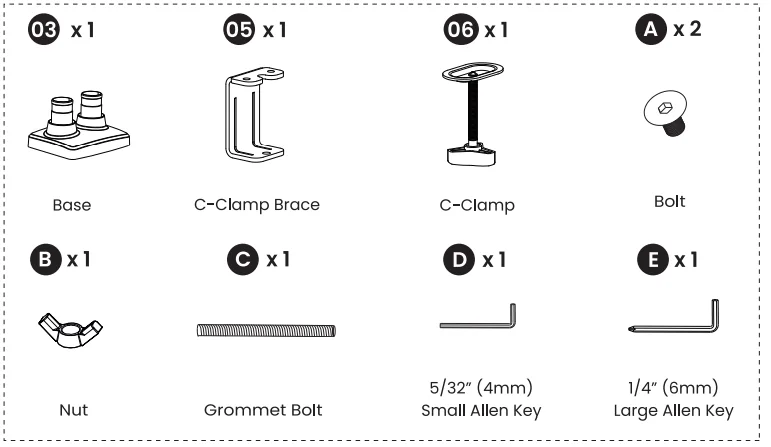
Step 2: Supplied Parts and Hardware
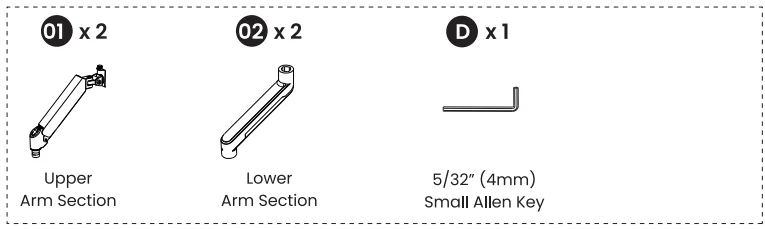
Step 3: Supplied Parts and Hardware
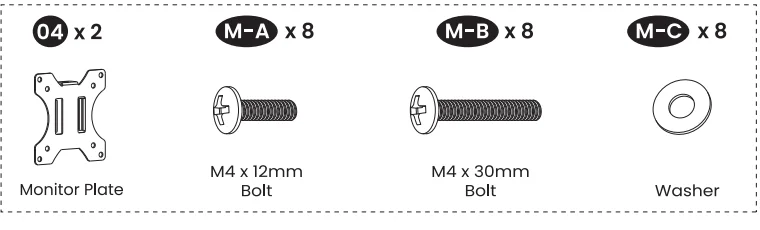
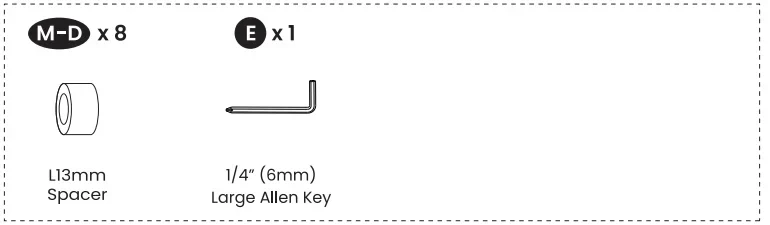
Step 5/7 Supplied Parts and Hardware
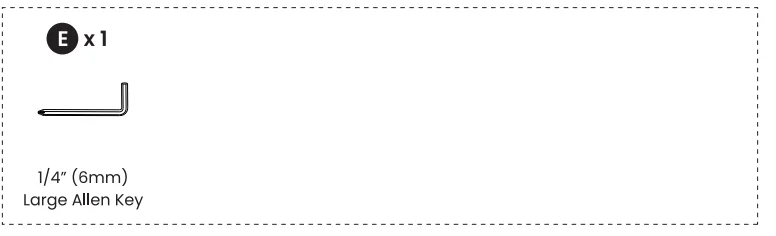
Step 9: Supplied Parts and Hardware

Step 1: Install the Base
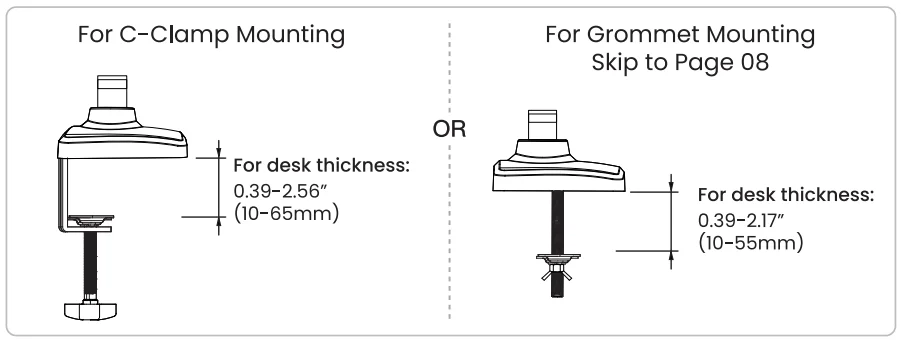
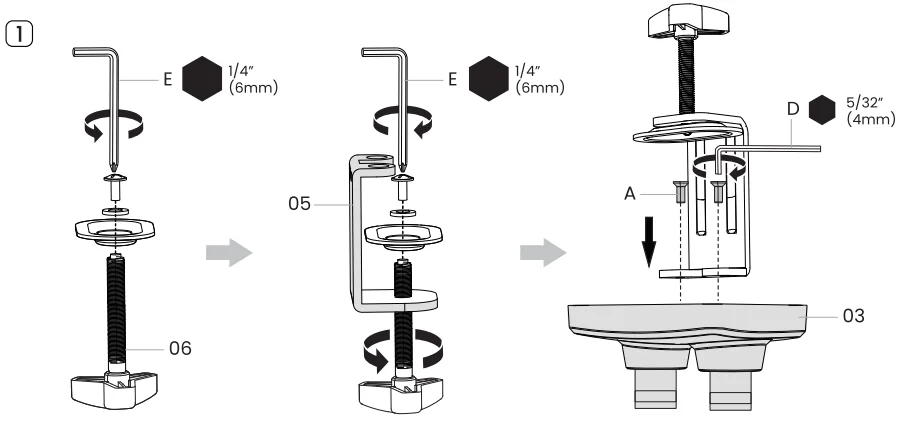
Option A: For C-Clamp Mounting
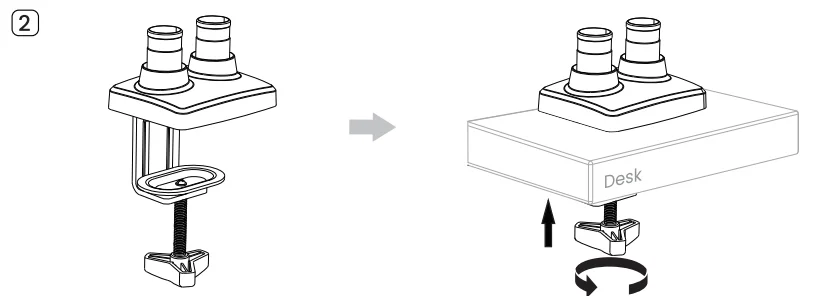
If your desktop is too thin, you may be able to use a wooden board or block as a spacer. Please note that the C-clamp plate must make full contact with the desk and/or wood spacer.
Example 1
If there is a crossbar underneath the desk, you need to use a spacer that is the same height as the crossbar.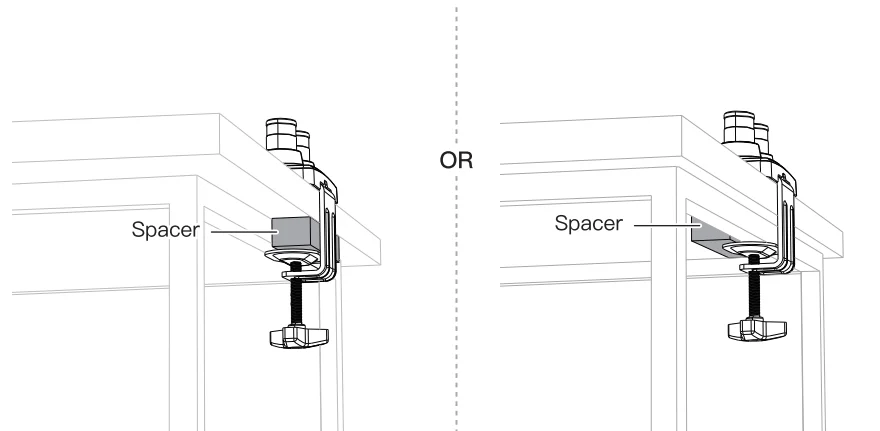
Example 2
A spacer can be placed on top of the desk to fulfill the required dimensions.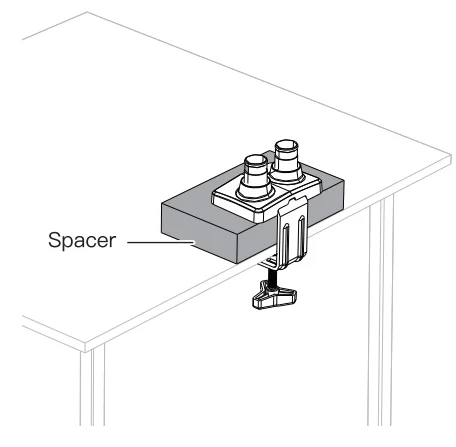
Example 3
A spacer can also be placed on top of the desk to maximize installation height.
Option B For Grommet Mounting
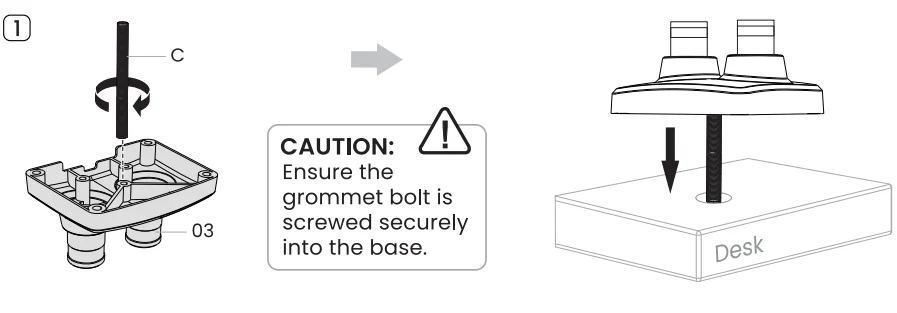
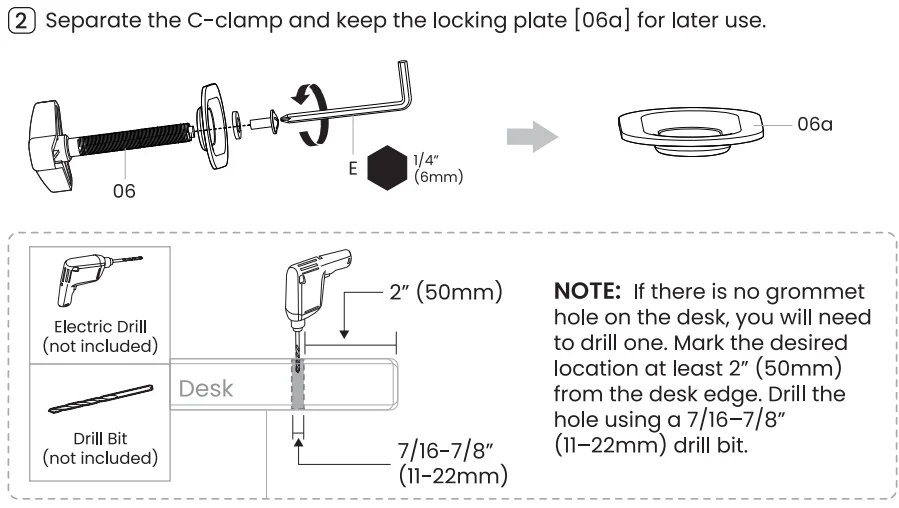
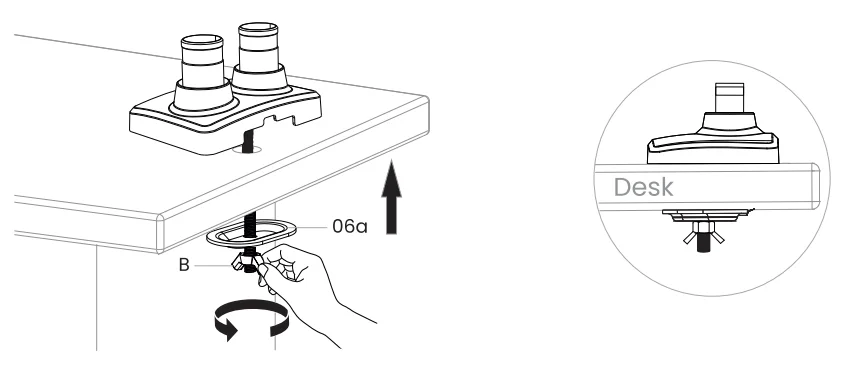
Step 2: Attach the Lower and Upper Arm Sections
Attach the upper and lower arm sections [01] and [02], then tighten the set screws. Do not overtighten, as this may affect the rotation of the arm.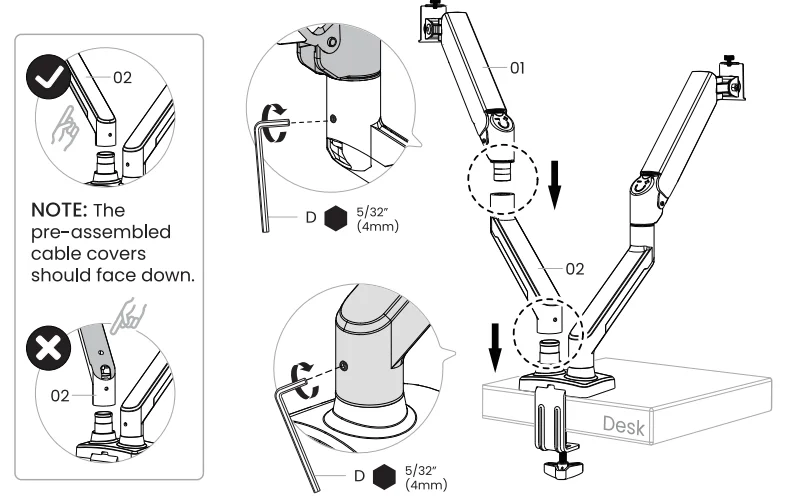
Step 3: Attach the Monitor Plates to the Monitors
Hand thread bolts into the threaded inserts on the back of your monitor to determine which bolt (M4 × 12 mm or M4 × 30 mm) to use. A minimum of 4–5 turns into the threading is required. Do not turn past the bottom of the hole.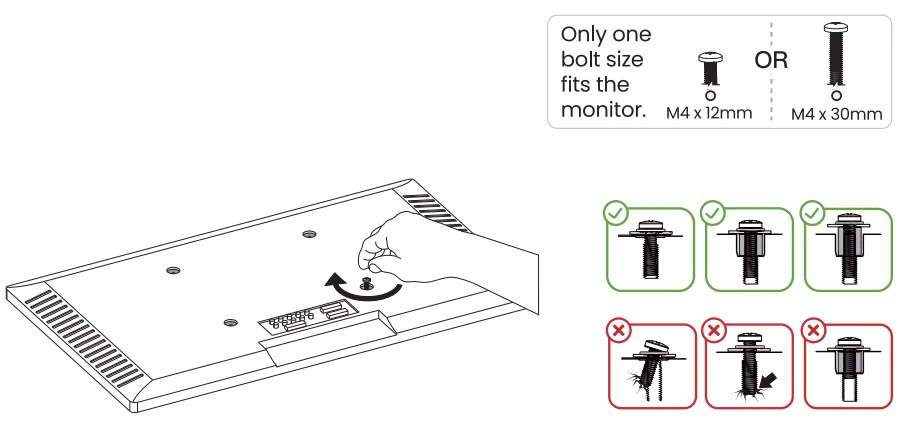
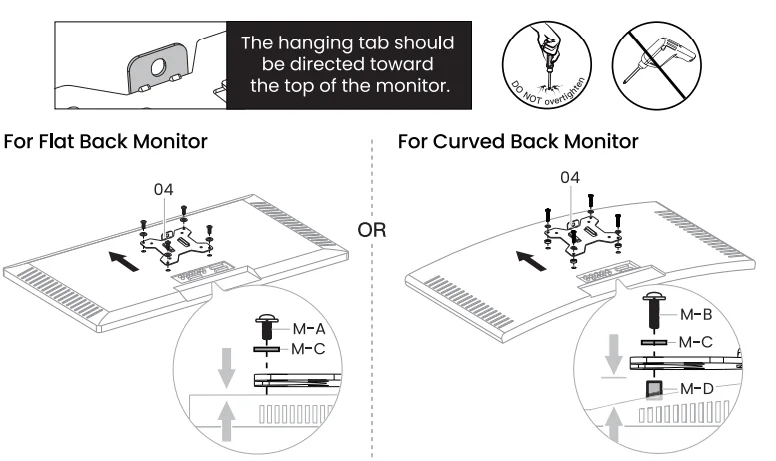
Step 4: Hang the Monitors on the Mount
Remove the knobs [S] from the monitor plate connectors, then hang the monitors and secure them by tightening the knobs [S].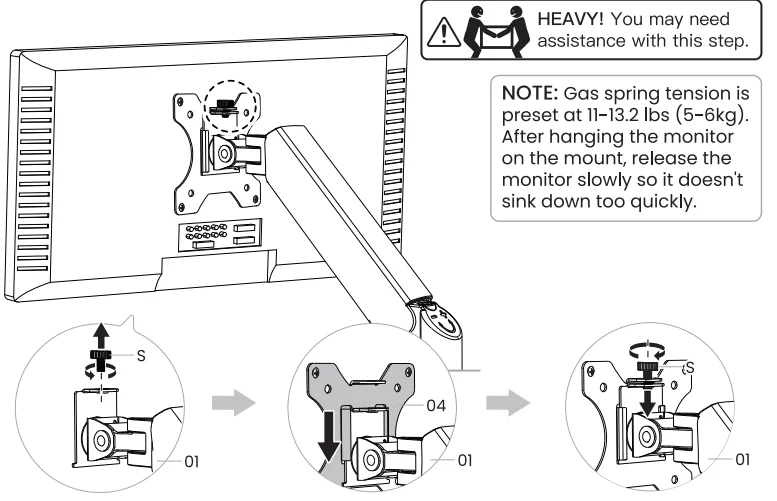
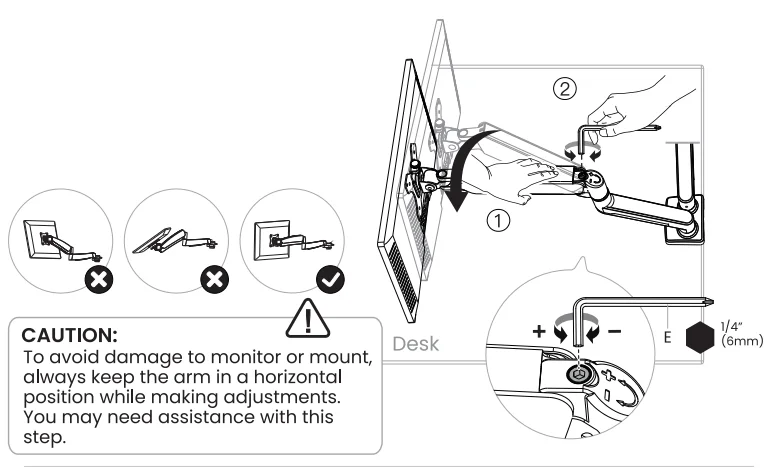
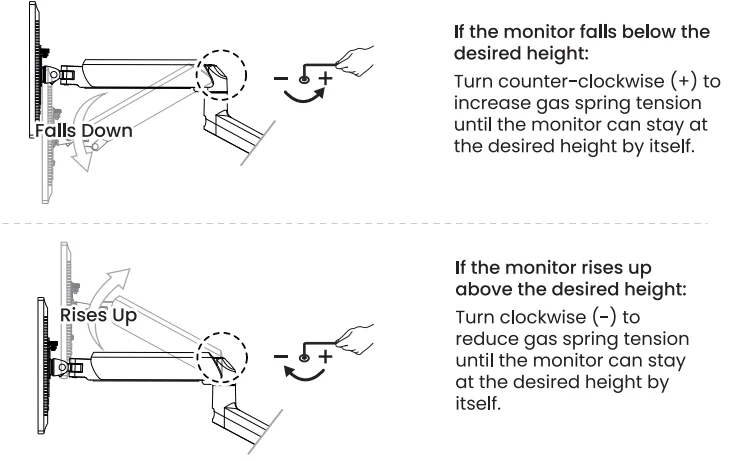
Step 5: Adjust Gas Spring Tension
- Hold the upper arm in a horizontal position. In this position, you can access the gas spring tension adjustment bolt to increase or decrease tension until the arm stays in position by itself.

- Use the large Allen key to adjust gas spring tension until the arm stays in position by itself. Once correctly adjusted, you can raise and lower your monitor, and it will stay in position.

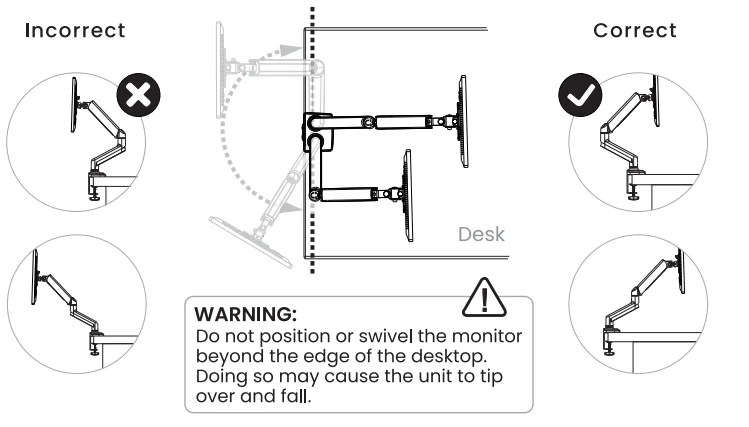
Step 6: Swivel Restriction
Step 7: Tilt Adjustment
Adjust your monitor by gripping the monitor edges. Do not press on the screen itself. If it is difficult to adjust, loosen the tilt-lock bolt T on the monitor plate connector. Adjust the monitor to the desired angle, then tightly tighten the bolt to lock the tilt angle.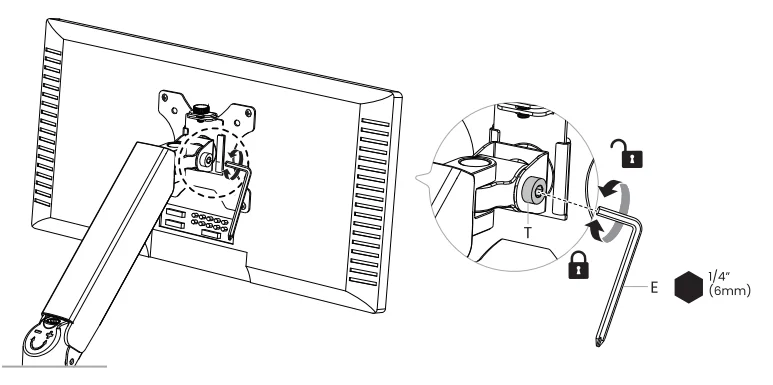
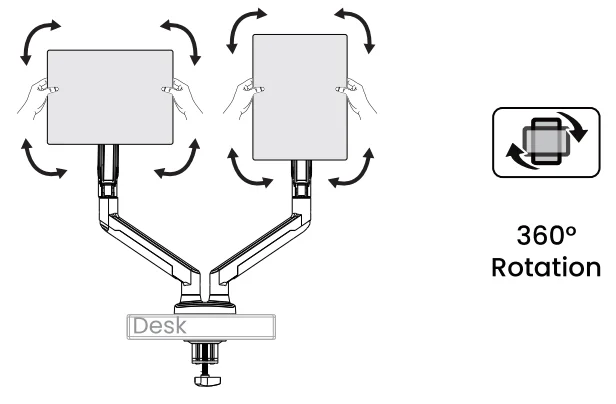
Step 8: Monitor Rotation
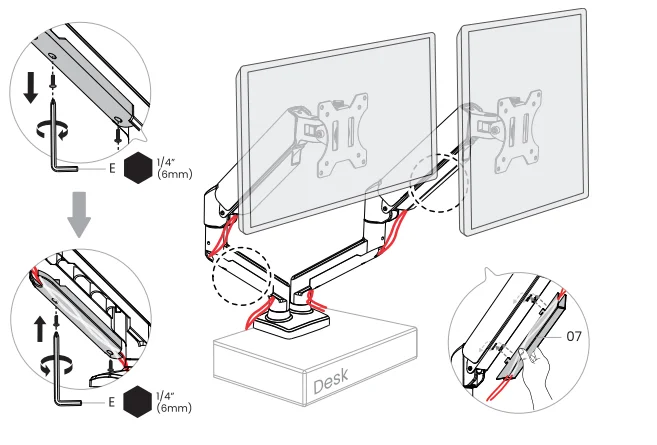
Step 9: Route Cables Down the Arm
For More Product Details Visit: https://ergear.com.
For More Manuals By ErGear, Visit ManualsLibraryy.
ErGear EGDS15B-US Dual Monitor Stand-FAQs
How do I adjust the ErGear dual monitor stand?
You can adjust height, tilt, swivel, and rotation by loosening the joints slightly, positioning the monitors, and then tightening the screws to lock them in place.
How do I know if my monitors are compatible with this stand?
Check that your monitors support VESA mounting (usually 75×75 mm or 100×100 mm), fall within the supported screen size range, and do not exceed the weight limit per arm.
What is VESA, and why does it matter?
VESA refers to standardized mounting hole patterns on monitors. A VESA-compatible monitor ensures it can securely attach to the stand.
Can I use this stand with non-VESA monitors?
Non-VESA monitors cannot be mounted directly, but a VESA adapter may be used if it supports your monitor’s size and weight.
How do I set up the dual monitor stand on my desk?
Attach the stand using the desk clamp or grommet mount, secure the arms, mount the monitors, and adjust them to your preferred viewing position.
What desk types work best with this monitor stand?
The stand works best with sturdy desks that fall within the supported desk thickness range and allow clamp or grommet installation.
How do I align dual monitors correctly?
Use your computer’s display settings to drag and arrange the screens so the cursor moves smoothly between them.
Why won’t my computer detect one of the monitors?
Check that all cables are firmly connected, try a different cable or port, and restart your computer to refresh the display signal.
How do I fix a monitor that stays in standby mode?
Wake the computer, reseat the video cable, restart the system, or press the monitor’s power button to restore the signal.
How do I tighten the tilt if the monitor keeps sagging?
Locate the tension bolt behind the mounting plate, remove the cover if needed, and tighten it using the included Allen key.