
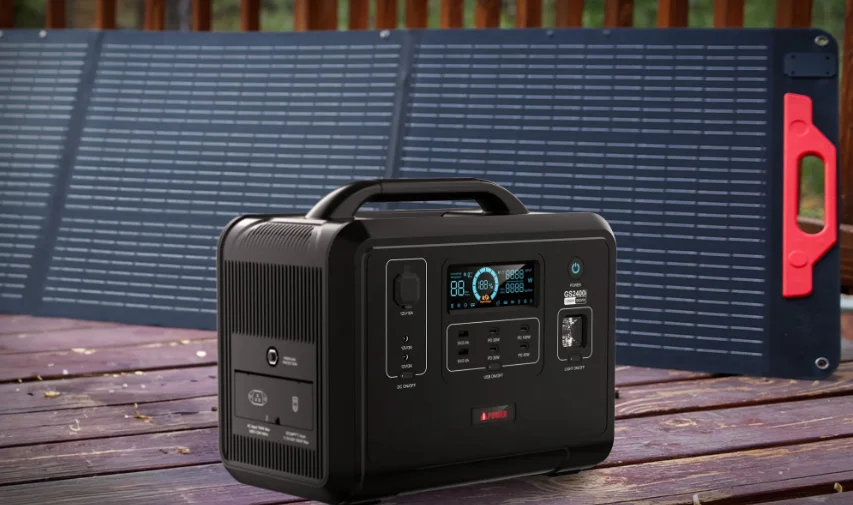

GS2400iA201 Power Source Solar Generator Bundle
INTRODUCTION
Read and understand the manual completely m before using the product. Failure to completely understand the manual and product couldresult in serious injury. If any section of this manual is not understood, contact Customer Service at 855-888-3598, or www.a-ipower.com for starting, operating, and servicing procedures. The owner is responsible for proper maintenance and safe use of the unit. SAVE THESE INSTRUCTIONS for future reference. This manual contains important instructions that must be followed during placement, operation and maintenance of the unit and its components. Always supply this manual to any individual who will use this unit.
GENERAL SAFETY PRECAUTIONS
DANGER
- DO NOT charge, use or store the unit in a bathroom or in an area exposed to rain or moisture.
- DO NOT disassemble, repair or modify the unit or the battery.
- DO NOT place the unit close to or in a fire or expose it to heat. Keep out of direct sunlight. Only use the output socket to power external devices. Never connect the output to mains
power under any circumstances. - DO NOT touch the unit or the plug-in points if your hands are wet.
- DO NOT use any inappropriate or damaged power cords.
- DO NOT operate the unit above the specified input voltage.
- DO NOT use the unit if it is not functioning correctly.
- DO NOT move the unit if it is recharging or in use.
- DO NOT connect any metallic objects to the AC input or output.
- DO NOT rub your eyes if fluid from inside the unit gets on your hands
- Do not dispose of the unit together with household waste.
WARNING
- Use and store the unit only in a clean and dry environment. DO NOT use and store in dusty or wet environments.
- Check the unit before every use. DO NOT use the unit if it is damaged or broken.
- DO NOT use the unit if the power cord is damaged or broken.
- DO NOT use or store the unit in an area or environment with high temperatures.
- DO NOT charge the unit via power supply systems that operate outside of 100-120V.
- DO NOT place the unit on its side or upside down while in use or storage.
- Keep the unit away from children. DO NOT let children use the power supply unit.
- Keep this product away from pets.
- Should fluid from inside of the unit come in contact with your skin or clothing, wash the affected areas with tap water
- In a storm, unplug the power cord from the socket.
CAUTIONS
- Ensure that the device you are connecting to is turned off before attempting to connect.
- Only charge, use, and store the unit within an ambient temperature of 0 °C to 40°C(32°F-104°F)
- Make sure that the unit is properly secured when transporting it in a motor vehicle.
- If rust, peculiar odors, overheating or other abnormal circumstances are observed, stop using the unit immediately and contact our customer service team.
- Carefully read the instructions for the electric devices that you intend to connect to your portable power station.
- Turn the unit off immediately if it has accidentally fallen, been dropped, or been exposed to vibrations.
MAIN SPECIFICATIONS
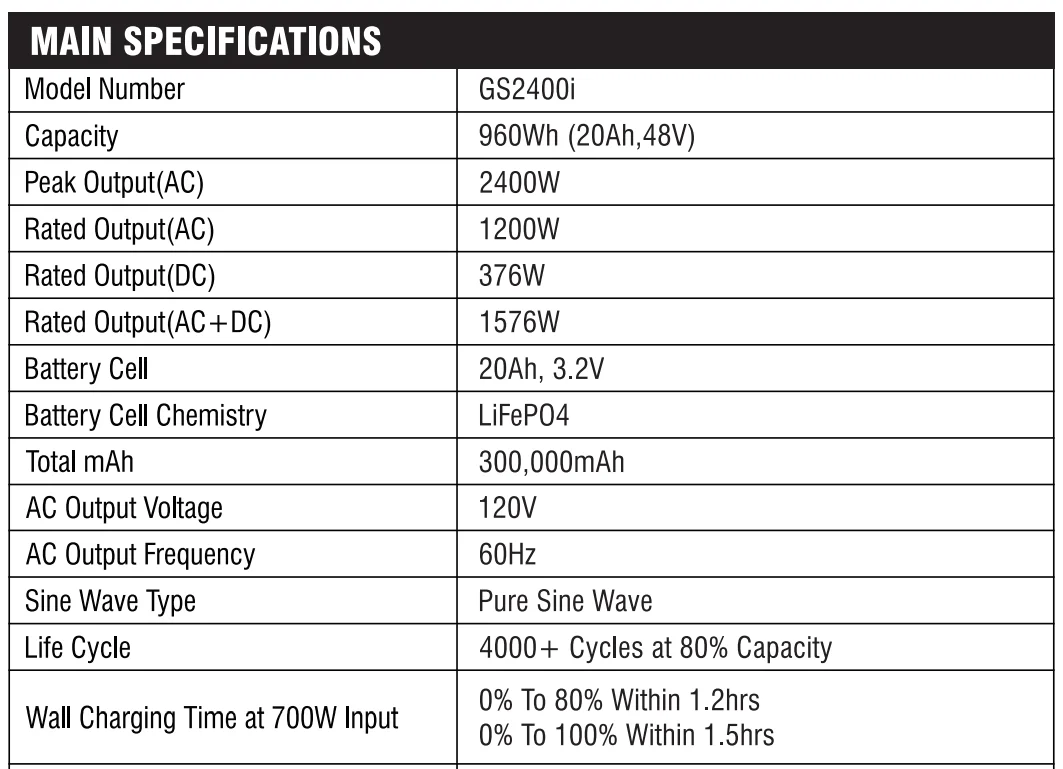
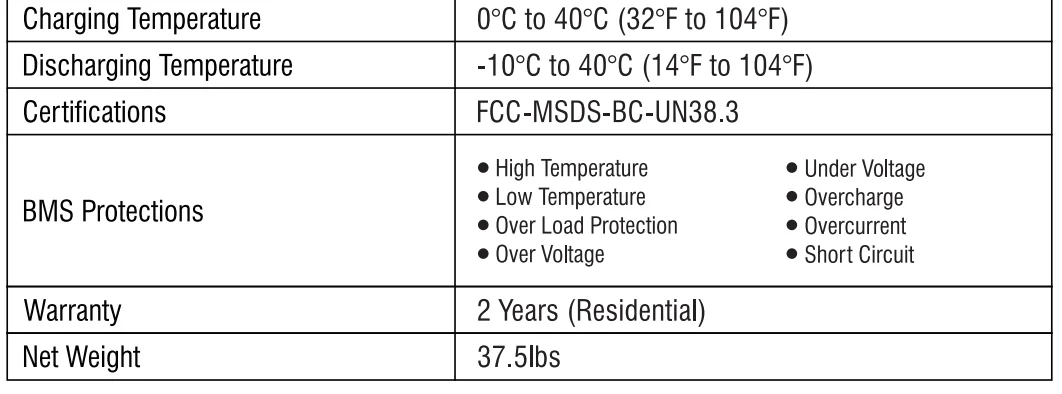
* PURE SINE WAVE
The output voltage of a sine-wave inverter has a sine-wave form like the sine-wave form of the mains/utility voltage. In a sine wave, the voltage rises and falls smoothly with a smoothly changing phase angle and also changes Its polarity instantly when It crosses 0 Volts. The unit provides a pure sine wave output and can be compatible with an AC electrical appliance that works with a sinusoidal waveform. Appliances that use an AC motor are going to work to full capacity on a pure sine wave, such as an electrical fan. Appliances like refrigerators, microwaves, and compressors that use AC motors and some delicate equipment will be better use with our pure sine wave inverter.
WHAT’S INSIDE THE BOX
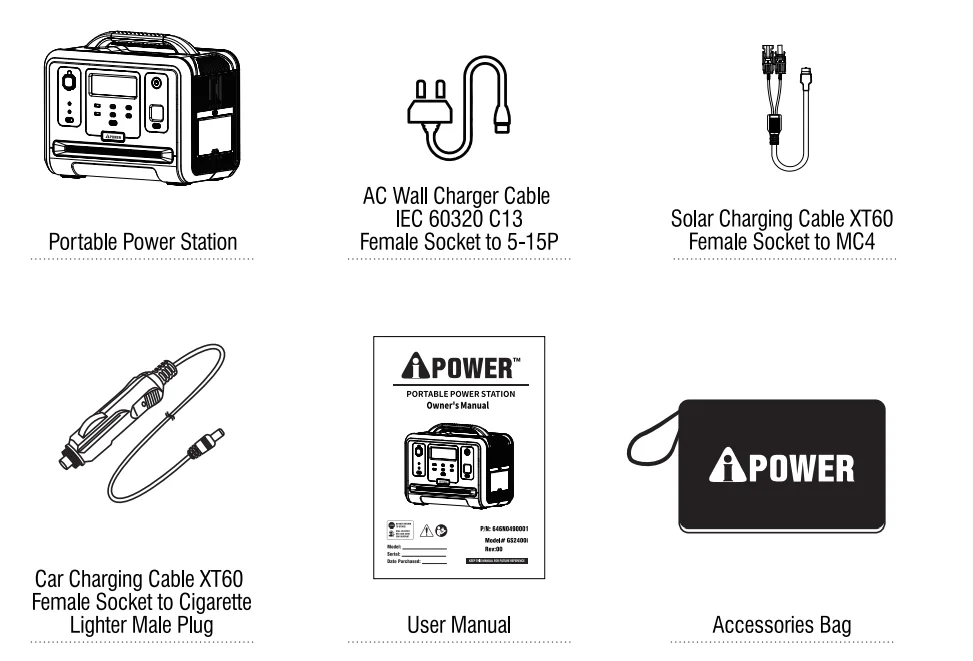
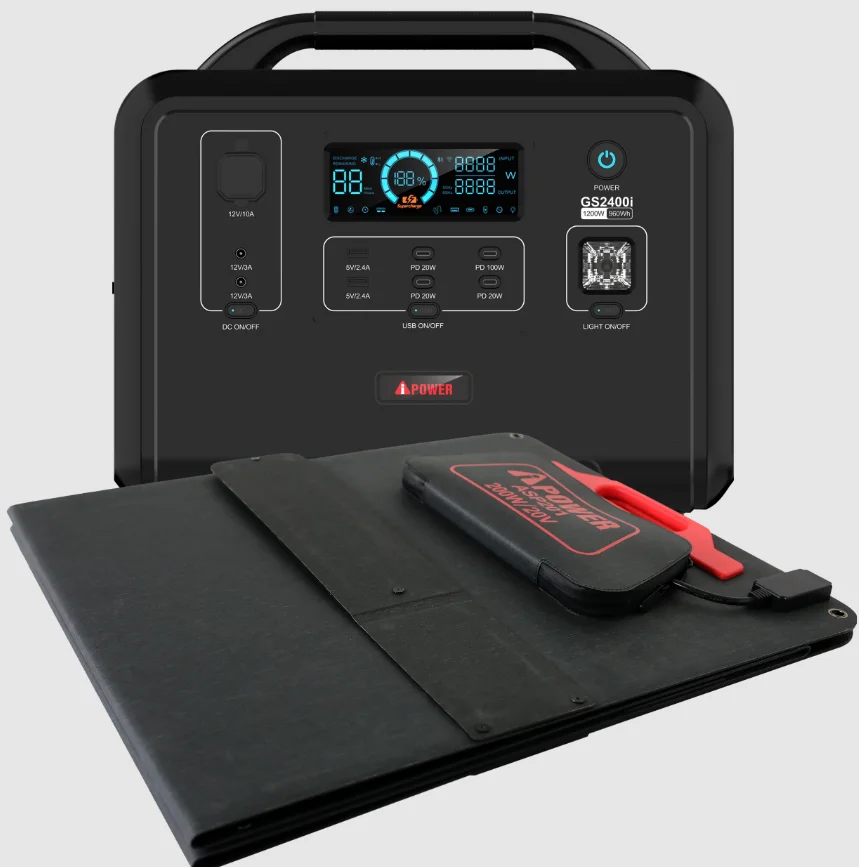
GET TO KNOW YOUR GS24OOi
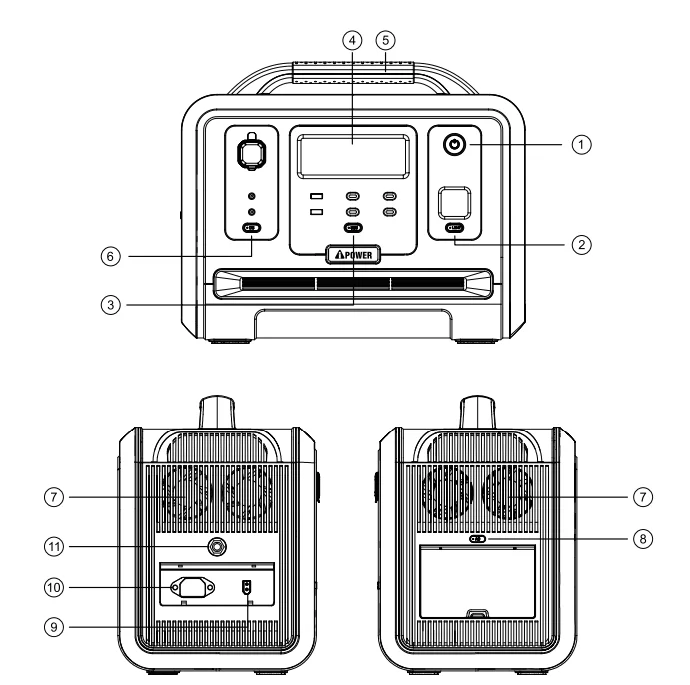
- Main Power ON/OFF Button
- LED Light ON/OFF Button
- USB Power ON/OFF Button
- LCD Display (Data Center)
- Handle
- 12V DC Power ON/OFF Button
- Cooling Fans
- AC Power ON/OFF Button
- XT6O Input
(for solar panel and car charging) - AC input (wall charging)
- Overload Protection Circuit Breaker
- Main Power ON/OFF Button (with LED Indicator Light)
Instructions: Press and hold the power button for 3 seconds to turn on the system. Turn on the LCD display, and press and hold again for 3s to turn off. - LED Light ON/OFF Button (with LED Indicator Light)
- Press the button once to turn the light ON
- Press the button again to enter the SOS mode
- Press the button the third time to enter the blinking mode
- At any mode, long-press will turn the light OFF
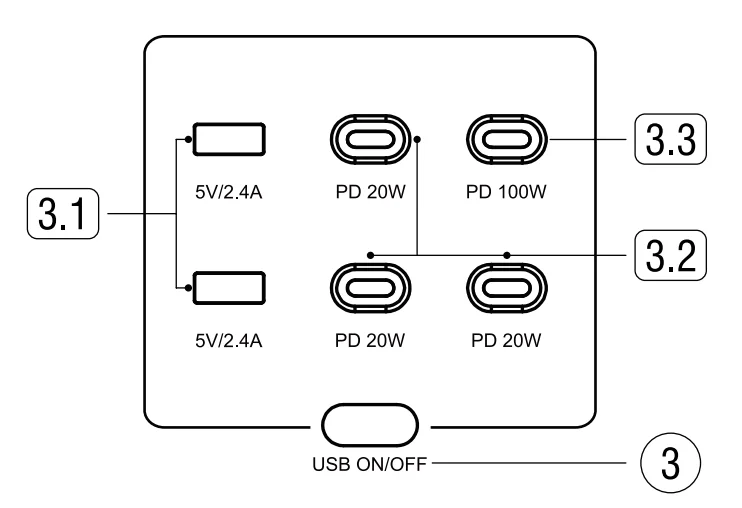
- USB Power ON/OFF Button (with LED Indicator Light)
Instructions: Short-press the USB button to turn on the USB DC output port, and short-press it again to turn it off.
- 3.1 USB-A (x2) 5V/2.4A, 24W Max
- 3.2 USB-C 20W (x3), 5V/3A, 9V/2.22A, 12V/1.67A, 60W Max
- 3.3 USB-C 100W, 5V/3A, 9V/3A, 12V/3A, 15V/3A, 20V/5A,100W Max
NOTE: Max output from this section is 184W
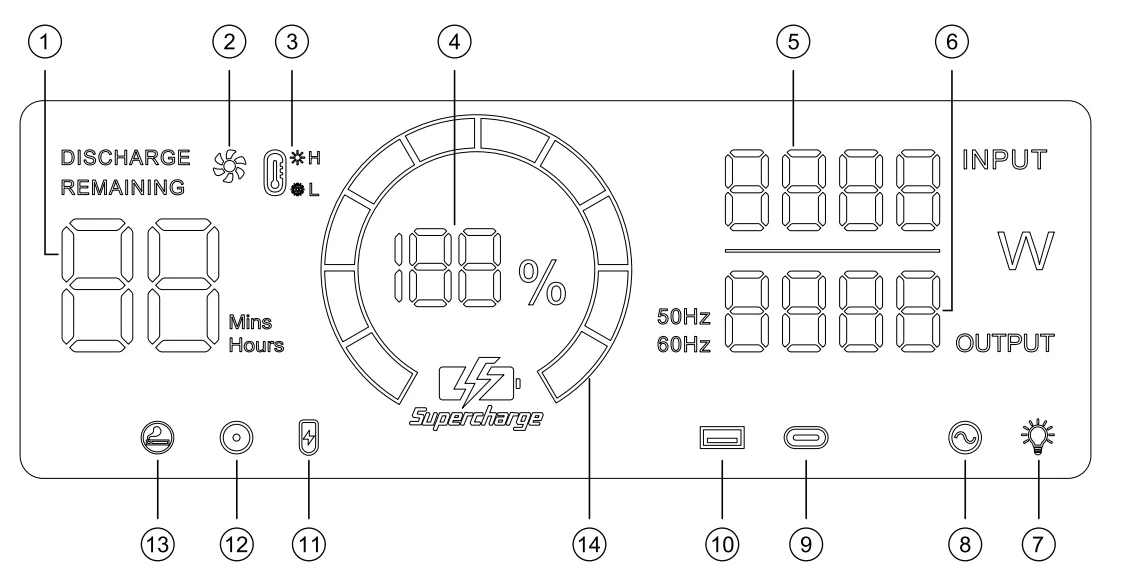
- LCD Display (Data Center)
Display the product’s battery level and usage status tips.
- Remain Using/Recharging Time
- Fan Status
- High/Low Temperature Protection
- Battery Level Percentage
- Charging (Input) Power in Total
- Output Power in Total
- LED Light
- AC Output
- USB-C Output
- USB-A Output
- XT60 Input
- DC5521 (12V) Output
- Cigarette lighter (12V) Output
- Battery Level Progress Bar
Power display: When the product is in the charging state, the battery level progress bar rotates continuously in the form of a clockwise marquee, and the battery level percentage gradually increases; when the product battery level is 0, the battery level percentage icon flashes.
Input and output status: When the product is working, the total input power, total output power and the cursor corresponding to the working area will be displayed on the screen.
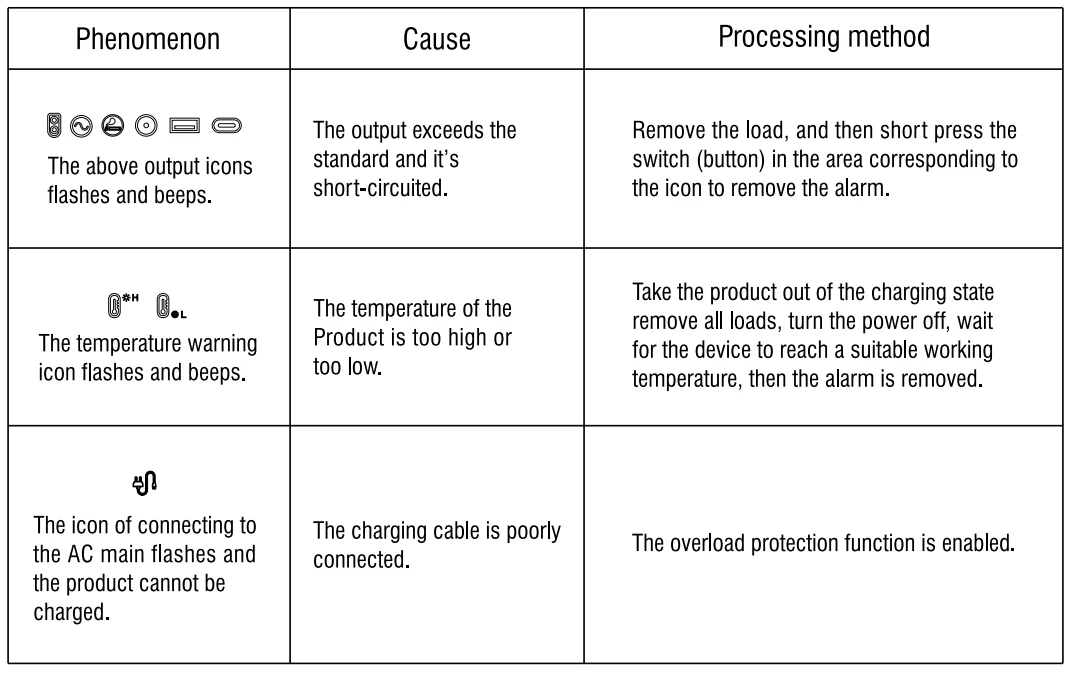
Alarm prompt: See the following troubleshooting table for details.
- Handle
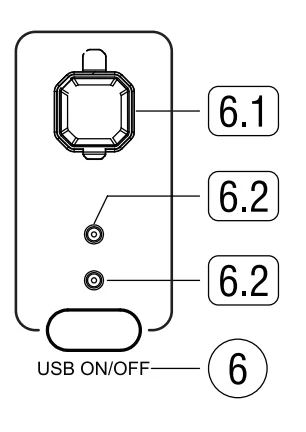
- 12V DC Power ON/OFF Button (with LED Indicator Light)
Instructions: Short-press the DC button to turn on the DC output port, and short-press it again to turn it off.
- 6.1 Cigarette lighter output 12V/1 OA, 120W Max
- 6.2 DC5521 (x2) output 12V/3A, 72W Max
NOTE: Max output from this section is 192W
- Cooling Fan (Suction/Exhaust Ports)
When the product reaches the temperature threshold set by the system, the cooling fan will automatically run, accompanied by a certain fan noise (fan noise below 60dB is normal). Do not block the cooling suction/exhaust port during use of this product, and do not place any object within a range of 12 inches. - AC Power ON/OFF Button (with LED Indicator Light)
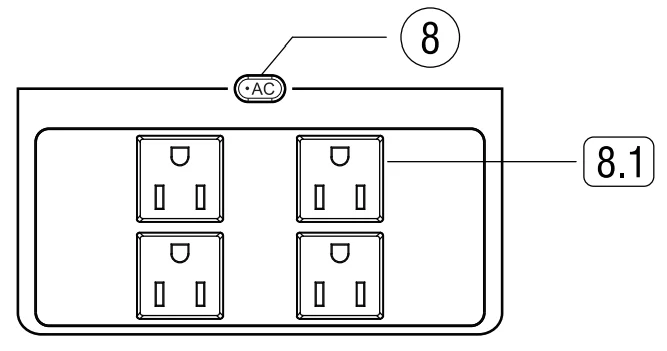
Press the AC button to enable the AC output function.
- 8.1 5-15R (x4) output 120V/1 0A, 1200 Max
NOTE: Max output from this section is 1200W
- 8.1 5-15R (x4) output 120V/1 0A, 1200 Max
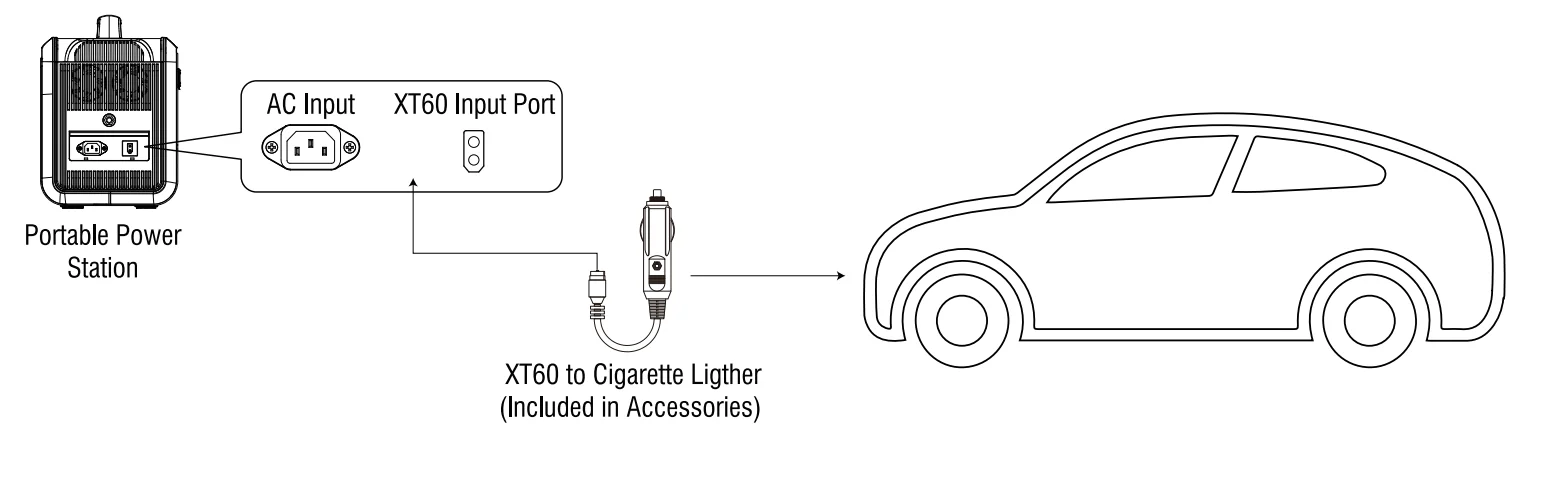
- XT60 Input (Solar Panel and Car Charging)
This interface supports solar panel input or car charging input. The input of the solar panel can be up to 500W, and the maximum voltage is 50V. It would be outside the scope of warranty if the equipment is damaged by exceeding the maximum voltage. - AC Input (IEC 60320 C14 Male Plug)
700W fast charging with a household socket can perform a 100% charge within 1.5 hours.- The charging of this product can be directly use the socket on the wall, etc. Please do not use extension cords and cable taps to connect several devices at the same time.
- Using a cable tap to charge several devices at the same time will cause a large current to flow, causing cable breakage and fire risk.
- Do not use the same socket to connect other devices while charging this product. In general, when the AC input exceeds 20A, the safety circuit breaker will trip.
- Overload Protection Circuit Breaker
When the power supply current is unstable due to lightning or other reasons, and there is a large current input at the AC Input, in order to protect the product, the overload protection function (safety circuit breaker) will activate and cut off the AC input port. Please follow the sequence below to restore the AC input function:- Turn off the main power ON/OFF button and unplug all electrical loads.
- After confirming that there is no abnormality in each part, turn on the main power ON/OFF button.
- Press the overload protection button, and connect the electrical loads.
USING YOUR PORTABLE POWER STATION (PPS)
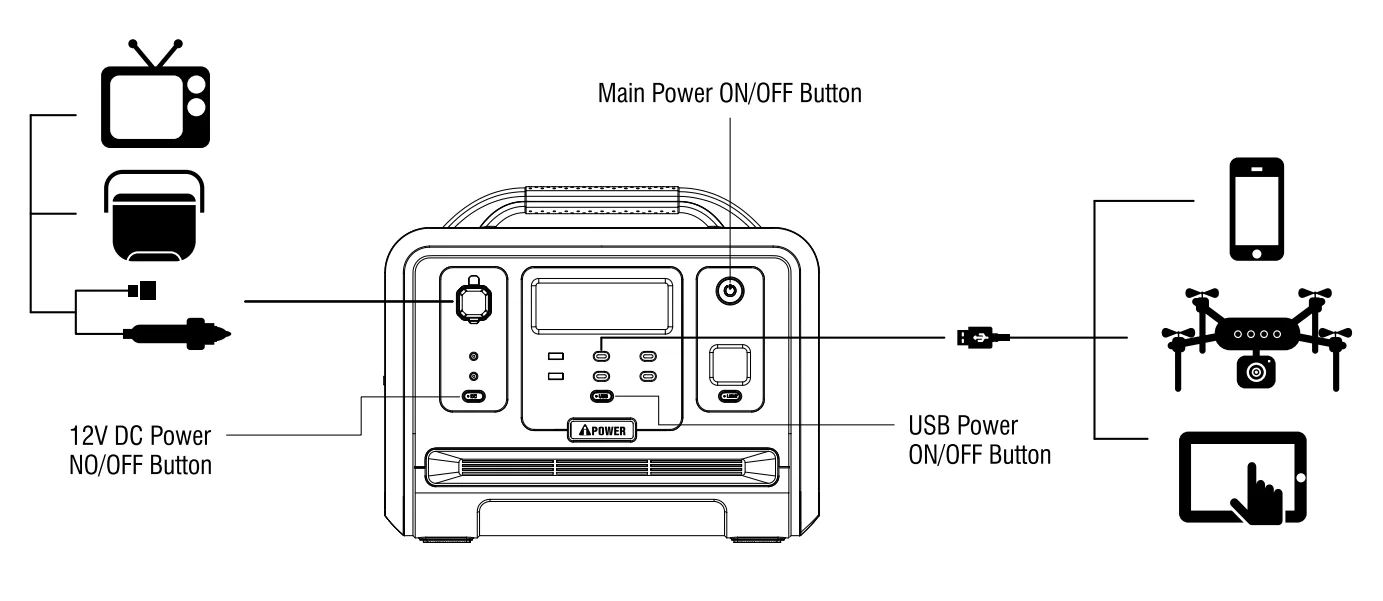
Press and hold the main power ON/OFF button for 3S to turn on the unit. The button will illuminate when it is ON. The LCD (Data Center) lights up and displays necessary information. The unit is now in standby mode and ready to use. Double-click the main power button to deactivate the LCD to save energy (Energy Saving Mode). Press and hold the main power ON/OFF button for 3S to turn off the unit.
USING AC OUTPUT (120V)
Before use, plug your PPS into the wall until it is fully charged.
- Make sure the appliance you are plugging in is turned off.
- Connect the power cable plug of the electrical appliance to the AC outlet (s) of the PPS.
- Press and hold the main power ON/OFF button for 3 seconds to turn on the PPS. The button will illuminate when it is ON.
- Press the AC power ON/OFF button. The button will illuminate when it is ON. The LCD indicates the AC output icon
 .
. - Turn the AC appliance ON. The LCD Display will display the real-time wattage of the appliances.
- When finished:
- Turn off the AC appliance
- Press the AC power ON/OFF button to turn the AC outlets off (If you leave the AC Power button ON it will drain the battery)
- Press and hold the main power ON/OFF button for 3 seconds to turn off the PPS and remove the power cable.
NOTICE: If the total output exceeds 1200W, the power station will automatically shut off. Please ensure the power consumption is less than 1200W, then press the AC power ON/Off button.
WARNING: The AC outlets, AC voltage, and frequency are different according to different countries. Please carefully check whether the product specifications are consistent with the appliance specifications before use; otherwise, it can lead to dangerous situations.
 .
.
USING uses AND 12V DC OUTPUTS
Before use, plug your PPS into the wall until it is fully charged.
- Make sure the electric device that you are plugging in is turned off.
- Connect the power cable plug of the DC electrical device to the DC outlets or USBs of the PPS, including:
- USB-A (Qty:2)
- USB-C PD-20W (Qty:3)
- USB-C PD-1 00W (Qty: 1)
- DC5521 outlet (Qty:2)
Cigarette lighter (automotive) outlet (Qty:1)
- Press and hold the main power ON/OFF button for 3 seconds to turn on the PPS. The button will illuminate when it is ON.
- Press the USB power ON/OFF button for DC outlets or the DC power ON/OFF button for USBs. The buttons will illuminate when they are ON. The LCD indicates a USB icon or a DC icon. The LCD Display will display the real-time wattage of DC electric devices.
When finished:- Turn off the DC electric device
- Press the DC power ON/OFF button and USB power ON/OFF button to turn off the DC outlets and USBs (If you leave the buttons ON it will drain the battery)
- Press and hold the main power ON/OFF button for 3 seconds to turn off the PPS and remove the power cable
NOTICE: If the total output exceeds the wattage output of the DC outlet, the power station will automatically shut off. Please ensure the power consumption is less what the outlet is rated for beforeusing the device.
RECHARGING YOUR PORTABLE POWER STATION (PPS)
Your PPS can be recharged by:
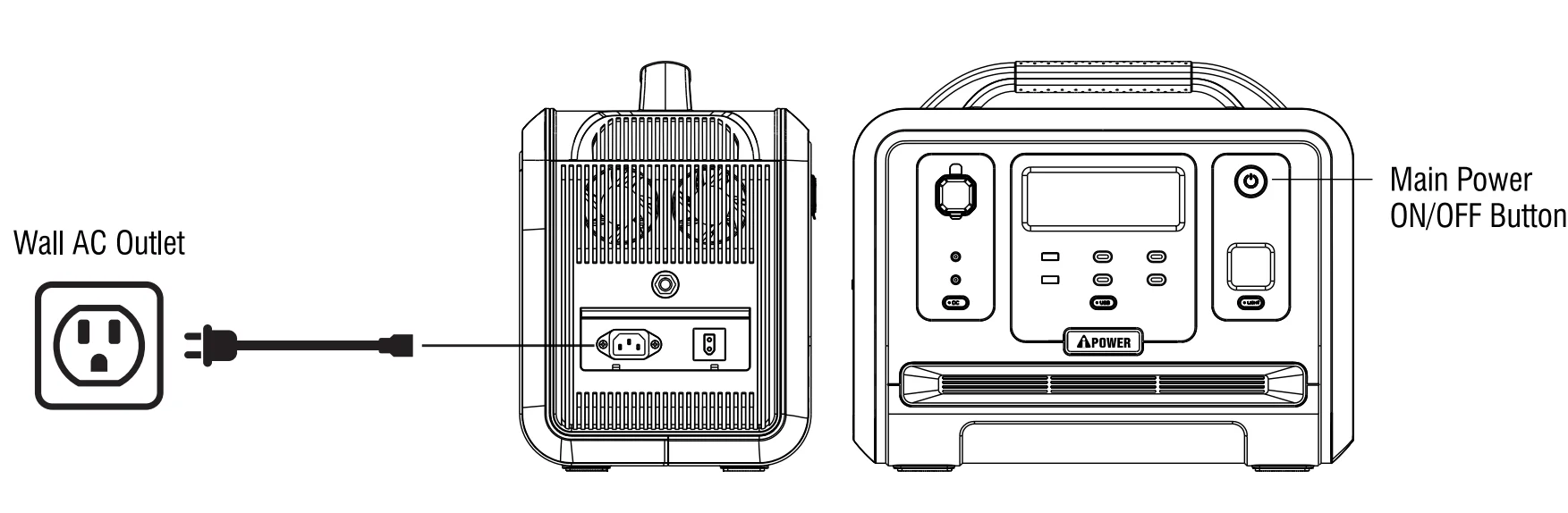
- AC Charging (using the included AC wall charging cable)
- Plug your PPS into the standard wall outlet to charge the unit.
- Press and hold the main power ON/OFF button for 3S to turn on the PPS. The button will illuminate when it is ON.
- Power display in LCD (Data Center): When the product is in the charging state, the battery level progress bar rotates continuously in the form of a clockwise marque, and the battery level percentage gradually increases; when the product battery level is 0, the battery level percentage icon flashes. When the product is working, the total input power, total output power and the cursor corresponding to the working area will be displayed on the screen.

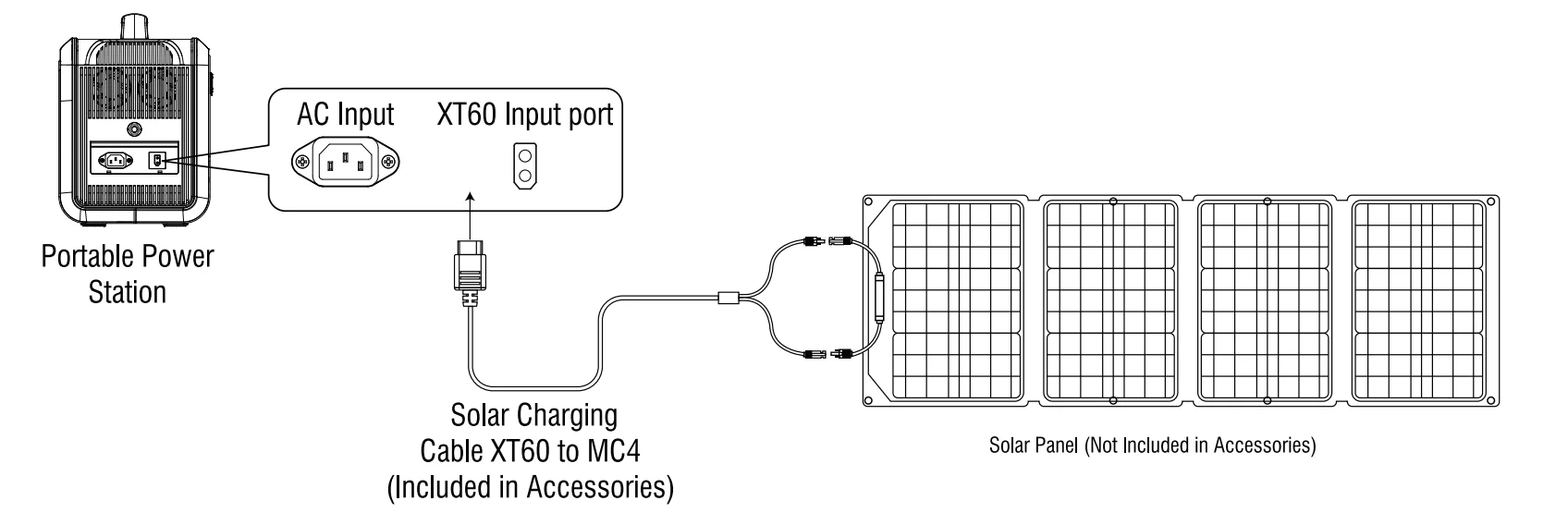
- Solar Panel Charging (using the included solar charging cable)
Under conditions of sunlight, this product can be connected to the solar panel and can be charged through the solar panel. The input of the solar panel can be a maximum of 500W, with a maximum voltage of 50V.- The charging power of the solar panel is determined according to the weather and other conditions.
- The solar panel voltage exceeding 50V will damage the equipment and may be out of warranty.
We recommend the following charging options:
Option One: One Solar Panel Option Two: Two Solar Panels (In Series)
- Car Charging (using the included solar charging cable)
This product uses a car charging cable, which can be used for mobile charging by the cigarette lighter in the car. Connect the car charging cable to the cigarette lighter in the car and the XT60 interface on the side of the product, turn on the engine of the car, and the LED display of this product will display the input power.- Please do it when the car starts; the car battery may be exhausted.
- Vehicle charging power is usually in the range of 90W-120W, and the charging time is long. If fast charging is required, the AC mains charging is recommended.

 Option Two: Two Solar Panels (In Series)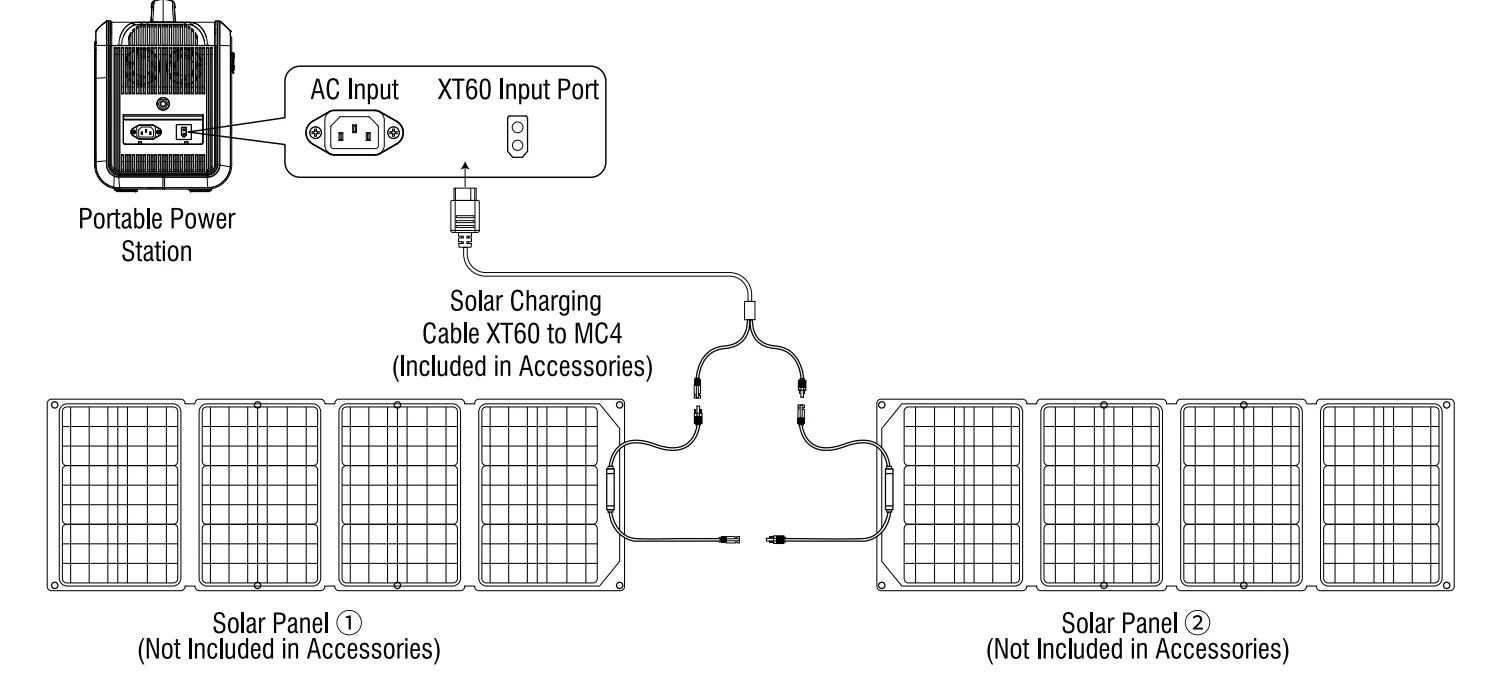
UPS MODE
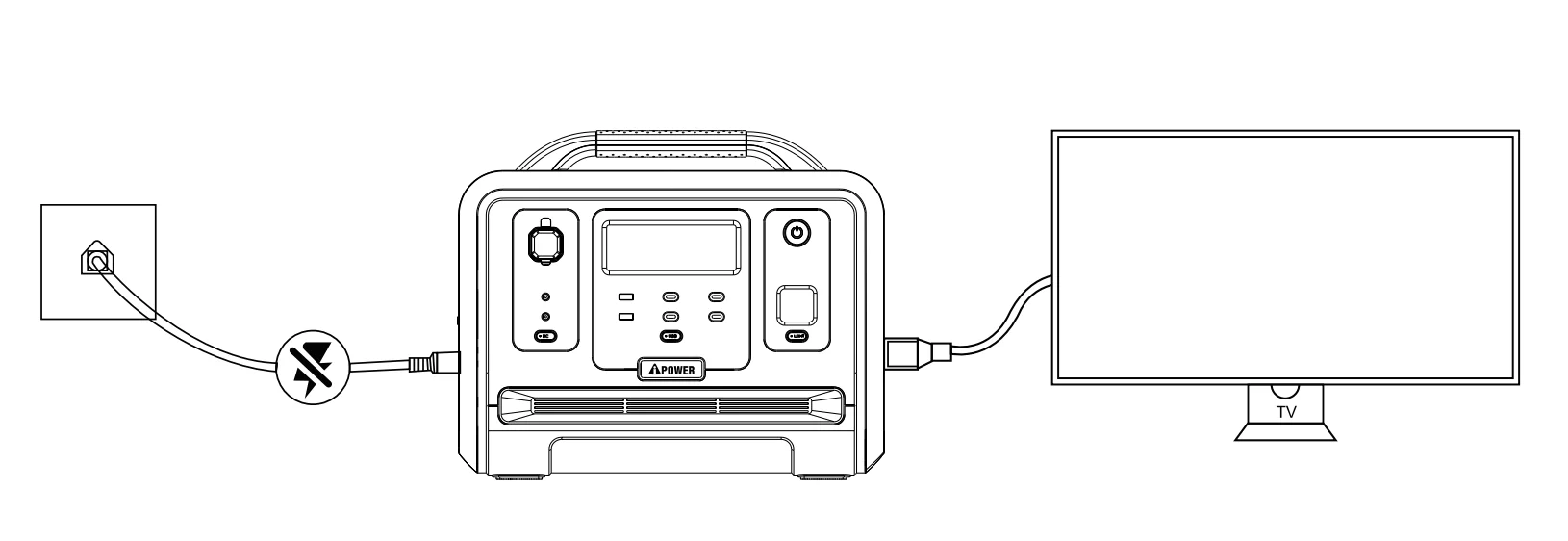
- UPS Feature
This product has a bypass mode, which can output directly from the AC mains without going through the battery. In the UPS state, when the AC input power of the commercial power is cut off due to a power failure, it can automatically switch to the product battery power supply within about 8 milliseconds to ensure the AC output. - UPS Connection Diagram
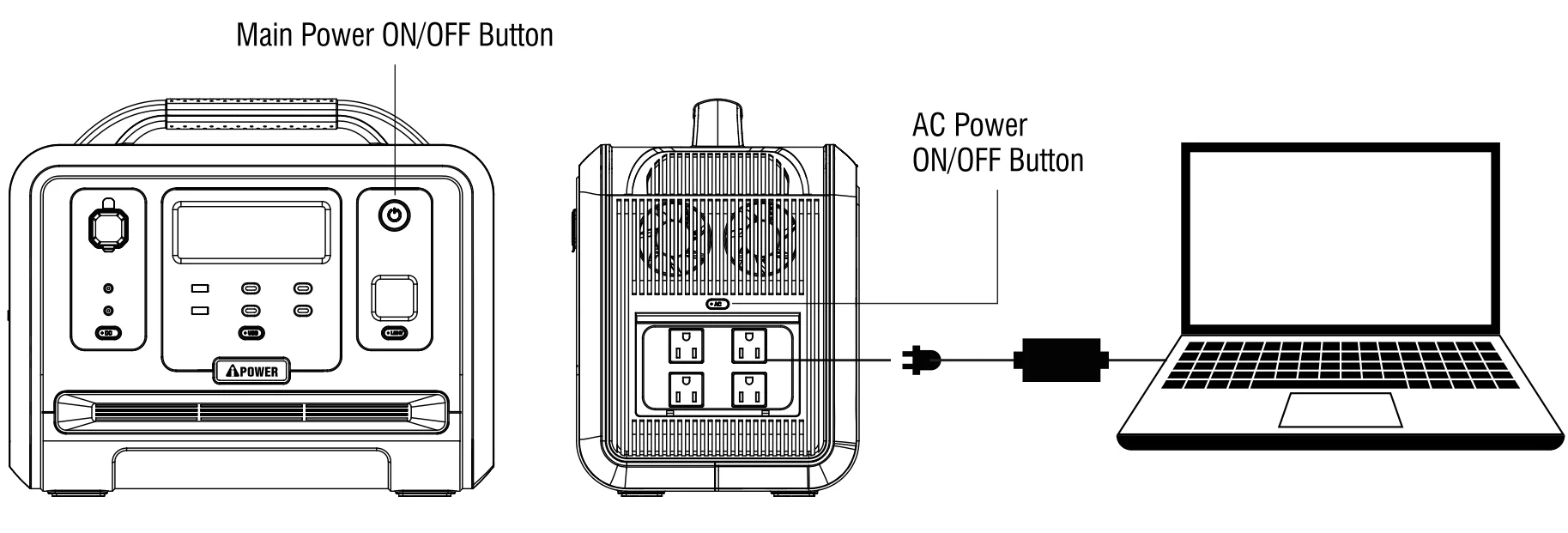
As shown in the figure below, connect the product between the socket and the electrical appliance, and the power of the product is in the ON state. When you turn on a powered device, the powered device uses the main ACpower directly. In this state, when the main power supply is cut off, it will automatically switchto the product’s internal battery power supply.- In UPS mode of The U.S standard, the maximum power output of the AC output is below 1200W, and the AC output exceeds 1200W, and the II iSJ II AC output icon flashes to indicate overload.

- In UPS mode of The U.S standard, the maximum power output of the AC output is below 1200W, and the AC output exceeds 1200W, and the II iSJ II AC output icon flashes to indicate overload.
LIMITED WARRANTY
KEEP YOUR RECEIPT. Proof of purchase will be required to substantiate any warranty claim.
WHAT IS COVERED: A-iPower Corp. warants to the original retail purchaser that this product is free of defects in material and workmanship and agrees, at A-iPower Carp’s direction, to either repair, provide replacement parts for, or replace (without charge for parts or labor) any product or component with a material defect for a period of 2 years from the date of purchase, subject to exclusions noted herein. Warranty service and replacement parts are warranted only for the duration of the warranty on the original product. All replaced parts or products become the property of A-iPower Corp. Thank you for choosing A-iPower products. To ensure proper registration of your product Warranty, please submit your Warranty registration along with proof of purchase within 1 0 days of the date of purchase, this can be done by:
- Completing the Warranty Registration form at the back of this manual and mailing it to: A-IPOWER CORP 10887 COMMERCE WAY UNIT A FONTANA CA 92337 USA
- Visit us at www.a-ipower.com and click the product registration icon
WARRANTY TERMS
A-iPower Corp. will provide 2 years limited warranty for any A-iPower portable power station products purchased through any authorized A-iPower dealer in North America that fail to operate during the applicable warranty period due to any defect in workmanship or material. If a valid claim is made during the applicable period, A-iPower Corp., at its option, will either (1) repair the product or (2) exchange the product with a product that is of equal value. A replacement product assumes the remaining warranty of the original product or ninety (90) days from the date of replacement, whichever is greater. For questions regarding coverage, please contact Customer Service Dept. 855-888-3598 or email [email protected]. Please have the necessary information available – Model Number, Serial Number, and Proof of Purchase.
DO NOT RETURN THE PRODUCT TO THE PLACE OF PURCHASE
A-iPower’s Customer Service Dept will assist with all product’s related questions and will help troubleshoot issues, and send any replacement parts as necessary while the product is within the warranty period at no charge. If the issue cannot be resolved, A-iPower Customer Service Dept, at Its discreion, may authorize diagnosis and repair through one of Its authorized Service Centers. A-iPower Corp, at Its discretion, may choose to provide replacement of a part, component, or product. Service or replacement of parts at any unauthorized repair facility without prior authorization will not be covered by this warranty.
WARRANTY EXCLUSIONS
This warranty does not cover the following:
Regular wear and maintenance
- This warranty will not cover repair when normal use has exhausted the lifetime of a part(s) or the unit.
- Installation and Maintenance – this warranty does not cover improper or unauthorized assembly, alteration, modification, or any other damage resulting from misuse or neglect.
- Cosmetic defects such as scratches to paint, decals, etc.
- Costs of normal maintenance and adjustments.
- Repairs or diagnostics performed by individuals other than an A-iPower Authorized Service Dealer (unless approved by A-iPower)
- Failures due to normal wear and tear, accident, misuse, abuse, negligence, or improper use.
- Failures caused by any external cause or act of God, including but not limited to, collision, theft, vandalism, riot, war, fire, freezing, lightning, earthquake, windstorm, hail, water, flood, torna do, or hurricane.
- Damage related to rodent and/or insect infestation.
- Any incidental, consequential, or indirect damages caused by defects in materials or workmanship, or any delay in repair or replacement of the defective part(s).
- Failure due to misapplication.
- Telephone, cellular phone, facsimile, internet access, or other communication expenses.
- Expenses related to “customer instruction” or troubleshooting where no manufacturing defect is found.
- Overnight freight or special shipping costs for replacement part(s).
- Overtime, holida,y or emergency labor.
DO NOT RETURN THE PRODUCT TO THE PLACE OF PURCHASE
A-iPower Customer Service Dept will assist with all product-related questions, will help troubleshoot issues, and will send any replacement parts as necessary while the product is within the warranty period at no charge. If the issue cannot be resolved, then A-iPower Customer Service Dept, at its discretion determine and authorizes diagnosis and repair through one of its authorized Service Centers. A-iPower Corp, at its discretion, may choose to provide a replacement of a part, component, or product. Service or replacement of parts at any unauthorized repair facility without prior authorization will not be covered by this warranty.
MERCHANDISE RETURN GUIDELINES
- All products must be returned in original or equivalent packaging, if determined by A-ipower customer service. Improperly packaged returns will not be accepted.
- Must have adequate packing for transportation.
- Return to the address provided in the return authorization, using the parcel service required. Units returned without authorization will not be honored.
- Please Note: Refunds will not be granted for items that have been modified or damaged by abuse or usage not in accordance with product instructions.
For more manuals by A-iPower, visit ManualsLibrayy
GS2400iA201 Power Source Solar Generator Bundle-FAQs
How do I reset the GS2400iA201 solar generator?
To reset the generator, turn it off completely, disconnect all AC and DC outputs, wait about 30–60 seconds, then power it back on. This helps clear minor system glitches.
Can a 2000W solar generator run a refrigerator?
Yes, a 2000W solar generator like the GS2400iA201 can run most standard refrigerators, including their startup surge, as long as no heavy appliances are used simultaneously.
How long can this solar generator power a fridge?
Runtime depends on battery capacity and fridge efficiency. On average, a 2000Wh generator can power a refrigerator for about 24 hours under normal usage.
How do I know if the solar panels are charging the generator?
Check the display screen for input wattage. If solar input power is shown, the panels are actively charging the battery.
Can solar generators work at night?
Yes, they work at night using stored battery power. Solar panels recharge the battery during daylight hours.
How long does a solar generator battery last?
Most lithium solar generator batteries last between 5–15 years, depending on usage, charging habits, and maintenance.
Will a 1000W or 2000W inverter run a refrigerator?
A 2000W inverter reliably runs most refrigerators. A 1000W inverter may work for smaller, energy-efficient models but could struggle with startup surge.
What appliances can I run with the GS2400iA201?
You can power lights, fans, TVs, laptops, routers, refrigerators, microwaves, and small power tools. High-wattage devices like electric ovens or large HVAC systems are not recommended.
How do I connect the solar generator to my home?
The safest way is through a generator transfer switch installed at your electrical panel. This prevents back-feeding and ensures safe operation.