
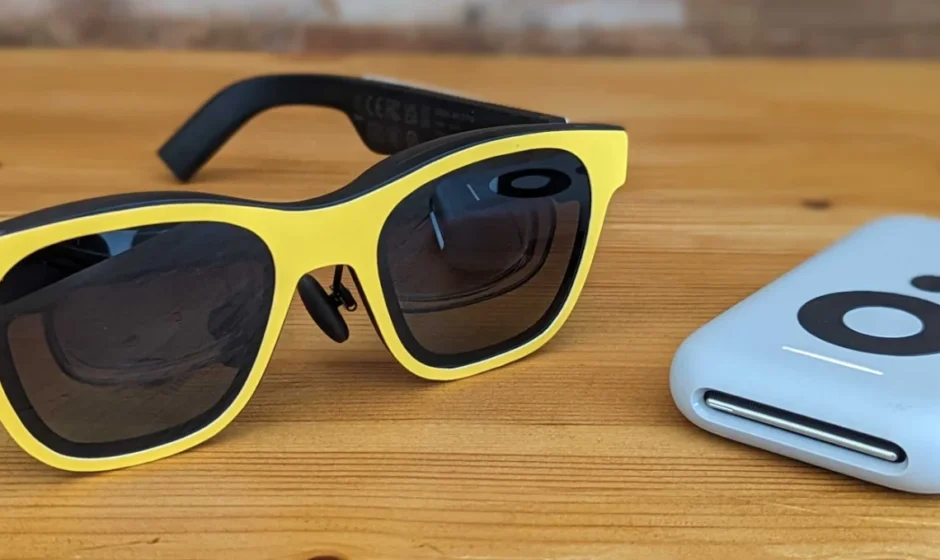

XREAL Air 2 Ultra AR Glasses
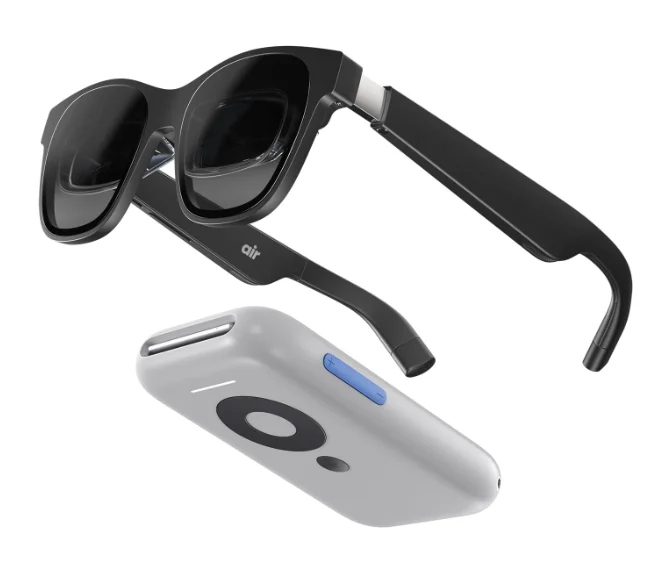

Scan the QR code to access product tutorials to learn more about product usage

Scan the QR code to download the Nebula App to enjoy a complete AR experience
In the Box
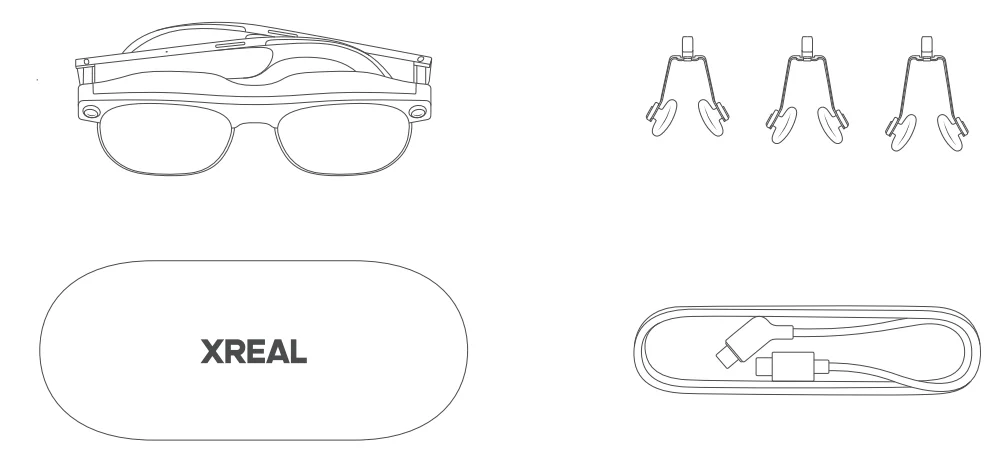
- Air2Ultra
- Nose Pads”3
- Storage Box
- XREAL USB-C Cable
Start to Use
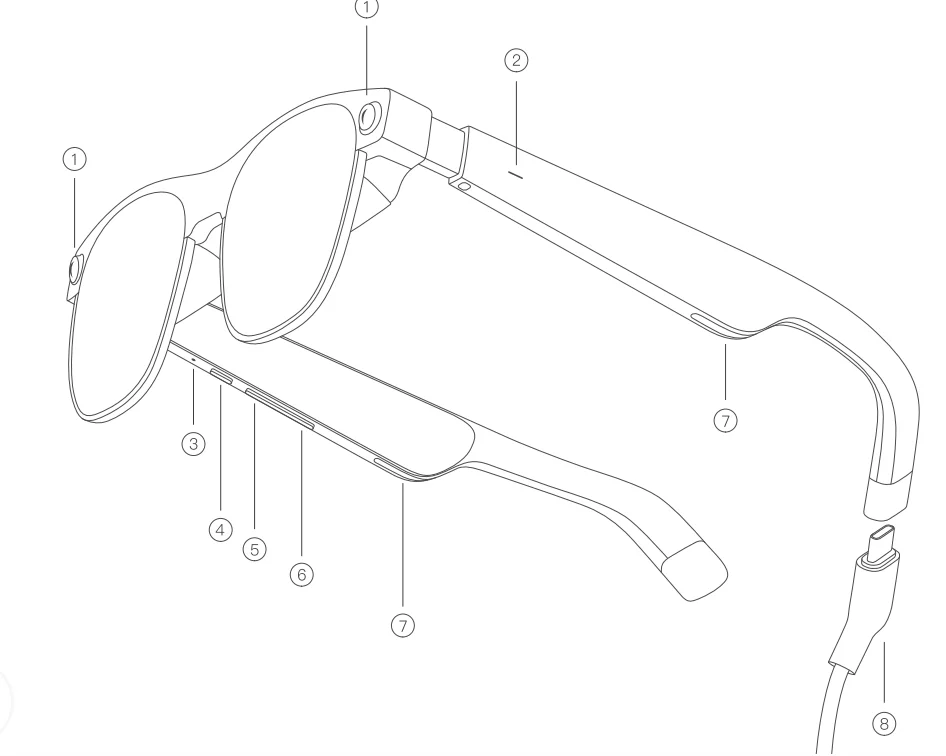
- 3D Environment Sensors
- LED Indicator Light
- Microphone
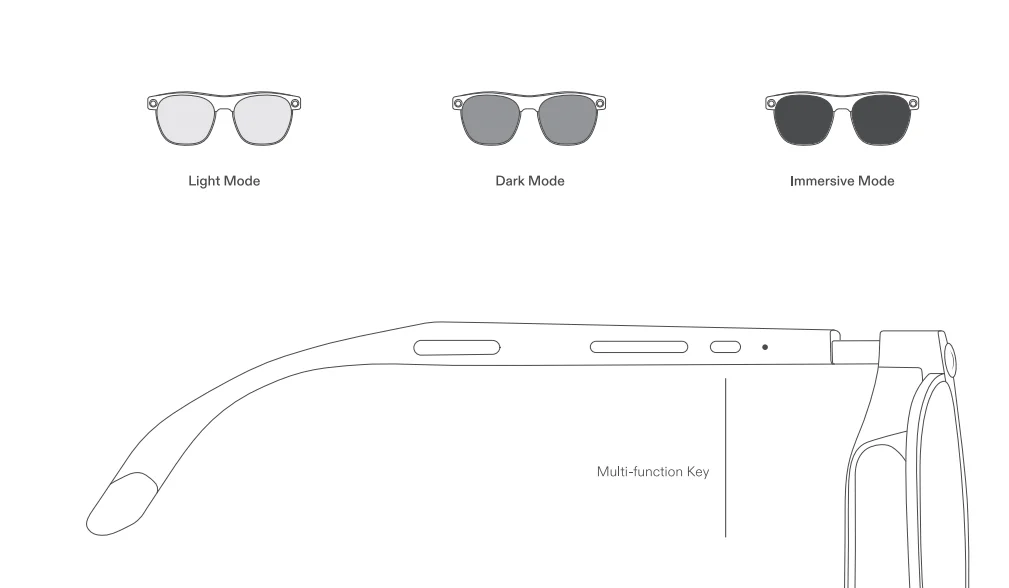
- Multi-function Key
- Brightness+
- Brightness-
- Speaker
- Detachable USB-C Cable
Select and Adjust the Nose Pads
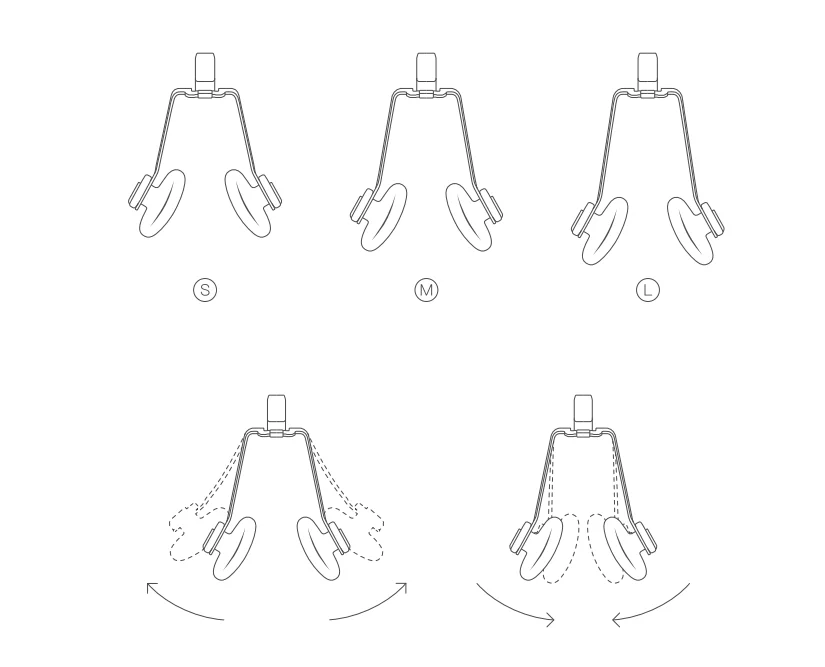
Select a suitable nose pad, bend the metal outwardly or press inwardly to fine-tune the width, to ensure comfortable wear and clearly display the effect.
Adjust the Position
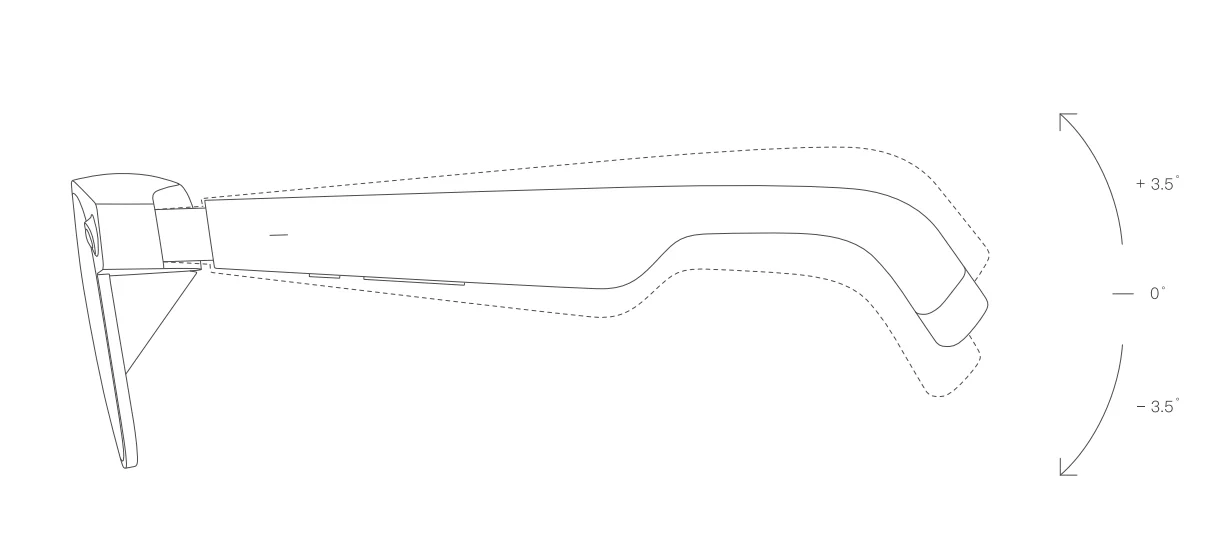
Both legs of the glasses can be adjusted to 3 different positions to fine-tune the display screen angle to give you the best, most comfortable viewing experience. Please refrain from excessive force when adjusting the legs.
Attach the Optical Insert to Glasses
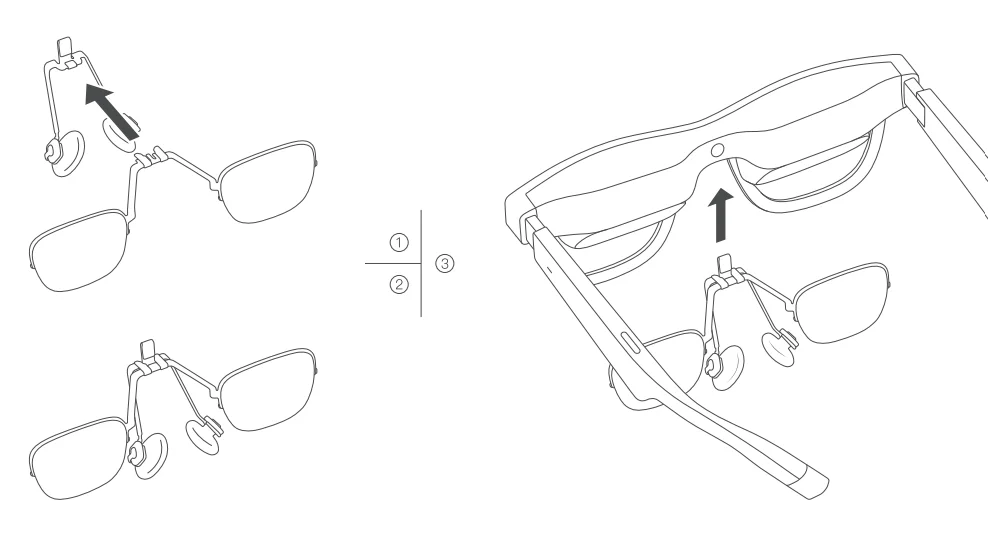
If you are using an optical insert, attach it to the glasses as depicted.
Button Functions
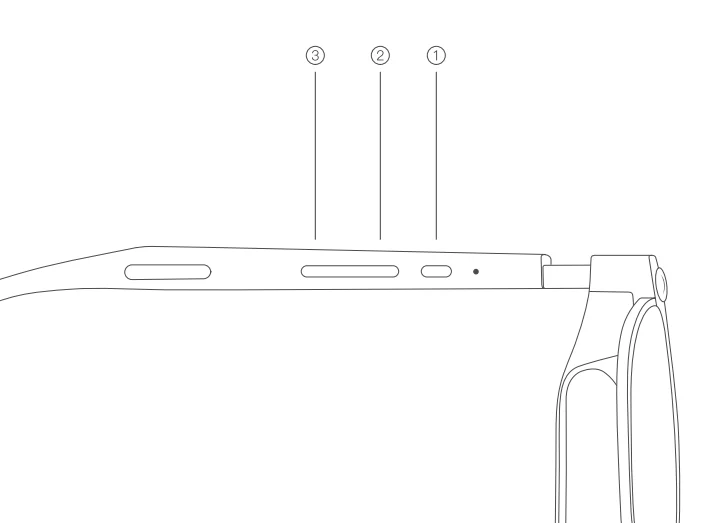
- Multi-function Key
- Click: Tint Level Adjustment
- Double-Click: Screen On / Off
- Press and hold for 2 seconds: Customizable
- Brightness +
- Click: Brightness +/ Volume +
- Press and hold for 2 seconds: 2D/3D Mode Switch
- Press and hold for 4 seconds: Switch USB Audio to Display port Audio
- Brightness –
- Click: Brightness – / Volume –
- Press and hold for 2 seconds: Brightness / Volume Mode Switch
Use the Multi-Function Kay to Switch Tint Level.
Storage
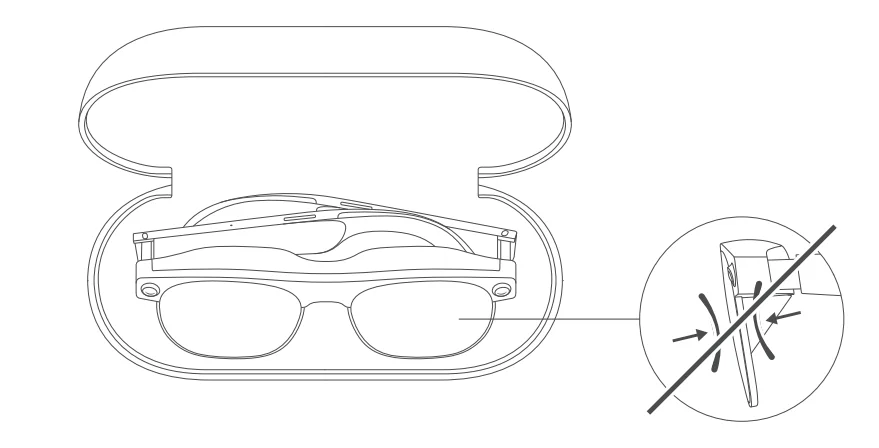 Keep the glasses stored in the case to prevent damage. Do not squeeze the lenses.
Precautions

- If you experience symptoms such as dizziness or nausea, please stop using the device.

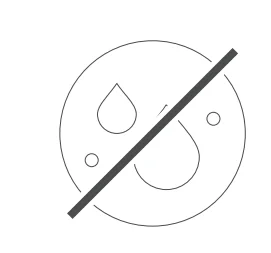
- Do not pour or spray liquids on the product, or expose it to wet environments.

- Keep the product away from heat sources or open flames.

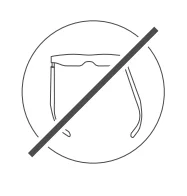
- Avoid excessive bending of the legs to prevent damage to the product.

- Do not press the lenses forcefully to avoid damage to the optical components. Do not press the lenses forcefully to avoid damage to the optical components.

- AR glasses are not a toy intended for children.


Disclaimer and Safety Instructions
Before using XREAL AR glasses, please review the user guide, instructions, and warnings to avoid causing personal injury or property damage. XREAL reserves the right to update the aforementioned content due to changes in product functionality and other objective conditions. Please visit www.xreal.com/support/air2/guide to view the latest update.
User Groups
This product is designed to fit and be used by age 16 or older. It should not be used by users with sensory impairment or users who are at an increased risk of burns.
Precautions for Use
Before wearing the glasses, please carefully inspect them for any visible damage, such as cracks or chips in the frame, the lenses, or the nose pads. If you require vision correction, you must either wear supported contact lenses or use the compatible Optical Inserts withthe XREAL Prescription lens frame.
Usage Environment
Please keep remaining aware of your environment during use and remove any obstacles that may affect your use of this product. Do not use it around stairs, balconies, railings, glass, sharpobjects, or other hazards. Never use XREAL glasses while operating a moving vehicle or bicycle, heavy machinery, or in any other situations requiring attention to safety.
Health Precautions
Stop using the device immediately if you experience discomfort or motion sickness. It is recommended to take 15 minutes break for every 45 minutes of usage.
Avoid Hearing Damage or Eye Strain
To prevent possible hearing damage or eye strain, do not use at high volume levels for long periods, and adjust the brightness for different environments. More information about sound and brightness is available online at “Safety information” in the User Guide.
Device Safety
Do not expose the glasses to liquid. To avoid damaging the product, do not throw, toss, or drop it, or expose it to strong physical impact. Also, do not use the glasses with unauthorized accessories or devices. The optimal environmental temperature for storing this product is 0 °C to 35 °C (32°F to 95°F).
Regulatory Information
Regulatory certification information is available on the legs of the glasses and on the labels of the box. Additional regulatory information is available at the session “Regulatory” in the User Guide.
FCC Compliance
This device complies with part 15 of the FCC Rules. Operation is subject to the following two conditions: (1) this device may not cause harmful interference, and (2) this device must accept any interference received, including interference that may cause undesired operation. This equipment has been tested and found to comply with the limits for a Class B digital device, pursuant to Part 15 of the FCC Rules.
Recycling and Disposal
According to local laws and regulations, this symbol indicates that the product and its battery (if it has one) shall be disposed of separately from household waste. To facilitate their treatment and recycling, you need to find a way to safely recycle or dispose of your product. Lots of retailers offer in-store ‘take back’ and collective recycling bodies, as well as typically your local council, municipality or waste disposal provider, may have a list of places you can bin your waste batteries and WEEE for free. The separate collection and recycling of your product at the time of disposal will help conserve natural resources and ensure that itis recycled in a manner that protects human health and the environment.
Privacy Statement
Data from the 3D Environment Sensors is processed and stored on the device only. XREAL does not access or store this data.
ContactUs
If you have any questions about these disclaimers and safety warnings, please contact us: [email protected].
For more manuals by Xreal, visit ManualsLibraryy
XREAL Air 2 Ultra AR Glasses-FAQs
How do I turn on XREAL Air 2 Ultra AR Glasses?
Hold the power button on the left side for a few seconds. The glasses will turn on automatically when connected to a compatible device.
How do I set up XREAL Air 2 glasses with my phone or PC?
Connect the glasses via USB-C or HDMI to your device. For phones, install the XRAI Control app, grant permissions, and follow the on-screen instructions.
Can I use XREAL Air 2 with an iPhone or Android phone?
Yes, the glasses work with both iPhone and Android. Make sure your phone supports HDMI or USB-C video output.
How do I adjust the glasses for a comfortable fit?
Start wearing them 1–2 hours daily and gradually increase the time. Adjust the temples so they don’t dig into your ears, and make sure the frame sits snugly without sliding.
How do I adjust the lenses for clear vision?
Slide the lenses side to side until the image is sharp and not blurry.
How long can I use VR or AR at a time safely?
Limit sessions to 10–15 minutes at first. Take breaks to prevent eye strain or discomfort.
How do I get used to wearing AR glasses?
Wear them gradually, preferably earlier in the day, and increase wearing time as your eyes adapt. Avoid long continuous sessions initially.
Can I watch Netflix or other apps in AR mode?
Yes, XREAL Air 2 supports streaming apps like Netflix, YouTube, and more when connected to a compatible device.
How do I control the volume?
If in DP mode, open the main menu by double-clicking the X button, then navigate to the Sound interface to adjust volume.