
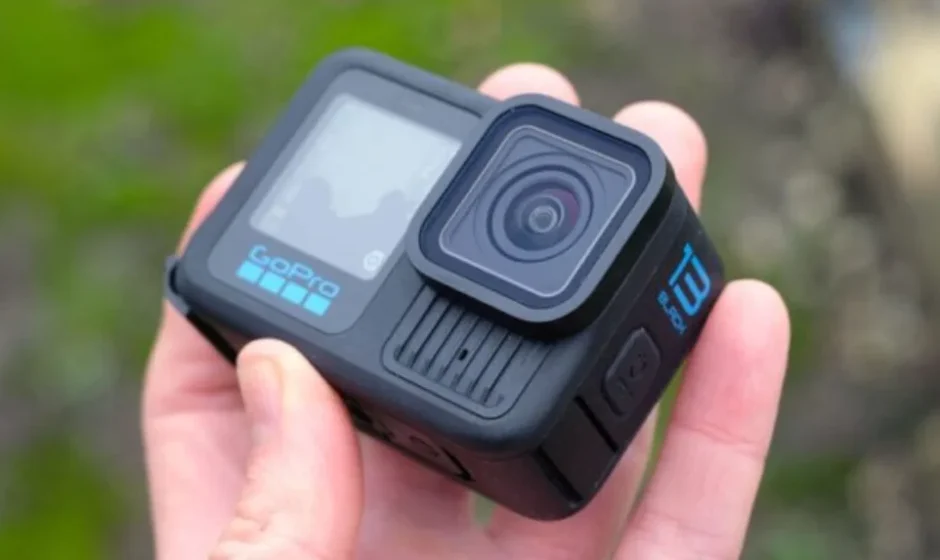

GoPro HERO 13 Black Camera
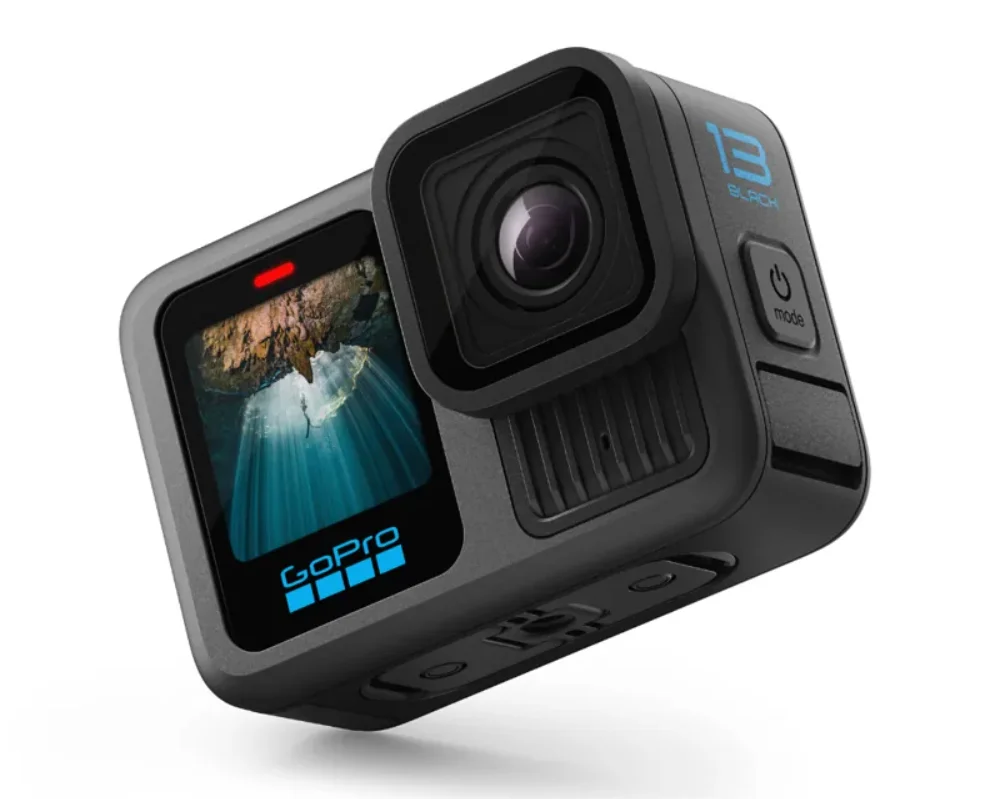
Meet HERO13 Black
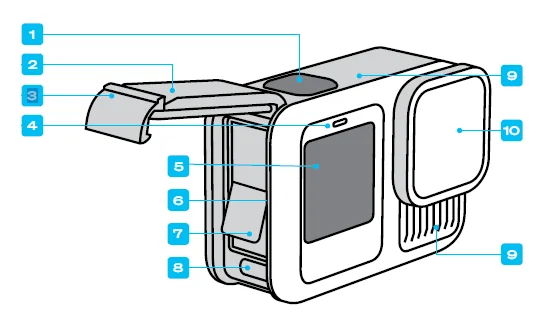
- Shutter Button
- Door
- Door Latch
- Status Light
- Front Screen
- microSD™ Card Slot
- Battery
- USB-C Port
- Microphone
- Removable Lens
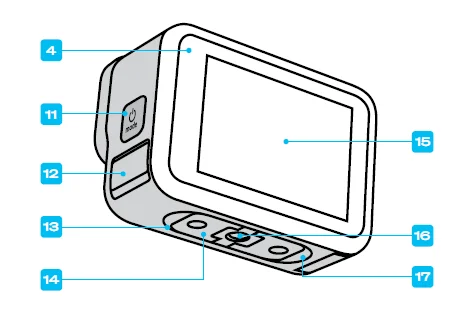
- Mode Button
- Drain Microphone (Do not try to open. This is not a door/latch.)
- Speaker
- Folding Fingers
- Touch Screen
- 1/4-20 Mounting Threads
- Magnetic Latch Mount Connection Point (Magnetic Latch Mount sold separately.)
Getting Started
SD CARDS
You’ll need a microSD card (sold separately) to save your videos and photos. Use a brand-name card that fits these requirements:
- microSD, microSDHC™, or microSDXC™
- Rated Class A2 V30, UHS-3, or higher
For a list of recommended microSD cards, visit gopro.com/microsdcards. Be sure your hands are clean and dry before handling your SD card. Check the manufacturer’s guidelines to see your card’s acceptable
temperature range and other important information. Heads Up: SD cards can degrade over time and affect your camera’s ability to save your media. Try swapping out an older card for a new one if you’re having any problems.
PRO TIP: Keep your SD card in good condition by reformatting it regularly. This will erase all of your media, so be sure to save it first.
- Swipe down on the rear screen to access the Dashboard.
- Swipe left and tap Preferences > Reset > Format SD Card.
RECHARGEABLE BATTERY
For maximum performance, be sure to use the Enduro battery that came with your new GoPro.
PRO TIP: There’s an easy way to check your battery’s status and make sure you’re using the right one.
- Swipe down on the rear screen to access the Dashboard.
- Swipe left and tap Preferences > About > Battery Info.
WARNING: Although non-GoPro batteries may fit in your HERO13 Black, they could greatly limit your camera’s performance. Using non-GoPro batteries will also void your warranty and may pose fire, electric shock, or other safety risks.
SD CARD + BATTERY SETUP
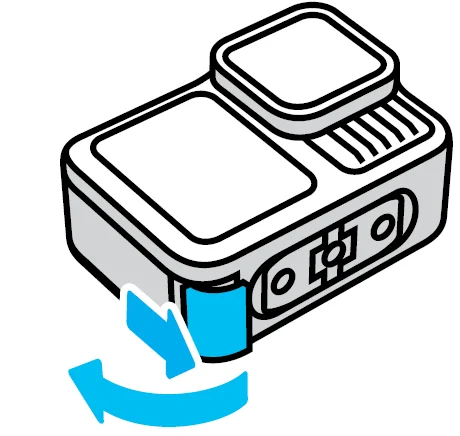
- Make sure your GoPro is dry and clean before opening the door. Unlock the door latch and flip the door open.

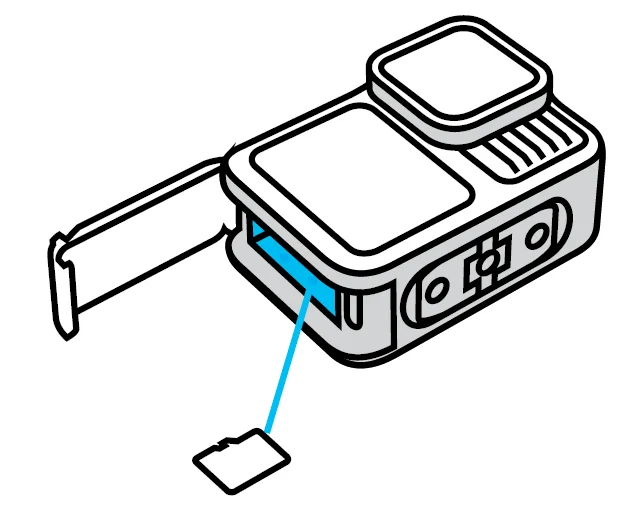
Heads Up: The latch may be difficult to open, especially the first few times. This is to help ensure a tight, waterproof seal. - With your camera off and battery removed, insert the SD card into the card slot with the label facing the battery compartment.

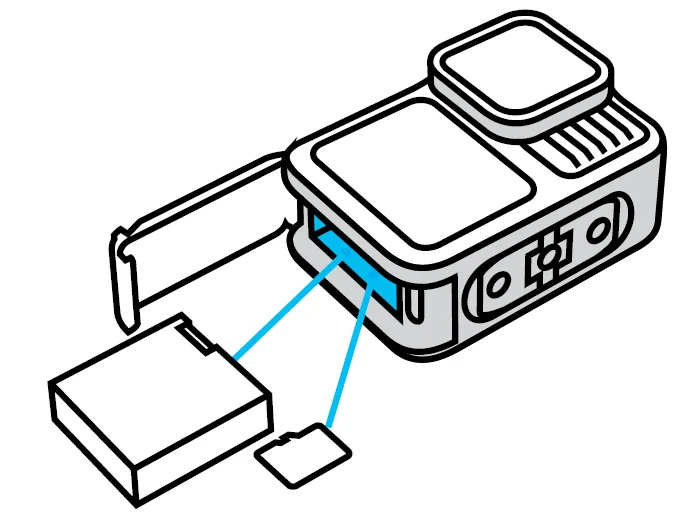
You can eject the card by pressing it into the slot with your fingernail. - Insert the battery.

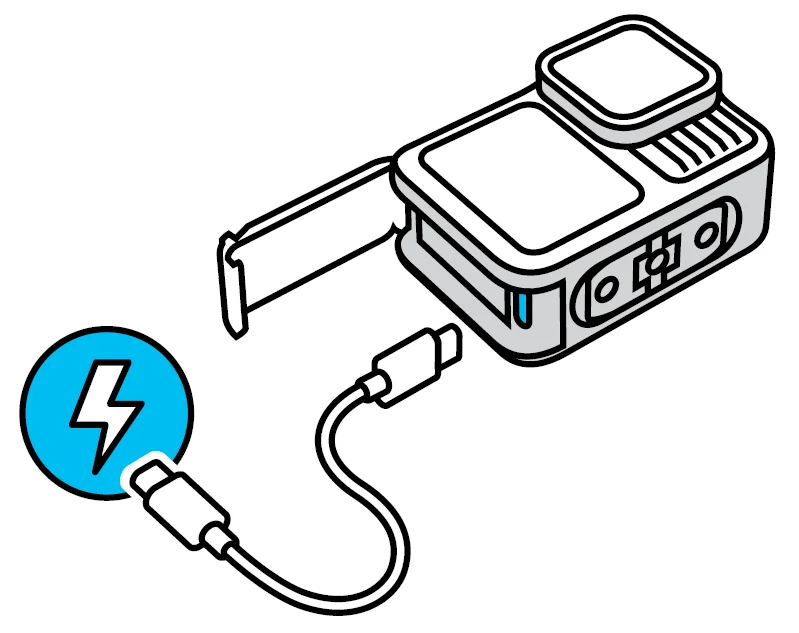
- Connect your camera to a USB charger or computer using the included USB-C cable.

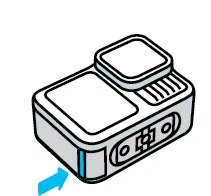
It takes about 3 hours for the battery to fully charge. The camera status light will turn off when it’s done. - Unplug the cable when charging is complete. Be sure the seal is free of debris. Use a cloth to clean the seal if needed before shutting the door. Be sure the door latch is closed and locked before using your camera.

NOTE: Your camera’s door is removable. Be sure that the door is securely locked and sealed after closing.
UPDATING YOUR CAMERA
You must update your camera before you can use it.
Updating With the GoPro Quik App
- Download the app to your phone from the Apple® App Store® or Google Play™.
- Make sure you have internet access, then turn on your GoPro by pressing the Mode button
 .
. - Follow the app’s on-screen instructions to complete the update.
Updating Manually
- Visit gopro.com/update.
- Choose HERO13 Black from the list of cameras.
- Select Update your camera manually and follow the instructions.
PRO TIP: The app will check for the latest camera software every time it connects to your GoPro. This helps ensure that you’ll always have the latest features and best performance from your GoPro. If new software is available, the app will tell you how to install it.
WARNING: Do not remove your battery or SD card from your GoPro while the update is in progress. Removing your battery or SD card during an update may permanently damage your GoPro.
POWERING ON
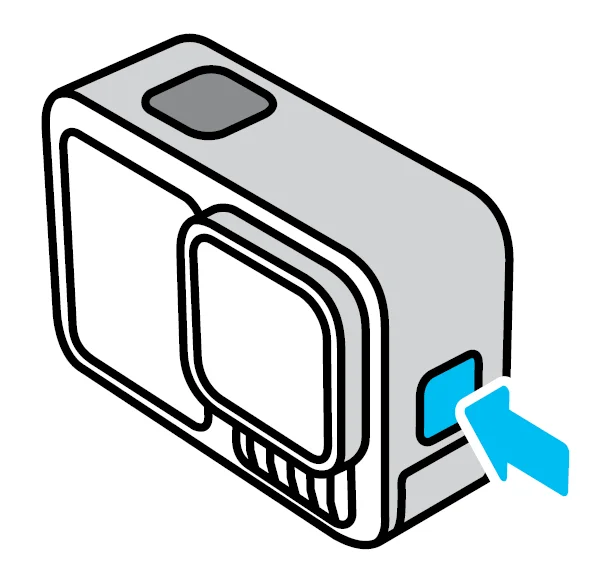
Press the Mode button to turn on your camera.
POWERING OFF
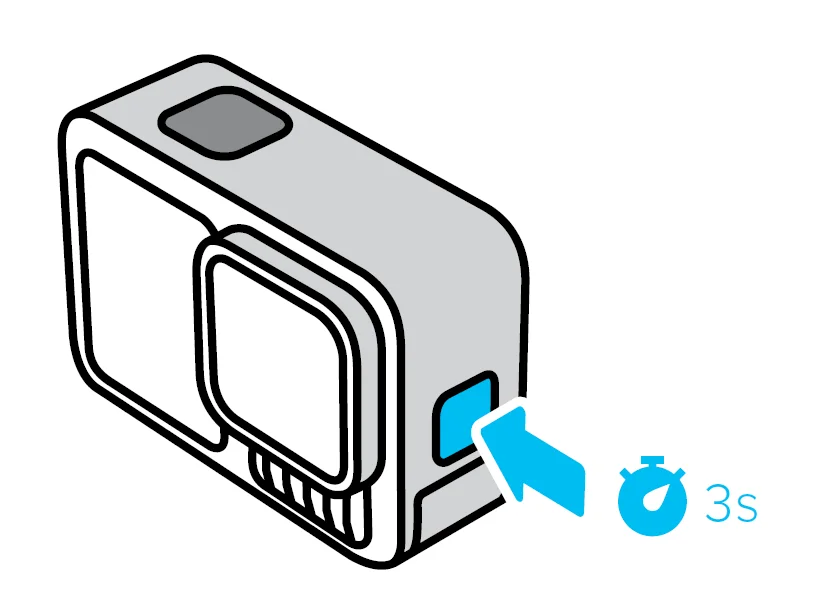
Press and hold the Mode buttonfor 3 seconds to turn it off.
WARNING: Use caution when using your GoPro and its mounts and accessories. Always be aware of your surroundings to avoid injuring yourself and others. Be sure to follow all local laws, including all privacy laws, which may restrict recording in certain areas.
FRONT SCREEN OPTIONS
The front screen features 4 display options.
- Swipe down on the rear screen to access the Dashboard.
- Tap
 to access the front screen settings.
 - Tap the icon of the setting that you want.
 to access the front screen settings.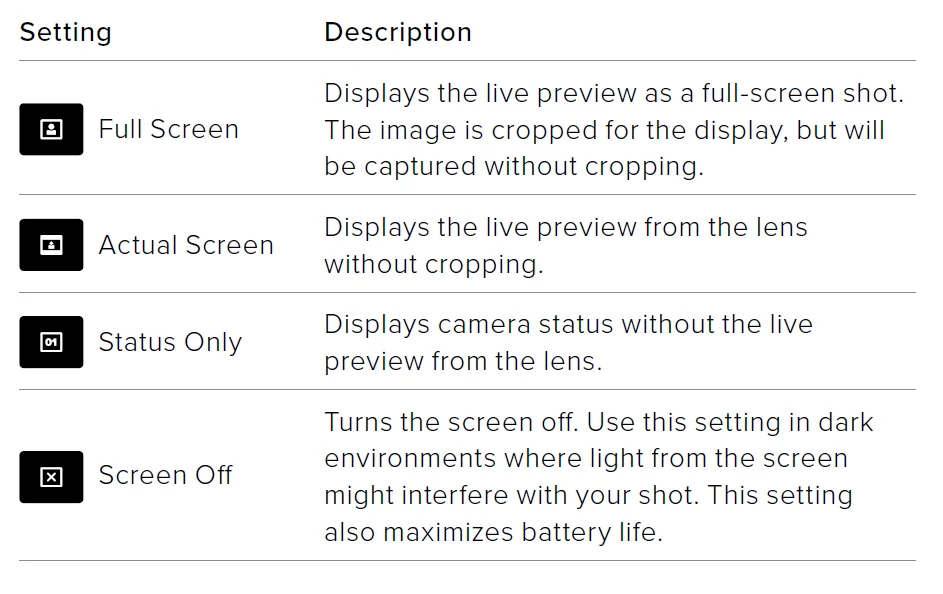
USING THE REAR TOUCH SCREEN
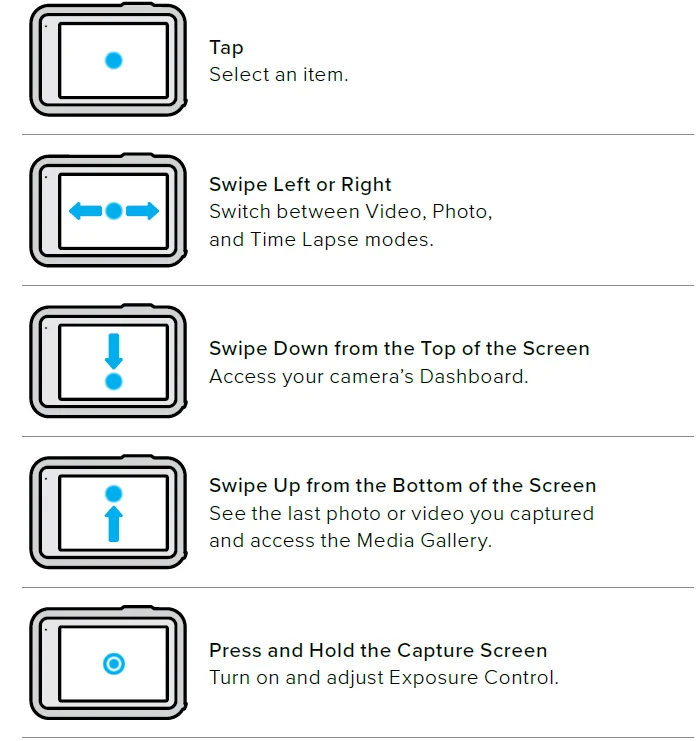
PRO TIP: You can hide your camera’s status information and icons on both the front and rear screens by tapping the rear screen. Tap the screen again or press a button to bring it all back.
CAPTURE MODES
Your GoPro has 3 main capture modes.
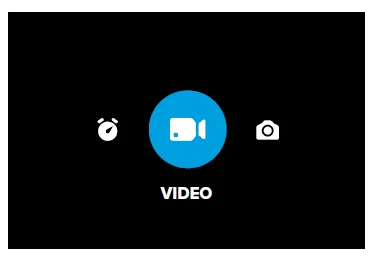
Using the rear touch screen, swipe left or right to the mode you want.
- Video (Default)
Captures your adventure in high-quality video. - Photo
Your GoPro captures 27MP photos using the ultra-versatile 8:7 aspect ratio. - Time Lapse
Time Lapse turns long events into short, shareable videos by taking a frame of video at set intervals.
PRO TIP: With the camera on, you can press the Mode buttonto switch modes.
GETTING THE SHOT
- With your GoPro on, simply press the Shutter button
 to start recording.
- Press the Shutter buttonagain to stop recording (Video, Time Lapse, and Live Streaming only).
RECORDING WITH QUIKCAPTURE
QuikCapture is the fastest and easiest way to power on your GoPro and get the shot. All it takes is the push of the Shutter button. - With your camera off, press the Shutter button.

- Press the Shutter buttonagain to stop recording and turn off your camera.
- Your camera will begin a 5-second countdown. During the countdown, you have 4 options.
- Press the Shutter button to start recording again immediately.
- Press the Mode button
 to exit QuikCapture and go the video capture screen.
 - Press and hold the Mode button to immediately shut down your camera.
- Wait for the countdown to elapse and automatically shut down your camera.
 to start recording.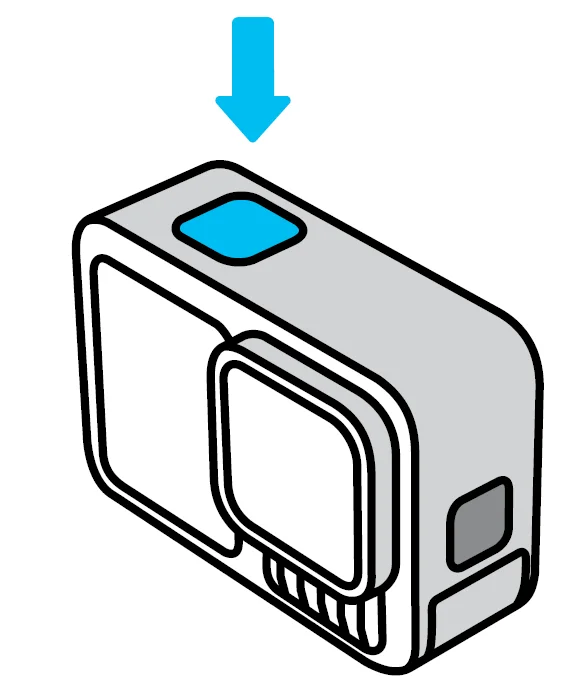
Heads Up: When using QuikCapture, your camera will start recording with the video settings that you used last. For more Video options, see Recording Video (page 39).
Turning Off QuikCapture
QuikCapture is on by default, but you can turn it off.
- Swipe down on the rear screen to access the Dashboard.
- Swipe left and tap Preferences > General > QuikCapture.
PRO TIP: Since it only turns the camera on when it’s recording, QuikCapture is a great way to maximize battery life.
Using Pro Controls
THE REAR TOUCH SCREEN
The rear touch screen gives you access to your camera’s capture settings.
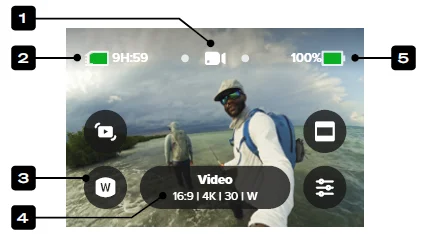
- Current Mode (Video, Photo, or Time Lapse)
- Recording Time/Photos Remaining
- Customizable On-Screen Shortcuts
- Capture Settings/Center Button
- Battery Status
Heads Up: The capture settings are not available when you turn your GoPro to take portrait shots. Be sure to choose the settings you want before rotating your camera.
PRO TIP: Press the Mode buttonto quickly jump back to this screen from almost anywhere.
Using Pro Controls
PRO CAPTURE MODES
Video (Default)
Includes Video and Burst Slo-Mo presets.
Photo
Includes Photo, Burst, and Night Photo presets.
Time Lapse
Includes TimeWarp, Star Trails, Light Painting, Vehicle Light Trails, Time Lapse, and Night Lapse presets.
Heads Up: You can choose which preset will be loaded and ready to go when you turn on your GoPro.
- Swipe down on the rear screen to access the Dashboard.
- Swipe left and tap Preferences > General > Default Preset.
SWITCHING CONTROLS
Your GoPro uses the Easy Controls by default, but you can switch to the Pro Controls with just a couple of swipes and a tap.
- Swipe down on the rear screen to access the Dashboard.
- Swipe left and tap Controls to toggle between the Easy and Pro Controls.
Pro Control Presets + Shortcuts
CHANGING PRESETS
Each capture mode has presets that make it easy to switch back and forth between the best mode and settings for your shot.
- From the capture screen, tap the center button
 .
. - Tap the preset that you want from the list. All of the preset’s settings will be locked into your camera and ready to go.
 .
.CUSTOMIZING THE PRESETS
You can change the settings in your presets with just a few taps.
- From the capture screen, tap
 .
. - Tap the setting that you want to change.
- Use the slider to scroll through the settings. The on-screen instructions will help explain your options. For details on settings, see Tech Specs (starting page 112).
- Scroll down to access the advanced Protune settings. To learn more, see Protune (starting page 137).
- Scroll back to the top and tap
 to save your changes and return to the presets screen.
Heads Up: You can’t delete the preloaded presets, but you can customize them any way you want. You can also create your own custom presets. To learn more, see Creating Your Own Presets (page 36).
PRO TIP: You can also get to the settings menu by tapping and holding the center button of the preset that you want to customize.
Recording Video
Pro Control Video features 2 presets. They let you capture high-quality standard video or capture short video clips in extreme slow motion.
VIDEO PRESETS
Video (Default)
Video mode gives you the flexibility to record in a wide range of resolutions from standard HD 1080p all the way up to pro-quality 5.3K. You also have full control of frame rates, aspect ratio, and more.
PRO TIP: After you’ve found settings that you like, save them as presets. This will let you switch back and forth between frequently used settings in just a few taps.
Burst Slo-Mo
Burst Slo-Mo lets you capture short video clips at insanely high frame rates for incredibly slow and fluid slo-mo footage down to 13x normal speed.
Recording Video
Framing
Set your GoPro to capture widescreen (16:9 aspect ratio), vertical (9:16 aspect ratio), traditional (4:3), or full frame (8:7 aspect ratio) footage. To learn more, see Regional Format (page 90).
Settings
The Settings shortcut takes you directly to the settings menu, where you’ll have access to all of the settings and features for the selected preset.
PRO TIP: You can also change your camera settings using the GoPro Quik app.
ADJUSTING SETTINGS
You can access and adjust the video settings by tapping the Settings shortcut . Tap to make any changes that you’d like. You can tap
 to keep the changes to the preset, or tap
 or scroll down to “save as” to save the changes as a new preset.
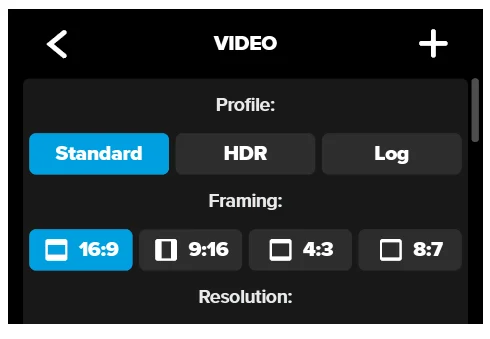
Heads Up: Available settings will vary based on the framing, resolution, and frame rate selected, plus whether or not you choose to record in HDR.
Taking Photos
Interval Photo
Tap this shortcut to set up Interval Photo and choose how often your GoPro takes a photo—from a 0.5-second to 120-second interval. To learn more, see Interval (Interval Photo) (page 128).
Settings
The Settings shortcut takes you directly to the settings menu, where you’ll have access to all of the settings and features for the selected preset.
PRO TIP: You can also change settings using the GoPro Quik app.
ADJUSTING SETTINGS
You can access and adjust the photo settings by tapping the settings shortcut…………… Tap to make any changes that you’d like. You can tap………….to keep the changes to the preset, or tap………….or scroll down to “save as” to save the changes as a new preset. Tap any setting that you want to use for your photo.
PROTUNE
You can find Protune settings under the Capture settings. Protune gives you manual control of advanced settings, including Color, ISO Limit, and Exposure. To learn more, see Protune (starting page 137).
DASHBOARD
Scroll past the Protune section to access the Dashboard override. From here, you can customize the Dashboard settings for your presets. To learn more, see Overriding Dashboard Settings (page 37).
SHORTCUTS
Lets you change the default on-screen shortcuts to the settings that you use most for quick and easy access. To learn more, see Personalizing On-Screen Shortcuts (page 38).
Capturing Time Lapse
Your GoPro has 6 Time Lapse presets. Each lets you swap out aspect ratio, resolution, and lens for your shot, plus make other adjustments.
TIME LAPSE PRESETS
TimeWarp (Default)
Lets you capture ultra-smooth time-lapse footage while you’re on the move. The Speed Ramp feature lets you tap the screen during recording to dramatically slow your footage down to real speed. Tap the screen
again to speed back up.
Star Trails
Mount your GoPro to a stationary object and point it at the night sky to capture trails of light across the sky.
Light Painting
Mount your GoPro to a stationary object, then grab a flashlight, glow stick, or other light source and get creative.
Vehicle Light Trails
Mount your GoPro on a stationary object and point it toward moving vehicles to create stunning light trails footage.
Time Lapse
Use this preset to capture time-lapse video or photos when your camera is mounted and still.
Night Lapse
Night Lapse was made to capture time-lapse video or photos in dark and low-light environments.
Maintenance
Follow these tips to get the best performance from your camera:
- Your GoPro is waterproof to 33ft (10m)—no housing needed. Be sure the door is closed before using it in or around water, dirt, or sand.
- Before closing the door, be sure the seal is free of debris. Use a cloth to clean the seal if needed.
- Make sure your GoPro is dry and clean before opening the door. Rinse your camera with fresh water and dry it with a cloth if needed.
- If sand or debris hardens around the door, soak your camera in warm tap water for 15 minutes and then rinse thoroughly to remove the debris. Make sure your camera is dry before opening the door.
- For the best audio performance, shake your camera or blow on the mic to remove water and debris from the microphone holes. Do not use compressed air to blow into the mic holes. This could damage the internal waterproof membranes.
- After every use in salt water, rinse your camera with fresh water, and dry it with a soft cloth.
- The lens cover is made from extremely tough, strengthened glass, but it can still be scratched or cracked. Keep it clean with a soft, lint-free cloth.
- If debris gets stuck between the lens and the trim ring, flush it out with water or air. Do not insert foreign objects around the lens.
Battery Information
MAXIMIZING BATTERY LIFE
Here are some things you can do to maximize battery life:
- Capture video at lower frame rates and resolutions.
- Use the Screensaver and lower the screen Brightness.
- Turn off the front screen.
- Turn off Wireless Connections.
- Turn off GPS.
- Record with QuikCapture.
- Choose a shorter Auto Power Off setting.
RECORDING WHEN PLUGGED INTO A POWER SOURCE
You can use the USB-C cable that came with your camera to shoot videos and photos while your camera is plugged into a USB-charging adapter or other external power source. This is perfect for capturing
long videos and time-lapse events. Be careful not to touch the area near the SD card slot when recording. Disturbing the SD card could interrupt or stop the recording. Your camera will let you know if this happens. Your content will not be damaged or lost as a result of this disturbance, but you may need to restart your camera to continue. Even though your camera is charging, the battery will not charge during recording. It will start charging when you stop recording. You cannot record while your camera is plugged into a computer.
Heads Up: Because the door is open, your camera is not waterproof when charging.
CHARGING THROUGH THE DOOR
GoPro has 2 solutions that let you conveniently power your camera through long capture sessions or charge your battery while keeping the door closed. The Contacto Magnetic Door and Power Cable Kit (sold separately) features a cable that magnetically attaches to a replacement camera door to form a tight, weatherproof seal. Plug the other end of the cable into any USB-C power source (make sure your power source is
waterproof when using in wet conditions). The USB Pass-Through Door (sold separately) lets you plug directly into your camera’s USB-C port through the door. This keeps your camera weather-resistant during exceptionally long shoots and makes it easier to keep your battery charged.
PRO TIP: Use the Contacto Magnetic Door and Power Cable Kit (sold separately) to keep your camera weather-resistant and the battery in place when plugged into an external power source.
WARNING: Only use an agency-approved power supply that meets local regulatory requirements (e.g., UL, CSA, VDE, CCC) to charge your GoPro. Using non-compliant power adapters and cables could damage your camera battery and could lead to fire or leakage.
Troubleshooting
- MY GOPRO WON’T POWER ON
Make sure your GoPro is charged. See SD Card + Battery Setup (page 10). If charging the battery doesn’t work, try restarting your camera. See Restarting Your GoPro (page 95). - MY GOPRO WON’T RESPOND WHEN I PRESS A BUTTON
See Restarting Your GoPro (page 95). - PLAYBACK ON MY COMPUTER IS CHOPPY
Choppy playback is usually not a problem with the file. If your footage skips, one of these issues is probably the cause:- The computer doesn’t work with HEVC files. Try downloading the latest version of the GoPro Player for Mac® or Windows® for free at gopro.com/apps.
- Your computer doesn’t meet the minimum requirements of the software you’re using for playback.
- I FORGOT MY CAMERA’S USERNAME OR PASSWORD
Swipe down on the rear screen to access the Dashboard, swipe left, and then tap Preferences > Connections > Camera Info. - I DON’T KNOW WHICH SOFTWARE VERSION I HAVE
Swipe down on the rear screen to access the Dashboard, swipe left, and then tap Preferences > About > Camera Info. - I CAN’T FIND MY CAMERA’S SERIAL NUMBER
The serial number is stamped inside the battery compartment of your camera. You can also find it by swiping down on the rear screen to access the Dashboard, swiping left, and then tapping Preferences > About > Camera Info. - I CAN’T FIND MY GOPRO
Tap “Locate Camera” in the GoPro Quik app. Your GoPro will start beeping if its in Bluetooth® range and connected to the app. For more answers to commonly asked questions, see gopro.com/help.
For more manuals by GoPro, visit ManualsLibraryy
GoPro HERO 13 Black Camera-FAQs
How do I set up the GoPro HERO 13 Black for the first time?
Insert a charged battery and a compatible microSD card, power on the camera, connect it to the GoPro Quik app, and follow the on-screen setup instructions.
Is the GoPro HERO 13 Black easy to use for beginners?
Yes. The touchscreen interface, simple presets, and one-button recording make it beginner-friendly while still offering advanced controls for professionals.
What are the best video settings for GoPro HERO 13 Black?
For general use, 4K at 30fps or 60fps, Auto shutter, HyperSmooth stabilization, and Auto white balance provide excellent results.
Does the GoPro start recording automatically?
Yes. With QuikCapture enabled, pressing the shutter button powers on the camera and starts recording instantly.
Can I connect my GoPro HERO 13 Black to my phone?
Yes. Use built-in Wi-Fi and Bluetooth with the GoPro Quik app to control the camera, preview shots, and transfer media.
How long does the GoPro HERO 13 battery last?
Battery life varies by settings, but typically lasts 1.5 to 2 hours for standard 4K recording under normal conditions.
Do I need an SD card for GoPro HERO 13 Black?
Yes. A microSD, microSDHC, or microSDXC card (V30, UHS-3 or higher) is required to store photos and videos.
Does the GoPro HERO 13 Black take photos?
Yes. It captures high-resolution photos, burst shots, and night photos, though it’s primarily optimized for action video.
What are the key features of GoPro HERO 13 Black?
It offers 5.3K video, advanced HyperSmooth stabilization, rugged waterproof design (up to 33 ft), enhanced audio, and HB-Series lens compatibility.