
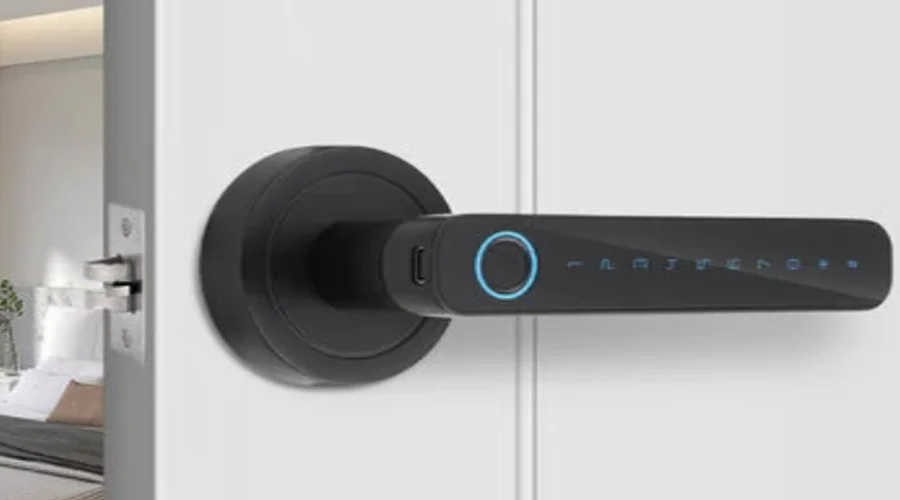

Banggood Smart Lock
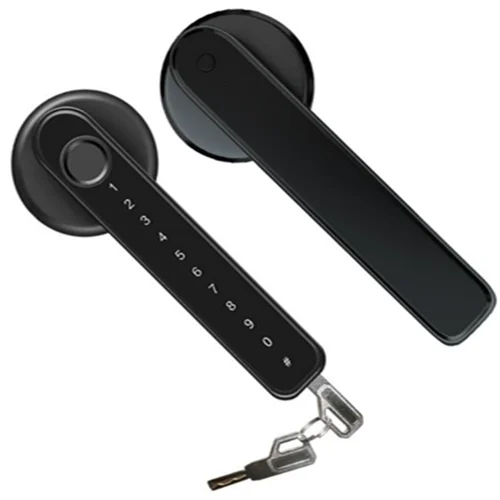
Parameter
- Emergency Charged port: Micro- USB
- Emergency Charging Power: ≦5V
- Fingerprint Capacity: 20pcs
- Password Capacity: 20 groups
- Password Length: 8-12 bits
- Phantom Password Length: Total 18 bits
- Support Application: Smart Life App
- Voltage of Low Power Reminder: 3.7V
- Working Voltage: 14500 recharged
- lithium battery
- Standby Current: <70uA
- Working Current: <300mA
- Unlocked Speed: 1.5s
- Working Temperature: -10℃—+60℃
Packing List
- Front Handle 1
- Rear Handle 1
- Lock Latch 1
- Square Rod 1
- Bag of Screws 1
- User Manual 1
Operation
Normal Functions
- Capacity: fingerprint 20pcs, password 20groups.
- Waking up the lock by touching the keypad.
- Enter system: long click “#” to enter system.
- Exit system: click “*” to exit system.
- After long click “#” to enter system:[if there is a administrator, please verify the administrator.(the first three added fingerprints or passwords are the administrators.)]
- Press “1” to set fingerprint users.
- Press “2” to set the password for users.
- Press “3” to restore factory setting.[now, all users will be deleted, including administrators]
- Press “4” to change language: Chinese/English.
- Press “5” to open/close normal open mode.[it can be opened by pushing down the handle(don’t need to input unlocked information), after opening normal mode]
- Press “6” to open Bluetooth Mode to connect smart life app.
- The password length is 8-12bits, and the phantom password length is 18 bits.
- “#” key is a confirmed key.
Notice: the first three added fingerprints or passwords are those of the administrators.
Add Fingerprint Users[if there is an administrator, please verify the administrator.(The first three added fingerprints or passwords are the administrators.)]
In the initial state, waken up the key board and long click “#” to enter system, the lock will broadcast: “ press “1” for fingerprint entering, press “2” for password setting, press “3” for restore factory setting, press “4” for language switching, press “5” for normally open mode, press “6” to turn on Bluetooth and press “*” to exit. “ Then press ‘1’, the lock will broadcast: ‘please start entering’, then put your finger to the fingerprint reader, the lock will broadcast: “please enter again”, then please put your finger again(the same finger), totally input 6 times, and the lock will broadcast: “ enter successfully ”.
If you need to add more fingerprint users, please press “1” to add after entering successfully.
Add Password Users[if there is an administrator, please verify the administrator.(The first three added fingerprints or passwords are the administrators.)]
Wake up the key board, long click “#” to enter system, the lock will broadcast: “ please verify the administrator “, then please input administrator information (the first three added fingerprints or passwords are the administrators.) after verify, the lock will broadcast: “ press “1” for fingerprint entering, press “2” for password setting, press “3” for restore factory setting, press “4” for language switch, press “5” for normally open mode, press “6” to turn on Bluetooth and press “*” to exit.” Then press “2”, the lock will broadcast: “please enter the 8 to 12bits password, and end with “#” key “, then input 8-12 bits passwords which you want to set, the lock will broadcast: “be confirmed password”, then please input the password you setting again, the lock will broadcast: “ password set successfully“. If you need to add more password users, please press “2” to add after setting successfully.
Reset Factory Settings
Wake up the keyboard, long click “#” to enter system, the lock will broadcast: “ please verify the administrator “, then please input administrator information (the first three added fingerprints or passwords are the administrators.) after verify, the lock will broadcast: “ press “1” for fingerprint entering, press “2” for password setting, press “3” for restore factory setting, press “4” for language switch, press “5” for normally open mode, press “6” to turn on Bluetooth and press “*” to exit. “ Then press “3”, then the lock will broadcast: “factory reset”. All users information have been deleted, including the administrators
Change Language
Wake up the key board, long click “#” to enter system, the lock will broadcast: “ please verify the administrator “, then please input administrator information (the first three added fingerprints or passwords are the administrators.) after verify, the lock will broadcast: “ press “1” for fingerprint entering, press “2” for password setting, press “3” for restore factory setting, press “4” for language switch, press “5” for normally open mode, press “6” to turn on Bluetooth and press “*” to exit. “ Then press “4”, then the lock will broadcast: “English “.
Normal Open Mode
Wake up the key board, long click “#” to enter system, the lock will broadcast: “ please verify the administrator “, then please input administrator information (the first three added fingerprints or passwords are the administrators.) after verify, the lock will broadcast: “ press “1” for fingerprint entering, press “2” for password setting, press “3” for restore factory setting, press “4” for language switch, press “5” for normally open mode, press “6” to turn on Bluetooth and press “*” to exit. “ Then press “5”, then the lock will broadcast: “normally open mode“. If you want to close normal open mode, you can enter system again and press “5” or use a valid user’s information to open the lock, then the lock will broadcast: “cancel normal open mode”.
Connect the lock with App
App Installation
- Download and install the “Smart Life” APP from the application market or scan the QR code.
- After installation, follow the prompts to register and log in.
Connect the lock with smart life app:
- Open the Bluetooth and Location of your smartphone.
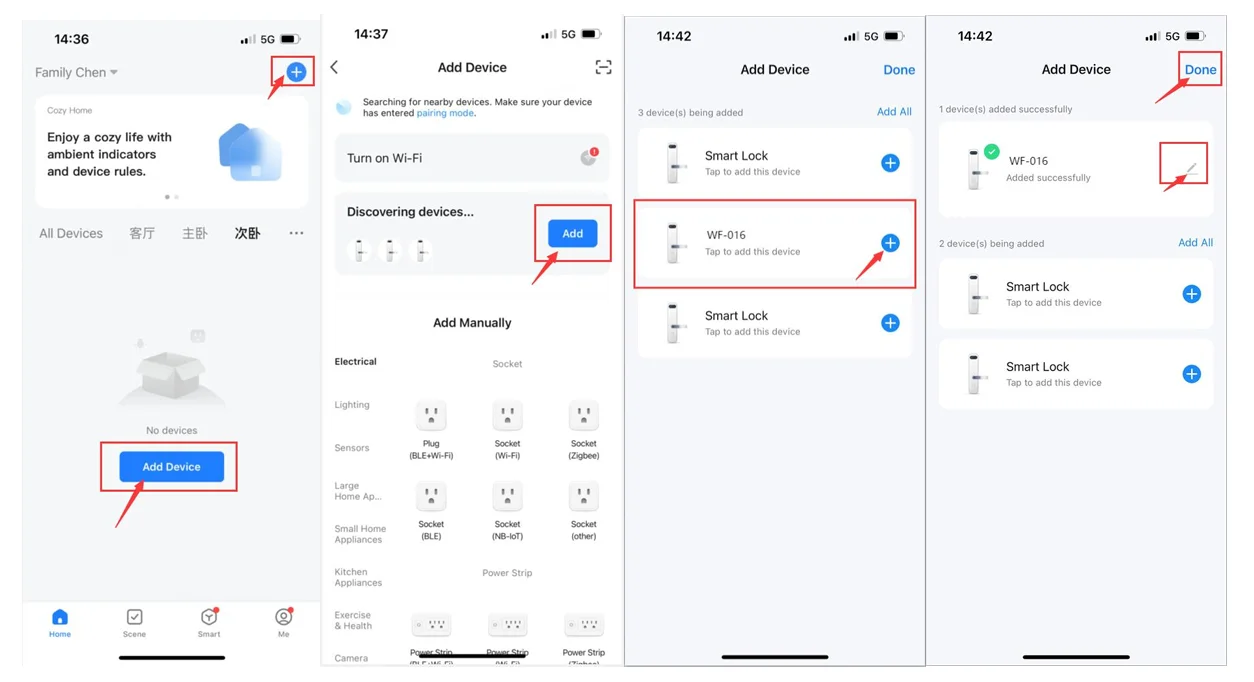
- Wake up the keyboard and long-press “#” on the lock to enter the system, verify the administrator, and press “ 6” to enter networking mode.
- Open smart life app, the device will automatically pop up, the device name is “WF-016”. Please add the device and modify the device name.
Family Management
- Family Member
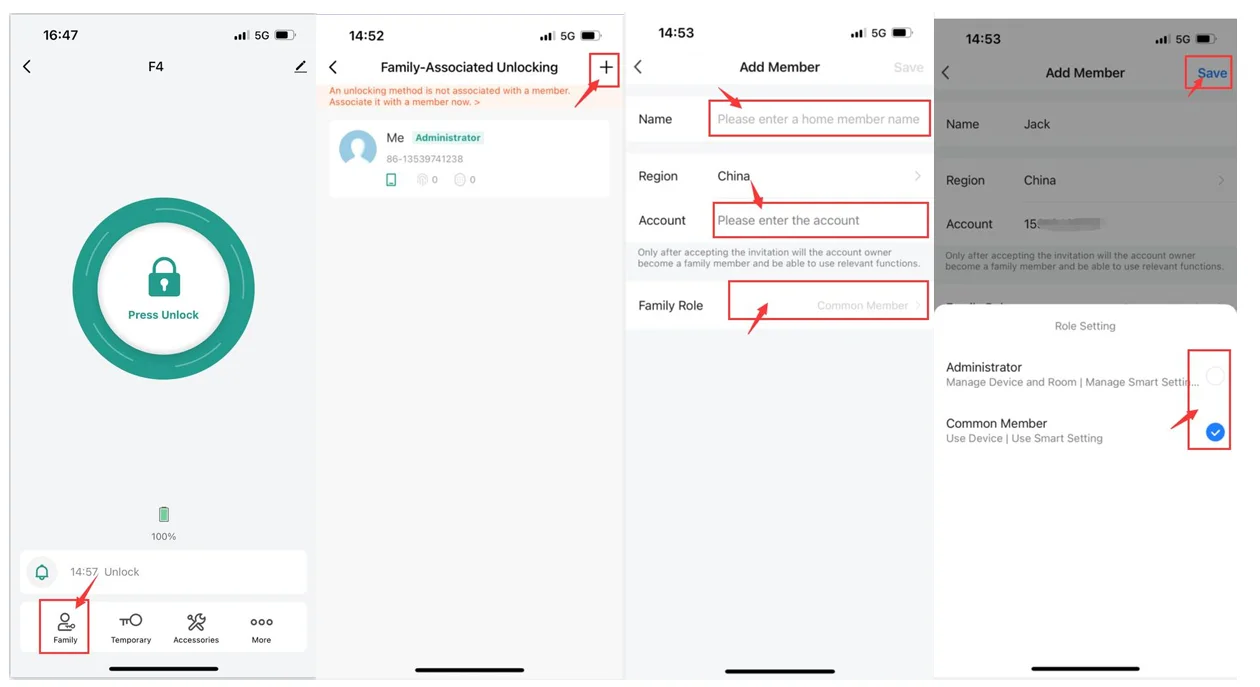
Click “Family” on the unlock interface and select “+” in the upper right corner of the interface to enter the “Add Member” interface. Input the member’s name and his account of smart life app, then select his family role (common member or administrator). Then click “save”, and he will receive your invitation.
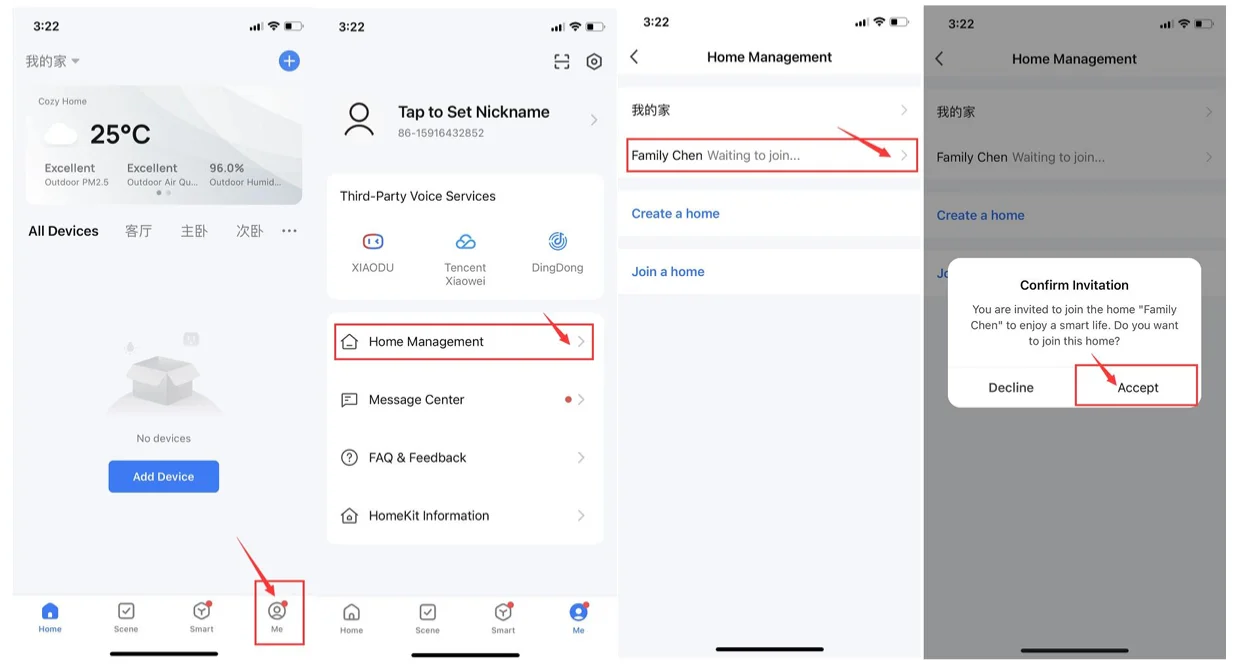
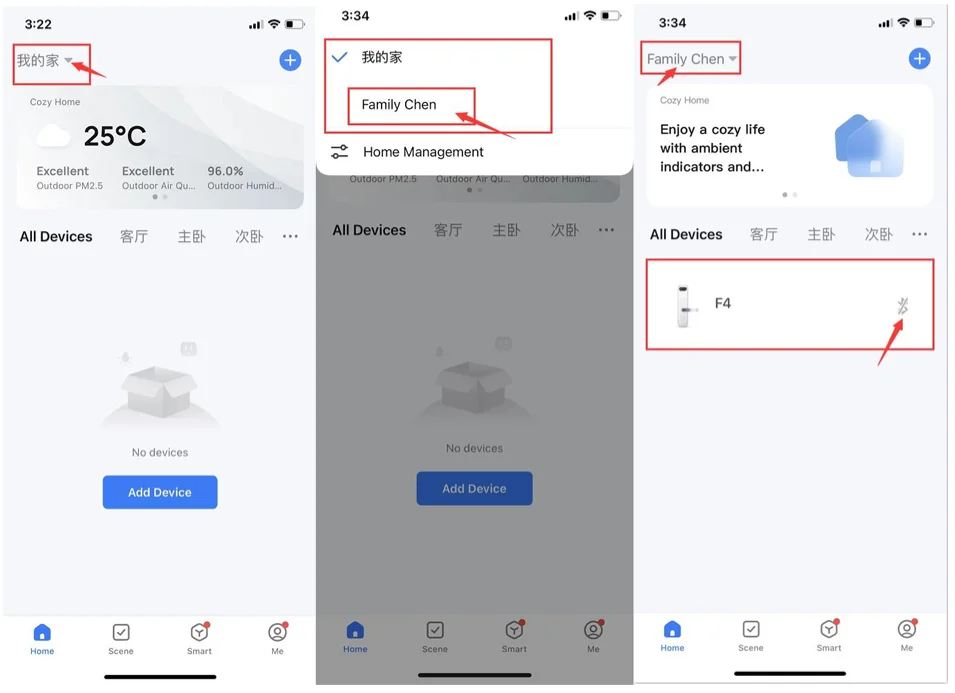
When your family member receives your invitation, open smart life app, click “Me”→”Home Management”→Find the family and accept the invitation, then they will be shared the lock. After joining, return to the main interface, and select the family name in the list on the upper left corner, then the lock device will be shown in the main interface.
 How to delete Family Member: in the main interface of the Smart Life app, click “ME”→“Home Management” →click “Family Member Name” →click “Remove Member”.
 - Enter User Information
Click “Family” on the unlock interface to enter the “Family-Associated Unlocking” interface, then select your family member and enter the unlocked information(fingerprint and password). You can set a valid time(the timed users).
 How to delete Family Member: in the main interface of the Smart Life app, click “ME”→“Home Management” →click “Family Member Name” →click “Remove Member”.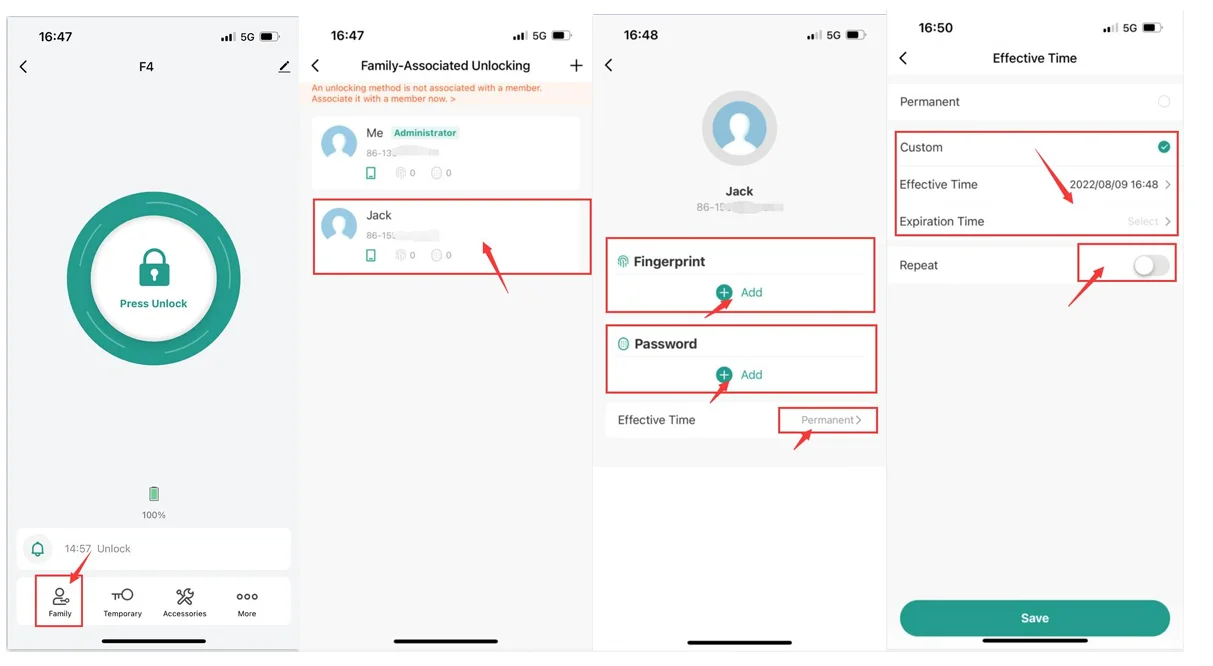
Temporary Unlocking Management
- Add Temporary Unlocked Password
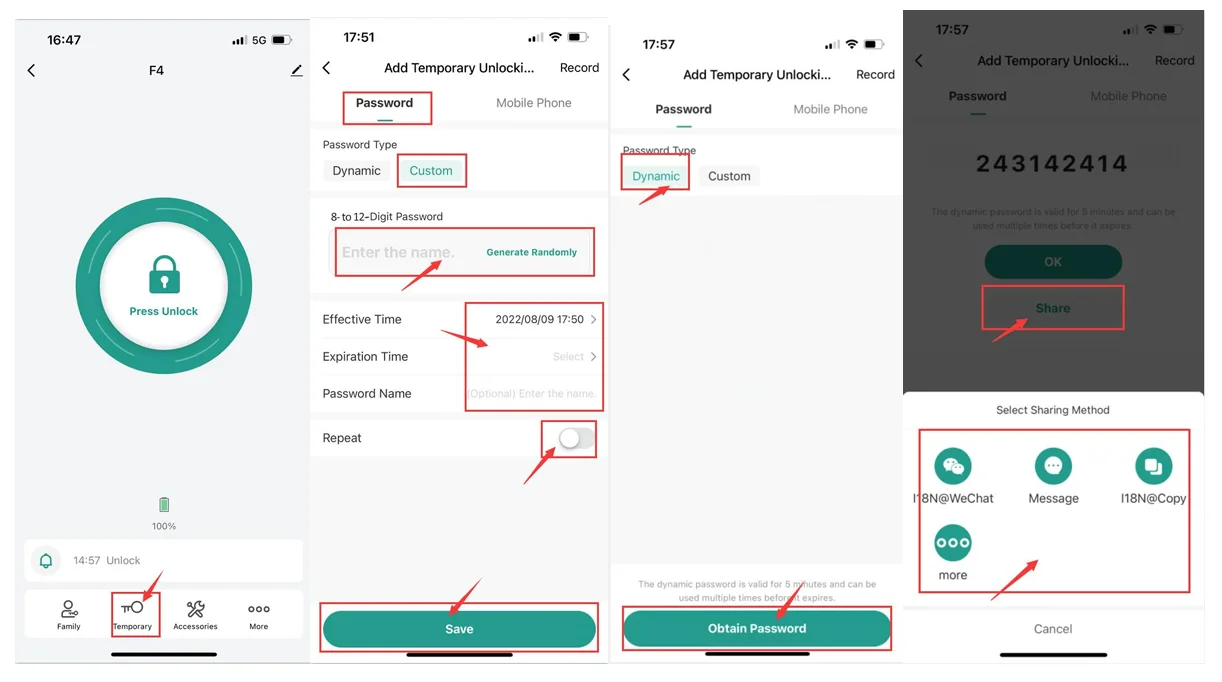
Click “Temporary” on the unlock interface to enter the “Add Temporary Unlocking” interface, select “Password”. You can set an 8-12-bit temporary password (you can also generate one randomly), then set the valid time and save it. Also can set a dynamic password ( valid time is 5 minutes), click “Obtain Password”, and share it with your family or friends after generating.
- Add Temporary Unlocked Mobile Phone(smart life app unlock)
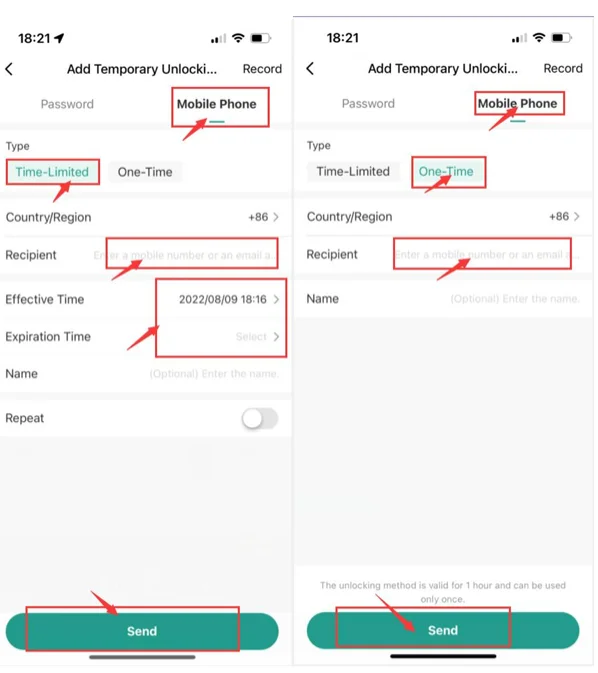
Click “Temporary” on the unlock interface to enter the “Add Temporary Unlocking” interface, select “ Mobile Phone”. You can set “ time-limited” or “ one-time” unlocking. Set “time-limited” unlocking, please enter users’ account of smart life app(phone number or email address), and set the valid time, then click “ send” to finish. Set “ one-time” unlocking, please enter users’ account of smart life app(phone number or email address), then click “ send” to finish. [ Notice: the valid time is 1 hour, and it can be unlocked once.] Then the receiver can open his smart life app, our lock will shown on the main interface. Please open Bluetooth and the location of his mobile phone to connect the lock. Click the lock device name to enter the unlocking interface to open the lock. There is a valid time shown on the unlocking interface. [ Notice: if you have set a one-time unlocked user, he can open the lock 1 time within 1 hour.]
 Then the receiver can open his smart life app, our lock will shown on the main interface. Please open Bluetooth and the location of his mobile phone to connect the lock. Click the lock device name to enter the unlocking interface to open the lock. There is a valid time shown on the unlocking interface. [ Notice: if you have set a one-time unlocked user, he can open the lock 1 time within 1 hour.]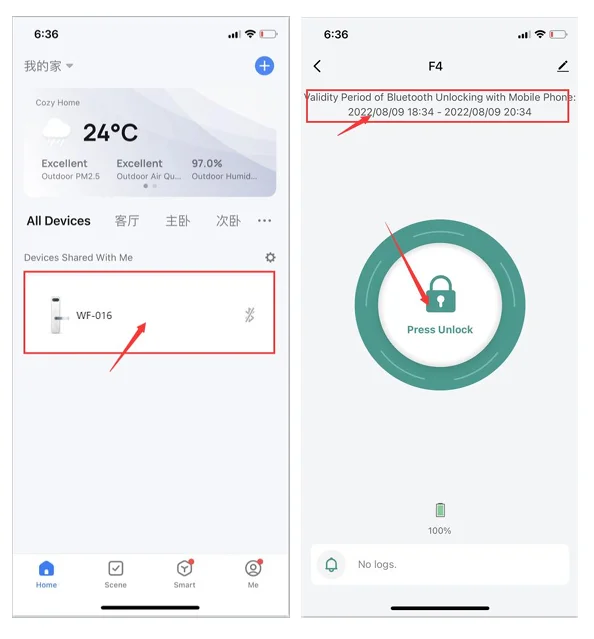
Manage “ More”
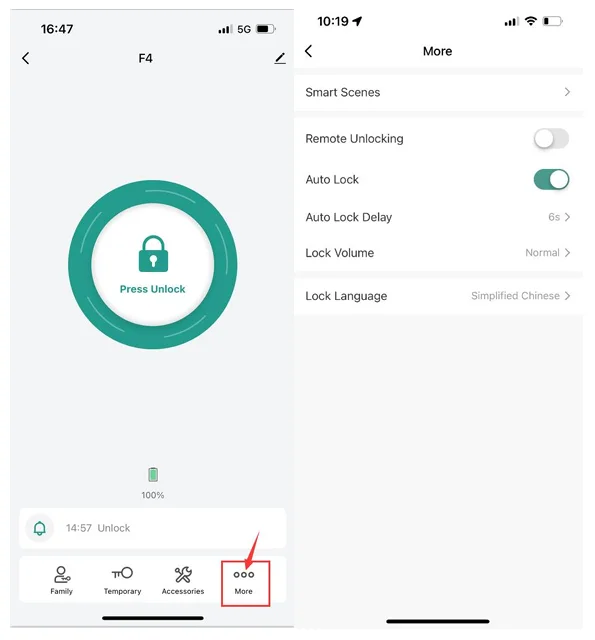
Click “More” on the unlock interface to enter the “More” interface to set more functions you need.
- Click “Smart Scenes” to enter the “scene” interface, you can open the “ Family Go Home” function, and also open the “ Door Lock Alarm” function. Besides, you can customize some functions that you need.
- Open/Close Auto Lock(close it, the lock will be in normal open mode)
- Set the time of Auto Lock.
- Set the Volume of Lock.
- Choose the language of Lock
Unlocking Record / Alerts
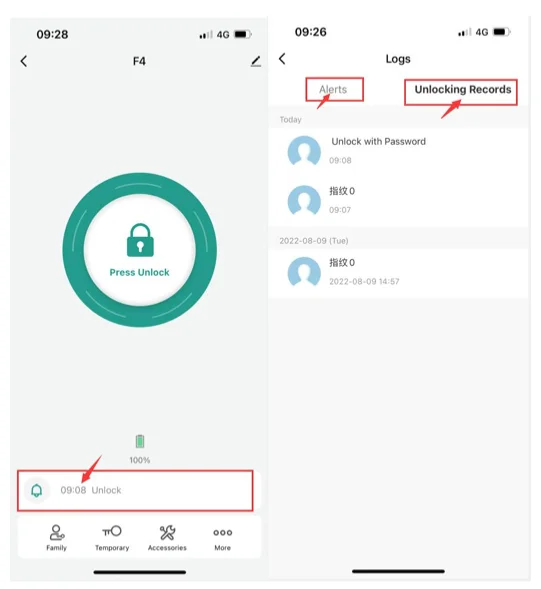
Click the Doorbell Icon on the unlock interface to enter the “Logs” interface to check Unlocking Records or Alerts.
Restore Factory Setting
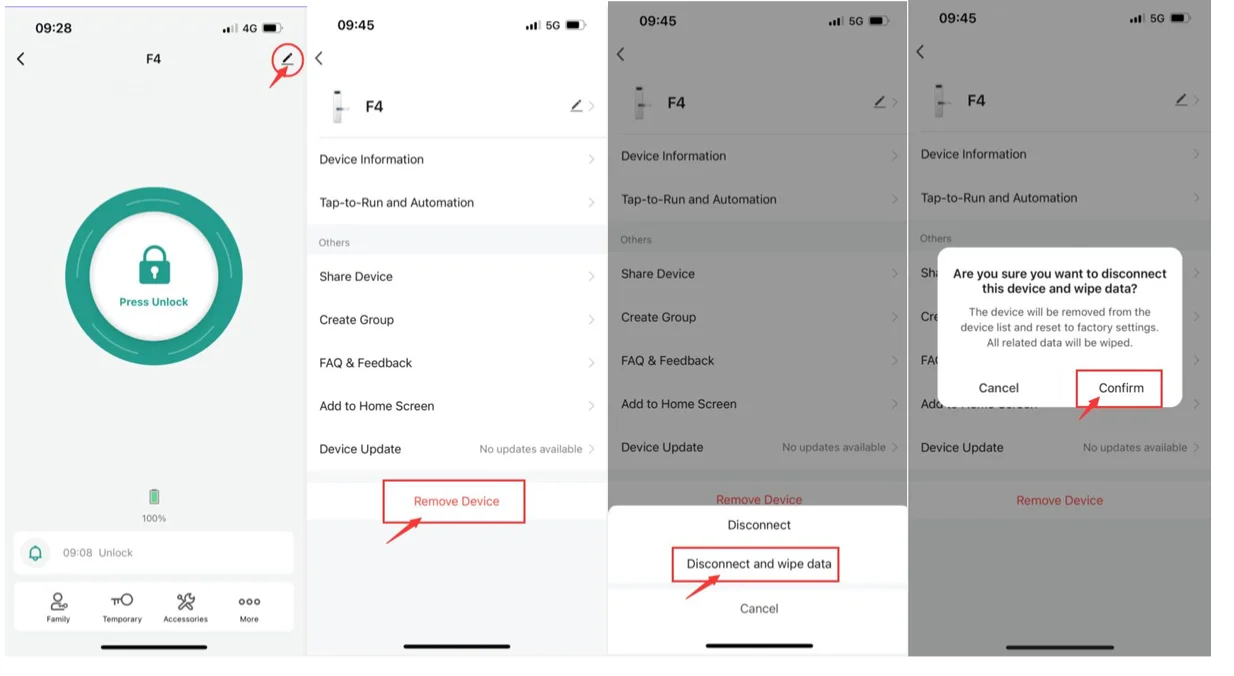
On the unlock interface, click the “edit” on the top right corner, then click” remove device”, and select ”Disconnect and wipe data”, then click ”confirm”, the lock will broadcast: “ factory reset”. [ Notice: all users’ information will be deleted, including the fingerprint users and password users who set the lock.]
Installation
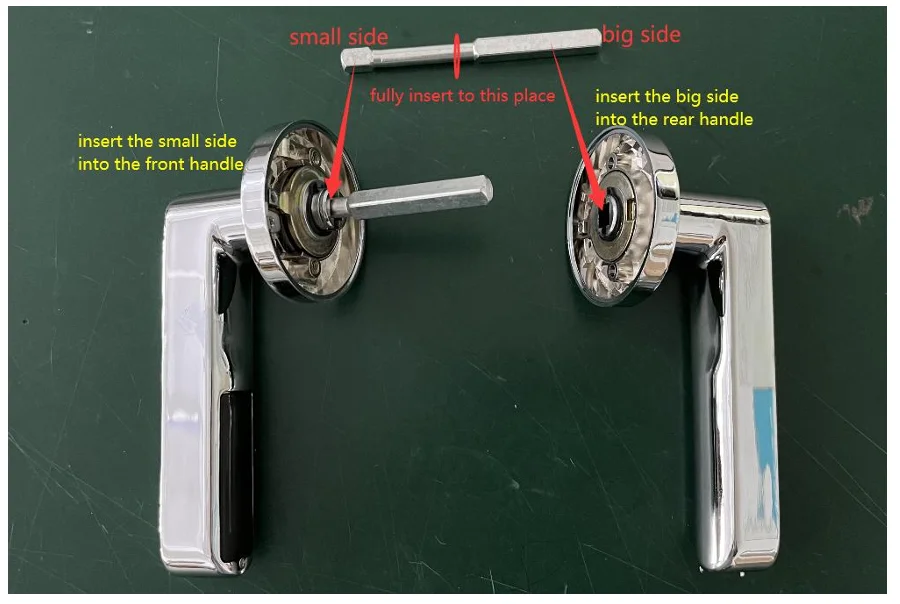
- If you can’t fully insert the square rod into the front handle, please use a screwdriver to toggle the installed hole of the front handle. (if you need to cut short the square rod according your door thickness, please cut off it from the big side.

- if your door is Left Opening Door:
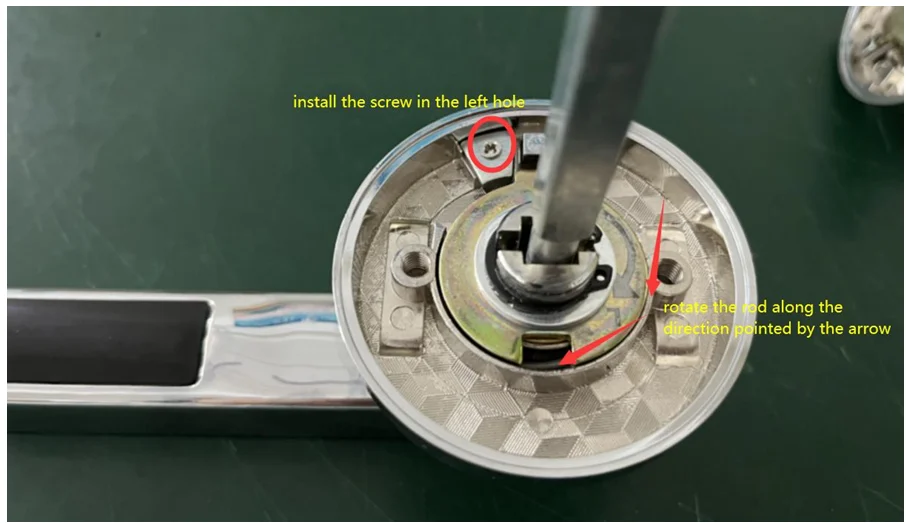
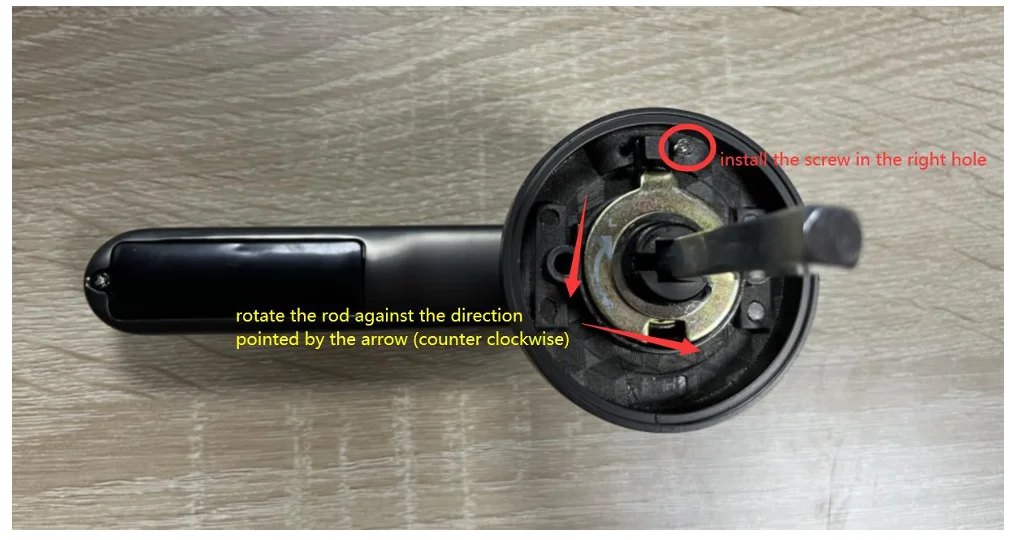
- Please install the screw of the front handle to the left hole.(In the initial state, the lock is for left opening door )
- Before installation, please insert the square rod into the front handle, and rotate the square rod along the direction pointed by the arrow until it cannot be moved. Please keep the rod in the final position(it can be moved) when installing.

- if your door is a right-opening door:
- Please install the screw of the front handle to the right hole.(In the initial state, the lock is for left opening door )
- Before installation, please insert the square rod into the front handle, and rotate the square rod against the direction pointed by the arrow (counter clockwise) until it cannot be moved. please keep the rod in the final position(it can be moved) when installing.

- The lock is suited for a 35-60mm door thickness. But the standard square rod is just suited for the door thickness of40-45mm.
- If your door thickness is less than 40mm (is 35-40mm), you have to cut short the square rod according to your door thickness. (please cut short from the big side)
- If your door thickness is more than 45mm( is 45mm-60mm), you have to insert the spring into the rear handle.
- You can scan the following QR Code to refer to the video about how to adjust the lock, how to install, and operate.

FCC WARNING
This device complies with part 15 of the FCC Rules. Operation is subject to the following two conditions:
- This device may not cause harmful interference,
- This device must accept any interference received, including interference that may cause undesired operation.
Any changes or modifications not expressly approved by the party responsible for compliance could void the user’s authority to operate the equipment.
NOTE: This equipment has been tested and found to comply with the limits for a Class B digital device, pursuant to Part 15 of the FCC Rules.
These limits are designed to provide reasonable protection against harmful interference in a residential installation. This equipment generates, uses and can radiate radio frequency energy and, if not installed and used in accordance with the instructions, may cause harmful interference to radio communications. However, there is no guarantee that interference will not occur in a particular installation. If this equipment does cause harmful interference to radio or television reception, which can be determined by turning the equipment off and on, the user is encouraged to try to correct the interference by one or more of the following measures:
- Reorient or relocate the receiving antenna.
- Increase the separation between the equipment and receiver.
- Connect the equipment into an outlet on a circuit different from that to which the receiver is connected.
- Consult the dealer or an experienced radio/TV technician for help.
To maintain compliance with FCC’s RF Exposure guidelines, this equipment should be installed and operated with a minimum 20cm distance between the radiator and your body: Use only the supplied antenna.
For more manuals by Banggood, visit ManualsLibraryy
Banggood Smart Lock-FAQs
How do I unlock the Banggood Smart Lock?
You can unlock the Banggood Smart Lock using multiple access methods, depending on the model. Common options include entering a master PIN or custom PIN on the keypad, using a fingerprint scanner, unlocking through a mobile app, or using a physical backup key. These options ensure easy access while maintaining strong security for daily use.
Is the Banggood Smart Lock secure from hacking?
Yes, Banggood Smart Locks are designed with modern security features such as encrypted communication, secure chips, and protected mobile apps. While no digital device is 100% hack-proof, quality smart locks use multiple layers of protection to make unauthorized access extremely difficult when set up correctly.
What should I do if I forget the smart lock password?
If you forget your smart lock passcode, you can reset the lock using the administrator account or perform a factory reset following the manufacturer’s instructions. After resetting, you can create a new admin password and user codes. Always store your admin credentials securely to avoid future lockouts.
What is the default admin password for a smart lock?
Most smart locks come with a factory-set admin password, commonly 123456, after a reset. For security reasons, it is strongly recommended to change this default password immediately after installation to prevent unauthorized access.
Can a locksmith open a Banggood Smart Lock?
Traditional locksmith tools usually do not work on smart locks. A locksmith may only open it if the lock has a physical key backup or if they have advanced technical tools and expertise. This added complexity is one reason smart locks offer better protection than standard mechanical locks.
What happens if the Banggood Smart Lock battery dies?
If the battery runs out, you can still unlock the door using a physical backup key or an emergency power option such as a USB power port. Once unlocked, simply replace the batteries to restore normal operation. Many smart locks also give low-battery alerts in advance.
Do Banggood Smart Locks work without Wi-Fi?
Yes, many Banggood Smart Locks work without Wi-Fi. Bluetooth-based models function offline using PIN codes, fingerprints, or local app access. Wi-Fi is only required for remote unlocking, activity logs, and smart home integration features.
What is a dummy password in a smart lock?
A dummy password allows you to add random numbers before or after your real unlock code. This feature helps protect your password from being guessed by people watching you enter it, making it ideal for use in public or shared spaces.