
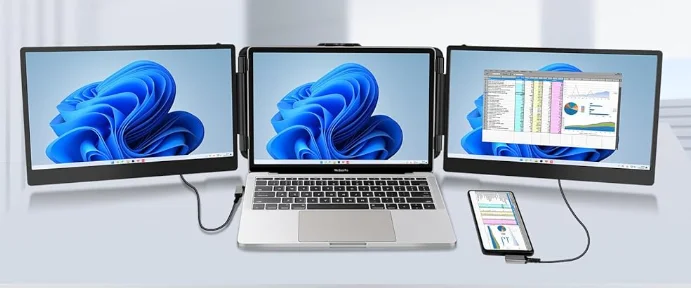

KWUMSY Laptop Screen Extender S2
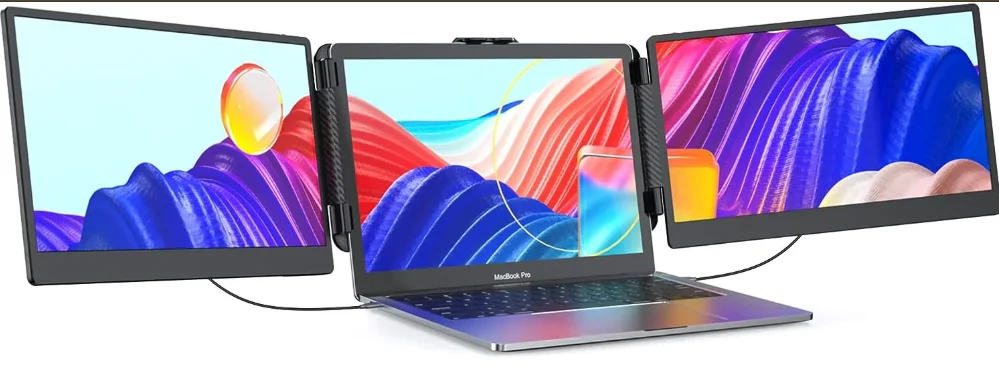
Tips:
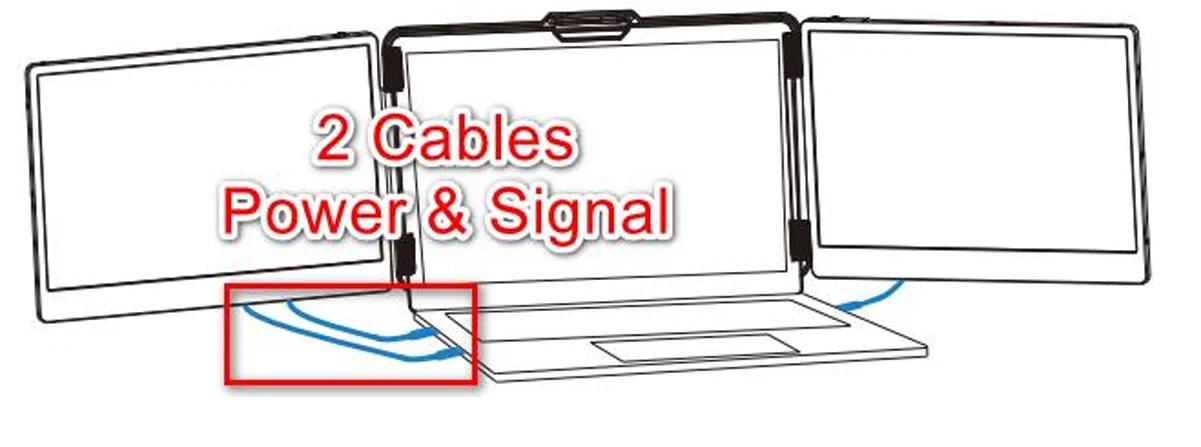
The screen extender requires both Power & Signal to work properly
- Please make sure your laptop port is full featured Type C or Thunderbolt 3.0/4.0, and the Type C to Type C cable is correctly connected to the extender Type C port for a 1 cable Connection
- For Non Full Featured Type C port, which cannot provide power and signal at the same time, please connect an extra HDMI to a Type C cable to provide a signal to the screen extender
- To make both screens of the laptop screen extender work, there should be 2 way HDMI signal separately provided to each screen. Please make sure your laptop is capable of 2 way HDMI signal. (Apple MacBook M1, M2 does not support 2-way HDMI)
- Use a 65W or above adapter and connect to the Type C port of the screen extender if you want to PD charge your laptop from the extender. (HDMI port is for signal only. Adapter not provided)
Product Introduction
S2 laptop screen extender is a multi-function plug-and-play portable monitor for laptops, which is foldable and extendable. The laptop screen extender has no driver and is compatible with MacBooks, Windows, Chromebooks, Linux, Switch, PlayStation, Xbox, and smartphones. Power and signal are required individually to work both screens of the laptop screen extender. “No Signal” will show on the screen of the extender, and the screen will turn off if there is only power but no signal delivered to the extender. So there should be 2 way HDMI signal export available from the laptop. Full-featured USB-C port is capable of power and signal at the same time, which could work 1 screen properly connected with the provided L shape USB-C to USB-C cable to the Type C port of the laptop screen extender. Non full featured USB C port is capable of power only, which needs an extra HDMI to Type-C connection to a laptop screen extender for the signal to work properly. (Non-full-featured Type C port, needs 2 cables to work 1 screen ). The S2 laptop screen extender is capable of PD charging from the screen extender to the laptop. A 65W or above adapter is needed for PD charging. An adapter is not provided. Power should connect to the Type C port of the screen extender. S2 laptop screen extender screens are 0 180° rotatable. You can change settings by short-pressing and rolling the roller at the top of the screen extender. The S2 laptop screen extender is expandable and clamps to the laptop screen to use. The laptop screen extender fits laptop widths from 11.8 to 15.8 inches ( fits most laptop sizes from 13.3 to 17 inches).
Product Attributes
Product Introduction
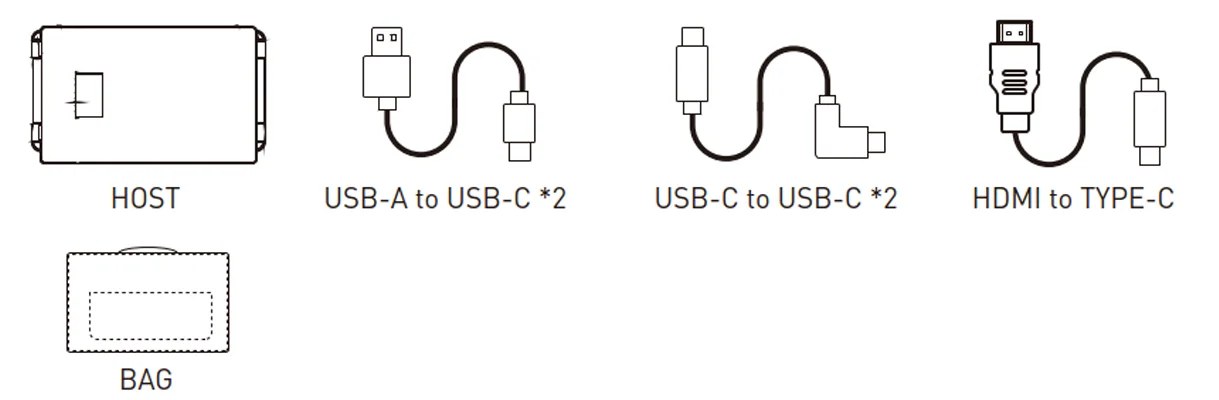
Packing List
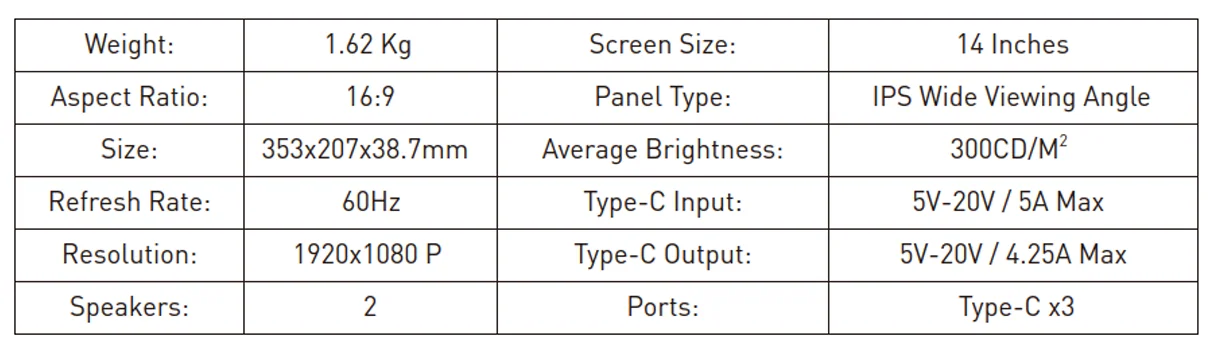
Datasheet
Installation and Storage
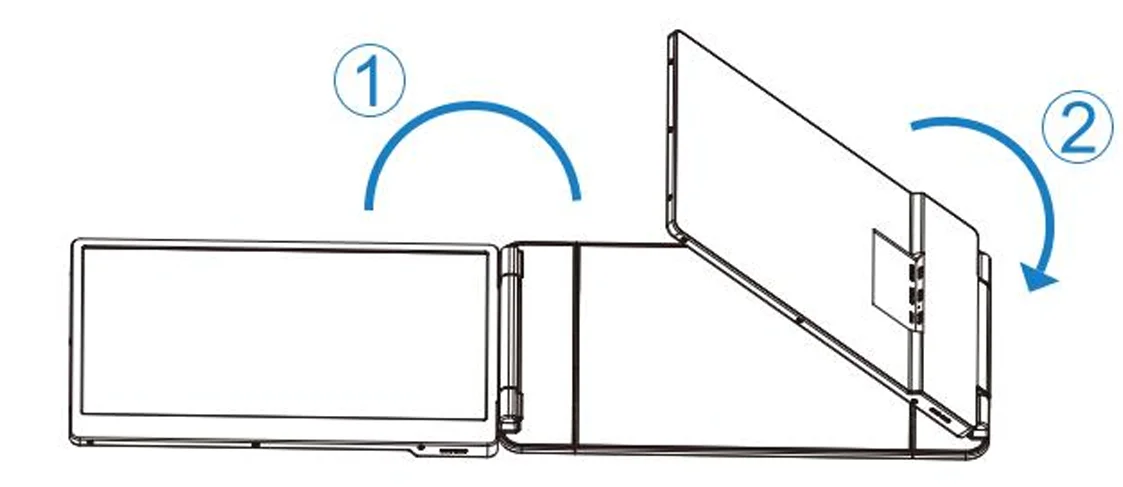
Expand the monitor
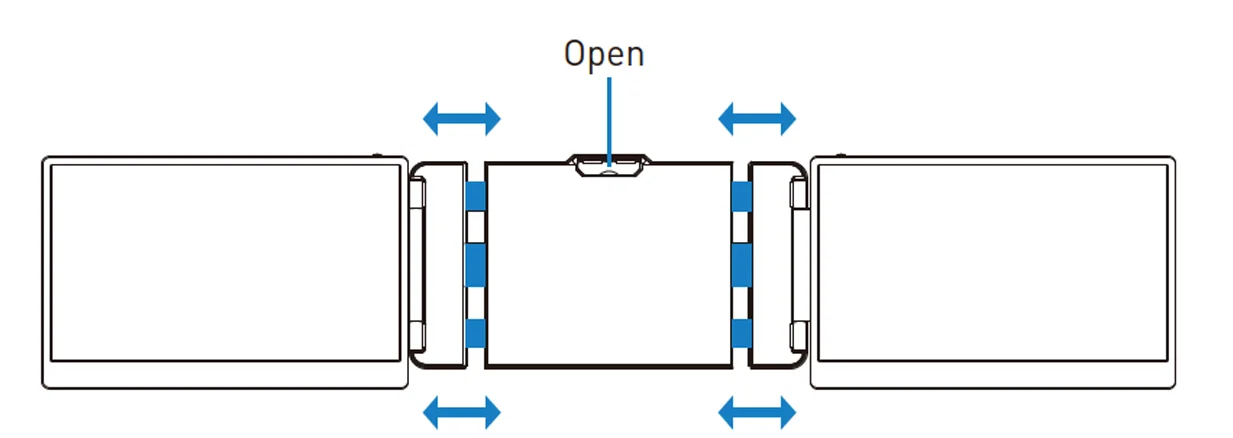
Stretch the frame
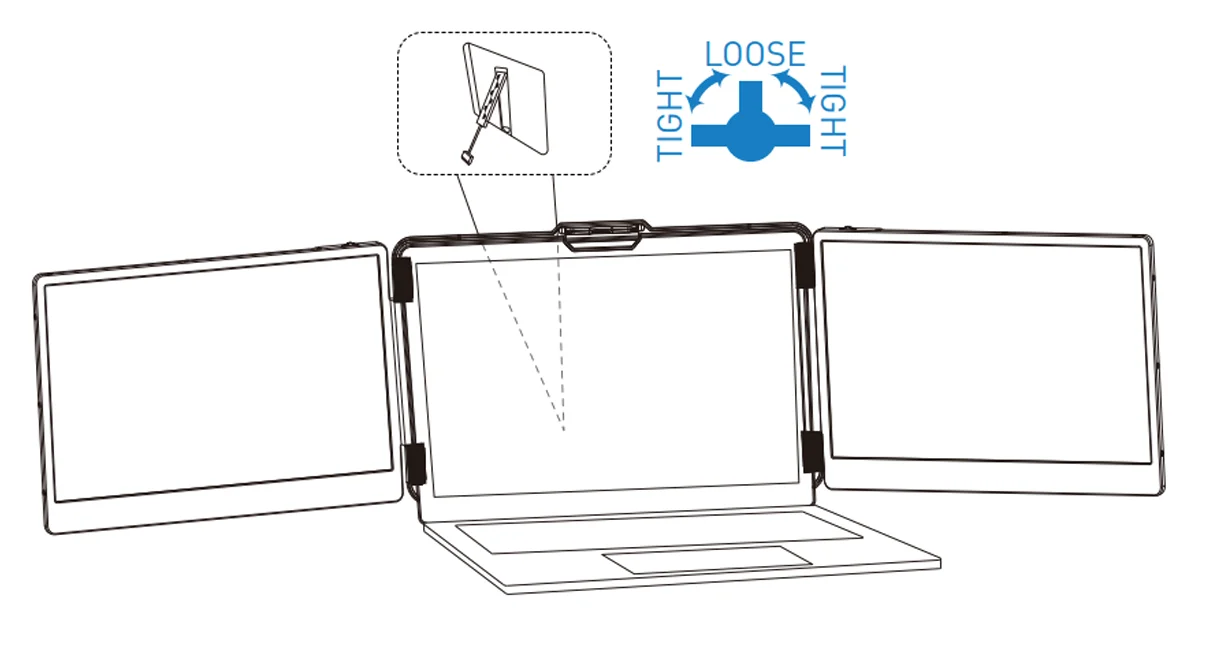
Adjust the stand
Open Sequence
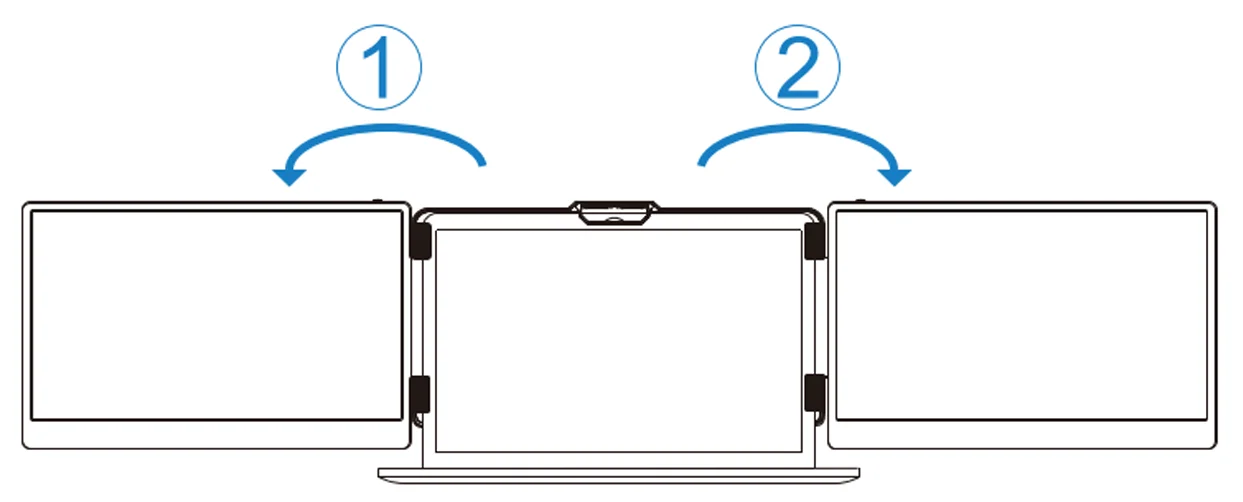
Close Sequence
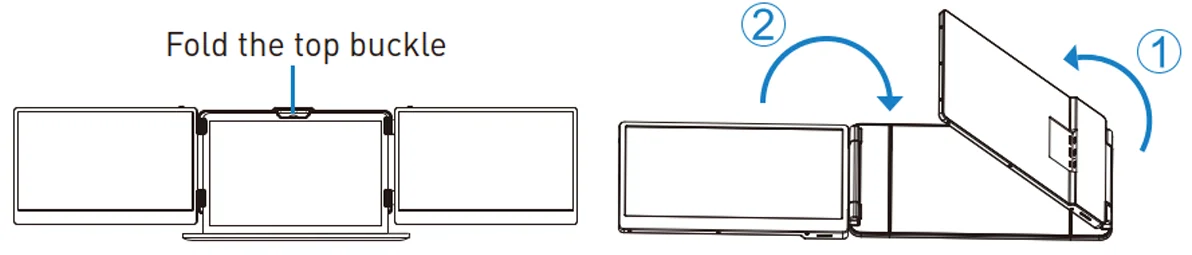
Note: Please follow the sequence of opening and closing to avoid damage to the screen extender.

When folding the screens, pull the bracket out to the appropriate position, and fix the screen in the silicone of the bracket. Otherwise, forcibly closing will damage the screen.
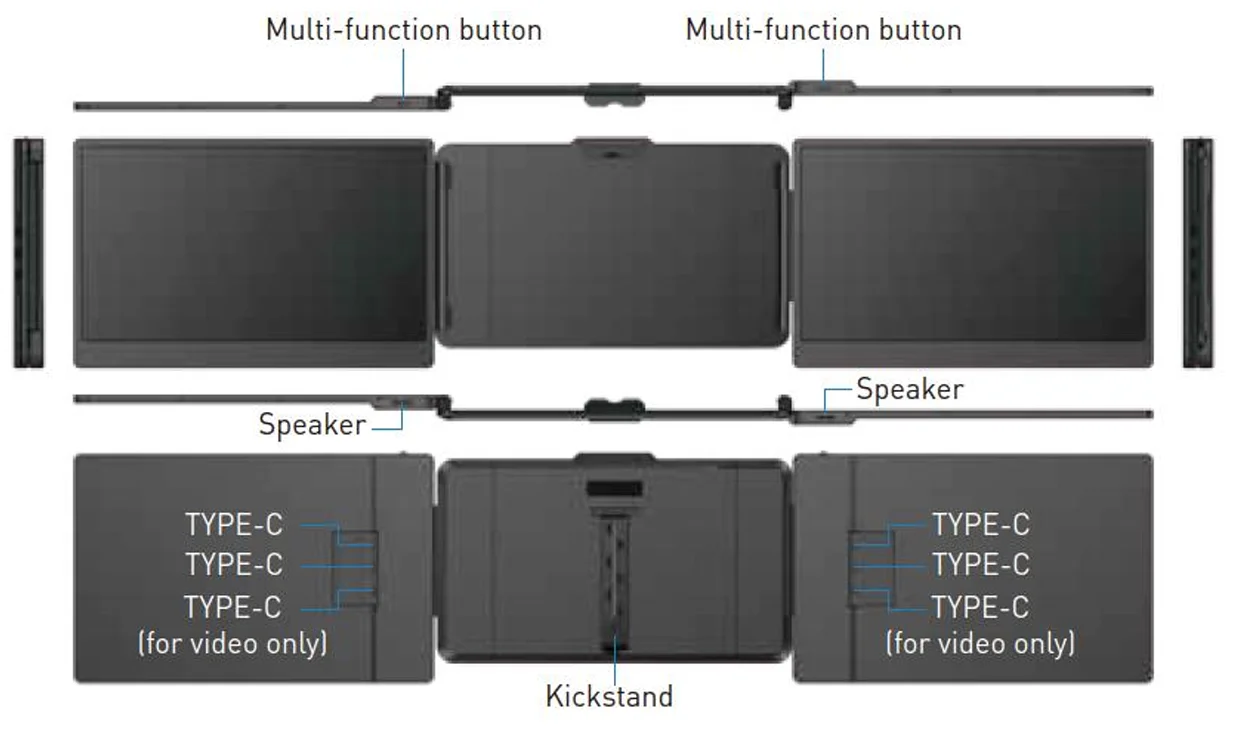
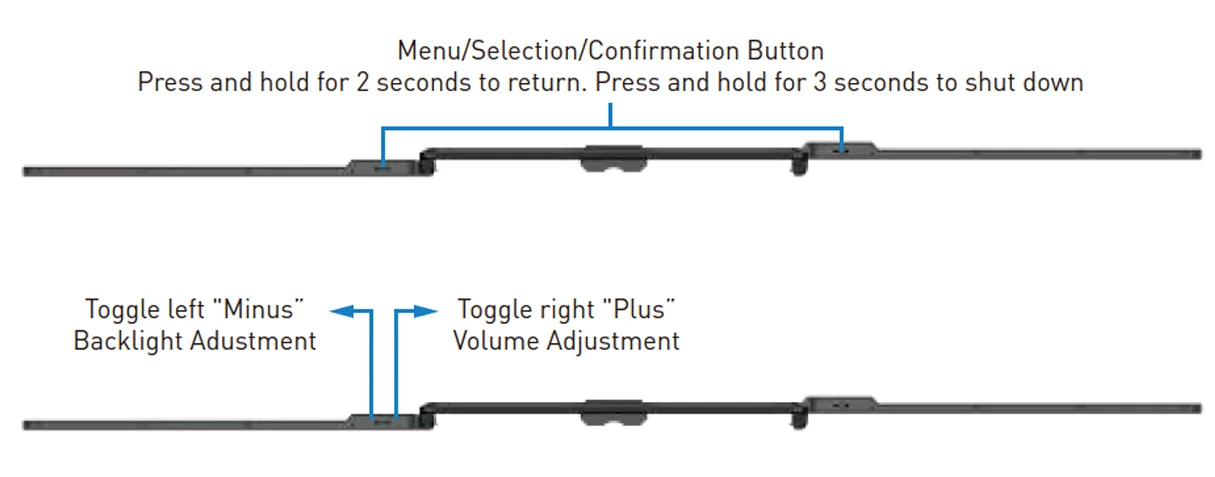
Key Definition:
How to Connect
Connect S2 to the laptop
Full-Featured Type C Connection (1 Cable Connection): If there are 2 full-featured Type-C ports on your laptop, connect to Type C port of each screen extender with the provided L shape Type-C to Type-C cables.
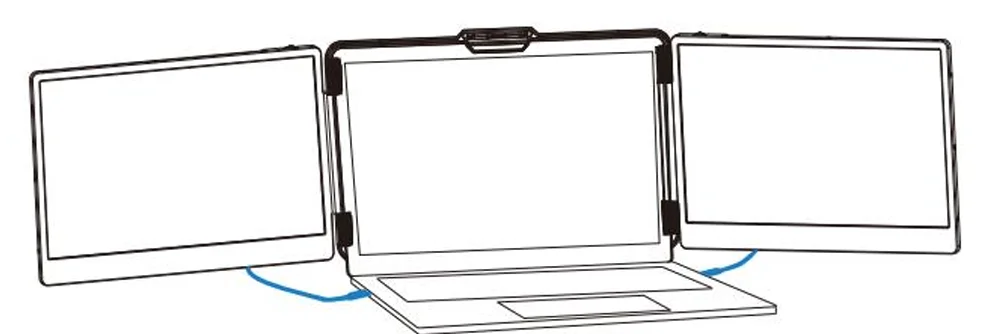
Non Full-Featured Type C Connection ( 2 Cable Connection): For a non full-featured Type C port that could not provide power and signal at the same time, an extra cable to provide signal. 1 USB
A to Type C connect laptop to screen extender for Power & 1 HDMI to Type C connect laptop to screen extender for Signal.
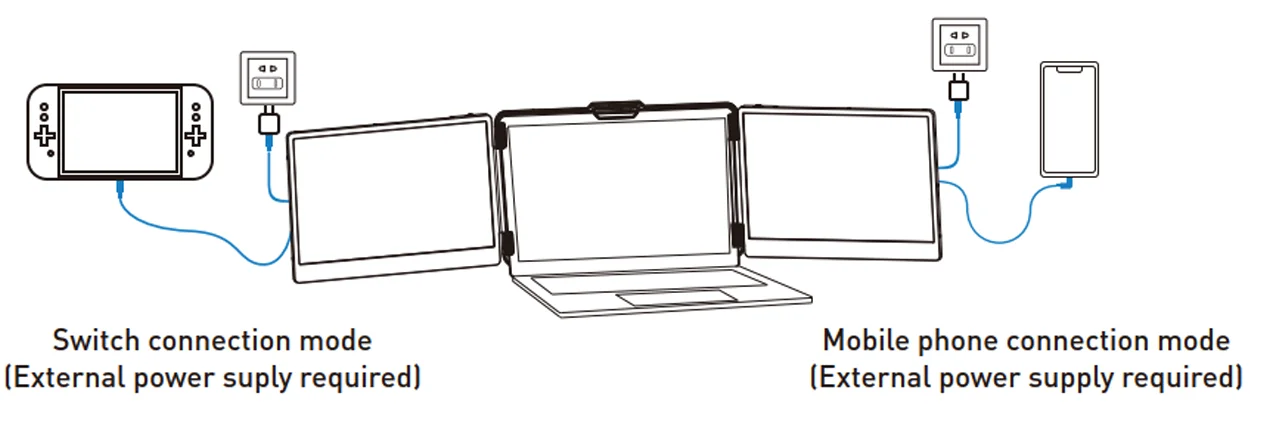
Connect S2 with Mobile Phone or Other Devices
Audio Settings
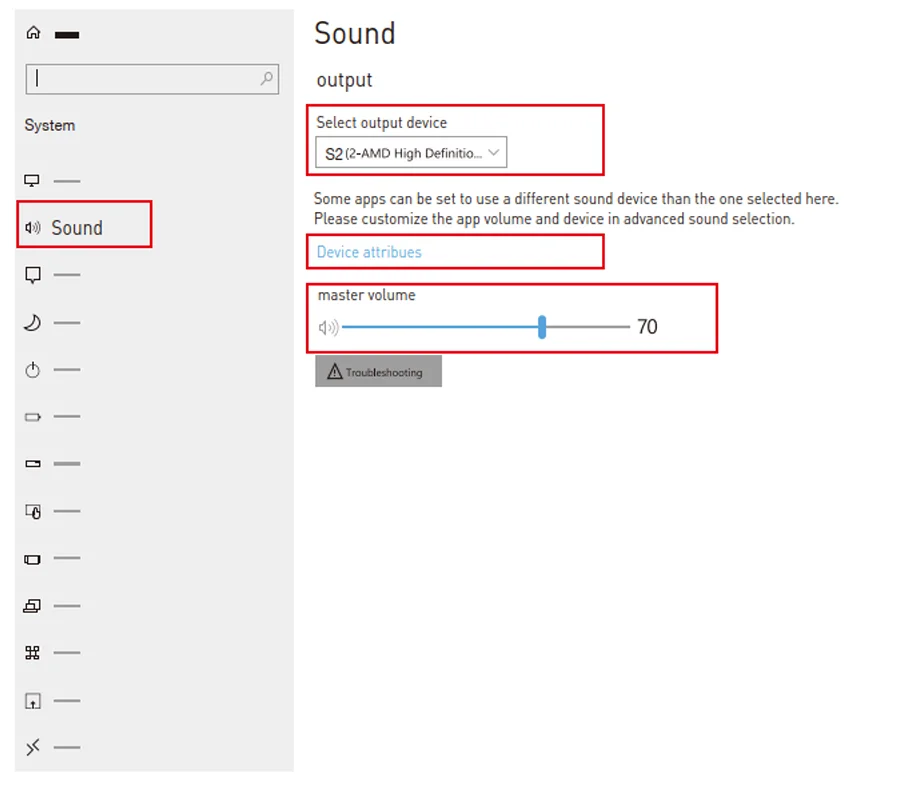
- Change Sound Settings of Windows 10/11
- 1.1 Right-click the loudspeaker icon at the bottom right

- 1.2 Select “Switch on sound” in pop up interface
- 1.3 Left click “turn on sound settings” in pop up interface
Here users can set about sound- Master Volume
- Select output device: (S2 /speaker)
- Device attributes

- 1.1 Right-click the loudspeaker icon at the bottom right
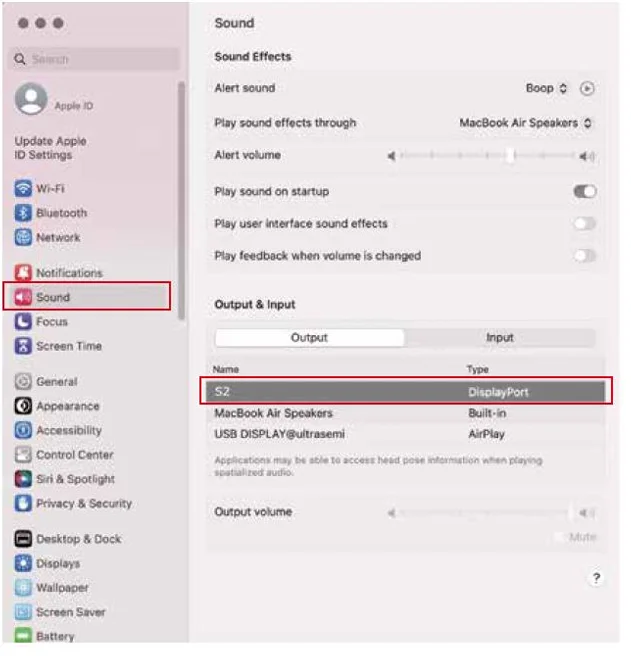
- Change sound Settings of MacOS PC
- 2.1 Choose Apple menu > System Settings

- 2.2 Click “Output”, then select the device you want to use for the list of sound output devices: (S2 / Speaker)

- 2.1 Choose Apple menu > System Settings


Display Mode
- Windows 10/11 Display Settings
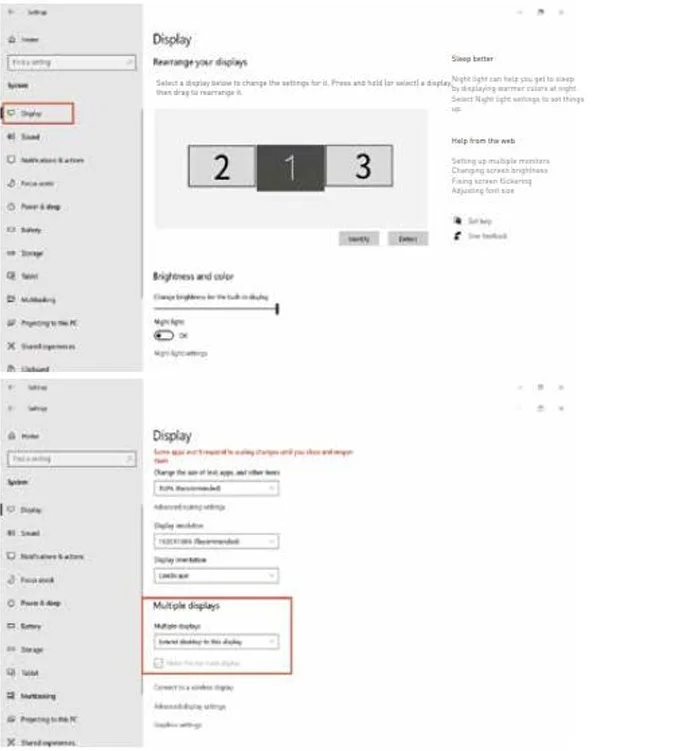
- 1.1 Right-click a blank area of the desktop. Select “ Display Settings” from the pop-up interface. Left-click “Display Settings” to open the settings interface, as below:

- 1.2 Under the “ Rearrange displays” section, drag and drop each display to rearrange them according to the physical layout of your desktop. Scroll down to the bottom of the page to further configure the display for extended or mirrored mode.
- 1.1 Right-click a blank area of the desktop. Select “ Display Settings” from the pop-up interface. Left-click “Display Settings” to open the settings interface, as below:
- MacOS 13 Ventura Display Settings
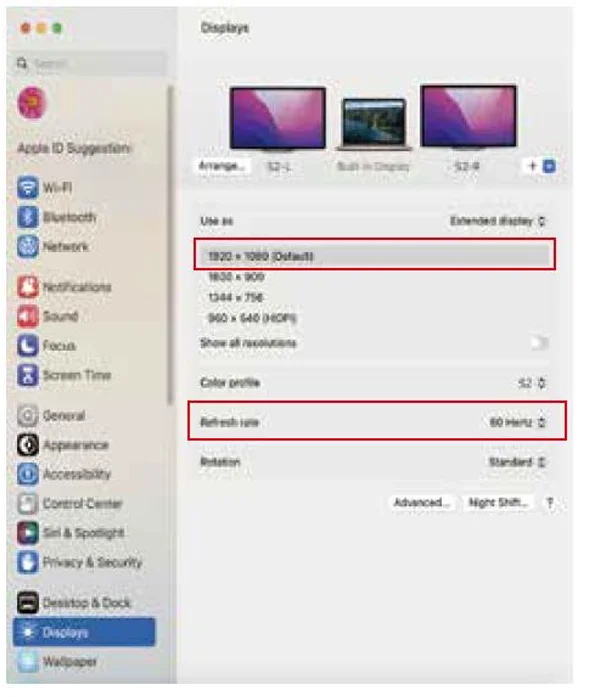
- 2.1 Enter the “System Preferences” Menu
- 2.2 Configure your monitor
In this menu, you can set the resolution and mirror/extend the display you want
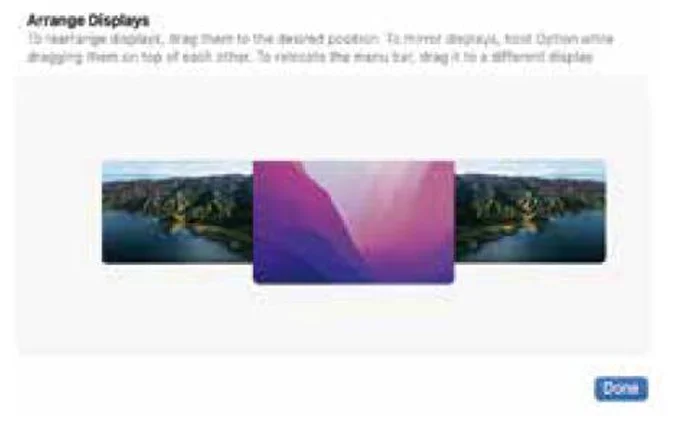
- 2.3 Arrange Displays
To rearrange the displays, drag them to the desired position.
To mirror display, hold the Option key while dragging them on top of each other.
To relocate the menu bar, drag it to a different display.
- 2.1 Enter the “System Preferences” Menu
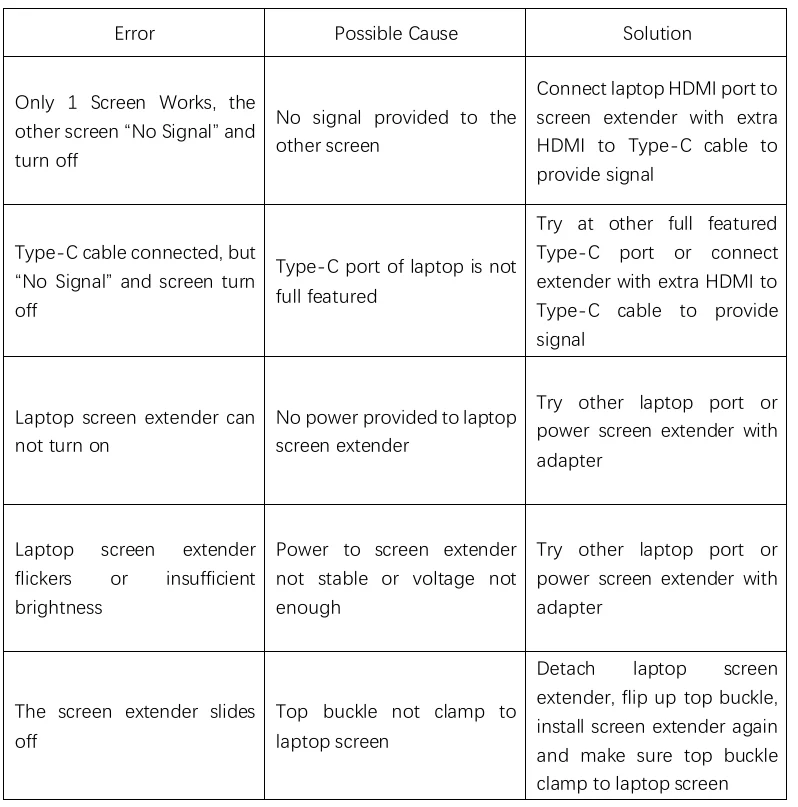
Troubleshooting
For more manuals by KWUMSY, visit ManualsLibraryy
KWUMSY Laptop Screen Extender S2-FAQs
What is the KWUMSY Laptop Screen Extender S2?
The KWUMSY S2 is a portable laptop screen extender designed to add one or more extra displays to your laptop. It helps improve productivity by giving you more screen space for multitasking, work, study, and travel use.
How do I use the KWUMSY S2 laptop screen extender?
First, check that your laptop supports USB-C (with DisplayPort Alt Mode) or HDMI. Connect the extender using the provided cable, power it on, and your laptop should automatically detect the additional screen.
Is the KWUMSY S2 compatible with all laptops?
The extender works with most Windows, macOS, and some ChromeOS laptops. Compatibility depends on available ports like USB-C, HDMI, or USB-A. Older laptops may require adapters.
Do I need to install drivers or software?
In most cases, no extra software is needed. However, some systems may require basic drivers for advanced display features or higher resolutions. Always follow the instructions in the user manual.
Why does my KWUMSY S2 show “No Signal”?
This usually happens when the extender isn’t receiving both power and video. Make sure you’re using a supported USB-C or HDMI port and that all cables are firmly connected.
Can I connect the extender using a USB port?
Yes, USB-C works best for both power and video. USB-A may work with an adapter, but performance can vary depending on your laptop’s hardware support.
Can I use the KWUMSY S2 without a docking station?
Yes, the extender is designed for direct laptop connection and does not require a docking station, making it ideal for portable and on-the-go setups.
How do I fix my laptop not detecting the extender?
Try reconnecting the cable, restarting your laptop, or using a different port. Updating your graphics drivers can also resolve detection issues.