

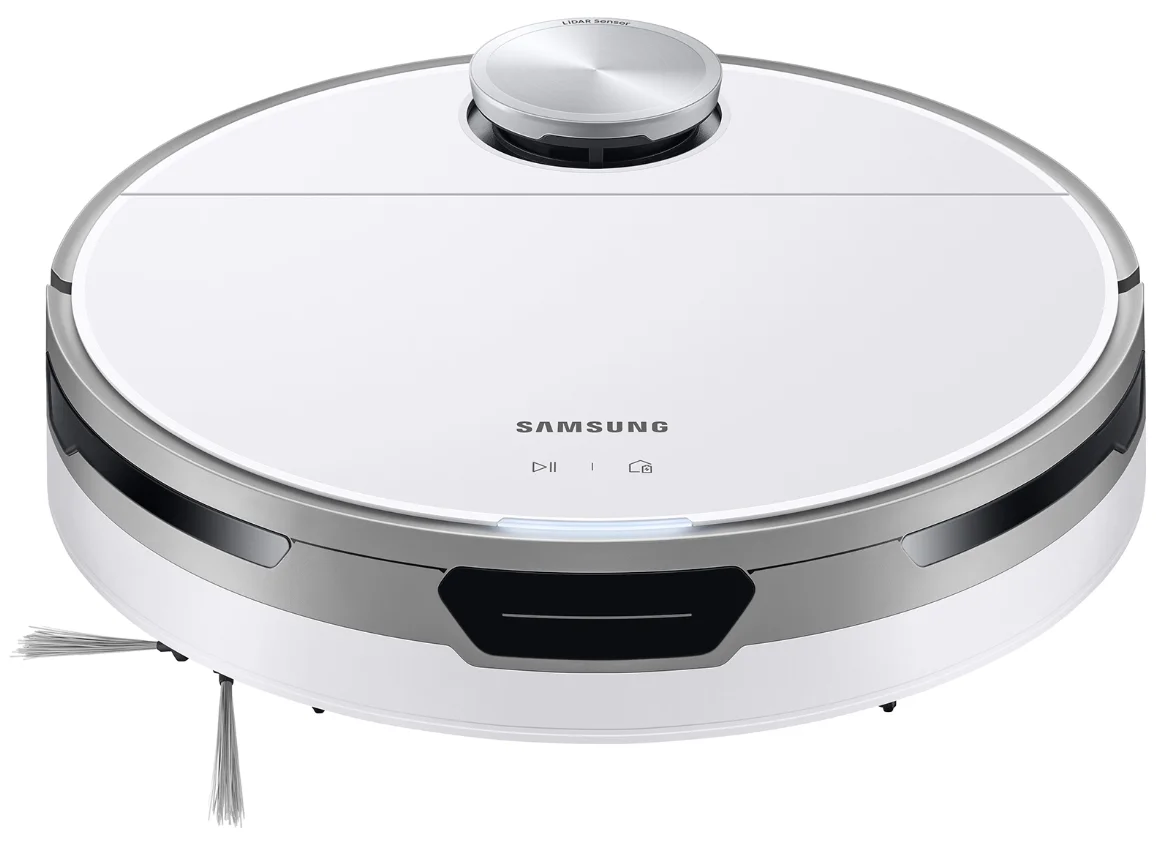
Samsung Robot VR30T80313W/GE Vacuum Cleaner
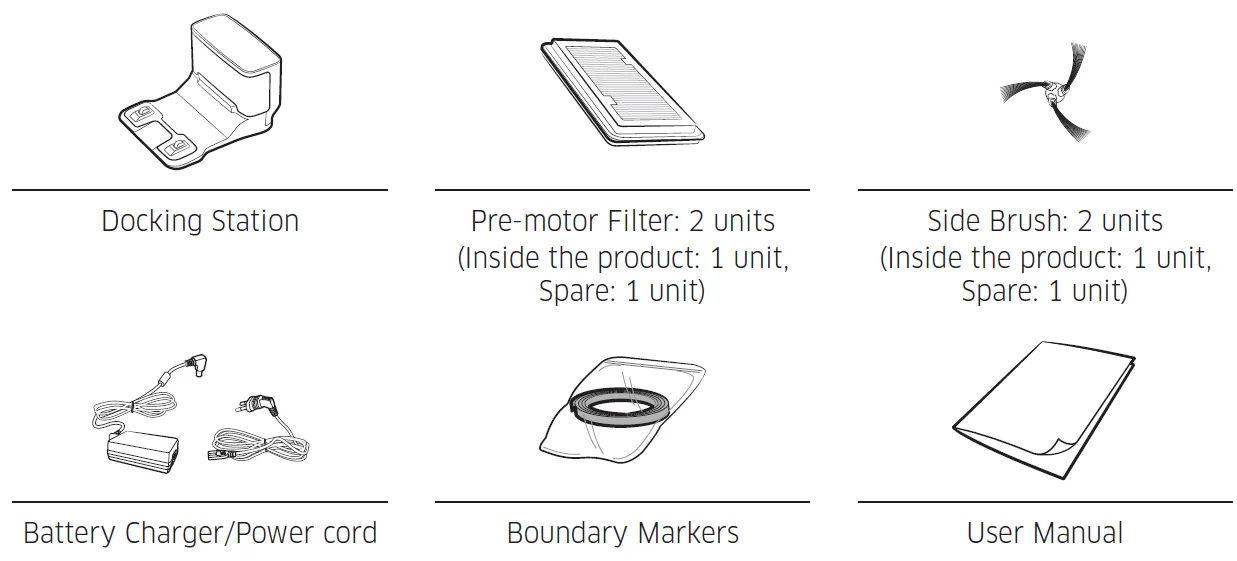
Accessories
Accessories may differ depending on the models.
Safety information
General
- Do not allow it to be used as a toy. Close attention is necessary when used by or near children.
- Use only as described in this manual.
- Do not operate the Jet Bot or the Docking Station if it has been damaged in any way.
- If the vacuum cleaner is not working as it should, has been dropped, damaged, left outdoors, or dropped in water, return it to a customer care center.
- Do not handle the Docking Station or the Jet Bot if your hands are wet.
- Use only on dry, indoor surfaces.
- This appliance can be used by children aged 8 years and above and persons with reduced physical, sensory or mental capabilities or lack of experience and knowledge if they have been given supervision or instruction concerning the use of the appliance in a safe way and understand the hazards involved. Children should not play with the appliance. Children should not clean or perform maintenance on the vacuum without adult supervision.
- Move the cords of other appliances so they are not in the area that is to be cleaned.
- Do not operate the vacuum in a room where an infant or child is sleeping.
- Do not operate the vacuum in an area where there are lit candles or fragile objects on the floor.
- Do not operate the vacuum in a room that has lit candles on furniture that the vacuum may accidentally hit or bump into.
- Do not allow children to sit on the vacuum.
- Do not use the vacuum on a wet surface.
- If the supply cord is damaged, it must be replaced by the manufacturer, its service agent, or a similarly qualified person to avoid a hazard.
- For information on Samsung’s environmental commitments and product regulatory obligations, e.g., REACH, visit our sustainability page available via www.samsung.com
Power related
WARNING
- Please prevent any risk of electric shock or fire.
- Do not damage the power cord.
- Do not pull the power cord too hard or touch the power plug with wet hands.
- Do not use a power source other than the rated voltage of the charger, and also do not use a multi-outlet to supply power to a number of devices at the same time. (Do not leave the cord carelessly on the floor.)
- Do not use a damaged power plug, a power cord, or a loose power outlet.
- Clean dust or any foreign matter from the pin and the contact part of the power plug.
- There is a risk of electric shock or malfunction.
Before use
WARNING
- Do not use the Jet Bot near a heater or combustible materials.
- Do not use the Jet Bot near fire or flame, such as a movable heater, a candlelight, a desk lamp, a fireplace, etc., or in a place where combustible materials such as gasoline, alcohol, thinner, etc. exist.
- Make sure there are no dangerous objects around the Jet Bot’s cleaning area to prevent collision, and unplug any electric heaters or fans.
- The Jet Bot can be damaged or malfunction.
- The Jet Bot is intended for household use; therefore, do not use it in an attic, basement, storage, an industrial building, out of an indoor space, places with moisture (such as a bathroom, a laundry room), on the table, or on shelves.
- The Jet Bot can be damaged or malfunction.
- Attach the Boundary Markers to a place where the Jet Bot may fall, such as a stair or a banister, to prevent product damage and injury.
- Please keep the Cliff Sensor clean all times for safety.
- Be sure the Jet Bot does not suck in or touch any kind of liquids (water, beverage, filth, etc.).
- The Jet Bot can be severely damaged and it may contaminate other areas if the wheels pass through liquid.
- Do not spill any liquids on the Docking Station.
- There is a risk of fire or electric shock.
- Do not use the Docking Station for anything other than its intended purposes.
- There is a risk of fire or severe damage to the Docking Station.
- Always keep the Cliff Sensor clean for your safety.
- As this wireless installation may cause radio interference, it cannot provide a service related to human safety.
CAUTION
- Insert the Dustbin before using the Jet Bot.
- When installing the Docking Station, do not leave the cord carelessly on the floor since the Jet Bot may get tangled by it.
- To clean all areas of your house, open all rooms and set the No-go Zones with the SmartThing App or attach the Boundary Markers to the places where the Jet Bot may get damaged, such as a front door, a veranda, a bathroom, and stairs for safety.
- Follow these recommendations for proper automatic recharging.
- Always turn on the power of the Docking Station.
- Install the Docking Station where the Jet Bot can easily find it.
- Do not leave any objects in front of the Docking Station.
- Do not use the Jet Bot on black colored floors.
- The Jet Bot may not be able to operate normally.
- Do not place any objects within 0.5 m of either side of the Docking Station or within 1 m of the front of the Docking Station.
- Make sure the Docking Station’s charging contact is not damaged or has any foreign matter on it.
- For the very low areas where the Jet Bot may get stuck, set the Nogo Zones with the SmartThing App or attach the Boundary Markers to prevent the Jet Bot from getting in.
- Do not install the Docking Station in an area with a dark floor.
- If the floor around the Docking Station is dark, recharging is hindered.
- Move any obstacles that may disturb the Jet Bot’s movement (such as children’s indoor swing or slides) before cleaning.
- Do not use the Jet Bot in a place that is narrower than its turning radius of 0.5 m or less.
- Before operating the Jet Bot, remove the objects that could break, such as glass, a frame, a mirror, and porcelain items, so that the Jet Bot works without interruption.
- If a brush or a brush cover is not assembled correctly, scratches may occur on the floor, or a product malfunction may occur.
- Use both hands to carry the product.
- Do not place the Docking Station in a place where people pass by frequently, in an entrance way, or a narrow passage.
- People may trip over it and be injured, or product damage may occur.
- Do not push the Docking Station.
Installing a Docking Station
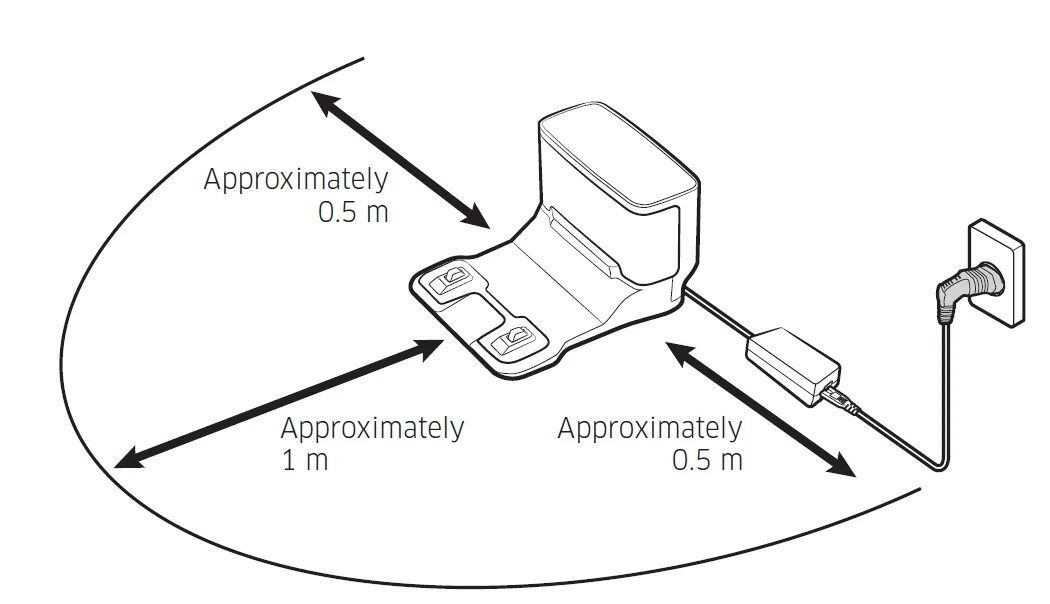
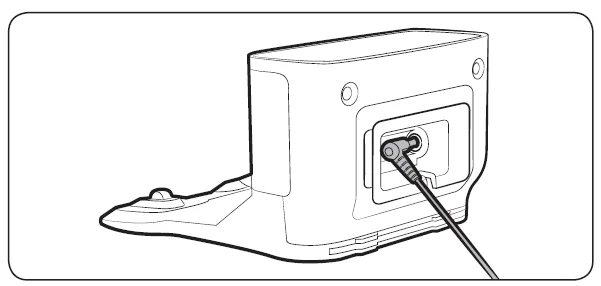
- Connect the provided Battery Charger jack to the rear of the Docking Station.

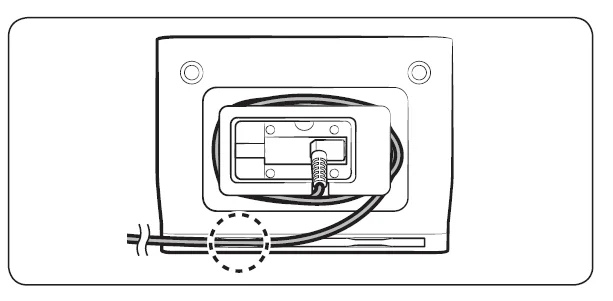
- Position the Battery Charger cord into the fixing groove at the rear of the Docking Station.

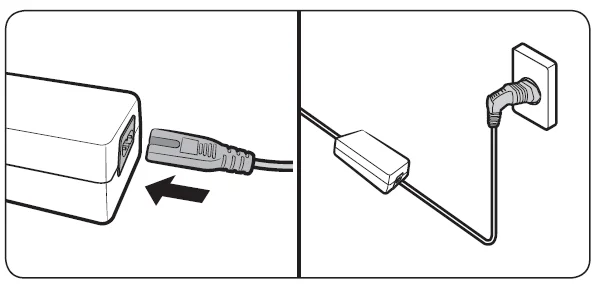
- Connect the power cord to the Battery Charger.
- Place the Docking Station on an even floor and near an electrical outlet, and plug it in.
NOTE
- Install the Docking Station in a place where the floor and wall are level.
- If the Battery Charger cord is too long for the installation environment, coil the power cord around the cable management post, then put it in the fixing groove at the rear of the Docking Station.
Charging the Jet Bot
Before using the Jet Bot for the first time, charge it completely. (For the charging time and cleaning time, refer to the ‘Product specification’.)
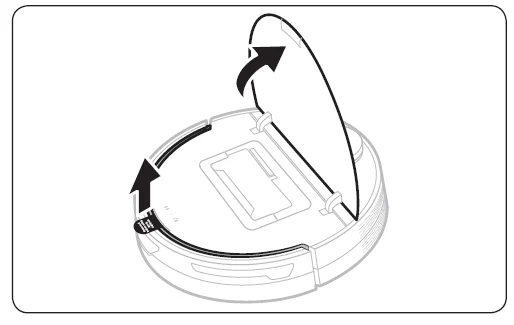
- Open the upper cover of the Jet Bot and remove the white gasket.

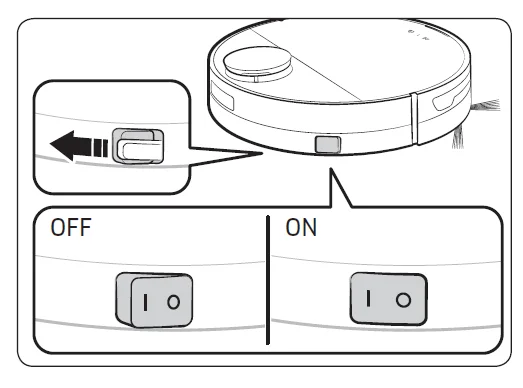
- Remove the yellow gasket attached to the power switch at the side of the Jet Bot and press the power switch to turn the Jet Bot
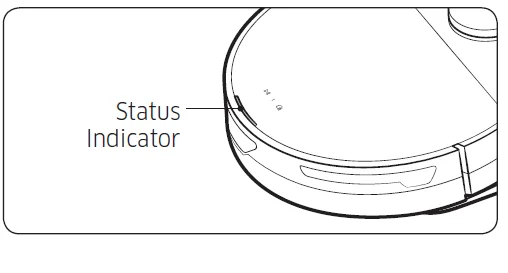
- During booting, the Jet Bot’s Status Indicator turns on with a melody that stops when the booting is complete.
- When you turn the Jet Bot on for the first time after purchase, check the SmartThings App connection(refer to p.27-31) and installation of the Docking Station following the voice guide of the Jet Bot.

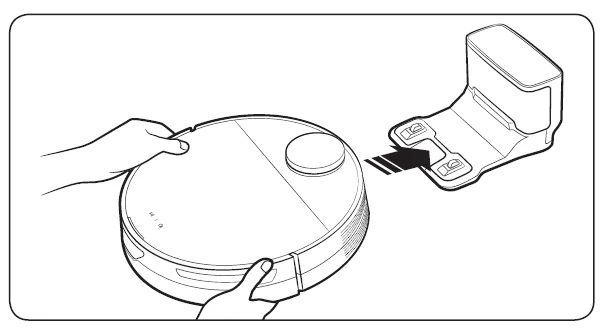
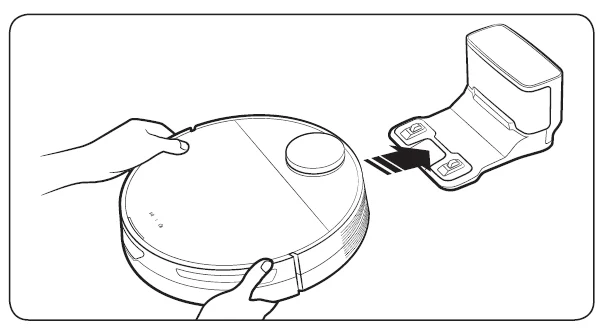
- Place the Jet Bot on the Docking Station manually to start charging.
- Make sure the charging terminals on the Jet Bot and the Docking Station are aligned.

- Make sure the charging terminals on the Jet Bot and the Docking Station are aligned.
- Check the charging status.
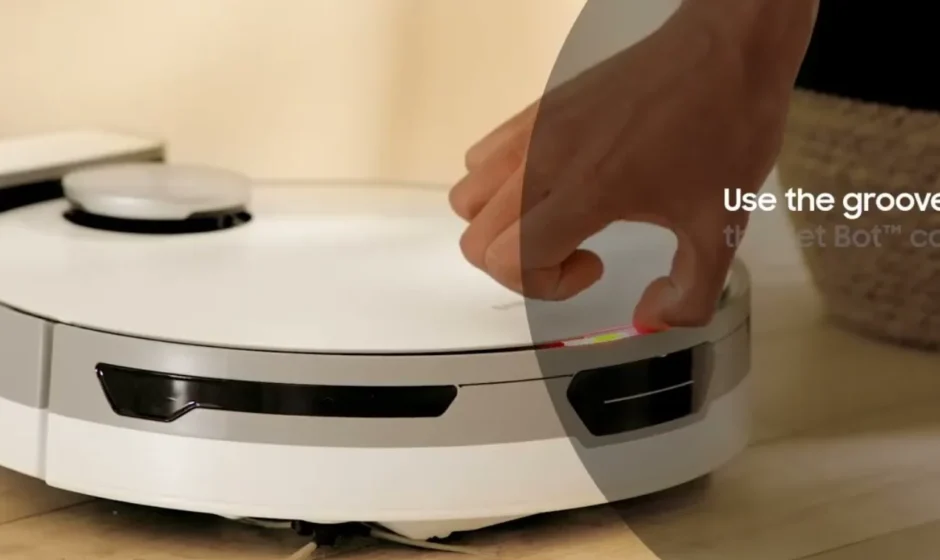
- When charging starts, the Status Indicator of the Jet Bot turns on (red, orange, or yellow depending on charging progress), it rises gradually, and changes to green when the charging is complete.
Auto charging
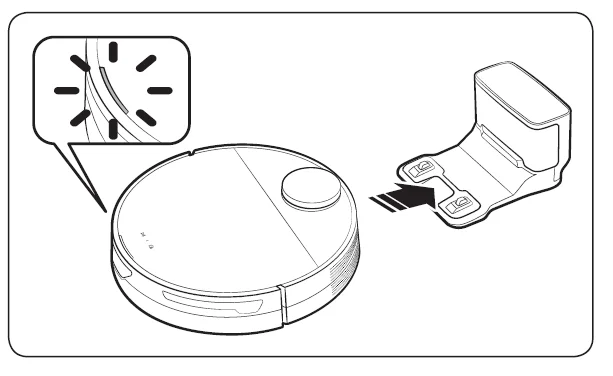
The Jet Bot automatically returns to the Docking Station when it completes cleaning or when the battery is low to recharge.
Docking (Recharging)
You can return the Jet Bot to the Docking Station while cleaning to recharge.
- Press the [
 ] on the Jet Bot or use the SmartThings App to select the recharging function.
- If the Jet Bot fails to return to the Docking Station for charging, it turns to Sleep Mode. To cancel the Sleep Mode, press the [
 ].
].
- If the Jet Bot fails to return to the Docking Station for charging, it turns to Sleep Mode. To cancel the Sleep Mode, press the [
 ] on the Jet Bot or use the SmartThings App to select the recharging function.
 ].
].Discharged Jet Bot
Move the Jet Bot manually onto the Docking Station to recharge.
Checking if the docking (recharging) does not work
Check the Docking Station’s installation status.
- Check whether the Docking Station has been installed in a place where the Docking Station cannot guide the Jet Bot to return.
- Check whether the distance between the Docking Station and the Jet Bot is over 5 m.
- It may take a longer time for the Jet Bot to return to the Docking Station. Charge the Jet Bot manually for the following conditions.
- When the Docking Station is installed in a corner
- When the battery is completely discharged
- When the Jet Bot is stuck in an obstacle (e.g., furniture)
- When the Jet Bot cannot climb a threshold near the Docking Station. (It should be less than 1.5 cm.)
- When the Jet Bot’s Status Indicator turns red and stays red, the Jet Bot is not working.
NOTE
- If the power switch of the Jet Bot is off, the Jet Bot will not charge even if it is docked on the Docking Station.
- Keep the Docking Station on at all times.
- If power is not supplied to the Docking Station, the Jet Bot cannot find the Docking Station and cannot automatically recharge.
- If the Jet Bot is left detached from the Docking Station, the battery drains naturally.
Operation status on the LED Status Indicator
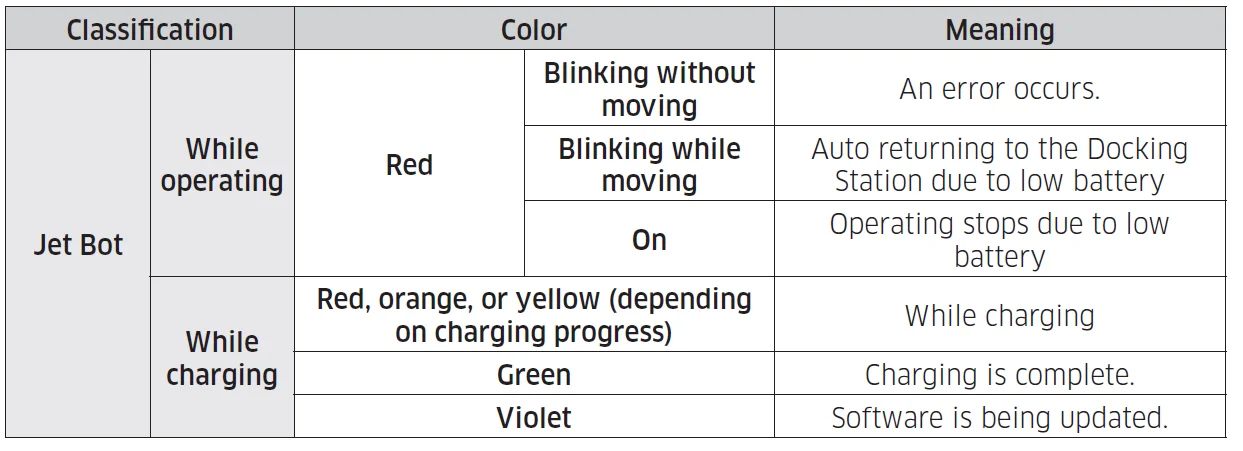
- If the Jet Bot starts charging from the depleted status, the Status Indicator turns red and slowly blinks for about 20 minutes.
- During the ‘DownTime’, the Jet Bot’s LED Status Indicator is turned off.
- The Jet Bot’s night mode (18:00~06:00) operates only when the Jet Bot is charging, and in the night mode, the Jet Bot’s LED brightness is adjusted to 20% within the set time when time synchronization is set through a mobile.
Cleaning Functions
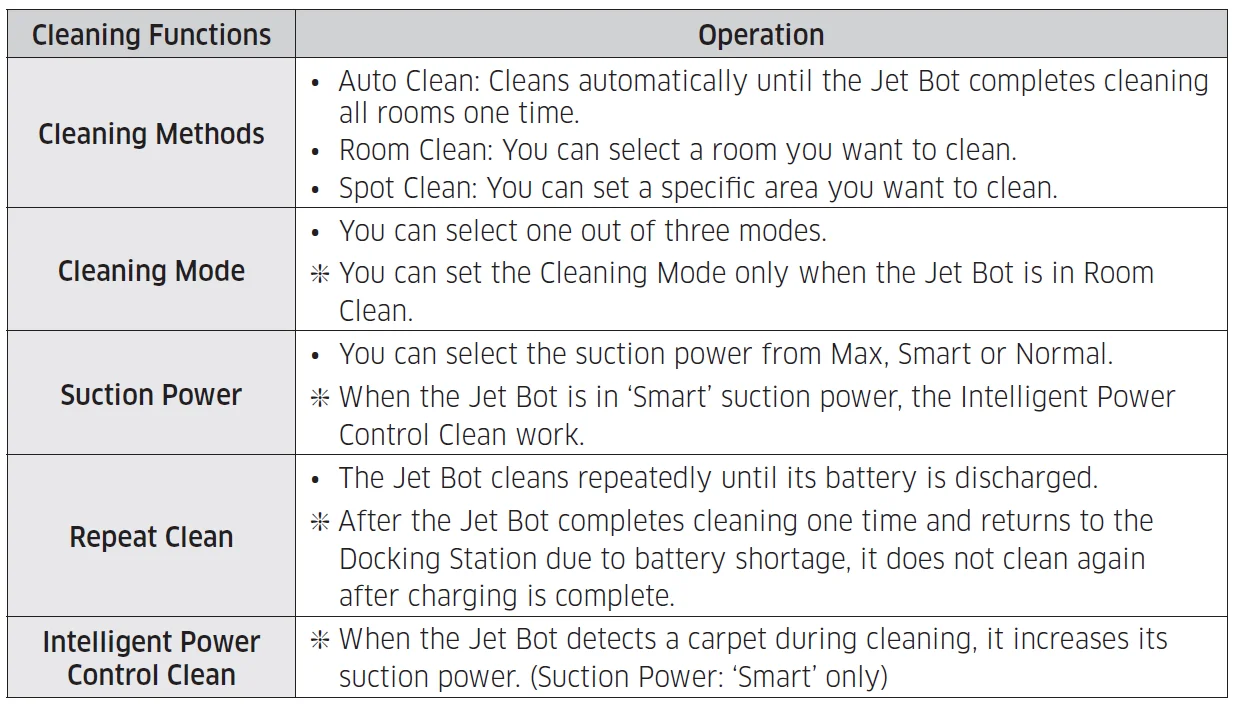
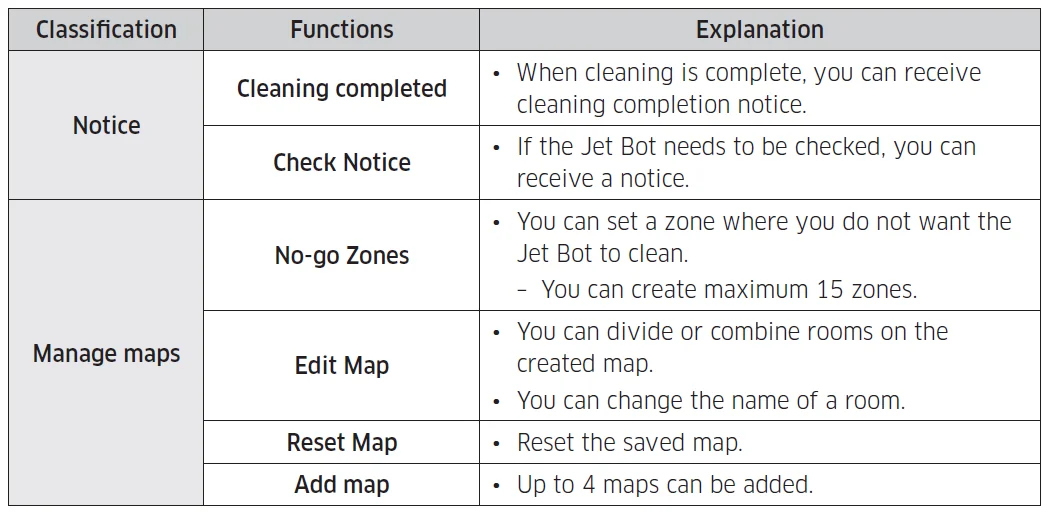
- You can set the Cleaning Functions, the Repeat Clean or the Cleaning Mode at the SmartThings App.
- When the Jet Bot does not have a saved map, it studies cleaning space through the Auto Clean function, which starts from the Docking Station. After studying the cleaning space, a map is saved. (The map creation is enabled through the SmartThings App only.)
- You can edit or delete the map at the SmartThings App.
- Room Clean or Spot Clean works regardless of the choice sequences of the areas.
Additional functions
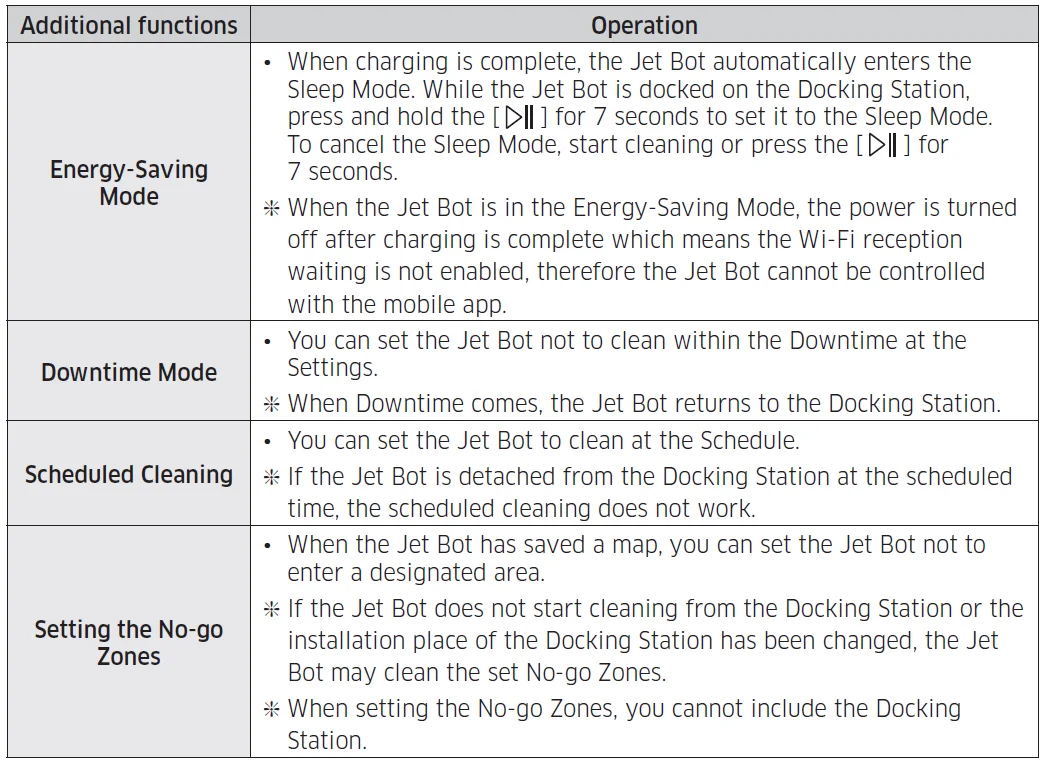
- You can set the Downtime mode, Scheduled Cleaning or No-go Zones at the SmartThings App.
NOTE
- When a Check Notice occurs or when you carry the Jet Bot to another place and start cleaning, the Jet Bot spins left and right at a 30 degree angle to recognize its location before it starts cleaning.
- If the Jet Bot cannot recognize its current location, it starts Auto Clean.
- The Jet Bot automatically performs a system check and restarts once a week.
Parts diagram
Jet Bot
Top
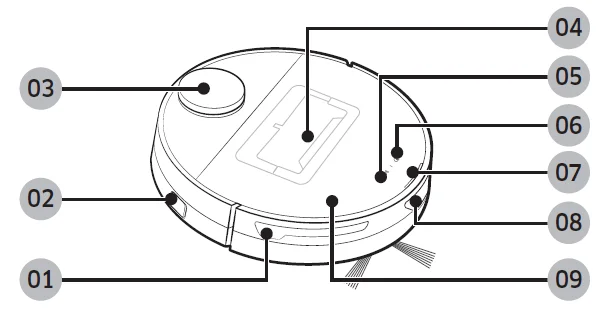
- Obstacle Sensor
- Power switch
- LiDAR Sensor
- Dustbin
- Start/stop button
- Docking (Recharging) button
- Status Indicator
- Docking Sensor Window
- Upper Cover
Bottom
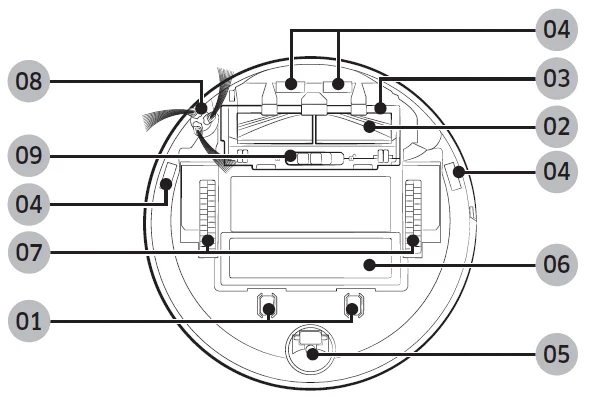
- Charging Pin
- Brush
- Brush Cover
- Cliff Sensor
- Roller
- Battery Cover
- Driving Wheel
- Side Brush
- Brush Cover Lock
Docking Station
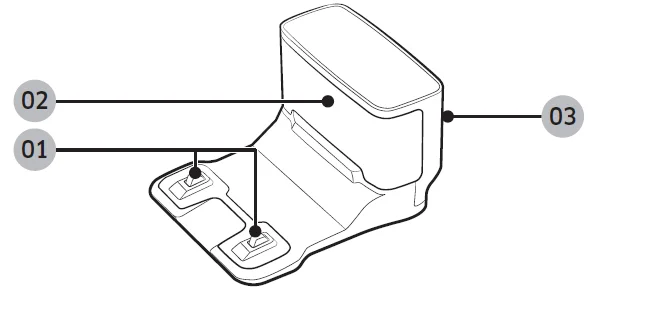
- Charging Terminal
- Charging Signal Transmitter
- Power cord groove
SmartThings App
The SmartThings App is only compatible with models that have a Wi-Fi function. If you do not have a Wi-Fi router, you cannot use the SmartThings App. Setting up the wireless router
- Please refer to the user manual of your wireless router for the settings of the wireless router.
- SAMSUNG Jet Bot supports only Wi-Fi 2.4 Ghz.
- SAMSUNG Jet Bot supports IEEE 802.11b/g/n and Soft-AP.
- IEEE 802.11n is recommended.
- SAMSUNG Jet Bot supports only DHCP (Dynamic Host Configuration Protocol). Please make sure that the DHCP server option is activated on your wireless router.
- The Jet Bot supports the WEP-OPEN, WPA-PSK/TKIP, and WPA2-PSK/AES for the authentication and encryption protocols.
- WPA2-PSK/AES is recommended.
- Confirm that your router has a unique SSID and password.
- The quality of your wireless network connection may be influenced by the surrounding wireless environment.
- If your Internet service provider has permanently registered the MAC address (a unique identification number) of your PC or modem, your Jet Bot may not be able to connect to the Internet. Ask your Internet service provider about the procedure to connect an apparatus other than a PC to the Internet.
- If your internet service provider requires your ID or password to connect to the internet, your Jet Bot may not be able to connect. If this is the case, you must enter your ID or password when connecting to the Internet.
- The Jet Bot may not be able to connect to the Internet because of firewall issues. Contact your Internet service provider to resolve these issues.
- Some wireless routers may transmit an abnormal Domain Name Server (DNS) address even if the Internet is not connected. If this occurs, contact the manufacturer of your wireless router and your Internet service provider.
- If you still cannot connect to the Internet even after trying the procedure provided by your Internet service provider, please contact an authorized SAMSUNG service center.
- If your router is not a Wi-Fi certified product, the Jet Bot may not be able to connect to the Internet.
Downloading the SmartThings App
- Download and install the SmartThings App from the markets (Google Play Store, Apple App Store, or SAMSUNG Galaxy Store). To find the app, use the keyword “SmartThings”.
NOTE
- SmartThings is incompatible with some tablets and some mobile devices.
- Some iPads and some mobile devices may not be supported.
- Visit the Play Store or App Store to see if your mobile device is compatible with SmartThings.
- The supporting software version of the SmartThings app is subject to change according to the OS supporting policy the manufacturer provides. In addition, as for the SmartThings app or the functions that the app supports, the new application update policy on the existing OS version can be suspended due to usability or security reasons.
- The SmartThings app is subject to change without notice to improve usability or performance. As the mobile phone OS version is updated every year, SmartThings is also updated continually according to the latest OS.
- If you have enquiries regarding the items mentioned above, please contact us at [email protected].
Setting up a SAMSUNG account
- You must sign in to a SAMSUNG account before using the SmartThings App.
- To set up a SAMSUNG account, you can follow the directions provided by the SmartThings App.
- Or, if you have a SAMSUNG smartphone, you can add your SAMSUNG account in the settings app of your smartphone. Then, it will automatically sign in to your SAMSUNG account and you can use the SmartThings App.
Registering a device to the SmartThings App
- Connect your smartphone to your wireless router.
- If the smartphone is not connected, turn on the Wi-Fi in the Settings App and select the wireless router you want to connect to.
- Set your smartphone to use Wi-Fi only and connect a device.
- Launch the SmartThings App on your smartphone.
- If a pop-up saying that a new device has been found appears, tap ADD NOW.
- If the pop-up does not appear, add a device by selecting the ‘Home appliances’ category → ‘Robot cleaner’ and the Jet Bot to connect.
- If you scan the SmartThings QR code attached to the Jet Bot, you can connect to the Jet Bot more easily.
- [Android] The connection to your device will be established automatically.
- [iOS] Open the settings app, and select [vacuum]_E30AJT** in the Wi-Fi list.
- Provide the authentication when you are directed to do so.
- [Android] The connection to your wireless router will be established automatically.
- [iOS] Open the settings app, and select the wireless router in the Wi-Fi list.
- When the product registration is complete, the Jet Bot device card is added.
NOTE
- When the Jet Bot cannot be registered to the SmartThings App
- Refer to the SmartThings App guide or pop-up messages.
- Confirm that the UPnP option of your wireless router is active, and then try the registration procedure again.
- Confirm that your wireless router is operating in a wireless mode. If not, change it to the wireless mode and try again.
- If you have two or more Jet Bots, turn off the other Jet Bots, and then try to register your Jet Bot again.
- Change the name of the wireless router which has the same SSID to be distinguished from each other.
- If the Jet Bot and smartphone are not connected to the same wireless router, a response can be delayed depending on the network environment.
- When the wireless router is changed, the connection between the Jet Bot and the SmartThings App is disconnected.
- After changing the wireless router, register your Jet Bot again at the SmartThings App.
Notes and cautions
Installation
NOTE
- Install the Docking Station in a place where the floor and wall are level.
- If the cleaning area is wooden floors, it is best to install the Docking Station along the grain of the wooden floors.
- If the power switch is off, the Jet Bot will not charge even if it is docked on the Docking Station.
- Always keep the Docking Station on.
- If power is not supplied to the Docking Station, the Jet Bot cannot find it and cannot automatically recharge.
- If the Jet Bot is left detached from the Docking Station, the battery will drain naturally.
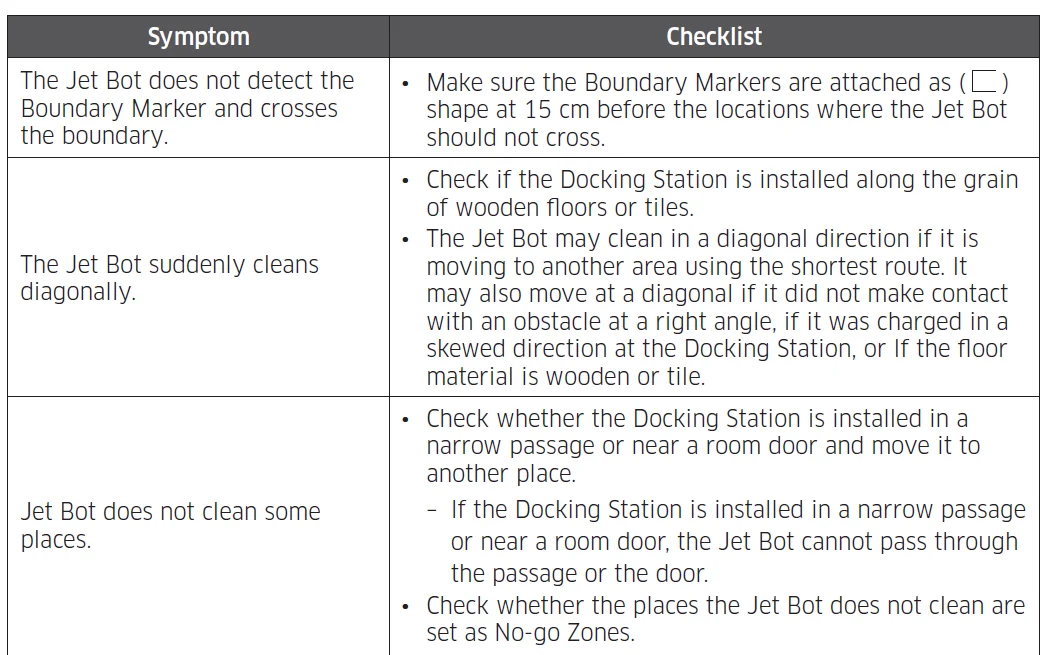
- Do not attach the Boundary Markers as a (—–) shape.
- The Jet Bot may not detect it and cross the boundary.
Charging
NOTE
- If the battery overheats during charging, it may take longer to charge.
- When auto charging is not working, do the following:
- Turn the power switch (at the side of the Jet Bot) off and on again.
- Unplug the Docking Station’s power plug and then plug it back in.
- Unplug the Docking Station, and then check whether there is any foreign matter on the charging pins and clean the charging pins of the Jet Bot and the Docking Station with a dry cloth or rag.
- Check for any obstacles such as reflective objects, chairs, etc., near the Docking Station.
- If the Jet Bot is left detached from the Docking Station, the battery will drain naturally.
- Try to keep the Jet Bot charged on the Docking Station. (However, turn off the power switch and leave the Docking Station unplugged when planning to leave the house for long periods of time by going on a business trip or vacation, etc.)
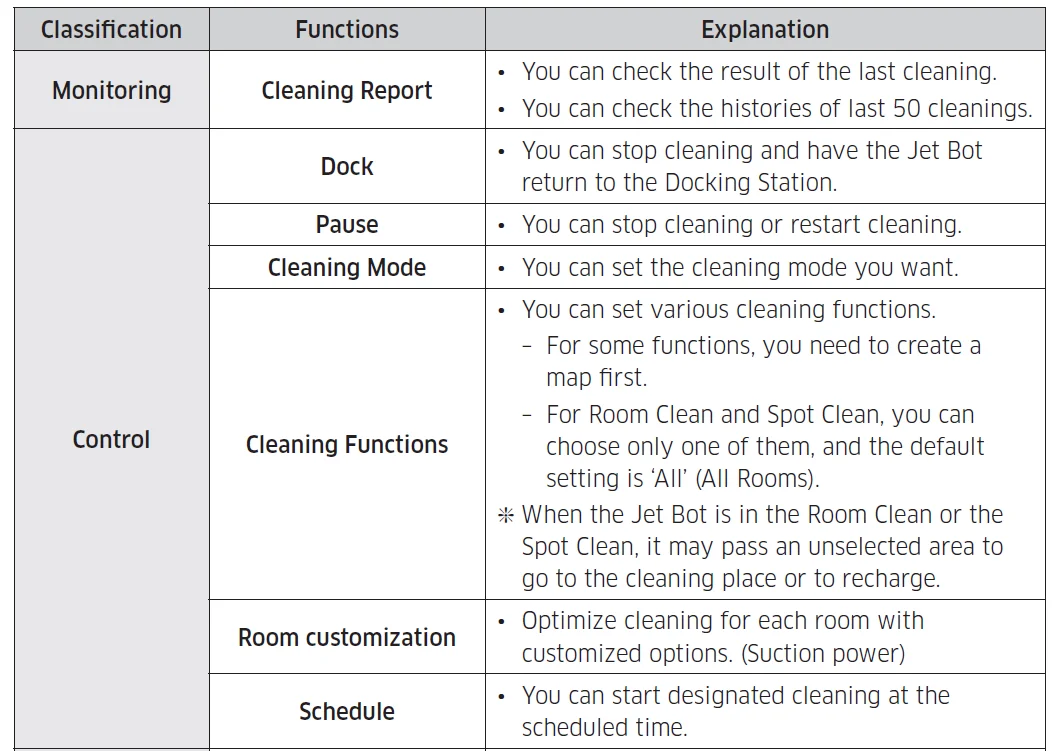
Functions of the SmartThings App
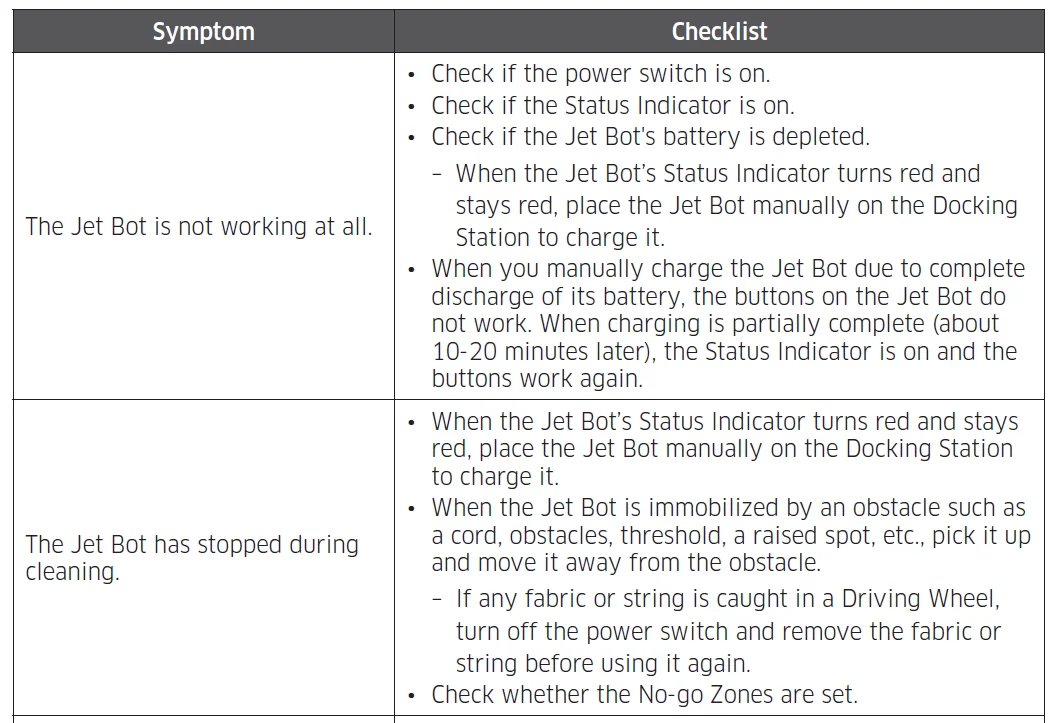
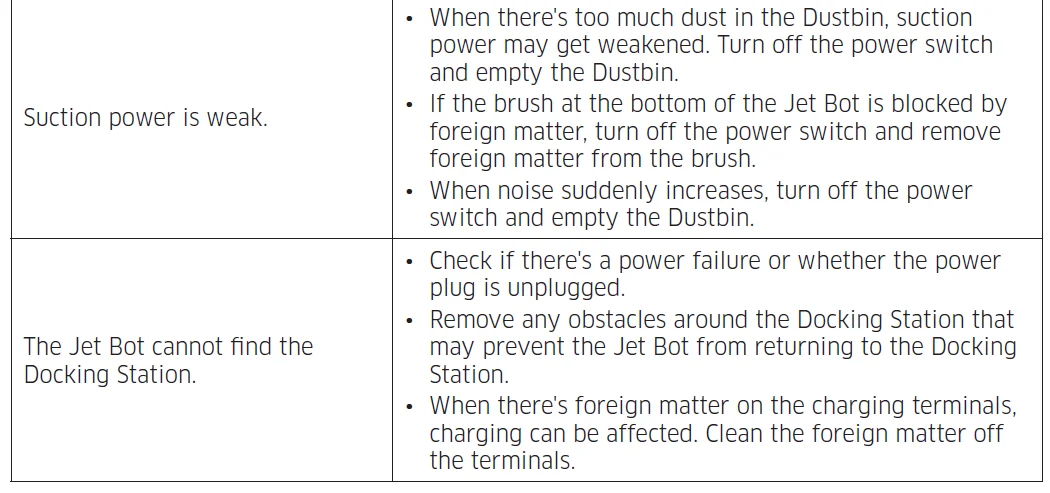
Troubleshooting
- Hereby, Samsung Electronics declares that the radio equipment type appliance is in compliance with Directive 2014/53/EU. The full text of the EU declaration of conformity is available at the following internet address: The official Declaration of conformity may be found at http://www.samsung.com, go to Support > Search Product Support and enter the model name.
For more manuals by Samsung, visit ManualsLibraryy
Samsung Robot VR30T80313W/GE Vacuum Cleaner-FAQs
What is the Samsung Robot VR30T80313WGE vacuum cleaner?
The Samsung Robot VR30T80313WGE is a smart robotic vacuum designed for automated floor cleaning. It uses intelligent navigation, strong suction, and app-based controls to clean carpets and hard floors efficiently.
Is the Samsung Robot VR30T80313WGE good for daily cleaning?
Yes, this model is suitable for everyday cleaning. You can schedule daily runs, helping keep dust, pet hair, and debris under control without manual effort.
Can the Samsung robot vacuum clean carpets?
Yes, the Samsung VR30T80313WGE works on both carpets and hard floors, automatically adjusting suction to improve cleaning performance on different surfaces.
How long does the battery last on Samsung robot vacuums?
Samsung robot vacuums typically offer up to 150 minutes of runtime, depending on cleaning mode, floor type, and suction level.
Can the battery of a Samsung robot vacuum be replaced?
Yes, in most cases the battery is replaceable. Replacing the battery can extend the vacuum’s lifespan when performance starts to drop.
How long do Samsung robot vacuums usually last?
With proper care and maintenance, Samsung robot vacuums generally last 4 to 6 years, which is longer than many cordless or handheld vacuums.
Are Samsung robot vacuums better than traditional vacuums?
Robot vacuums don’t fully replace traditional vacuums, but they are excellent for routine cleaning. They save time, run automatically, and help maintain cleaner floors between deep cleans.
Can I run my Samsung robot vacuum every day?
Yes, running it daily is safe and recommended for homes with pets, kids, or high foot traffic.