
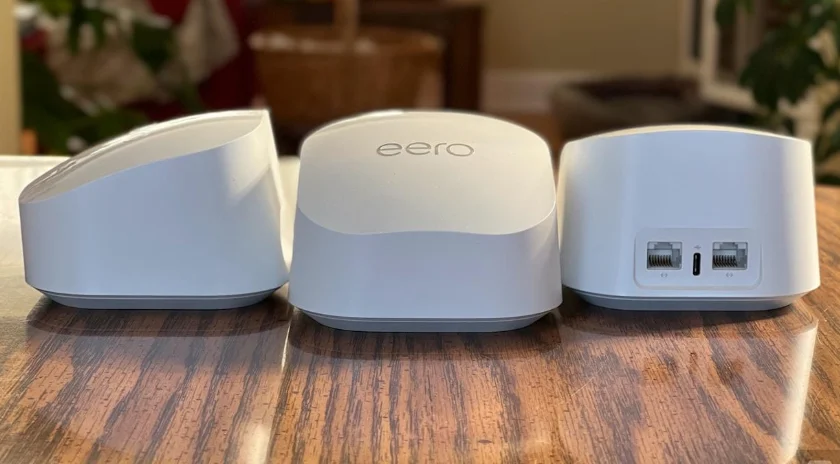

Amazon eero 6+ Mesh WiFi Router
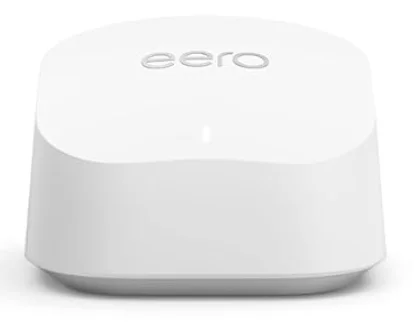
Get to know your eero 6+
The eero 6+ provides premium Wi-Fi performance and speeds up to a gigabit (if you have an internet plan capable of supporting this speed),1 all without the premium price tag. The eero 6+ features include:
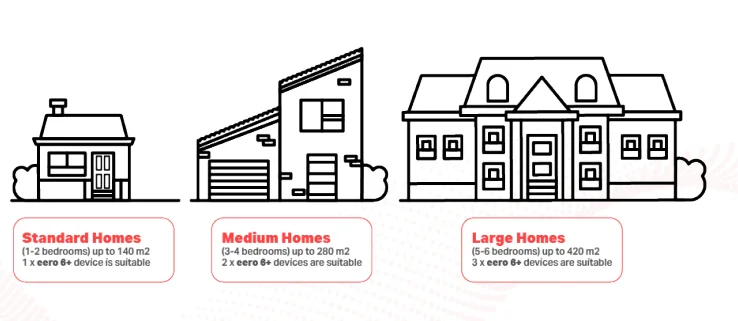
- Whole-home Wi-Fi 6 coverage up to 140 square metres per eero 6+.
- Smart technology to reduce drop-offs and provide fast, reliable Wi-Fi.
- Entertainment-ready Wi-Fi to download 4K content, stream music, and play online games with confidence.
- Smart home hub functionality to control Thread and Zigbee devices (account linking required).
- Simple, app-controlled, and guided setup to connect devices and create a wireless mesh network.
- Supports 75+ connected devices simultaneously.
- Easy system expansion with cross-compatible hardware.
- Ongoing software updates to help keep your network and data safe and secure.

Front view of the device / Back view of the device
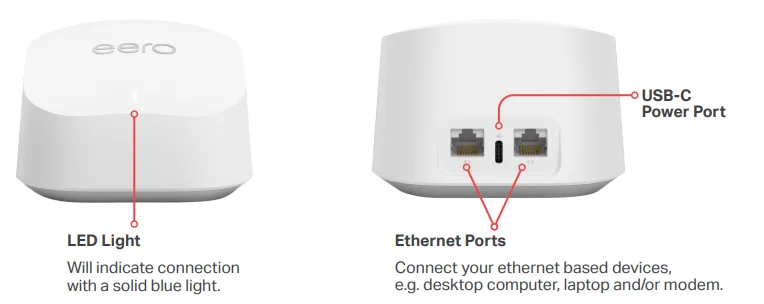
If your LED is in a different state, including a different colour or is blinking/flashing, please refer to the list below: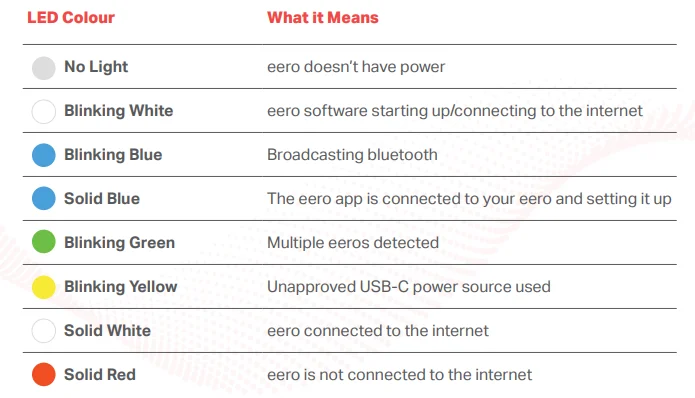
How to set up your eero 6+
Before you start to set up your eero 6+ and network, you will need the following:
- An iOS or Android device with a data connection.
- The eero app is available from the App Store
 or Google Play Store.
- A modem or device with an active connection to a More internet service.
- An email address.
- An active mobile phone number.
Step 1: Download the eero app
From the App Store  or Google Play Store
  .
.
Step 2: Create an eero account
You can sign up to eero using your phone number, email address, or existing Amazon account.
Step 3: Connect your eero 6+
- Unplug your NBN box from power and ensure that there are no other devices connected to it.
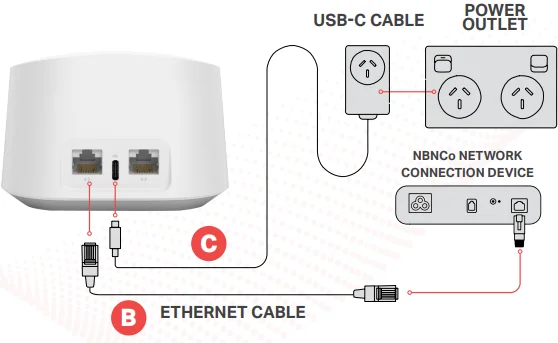
- Connect your eero 6+ to your NBN box from either of the ethernet ports using the ethernet cable supplied with your eero 6+.
- Plug your eero 6+ and NBN box into an available power outlet.
IMPORTANT: How you connect your eero 6+ is dependent on your internet technology type. If you are unsure what NBN technology type you have at your address, please check your NBN order email from More.
Fibre to the Premises (FTTP) & Fixed Wireless
IMPORTANT: You will need to plug the Ethernet cable from your eero 6+ into your Network Termination Device’s activated Uni-D port. If you are unsure which port has been activated, check your NBN Ready to Go email from us.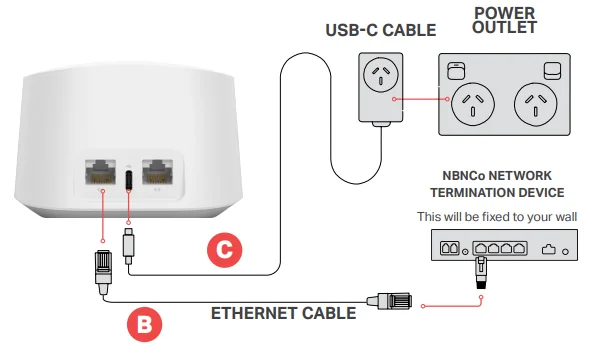
Fibre to the Curb (FTTC) & Hybrid Fibre Coaxial (HFC)
Step 4: Create your eero 6+ network
- After pressing next in the eero app, it will begin to look for your eero 6+. The router will begin to flash blue and then present a solid blue light once detected.
- Select a location for your eero 6+ in the app and then set your own network name and network password. This is how other devices will join your network. Click next to complete setup.
Step 5: Add an eero 6+ device to expand your network
When adding your eero device to your network, please keep in mind the following placement tips:
- If you have a dead spot, try to place your new eero device between the dead spot and another eero device to ensure a strong connection.
- Try not to place your eero device inside a media console or cabinet, or behind or underneath any large furniture.
- Avoid placing your eero 6+ device in front of, on top of, or under any electronics or appliances, as metal objects can block Wi-Fi signals.
Now that your eero network is set up, you’re free to do all the things you love online, like stream music, read, and play video games!
How to connect your smart home devices to your eero 6+ network
You can connect your smart home devices to your eero network once you have linked your eero account with your Amazon account. If you didn’t link your accounts upon sign-up, you can do so by:
- Logging into the eero app.
- Navigate to the Discover tab.
- Select ‘Amazon Connected Home.’
- Tap ‘Connect to Amazon’ and log in using your Amazon account.
Once your accounts are linked, your enabled devices will join the network almost instantly when plugged in and stay connected even when you change your network name or password through Amazon Frustration-Free Setup.
How to create custom settings for people on your eero 6+ network
You can set custom schedules, control internet access, and apply content filters by creating profiles through the eero mobile app.
- Select the ‘Home’ tab and tap on the + symbol in the top right corner of the screen.
- Select ‘Add a Profile’ from the pop-up menu.
- Add a profile name.
- Select which devices to add to a profile.
- Tap ‘Done’.
How to customise profile settings:
- Select the ‘Home’ tab and tap the profile or device for which you want to set a schedule.
- Select ‘Add a Scheduled Pause’.
- Update the schedule name, start time, end time, and frequency for the scheduled pause, then tap ‘Save’.
Other important information about your eero 6+
1 Year Manufacturer’s Warranty
In addition to any rights or remedies you may have under the Australian Consumer Law, your eero device also comes with a 1-year limited manufacturer’s warranty from the date of purchase that covers faults with eero devices purchased from More (subject to certain exclusions). Please see our Hardware Warranty Information for further information, including how you can contact us to submit a warranty claim.
12-month eero Secure Subscription at no additional cost
When you purchase an eero 6+ from More, we also provide you with a subscription to eero Secure for 12 months at no additional cost, then $2.99 per month per account ongoing.² eero Secure protects your growing online life by helping to keep your family’s personal information, connected devices, and network protected from online threats. eero Secure also gives you access to advanced parental controls, including content filters and the ability to block and allow individual sites to help keep your family safe from the content they’re not ready for. The features of eero Secure include (subject to change from time to time on provision of reasonable notice):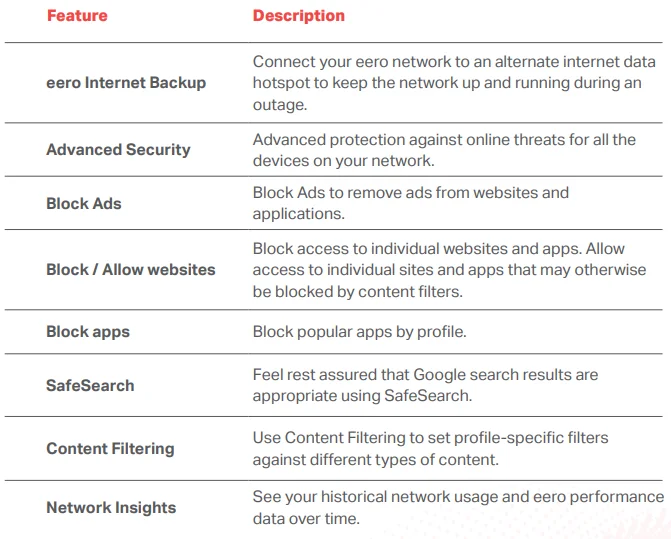
Need support?
For further information on the eero 6+, please refer to our website. For a more comprehensive user guide, you can view the eero 6+ User Guide here. Alternatively, for Customer Service and troubleshooting, contact our team on 1800 733 368.
- Internet connection speeds and availability depend on the speed of the internet plan you have with More. If your internet plan does not provide you with the maximum supported speed achievable with your eero device, you will not experience that maximum speed. Maximum network speeds, if applicable, reflect combined supported speeds across wired and wireless clients. Maximum wireless signal rates are derived from the IEEE 802.11 standard. Specifications assume a wired Ethernet connection; your experienced speed may vary when connected to an eero device that is configured as a wireless extender. eero devices are only compatible for use with FTTC, FTTP, HFC, and Fixed Wireless internet access technologies. Coverage estimates are based on normal use conditions. Actual range and performance can vary, and maximum supported speeds may not be available to all customers due to factors such as local regulations (including power limits), network configuration, interference, connected devices, device usage, building materials, and obstructions. Specifications are based on the use of a Wi-Fi 6 or later-generation client device. See https://eero.com/legal for more details regarding terms for eero products, software, and services. For more information about eero performance, visit support.eero.com.
- From 3 May 2023, an eero Secure subscription is provided to each More customer for 12 months at no additional cost when you purchase an eero device from More for use in combination with a compatible More internet plan. The initial 12-month subscription is a promotional period and commences: (1) if you purchase an eero device in combination with a new compatible More internet service, on the date that service is first activated, or (2) if you have an existing compatible More internet service, on the date your eero device is sent to you. At the end of this promotional period, your eero Secure subscription automatically converts to a paid month-to-month service, and you will be charged monthly in advance at the recommended retail price (RRP) per account current at that time as part of your standard monthly bill until your eero Secure subscription is cancelled. The price of an eero Secure subscription is subject to change at any time on at least 30 days’ notice. This offer is only valid for one eero Secure subscription per account at any one time, and you will only be charged for one eero Secure subscription per account, regardless of how many eero devices you have purchased from us or connected to your compatible More internet service. You cannot purchase an eero device or an eero Secure subscription from More on a stand-alone basis or without a compatible More internet service. You cannot purchase an eero device from More without also receiving an eero Secure subscription. However, an eero Secure subscription is provided on a no fixed-term contract, and you can cancel it at any time by contacting us. Cancellation will take effect at the end of your current billing period, as long as it is requested at least 5 days before that date. Otherwise, it will take effect at the end of your next billing period. You can continue to use eero Secure until the date of cancellation. If you cancel your eero Secure subscription, we will disassociate it from all eero devices connected to your account, and you can continue to use a disassociated device with a compatible More internet service. However, once this occurs, you cannot reactivate an eero Secure subscription with More unless you purchase a new eero device from us. If you sign up, More will be your service provider for your eero Secure subscription and will handle all technical enquiries, complaints, and servicing. This offer and the provision of your eero Secure subscription are subject to the full offer T&Cs, applicable standard terms of service, and policies available on the Policies page of our website. More may cancel, vary, or withdraw this offer at any time without notice, except as it applies to customers already receiving it before the effective date of change.
For More Manuals By Amazon Basics, Visit ManualsLibraryy.
Amazon eero 6+ Mesh WiFi Router-FAQs
What is an Amazon eero 6+ Wi-Fi router?
The Amazon eero 6+ is a dual-band mesh Wi-Fi 6 router designed to provide fast, reliable internet coverage throughout your home. It supports gigabit speeds and uses a 160 MHz channel bandwidth for improved performance. As part of a mesh system, multiple eero devices work together to eliminate dead zones and maintain stable connections across rooms.
Is the eero 6+ a good router for home use?
Yes, the eero 6+ offers strong performance for most households. It supports dual-band 2.4 GHz and 5 GHz Wi-Fi 6, delivering faster speeds and better efficiency than older Wi-Fi 5 routers. It is ideal for streaming, video calls, gaming, and smart home devices. While it does not include 6 GHz support like Wi-Fi 6E models, it meets the needs of most standard internet plans.
Does the eero 6+ replace your existing router?
Yes, the eero 6+ is designed to replace your current router. It connects directly to your modem and becomes the primary router for your home network. Although it can be used alongside another router in certain configurations, this setup is generally not recommended unless required for specific networking needs.
Is the eero 6+ a modem or a router?
The eero 6+ is a router, not a modem. To access the internet, you still need a modem provided by your internet service provider. The modem connects your home to the ISP, while the eero router distributes Wi-Fi throughout your home using mesh technology.
How many devices can the eero 6+ support?
The eero 6+ is capable of supporting 75 or more connected devices simultaneously. This makes it suitable for modern households with multiple smartphones, laptops, smart TVs, gaming consoles, and smart home devices running at the same time without significant performance drops.
Does the eero 6+ support 5G?
The eero 6+ supports 5 GHz Wi-Fi, which is different from 5G cellular networks. It does not directly provide mobile 5G service, but can connect to a 5G broadband modem or gateway if your home internet uses 5G cellular service. The router itself distributes Wi-Fi within your home.
Is a mesh router like eero better than a Wi-Fi extender?
In most cases, mesh systems like eero provide better overall performance than Wi-Fi extenders. Mesh routers create a unified network where devices automatically connect to the strongest signal as you move around your home. Extenders often create separate network names and may reduce speeds, while mesh systems maintain smoother and faster connectivity.
What are the disadvantages of the eero 6+?
One main disadvantage is cost, as mesh systems typically require purchasing multiple units for full-home coverage. Additionally, the eero 6+ does not support the 6 GHz band found in Wi-Fi 6E routers. Advanced customization options may also be limited compared to traditional high-end routers, especially without an optional subscription.
What are the downsides of Wi-Fi 6?
While Wi-Fi 6 offers improved speed, efficiency, and device handling, it can be more expensive than older Wi-Fi standards. Older devices that only support Wi-Fi 5 or earlier will not fully benefit from Wi-Fi 6 features. Upgrading multiple devices to maximize performance may increase overall costs.
Will the eero 6+ signal go through walls?
Mesh Wi-Fi systems like the eero 6+ are designed to improve coverage across large homes and multiple rooms. While no router can eliminate signal loss through thick concrete or brick walls, placing additional eero units strategically helps reduce dead zones and maintain stronger connections throughout the house.