
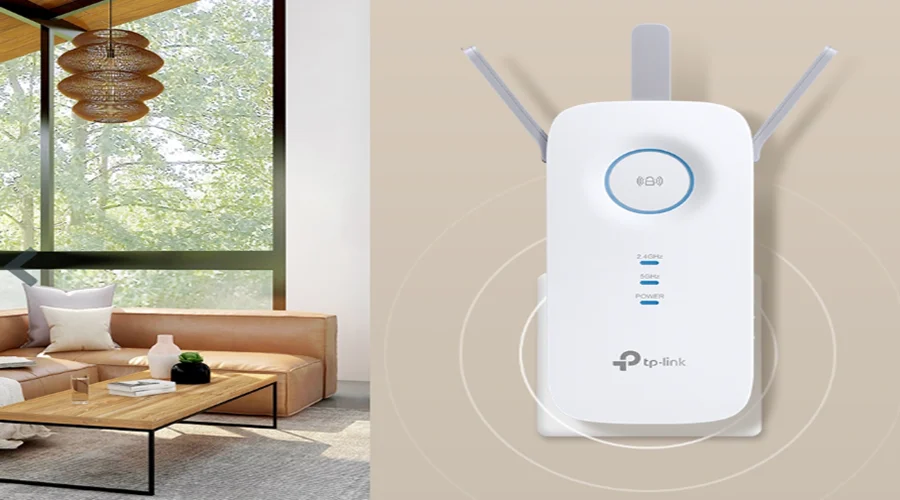

TP-Link AC1900 WiFi Range Extender
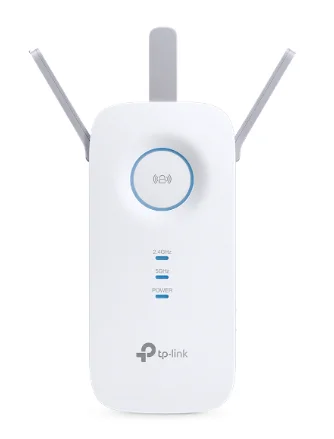
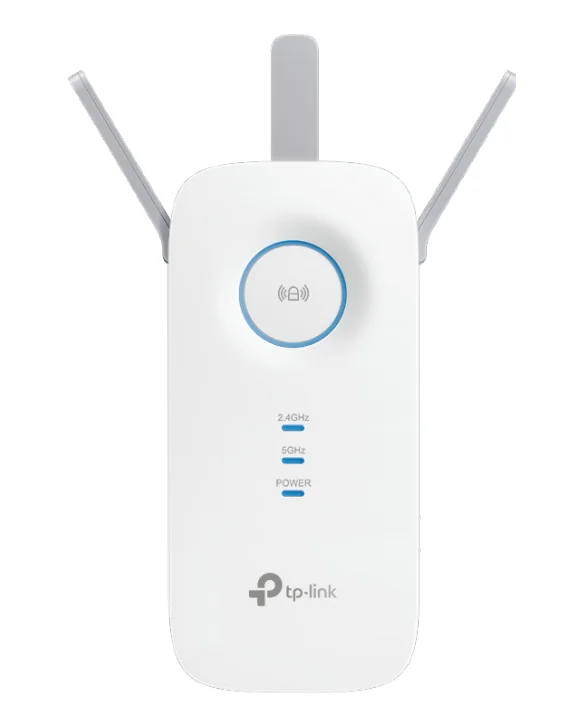
Get to Know About Your Extender
Product Overview
Bring Dead Zones Back to Life
Tired of Wi-Fi “dead zones”? The TP-Link extender is connected to your router wirelessly, strengthening its signal and expanding its coverage into areas that could not otherwise be reached.
Easy Installation & Quick Position
The extender works with any standard wireless router. Instantly connect the extender to a router by pressing the router’s WPS button (if available) followed by the extender’s WPS button. Alternatively, follow the Quick Setup instructions on the extender’s web management page. Once the extender is connected to a router, you can relocate it to your preferred location with no further configuration required. The intelligent signal light can help to find the best location.
Easy Management with the TP-Link Tether App
Tether provides a simple, intuitive way to access and manage your extender with your smart devices.
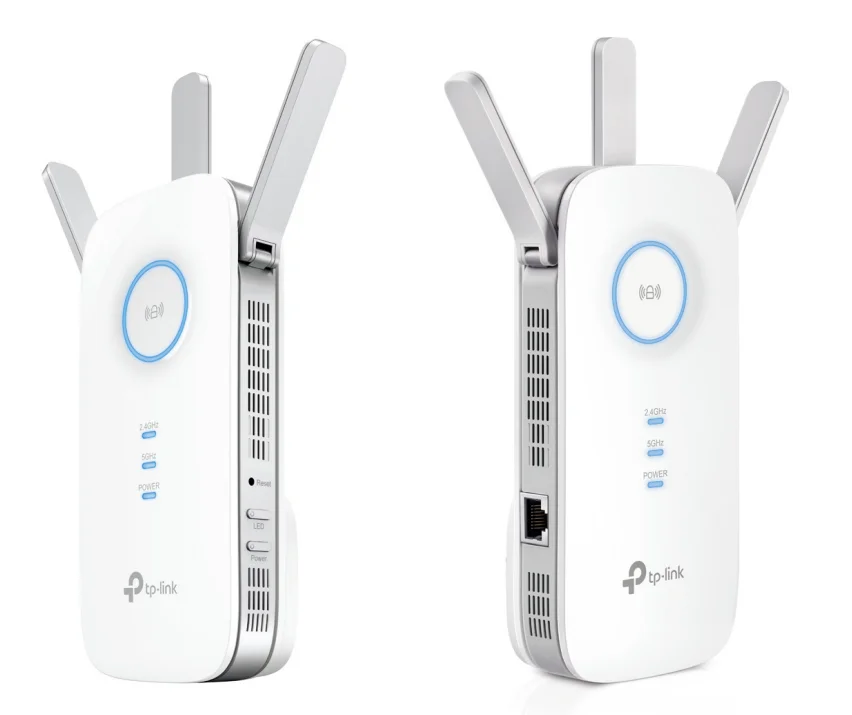
Appearance
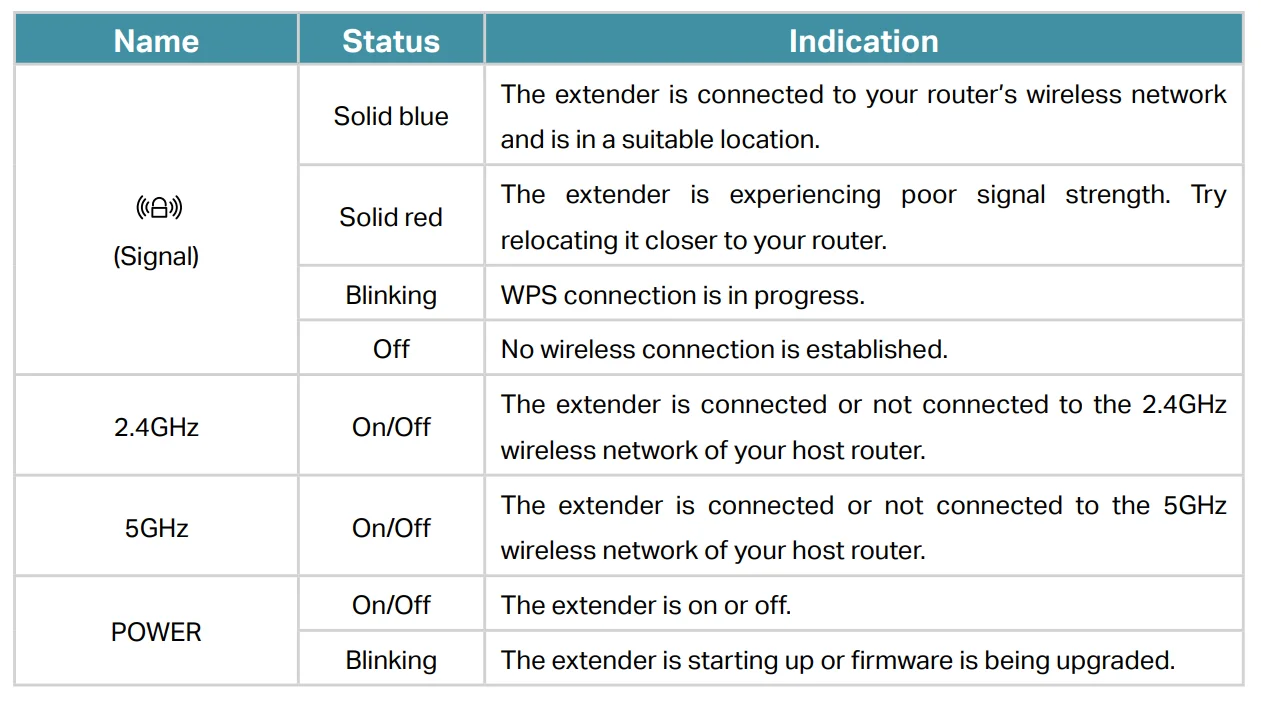
LED Explanation
You can check the extender’s working status by following the LED Explanation table.
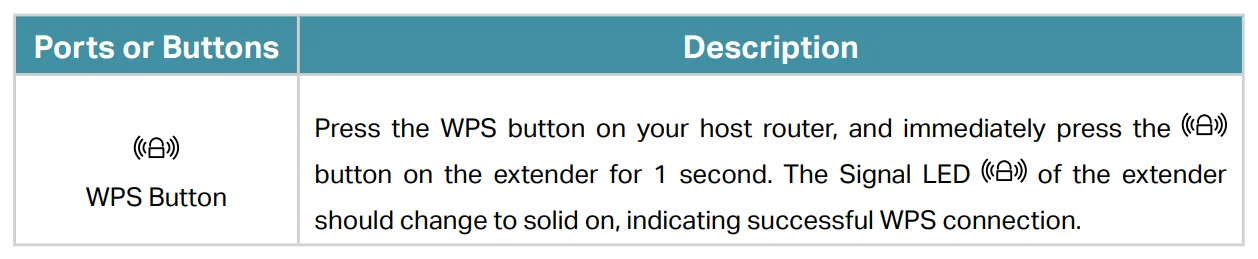
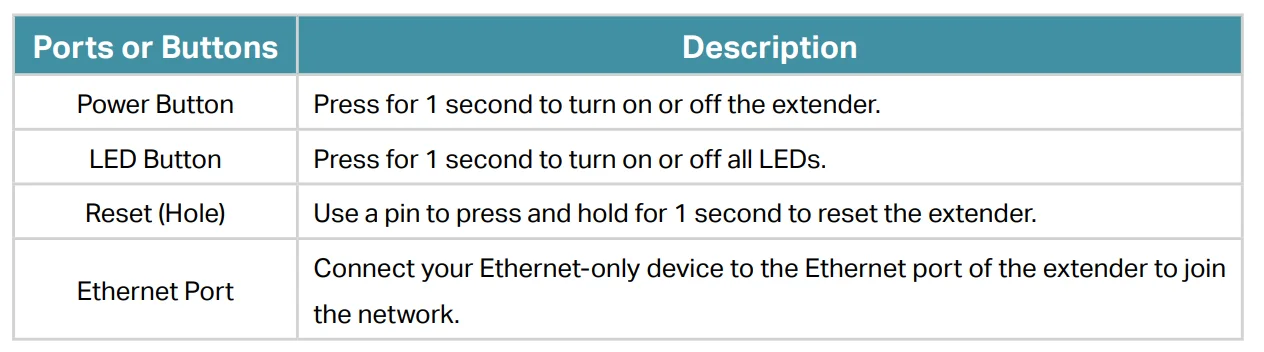
Port and Button Description
Set Up Internet Connection
Power on the Extender
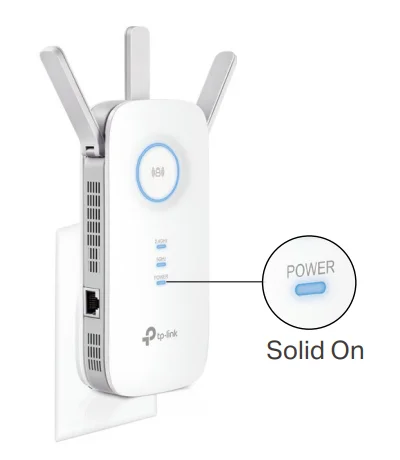
Plug the extender into an electrical outlet next to your router, and then wait until the POWER LED turns solid on.
Note:
- The operating temperature should be between 0°C and 40°C (32°F – 104°F).
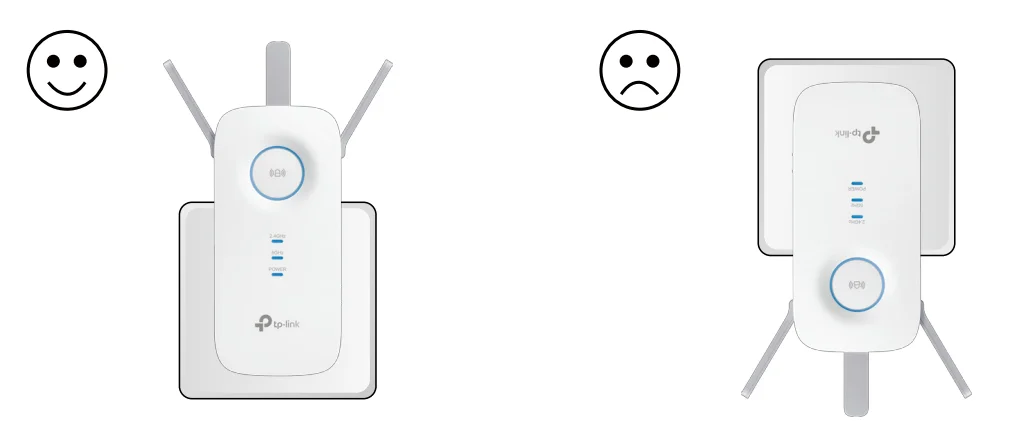
- For safety, only plug the extender in the upright directions as shown below.
Set Up the Extender
There are three ways to set up the extender: via the TP-Link Tether app, via a web browser, or via the WPS button.
Method 1: Via the TP-Link Tether App
- Launch the Apple App Store or Google Play Store and search for TP-Link Tether, or simply scan the QR code to download and install the app.

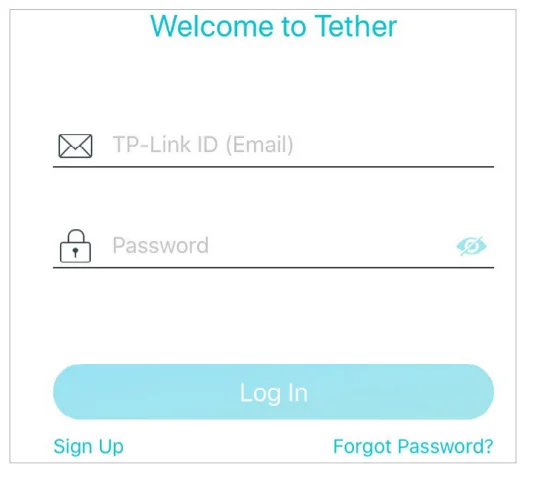
- Launch the Tether app and log in with your TP-Link ID.
Note: If you don’t have a TP-Link ID, create one first.
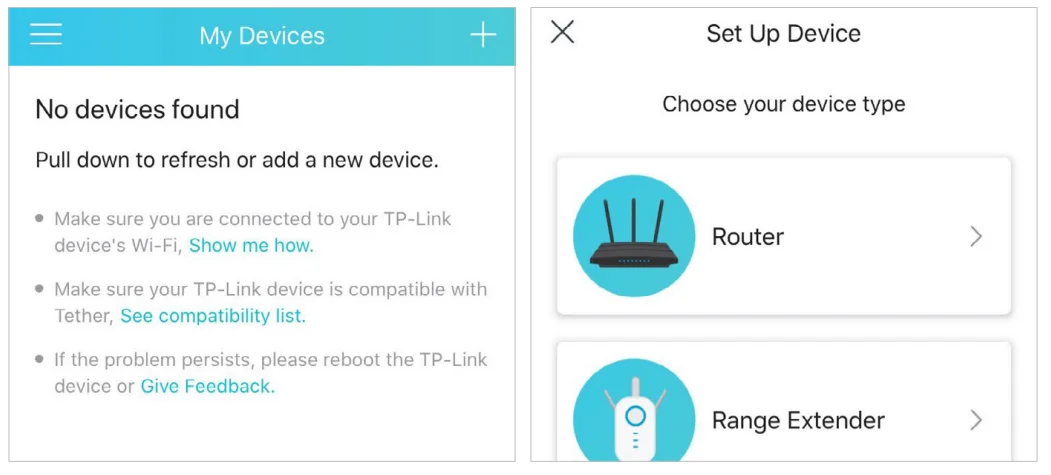
- Tap the + icon in the upper-right corner and select Range Extender.

- Follow the app instructions to set up your extender.
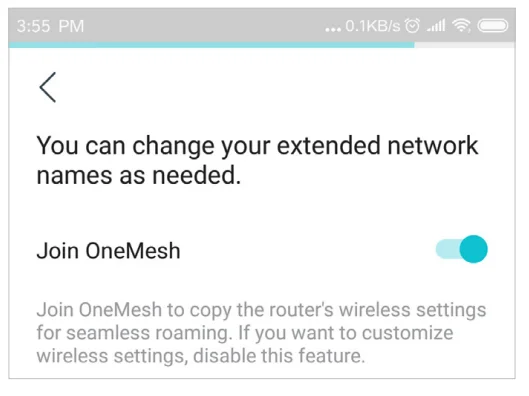
- (Optional) Enable Join OneMesh to copy the router’s wireless settings for seamless roaming. For more information about OneMesh, refer to OneMesh with Seamless Roaming.
Tip:
It is recommended to enable Smart Connect on your host router to enjoy a seamless connection between dual-band networks. With Smart Connect enabled, your host router’s 2.4GHz and 5GHz share the same SSID (network name) and password. Refer to your host router’s user guide to enable Smart Connect.
- Relocate your extender and follow the app instructions to enjoy the extended network.
- Plug in the extender about halfway between your router and the Wi-Fi dead zone. The location you choose must be within the range of your router.
- Wait for about 2 minutes until the Signal
 LED turns solid blue. If it doesn’t, relocate the extender closer to the router to achieve better signal quality.
Tip:
To minimize signal interference, please choose a location far from Bluetooth devices and other household electronics, such as cordless phones, microwave ovens, and baby monitors.
- Enjoy! Connect to the extended network and enjoy the Internet.
Tip:
For a more intuitive location assistant, access extender settings via Tether and go to Tools > Location Assistant. You can also manage your extender via Tether, such as controlling LEDs, sharing passwords of your networks, and blocking devices.

 LED turns solid blue. If it doesn’t, relocate the extender closer to the router to achieve better signal quality.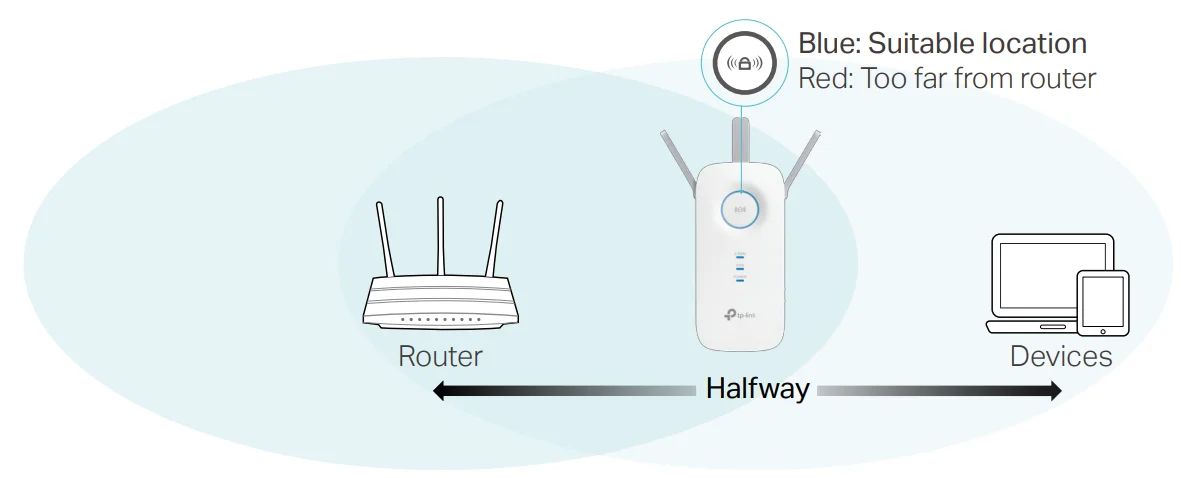
Method 2: Via a Web Browser
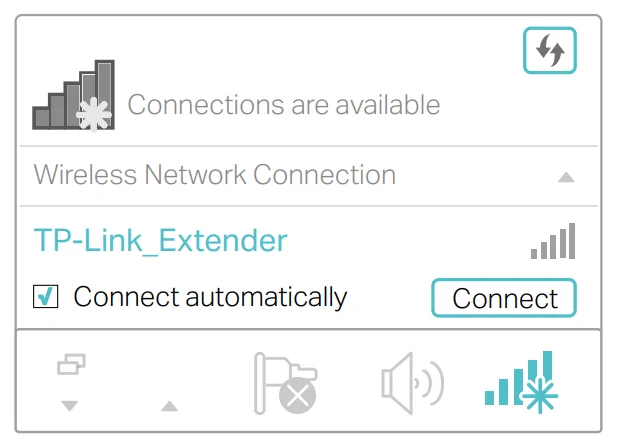
- Connect your computer to the extender wirelessly as follows:
- For Windows Users
- Unplug the Ethernet cable from your computer (if any).
- Click the Wi-Fi icon on the taskbar and connect to the extender’s wireless network: TP-Link_Extender.

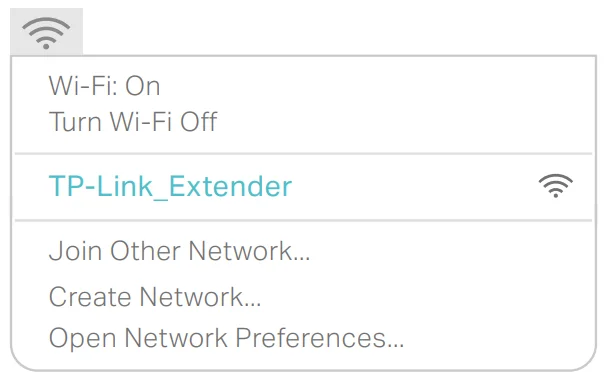
- For Mac OS X Users
- Unplug the Ethernet cable from your computer (if any).
- Click the Wi-Fi icon in the top right corner of the screen, and connect to the extender’s network: TP-Link_Extender.

- For Windows Users
- Follow the instructions of the Quick Setup Wizard to connect the extender to your host router.
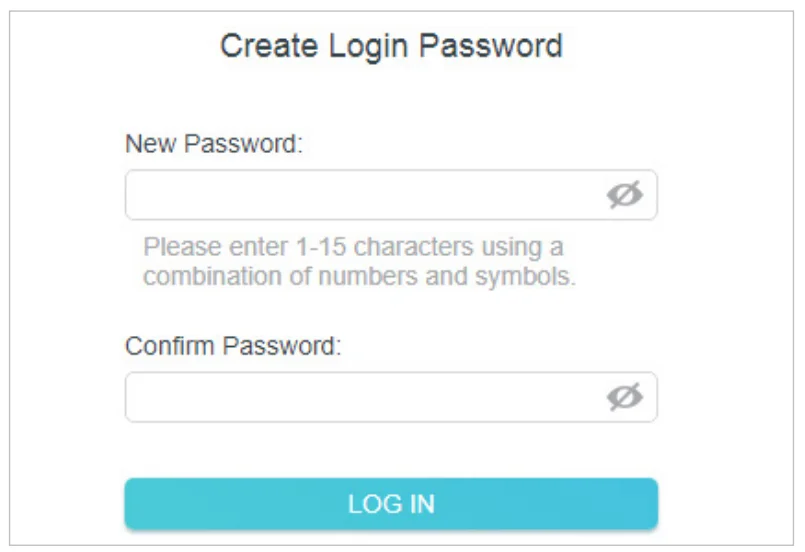
- Launch a web browser, enter http://tplinkrepeater.net or http://192.168.0.254 in the address bar, and then create a password to log in.
Note:
If the login window does not appear, please refer to the FAQ.
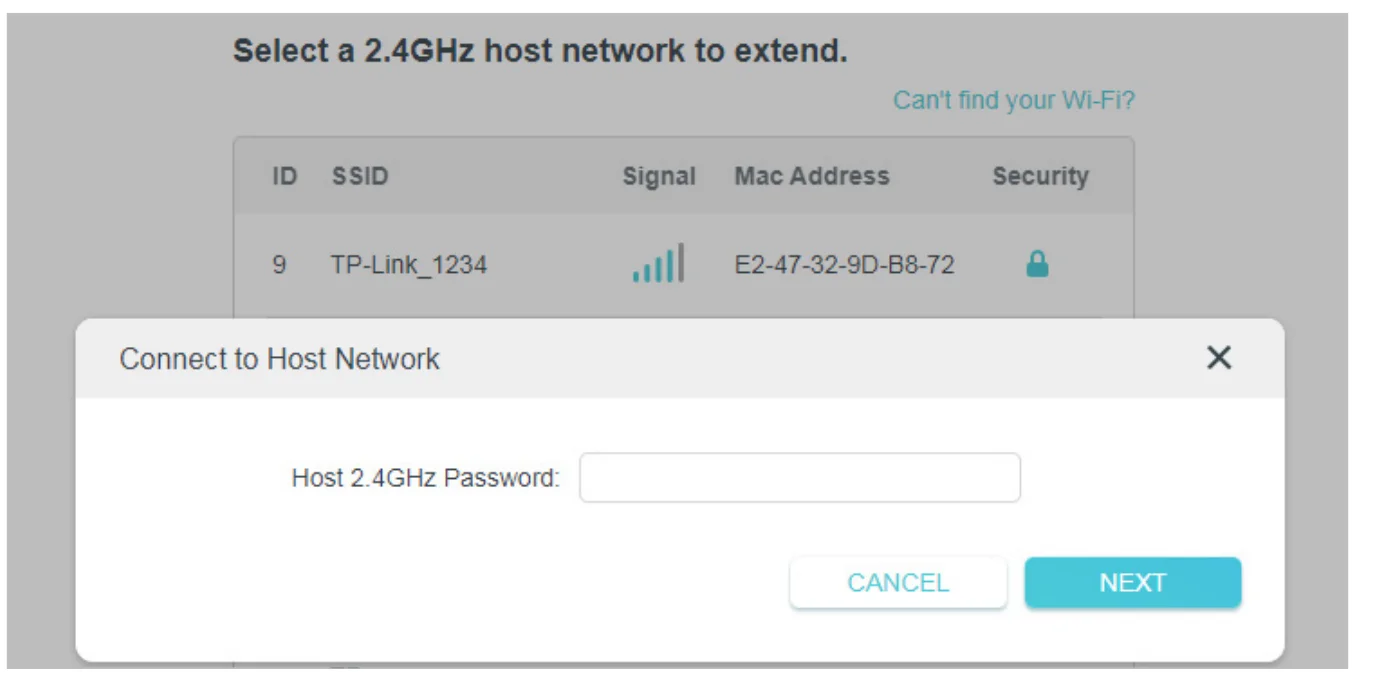
- Select your host router’s 2.4GHz SSID (network name), enter its password (NOT the password you just created for management), and click NEXT.

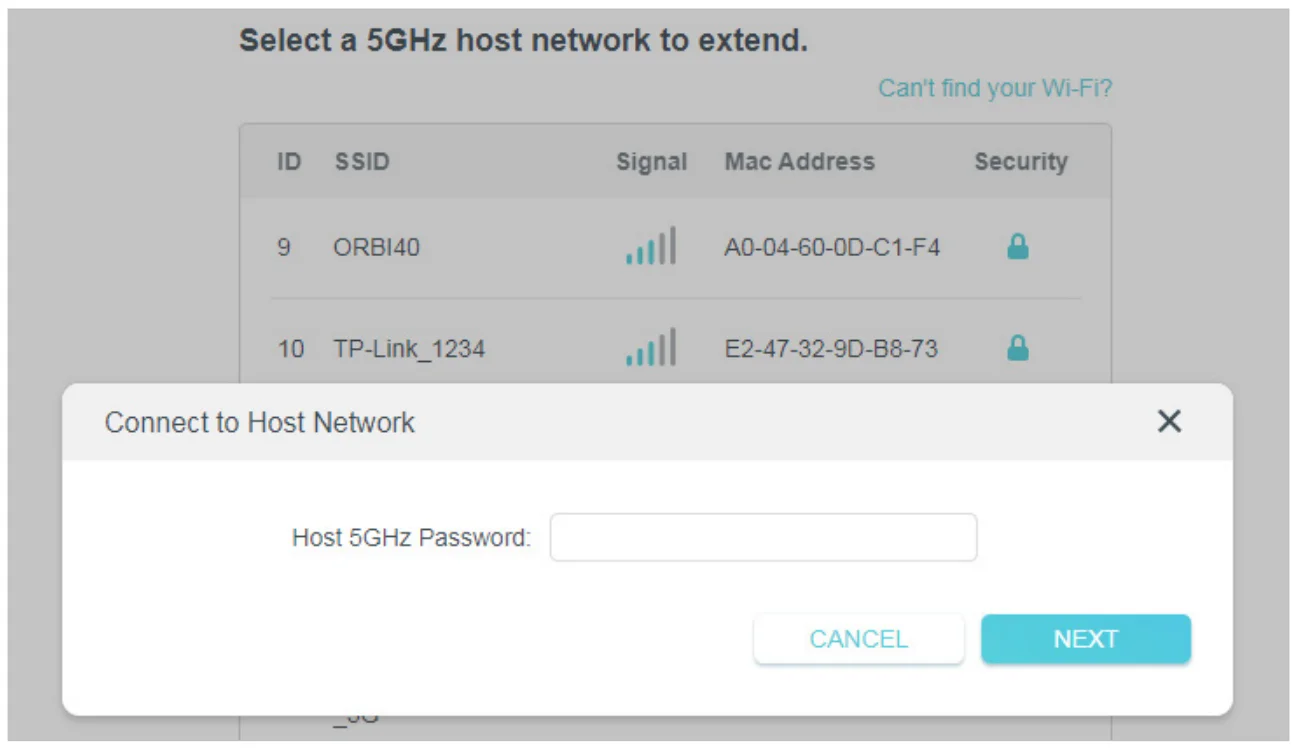
- Select your host router’s 5GHz SSID (network name), enter its password (NOT the password you just created for management), and click NEXT.
Note:- If your host router does not support a 5GHz wireless network, please click SKIP to continue.
- It is recommended to enable Smart Connect on your host router to enjoy a seamless connection between dual-band networks. With Smart Connect enabled, your host router’s 2.4GHz and 5GHz share the same SSID (network name) and password. Refer to your host router’s user guide to enable Smart Connect.

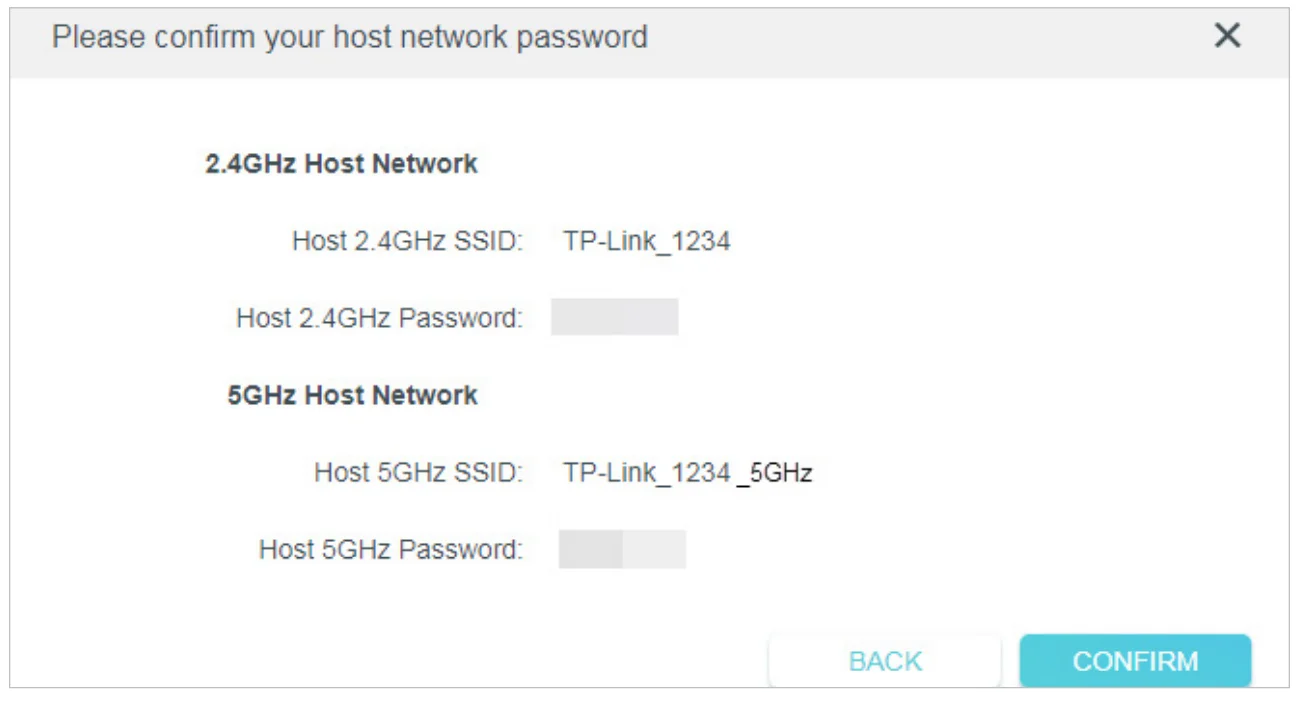
- Confirm your host network password.

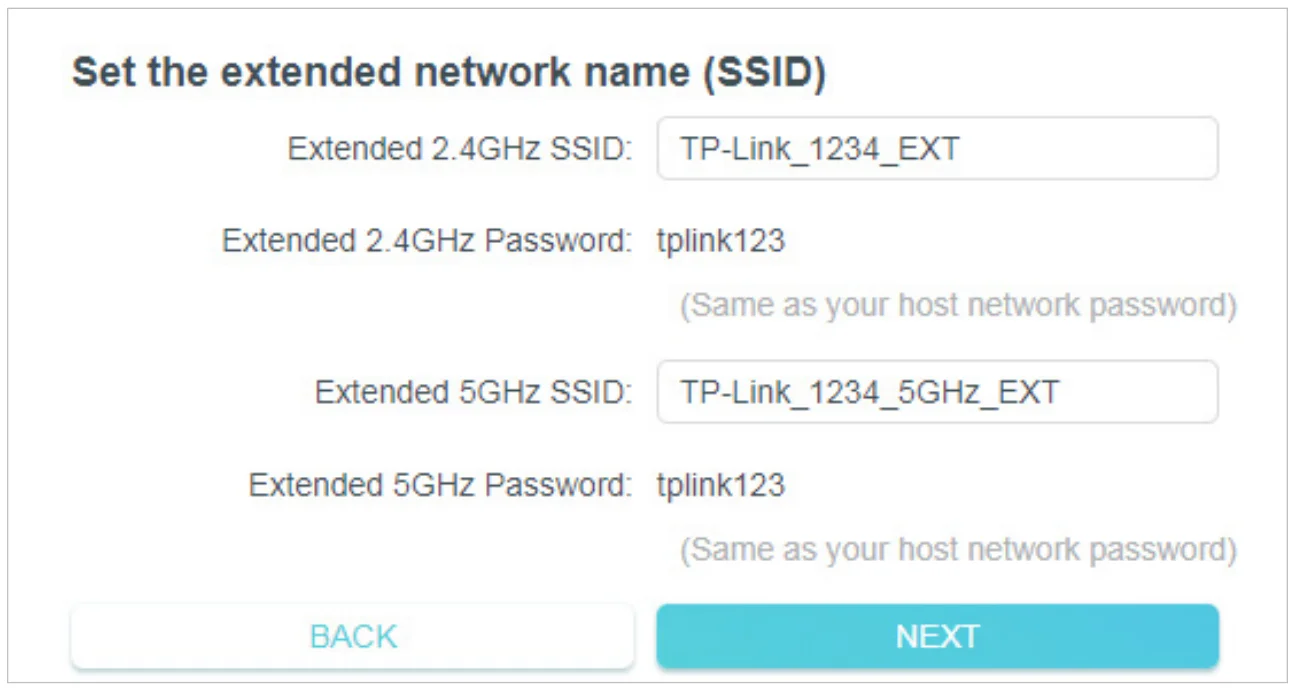
- Either keep the default SSIDs (network names) or customize them for the extended networks, and then click NEXT.
Tip:
If you connect the extender to a TP-Link OneMesh router, the extender will automatically join the router’s OneMesh network and copy the router’s wireless settings. For more information, refer to OneMesh with Seamless Roaming.
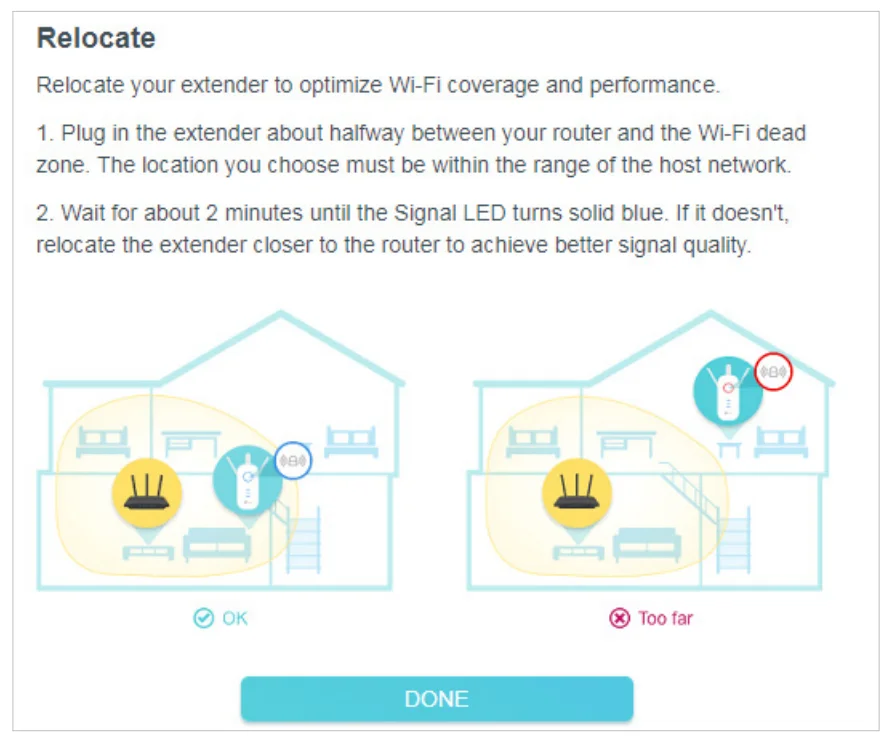
- Follow web instructions to relocate your extender for optimal Wi-Fi coverage and performance, and then click DONE.

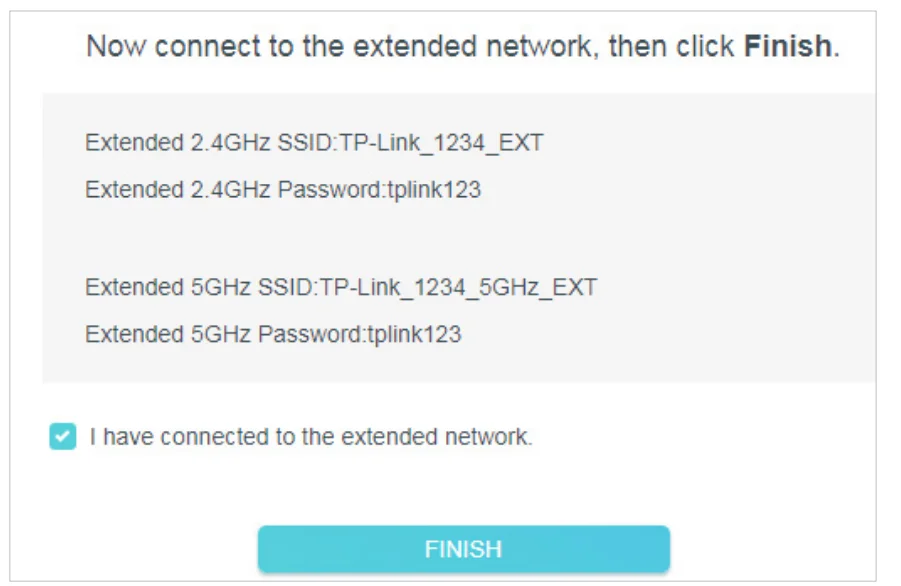
- Enjoy! Connect to the extended network and enjoy the internet.

Tip:
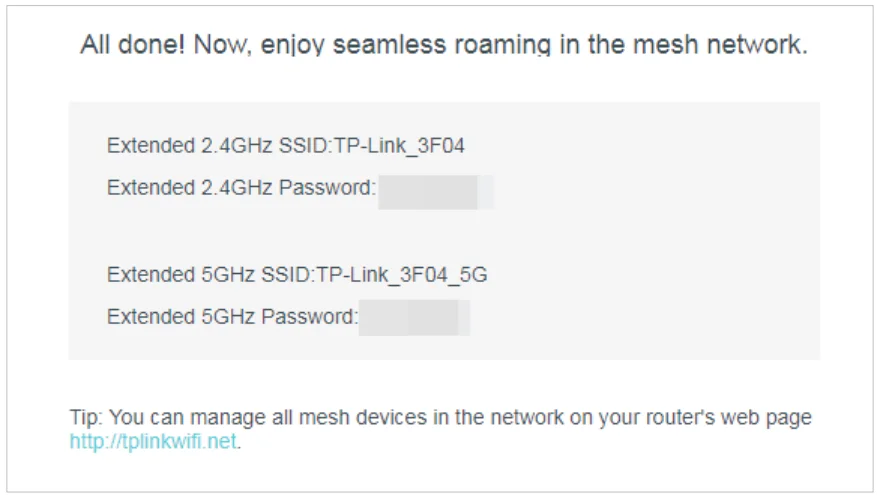
If you connect the extender to a TP-Link OneMesh router and a success screen as below appears at the end of the setup, the extender has successfully joined the router’s OneMesh network and copied the router’s wireless settings. For more information, refer to OneMesh with Seamless Roaming.
- Launch a web browser, enter http://tplinkrepeater.net or http://192.168.0.254 in the address bar, and then create a password to log in.
OneMesh with Seamless Roaming
How to Set Up a OneMesh Network
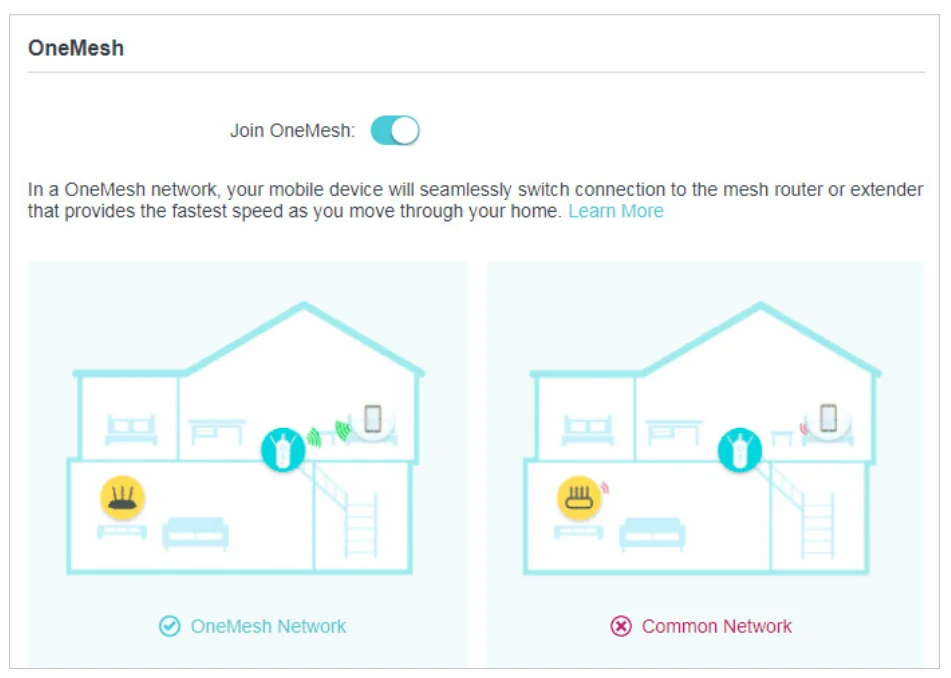
Once the extender is connected to a TP-Link OneMesh router via web browser or WPS button, the extender will automatically join the router’s OneMesh network and copy the router’s wireless settings. You can manually join a OneMesh network during the configuration via the TP-Link Tether app. For more information about setting up the extender with the OneMesh network, refer to Set Up the Extender. If you have already set up the extender before joining the OneMesh network, choose one of the methods below to set up a OneMesh network:
Note: Before setting up a OneMesh network, it is recommended to enable Smart Connect on your host router to enjoy a seamless connection between dual-band networks.
Method 1: Via the TP-Link Tether App
- Launch Tether and select the extender you want to join the OneMesh network.
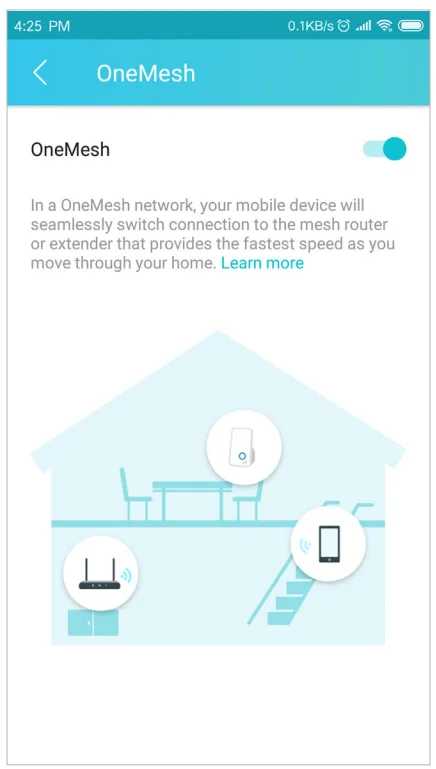
- Go to Tools > OneMesh and enable OneMesh.
Tip:
If your host router does not support OneMesh, you need to reselect a host network first. Go to Tools > Host Network and click Reselect Host Network, and then follow the app instructions to complete the configuration.
- Follow the app instructions to join the OneMesh network
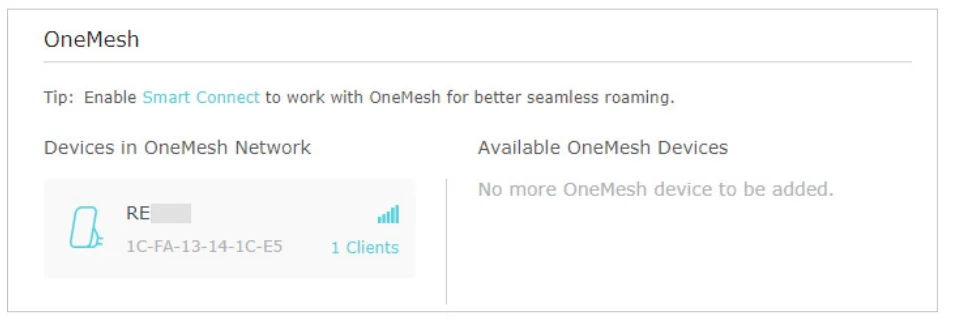
- Follow the web instructions to join the OneMesh network. After that, you can view all the devices in the OneMesh network in Basic > OneMesh on the web management page of your host router.
Method 2: Via a Web Browser
- Visit http://tplinkrepeater.net, and log in with your TP-Link ID or the password you set for the extender.
- Go to Settings > OneMesh and enable Join OneMesh.
Tip:
If your host router does not support OneMesh, you need to reselect a host network first. Go to Wireless > Connect to Host Network and follow the instructions to complete the configuration.
- Follow the web instructions to join the OneMesh network. After that, you can view all the devices in OneMesh network in Basic > OneMesh on the web management page of your host router.

Remove Extender from OneMesh Network
If you want to remove the extender from the OneMesh network, follow the steps below:
Method 1: Via the TP-Link Tether App
- Launch Tether and select the extender you want to remove from the OneMesh network.
- Go to Tools > OneMesh and disable OneMesh.
Or- Launch Tether and select your host router of the OneMesh network.
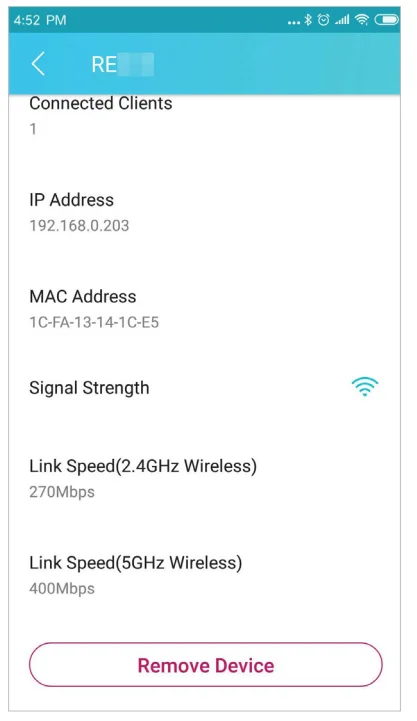
- Go to Tools > OneMesh and select the extender you want to remove from the OneMesh network.
- Click Remove Device.

Method 2: Via a Web Browser
- Visit http://tplinkrepeater.net and log in with your TP-Link ID or the password you set for the extender.
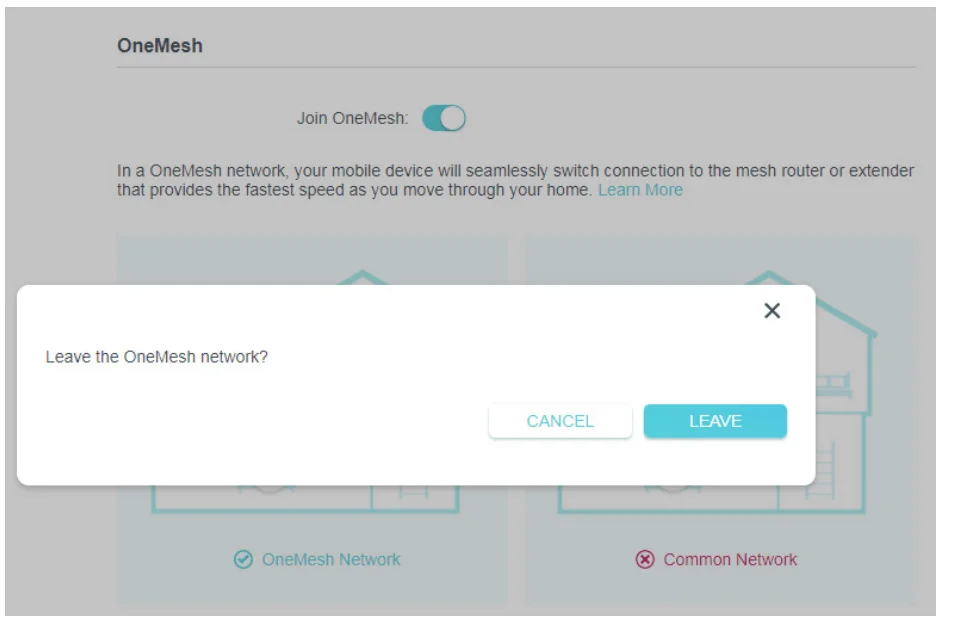
- Go to Settings > OneMesh and disable Join OneMesh.

TP-Link Cloud Service
Register a TP-Link ID
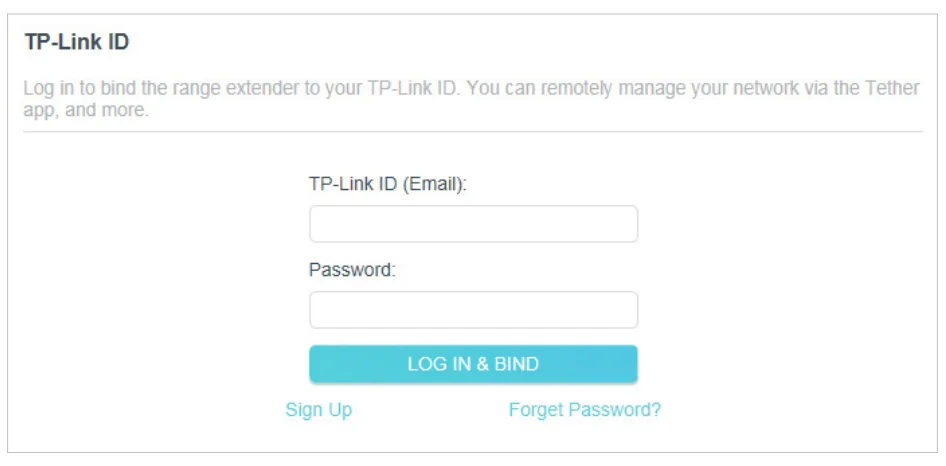
When you log in after initial setup, the web page will ask whether you need the TP-Link Cloud service. You can also access the TP-Link Cloud settings as follows:
- Visit http://tplinkrepeater.net, and log in with the password you set for the extender.
- Go to Settings > TP-Link Cloud.
- Click Sign Up and follow the instructions to register a TP-Link ID. The TP-Link ID used to log in to the extender for the first time will be automatically bound as an Admin.

Notes:- To learn more about the Admin and User TP-Link ID, refer to Manage the User TP-Link IDs.
- Once you have registered a TP-Link ID on the web management page, you can only register another TP-Link ID via the Tether APP. Please refer to Manage the Extender via the TP-Link Tether App to install the app and register a new one.
- If you want to unbind the admin TP-Link ID from your extender, please go to Settings > TP-Link Cloud, an click Unbind in the Device Information section.
Change Your TP-Link ID Information
Follow the steps below to change your email address and password of your TP-Link ID as needed.
- Visit http://tplinkrepeater.net, and log in with your TP-Link ID or the password you set for the extender.
- Go to Settings > TP-Link Cloud, and focus on the Account Information section.
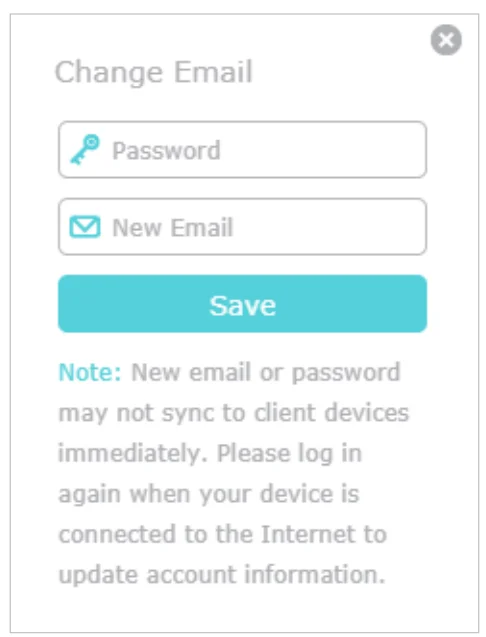
- To change your email address:
- Click behind the Email.
- Enter the password of your TP-Link ID, then a new email address. And click Save.

- To change your password:
- Click
 behind the Password.
 - Enter the current password, then a new password twice. And click Save.

- Click
- To change your email address:
 behind the Password.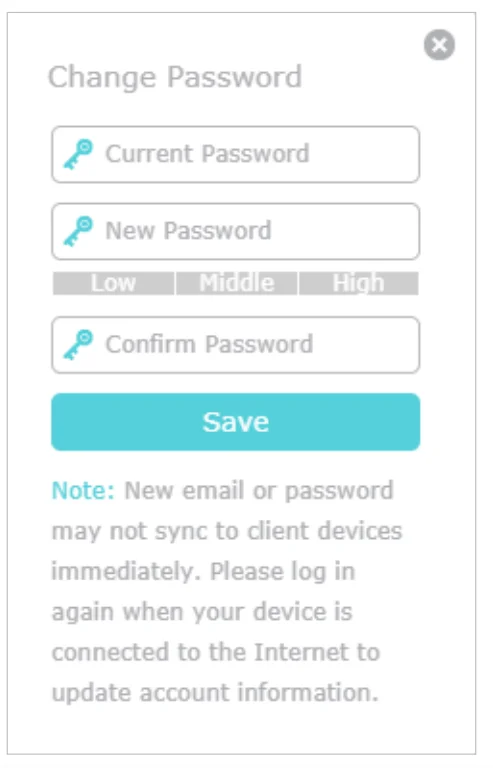
Manage the User TP-Link IDs
The TP-Link ID used to log in to the extender for the first time will be automatically bound as the Admin account. An admin account can add or remove other TP-Link IDs to or from the same extender as Users. All accounts can monitor and manage the extender locally or remotely, but user accounts cannot:
- Reset the extender to its factory default settings either on the web management page or in the Tether app.
- Add/remove other TP-Link IDs to/from the extender.
Add TP-Link ID to Manage the Extender
- Visit http://tplinkrepeater.net, and log in with your TP-Link ID or the password you set for the extender.
- Go to Settings > TP-Link Cloud, and focus on the Bound Accounts section.
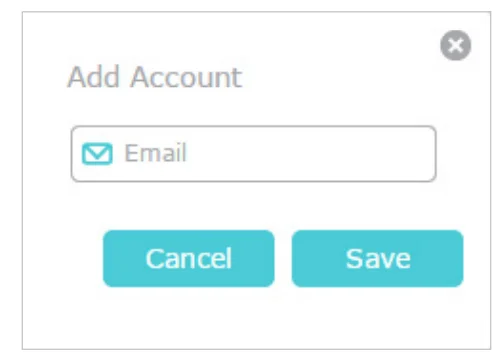
- Click + Bind, enter another TP-Link ID as needed and click Save.
Note:
If you need another TP-Link ID, please register a new one via the Tether app. Please refer to Manage the Extender via the TP-Link Tether App to install the app and register a new TP-Link ID.
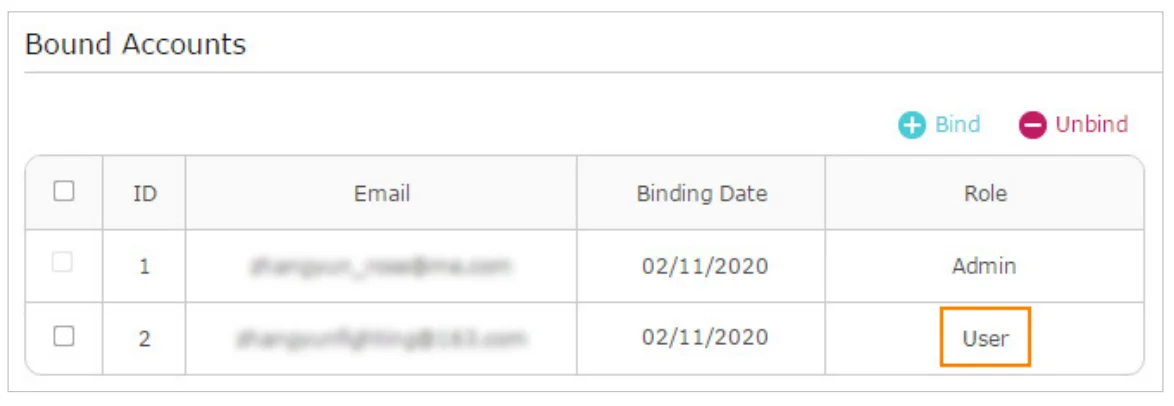
- The new TP-Link ID will be displayed in the Bound Accounts table as a User.

Remove TP-Link ID(s) from Managing the Extender
- Visit http://tplinkrepeater.net, and log in with your TP-Link ID or the password you set for the extender.
- Go to Settings > TP-Link Cloud, and focus on the Bound Accounts section.
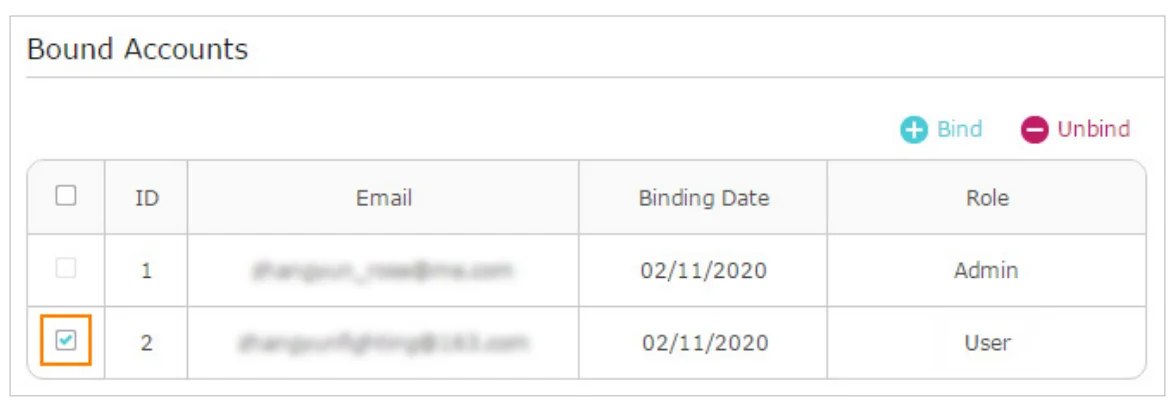
- Tick the checkbox(es) of the TP-Link ID(s) you want to remove and click Unbind.

Manage the Extender via the TP-Link Tether App
The Tether app runs on iOS and Android devices, such as smartphones and tablets.
- Launch the Apple App Store or Google Play Store and search “TP-Link Tether” or simply scan the QR code to download and install the app.
- Launch the Tether app and log in with your TP-Link ID.
Note: If you don’t have a TP-Link ID, create one first. - Connect your device to the extender’s or host router’s wireless network.
- Go back to the Tether app, select your extender’s model, and log in with the password you set for it.
- Manage your extender as needed.
Customize Your Network
Check Internet Status
You can view the internet status of your extender to check whether you have successfully set up the extended network(s).
- Visit http://tplinkrepeater.net, and log in with your TP-Link ID or the password you set for the extender.
- Go to the Network Map to view the internet status of your extender.
- The extender runs normally.

- The extender fails to connect to the host networks. Please go to Wireless > Connect to Host Network to check whether the host network passwords are correct. If the problem still exists, relocate the extender closer to the router to achieve better signal quality.

- The extender is connected to the host networks, but is not transmitting data. Please check the internet connection of your router.

- The extender is connected to the router abnormally. Please go to Settings > Network and try setting your extender to obtain an IP address automatically.
- The extender runs normally.



Click the icon of the Internet/Router/Range Extender/Clients to view corresponding information.
Configure Wireless Network
If you want to extend another host network after Quick Setup, you can refer to this section. Moreover, you can change the wireless settings for your extended networks. Visit http://tplinkrepeater.net, and log in with your TP-Link ID or the password you set for the extender.
Note: Here we take the configuration of the 2.4GHz network as an example. If the 5GHz network is available on your extender, please refer to the instructions to set up your 5GHz network.
- To extend another host network:
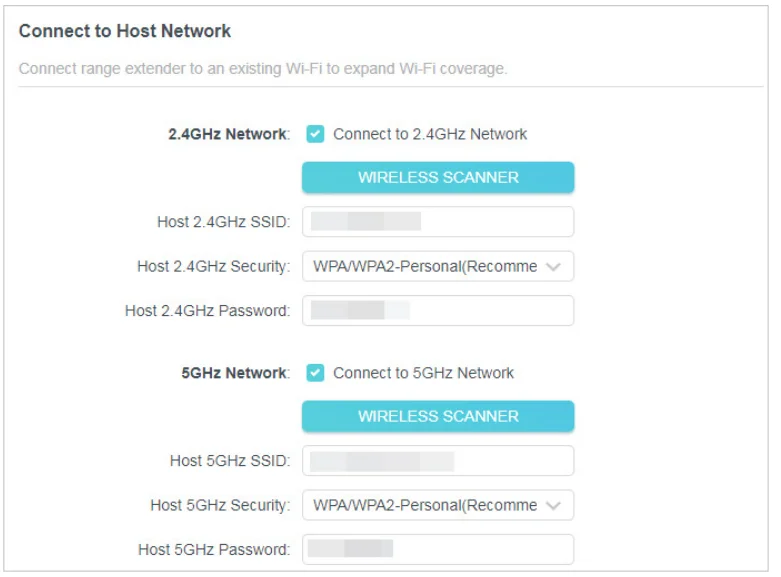
- Go to Wireless > Connect to Host Network.
- Enable Connect to 2.4GHz Network and click WIRELESS SCANNER to find all available networks.
Note:
It is unable to change host network settings when the extender is in a OneMesh network.
- Select the 2.4GHz host network you want to extend.
Note:
If the network you want to extend is on but not listed, please try the following steps.- Move the extender closer to your router, and click Refresh in the top-right corner of the list.
- You can manually enter the SSID (network name) and password of the network you want to extend, and click SAVE.
- Once a host network is selected, the SSID and security type will be automatically filled in. If the selected network is encrypted, enter the password in the Password field.
- Click SAVE.
- To enable or disable the extended network:
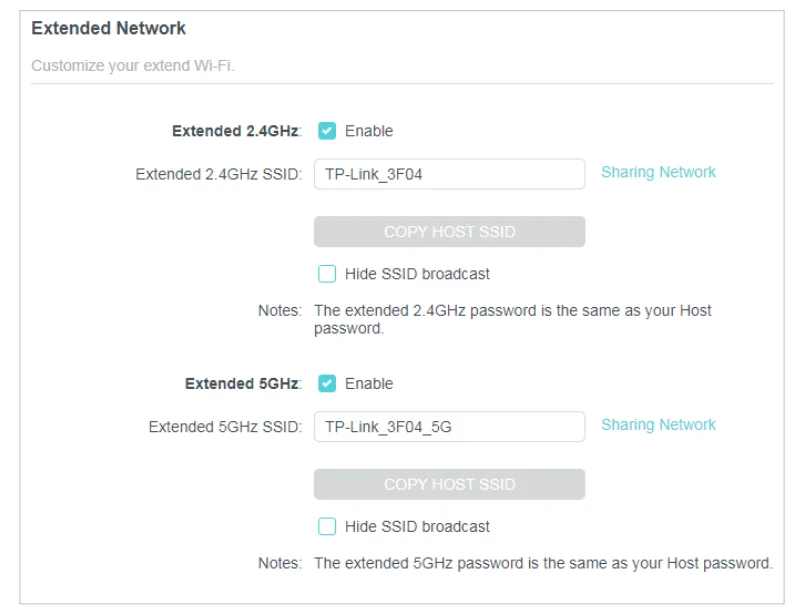
- Go to Wireless > Extended Network.
- Extended networks are enabled by default. If you want to disable the wireless function of a certain band, just clear the Enable checkbox. In this case, all the wireless settings of this band will be invalid.
- Click SAVE.
- To change the wireless network name (SSID):
- Go to Wireless > Extended Network.
- Create a new SSID in the Extended 2.4GHz SSID or click COPY HOST SSID. The value is case-sensitive.
- Click SAVE.
Note:
If you have changed the wireless settings via a wireless device, you will be disconnected after the settings are applied. Please write down the new SSID for future use.
- To hide the SSID of the extended network:
- Go to Wireless > Extended Network.
- Select Hide SSID broadcast, and the corresponding SSID will not be displayed when wireless devices scan for local wireless networks. You need to manually enter the SSID to join the network.
- Click SAVE.

Change LAN Settings
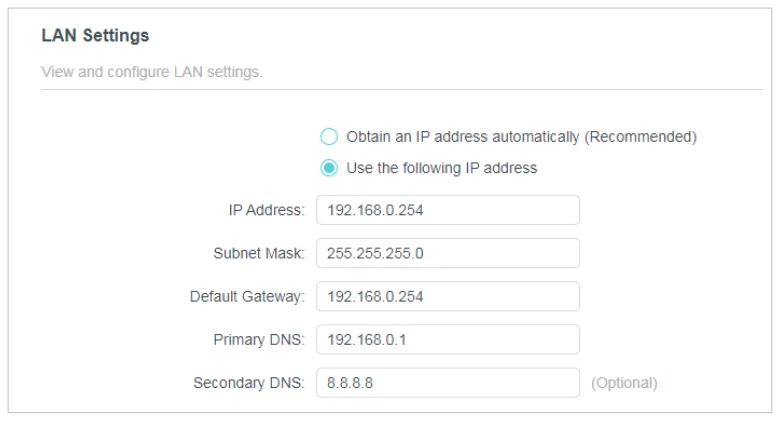
The extender is preset with a default LAN IP 192.168.0.254, with which you can log in to the web management page. The LAN IP address, together with the Subnet Mask, also defines the subnet that the connected devices are on. If the IP address conflicts with another device on your local network or your network requires a specific IP subnet, you can change it.
- Visit http://tplinkrepeater.net, and log in with your TP-Link ID or the password you set for the extender.
- Go to Settings > Network > LAN Settings.
- Select Use the following IP address.

- Enter a new IP Address as needed, and leave the subnet mask as the default settings.
- Enter the gateway that is in the same subnet as the IP Address. The gateway is usually the LAN IP address of your extender.
- Leave the primary and secondary DNS addresses as the default settings.
- Click SAVE.
More Features of Your Extender
Use Your Extender as a Wireless Adapter
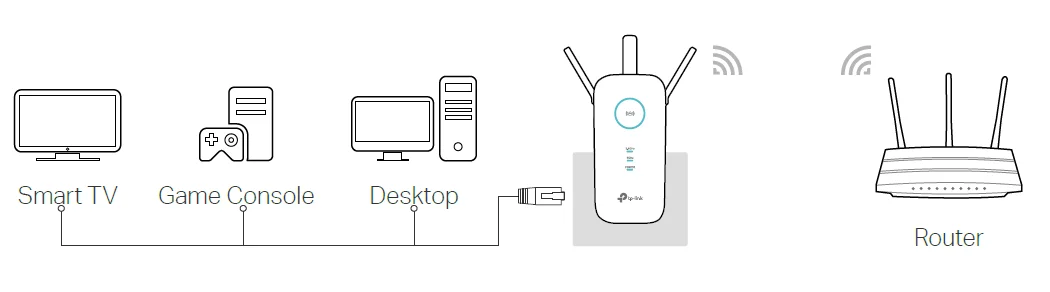
The extender can be used as a wireless adapter to connect any wired-only device, such as a Blu-ray player, game console, DVR, or smart TV, to your wireless network. After configuration, you can connect an Ethernet-enabled device to the extender via an Ethernet cable.
Transform Your Existing Wired Network to a Wireless One
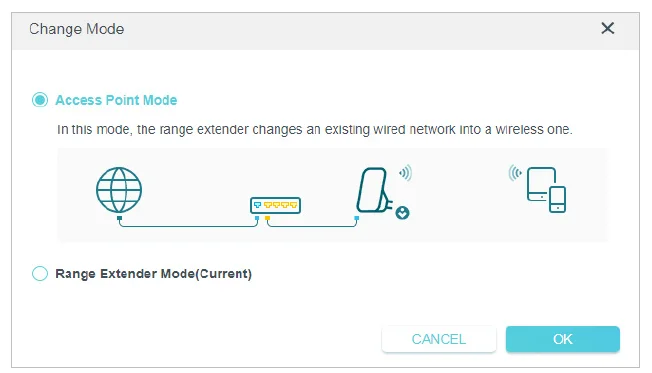
The extender can work as an access point, transforming your existing wired network to a wireless one.
To Set Up the Extender as an Access Point
- Visit http://tplinkrepeater.net, and log in with your TP-Link ID or the password you set for the extender.
- Click Change Mode in the top right corner of the page. Select Access Point Mode and click OK. The extender will reboot and switch to Access Point mode.

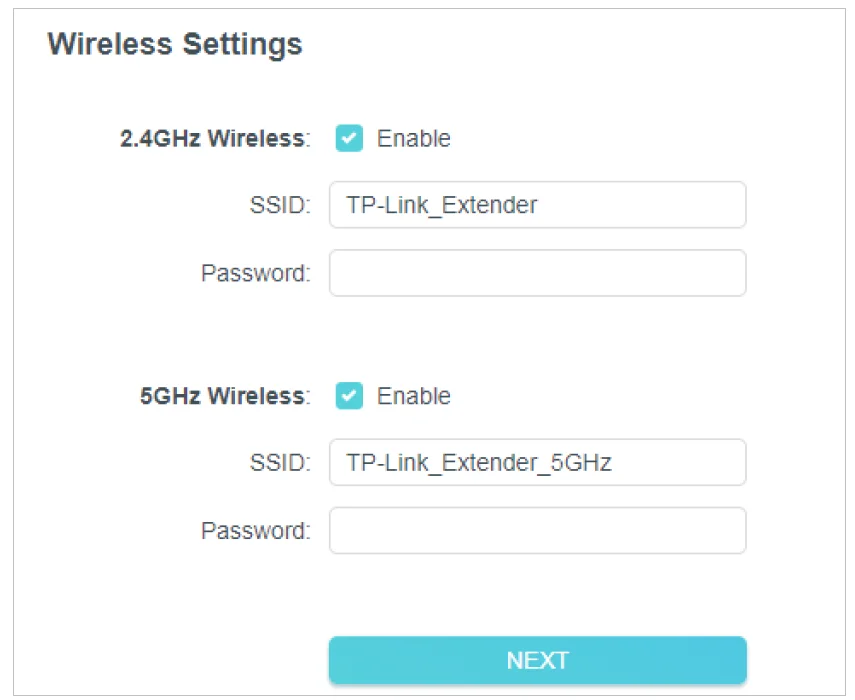
- After rebooting, connect to the extender’s network TP-Link_Extender or TP-Link_ Extender_5GHz.
- Visit http://tplinkrepeater.net, and log in with your TP-Link ID or the password you set for the extender.
- Go to Settings > Quick Setup to configure your extender.
- Customize your wireless SSID and password and click NEXT.

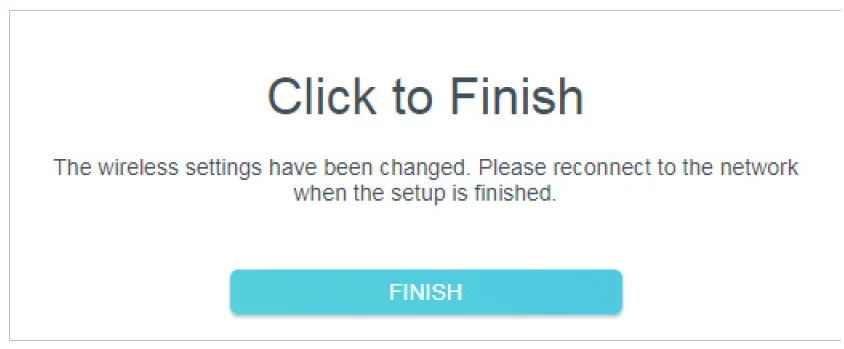
- Confirm the information and click FINISH.

- Connect the extender to your modem or wired router via an Ethernet cable. Now you can enjoy Wi-Fi.
- Customize your wireless SSID and password and click NEXT.
To Connect Your Wireless Devices to the Extender via WPS
Wi-Fi Protected Setup (WPS) provides an easier way to set up a secure Wi-Fi connection. Wireless devices that support WPS, including Android phones, tablets, and most USB network cards, can be connected to your extender through this method (not supported by iOS devices).
- Visit http://tplinkrepeater.net, and log in with your TP-Link ID or the password you set for the extender.
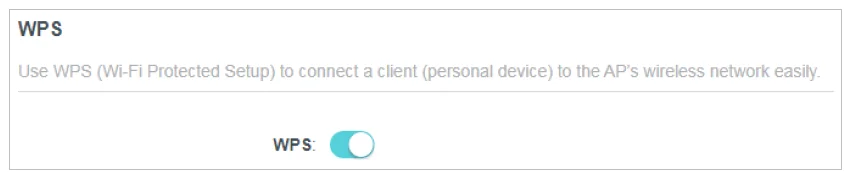
- Go to Wireless > WPS.
- Enable WPS.

- Connect via WPS:
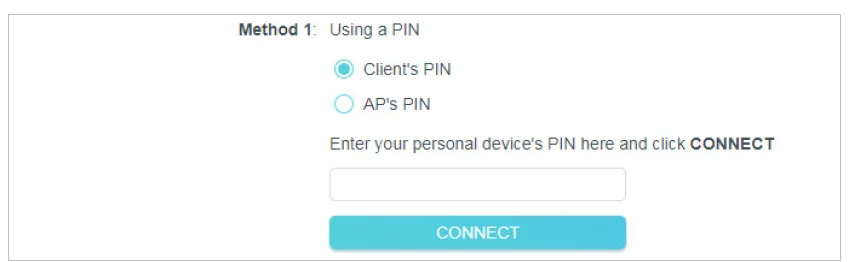
- Client’s PIN: Enable Client’s PIN and enter your device’s PIN in the blank, and then click CONNECT.

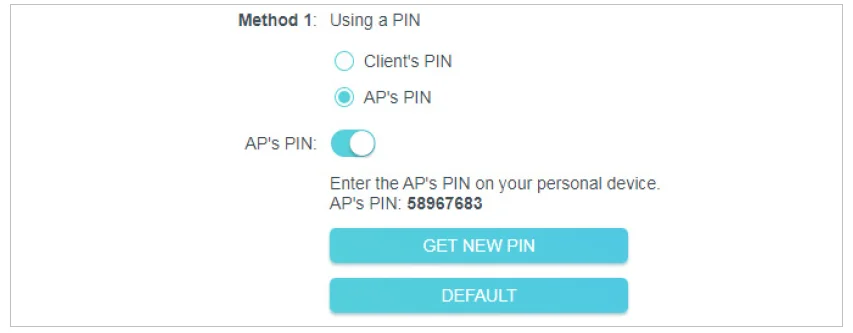
- AP’s PIN: Enable AP’s PIN and enter the PIN on your device. You can click GENERATE to get a new PIN or click DEFAULT to restore the PIN to its factory one.

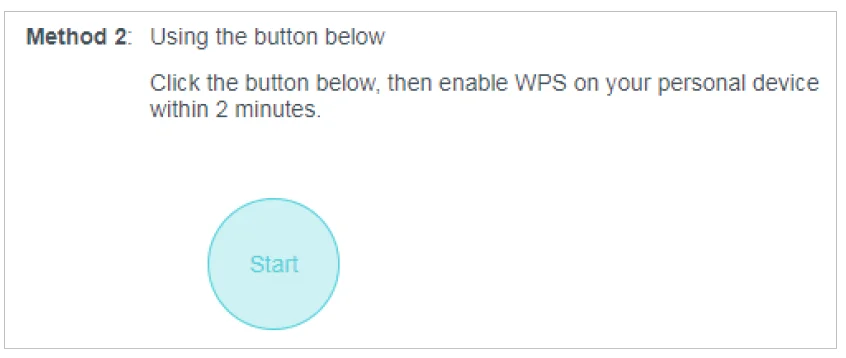
- Push Button (Recommended): Click Start and push the WPS button on the client device within 2 minutes.

- Push AP’s WPS button: Press the AP’s WPS button, then enable WPS on your device within 2 minutes.

- Client’s PIN: Enable Client’s PIN and enter your device’s PIN in the blank, and then click CONNECT.

Manage Your Extender
Set System Time
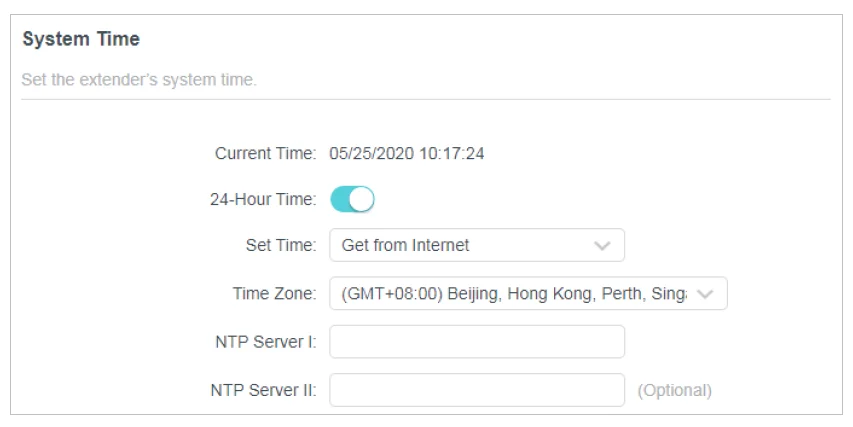
The System Time of the extender will be used for time-based functions such as the Power Schedule function. If you have enabled the Daylight Saving Time feature, the system time will be synchronized with the daylight saving time you configure.
- Visit http://tplinkrepeater.net, and log in with your TP-Link ID or the password you set for the extender.
- Go to Settings > System Tools > Time Settings.
- To get system time:
- Select your local Time Zone from the drop-down list.

- Click SAVE.
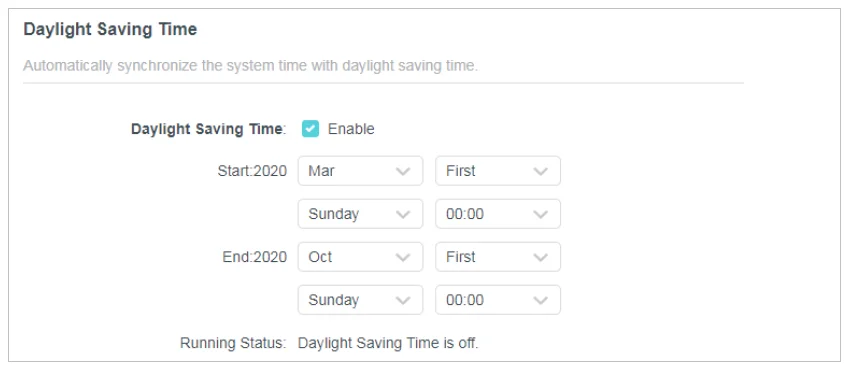
- To set up Daylight Saving Time:
- Enable Daylight Saving Time.

- Select the Start and End date and time of daylight saving time in your local time zone.
- Click SAVE.
- Enable Daylight Saving Time.
- To set up Daylight Saving Time:
- Select your local Time Zone from the drop-down list.
- To get system time:
FAQ
Q1. How to reset the extender to its factory default settings?
- With the extender powered on, use a pin to press the Reset button for 1 second. The extender will reboot.
- Log in to the extender’s web management page. Go to Settings > Backup & Restore and click FACTORY RESTORE.
Q2. What should I do if I forget my login password?
- If you are using a TP-Link ID to log in, or you have enabled the Password Recovery feature of the extender, click Forgot Password? on the login page and then follow the instructions to reset it.
- Refer to FAQ > Q1 to reset the extender, and then visit http://tplinkrepeater.net to create a new login password.
Note: The extender must be reconfigured after a reset to access the internet. Please note down your login password for future logins.
Q3. What should I do if I forget my wireless password?
In Range Extender mode, the extender shares the same wireless passwords as those of your host networks. In Access Point mode, please connect your computer to the extender using an Ethernet cable and follow the steps below:
- Visit http://tplinkrepeater.net, and log in with the password you set for the extender.
- Go to Wireless to retrieve or reset your wireless password.
Q4. What should I do if I can’t access the web management page?
This can happen for a variety of reasons. Please try the methods below to log in again.
- If your computer is wirelessly connected, make sure that you have connected to the extender’s SSID.
- If your computer is connected via an Ethernet cable, please make sure that the connection is stable.
- Make sure your computer is configured as Obtain an IP address automatically and Obtain DNS server address automatically.
- Verify that http://tplinkrepeater.net is correctly entered in the web browser and press Enter
For more manuals by TP-Link, visit ManualsLibraryy
TP-Link AC1900 WiFi Range Extender-FAQs
How do I connect the TP-Link AC1900 extender to my WiFi?
Press the WPS button on your router, then press the WPS button on the extender within 2 minutes. Once connected, move the extender to a location halfway between your router and the weak signal area for best performance.
Can I use the TP-Link AC1900 as a WiFi extender?
Yes. Models like the RE550 AC1900 are designed specifically as WiFi range extenders. They expand your existing wireless network coverage and improve signal strength in hard-to-reach areas.
Does the TP-Link AC1900 work with any router?
The AC1900 extender is compatible with most standard WiFi routers, not just TP-Link devices. However, routers with outdated or modified firmware may cause compatibility issues.
What is the coverage range of the TP-Link AC1900?
The extender can cover up to 2,800 square feet, depending on walls, interference, and placement. For best results, install it in an open, central location.
How many devices can the AC1900 support?
It can handle 30+ devices, making it suitable for large homes with multiple smartphones, laptops, smart TVs, and gaming consoles.
Where should I place my TP-Link extender?
Place it halfway between your router and the area with weak signal. Avoid thick walls, metal objects, or appliances that may block the signal.
Do WiFi extenders need to be connected to the router with a cable?
No. They connect wirelessly to your router. However, some models include a Gigabit Ethernet port for wired device connections.
What are common problems with WiFi extenders?
Common issues include slower speeds than the main router, connection drops, and devices sticking to the weaker signal. Proper placement helps reduce these problems.
How do I reset the TP-Link AC1900 extender?
Press and hold the Reset button for about 10 seconds until the LED indicators blink. The extender will return to factory settings.