
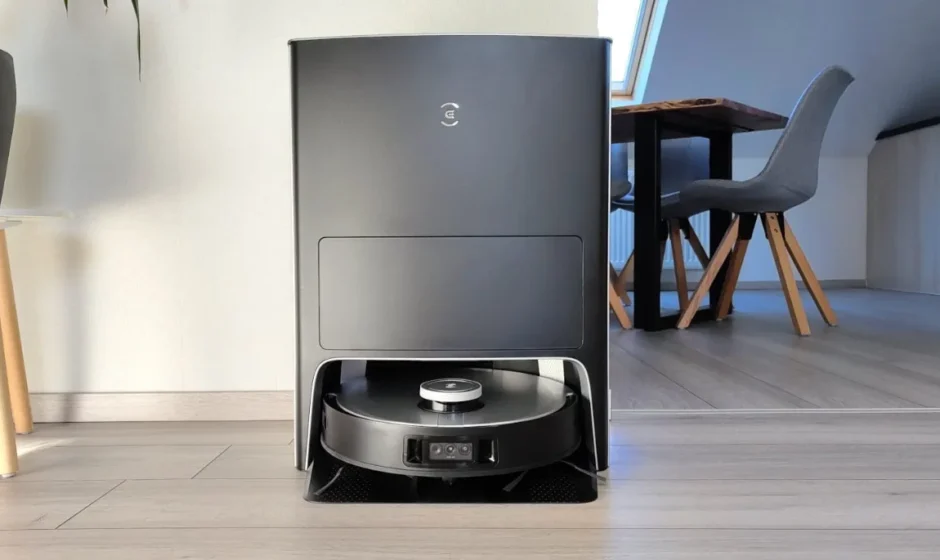

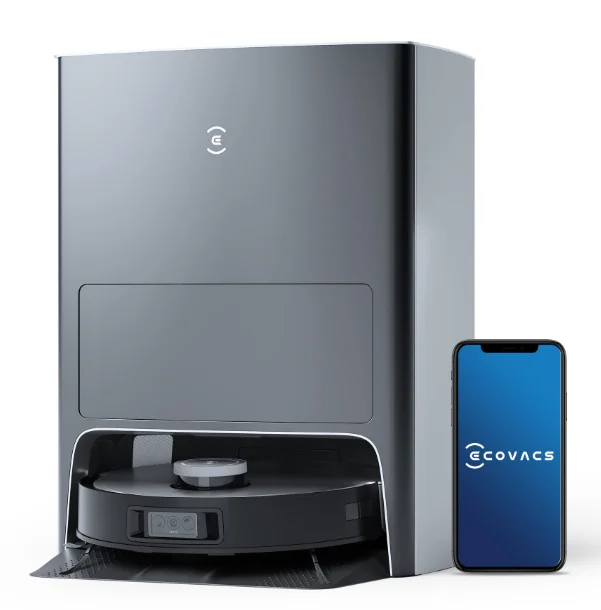
DEEBOT X1e OMNI Robot Vacuum
IMPORTANT SAFETY INSTRUCTIONS
When using an electrical Appliance, basic precautions should always be followed, including the following:
Important Safety Instructions:
READ ALL INSTRUCTIONS BEFORE USING THIS APPLIANCE. SAVE THESE INSTRUCTIONS
- This Appliance can be used by children aged from 8 years and above and persons with reduced physical, sensory or mental capabilities or lack of experience and knowledge if they have been given supervision or instruction concerning use of the Appliance in a safe way and understand the hazards involved. Children shall not play with the Appliance. Cleaning and user maintenance shall not be made by children without supervision.
- Clear the area to be cleaned. Remove power cords and small objects from the floor that could entangle the Appliance. Tuck rug fringe under the rug base, and lift items such as curtains and tablecloths off the floor.
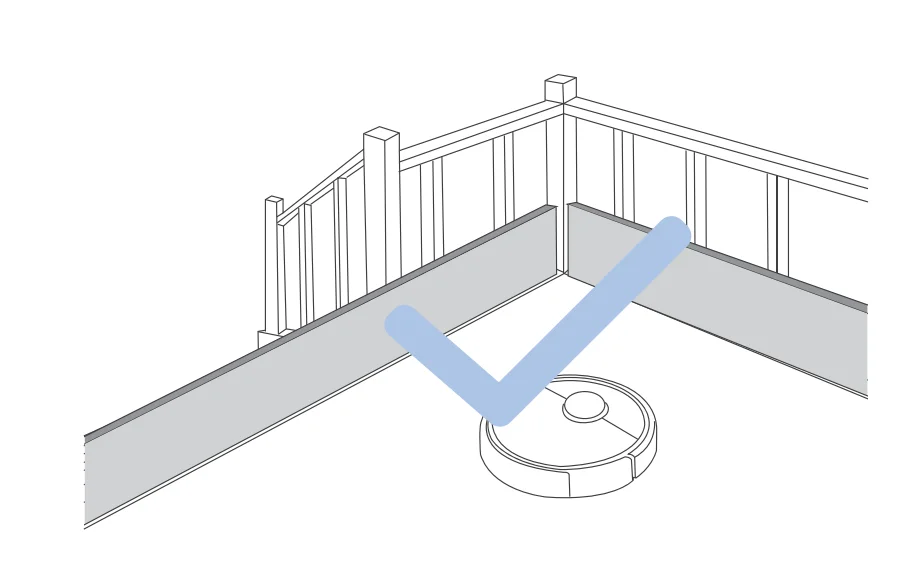
- If there is a drop off in the cleaning area due to a step or stairs, you should operate the Appliance to ensure that it can detect the step without falling over the edge. It may become necessary to place a physical barrier at the edge to keep the unit from falling. Make sure the physical barrier is not a trip hazard.
- Only use as described in this manual. Only use attachments recommended or sold by the manufacturer.
- Please make sure your power supply source voltage matches the power voltage marked on the Docking Station.
- For INDOOR household use ONLY. Do not use the Appliance in outdoor, commercial or industrial environments.
- Use only the original rechargeable battery and Docking station provided with the Appliance from the manufacturer. Non-rechargeable batteries are prohibited.
- Do not use without a dust bin and/or filters in place.
- Do not operate the Appliance in an area where there are lit candles or fragile objects.
- Do not use in extremely hot or cold environments (below -5°C/23°F or above 40°C/104°F).
- Keep hair, loose clothing, fingers, and all parts of the body away from any openings and moving parts.
- Do not operate the Appliance in a room where an infant or child is sleeping.
- Do not use the appliance on wet surfaces or surfaces with standing water.
- Do not allow the Appliance to pick up large objects like stones, large pieces of paper or any item that may clog the Appliance.
- Do not use an appliance to pick up flammable or combustible materials such as gasoline, printer or copier toner, or use in areas where they may be present.
- Do not use the appliance to pick up anything that is burning or smoking, such as cigarettes, matches, hot ashes, or anything that could cause a fire.
- Do not put objects into the suction intake. Do not use if the suction intake is blocked. Keep the intake clear of dust, lint, hair, or anything that may reduce air flow.
- Take care not to damage the power cord. Do not pull on or carry the Appliance or Docking station by the power cord, use the power cord as a handle, close a door on the power cord, or pull power cord around sharp edges or corners. Do not run the appliance over the power cord. Keep the power cord away from hot surfaces.
- If the power cord is damaged, it must be replaced by the manufacturer or its service agent to avoid a hazard.
- Do not use the Docking Station if it is damaged. The power supply is not to be repaired or used any longer if it is damaged or defective.
- Do not use with a damaged power cord or receptacle. Do not use the Appliance or Docking station if it is not working properly, has been dropped, damaged, left outdoors, or come in contact with water. It must be repaired by the manufacturer or its service agent in order to avoid a hazard.
- Turn OFF the power switch before cleaning or maintaining the Appliance.
- The plug must be removed from the receptacle before cleaning or maintaining the Docking station.
- Remove the Appliance from the Docking station, and turn OFF the power switch to the Appliance before removing the battery for disposal of the Appliance.
- The battery must be removed and discarded according to local laws and regulations before disposal of the Appliance.
- Please dispose of used batteries according to local laws and regulations.
- Do not incinerate the Appliance even if it is severely damaged. The batteries can explode in a fire.
- When not using the Docking station for a long period of time, please unplug it.
- The Appliance must be used in accordance with the directions in this Instruction Manual. Ecovacs Home Service Robotics cannot be held liable or responsible for any damages or injuries caused by improper use.
- The robot contains batteries that are only replaceable by skilled persons. To replace the robot’s battery, please contact Customer Service.
- If the robot will not be used for a long time, power OFF the robot for storage and unplug the Docking station.
- WARNING: For the purposes of recharging the battery, only use the detachable supply unit CH2229 provided with the Appliance. The lithium battery type suitable for CH2229 is Max. 8 cells, max. nominal voltage DC14.4V, rated capacity 5,900mAh.The battery must be removed and discarded according to local laws and regulations before disposal of the Appliance. To satisfy RF exposure requirements, a separation distance of 20 cm or more should be maintained between this device and persons during device operation.
To ensure compliance, operations closer than this distance is not recommended. The antenna used for this transmitter must not be co-located in conjunction with any other antenna or transmitter.
PACKAGE CONTENTS
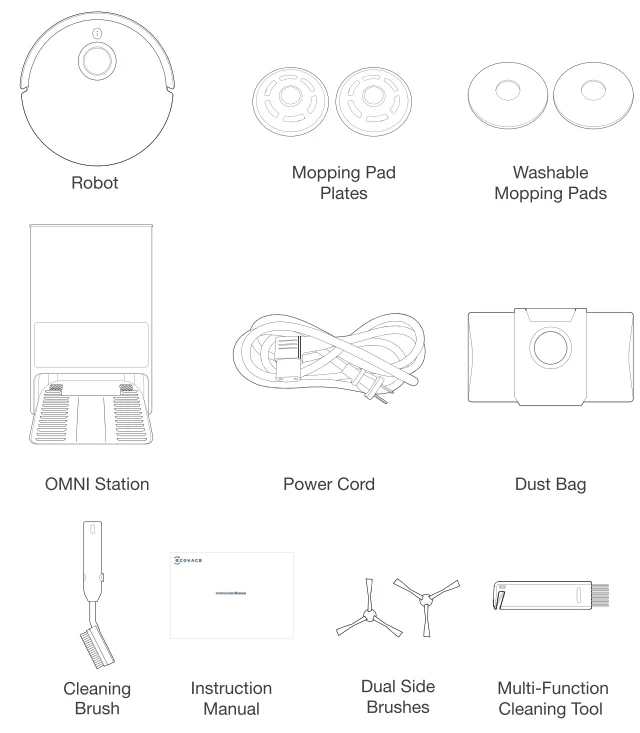
Note: Figures and illustrations are for reference only and may differ from actual product appearance. Product design and specifications are subject to changes without notice.
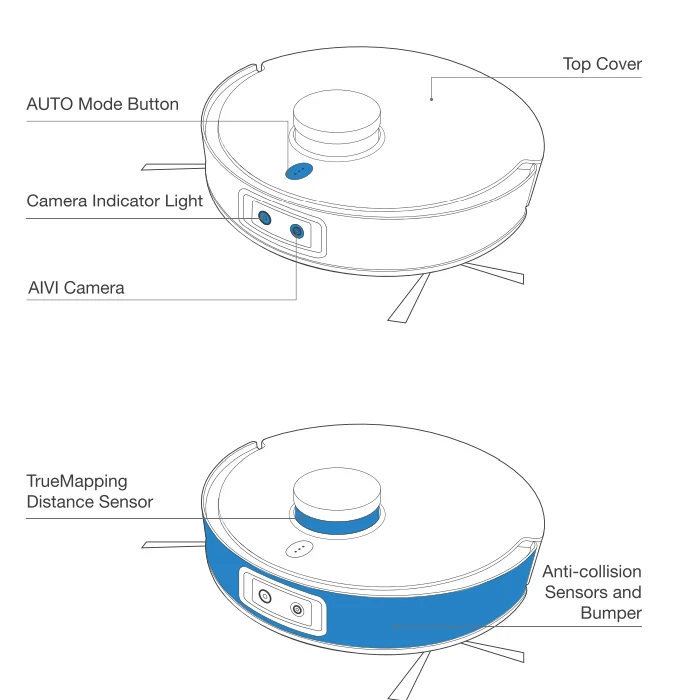
Product Diagram
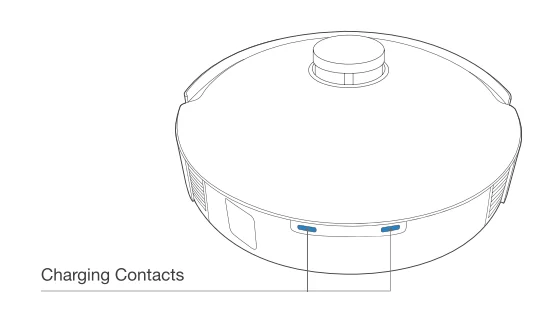
Robot
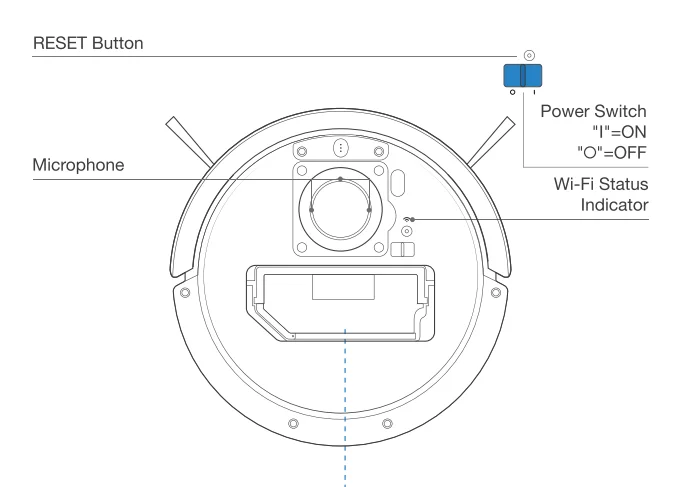
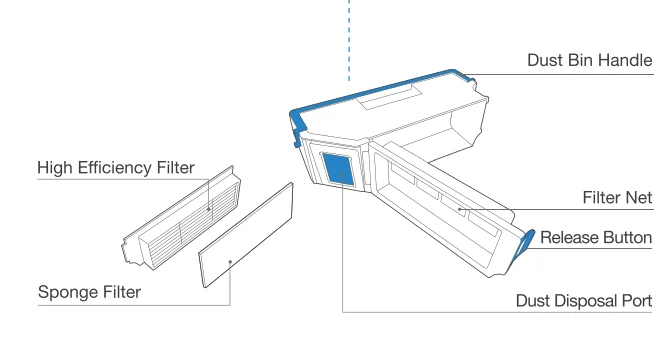
Dust Bin
Bottom View
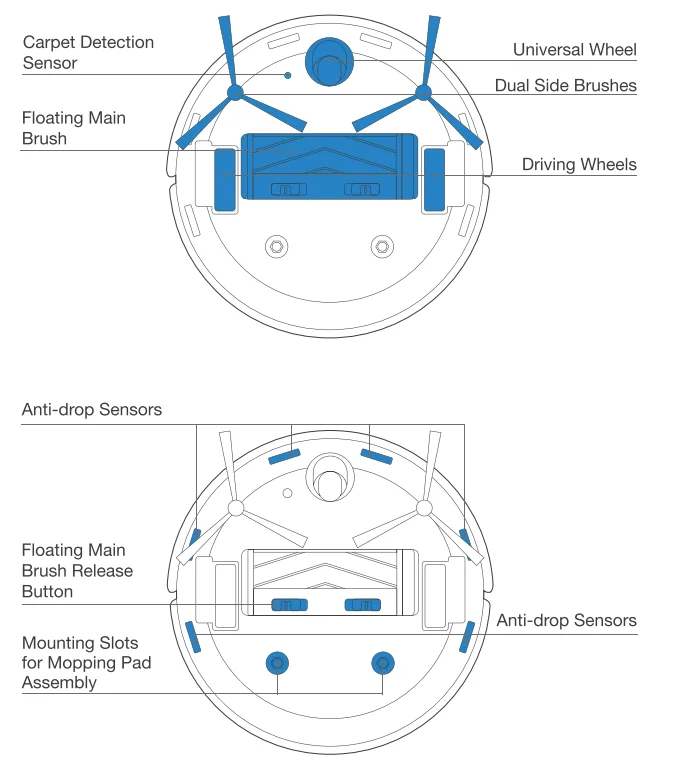
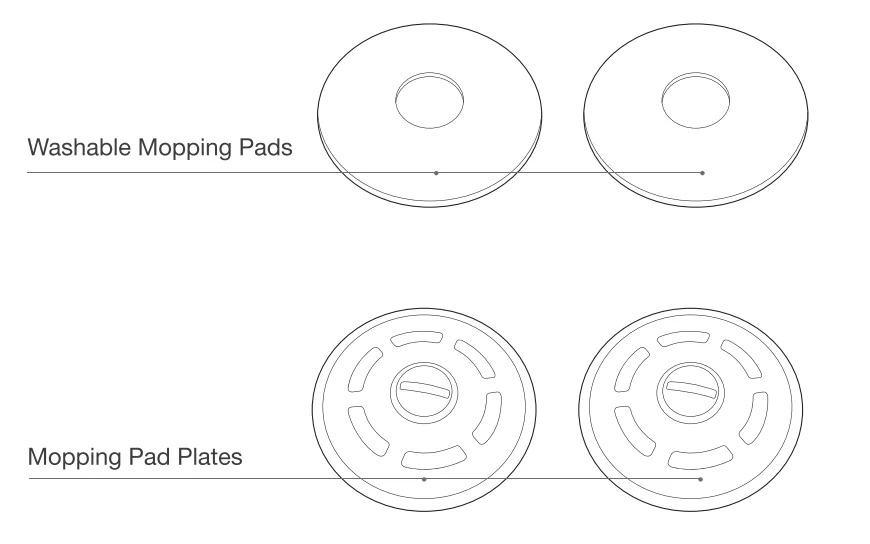
Mopping Pad Assembly
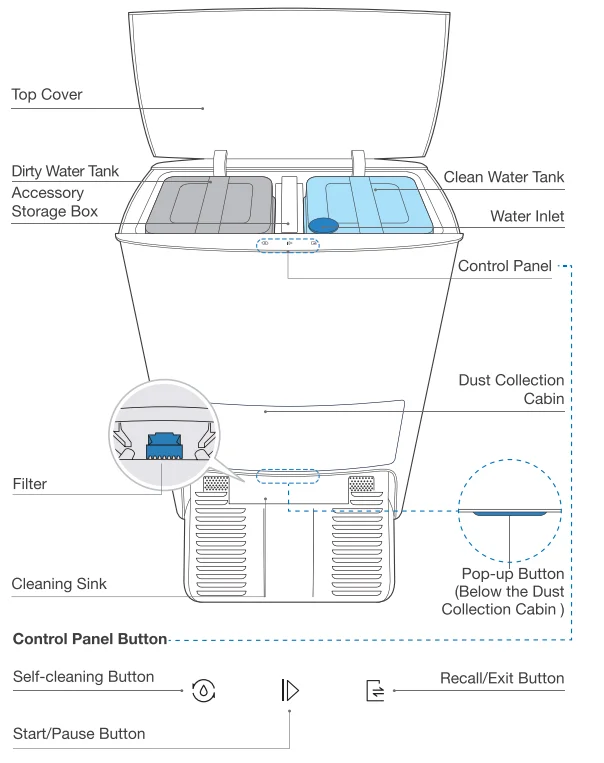
OMNI Station
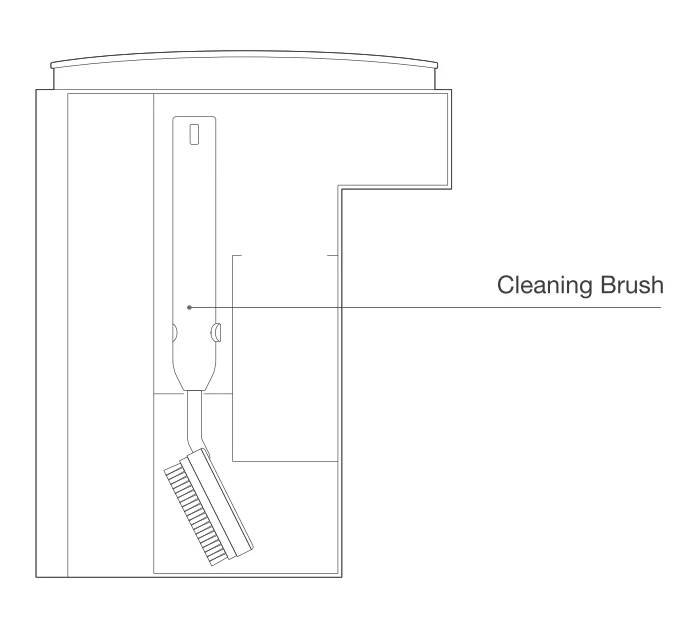
Accessory Storage Box
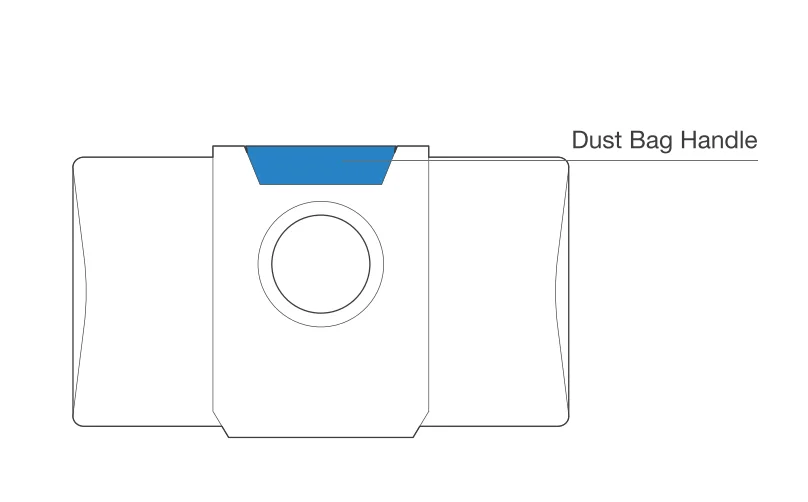
Dust Bag
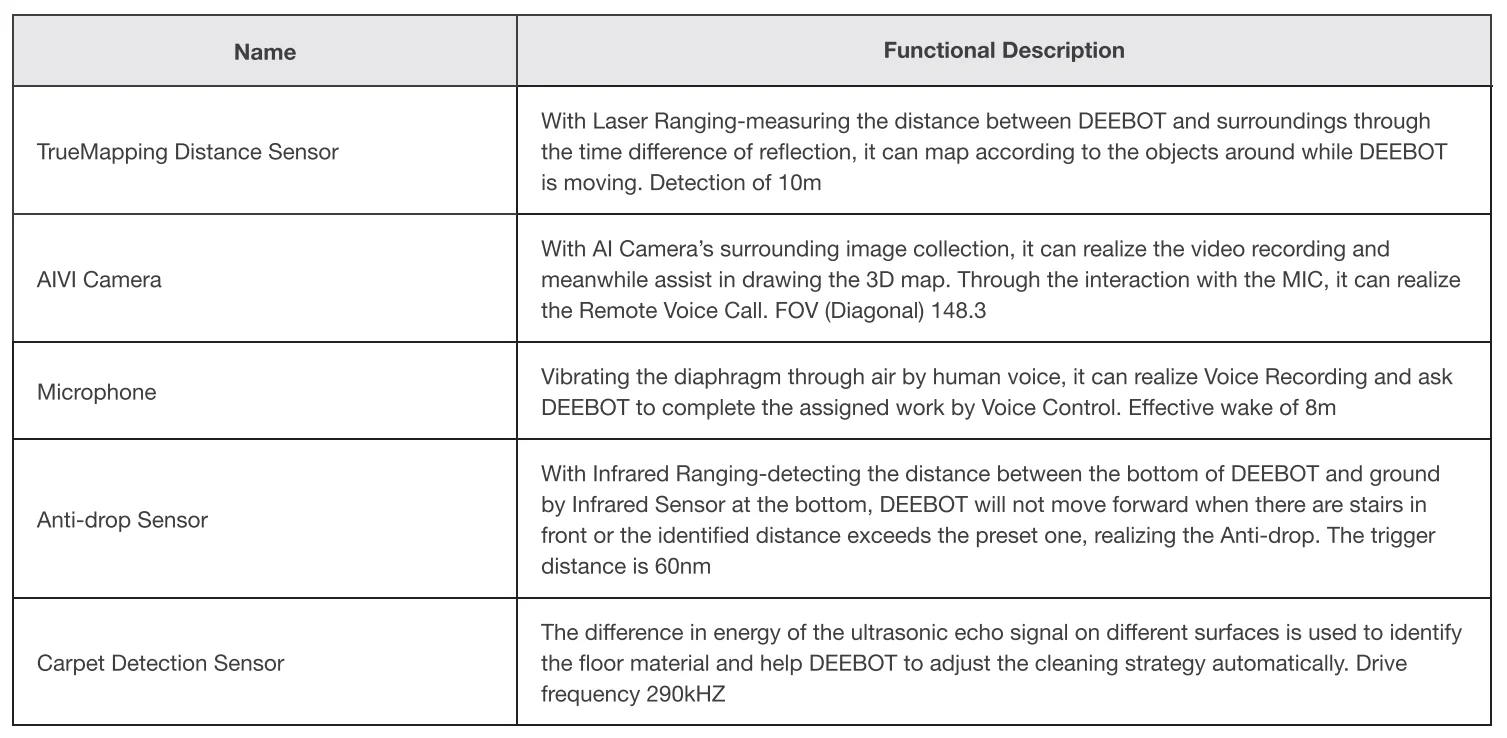
Sensors
Notes Before Cleaning
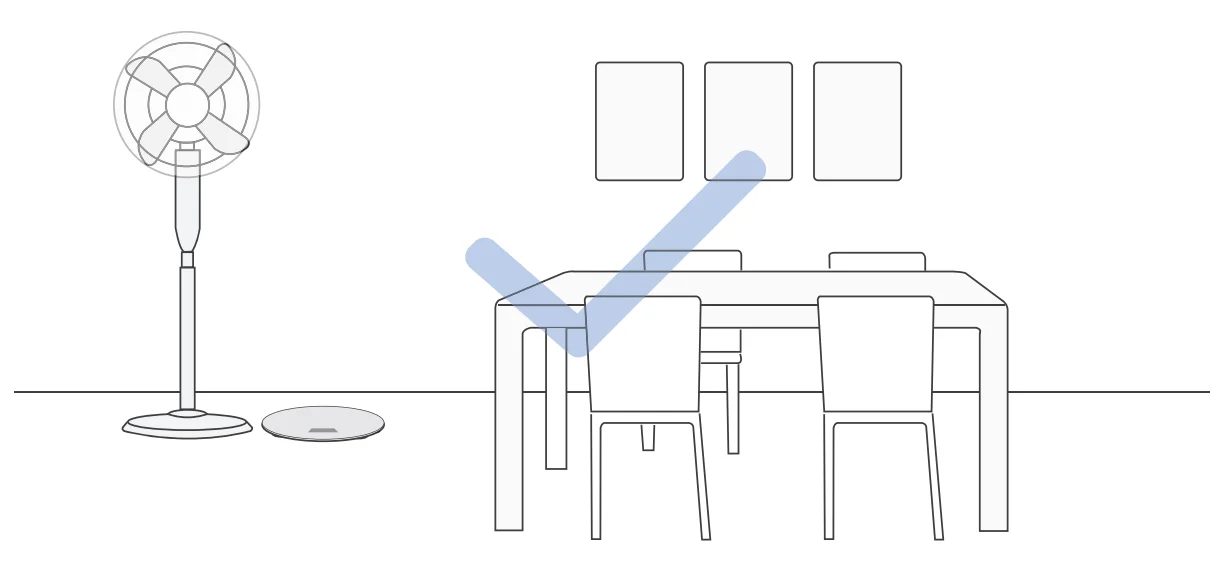
- Tidy up the area to be cleaned by putting furniture, such as chairs, in their proper place.

- It may be necessary to place a physical barrier at the edge of a drop to stop the unit from falling over the edge.

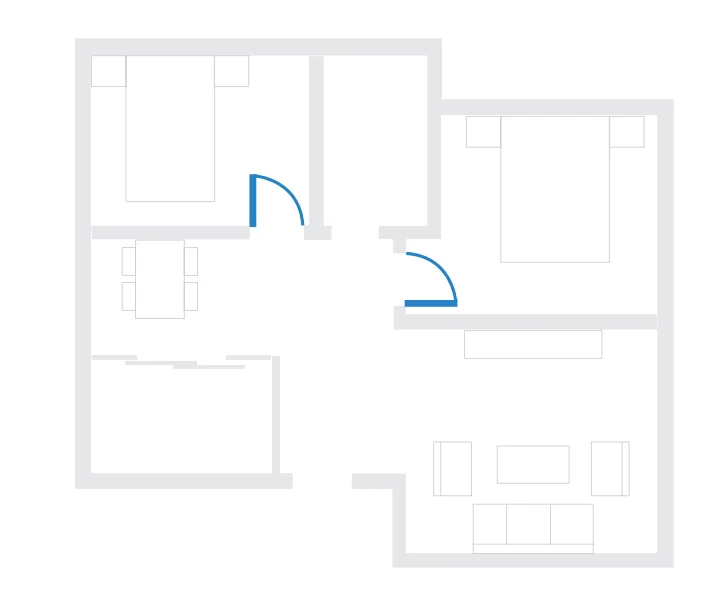
- During the first use, make sure each room door is open to help DEEBOT fully explore your house.

- Make sure areas to be cleaned are well illuminated so the AIVI Camera works properly. Remove power cords and small objects from the floor to ensure cleaning efficiency.
 Put away objects, including cables, clothes, and slippers, etc., on the floor to improve the cleaning efficiency.
 Clean the AIVI Camera and TrueMapping Distance Sensor with a clean cloth, and avoid using any detergent or cleaning spray.
 Before using the product on a rug with tasseled edges, please fold the rug edges under.
 Please do not stand in narrow spaces, such as hallways, and make sure not to block the AIVI Camera.
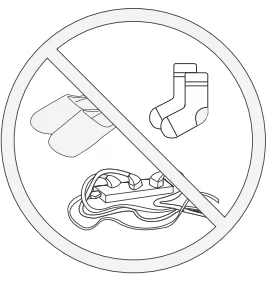 Put away objects, including cables, clothes, and slippers, etc., on the floor to improve the cleaning efficiency.
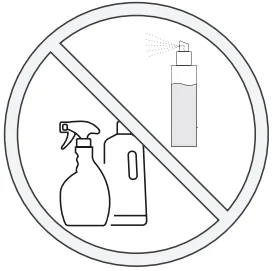 Clean the AIVI Camera and TrueMapping Distance Sensor with a clean cloth, and avoid using any detergent or cleaning spray.
 Before using the product on a rug with tasseled edges, please fold the rug edges under.
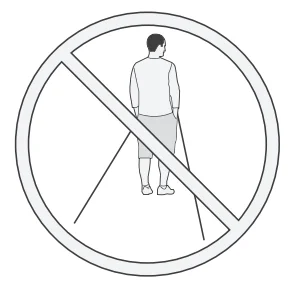 Please do not stand in narrow spaces, such as hallways, and make sure not to block the AIVI Camera.
Quick Start
Before using DEEBOT, please remove all protective films or protective strips from DEEBOT and OMNI Station.
Install the Dual Side Brushes
Make sure the colors of the Dual Side Brushes are consistent with those of the mounting slots.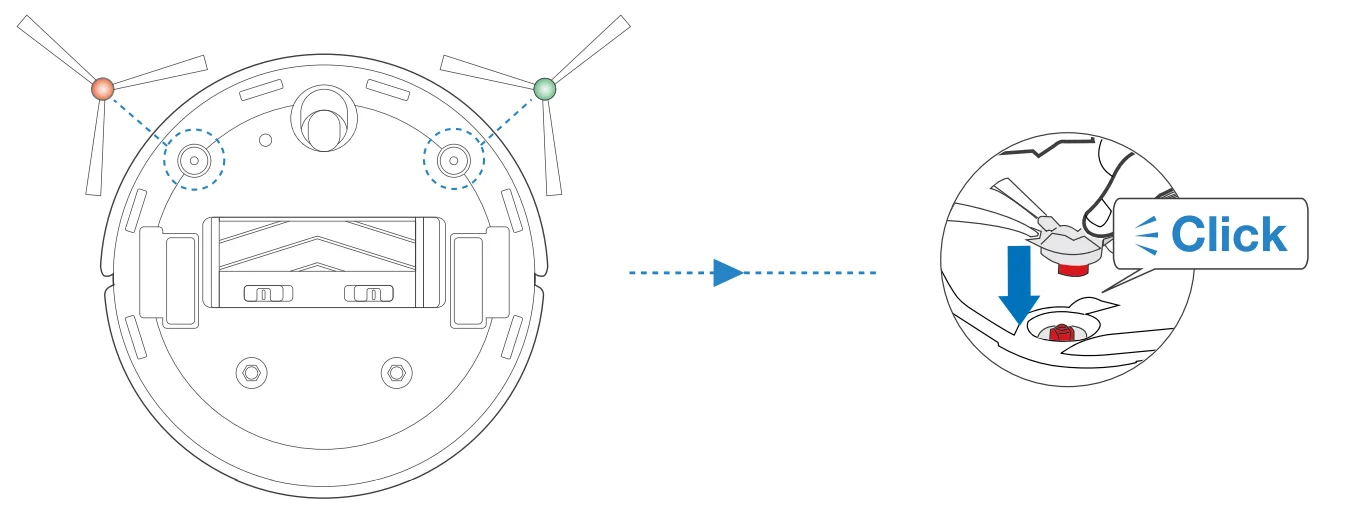
ECOVACS HOME App
To enjoy all available features, it is recommended to control your DEEBOT via 1he ECOVACS HOME app.
Before you start, make sure that:
- Your mobile phone is connected to a WI-Fl network.
- The 2.4GHz or 2.4/5 GHz band wireless signal is enabled on your router.
- The Wi-Fi indicator light on DEEBOT is slowly flashing.


WI-Fl Indicator Ught
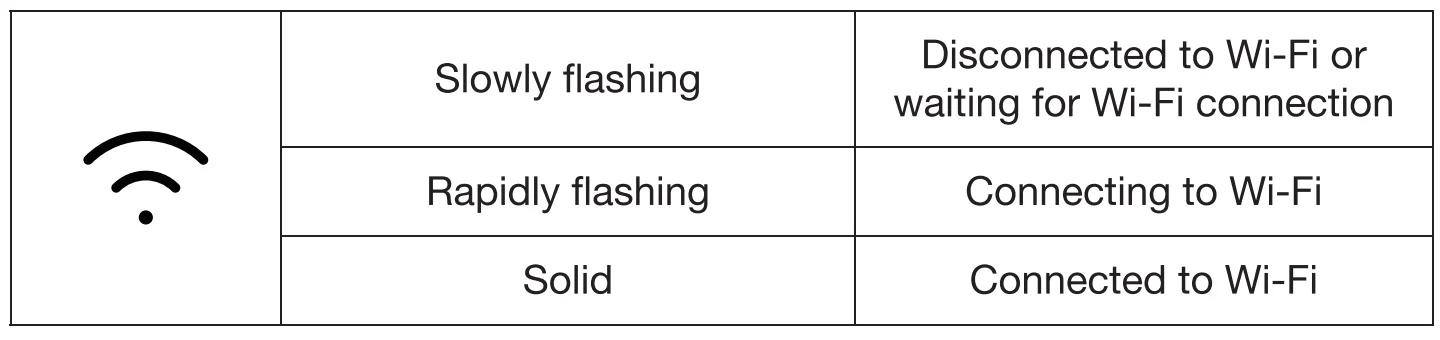
Wi-Fi Connection
Before WI-Fl setup, make sure DEEBOT, mobile phone, and WI-Fl network meet the following requirements.
DEEBOT and Mobile Phone Requirements
- DEEBOT is fully charged, and the power switch of DEEBOT is turned on.
- Wl-FI status light slowly flashes.
- Turn off the mobile phone’s cellular data (you can turn it back on after setup).
WI-Fl Network Requirements
- You are using a 2.4GHz or 2.4/5 GHz mixed network.
- Your router supports 802.11b/g/n and 1Pv4 protocol.
- Do not use a VPN (Virtual Private Network) or Proxy Server.
- Do not use a hidden network.
- WPA and WPA2 using Tl<IP, WPA2, AES/CCMP encryption.
- WEP EAP (Enterprise Authentication ProtocoO is not supported.
- Use Wi-Fi channels 1-11 in North America and channels 1-13 outside North America (refer to local regulatory agency).
- If you are using a network extender/repeater, 1he network name (SSID) and password are the same as your primary network.
After Wi-Fi connection, DEEBOT will enter into Network Standby mode if it has no signal Input within 10 minutes. Please be aware that the realization of intelligent functions such as remote startup, voice interaction, 2D/3D map display, and control settings, and personalized cleaning (depending on different products) requires users to download and use the ECOVACS HOME App, which is constantly updated. You need to agree to our Privacy Policy and User Agreement before we can process some of your basic and necessary information and enable you to operate the product.If you do not agree with our Privacy Policy and User Agreement, some of the aforementioned intelligent functions cannot be realized through the ECOVACS HOME App, but you can still use 1he basic functions of this product for manual operation.
Charging DEEBOT
- Assemble OMNI Station
- OMNI Station Placement
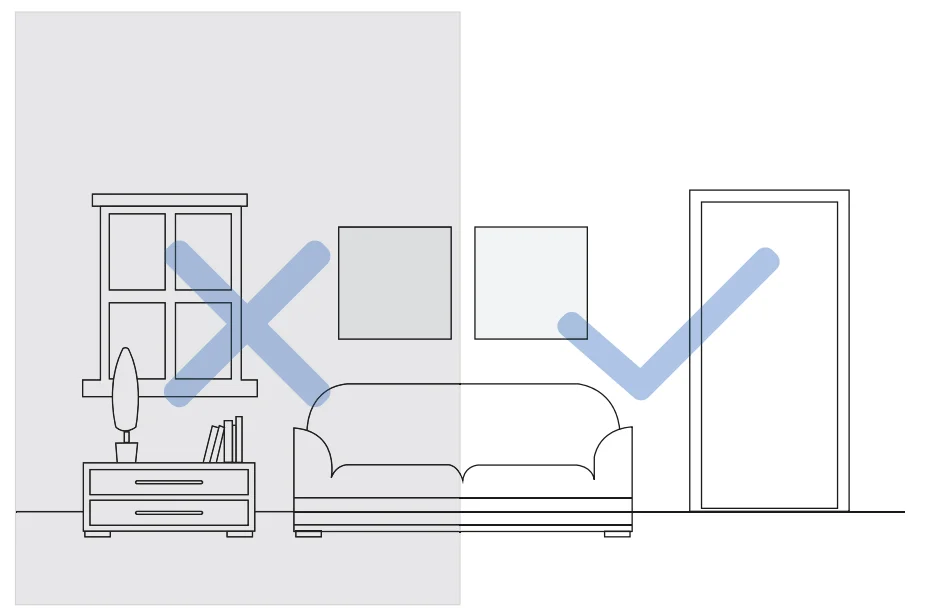
Keep the area around the Station clear of objects and reflective object surfaces.
* If there are reflective objects such as mirrors and reflective skirting lines near the Station, the bottom 14cm of those should be covered. Do not place the Station under direct sunlight. It is recommended to place the Station on a hard floor to experience the complete functions of the robot. - Add Water to the clean water tank
Note: It is recommended to use ECOVACS DEEBOT Cleaning Solution (sold separately). Using other cleanig solution may cause DEEBOT slipping, water tank block and other problems. - Power On
Note: I = ON, 0 = OFF.
DEEBOT cannot be charged when being powered OFF. - Charge DEEBOT
It is recommended that DEEBOT start cleaning from the Station. Do not move the Station while cleaning.
Operating DEEBOT
When creating a map for the first time, please follow DEEBOT to help eliminate some minor issues.
For example, DEEBOT may get stuck under the furniture. Please refer to the following solutions:
- Raise the furniture if possible.
- Cover the bottom of the furniture.
- et up Virtual Boundary via the App.
- Start
Tap on DEEBOT or
 on the OMNI Station to start
Note:- For the first-time cleaning, please ensure that DEEBOT is fully charged.
- It is not recommended to assemble the Mopping Pad Plates for the first time during cleaning.
- Pause/Wake Up
Tapon DEEBOT oron the OMNI Station to pause.
Note: The indicator light will go out after the robot is paused for a few minutes. Press the AUTO Mode Button on DEEBOT to wake up the robot. - Back to Station
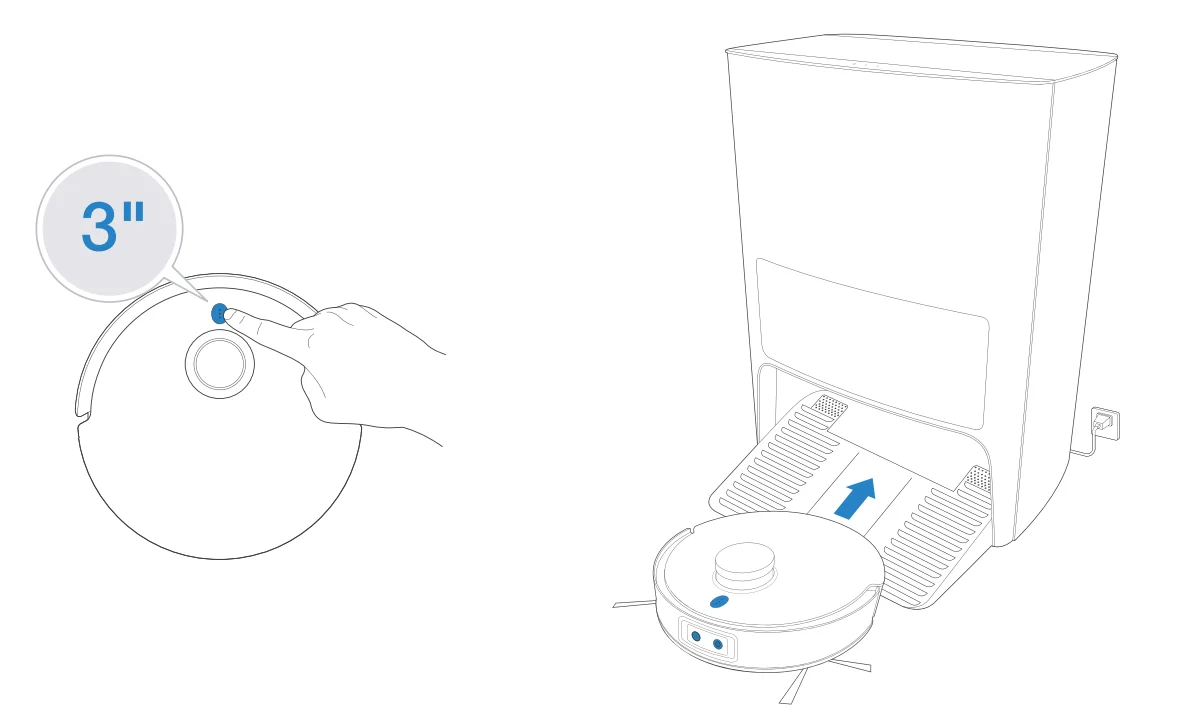
Tapfor 3 seconds to recall DEEBOT to the OMNI Station.
Note: When DEEBOT is not working, it is recommended to keep it switched ON and charging.
 on DEEBOT or
 on the OMNI Station to start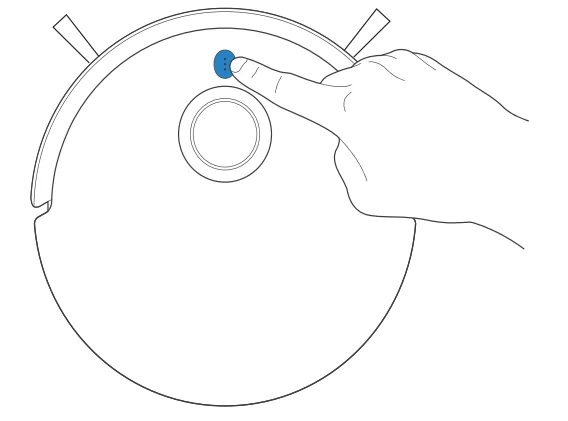
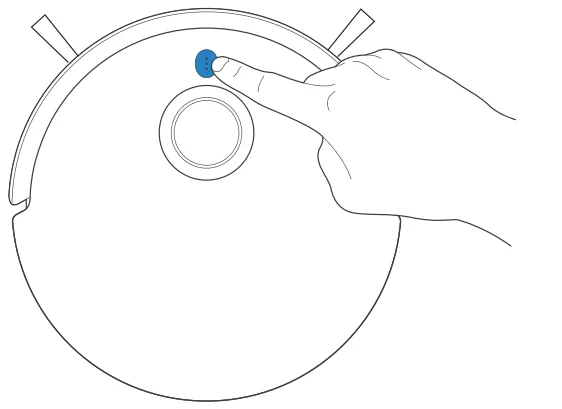
Mopping
Do not use the mopping function on the carpet.
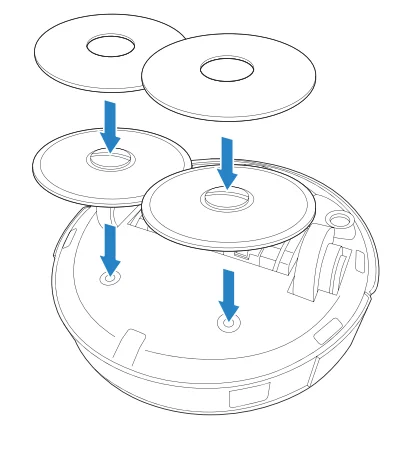
- Attach the Mopping Pads and Mopping Pad Plates.

- Mop
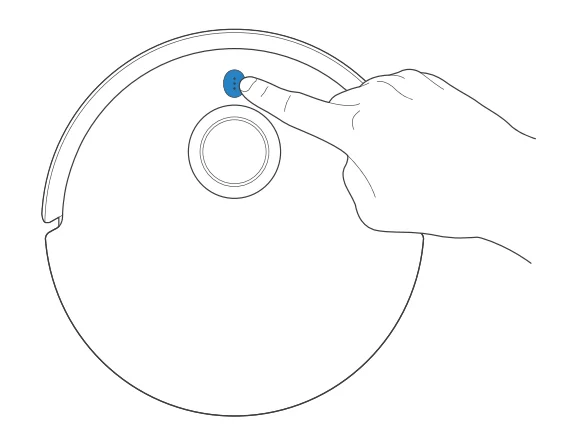
Tapon DEEBOT oron the OMNI Station to start mopping Note:
Note:- To prolong the service life of the reservoir, do not frequently remove washable mopping pads.
- Do not use a rag or any other object to scratch the Mopping Pad Plates.
- When the ECOVACS HOME AIJp prompts that the mops need to be replaced, please replace them in time. Explore more accessories at the ECOVACS HOME App or at https://www.ecovacs.coin/global.
 Note:
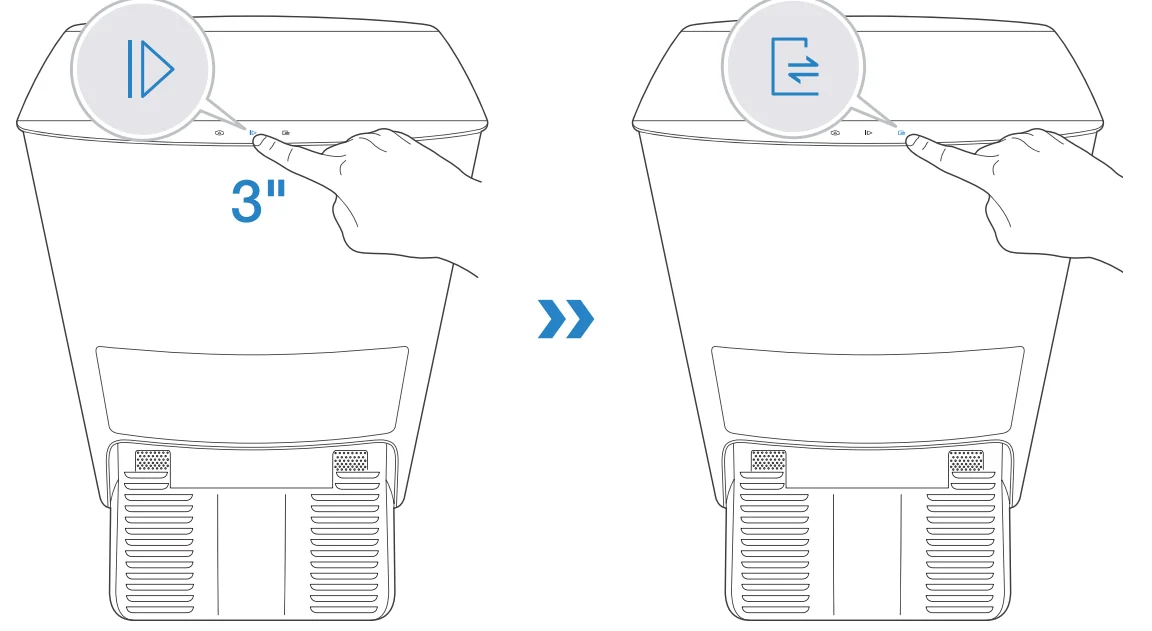
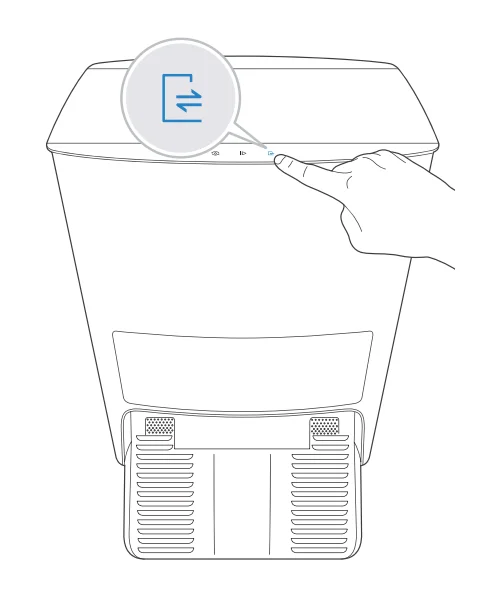
Note:OMNI Station
- Start/Pause DEEBOT

- Recall DEEBOT

- Direct DEEBOT to Exit from OMNI Station

- Child Lock ON/OFF
 When Child Lock is enabled, the touch key on DEEBOT and the Station will be locked to ensure safety. Repeat the same step to disable Child Lock.
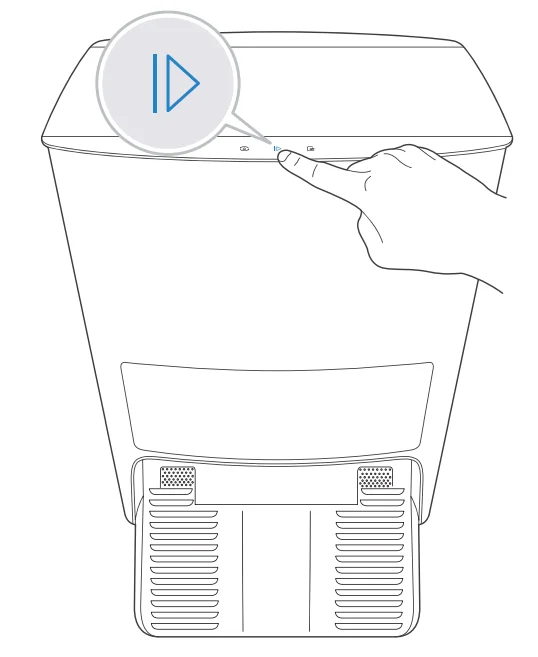
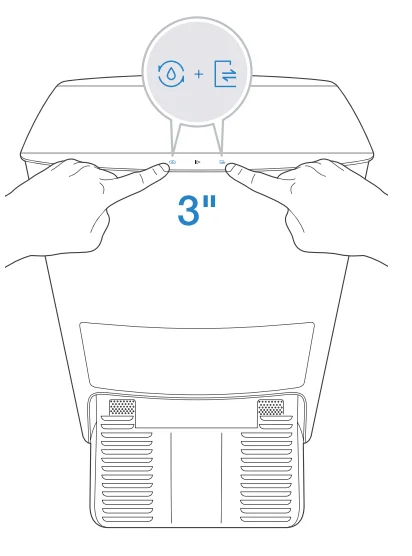 When Child Lock is enabled, the touch key on DEEBOT and the Station will be locked to ensure safety. Repeat the same step to disable Child Lock.
Regular Maintenance
To keep DEEBOT running at peak performance, perform maintenance tasks and replace parts with the following frequencies: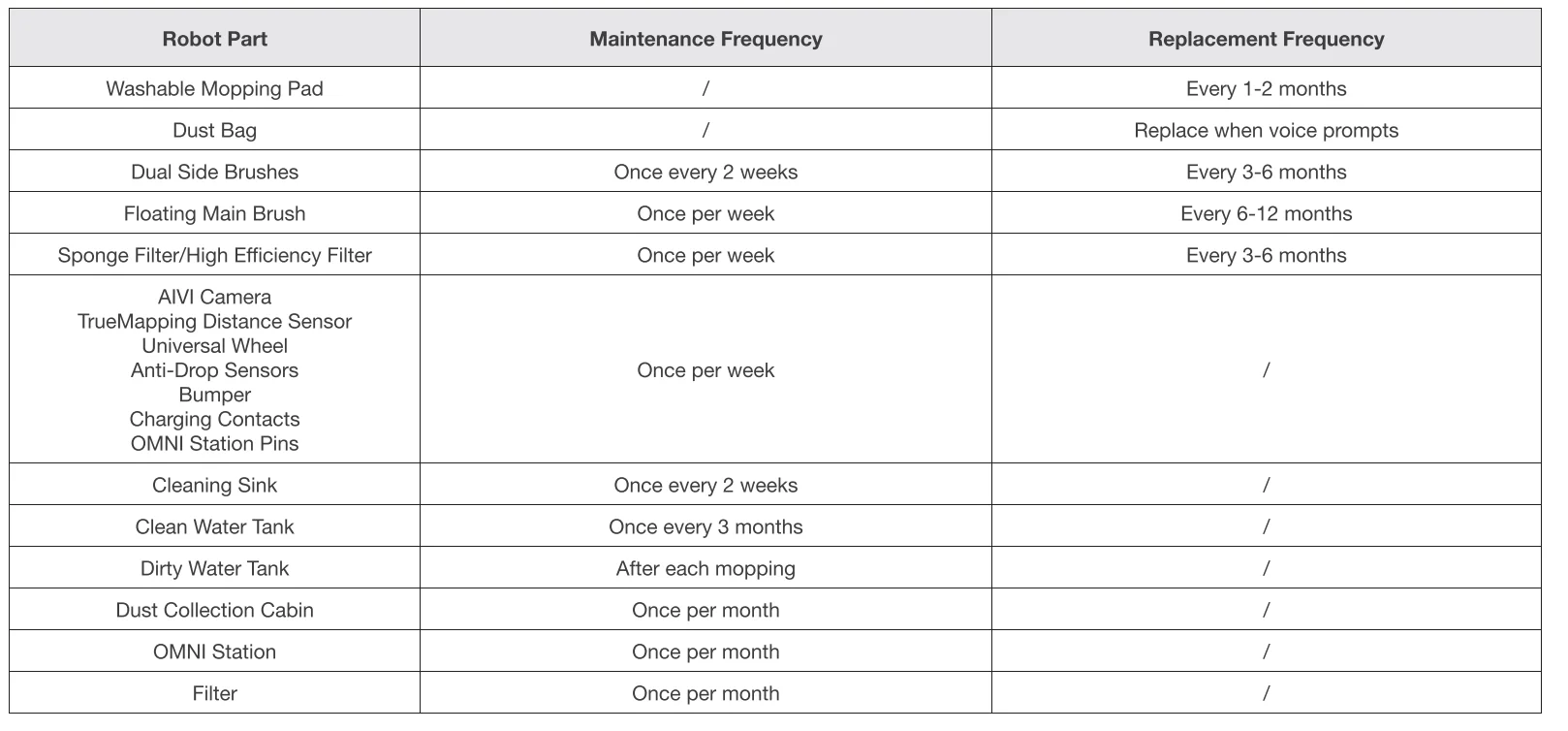 Before performing cleaning and maintenance tasks on DEEBOT, turn the robot OFF and unplug the OMNI Station. A multi-function Cleaning Tool is provided for easy maintenance. Handle with care, this cleaning tool has sharp edges.
Note: ECOVACS manufactures various replacement parts and fittings. Please contact Customer Service for more information on replacement parts.
Maintain Other Components
Note: Wipe the components with a clean, dry cloth. Avoid using cleaning sprays or detergents.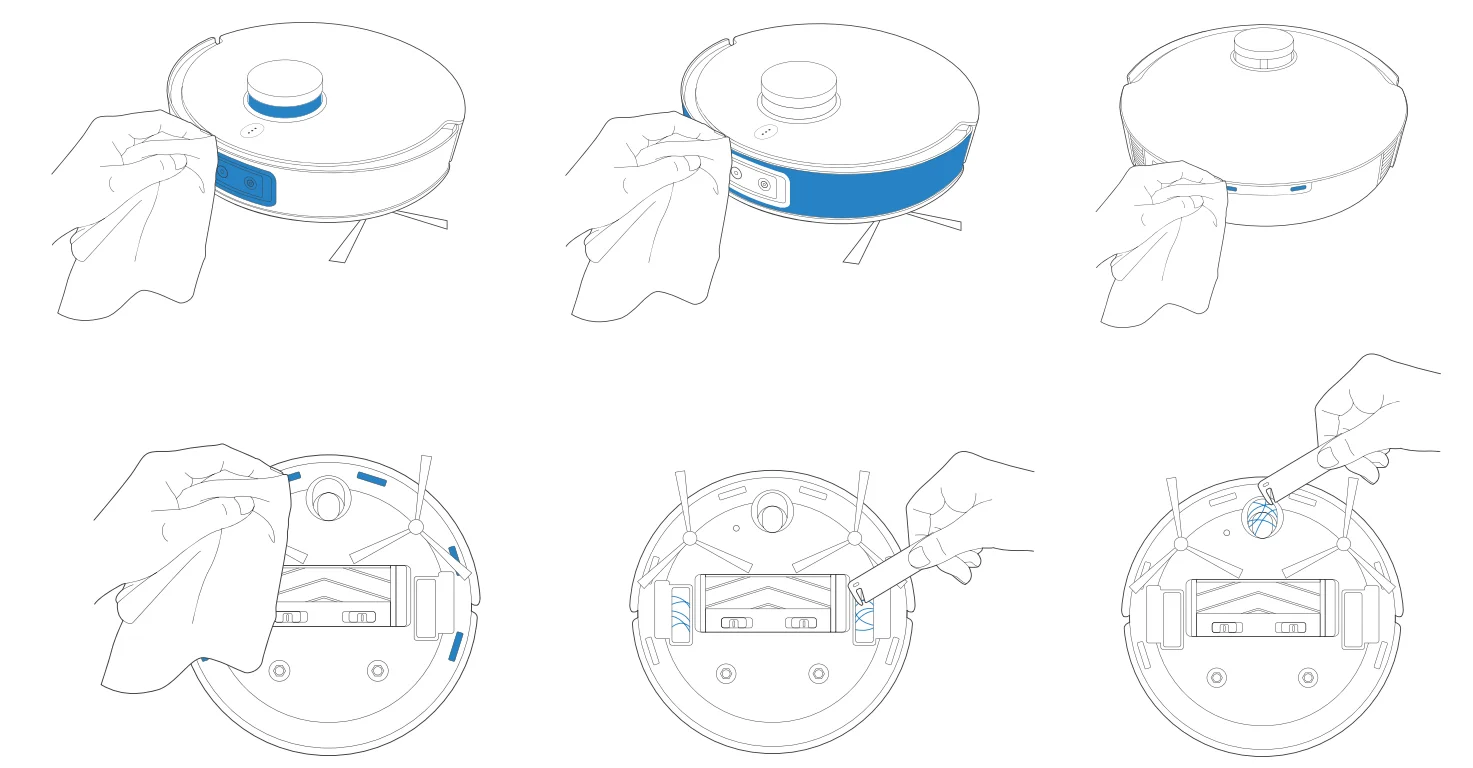
Maintain OMNI Station
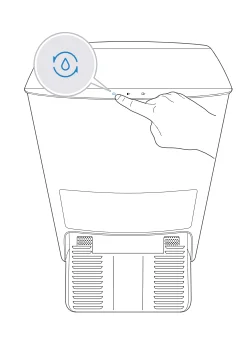
- Add Water to the cleaning sink

- Clean the sink

- Drain the Water Out of the Cleaning Sink

- Empty Dirty Water Tank

- Clean the Clean Water Tank Filter
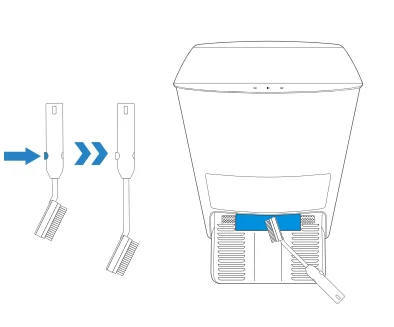
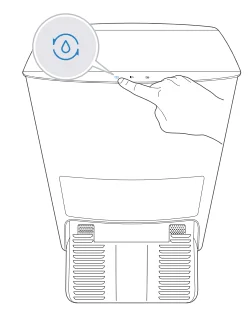
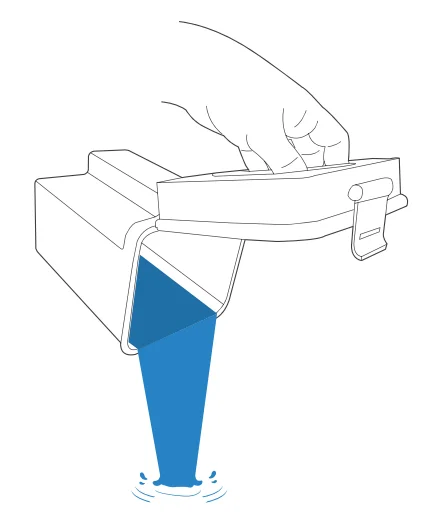
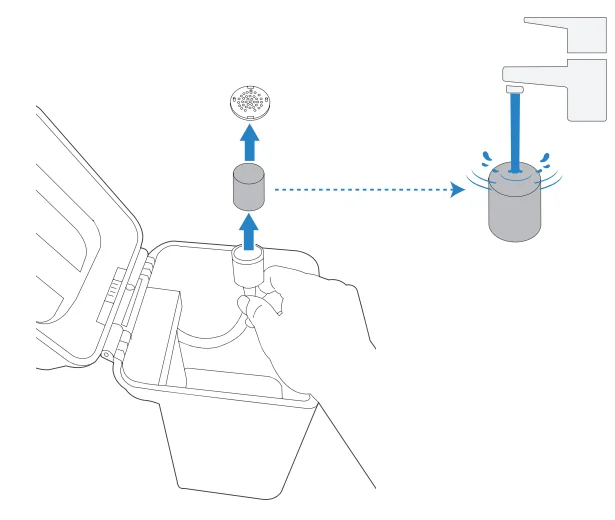
Maintain Dust Bag
Before performing cleaning and maintenance tasks on DEEBOT, turn the robot OFF and unplug the OMNI Station.
- Discard the Dust Bag
 *Hold the Handle to lift out the Dust Bag, which can effectively prevent dust leakage.
 - Clean the Dust Collection Cabin with a dry cloth and put a new Dust Bag in

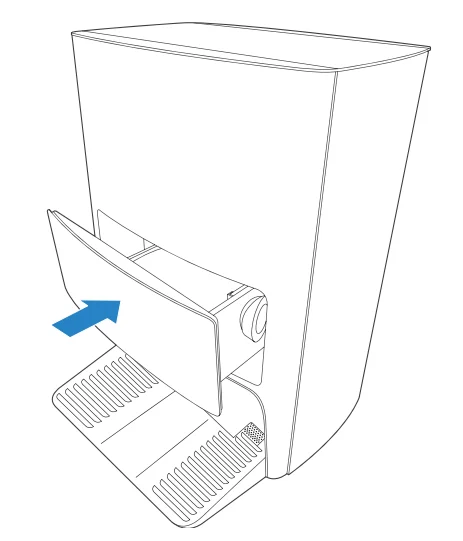
- Close the Dust Collection Cabin

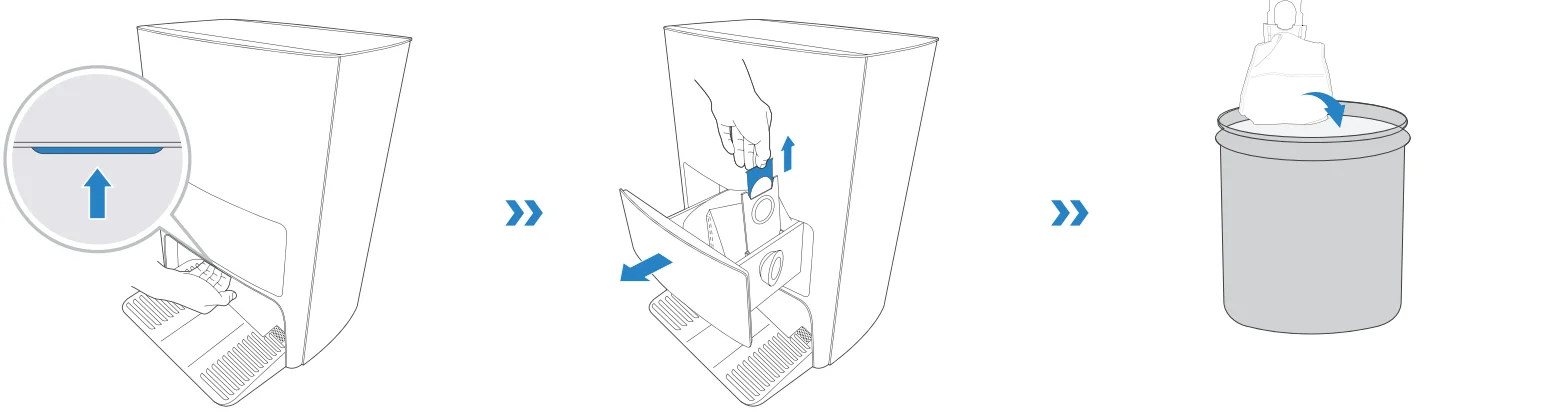 *Hold the Handle to lift out the Dust Bag, which can effectively prevent dust leakage.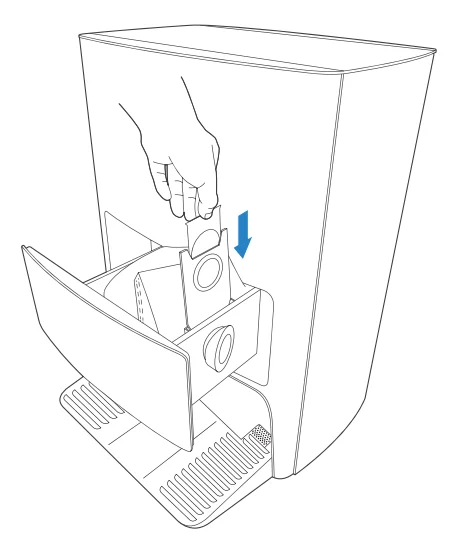
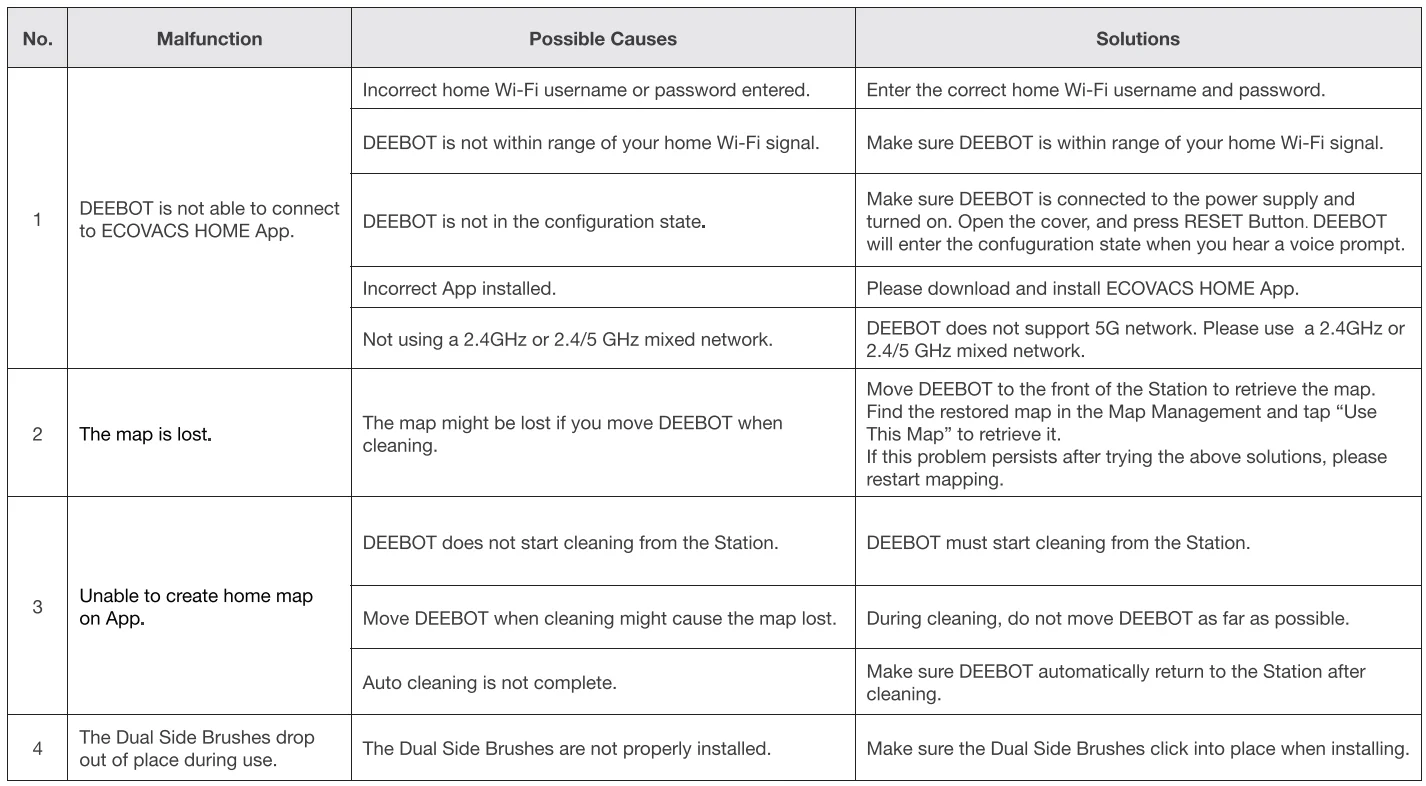
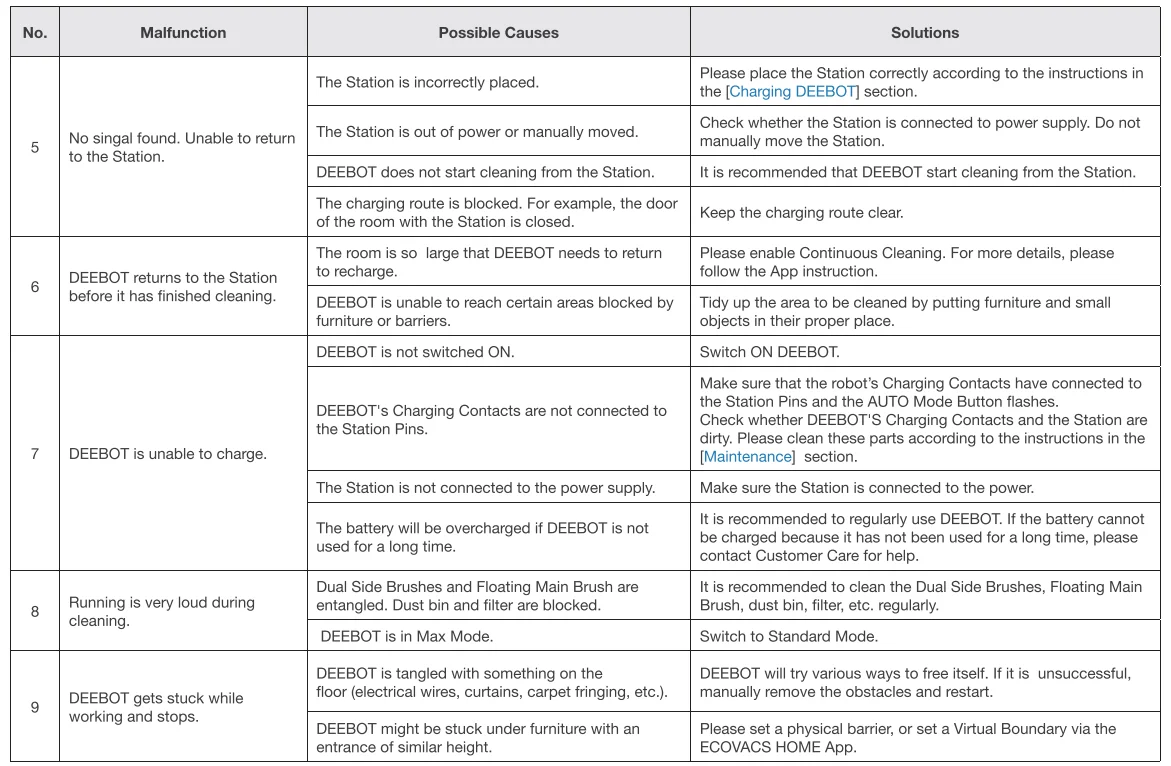
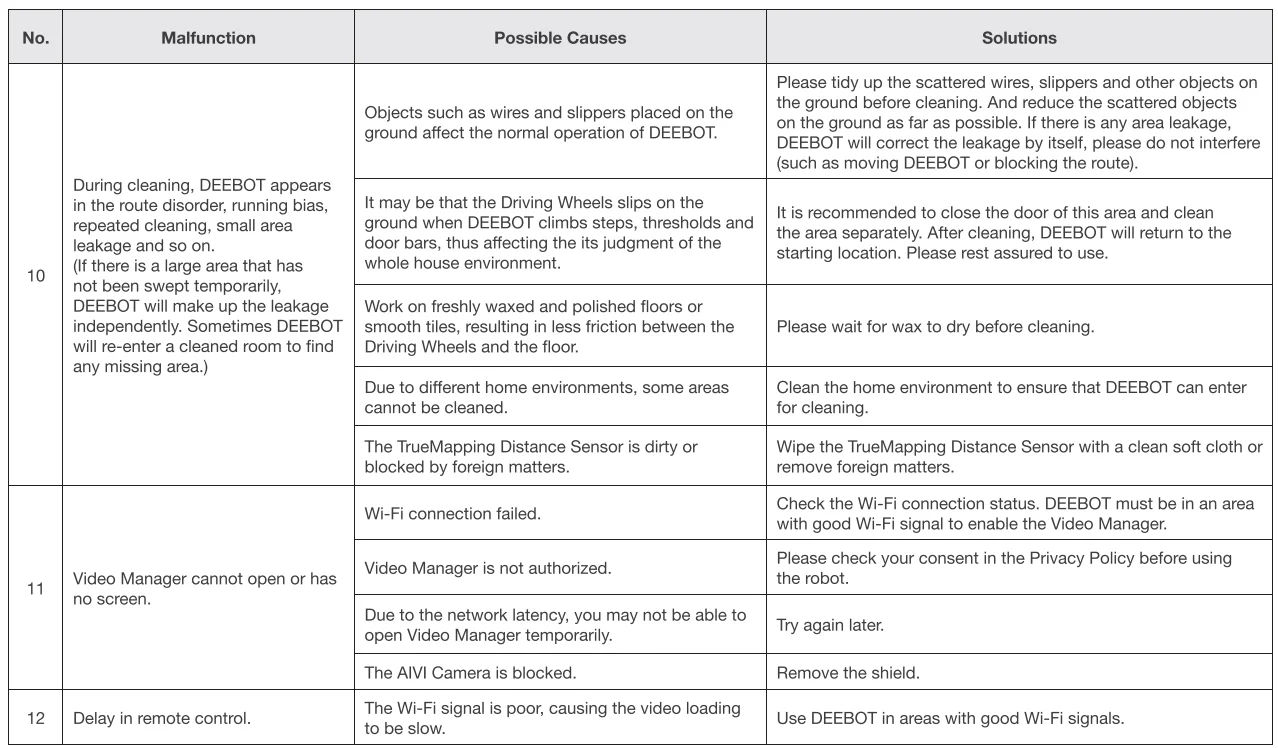
Troubleshooting
Technical Specifications
Output power of the Wi-Fi module is less than 1 00mW.
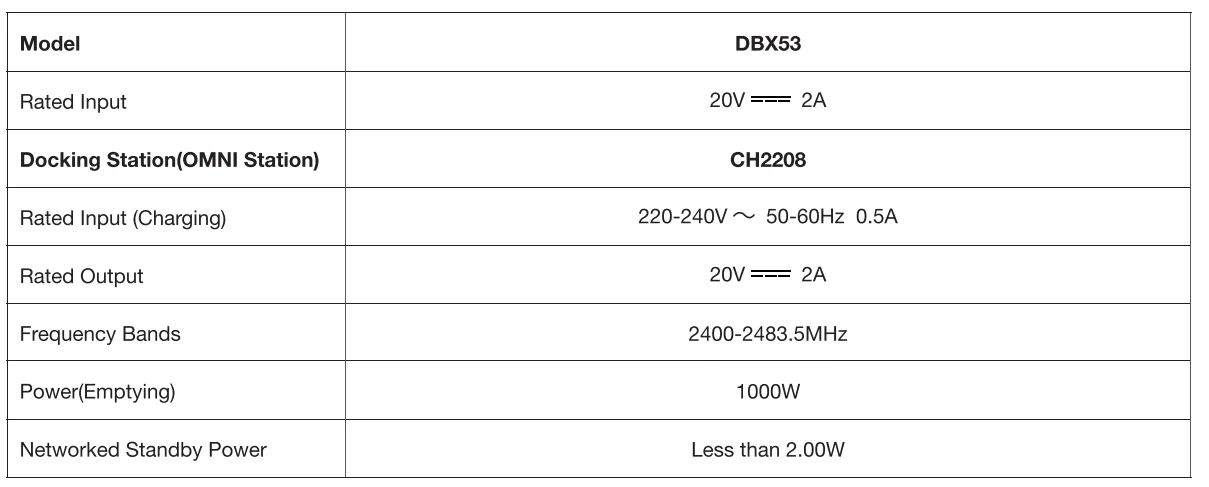
Note: Technical and design specifications may be changed for continuous product improvement. Explore more accessories at https://www.ecovacs.com/global.
For more manuals by ECOVACS, visit ManualsLibraryy
DEEBOT X1e OMNI Robot Vacuum-FAQs
How do I use the DEEBOT X1e OMNI for the first time?
To get started with the DEEBOT X1e OMNI, place the OMNI station on a flat surface and plug it in. Fully charge the robot (about 4.5 hours recommended before first use). Download the ECOVACS HOME app, connect the robot to Wi-Fi, and follow the on-screen setup to create a map. Once mapped, you can customize cleaning modes and schedules easily.
Can I use the DEEBOT X1e OMNI without the app or Wi-Fi?
Yes. After the initial setup, the robot can start cleaning by pressing the physical start button. However, without Wi-Fi or the app, you won’t have access to advanced features like custom cleaning schedules, room selection, or mapping edits. Core cleaning functions will still work in offline mode.
How do I know when the DEEBOT is fully charged?
During charging, the indicator light flashes. Once the battery is fully charged, the light stays solid briefly and then turns off. A full charge typically takes around 4–5 hours. You can also check the battery level directly in the ECOVACS HOME app.
How long does the battery last on a single charge?
The DEEBOT X1e OMNI can typically run between 120 and 180 minutes per charge, depending on cleaning mode, suction level, and floor type. On larger homes, the robot may automatically return to the dock to recharge and then resume cleaning from where it left off.
Can the DEEBOT clean in the dark?
The robot can still vacuum in low light, but complete darkness may affect its camera-based navigation system. For accurate mapping and obstacle detection, moderate lighting is recommended, especially during the first mapping run.
Can I add cleaning solution to the DEEBOT?
Yes, but only use the official ECOVACS cleaning solution designed for compatible OMNI models. Avoid household cleaners unless specifically approved. Using the correct solution ensures better mopping performance and protects internal components from damage.
Can I use vinegar, Dettol, or Lizol in my DEEBOT?
It’s not recommended. Household products like vinegar, Dettol, or Lizol can damage internal parts, leave residue, or cause streaking. Always use a manufacturer-approved cleaning solution to maintain performance and avoid voiding the warranty.
How often should I run my robot vacuum?
For homes with pets or high traffic, daily cleaning helps maintain dust-free floors. In smaller or low-traffic homes, running it every other day or 2–3 times per week is usually sufficient. You can set automated schedules in the app for convenience.
How do I start mapping on the DEEBOT X1e OMNI?
Open the ECOVACS HOME app, ensure the robot is online, then go to Map settings and select “Create New Map.” Start a full cleaning cycle so the robot can scan and map your home. Make sure the area is well-lit and obstacles are minimized for best results.