
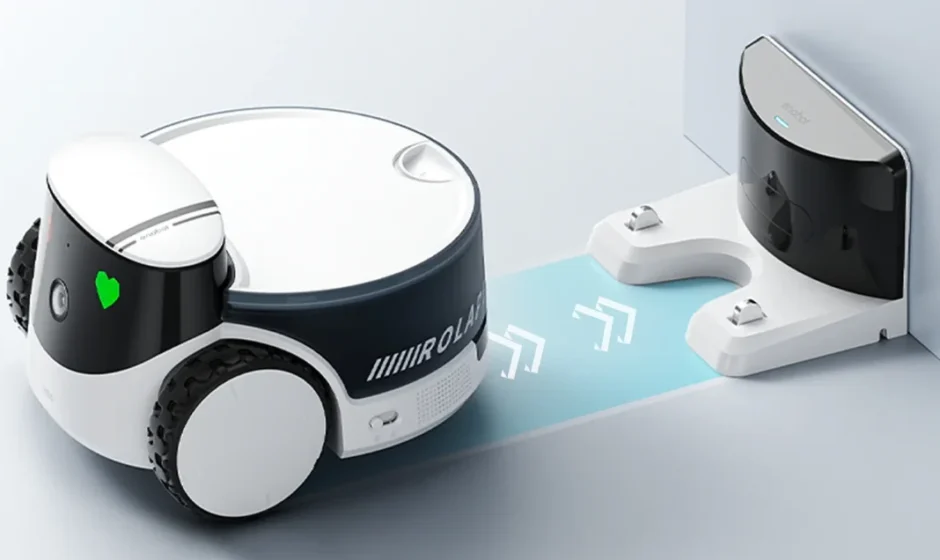

Enabot ROLA PetPal
Scan the QR code above
Download the ROLA App
Safety Information
Please read the following safety instructions carefully and take normal safety precautions before using this product.
- Only authorized technicians can disassemble the product. Users should not try this themselves.
- Remove the protective film from the product before use to ensure normal operation of the robot.
- To avoid damage from falling, do not place the robot in places where it may fall, such as tables, coffee tables, TV cabinets, etc.
- Do not use the robot in an environment with open flames, fragile items, or flammable items.
- Do not drop or kick the product.
- Avoid using the product on wet floors, such as bathrooms or near kitchen sinks.
- Only use the product in an environment with a temperature between -10℃ and 45℃.
- Ensure that the Wi-Fi signal covers the product’s range of activity.
- Avoid excessively bending wires and placing heavy or sharp objects on the product.
- Do not let pets bite the product’s wires, as it may cause pet safety hazards.
- Any operation inconsistent with the instructions may cause damage to the product.
- The main unit of this product cannot be immersed or soaked in water.
Packaging
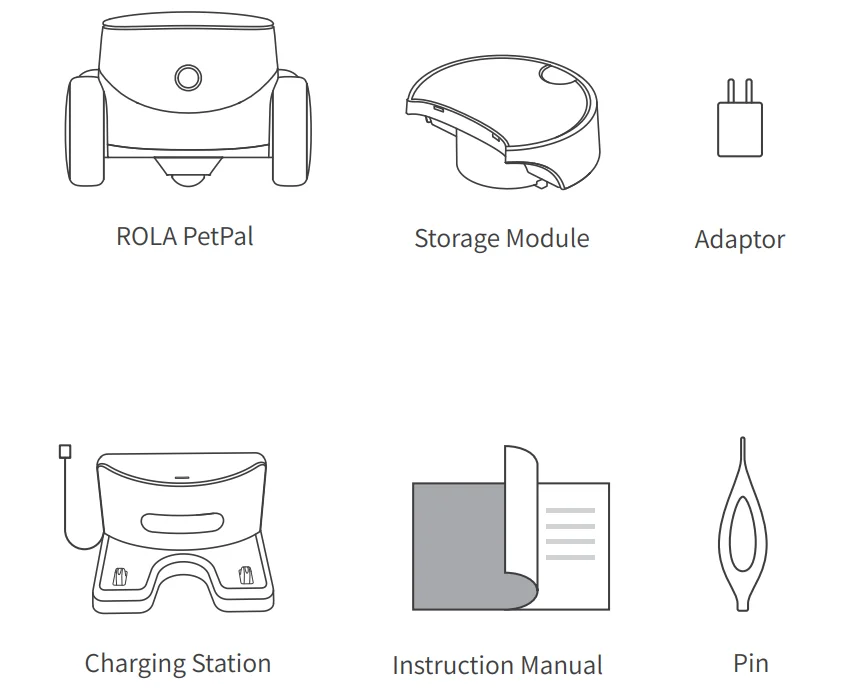
Product Introduction
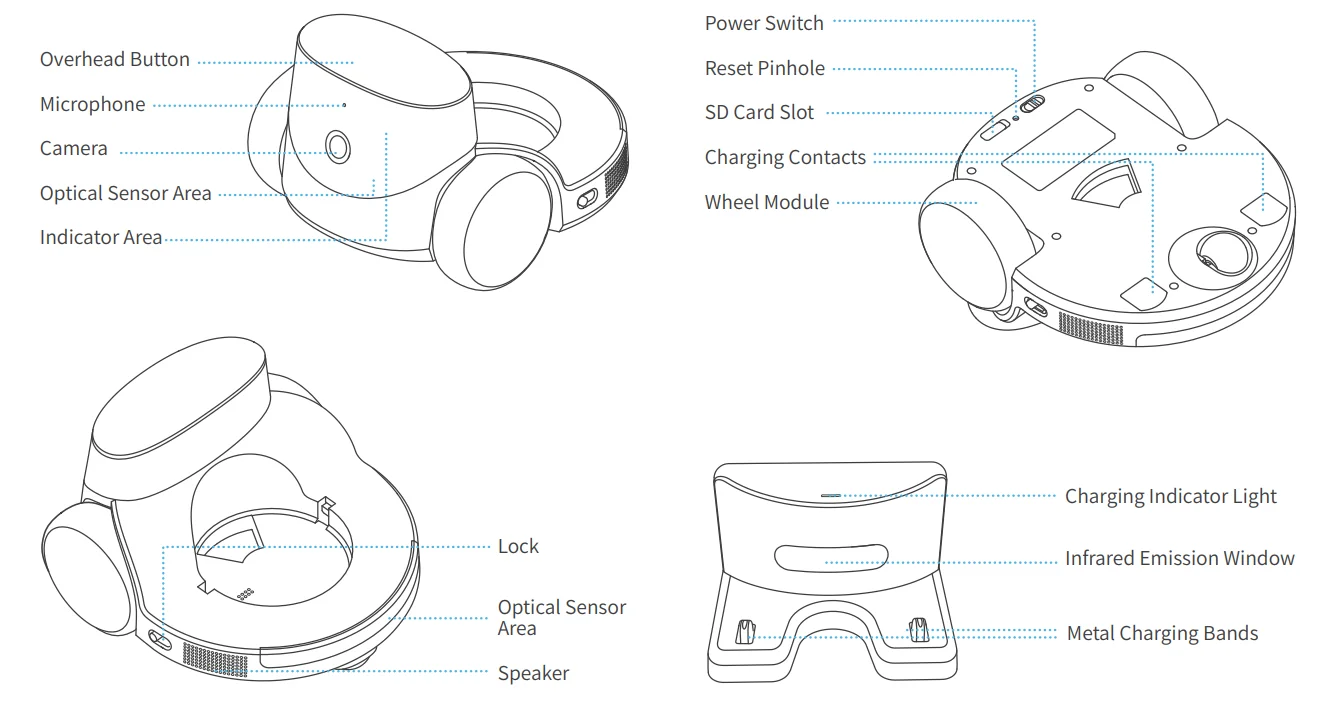
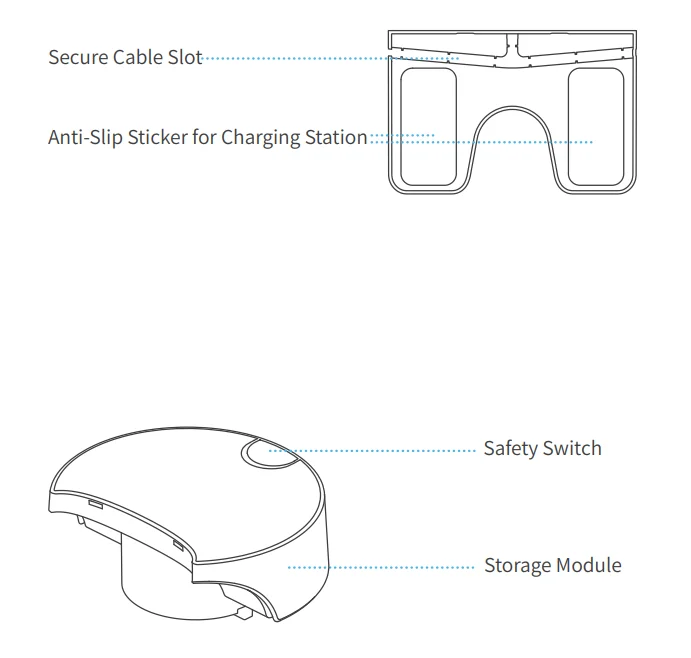
Robot Usage Instructions
- To turn the robot ON and OFF:

- To RESET the robot: using the tip of the pin, press and hold the button inside the reset pinhole for more than 5 seconds, until the robot emits a reset success sound. Then the rest is successful.
 Note: The reset operation will not clear the memory card. Please format the SD card in the App.
 - By pressing the mechanical button on the robot’s head: you can call the owner in the App.

- Robot Accessories Replacement:
- Before replacing accessories, you need to open the locks on both sides of the robot.

- Align the accessory with the limit slot and attach. Please ensure that no obstacles are blocking the contact point between the accessory and the host.

- After placing, press the accessory downwards and lock it in.

- Before replacing accessories, you need to open the locks on both sides of the robot.
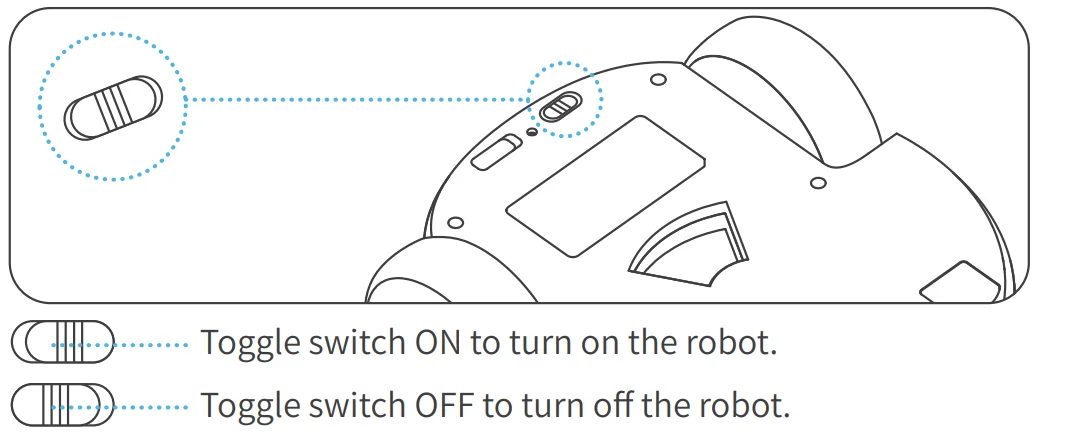
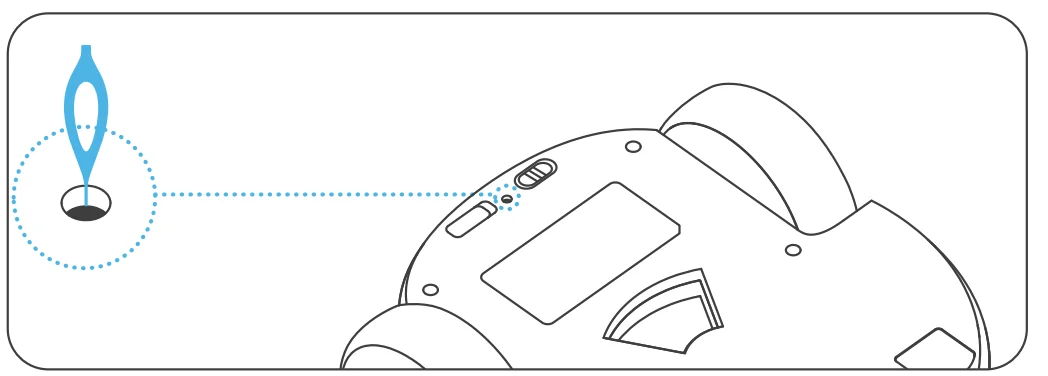 Note: The reset operation will not clear the memory card. Please format the SD card in the App.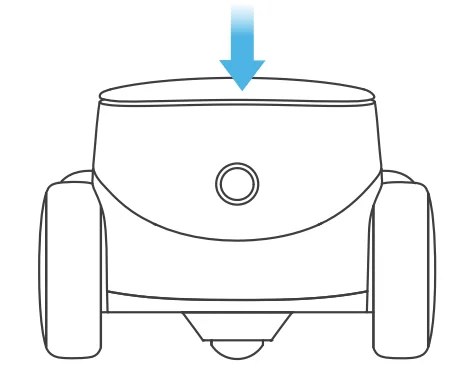
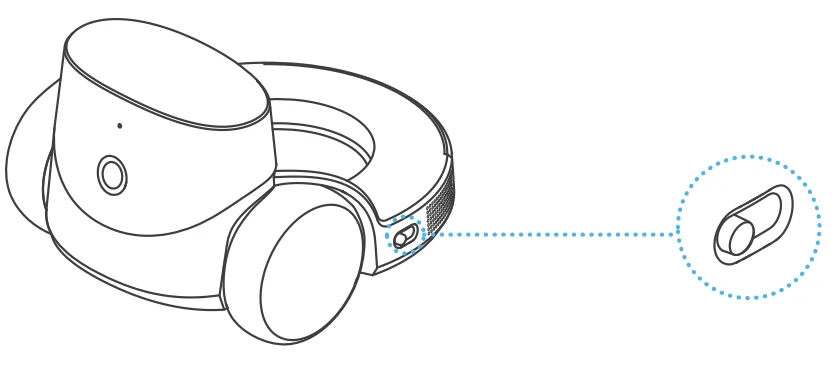
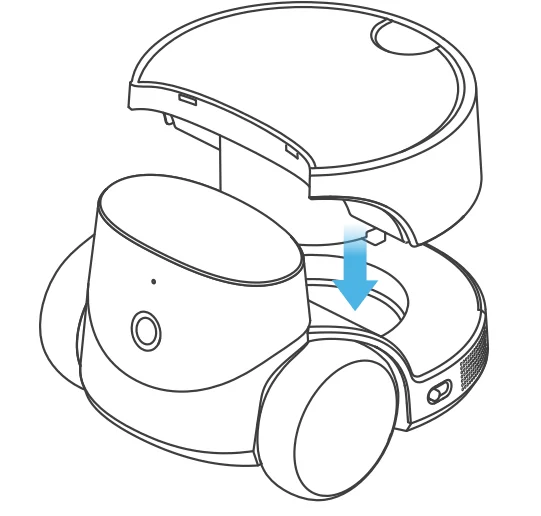
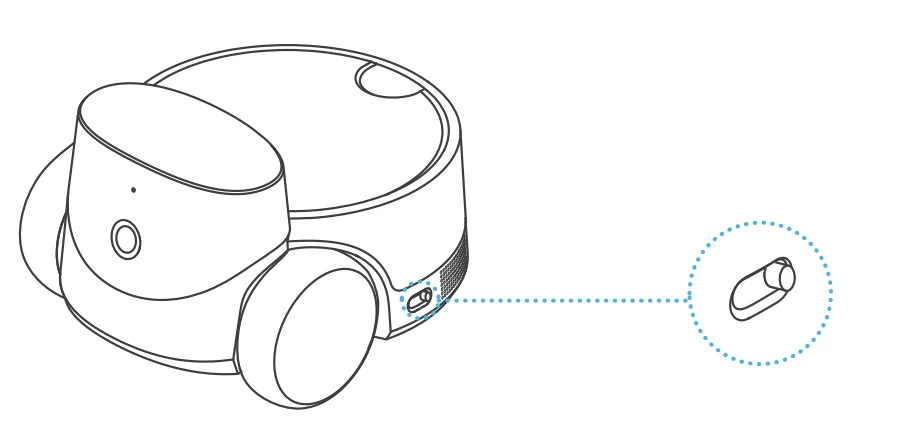
Charging Station Instructions
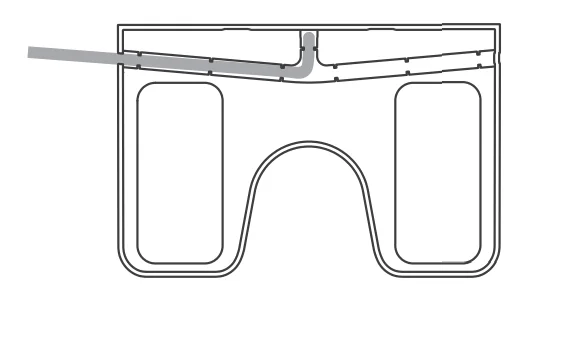
- Insert the USB cable into the base slot to ensure that there is no gap between the charging station and the ground.

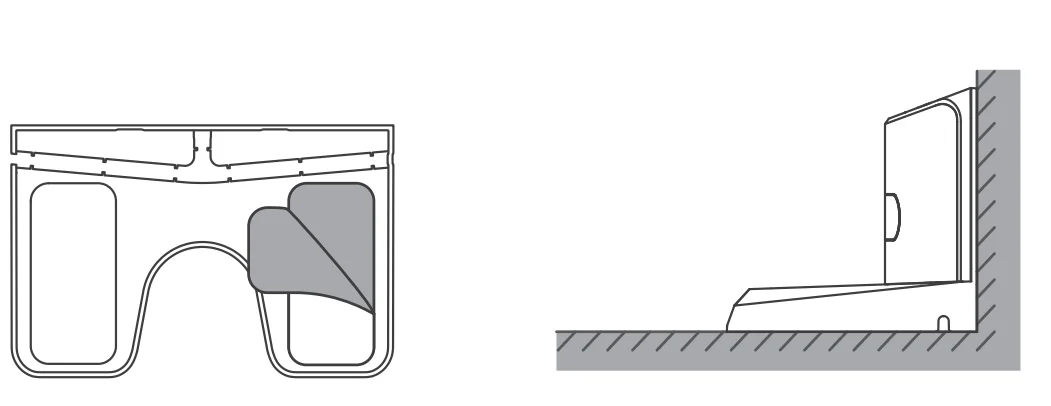
- Tear off the transparent anti-slip film on the bottom of the charging station; choose a position against the wall to place the charging station; place the back of the charging station flat against the wall, and place the bottom flat against the ground.

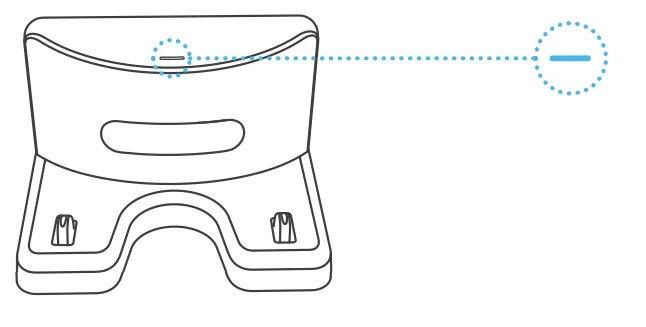
- Once the charging station is powered on, the cyan indicator will start blinking if there is a device charging. If there is no device charging or the device is fully charged, the indicator will remain on without blinking.

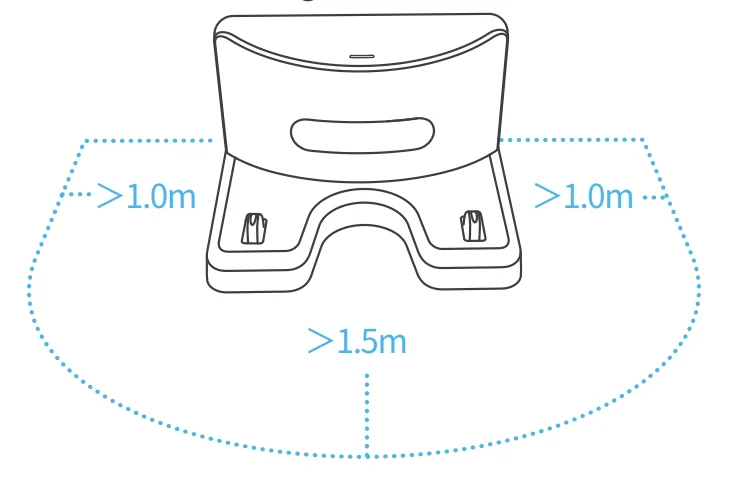
- Make sure the area 1.5 meters in front of the charging station and 1.0 meters to the left and right of the charging station are kept clear, so the robot can return to charge.

- When the robot is charging normally at the charging station, its battery status will be indicated by the color of the robot’s facial light.

- RED: battery is under 20%
- ORANGE: battery is between 20% – 50%
- GREEN: battery is over 50%
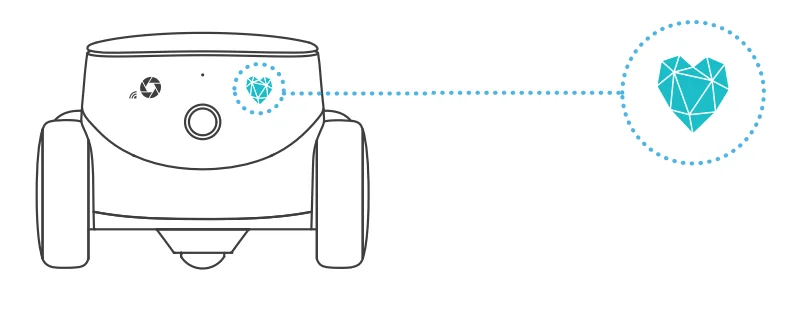
Robot Networking Instructions
- After the robot is turned on, the indicator lights
 start blinking. The robot has now entered the QR-code binding state.
- Download the ROLA APP, click “+” in the upper left corner to add a device, and follow the steps to prepare your robot for network access. Please pay careful attention and fill in the correct WI-FI name and password. After generating the QR code, scan the code about 15cm away from the robot to connect it to the network.

- When the robot has successfully connected to the network, it will emit a successful binding sound, and the App will alert you that the binding is successful.
Note: Putting the robot on the charging station will guarantee sufficient battery during the networking process.
 start blinking. The robot has now entered the QR-code binding state.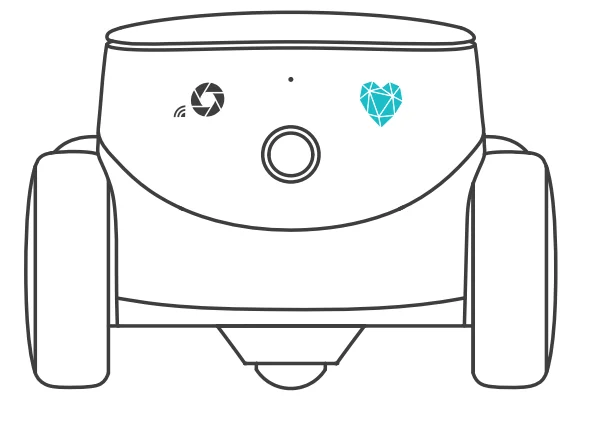
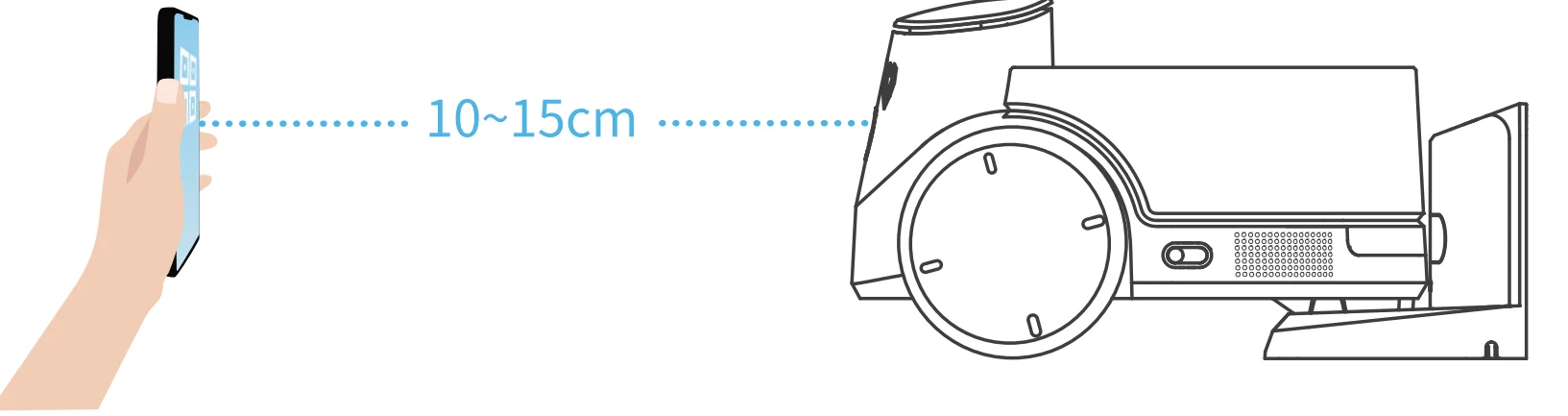
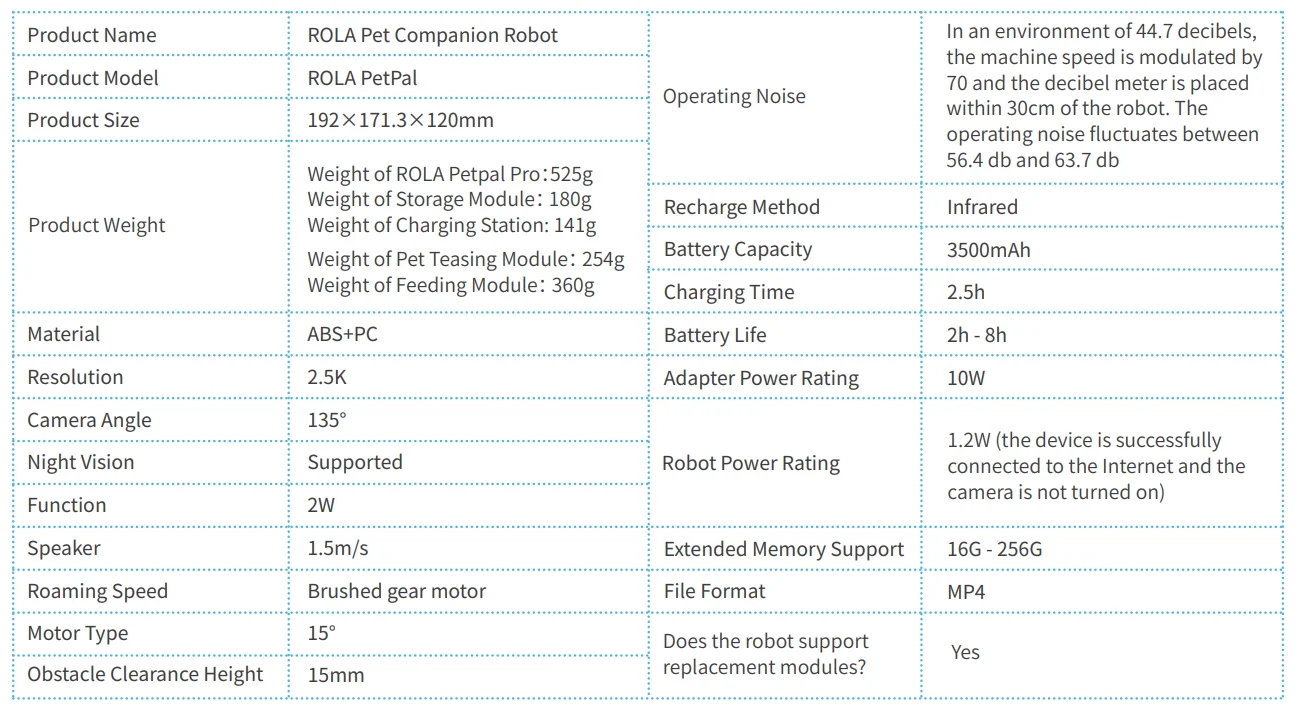
Robot Specifications and Parameters
Legal Statement
- Before using the product, please read this document and keep it for reference.
- The illustrations and descriptions in this document are for reference only, and the actual product should take precedence. For certain specifications and configurations, please check the relevant specification documents or consult the seller.
- The nominal storage capacity and technical performance indicators are only specifications. Actual data may vary depending on the environment and settings, etc. Factors vary.
- If you use other products or software, you are solely responsible for compatibility and legality.
- No content in this document shall constitute a modification of Enabot’s product warranty policy.
- This product is not designed for organ transplantation or other life support system applications. In such applications, product failure may result in personal injury or death.
- No one may copy, delete, compile, store, transmit, or translate this document without Enabot’s authorization.
IC Warning
This device complies with Industry Canada’s licence-exempt RSS standard(s). Operation is subject to the following two conditions:
- This device may not cause interference, and
- This device must accept any interference, including interference that may cause undesired operation of the device.
This Class B digital apparatus complies with Canadian ICES-003.
IC RF Statement:
When using the product, maintain a distance of 20cm from the body to ensure compliance with RF exposure requirements.
FCC Warning
This device complies with part 15 of the FCC Rules. Operation is subject to the following two conditions:
- This device may not cause harmful interference, and
- This device must accept any interferencereceived, including interference that may cause undesired operation.
Any Changes or modifications not expressly approved by the party responsible for compliance could void the user’s authority to operate the equipment.
Note: This equipment has been tested and found to comply with the limits for a Class B digital device, pursuant to part 15 of the FCC Rules. These limits are designed to provide reasonable protection against harmful interference in a residential installation. This equipment generates uses and can radiate radio frequency energy and, if not installed and used in accordance with the instructions, may cause harmful interference to radio communications. However, there is no guarantee that interference will not occur in a particular installation. If this equipment does cause harmful interference to radio or television reception, which can be determined by turning the equipment off and on, the user is encouraged to try to correct the interference by one or more of the following measures:
- Reorient or relocate the receiving antenna.
- Increase the separation between the equipment and receiver.
- Connect the equipment into an outlet on a circuit different from that to which the receiver is connected.
- Consult the dealer or an experienced radio/TV technician for help.
This equipment complies with FCC radiation exposure limits set forth for an uncontrolled environment. This equipment should be installed and operated with a minimum distance of 20cm between the radiator & your body.
NB Warning
This product complies with the radio interference requirements of the European Community.
- Product name: ROLA Pet Companion Robot
- Product model: ROLA PetPal
- Manufacturer: Fuzhi Technology (Shenzhen) Co., Ltd
- Address: Room 302, Building 10 , Qianhai E-Hub, Shenzhen, Guangdong, China
- Frequency Range: 2412MHz to 2472MHz;5180MHz to 5240MHz;5260MHz to 5320MHz
- Max. output Power: 2412MHz to 2472MHz:19.74 dBm;5180MHz to 5240MHz:17.82 dBm;5260MHz to 5320MHz:18.24 dBm.
SIMPLIFIED EU DECLARATION OF CONFORMITY
The simplified EU declaration of conformity referred to in Article 10(9) shall be provided as follows: Hereby, WeHome Technology Company Limited declares that radio equipment type ROLA PetPal is in compliance with Directive 2014/53/EU, and this product is allowed to be used in all EU member states. The full text of the EU declaration of conformity is available at the following. This product can be used across EU member states. This equipment should be installed and operated with a minimum distance of 20cm between the radiator & your body.
BATTERY Warning:CAUTION: RISK OF EXPLOSION IF BATTERY IS REPLACED BY AN INCORRECT TYPE. DISPOSE OF USED BATTERIES ACCORDING TO THE INSTRUCTIONS
For more manuals by Enabot, visit ManualsLibraryy
ROLA PetPal Interactive Toys-FAQs
What is the ROLA PetPal treat dispenser and how does it work?
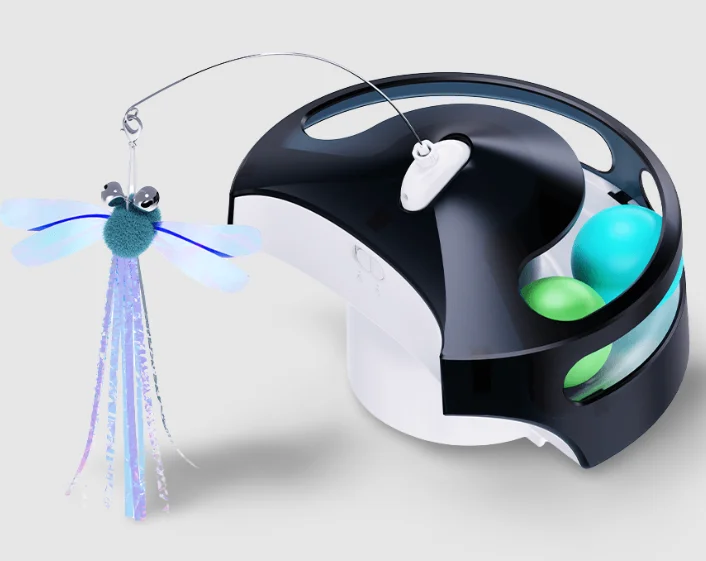
The ROLA PetPal treat dispenser is an attachable module designed to work with the ROLA PetPal robot. It allows you to remotely release treats for your dog or cat through the companion app. You can control portion sizes to avoid overfeeding while rewarding your pet during play or training sessions. It’s ideal for interactive engagement when you’re away from home.
How do I set up ROLA PetPal for the first time?
Start by charging the device fully using the included charging cable. Download the Enabot app, create an account, and power on the robot. Follow the in-app instructions to connect it to your 2.4 GHz Wi-Fi network. Once connected, attach any optional modules like the treat dispenser and test movement, camera view, and audio before regular use.
How do I reset ROLA PetPal to factory settings?
To perform a factory reset, press and hold the reset button located at the bottom of the robot for more than five seconds. When you hear the confirmation tone, release the button. The device will erase saved settings and disconnect from Wi-Fi. You’ll then need to reconnect it through the mobile app as if setting it up for the first time.
What is the ROLA Mini pet monitor?
ROLA Mini is a compact mobile pet monitoring robot featuring a 2K QHD camera, two-way audio, and obstacle-crossing ability. It allows you to check on pets remotely, talk to them, and capture photos or videos. With extended battery life and smooth mobility, it works well for indoor pet supervision and interaction.
How do I charge the ROLA device?
You can charge ROLA using the official magnetic charging cable or a compatible USB-C cable (depending on the model). Use a 5V/2A adapter or higher for efficient charging. Make sure the charging port is clean and securely connected. A full charge typically supports extended monitoring and interaction sessions throughout the day.
What types of treats work best in the dispenser?
Small, dry, and crunchy treats work best to prevent clogging. Avoid sticky, soft, or oversized treats that could jam the mechanism. Bite-sized training treats are ideal because they dispense smoothly and allow better portion control. Always check the treat size recommendations in the product guide for best performance.
Are interactive treat toys good for dogs and cats?
Yes, interactive treat toys provide mental stimulation and reduce boredom. They can slow down fast eaters, encourage problem-solving skills, and help relieve separation anxiety. For indoor pets, devices like ROLA PetPal combine movement, sound, and rewards to create a more engaging and enriching environment.
Does ROLA PetPal require Wi-Fi to operate?
Yes, Wi-Fi is required for remote control features such as live video streaming, two-way communication, and treat dispensing through the app. Without Wi-Fi, some basic movement features may work locally, but full functionality depends on a stable internet connection.
What is the 3-3-3 rule for dogs and how does it relate to ROLA PetPal?
The 3-3-3 rule explains how dogs adjust to new environments: 3 days to decompress, 3 weeks to learn routines, and 3 months to feel secure. Using interactive tools like ROLA PetPal during this adjustment period can provide comfort, engagement, and consistent positive reinforcement while your pet adapts.