

SwitchBot Household Robot K20+ Pro
 Description
 Description
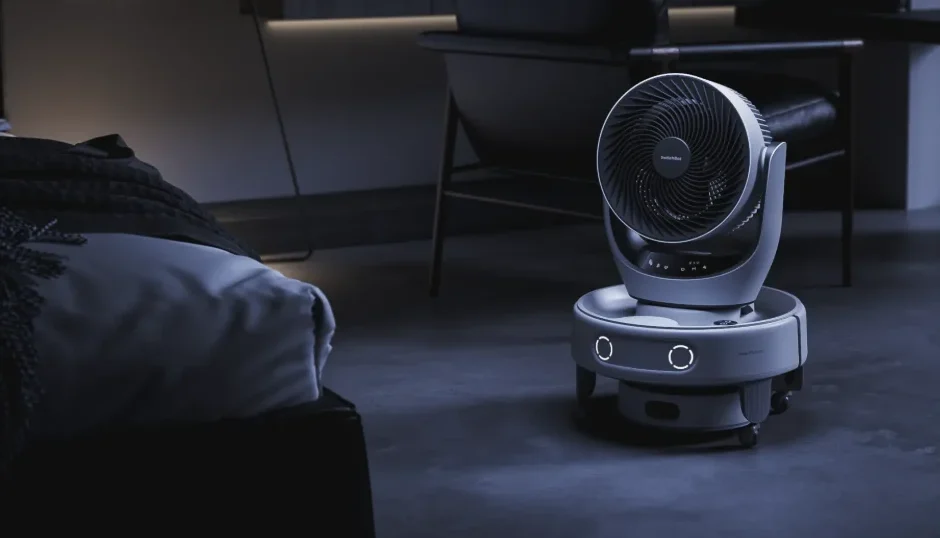
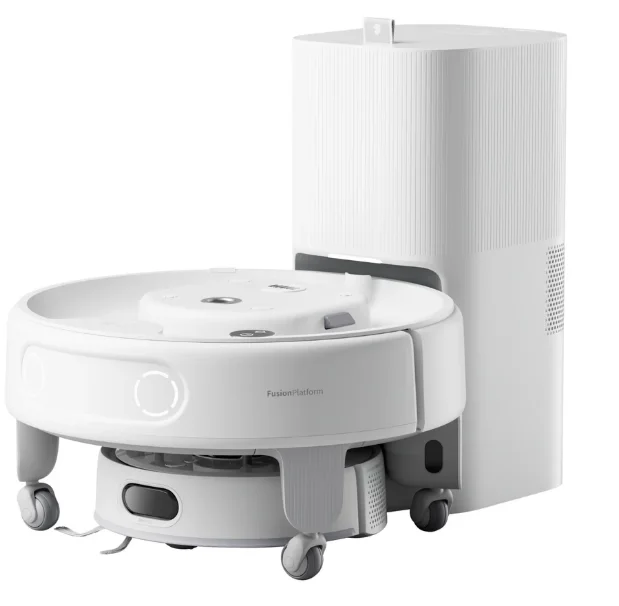
The SwitchBot Household Robot K20+ Pro is a cutting-edge multitasking home assistant that goes far beyond simple floor cleaning, redefining convenience in smart living. Built on SwitchBot’s FusionPlatform™ modular system, this robot combines advanced navigation, AI obstacle avoidance, and broad smart home integration — making it capable of vacuuming, delivering items, monitoring your home, purifying air, and more. Equipped with D-ToF LiDAR and dual laser sensors, the K20+ Pro maps your entire home with centimetre-level accuracy for seamless navigation and smooth movement around furniture and obstacles. Whether cleaning under low furniture or carrying objects up to 8 kg, its adaptable FusionPlatform lets you customise its role using optional kits — from delivery and mobile air purification to security patrol and fan circulation. You can control the K20+ Pro via the SwitchBot app or voice assistants like Alexa, Google Assistant, and Siri, while remote features let you check on pets or loved ones from anywhere. Voice commands and automation routines unlock hands-free convenience, truly turning the K20+ Pro into a smart household companion.
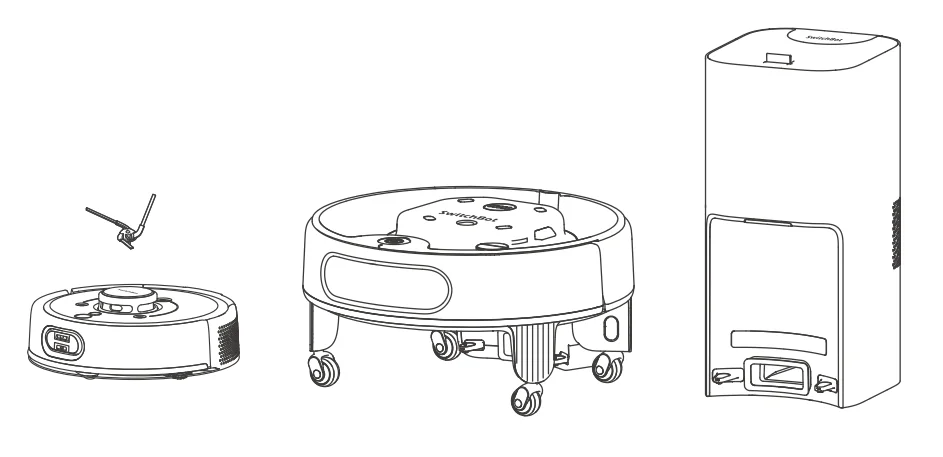
- Unpack and take out the displayed parts.

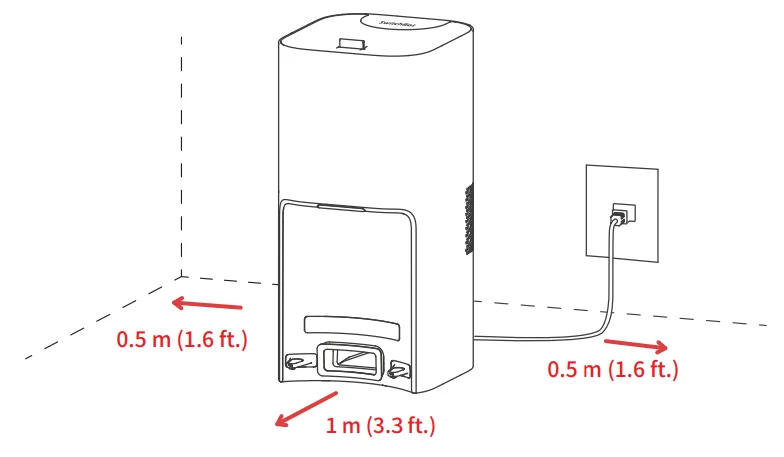
- Place the Dual Empty Station on a level and hard surface. Then connect the power cord.

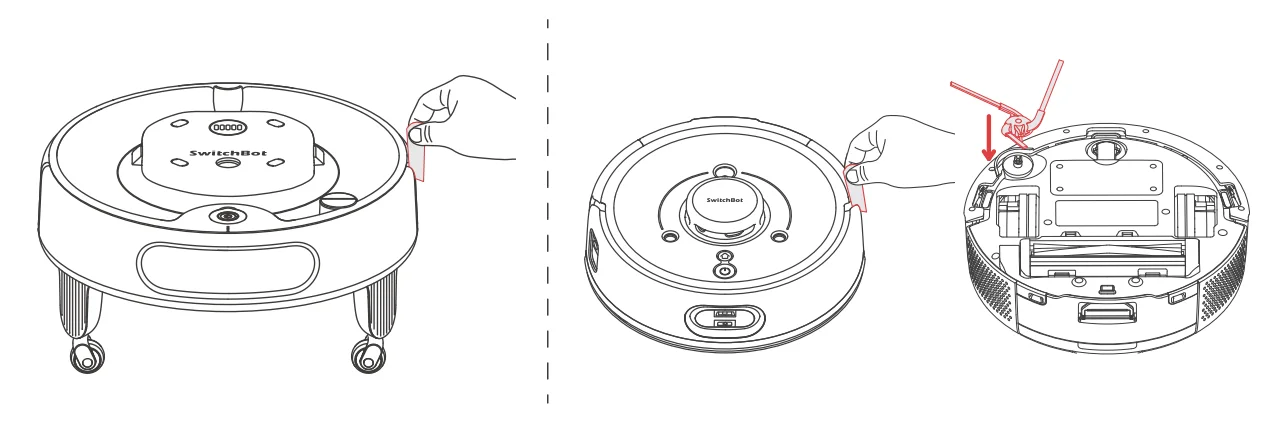
- Remove foam strips from the robot and Mobile Base and install the Side Brush.

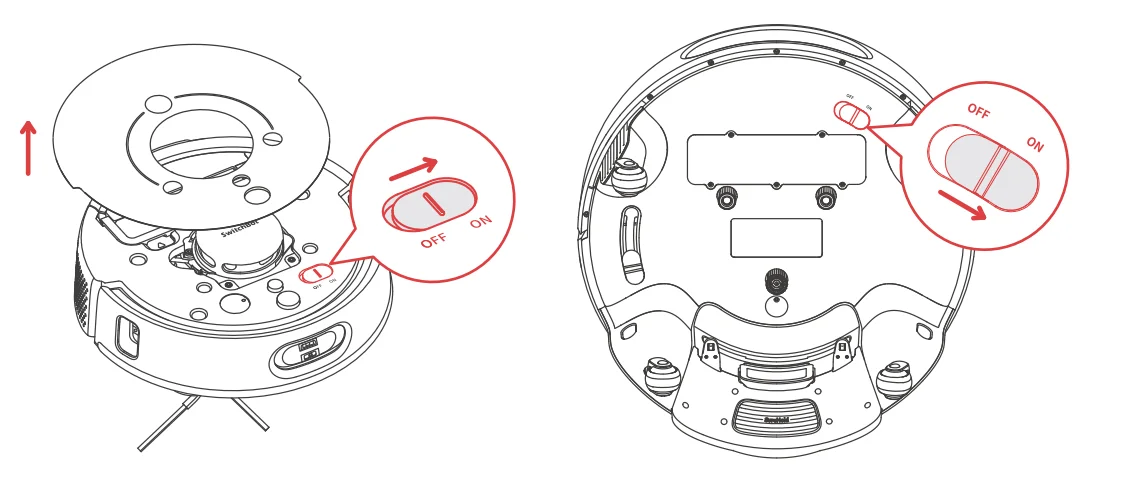
- Power on the product.
- Remove the faceplate of the robot and flip the power switch to “ON”.
- Turn the Mobile Base upside down and flip the power switch to “ON”.

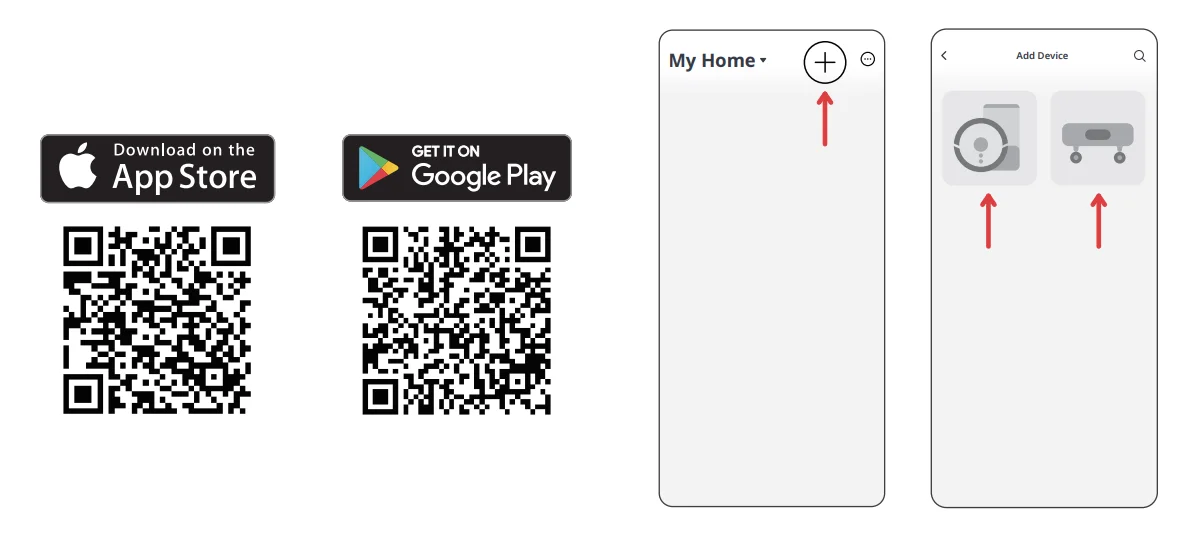
- Download the SwitchBot app.
- 1Add your Robot Vacuum K20+ to the app.
- Add your Mobile Base to the app.
- Pair them up as prompted.
- Check that their indicator lights are steady white.

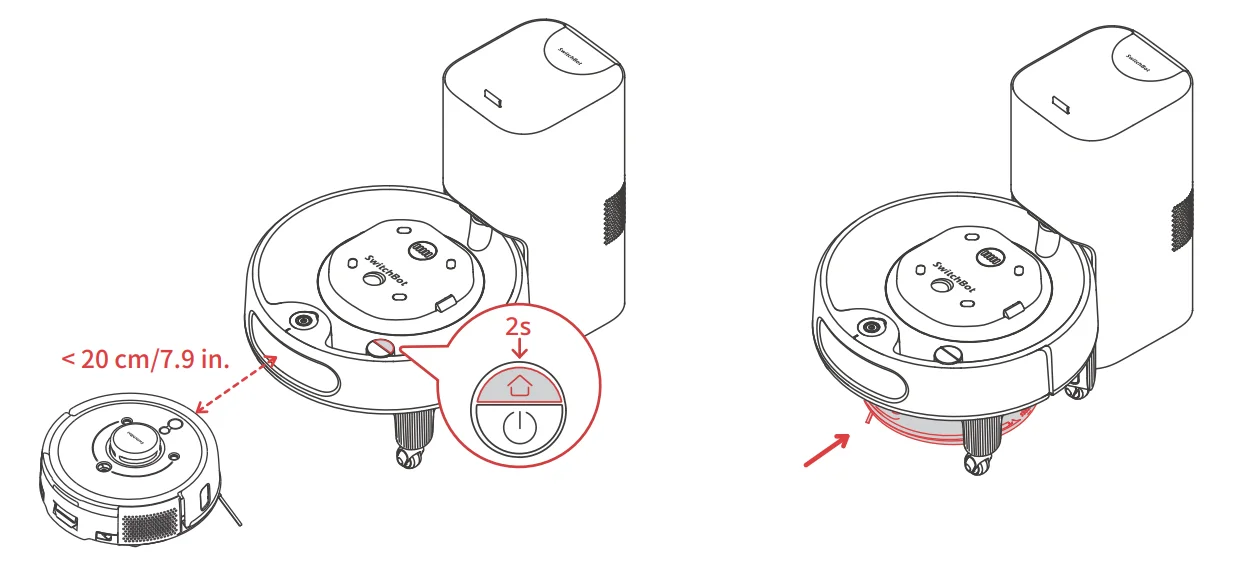
- Dock your Mobile Base to the station and fully charge it. Then, place your robot within 20 cm (7.9 in.) in front of the Mobile Base, press the Dock button on the Mobile Base for 2s. Wait for the robot to dock with the base.

- After your robot is docked to the Mobile Base, please follow the on-screen prompts to create a map.

- Tap
 to add Waypoints. Tap to select a waypoint
 on the map, and then hit
 to initiate a transport task.
- Tap
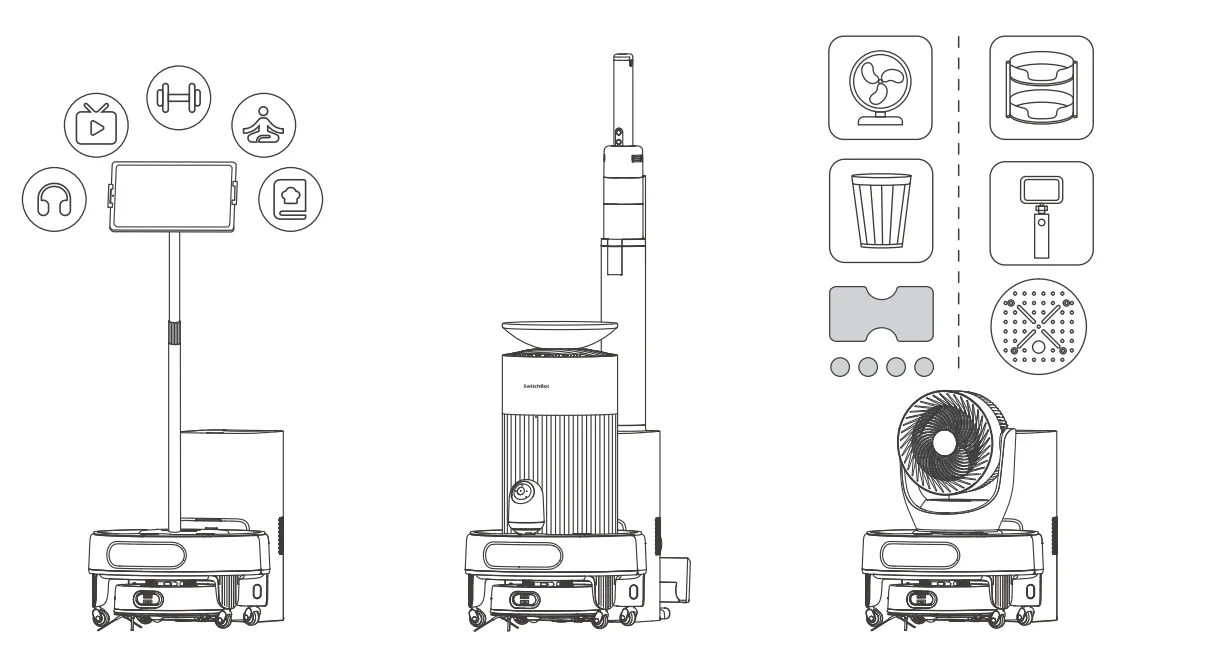
- With the included Velcro tapes, you can customise and mobilise your everyday items using our Mobile Base. To purchase compatible SwitchBot devices, please visit our official website at www.switch-bot.com.
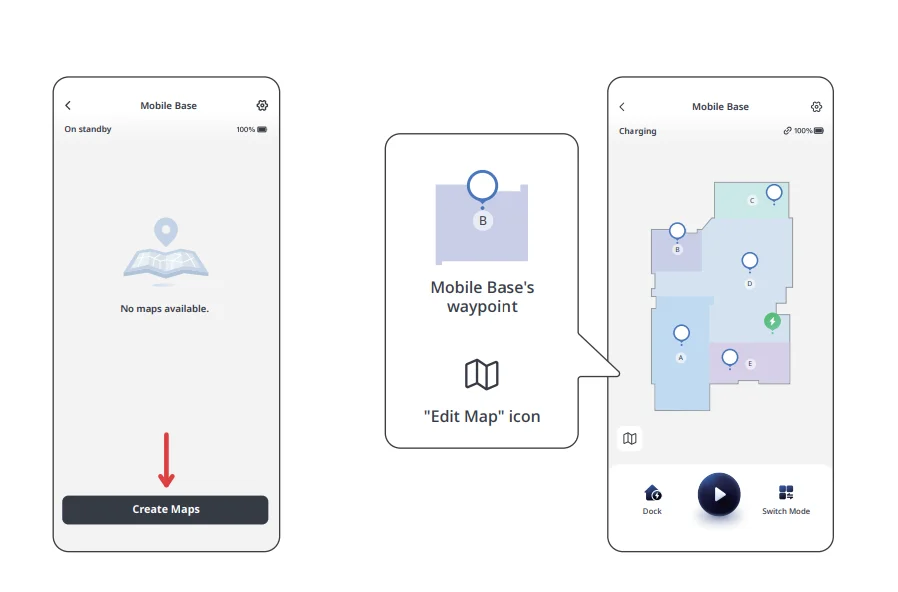
 to add Waypoints. Tap to select a waypoint
 on the map, and then hit
 to initiate a transport task.
For more manuals by SwitchBot, visit ManualsLibraryy
SwitchBot Household Robot K20+ Pro-FAQs
How do I connect my SwitchBot K20+ Pro to the app?
Download and open the SwitchBot app, then sign in or create an account. Tap the “+” icon to add a new device and select the K20+ Pro from the list. Make sure Bluetooth and Location permissions are enabled on your phone. Follow the in-app instructions to complete pairing and finish the setup process smoothly.
How do I connect the K20+ Pro to Wi-Fi?
During setup, the app will prompt you to select a 2.4 GHz Wi-Fi network and enter the password. Ensure your router supports 2.4 GHz (not just 5 GHz). Keep the robot and phone close to the router while pairing. Once connected, you can control cleaning, schedules, and advanced features remotely from anywhere.
Can I use the SwitchBot K20+ Pro without Wi-Fi?
Yes, basic cleaning functions can work without Wi-Fi by using the physical buttons on the robot. However, features like remote control, smart mapping, scheduling, firmware updates, and voice assistant integration require an active Wi-Fi connection through the SwitchBot app.
Can I control the SwitchBot remotely when I’m away from home?
Yes, once connected to Wi-Fi and linked through the SwitchBot app (or compatible hub if required), you can start, stop, or schedule cleaning from anywhere. Remote access also enables integration with voice assistants and smart home automation routines.
Is the SwitchBot K20+ Pro easy to install and use?
Yes, the setup process is beginner-friendly. The app provides step-by-step instructions, and most users can complete installation within minutes. Once connected, you can manage cleaning schedules, customize settings, and monitor performance directly from your smartphone.
Does SwitchBot use Bluetooth or Matter?
SwitchBot devices typically support Bluetooth for local communication and may support Matter compatibility depending on the ecosystem and hub used. Bluetooth allows quick pairing and nearby control, while Wi-Fi or a hub enables remote access and smart home integration.
How do I change the Wi-Fi network on my SwitchBot?
Open the SwitchBot app and go to the K20+ Pro settings page. Tap “Wi-Fi Settings,” then select your new 2.4 GHz network and enter the password. Make sure the robot is powered on and near the router during reconnection for a stable setup process.
How do I reset the SwitchBot K20+ Pro?
To reset the robot, press and hold the required button combination (such as Clean + Home buttons, depending on the model instructions) for several seconds until you hear a voice prompt. Resetting will erase saved maps and Wi-Fi settings, allowing you to reconnect the device as new.