
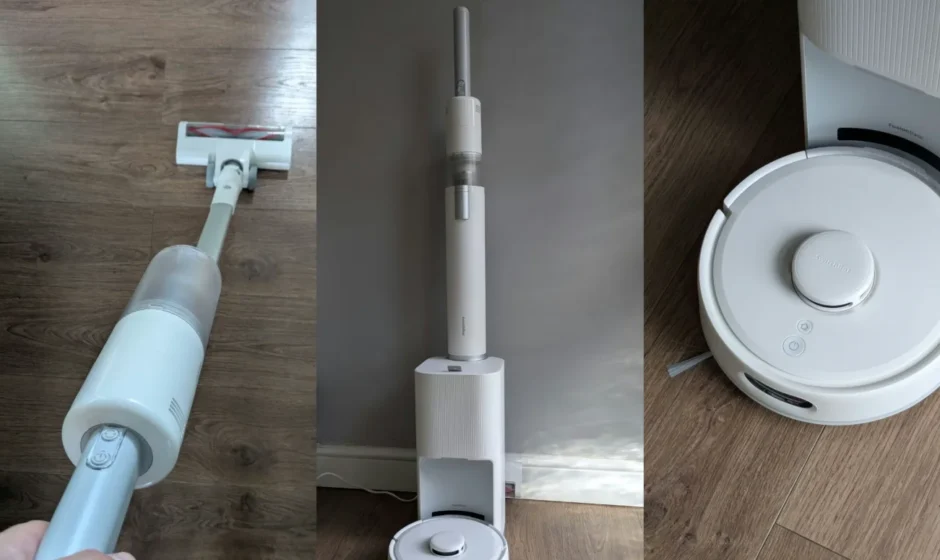

SwitchBot Robot Vacuum K10+ Pro Combo
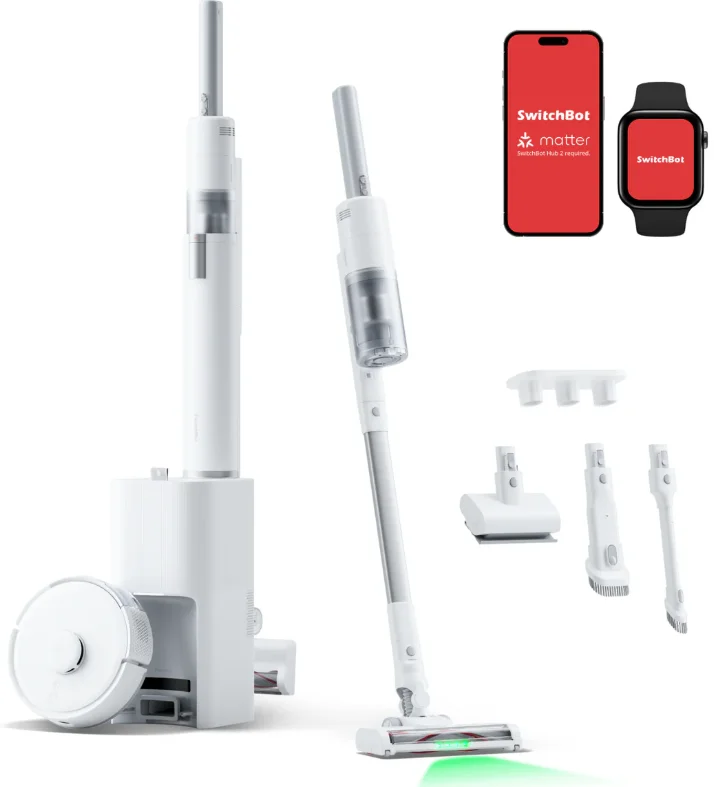
Product Overview
List of Components
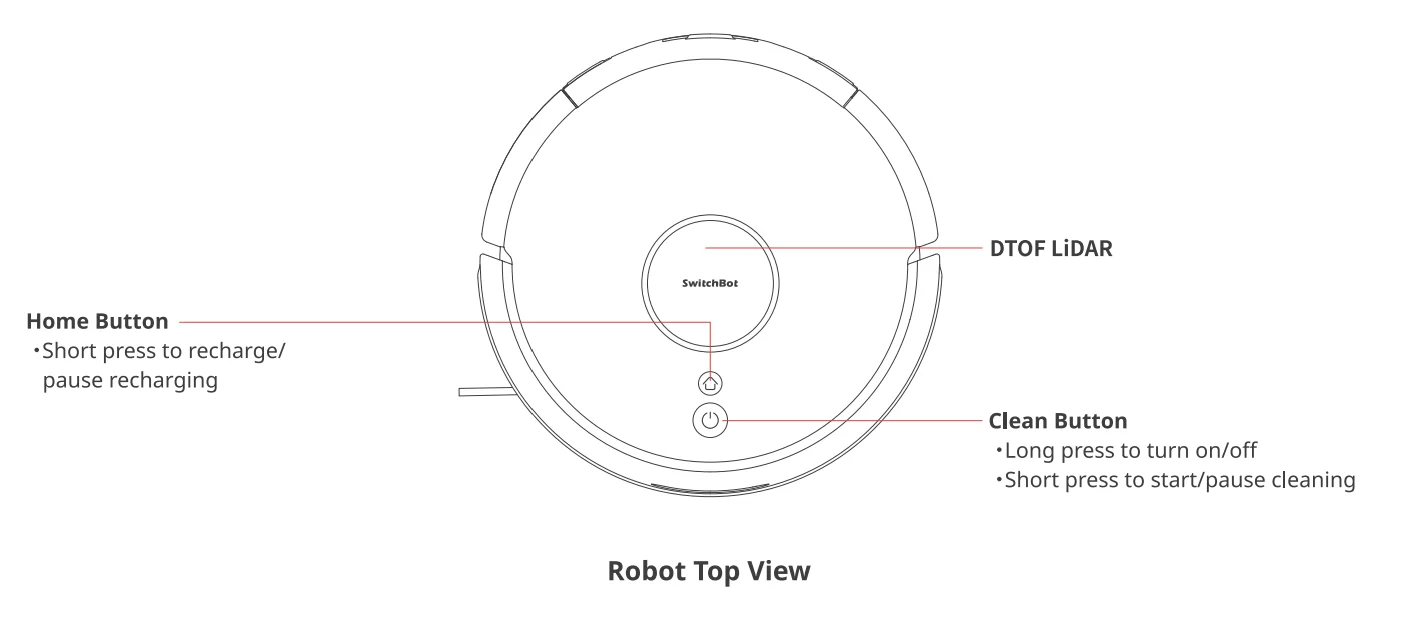
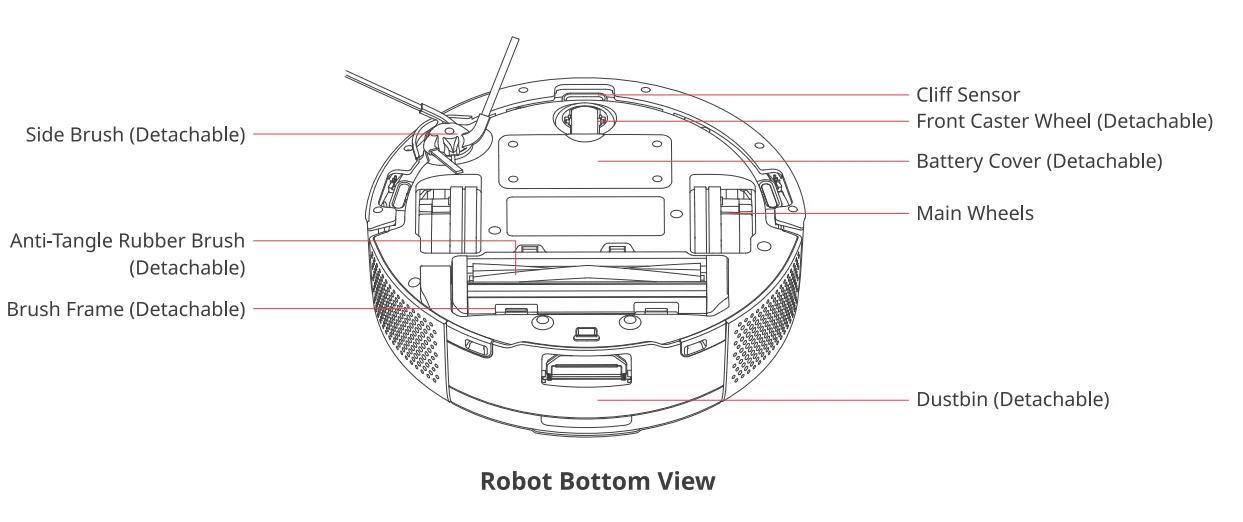
Robot
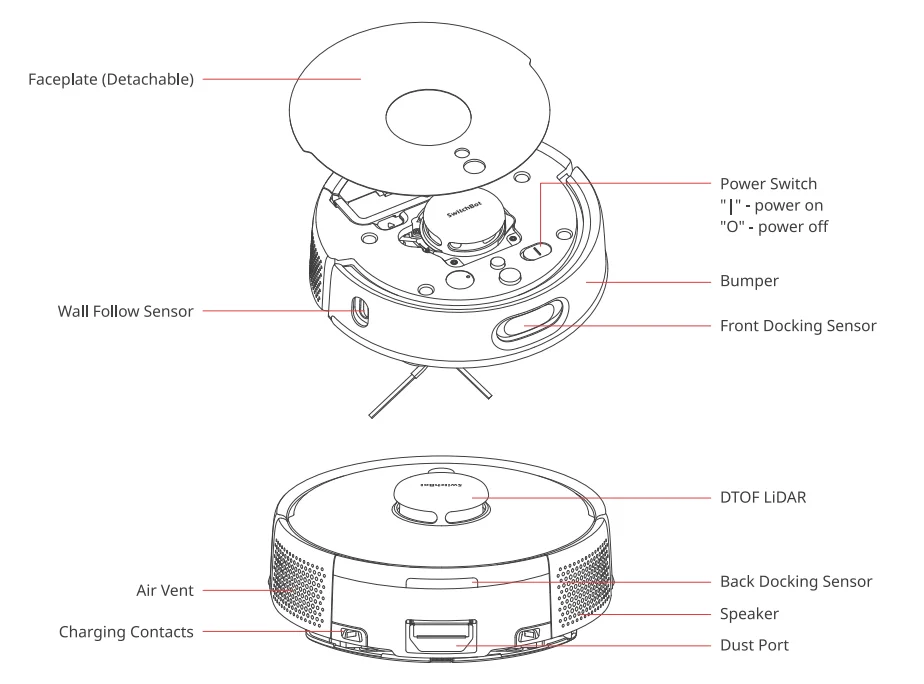
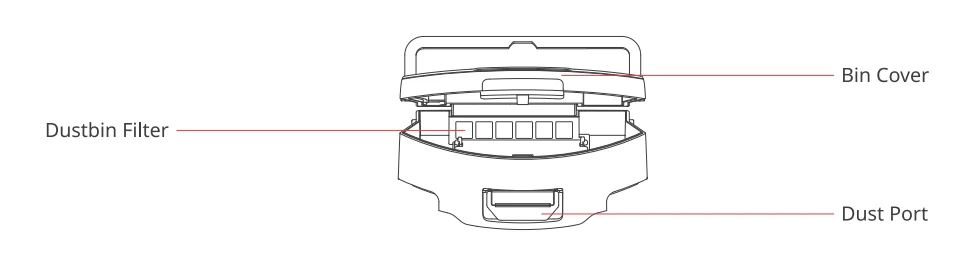
Dustbin
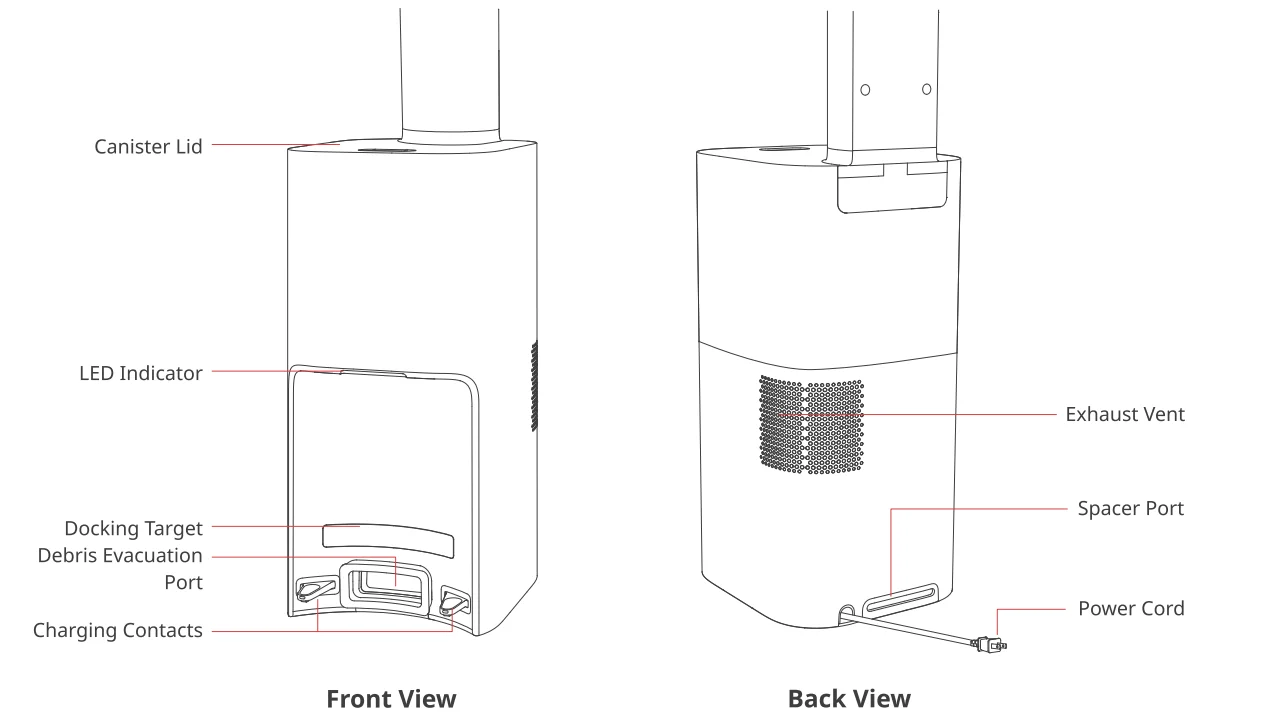
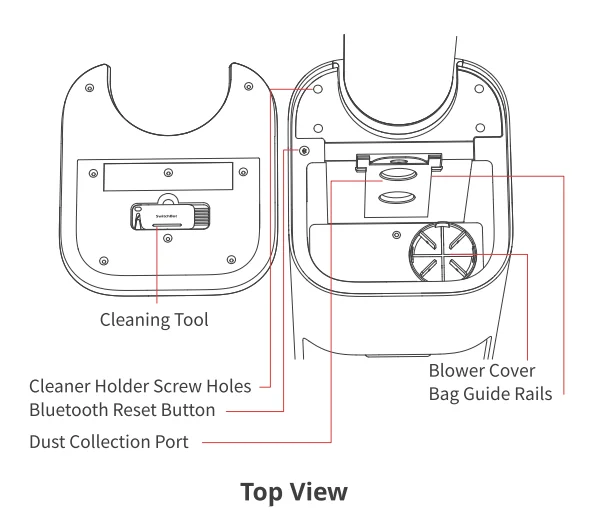
Dual Empty Station
Preparing for Use
Decluttering
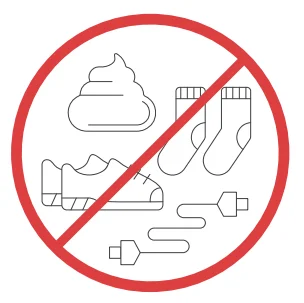
Before starting the robot, please check the floor and clean up any scattered items such as wires, socks, slippers, children’s toys, etc. to improve the efficiency of the robot. Clear the floor of hard or sharp objects (e.g., nails, glass), and move away items that are fragile, valuable, or potentially dangerous to avoid being caught, tangled, or knocked over by the robot, causing personal injury or property damage.
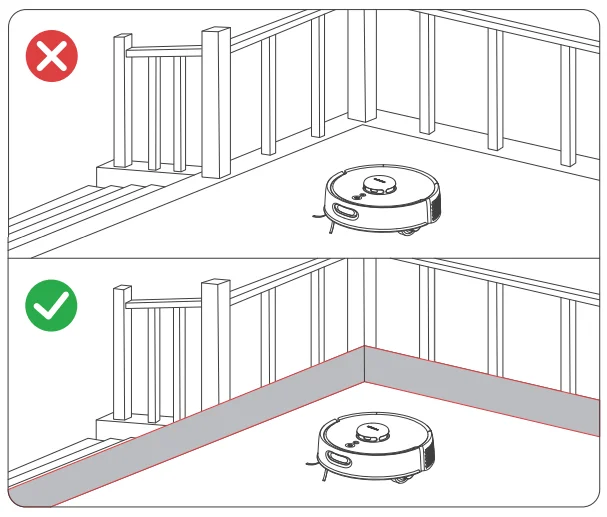
Before cleaning, please use a physical barrier to avoid areas where the robot may fall or get stuck, ensuring the safety and smooth operation of your robot.
Open the doors of the rooms to be cleaned, arrange the furniture neatly, and try to clear the largest cleaning space. Please avoid standing in front of your robot, doorways, or narrow passages in case your robot cannot detect the area to be cleaned.
NOTE:
- When using the robot for the first time, follow it throughout its whole cleaning route and watch for potential problems. This will help you identify and resolve minor issues, ensuring a more efficient cleaning process in the future.
- If the robot gets stuck under low furniture, you can try the following solutions:
- Block the bottom of the furniture.
- Seta virtual wall in the app to prevent the robot from entering.
- If possible, raise the furniture slightly.
Placing the Dual Empty Station
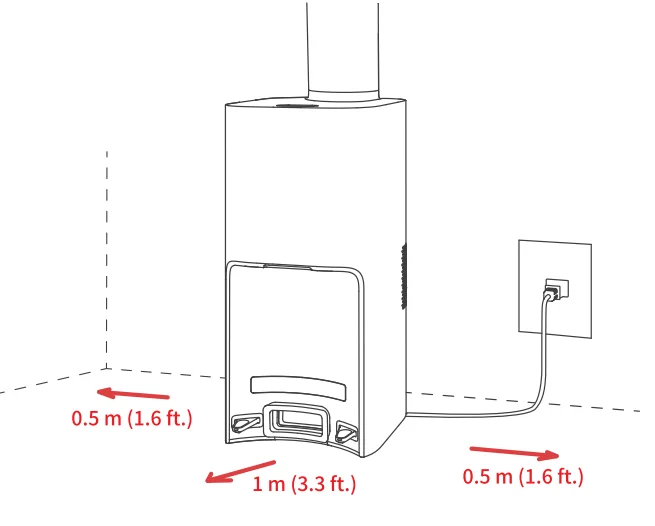
- Place the Dual Empty Station on a hard, level surface (such as a floor or ceramic tile) against a wall, ensuring there is at least 1 m (3.3 ft.) of space in front and above, and 0.5 m (1.6 ft.) on both sides. Make sure the location has a good Wi-Fi signal to provide a better network connection and app user experience.
- Plug the Dual Empty Station into an outlet, and ensure the indicator light turns on.
Note:
- The power cord may be dragged by the robot if hanging on the ground, causing the Dual Empty Station to move or disconnect from power.
- The indicator light on the Dual Empty Station will stay on when powered, and turn off when the robot is charging.
- If there is an issue with the Dual Empty Station, the indicator light will turn red and stay on as a reminder.
- Make sure to place the Dual Empty Station on a level indoor surface, away from open flames, heat sources, water, narrow spaces, or areas where the robot may fall.
- Placing the Dual Empty Station on non-hard surfaces (such as carpets, mats, etc.) poses a risk of tipping over, and the robot may not be able to leave the Dual Empty Station properly.
- Do not place the Dual Empty Station under direct sunlight or block its signal emitter area with any objects, as this may prevent the robot from returning automatically.
- Please maintain the Dual Empty Station according to the maintenance instructions and avoid using wet cloths or wipes for cleaning.
Preparing Your Robot
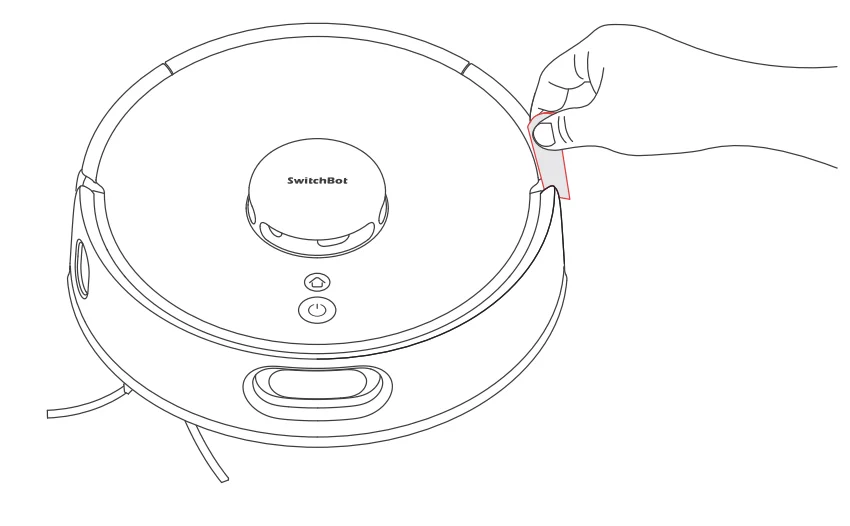
Removing the protective foam strips
Installing the Side Brush
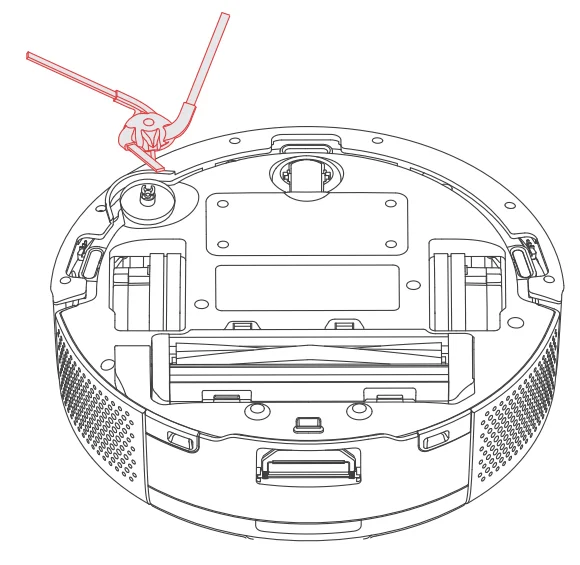
Note: When you hear a clicking sound, it means the Side Brush has been properly installed.
Powering on and charging
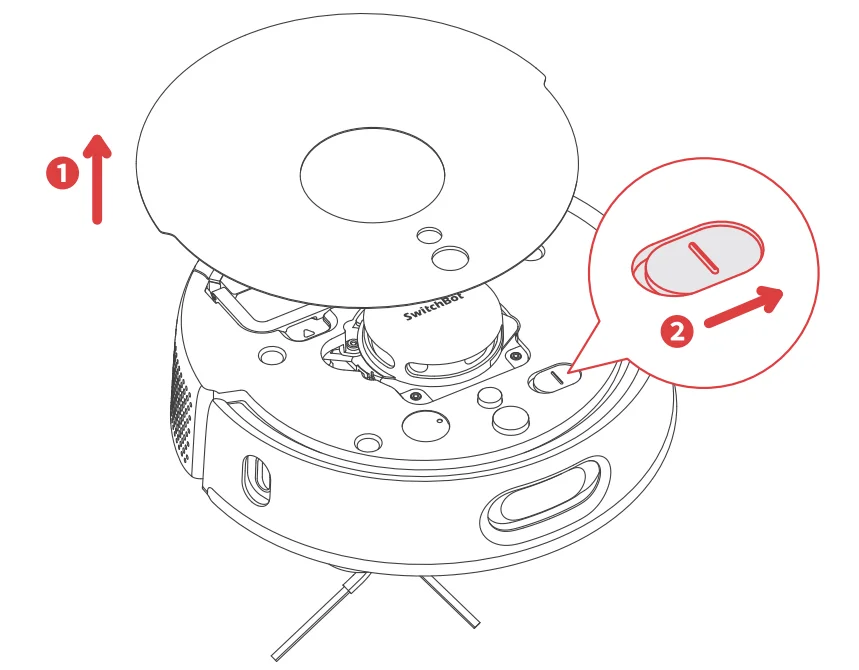
- Remove the faceplate as shown in the picture, and turn on the Power Switch. “I” means powered on, and “O” means powered off.

- Wait for the indicator light on your robot to turn on, then manually dock your robot to the Dual Empty Station to charge, as shown in the picture. You will hear the voice prompt “Charging”.
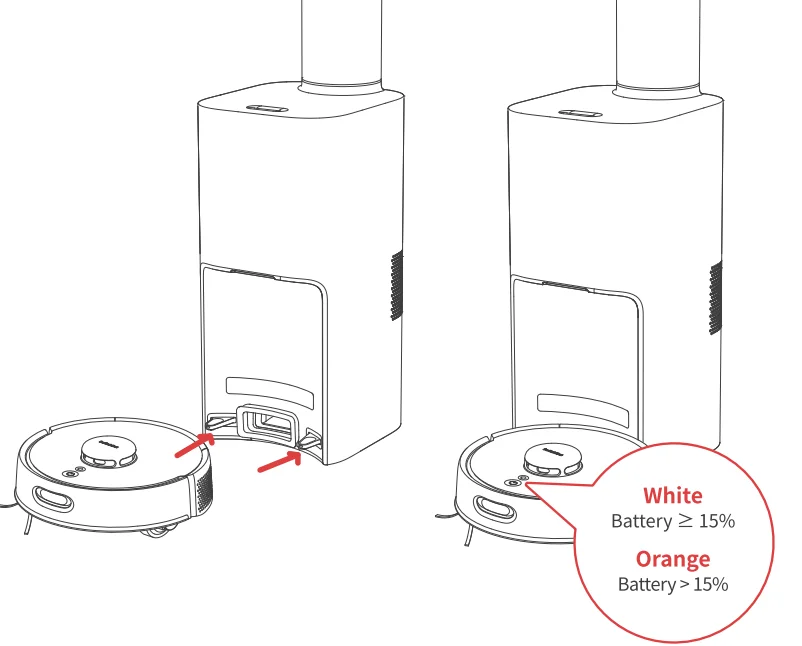
Note: Before the initial use of the robot, it’s advised to charge it for 3 to 4 hours. If it fails to turn on, it may be due to low battery. Please dock the robot directly to the Dual Empty Station.
Instructions for Use
Connecting to Our App
- Download the SwitchBot app to experience more personalized settings and a better user experience.
You will need:- A smartphone or tablet using Bluetooth 4.2 or later.
- The latest version of our app is downloadable via the Apple App Store or Google Play Store.
- A Switch Bot account, you can register via our app or sign in to your account directly if you already have one.

iOS and Android system requirements: https://support.switch-bot.com/hc/en-us/articles/12567397397271
- Open our app, tap the”+” icon at the right-hand corner of the home page, and select Add Device.
- Find the device icon and select it. Follow the instructions to add your device.


Starting Your Robot
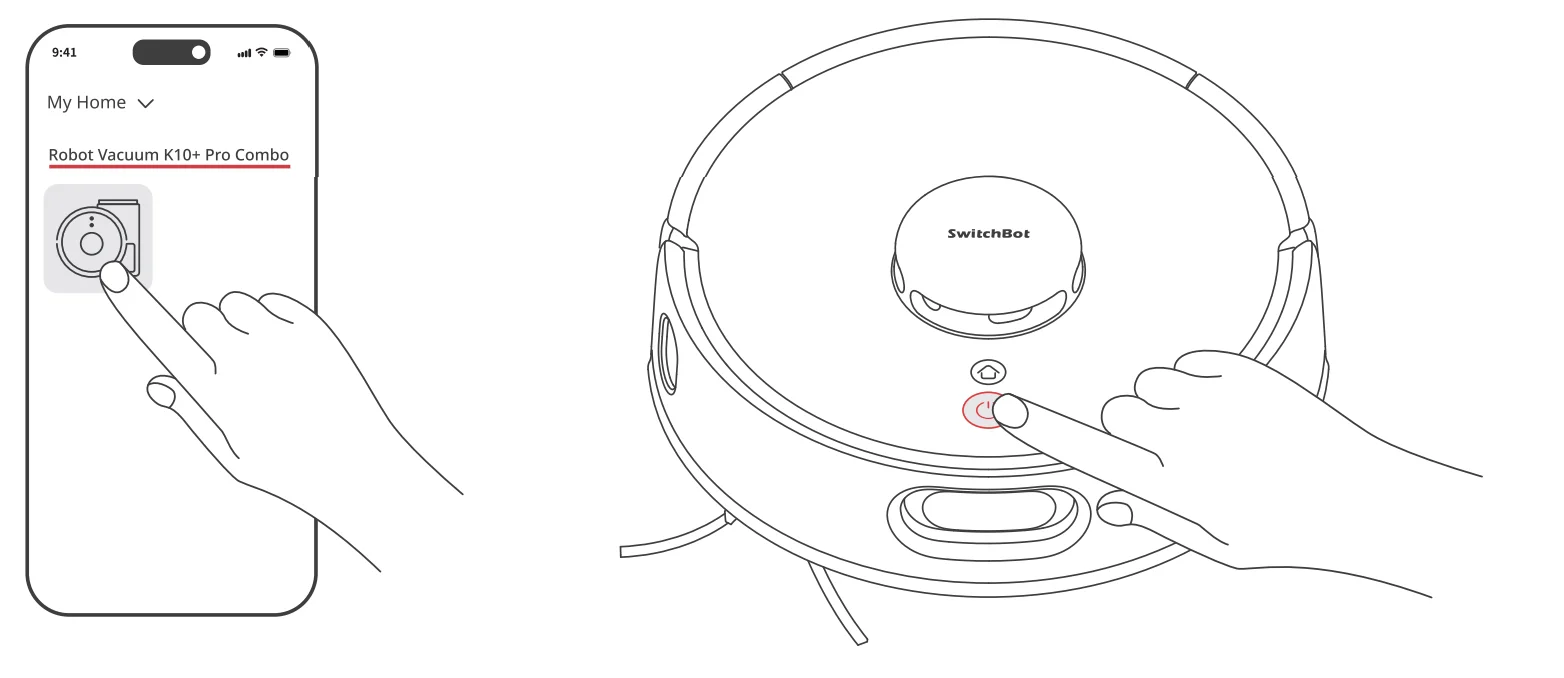
Vacuuming
Press the button to start cleaning, or control via our app.
Mopping
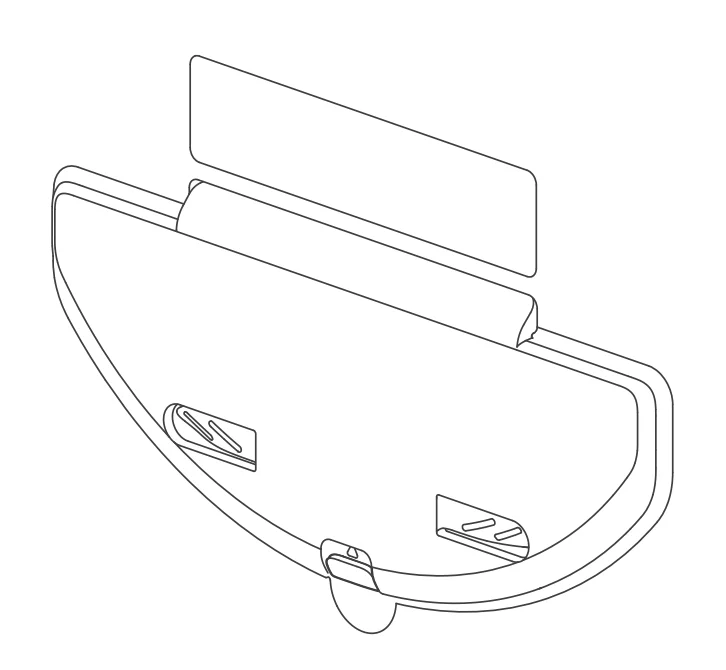
- Find the mopping pad plate in the package.

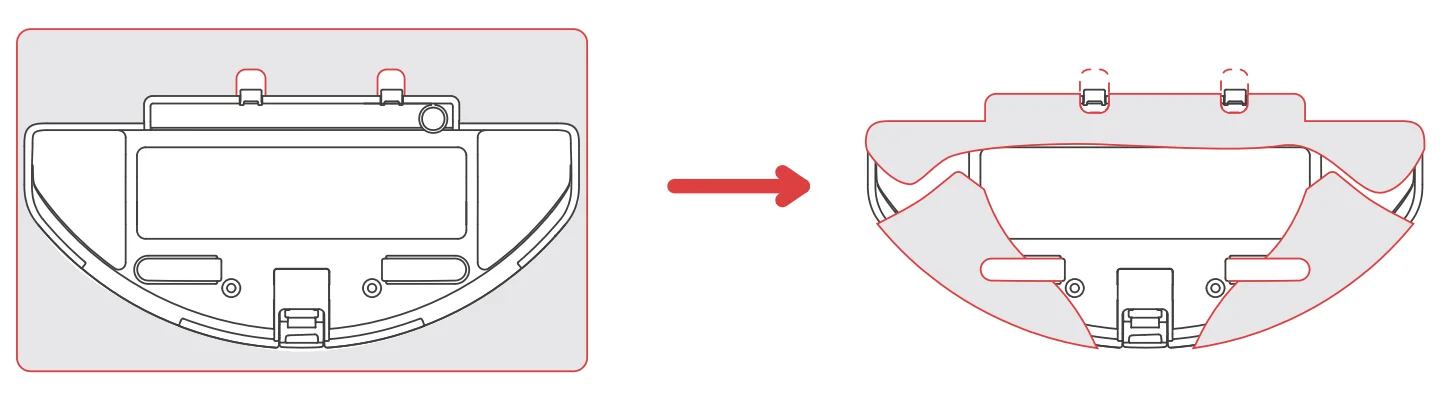
- Attach a mopping cloth to the mopping pad plate.
- Option 1: Use the original mopping cloth

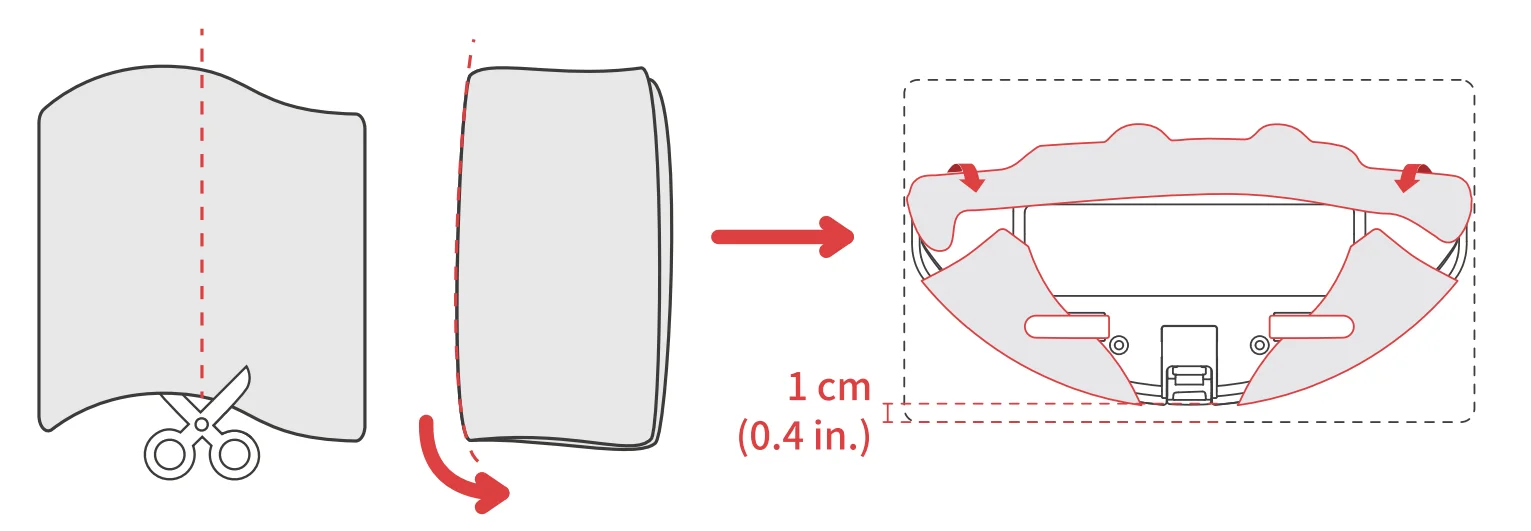
- Option 2: Use a common mopping cloth

Note: The dimensions of a common mopping cloth is usually approx. 30 x 20 cm (11.8 x 7.9 in.), while your robot’s mopping pad plate is compatible with 20 x 15 cm (7.9 x 5.9 in.) cloth. If you use a common mopping cloth, fold or cut it in half before attaching to the mopping pad plate.
- Option 1: Use the original mopping cloth
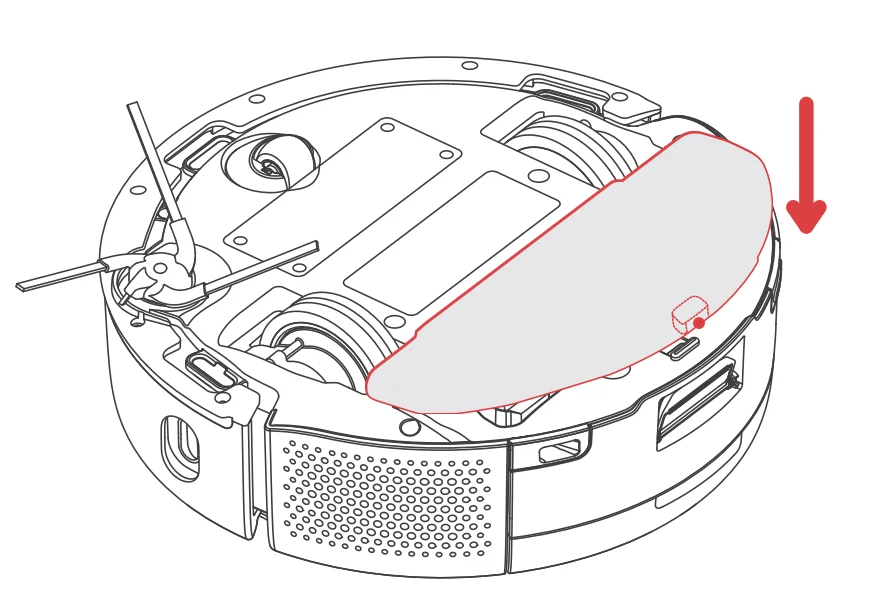
- Cover the mopping pad plate on the Anti-Tangle Rubber Brush.

- Press the
 button to start mopping, or control via our app.
Note:
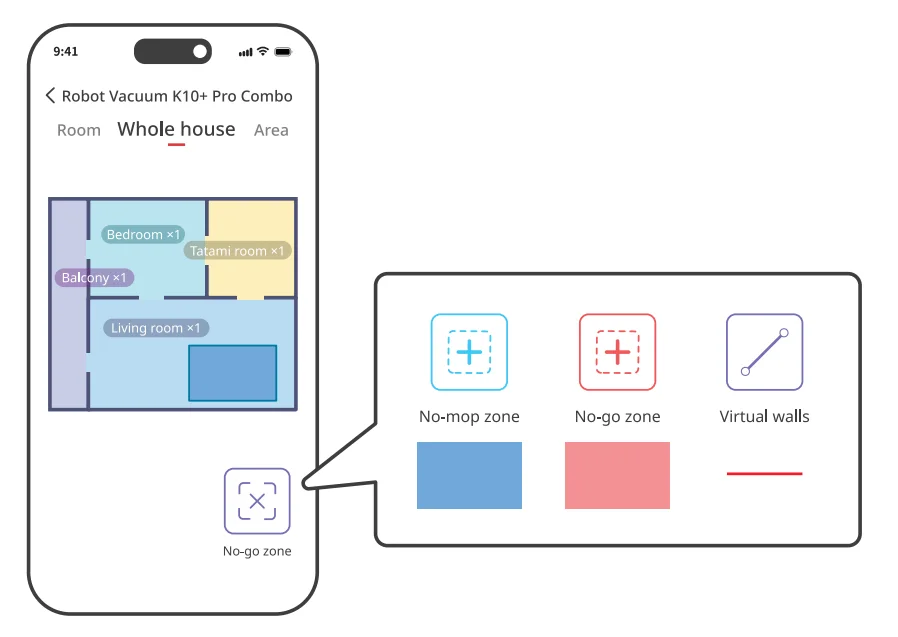
- Set no-go zones in the app so your robot won’t mop and wet areas like carpets.

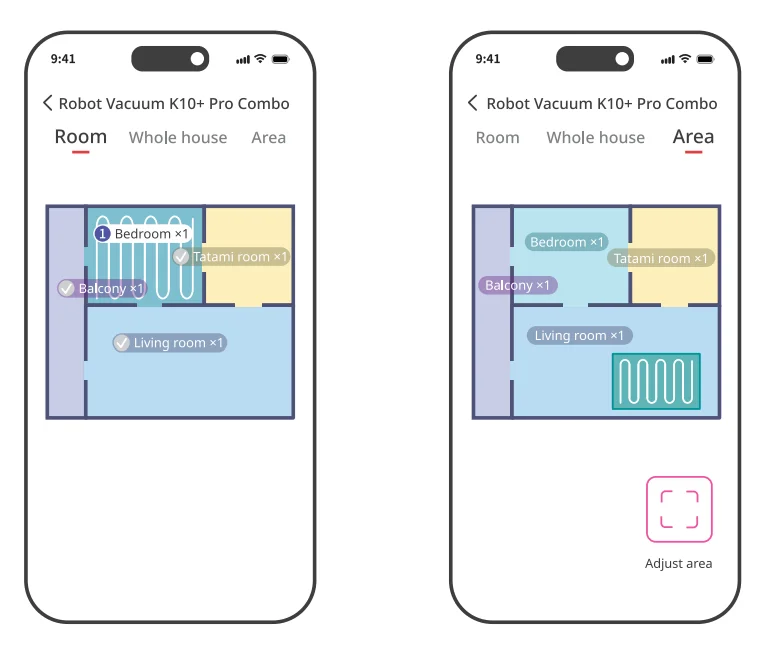
- The mopping cloth will become dry after 20 or 30 minutes of use. It is recommended to only mop designated rooms or areas set in the app.

- The dry mopping cloth can still wipe away some dust or hair, but it is not as effective as when it’s wet. Please replace the dry mopping cloth in time when mopping.
Pausing Your Robot
Press any button on your robot to stop it while working. When paused, tap thebutton to resume the previous cleaning task, tap the button to finish the task, and your robot will return to the Dual Empty Station to recharge.
Recharging
After finishing a cleaning task, your robot will automatically return to the Dual Empty Station to recharge. To manually send it back to recharge, press thebutton on your robot. The indicator light will be pulsing when charging.
Note: If the robot cannot find the station, it will automatically return to the starting position. Please manually dock it to the station for charging.
Hibernation
If your robot is not operated for more than 10 minutes, it will automatically enter hibernation. Press any button to wake it up.
Note: The robot will not enter hibernation while charging.
Do Not Disturb Mode
The default setting for this mode is from 22:00 to 08:00, and you can modify or disable this function via our app. During the Do Not Disturb period, device button lights will stay off, and your robot will not automatically resume cleaning or play voice prompts.
Child Lock
You can use the Child Lock function in our app to lock the robot buttons. You can remove this function via our app.
Restoring Factory Settings
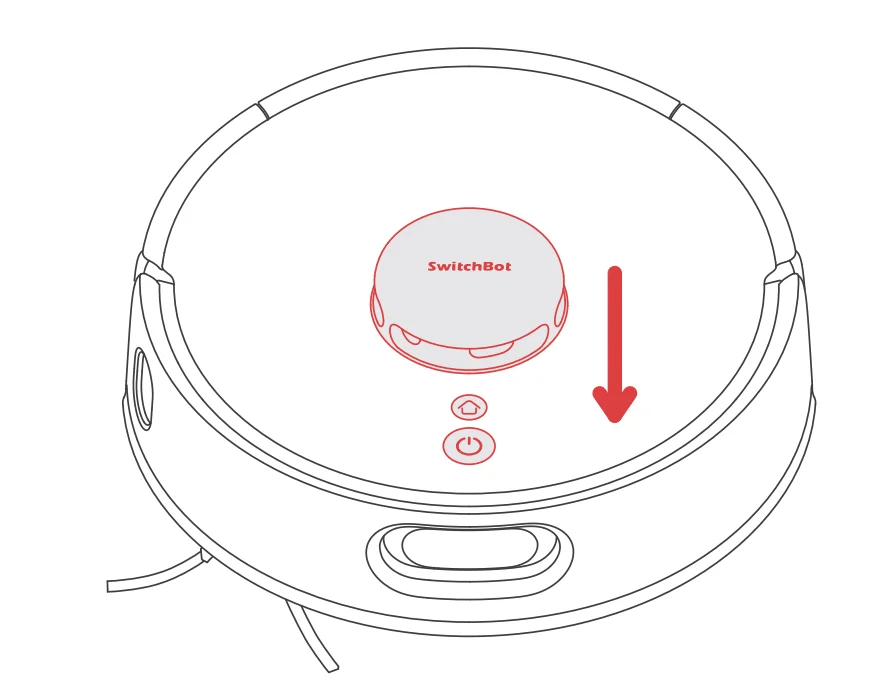
Press and hold thebutton,button, and DTOF LiDAR for 6s at the same time until you hear the voice prompt.
Care and Maintenance
To keep your robot running at peak performance, perform the procedures on the following pages. If you notice the robot picking up less debris from your floor, empty the bin, clean the brushes, and clean or replace the filter if needed. Replace the dust bag in time when it is full.
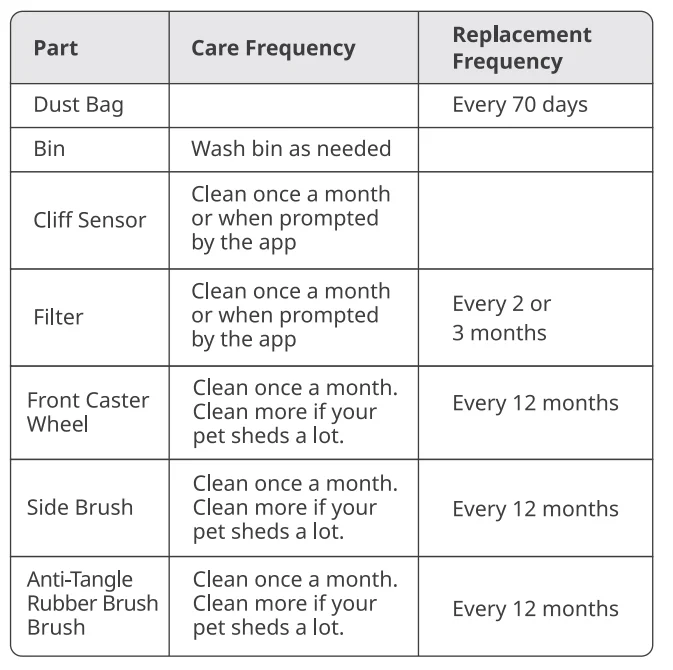
Replacement frequency may vary. Parts should be replaced if visible wear appears. If you need to purchase accessory kits, please visit authorised channels or our official website www.switch-bot.com
Daily Maintenance (Robot)
Open the Canister Lid and find the cleaning tool.
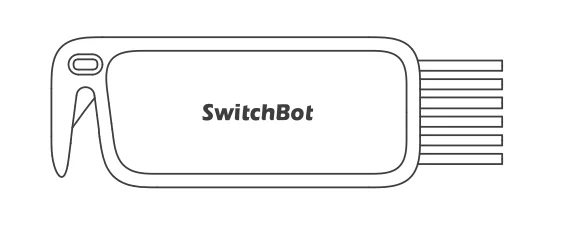
Cleaning the Bin and Filter
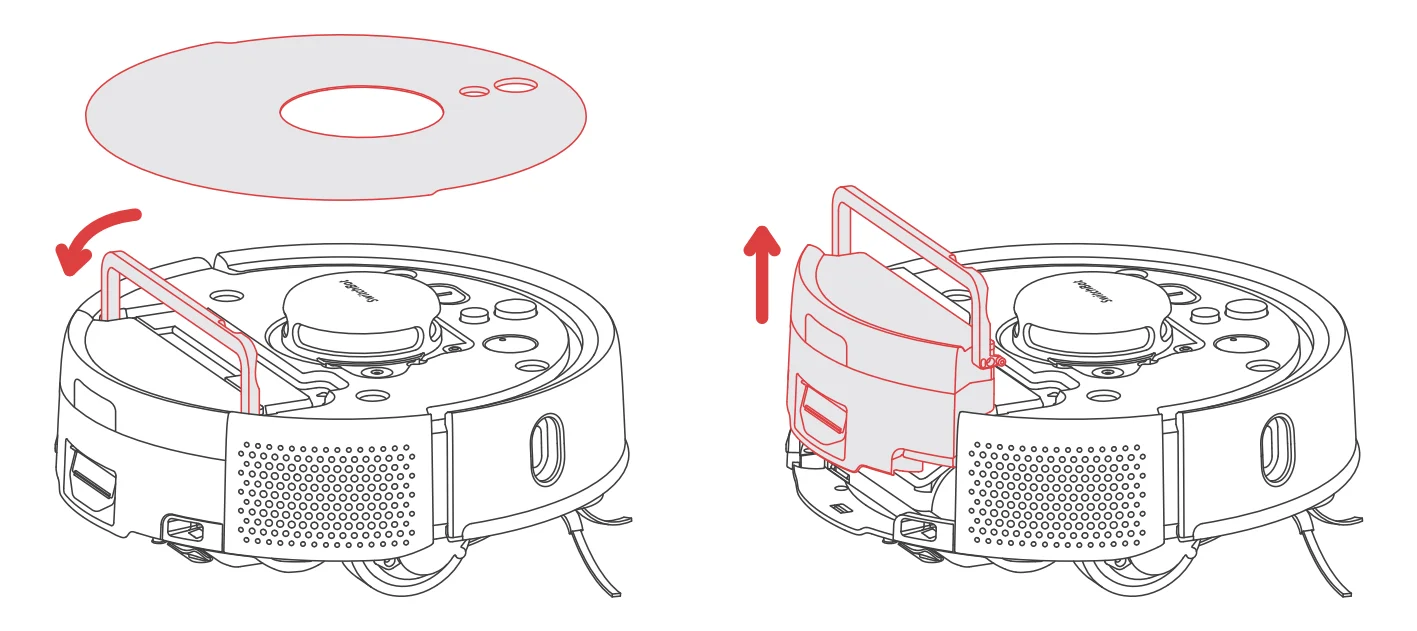
- Open the faceplate and remove bin.

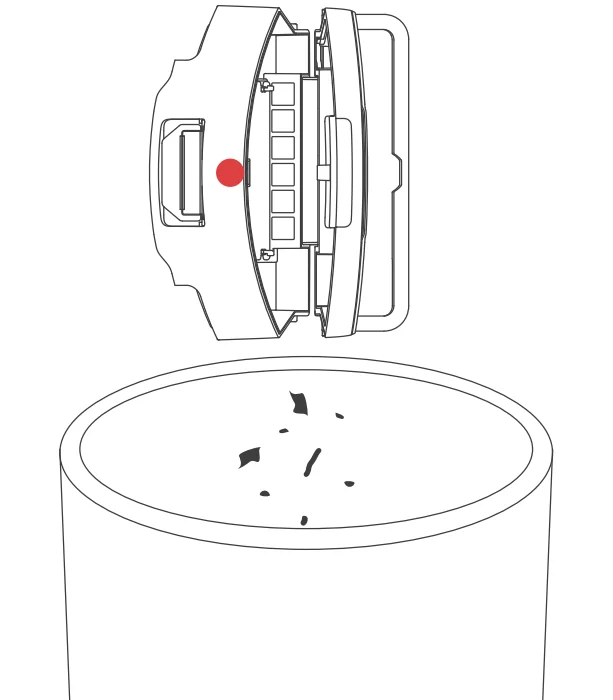
- Press the red area (marked in the picture) to open and empty the bin.

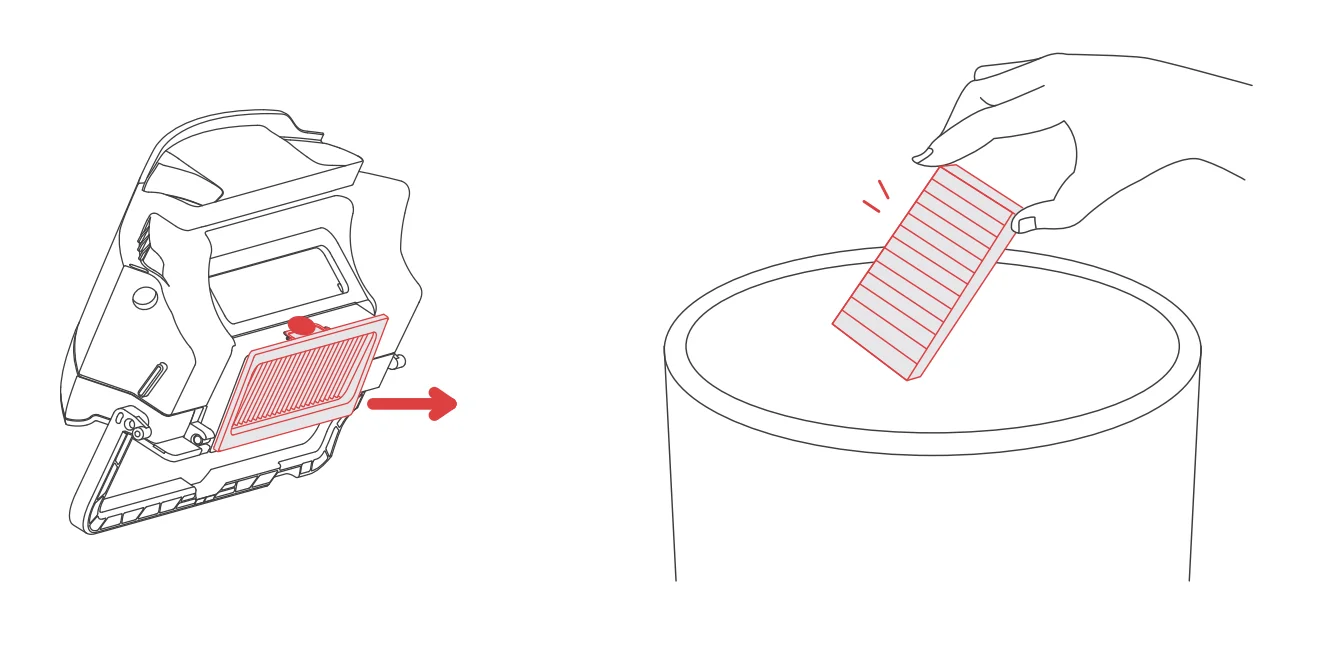
- Remove the filter and tap to clean it.

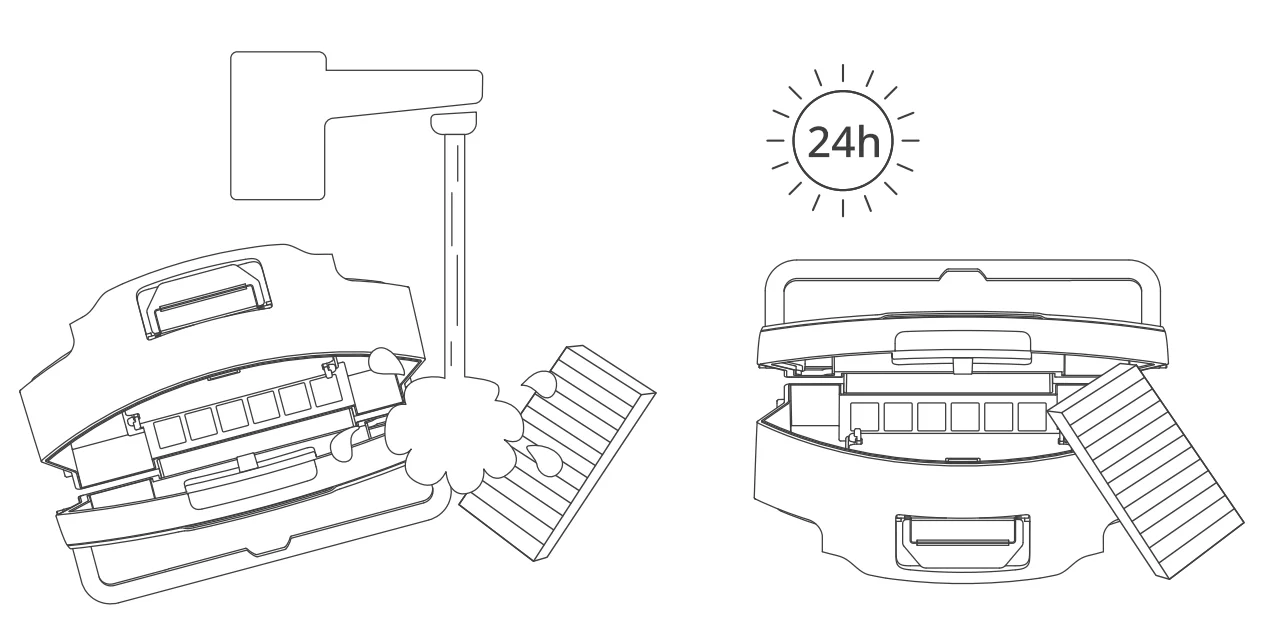
- Rinse the bin and filter using warm water and completely dry them.

- Reinstall the filter and bin back in the robot.
Cleaning the Mopping Pad Plate
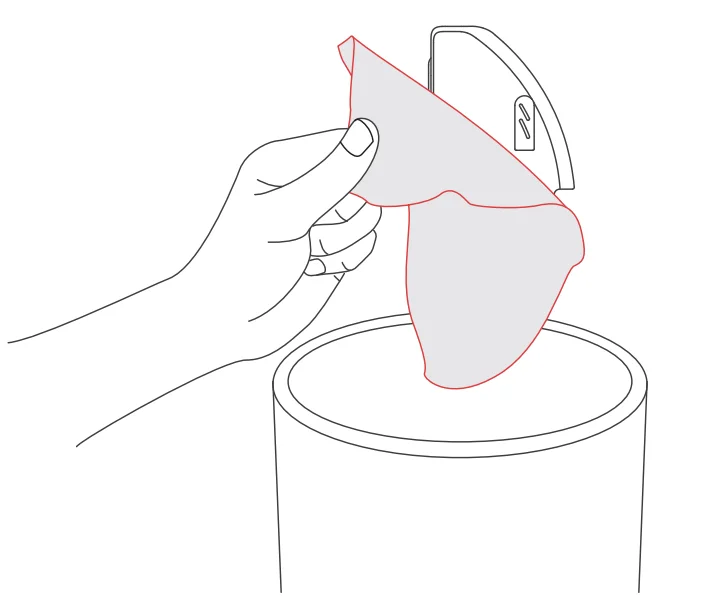
- Remove the mopping pad plate and throw away the disposable mopping cloth. Wash the pad plate with water.

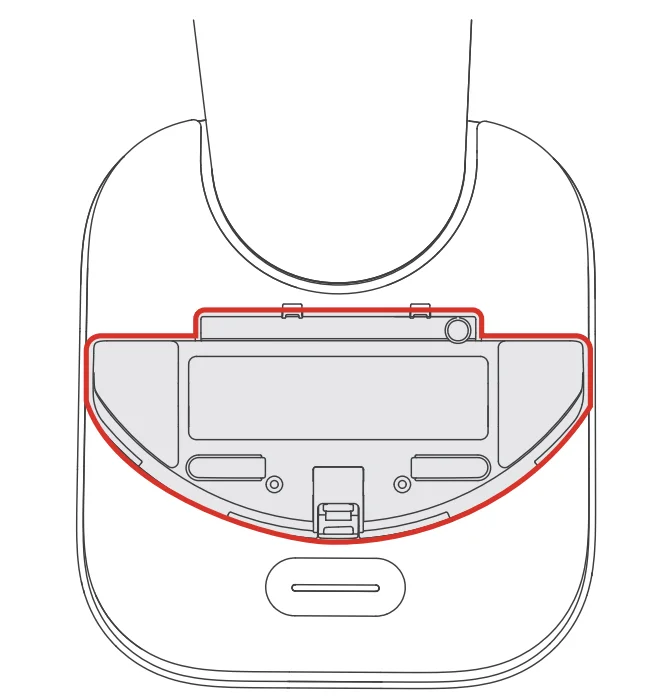
- Place the Mopping Pad Plate on the Canister Lid.

Cleaning the Side Brush
- Pull to remove the Side Brush.

- Remove any hair or debris and replace the brush.
- Align and reinstall the brush.
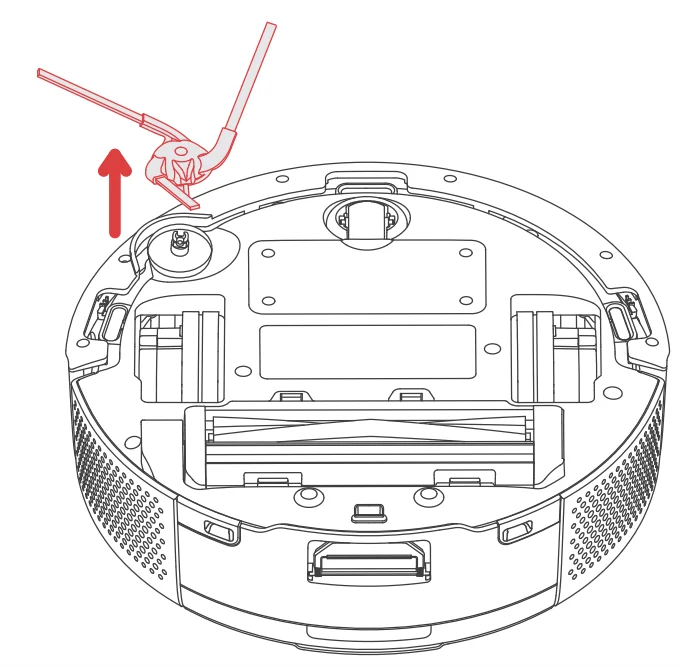
Note: Replace the Side Brush once every year.
Cleaning the Front Caster Wheel
- Pull firmly on the front wheel to remove it from the robot.

- Remove any debris from inside the wheel cavity.
- Reinstall the wheel. Make sure the wheel clicks into place.
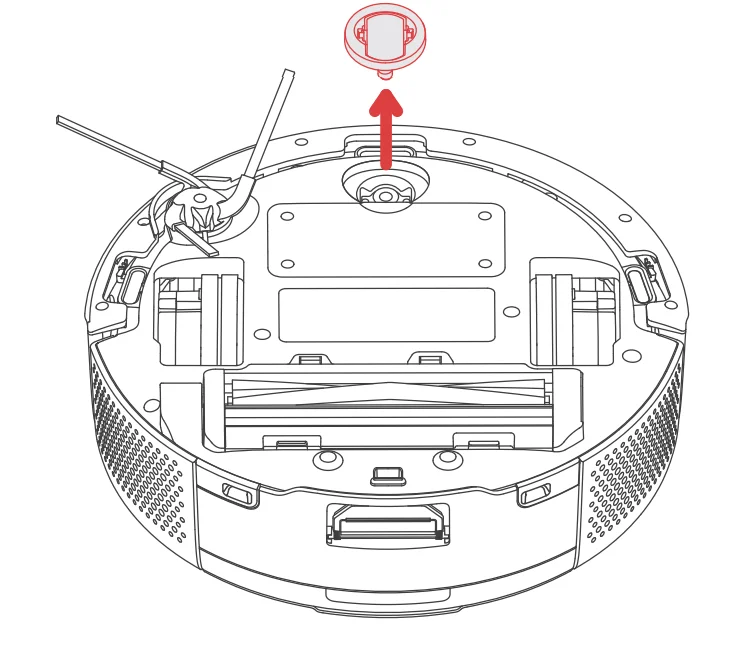
Note: Replace the Front Caster Wheel once every year.
Cleaning the Anti-Tangle Rubber Brush
- Remove the brush frame and lift the brush from the left side.

- Remove and clean hair and debris from the brush caps. Remove hair from the brush.

- Reinstall the brush caps into place.
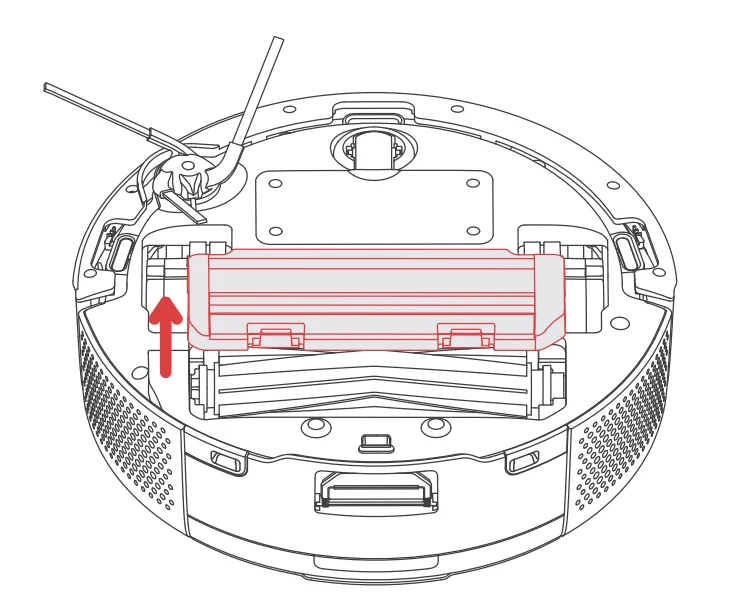
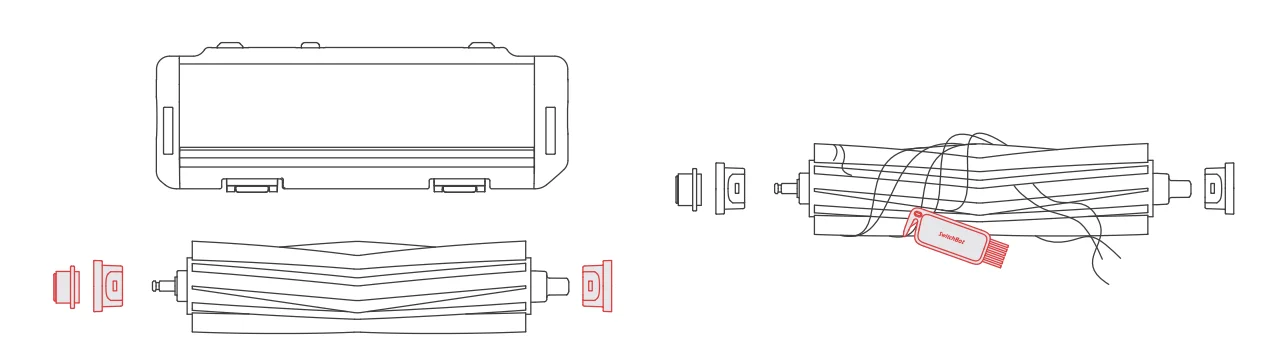
Note: Replace the Anti-Tangle Rubber Brush every 12 months.
Cleaning Sensors and Charging Contacts
Wipe sensors and charging contacts with a clean, dry cloth.
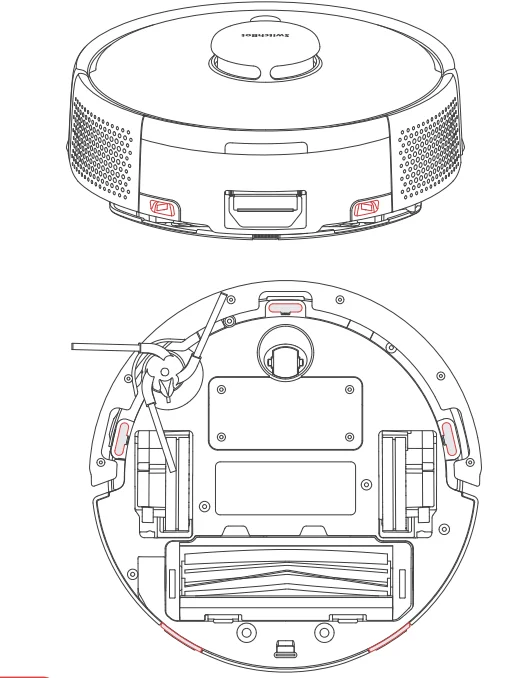
Note: Do not spray cleaning solution or water onto the sensors, sensor openings or charging contacts.
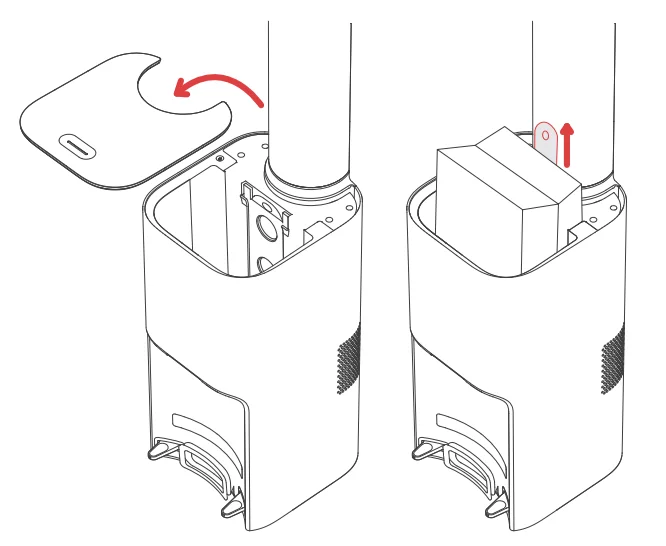
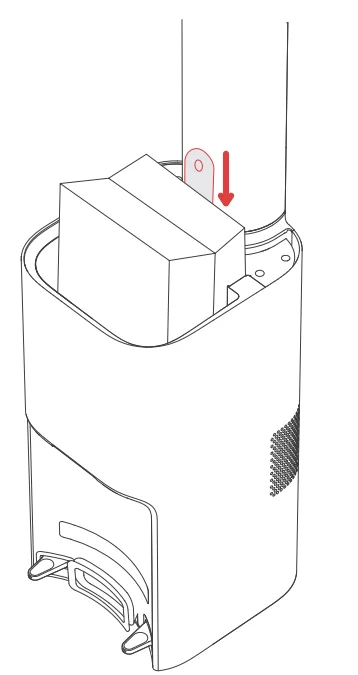
Replacing the Dust Bag
- Lift the canister lid to open.
- Pull up on the hard paper card to remove the bag from the canister.

- Discard the used bag.
- Install a new bag, sliding the card into the guide rails. Press down on the lid, making sure it is completely closed.

Troubleshooting
Common Issues
Unable to power on
- The battery level is low. Put the robot on the charging station and charge it before use.
- The ambient temperature is too low or too high. Only use the robot within the range of 4°C to 40°C (39°F to 104°F).
Unable to charge
- The station is not powered. Please make sure both ends of the power cord are plugged in properly.
- Poor contact, please clean the charging contacts on the station, robot, and vacuum cleaner.
Network connection failure
- Incorrect Wi-Fi password, please enter the correct Wi-Fi password.
- Switch to a 2.4GHz network for pairing, as 5GHz networks and enterprise routers are not supported.
- Keep the robot within a range with a good Wi-Fi signal strength.
- The robot may not be in the ready-to-configure state. Exit the app, then re-enter and follow the pairing steps to try again.
Unable to create a partition map in the app
- The robot needs to start mapping from the station; it is recommended to use the Fast Mapping feature.
- Do not move the robot during the first mapping process to avoid locating failure.
- If the robot does not return to the station after completing the first mapping task, check and remove any obstacles on the ground.
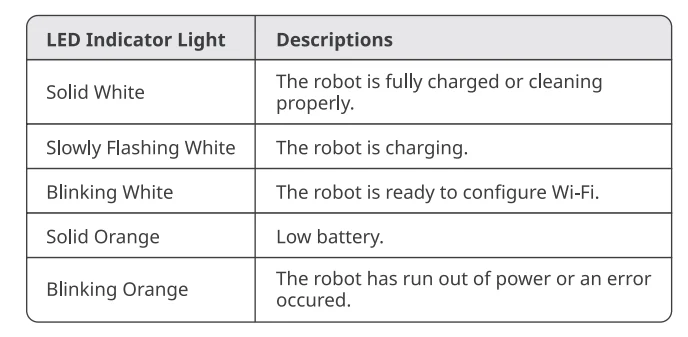
LED Indicator Light Status
Network Reconfiguration
Press and hold theandbuttons for 3 seconds to reconfigure your Wi-Fi network.
Firmware Upgrades
To improve the user experience, we will regularly release firmware updates to introduce new features and address software defects that may arise during use. When a new firmware version is available, we will send an upgrade notification to your account via our app. When upgrading, please make sure your product has sufficient battery or stays powered on, and make sure your smartphone is within range to prevent interference.
Specifications
Robot Vacuum
- Material: ABS Size: 248 x 248 x 92 mm (9.8 x 9.8 x 3.6 in.)
- Weight: Approx. 2.3 kg (81.1 oz.)
- Rated Power: 40 W
- Battery Voltage: 14.4 V
- Battery Capacity: 3200 mAh
- Operating Temperature: 0 °c to 30 °c (32 °F to 86 °F)
- Connectivity: 2.4 GHz Wi-Fi, Bluetooth 4.2 or later
Dual Empty Station
- Size: 195 x 297 x 410 mm (7.7 x 11.7x 16.1 in.)
- Rated Input: 24 V :::2.86 A
- Rated Power (Charging): 50 W
- Rated Power (Emptying Dust): 650 W
For more manuals by SwitchBot, visit ManualsLibraryy
SwitchBot Robot Vacuum K10+ Pro Combo-FAQs
What is the suction power of the SwitchBot K10+ Pro Combo?
The SwitchBot K10+ Pro Combo delivers strong suction power of up to 2500Pa, making it suitable for daily home cleaning. It can effectively pick up pet hair, crumbs, dust, and small debris from hard floors and low-pile carpets. While it’s not designed for ultra-deep carpet extraction, its optimized airflow system ensures consistent performance for apartments and small to medium-sized homes.
Is the SwitchBot K10+ Pro Combo a vacuum and mop in one?
Yes, the K10+ Pro Combo is a 2-in-1 robot vacuum and mop. It vacuums dry debris and also supports mopping for light floor maintenance. This combination helps maintain cleaner floors with less manual effort. However, like most combo robots, it is best for routine cleaning rather than heavy scrubbing of stubborn stains.
How do you reset the SwitchBot K10+ Pro Combo?
To reset the K10+ Pro Combo, press and hold the required buttons (usually the Home and Clean buttons) for several seconds until you hear a reset prompt. Resetting clears Wi-Fi settings, saved maps, and schedules. After the reset, you will need to reconnect the device to the SwitchBot app and set up your preferences again.
Can I use vinegar or regular floor cleaners in the mopping system?
No, it’s not recommended to use vinegar, Dettol, or regular household floor cleaners in the water tank. These solutions can create foam or leave residue that may clog internal components. Always follow the manufacturer’s guidelines and use only approved cleaning solutions designed specifically for robot mops.
Is 2500Pa suction strong enough for daily cleaning?
For most homes, 2500Pa is sufficient for everyday maintenance. It works well on tile, hardwood, laminate, and low-pile carpets. Homes with heavy pet shedding or thick carpets may require higher suction levels, but for apartments and light-to-moderate debris, this suction rating performs reliably.
Can the SwitchBot K10+ Pro Combo replace a traditional vacuum?
It can handle routine cleaning and reduce the need for frequent manual vacuuming. However, it may not fully replace a traditional upright or canister vacuum, especially for deep carpet cleaning, corners, stairs, or heavy-duty messes. Many users treat it as a convenient maintenance tool rather than a complete replacement.
Is it safe to run the robot vacuum every day?
Yes, robot vacuums like the K10+ Pro Combo are designed for regular use, including daily cleaning. Running it frequently helps prevent dust buildup. However, you should clean the dustbin, brushes, and filters regularly to maintain suction performance and extend the machine’s lifespan.
What are the common disadvantages of robot vacuum mop combos?
Robot vacuum mop combos offer convenience, but they have limitations. They may struggle with thick carpets, complex room layouts, and tight corners. Regular maintenance is required, including cleaning brushes and sensors. Additionally, combo units typically provide lighter mopping performance compared to dedicated manual mops.
How long does a robot vacuum like the K10+ Pro Combo typically last?
On average, a well-maintained robot vacuum lasts 4–6 years, depending on usage and care. Battery performance may decline after a few years but can usually be replaced. Regular filter cleaning, brush maintenance, and proper charging habits significantly improve the overall lifespan of the unit.