
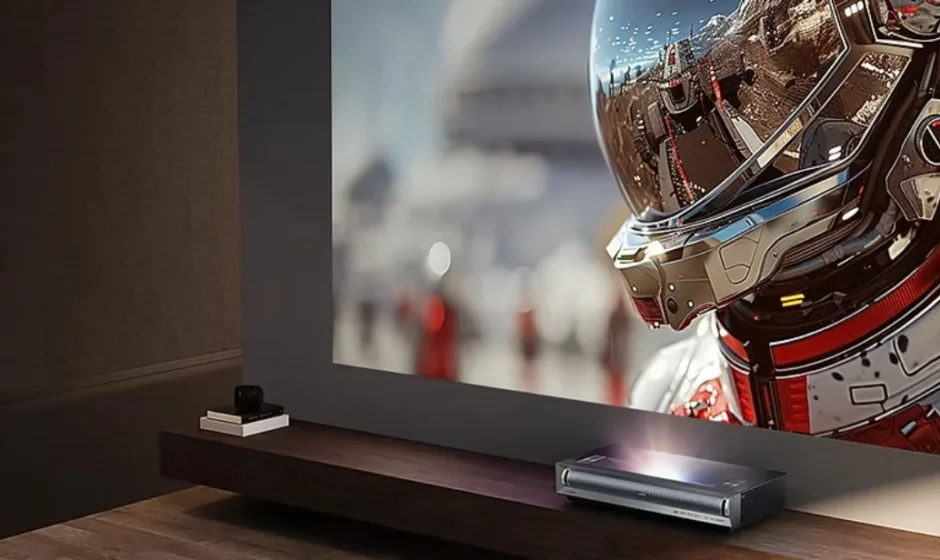

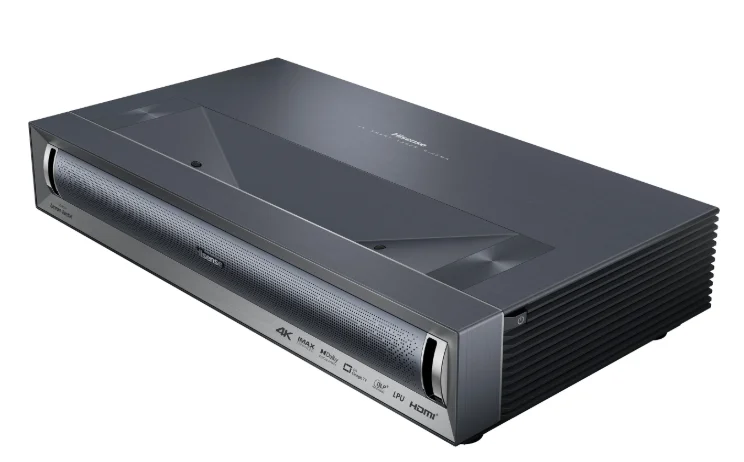
Hisense Laser Cinema PX3-PRO
First-Time Use
Using the E-Manual
View the embedded E-Manual that contains information about your console’s key features.
Disclaimer:
- Instructions and images in this manual are only for reference and may differ from the actual product.
Launch the E-Manual
Press button on your remote control to select Settings > Help & Feedback > E-Manual. Scan the QR Code with your smartphone to open the E-Manual on your device.
Note:
- The black background icon stands for the button on the remote control.
- The grey background icon stands for the icons on the screen of the device for selection.
Use the Buttons in the E-Manual
- Search
You can use the icon at the top of the E-Manual to search for the product feature information, and the E-Manual will provide all the titles and content that contain the search information.
 - Setting
You can use icon at the top of the E-Manual home screen to adjust the text size.
 icon at the top of the E-Manual to search for the product feature information, and the E-Manual will provide all the titles and content that contain the search information.
 icon at the top of the E-Manual home screen to adjust the text size.
Home Screen
All functions can be accessed from the Home screen.
Display the Home Screen
Press the button on your remote control to enter the Home screen.
To exit the Home screen, use your remote control or use the navigation buttons on the screen to move the cursor to other icons, press button to enter, and select your desired service.
Connecting to the Internet
To get access to the Internet using a wired connection or by connecting to an available wireless network.
Connect to a Wired (Ethernet) Network
To get access to the Internet using a wired connection, it is recommended to use a modem or router that supports Dynamic Host Configuration Protocol (DHCP). Modems and routers that support DHCP automatically provide the IP address, subnet mask, gateway, and DNS, so you do not have to enter them manually. Most home networks already have DHCP. See the illustration below.
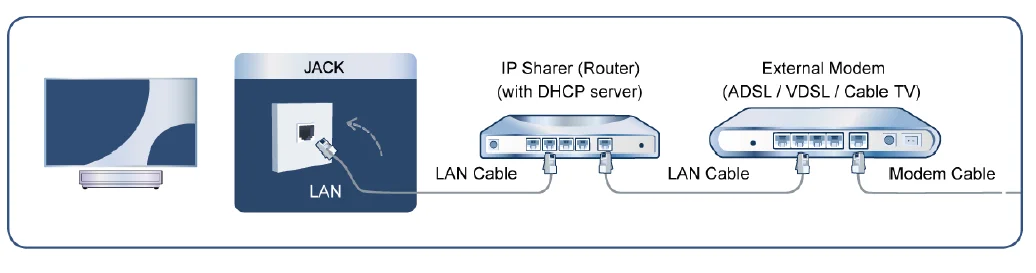
After connecting to a wired (Ethernet) network, Pressbutton on your remote control to select Settings > Network & Internet. Go to the ETHERNET section, and set the network by pressingbutton to enter the submenu.
- Connection Type
Show whether the Ethernet is connected. - Proxy settings
You can set the proxy server. - IP settings
Configure the IP setting for your network connection.
Connect to a Wireless Network
To connect to an available wireless network, make sure that you turn on your wireless router and have the wireless router’s SSID and password before attempting to connect. To get access to the Internet using a wireless connection: Pressbutton on your remote control to select Settings > Network & Internet > Wi-Fi. To get access to the Internet wirelessly:
- Turn on your Wi-Fi.
- The list of networks will display automatically.
- Select a wireless network from the list, and input the password.
- If the network connection does not appear in the list, select See all to display all the list, or select Add new network to input a wireless network name, select the type of security mode, and enter the password.
Internet Related Features
- Content Sharing
To view media content, like videos, music or photos saved in your Android/iOS/PC device on your screen. For more information, please refer to Benefits of Smart Console > Content Sharing in this manual. - Sharing your smartphone/Computer Screen on the Console
To mirror your mobile device or computer screen to the console. For more information, please refer to Connecting to External Devices > Sharing your Smart Phone/Computer Screen on the Consolein this manual.
Using a Google Account
Sign in with Google to get apps, Google Assistant, and personalized recommendations.
Signing into an account
When you turn on the console for the first time, you can select Set up Google TV to sign into a Google Account by the setup guide, if you select Set up basic TV, you can also set it later by pressingbutton to
Select Set up Google TV.
- Set up with the Google Home app
- Set up on TV instead
Before signing into your Google account, make sure your console is connected to the network. For more about network settings, please refer to Connect to a Wired (Ethernet) Network or Connect to a Wireless Network in this manual. After the network is connected, enter your email/phone and password, select Sign In.
Switch between external devices connected to the console
- Press
 button on your remote control.
 - Select your desired input source.
 button on your remote control.
Edit the name of input sources
- Pressbutton on your remote control.
- Press
 button to rename the input.
 button to rename the input.
Note:
- Maximum name length is 36 characters.
Using the Console Voice Service
Access the Voice Service
Press button on your remote control to access the Voice Service. Before using the Voice Service, please pair bluetooth remote control to your console first.
Use the remote microphone
You can enjoy interacting with the voice assistant using your voice by just pressing and holding thebutton on your remote control.
Note:
- Voice Service feature may not be applicable in some models/countries/regions.
- Remote control with
 button is only available in some models/countries/regions.
 - To use this function, the End User License Agreement and the corresponding Smart feature privacy policy/terms and conditions may need to be agreed to.
Benefits of Smart Console
Using Voice Control
Set up a voice assistant to control your console just by your voice.
Google Voice Setup
Voice Control may not be applicable in some models/countries/regions.
Google Assistant
You can ask for information, search for your favorite movies, control your console and more, just by asking Google Assistant. Before setting up Google Assistant, connect your console to the network and sign in to your Google account.
How to start Google Assistant
You can choose this way to start Google Assistant:
- Press
 button on your remote control.
 button on your remote control.
Note:
- To start Google Assistant, you need to pair the remote first.
- The Google Assistant function may not be applicable in some models/countries/regions.
- The setup steps above may vary depending on the actual products.
Alexa Setup
Set up to control your console with any Alexa-enabled device. Alexa can help you change the console configuration. Using just your voice, you can change inputs, volume, and more. Just ask Alexa.
What is required to control your console with Amazon Alexa?
- Android console models that support the Alexa skill.
- Amazon Echo device or Alexa App.
- Amazon account for the Alexa App or Echo device. If you don’t have the account, please create one before the setup process.
- To link your console to your My Brilliant Life account, you can create it before the setup process or during the setup process.
- Home network with Wi-Fi capabilities.
- For issues of accessing your Amazon account and using the Alexa app during setup, please visit amazon.com for help.
How to set up Alexa
- Press
 button, select Settings > System > Advanced System > Device control with Alexa.
 - Select Enable Now.
- Link the console to your My Brilliant Life account. Scan the QR code with your phone, or visit the website on your phone or computer, sign in to your My Brilliant Life account, and enter the code shown on the screen. The webpage and code will expire after a few minutes.
- Next, the screen shows a list of device names. Select one from it or enter a custom name. Then, your console will appear in the device name list on your phone or computer.
- Download the Alexa app on your smartphone. Open the app and sign in with your Amazon account.
- In the Alexa app, select Skills section, search, and enable the My Brilliant Life skill. Follow the instructions to link your Amazon account by entering the same My Brilliant Life account that you’ve signed into on your console.
- After you enable the skill and the console is discovered in the Alexa app, the page on the screen will automatically jump.
- Now you can ask Alexa to try some functions available for the console.
Connecting to External Devices
Connection Guide
Remote & Accessories
- Connect Remote Control
- Use HDMI & CEC
- Control the Console with a Keyboard, Mouse or Gamepad
Connecting Bluetooth Devices
- Turn on the Bluetooth Feature on your Console
- Connect a Bluetooth Device
- Listen to the Audio through Bluetooth Devices
- Listen to your Mobile Device Audio through the Console Bluetooth Speaker
Using AirPlay and HomeKit
- Using AirPlay
- Using HomeKit
Connecting Input Devices
- Set Top Box
- Blu-ray or DVD Player
- Sharing your smartphone/Computer Screen on the Console
- USB Devices
- Audio Visual(AV) Devices
- PC
Connecting Output Devices
- Headphones
- Speakers or other Audio Receivers
- Digital Audio System with ARC/eARC
Remote & Accessories
Connect remote controls or other accessories, such as keyboard, mouse, and gamepad, to interact with your smart console easily.
Connect Remote Control
Pair the Bluetooth remote control with the console.
- After you power the console on for the first time, instructions for pairing the remote control will appear.
- If your remote control fails to pair with the console, keep the remote control within 10 feet (304.8 cm) from the console, hold
 and
and button at the same time or
 hold the button for at least 3 seconds to start pairing until you see the light pulsing on the remote control.
 and
andNote:
- If your remote control fails to pair with the console, check the Bluetooth is set to On by pressingbutton to select Settings > Remotes & Accessories > Bluetooth to On.
- This function may not be applicable in some models/countries/regions.
- If an error occurred while trying to pair the remote control, it could have been caused by interference. Try to remove what is causing the interference and try pairing again.
- If an error occurs with the remote control while using sufficiently charged batteries, you can remove the batteries for 1~2 seconds, then reinsert them. Now the remote control will work normally.
- The remote control cannot be paired to the console while the console is in standby mode.
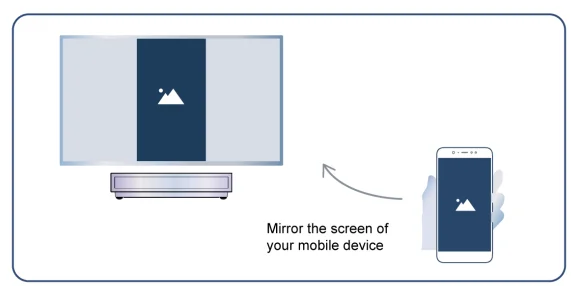
Sharing your smartphone/Computer Screen on the Console
Mirror content from your mobile device to the console. View videos, photos, and more from your device on your console screen. Press button to select Apps > Connection Tips, select Screen Sharing.
- Connect your mobile device to the WLAN network.
- Turn on the casting function of your Android/Windows10 device. The function name and location will be different according to your device. The feature may be called “Wireless display”, “Smart view”, “Wireless projection”, etc.
- Find the console name in the search list of your device and select it to connect to your console. Your mobile device’s screen will be mirrored once you select your console. You can close Screen sharing application with the BACK or EXIT button.
Note:
- Some mobile devices may not support the casting feature.
Settings Overview
When you use a Dolby Vision signal
Inspired by cinema technology, Dolby Vision is the format that allows your console to deliver a full range of colors, high dynamic range images, brighter whites, and dark blacks using scene-by-scene calibration.
Note:
- When you use a Dolby Vision signal, the picture mode is Dolby Vision picture mode.
Use the Laser Luminance function
Pressbutton on your remote control to select Settings > Display & Sound > Picture > Laser Luminance.
You can configure picture mode settings that provide the best viewing experience. Options may not be applicable depending on your model/country/region and the picture mode you selected.
- Laser Luminance Level
Set the luminance level of the laser device. Note that turning up the luminance increases energy consumption. - High Dynamic
Auto-adjust brightness according to the scene and make the contrast powerful. - Contrast
Adjust the Contrast level to increase or decrease how bright images appear. - Black Level
Adjust the HDMI Level to enhance current content. - Dark Detail
Enhance the dark details by analyzing the luminance level of the signal in real time. - Gamma
Adjust the Gamma to alter how the device will respond to the grayscale content. In a dark room, choose a higher number like 2.2. In a brighter area, select a lower number like 2.0. In general, 2.4 is normally recommended. - Active Contrast
Automatically darken dark areas and lighten light areas of images to see more details. - Brightness Enhancer
Enhance the brightness of the screen. Note that prolonged opening can affect the product’s lifespan. - Dynamic Tone Mapping
Automatically adjust brightness and gradient balance by analyzing the brightness level of HDR content. This function may not be applicable in some models/countries/regions and may only be visible when in HDR mode. - HDMI Dynamic Range
Adjust the HDMI signal range to be more suitable for the content. (HDMI mode only) - HDR Enhancer
Enhance contrast and color of the SDR content to an HDR-like picture quality.
Laser Settings
Adjust the Laser Screen settings.
Projection Mode
If you need to flip the image over top-to-bottom and/or left-to- right, press button on your remote and select Laser Settings > Projection Mode. Then select the appropriate mode based on the positioning of your console.
Auto Keystone Correction
The console will fit the projected image into the screen automatically.
Before you use the auto keystone correction function, ensure that the console and your mobile device are connected to the same wireless network. Pressbutton on your remote and select Laser Settings > Auto Keystone Correction.
- Adjust the console position by using the levelling feet as needed, and ensure the frame of the screen is located inside the rectangular border.
- Press the OK button on your remote to choose Next.
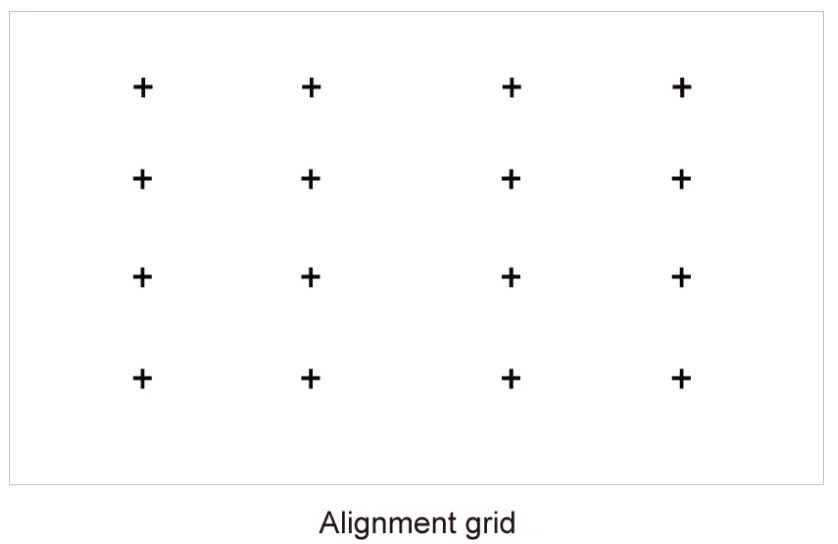
- Scan the QR Code with your mobile device to begin auto keystone correction. When the app loads, the console will display an alignment grid.

- Click “+” on your mobile device to take a photo of the entire screen and image. For best results, stand about 10 feet away from the screen and use landscape mode.
- Click “Upload” on your mobile device to complete the auto keystone correction.
Note:
- Please ensure you are standing in front of the screen to take the photo, with no deviation of more than 25° from the center of the screen.
- Please ensure the whole screen is fully visible in the photo, including the Frame of the display.
- Please ensure all 16 points of the grid on the screen are all in focus when taking the photo.
- Please ensure the screen image takes up at least 60% of the overall photo size for correct geometric correction.
Entertainment
Game
You can connect to your game console and set up settings to optimize the console for better gaming performance.
Connect a Game Console
You can connect your game console to the console with an HDMI cable. To start a game from a game console:
- Switch on your game console.
- Pressbutton on your remote control to select Inputs or pressbutton. Select the connected game console as the input source.
- Start the game.
You can enable the game mode to optimize your console’s settings when playing games on a game console.
Enabling game mode
Pressbutton on your remote control to select Settings > Display & Sound > Picture > General > Picture Mode > PC/Game. Enable Game Mode to optimize the console’s settings to enjoy a better gaming experience with a PC or a game console connected to the console. Game Mode will allow:
- Reducing input lag to make sure every press or click matches what is happening on the screen;
- Improving responsiveness to produce very little motion blur;
- Processing YUV 4:4:4 format signals precisely to present accurate image colors.
Note:
- This function may not be applicable in some input sources or applications.
Enabling instant game response
Pressbutton to select Settings > Display & Sound > Game Settings > Instant Game Response. You can enjoy a smooth viewing experience with an external device connected to the console when Instant Game Response is turned on.
Note:
- When Game mode is selected, Instant Game Response will not be switched off automatically.
Enabling FreeSync/PC Sync
Pressbutton to select Settings > Display & Sound > Game Settings > AMD FreeSync/AMD FreeSync Premium/AMD FreeSync Premium Pro/PC Sync (the menu name will vary depending on your model type). You can enjoy a smooth viewing experience with an external device connected to the console when FreeSync/ PC Sync is turned on.
Note:
This function may not be applicable in some models/countries/regions.
Accessibility Features
Captions Setup
Pressbutton on your remote control to select Settings > System > Accessibility > Captions. Displays and sets the closed captions. You can set display options and select caption style. Options may differ depending on your model/country/region and the content you are watching. Please refer to the specific product.
Display Options
- Display
Turn on or off the display menu. - Language
Set the Menu Audio language. - Text size
Set the menu text size.
Caption Style
- White on black
- Black on white
- Yellow on black
- Yellow on blue
- Custom
High contrast text
Pressbutton on your remote control to select Settings > System > Accessibility > High contrast text. Improves contrast for the visually impaired.
Text-to-speech
Pressbutton on your remote control to select Settings > System > Accessibility > Text to speech. Let you specify text-to-speech engine details and speech rate.
- Speech Services by Google
- Engine configuration
- Speech rate
The speed at which the text is spoken. - Listen to an example
Play a short demonstration of speech synthesis. - Default language status
English (United States) is fully supported.
Troubleshooting
FAQ
In this section, you will find the answers to the most frequently asked questions.
- There is no picture, or the picture is black and white.
- There is no sound or the sound is too low at maximum volume.
- My console cannot connect to the network.
- I have connected an external source to my console, but I get no picture and/or sound.
- The remote control does not work.
There is no picture, or the picture is black and white.
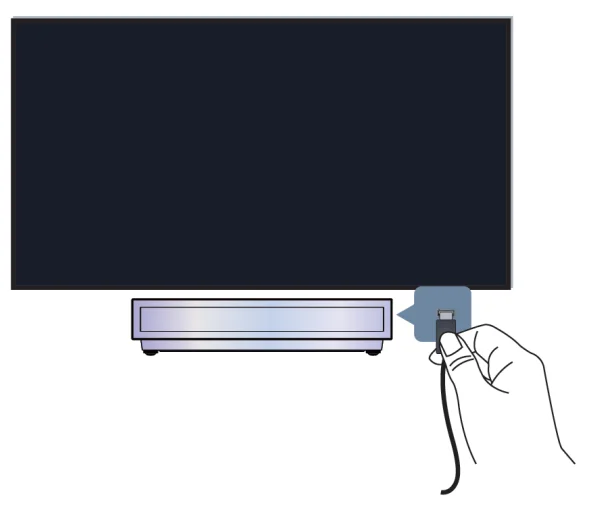
- Check input cable connections. Incorrect connections may cause color problems or a blank screen.

- Make sure that you select the corresponding input source. For example, if you connect an HDMI cable to the HDMI 1 port, please select HDMI 1 as the input source on the console.
- Check if the Color is set to 50 or higher at>
 Settings > Display & Sound > Picture > Color.
 - Pressbutton on your remote control and selectSettings > Display & Sound > Picture > Brightness and Color, check and adjust the settings.
- Switch to other contents to check if the picture color is normal.
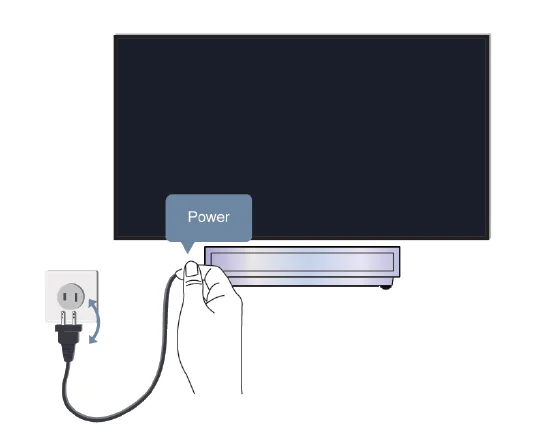
- Unplug the console power cord from the AC outlet and re-plug it after 60 seconds.
There is no sound, or the sound is too low at maximum volume.
- Check if Mute mode is set to On. If so, press the mute button on your remote to restore the sound.
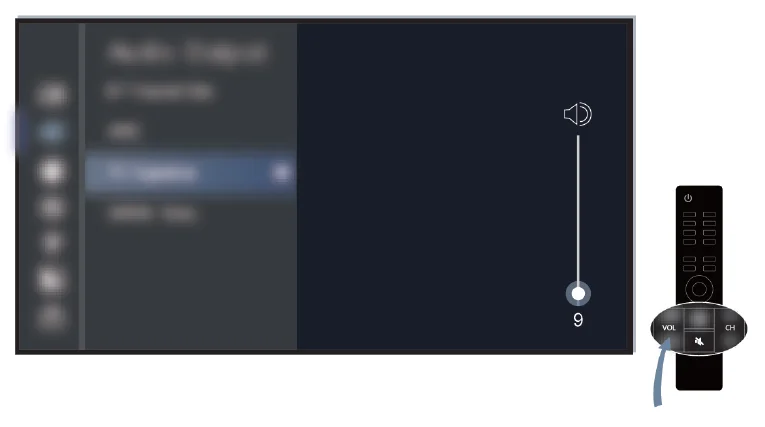
- Press the volume button on your remote control to check the volume settings.

- Check the volume control of the device (cable, DVD, Blu-ray, etc.) connected to your console.
- Make sure that the audio cable is connected to the correct audio output connector on the external device.
- Check the input cable connection to the console. Incorrect connections may cause no sound.
- Make sure that you select the corresponding input source. For example, if you connect an HDMI cable to the HDMI 1 port, please select HDMI 1 as the input source on the console.
- Check whether Speaker is selected at>Settings > Display & Sound > Audio Output.
For more manuals by Hisense, visit ManualsLibraryy
Hisense Laser Cinema PX3-PRO-FAQs
What are the main benefits of the Hisense Laser Cinema PX3-PRO?
The PX3-PRO offers impressive picture quality thanks to its advanced TriChroma laser technology and extremely wide color range. It supports around 151% of the DCI-P3 color gamut, producing vibrant, lifelike images with excellent contrast. The ultra-short-throw design lets you project a huge screen—up to about 150 inches—from a very short distance, making it ideal for home theaters where space is limited. This combination delivers a cinematic viewing experience without needing a large room.
How does a Hisense Laser TV like the PX3-PRO work?
A Laser TV uses a laser light source and ultra-short-throw projection to create an image on a screen or wall. The projector sits close to the screen and uses mirrors and optics to reflect the image upward. From a user perspective, it works similarly to a traditional TV—you can watch streaming apps, adjust settings, and control it with a remote. The main difference is that it projects a much larger image while maintaining high brightness and color accuracy.
What resolution and image quality does the PX3-PRO provide?
The PX3-PRO delivers true 4K UHD resolution (3840 × 2160) using a single-chip DLP system with pixel-shifting technology. Combined with its triple-laser light engine, it produces extremely sharp details and a wide color spectrum. It also supports advanced HDR formats, which enhance brightness, shadow detail, and color depth. This results in more realistic images for movies, sports, and gaming content.
What operating system does the PX3-PRO use?
The projector runs on the Google TV operating system, which provides access to many popular streaming platforms. Users can easily watch services like Netflix, Disney+, Hulu, and YouTube directly from the device. Google TV also offers personalized recommendations, voice search through Google Assistant, and an easy-to-navigate interface. This makes the PX3-PRO function like a smart TV while delivering a much larger screen size.
Is the PX3-PRO suitable for gaming?
Yes, the PX3-PRO supports a high refresh rate and gaming-friendly features that make it suitable for console and PC gaming. With its HSR 240 capability and low-latency mode, gameplay appears smooth and responsive. Fast-moving scenes look clearer and more fluid, reducing motion blur during action-packed games. These features help create a more immersive experience when gaming on a large projected screen.
How long does the laser light source last in the PX3-PRO?
Laser projectors like the PX3-PRO are known for their long lifespan and reliability. The laser light engine can typically last between 30,000 and 40,000 hours, depending on usage conditions. This means you can watch movies or TV for many years before the light source begins to dim. Compared with traditional lamp projectors, this longer lifespan reduces maintenance and replacement costs.
Do I need a special screen to use the PX3-PRO?
While the PX3-PRO can project onto a plain wall or standard white screen, using a dedicated ambient-light-rejecting (ALR) screen is recommended. These screens are designed specifically for ultra-short-throw projectors and improve brightness and contrast by reducing interference from room lighting. This helps maintain clear, vibrant images even in rooms that are not completely dark.
What is the difference between the PX3 and PX3-PRO models?
The PX3-PRO is an upgraded version of the earlier PX3 model. It generally offers higher brightness, improved HDR support, and enhanced color performance. The PRO model also features a more powerful built-in sound system, often using Harman Kardon speakers for richer audio. These improvements make the PX3-PRO better suited for a premium home-theater experience.
How does the PX3-PRO compare with other ultra-short-throw projectors?
Compared with many competing models, the PX3-PRO stands out for its brightness, wide color gamut, and strong out-of-box color accuracy. It often delivers better image contrast and more vivid colors than some rival projectors in the same category. While certain competitors may offer slightly lower input lag for gaming, the PX3-PRO generally provides superior overall picture quality for movies and entertainment.
What are the advantages of using a laser projector like the PX3-PRO?
Laser projectors provide several benefits compared with traditional lamp-based projectors. They are more energy-efficient, produce less heat, and operate more quietly. Laser light sources also maintain consistent brightness over time and require less maintenance. These advantages make the PX3-PRO a reliable option for long-term home theater setups where performance and convenience are important.