
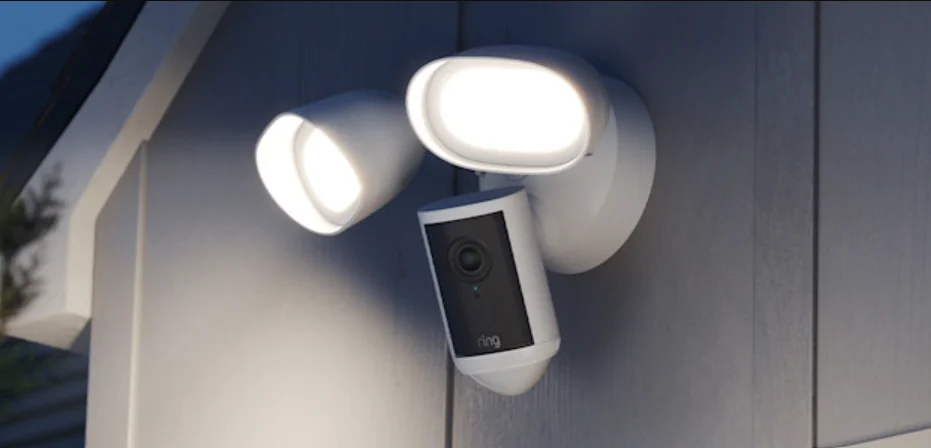

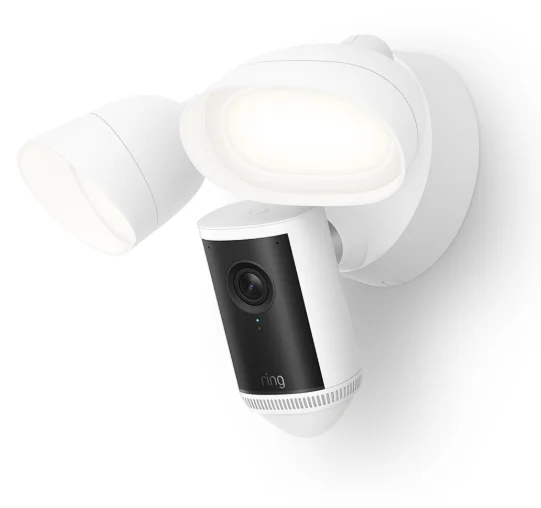
Floodlight Cam Pro (2nd Gen)
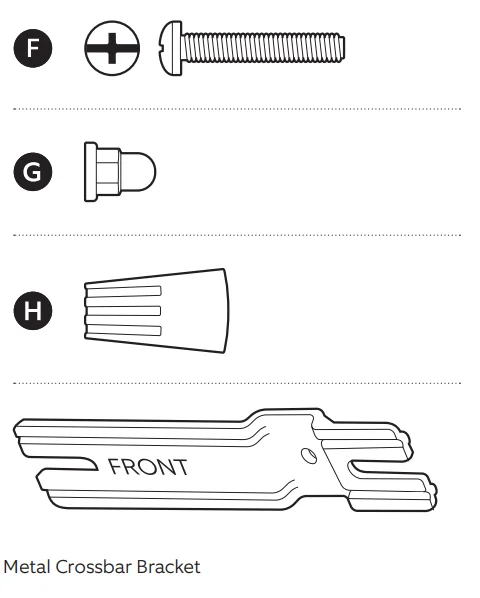
Hardware included

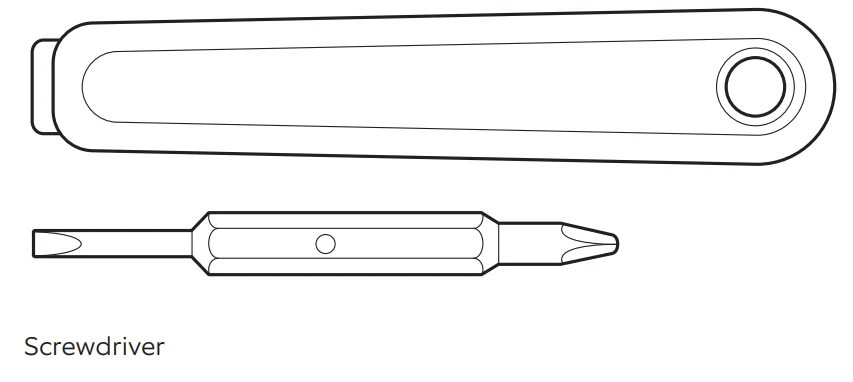
Tools included
Tools needed


WARNING: Risk of electrical shock. Disconnect power at the fuse or circuit breaker before installing.
CAUTION: Risk of fire. Do not install near combustible or flammable surfaces.
NOTE: Your Floodlight Cam must be installed on a 4-inch round UL-listed weatherproof electrical box.
This manual is for informational purposes only. Working with electricity can be dangerous unless proper safety precautions are taken. If you are not comfortable or are inexperienced with the processes and tools described in this manual, we recommend that you hire a licensed electrician.
- Remove the protective wrap.

- Download the Ring app.

- Scan the QR code on your device.

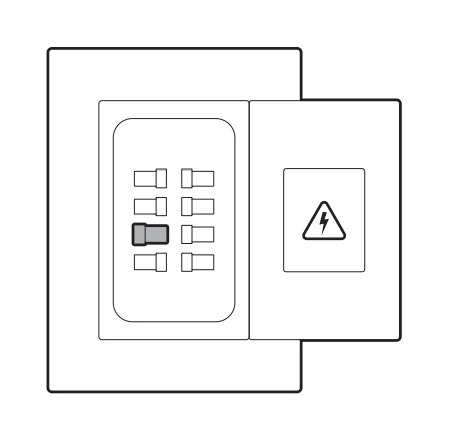
- Shut off the power at the breaker.
NOTE: If you are unsure which breaker to flip, turn off the master breaker or contact a licensed electrician.
Verify that the supply voltage is correct. Connect the fixture to a 100 to 240 VAC 50/60Hz power source. Do not connect this light fixture to a dimmer switch or timer.



Wall installation
- Remove your existing floodlight from the junction box, including any existing metal bracket, and disconnect the wires.
NOTE: If you do not have an existing junction box, contact a licensed electrician.
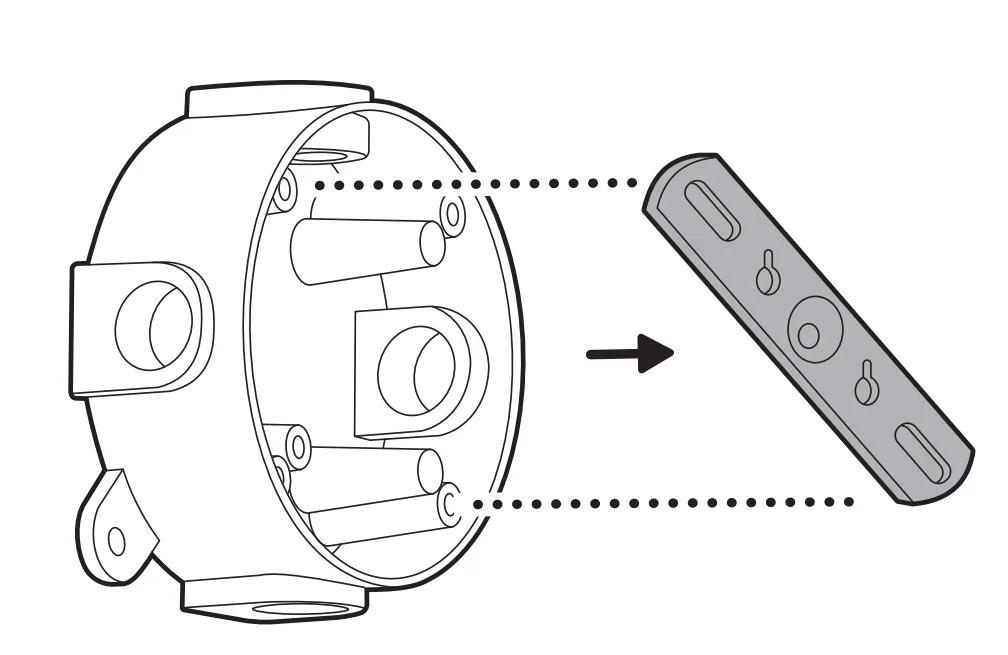
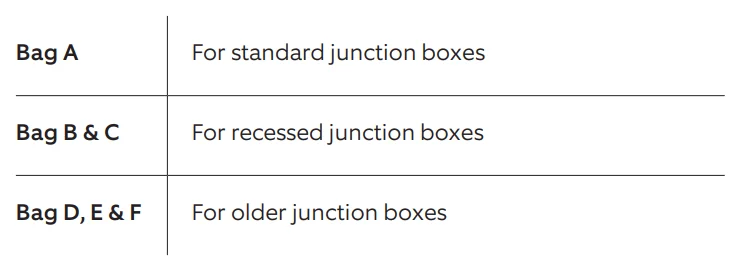
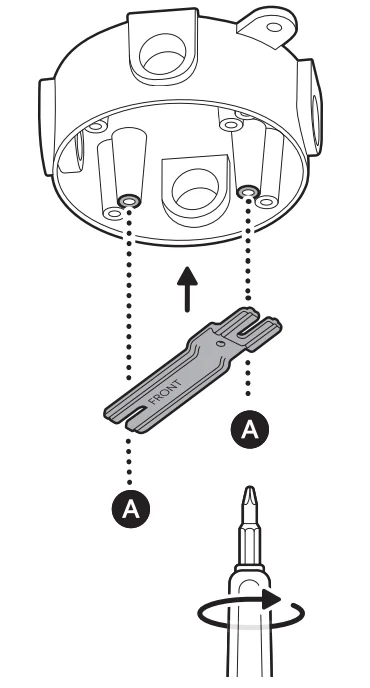
- Choose the screws that fit your junction box.

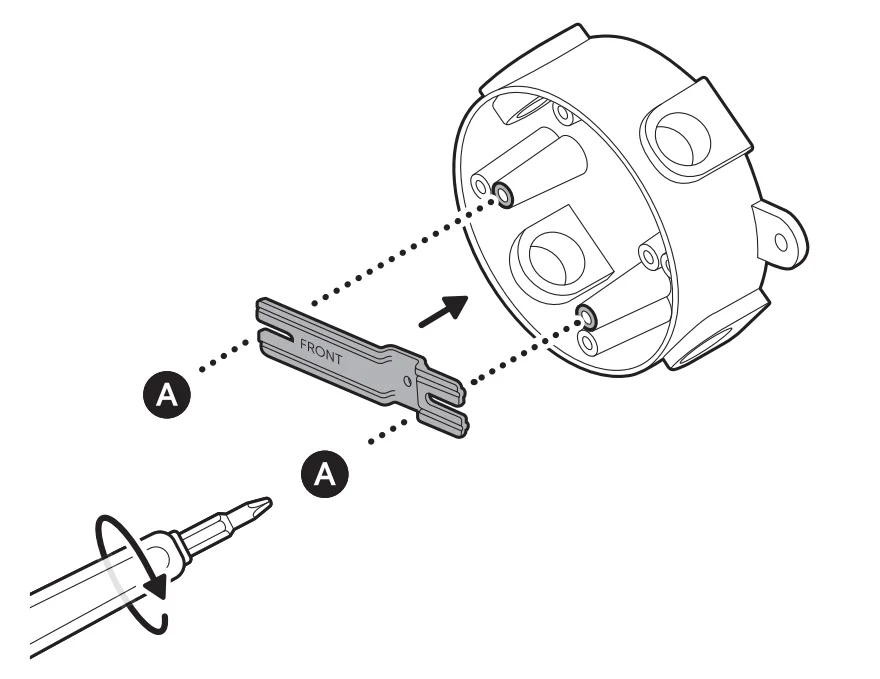
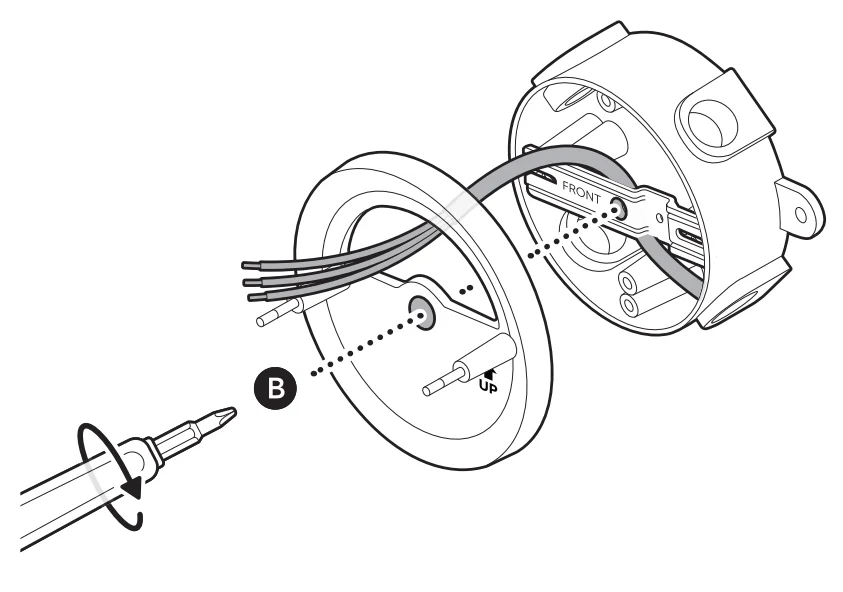
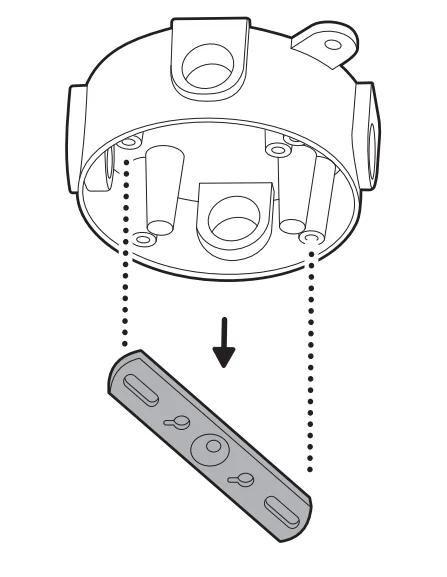
- Align the mounting bracket with the junction box, ensuring FRONT faces outward, and attach using the included screws.

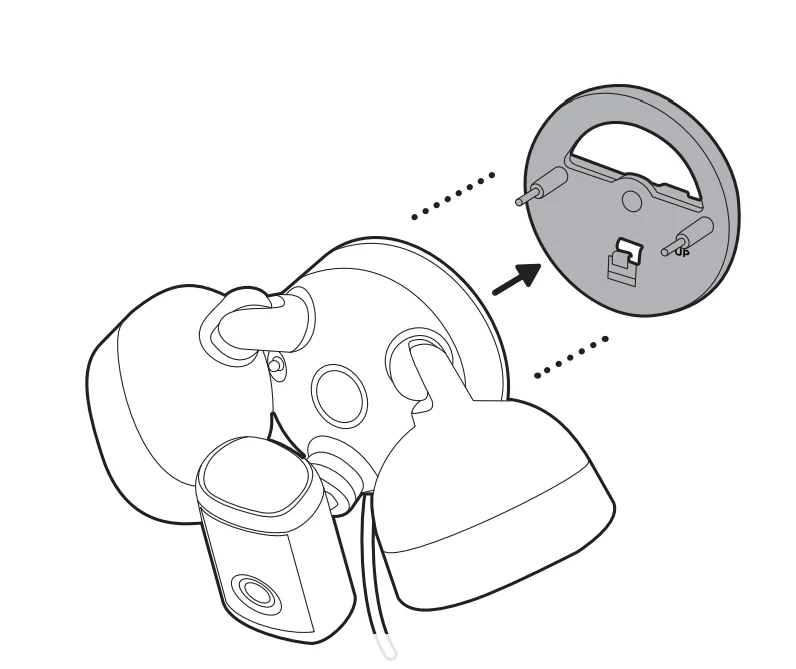
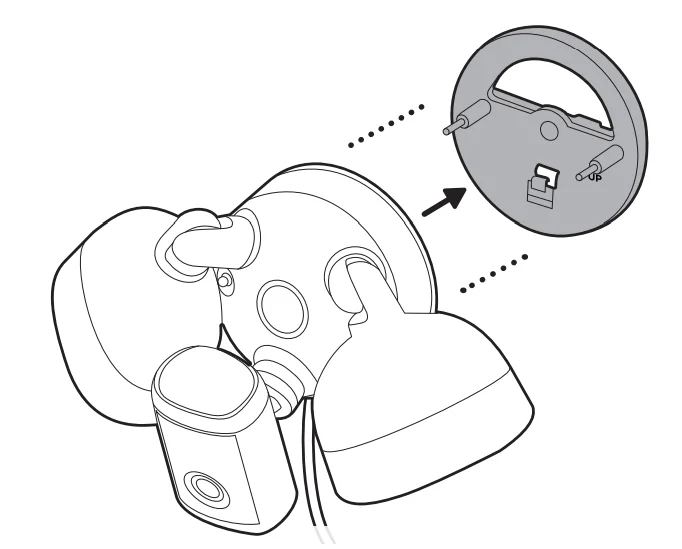
- Remove the mounting plate from the back of your camera fixture.

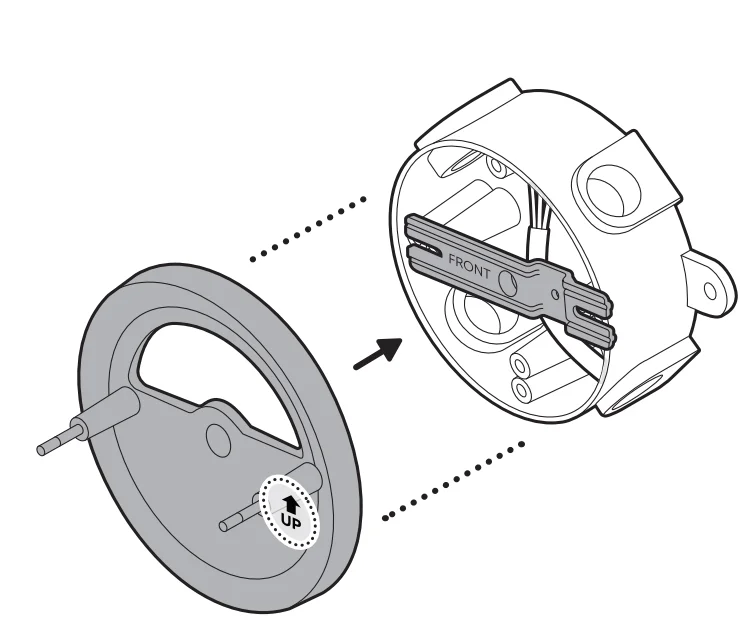
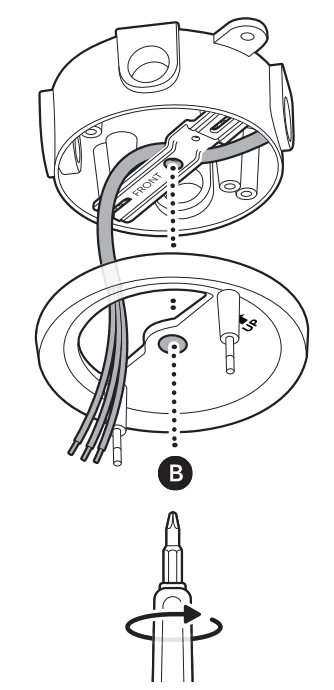
- Align the mounting plate over the metal mounting bracket with the UP arrow pointing up.

- Feed the wires over the metal mounting bracket, through the mounting plate, and attach with the included screw.

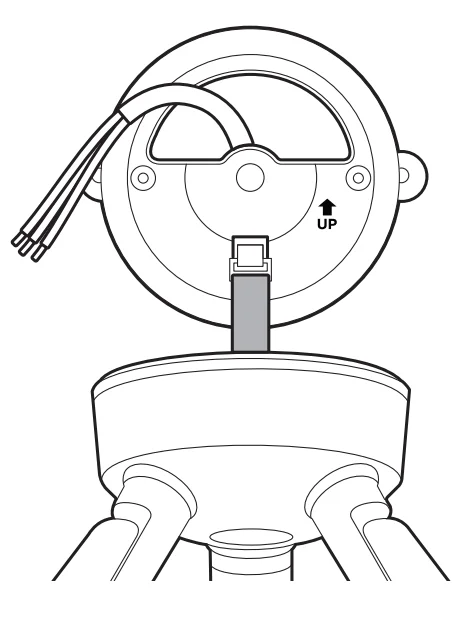
- Use the nylon strap on the back of your camera fixture to hook it onto the mounting plate.

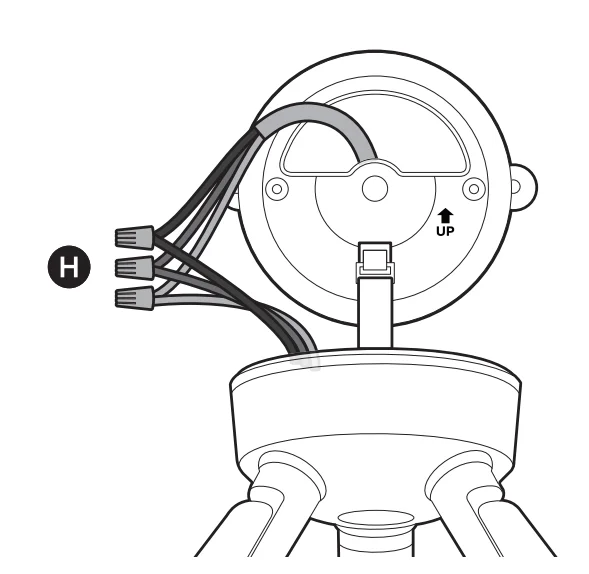
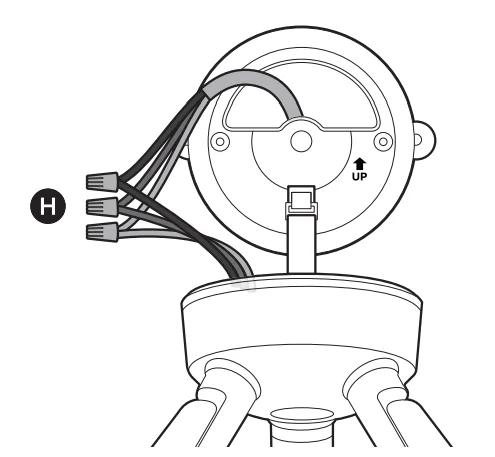
- Remove the precut wire sleeve to expose the wire end and use the included wire nuts to connect the green (ground), white (neutral), and black (hot) wires to the matching wires coming from your camera fixture.
NOTE: Gently tug on the wires to ensure they are securely connected. Properly ground fixture. Always follow code standards when installing wired connections.
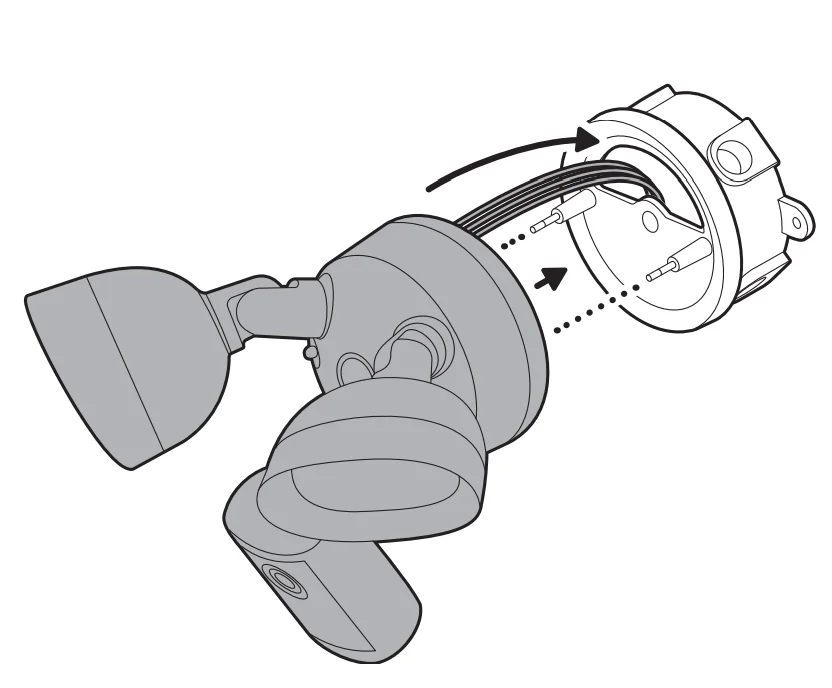
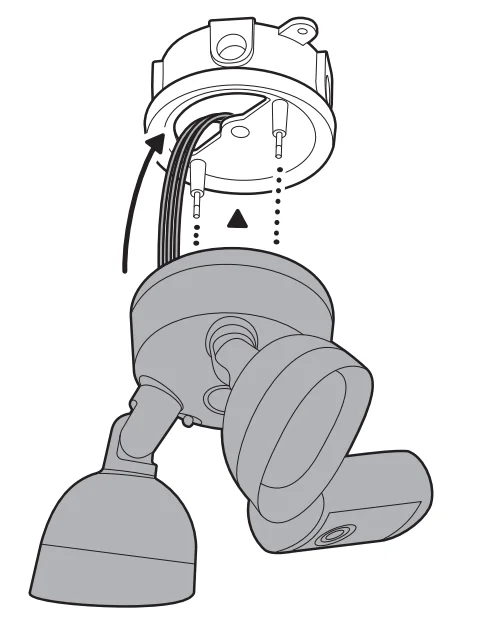
- Gently tuck the wires into the junction box, then align the holes on your camera fixture with the threaded posts on the mounting plate and attach using the included hex nuts.

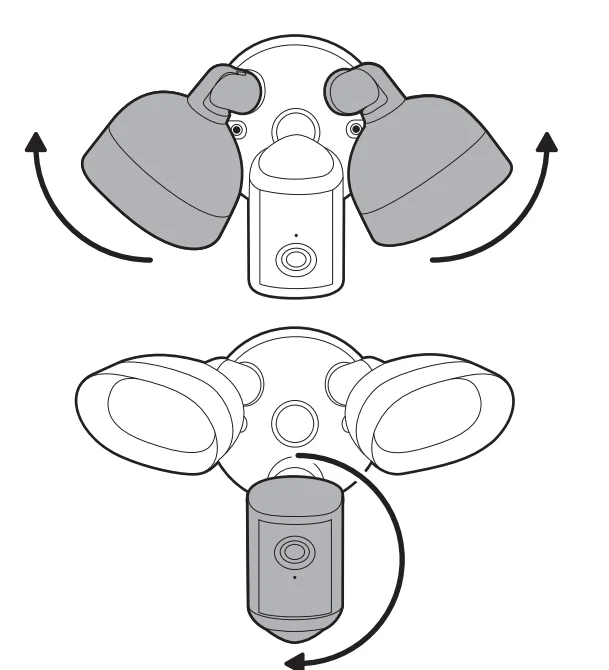
- Rotate the lights out of the way, then rotate your camera clockwise.

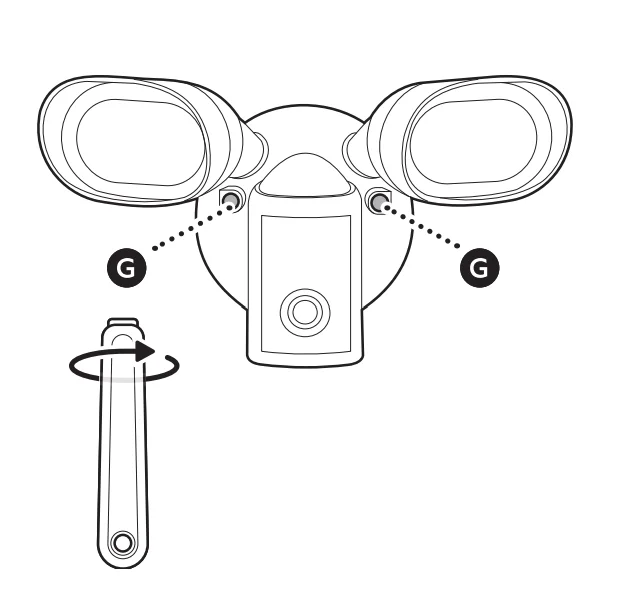
- Remove the shank from the included screwdriver and use the handle to tighten the hex nuts. Then, cover with the included hex nut caps.

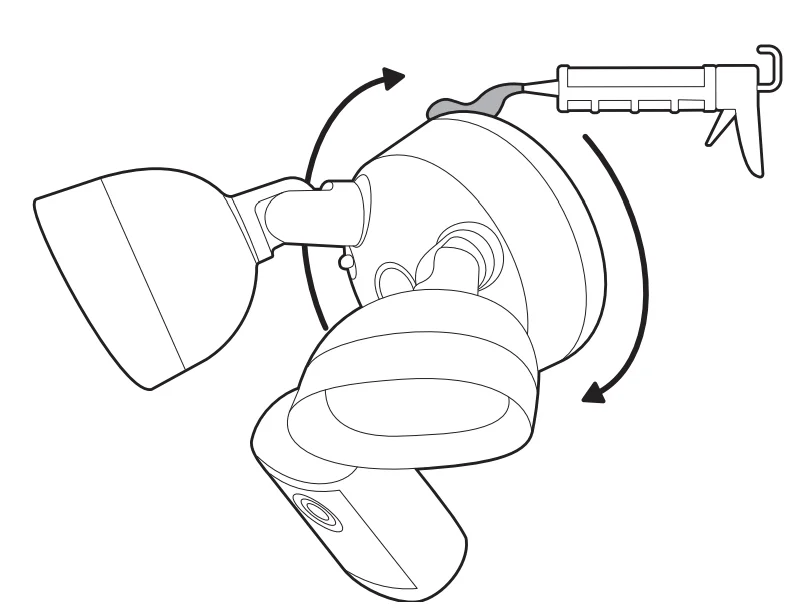
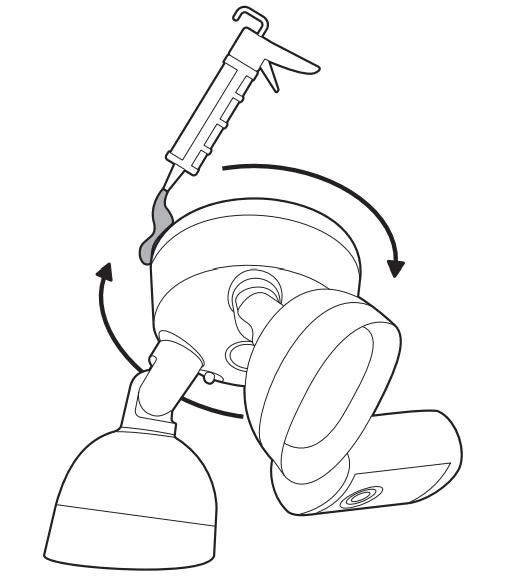
- Apply a weatherproof silicone caulk or sealant around the perimeter of the lighting fixture to seal any gaps between the lighting fixture and the mounting surface.

- Restore power at the breaker.




Ceiling installation
- Remove your existing floodlight from the junction box, including any existing metal bracket, and disconnect the wires.
NOTE: If you do not have an existing junction box, contact a licensed electrician.
- Choose the screws that fit your junction box.

- Align the mounting bracket with the junction box, ensuring FRONT faces outward, and attach using the included screws.

- Remove the mounting plate from the back of your camera fixture.

- Align the mounting plate over the metal mounting bracket.

- Feed the wires over the metal mounting bracket, through the mounting plate, and attach with the included screw.

- Use the nylon strap on the back of your camera fixture to hook it onto the mounting plate.
NOTE: Ensure the buckle and hook are secure before releasing.
- Remove the precut wire sleeve to expose the wire end and use the included wire nuts to connect the green (ground), white (neutral), and black (hot) wires to the matching wires coming from your camera
fixture.
NOTE: Gently tug on the wires to ensure they are securely connected. Properly ground fixture. Always follow code standards when installing wired connections.
- Gently tuck the wires into the junction box, then align the holes on your camera fixture with the threaded posts on the mounting plate and attach using the included hex nuts.

- Rotate the lights out of the way, then rotate your camera clockwise.

- Remove the shank from the included screwdriver and use the handle to tighten the hex nuts. Then, cover with the included hex nut caps.

- Apply a weatherproof silicone caulk or sealant around the perimeter of the lighting fixture to seal any gaps between the lighting fixture and the mounting surface.

- Restore power at the breaker.




For more manuals by Ring, visit ManualsLibraryy
Floodlight Cam Pro (2nd Gen)-FAQs
What is the Ring Floodlight Cam Pro (2nd Gen)?
The Floodlight Cam Pro (2nd Gen) is a wired outdoor security camera that combines bright LED floodlights, motion detection, and high-resolution video surveillance. It is designed to improve home security by illuminating dark areas while recording activity around your property. The camera sends real-time alerts to your smartphone and allows you to view live footage, speak through two-way audio, and activate the lights remotely using the Ring mobile app.
What is the difference between the Floodlight Cam Pro and the Ring Floodlight Cam Plus?
The Floodlight Cam Pro offers more advanced security features compared to the Floodlight Cam Plus. It includes 2K HDR video quality, 3D Motion Detection, Bird’s Eye View tracking, and dual-band Wi-Fi for a stronger connection. These improvements provide more accurate motion alerts and clearer video footage. While both cameras include bright LED lights and a siren, the Pro model is designed for users who want more precise monitoring and enhanced smart security capabilities.
Why is 2K video resolution important for security cameras?
2K resolution provides sharper and more detailed video compared to standard 1080p cameras. With clearer images, you can more easily identify faces, license plates, or suspicious activity around your property. This higher resolution also allows better digital zoom without losing too much clarity. For outdoor security cameras like the Floodlight Cam Pro, improved resolution helps capture more useful evidence if an incident occurs.
What are the benefits of using a floodlight security camera?
Floodlight cameras combine lighting and surveillance into one device. When motion is detected, the lights automatically turn on, which helps deter intruders and improves nighttime visibility. At the same time, the camera records high-definition video and sends alerts to your phone. This dual function increases security by both discouraging suspicious activity and providing clear footage of events happening around your home.
Does the Floodlight Cam Pro require Wi-Fi to work?
Yes, the Floodlight Cam Pro relies on a Wi-Fi connection to send notifications, stream live video, and store recorded footage in the cloud. Without internet access, the camera may still power on, but many smart features will not function. A stable connection helps ensure that alerts, recordings, and remote viewing work properly through the Ring app.
Is a wired security camera better than a wireless one?
Wired security cameras are generally considered more reliable because they have a constant power supply and stable connection. They are less affected by battery limitations or wireless interference. However, installation may require more effort since wiring is needed. The Floodlight Cam Pro is a wired model, which means it provides consistent performance and continuous operation without needing battery replacements.
Can someone hack a smart security camera like a Ring device?
Like many internet-connected devices, smart cameras can be vulnerable if users do not follow proper security practices. Most security issues occur due to weak passwords or not enabling two-factor authentication. To stay safe, users should create strong passwords, enable two-factor verification, and keep the device firmware updated. These steps significantly reduce the chances of unauthorized access.
Can a floodlight camera work without recording all the time?
Yes. Most floodlight cameras, including the Floodlight Cam Pro, use motion-activated recording. This means the camera starts recording only when movement is detected within its monitoring area. Motion-based recording helps save storage space and makes it easier to review important events instead of watching hours of unnecessary footage.
Is the Floodlight Cam Pro suitable for home security?
Yes, the Floodlight Cam Pro is designed specifically for residential security. Its bright LED lights, advanced motion detection, siren alarm, and clear video recording help homeowners monitor outdoor spaces such as driveways, garages, and backyards. When combined with mobile alerts and remote viewing through the Ring app, it provides a convenient and effective way to enhance home protection.