
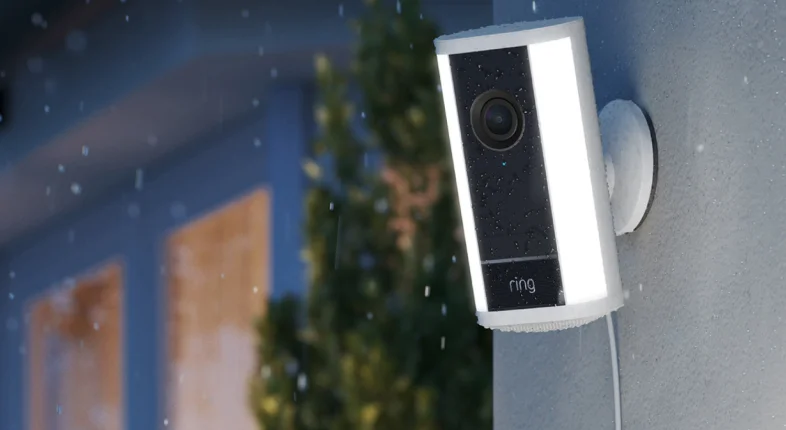

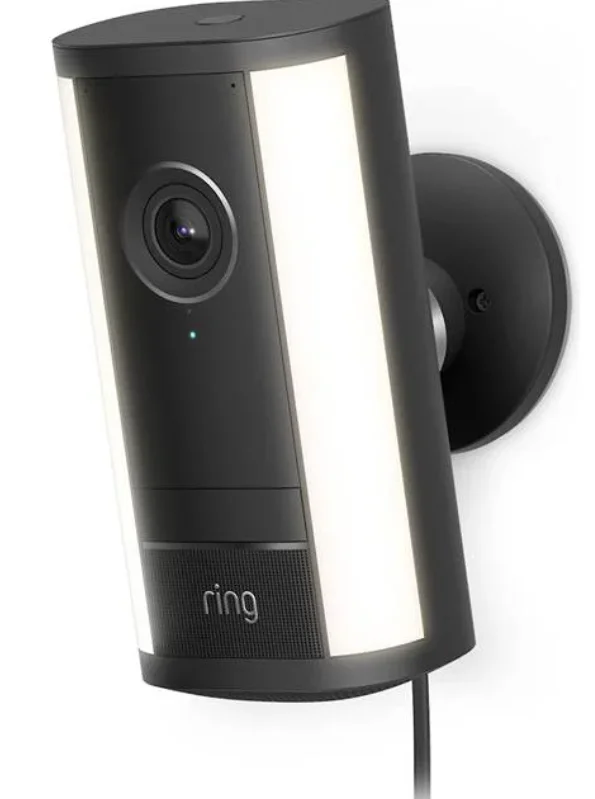
Spotlight Cam Pro (2nd Gen) Plug-In
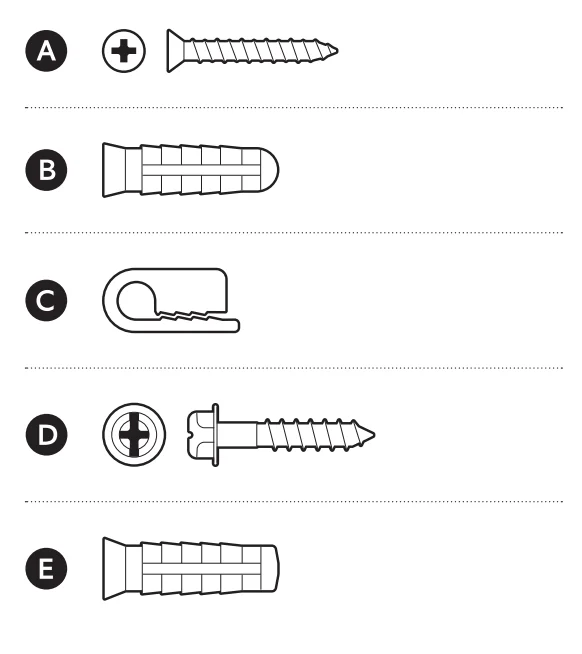
Hardware included
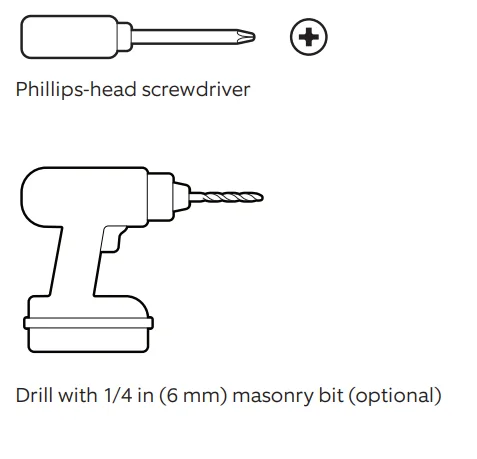
Tools needed
- Remove the protective wrap.

- Download the Ring app.

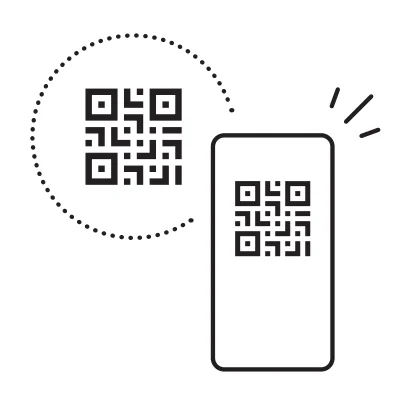
- Scan the QR code on your device.

- Choose a location near an outlet.


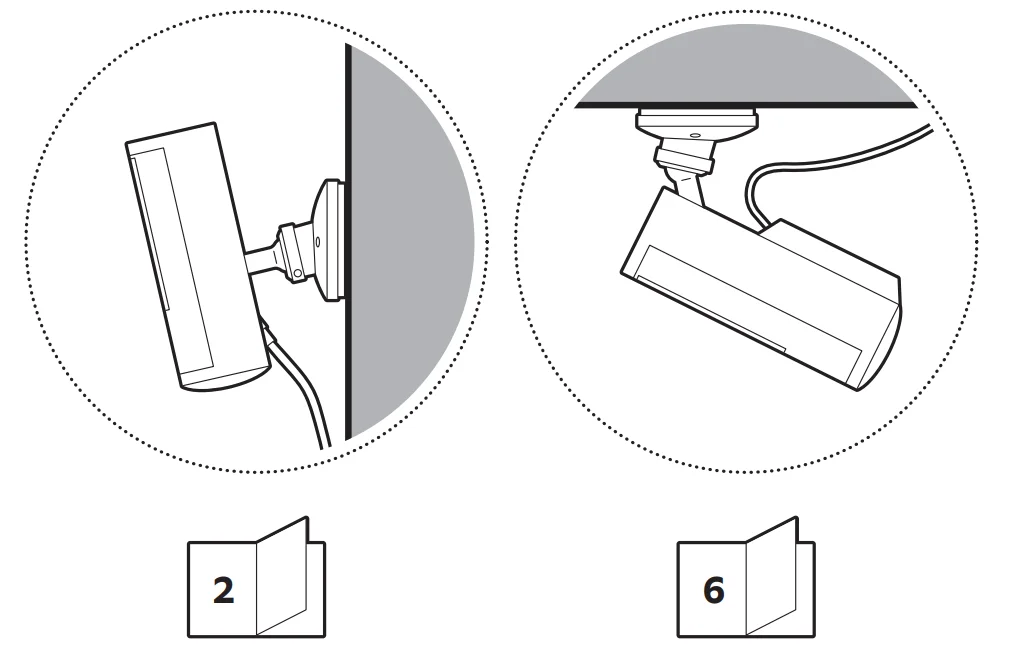
Wall installation
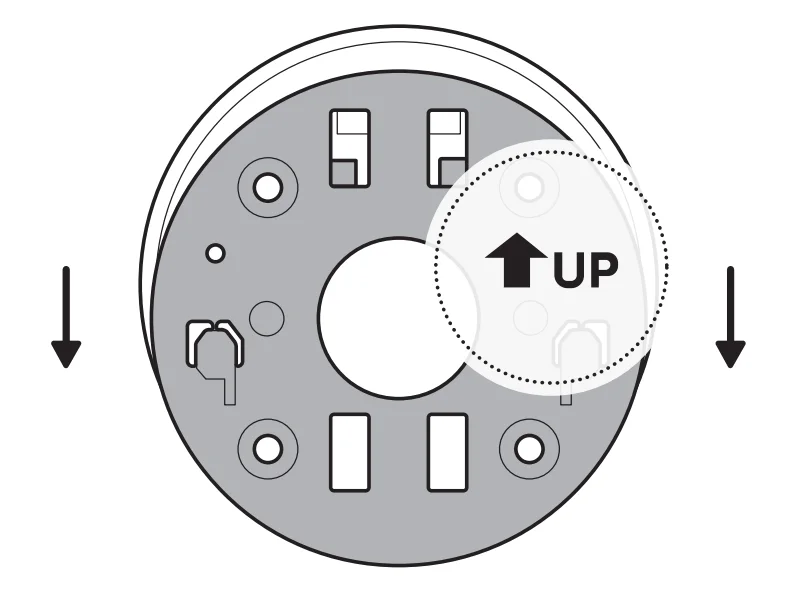
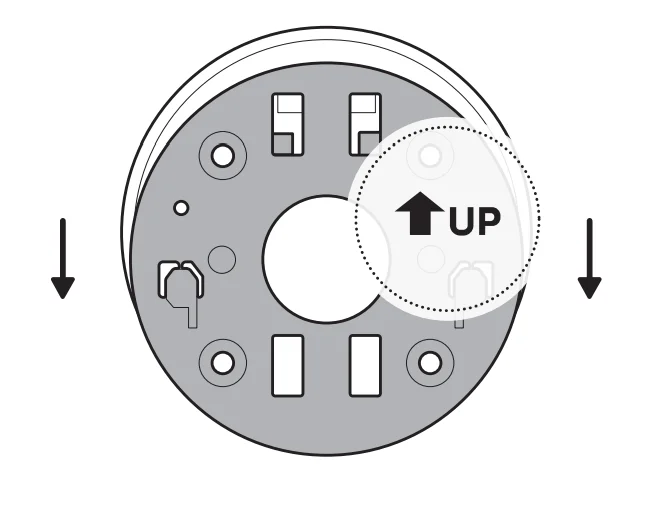
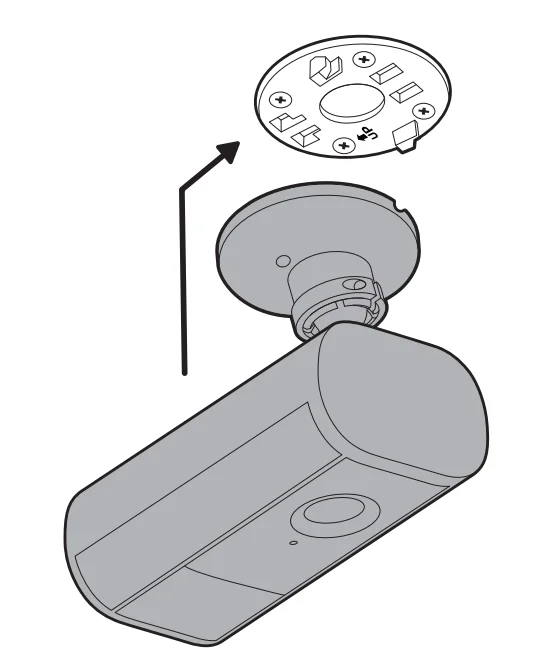
- Slide the mounting plate in the direction opposite to the UP arrow to remove.

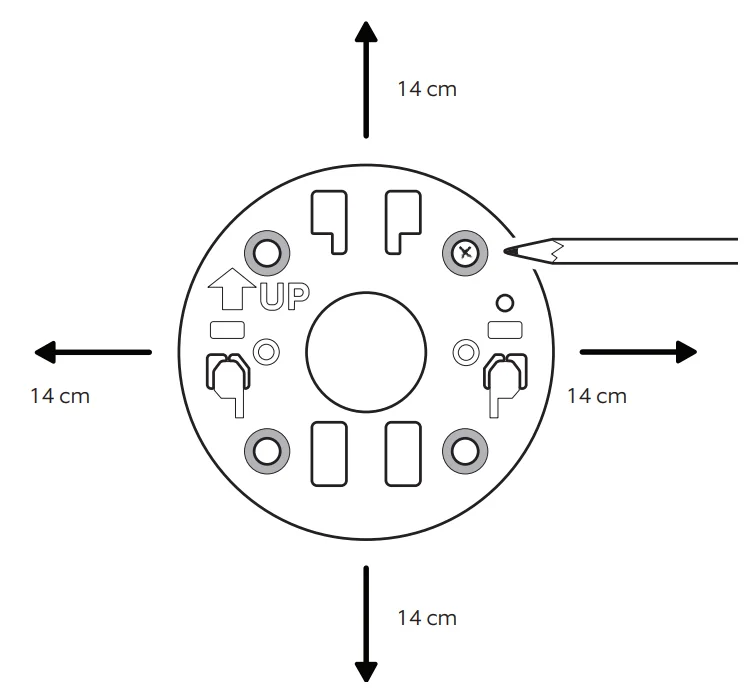
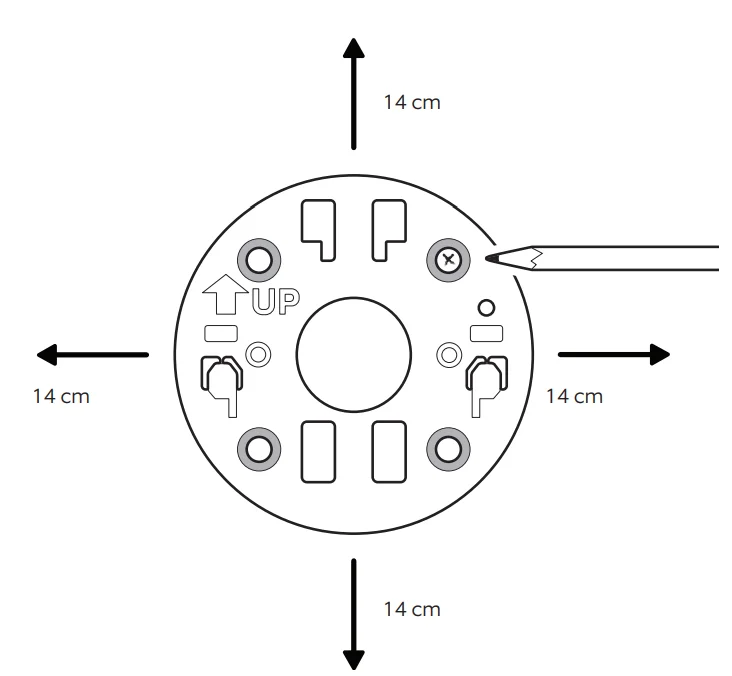
- Use the mounting plate as a guide to mark screw holes on the wall with 5.5 in (14 cm) of space in every direction.

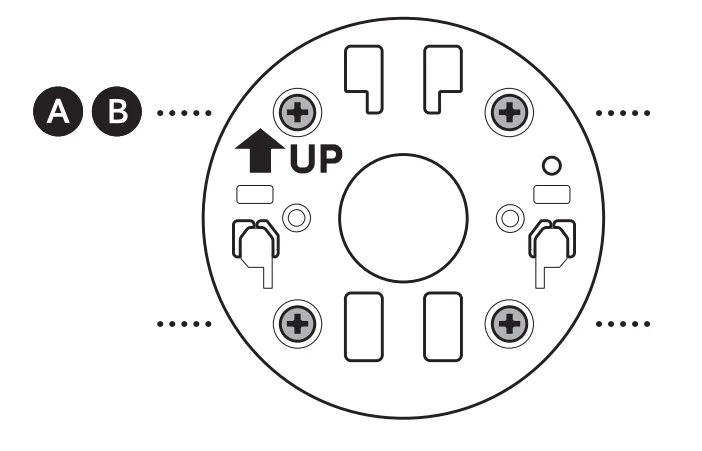
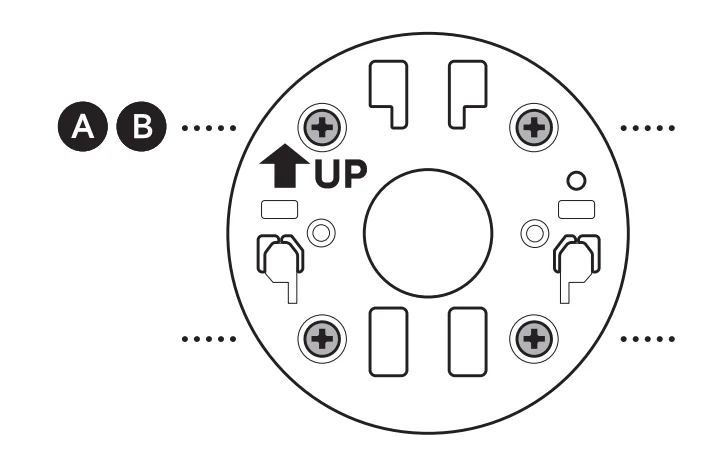
- Install the mounting plate with the UP arrow pointing up.

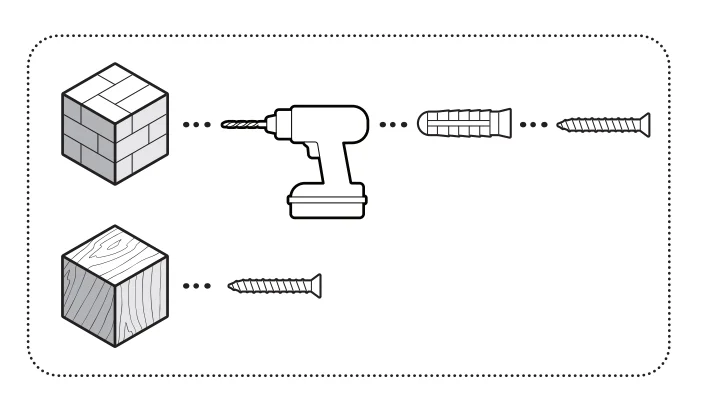
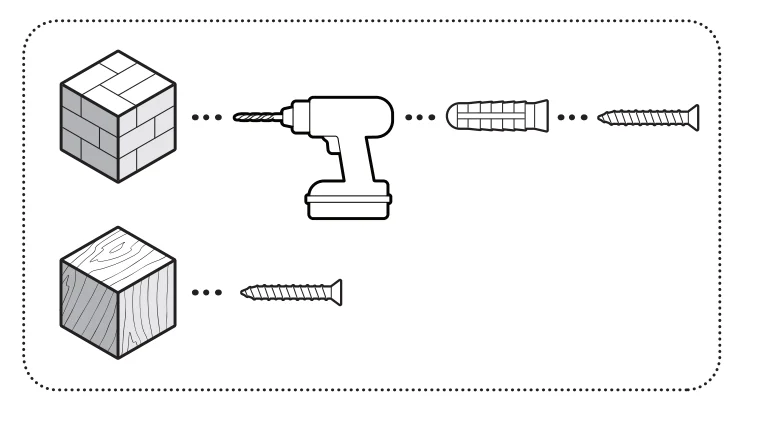
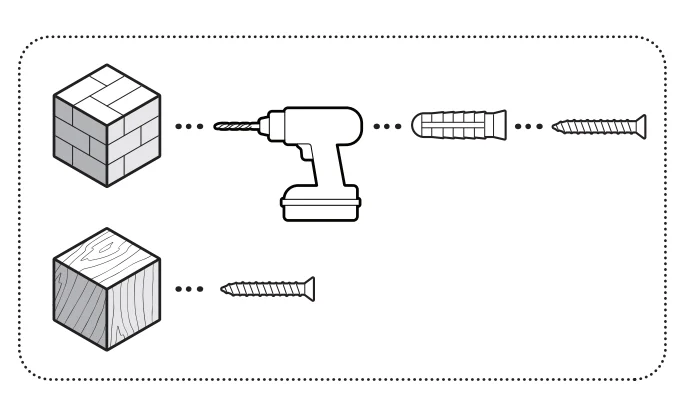
On stucco, brick, or concrete, use a 1/4 in (6 mm) masonry bit to drill holes for the included wall anchors.
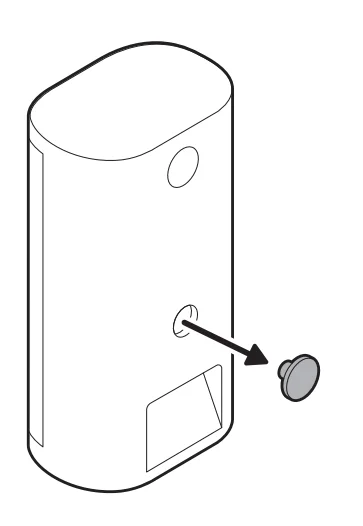
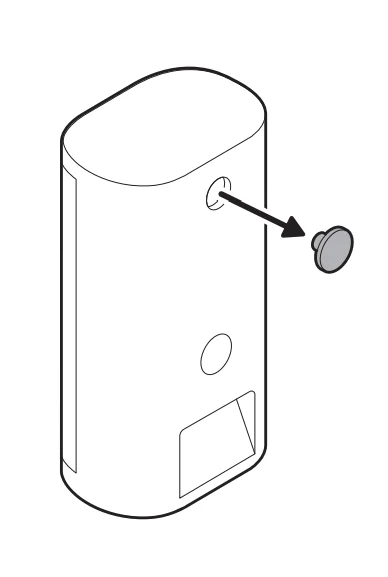
- Remove the middle rubber cap on the back of your camera.

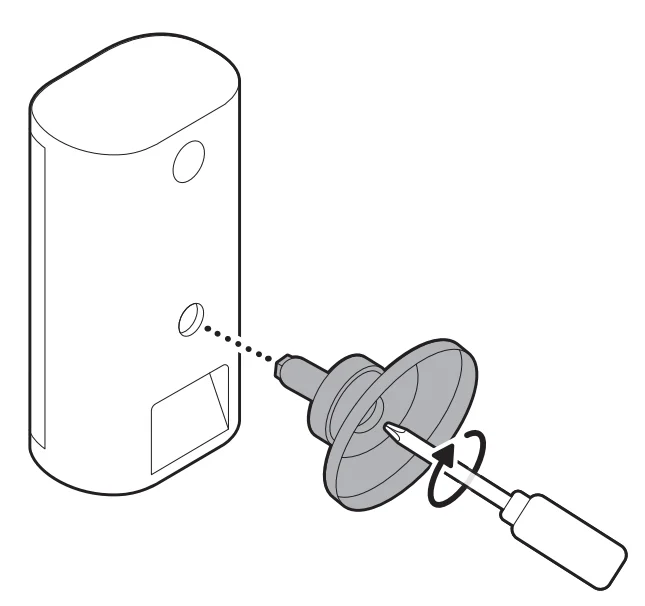
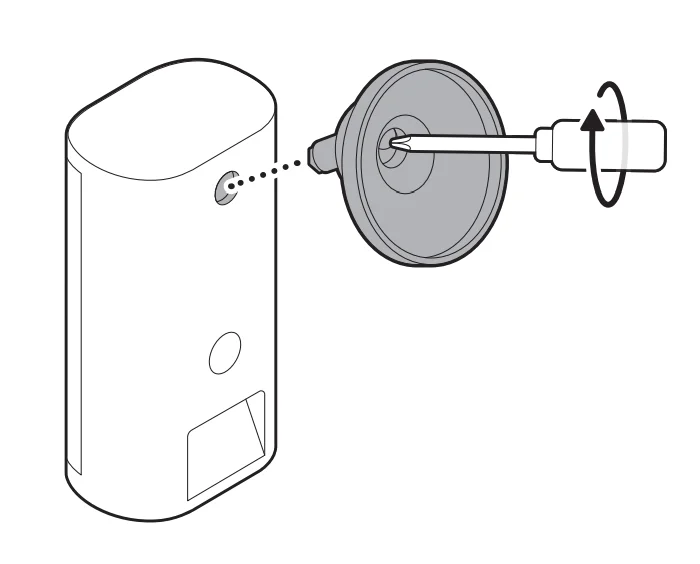
- Attach the camera mount to the back of your camera with its screw.

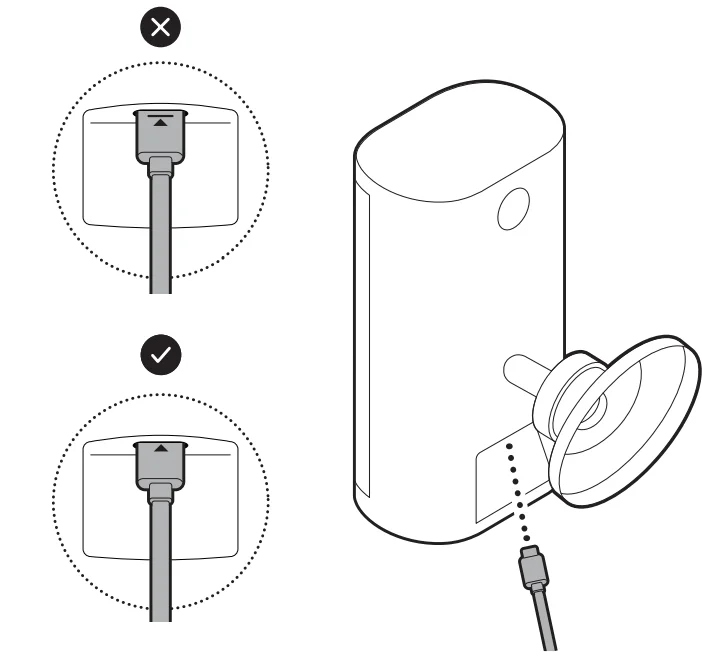
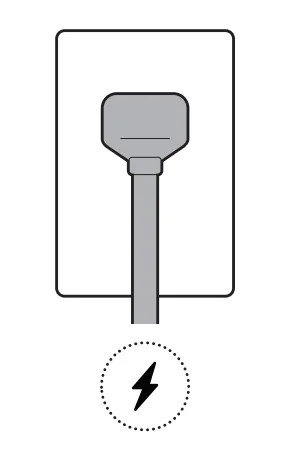
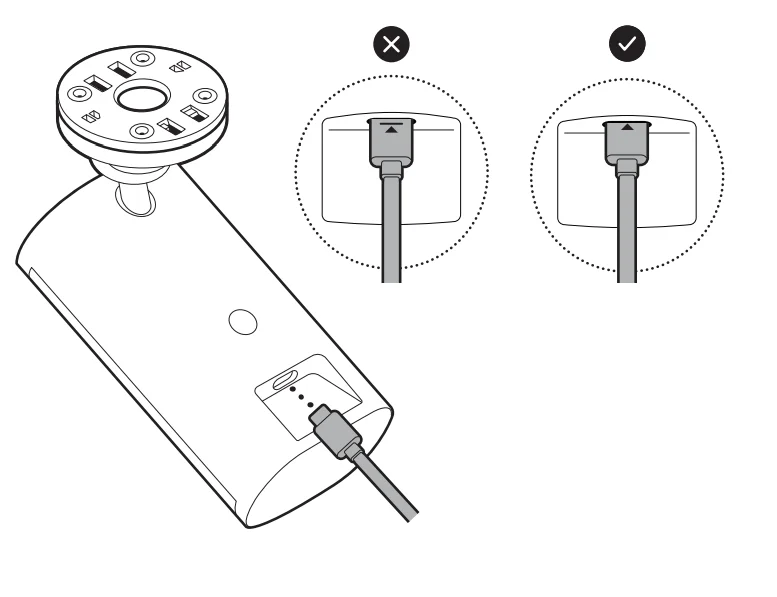
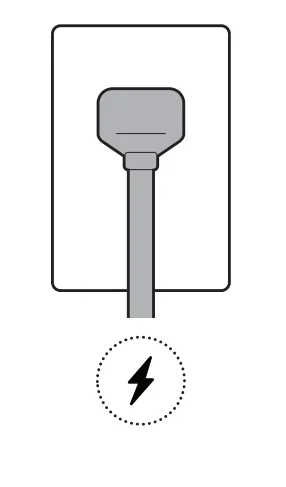
- Plug the power cable in until the indicator line disappears.

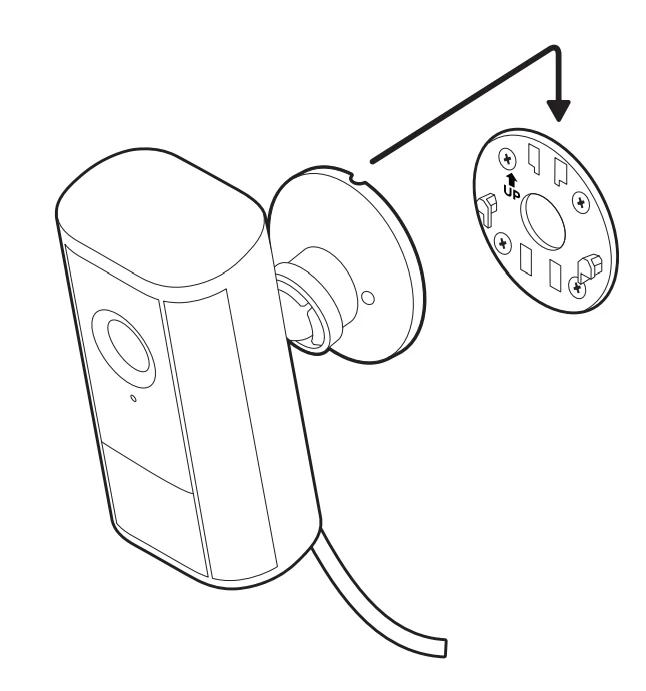
- Secure your camera to the mounting plate by sliding until you feel a click.

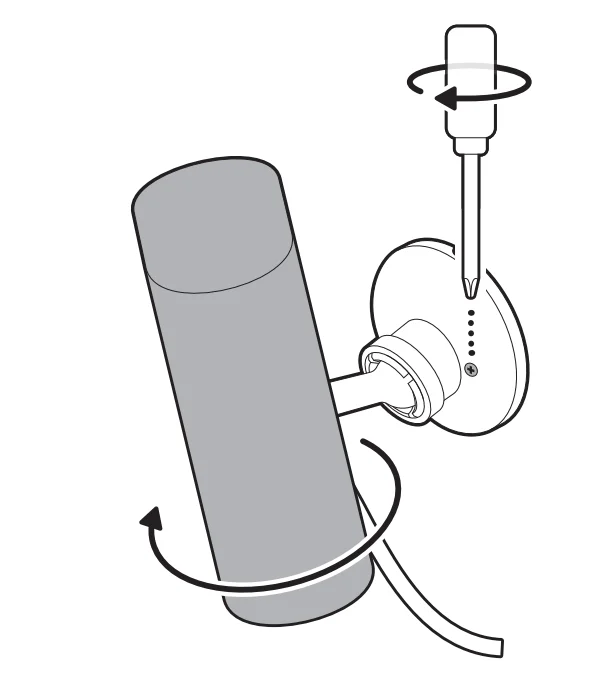
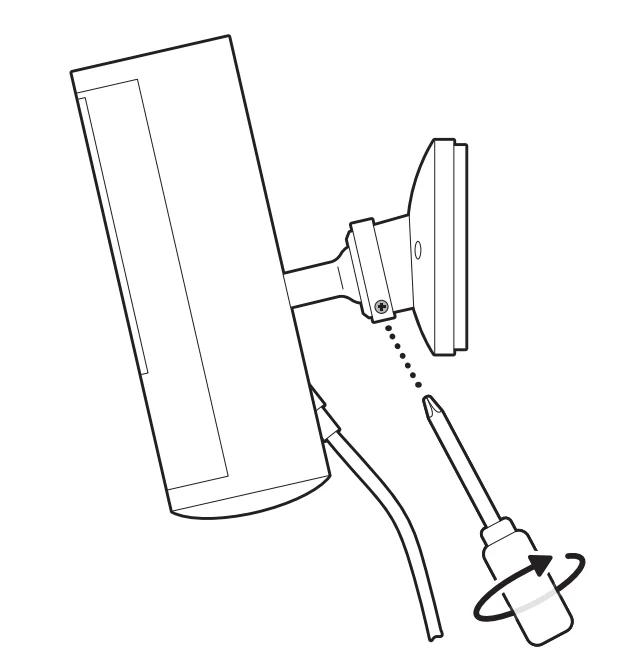
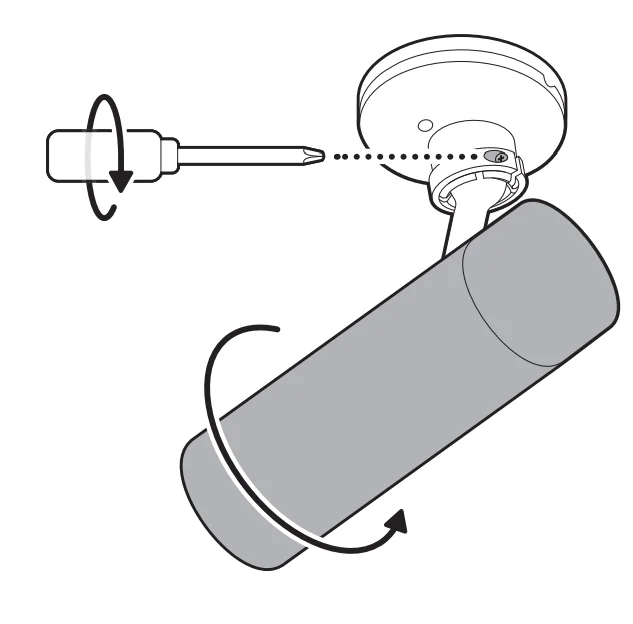
- Rotate your camera and tighten the security screw.

- Adjust your camera’s position and tighten the ball joint to secure in place.

- Plug the power adapter into an outlet.

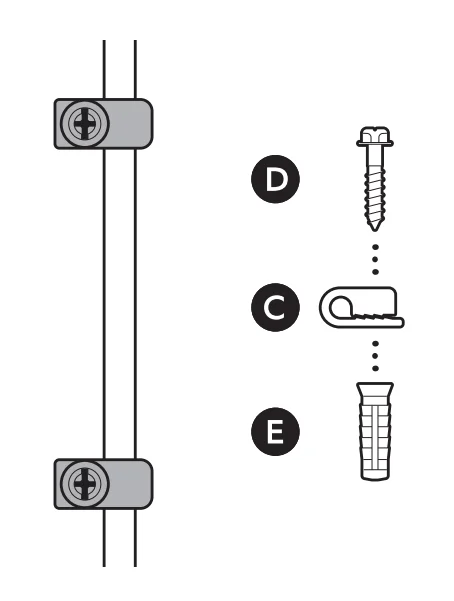
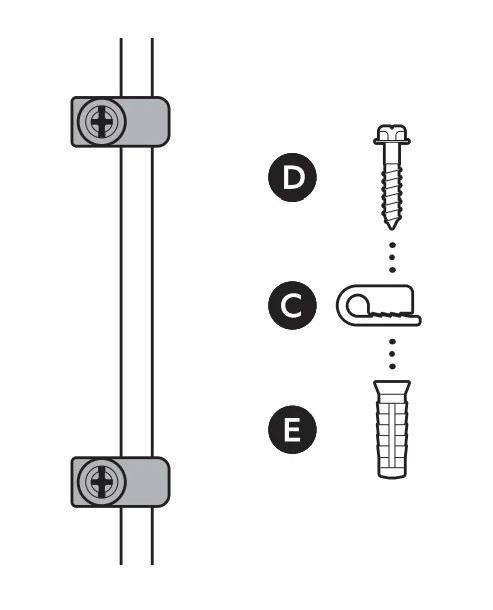
- Anchor the power cable to the wall or ceiling with the included cable clips.

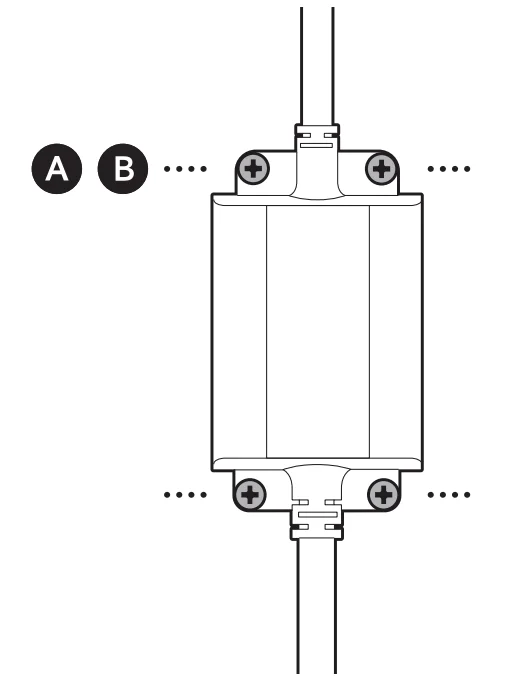
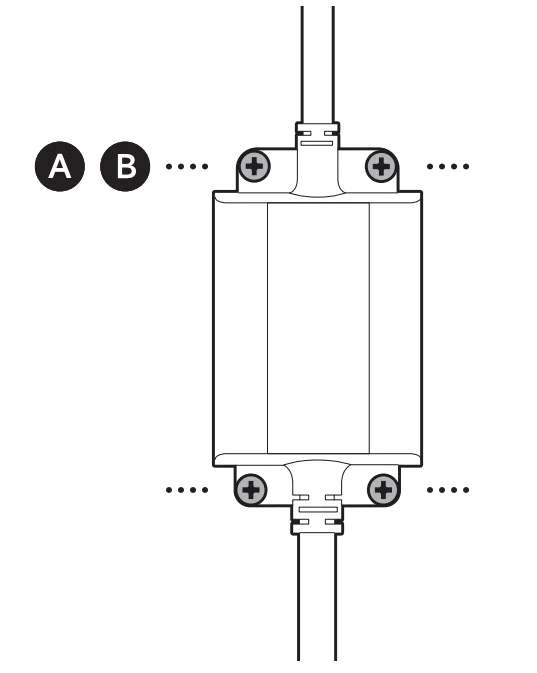
- Secure the power adapter with the included anchors and screws.

On stucco, brick, or concrete, use a 1/4 in (6 mm) masonry bit to drill holes for the included wall anchors.
Ceiling installation
- Slide the mounting plate in the direction opposite to the UP arrow to remove.

- Use the mounting plate as a guide to mark screw holes on the ceiling with 5.5 in (14 cm) of space in every direction.

NOTE: For best results, avoid locations with nearby objects that can interfere with your camera’s field of view. - Install the mounting plate with the UP arrow pointing toward your desired viewing direction.

On stucco, brick, or concrete, use a 1/4 in (6 mm) masonry bit to drill holes for the included wall anchors.
- Remove the top rubber cap on the back of your camera.

- Attach the camera mount to the back of your camera with its screw.

- Secure your camera to the mounting plate by sliding until you feel a click.
NOTE: Your camera should be in an upright position.
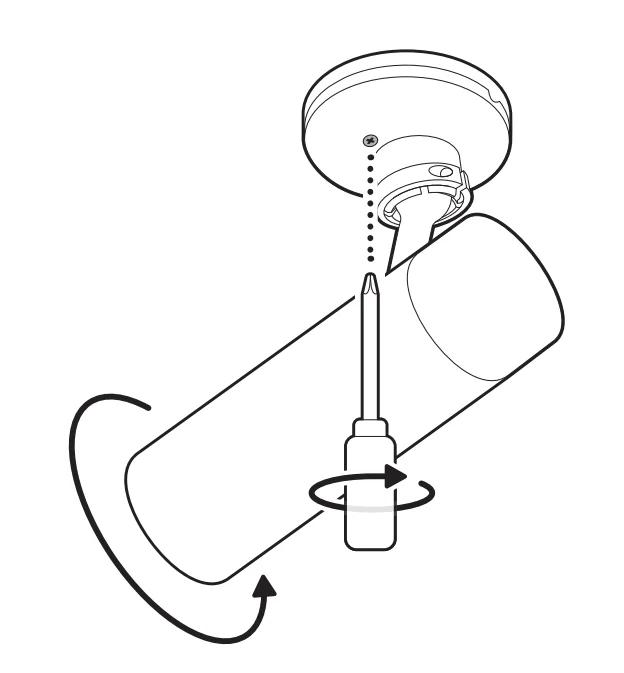
- Rotate your camera and tighten the security screw.

- Adjust your camera’s position and tighten the ball joint to secure it in place.

- Plug the power cable in until the indicator line disappears.

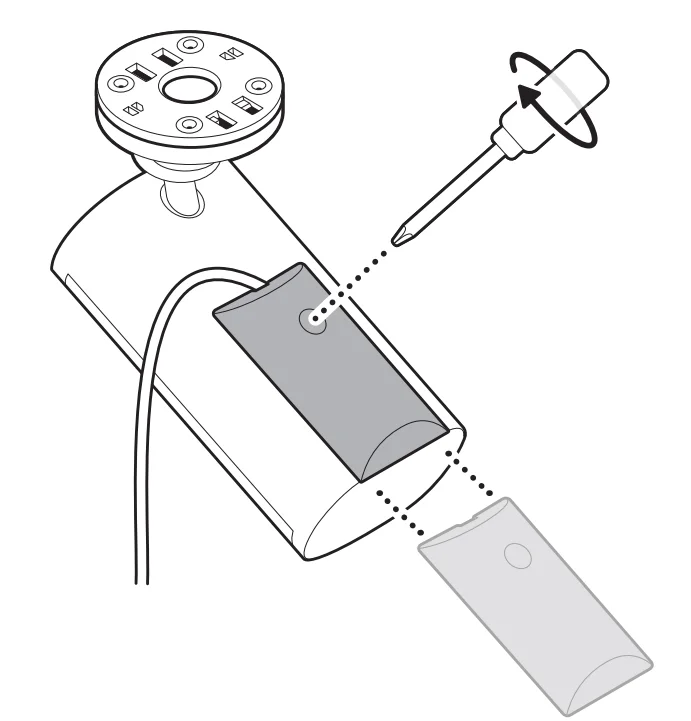
- Attach the included cable bracket to the back of your camera and tighten the handscrew to secure your power cable

- Plug the power adapter into an outlet.

- Anchor the power cable to the wall or ceiling with the included cable clips.

- Secure the power adapter with the included anchors and screws.

On stucco, brick, or concrete, use a 1/4 in (6 mm) masonry bit to drill holes for the included wall anchors.
For more manuals by Ring, visit ManualsLibraryy
Spotlight Cam Pro (2nd Gen) Plug-In -FAQs
How do you power or charge the Spotlight Cam Pro (2nd Gen) Plug-In?
The plug-in version of the Spotlight Cam Pro does not require regular battery charging because it receives continuous power from a wall outlet. You simply connect the camera to the included power adapter and plug it into a standard electrical outlet. Once connected, the camera remains powered at all times, allowing uninterrupted video monitoring, motion alerts, and live viewing without needing to remove or recharge batteries.
Does the camera work with 220V electrical outlets?
Yes, the plug-in adapter used with the Spotlight Cam Pro can generally operate with standard household power, including 220V outlets commonly used in many countries. The adapter converts the voltage into the proper level needed for the camera. As long as you use the official adapter provided by Ring or a compatible one, the camera should function safely with the appropriate outlet.
How do you set up the Spotlight Cam Pro for the first time?
Setting up the camera is straightforward. First, download the Ring mobile app on your smartphone and create an account if needed. Plug in the camera, open the app, and select “Set Up a Device.” Scan the QR code on the camera, follow the instructions to connect it to your Wi-Fi network, and choose a location name. After completing these steps, the camera will be ready to stream live video and detect motion.
Can the Spotlight Cam Pro Plug-In be converted to a hardwired setup?
Yes, it is possible to convert certain Ring cameras to a hardwired configuration using a compatible hardwired kit. This requires an existing electrical junction box and proper installation. Hardwiring provides a more permanent power connection, similar to many traditional outdoor security cameras. However, installation may require basic electrical knowledge or professional assistance to ensure safe wiring.
Can you plug a Ring security camera directly into a wall outlet?
Yes. Plug-in Ring cameras are designed to work by connecting directly to a standard indoor or outdoor power outlet through a power adapter. Once plugged in, the camera receives constant electricity, which means you won’t have to worry about battery replacements or recharging. This makes plug-in models ideal for areas where an outlet is easily accessible and continuous monitoring is needed.
Does the Spotlight Cam Pro require Wi-Fi to function?
Yes, the camera relies on Wi-Fi to transmit video, send alerts, and allow remote control through the Ring app. Without a stable internet connection, features like live view, motion notifications, and cloud video recording will not work properly. For best performance, install the camera within strong Wi-Fi range and ensure your network connection is reliable.
Can the Spotlight Cam Pro be controlled from a smartphone?
Yes. Using the Ring mobile app, you can monitor and control the camera from anywhere. The app allows you to watch live video, receive instant motion alerts, speak through two-way audio, activate the spotlight, and review recorded events. This remote access feature is one of the main advantages of modern smart security cameras.
Where is the best place to install the Spotlight Cam Pro Plug-In?
For optimal coverage, install the camera about 9–10 feet above the ground and aim it toward the area you want to monitor, such as entryways, driveways, or yards. Avoid pointing the camera directly at bright lights or windows, as this can affect motion detection and video clarity. Mounting the camera at a corner of the building often provides the widest viewing angle.
What should you do if the plug-in camera stops working?
If the camera stops working, first check that the power adapter is firmly connected and the outlet is functioning. Try plugging the adapter into another outlet to rule out power issues. Also ensure your Wi-Fi network is active and the camera is connected in the Ring app. Restarting the device or reconnecting it through the app can often resolve common problems.