

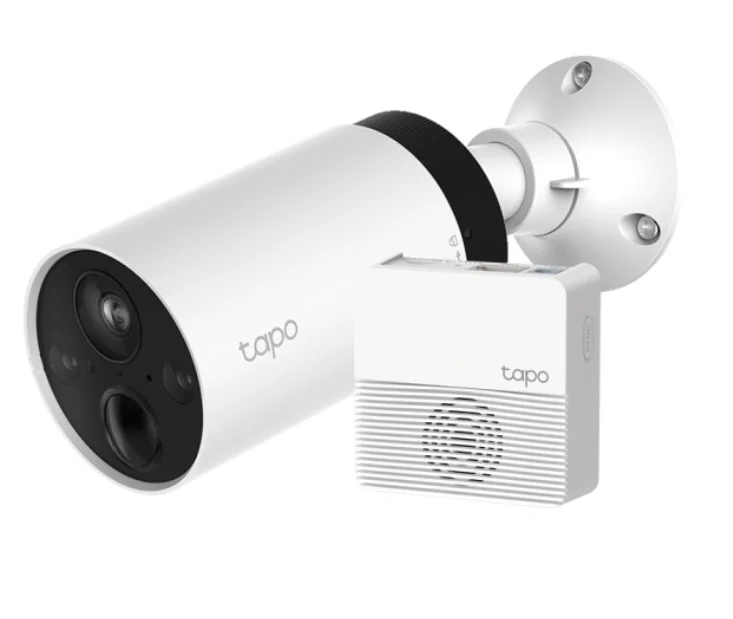
TP Link Tapo C420S2 Camera System
Introduction
Install anywhere with long battery life.
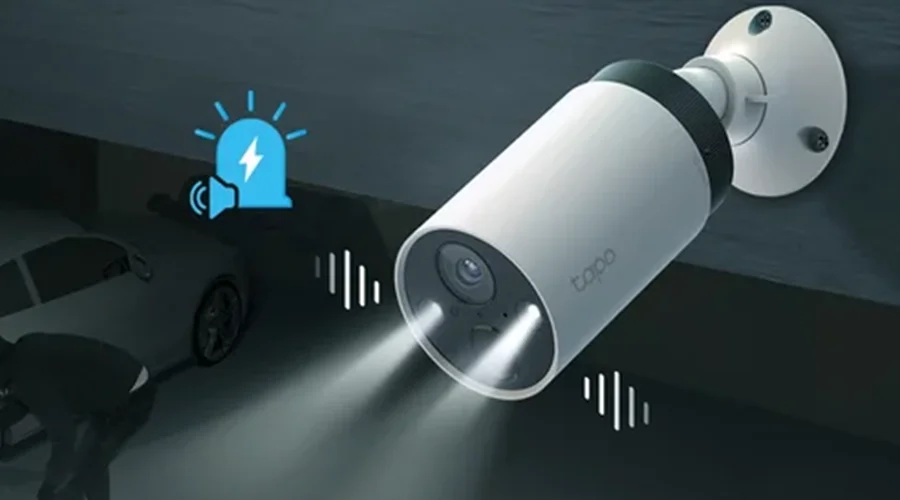
Tapo Wire-Free Security Camera System is designed to be used outdoors. Its rechargeable and removable battery with a low-power protocol extends your usage. No wires means you can place the camera wherever you like. The camera is equipped with the starlight sensor and the spotlights, catching more colors. The highly sensitive starlight sensor captures higher-quality images even in low-light conditions. The integrated spotlights help enhance your security view with vivid colors even at night.
- 2K QHD – Now with 1.7 times more pixels than 1080p, providing clearer videos and photos.
- 180 Day Long Battery Life – The rechargeable and removable battery with a low-power protocol extends your usage.
*180-day battery life is based on TP-Link’s laboratory testing with 10-20 triggered events per day. Actual battery life may vary based on device settings, use, and environmental factors. - Wire-Free Placement – No wires means you can place the cameras almost anywhere inside or outside – whatever works for you.
- Smart AI Detection – Detect multiple event types with smart AI algorithms. Adjust the sensitivity according to your needs.
- Sound and Light Alarm – Trigger sound and light as an alarm when motion is detected.
- Full-Color Night Vision – Enhance your security view with vivid colors even at night with the integrated spotlights.
- Starlight Sensor – The highly sensitive starlight sensor captures higher-quality images even in low-light conditions.
- Motion Detection – Get instant notifications when your camera detects motion.
- Weatherproof – Helps Tapo cameras perform well even in harsh environments with rain and dust.
- Two-Way Audio – Communicate with others with the built-in microphone and speaker.
- Flexible Storage Choices – Save recorded videos on the hub-installed microSD card (up to 256 GB) or by using Tapo Care cloud storage services.
*microSD card needs to be purchased separately.
**Subscribe for cloud storage at https://www.tapo.com/tapocare/.
Appearance-Camera
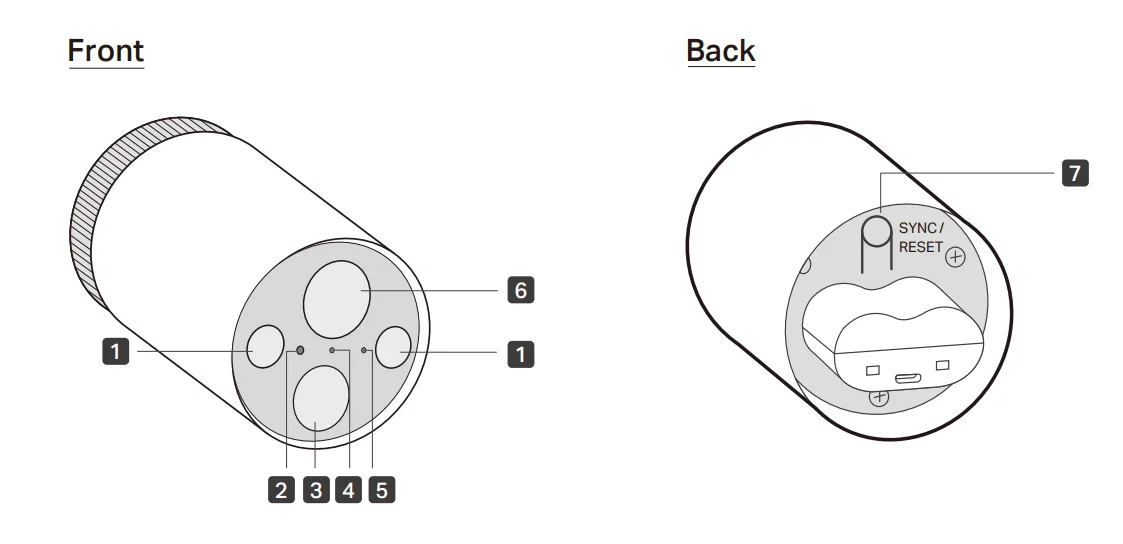
- Spotlights
- Light Sensor
- Motion Sensor
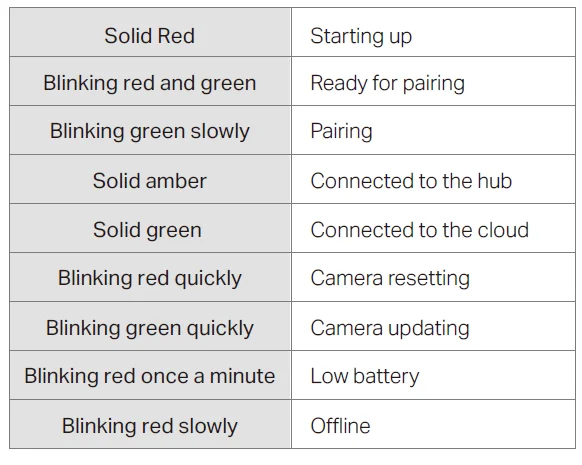
- Status LED
Indicate the status of your camera. - Microphone
- Lens
- SYNC/RESET Button
While the camera is powered on:- Press for 1 second: Pair with the hub
- Press and hold for about 5 seconds: Reset the camera
Appearance-Hub
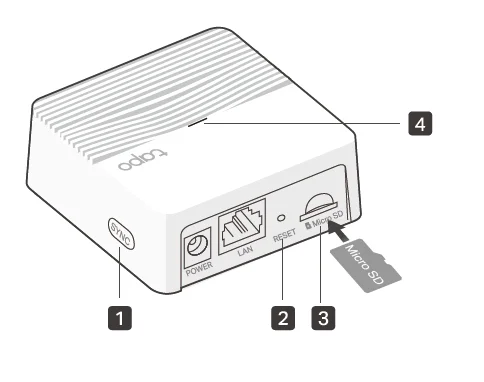
- SYNC
Press to pair with the camera, or silence the hub when it rings. - RESET
Press and hold for about 5 seconds until the hub LED quickly blinks red to reset the hub. - microSD Card Slot
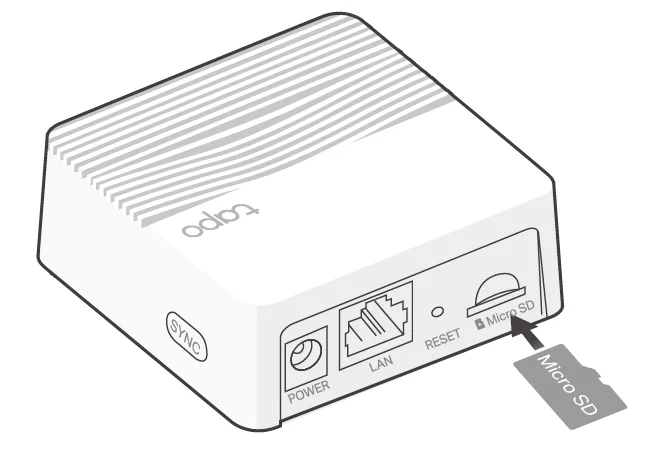
Insert a microSD card to record camera videos locally. Initialize the microSD card within the Tapo app first. “microSD card not included. - Status LED
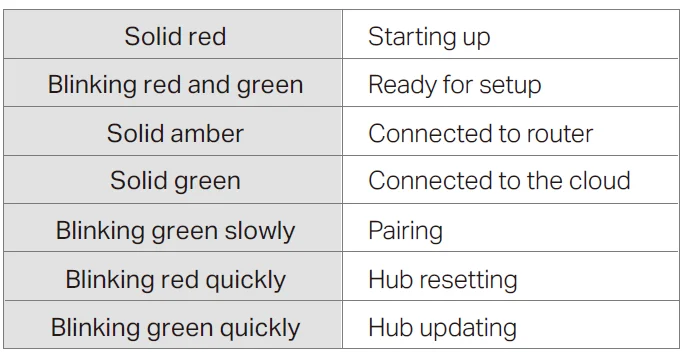
Indicate the status of your hub
Hub Status LED
Camera Status LED
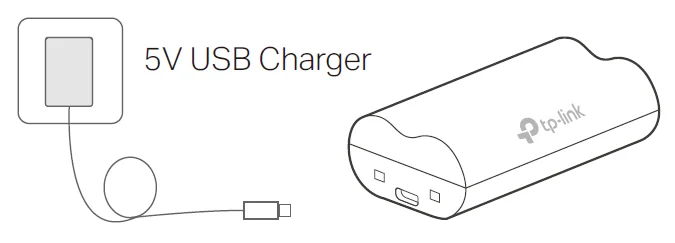
Charge the Battery
- Method 1:
Connect the battery to a power source.
- Charging: Solid amber
- Fully charged: Solid green
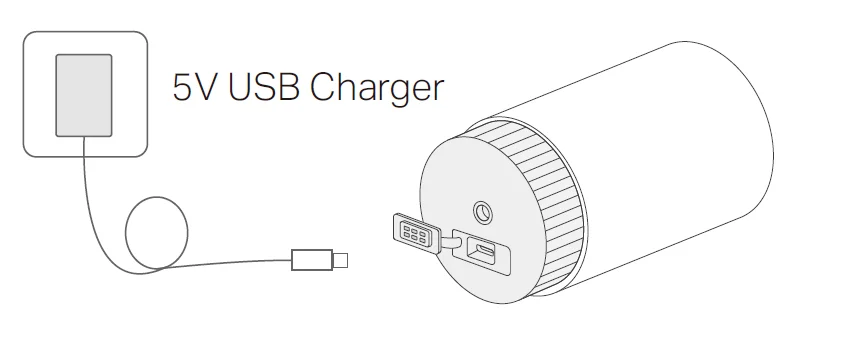
- Method 2:
Insert the battery into the camera, and then connect the camera to a power source.
Set Up Your Camera
Follow the steps below to get started with your new hub and camera.
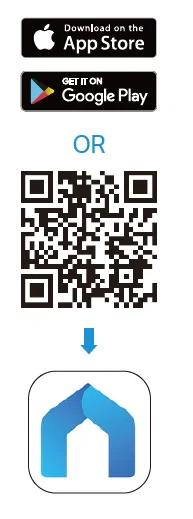
- Step 1. Download Tapo App
Get the Tapo app from the App Store or Google Play, or by scanning the QR code below.
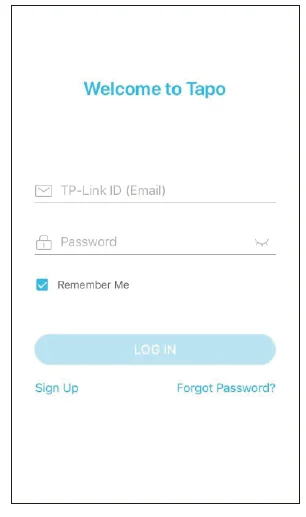
- Step 2. Log In
Open the app, and log in with your TP-Link ID. If you don’t have an account, create one first.
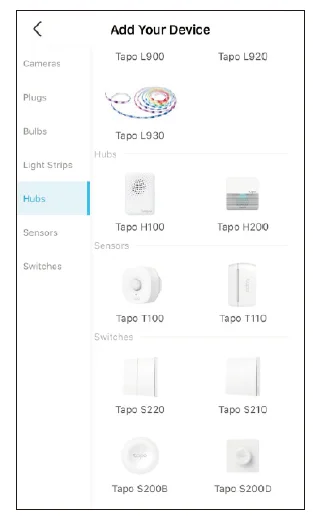
- Step 3. Add Your Hub First
Tap the + button in the app and select your model. Follow the app instructions to set up your hub.
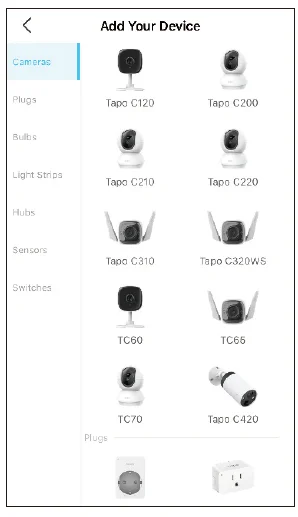
- Step 4. Add Your Camera
Tap the + button in the app and select your model. Follow the app instructions to set up your camera.
Install a microSD Card
If you want the camera to record videos locally, insert a microSD card to your hub. Initialize the microSD card within the Tapo app. You can go to Camera Settings > microSD Card in the Tapo app to check the card status or format your card.
Mount Your Camera
When you finish adding your camera in the Tapo app, you can place your camera on a flat surface, or mount it on a wall or ceiling with the provided mounting template and screws.
- Step 1. Drill Holes
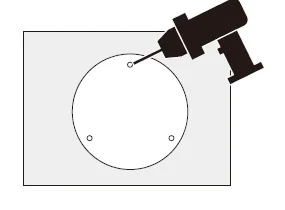
Stick the mounting template to the desired mounting place. Drill 3 screw holes according to the template.
- Step 2. Install the Bracket
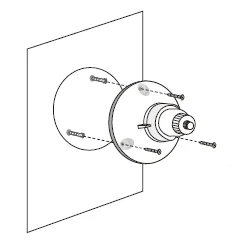
Insert three anchors into the holes and use the screws to affix the bracket over the anchors.
- Step 3. Mount Camera
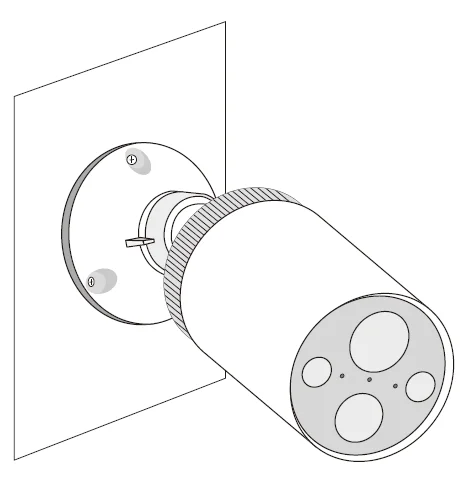
Install the camera to the mounting bracket, and adjust the camera angle.
Size of Screws
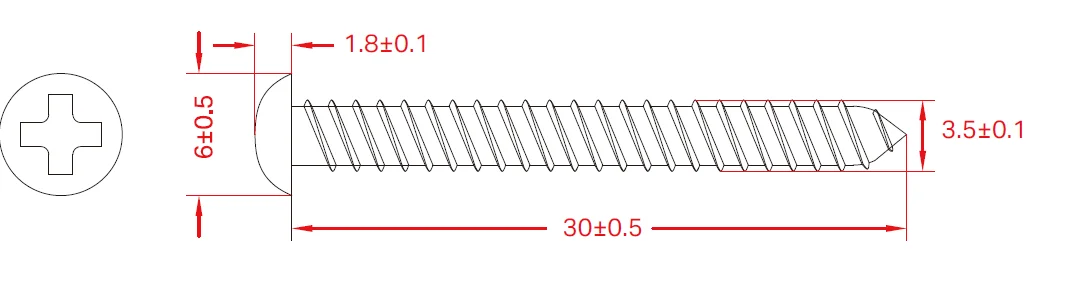
Main Hub Controls
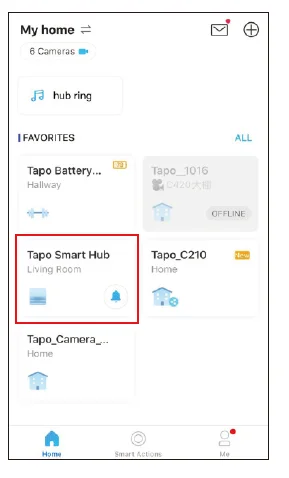
After you successfully set up the hub and camera, you will see your devices listed on the home page. You can view and manage your hub from anywhere at any time with the Tapo app.
Home Page
This page lists all the devices you’ve added, and you can view them directly and manage them easily. Tap the hub to enter the Status page.
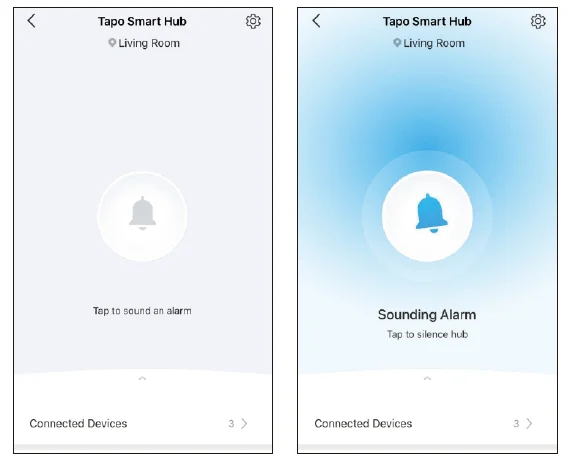
Status Page
You can tap to sound an alarm. When it alarms, you can tap to silence the alarm.
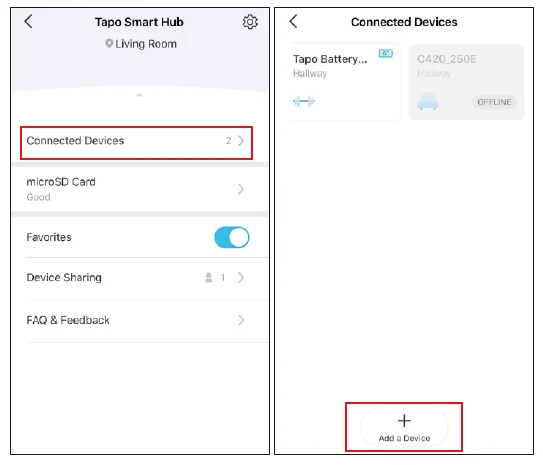
Check Connected Devices
Slide up to check connected devices to the hub. You can also add more devices.
Check MicroSD Card Status and Storage
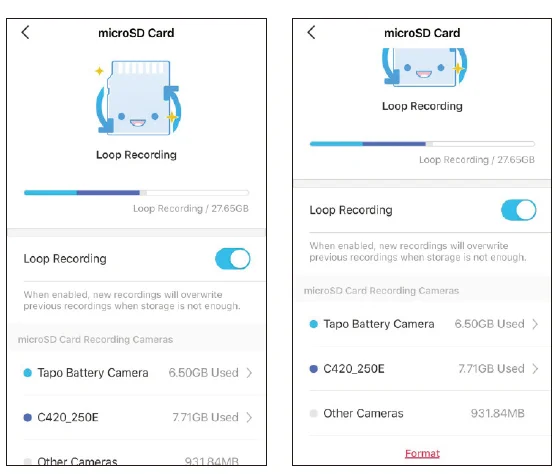
You can turn on Loop Recording if you want new recordings to overwrite previous recordings when storage is not enough. You can also check how much storage is used and the storage used by each connected camera/ doorbell. Tap Format when you want to format your microSD card.
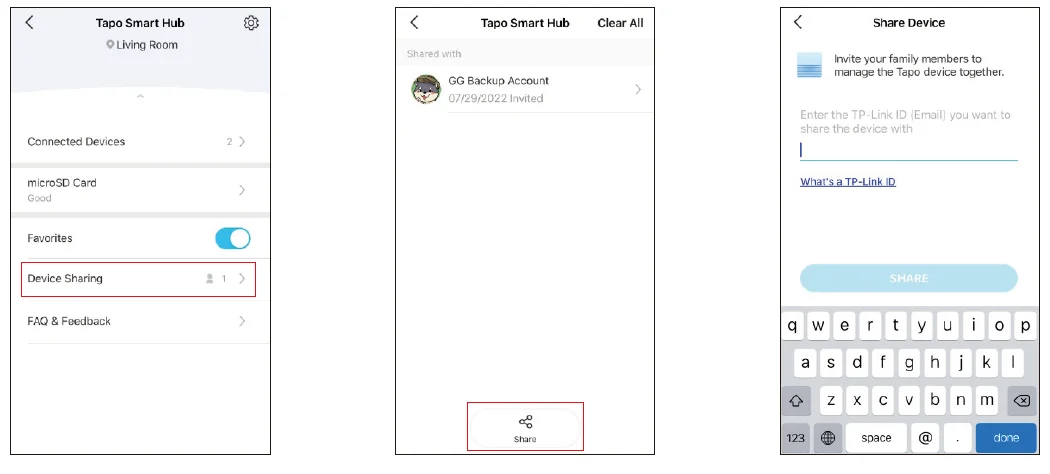
Share Your Hub
You can invite your family members to manage your Tapo devices together by entering the TP-Link ID (email) you want to share the devices with.
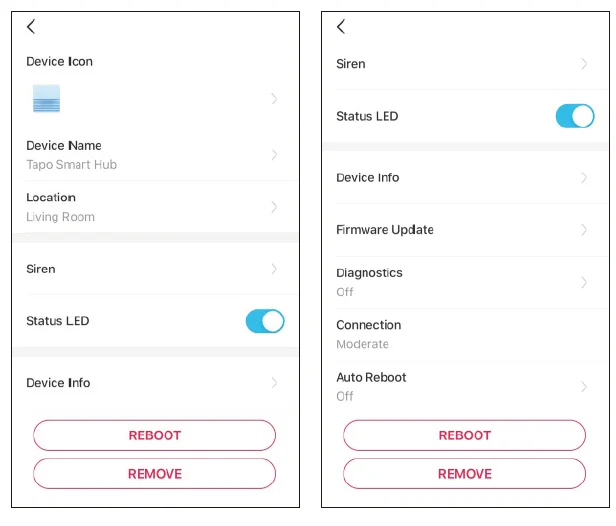
Hub Settings
On the Status page, tap to enter the settings page. You can change your device name and location, set a siren, turn on/off status LED, set auto reboot time, etc.
Main Camera Controls
After you successfully set up the camera, you will see your camera listed on the home page. You can view and manage your camera from anywhere at any time with the Tapo app.
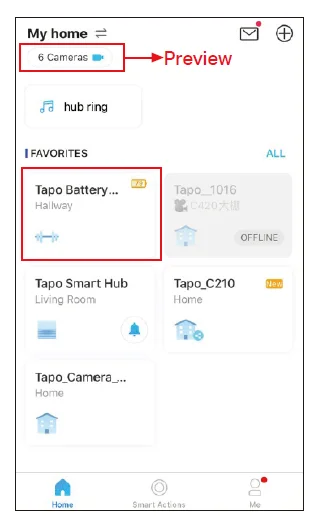
Home Page
This page lists all the cameras you’ve added, and you can view them directly and manage them easily. Tap the camera or go to Camera Preview > Manage to enter the Live View page.
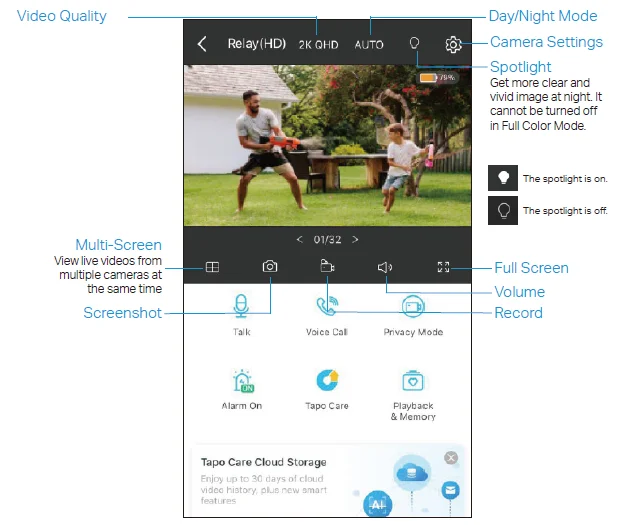
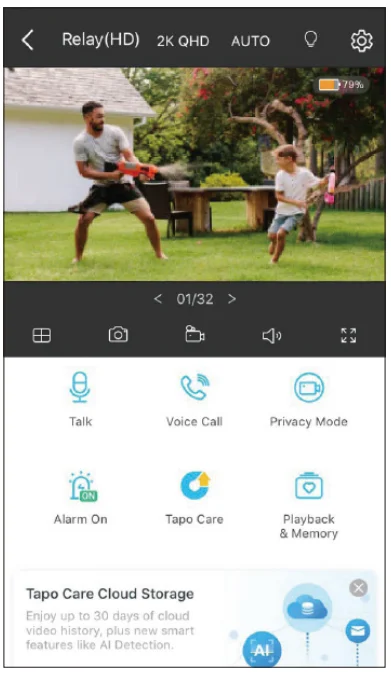
Live View
- Talk or Voice Call: Communicate with loved ones
- Privacy Mode: Enable to temporarily shut down the surveillance for privacy
- Alarm On/Off: Turn on to get noticed when motion detected
- Playback & Memory: Check all recordings and saved moments
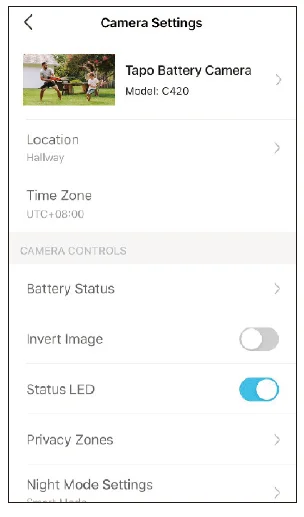
Camera Settings
On the Live View page, tapto enter the Camera Settings page. You can change your camera name, set Night Mode settings, customize detection settings and recording schedules, turn on/off notifications, set activity zones, remove the camera, etc.
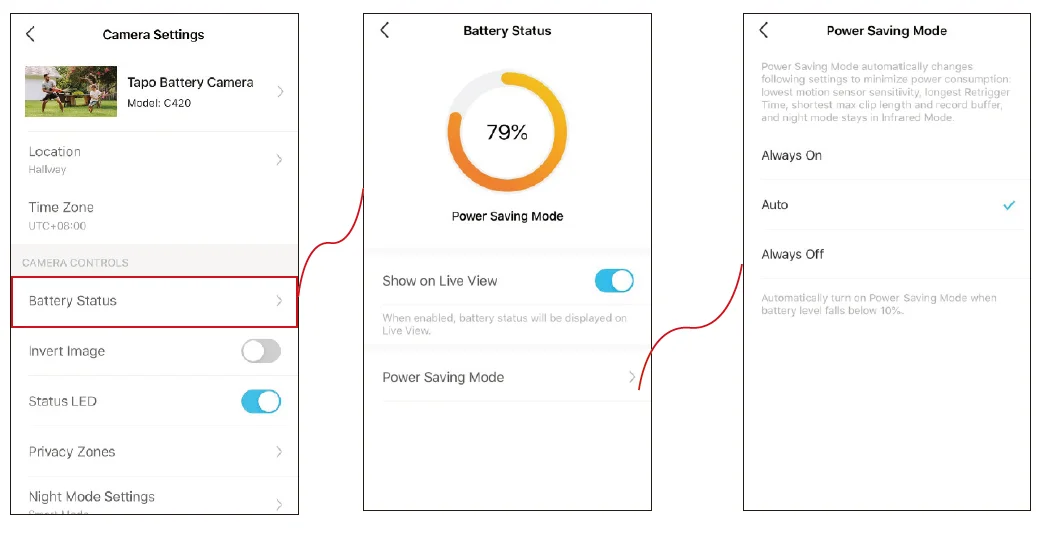
Check Battery Status
Check the current battery status, and set the power saving mode as you like to save battery.
Show Battery Status on Live View
Go to the Camera Settings page and tap
Set Power Saving Mode
Set when to turn on Power Saving Mode to save battery.
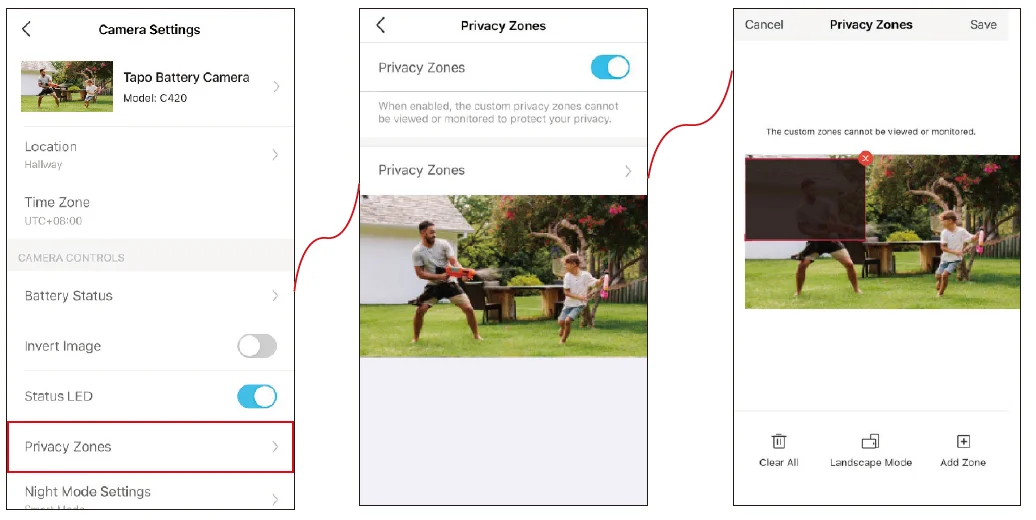
Set Privacy Zones
Privacy zones cannot be viewed or monitored to protect your privacy.
Customize Privacy Zones
Go to the Camera Settings page and tap Privacy Zones. You can set zones that cannot be monitored.
Night Vision Mode
Unlike standard cameras’ black and white night view, this smart wire-free camera is equipped with a high-resolution sensor and spotlights, helping enhance your security view with vivid colors even at night. You can choose a preferred night mode and adjust the white light brightness as needed.
Select Night Mode
Go to Camera Settings > Night Mode Settings, and select your preferred night mode.
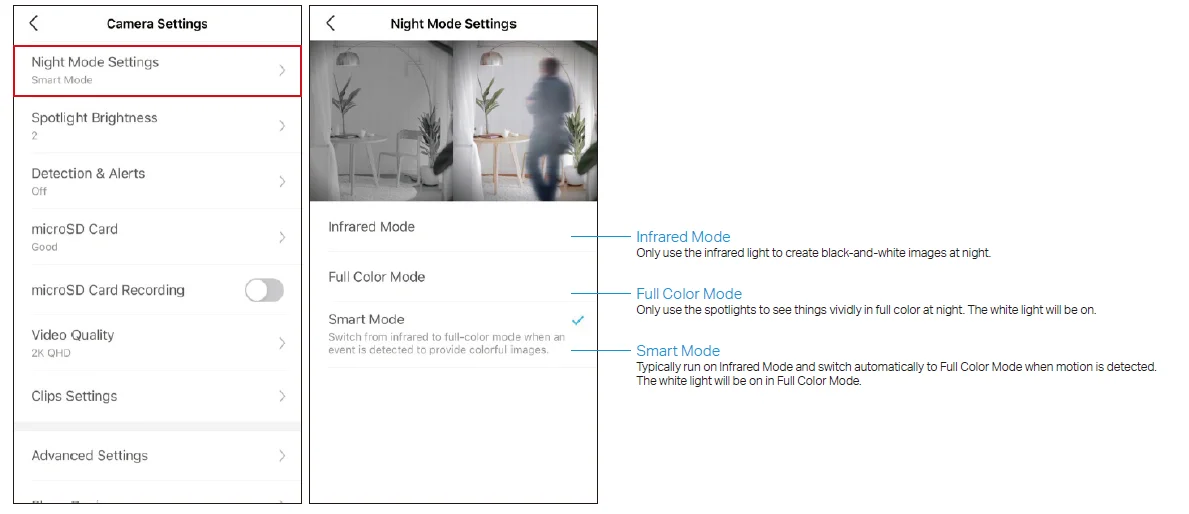
Camera Detection & Alerts
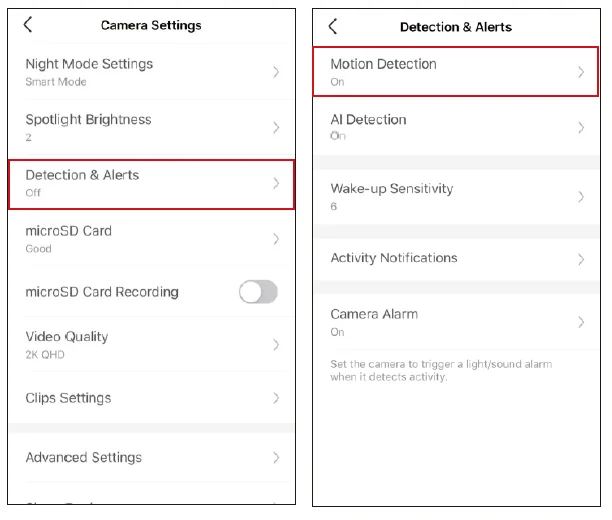
Receive notifications and check feeds when the camera detects motion or person/pet/vehicle. Insert a microSD card or subscribe to Tapo Care to record the clips when activity is detected. Otherwise, you can only receive the notifications.
Note: Initialize the SD card on the Tapo app before using it.
- Step 1: Turn On Detection
Go to the Camera Settings page and tap Detection & Alerts to turn on the detection and customize motion zones and sensitivity.
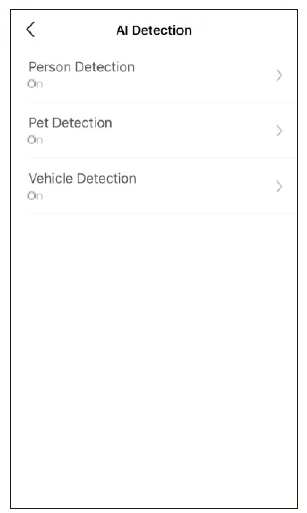
- AI Detection
When your camera detects a person/pet/vehicle, it will send you notifications or even sound an alarm. You can adjust the detection sensitivity.
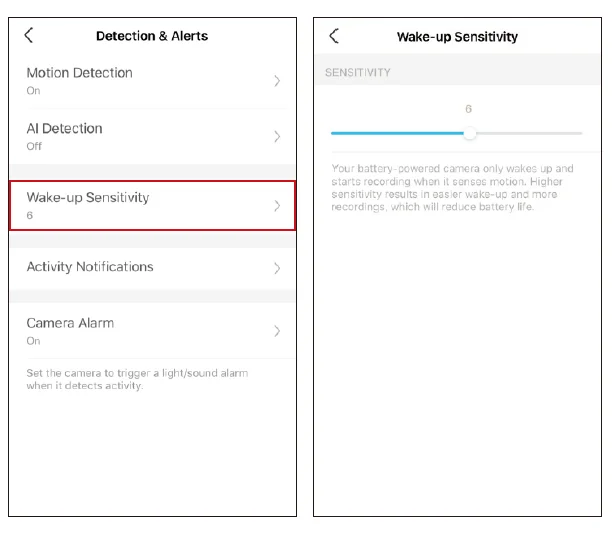
Wake-up Sensitivity
Your battery-powered camera only wakes up and starts recording when motion is detected. You can set how easily the camera wakes up.
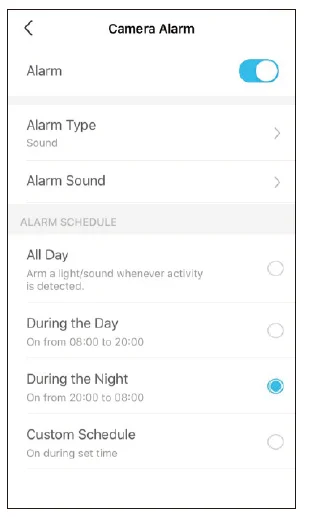
Camera Alarm
Customize Camera Alarm settings to trigger a light/sound alarm to frighten away unwanted visitors when your camera detects activity. You can also set the Alarm Schedule as needed.
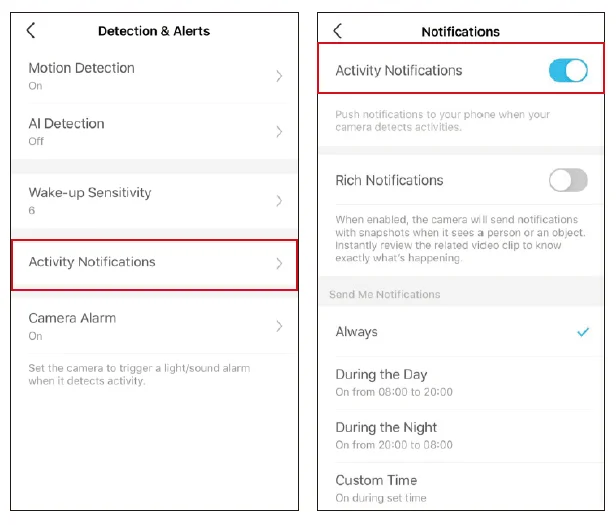
Turn On Activity Notifications
Turn on Activity Notifications to get instant alerts when your camera detects activities. You can customize the time when the camera sends you notifications.
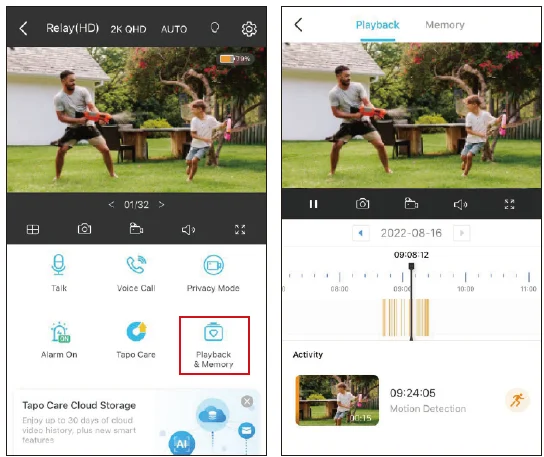
Step 5: Check Recordings
On the Live View page, tap to find all recordings. Tap the colored sections or the video clips below to check the activity detected.
Detection Recordings
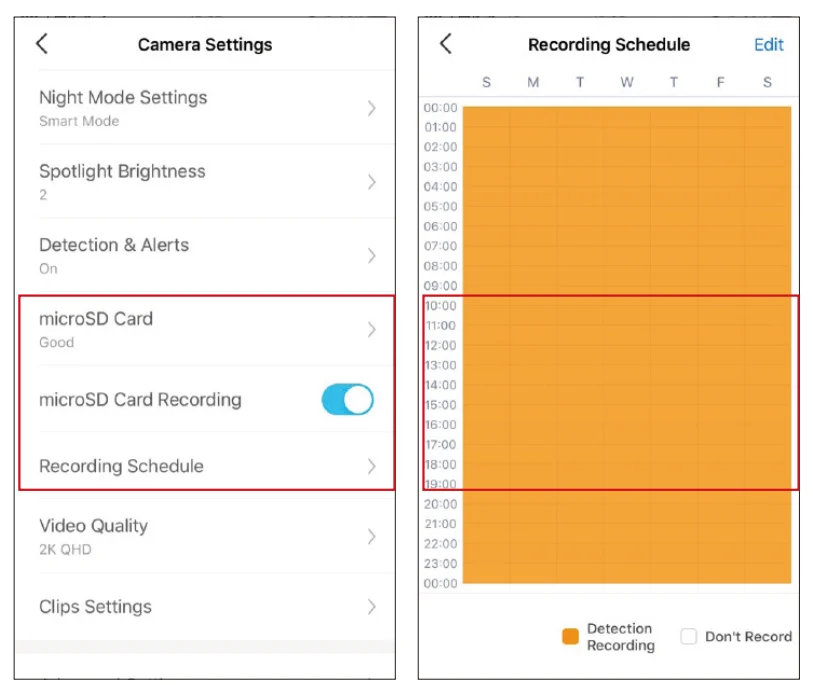
Start recording when events are detected. You need a microSD card or subscribe to Tapo Care to save videos. It’s suggested to initialize the SD card on the app before using it.
- On the Live View page, tap
 to enter the Camera Settings page.
- Toggle on to enable the microSD Recording function and set the Recording Schedule for 24-hour Recording as needed.

Manual Recording
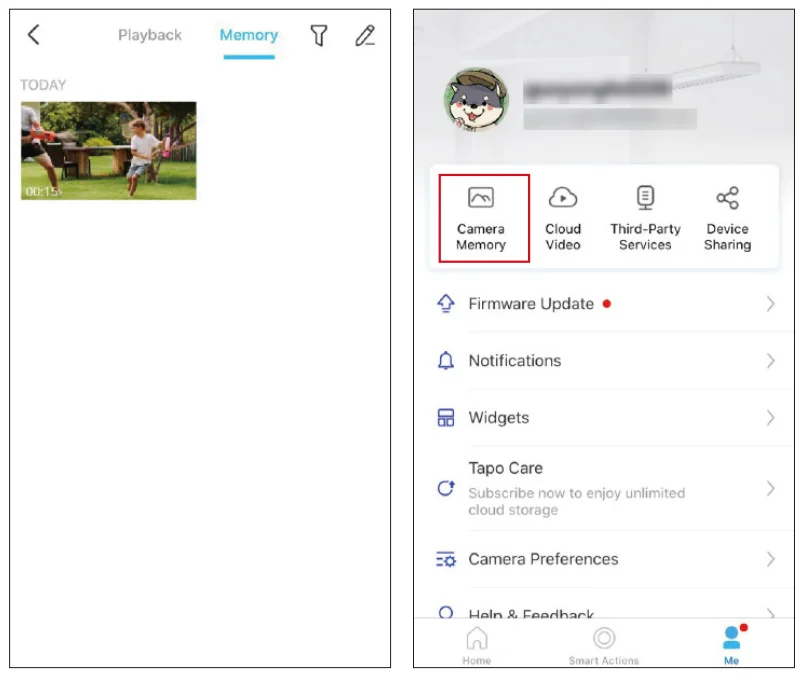
When watching live or playback, you can take screenshots and record video clips anytime you want. Photos and videos you take will appear in the Memory page, and you can download them to your phone or share with your family.
- On the Live View or Playback page, tap
 to take photos and tap
 to record video clips.
- Go to LIVE View page, tap
 and enter Memory page, or go to Me > Camera Memory to view, download, and share photos and videos you take.
 to take photos and tap
 to record video clips.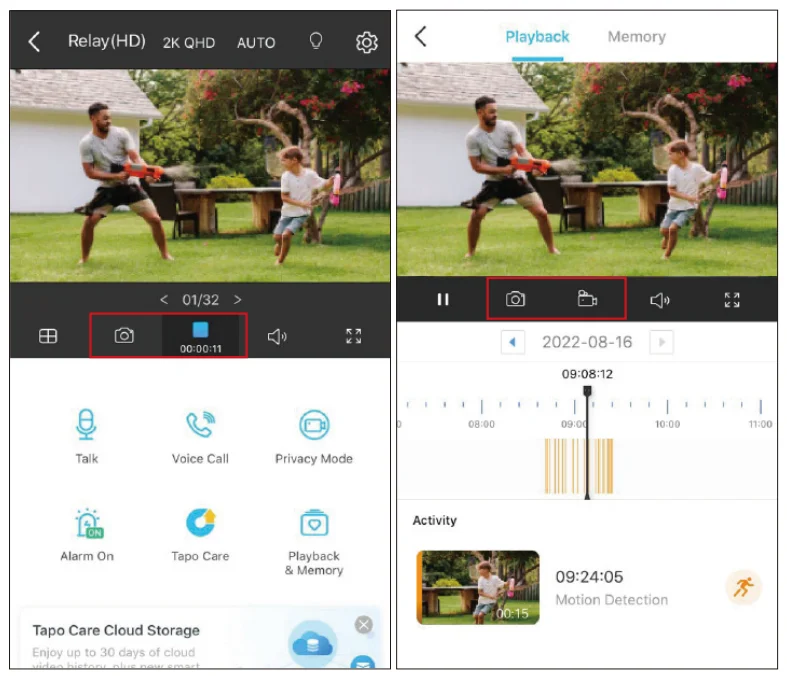
Privacy Mode
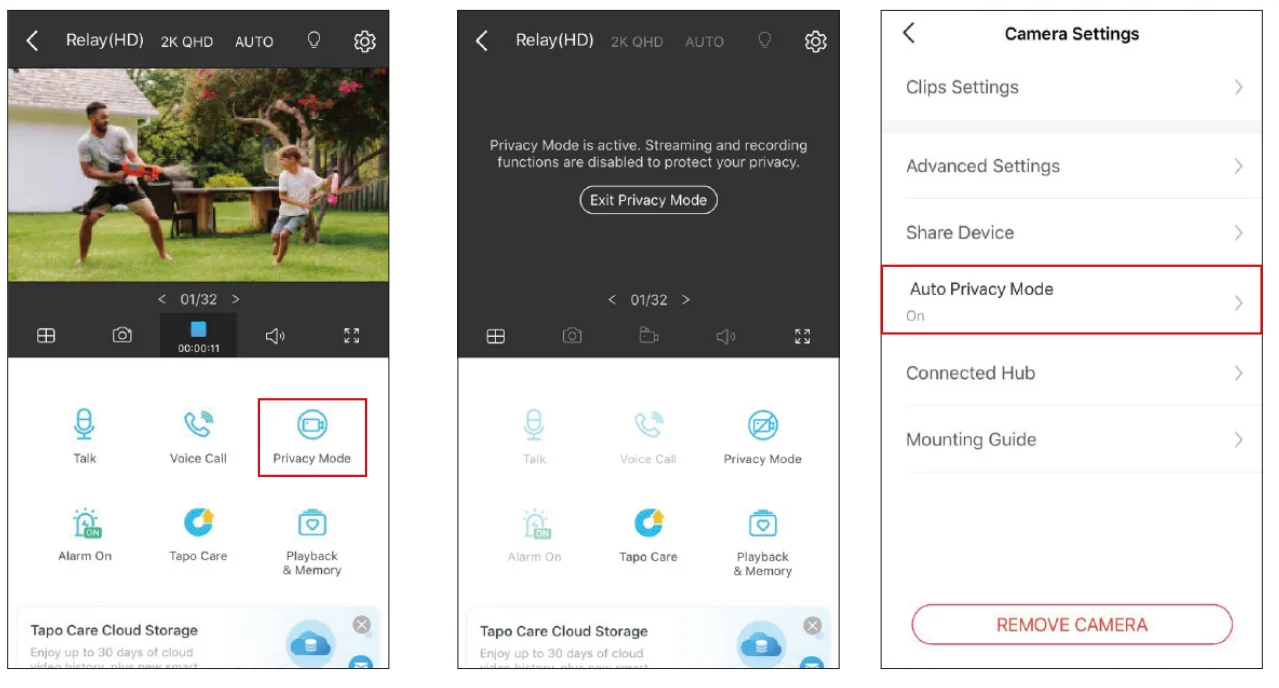
On the Live View page, tap to enable the Privacy Mode. When enabled, streaming and recording functions will be temporarily disabled to protect your privacy. You can tap Exit Privacy Mode to exit Privacy Mode and the camera will be back to work. You can also go to Camera Settings > Auto Privacy Mode to enable privacy mode when charging the camera.
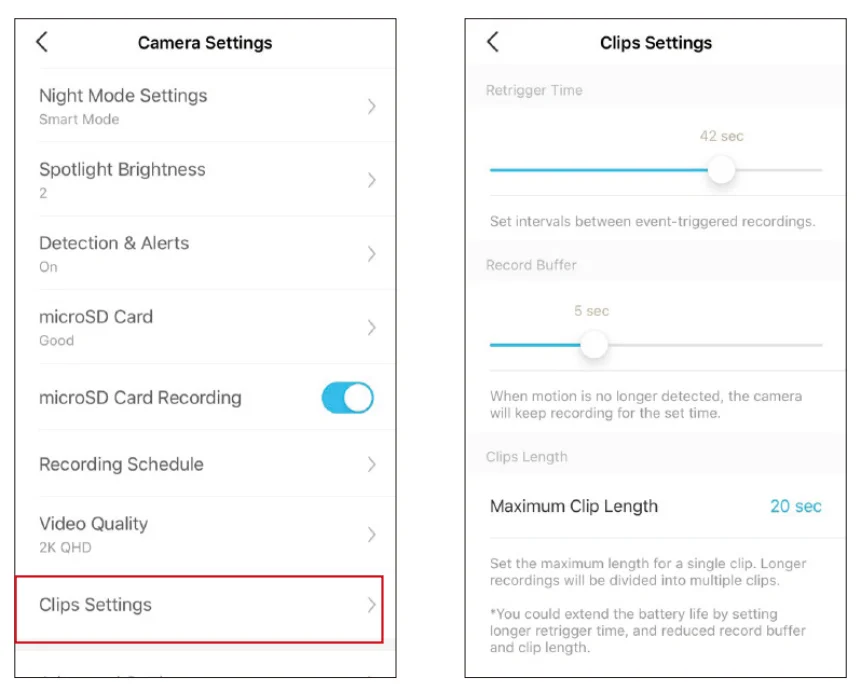
Clips Settings
You can set the Retrigger Time, Record Buffer amd Maximum Clip Length as you like. You could extend the battery life by setting longer retrigger time, and reduced record buffer and clip length.
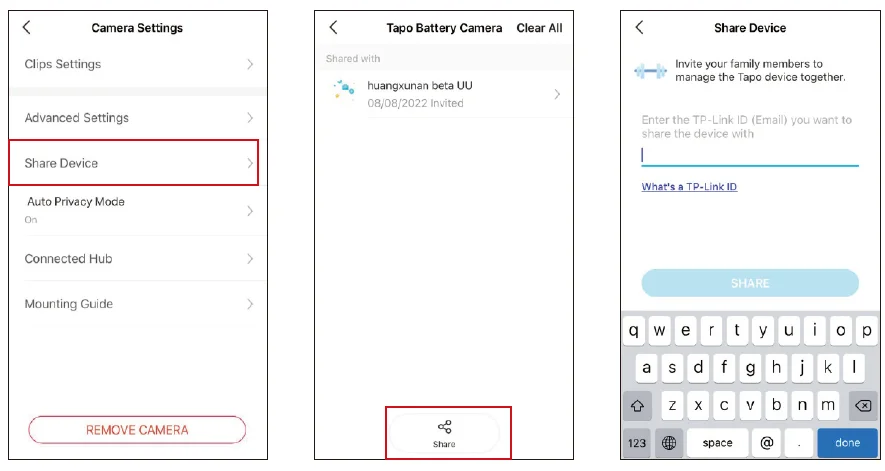
Share Camera
You can invite your family members to manage your Tapo devices together by entering the TP-Link ID (email) you want to share the devices with.
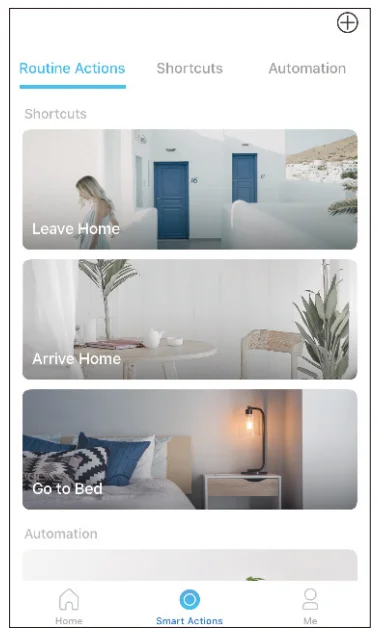
Smart Actions
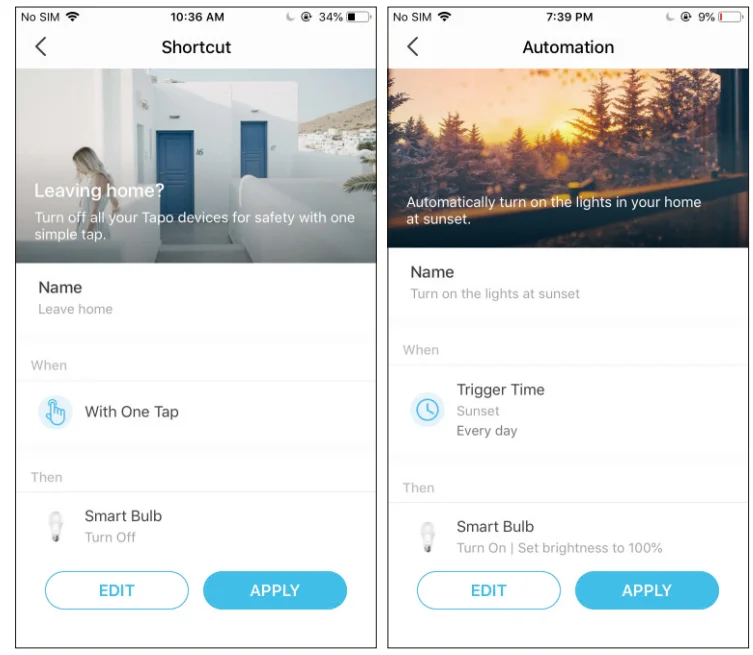
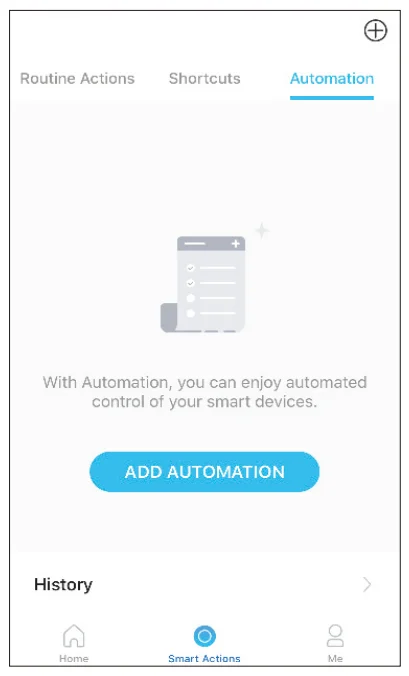
Smart Actions automate repetitive tasks, allowing you to blaze through tedium with utmost ease. Set everything up once and never have to worry about it again. With Smart Actions, giving your home that level of intelligence is a snap. Shortcut lets you perform an action with a simple tap. Automation allows you to automate tasks to be performed at a set time. e.g. Turn on the lamp plugged into your Tapo smart plug when your camera detects motion.
Option 1: Edit based on the routine actions
- Go to the Smart Actions page and you will see the Routine Actions (Shortcut or Automation).

- Tap on a routine action. Tap EDIT to change the settings as needed and tap APPLY to save changes.

Option 2: Create your own shortcuts
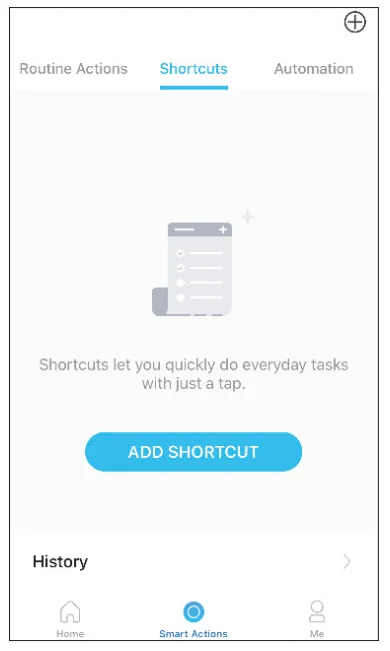
- Go to Shortcuts page. Tap + on the top right to add a simple and smart action.

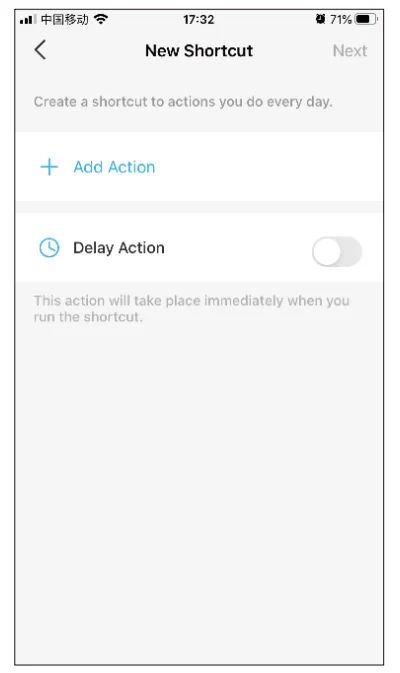
- Add an action and choose whether to delay the action.

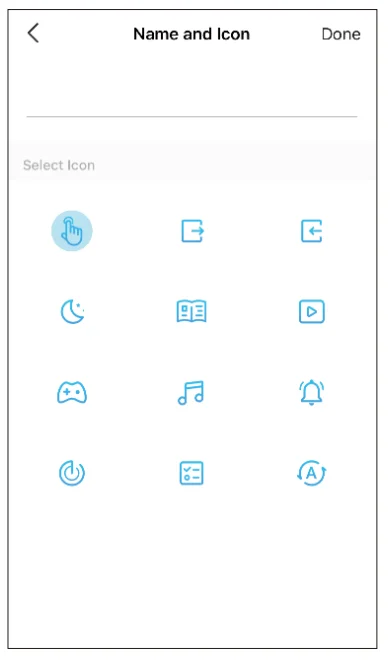
- Name your shortcut and choose an icon. Tap Done to save all the settings.

Option 3: Create your own actions
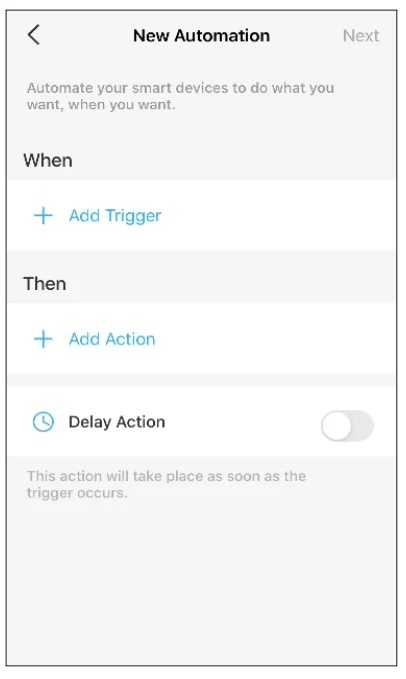
- Go to Automation page. Tap + on the top right to add a simple and smart action.

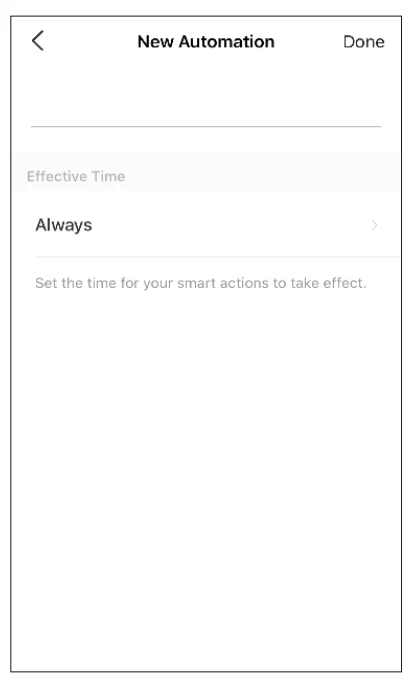
- Name the new action. Tap + to add conditions (When) like the trigger time, and tap + to add tasks (Then) like turning on the switch.

- Name your automation and set the effective time for the automation. Tap Done to save all the settings.

Check Me Page
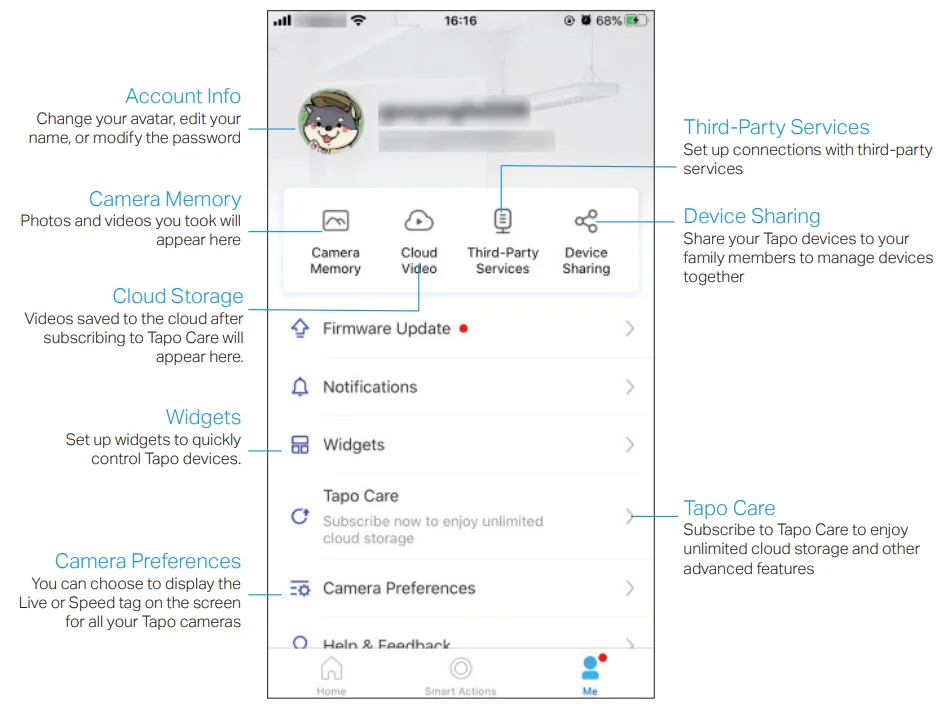
On this page, you can edit your account, quickly check the memorable moments you saved, set up connections with third-party services, subscribe to Tapo Care, set useful widgets, or find the FAQs related to the Tapo app.
Authentication
FCC compliance information statement
- Product Name: Smart Wire-Free Security Camera System
- Model Number: Tapo C420S2/S1
Responsible Party:
TP-Link USA Corporation
- Address: 10 Mauchly, Irvine, CA 926181
- Website: http://www.tp-link.com/us/
- Tel: +1 626 333 0234
- Fax: +1 909 527 6804
- E-mail: [email protected]
This equipment has been tested and found to comply with the limits for a Class B digital device, pursuant to part 15 of the FCC Rules. These limits are designed to provide reasonable protection against harmful interference in a residential installation. This equipment generates, uses and can radiate radio frequency energy and, if not installed and used in accordance with the instructions, may cause harmful interference to radio communications. However, there is no guarantee that interference will not occur in a particular installation. If this equipment does cause harmful interference to radio or television reception, which can be determined by turning the equipment off and on, the user is encouraged to try to correct the interference by one or more of the following measures:
- Reorient or relocate the receiving antenna.
- Increase the separation between the equipment and receiver.
- Connect the equipment into an outlet on a circuit different from that to which the receiver is connected.
- Consult the dealer or an experienced radio/ TV technician for help.
This device complies with part 15 of the FCC Rules. Operation is subject to the following two conditions:
- This device may not cause harmful interference.
- This device must accept any interference received, including interference that may cause undesired operation.
Any changes or modifications not expressly approved by the party responsible for compliance could void the user’s authority to operate the equipment.
Note: The manufacturer is not responsible for any radio or TV interference caused by unauthorized modifications to this equipment. Such modifications could void the user’s authority to operate the equipment.
FCC RF Radiation Exposure Statement
This equipment complies with FCC RF radiation exposure limits set forth for an uncontrolled environment. This device and its antenna must not be co-located or operating in conjunction with any other antenna or transmitter. “To comply with FCC RF exposure compliance requirements, this grant is applicable to only Mobile Configurations. The antennas used for this transmitter must be installed to provide a separation distance of at least 20 cm from all persons and must not be co-located or operating in conjunction with any other antenna or transmitter.” We, TP-Link USA Corporation, has determined that the equipment shown as above has been shown to comply with the applicable technical standards, FCC part 15. There is no unauthorized change is made in the equipment and the equipment is properly maintained and operated.
This equipment has been tested and found to comply with the limits for a Class B digital device, pursuant to part 15 of the FCC Rules. These limits are designed to provide reasonable protection against harmful interference in a residential installation. This equipment generates, uses and can radiate radio frequency energy and, if not installed and used in accordance with the instructions, may cause harmful interference to radio communications. However, there is no guarantee that interference will not occur in a particular installation. If this equipment does cause harmful interference to radio or television reception, which can be determined by turning the equipment off and on, the user is encouraged to try to correct the interference by one or more of the following measures:
- Increase the separation between the equipment and receiver.
- Connect the equipment into an outlet on a circuit different from that to which the receiver is connected.
- Consult the dealer or an experienced radio/ TV technician for help.
This device complies with part 15 of the FCC Rules. Operation is subject to the following two conditions:
- This device may not cause harmful interference.
- This device must accept any interference received, including interference that may cause undesired operation.
Any changes or modifications not expressly approved by the party responsible for compliance could void the user’s authority to operate the equipment. We, TP-Link USA Corporation, has determined that the equipment shown as above has been shown to comply with the applicable technical standards, FCC part 15. There is no unauthorized change is made in the equipment and the equipment is properly maintained and operated.
OPERATING FREQUENCY (the maximum transmitted power)
- 2412MHz—2472MHz (20dBm)
EU Declaration of Conformity
TP-Link hereby declares that the device is in compliance with the essential requirements and other relevant provisions of directives 2014/53/EU, 2009/125/EC, 2011/65/EU and (EU)2015/863. The original EU declaration of conformity may be found at https://www.tapo.com/en/support/ce/
RF Exposure Information
This device meets the EU requirements (2014/53/EU Article 3.1a) on the limitation of exposure of the general public to electromagnetic fields by way of health protection. The device complies with RF specifications when the device used at 20 cm from your body.
UK Declaration of Conformity
TP-Link hereby declares that the device is in compliance with the essential requirements and other relevant provisions of the Radio Equipment Regulations 2017. The original UK declaration of conformity may be found at https://www.tapo.com/support/ukca/
Canadian Compliance Statement
This device contains licence-exempt transmitter(s)/receiver(s) that comply with Innovation, Science and Economic Development Canada’s licenceexempt RSS(s). Operation is subject to the following two conditions:
- This device may not cause interference
- This device must accept any interference, including interference that may cause undesired operation of the device.
Radiation Exposure Statement:
This equipment complies with IC radiation exposure limits set forth for an uncontrolled environment. This equipment should be installed and operated with minimum distance 20cm between the radiator & your body.
Industry Canada Statement
CAN ICES-3 (B)/NMB-3(B)
Safety Information
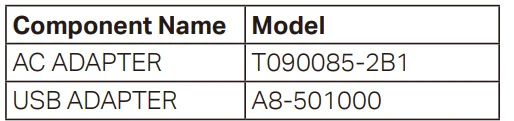
- Do not use a damaged charger or USB cable to charge the device. Do not use any other chargers than those recommended.
- Do not use the device where wireless devices are not allowed.
- The adapter shall be easily accessible.
- Use only power supplies that are provided by the manufacturer and in the original packaging of this product. If you have any questions, please don’t hesitate to contact us.
- Keep the device away from fire or hot environments. DO NOT immerse in water or any other liquid.
- Do not disassemble, repair, or modify the product.
- Do not place near automatically controlled devices such as fire alarms. Radio waves emitted from this product may cause such devices to malfunction, resulting in an accident.
- Observe restrictions on using wireless products in fuel depots, chemical plants, or when blasting operations are in progress.
- Do not use liquid to clean the product. Only use a dry cloth.
- Never put metal objects inside the product. If a metal object enters the product, turn off the circuit breaker and contact an authorised electrician.
- This product is not intended to be used when providing medical care. Consult the manufacturer of any personal medical devices, such as pacemakers or hearing aids, to determine if they are adequately shielded from external RF (radio frequency) energy.
- Do not use this product in health care facilities. Hospitals or health care facilities may be using equipment that could be sensitive to external RF energy.
- Do not place heavy objects on top of the product.
- When you leave the product unused for a long time, unplug the product from the power outlet.
- Product should be kept away from heat sources such as radiators, cookers, etc. – it should not be placed in places where the temperature is less than -20 degrees or greater than 45 degrees.
- This product may interfere with other electronic products such as TVs, radios, personal computers, phones or other wireless devices.
- Always follow the local waste and recycling laws when you get rid of the used battery.
- Please read and follow the above safety information when operating the device. We cannot guarantee that no accidents or damage will occur due to improper use of the device. Please use this product with care and operate at your own risk.
For more manuals by Tp-link, visit ManualsLibraryy
TP Link Tapo C420S2 Camera System-FAQs
Can the Tapo C420S2 record without Wi-Fi?
Yes, the camera can still record even if Wi-Fi temporarily disconnects. If a microSD card is installed in the connected hub or camera system, the device can continue storing motion recordings locally. However, remote viewing, notifications, and cloud features require an active internet connection. Once the network reconnects, you can access the saved recordings through the Tapo app.
Can security cameras like the Tapo C420S2 record without internet access?
Yes, many modern security cameras can record locally without internet access if they have storage options such as a microSD card. The Tapo C420S2 can store motion recordings locally even when the internet connection is unstable. However, features such as remote viewing, push notifications, and cloud backups will only function when the camera is connected to the internet.
Can more than one phone connect to the Tapo C420S2?
Yes, multiple smartphones can connect to the same camera through the sharing feature in the Tapo app. The main user simply sends an invitation to other TP-Link accounts. Once accepted, those users can access the camera from their phones. This makes it convenient for family members or security staff to monitor the same camera remotely.
Can I view the Tapo C420S2 camera on my TV or a larger screen?
Yes, it is possible to watch the camera feed on a larger display. If you use a compatible Tapo smart hub or casting feature, you can stream the video to a TV or monitor via HDMI or smart casting options. This allows users to monitor multiple cameras more comfortably on a bigger screen instead of relying only on a smartphone.
How can I check recordings on the Tapo C420S2?
You can view recordings through the Tapo mobile app. Simply open the app, select your camera from the device list, and go to the Activity Center or playback section. There you can see motion detection clips or continuous recordings stored on the microSD card or cloud storage. This feature helps users quickly review important events captured by the camera.
Can multiple people access the same Tapo camera?
Yes, the Tapo platform allows device sharing. The camera owner can share access with other TP-Link accounts, allowing family members to view the camera feed through the Tapo app. Typically, up to five additional users can access cameras or doorbells. Each authorized user can check live video, receive alerts, and monitor recordings depending on the permissions granted.
How many cameras can be connected in a Tapo system?
A Tapo smart home system can support multiple cameras depending on the hub or controller used. For example, some Tapo smart hubs can connect up to 16 cameras and dozens of smart sensors to create a complete home security ecosystem. This makes it easy to monitor multiple rooms, entrances, or outdoor areas through a single mobile application.
Does the TP-Link Tapo C420S2 require a power cable?
No, the Tapo C420S2 is a battery-powered security camera, which means it does not require constant power cables. The built-in rechargeable battery allows flexible installation both indoors and outdoors. Because it is wire-free, users can mount it on walls, entrances, or gardens without complicated wiring. The battery can be recharged periodically depending on usage and motion detection frequency.