
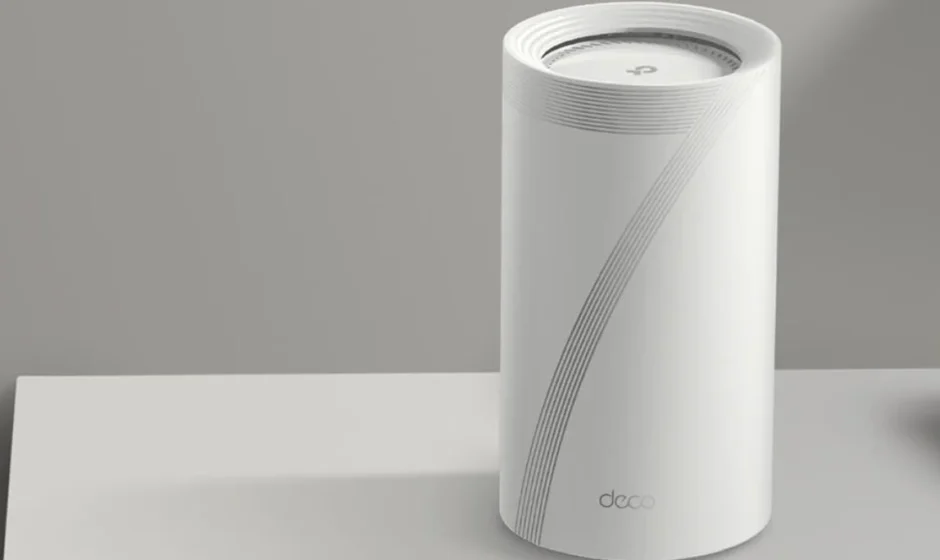

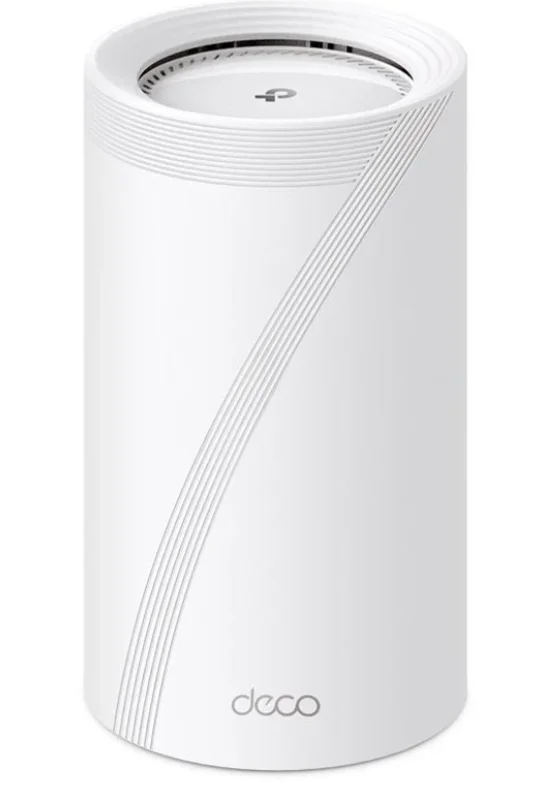
TP Link Deco BE85 WiFi 7 Mesh System
About This Guide
This guide provides a brief introduction to the BE22000 Whole Home Mesh Wi-Fi 7 System and regulatory information. Features available in Deco may vary by model and software version. Deco availability may also vary by region or ISP. All images, steps, and descriptions in this guide are only examples and may not reflect your actual Deco experience.
More Info
- Specific product information can be found on the product page at https://www.tp-link.com.
- A Technical Community is provided for you to discuss our products at https://community.tp-link.com.
- Our Technical Support contact information can be found at the Help center of the Deco app and the Contact Technical Support page at https://www.tp-link.com/support.
Speed/Coverage/Device Quantity Disclaimer
Maximum wireless signal rates are the physical rates derived from IEEE Standard 802.11 specifications. Actual wireless data throughput and wireless coverage, and quantity of connected devices are not guaranteed and will vary as a result of network conditions, client limitations, and environmental factors, including building materials, obstacles, volume and density of traffic, and client location.
MU-MIMO Disclaimer
Use of MU-MIMO requires clients to also support MU-MIMO.
IoT Compatibility Disclaimer
IoT compatibility refers only to smart devices that can be controlled via the Deco app. Other wireless devices can still connect to Deco for normal Wi-Fi use.
Seamless Roaming Disclaimer
Clients need to support 802.11k/v/r and may require additional setup.
Performance may vary depending on the client device.
HomeShield Disclaimer
HomeShield includes the Free Basic Plan. Fees apply for the Pro Plan. Visit tp-link.com/homeshield for more information.
Speed/Coverage/Device Quantity Disclaimer
Maximum wireless signal rates are the physical rates derived from IEEE Standard 802.11 specifications. Actual wireless data throughput and wireless coverage, and quantity of connected devices are not guaranteed and will vary as a result of network conditions, client limitations, and environmental factors, including building materials, obstacles, volume and density of traffic, and client location.
MU-MIMO Disclaimer
Use of MU-MIMO requires clients to also support MU-MIMO.
IoT Compatibility Disclaimer
IoT compatibility refers only to smart devices that can be controlled via the Deco app. Other wireless devices can still connect to Deco for normal Wi-Fi use.
Seamless Roaming Disclaimer
Clients need to support 802.11k/v/r and may require additional setup. Performance may vary depending on the client device.
HomeShield Disclaimer
HomeShield includes the Free Basic Plan. Fees apply for the Pro Plan. Visit tp-link.com/homeshield for more information.
Appearance
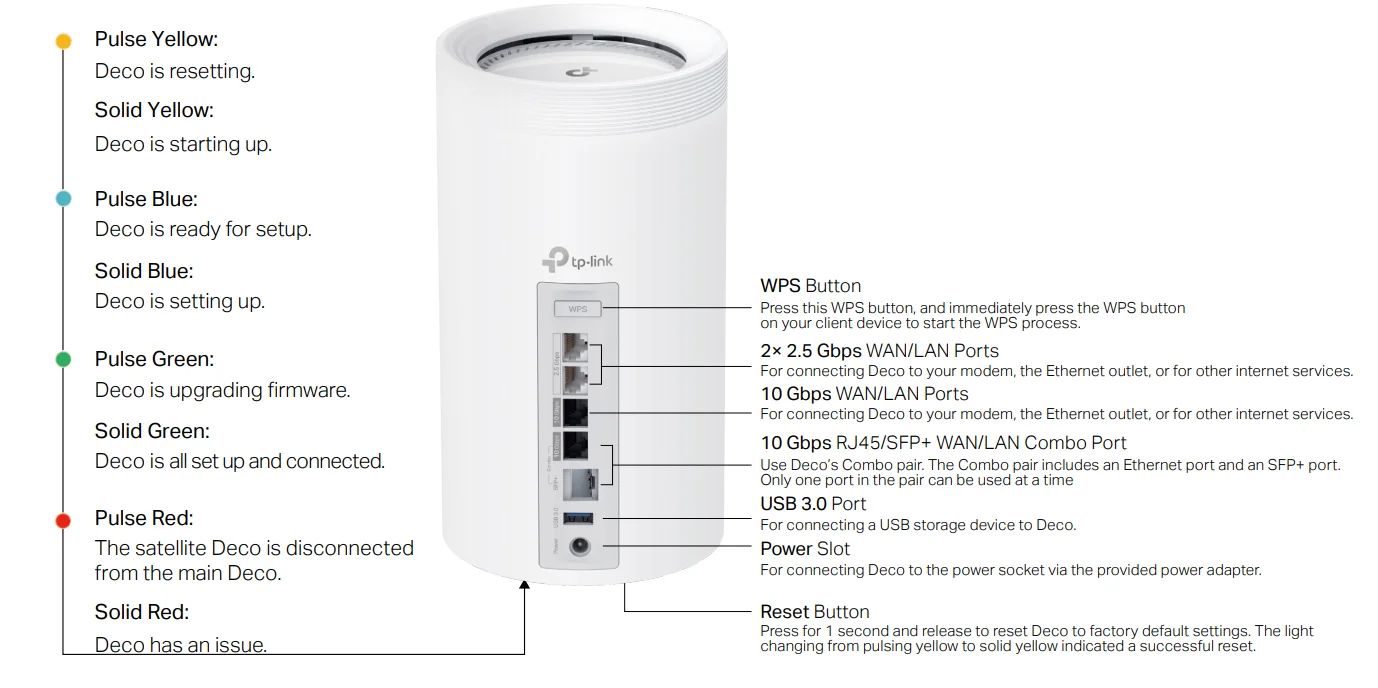
Each Deco has an LED that changes color according to its status, a WPS button, two 2.5 Gbps WAN/LAN ports, a 10 Gbps WAN/LAN port, a 10 Gbps RJ45/SFP+ WAN/LAN Combo port, a USB 3.0 port, a power slot, and a Reset button.
See the explanation below:
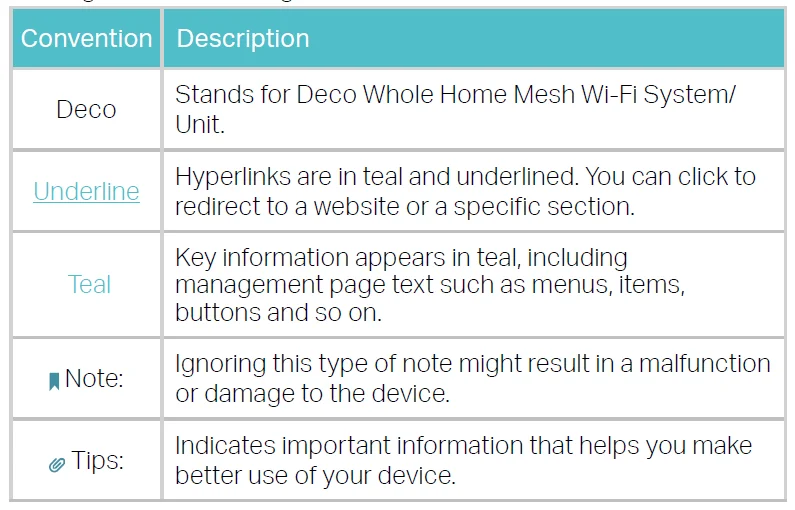
Tip: The product label can be found at the bottom of the product.
Set Up Your Deco
First, let’s start by setting up the Deco network. Get the TP-Link Deco app for iOS or Android, then follow the app to walk through the setup.
- Get the Deco app
Scan the QR code below or go to Google Play or the App Store to download the Deco app. Install the app on your Android or iOS smartphone or tablet.
- Log in or sign up with TP-Link ID
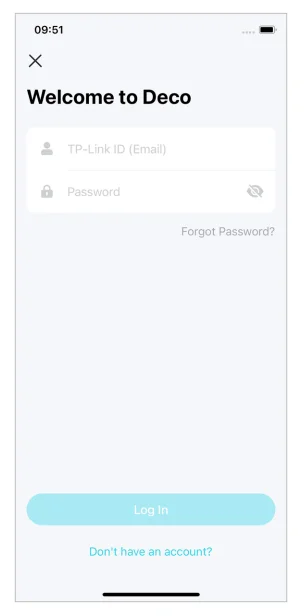
Open the app and log in with your TP-Link ID. If you don’t have a TP-Link ID, create one first.
Note: If you forgot your login password, tap Forgot Password?.
The app will help you reset your password. - Select your Deco model
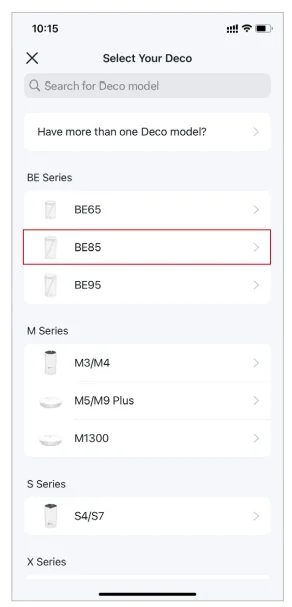
Search for and select your Deco model. If you have more than one Deco model, tap the question below the search box to check how to maximize the overall network.
- Plug in your Deco
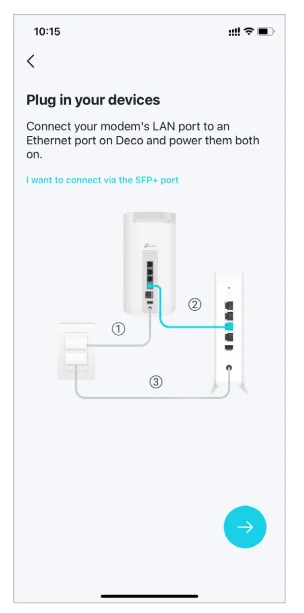
Power off your modem. Connect your Deco to the modem and power them both on. If you don’t have a modem, connect your Deco directly to the Ethernet outlet.
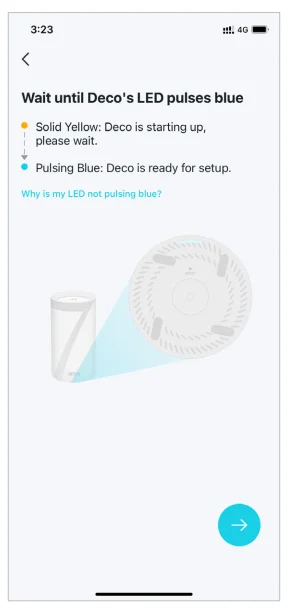
- Wait until Deco’s LED pulses blue
Wait until your Deco’s LED pulses blue, then your phone/tablet will connect to the Deco’s default Wi-Fi automatically.
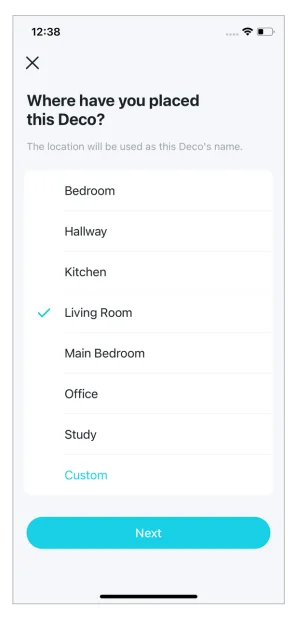
- Specify your Deco’s location
Select or customize a location for your Deco. The location will be used as the name of your Deco.
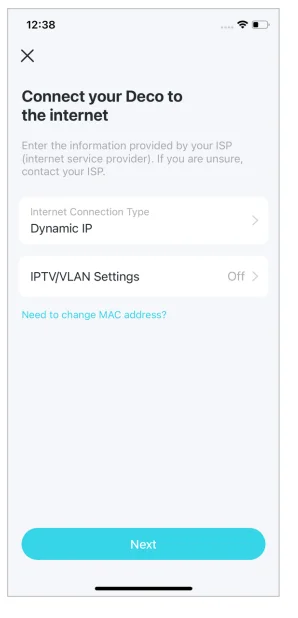
- Connect your Deco to the internet
Select the internet connection type and enter the information. If you are not sure, contact your internet service provider.
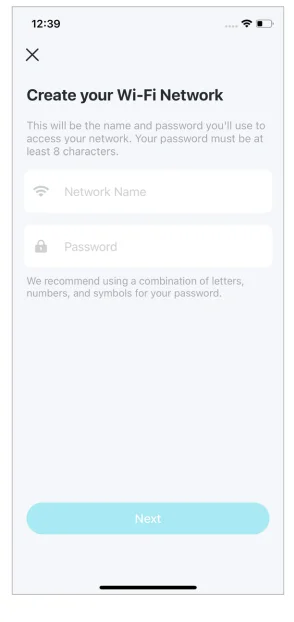
- Create your Wi-Fi network
Set a network name and a password. These will be the name and password you use to connect your devices to Wi-Fi.
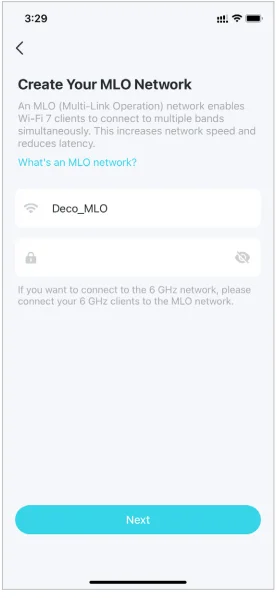
- Create your MLO network
Set a network name and a password. The MLO network enables Wi-Fi 7 clients to connect to multiple bands simultaneously.
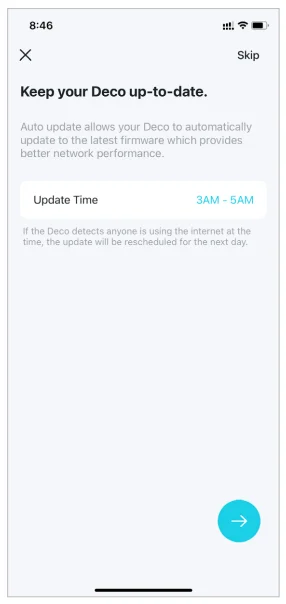
- Keep your Deco up-to-date
Set auto update time. This allows your Deco to automatically update to the latest firmware, which provides a better network experience.
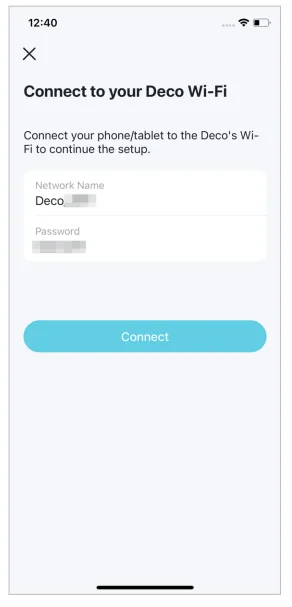
- Connect to your Wi-Fi network
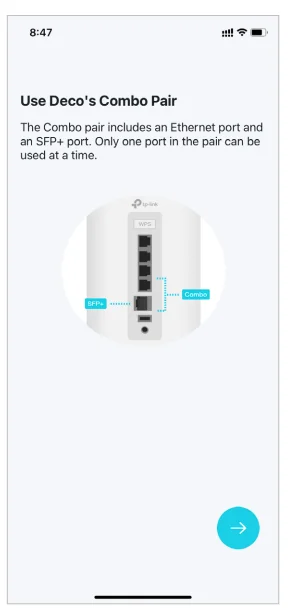
Connect your phone/tablet to the Deco’s Wi-Fi. - Use Deco’s Combo Pair
The Combo pair includes an Ethernet port and an SFP+ port. Only one port in the pair can be used at a time.
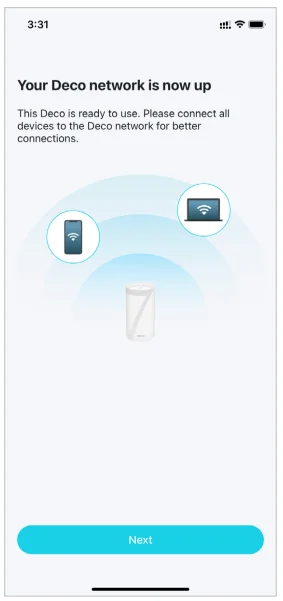
- Setup complete
Your Deco network is now up. You can connect your devices to the Deco network. Plug in the other included Decos, and they will automatically join the network within 2 minutes.
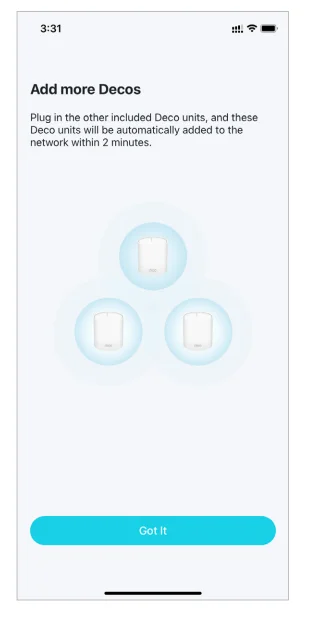
- Add more Decos
Plug in the other included Decos, and they will automatically join the network within 2 minutes.
Troubleshooting
Solutions to common problems during setup or use are provided here for reference. Follow the steps and the provided link below to diagnose and solve problems you might experience with your Deco. If problems still exist, contact us: https://www.tp-link.com/support
- Q1. What should I do if I fail to configure the main Deco and get stuck on “We couldn’t find Deco”?
Refer to the guide https://www.tp-link.com/support/faq/2239/ or follow the video https://youtu.be/2HYuEYS9XJM - Q2. What should I do if I fail to configure the satellite Deco and get stuck on “We couldn’t find another Deco”?
Refer to the guide https://www.tp-link.com/support/faq/1447/ or follow the video https://youtu.be/iVgDzoo16T4 - Q3. What should I do if I fail to configure the main Deco and get stuck on “Testing Internet Connection”?
Refer to the guide https://www.tp-link.com/support/faq/2239/. Refer to the video https://youtu.be/OSUrGdWH-i0 - Q4. What should I do if my wireless devices cannot connect to Deco?
Refer to the guide https://www.tp-link.com/support/faq/2718/ - Q5. What should I do if Deco suddenly lost internet access?
Refer to the guide https://www.tp-link.com/support/faq/2428/ - Q6. How can I find a suitable spot for my Deco?
Refer to the guide https://www.tp-link.com//support/faq/1446/ - Q7. What can I do if the Deco app isn’t working properly?
Refer to the guide https://www.tp-link.com/support/faq/1456/
Authentication
FCC Compliance Information Statement
- Product Name: BE22000 Whole Home Mesh Wi-Fi 7 System
- Model Number: Deco BE85

Responsible party:
TP-Link USA Corporation
- Address: 10 Mauchly, Irvine, CA 92618
- Website: http://www.tp-link.com/us/
- Tel: +1 626 333 0234
- Fax: +1 909 527 6804
- E-mail: [email protected]
This equipment has been tested and found to comply with the limits for a Class B digital device, pursuant to part 15 of the FCC Rules. These limits are designed to provide reasonable protection against harmful interference in a residential installation. This equipment generates, uses and can radiate radio frequency energy and, if not installed and used in accordance with the instructions, may cause harmful interference to radio communications. However, there is no guarantee that interference will not occur in a particular installation. If this equipment does cause harmful interference to radio or television reception, which can be determined by turning the equipment off and on, the user is encouraged to try to correct the interference by one or more of the following measures:
- Reorient or relocate the receiving antenna.
- Increase the separation between the equipment and receiver.
- Connect the equipment into an outlet on a circuit different from that to which the receiver is connected.
- Consult the dealer or an experienced radio/ TV technician for help.
This device complies with part 15 of the FCC Rules. Operation is subject to the following two conditions:
- This device may not cause harmful interference.
- This device must accept any interference received, including interference that may cause undesired operation.
Any changes or modifications not expressly approved by the party responsible for compliance could void the user’s authority to operate the equipment.
Note: The manufacturer is not responsible for any radio or TV interference caused by unauthorized modifications to this equipment. Such modifications could void the user’s authority to operate the equipment.
FCC RF Radiation Exposure Statement
This equipment complies with FCC RF radiation exposure limits set forth for an uncontrolled environment. This device and its antenna must not be co-located or operating in conjunction with any other antenna or transmitter. To comply with FCC RF exposure compliance requirements, this grant is applicable to only to Mobile Configurations. The antennas used for this transmitter must be installed to provide a separation distance of at least 20 cm from all persons and must not be co-located or operating in conjunction with any other antenna or transmitter. FCC regulations restrict the operation of this device to indoor use only. The operation of this device is prohibited on oil platforms, cars, trains, boats, and aircraft, except that the operation of this device is permitted in large aircraft while flying above 10000 feet. Operation of transmitters in the 5.925-7.125 GHz band is prohibited for control of or communications with unmanned aircraft systems. We, TP-Link USA Corporation, has determined that the equipment shown above has been shown to comply with the applicable technical standards, FCC part 15. There is no unauthorized changes are made in the equipment, and the equipment is properly maintained and operated.
FCC Compliance Information Statement
- Product Name: I.T.E POWER SUPPLY
- Model Number: T150500-2-DT / S065PQ1200500
Responsible party:
TP-Link USA Corporation
- Address: 10 Mauchly, Irvine, CA 92618
- Website: http://www.tp-link.com/us/
- Tel: +1 626 333 0234
- Fax: +1 909 527 6804
- E-mail: [email protected]
This equipment has been tested and found to comply with the limits for a Class B digital device, pursuant to part 15 of the FCC Rules. These limits are designed to provide reasonable protection against harmful interference in a residential installation. This equipment generates, uses and can radiate radio frequency energy and, if not installed and used in accordance with the instructions, may cause harmful interference to radio communications. However, there is no guarantee that interference will not occur in a particular installation. If this equipment does cause harmful interference to radio or television reception, which can be determined by turning the equipment off and on, the user is encouraged to try to correct the interference by one or more of the following measures:
- Reorient or relocate the receiving antenna.
- Increase the separation between the equipment and receiver.
- Connect the equipment into an outlet on a circuit different from that to which the receiver is connected.
- Consult the dealer or an experienced radio/ TV technician for help.
This device complies with part 15 of the FCC Rules. Operation is subject to the following two conditions:
- This device may not cause harmful interference.
- This device must accept any interference received, including interference that may cause undesired operation.
Any changes or modifications not expressly approved by the party responsible for compliance could void the user’s authority to operate the equipment. FCC regulations restrict the operation of this device to indoor use only. The operation of this device is prohibited on oil platforms, cars, trains, boats, and aircraft, except that the operation of this device is permitted in large aircraft while flying above 10000 feet. Operation of transmitters in the 5.925-7.125 GHz band is prohibited for control of or communications with unmanned aircraft systems. We, TP-Link USA Corporation, has determined that the equipment shown above has been shown to comply with the applicable technical standards, FCC part 15. There is no unauthorized changes are made in the equipment, and the equipment is properly maintained and operated.
Canadian Compliance Statement
This device complies with Industry Canada license-exempt RSS standard(s). Operation is subject to the following two conditions:
- This device may not cause interference.
- This device must accept any interference, including interference that may cause undesired operation of the device.
Caution:
The device for operation in the band 5150–5250 MHz is only for indoor use to reduce the potential for harmful interference to co-channel mobile satellite systems; DFS (Dynamic Frequency Selection) products that operate in the bands 5250- 5350 MHz, 5470-5600MHz, and 5650-5725MHz. ISED regulations restrict the operation of this device to indoor use only. The operation of this device is prohibited on oil platforms, cars, trains, boats, and aircraft, except that the operation of this device is permitted in large aircraft while flying above 10000 feet. Operation of transmitters in the 5.925-7.125 GHz band is prohibited for control of or communications with unmanned aircraft systems.
Radiation Exposure Statement: This equipment complies with IC radiation exposure limits set forth for an uncontrolled environment. This equipment should be installed and operated with minimum distance of 20cm between the radiator & your body.
Safety Information
- Keep the device away from water, fire, humidity, or hot environments.
- Do not attempt to disassemble, repair, or modify the device. If you need service, please contact us.
- Do not use a damaged charger or USB cable to charge the device.
- Do not use any other chargers than those recommended.
- Do not use the device where wireless devices are not allowed.
- The adapter shall be installed near the equipment and shall be easily accessible.
- Use only power supplies that are provided by the manufacturer and in the original packaging of this product. If you have any questions, please don’t hesitate to contact us.
- Operating Temperature: 0°C~40°C (32°F~104°F)
- This product uses radios and other components that emit electromagnetic fields. Electromagnetic fields and magnets may interfere with pacemakers and other implanted medical devices. Always keep the product and its power adapter more than 15 cm (6 inches) away from any pacemakers or other implanted medical devices. If you suspect your product is interfering with your pacemaker or any other implanted medical device, turn off your product and consult your physician for information specific to your medical device.
Please read and follow the above safety information when operating the device. We cannot guarantee that no accidents or damage will occur due to improper use of the device. Please use this product with care and operate at your own risk.
For more manuals by TP-Link, visit ManualsLibraryy
TP‑Link Deco BE85 Wi-Fi 7 Mesh System-FAQs
What is the TP-Link Deco BE85 Wi-Fi 7 Mesh System?
The TP‑Link Deco BE85 Wi‑Fi 7 Mesh System is a high-performance mesh router designed to deliver ultra-fast wireless speeds and stable coverage across large homes or offices. It uses the latest Wi-Fi 7 (802.11be) technology and multiple mesh units to create a seamless network. Instead of relying on a single router, Deco units work together to eliminate dead zones and keep your devices connected as you move around your space.
How do I set up the Deco BE85 mesh system for the first time?
Setting up the Deco BE85 is simple. First, connect the main Deco unit to your modem using an Ethernet cable and power it on. Then install the TP‑Link Deco App on your smartphone. Open the app, create or sign in to your account, and follow the on-screen instructions. The app guides you through adding your network name, password, and additional mesh units for complete coverage.
How much faster is Wi-Fi 7 compared to Wi-Fi 6?
Wi-Fi 7 offers significant improvements in speed and efficiency compared with Wi-Fi 6. With similar hardware configurations, Wi-Fi 7 can deliver speeds up to about 2.4 times faster. On compatible devices such as modern smartphones or laptops, wireless speeds may reach several gigabits per second. This makes Wi-Fi 7 ideal for bandwidth-heavy tasks like 4K/8K streaming, cloud gaming, large downloads, and smart-home networks with many connected devices.
Can I use Wi-Fi 7 on my phone or laptop?
Yes, but the device must support Wi-Fi 7. Many newer smartphones, laptops, and smart-home devices are beginning to include this technology. To check compatibility, look for “802.11be” or “Wi-Fi 7” in the device’s technical specifications. Even if your device does not support Wi-Fi 7, it can still connect to the Deco BE85 using older Wi-Fi standards such as Wi-Fi 6 or Wi-Fi 5.
Does Wi-Fi 7 replace Ethernet connections?
No, Wi-Fi 7 does not completely replace Ethernet. Although it delivers extremely fast wireless speeds and low latency, Ethernet cables still provide the most stable and consistent connection. For tasks like gaming PCs, network storage, or professional workstations, a wired Ethernet connection may still offer the best performance. Wi-Fi 7 simply makes wireless networking much closer to wired speeds.
How can I get the maximum internet speed from my Deco BE85 network?
To achieve the best speeds, place the main Deco unit close to your modem and position additional units evenly throughout your space. Use high-quality Ethernet cables for wired connections and avoid placing mesh units behind thick walls or large metal objects. Updating firmware through the Deco app and connecting compatible Wi-Fi 7 devices can also help you experience the system’s full performance.
Is Wi-Fi 7 necessary for a home network?
Wi-Fi 7 is not required for every household, but it can be very useful for environments with many connected devices. Homes with multiple smartphones, laptops, gaming consoles, smart TVs, and smart-home gadgets benefit from the increased capacity and reduced congestion. If your network frequently experiences slowdowns or heavy usage, upgrading to Wi-Fi 7 can significantly improve overall performance.
What frequency bands does the Deco BE85 use?
The Deco BE85 supports multiple wireless frequency bands, including 2.4 GHz, 5 GHz, and 6 GHz. The 2.4 GHz band offers longer range but lower speed, while 5 GHz and 6 GHz provide faster speeds with shorter coverage distance. The mesh system automatically directs devices to the best band for performance, helping maintain strong connections throughout your home.
Does Wi-Fi 7 improve battery life for connected devices?
Yes, Wi-Fi 7 includes improved power-saving technologies that help compatible devices use wireless connections more efficiently. This means smartphones, laptops, and smart-home gadgets may consume less energy when connected to a Wi-Fi 7 network. While the improvement varies by device, many users notice slightly longer battery life and more efficient background connectivity.
How many devices can the Deco BE85 mesh system support?
The Deco BE85 is designed for high-capacity networks and can support a large number of connected devices simultaneously. Because it uses mesh technology and Wi-Fi 7 features that reduce congestion, it can handle dozens of smartphones, computers, streaming devices, and smart-home products without major slowdowns. This makes it a strong choice for large households or offices with heavy network usage.