
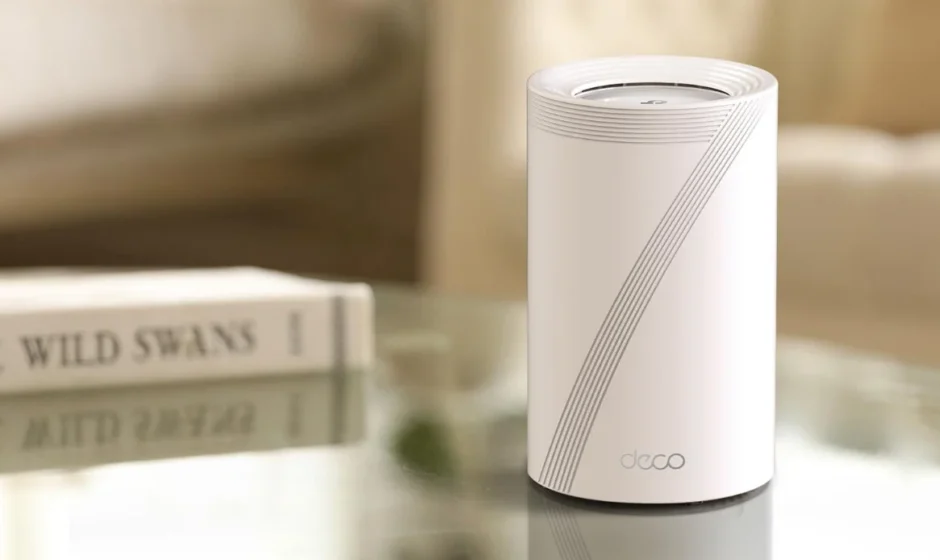

TP Link Deco BE65 Outdoor Mesh WiFi 7 Unit
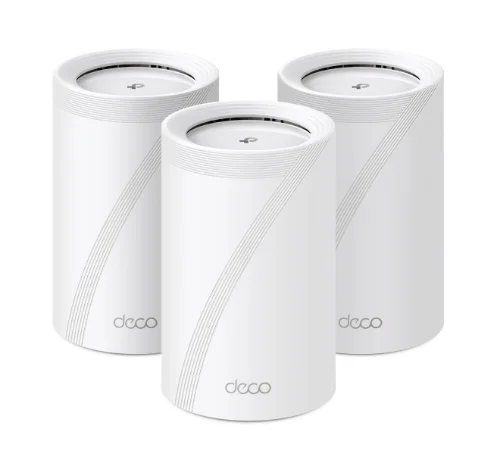
About This Guide
This guide provides a brief introduction to the BE11000 Outdoor Mesh Wi-Fi 7 Unit and regulatory information. Features available in Deco may vary by model and software version. Deco availability may also vary by region or ISP. All images, steps, and descriptions in this guide are only examples and may not reflect your actual Deco experience.
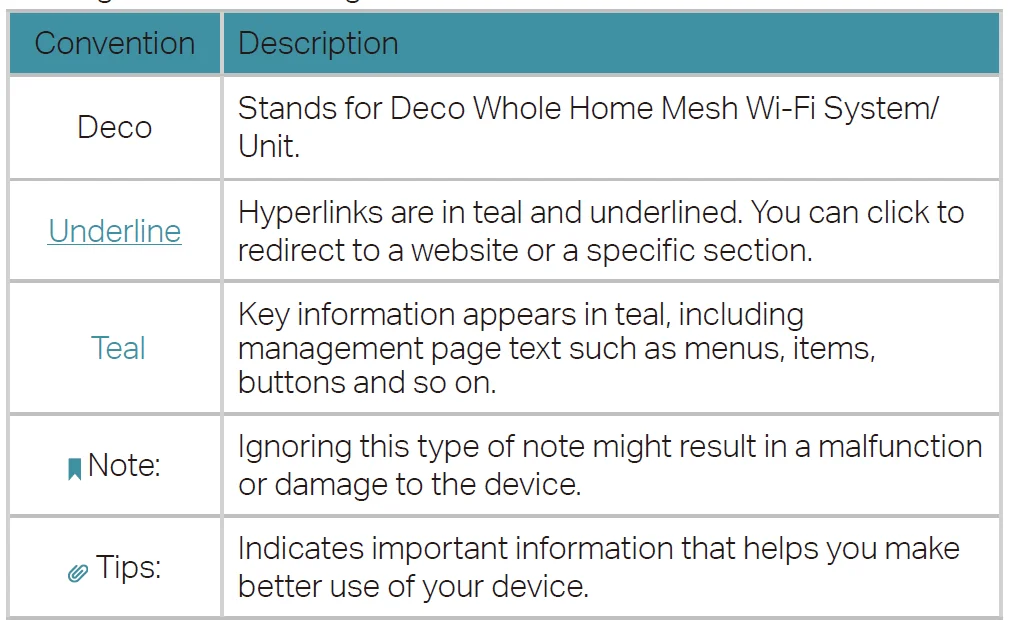
Conventions
In this guide, the following conventions are used:
More Info
- Specific product information can be found on the product page at https://www.tp-link.com.
- A Technical Community is provided for you to discuss our products at https://community.tp-link.com.
- Our Technical Support contact information can be found at the Help center of the Deco app and the Contact Technical Support page at https://www.tp-link.com/support.
Speed/Coverage/Device Quantity Disclaimer
Maximum wireless signal rates are the physical rates derived from IEEE Standard 802.11 specifications. Actual wireless data throughput, wireless coverage, and quantity of connected devices are not guaranteed and will vary as a result of network conditions, client limitations, and environmental factors, including building materials, obstacles, volume and density of traffic, and client location.
MU-MIMO Disclaimer
Use of MU-MIMO requires clients to also support MU-MIMO.
IoT Compatibility Disclaimer
IoT compatibility refers only to smart devices that can be controlled via the Deco app. Other wireless devices can still connect to Deco for normal Wi-Fi use.
Seamless Roaming Disclaimer
Clients need to support 802.11k/v/r and may require additional setup. Performance may vary depending on the client device.
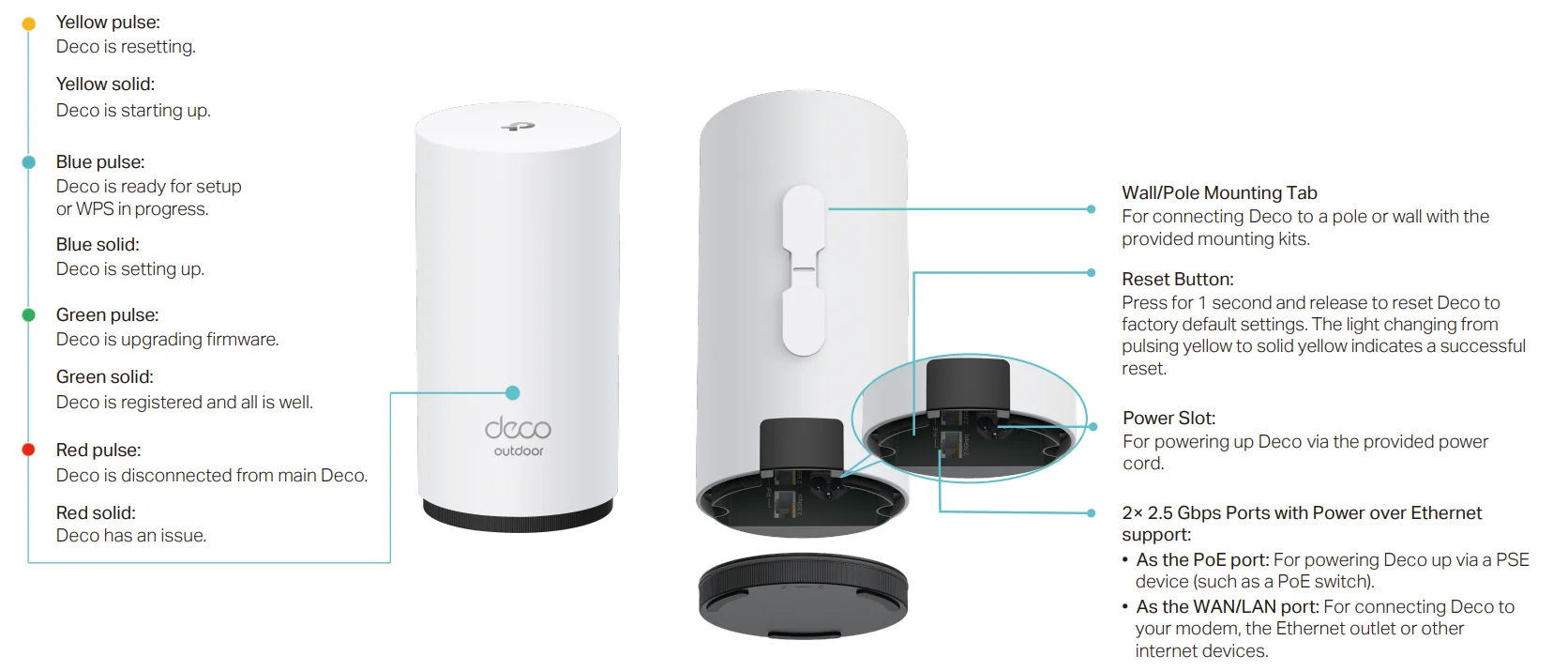
Appearance
Each Deco has an LED that changes color according to its status, a mounting tab, two 2.5 Gbps Ethernet ports, a power slot, and a Reset button. See the explanation below:
Determine the Power Option
Deco can be powered via a power cord or a PSE device (such as a PoE switch) that complies with Power Source Class 2 (PS2) or Limited Power Source (LPS) and Electrical Energy Source Class 1(ES1) of IEC 62368-1.
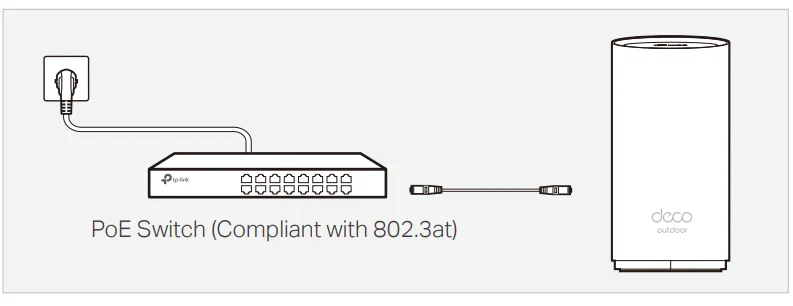
- Option 1: Via PoE Switch (Compliant with 802.3at)
Connect an Ethernet cable from the PoE switch (compliant with 802.3at) to the Deco’s Ethernet port. The power should not be less than 19.5 W.
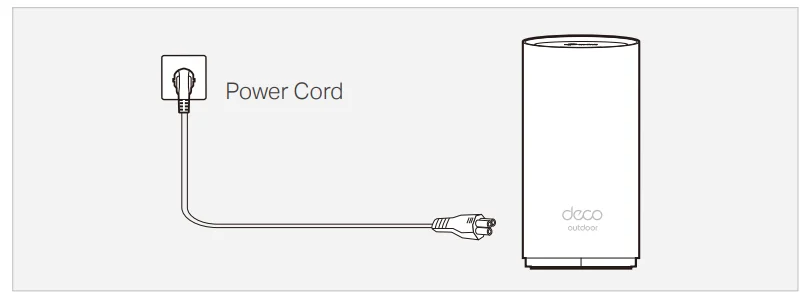
- Option 2: Via Power Cord
Plug one end of the provided power cord into the power port of the Deco and the other end to a standard electrical wall outlet. The product can only be powered via the normal building installation wiring.
WARNING: Risk of Electric Shock.
- For the US: Install the power cord plug only to indoor socket-outlets or to a covered Class A GFCI receptacle that has an enclosure that is weatherproof with the attachment plug cap inserted or removed.
- For other regions: Install the power cord plug only to indoor socket-outlets or to outdoor socket-outlets with an enclosure that can be waterproof with the attachment plug cap inserted or removed.
Set Up Your Deco
First, let’s start by setting up the Deco network. Get the TP-Link Deco app for iOS or Android, then follow the app to walk through the setup.
- Get the Deco app
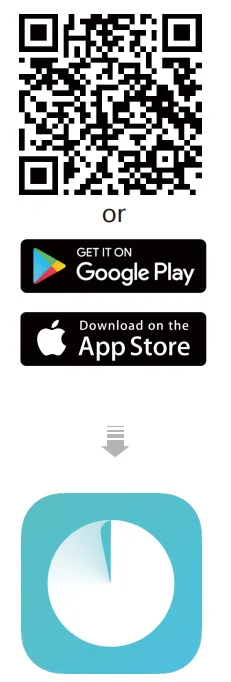
Scan the QR code below or go to Google Play or the App Store to download the Deco app. Install the app on your Android or iOS smartphone or tablet.
- Log in or sign up with TP-Link ID
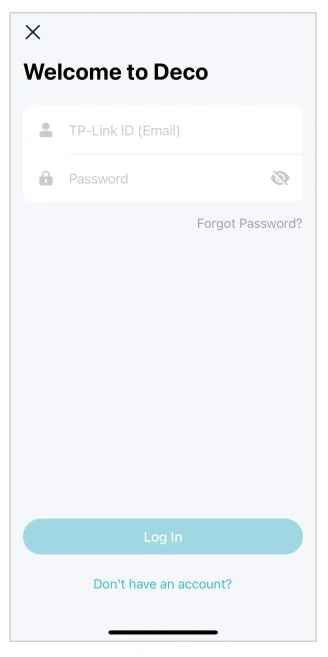
Open the app and log in with your TP-Link ID. If you don’t have a TP-Link ID, create one first.
Note: If you forgot your login password, tap Forgot Password?. The app will help you reset your password.
- Create a Network
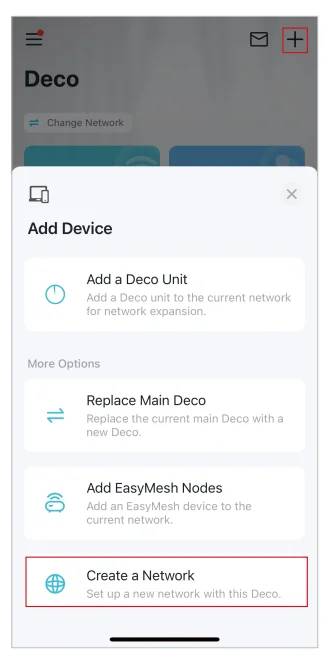
In the Deco app, tap the + button on the top right corner of the homepage, then select Create a Network.
- Plug in your Deco
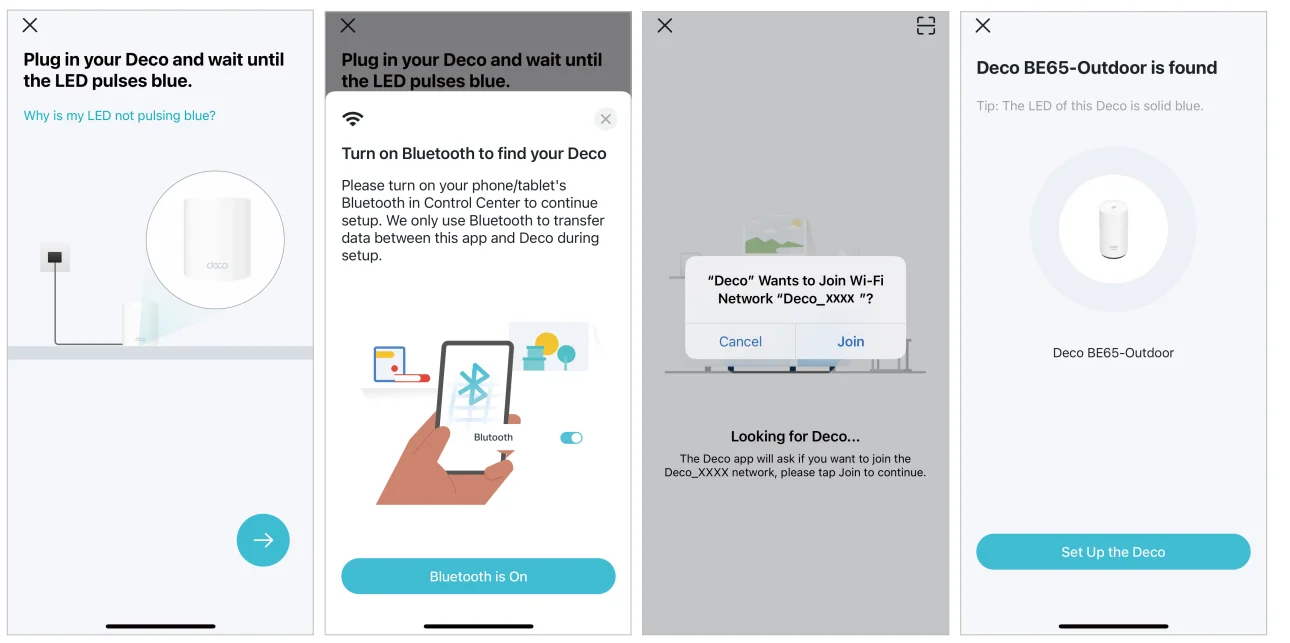
Plug in your Deco and wait until your Deco’s LED pulses blue, then your phone/tablet will connect to the Deco automatically.
Note: You can turn on Bluetooth on your phone/tablet in advance for a quicker setup.
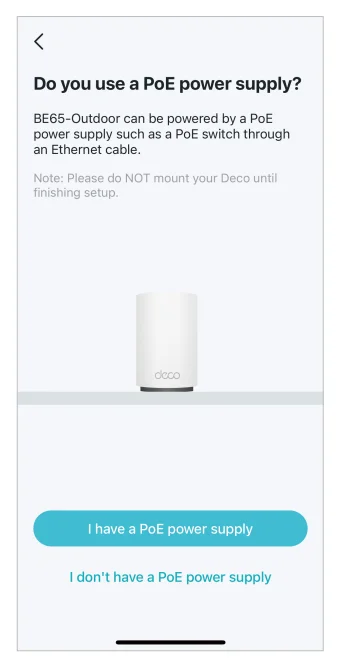
- Choose your power supply
Confirm whether you use a PoE power supply.
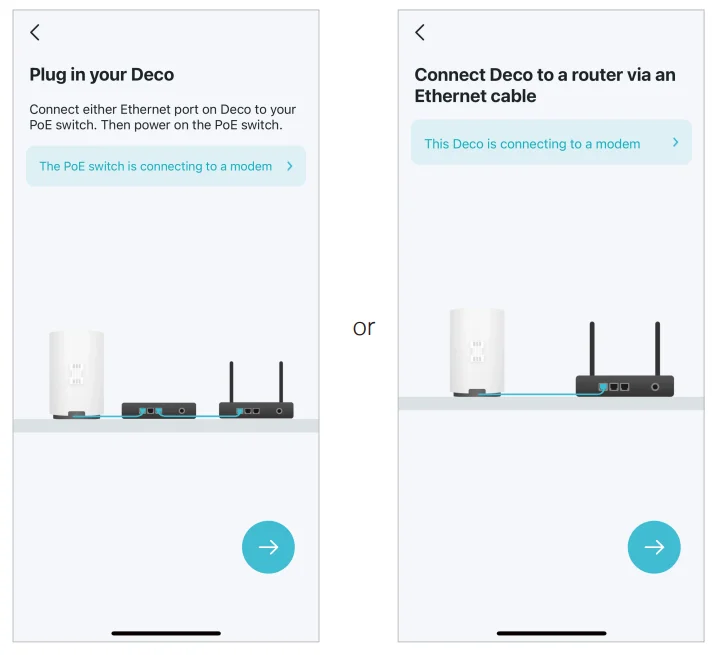
- Connect your Deco
If you have a PoE power supply, such as a PoE switch, connect either Ethernet port on your Deco to your PoE switch. Then, power on the PoE switch. If you don’t use a PoE power supply, connect your Deco to the modem and power it on. Alternatively, connect Deco directly to the Ethernet outlet.
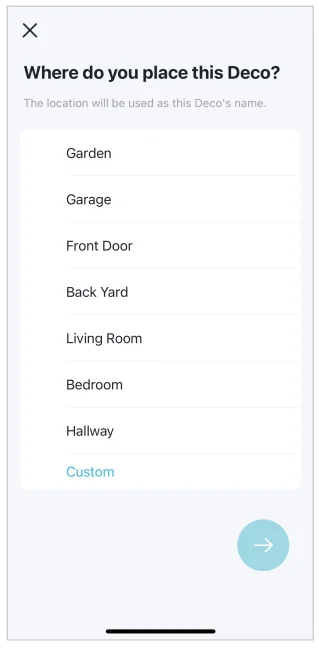
- Specify your Deco’s location
Select or customize a location for your Deco. The location will be used as the name of your Deco.
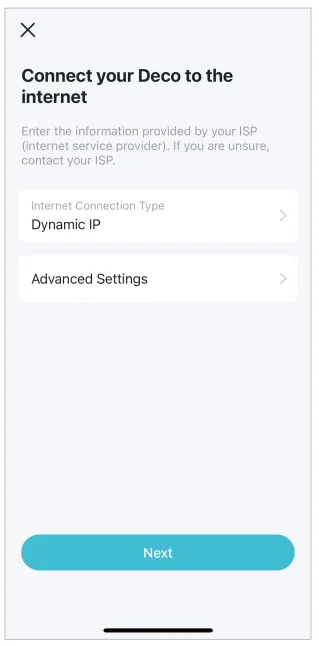
- Connect your Deco to the internet
Select the internet connection type and enter the information. If you are not sure, contact your internet service provider.
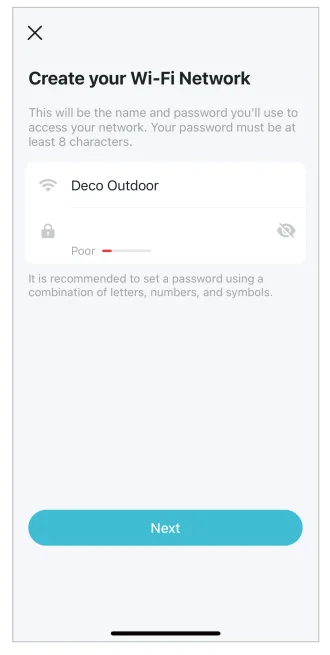
- Create your Wi-Fi network
Set a network name and a password. These will be the name and password you use to connect your devices to Wi-Fi.
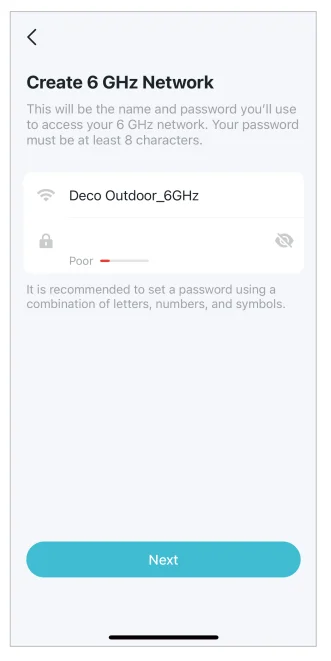
- Create your 6GHz Wi-Fi network
Set a network name and a password. These will be the name and password you use to connect your devices to the 6GHz Wi-Fi.
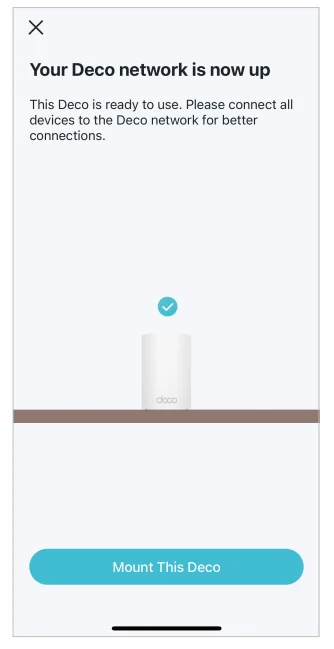
- Setup complete
Your Deco network is now up. You can connect your devices to the Deco network for better connections.
Waterproof Your Deco
Before mounting your Deco outdoors, waterproof it to ensure device safety and performance.
WARNING
- The waterproof cover must be secured before use!
- The product can only be installed by an instructed person or a skilled person!
- Keep the device away from fire or hot environments. DO NOT immerse in water or any other liquid.
- The Ethernet cable provided is for indoor use only.
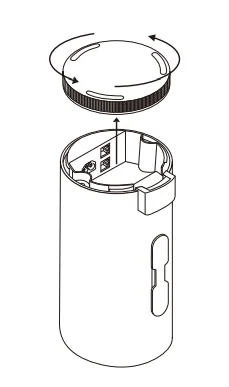
- Detach the waterproof cover by turning it counterclockwise.

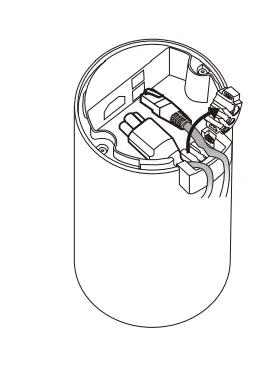
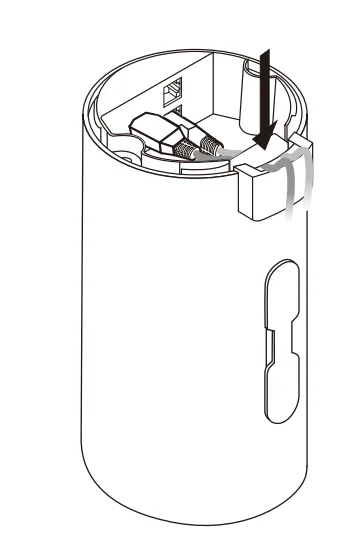
- Open the waterproof rubber and connect the provided Ethernet cable and/ or power cord according to your network needs. If you need extra, 5.5-mm diameter round cables and 7.8-mm diameter cords are recommended.
- PoE-powered: Ethernet cable only
- AC-powered: Wireless: Power cord only; Wired: Ethernet cable + Power cord
* The images use an AC-powered wired connection as an example.
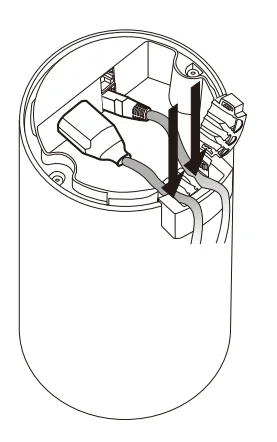
- Press the cables and cord down to make sure they fit into the slots of the waterproof rubber.

- Return the waterproof rubber and press it into the slots for waterproofing.

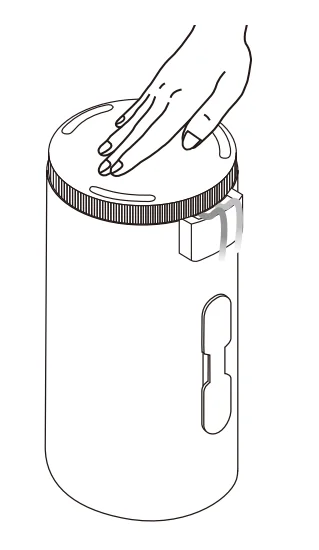
- Press the waterproof cover down fully, ensuring the rubber ring is completely seated inside the shell.

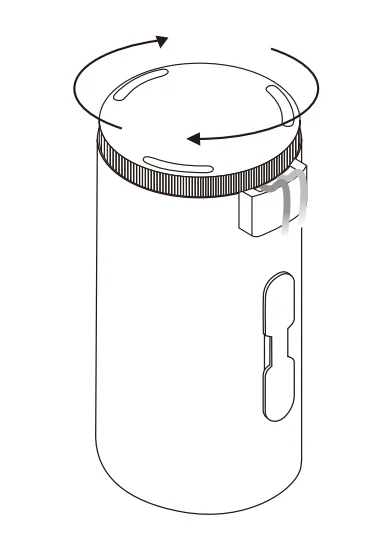
- Turn the waterproof cover clockwise until it is fully locked.

Mount Your Deco
Deco can be mounted to a pole or a wall. Choose the appropriate mounting methods.
WARNING: The Deco can only be used in upright direction as shown in the image.
Option 1: Pole Mounting
The Deco can be mounted to a pole with the strap in the package.

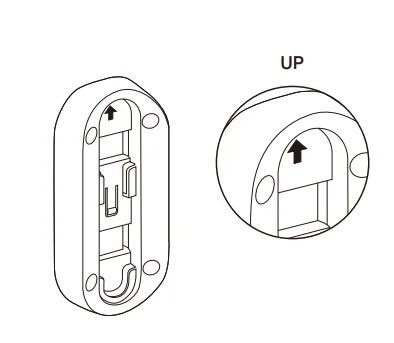
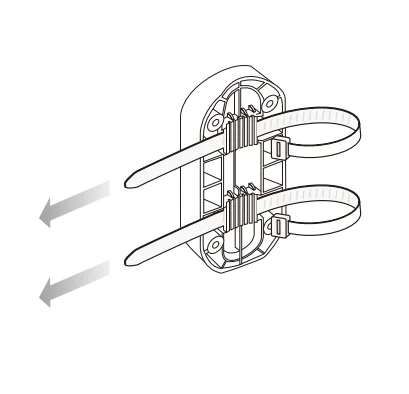
- Hold the mounting bracket as indicated by the arrow on it.

- Lead the end of the pole-mounting strap through the back of it.

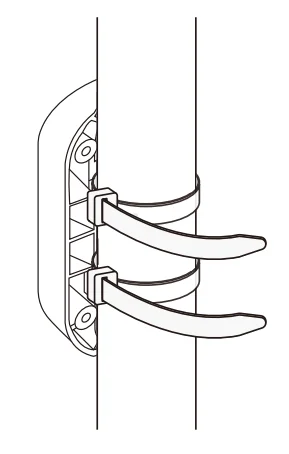
- Position the mounting bracket and wrap the pole mounting strap around the pole. Tighten the strap until the mounting bracket is secure.

- Align the mounting tabs on the back of the Deco with the slot of the mounting bracket. Push and slide the D
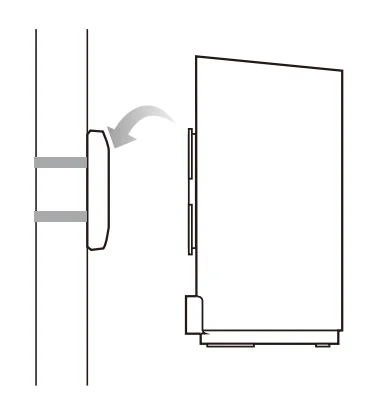
Option 2: Wall Mounting
The Deco can be mounted to a wall with the bracket, anchors, and screws in the package.
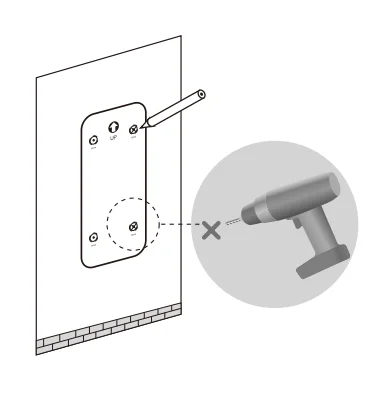
- Place the provided position label as desired and mark the four screw hole locations. Drill four 6-mm diameter holes for the screws at the marked positions.

- Insert the plastic wall anchors into the 6 mm diameter holes. Align the mounting bracket to the plastic wall anchors and drive the self-tapping screws into the anchors through the mounting bracket.

- Align the mounting tabs on the back of the outdoor Deco with the slot of the mounting bracket. Push and slide the outdoor Deco downward until it locks into place.
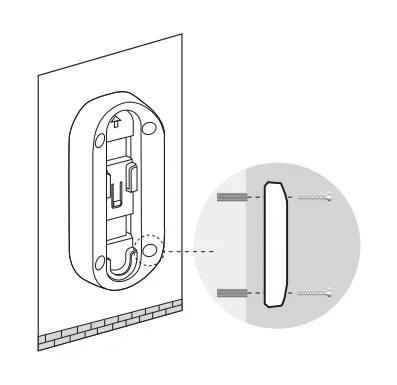
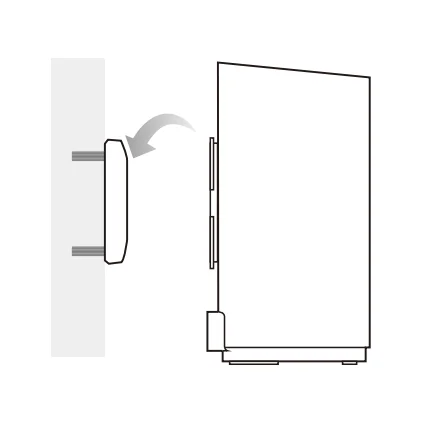
WARNING: The outdoor Deco can only be used in upright direction as shown in the image.
Troubleshooting
Solutions to common problems during setup or use are provided here for reference. Follow the steps and the provided link below to diagnose and solve problems you might experience with your Deco. If problems still exist, contact us: https://www.tp-link.com/support
- Q1. What should I do if I fail to configure the main Deco and get stuck on “We couldn’t find Deco”?
Refer to the guide https://www.tp-link.com/support/faq/2239/ or follow the video https://youtu.be/2HYuEYS9XJM - Q2. What should I do if I fail to configure the satellite Deco and get stuck on “We couldn’t find another Deco”?
Refer to the guide https://www.tp-link.com/support/faq/1447/ or follow the video https://youtu.be/iVgDzoo16T4 - Q3. What should I do if I fail to configure the main Deco and get stuck on “Testing Internet Connection”?
Refer to the guide https://www.tp-link.com/support/faq/2239/. Refer to the video https://youtu.be/OSUrGdWH-i0 - Q4. What should I do if my wireless devices cannot connect to Deco?
Refer to the guide https://www.tp-link.com/support/faq/2718/ - Q5. What should I do if Deco suddenly lost internet access?
Refer to the guide https://www.tp-link.com/support/faq/2428/ - Q6. How can I find a suitable spot for my Deco?
Refer to the guide https://www.tp-link.com//support/faq/1446/ - Q7. What can I do if the Deco app isn’t working properly?
Refer to the guide https://www.tp-link.com/support/faq/1456/
Authentication
FCC Compliance Information Statement
- Product Name: BE11000 Outdoor Mesh Wi-Fi 7 Unit
- Model Number: Deco BE65-Outdoor
Responsible party:
TP-Link Systems Inc.
- Address: 10 Mauchly, Irvine, CA 92618
- Website: http://www.tp-link.com/us/
- Tel: +1 626 333 0234
- Fax: +1 909 527 6804
- E-mail: [email protected]
This equipment has been tested and found to comply with the limits for a Class B digital device, pursuant to part 15 of the FCC Rules. These limits are designed to provide reasonable protection against harmful interference in a residential installation. This equipment generates, uses and can radiate radio frequency energy and, if not installed and used in accordance with the instructions, may cause harmful interference to radio communications. However, there is no guarantee that interference will not occur in a particular installation. If this equipment does cause harmful interference to radio or television reception, which can be determined by turning the equipment off and on, the user is encouraged to try to correct the interference by one or more of the following measures:
- Reorient or relocate the receiving antenna.
- Increase the separation between the equipment and receiver.
- Connect the equipment into an outlet on a circuit different from that to which the receiver is connected.
- Consult the dealer or an experienced radio/ TV technician for help.
This device complies with part 15 of the FCC Rules. Operation is subject to the following two conditions:
- This device may not cause harmful interference.
- This device must accept any interference received, including interference that may cause undesired operation.
Any changes or modifications not expressly approved by the party responsible for compliance could void the user’s authority to operate the equipment.
Note: The manufacturer is not responsible for any radio or TV interference caused by unauthorized modifications to this equipment. Such modifications could void the user’s authority to operate the equipment.
FCC RF Radiation Exposure Statement
This equipment complies with FCC RF radiation exposure limits set forth for an uncontrolled environment. This device and its antenna must not be co-located or operating in conjunction with any other antenna or transmitter. To comply with FCC RF exposure compliance requirements, this grant is applicable to only Mobile Configurations. The antennas used for this transmitter must be installed to provide a separation distance of at least 20 cm from all persons and must not be co-located or operating in conjunction with any other antenna or transmitter.
- The operation of this device is prohibited on oil platforms, cars, trains, boats, and aircraft.
- Operation of transmitters in the 5.925-7.125 GHz band is prohibited for control of or communications with unmanned aircraft systems.
We, TP-Link Systems Inc., has determined that the equipment shown as above has been shown to comply with the applicable technical standards, FCC part 15. There is no unauthorized change is made in the equipment and the equipment is properly maintained and operated.
Safety Information
- Adapter should be used indoors where the ambient temperature is lower than or equal to 40 ℃.
- Keep the device away from fire or hot environments. DO NOT immerse in water or any other liquid.
- Do not attempt to disassemble, repair, or modify the device. If you need service, please contact us.
- Do not use the device where wireless devices are not allowed.
- Plug the product into the wall outlets with earthing connection through the power supply cord.
- The socket-outlet shall be installed near the equipment and shall be easily accessible.
- Operating Temperature: -30°C~50°C (-22°F~122°F)
- The Ethernet cable provided is for indoor use only.
- This product uses radios and other components that emit electromagnetic fields. Electromagnetic fields and magnets may interfere with pacemakers and other implanted medical devices. Always keep the product and its power adapter more than 15 cm (6 inches) away from any pacemakers or other implanted medical devices. If you suspect your product is interfering with your pacemaker or any other implanted medical device, turn off your product and consult your physician for information specific to your medical device.
Please read and follow the above safety information when operating the device. We cannot guarantee that no accidents or damage will occur due to improper use of the device. Please use this product with care and operate at your own risk.
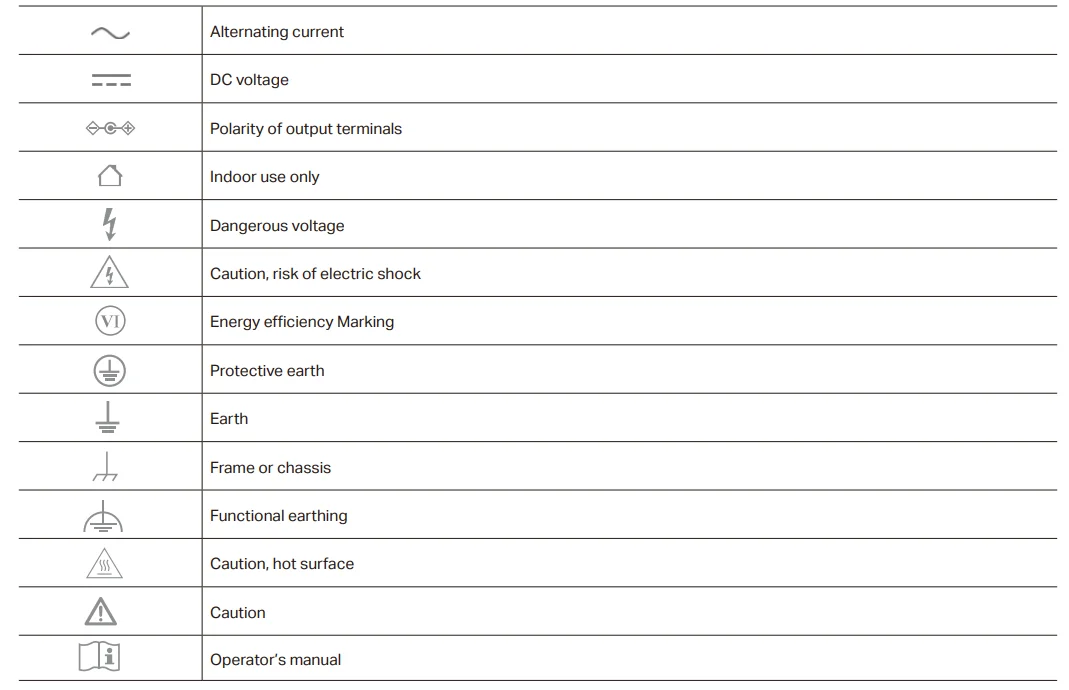
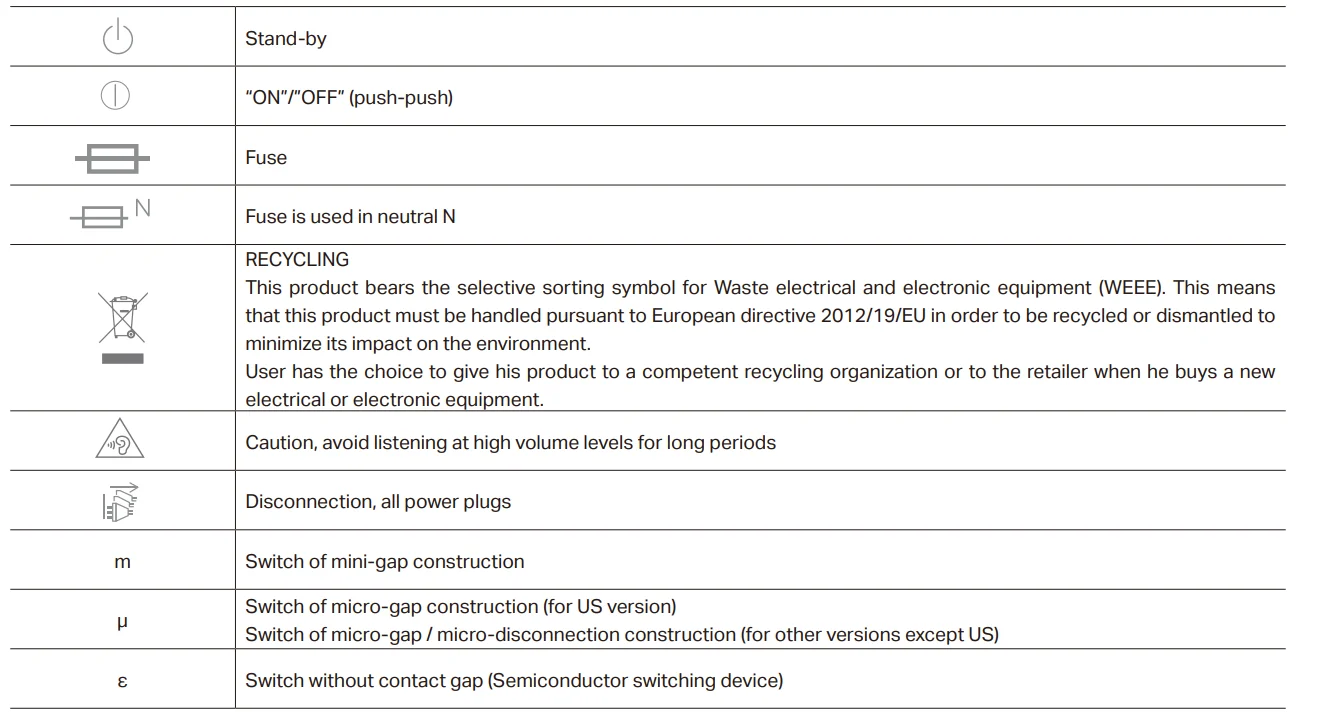
Explanation of the symbols on the product label
Symbols may vary from products.
Note: The product label can be found at the bottom of the product and its I.T.E. power supply.

For more manuals by TP-Link, visit ManualsLibraryy
TP Link Deco BE65 Outdoor Mesh WiFi 7 Unit-FAQs
Is the TP-Link Deco BE65-Outdoor a router or a mesh system?
The Deco BE65-Outdoor is primarily a mesh Wi-Fi system, but it can also function as a router. When set up as the main unit, it connects directly to your modem and distributes internet across multiple nodes. Unlike traditional routers, it creates a seamless network with consistent coverage. You can also use it in Access Point mode if you already have a router and want to expand your Wi-Fi coverage.
What are the main benefits of using the Deco BE65-Outdoor?
The Deco BE65-Outdoor offers high-speed Wi-Fi 7 performance, wider coverage, and advanced security features. It includes smart protection that scans your network for threats and safeguards connected devices. With seamless roaming, you can move around without losing connection. It’s ideal for large homes or outdoor spaces where stable, high-speed internet is required across multiple devices.
What is the coverage range of the Deco BE65-Outdoor?
The Deco BE65 system can cover up to approximately 7,800 square feet (around 725 m²) when using multiple units. This wide coverage ensures strong and stable signals even in large homes, gardens, or outdoor areas. The mesh technology eliminates dead zones by allowing units to work together, providing consistent connectivity across all corners of your space.
Can I use the Deco BE65 with my existing router?
Yes, the Deco BE65 can work alongside an existing router by switching to Access Point mode. In this setup, your current router handles internet routing, while the Deco units extend and improve Wi-Fi coverage. This is useful if you don’t want to replace your existing setup but still need stronger and more reliable wireless performance.
How many devices can the Deco BE65 support at once?
The Deco BE65 is designed to handle a large number of connected devices, supporting up to around 200 devices simultaneously under ideal conditions. This makes it suitable for smart homes with multiple gadgets like phones, laptops, smart TVs, and IoT devices. Its advanced Wi-Fi 7 technology ensures stable connections without significant slowdowns.
Is mesh Wi-Fi better than a traditional router?
Mesh Wi-Fi systems like the Deco BE65 generally provide better coverage and stability than traditional routers. Instead of relying on a single device, multiple nodes work together to create a unified network. This eliminates dead zones and ensures consistent speeds throughout your space, especially in larger or multi-story environments where a single router may struggle.
Can I use the Deco BE65 without an Ethernet connection?
The main Deco unit typically requires an Ethernet connection to a modem or internet source to function properly. However, additional Deco units can connect wirelessly to the main node. This setup allows flexible placement of units around your home or outdoor areas without needing cables everywhere, while still maintaining strong connectivity.
What frequency bands does the Deco BE65 use, and which is faster?
The Deco BE65 operates on multiple bands, including 2.4 GHz, 5 GHz, and 6 GHz. The 6 GHz and 5 GHz bands offer faster speeds and lower latency, while the 2.4 GHz band provides longer range. The system automatically connects devices to the most suitable band, ensuring a balance between speed and coverage without manual switching.
Do I need multiple Deco units for the best performance?
While a single unit can work as a standalone router, using multiple Deco units is recommended for optimal performance. A multi-unit setup creates a full mesh network, improving coverage, reducing dead zones, and maintaining consistent speeds across larger areas. For most homes, a two- or three-unit system delivers the best overall experience.