
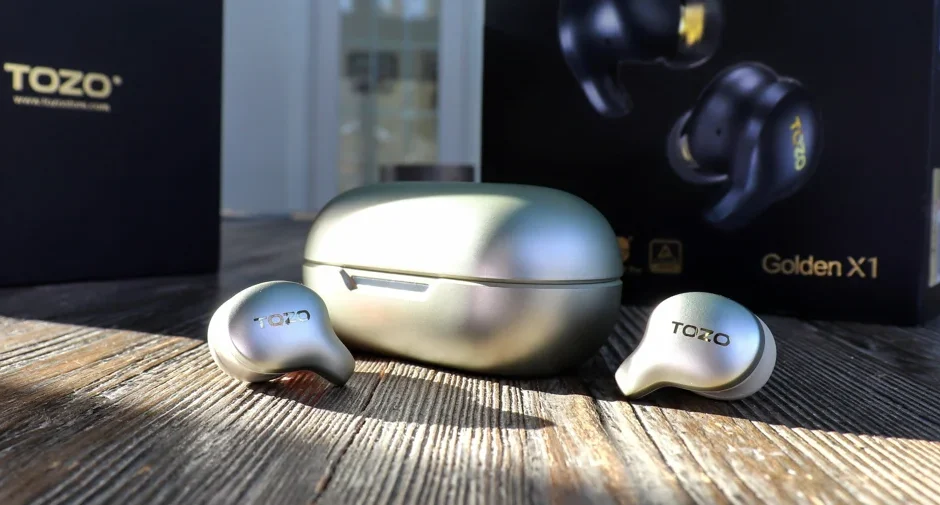

TOZO Golden X1 Wireless Earbuds
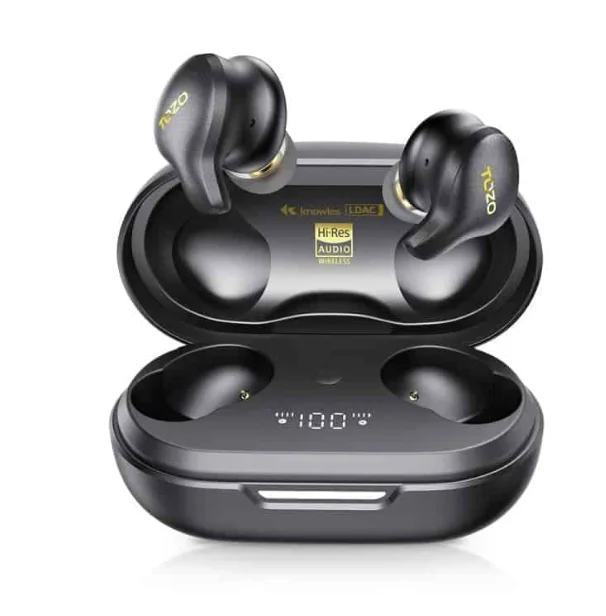
Thanks for choosing our products
The earbuds provide you with the extraordinary experience of stable voice calls and peaceful music sound in noisy surroundings with a fashionable appearance and multiple functions, making them a great choice for you while working, going out, and driving.
Origx

The exclusive sound technology developed by TOZO’s acoustic experts, achieving the golden frequency response curve in line with the characteristics of the human ear canal, with an original lossless sound effect.
Truly wireless Active Noise Cancellation technology
With the technology of earbuds, you can select compatible communication devices without using cables. Using active noise cancellation technology, the microphones collect the noise, then the acoustic engineer calculates and designs a series of software and hardware algorithms, the circuit generates a reverse sound wave that is opposite to the noise and emits it through the horn. Finally, the noise and the reverse sound wave cancel each other.
Specifications
- Model: X1
- Impedance: 28Q
- Frequency Range: 12~44.1KHz
- Earphone Battery Capacity: 56mAh*2
- Charging Box Battery Capacity: 500mAh
- Charging Time of Earphones: 1.6H
- Charging Time of Charging Box: 2.5H
Overview and packing list
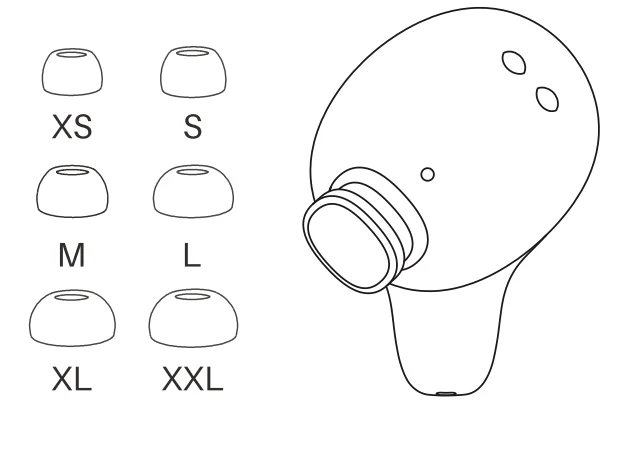
The package contains TOZO Golden X1 earbuds, a charging case, 6 sizes of earbuds (the M size earbuds are pre-installed on the earbuds), a USB-C charging cable, and instructions.
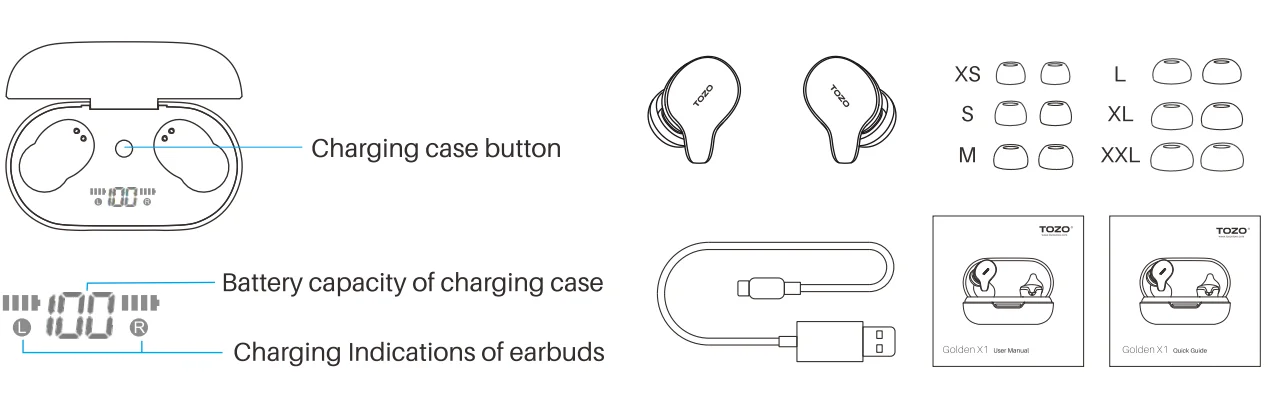
Earbuds function diagram
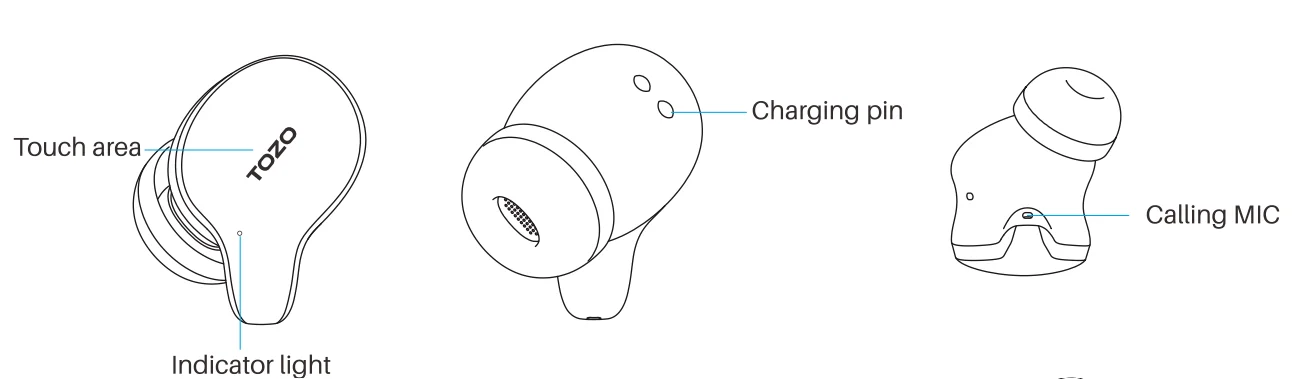
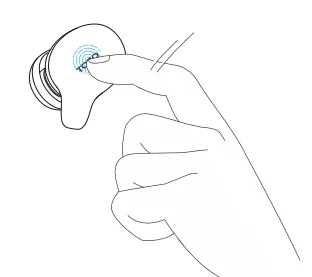
Touch control prompt
Please use the touch panel to control the earbuds. The sensing area is located in the earbuds’ handle’s upper part.
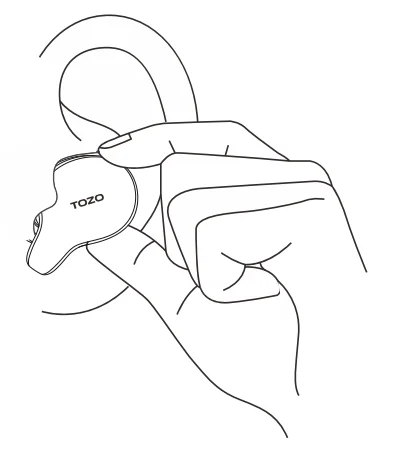
Wearing earbuds
To obtain a better noise cancellation effect, the wearing angle can be adjusted appropriately after wearing, so that the earbuds is slightly pushed into the ear canal.
Choose the right earbuds
Appropriate sizes of earbuds are essential to the noise cancellation experience, sound quality, and comfort. Please try on different sizes of earbuds. Please note that you may need to use different sizes of earbuds for your left and right ears.
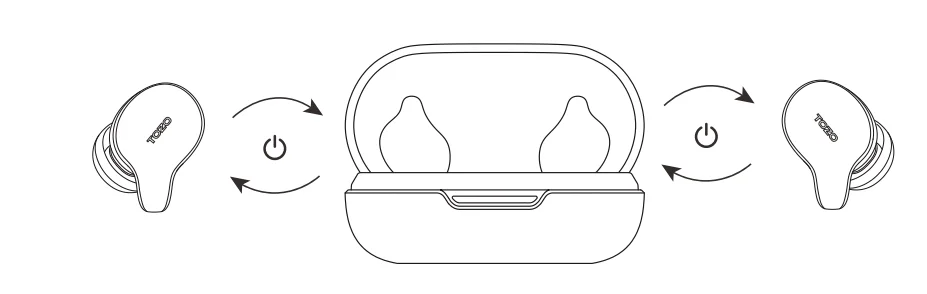
Power on/off
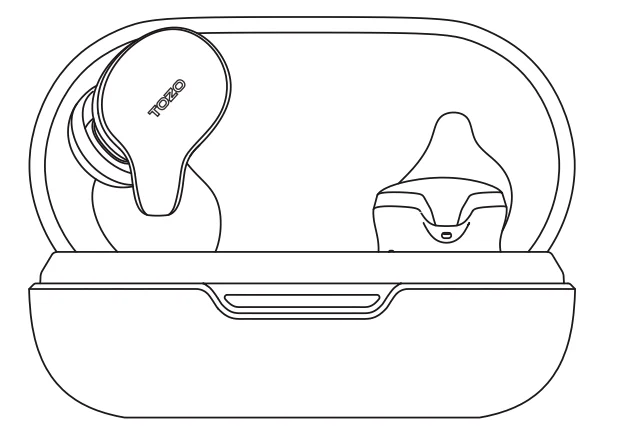
- Auto power on
Open the cover of the charging case, and the earbuds will power on automatically. - Auto power off
Put the earbuds into the charging case, close the cover, and the earbuds will power off automatically. - Another method of powering off
Hold L or R for 5 seconds to power off wh
Earbuds pairing
In order for convenient use, the pairing between left and right earbuds has been completed before leaving the factory. ‘When the cover is opened, the earbuds would turn on and pair with each other automatically, and enter connection or pairing status.
Bluetooth pairing
- Open the charging case, and the left and right earbuds are automatically turned on and connected.
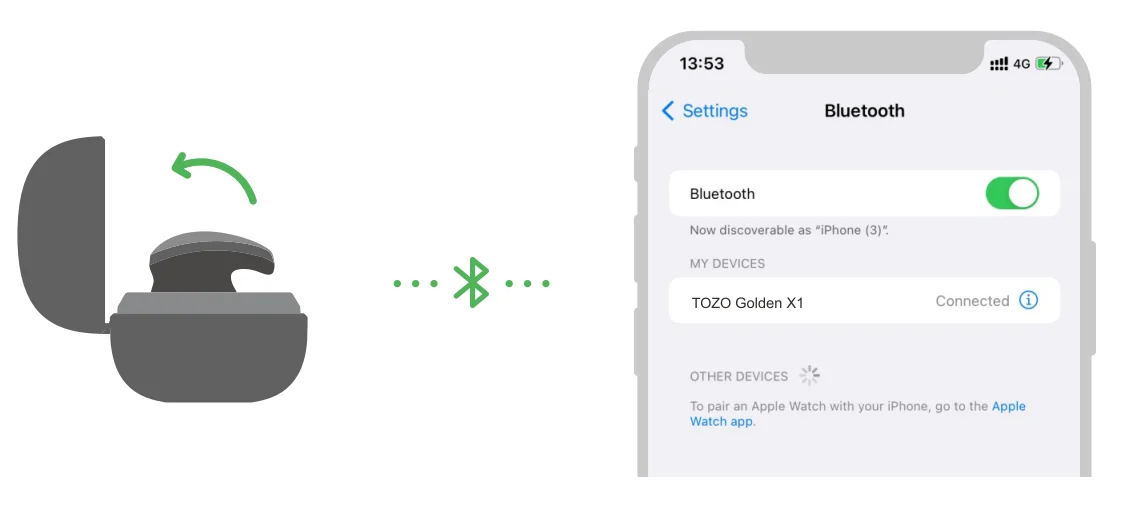
- Search for the Bluetooth pairing name [TOZO Golden X1] in the device and select it to complete the pairing.
- When used again, the left and right earbuds will automatically reconnect to the last connected device.
- For single earbud use, pick up one side and keep the other side closed in the charging case. After the earbuds, which are taken out, fail to reconnect, it will enter the reconnecting mode after 2 seconds, and pair with other devices. After connecting the phone, take out another pair of earbuds and enter binaural mode automatically.
- Stay in the pairing or reconnecting state for § minutes in Active Noise Cancellation or Transparency mode, earbuds will enter the standby mode automatically. If you stay in the pairing or reconnecting state for 6 minutes in normal mode, the earbuds will turn off automatically.
Another method of pairing
Open the charging case, keep the earbuds in the charging case, hold the charging case button 3s to force the earbuds to enter pairing status, then do steps 2 and 3 above.
NOTE: While the left and right earbuds are disconnected, put the earbuds in the charging case(open charging case), hold the charging case button for 16 seconds to pair the left and right earbuds, then keep the lid open and wait for 10 seconds before removing the earbuds.
Bluetooth multipoint feature
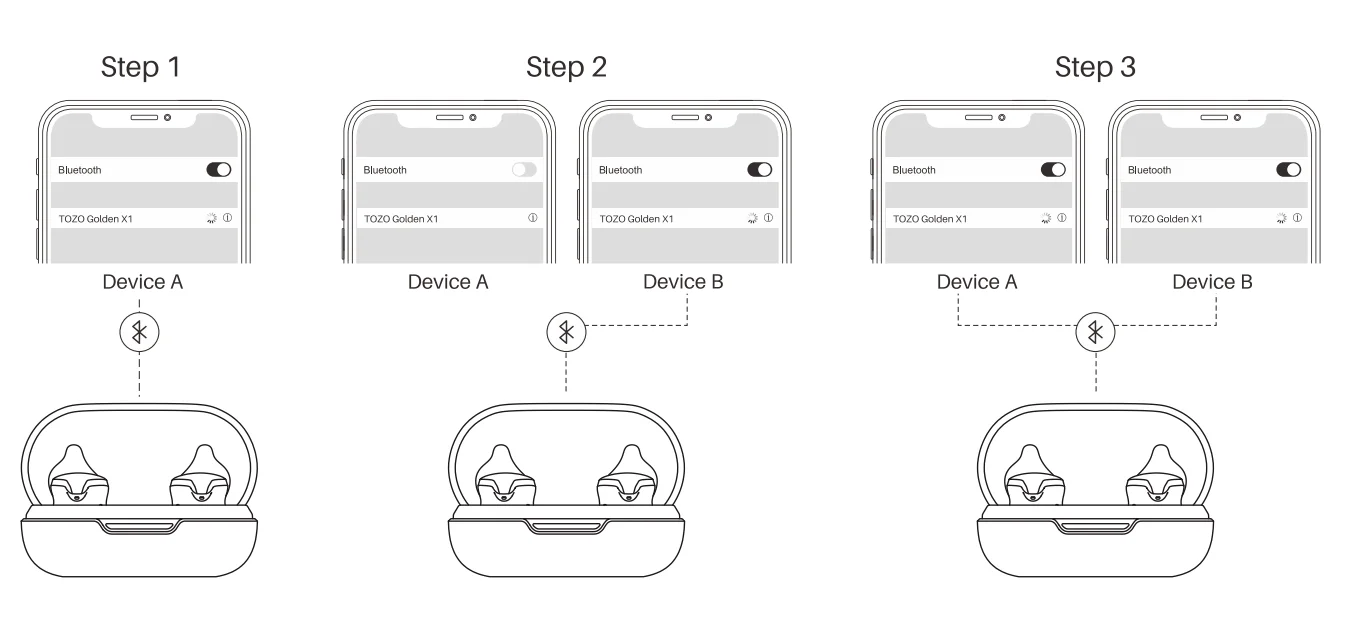
Bluetooth multipoint allows earbuds to maintain simultaneous connections to two source devices, like a phone, pad, and laptop. Connect your TOZO Golden X1 to device A first, then turn off the Bluetooth on device A, so that you can search and connect to the same Bluetooth name [TOZO Golden X1] on your device B, then turn on the Bluetooth on device A to automatically reconnect. Now the two devices are connected to the TOZO Golden X1 at the same time.
Note: The TOZO Golden X1 will play music from your last-operated device.
Bluetooth lost
- Turn off the mobile phone’s Bluetooth earbuds will enter the pairing mode and will not connect back. (If you stay in the pairing or reconnecting state for & minutes in Active Noise Cancellation or Transparency mode, the earbuds enter the
standby mode automatically. If you stay in the pairing of reconnecting state for 5 minutes in normal mode, the earbuds turn off automatically.) - If the connection range is exceeded, it will enter the back connection mode and can pair with other devices at the same time. (If you stay in the pairing or reconnecting state for 6 minutes in Active Noise Cancellation or Transparency mode, the earbuds enter the standby mode automatically. If you stay in the pairing of the reconnecting state for 6 minutes in normal mode, the earbuds turn off automatically.)
Touch operation (operation while wearing double earbuds)
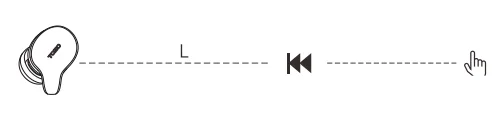
- Double-tap the “L” sensing area (“L sensing area” abbreviated as “L”), then skip to the previous song.

- Tap the “R” sensing area (“R sensing area” abbreviated as “R”) to play or pause music.
- Double-tap the “R” to skip to the next song.

- Double-tap the “R” to skip to the next song.
- Long-press the “L” to decrease the volume when playing.

- Long-press the “R” to increase the volume when playing.
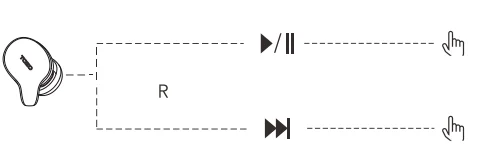
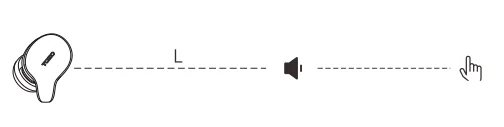
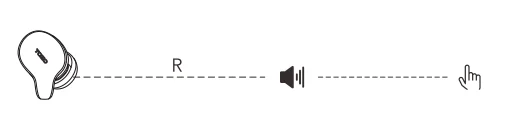
Touch operation (Operation while wearing one earbud)
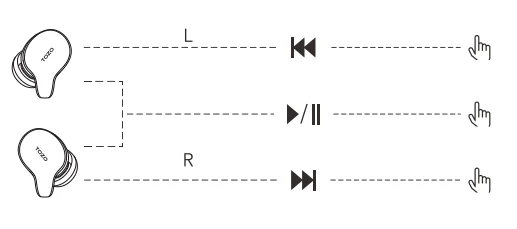
- Double-tap the “L” sensing area (“L sensing area” abbreviated as “L”), then skip to the previous song.
- Tap the “L” or “R” sensing area to play or pause music.
- Double-tap the “R” to skip to the next song.
Active Noise Cancellation Control
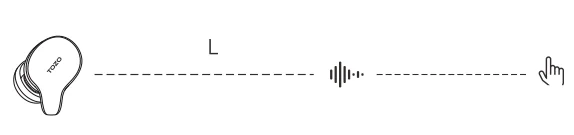
- Tap the”L” once to switch between Transparency mode / Active Noise Cancellation mode. Triple tap “L” to switch back to Normal mode.
The Active Noise Cancellation function is not available when using single earbuds.
Calling control
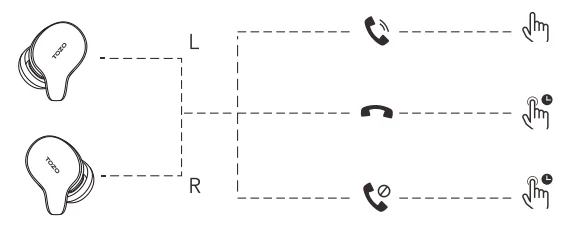
- Tap “L” or “R” sensing area to answer the call, or it will answer the call automatically.
- Long-press “L” or “R” for 2 seconds the sensing area to hang up the call.
- Long-press “L” or “R” for 2 seconds to reject the call in the sensing area.
Voice assistant
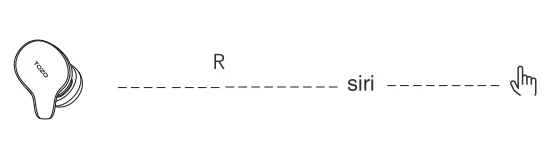
- When using single or double earbuds, triple-tap “R” then wake up the voice assistant.
Reset
If you accidentally get only one earbud working, or fail to pair them, please reset it:
- Place the earbuds into the charging case.
- Press and hold the case button for 15 seconds, then keep the lid is open and wait for 10 seconds before removing the earbuds.
NOTE: In case there is [Connection Unsuccessful] in your devices, please delete all historical records of [T0ZO Golden X1] and try the pairing process again.
Low battery alarm
When the battery power is low, it will be reminded once every 2 minutes until the battery power runs out and turns off.
Earbuds charging
Put the earbuds into the charging case to charge automatically.
Wireless charging case
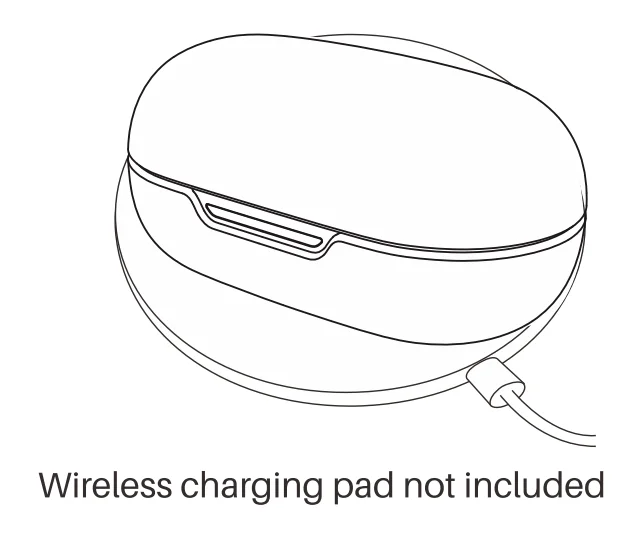
Designed for modern life, you could use either charging cables or a wireless charging pad for charging.
Display of charging case power
Click / double click the button of the charging case: indicators display the battery level of the charging case for 3s; opening the charging case without earbuds in the charging case, indicators display the battery level of the charging case for 3s. Opening the charging case with the earbuds in the charging case, the indicators display the battery level of the charging case for 5s.
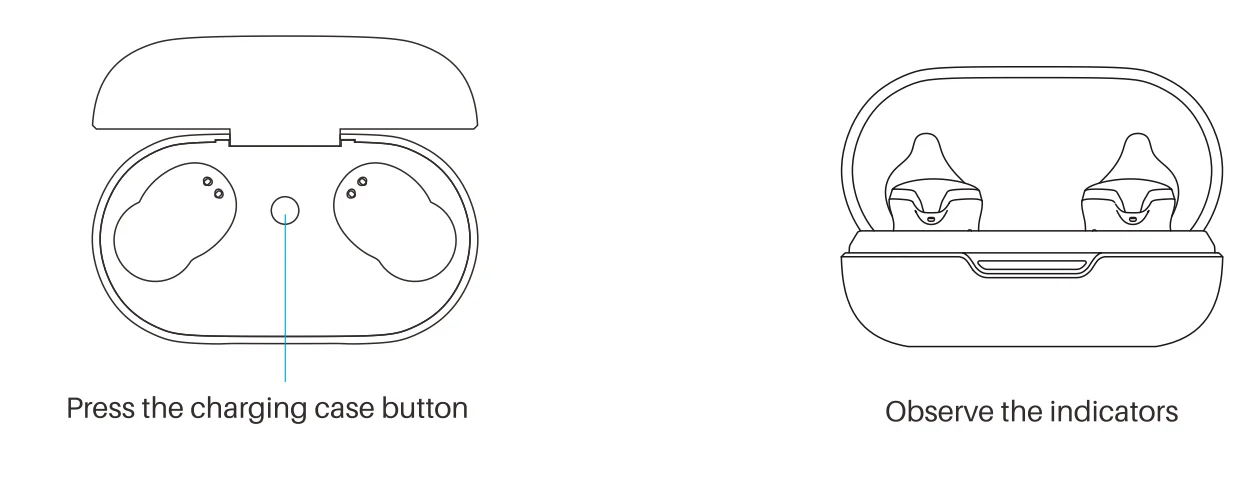
Indicator status
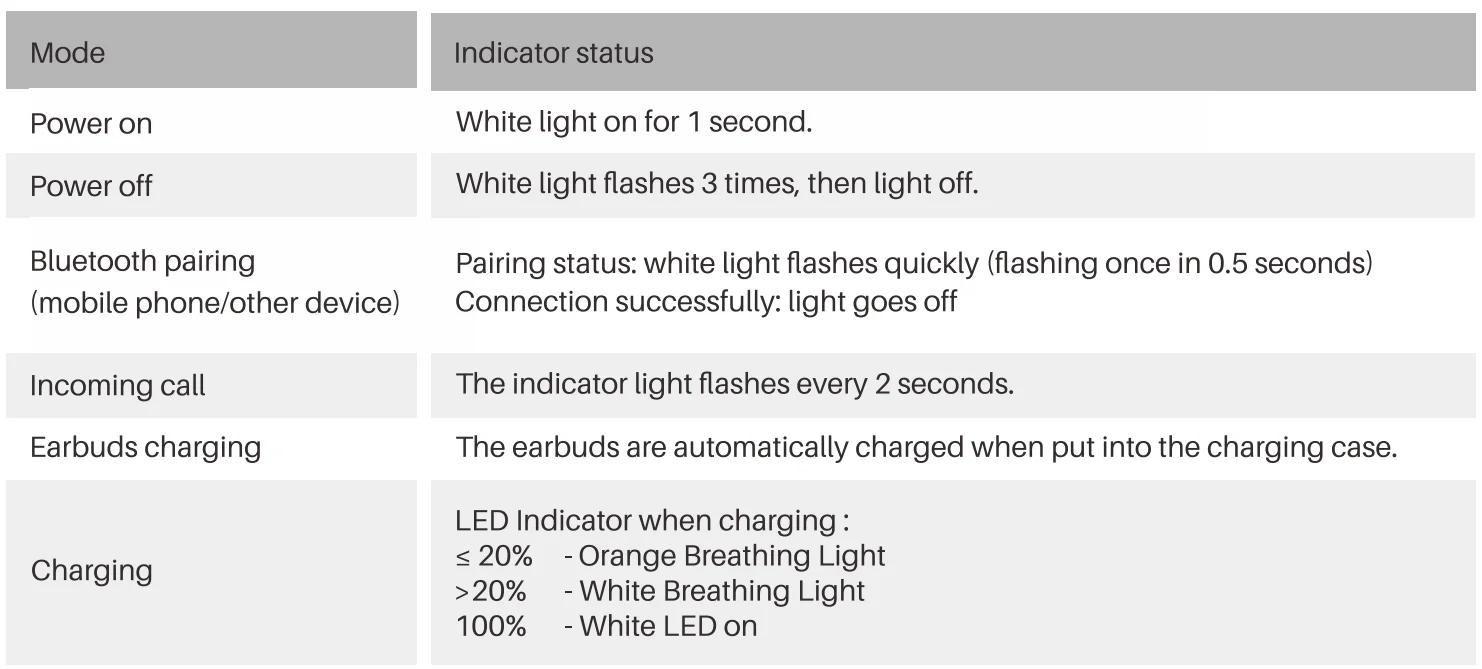
TOZOAPP
Download the TOZO App for Ul customisation, EQ settings, and more.
- Ul customisation: Most of the controls can be customised in the App.
- EQ settings: There are lots of EQ settings you can choose in the App to optimise your experience while enjoying different music genres.
- Earbuds firmware update: The earbuds’ firmware can be updated in the App. You will be informed once the new version of firmware is detected when you connect the earbuds to the App.
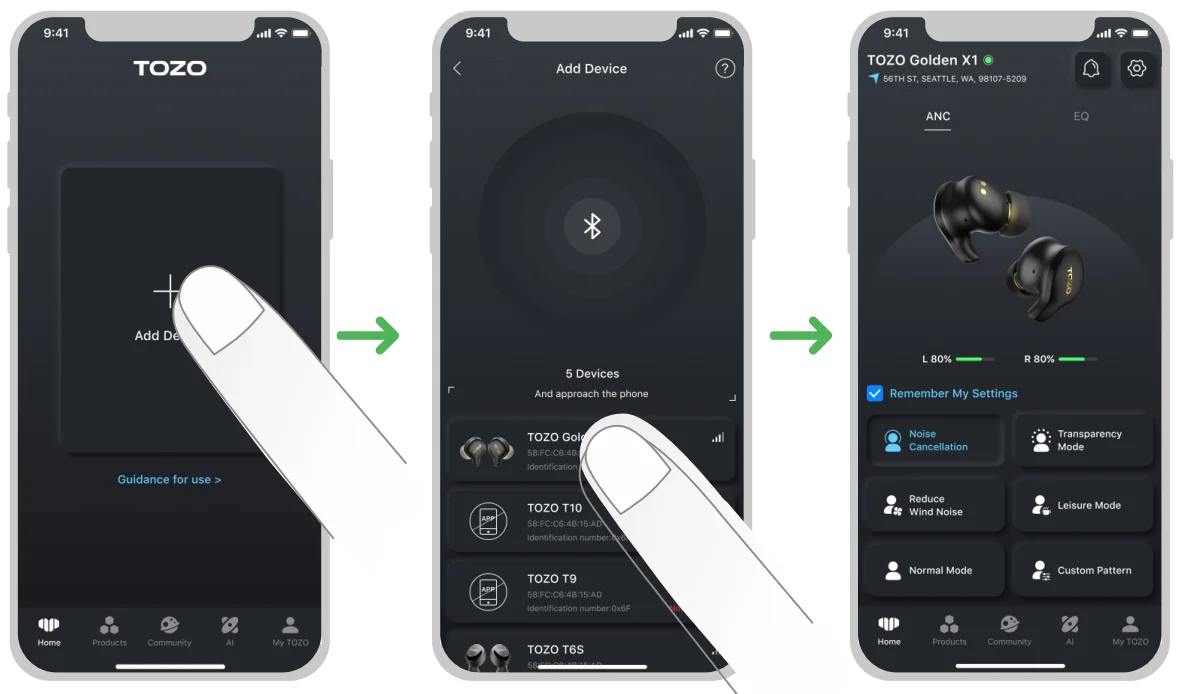
TOZO APP pairing
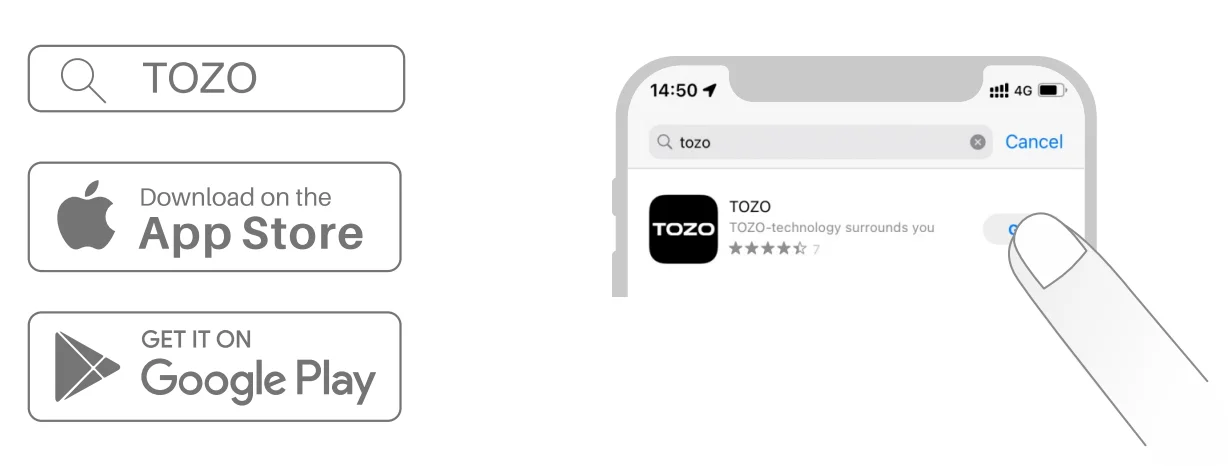
- Step 1:
Download the TOZO App on your phone.
- Step 2:
Bluetooth pairing with your earbuds.
- Step 3:
TOZO App pairing with your earbuds.
EU Battery Regulation

This symbol on the battery(ies) or on the packaging indicates that the battery (ies) provided with this product shall not be treated as household waste. Instead, please separate batteries from other types of waste and recycle them through your local recycling system to protect the environment and health. (When Cd is more than 20ppm or Pb is more than 40ppm, the chemical symbol of the excess substance shall be marked under the separate collection symbol) For more detailed information about the recycling of these batteries, please contact your local authority or the shop where you purchased the product or battery (ies).
FCC Compliance Statements
This device complies with Part 15 of the FCC Rules. Operation is subject to the following two conditions:
- This device may not cause harmful interference, and
- This device must accept any interference received, including interference that may cause undesired operation.
Caution: Changes or modifications not expressly approved by the party responsible for compliance could void the user’s authority to operate the equipment.
Note: This equipment has been tested and found to comply with the limits for a Class B digital device, pursuant to Part 15 of the FCC Rules. These limits are designed to provide reasonable protection against harmful interference in a residential installation. This equipment generates, uses and can radiate radio frequency energy and, if not installed and used in accordance with the instructions, may cause harmful interference to radio communications. However, there is no guarantee that interference will not occur in a particular installation.
If this equipment does cause harmful interference to radio or television reception, which can be determined by turning the equipment off and on, the user is encouraged to try to correct the interference by one or more of the following measures:
- Reorient or relocate the receiving antenna.
- Increase the separation between the equipment and receiver.
- Connect the equipment into an outlet on a circuit different from that to which the receiver is connected.
- Consult the dealer or an experienced radio/TV technician for help.
RF Exposure Compliance
This equipment complies with FCC radiation exposure limits set forth for an uncontrolled environment. This transmitter must not be co-located or operating in conjunction with any other antenna or transmitter.
ISED Compliance Statements
This device contains licence-exempt transmitter(s)/receiver(s) that comply with Innovation, Science and Economic Development Canada’s licence-exempt RSS(s). Operation is subject to the following two conditions:
- This device may not cause interference.
- This device must accept any interference, including interference that may cause undesired operation of the device.
This equipment complies with IC RSS-102 radiation exposure limits set forth for an uncontrolled environment. This transmitter must not be co-located or operating in conjunction with any other antenna or transmitter.
CE-DOC
Hereby, [Manufacturer] declares that the radio equipment type [Model No. complies with Directive 2014/63/EU. The full text of the EU declaration of conformity is available at the following internet address: www.tozostore.com
For more manuals by TOZO, visit ManualsLibraryy
TOZO Golden X1 Wireless Earbuds-FAQs
How do I turn on and use the TOZO Golden X1 earbuds?
The TOZO Golden X1 earbuds power on automatically when you remove them from the charging case. You can also press and hold the touch panel for a few seconds to turn them on manually. To turn them off, simply place them back in the case, where they will begin charging. The touch controls allow you to manage playback, calls, and modes easily without needing your phone.
How do I pair the TOZO Golden X1 with my device?
To pair the earbuds, take them out of the charging case and enable Bluetooth on your phone or device. The earbuds will automatically enter pairing mode. Look for “TOZO Golden X1” in your Bluetooth list and select it. Once connected, the earbuds will automatically reconnect to the same device in future uses, making the pairing process quick and hassle-free.
How do I activate noise cancellation on the Golden X1?
You can enable Active Noise Cancellation (ANC) by pressing and holding the touch control on one of the earbuds. This will cycle through modes such as ANC, transparency mode, and normal mode. ANC helps block background noise for immersive listening, while transparency mode allows you to hear your surroundings when needed.
Do the TOZO Golden X1 earbuds support touch controls?
Yes, these earbuds come with responsive touch controls. You can tap or press the earbuds to play or pause music, skip tracks, answer or reject calls, and switch modes. The controls are designed to be intuitive, so you can manage your listening experience without frequently reaching for your phone.
How can I adjust the volume on the TOZO Golden X1?
Volume can be controlled directly from the earbuds using touch gestures, depending on how they are configured. You can also adjust volume through your connected device. For more customization, you can use the TOZO Sound App, which allows you to fine-tune controls and sound settings for a better listening experience.
How can I improve sound quality on the Golden X1 earbuds?
To get the best sound quality, ensure you use the correct ear tip size for a secure fit, as this improves bass and clarity. You can also adjust equalizer (EQ) settings in the TOZO Sound App to match your preferences. Keeping the earbuds clean and listening at balanced volume levels will further enhance overall audio performance.
How should I charge and maintain the earbuds properly?
To charge the earbuds, place them in the charging case and ensure the case has power. The case itself can be charged with or without the earbuds inside. Avoid letting the battery drain completely too often, and try not to overcharge for long periods. Proper charging habits and regular cleaning will help maintain battery health and long-term performance.
Can I use just one earbud at a time?
Yes, the TOZO Golden X1 supports single-earbud use. You can use either the left or right earbud independently for calls or music. This is useful when you want to stay aware of your surroundings or extend battery life by alternating between earbuds.
What is the TOZO Sound App and what does it do?
The TOZO Sound App is a companion app that enhances your earbuds experience. It allows you to customize EQ settings, update firmware, adjust controls, and manage noise cancellation modes. This helps you personalize audio output and optimize performance according to your preferences and listening habits.