
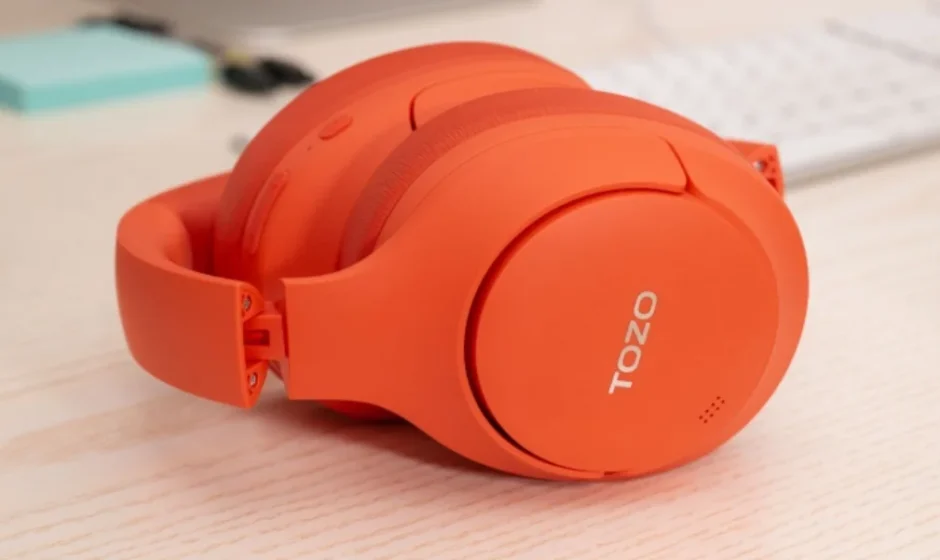
TOZO HT2 Noise Cancelling Headphones
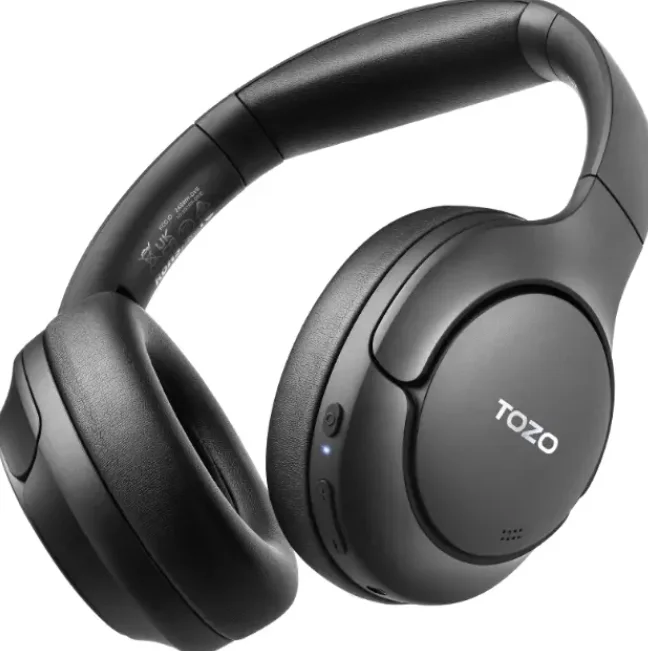
Safety Instructions
- This product contains magnetic material. Please consult your doctor as to whether it will affect implantable medical devices.
- Please keep this product away from sources of fire and heat. Do not place an exposed flame source (e.g., a lighted candle) on or near this product.
- Do not modify the product without authorisation.
- Do not use this product in conjunction with an inverter.
- Only use this product with a power supply that has been approved by the relevant authorities and meets local regulatory requirements.
- The batteries supplied with this product may pose a fire or chemical burn hazard if not handled properly.
- Do not overheat the product containing the batteries (e.g., keep out of direct sunlight and away from sources of fire, etc.).
- If the speaker is exposed to salt or chlorinated water, wash it gently with clean water afterwards to remove any residue.
- Make sure the connector port is completely dry before charging.
- Do not charge the speaker when it is wet.
Product description
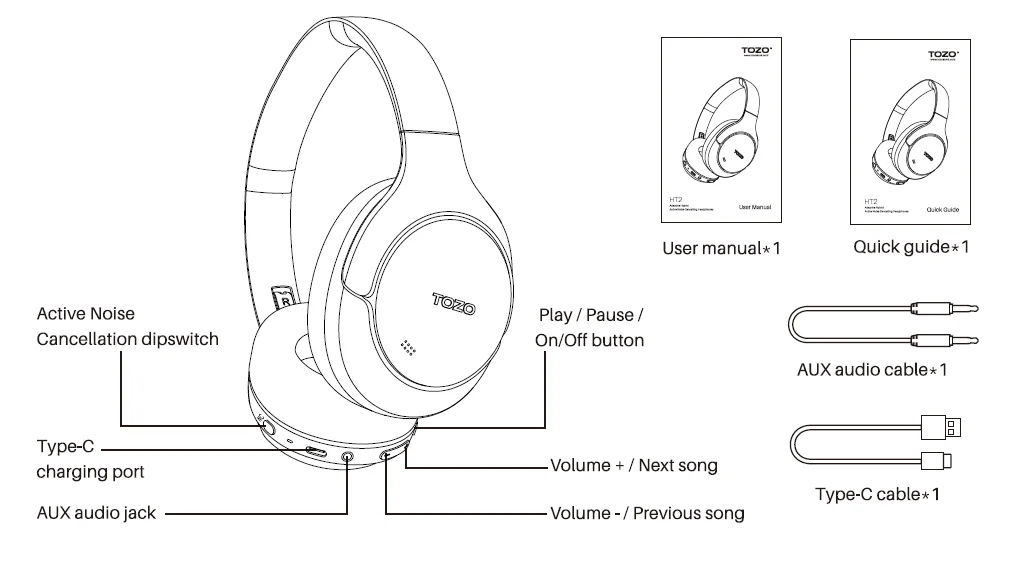
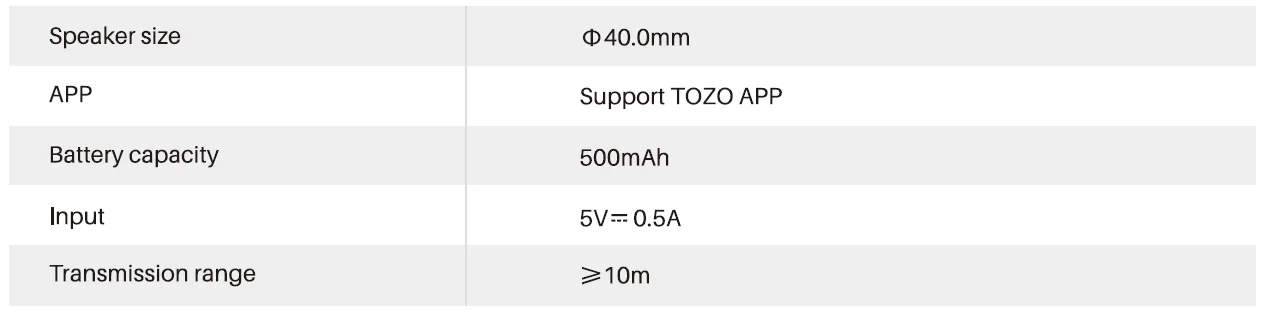
Specifications
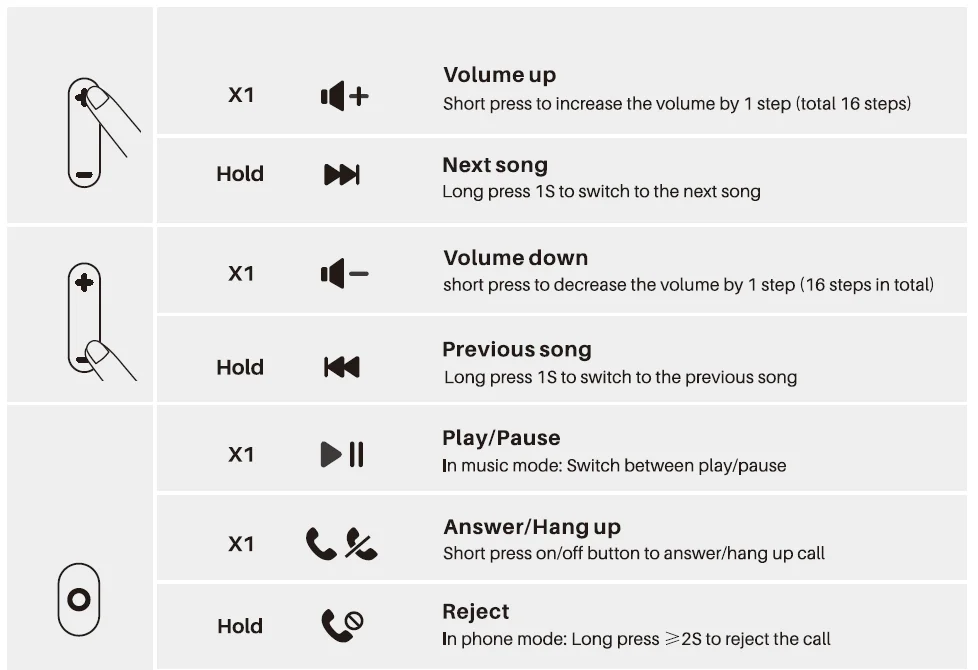
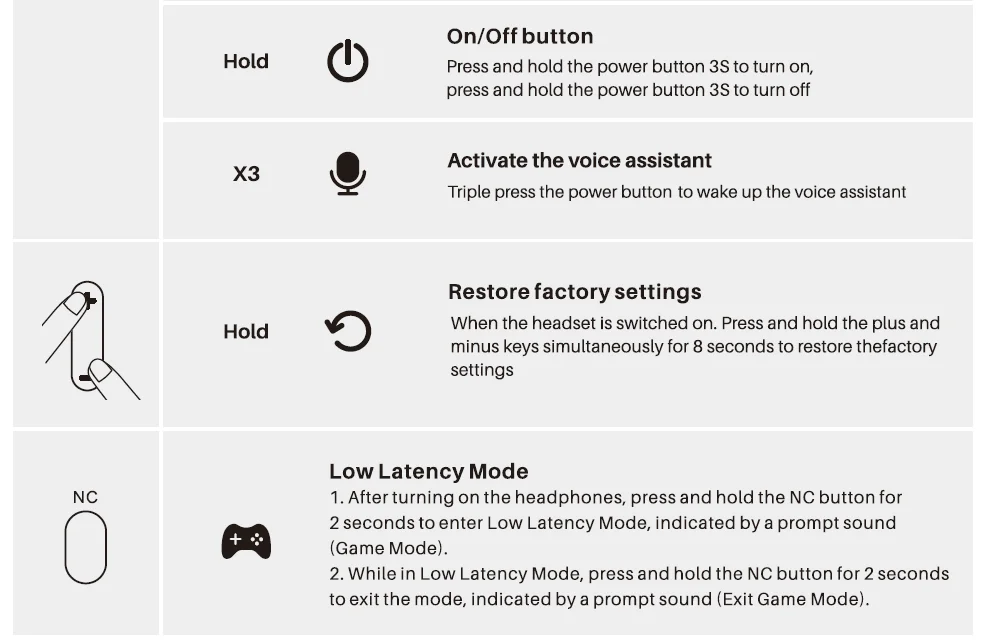
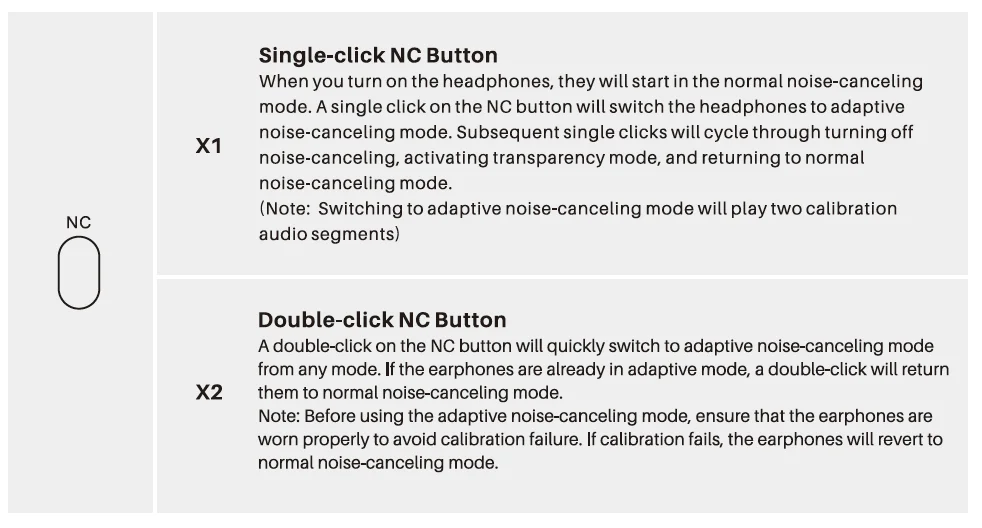
Key function guide
- X1:Pressonce
- X2: Press twice
- Hold: Press and hold
- X3: Press three times
TOZO app
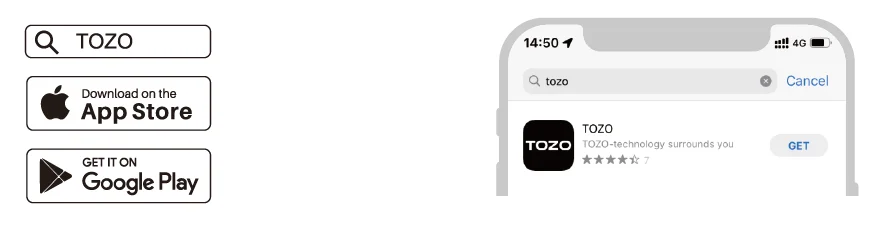
Download the TOZO App for EQ settings and more.
- EQ settings: There are lots of £Q settings you can choose in the App to optimise your experience while enjoying different music genres.
- Headphones firmware update: The earbuds’ firmware can be updated in the App. You will be informed once the new version of firmware is detected when you connect the headphones to the App.
TOZO app pairing
- Step 1: The TOZO APP can be downloaded from the TOZO website, Google Play, and Apple APP Store.

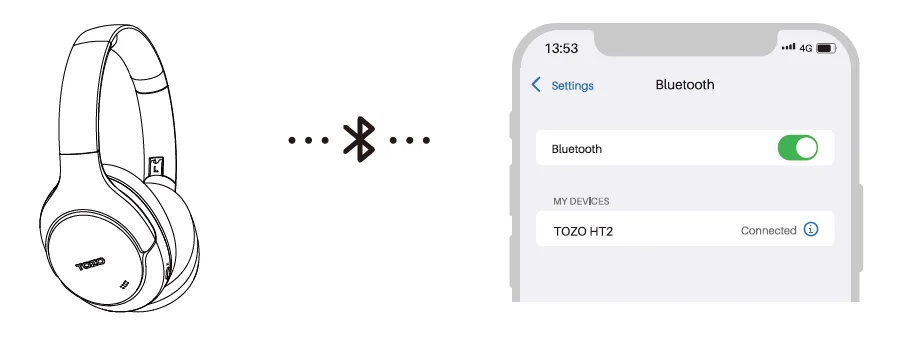
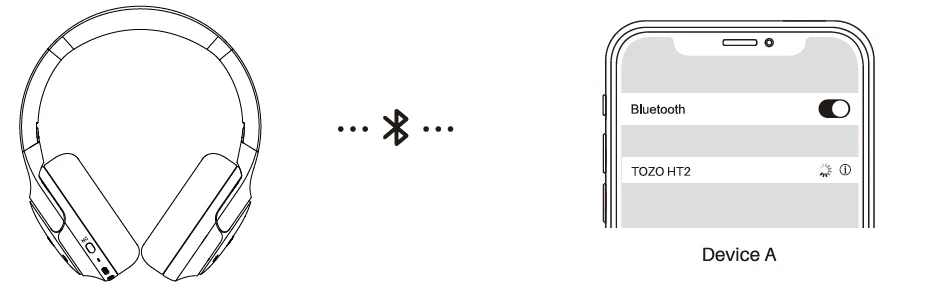
- Step 2: Bluetooth pairing with your headphones.

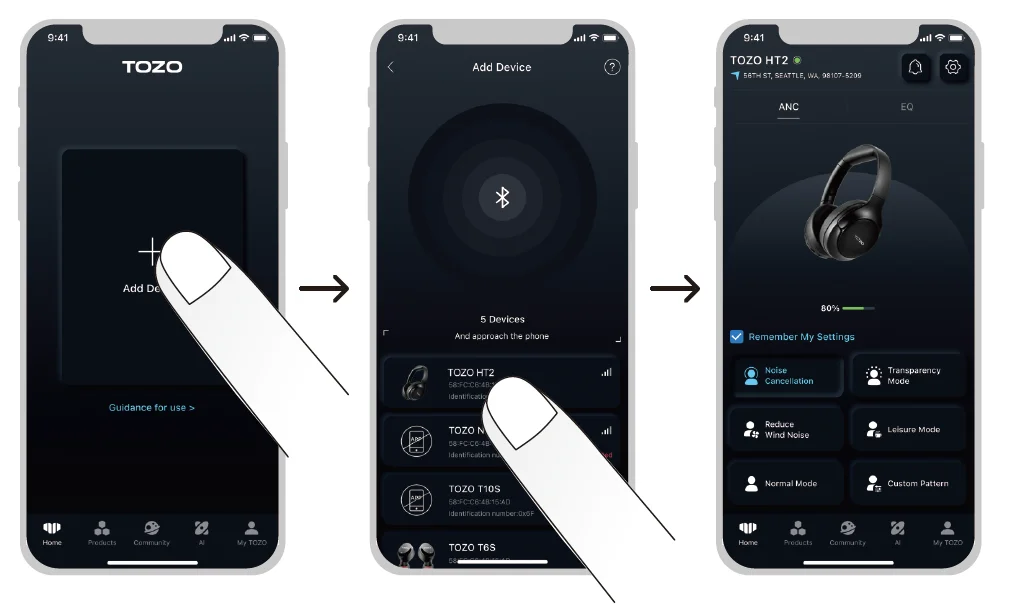
- Step 3: Open the TOZO APP and pair with your HT2.

Bluetooth multipoint feature
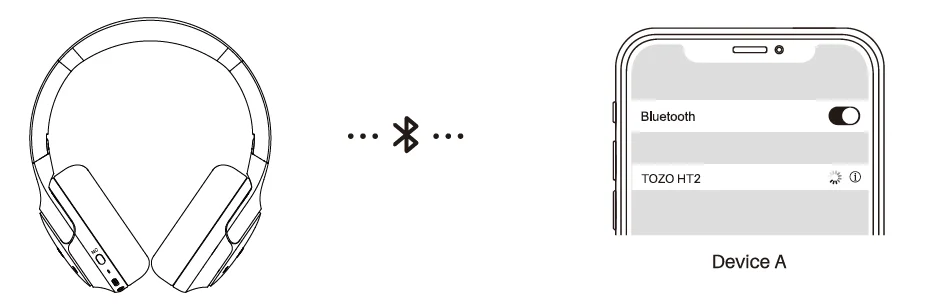
- Step 1: Turn on the headphones and enable Bluetooth on your first mobile phone. Search for the “TOZO HT2″ and connect to the headphones.

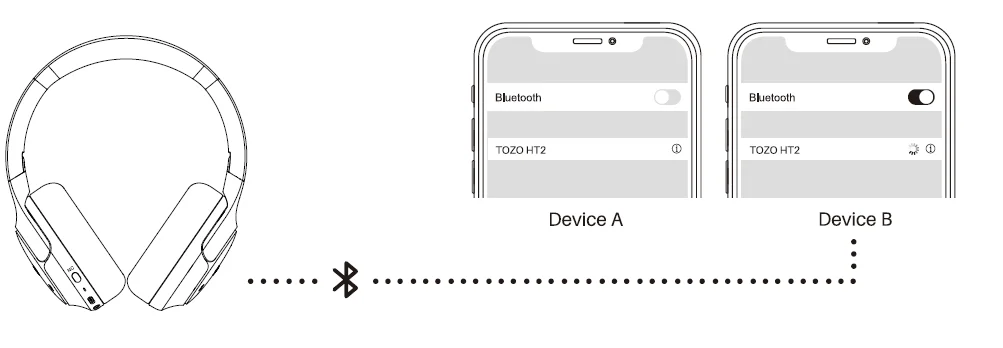
- Step 2: Turn off the Bluetooth function on the first mobile phone to disconnect it from the headphones (do not turn off the headphones).

- Step 3: Turn on the Bluetooth on your second mobile phone. Search for the “TOZO HT2” and connect the headphones to the second mobile phone.

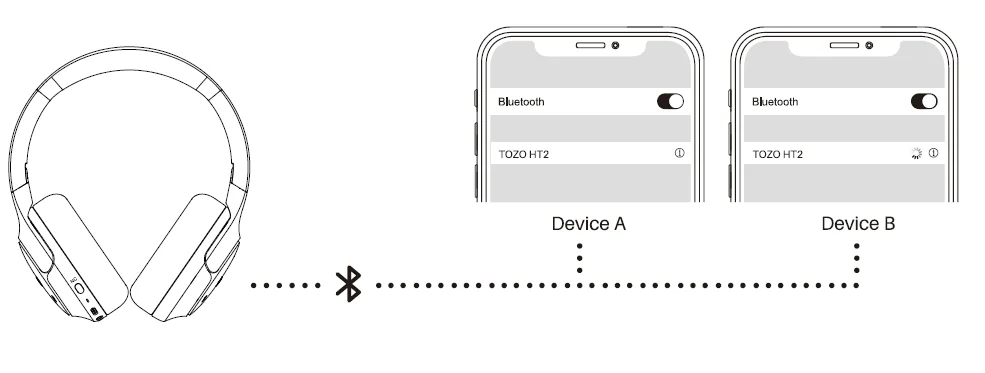
- Step 4: Turn on the Bluetooth on the first mobile phone. Click on the connection record for the headphones to achieve a simultaneous connection of the headphones to two mobile phones.

Charging
When the headphones are either powered on or powered off, plug in a Type-C charging cable, and the headphone power light will stay red while charging and turn off after fully charged.
(Note: Plugging in the charging cable while the headphones are powered on will result in the headphones automatically turning off.)
Aux audio cable
- When the headphones are powered off, insert a 3.5mm AUX audio cable to play music from a phone or other player to experience Hi-Res sound quality.
- When the headphones are powered on, inserting a 3.5mm AUX audio cable will automatically turn off the headphones.
(Note: Using this function while the headphones are charging is not recommended.)
Disclaimers
TOZO reserves the right of final interpretation of this manual, and the design and specifications are subject to change without notice.
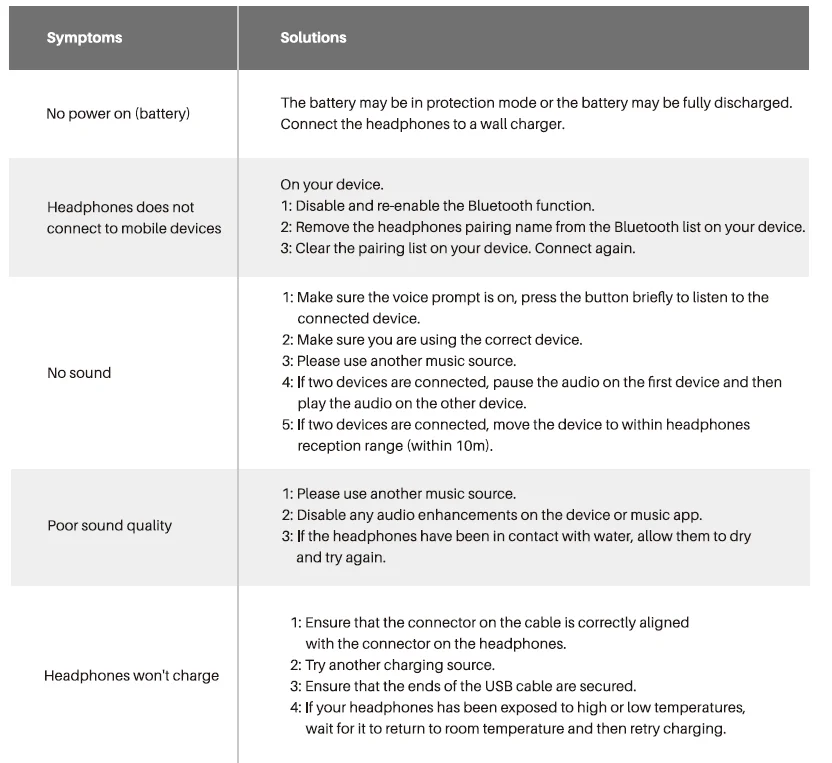
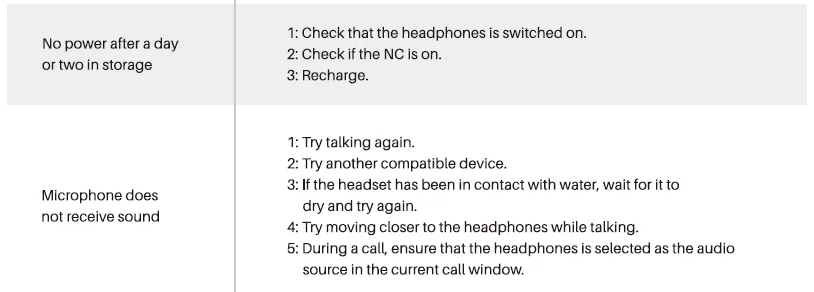
Solutions to common problems
EU Battery Regulation
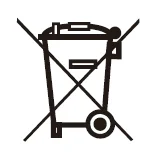
This symbol on the battery(ies) or on the packaging indicates that the battery(ies) provided with this product shall not be treated as household waste. Instead, please separate batteries. from other types of waste and recycle it (them through your local recycling system to protect the environment and health. (When Cd is more than 20ppm or Pb is more than 40ppm, the chemical symbol of the excess substance shall be marked under the separate collection symbol) For more detailed information about the recycling of these batteries, please contact your local authority or the shop where you purchased the product or batteries.
FCC Compliance Statements
This device complies with Part 16 of the FCC Rules. Operation is subject to the following two conditions:
- This device may not cause harmful interference, and
- This device must accept any interference received, including interference that may cause undesired operation.
Caution: Changes or modifications not expressly approved by the party responsible for compliance could void the user’s authority to
operate the equipment.
Note: This equipment has been tested and found to comply with the limits for a Class B digital device, pursuant to Part 16 of the FCC Rules. These limits are designed to provide reasonable protection against harmful interference in a residential installation. This equipment generates, uses and can radiate radio frequency energy and, if not installed and used in accordance with the instructions, may cause harmful interference to radio communications. However, there is no guarantee that interference will not occur in a particular installation.
If this equipment does cause harmful interference to radio or television reception, which can be determined by turning the equipment
off and on, the user is encouraged to try to correct the interference by one or more of the following measures:
- Reorient or relocate the receiving antenna.
- Increase the separation between the equipment and receiver.
- Connect the equipment into an outlet on a circuit different from that to which the receiver is connected.
- Consult the dealer or an experienced radio/TV technician for help.
RF Exposure Compliance
This equipment complies with FCC radiation exposure limits set forth for an uncontrolled environment. This transmitter must not be co-located or operating in conjunction with any other antenna or transmitter.
ISED Compliance Statements
This device contains licence-exempt transmitter(s)/receiver(s) that comply with Innovation, Science and Economic Development Canada’s licence-exempt RSs. Operation is subject to the following two conditions:
- This device may not cause interference.
- This device must accept any interference, including interference that may cause undesired operation of the device.
This equipment complies with IC RSS-102 radiation exposure limits set forth for an uncontrolled environment. This transmitter must not be co-located or operating in conjunction with any other antenna or transmitter.
CE-DOC
Hereby, [Manufacturer] declares that the radio equipment type [Model No] is in compliance with Directive 2014/53/EU. The full text of the EU declaration of conformity is available at the following internet address: www.tozostore.com
For more manuals by TOZO, visit ManualsLibraryy
TOZO HT2 Noise Cancelling Headphones-FAQs
How do I connect the TOZO HT2 headphones to my device?
To connect the TOZO HT2, turn on the headphones and enable Bluetooth on your phone, tablet, or laptop. Look for “TOZO HT2” in the available devices list and tap to pair. The connection is usually quick and automatic after the first setup. Once paired, the headphones will reconnect automatically whenever Bluetooth is enabled and the device is within range.
How do I reset the TOZO HT2 headphones?
To reset the TOZO HT2, press and hold the power button (or multifunction button) for several seconds until the indicator light flashes. This restores the headphones to factory settings and clears previous pairings. Resetting is helpful if you’re facing connectivity issues, pairing problems, or audio glitches. After resetting, you’ll need to reconnect the headphones to your devices.
What is adaptive noise cancelling on the TOZO HT2?
Adaptive noise cancelling (ANC) automatically adjusts the level of noise reduction based on your surroundings. For example, it increases noise cancellation in louder environments and reduces it in quieter spaces. This ensures a balanced listening experience without needing manual adjustments. It’s especially useful when moving between different environments like indoors, outdoors, or public spaces.
How long does the battery last on the TOZO HT2?
The TOZO HT2 offers excellent battery life with up to 60 hours of playback on a single charge under normal use. When active noise cancelling is enabled, the battery lasts around 40 hours. It also supports fast charging via USB Type-C, allowing you to quickly recharge and get back to listening without long interruptions.
Can the TOZO HT2 connect to multiple devices at the same time?
Yes, the TOZO HT2 supports multi-device connectivity, allowing you to connect to two devices simultaneously. For example, you can stay connected to your phone and laptop at the same time. This makes it easy to switch between calls, music, and videos without manually disconnecting and reconnecting each time.
How can I improve sound quality on the TOZO HT2?
To enhance sound quality, ensure the headphones fit properly over your ears for better noise isolation. You can also use the TOZO Sound App to adjust EQ settings and customize audio profiles. Keeping the headphones clean and avoiding extremely high volumes also helps maintain clear and balanced sound performance.
What are the main features of the TOZO HT2 headphones?
The TOZO HT2 includes hybrid active noise cancelling, 40mm dynamic drivers, Hi-Res audio support, and ENC for clearer calls. It also offers long battery life, Bluetooth connectivity, and customizable sound settings through the app. These features make it a strong choice for everyday listening, travel, and work-from-home use.
Are the TOZO HT2 headphones good for daily use?
Yes, the TOZO HT2 is designed for comfort and long listening sessions. Its lightweight build and cushioned ear cups make it suitable for extended use. Combined with long battery life and reliable connectivity, it works well for commuting, studying, office work, and entertainment without frequent charging or discomfort.
Why is the volume low on my TOZO HT2 and how can I fix it?
Low volume can occur due to device settings, poor fit, or audio source quality. Make sure both your device and headphone volume levels are turned up. Adjust EQ settings in the app for better output, and ensure the ear cups fit properly. Cleaning the ear cushions and checking for software updates can also help improve overall sound performance.