
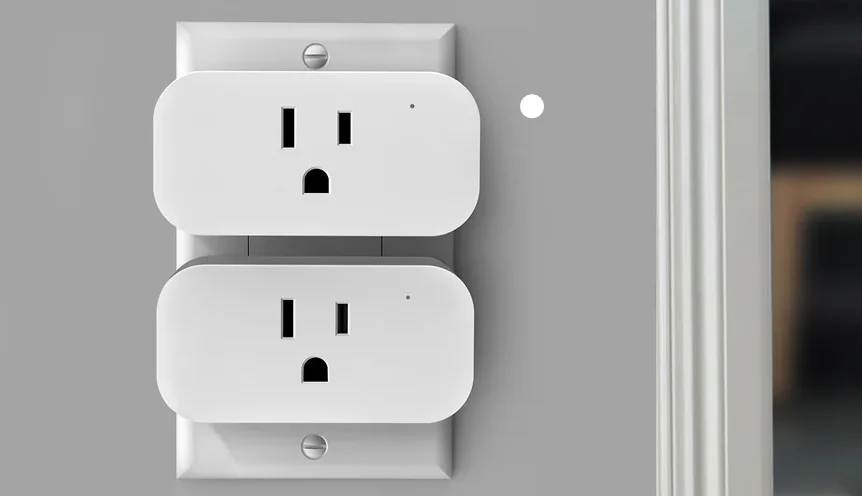

Treatlife SK50H Smart Mini Plug
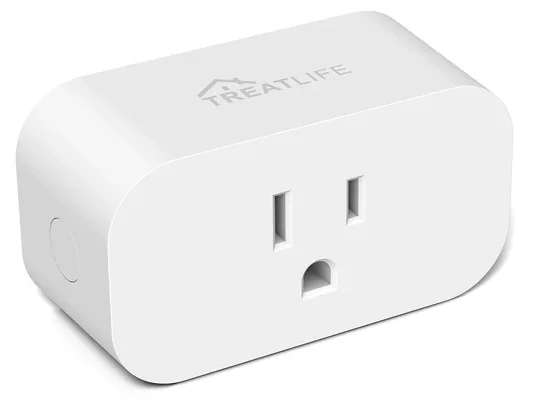
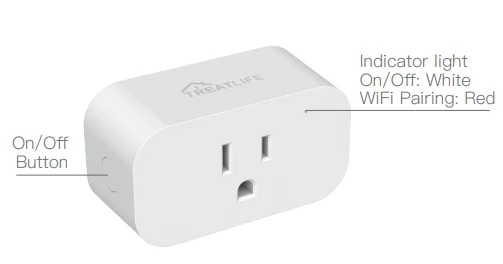
Instruction
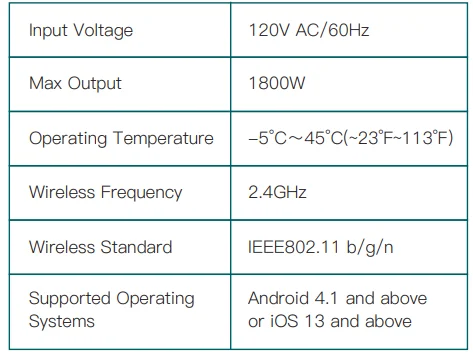
Specifications
Download the TreatLife APP
- Register or Log In
- Scan the QR code to download the “TreatLife” application. Tap “Register” to create an account. Enter your phone number to get a verification code and create a password. Or, choose “Log in” if you already have a TreatLife account.
- Configure the APP to the Plug
- Preparation: Ensure the plug is connected to power; Ensure your phone is connected to your WiFi router and is able to connect to the internet.
Note: This plug only supports 2.4GHz networks. If you are connected to a 5GHz network, please switch to the 2.4GHz Network.
Plug Pairing
3.1 Apple IOS system pairing method
Press and hold the mechanical on/off button for 5 seconds until the red indicator light blinks.
- Click on “Profile.”
- Tap “HomeKit Information.”
- Tap “Add HomeKit Device” (Make sure the red LED indicator is flashing)
- Scan the QR code
3.2 Android system pairing method
Press and hold the mechanical on/off button for 5 seconds until the red indicator light blinks. Note: Controlling this HomeKit-enabled accessory automatically and away from home requires an Apple TV, an iPad, or a HomePod set up as a home hub. The latest iOS version is recommended.
- Tap “AP Mode” on the top right corner.
- Tap “Confirm indicator slowly blink”.
- Enter your Wi-Fi password.
- Open WLAN settings; The Wi-Fi settings on your phone, and connect to the “TreatLife-XXX” network.
- Go back to the APP and continue to add the device, then wait for the connection to complete.
Link TreatLife to Alexa / Google Assistant
Go to TreatLife >  >More for instructions to link Alexa/Google Assistant.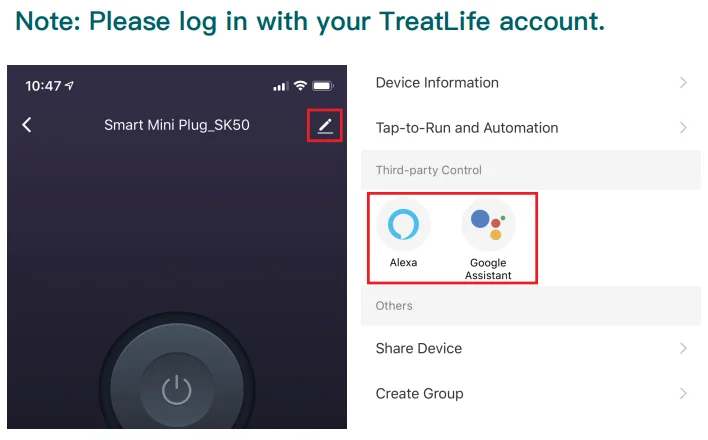
Key Steps to Link the Alexa Skill
- Click the Alexa icon, sign in to your Amazon account, and open the “Alexa Skills” link from the “Echo & Alexa” menu.
- Search for the “Smart Life”, and tap “Enable”.
- Enter your “TreatLife” APP Account and Password, then tap “Link Now” to enable the Skill.
APP Setting
- Resume Power State: Configure the device to resume its last power state (on or off) when power is restored to the device.
Troubleshooting
Can’t connect to the APP.
- Make sure the red indicator light is blinking when you are attempting to connect to the APP. Default Mode Pairing: Red Indicator light Blinking Rapidly.
- If your router is 2.4GHz & 5GHz dual-band, the 2.4GHz band may not be turned on. Please configure the router settings to turn on the 2.4GHz band. Make sure you entered the correct Wi-Fi password.
Can’t connect to the Alexa/Google assistant.
- Check whether the Alexa / Google Assistant APP is correctly configured with the TreatLife APP account.
- Check whether the device name is duplicated.
- The device name of the TreatLife APP must be the same as the device name in the Alexa / Google APP.
- Please refer to the manual instruction or “Me-FAQ & Feedback-All-Third-party control issues” in the APP to reconnect to the Alexa / Google Assistant.
Plug stops working after previously working.
- Remove the plug from the outlet and reinsert it. Also, try moving the plug to a different outlet that is closer to your wireless router.
- If the plug still doesn’t work, please contact our support team.
The timing function does not work properly.
- Check whether the device is offline. The device can’t perform the timing function when offline.
- Remove the plug from the APP, then reset the plug and re-pair with the APP.
- Check whether there are any conflicts in the settings, such as Schedule / Countdown / Circulate / Random / Inching.
- You can also check “Me-> FAQ & Feedback” information in the APP.
FCC Caution:
This device complies with part 15 of the FCC Rules. Operation is subject to the following two conditions:
- This device may not cause harmful interference, and
- This device must accept any interference received, including interference that may cause undesired operation. Any Changes or modifications not expressly approved by the party responsible for compliance could void the user’s authority to operate the equipment.
Note: This equipment has been tested and found to comply with the limits for a Class B digital device, pursuant to part 15 of the FCC Rules. These limits are designed to provide reasonable protection against harmful interference in a residential installation. This equipment generates uses and can radiate radio frequency energy and, if not installed and used in accordance with the instructions, may cause harmful interference to radio communications.
However, there is no guarantee that interference will not occur in a particular installation. If this equipment does cause harmful interference to radio or television reception, which can be determined by turning the equipment off and on, the user is encouraged to try to correct the interference by one or more of the following measures:
- Reorient or relocate the receiving antenna.
- Increase the separation between the equipment and receiver.
- Connect the equipment into an outlet on a circuit different from that to which the receiver is connected.
- Consult the dealer or an experienced radio/TV technician for help.
This equipment complies with FCC radiation exposure limits set forth for an uncontrolled environment. This equipment should be installed and operated with a minimum distance of 20cm between the radiator & your body.
ISEDC Warning:
This device complies with Innovation, Science, and Economic Development Canada’s licence-exempt RSS standard(s). Operation is subject to the following two conditions:
- This device may not cause interference, and
- This device must accept any interference, including interference that may cause undesired operation of the device.
Need Help?
[email protected]
Tech Support: www.treatlife.tech/pages/support
For More Manuals By Treatlife, Visit ManualsLibraryy.
Treatlife SK50H Smart Mini Plug-FAQs
What is the Treatlife SK50H Smart Mini Plug, and how does it work?
The Treatlife SK50H Smart Mini Plug is a compact WiFi-enabled outlet that allows you to control connected appliances remotely using a smartphone app. Once plugged into a standard socket and paired with the Treatlife app, it enables on/off control, scheduling, and automation. It connects directly to your home WiFi network, making it easy to integrate into a smart home setup without additional hardware.
Does the Treatlife SK50H require a hub to operate?
No, the SK50H is a WiFi-based smart plug and does not require a hub. It connects directly to a 2.4GHz WiFi network and communicates with the Treatlife or Smart Life app. This makes it simpler to set up compared to Zigbee devices, which need a hub, though it may rely more heavily on WiFi stability.
What devices can you control with the SK50H smart plug?
You can control a wide range of household appliances such as lamps, fans, coffee makers, and TVs. The plug supports devices up to around 1800W, making it suitable for most standard electronics. However, it is not recommended for heavy-duty appliances exceeding their rated capacity or devices with specialized power requirements.
Does the Treatlife SK50H support voice assistants?
Yes, the SK50H works with popular voice assistants like Amazon Alexa and Google Assistant. Once linked through the app, you can control your devices using simple voice commands, such as turning appliances on or off without needing to use your phone.
Can you schedule devices with the Treatlife SK50H?
Yes, the smart plug allows you to create schedules and timers through the app. You can automate devices to turn on or off at specific times, such as switching on lights in the evening or turning off appliances when you leave home. This feature adds both convenience and energy efficiency to your daily routine.
What is “Away Mode” on the Treatlife smart plug?
Away Mode is a feature that randomly turns connected devices on and off to simulate occupancy when you are not home. This can help improve home security by making it appear as if someone is present, reducing the likelihood of break-ins during vacations or long absences.
How easy is it to set up the SK50H smart plug?
Setup is straightforward and typically takes only a few minutes. You plug the device into an outlet, connect it to a 2.4GHz WiFi network, and follow the pairing steps in the app. The process may involve holding the power button to enter pairing mode, after which the app guides you through the rest.
Does the Treatlife SK50H support energy monitoring?
The standard SK50H model does not typically include detailed energy monitoring features. Its primary focus is remote control and automation. Some users may expect power usage tracking, but this feature is usually limited to specific smart plug models with dedicated energy monitoring capabilities.
What are common issues with the Treatlife SK50H?
A common issue is connectivity, especially if the device is not connected to a 2.4GHz WiFi network. Incorrect WiFi settings, weak signal strength, or using a 5GHz network can cause pairing or performance problems. Ensuring proper setup and stable WiFi usually resolves most issues.
Is the Treatlife SK50H Smart Mini Plug worth buying?
The SK50H is a solid choice for users looking for an affordable and easy-to-use smart plug. It offers useful features like scheduling, voice control, and remote access without needing a hub. While it may lack advanced features like energy monitoring, it delivers good value for basic smart home automation needs.