

Reolink PoE Camera
Camera Introduction
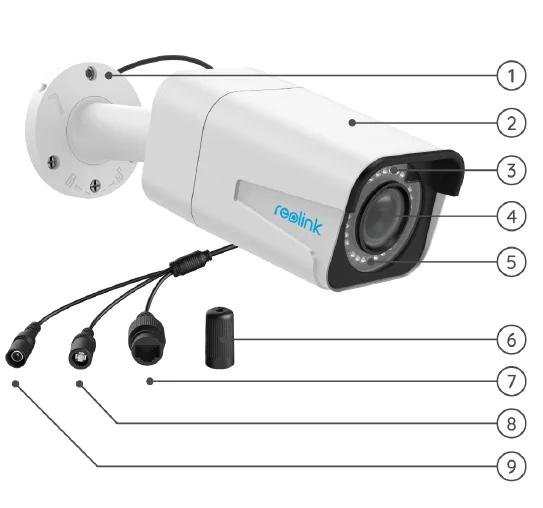
Device Overview
RLC-510A/RLC-410/B400
- RLC-510A: Boasting a high resolution of 2560×1920 with nearly 5 million pixels, RLC-510A security IP camera can capture crystal clear video with fine details. With the built-in microphone, it also picks up ambient sound for an extra layer of security.
- RLC-410: 5MP RLC-410 has a pixel resolution of 2560×1920, that is, nearly 2.4X the resolution of 1080p Full HD, and even 1.3X the resolution of 1440p. It sees your home security more clearly, with more details.
- B400: 4MP B400 with 2560×1440 high resolution to capture beautiful and smooth 4-megapixel live video streaming and video clips, compared to 720p and 1080p cameras.
No details will be missed!
Note: B400 is an add-on camera, which cannot work independently. It works perfectly when connected to Reolink 8-channel NVR RLN8-410, 16-channel NVR RLN16-410, or in Reolink PoE surveillance systems.
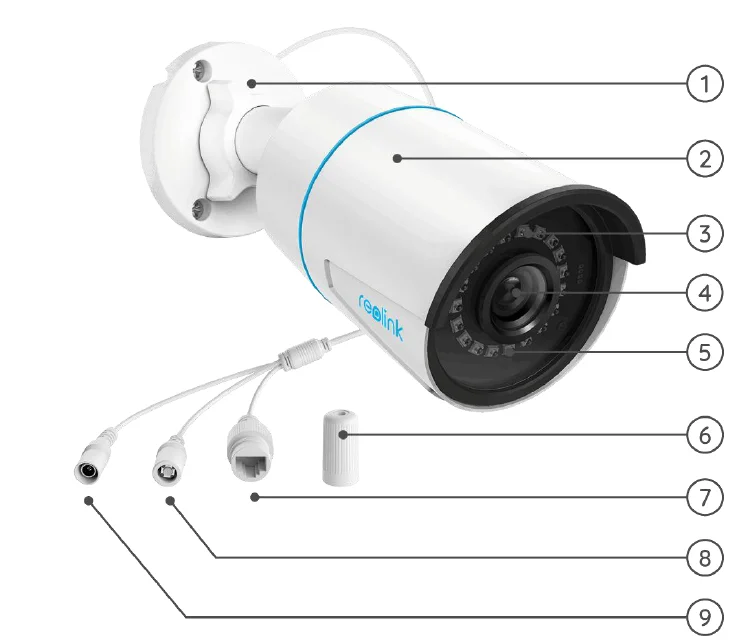
- Mount
- Metal Case
- Infrared Lights
- Lens
- Daylight Sensor
- Waterproof Lid
- Network Cable
- Reset Button
- Power Port
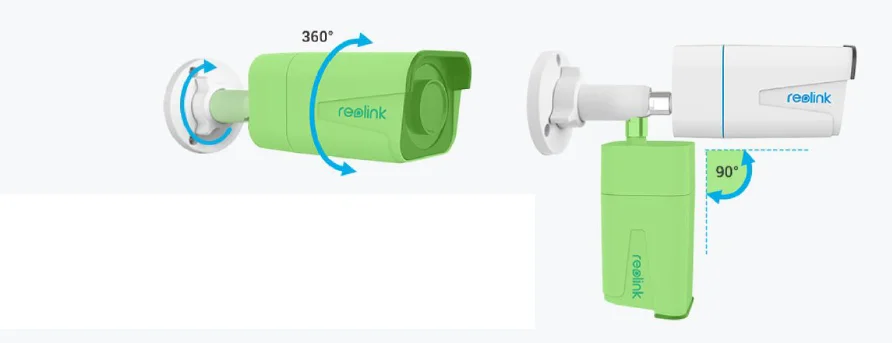
Loosen the mount, adjust the cam in any direction, and twist it back to fix the camera.
RLC-520A/RLC-520/RLC-522/RLC-820A/RLC-822A/RLC-1220A/D800
- RLC-520A/RLC-520/RLC-522: Boasting a high resolution of 2560×1920 with nearly 5 million pixels, the security IP camera can capture crystal clear video with epic details. With the built-in microphone, it also picks up ambient sound for an extra layer of security.
- RLC-820A/RLC-822A: Equipped with on-device detection technology to discern people and vehicles from other objects. With its accurate detection, you can keep a sharper eye on the true threats and release your mind from the bombardment of unnecessary notifications.
- RLC-1220A: RLC-1220A brings with it the marvelous video quality of 12MP resolution, which is a leap forward from 8MP: more details, more colors, and immersive clarity. Never miss the hard-to-see details and more. Zoom in, and you will discover more.
- B800: This 4K 8MP IP camera B800 boasts the pixel resolution of 3840×2160, delivering the highest level of imagery like never before. More than just capturing the images, it mirrors the reality.
Notes:
- RLC-520/RLC-820A/RLC-822A/RLC-1220A/D800: f=4.0mm Lens
- RLC-522: f=2.7mm-12mm Lens
D800 is the same as B400, an add-on camera.
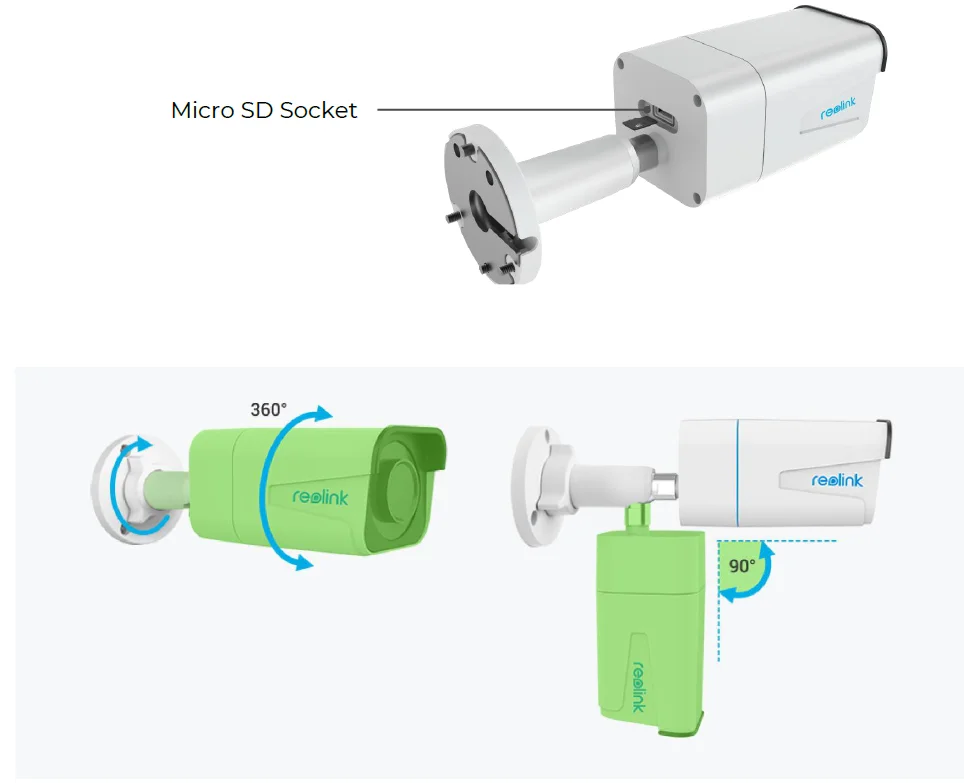
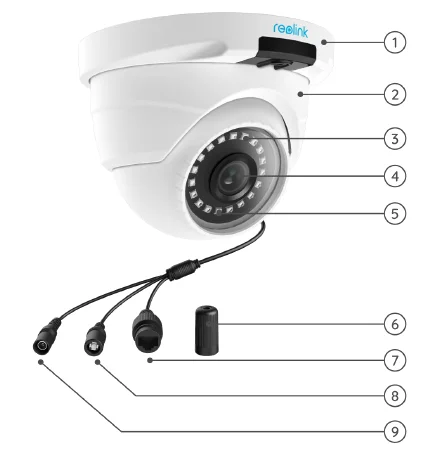
- Mount
- Metal Case
- Lens
- Infrared Lights
- Daylight Sensor
- Built-in Mic
- Waterproof Lid
- Power Port
- Reset Button
- Network Cable
- Micro SD Socket
Rotate the lens, and the micro SD card socket is on the bottom of the lens. RLC-511/RLC-810A/RLC-811A/RLC-1210A/B800
- RLC-511: The higher the camera resolution is, the more image details you’ll obtain. RLC-511 PoE security IP camera prides in the high resolution of 2560×1920, which is about 2.4X the resolution of 1080p, and even 1.3X the resolution of 1440p Super HD. It ensures true-color images with vivid details.
- RLC-810A/RLC-811A: Unites security and intelligence. The security camera can not only capture its vision sharply, but also understand what it sees. This camera notifies you of the true threats and frees you from other trifles.
- RLC-1210A/RLC-1220A: 12MP Ultra HD PoE Camera with Person/Vehicle Detection.
Notes:
- RLC-511: f=2.7-12mm Lens
- RLC-810A/RLC-1210A/B800: f=4.00mm Lens
- RLC-811A: f=2.7-13.5mm Lens
- RLC-811A has 5 spotlights.
B800 is the same as B400, an add-on camera.
- Mount
- Metal Case
- Infrared Lights
- Lens
- Daylight Sensor
- Waterproof Lid
- Network Cable
- Reset Button
- Power Port
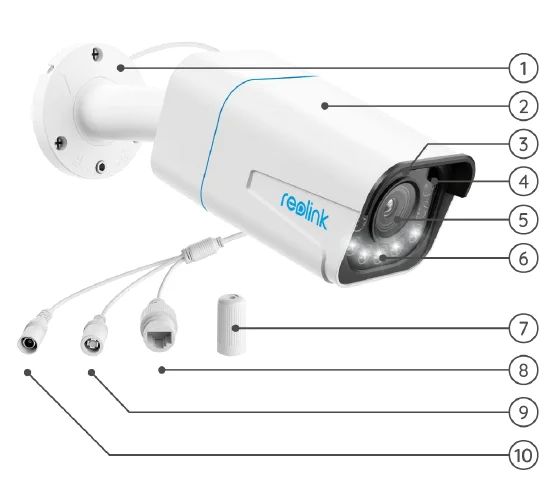
- Mount
- Metal Case
- Daylight Sensor
- Infrared Lights
- High Definition Lens
- Spotlight
- Waterproof Lid
- Network Cable
- Reset Button
- Power Port
RLC-423
5MP RLC-423 is with a pixel resolution of 2560×1920, that is, 2.4X the resolution of 1080p Full HD, and even 1.3X the resolution of 1440p Super HD. You will definitely have the best chance to see every image detail as you wish.
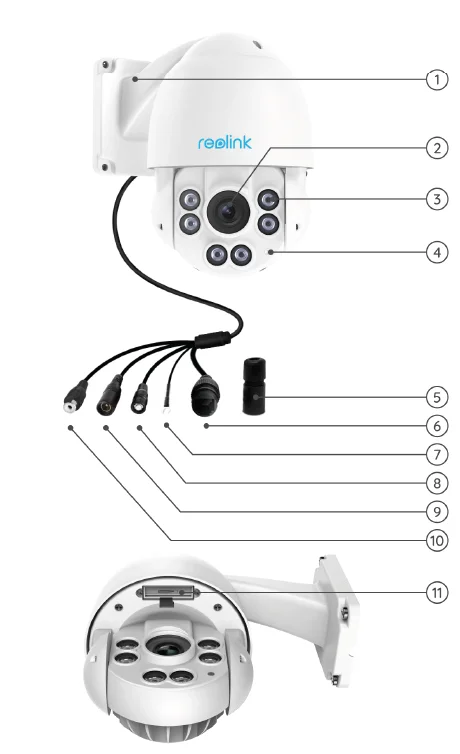
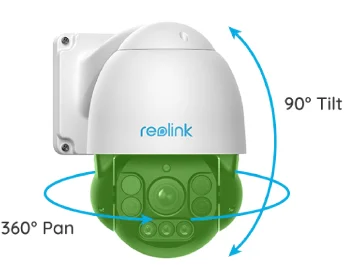
- Mount
- Lens
- Infrared Lights
- Daylight Sensor
- Waterproof Lid
- Network Cable
- Earth Wire
- Reset Button
- Power Port
- Audio in
- SD Card Slot
RLC-823A
RLC-823A is smart enough to distinguish a person and a vehicle from other objects. It frees your mind by offering accurate detection and greatly reducing the false alarms on trivial objects’ movements.
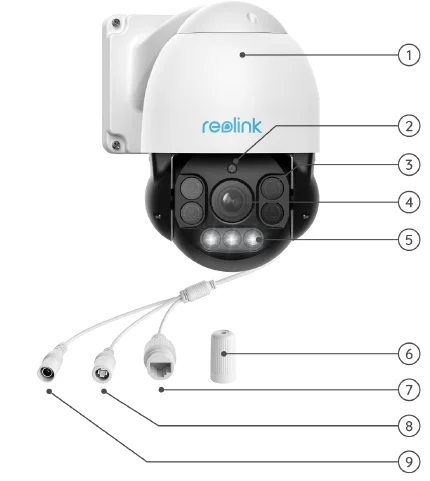
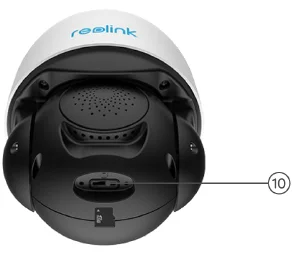
- Mount
- Daylight Sensor
- Infrared Lights
- Lens
- Spotlight
- Waterproof Lid
- Network Cable
- Reset Button
- Power Port
- SD Card Slot
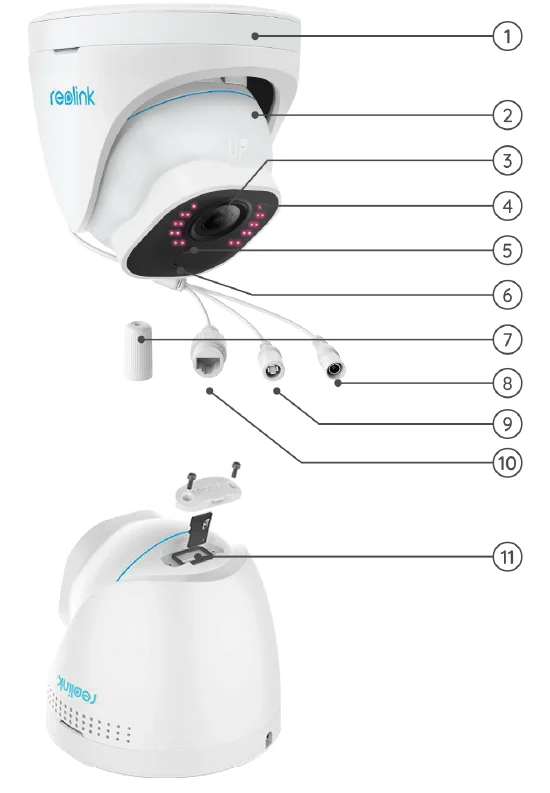
D400
With 2560×1440 high resolution, this top-notch PoE security camera can capture beautiful and smooth 4-megapixel live video streaming and video clips than 720p and 1080p cameras. It helps to see more clearly, and no details will be missed!
Note: D400 is the same as B400, an add-on camera.
- Mount
- Metal Case
- Infrared Lights
- Lens
- Daylight Sensor
- Waterproof Lid
- Network Cable
- Reset Button
- Power Port
Setup and Installation
Power on PoE Cameras
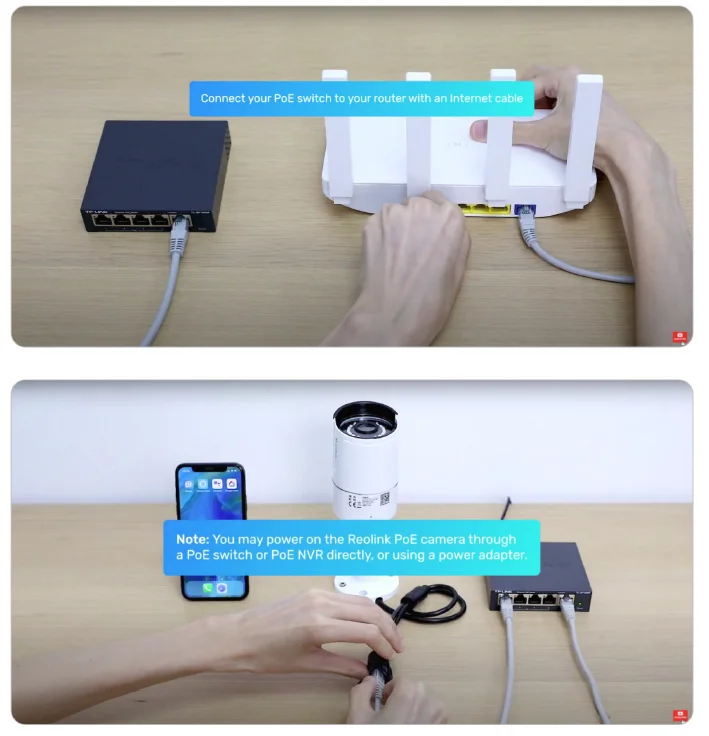
You may power on Reolink PoE cameras via PoE injector/switch or PoE NVR directly, or by using the power adapter.
Method 1: Power via PoE Injector/Switch
For Reolink RLC-423, you need to make sure that the PoE injector/switch is 802.3at compliant (48V) and supports active mode. For other Reolink PoE cameras, please make sure that the PoE injector/switch is 802.3af compliant (48V) and supports active mode.
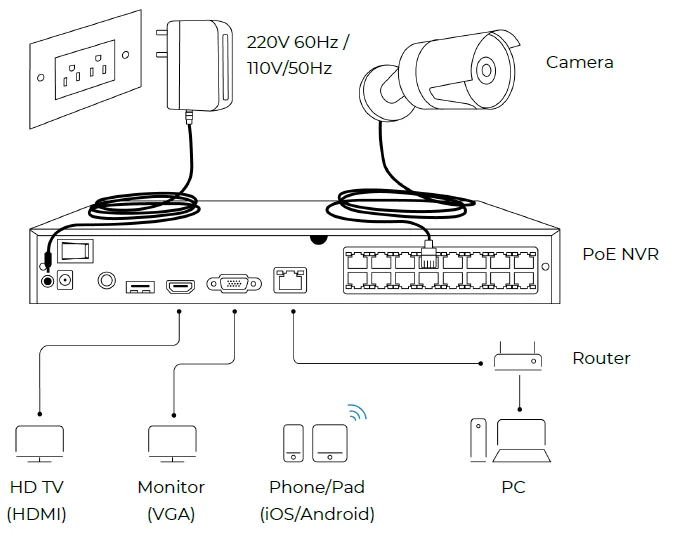
Method 2: Powered by PoE NVR
Connect your PoE camera to the PoE NVR with a single network cable, and then the PoE camera will get power via the PoE NVR.
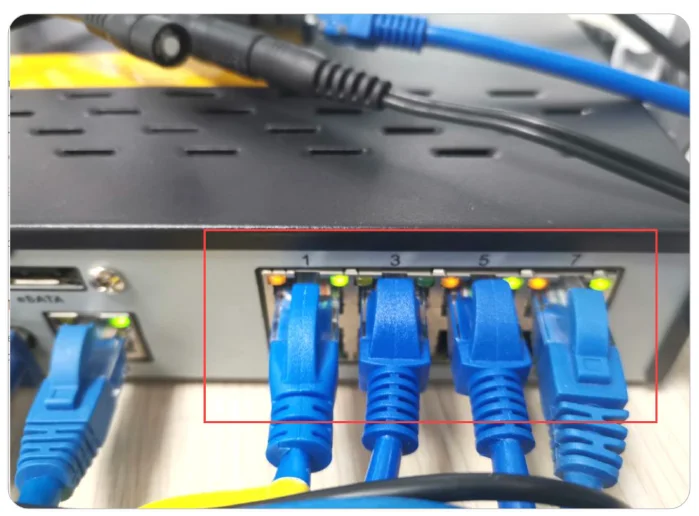
Method 3: Power by Using the Power Adapter
Alternatively, you can power on the camera in another way – by using a power adapter. For Reolink RLC-423, the ratings of the power adapter should be DC 12V 2A. For other Reolink PoE camera models, the ratings of the power adapter should be DC 12V 2/1A.
Notes:
- Do not purchase passive PoE injectors as they won’t work with Reolink PoE cameras.
- It’s better to use high-quality PoE injectors/switches.
- We recommend that you purchase the Ethernet cable with Cat5 or above.
- Please install the waterproof lid at the junction of the Ethernet cable and the camera to protect the junction from water.
- Please note that the optimum distance between the camera and the PoE switch/Reolink NVR is 300 feet.
Set up PoE Cameras on the App
Please power on your camera properly before the initial setup, and refer to the steps below.
- Step 1. If you’ve opened the Add Device Automatically option in the Settings page, you can click this device in the Devices page and go directly to step 2. If you don’t enable that option, you can click + on the upper right corner, scan the QR code with the camera to add this device.
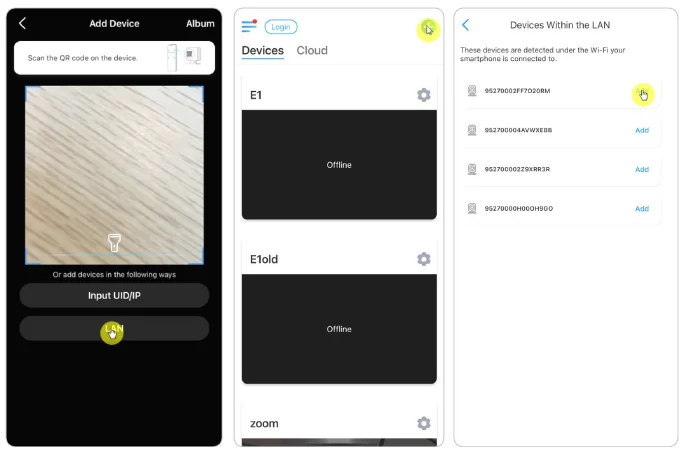
- Step 2. Create the password, name the device, and then start live view.
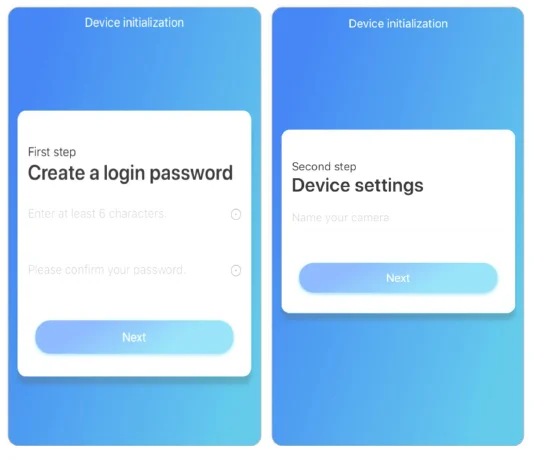
Note:
There are four ways to set up the camera on the Reolink App: scan the QR code on the camera, scan the device in the LAN, enter the UID, or enter the IP address. For the other three ways, please refer to this video.
Install the Camera
Install Dome Cameras
RLC-520A/RLC-520/RLC-522/RLC-820A/RLC-822A/RLC-1220A/D800
- Step 1. Use the mounting hole template to drill mounting holes in the ceiling, and plant the rubber anchors into the mounting holes.
- Step 2. Screw the base panel to the mounting holes on the ceiling or wall. It’s generally suggested to install dome cameras on the ceiling.
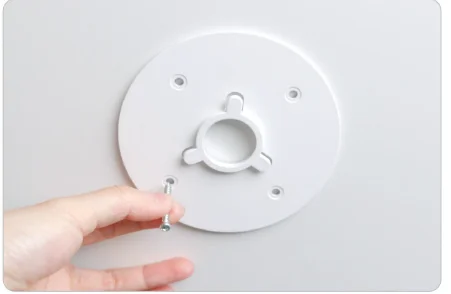
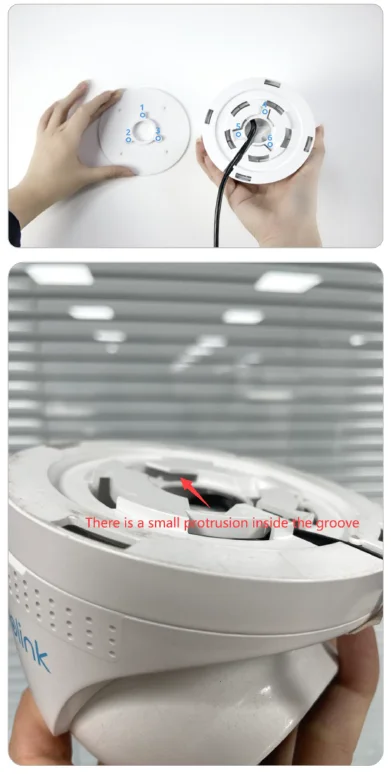
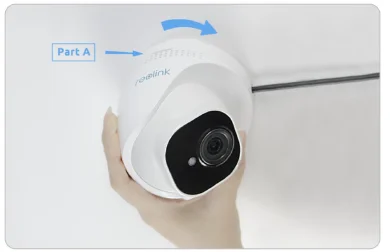
- Step 3. Fit the concave at the bottom of the camera (marked as 4, 5, 6 in the picture below) to the convex on the base panel (marked as 1, 2, 3 in the picture below), and then rotate the camera seating (marked as Part A) clockwise to lock the camera tightly with the base panel.
Note: To take down the camera, please rotate part A anti-clockwise.
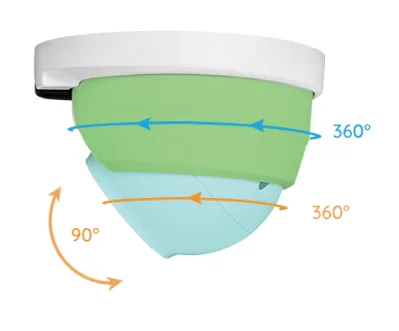
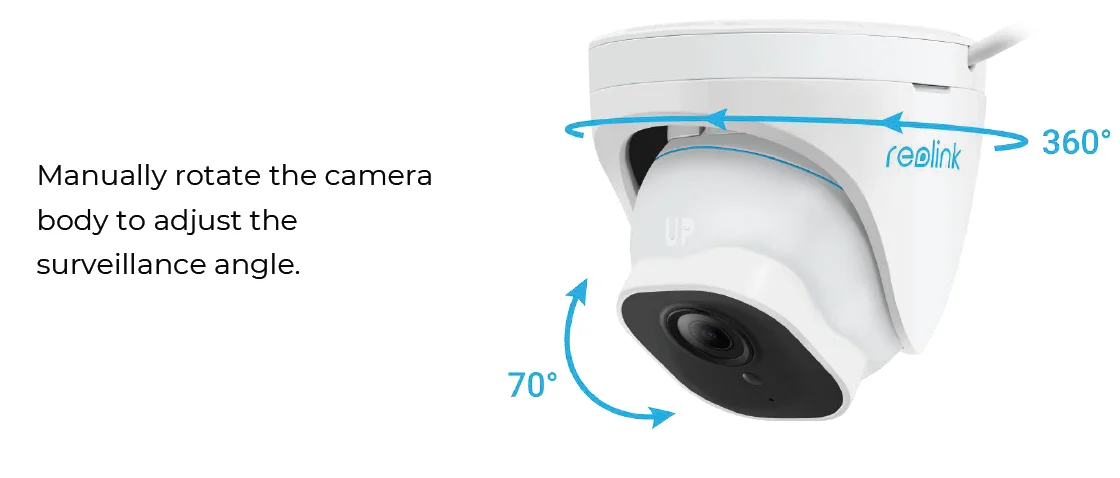
- Step 4. Once the camera is installed, you can adjust the angle up & down 70 degrees or 360 degrees horizontally.
Install Bullet Cameras
RLC-510A/RLC-410/B400/RLC-511/RLC-810A/RLC-811A/RLC-1210A/B800
Note: It is not recommended to install Reolink bullet cameras in the open air in this way.
You can follow these steps to install Reolink bullet cameras to the ceiling.
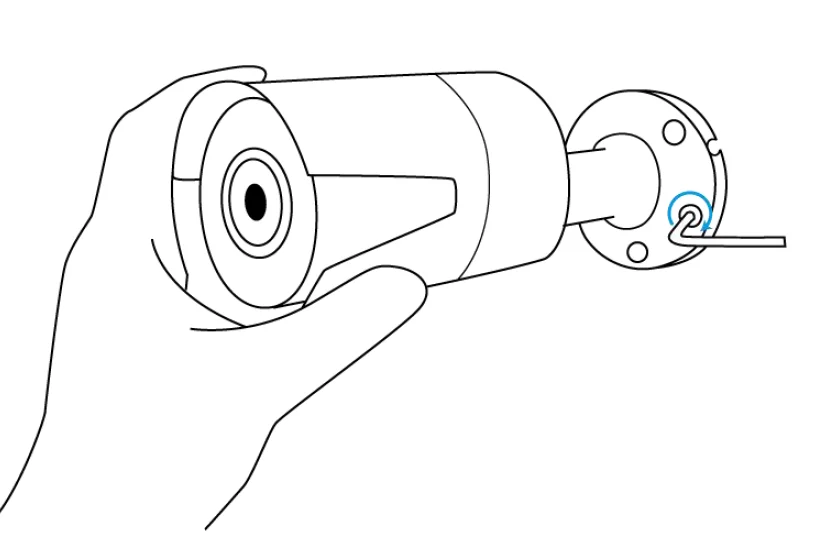
- Step 1. Take out the mounting wrench, adjust the camera to any angle you want.
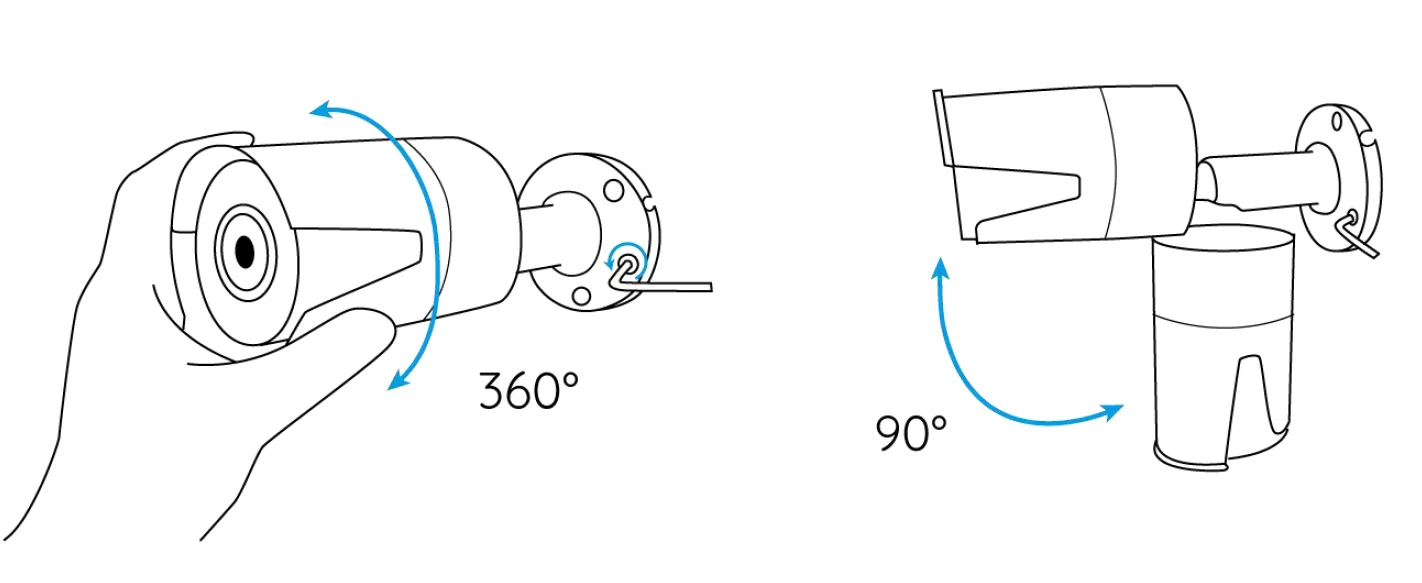
- Step 2. Tighten the screw toward the direction of the Lock symbol after you adjust the camera to a suitable angle.
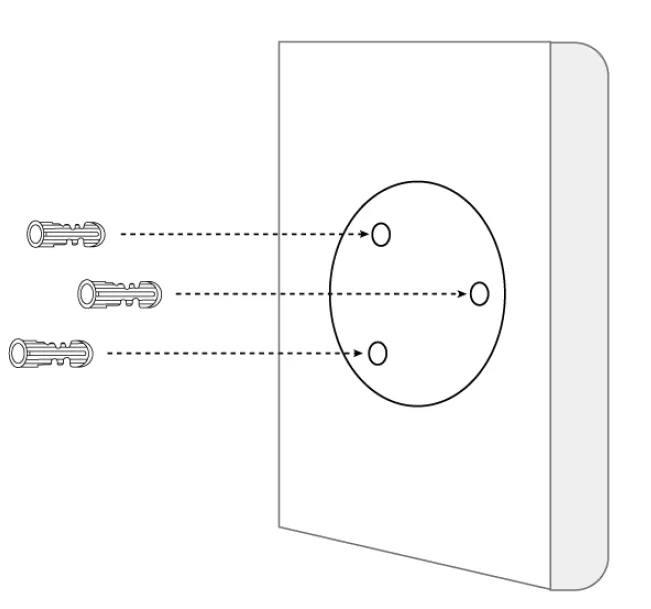
- Step 3. Drill three screw holes on the wall according to the mounting hole template.
- Step 4. Secure the camera in place by tightening the screws.
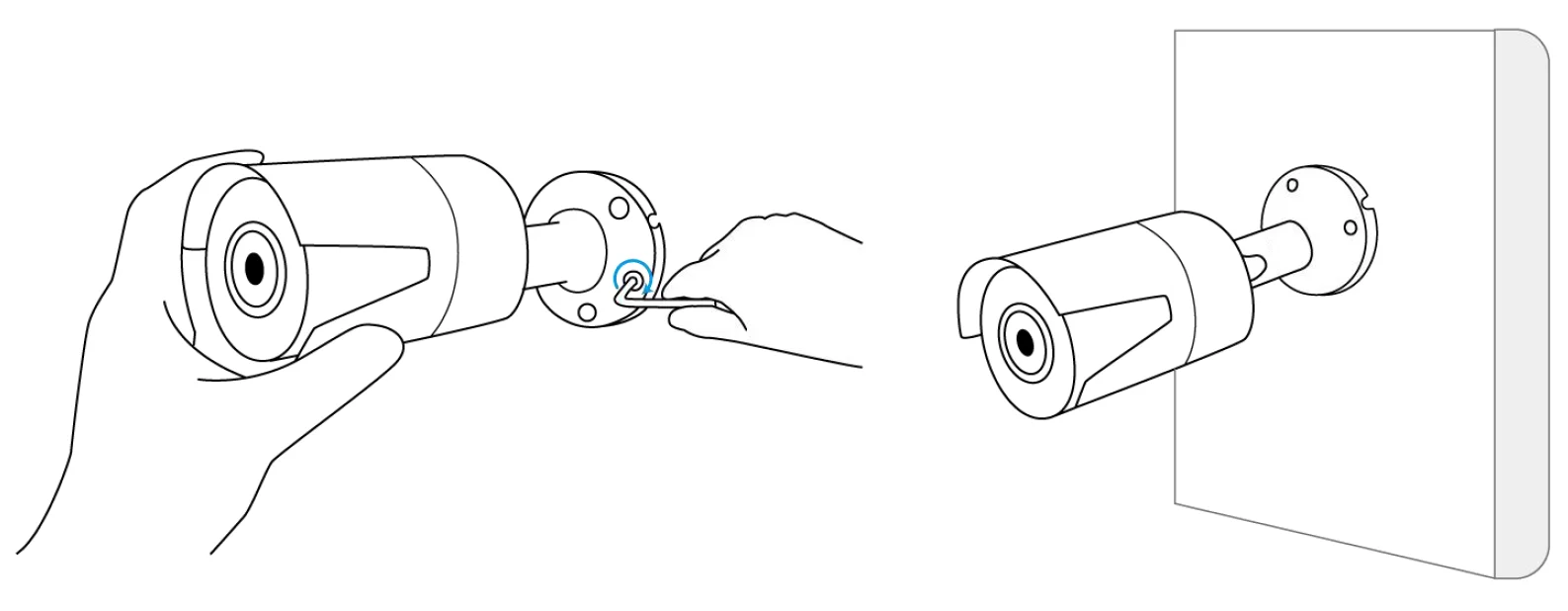
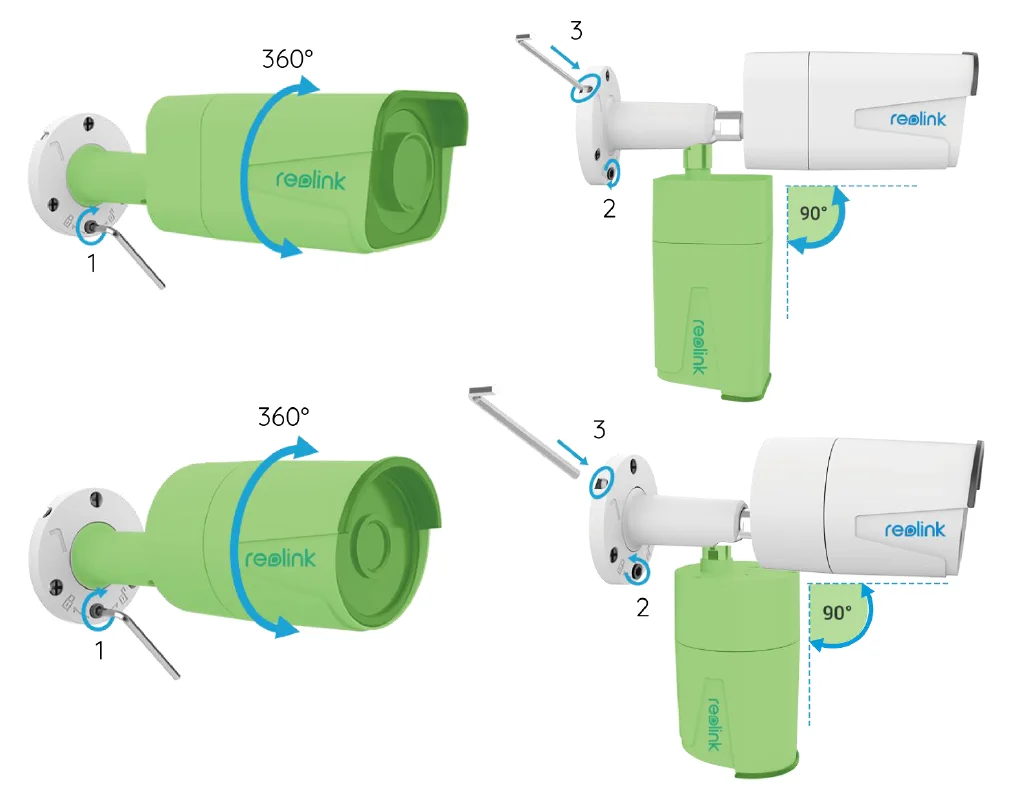
- Step 5. If you want to adjust the angle of this camera, you can loosen the screw toward the direction of the unlock symbol.
Notes:
- Twist it with the wrench to unlock, and adjust the cam (green part) in any direction.
- After adjustment, twist it back to lock it.
- Store the wrench here for later use.
Live View
Note: The live view screen may vary for different models.
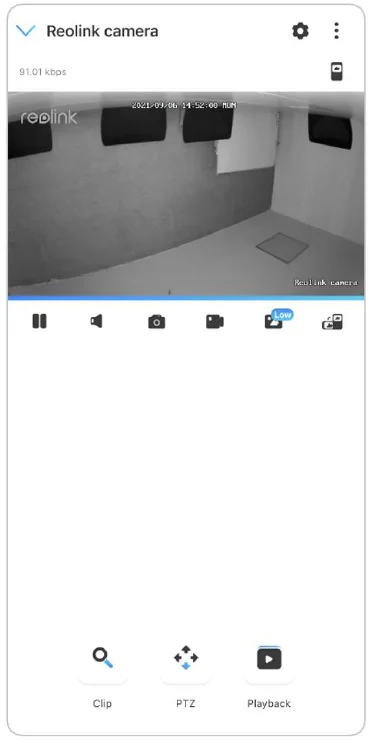
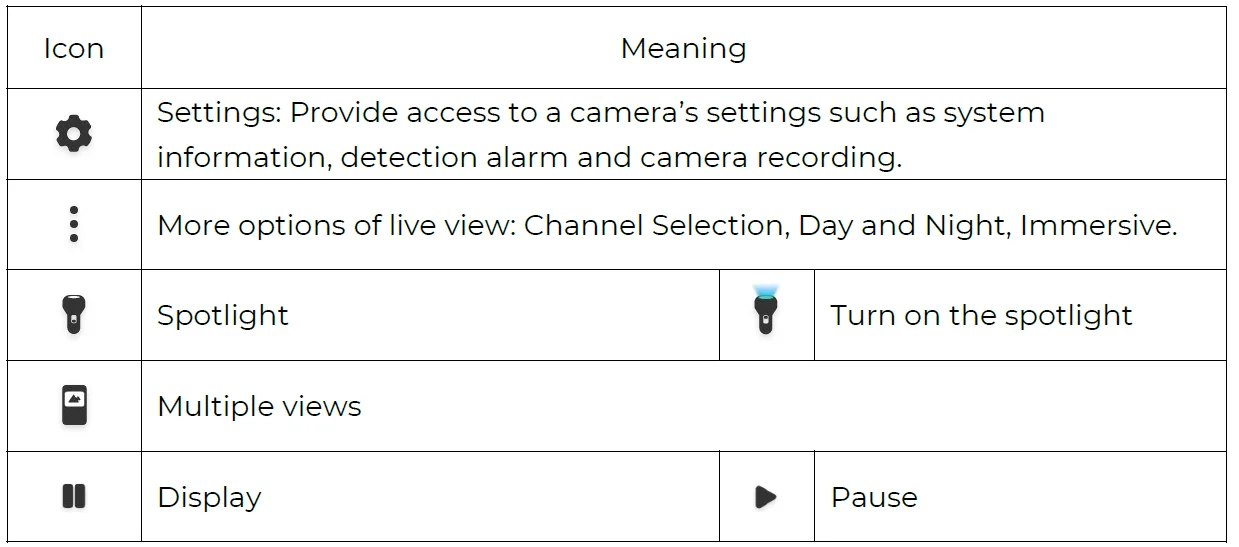
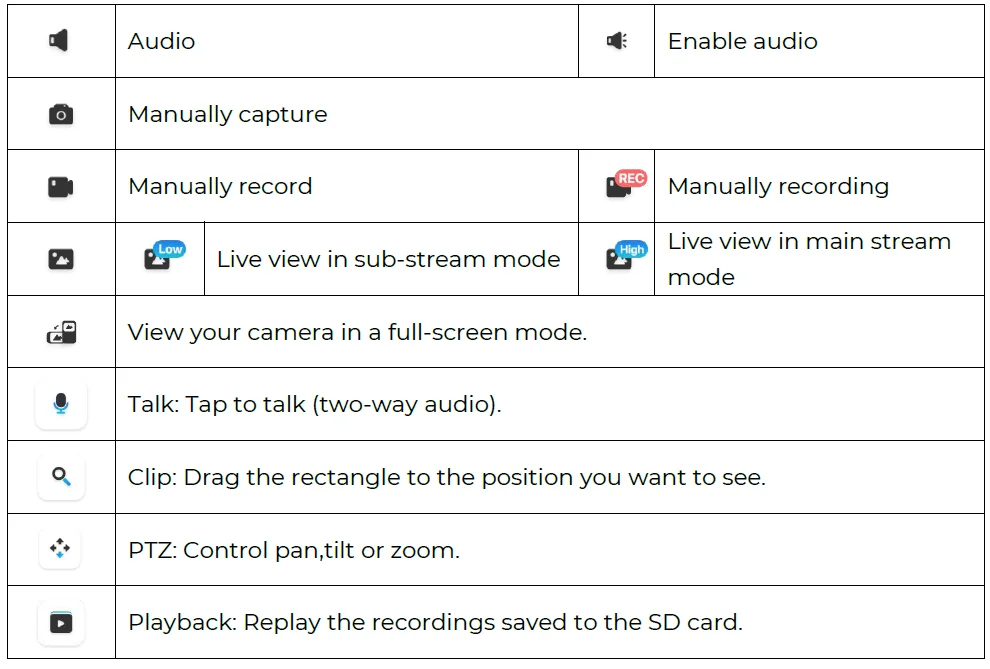
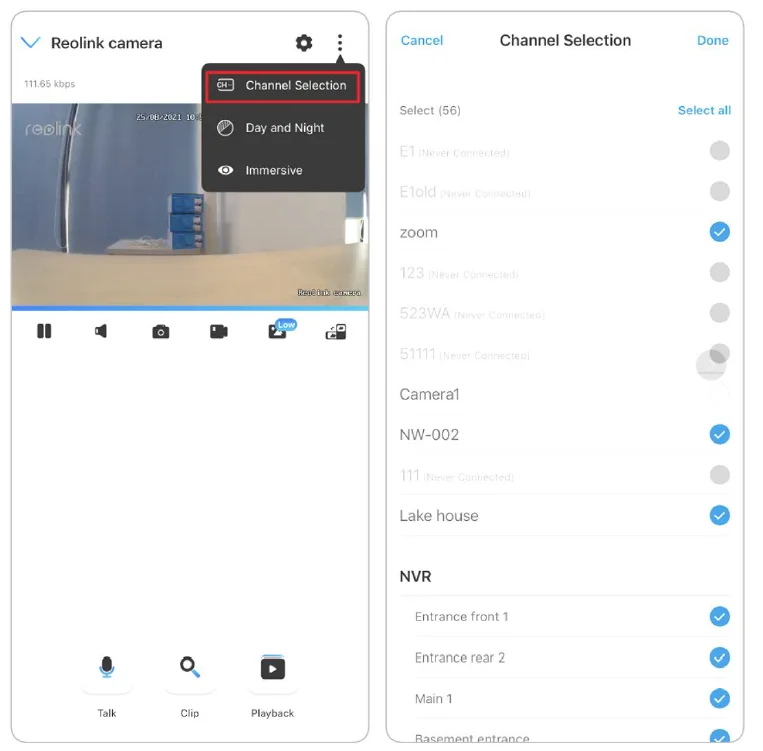
Channel Selection
You can choose the devices you want on the device list.
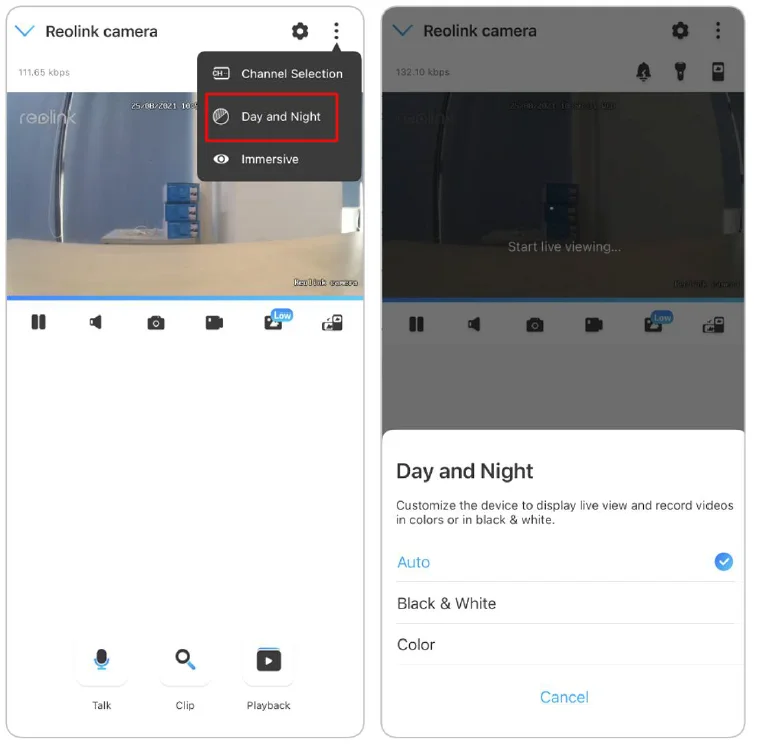
Day and Night
Set the camera’s color mode at different times of the day and night. Set the camera’s color mode at different times of the day and night.
- Color: The camera will capture color images that usually appear during the day.
- Black & White: The camera will capture black-and-white images that usually appear during the night with the IR LEDs on.
- Auto: The camera will automatically switch between Color and Black & White modes according to the light conditions.
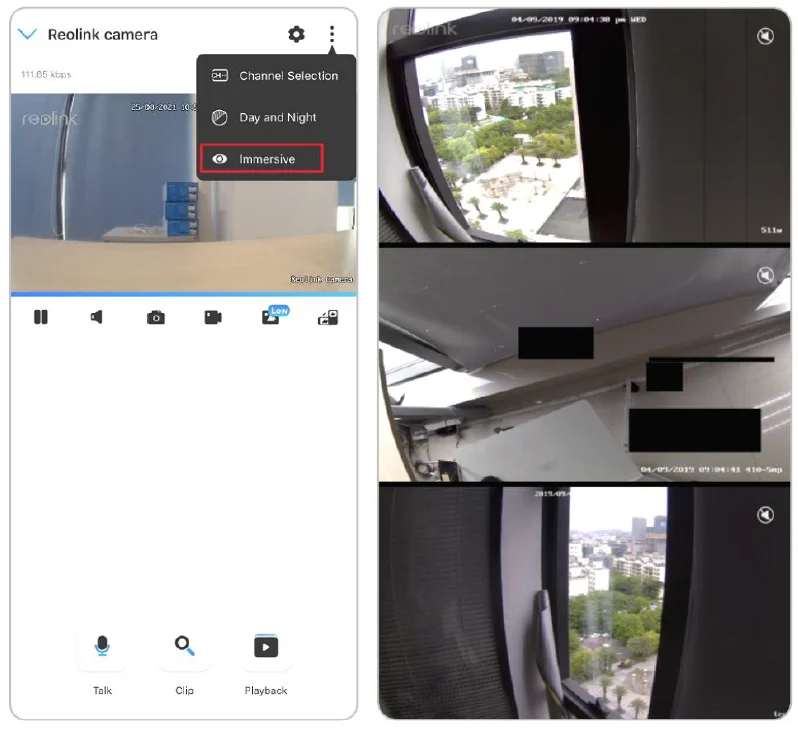
Immersive
The immersive mode has a larger viewing area with less interference and focuses on previewing. It is suitable for viewing 2 or 3 cameras on one screen.
Note: One screen can accommodate up to three cameras. You could slip the screen to preview other cameras.
Camera Settings
SD Card Storage
Choose a Proper SD Card
Please choose an SD card with specifications below so it can be compatible with the camera.
Install the Micro SD Card
Bullet Cameras
- Step 1. Find the micro SD card slot at the back of the camera and unscrew the screws to open it.
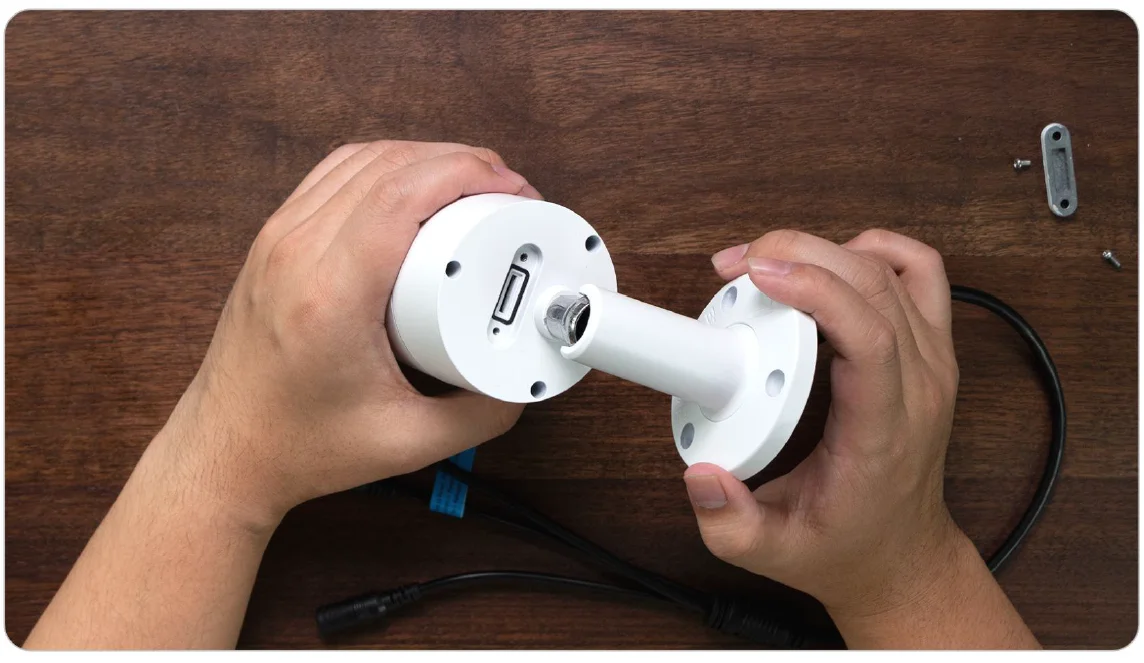
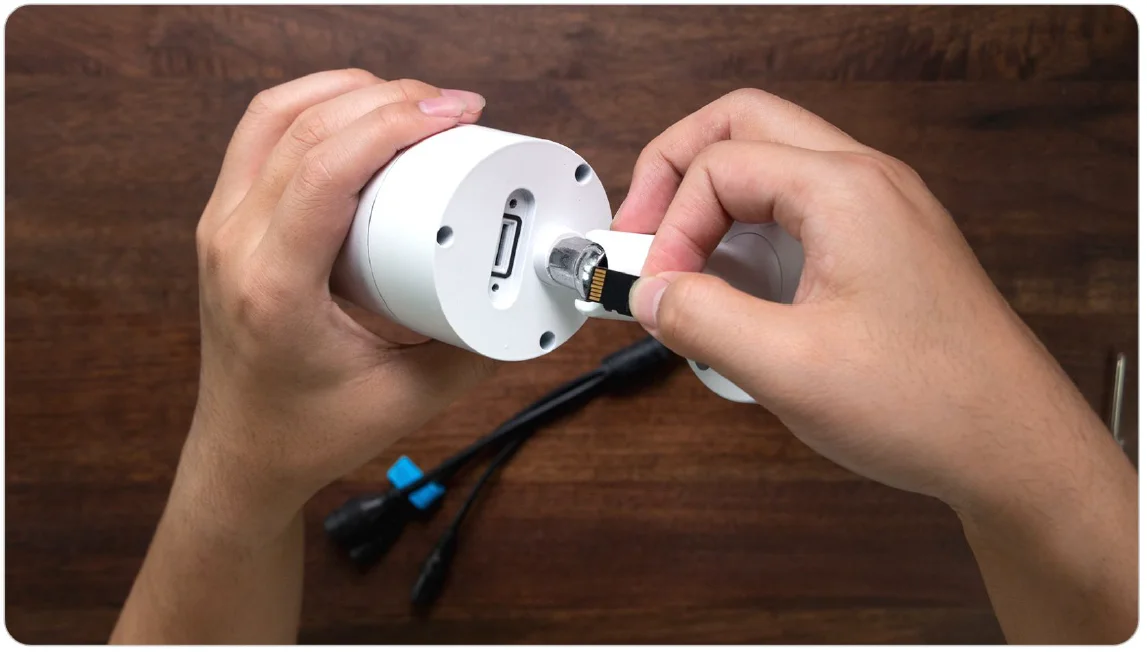
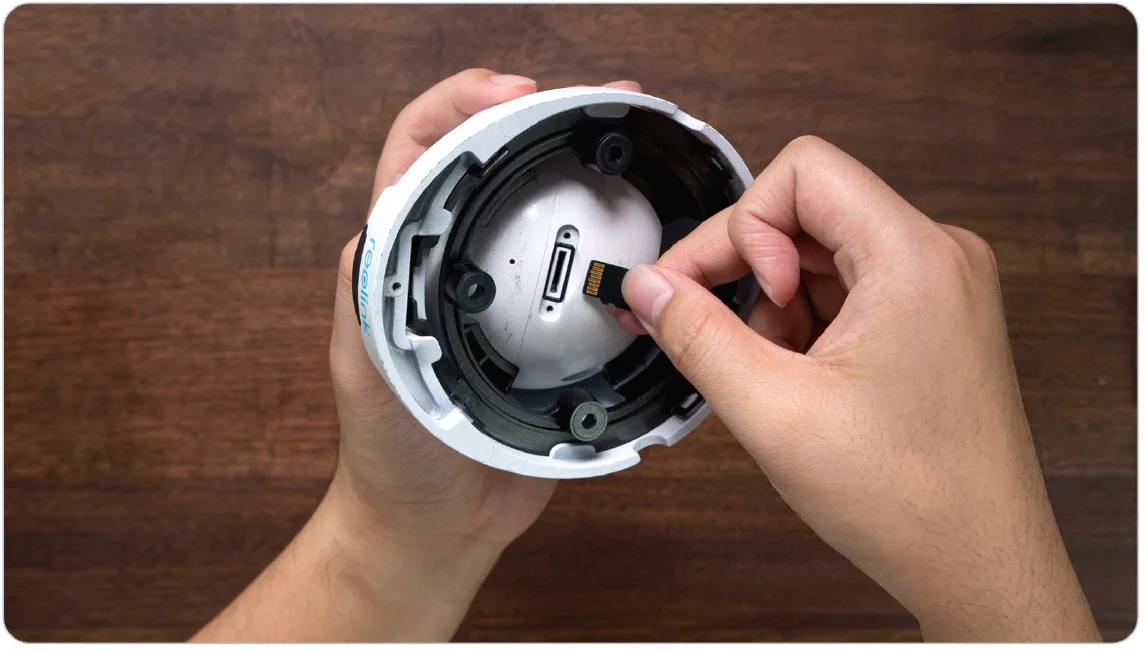
- Step 2. Insert the micro SD card just like the way in the picture below. Please use your fingernail (or use the provided reset needle) to push the micro SD card in until it is locked, and you will hear a click sound. The micro SD card will not pop out if it is inserted in properly.
- Step 3. Screw the screws to close the cover tightly.
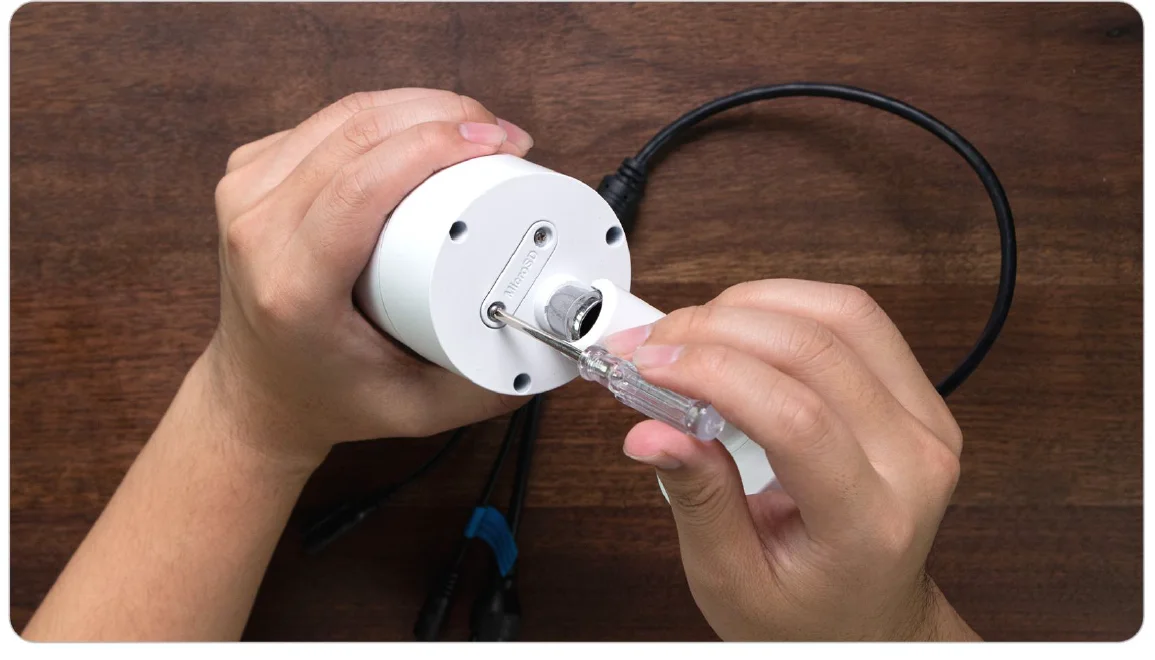
RLC-420/D400
- Step 1. Find the micro SD card slot at the top of the camera and unscrew the screws to open it.
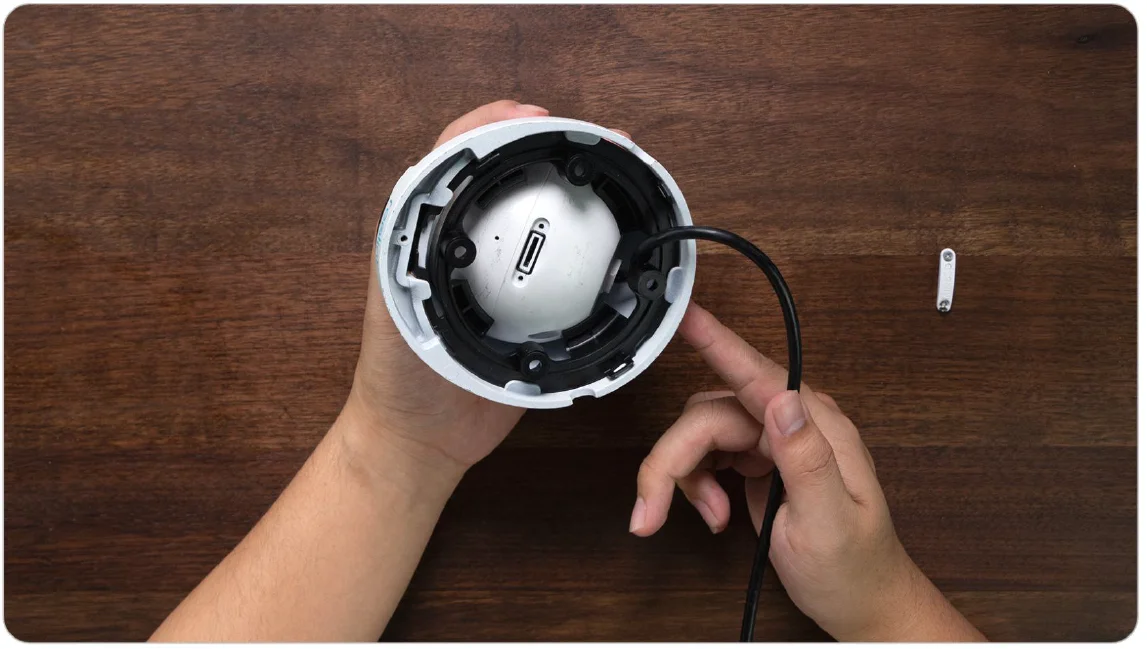
- Step 2. Insert the micro SD card just like the way in the picture below. Please use your fingernail (or use the provided reset needle) to push the micro SD card in until it is locked, and you will hear a click sound. The micro SD card will not pop out if it is inserted properly.
- Step 3. Screw the screws to close the cover tightly.
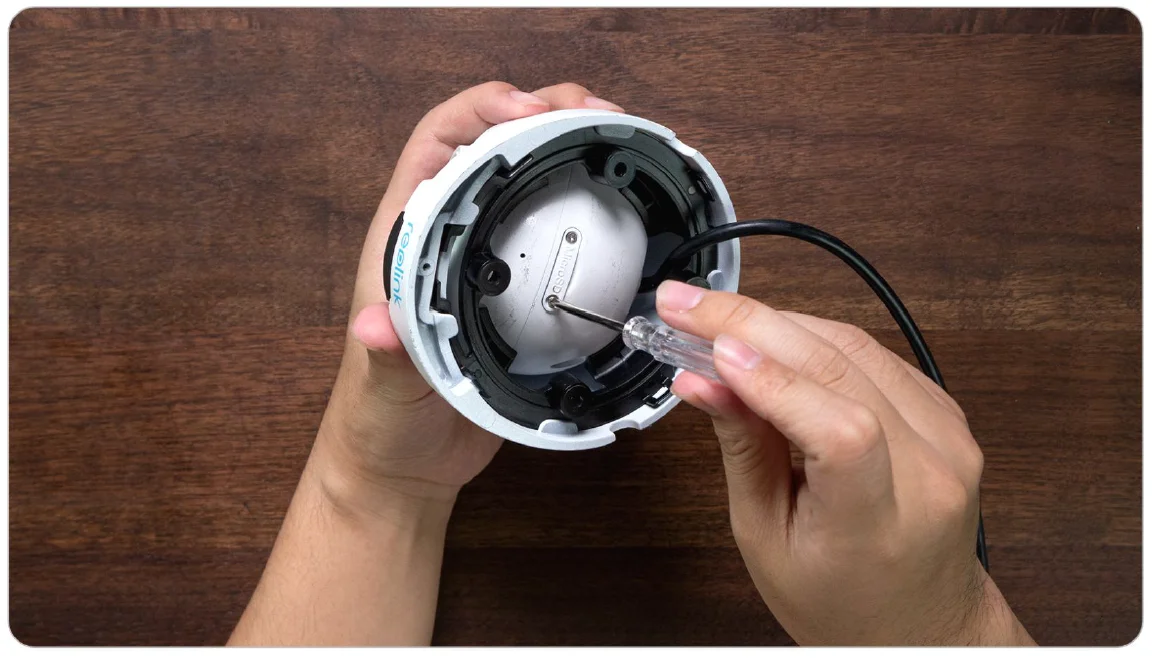
Note: Before installing/uninstalling the SD card, please power off the camera first, in case it damages the SD card.
Alarm and Detection
Set up Motion Detection
Reolink camera judges whether each macroblock has moved by dividing the grid. When the number of moved blocks reaches a certain proportion of the number of armed blocks, the alarm will start. The working principle of motion detection is that a camera will judge it as motion when differences in 2 frames reach 0.5%-10% (customizable by adjusting motion sensitivity) of the image. When the picture changes, the number calculated and compared will exceed the threshold and instruct the system to automatically make the corresponding process.
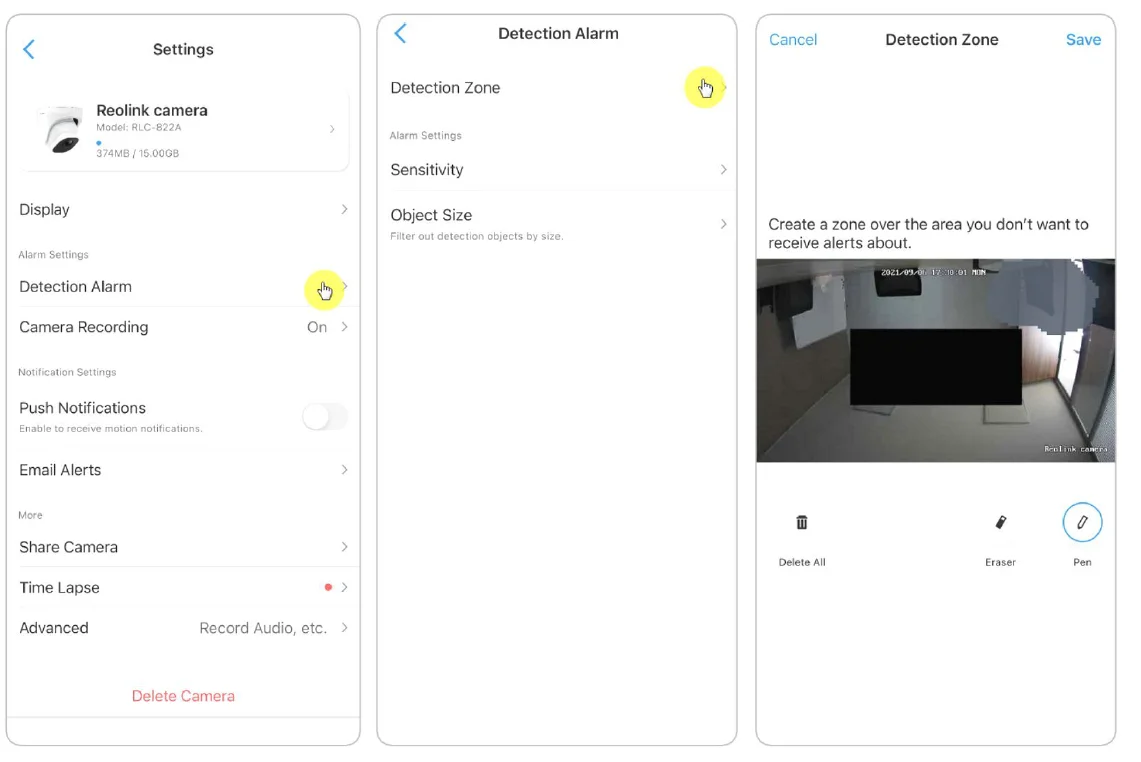
Detection Zone
Detection Alarm > Detection Zone > Create a zone over the area you don’t want to receive alerts about.
Sensitivity
Sensitivity can be set for motion detection and smart detection.
Note: Smart detection is only for PoE cameras that support the smart person and vehicle detection.
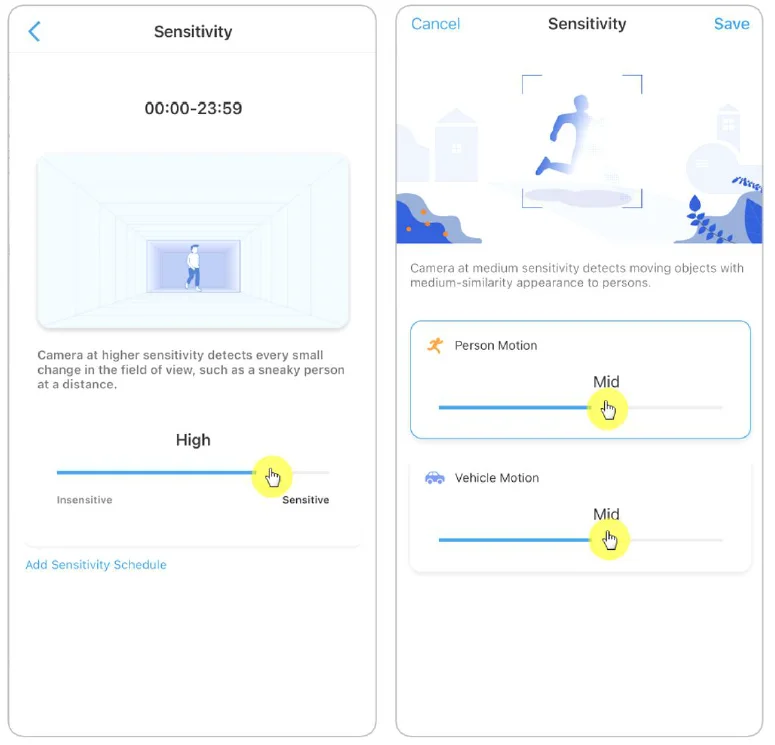
Drag the bar to adjust the sensitivity from low, mid, to high. For the sensitivity of motion detection, you can also add a sensitivity schedule.
Amazon Alexa
To connect your camera to Alexa, make sure you have 3 devices at hand: a Reolink camera, an Amazon Alexa device, and your mobile phone; and 2 apps on your phone: the Reolink App and Amazon Alexa App. If the current camera firmware is not compatible with Alexa, please upgrade it to the latest in the Download Center. Alexa doesn’t support all countries currently; it is only available in certain countries
below:
- America: United States, Brazil, Canada, Mexico
- Europe: Germany, Spain, France, Italy, the United Kingdom
- Asia & Oceania: Japan, India, Australia
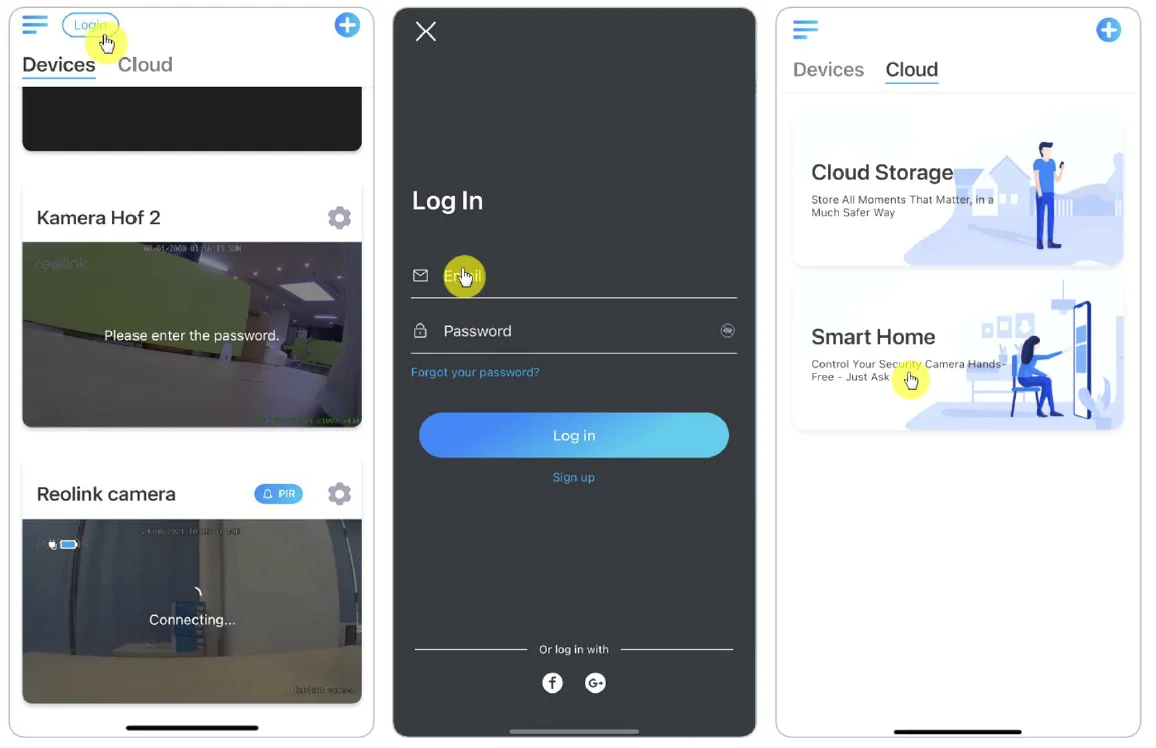
- Launch the Reolink App to tap login to log in to your Reolink account and go to Cloud > Smart Home.

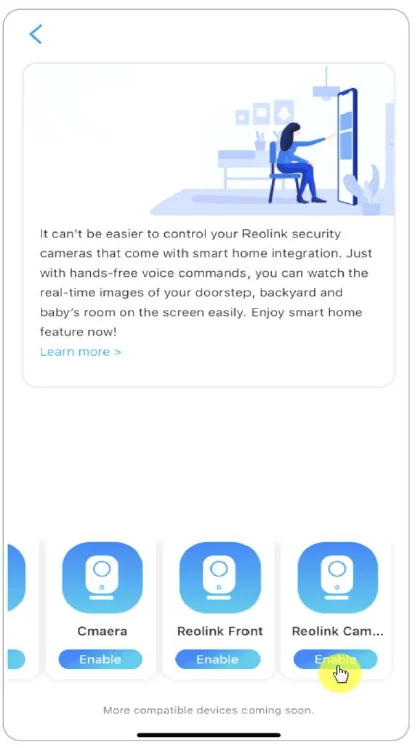
- Tap Enable to add the device to Amazon Alexa in the Smart Home page.
Note: Only when it turns to disable that mean the smart home feature is enabled.
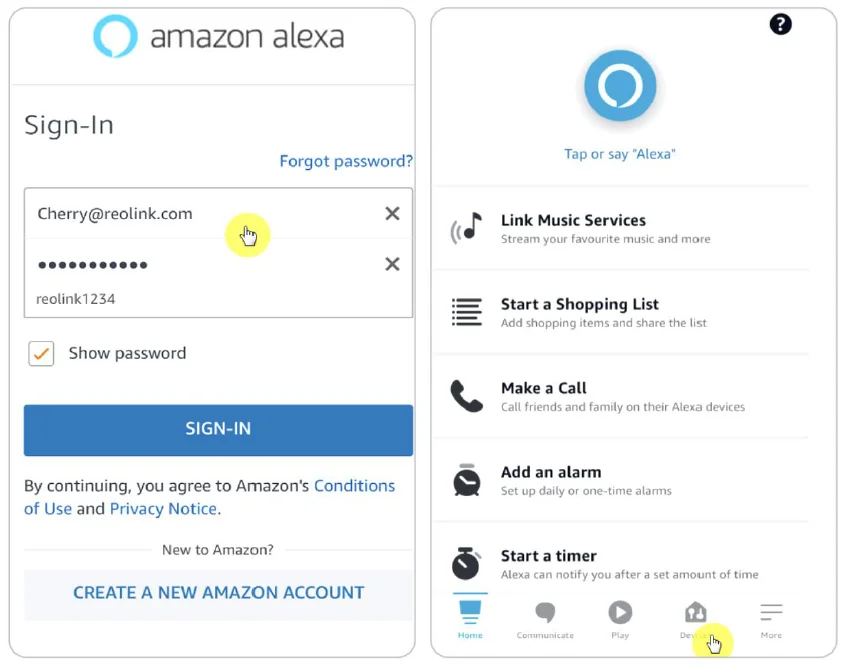
- Launch the Amazon Alexa App, sign in to your Alexa account, and then tap on Devices in the bottom right corner.

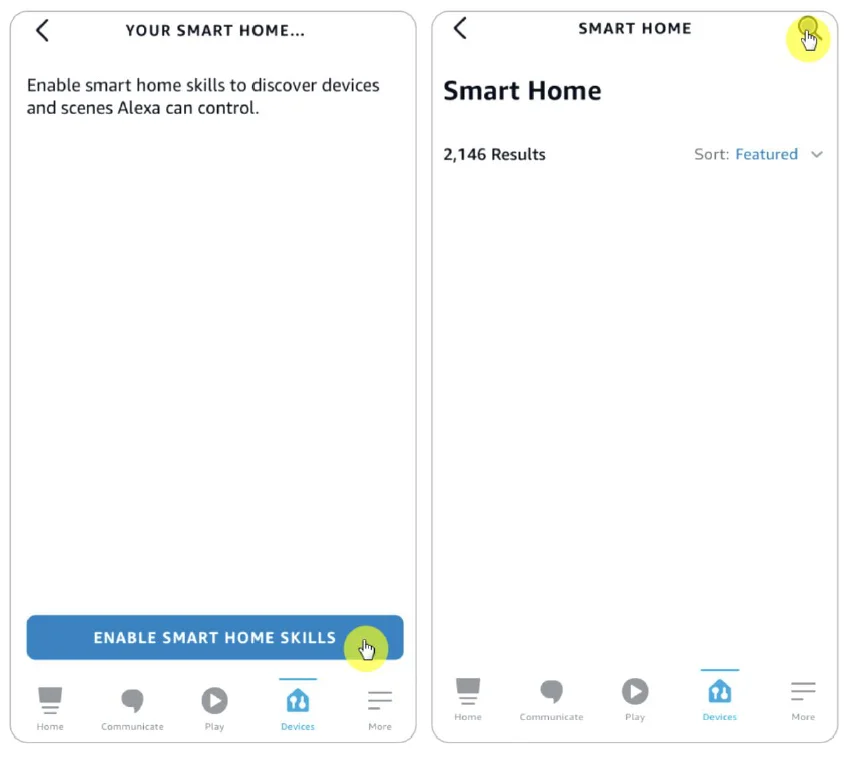
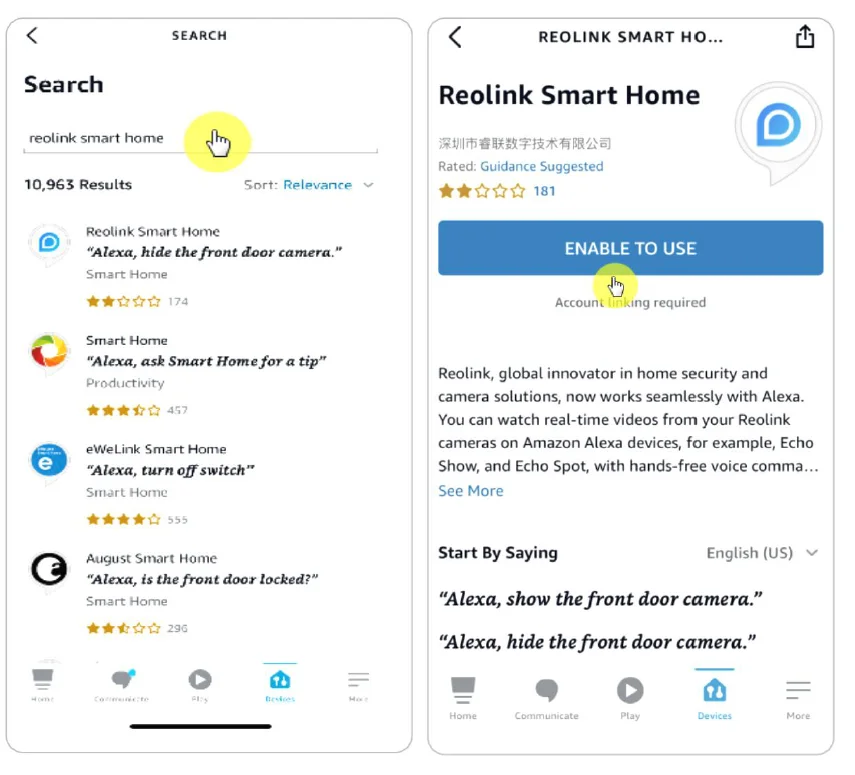
- Select Your Smart Home Skills and tap Enable Smart Home Skills. Please tap the Search icon at the top right corner and search Reolink Smart Home.

- After searching and finding Reolink Smart Home, tap ENABLE TO USE.

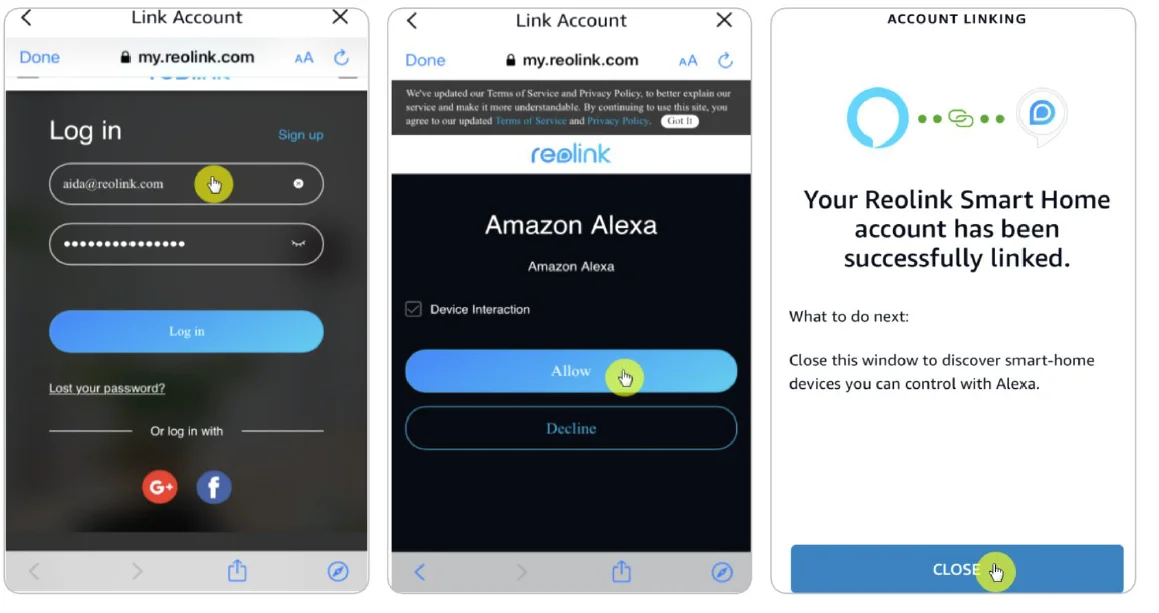
- Type in your Reolink account, and then Tap Log in. After logging in successfully, tap Allow. The app will remind you that “Reolink Smart Home has been successfully linked”. Tap Close to go to the next step.

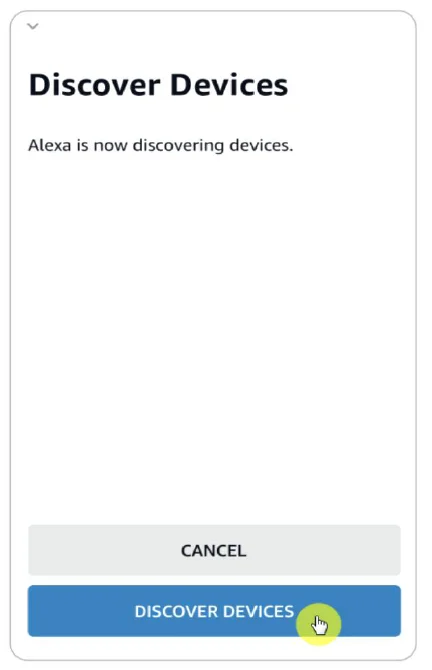
- Tap on Discover Devices or say the voice command “Alexa, discover devices”. Alexa will scan and show the cameras bound to your Reolink account.

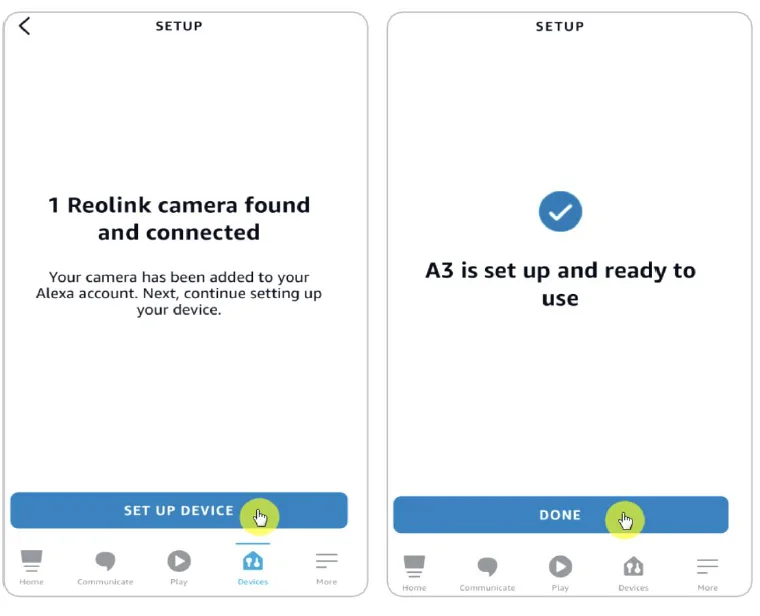
- Tap Set up Device. You can tap Choose Group to add your device to a group if you want to, or you can skip this step and tap Close to finish the setup.

- Done! Now you’ve added the Reolink camera to Amazon Alexa successfully. To test your camera, turn on the Amazon device and say “Alexa, show [name of the camera]” to view the live feed and say “Alexa, stop [name of the camera]” to stop the live feed.
FAQs and Troubleshooting
FAQs
Q1: Can the Recordings Saved to the FTP Server be Overwritten?
A: Sorry to tell you that our device does not have permission to delete FTP files. Whether the recordings saved to the FTP server can be overwritten depends on the function of the FTP server. Some FTP servers support the overwrite function, and you can set it on FTP.
Q2: Specification of Ethernet Cables that Reolink PoE Cameras Require.
A: Reolink PoE cameras support T-568B connectors and CAT5, CAT6, and CAT7 with an 8-pin Ethernet cable. You may buy an Ethernet cable like the one in the link. The maximum cable length that the camera supports is 80 meters (264feet).
Q3: Which PoE Injector/Switch Can I Use for Reolink PoE Cameras?
A: The PoE injector/switch is not included in the package of our product, and it’s not sold in Reolink stores. You may purchase the PoE injector/switch separately. Please refer to the standards we support below: For Reolink RLC-423, you need to make sure that the PoE injector/switch is 802.3at compliant (48V) and supports active mode. For other Reolink PoE camera models, please make sure that the PoE injector/switch is 802.3af compliant (48V) and supports active mode.
Q4: Can Two Cameras be Connected via One Cable?
A: Reolink PoE cameras can be powered over the Ethernet cable, and the Ethernet cable can transmit both data and power. You may run 1 Ethernet cable from the NVR to a PoE switch, then plug 2 cameras (up to 3 cameras) to the PoE switch. However, please don’t split 1 Ethernet cable into 2 RJ45 connectors, as 1 PoE port can’t provide enough power for 2 cameras. Also, the Ethernet splitter doesn’t support 2 cameras to connect to the network at the same time.
Q5: Can I Rotate Camera Image 90 Degrees?
A: Rotating an image 90 degrees is not supported. Please note that mounting cameras sideways is not recommended.
Q6: Can I Play back or Download Recordings Remotely?
A: If you access the camera with the user accounts of an admin user, you can play back and download recordings remotely. But if you access the camera with the user accounts of a common user, you cannot do that.
Q7: Can I Download All Recordings at Once on the Reolink App?
A: No, Reolink App only supports downloading one file at once. And the video is cut into a moderate length by default. You can customize the video length (up to 120 seconds).
Q8: Can this camera record continuously?
A: Yes, the camera of the latest firmware supports continuous recording.
Q9: Can I use Reolink Cameras with iCloud?
A: Due to the hardware and software limitations, the cameras temporarily do not support iCloud, but you can use the cameras with the Reolink cloud storage. The models that support the Reolink cloud storage: Argus 2, Argus Pro, Argus PT, Argus Eco, Reolink Go, Reolink Go PT, Reolink E1, Reolink E1 Pro, E1 Zoom, Reolink Lumus.
The countries that support the Reolink cloud storage: United States, Canada, Australia, New Zealand, Thailand, Vietnam, Malaysia, South Korea, Philippines, Indonesia, Hong Kong (China), Macau (China), Israel, Qatar, Bahrain, United Arab Emirates, Saudi Arabia, Kuwait, Lebanon, Singapore.
Q10: Can I Add a PoE Switch Between the Reolink PoE Cameras and the Reolink PoE NVR?
A: Yes. But we don’t recommend connecting in this way. If you have to connect in this way because of the inconvenience of hooking multiple wires in scenes like between two buildings, please make sure do not to add more than three cameras to the PoE switch and then connect the switch to the PoE port on the NVR.
If you add more than 3 cameras to one PoE switch and connect the switch to the PoE port on the NVR, the video stream may be delayed or frozen.
Troubleshooting
Camera Is Not Powered up
If your camera is not powered up, please try the following solutions:
- Please change to another working adapter/working cable/working port to connect the camera.
- Please refer to this user manual to reset the camera.
- Then, please cover the day/night sensor or place the camera in a dark environment to check if the IR lights are on.
The camera does not work with the third-party software
Reolink IP cameras (battery-powered models not included) are ONVIF2.1 compliant, which means they can be added to some third-party surveillance software for monitoring and recording. For the surveillance software you mentioned, sorry that we’re not able to assure you that it will be fully compatible with Reolink cameras, as we didn’t test it or make any adaptations. Those we have tested and guarantee compatibility can be seen at https://reolink.com/3rd-party-compatibility/. Fail to upgrade the firmware If you fail to upgrade the firmware for your camera, here are some steps for your confirmation:
- Check what the firmware version of your camera is, and what the firmware version you want to upgrade. The camera model and hardware number should match, this way to make sure you upload the correct firmware.
- Ensure to unzip the downloaded zip file and check the format of the file a pak. file.
- Re-download the firmware to try upgrading again.
- Reset the camera to factory settings, then try to upgrade the firmware again.
For more manuals by Reolink, visit ManualsLibraryy
Reolink PoE Camera-FAQs
How do I set up a Reolink PoE Camera for the first time?
To set up a Reolink PoE Camera, connect it to a PoE switch or injector using an Ethernet cable. Install the Reolink app or client on your phone or PC, then allow it to detect the camera automatically. Create a password, assign a name, and complete the setup. Within minutes, your camera will be ready for live viewing and recording.
Can I use a Reolink PoE Camera without an NVR?
Yes, a Reolink PoE Camera can work without a Network Video Recorder (NVR). You can connect it directly to a router, PoE switch, or even a computer. The camera will still allow live viewing and basic recording via the Reolink app or software, making it a flexible option for smaller or simple surveillance setups.
How does a PoE camera work?
A PoE (Power over Ethernet) camera uses a single Ethernet cable to transmit both power and data. This eliminates the need for separate power cables, simplifying installation. Once connected to a PoE switch or injector, the camera sends video footage to your network, where it can be accessed through apps or recording systems.
Can I connect a Reolink PoE Camera directly to a PC?
Yes, you can connect a Reolink PoE Camera directly to a PC using a PoE injector or PoE switch. Since computers do not supply power through Ethernet, the injector provides the necessary power. After connecting, install the Reolink client software to detect and manage the camera easily from your computer.
Can a Reolink PoE Camera connect directly to a router?
A Reolink PoE Camera can connect directly to a router only if the router supports PoE. If it doesn’t, you’ll need a PoE injector or switch to supply power. Once connected, the camera integrates into your network, allowing remote access, live streaming, and configuration through the Reolink app or client.
How can I find the IP address of my Reolink PoE Camera?
To find the camera’s IP address, install the Reolink app or desktop client and open the device settings. Navigate to the network section where the IP address is displayed. This address helps you access advanced settings, troubleshoot connectivity issues, or integrate the camera into a larger surveillance system.
What is the maximum distance for a PoE camera connection?
The standard maximum distance for a PoE camera is about 100 meters (328 feet) using a single Ethernet cable. Beyond this range, signal strength and power delivery may drop. For longer distances, you can use PoE extenders or switches to maintain stable performance and continuous video transmission.
How much power does a Reolink PoE Camera use?
Most Reolink PoE Cameras consume less than 8–10 watts of power, depending on the model and features like night vision or motion detection. This low power usage makes them energy-efficient while still delivering reliable performance, making them suitable for continuous operation in home or business security systems.
Can I use a Reolink PoE Camera without internet access?
Yes, a Reolink PoE Camera can function without internet if it’s connected to a local network. You can still view footage and recordings within the same network using the Reolink app or client. However, remote access, cloud features, and notifications will be limited without an active internet connection.
How do I improve video quality on a Reolink PoE Camera?
To enhance video quality, adjust settings like resolution, frame rate, and bitrate in the Reolink client or app. Ensure proper lighting and position the camera correctly to avoid glare or obstructions. Using high-quality Ethernet cables and a stable network connection also helps maintain clear and consistent video output.