
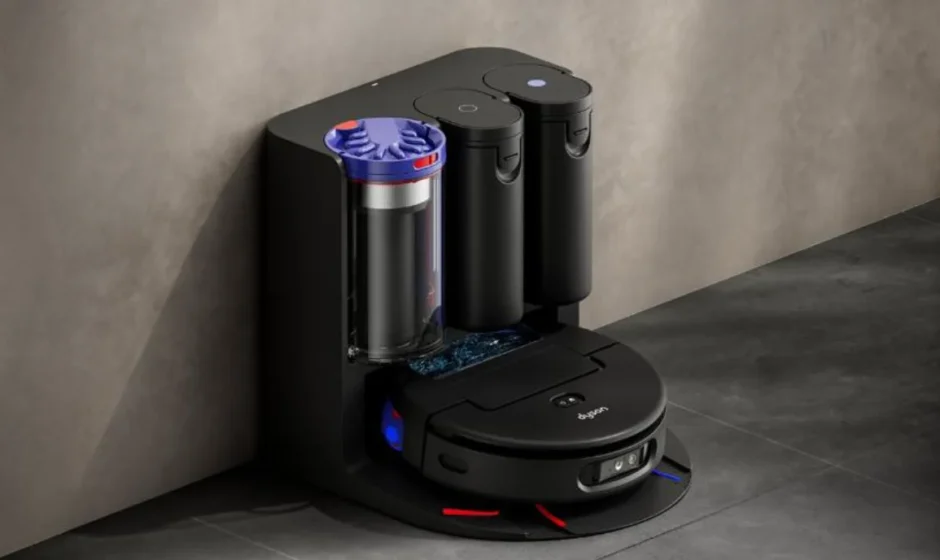

Dyson Spot+Scrub Ai Robot Vacuum Cleaner
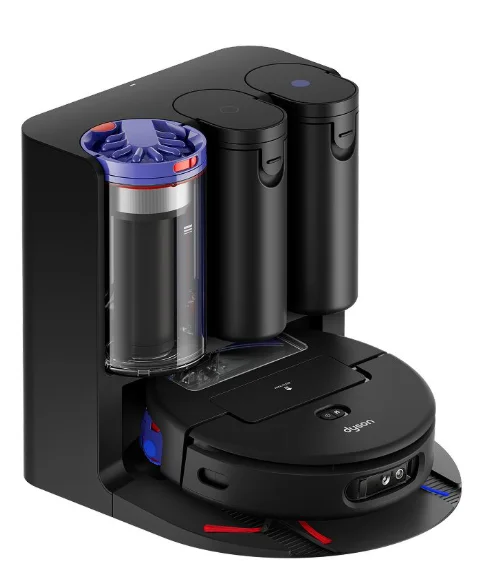
In the box
Dyson Spot+Scrub™ Ai wet and dry robot vacuum cleaner
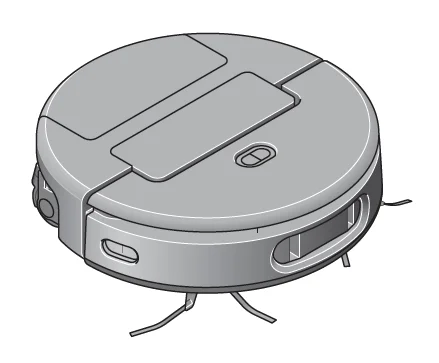
- Dyson Spot+Scrub™ Ai wet and dry robot vacuum cleaner.
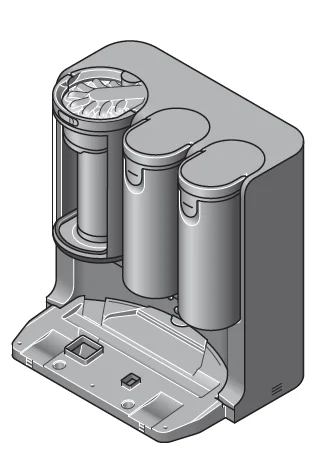
- Docking station
Self-empties, self-cleans, refills, and recharges. All automatically.
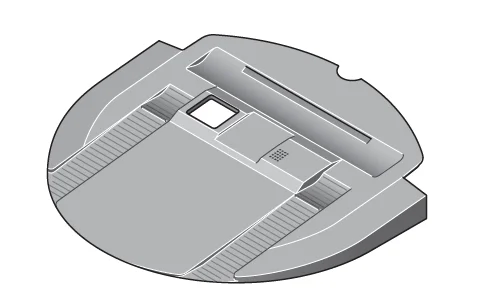
- Docking ramp
Stores your robot off the floor and helps connect it to your docking station.
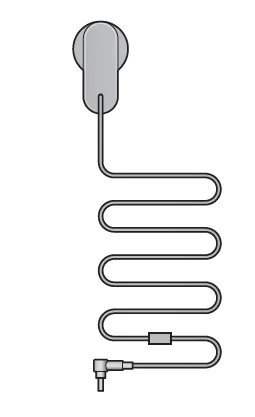
- Charging cable
Connects your docking station to a power supply.
Getting started
Robot cleaner
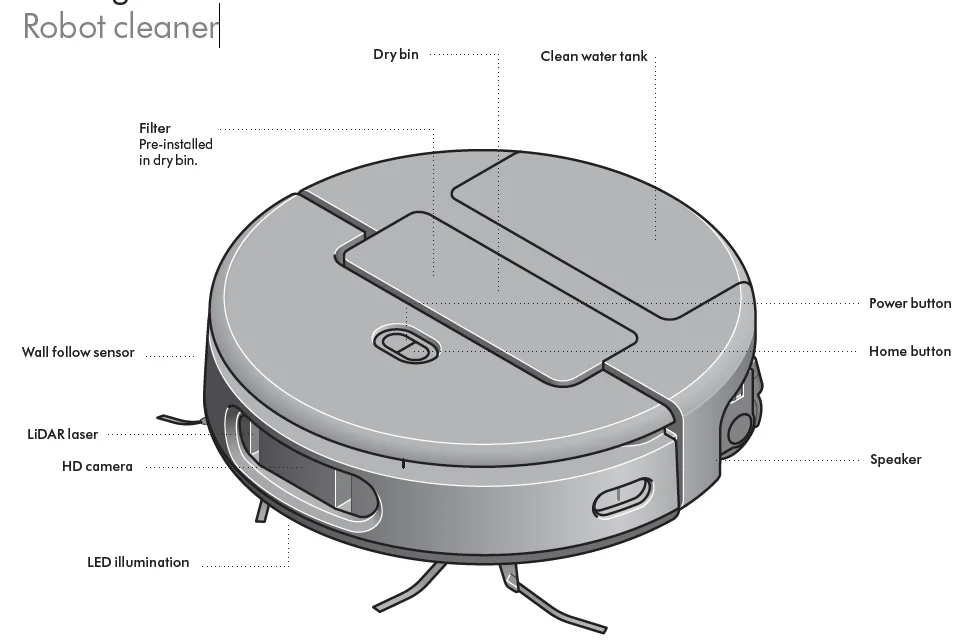
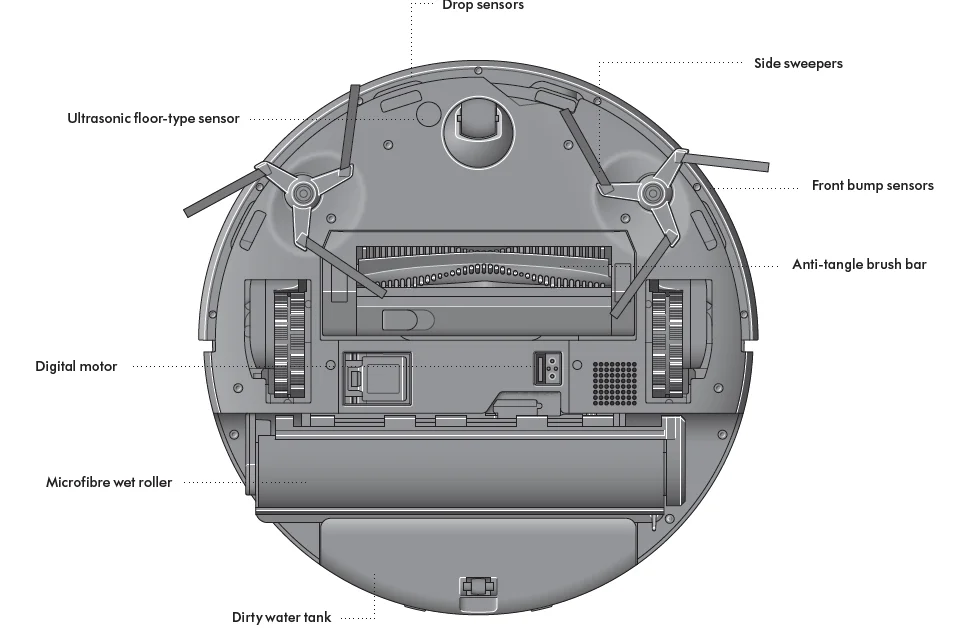
Docking station 

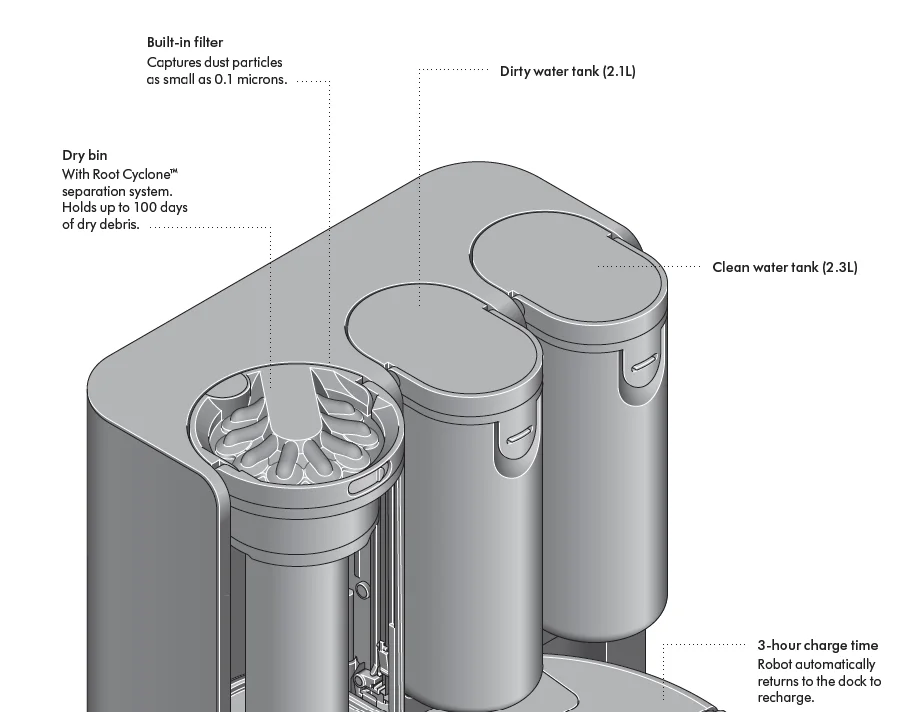
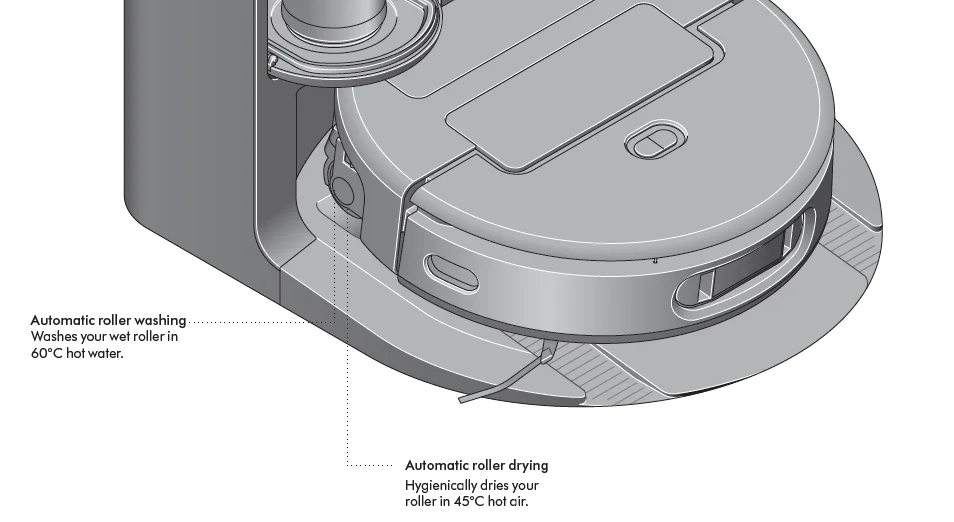
Setting up your docking station
Assembling your docking station
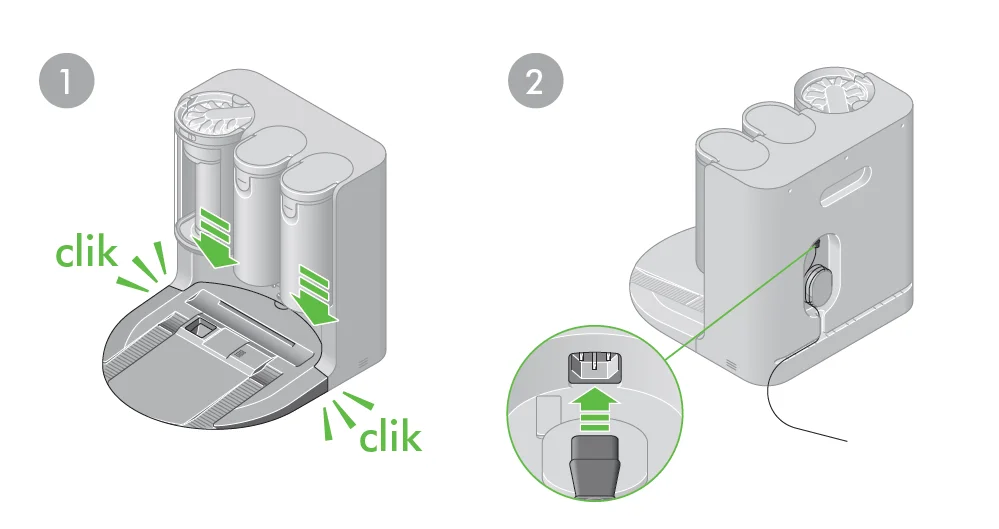
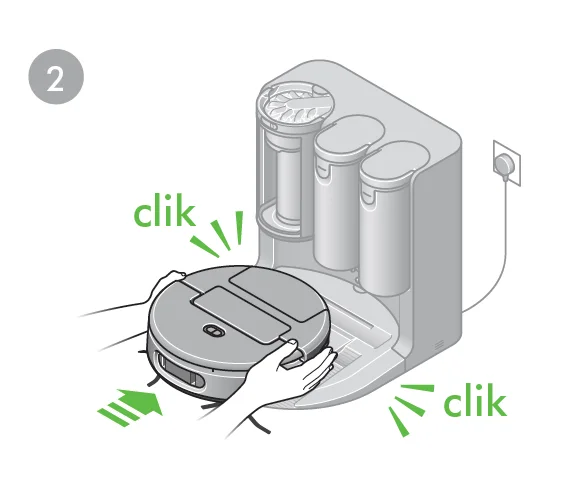
- Align the docking ramp with your docking station and press down until it clicks into place.
- Plug the charging cable into the back of your docking station and connect to the mains power supply. A white LED will light up when power is connected.
- Wrap any excess cable around the cable tidy on the back of the docking station.
Choosing a location
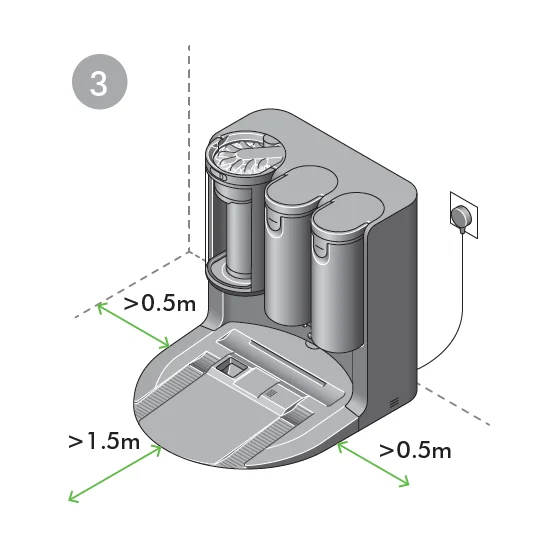
The docking station should be located against a wall, on a level surface, close to a mains power supply. Make sure the position is out of bright sunlight and not obscured under a table or other furniture. The docking station also needs to have at least 50cm of clear space around the sides and at least 1.5m in front.
Adding formulation and filling your clean water tank
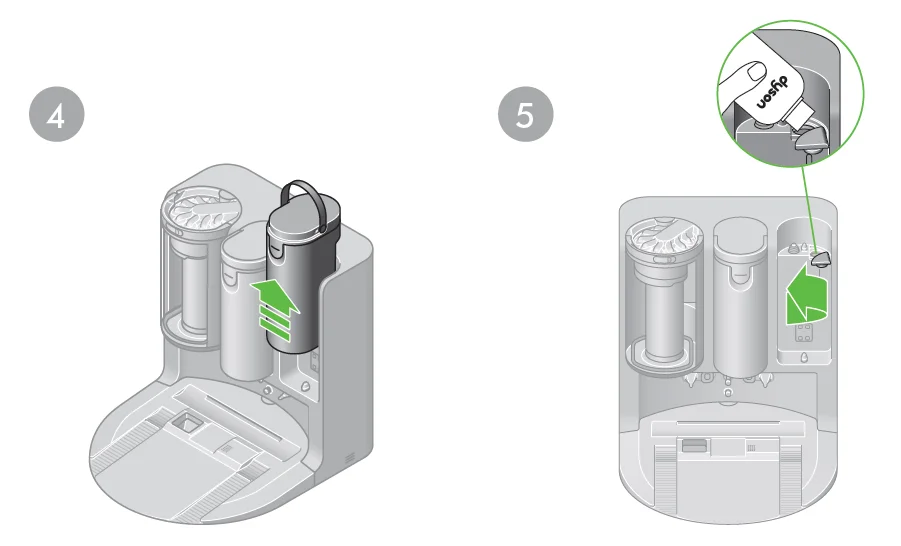
- Use the handle to lift the clean water tank out of your docking station. Remove the rubber formulation cap located on the back of your docking station. Fill with Dyson 02 Probiotic hard floor cleaning solution – available to purchase separately – up to the ‘Max’ mark and replace the rubber cap.
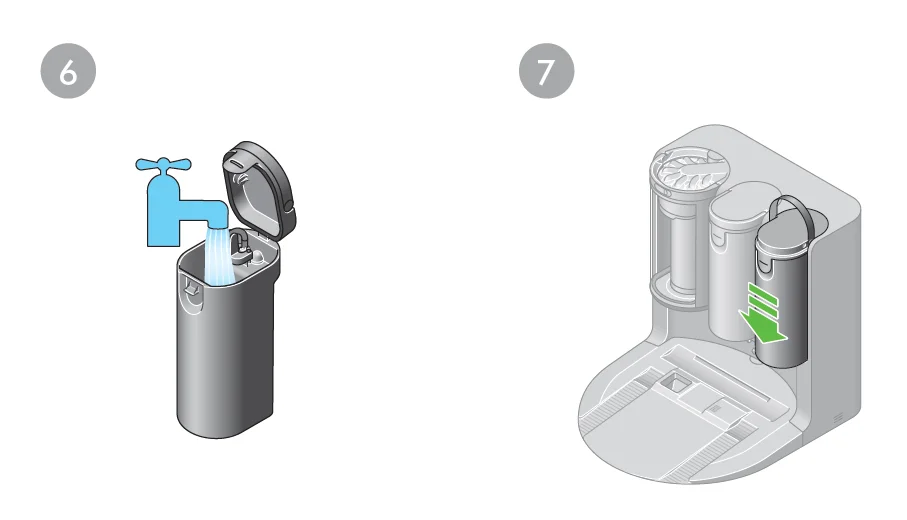
- Open the lid of the clean water tank and fill it with clean water until it reaches the ‘Max’ mark. Close the lid and place the tank back into your docking station.
Setting up your robot
First, remove the foam protectors between the roller and the front bumper.
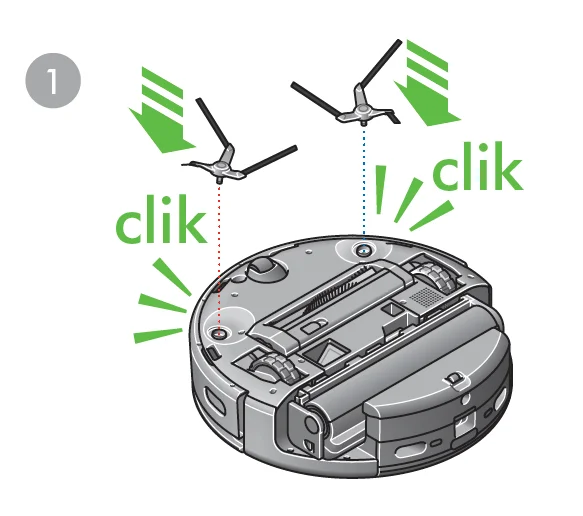
- Attach your side sweepers
Turn your robot over on a soft surface. With the water tank at the bottom, click in the side sweepers: red on the left, blue on the right.
- Plug in and charge
Place your robot on the docking station. The top Power button will pulse white to show your robot is charging.
- Standby power
To save energy when it’s on the docking station, your robot will go into standby mode and the Power and Home buttons will dim. You can activate your robot by pressing the Power or Home buttons, or by using the MyDyson™ app or voice control.- Powering off
If you need to turn off your robot’s power, take it off the docking station and press and hold the Power button until your robot turns off. Place your robot back on the docking station and it will automatically turn on again.
- Powering off
Downloading the MyDyson™ app
Control your robot – wherever you are. You can start cleaning, check your robot’s progress, schedule a clean before you get home, or troubleshoot a problem using your smartphone. If you haven’t already, download the MyDyson™ app to access all your robot’s available features and the latest software updates. You can download the app now from the App Store or Google Play. Then open the app on your smartphone and follow the on-screen instructions to create a new account.
Apple, the Apple logo, and Siri are trademarks of Apple Inc. App Store is a service mark of Apple Inc. Google Play, the Google Play logo, and Google Assistant are trademarks of Google LLC.
Connecting your robot
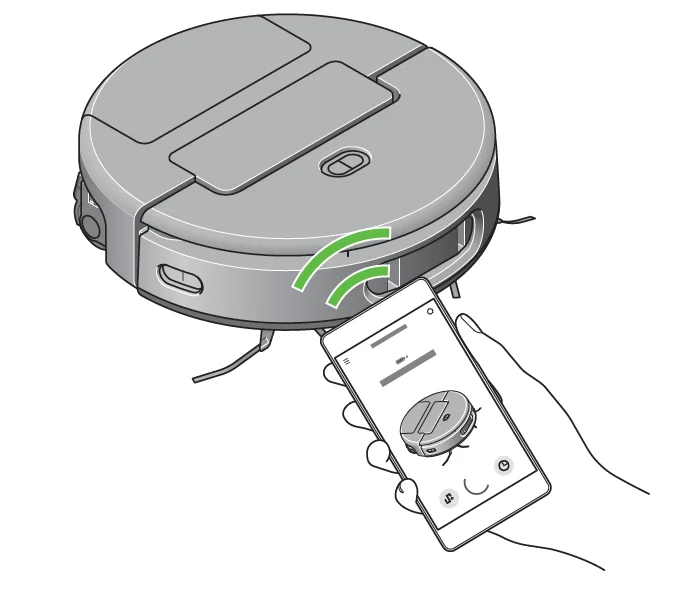
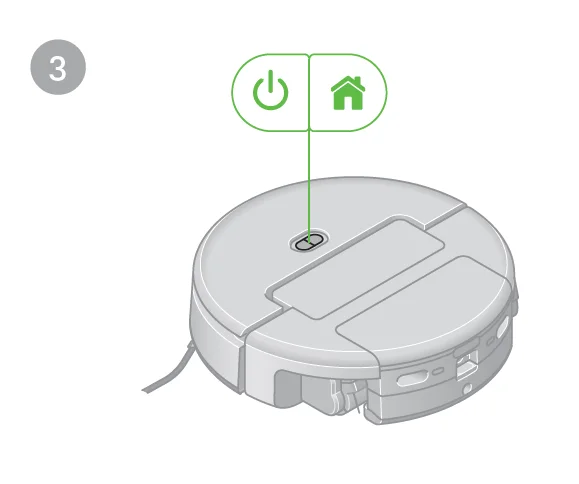
- Place your robot in the docking station and ensure the dock is switched on and powered.
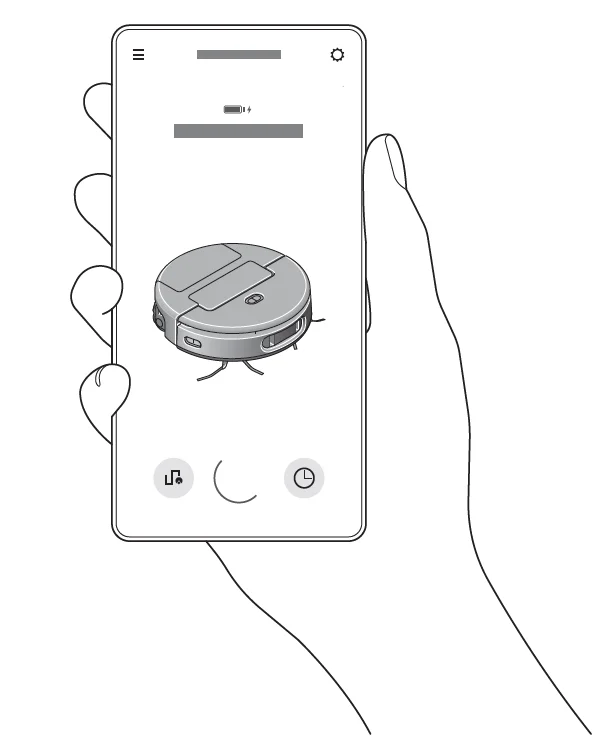
- Open the MyDyson™ app and follow the on-screen instructions for pairing your robot.
- Press both the Power button and the Home button simultaneously to confirm the connection journey.
Connection problems
Your robot accesses the Internet through your home Wi-Fi network. If your robot fails to connect, an alert will be displayed in the app. Click the alert to diagnose the problem. If your robot is not connected to your Wi-Fi router or the Internet, try the following:
- Out of Wi-Fi coverage
Your robot may be too far from your Wi-Fi router, causing it to lose connection. Bring your robot closer to the Wi-Fi router. Your robot should automatically reconnect. - Automatic shutdown
Your robot may have powered off to save battery after being idle and away from the dock for 30 minutes. Press and hold the power button for 3 seconds to power on your robot. - Abnormal network connection
The robot, docking station, and router may be connected abnormally. Restart your robot. Your robot should automatically reconnect after. - Router issues
Your robot may not be able to connect due to:
- router restarting
- change in Wi-Fi name or password.
- router is blacklisting the robot
- the channel your router is on
Resolve the router issue and check if your root reconnects. If the issue persists, switch to another Wi-Fi and try reconnecting or contact Dyson support: www.dyson.com/support
Changing or adding a new Wi-Fi network
Open the product settings tab in the MyDyson™ app and scroll down to ‘Change Wi-Fi Network’. Follow the on-screen instructions to add a new Wi-Fi network.
Mapping your home for the first time
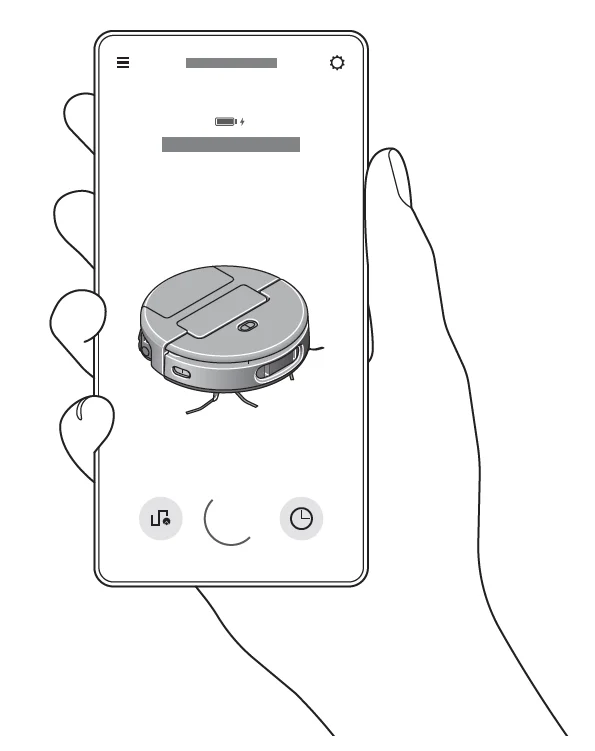
Unlock intelligent features with the MyDyson™ app
Your robot works in tandem with the MyDyson™ app to intelligently navigate and deep clean your home. Easily connect to see where it’s cleaned, manage your maps and customise your robot’s behaviour. Creating a map of your home with the MyDyson™ app lets your robot learn the layout. This gives you more control over where and how your robot cleans areas of your home.
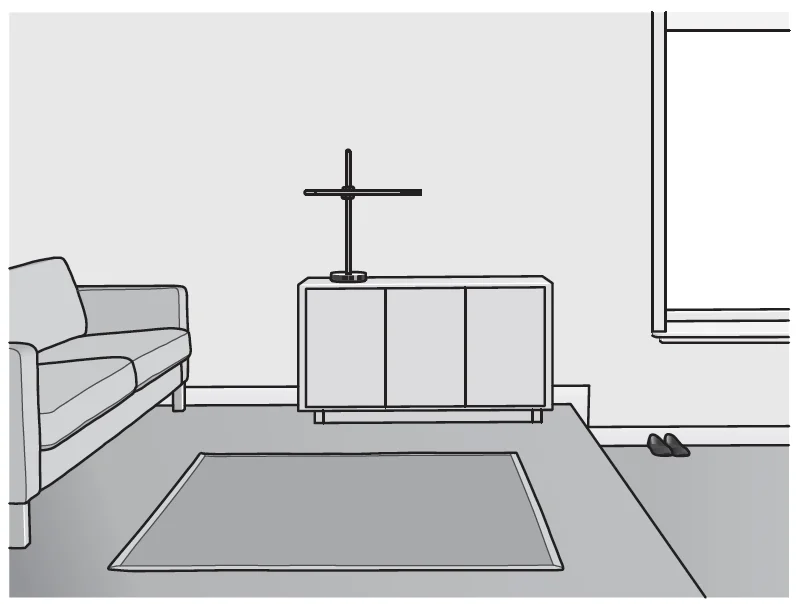
Preparing to map your home
Before mapping, it’s a good idea to tidy up any loose objects from the floor that your robot might suck up. Tidy away any small items such as shoe laces, thin cables or small objects. Open internal doors, close external doors, and remove any furniture that isn’t permanent. Place your robot on the docking station to start mapping. Building a complete map can take time and depends on the size of your home. During the mapping process, leave your robot to create your map. It will return to the docking station by itself when mapping is complete.
During mapping
Your robot follows an optimised route to systematically map your home, with the brush bar and suction turned off to save power and minimise the time taken. For best results, avoid interrupting your robot while it’s mapping.
Pausing or cancelling mapping
Although you can’t cancel the first map, you can pause, resume or cancel subsequent mapping at any time using the MyDyson™ app.
Multiple floors
If your home has more than one floor level, you can create a map for each storey of your home. Move your robot to a suitable starting point on the new floor level and start mapping using the MyDyson™ app.
Managing your map
Once you’ve created a map, follow the instructions on the MyDyson™ app to split, merge and rename rooms to reflect the layout of your home. Once you’ve divided your map into different rooms, you can choose when and how each room is cleaned.
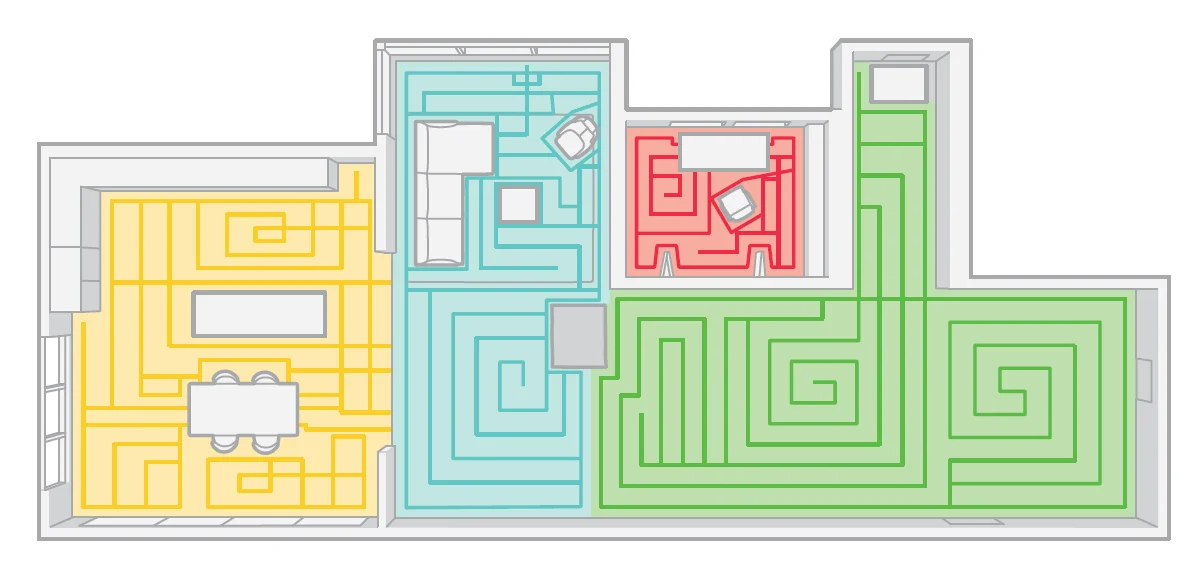
Adding rules
You can use the MyDyson™ app to add directions or set rules for different rooms on your map:
- Avoid area – your robot will avoid cleaning this area.
- Climb threshold – your robot will try to climb over small, raised obstacles.
- Wash only – your robot will only wash this area, using its wet roller.
- Vacuum only – your robot will only vacuum this area, using its brush bar and side sweepers.
Scheduling and reviewing cleans
Scheduling cleans
Use the MyDyson™ app to schedule cleans for times when you’re not at home, or to clean high-traffic areas like hallways more frequently.
Reviewing cleans
After every clean, your robot will share its activity history on the MyDyson™ app. You can use this to review where your robot has cleaned, or where it encountered stains and spills.
Starting a clean
Use the MyDyson™ app to start your clean. Start with your robot in the docking station, or pick up your robot and move it to a specific location. You can choose a customised clean of one room, or select multiple rooms on your map in the MyDyson™ app. Your robot will clean according to your instructions, following the room divisions and rules you apply in the MyDyson™ app.
Customising cleans
- Pick a room or a selection of rooms to clean.
- Edit the cleaning settings for your selected room.
- The order in which you select your rooms will define the order in which your robot will clean them.
- You can also select ‘Target clean’ for a specific area on your map.
Clean type
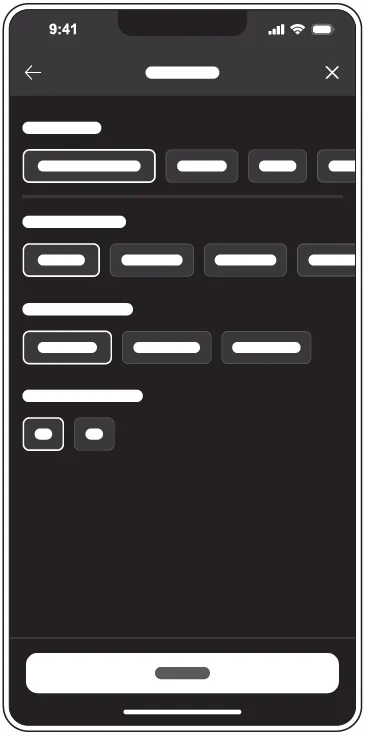
Choose from the following cleaning types before you begin cleaning:
- Vacuum and wash simultaneously – your robot will automatically detect the floor type as it vacuums and cleans the selected areas.
- Vacuum only.
- Wash only.
- Vacuum then wash – your robot will vacuum all carpets and rugs, then complete the cleaning by washing hard floor areas.
Settings for Vacuum mode include:
- Auto mode – your robot intelligently adapts cleaning performance to match the current floor type and situation.
- Quick mode – your robot will prioritise open areas and perform a zigzag cleaning pattern for a shorter cleaning time.
- Quiet mode – a low-intensity cleaning mode that cleans all accessible areas as quietly as possible.
- Boost mode – a high-intensity mode that vacuums all selected areas as thoroughly as possible.
Settings for Wash mode include:
- Hydration level – Level 1, Level 2 or Level 3. This setting fine tunes how much water your robot uses to wash your floors, to suit your preferences and individual floor types.
- Wash repetitions – 1x or 2x. This setting washes hard floors in your chosen room(s) once or twice, for a more thorough clean.
Starting from a different location
To clean a different storey or level of your home, move the robot to its starting location and select the appropriate map from the ‘Manage maps’ tab. Then start the clean from the ‘Overview’ tab. Your robot will clean all the accessible space it can reach on a single charge. In this scenario, your robot won’t return to the docking station to charge when its battery is low, but instead return to its starting point.
Looking after your robot
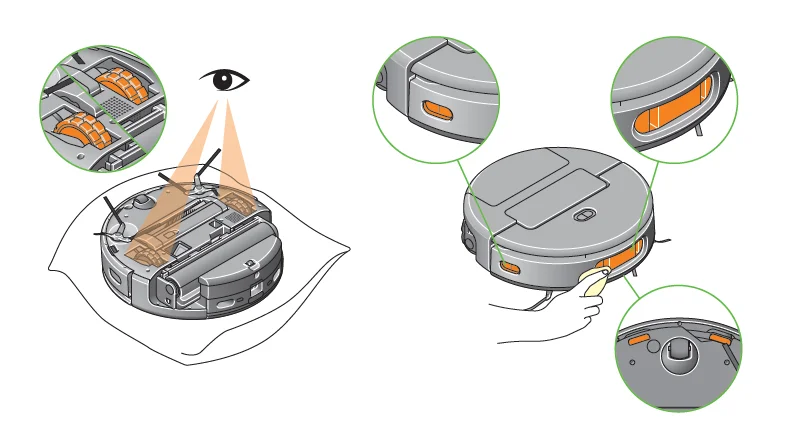
For optimum performance, clean your robot frequently and check
underneath and around the wheels for any obstructions.
- If your robot is dusty, wipe the machine and the front sensor array with a dry, lint-free cloth.
- Do not place any part of your machine in a dishwasher, or use detergents, polishes or air fresheners to clean it as this could damage your machine.
- Ensure your robot software and features are always kept up to date by enabling automatic updates in the MyDyson™ app.
Cleaning your robot’s dirty water tank
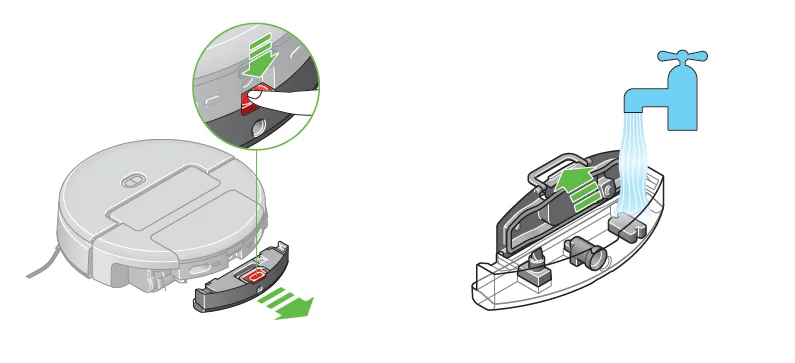
Push the red button down and slide the dirty water tank out from the front of your robot. Then lift the silver catch and open lid. Wash and rinse under running water. Slide back into the front of your robot until it clicks into place.
Cleaning your robot’s dry bin
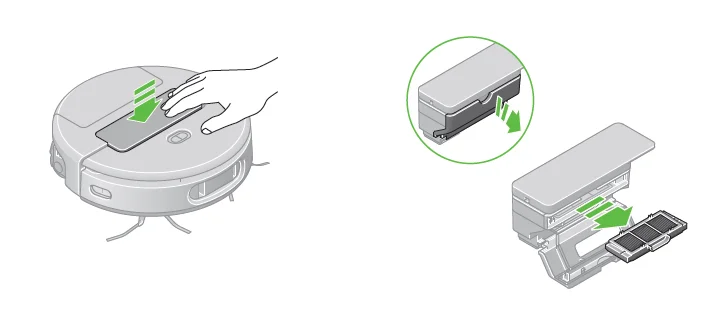
Turn your robot off. Gently press the bin and filter assembly on the top of your robot, and it will pop up. Lift the assembly out of your robot.
Open the side panel, slide the filter tray out and set it aside. Wash and rinse the bin under running water. Leave the bin to dry for at least 24 hours, and make sure it’s completely dry before refitting.
Emptying your docking station’s dirty water tank
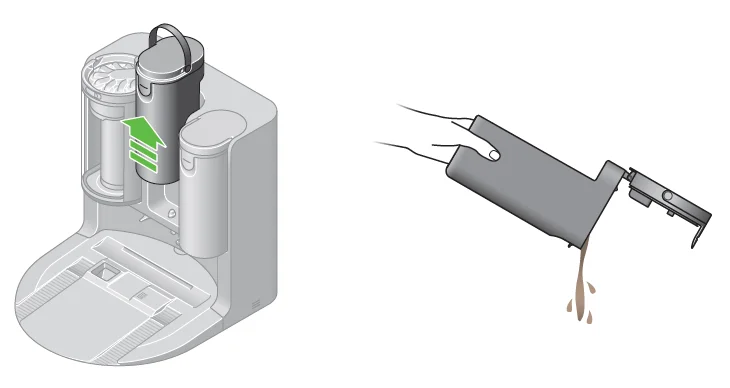
Lift the tank vertically out of your docking station using the handle. Unclip the lid and tip the contents into a sink or toilet. Rinse in warm water and wipe clean, then allow to dry before refitting.
Cleaning your docking station’s clean and dirty water tanks
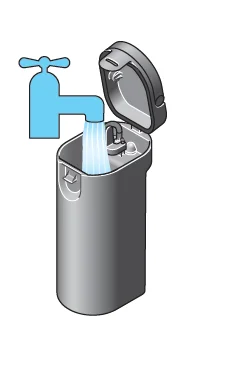
We recommend cleaning periodically to maintain hygiene. Remove the tank from the docking station. Unclip the lid and tip out the contents. Wash in mild soapy water, rinse and wipe clean, then allow to dry
before refitting. Please do not wash your water tanks in a dishwasher.
Looking after your battery
Your machine won’t operate or charge if the ambient temperature is below 5°C (41°F). This is designed to protect both the motor and battery. For more information and support videos for your machine, visit our support pages online: www.dyson.com/support
Checking for blockages
Checking your docking station’s bin for blockages
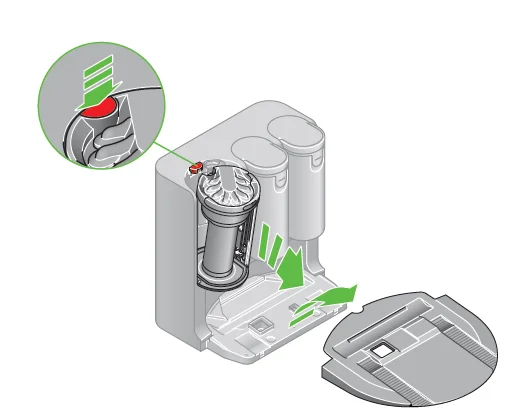
Press the red release button on the top of the bin and pull it out of the
docking station. Check for any debris in the airway behind it.
Checking the docking station ramp for blockages
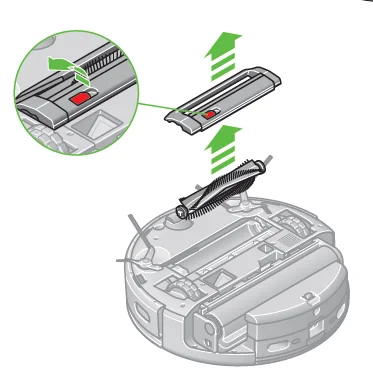
Pull upwards and unclip the ramp from your docking station. Wash and wipe it clean, check the docking station airways are unobstructed, then leave the ramp to dry fully before clicking it back into place.
Checking your robot’s brush bar for obstructions
Turn your robot over on a soft surface and remove any threads, hair or other debris from the brush bar that may cause an obstruction.
Lift the red tab on the brush bar cover and remove the cover. You can now remove the brush bar for cleaning, and check for any debris or obstructions to the airways inside.
Checking your robot’s wet roller for obstructions
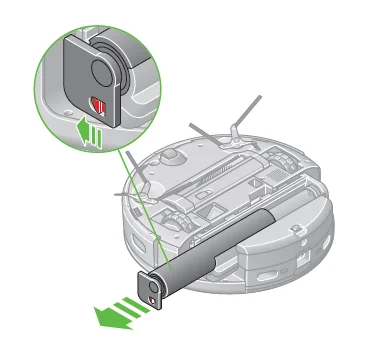
Turn the robot over on a soft surface. Push the silver button in the corner of the wet roller unit down, then slide the unit out of your robot. Push the red button to release the end cap holding the wet roller and slide the roller out of the unit. Check for any hair or debris causing an obstruction to the rotation of the wet roller.
Checking your robot’s bin and filter for blockages
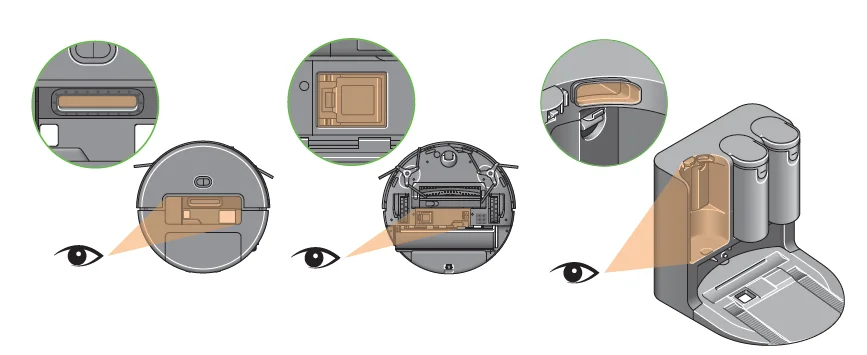
Turn your robot off. Gently press the bin and filter assembly on the top of your robot and it will pop up. Lift the assembly out of your robot.
With the filter assembly removed, check the airways inside your robot for any obstructions. Check the bin and filter assembly for blockages by opening the side panel. Slide the filter tray out to check for any debris.
Checking your robot’s dirty water tank for blockages
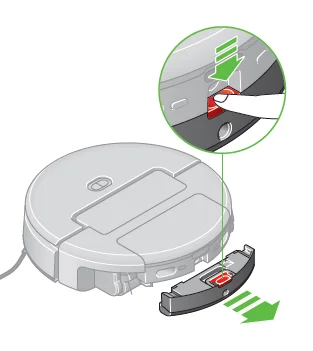
Push the red button down and slide the dirty water tank out from the front of your robot. Check for any blockages or obstructions on the tank and inside your robot. Once dry, slide back into the front of your robot until it clicks into place.
Checking the wheels for obstructions
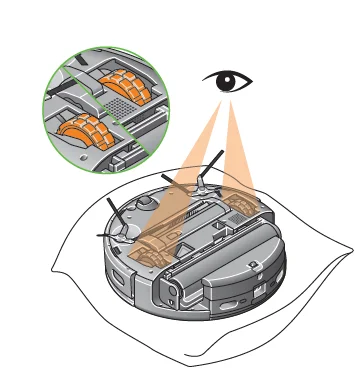
Turn your robot over on a soft surface. Check the wheels are clear of any threads, hair or other debris that may cause an obstruction.
Alerts
- Notifications will appear in the MyDyson™ app to alert you that your robot needs attention. Follow the instructions in the app to clear the alert.
- Once an alert has been cleared, you can resume cleaning by placing your robot on the floor, then press the Start button to resume.
- If you’re unable to clear the alert, contact a Dyson Expert using the MyDyson™ app.
- Area unreachable
Please clear the area of obstructions to continue the clean. - Battery low
Place your robot on the docking station to recharge. - Battery temperature too high
Your robot’s battery temperature is too high to clean. Place your robot back on the docking station and wait for it to cool down. Your robot is engineered to work within a temperature range of 5-40°C. - Brush bar stuck
The brush bar has stopped spinning. Lift your robot and check there are no obstructions around the brush bar. Follow the ‘Maintaining your brush bar’ instructions to remove the brush bar and check the recess inside. Set up an ‘Avoid area’ rule in the MyDyson™ app if this alert continues to occur in a specific area of your home. - Camera obstructed
Check your robot’s camera and sensors for dirt, dust, fingerprints and smears, and wipe clean with a dry, lint-free cloth. - Cleaning solution empty
Use the handle to lift the clean water tank out of your docking station. Remove the rubber formulation cap located on the back of your docking station. Fill with Dyson 02 Probiotic hard floor cleaning solution, or your preferred cleaning formulation, up to the ‘Max’ mark. - Collision sensor obstructed
Please clear the collision sensor of any foreign objects. - Communication error
Your robot is unable to communicate with the docking station. Check your robot is correctly positioned and connected to the docking station. - Communication failure
Your robot is unable to communicate with the docking station. Check the power is connected. Check your robot is correctly positioned and connected to the docking station. - Docking station bin not detected
Check the docking station bin is connected properly. Your robot won’t clean if the bin is missing or incorrectly fitted. - Docking station clean water pump error
Restart your robot and docking station and try again. If the fault persists, please contact a Dyson Expert using the MyDyson™ app. - Docking station clean water tank empty
Please add water to the docking station’s clean water tank. - Docking station clean water tank not detected
Check the docking station’s clean water tank is connected properly. Your robot won’t clean if the clean water tank is missing or incorrectly fitted. - Docking station dirty water tank not detected
Check the docking station’s dirty water tank is properly connected. Your robot won’t clean if the dirty water tank is missing or incorrectly fitted. - Docking station dirty water pump error
Restart your robot and docking station and try again. If the fault persists, please contact a Dyson Expert using the MyDyson™ app. - Docking station dirty water tank full
Please empty the docking station’s dirty water tank. - Drop sensors obscured
Check your robot’s drop sensors for threads, dust or smears, and wipe clean with a dry, lint-free cloth. - Filter fault
Please check the docking station’s filter and replace if necessary. LiDAR sensor obstructed
Please clean the LiDAR sensor following the instructions in
‘Cleaning your sensors.
Resetting and upgrading software
How to enable automatic updates
Open the Settings menu in the MyDyson™ app and scroll down to ‘Software updates’. Slide ‘Auto update software’ to ‘On’. When an update becomes available for your robot, it’ll automatically download and install at the next available opportunity (when the robot is inactive, on the docking station and connected to Wi-Fi).
For more manuals by Dyson, visit ManualsLibraryy
Dyson Spot+Scrub Ai Robot Vacuum Cleaner-FAQs
How do you start the Dyson Spot+Scrub AI robot vacuum?
To start the Dyson Spot+Scrub AI Robot Vacuum Cleaner, place it on its dock and select a cleaning mode using the onboard controls or mobile app. Press the start button, and the robot will automatically map and clean accessible areas. It returns to the dock when the battery runs low.
Does the Dyson Spot+Scrub AI vacuum empty itself?
Yes, this robot vacuum features a self-maintenance system. It can automatically empty its dustbin, clean its mop components, and recharge without manual intervention. This reduces maintenance effort and makes it convenient for daily use, especially in busy households.
What are common issues with Dyson robot vacuums?
Some users may experience reduced suction, navigation issues, or battery-related concerns. These problems are often caused by clogged filters, full dustbins, or blocked airflow. Regular cleaning and maintenance usually resolve these issues and help maintain optimal performance.
How often should I clean the filter?
It’s recommended to clean the filter at least once a month. Remove the filter, rinse it with cold water, and allow it to dry completely for 24 hours before reinstalling. Regular cleaning helps maintain strong suction and improves the vacuum’s overall efficiency.
Why does the Dyson robot vacuum stop working suddenly?
The vacuum may stop due to overheating, low battery, or blockages in the system. Check for clogged filters, full bins, or tangled debris in the brush. Once the issue is resolved and the unit cools down or recharges, it should resume normal operation.
Can I use cleaning solutions in the water tank?
It is best to use only water or manufacturer-recommended cleaning solutions. Using chemicals like vinegar or disinfectants may damage internal components or affect performance. Always follow the product guidelines to ensure safe and effective operation.
How long does the Dyson robot vacuum take to charge?
The robot typically takes around 90 minutes to fully charge. Charging time may vary depending on usage and temperature conditions. During cleaning, the vacuum can return to the dock automatically to recharge before continuing unfinished tasks.
What are the disadvantages of a robot vacuum cleaner?
Robot vacuums may require regular maintenance like cleaning filters and brushes. They can struggle with heavy debris or tight spaces and may occasionally get stuck. Battery limitations can also affect cleaning large areas in one go.
How long does a Dyson robot vacuum typically last?
With proper care, a Dyson robot vacuum can last around 8–10 years. Regular maintenance, such as cleaning filters, emptying the bin, and checking for blockages, plays a key role in extending its lifespan and maintaining consistent performance.
How often should I use a robot vacuum for best results?
For optimal cleanliness, you can run the robot vacuum daily or every other day. In homes with less foot traffic, using it two to three times a week is sufficient. Frequent cleaning helps maintain dust-free floors with minimal effort.